


Are you publishing blog posts but not sure what your audience actually wants? It’s one of the most common frustrations for WordPress site owners. You’re putting in the work, but it’s hard to tell if it’s really connecting. 🤷
That’s where search analytics can be a game-changer.
By seeing what people search for, which posts get the most clicks, and where the real opportunities are, you can create content your audience truly cares about. This leads to better engagement and stronger results.
The best part? Setting up WordPress search analytics is easier than you think.
In this guide, we’ll show you 2 easy methods to set it up. By the end, you’ll have the insights you need to create content your visitors will love.
📚 TL;DR: You can use SearchWP to see what people search for on your website and MonsterInsights to find out how they discover your site on Google. This helps you make better content and improve your SEO.
What Is Search Analytics in WordPress?
In short, search analytics in WordPress refers to tracking what users search for, both on your WordPress website and in search engines, to better understand their interests and behavior.
It helps you see how people find your content, what they’re looking for once they’re on your site, and where you can improve the user experience.
In this guide, we’ll cover the two main types of search analytics: internal search analytics and external search analytics.
1. Internal Search Analytics
This shows what people search for while they’re on your website, such as “WordPress SEO tips” or “how to add a contact form.” It can help you discover content gaps and better serve your audience.
Here are some examples of internal search analytics:
- Search Terms: See exactly what users are typing in the search bar. Are they looking for specific products, blog posts, or answers to common questions?
- Search Frequency: Track how often specific search terms are entered to identify the most popular keywords among your audience.
- Search Refined Rate: Track how many times visitors refine their search queries. For example, someone might first search for “SEO,” then refine it to “WordPress SEO plugin.” High refinement might indicate that the initial search results aren’t meeting their needs.
2. External Search Analytics
This tells you how users find your site through search engines like Google. These insights are important because they help you understand what people are searching for outside your site. That way, you can optimize your content to rank better in the search results.
External search analytics key metrics include:
- Top Performing Pages: Identify which pages are getting the most organic traffic. Are your product pages or blog posts getting the attention you expect?
- Organic Search Keywords: See which keywords are bringing visitors to your site from search engines. For example, users might find your site by searching for “best WordPress plugins” or “how to start a blog.”
- Ranking Position: Track how your keywords are ranking in search engines. For example, your site might rank in position #3 for “WordPress SEO guide” or position #12 for “best blogging platform.”
Together, internal and external search analytics provide a comprehensive view of your audience’s behavior – from what they search for on your site to how they discover it in the first place.
With these insights, you can uncover content gaps, fine-tune your SEO strategy, and grow your traffic strategically.
🚨 Important: If you’re looking for insights into overall website performance, then we recommend using Google Analytics through the MonsterInsights plugin. It shows easy-to-understand reports right in your WordPress dashboard.
Check out our guide on how to install Google Analytics in WordPress for details.
Why Do I Need to Track My Search Analytics?
Tracking your search analytics gives you a clear view of how visitors interact with your WordPress blog or website and how they find you.
The most obvious reason is to improve the user experience. Knowing common search terms on your site allows you to improve navigation and make your content easier to find.
Other reasons to track your search analytics include:
- 🔎 Understand user intent. By tracking what people are searching for on your site, you can understand their needs and what they’re looking for. This helps you provide the right content or products that match their expectations.
- 🧑💻 Optimize Content Strategy: You can identify gaps in your content or find topics to write about. This helps you focus your efforts on what truly resonates with your audience
- 📈 Boost SEO: Understanding which keywords bring visitors from search engines lets you fine-tune your SEO strategy. You can optimize for those keywords and attract even more traffic.
- 🪢 Increase Engagement: By meeting your visitors’ needs with relevant content and a smooth search experience, they are more likely to stay longer, explore more pages, and return in the future.
Overall, continuously tracking search trends helps you measure the impact of your content updates and WordPress SEO efforts. This way, you can adjust strategies as needed.
With that said, we’ll share how to see internal and external search analytics in WordPress.
Here’s a quick overview of all the topics we’ll cover in this tutorial:
Ready? Let’s jump right in!
Method 1: How to See Internal Search Analytics in WordPress
If you want to gain valuable insights into what your visitors search for while they are on your site, then this method using SearchWP will help you do just that.
SearchWP is the best search plugin for WordPress, and it’s very easy to use.
Plus, we use SearchWP across some of our partner brands, and we’ve seen a big improvement in the search functionality. Our users can now find what they’re looking for faster, leading to a smoother experience and improved engagement.
Want to learn more? Just check out our complete SearchWP review.
Step 1: Install and Activate SearchWP
First things first, let’s install and activate SearchWP. Simply click on the ‘Get SearchWP Now’ button on the website.
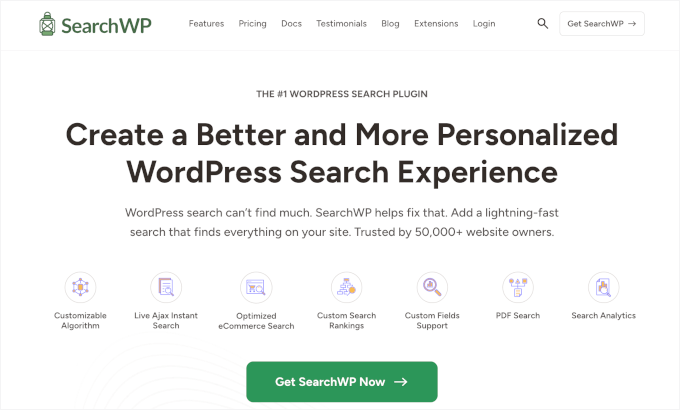
📝 Note: SearchWP is a premium plugin. To see your site’s internal search analytics, you’ll need the Metrics extension, which is included with the Pro plan and higher.
Once that’s done, head over to the ‘Downloads’ tab in your SearchWP account.
Afterward, you can click the ‘Download SearchWP’ button to save the plugin file to your computer.
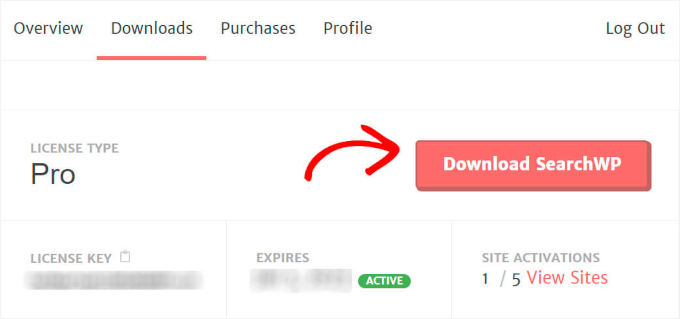
Now that the plugin is downloading, don’t forget to copy your license key. You’ll need it shortly to activate the plugin.
Next, you can hop over to your WordPress admin area and upload the SearchWP plugin zip file. For details, check out our guide on how to install a WordPress plugin.
Once SearchWP is installed and activated, it’s time to enter your license key.
To do this, you’ll head to SearchWP » Settings and locate the ‘License Key’ field. Then, simply paste your SearchWP Pro license key into the field and hit the button to activate it.
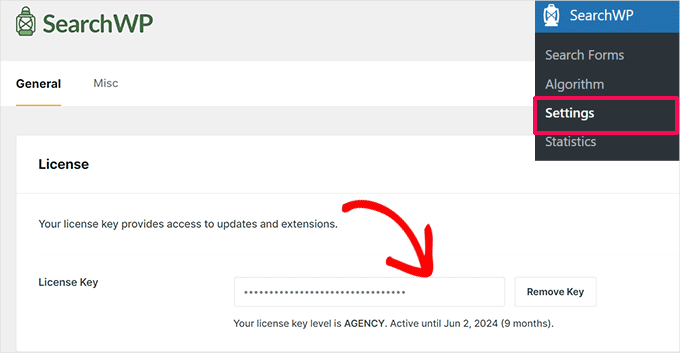
With SearchWP now up and running, you’re all set to move on to the next step.
Step 2: Install and Activate the Metrics Extension
While SearchWP collects search data by default, the Metrics extension takes things to the next level by giving you advanced insights into your visitors’ search behavior.
To get started, you can head to the SearchWP » Extensions from your WordPress admin area. Then click the ‘Install’ button beneath the Metrics extension.
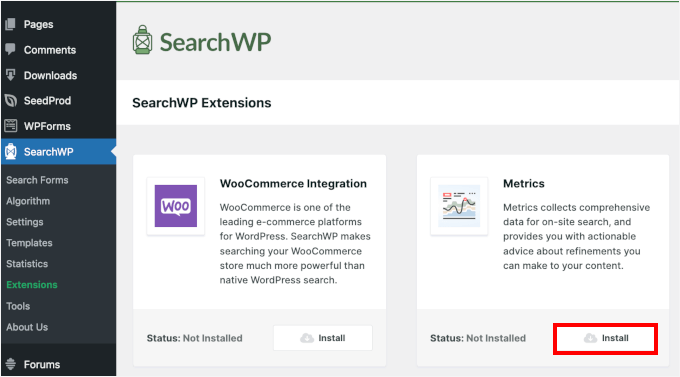
This will start the installation and activation process for the Metrics extension.
Step 3: Check Out Your Site Search Terms Data
Once the Metrics extension is activated, let’s take a look at the search analytics data.
First, you need to head to SearchWP » Metrics.
Here, you’ll see all the search data collected from your site visitors. At first, there won’t be any data since you just installed the plugin. But from now on, every search on your site will appear here.
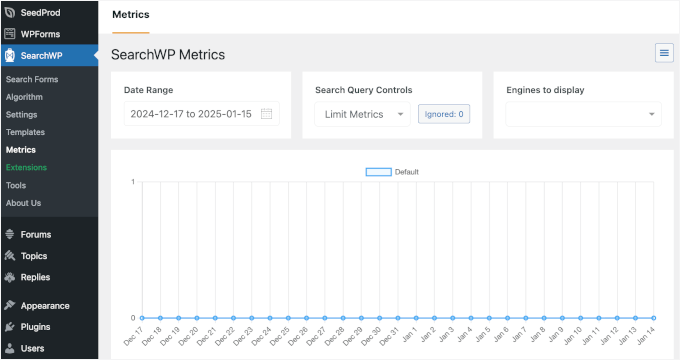
You can try typing a keyword into the search bar on your live site to generate a search query for testing.
After that, you can head back to the ‘Metrics’ tab and check if your search query appears in real time. You should see the search term you used displayed like this:
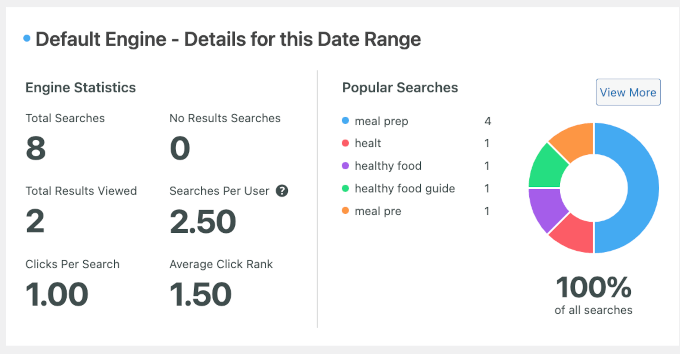
On the right-hand side, you’ll see your site’s popular searches.
Meanwhile, the left-hand panel is where you can see the detailed reports of your site’s search analytics. They include the following metrics:
- Total searches: This shows how many times people have used the search bar on your site.
- Total results viewed: This tells you how many search results people clicked on after performing a search. For example, if someone searches for “SEO tips” and clicks on one of your blog posts, it will count as a viewed result.
- Clicks per search: This shows the average number of results people click on when they search. For example, if users typically click two posts after searching for a topic, the average clicks per search would be 2.
- No results search: This shows how often people searched but didn’t find anything.
- Searches per user: This tells you how many searches each user makes on your WordPress site on average.
- Average click rank: This shows how high up the search results people are clicking. For example, if most users click the first or second result, then your average click rank will be close to 1 or 2.
By now, you’re all set to start tracking and analyzing the search activity on your website. If you notice any issues, then you may like to follow our guide on how to improve WordPress search with SearchWP.
Method 2: How to See External Search Analytics in WordPress
The Search Statistics dashboard in All in One SEO (AIOSEO), the best WordPress SEO plugin, gives you a bird’s-eye view of your website’s performance on Google.
From tracking impressions and clicks to analyzing keyword and content performance, it gives you all the insights you need to improve your site’s visibility.
At WPBeginner, we use AIOSEO for various SEO tasks, such as optimizing meta descriptions, title tags, OpenGraph settings for Facebook and X (formerly Twitter), and more.
For a deeper look into the plugin, don’t miss our complete AIOSEO review.
🧑💻 Expert Tip: All in One SEO will pull data directly from Google Search Console, so you will need to set up an account there first. For details, see our guide on how to add your WordPress site to Google Search Console.
Step 1: Install and Activate AIOSEO
First, you will need to sign up on the All in One SEO website. Just click on the ‘Get All in One SEO for WordPress’ button on the homepage.

📝 Note: You will need the Elite plan to access the Search Statistics feature. However, you can also check out the free version of AIOSEO on WordPress.org and see if you like the tool.
Once you’re all signed up, you’ll need to head to your WordPress dashboard to install and activate the All in One SEO (AIOSEO) plugin for WordPress.
If you need help, check out our step-by-step guide on how to install WordPress plugins.
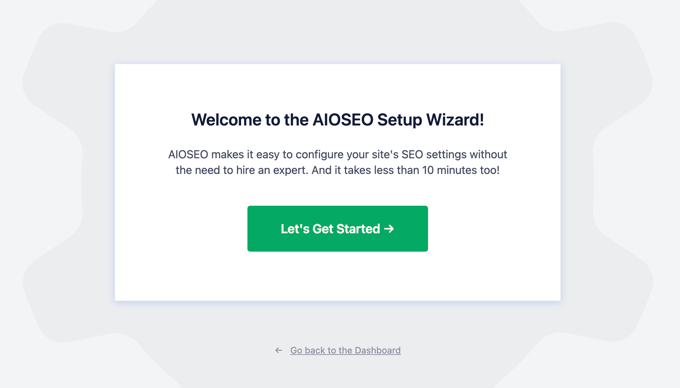
Upon activation, the plugin will run a setup wizard. Go ahead and click the ‘Let’s Get Started’ button and follow the on-screen instructions.
For detailed instructions, you can see our ultimate guide on how to set up All in One SEO for WordPress.
Step 2: Get Started with the SEO Overview
Now that AIOSEO is up and running on your site, you’ll see an All in One SEO menu item in your admin area.
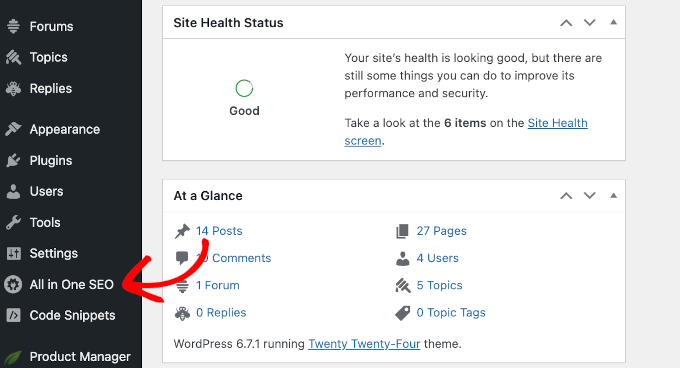
To access the Search Statistics analytics, you can go to All in One SEO » Search Statistics.
This will take you to the Search Statistics dashboard.
This section provides an overview of your site’s performance in search results, starting with the SEO Statistics and Keyword Positions widgets.
🧑💻 Expert Tip: You can mouse over all AIOSEO graphs to see details over time.
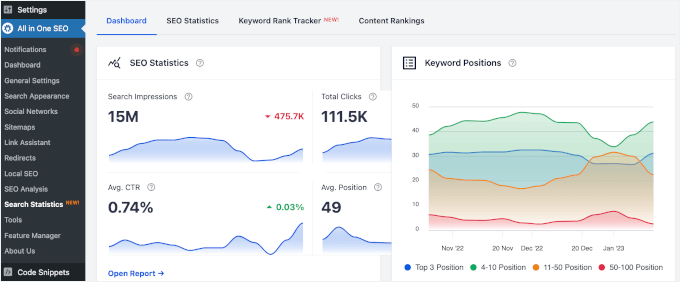
The SEO Statistics widget provides insights into your site’s search performance, showing key metrics like:
- Search impressions
- Total clicks
- Average click-through rates (CTR)
- Average keyword positions
On the other hand, the Keyword Positions diagram shows your content rankings across the search engine results pages (SERPs), whether it’s in the top 3, positions 4-10, 11-50, or 50-100.
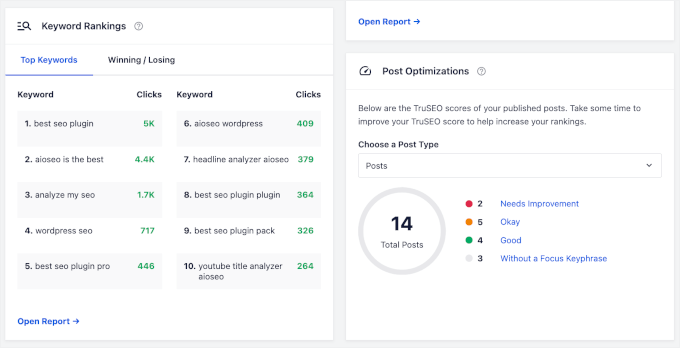
If you scroll down this tab, you’ll find additional overviews in widget format. Each widget provides a quick overview, and you can click on it to access the full reports.
Now that you’re familiar with the dashboard, let’s explore the analytics in each tab: ‘SEO Statistics,’ ‘Keyword Rank Tracker,’ and ‘Content Rankings.’
Step 3: Explore the SEO Statistics Reports
In the ‘SEO Statistics’ tab, you can explore key metrics like search impressions, total clicks, average CTR, and average search position.
Here’s what each one means:
- Search Impressions: For example, if your page shows up 1,000 times on Google for a keyword, that counts as 1,000 impressions.
- Total Clicks: The number of times users clicked on your site from the search results.
- Average CTR (Click-Through Rate): The percentage of impressions that resulted in clicks.
- Average Search Position: The average rank of your site in the search results.
This is what the SEO Statistics report will look like on your screen:
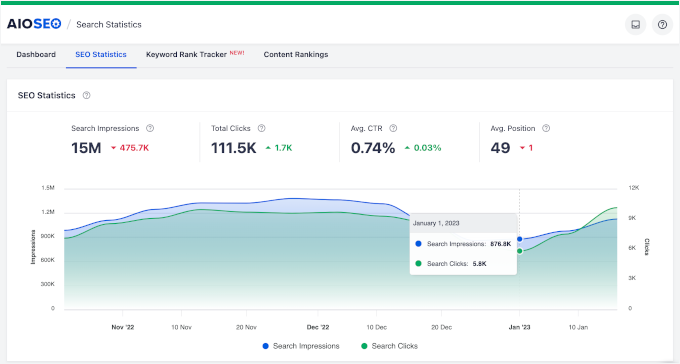
Below the quick count, you can see a diagram comparing search impressions and clicks. Comparing these 2 metrics helps you understand how effective your content is at attracting visitors.
Here’s why:
- Impressions show how often your site shows up in search results, but they don’t guarantee that people will click.
- Clicks indicate how many people actually clicked on your site after seeing it in the search results.
By comparing these 2, you can see how well your titles and meta descriptions are convincing people to visit your site. A low click-through rate (CTR) means you might need to update your content’s appeal or relevance.
At the bottom of the tab, you’ll find the ‘Content Performance’ section.
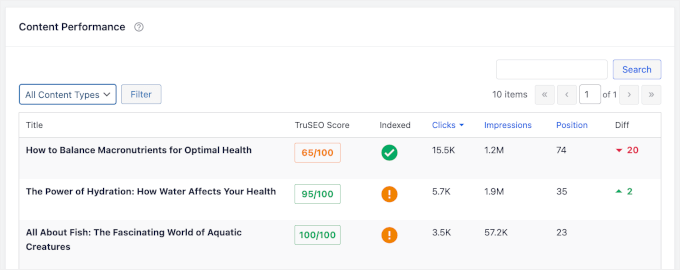
Here, you’ll see a more detailed report on how each of your posts or pages is performing.
There are also dedicated columns that let you know how your content is doing in terms of AIOSEO’s TruSEO scores and if Google has indexed it.
Additionally, the ‘Diff’ column shows whether your content has moved up or down in search rankings. This data helps you spot changes and make improvements.
Step 4: Check Your Keyword Insights
Tracking keyword performance lets you monitor their rankings, identify trends, and optimize for better results for your content.
To learn more about how your keywords are performing, you can start with the Search Statistics dashboard.
Besides the ‘Keyword Positions’ widget, which shows your keyword ranking distribution, there’s another widget you’ll find helpful: the ‘Keyword Rankings’ widget.
This widget gives you two quick insights: Top Keywords and Winning / Losing keywords.
The ‘Top Keywords’ tab gives you valuable information about which keywords are driving the most clicks to your website.
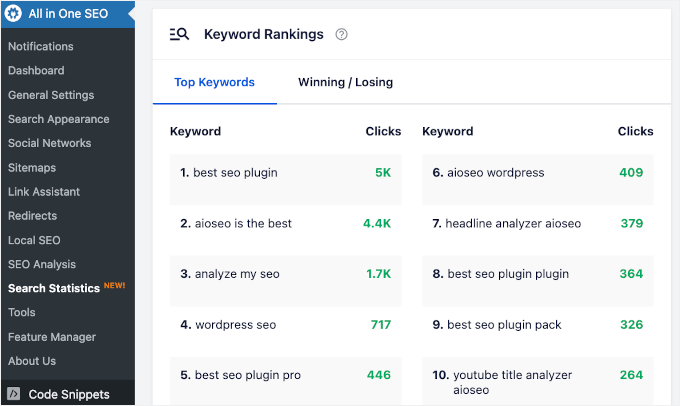
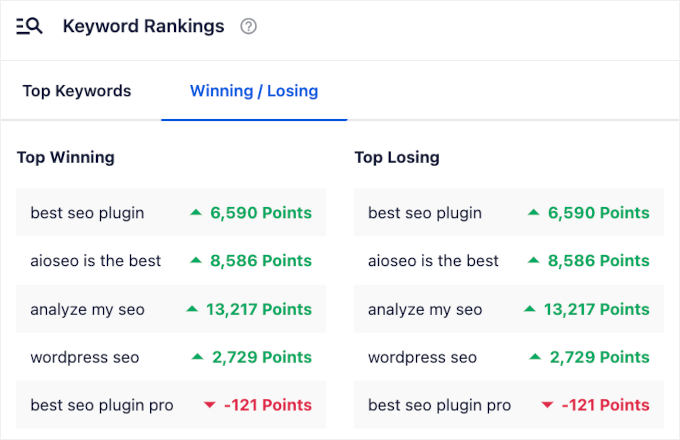
Then, there’s the ‘Winning / Losing’ tab.
- Winning keywords are those that are performing well. These are your golden opportunities for further content optimization.
- Losing keywords, on the other hand, might need a little more attention, whether that means optimizing them further or considering replacements.
These insights give you a quick view of where to focus your efforts.
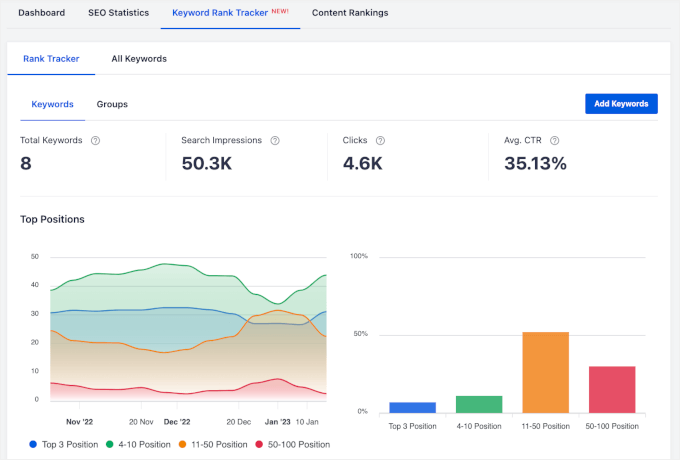
Now, you can switch to the ‘Keyword Rank Tracker’ tab, where you can find more tabs.
Let’s start by heading over to Rank Tracker » Keywords. Here, you can see the total number of keywords that are tracked on your site. You can also find the total number of search impressions, clicks, and average CTR.
Below that, you’ll find 2 graphs showing the keyword ranking distributions.
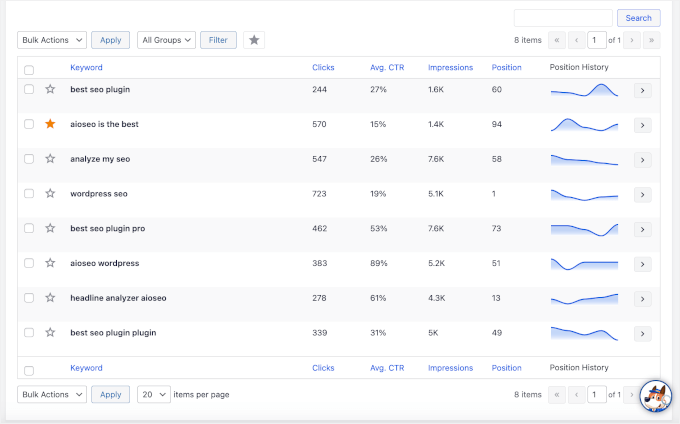
At the bottom of the ‘Keywords’ tab, you’ll find a table.
It shows you all the keywords tracked on your site and their performance in terms of clicks, CTR, impressions, positions in the SERPs, and position history.
Now, let’s check out what the ‘Groups’ tab has to offer.
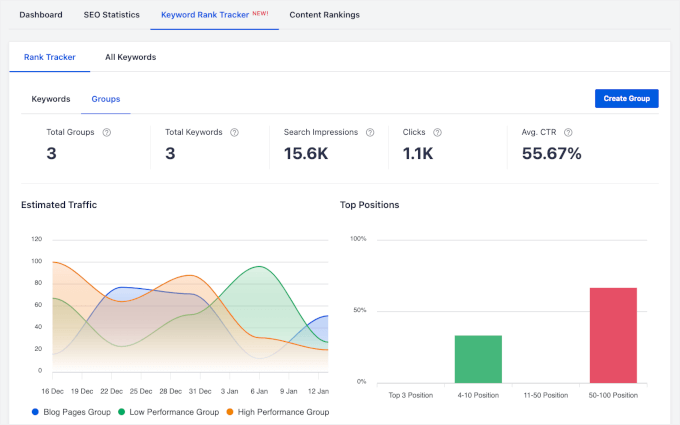
In addition to keywords, impressions, clicks, and CTR, you can view the total number of keyword groups tracked on your site.
In the 2 graphs below, you’ll find the estimated traffic and top position for all your keyword groups.
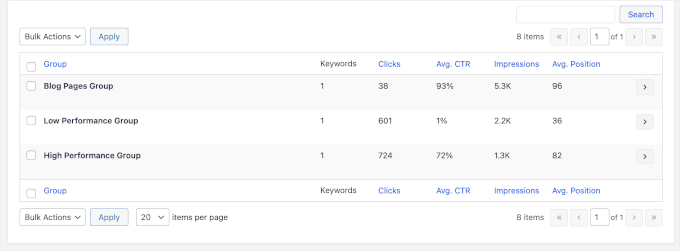
For more details, you can see the information in the table at the bottom of the tab.
For example, we have 3 keyword groups: ‘Blog Pages Group,’ ‘Low Performance Group,’ and ‘High Performance Group.’
Then, you have the data on their clicks, CTR, impressions, and average positions.
Next, let’s move to the ‘All Keywords’ tab.
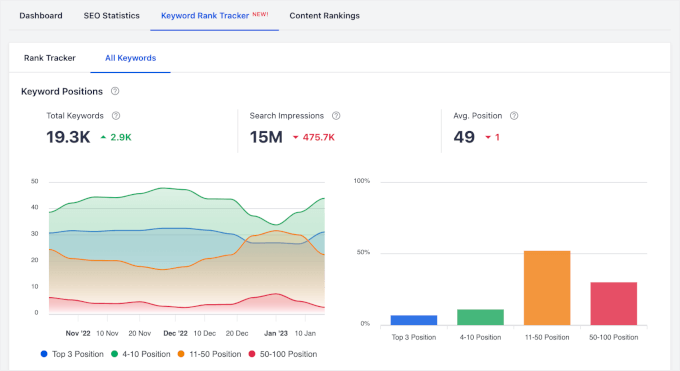
In this tab, you’ll find 2 sections: ‘Keyword Positions’ and ‘Keyword Performance.’
The ‘Keyword Positions’ section tells you the total number of keywords that your site ranks for in the search results. You can also see the search impressions and average positions.
Plus, you’ll notice small details like green up arrows and red down arrows, showing whether numbers are increasing or decreasing over time.
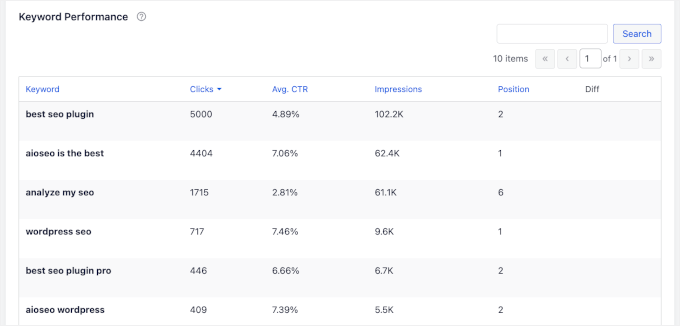
To view a detailed breakdown, scroll down to the ‘Keyword Performance’ section.
Here, you can track each keyword’s clicks, average CTR, impressions, and positions.
Step 5: Take a Closer Look at Content Performance
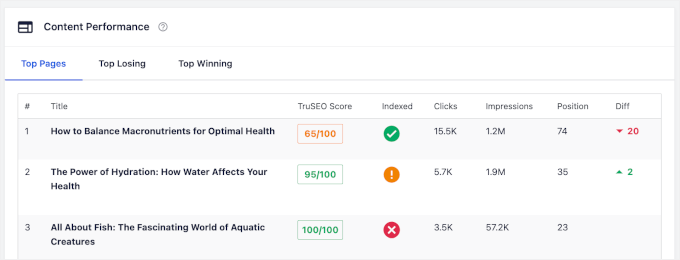
In the Search Statistics dashboard, you’ll find the ‘Content Rankings’ section at the very bottom of the page.
This area lets you see your ‘Top Pages,’ ‘Top Winning,’ and ‘Top Losing’ content. Key metrics you’ll see include:
- Clicks: The number of times your content was clicked from the search results.
- Impressions: How many times has your content appeared in the search results?
- Position: The content ranking in the SERPs.
- Ranking Differences: Changes in your content’s ranking over time.
Here’s what you’ll see on your screen:
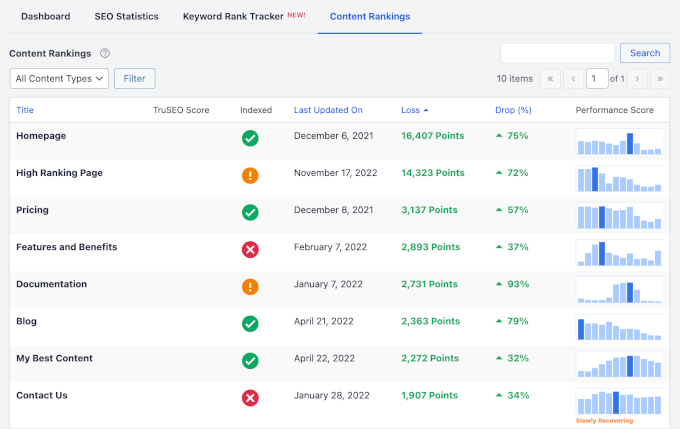
In the ‘Content Rankings’ tab, you’ll also find several important data points:
- TruSEO Score: This is a score reflecting how well your content is optimized for SEO.
- Indexed: This shows whether Google has indexed the page or not.
- Last Updated On: The most recent date when the content was updated.
- Loss Drop (%): The percentage decrease in rankings or performance.
- Performance Score: This score indicates the overall performance of your content based on its ranking and engagement.
This is what it looks like on your screen:
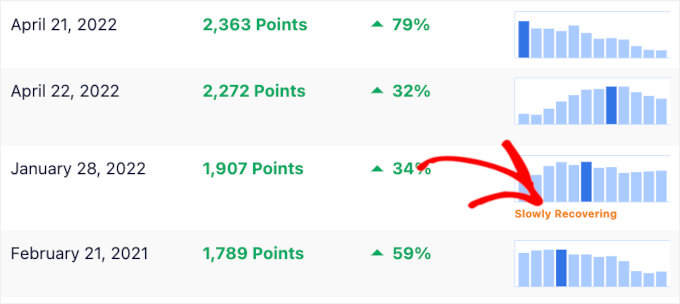
Sometimes, you may notice a little snippet in the ‘Performance Score’ column, such as ‘Slowly Recovering.’
This indicates that while the page isn’t yet back to its previous performance, it is gradually improving in rankings, and you might see positive results soon.
Step 6: Take Action on Post Optimizations
Finally, there’s the ‘Post Optimization’ widget in the ‘Dashboard’ tab.
This section offers insights and suggestions to improve your posts’ TrueSEO scores.
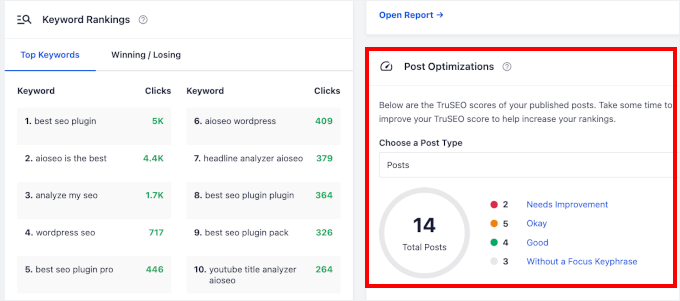
Here, you’ll find 4 post categories: Needs Improvement, Okay, Good, and Without a Focus Keyphrase.
If you click on any of these categories, you’ll be taken to the ‘Posts’ section, where the blog posts are filtered according to the selected category.
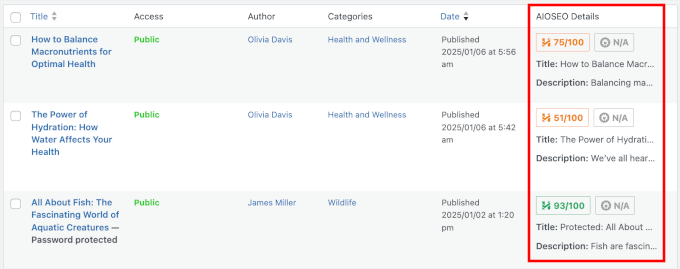
If you want to see how your other content types perform, then you can use the dropdown menu to select a content type.
AIOSEO works with various content types, including pages, memberships, courses, and more!
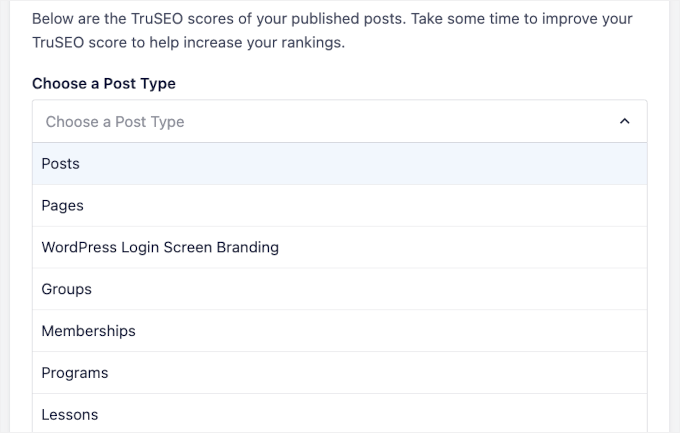
Once you’ve looked at all this data, you may be wondering how to improve your content and rankings. The articles below can help you out:
- The Ultimate WordPress SEO Guide for Beginners
- 13-Point WordPress SEO Checklist for Beginners
- How to Check if Your Website is SEO Optimized
- How to Do Keyword Research for Your WordPress Blog
- How to Rank New WordPress Content Faster
- How Long Does Website SEO Take to Show Results?
Bonus 🌟: 3 Pro Tips for Using Your Search Analytics
Once you’ve got your search analytics up and running, you’re already ahead of the game. But if you want to get even more out of your data, here are a few tips we’ve found super helpful:
1. Refresh Content That’s Almost Performing
If you notice a page with lots of impressions but few clicks, it’s often the headline or meta description that’s falling flat.
You can start by updating your title to better match what people are actually searching for. We recommend using the WPBeginner Headline Analyzer to craft stronger, more click-worthy headlines that align with search intent.
Next, take a look at your meta description. Is it clear, relevant, and compelling? You can try adding a benefit, a question, or a subtle call to action.
You can also use more of the available character limit to make it more informative and persuasive.

At WPBeginner, we carefully craft these elements for every post we publish, and we’ve seen how these quick tweaks can make a big difference. Plus, it’s often all you need to turn an underperforming post into a traffic magnet.
2. Make Popular Content Easier to Find
Does your internal search data show that people keep searching for the same thing? That’s a clue. It might be too hard to find through your menu or site layout.
A quick fix for this is to add those topics to your main navigation menu or create a dedicated page for them. It makes your site easier to use and helps your visitors find what they need faster.
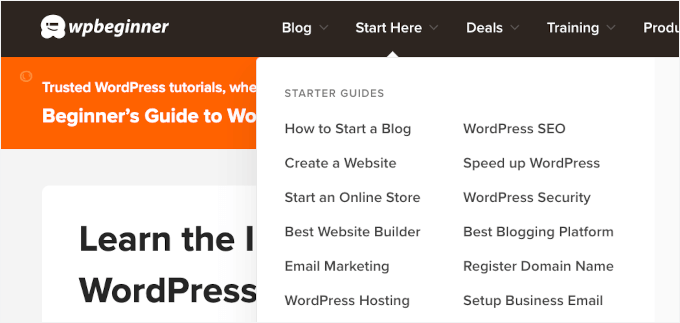
At WPBeginner, we have a “Start Here” menu item in our navigation to guide new readers to our most helpful tutorials and tools. It’s a simple way to surface high-demand content and improve the user experience from the first click.
3. Turn “No Results” Into New Ideas
Every time someone searches your site and finds no results, that’s a missed opportunity. But also a golden one.
Instead of ignoring those failed searches, you can use them as inspiration.
They’re telling you exactly what your audience wants that you haven’t covered yet. That next blog post, product, or tutorial idea might already be waiting in your search data.
FAQs: How to See Search Analytics in WordPress
Search analytics can be a bit confusing at first, so here are some of the top questions we hear, along with simple answers to guide you.
Which is more important: internal or external search analytics?
In short, both matter, but for different reasons.
- External analytics (like the ones from AIOSEO) show how people find your site on Google. That’s super helpful for improving your SEO and bringing in more traffic.
- Internal analytics (from tools like SearchWP) show what visitors are searching for after they land on your site. This helps you spot content gaps and give your audience exactly what they’re looking for.
Can I see WordPress search analytics for free?
Yes, at least for external search data. You can use Google Search Console, it’s free, and connect it to WordPress using the free version of All in One SEO (AIOSEO).
However, features like advanced keyword reports or internal search tracking are often part of premium tools. If you need those deeper insights directly in your WordPress dashboard, you may need to explore a paid option.
How is search analytics different from Google Analytics?
Search analytics zooms in on the keywords people use to find and navigate your site. In contrast, Google Analytics gives you a wider view of your traffic, like where visitors come from, which pages they visit, and how long they stay.
If you’re using WordPress, we recommend MonsterInsights to make viewing that data easier right from your dashboard. To learn more about the plugin, you can check out our full MonsterInsights review.
More WordPress Analytics Guides
We hope this article has helped you learn how to see search analytics in WordPress. Next up, you might want to check out our guides on:
- How to Add Scroll Depth Tracking with Google Analytics
- WordPress Post Analytics – How to Easily See Your Blog Stats
- How to Set Up WordPress Form Tracking in Google Analytics
- How to Track User Journey on WordPress Lead Forms
- Website Marketing Data Every Site Owner Must Track
If you liked this article, then please subscribe to our YouTube Channel for WordPress video tutorials. You can also find us on Twitter and Facebook.




Have a question or suggestion? Please leave a comment to start the discussion.