


Wenn Sie eine neue WordPress-Website starten, gibt es nur wenige SEO-Entscheidungen, die äußerst wichtig sind, da sie später schwer rückgängig zu machen sind.
Ihr Hosting, Ihr Theme, Ihre Permalinks-Struktur und wie Suchmaschinen Ihre Website indizieren, kann sehr teuer werden, wenn Ihre Website online ist. Ändern Sie beispielsweise Ihre Permalinks sechs Monate später, und Sie haben es mit Dutzenden von defekten Links und verlorenen Rankings zu tun.
Deshalb haben wir diese WordPress SEO-Checkliste für Anfänger erstellt, die Sie durch die genauen Schritte führt, die wir von der SEO-Grundlage bis zu den letzten Überprüfungen am Starttag durchführen, um sicherzustellen, dass Ihre Website in Suchmaschinen gut ranken kann.
Hier sind die sechs Phasen, die ich behandeln werde:
- Laden Sie unsere WordPress SEO-Checkliste herunter
- Phase 1: Website-Grundlagen für SEO
- Phase 2: WordPress für SEO konfigurieren (Grundlegende Einrichtung)
- Phase 3: Technische SEO-Einrichtung
- Phase 4: On-Page-SEO-Einrichtung
- Phase 5: WooCommerce SEO für E-Commerce-Websites
- Phase 6: Finale SEO-Checks vor dem Start
- Häufig gestellte Fragen zur WordPress SEO-Checkliste
Laden Sie unsere WordPress SEO-Checkliste herunter
Möchten Sie eine Kopie zum Durcharbeiten, während Sie aufbauen?
Laden Sie die kostenlose herunterladbare Version dieser Checkliste unten herunter und haken Sie jeden Schritt ab, bevor Ihre Website live geht.
Phase 1: Website-Grundlagen für SEO
Bevor Sie etwas anderes optimieren, sollten Sie sicherstellen, dass Ihre Website eine solide Grundlage hat. Wenn Sie diese von Anfang an richtig machen, ist das ein großer Vorteil, da eine spätere Änderung extrem zeitaufwändig sein kann.
1. Schnelles, zuverlässiges und SEO-freundliches Hosting wählen
Ihr Hosting-Unternehmen ist die SEO-Grundlage, auf der alles andere aufbaut. Wenn Ihre Website langsam ist oder häufig offline geht, kann dies Ihre Suchrankings beeinträchtigen, egal wie gut Sie Ihre Website optimieren.
Da die Seitengeschwindigkeit ein bestätigter Google-Rankingfaktor ist, sollten Sie einen WordPress-Hosting-Anbieter mit schnellen Servern, zuverlässiger Uptime und genügend Ressourcen wählen, um Ihren Traffic zu bewältigen.
Nachdem Sie einen Hoster ausgewählt haben, installieren Sie ein Caching-Plugin, um Ihre Website noch schneller zu machen. Caching erstellt fertige Kopien Ihrer Seiten, die für jeden Besucher die Ladezeiten verkürzen.
Sehen Sie sich unseren Vergleich der besten WordPress-Caching-Plugins an, um eines auszuwählen, das zu Ihrer Website passt.
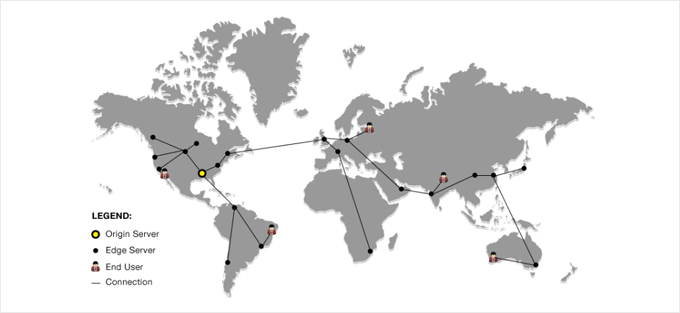
Schließlich, wenn Sie Besucher aus mehreren Ländern haben, verwenden Sie ein CDN. Es liefert die statischen Dateien Ihrer Website vom nächstgelegenen Server zu jedem Besucher und reduziert die Ladezeiten weltweit. Cloudflares kostenloses CDN ist ein ausgezeichneter Ausgangspunkt.
Weitere Informationen zu Hosting, Caching und allen anderen Geschwindigkeitsfaktoren finden Sie in unserem ultimativen Leitfaden zur WordPress-Geschwindigkeit und -Leistung.
2. Ein Theme wählen, das auf Geschwindigkeit ausgelegt ist
Ihr Theme ist genauso wichtig wie Ihr Hosting. Ein aufgeblähtes Theme verlangsamt jede Seite Ihrer Website, selbst wenn Sie einen schnellen Hosting-Anbieter verwenden.
Wir empfehlen, dass Sie ein leichtgewichtiges, gut codiertes WordPress-Theme anstelle eines mit Funktionen überladenen Themes wählen, das Sie nie verwenden werden. Sydney, GeneratePress und Ollie sind drei schnelle, gut codierte WordPress-Theme-Optionen, die wir empfehlen.
Alle drei halten ihren Code minimal, funktionieren gut mit dem Block-Editor und erzielen ohne zusätzliche Abstimmung gute Ergebnisse bei Geschwindigkeitstests. Sehen Sie sich unsere getestete Liste der schnellsten WordPress-Themes für weitere Optionen an.
Phase 2: WordPress für SEO konfigurieren (Grundlegende Einrichtung)
Mit Ihrem Hosting und Theme an Ort und Stelle ist es an der Zeit, die Einstellungen zu konfigurieren, die Suchmaschinen mitteilen, dass Ihre Website vertrauenswürdig ist und zur Indexierung bereit ist.
3. SSL/HTTPS auf Ihrer gesamten Website aktivieren
HTTPS ist ein bestätigter Google-Rankingfaktor und mittlerweile eine grundlegende Erwartung für jede Website, die ranken möchte. Jedes große WordPress-Hostingunternehmen wie Hostinger, Levamo usw. bietet standardmäßig SSL an.
Um zu bestätigen, dass HTTPS aktiviert ist, schauen Sie in die Adressleiste Ihres Browsers. Die meisten Browser zeigen ein Vorhängeschloss-Symbol neben Ihrer URL an, wenn Ihr SSL-Zertifikat aktiv ist. Chrome zeigt stattdessen ein 'Tune'-Symbol (Schieberegler) an.
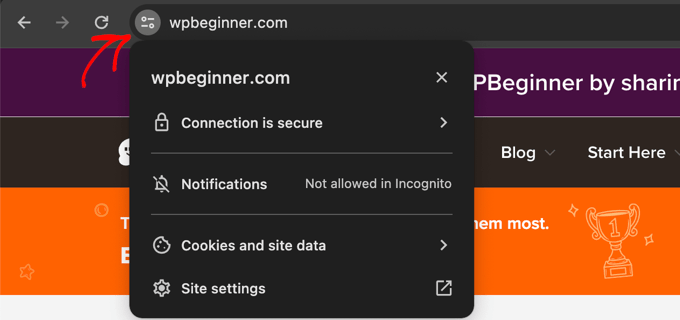
Wenn Ihre Website immer noch HTTP verwendet, wenden Sie sich zuerst an Ihren Hosting-Anbieter. Die meisten Hoster bieten ein kostenloses SSL-Zertifikat zu jedem Plan an, sodass Sie es mit einem Klick in Ihrem Konto-Dashboard aktivieren können.
Nach der Aktivierung von SSL müssen Sie auch Ihre WordPress-Website-URL aktualisieren und den gesamten HTTP-Datenverkehr auf HTTPS umleiten. Sehen Sie sich unseren Leitfaden an, wie Sie SSL und HTTPS in WordPress hinzufügen, um die vollständigen Schritte zu erfahren.
4. Eine SEO-freundliche Permalink-Struktur festlegen
Ihre Permalink-Struktur bestimmt, wie die URLs Ihrer Website erstellt werden. Es ist wichtig, die richtige Permalink-Struktur beim Start zu wählen, da spätere Änderungen bestehende URLs brechen und zu verlorenen Rankings führen.
Wir empfehlen die Verwendung einer sauberen und beschreibenden URL-Struktur, da diese sowohl für Suchmaschinen als auch für Besucher leichter zu verstehen ist.
Gehen Sie einfach zu Einstellungen » Permalinks in Ihrem WordPress-Dashboard und wählen Sie die Option 'Beitragsname'. Dies erstellt kurze, lesbare URLs, die aus Ihrem Seitentitel statt einer zufälligen ID-Nummer generiert werden.
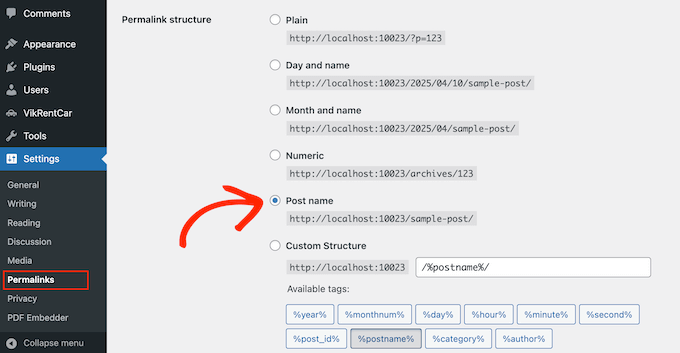
Hier ist, wie ein SEO-freundlicher Permalink aussehen sollte:
https://www.wpbeginner.com/start-a-wordpress-blog/
Auf der anderen Seite sieht eine URL, die nicht für SEO optimiert ist, so aus:
https://www.wpbeginner.com/articles/651472
5. Ein WordPress SEO-Plugin installieren und konfigurieren
WordPress hat keine eingebaute Möglichkeit, den Titel-Tag, die Meta-Beschreibung oder das Schema einer Seite festzulegen. Diese Details sind wichtig, da sie in den Suchergebnissen erscheinen und beeinflussen können, wie viele Personen auf Ihre Website klicken.
Ein SEO-Plugin ermöglicht es Ihnen, diese Details anzupassen und gibt Ihnen mehr Kontrolle darüber, wie Ihre Seiten in den Suchergebnissen erscheinen. Sie können auch eine Sitemap hinzufügen und die technischen SEO-Einstellungen verwalten, die Sie benötigen, um Ihre Website für Suchmaschinen zu optimieren.
Wir verwenden und empfehlen All in One SEO (AIOSEO) auf all unseren eigenen Websites, und seine kostenlose Version deckt jeden Kern-Einrichtungsschritt in dieser Checkliste ab.
Wenn Sie lieber ein anderes Plugin verwenden möchten, sind Rank Math und Yoast SEO zwei solide AIOSEO-Alternativen, die die gleichen Kern-Einrichtungsschritte abdecken. Sie können unsere Bewertung der besten SEO-Plugins für WordPress einsehen, in der wir die beliebtesten Optionen für Anfänger aufschlüsseln.
Sobald Sie das Plugin installiert haben, nehmen Sie sich ein paar Minuten Zeit, um es zu konfigurieren. Folgen Sie einfach unserer Anleitung, wie Sie All in One SEO für WordPress einrichten.
6. Google Search Console und Bing Webmaster Tools verbinden
Als Nächstes müssen Sie die Webmaster-Tools für die wichtigsten Suchmaschinen einrichten: Google Search Console und Bing Webmaster Tools.
Diese kostenlosen Tools helfen Ihnen, die organische Suchleistung Ihrer Website zu verfolgen. Sie können sie verwenden, um zu sehen, welche Keywords Personen verwenden, um Ihre Website zu finden. Sie können auch Rankings überprüfen, Sitemaps einreichen und Fehler aufdecken, die verhindern könnten, dass Ihre Website rankt.
Zum Beispiel hilft Ihnen die Search Console, einfache SEO-Erfolge zu erkennen, wie z. B. Seiten, die nur wenige Positionen von der ersten Seite entfernt sind. Dies ist einer der ersten Berichte, die wir auf unseren eigenen Websites überprüfen, da einige gezielte Verbesserungen diese Seiten oft auf die erste Seite bringen können.
Sie können unserer Anleitung zum Einreichen Ihrer WordPress-Website bei Suchmaschinen folgen.
7. Google Analytics (GA4) verbinden
Google Analytics ist Googles kostenlose Plattform zum Verfolgen des Website-Traffics. Wir empfehlen, es vor dem Start zu verbinden, damit Sie vom ersten Tag an Daten haben. Es ist der klarste Weg, um zu sehen, ob Ihre WordPress-SEO-Bemühungen tatsächlich funktionieren.
Hier erfahren Sie, was Google Analytics Ihnen hilft zu lernen:
- Woher Ihre Besucher kommen – sehen Sie die Aufteilung zwischen organischen Suchergebnissen, sozialen Medien und Verweisverkehr, damit Sie wissen, welche Kanäle tatsächlich funktionieren.
- Was Besucher tun, nachdem sie angekommen sind – sehen Sie, welche Seiten sie als Nächstes aufrufen, wie engagiert sie sind und ob sie wichtige Aktionen abschließen, wie z. B. einen Kauf tätigen oder ein Formular ausfüllen.
- Ob Ihre Inhalte Besucher fesseln – wenn Personen kurz nach der Ankunft gehen, könnte dies ein Zeichen dafür sein, dass die Seite ihre Erwartungen nicht erfüllt.
Um es für Ihre Website einzurichten, folgen Sie unserer Schritt-für-Schritt-Anleitung, wie Sie Google Analytics in WordPress installieren.
Phase 3: Technische SEO-Einrichtung
In dieser Phase geht es darum, sicherzustellen, dass Suchmaschinen und KI-Tools Ihre Website crawlen, verstehen können, was darauf ist, und sie korrekt zitieren, damit Ihre Inhalte in den Suchergebnissen angezeigt werden.
8. Eine XML-Sitemap generieren
Eine XML-Sitemap teilt Suchmaschinen alle Seiten Ihrer Website mit, damit diese schnell neue Inhalte entdecken und indexieren können.
WordPress verfügt über eine integrierte Standard-Sitemap, die für die grundlegende Erkennung gut funktioniert. Ein SEO-Plugin gibt Ihnen jedoch mehr Kontrolle: Sie können bestimmte Seiten ausschließen, Sitemaps für Videos, Nachrichten und Bilder hinzufügen und alles automatisch mit Ihren anderen SEO-Einstellungen synchron halten.
In AIOSEO finden Sie den Sitemap-Schalter unter All in One SEO » Sitemaps.
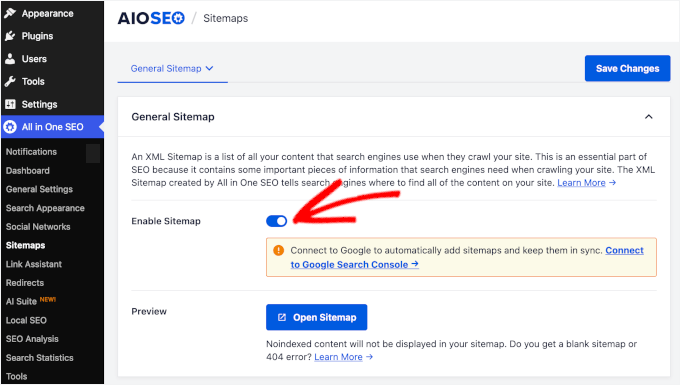
Um zu erfahren, wie das geht, lesen Sie unsere Anleitung zur Erstellung einer Sitemap in WordPress.
9. Schema-Markup und strukturierte Daten hinzufügen
Schema-Markup ist strukturierter Datensatz, den Sie Ihrer Website hinzufügen, um Suchmaschinen zu helfen, Ihre Inhalte korrekt zu verstehen.
Dieser zusätzliche Kontext hilft Ihren Seiten, sich für visuell ansprechende Rich Results in der Google-Suche zu qualifizieren, wie z. B. die Sternebewertungen, die durch Schema für Produkte und Rezensionen generiert werden.
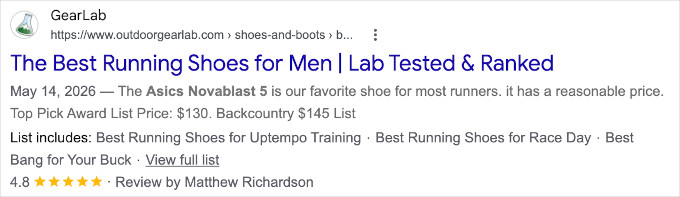
Einige der wichtigsten Schema-Typen für Standard-WordPress-Websites sind
- Artikel für Blogbeiträge und redaktionelle Inhalte
- Organisation, um die Identität, das Logo und die Social-Media-Profile Ihrer Marke im Knowledge Graph von Google zu etablieren
- LocalBusiness für Websites von Unternehmen mit einem physischen Geschäft
- FAQPage, um Ihre Frage-und-Antwort-Inhalte zu kennzeichnen, damit Suchmaschinen und KI-Tools Ihre Antworten leicht extrahieren und zitieren können.
Wenn Sie Produkte verkaufen, fügen Sie auch das Produktschema hinzu. Darauf werde ich im WooCommerce-Abschnitt unten eingehen.
Details zur Einrichtung von Schema-Markup finden Sie in unserem Leitfaden zum Hinzufügen von Rich Snippets in WordPress.
10. Ihre robots.txt-Datei und llms.txt-Datei konfigurieren
Eine robots.txt-Datei teilt Suchmaschinen-Crawlern mit, welche Teile Ihrer Website sie aufrufen dürfen.
Die Konfiguration dieser Datei blockiert Crawler am Besuch von Seiten, die nicht indexiert werden müssen, wie z. B. Ihr Admin-Dashboard oder interne Suchergebnis-URLs. Dies verhindert auch, dass sie Ihren Server unnötig belasten.
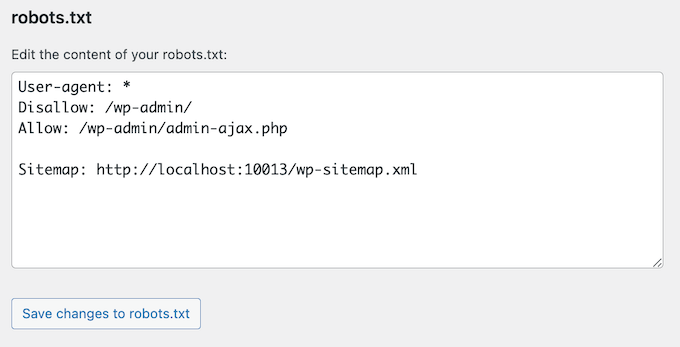
Weitere Details finden Sie in unserem Leitfaden zur Optimierung von robots.txt für SEO.
Eine llms.txt-Datei funktioniert ähnlich wie robots.txt, ist jedoch für KI-Modelle und nicht für herkömmliche Suchmaschinen-Bots konzipiert. Sie teilt KI-Crawlern mit, welche Seiten auf Ihrer Website am nützlichsten zu lesen sind.
Das Hinzufügen einer llms.txt ist eine einfache Möglichkeit, KI-Tools dabei zu helfen, Ihre wichtigsten Inhalte zu priorisieren.
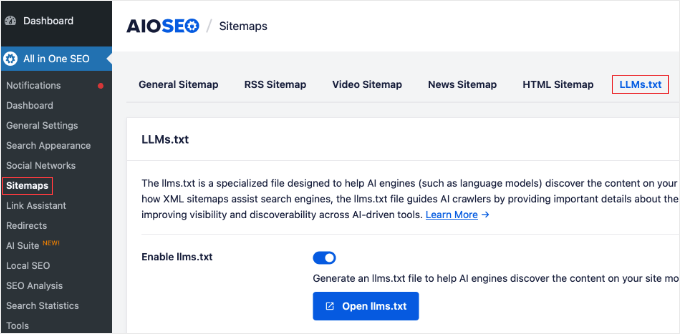
Die meisten SEO-Plugins ermöglichen es Ihnen jetzt, mit ihren kostenlosen Versionen einfach eine llms.txt-Datei zu Ihrer Website hinzuzufügen. Oben sehen Sie den Screenshot von AIOSEO, dem Plugin, das wir verwenden, aber andere haben ähnliche Einstellungen.
11. Eine Markdown (.md)-Version Ihrer Website verfügbar machen
Markdown ist einfacher und leichter als HTML, sodass KI-Systeme es mit weitaus weniger Tokens verarbeiten können als eine vollständig gerenderte Seite. Das erleichtert KI-Tools das Lesen, Zusammenfassen und Zitieren Ihrer Inhalte.
Wenn Sie AIOSEO verwenden, können Sie einfach zu All in One SEO » Sitemaps » llms.txt navigieren und die Schalter für 'llms.txt aktivieren', 'llms-full.txt aktivieren' und 'Beiträge in Markdown konvertieren' umlegen.
Während die Aktivierung von llms.txt in der kostenlosen Version des Plugins enthalten ist, erfordern die Aktivierung von llms-full.txt und die Konvertierung von Beiträgen in Markdown-Dateien AIOSEO Pro.
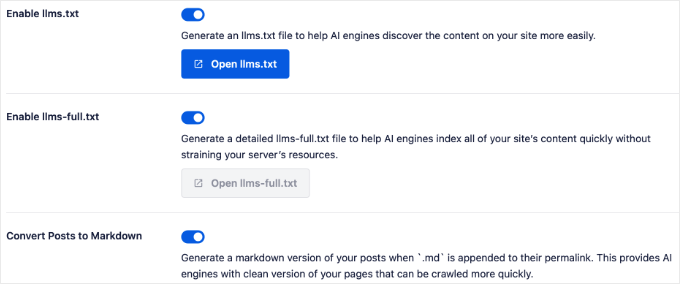
Sobald Sie eine Markdown-Version für Ihre Seiten generiert haben, können Sie darauf zugreifen, indem Sie .md an das Ende der URL anhängen.
Phase 4: On-Page-SEO-Einrichtung
Das SEO-Setup Ihrer Website ist nun abgeschlossen. Von nun an hängt der SEO-Erfolg jeder Seite und jedes Beitrags davon ab, wie gut Sie die Inhalte vor der Veröffentlichung optimieren.
12. SEO-Titel und Meta-Beschreibungen für Ihre Kernseiten schreiben
Jede Seite, die Sie veröffentlichen, benötigt einen SEO-Titel und eine Meta-Beschreibung, um Ihre Website in den SERPs (Suchmaschinenergebnisseiten) zu optimieren. Ein großartiger SEO-Titel und eine Meta-Beschreibung können den Unterschied ausmachen zwischen einem Artikel, den Benutzer anklicken, und einem, den sie überspringen.
Die Klickrate (CTR) in der Suche ist einer der SEO-Rankingfaktoren, die Google verwendet.
Jedes WordPress-SEO-Plugin fügt Ihrem Beitragseditor eine Metabox hinzu, in der Sie Ihren SEO-Titel und Ihre Meta-Beschreibung eingeben können.
Während der SEO-Titel die Aufmerksamkeit eines Suchenden erregt, gibt die Meta-Beschreibung ihm weitere Details über die Seite. Stellen Sie für die besten Ergebnisse sicher, dass Sie Ihr primäres Keyword sowohl im SEO-Titel als auch in der Meta-Beschreibung natürlich einfügen.
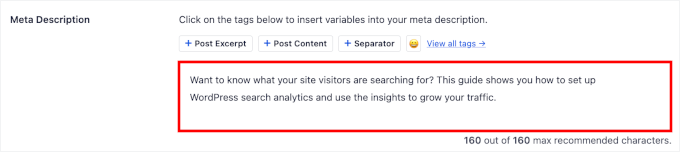
Sie sollten auch darauf achten, Ihre Titel unter 55 Zeichen und Meta-Beschreibungen unter 155 Zeichen zu halten, da Google sie sonst abschneidet. Google misst tatsächlich nach Pixelbreite, nicht nach einer strikten Zeichenanzahl, aber diese Zahlen sind eine sichere und zuverlässige Richtlinie.
13. URLs kurz und keyword-fokussiert halten
Da wir in einem früheren Schritt bereits eine SEO-freundliche Permalink-Struktur gewählt haben, folgen Ihre neuen URLs automatisch einem soliden Basisformat.
Von hier aus sind dies unsere Top-Tipps für das Schreiben jeder einzelnen URL, wenn Sie veröffentlichen
- Halten Sie sie kurz und beschreibend – kürzen Sie Füllwörter und bleiben Sie bei der Kern-Keyword-Phrase, damit die URL den Suchenden auf einen Blick sagt, worum es auf der Seite geht.
- Standardisieren Sie Kleinbuchstaben – URLs mit gemischter Groß- und Kleinschreibung können Probleme mit doppeltem Inhalt auf Servern verursachen, die Groß- und Kleinschreibung als unterschiedliche Seiten behandeln.
- Zukunftssichere Evergreen-URLs – lassen Sie das Jahr aus der URL für Inhalte, die Sie aktualisieren möchten, damit der Link nicht veraltet aussieht, sobald dieses Jahr vorbei ist.
14. Ihre Bilder für SEO optimieren
Google verlässt sich stark auf beschreibenden Alt-Text, zusammen mit dem Dateinamen des Bildes und dem umgebenden Absatz, um herauszufinden, worum es in dem Bild geht.
Stellen Sie vor dem Hochladen sicher, dass Sie Ihre Bilddateien in etwas Beschreibendes umbenennen, wie z. B. red-running-shoes.jpg.
Nach dem Hochladen können Sie Ihren Bildern in WordPress ganz einfach Alt-Texte hinzufügen. Wenn Sie ein Bild im WordPress-Content-Editor mit dem Bildblock hinzufügen, sehen Sie die Option Alt-Text im Einstellungsbereich auf der rechten Seite.
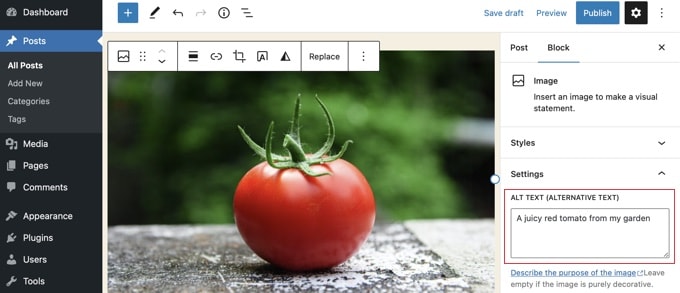
Sie können auch ein Bildkomprimierungstool verwenden, um die Dateigrößen Ihrer Fotos zu reduzieren, was dazu beiträgt, dass Ihre Website schneller geladen wird.
Weitere Details finden Sie in unserem Leitfaden für Anfänger zur Bild-SEO.
15. Interne Links und Ihre Pillar-Inhalte planen
Interne Links erleichtern Suchmaschinen das Crawlen Ihrer Website und das Verständnis, wie Ihre Seiten miteinander verbunden sind. Sie verteilen auch Autorität auf Ihrer Website und halten die Besucher länger beim Lesen.
Um dies gut zu machen, benötigen Sie eine klare Möglichkeit, Ihre Inhalte zu organisieren. Beginnen Sie mit der Auswahl eines Pillar-Artikels. Betrachten Sie dies als die Hauptzentrale für ein bestimmtes Thema, das Sie in den Suchergebnissen wirklich hoch einstufen möchten.
Wenn Sie kleinere Artikel über Teile dieses Themas schreiben, verlinken Sie diese immer mit der Haupt-Pillar-Seite. Gehen Sie dann zu Ihrer Pillar-Seite und fügen Sie Links zu diesen kleineren Artikeln hinzu. Diese einfache, wechselseitige Verlinkung zeigt Google, dass Ihre Pillar-Seite der ultimative Leitfaden ist, und hilft den Lesern, das Thema leicht zu erkunden.
Wenn Sie beispielsweise einen Food-Blog betreiben, könnten Ihre Pillar-Inhalte ein vollständiger Leitfaden zur Essensplanung sein, mit unterstützenden Beiträgen zu Einkaufslisten, Budget-Rezepten und Tiefkühlgerichten, die alle darauf verlinken.
Stellen Sie bei der Verlinkung interner Links sicher, dass Sie beschreibenden Ankertext anstelle von „hier klicken“ verwenden. Zum Beispiel sagt „unser Leitfaden zur Essensplanung“ sowohl Lesern als auch Suchmaschinen, worum es auf der verlinkten Seite geht, bevor sie überhaupt klicken.
16. Eine Prüfung auf Mobilfreundlichkeit und Core Web Vitals durchführen
Die Seitengeschwindigkeit wirkt sich direkt auf Ihre Google-Rankings aus. Google misst dies anhand der Core Web Vitals, die Ihre Website anhand von drei Dingen bewerten: wie schnell die Hauptinhalte geladen werden, wie schnell die Website auf einen Benutzerklick reagiert und ob die Seite beim Lesen springt.
Sie können sowohl Ihre Geschwindigkeit als auch die Mobilfreundlichkeit überprüfen, indem Sie einen Geschwindigkeitstest durchführen. Googles eigenes PageSpeed Insights-Tool bewertet Ihre Website anhand dieser Metriken und gibt Ihnen spezifische Empfehlungen zur Behebung schlechter Ergebnisse.
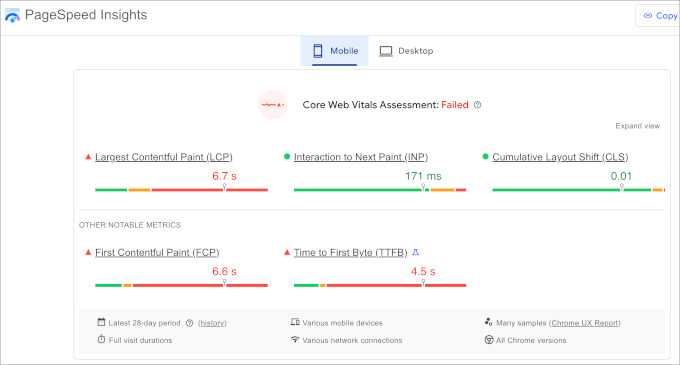
Google ist auch auf Mobilgeräte umgestiegen, was bedeutet, dass es die mobile Version Ihrer Website anstelle der Desktop-Version indexiert. Wenn Ihre Website nicht mobilfreundlich ist, verlieren Sie höhere Rankings. Überprüfen Sie daher die „Mobil“-Scores in dem von Ihnen verwendeten Tool.
Sie können auch unseren ultimativen Leitfaden zur WordPress-Geschwindigkeit und -Leistung für alle unsere Tipps zur Beschleunigung Ihrer Website einsehen.
Phase 5: WooCommerce SEO für E-Commerce-Websites
Produktseiten sind der Ort, an dem Käufer sich zum Kauf entscheiden. Sie müssen daher sowohl ranken als auch konvertieren. Die Optimierung für SEO hilft Ihren Produkten, wenn Leute nach dem suchen, was Sie verkaufen, und gibt Käufern die Details und die Bestätigung, die sie für den Kauf benötigen.
17. Produkt-Schema hinzufügen
Produktschema teilt Google die Details jedes Produkts mit, das Sie verkaufen, einschließlich seines Namens, Preises, seiner Währung, Lagerverfügbarkeit und etwaiger Bewertungen, damit diese Informationen direkt in den Suchergebnissen angezeigt werden können. Sie können auch Identifikatoren wie SKU und Marke hinzufügen.
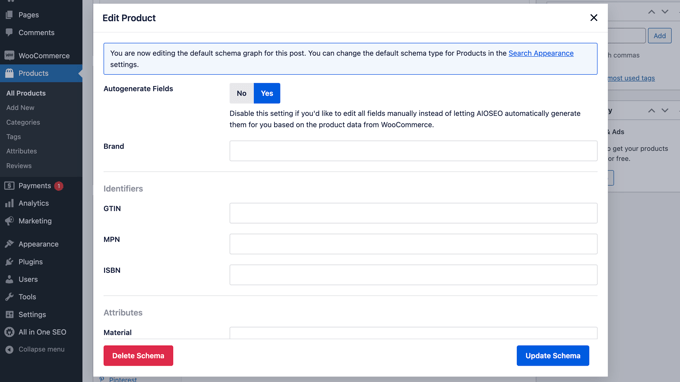
Stellen Sie sicher, dass diese Daten korrekt und mit Ihrem Shop synchron sind, da Google eine Warnung anzeigen oder das Rich-Snippet entfernen kann, wenn der Preis oder der Lagerstatus nicht mit der Seite übereinstimmt.
Die meisten SEO-Plugins bieten die Option, Produktschemata hinzuzufügen. Sie können unseren Leitfaden zum Hinzufügen von Schema-Markup in WooCommerce einsehen, um es einzurichten.
18. Einzigartige, nutzenorientierte Produktbeschreibungen schreiben
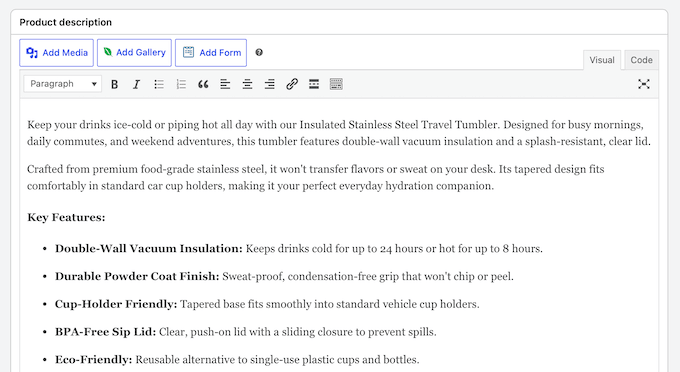
Google rankt selten mehrere Seiten mit identischem Inhalt. Eine kopierte Herstellerbeschreibung gibt Ihrem Shop daher kaum eine Chance zu ranken.
Stattdessen empfehlen wir, Ihre eigene Beschreibung zu schreiben, die sich auf den Nutzen für den Käufer konzentriert und nicht nur auf eine Liste von Spezifikationen.
Beginnen Sie mit dem Problem, das das Produkt löst, und für wen es bestimmt ist. Arbeiten Sie dann Ihre Keywords natürlich ein. Stellen Sie sicher, dass Sie die Fragen beantworten, die Käufer tatsächlich stellen, wie z. B. Größe, Materialien oder was im Lieferumfang enthalten ist, damit die Seite den Verkauf für Sie übernimmt.
19. Produkttitel und URLs optimieren
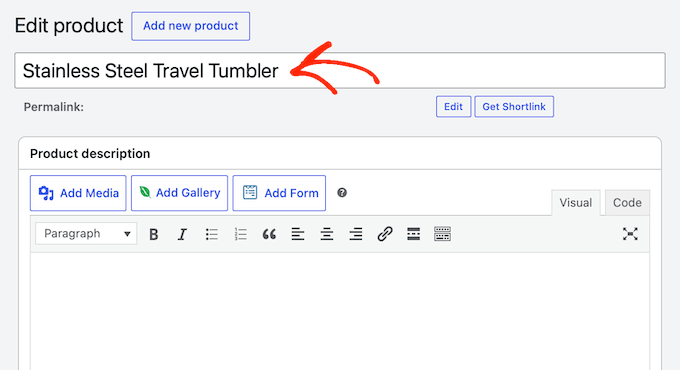
Ihr Produkttitel ist eines der ersten Dinge, die sowohl Käufer als auch Suchmaschinen sehen. Er muss also angeben, was das Produkt tatsächlich ist. Sie sollten klare, keyword-fokussierte Titel schreiben und nicht eine Herstellermodellnummer, eine interne SKU oder das, was Ihr Lager dafür nennt.
Eine URL wie /product/wireless-bluetooth-headphones/ teilt sowohl Käufern als auch Suchmaschinen mit, worum es auf der Seite geht. Eine URL wie /product/?id=12345 sagt ihnen nichts.
Sie können unseren ultimativen WooCommerce-SEO-Leitfaden für eine vollständige Schritt-für-Schritt-Anleitung zur Optimierung von Produktseiten einsehen.
20. Produktbilder optimieren
Stellen Sie sicher, dass Sie für jedes Produktfoto beschreibenden Alternativtext und Dateinamen verwenden und Ihr Benennungsmuster über Ihren gesamten Katalog hinweg konsistent halten (z. B. produkt-name-winkel-1.jpg).
Wir empfehlen außerdem, jedes Produkt aus mehreren Blickwinkeln zu zeigen. Fügen Sie mindestens ein Lifestyle-Foto davon in Gebrauch hinzu, da dies den Käufern hilft, sich zu entscheiden.
Es ist auch ratsam, alle Ihre Produktbilder in der gleichen Form und Größe zu halten, damit Ihre Shop- und Kategorieseiten ordentlich aussehen. Und verwenden Sie hochauflösende Fotos, in die Käufer hineinzoomen können, aber denken Sie daran, sie zuerst zu komprimieren, damit sie die Seite nicht verlangsamen.
Sie können unseren Vergleich von Bildkomprimierungstools verwenden, um ein Plugin auszuwählen, das Ihren Bedürfnissen entspricht.
21. Bewertungen und Ratings anzeigen
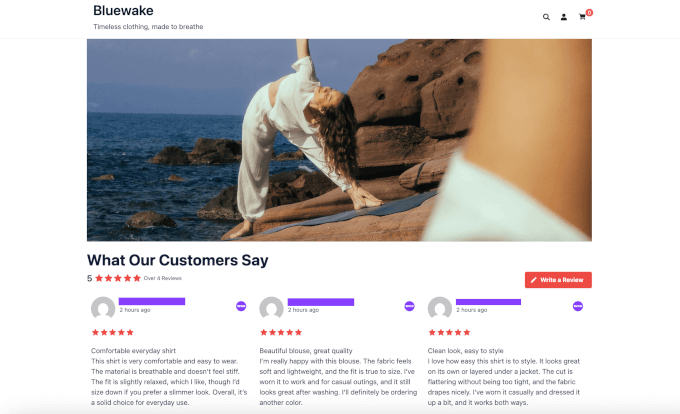
Das Anzeigen von Sternebewertungen und Kundenrezensionen auf Ihren Produktseiten hilft, Vertrauen bei Ihren Käufern aufzubauen. Wenn Sie diese Daten mit dem Produktschema kombinieren, können dieselben Sternebewertungen direkt in den Google-Suchergebnissen erscheinen, wodurch Ihre Produkte hervorstechen und mehr Klicks erhalten.
Wir empfehlen, die integrierten Produktbewertungen von WooCommerce zu aktivieren und Käufer zu ermutigen, ihr Feedback nach dem Checkout abzugeben. Ein stetiger Strom von echten Bewertungen hält Ihre Produktseiten auch mit neuen, relevanten Inhalten über die Zeit frisch.
Standardmäßig werden diese Bewertungen jedoch nur auf der Produktseite selbst angezeigt, sodass Käufer, die Ihre Homepage oder Kategorieseiten durchsuchen, sie nie sehen.
Sehen Sie sich unseren Leitfaden zum Anzeigen von WooCommerce-Bewertungen überall in WordPress an, um sie als Social Proof anzuzeigen, wo immer Sie möchten.
22. Vertrauenssignale hinzufügen
Käufer suchen nach Bestätigung, bevor sie Zahlungsdetails auf einer Website eingeben, von der sie noch nie zuvor gekauft haben. Diese Vertrauenssignale helfen, Abbrüche zu reduzieren, was ein SEO-Signal ist.
Hier sind einige großartige Möglichkeiten, um zu zeigen, dass Ihr Geschäft vertrauenswürdig ist:
- Verwenden Sie einen sicheren SSL-Checkout – das Schlosssymbol und HTTPS versichern den Käufern, dass ihre Zahlungsdaten sicher sind.
- Veröffentlichen Sie klare Richtlinien – machen Sie Ihre Rückgabe-, Versand- und Datenschutzrichtlinien leicht auffindbar, damit Käufer wissen, was sie erwartet.
- Zeigen Sie echte Kontaktdaten an – eine Support-E-Mail, eine Telefonnummer oder eine Kontaktseite zeigt den Käufern, dass echte Menschen hinter dem Geschäft stehen.
Sie können auch unseren Leitfaden zum Hinzufügen von Vertrauens-Badges zu Ihrer Checkout-Seite für eine Schritt-für-Schritt-Anleitung ansehen.
Phase 6: Finale SEO-Checks vor dem Start
Eine einzige verpasste Einstellung auf Ihrer Website, wie ein versehentliches Noindex, kann Ihre gesamte Website aus Google heraushalten. Daher lohnt es sich, ein paar Minuten zu investieren, um zu bestätigen, dass alles bereit ist.
23. Stellen Sie sicher, dass keine defekten Links oder verbleibenden Platzhalterseiten vorhanden sind
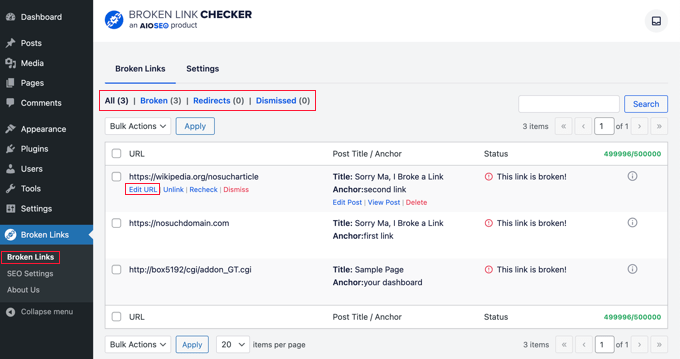
Bevor Sie starten, sollten Sie damit beginnen, Ihre gesamte Website nach defekten Links und übrig gebliebenen „Lorem ipsum“- oder Platzhalterseiten aus der Zeit des Website-Aufbaus zu durchsuchen.
Defekte Links und Platzhalterseiten frustrieren Besucher und signalisieren Suchmaschinen, dass Ihre Website unvollständig oder schlecht gewartet ist.
Das kostenlose Plugin Broken Link Checker von AIOSEO macht dies einfach. Es scannt Ihre Website vom Dashboard aus und markiert defekte Links und Bilder, damit Sie sie mit wenigen Klicks beheben können.
24. Stellen Sie sicher, dass Ihre Website von Suchmaschinen gefunden werden kann
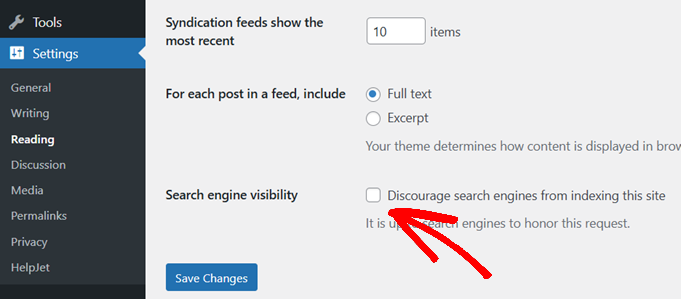
WordPress hat eine integrierte Option, die Suchmaschinen bittet, Ihre Website nicht zu crawlen, und sie wird oft versehentlich aus der Staging- oder Entwicklungsphase der Website heraus eingeschaltet gelassen.
Gehen Sie einfach zu Einstellungen » Lesen in Ihrem WordPress-Dashboard und scrollen Sie zum Abschnitt „Suchmaschinen-Sichtbarkeit“. Stellen Sie sicher, dass „Suchmaschinen davon abhalten, diese Website zu indizieren“ nicht aktiviert ist.
Außerdem empfehlen wir, alle Noindex-Tags oder Passwortschutz zu entfernen, die von Ihrer Staging-Site übrig geblieben sind. Suchmaschinen können eine Seite hinter einem Passwort nicht indizieren, und ein verirrter Noindex-Tag hält eine wichtige Seite aus Google heraus, ohne dass Sie es merken, selbst nachdem alles andere live ist.
Stellen Sie sicher, dass Sie die Sichtbarkeitseinstellungen jeder wichtigen Seite im Editor überprüfen und dann die Einstellungen für das Suchauftreten Ihres SEO-Plugins überprüfen.
25. Reichen Sie Ihre Sitemap bei der Google Search Console ein
Reichen Sie Ihre XML-Sitemap bei Google und Bing ein, damit diese Ihre Seiten schneller finden und die Struktur Ihrer Website verstehen können. Während Suchmaschinen Seiten durch das Folgen von Links finden können, gibt ihnen eine Sitemap eine vollständige Liste der indizierbaren URLs auf Ihrer Website.
Sehen Sie sich unseren Leitfaden zum Einreichen Ihrer Website bei Suchmaschinen für die vollständigen Schritte in der Google Search Console und den Bing Webmaster Tools an.
Das ist alles! Wir haben auch eine zusammengefasste Version dieses Leitfadens in ein kostenloses PDF gepackt. Sie können es herunterladen und ausdrucken, um es griffbereit zu haben, während Sie an Ihrer Website arbeiten.
Häufig gestellte Fragen zur WordPress SEO-Checkliste
Hier sind Antworten auf einige der häufigsten Fragen, die wir von unseren Lesern hören.
1. Was sollte ich zuerst tun, wenn ich eine brandneue WordPress-Website starte?
Befolgen Sie die Checkliste der Reihe nach. Beginnen Sie mit dem Fundament Ihrer Website, einschließlich Hosting, Theme und WordPress-Einstellungen. Gehen Sie dann zum technischen SEO über, optimieren Sie Ihre Seiten und Bilder und beenden Sie mit den Pre-Launch-Checks, bevor Sie Ihre Website öffentlich machen.
2. Kann ich WordPress-SEO betreiben, ohne einen SEO-Experten zu beauftragen?
Ja. Die meisten WordPress-SEO-Aufgaben erfordern keine technischen Kenntnisse. Mit dem richtigen SEO-Plugin und einer Checkliste wie dieser können Sie die Grundlagen selbst erledigen, einschließlich Sitemaps, Schema, Metadaten, internen Links und Leistungsoptimierung. Viele beliebte SEO-Plugins fügen auch KI-Begleitertools hinzu, die SEO für Kleinunternehmer noch einfacher machen.
3. Was ist der größte SEO-Fehler, den Leute machen, bevor sie eine Website starten?
Der häufigste Fehler ist, Suchmaschinen versehentlich daran zu hindern, die Website zu indizieren. Andere häufige Probleme sind das Vergessen der Übermittlung einer Sitemap, der Start mit Platzhalterinhalten, defekte Links, doppelte Seiten oder fehlende Seitentitel und Meta-Beschreibungen.
4. Wie lange dauert es, bis SEO Ergebnisse zeigt?
Obwohl Sie schnell kleine Verbesserungen sehen können, dauert es in der Regel drei bis sechs Monate, bis sich Ihr Traffic und Ihre Suchrankings spürbar auswirken.
Konsequente Anstrengung ist das Wichtigste.
Ich hoffe, diese Checkliste hat Ihnen geholfen, Ihre WordPress-Website für Suchmaschinen vorzubereiten. Weitere Details finden Sie in unserem ultimativen WordPress-SEO-Leitfaden.
Wenn Ihnen dieser Artikel gefallen hat, abonnieren Sie bitte unseren YouTube-Kanal für WordPress-Video-Tutorials. Sie finden uns auch auf Twitter und Facebook.


Olaf
SEO kann sowohl Spaß machen als auch ein Albtraum sein. Das Schlimmste ist, dass Google seine Algorithmen oft anpasst und was heute funktioniert hat, morgen schon ganz anders sein kann. Einige Grundlagen bleiben jedoch gleich, und ich denke, diese werden in diesem Artikel gut erklärt. Es ist eine solide Grundlage, der man folgen kann, damit eine Website bei Google viel leichter indexierbar ist. Zum Beispiel dachte ich früher, dass ein SEO-Plugin nicht wichtig sei, weil ich alles selbst einrichten könnte. Aber mit der Zeit und Erfahrung habe ich erkannt, dass ein SEO-Plugin wie Yoast oder AIO SEO wirklich ein großartiges Werkzeug ist, das selbst jemandem, der sich gut mit SEO auskennt, helfen kann, bestimmte Aufgaben zu automatisieren und viel Zeit zu sparen. Was mir zum Beispiel hilft, ist die hervorragende Überwachung von Texten und Keywords. Und wir sprechen hier von kostenlosen Versionen, sodass kein großes Budget oder eine größere Investition erforderlich ist. Der Rest ist wirklich Lernen und Einhalten der in diesem Artikel beschriebenen Praktiken.
Moinuddin Waheed
Ich denke, das Allerwichtigste nach der Einrichtung eines Blogs ist, ihn in den Webmaster-Tools hinzuzufügen.
Das ist so, als würde man den verschiedenen Browsern sagen: Hey, wir haben dieses Geschäft aufgebaut, und bitte macht darauf aufmerksam für jeden, der an meinem Produkt interessiert ist.
All der SEO-Kram kommt nach diesem Schritt.
Ich hatte zuerst Schwierigkeiten, mich mit der Google Search Console zu verbinden, und dann fand ich die Lösung in Form des AIOSEO-Plugins.
Das macht den Prozess des Hinzufügens von Websites zu Webmaster-Tools zu einem einfachen und reibungslosen Prozess.
Ich schätze wirklich die Aufschlüsselung der wesentlichen SEO-Aufgaben sehr.
Oyatogun Oluwaseun Samuel
Hmmm, dieser Artikel hat mir die Augen für etwas geöffnet, über das ich noch nicht nachgedacht habe, nämlich LSI (Latent Search Indexing). Die Verwendung verwandter Schlüsselwörter oder Phrasen kann immense Vorteile bei der Verbesserung der SEO Ihrer Website bieten. Daran habe ich bisher noch nicht gedacht. Auch die Tipps zur Verwendung von SEO-Plugins und zur Optimierung von Meta-Beschreibungen waren besonders nützlich. Vielen Dank dafür!
Dennis Muthomi
Bezüglich Tipp Nr. 10 zur Verbesserung der Lesbarkeit von Inhalten – welches Lesbarkeitsniveau empfehlen Sie?
WPBeginner-Support
Das hängt von Ihrem Inhalt und Ihrer Zielgruppe ab, aber je einfacher es zu lesen ist, desto besser ist es normalerweise für Ihre Besucher.
Administrator
Dennis Muthomi
Vielen Dank dafür.
Ich hatte auf Google gelesen, dass Blogger auf ein Lesbarkeitsniveau von 60 oder eine 8. und 7. Klasse abzielen sollten.
Aber danke für die Antwort.
Jiri Vanek
Vielen Dank für die Anleitung zum Thema SEO. Planen Sie, sich mit dem Thema Keywords zu befassen? Wie sie funktionieren, die Verwendung von Tools wie Google Keyword Planner oder SEMrush usw.? Dies ist ein sehr herausforderndes Thema für mich, das ich noch nicht ganz verstanden habe. Ich glaube, ich habe gut entwickelte Inhalte auf meiner Website, aber ich kämpfe mit diesem 'Problem', das ich nicht ganz verstehe. SEO ist eine relativ komplizierte Disziplin.
WPBeginner-Support
Zum Verständnis von Keywords empfehlen wir Ihnen, einen Blick auf unseren Artikel unten zu werfen:
https://www.wpbeginner.com/beginners-guide/how-to-do-keyword-research-for-your-wordpress-blog/
Administrator
Jiri Vanek
Danke für den Link, ich habe den Artikel gelesen und er hat mich dazu gebracht, mich eingehender mit Keywords und ihrer Funktionsweise zu beschäftigen. Ich beginne endlich, die Rolle und Funktion von KW besser zu verstehen, und hoffentlich wird sich das auch auf die Zuschauerzahlen auswirken. Nochmals vielen Dank.
Nick Scarpa
Danke WPB! Sehr hilfreicher Artikel. Ich habe ihn für zukünftige Projekte gespeichert.
WPBeginner-Support
Gern geschehen, wir freuen uns zu hören, dass unser Leitfaden hilfreich ist!
Administrator
Yasir Afzal
Ich muss diese Fähigkeiten lernen
WPBeginner-Support
Wir hoffen, dass unsere Empfehlungen den Lernprozess erleichtern!
Administrator
huiyong luo
Dieser Artikel ist sehr hilfreich für Website-Manager!
WPBeginner-Support
Freut mich, dass Sie das denken!
Administrator