


Are you feeling limited by your free WordPress.com blog? Moving to self-hosted WordPress.org is the best way to take full control of your website.
Many beginners delay this switch because they are afraid of breaking their site. You might worry about losing your hard-earned subscribers or search engine rankings.
We have helped thousands of users successfully migrate their blogs. We know exactly how to move your content safely without any downtime.
In this guide, we will share how to move your blog from WordPress.com to WordPress.org properly. We will cover how to transfer your content, keep your rankings, and redirect your traffic.
Why Move From WordPress.com to WordPress.org?
WordPress.com allows anyone to start a blog by creating a free account. This makes it easy for beginners to start blogging quickly without dealing with any technical issues.
However, many users realize their free WordPress.com blog has some limitations. These include the limited ability to monetize, the inability to install plugins, third-party ads displayed to users, and more.
This is why users often switch to the more powerful and popular self-hosted WordPress.org platform. Alternatively, you could upgrade to a paid WordPress.com plan.
We compared WordPress.com and WordPress.org thoroughly. This side-by-side analysis explains both platforms’ differences, advantages, and disadvantages.
We recommend using WordPress.org because it gives you complete ownership of your website and the freedom to control all its features. To learn more about all these features, see our complete WordPress review with pros and cons.
That being said, let’s look at how to migrate your blog from WordPress.com to WordPress.org properly.
Things You Need Before You Start
To start with self-hosted WordPress.org, you’ll need a WordPress hosting account and a domain name.
We recommend Bluehost because it is one of the largest hosting companies in the world and an officially recommended WordPress hosting provider.

They are also offering WPBeginner users a free domain name and a huge discount on web hosting. You can get started for $2.99 / month (and this also includes free SSL).
You’ll still need web hosting if your WordPress site has a custom domain name. Go ahead and sign up with Bluehost, and under the domain step, add your blog domain.
In the later steps, we will show you how to keep the same domain while transferring from WordPress.com to WordPress.org without losing search rankings.
In addition to the hosting account, you’ll also need access to your WordPress.com account to easily transfer your posts, pages, images, comments, and other data to your self-hosted WordPress site.
Bonus Free Offer: Since many of you asked for this, we are now offering a free migration service from WordPress.com to WordPress.org as part of our free WordPress blog setup service. During this guided transfer, one of our expert team members will do the entire migration for you (100% free). This means you can switch from WordPress.com to WordPress.org without any risk.
However, if you like learning and doing things yourself, you can follow our step-by-step tutorial below. Here’s a quick overview of all the steps we’ll cover.
- Step 1: Exporting Data From WordPress.com
- Step 2: Setting Up WordPress
- Step 3: Importing Content into a Self-Hosted WordPress Site
- Step 4: Importing Your Blogroll Links (Optional)
- Step 5: Setting Your WordPress.com Blog to Private
- Step 6: Redirecting Visitors and Preserving SEO
- Video Tutorial
- Frequently Asked Questions (FAQs)
- Additional Resources
Here we go!
Step 1: Exporting Data From WordPress.com
First, you need to sign in to your WordPress.com site and go to your account dashboard.
In the dashboard sidebar, navigate to Tools » Export. If you are in the default view, you might need to look under the ‘Settings’ or ‘General’ tab, depending on your specific dashboard version, but looking for ‘Export’ is the key.
Once you are on the Export page, click on the ‘Export All’ button to begin the process.
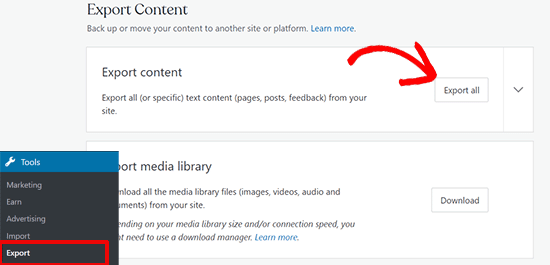
This allows you to export your WordPress site. Once the export file is ready, a download link will be visible. You can click to download the zip file on your computer.
WordPress.com will also email the link to your email address.
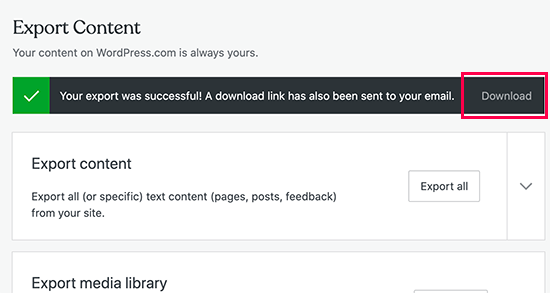
Once you have downloaded the file to your computer, you need to unzip it.
Inside it, you’ll find an XML file with all your posts, pages, images, comments, custom fields, categories, tags, navigation menus, and other data.
Step 2: Setting Up WordPress
Now that you have exported your WordPress.com data, setting up a fresh WordPress install on your web hosting is next.
WordPress is very easy to install, and it only takes a few clicks. If you signed up with Bluehost like we mentioned above, then WordPress will be automatically installed for you.
Alternatively, if you choose a different hosting service, then you can follow our step-by-step tutorial on how to install WordPress within 5 minutes.
Once you have installed WordPress, it is time to import your content into your new self-hosted WordPress website.
Step 3: Importing Content into a Self-Hosted WordPress Site
To import your old WordPress.com site content to your new WordPress.org site, you will need to log in to your freshly installed WordPress website’s admin area.
From here, you need to visit the Tools » Import page and click on the ‘Install Now’ button below WordPress.
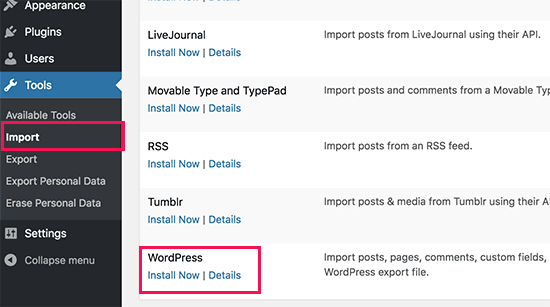
WordPress will now install the WordPress importer for you.
Once it’s done, click on the ‘Run importer’ link to continue.
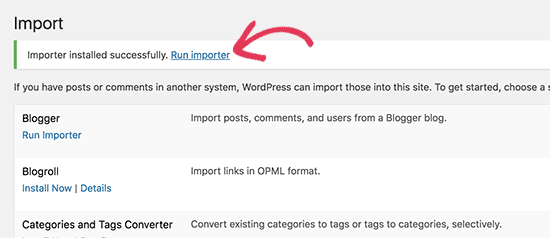
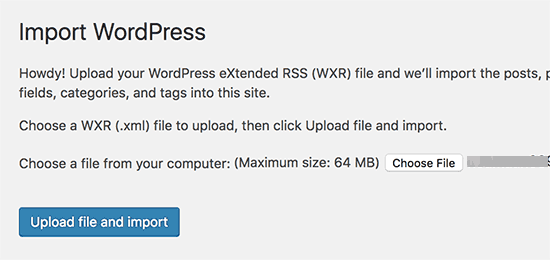
It will take you to a screen where you will be asked to upload the WordPress.com XML file that you downloaded in step 1 of this tutorial.
Click on the ‘Choose File’ button to select the file, and then click on the ‘Upload file and import’ button.
☝ Note: If your file size is larger than 2MB, you have two options. One is to ask your web hosting company to temporarily increase that limit so you can proceed with the process.
The other option is to split your file using a free WXR file splitter tool (there are many free tools available for Windows and Mac) or simply ask your hosting support to increase the upload limit for you.
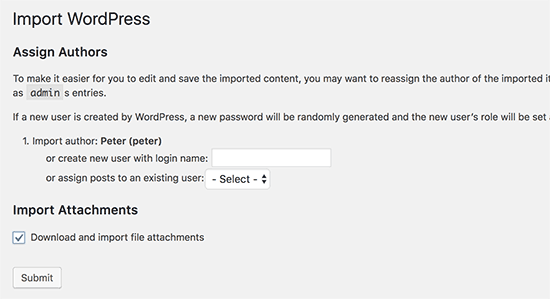
When you start importing, you can assign imported content to an existing user or create a new user.
You’ll also have the option to import file attachments. You must check this box so your image files are correctly imported.
Step 4: Importing Your Blogroll Links (Optional)
Note: Most modern users can skip this step. Only follow this if you actively used the ‘Links’ or ‘Blogroll’ feature on your old blog.
If you have been using the Links feature on your WordPress.com blog to store blogroll or other links, then you need to follow these instructions to import them.
WordPress does not natively support the blogroll feature. If you don’t have too many links in your blogroll, then see our guide on how to add blogroll links in WordPress without using a plugin.
However, if you have too many links or you would like to keep the blogroll functionality, then continue reading.
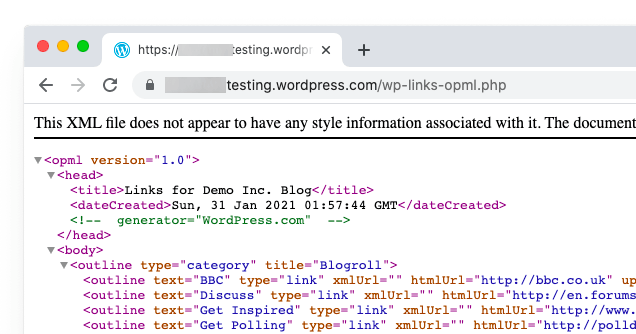
Blogroll links are exported in OPML format. It is an XML format that allows you to export and import your links and link categories. Your WordPress.com links have an OPML file located at an address like this:
http://example.wordpress.com/wp-links-opml.php
Replace the example with your WordPress.com blog’s subdomain.
If you are using a custom domain with your WordPress.com website, then your OPML file can be accessed by visiting a URL like this:
http://www.example.com/wp-links-opml.php
Your OPML file will open in your browser window, and you need to save it to your desktop. Press CTRL+S (Command+S on Mac) to save the file on your computer.
Now that you have a backup of your WordPress.com links, the next step is to import them into WordPress. However, self-hosted WordPress does not have a link manager enabled by default.
You will need to install and activate the Link Manager plugin.
Note: This plugin is quite old. You should only use it to import your links and then deactivate and delete it immediately afterward.
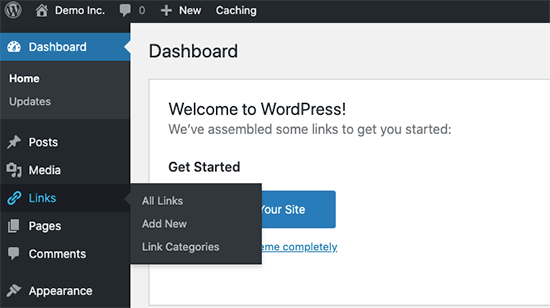
Upon activation, the plugin will add a new menu item labeled’ Links’ to your WordPress admin bar.
Next, you need to install and activate the OPML Importer plugin. This plugin enables a new importer tool that allows you to import blogroll links.
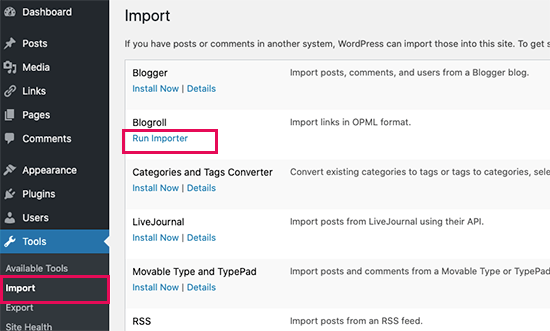
Upon activation, you need to visit the Tools » Import page and click on the ‘Run Importer’ link below the Blogroll importer.
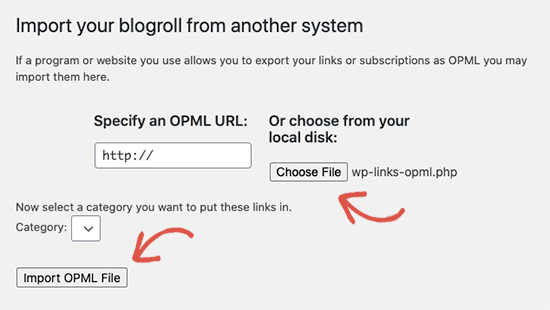
On the Blogroll importer page, you need to upload the OPML file you saved earlier.
Click on the ‘Choose File’ button to select the file, and then click on the ‘Import OPML File’ button to continue.
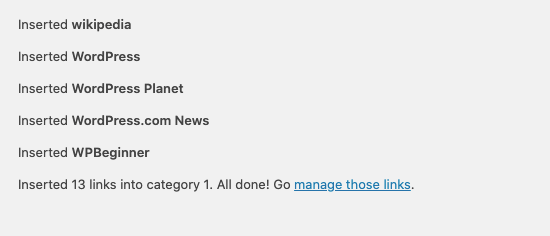
WordPress will now import your links and link categories from the OPML file.
You will be able to see the progress, and on completion, you will see the success message.
Step 5: Setting Your WordPress.com Blog to Private
Now, if you don’t want to redirect your old users to your new site, this will be your final step.
First, visit your old blog’s WordPress.com dashboard.
From the left menu, look for Settings » General (or sometimes labeled as ‘Hosting’ or ‘Settings » Privacy’). You are looking for the ‘Site Privacy’ or ‘Visibility’ section.
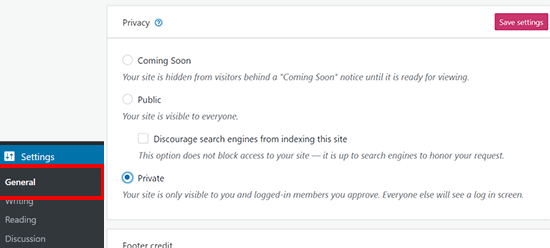
From here, you need to select the ‘Private’ option and then click on the ‘Save settings’ button.
This will make your old WordPress.com blog private, and it will only be visible to you or other logged-in users that you approve.
Attention: If you have been writing for some time and you have a loyal audience, then it does not make sense to leave them hanging.
Furthermore, if your blog has been out there for a while, then chances are that it is indexed by Google and other search engines.
You can keep all the search engine rankings and easily redirect your old users to your new blog by following Step 6 (highly recommended if your site is established).
Step 6: Redirecting Visitors and Preserving SEO
Redirecting users to the new location with the 301 header is a standard solution to keep search rankings while moving a site from one place to another.
Since you don’t have access to the .htaccess file on WordPress.com, you cannot make any changes to retain search engine rankings.
However, WordPress.com offers a paid upgrade feature called ‘Site Redirect’, which provides this functionality.
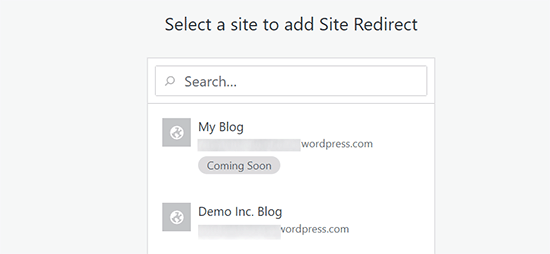
Simply go to the Site Redirect page. If you have multiple sites on WordPress.com, you will be asked which one you would like to redirect.
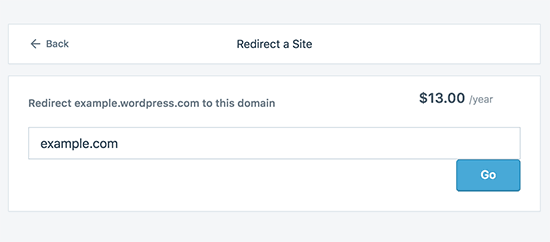
On the next screen, you will be asked to provide the domain name where you want visitors to be redirected. Enter your new WordPress.org site’s domain name and click on the go button.
☝ Note: Site redirect is a paid upgrade (usually costing around $13-$15 per year). It will add a 301 redirect, which redirects your WordPress.com blog’s visitors and search engines to your new site.
This is mainly for users who were using a subdomain (e.g., yourname.wordpress.com). If you already had a custom domain (e.g., yourname.com), you just need to point your DNS to the new host.
Some of you will ask: how long should I keep paying for this Offsite redirect feature?
The answer is for as long as you want to. However, two years would be enough time for your old users to memorize your new domain name.
If you are changing domains, then another thing you want to do is update all in-post URLs. If you ever inter-linked your posts, those links must be updated. You can use our article on how to update URLs when moving your WordPress site.
If you have a custom domain on WordPress.com, you don’t have to worry. Simply change the DNS record to your host, and you will retain all the SEO benefits.
Video Tutorial
Need to see the process in even more detail? Here’s a step-by-step video tutorial on how to migrate from WordPress.com to WordPress.org:
Frequently Asked Questions (FAQs)
We wrote the first version of this article in January 2013, which is quite a long time ago! But we update it regularly to make sure we’re providing you with the most up-to-date information.
That said, since then, we’ve received tons of great questions. We’ve answered a lot of them via email or in comments, so we thought it would be nice to compile the popular ones in one place where everyone can see them.
What happens with my WordPress.com Subscribers?
Thankfully, WordPress.com allows you to migrate your subscribers with one condition. You must use their Jetpack plugin, which adds the same subscriber functionality that you had at WordPress.com.
Once you install and activate the Jetpack plugin, check the Jetpack settings for a subscriber migration tool. If you don’t see it, you can simply contact the WordPress.com support team and ask them to migrate the subscribers for you.
Can you help me transfer from WordPress.com to WordPress.org for FREE?
Absolutely. We offer migration from WordPress.com as part of our free WordPress blog setup service. If you need our assistance, then simply sign up. It’s free 
What are the costs of switching to WordPress.org?
WordPress is free. However, there are some minimal web hosting costs. We recommend that you read this article on: Why is WordPress free? What are the costs, and what is the catch?
I already paid WordPress.com. Can I get a refund?
Yes, you can. If you recently purchased a custom domain or a paid plan from WordPress.com, then you can ask them for a full refund.
Note: Domain registrations can be canceled within 48 hours of registration, and plans and other purchases can be canceled within 30 days of purchase.
Will my images break?
No, they will not. When you transfer using the import file, all attached images are downloaded, and the link is updated.
However, we noticed one caveat. If your image URL starts with files.wordpress.com, then they will not be converted.
If you notice that the image URL has not changed and still points to WordPress.com, we recommend that you use the Auto Upload Images plugin, which will automatically fix those URLs.
I registered my domain through WordPress.com. Can I still move?
Yes, you can. WordPress believes in empowering users and giving them complete control of their content. If you already have a domain name through WordPress.com, then all you need is a web hosting account.
We recommend that you set up with Bluehost or any of these other WordPress hosting providers. During the signup phase, you will be asked if you have a domain or want to register a new one.
Simply select the ‘I have a domain name’ option and insert the domain you registered at WordPress.com.
The next thing you will have to do is change the nameservers to point to the hosting provider. We can assist with this as part of our free setup service. You can also ask your web hosting provider for support.
Will my website go down when I switch?
If you do it correctly, then NO. The method we’ve suggested above will ensure that your website never goes down. If you are worried, then know that we are here to help. You are welcome to use our free setup service at any time.
Can I add an online store to my WordPress.org website?
Yes, you can easily add an online store to your self-hosted WordPress.org website without any additional costs. Since Bluehost and other popular web hosts offer free SSL certificates, you simply need to install a WordPress eCommerce plugin to add an online store.
What are some of the must-have WordPress plugins that you recommend?
Now that you have switched to self-hosted WordPress.org, you can install as many plugins as you like.
Here’s our recommended pick:
- All in One SEO (AIOSEO) – the best WordPress SEO plugin to improve your website’s rankings (used by 3+ million sites).
- WPForms – to add a smart contact form on your website (used by 6 million sites).
- SeedProd – to easily customize your landing pages with drag & drop builder – works with all WordPress themes.
- MonsterInsights – to see how people find and use your website. It’s a must-have for bloggers and small business owners.
- PushEngage – to connect with visitors after they leave your website.
- Duplicator – to create daily backups of your new website in case of emergency.
- OptinMonster – to help you get more email subscribers and succeed in your blogging journey.
In addition to these, we recommend looking at our expert pick of the must-have WordPress plugins and useful blogging tools for managing and growing your blog.
You can install all of these plugins from inside your WordPress dashboard. We have created a step-by-step guide on installing a WordPress plugin.
I want to change my site’s WordPress theme, can I do that?
Yes, you can change your WordPress theme at any time. Another big benefit of switching to WordPress.org is that you get additional customization options and a larger collection of themes to choose from.
In your WordPress admin sidebar, click on the Appearance Menu dropdown and select ‘Themes’ to install a theme.
We have hand-picked some of the best themes to help users avoid choice paralysis. See our guide on the best free blog themes and best multi-purpose themes for WordPress.
You may also want to see our guide on how to properly change a WordPress theme.
Additional Resources
We hope this article helped you properly move your blog from WordPress.com to WordPress.org. You might also want to check out these other helpful guides for your new website:
- WordPress.com vs WordPress.org – Which is Better?
- Important Things to Do After Installing WordPress
- The Ultimate WordPress Security Guide
- The Ultimate Guide to Boost WordPress Speed & Performance
- How to Choose the Best WordPress Hosting (Compared)
If you liked this article, then please subscribe to our YouTube Channel for WordPress video tutorials. You can also find us on Twitter and Facebook.


Kashif
how to migrate design as well? it will just migrate blogs right?
WPBeginner Support
It would depend on your specific theme as some themes have a version for WordPress.org and WordPress.com and others are only available on WordPress.com or have WordPress.com specific customizations.
Admin
Dennis Muthomi
I would love to share a pro tip that’s worked great for me: I always make a quick spreadsheet before starting. I list out all the active plugins and widgets from the WordPress.com site. It’s been a real lifesaver! Makes it so much easier to set up everything on the new WordPress.org site. Some features need different plugins, so having this checklist helps me make sure I don’t miss anything for my clients site.
Hajjalah
I wish I read this article before. Because I have created a new website on wordpress.org from scratch and created a redirect from my old wordpress.com website . One of the biggest challenge i face is that the I had to use a different new domain name which is not familiar to my old users.
Kay M
I migrated my site from wordpress.com to wordpress.org, but my front page is missing. All the other pages are there but I can’t find the front page.
WPBeginner Comments
This may be due to the theme. Some themes have a lot of the homepage layout and design in the customization, so you may want to check the Customizer to see if it has any homepage features.
If so, you likely will want to use the theme if possible and copy the homepage settings.
Ayanda Temitayo
Honestly I taught migrating from WordPress.com to WordPress.org is really a very hard thing that will be very technical. It’s actually easy than I taught. with this very detailed guide, it became even more clearer.
The only challenge I was having is that some of my images are not showing.
WPBeginner Support
Glad we could clear up the process for you and for your images we would recommend ensuring that your import completed as that is one common reason if a site is very large.
Admin
Peter Iriogbe
I always like coming here to get my how-to information. Thank you. I want to ask, which device is better for exporting files? PC or smartphone, which ones would you recommend? Thanks in advance.
WPBeginner Support
A PC would normally be better for most but if you do not have access to one then it is not required
Admin
Moinuddin Waheed
One easy but long way of doing this is to first take backup of all the posts manually and then take all the photos manually on your computer.
then take a hosting on WordPress.org and then install WordPress there. now import all these posts and content to the new site.
I know this is tedious and will take time and effort but this is foolproof in terms of its surety of no data loss. you will be able to transition to the new platform which is scalable and efficient for the longer run.
of course the site is very big and have much content then this method will not be effective and efficient.
WPBeginner Support
For very small sites that could work but we would still recommend the method from our article for most sites.
Admin
Sarah Jackson
I have followed your steps here, and I now have double on my wordpress site. I am not entirely sure what I have done.
Any advice would be greatly appreciated.
WPBeginner Support
It sounds like you imported the content on to your WordPress.com site. If you are using the same domain then you would want to set up the site on your new hosting provider on a temporary domain otherwise you would need to change the hosts file on your computer to see your self hosted site.
Admin
Jake Samirez
The 301 redirect strategy in this article isn’t viable. Sure, you can pay the $13 and redirect the old wordpress.com domain to your new domain. But what really matters for SEO is redirecting individual pages and blog posts, from the old site to the new one. To do that, you need a redirect plugin on your wordpress.com account, and wordpress.com plugins are only available on their $25 USD/month business plan. Most of us are on free wordpress.com accounts, so we don’t have the ability to do this.
WPBeginner Support
The WordPress.com redirect will redirect your posts as well using the day and name permalink structure, you do not need to use plugins to redirect the individual posts that way. If you change the permalinks on your new site, you would need to set up redirects on the new site for them to point to the new URL which does not require paying to install plugins.
Admin
Raphael
When I migrate to this service, what happens to my adsense? Will I lose my adsense? I already have a website and all I want to do is switch hosting, since it would be more affordable for me.
WPBeginner Support
If you keep your domain the same you should not see an issue with your Google Adsense when moving your site.
Admin
MartiP
hello,
I signed up with wordpress.com but I realized later that I had made a mistake. I asked them how to transfer from wordpress.com to wordpress.org and they told me that I had to wait 60 days!!
I opened/bought the domain less than 24hrs ago.
is there a way I can transfer the domain before the 60 days?
thanks so much!
WPBeginner Support
You can change the nameservers for your domain to point it to your new hosting provider for the first 60 days but you cannot transfer during that time due to a limitation from ICANN who are in charge of domain names. This isn’t a limitation set by WordPress.com. We would recommend taking a look at our article below that covers nameservers:
https://www.wpbeginner.com/wp-tutorials/how-to-change-nameservers-and-point-domain-to-a-new-host/
Admin
Ben
Great advice it helped me a lot!
WPBeginner Support
Glad our article was helpful!
Admin
Steven
When I change over do I have to keep the domin name I have or can I start off with a new one. since I have not published anything.
Thank you
WPBeginner Support
You do not need to keep the same domain name especially if you have not published anything on your site yet.
Admin
John
This may not work for me as I have 7000+ posts which are mostly photos but also lots of videos.
WPBeginner Support
For sites with a large amount of content, WordPress.com will create multiple export files that you would import and still follow this guide.
Admin
Sebastian Devassy
I am planning to migrate from Wordpress.com to my wordpress website. But I am worried if I will loose comments. Will the XML comes with comments and I can use Jetpack to move the subscribers? Is there a workaround for that?
WPBeginner Support
Your comments are transferred and Jetpack does have a tool to transfer your subscribers
Admin
Deepak
What if the zip file downloaded for backup has 2 XML files. Should we import both the files on Wordpress org site or what? TIA
WPBeginner Support
You would want to import both XML files, WordPress.com would split your export file for larger sites into multiple files to hopefully reduce the chances of your import timing out.
Admin
Pooja Maru
I followed exact step but error popped up while importing that failed to import
Anton
When transferring to wp.org, how can I reset my slugs from the default (date etc) to another format and preferably retain rankings. Or is it start over?
Lauren
I have two Wordpress.com websites – can I migrate them both onto Wordpress.org under one Bluehost plan?
Emily
Thank you for the straightforward directions! I followed the video exactly, but only 8 of my 171 posts migrated! I’m terrified of losing all that content. What did I do wrong?
WPBeginner Support
More than likely you either had a large image or similar large content that caused the import to time out. If you run the import again it should start importing from where you left off.
Admin
Sauya
Hi,
I’m considering migrating to wordpress.org…is it possible to create a completely new domain name for wordpress.org and then migrate my blog to this new site while still maintaining the name of the blog as some sort of “page”. Kinda like having a blog within a website, and if I post in this blog, will links to posts have the new domain name or the blog name? Can redirection from the old site work with this as well?
WPBeginner Support
If we’re understanding what you are wanting properly, then you could create the site on a new domain and most hosts have ways to redirect from one of your domains to another. You can use our guide below for seeing how to set up redirects:
https://www.wpbeginner.com/wp-tutorials/how-to-properly-move-wordpress-to-a-new-domain-without-losing-seo/
For the wordpress.com URL redirect, that cannot be done by anyone other than WordPress.com at the moment.
Admin
Kristy
Hi There
I followed the instructions in this post to go from .com to .org using bluehost as the host platform.
Upon reviewing the new website before going live, I’ve found it to be a a mess and looks nothing like my old website. I assumed by doing the export/import that I would be looking at a mirror image of my former website. What this an incorrect assumption?
Do I actually need to go through the motions of fine tuning every little detail to get it where I need it to be again?
Any assistance or advice would be greatly appreciated. Thanks in advance!
WPBeginner Support
It would depend on the specific theme you are using on your site, some have tools for allowing you to transfer the customizations as long as your theme is the same on the new site but, if your theme does not have that option, you would need to customize the theme to have it appear as it was on WordPress.com.
Admin
Kristy
I plan to switch over my .com to .org (rookie mistake purchasing .com). I got a free year of domain through .com with a paid plan. So I will keep that and sign up for bluehost, but I also have a wordpress email address. Will there be any issues or interruptions with the email address if I switch over as it is important that I keep it?
Thanks in advance
WPBeginner Support
You would need to ensure the email is set up with your new hosting provider and as long as that is set up there should not be an issue.
Admin
Pete Choppin
I don’t know if this has already been answered. I configured my nameservers on wordpress.com to now point to the new hosting service.
If my paid account on wordpress.com expires or if I remove the account entirely, will the nameservers continue to point to the new hosting service from wordpress.com? Thank you
WPBeginner Support
That would depend on if your domain is on WordPress.com or not. If your domain is on WordPress.com then you would want to transfer it to your new host to prevent that from happening in the future.
Admin
Elizabeth Gelfeld
I just went through most of the process of changing from WordPress.com to WordPress.org. It all went smoothly, with exporting and importing, but it’s still .com. I already had an account with Bluehost and a domain name. Do I need to start over and get a new account with Bluehost? If so, can I keep my domain name? What are the steps to doing that?
Thanks!
WPBeginner Support
You likely need to ensure your nameservers updated and you’ve cleared your cache to see your new site. You do not need a new account to transfer your site.
Admin
Elizabeth
Thanks for your reply. What does “ensure your nameservers undated” mean? I cleared my cache. What is the next step to seeing my new site, which should be wordpress.org?
I log in to wordpress through my Bluehost Portal. Is that the wrong way to log in?
WPBeginner Support
IF you’re using the same domain as you were on WordPress.com then you would need to change the nameservers following our guide below:
https://www.wpbeginner.com/wp-tutorials/how-to-change-nameservers-and-point-domain-to-a-new-host/
You can log in to your site from BlueHost if you want but if your domain is pointing towards WordPress.com, that is the site you would see.
Mae Warrener
I just changed from worpress.com to worpress.org but my login will not work in workpress.org to access my site. How do I fix this? do I have to register with worpress.org?
WPBeginner Support
We would recommend reading through the article again, moving to WordPress.org would mean you would log in through your site’s URL with /wp-admin at the end, not directly through the WordPress.org site.
Admin
Ken O
I love WPbeginner! What interests me most is your wholehearted dedication to giving the best to the Wordpress community.
Well done!
WPBeginner Support
Glad you like our content
Admin
Wei
Hi, can I transfer my wordpress.com contents to my installed .org when I don’t have a host yet (still in building/learning stage)?
WPBeginner Support
You would need a new host to have an installed .org site. You can create an installation on your local computer to have a test site that you can transfer to a live host.
Admin
Katie
I have attempted to import my XML files from wordpress.com site to my .org site hosted by bluehost. My Wordpress.com export resulted in 3 XML files. I imported all 3 files to the .org location following the instructions. Sadly, I can see that the media has been transferred, but when viewing my new page, none of my old content is displayed. Any assistance would be greatly appreciated.
WPBeginner Support
The most common reason would be for large sites it can time out the import, if you run the import again it should import your missing content onto your site.
Admin
Oge
Hello, please could you simplify this for me. If my current domain on wordpress.com is abc.com, would this change to abc.org when I migrate to wordpress.org? Also, will the date stamps on my post remain as they are after the migration? For example, will a post that was made June 2020 retain that date to change to the date it was moved over to the new site?
WPBeginner Support
No, you would keep the same domain, it would not change to .org and your dates should remain the same when the content is transferred.
Admin
Anca
Hello! Can I use my own domain for registration on Bluehost (the wordpress domain) when migrating it?
WPBeginner Support
Yes, you can choose that you already own a domain when signing up for hosting.
Admin
Marusa
It seems that customers of the free version are not allowed to contact their customer support team.
So how do I contact them to transfer my subscribers?
WPBeginner Support
They’ve updated their method for transferring subscribers so once your site is connected using Jetpack you would want to go into your settings area on your WordPress.com site to transfer your subscribers.
Admin
Marusa
Hi,
Do you have to get the paid Jetpack version in order to transfer over your subscribers form Wordpress.com? Or does the free Jetpack plugin allows for that?
Many thanks
WPBeginner Support
The free version should allow you to transfer your subscribers
Admin
Felipe casanova
Is there any chance that you guys can please transfer it for me.
WPBeginner Support
If you purchased the hosting using a link from our site, we have a free transfer service you can use below:
https://www.wpbeginner.com/free-wordpress-blog-setup/
Admin
Felipe Casanova
Hello i Tried to import myself following all the steps, but now i enter to my new wordpress.org website i see only an example webpage and not my webpage from wordpress.org
Please help!
WPBeginner Support
You may have imported the content back on to your WordPress.com site for a common issue with that during the domain transfer process. You could also reach out to your hosting provider to ensure you do not have a second installation of WordPress on your account.
Admin
Allen
Hello, thanks for this wonderful guide, it was really helpful.
Please, I want to ask, If i didn’t do the redirect and just migrate, will my visitors and users be able to reach my new domain.
I mean for example, once they search for myoldsite.wordpress.com will they be redirected to mynewsite.com?
WPBeginner Support
Without the redirection, your users would not be redirected to the new site when they search for the WordPress.com address.
Admin
Sylvie Blouin
Yesterday, I attempted migrating my wordpress.com account to wordpress.org. Unfortunately after the migration was complete any attempt to modify anything was made enormously slow.
WPBeginner Support
It would depend on what content is on your site for any possible issues, we would recommend going through our guide for speeding up your site below that can help with some common issues:
https://www.wpbeginner.com/wordpress-performance-speed/
Admin
Paul
If I create a free website with a domain e.g
example.wordpress.com and I want to migrate to Bluehost. How should I register the existing domain name, is it e.g example.wordpress.com or just example.com. And that is because I want to keep my domain name.
WPBeginner Support
You would need to purchase a new domain as the domains with .wordpress.com are not allowed to be transferred.
Admin
Ali
When i upload file ( end of step 3 ) this error!!!!!!!
Sorry, there has been an error.
This does not appear to be a WXR file, missing/invalid WXR version number
WPBeginner Support
Should that happen you would want to ensure you are not uploading the .zip file and instead of the files inside the zip file if that is what WordPress.com sent you.
Admin
Al
Hi, why wont my theme from .com move over to .org?
WPBeginner Support
You would want to reach out to the support for the specific theme for that question but normally there are restrictions for paid themes on WordPress.com not being able to be transferred.
Admin
Mark
I’ve transferred the domain name of my wife’s site to Bluehost, and I’ve canceled paying for services on WordPress.com (the services are still active until lat Nov). I’ve activated the site on Bluehost, but it still points to the temp domain and not the actual domain; how do I correct this? Thanks.
WPBeginner Support
If you reach out to BlueHost’s support and they can assist with updating your domain or in your BlueHost account there should be a setting to update the address at the moment.
Admin
Connie
I imported my blog from WordPress.com to Wordpress.org (and yes it took a few times to import everything), but when I look at the site, all the text is spread out an the images are huge! I checked several posts, and they all look like that.
In the editor, everything looks fine. It’s only when I view the site.
I figured out that it has something to do with the formatting of the images, and I fixed one by deleting and reinserting the images . Is there an easier way to do that or do I have to manually go in and fix all 58 posts?
WPBeginner Support
That could happen if you changed your theme, you may want to try the plugin in our guide below:
https://www.wpbeginner.com/plugins/regenerate-thumbnails-new-image-sizes-wordpress/
Admin
Connie
Well, when I installed that and ran it, I got a lot of “skipped attachment” with the attachment ID # and then “internal server error”. Then it said “There has been a critical error on your website” With a link that says “Learn more about debugging in WordPress”.
WPBeginner Support
Normally that critical error message includes other error warnings that would state the specific reason for the error, we would recommend starting by taking a look at our guide below:
https://www.wpbeginner.com/beginners-guide/beginners-guide-to-troubleshooting-wordpress-errors-step-by-step/
Udisha
I want to migrate my newly formed blog from wordpress.com to .org. I have already bought a domain name and a year plan from a hosting company for my wordpress.com blog. Do I need to buy for hosting again or I can carry on with my previous hosting?
WPBeginner Support
If you already purchased hosting on a different hosting provider you wouldn’t need to purchase new hosting to transfer your site.
Admin
Sandi
I switched from a .com to .org site over a year ago, but did not work with “import” or “export” y my old blog. I still have a few people coming over to my old site. Is it too late to transfer? After I move the information, is there a reason to keep this blog site?
WPBeginner Support
You can still transfer your content from WordPress.com to your WordPress.org site but it is personal preference for if you should remove the old site or not. You can use WordPress.com’s redirect to point your users to the new site.
Admin
Sandi
I switched from com to ,org awhile ago. I want to know if I can export and input from the old site at anytime. And do I just close it down?
WPBeginner Support
You can transfer your content with the export/import tools if you wanted and it is a personal preference question for if you shut down the old site, your other option would be to follow the redirect option from this article.
Admin
Ella
You say “If you had a custom domain on WordPress.com, then you don’t have to worry about anything. Simply change the DNS record to your host, and you will retain all the SEO benefits.” How do I do this?
WPBeginner Support
You would need to check with WordPress.com’s support for their current method for changing that. At the moment that setting should be in the domain section of their admin area.
Admin
Kate
I have gotten to the stage of importing my wordpress.com file to wordpress.org but am not getting the “All done” confirmation. How long should I be waiting on the import page before it is complete?
Each time I have re-uploaded the file it has added a couple of lines with “this file already exists” so it is doing something however Its been quite some time and I no new posts have appeared.
WPBeginner Support
That would depend on the size of the site. If it is a very large site then that can be common but if it is a small site you may want to check with your hosting provider to ensure you’re not running into any issues from their end.
Admin
Alice
Sorry if I’ve missed something or it’s been answered elsewhere – what if I want the address of my wp.org site to be what I’ve set up the wp.com site to be? Bluehost won’t let me buy that domain because it’s already in use. Do I need to deactive the wp.com site before I can buy it to start a wp.org site?
WPBeginner Support
You would transfer the domain, you should have the option to select that you already own a domain and you would change the nameservers for the domain or transfer the domain to your new host
Admin
khushboo
At final stage of step 3
it shows
“Service Unavailable
The server is temporarily busy, try again later!”
WPBeginner Support
You would want to reach out to your hosting provider for that and they should be able to help with this specific error
Admin
rctumlos
will this affect my site’s stat? if so is there anyway that I can safely move from wordpress.com to my hosting service without affecting my stats? thanks.
WPBeginner Support
There should not be a noticeable change in stats but with any change to your site, there is the chance of a change in your stats.
Admin