


Shoppers leave a WooCommerce store fast when they can’t narrow dozens of products down to the two or three they actually want. Filters by price, size, color, or category are what keep them browsing instead of bouncing.
Before you pay for a WooCommerce filter plugin, you should know that WooCommerce now ships with a free Product Filters block, and there are solid free plugins too.
I’ve tested the best WooCommerce filter plugins on a live store. Below, I’ll show you what the free block does well, where it falls short, and which plugin to pick when you need custom fields, a classic theme, a page builder, or SEO-friendly filter URLs.
Quick Comparison: 7 Best WooCommerce Filter Plugins
Before I go into the full reviews, here is a quick comparison of the free built-in block and the top WooCommerce filter plugins:
| # | Plugin | Free Plan | Starting Price (/yr) | Best For |
|---|---|---|---|---|
| 🥇 | WooCommerce Product Filters block (built-in) | ✅ | Free | Basic filtering on block themes |
| 🥈 | WPFilters | ❌ | $49 | Custom fields, classic themes, and filtering all kinds of WordPress content |
| 🥉 | YITH WooCommerce Ajax Product Filter | ✅ | $89.99 | Freemium filtering for most stores |
| 4 | Filter Everything | ✅ | Free (Pro $69) | Free filtering on any theme, including custom fields |
| 5 | JetSmartFilters | ❌ | $75 | Elementor, Gutenberg, and other page builder layouts |
| 6 | Barn2 WooCommerce Product Filters | ❌ | $79 | Large catalogs |
| 7 | Husky – Products Filter | ✅ | $49 | Developers & SEO-friendly filter URLs |
Why Use WooCommerce Product Filters?
Product filters help customers narrow down their choices quickly, without scrolling through dozens of pages in your online store. Shoppers who can filter by price, color, size, or category find the right item faster and are more likely to buy.
Without filters, many shoppers leave frustrated before they find anything.
Inside My Testing Process for WooCommerce Filter Plugins
I tested these plugins by installing each one on a live WooCommerce store across multiple products and categories. I wanted to see which ones felt practical, fast, and beginner-friendly.
- Setup and configuration: I installed each plugin and tracked how long it took to get basic filters working.
- Filter types and flexibility: I tested checkboxes, dropdowns, sliders, and color swatches to see which options each plugin supported.
- Performance and speed: I tested how quickly filtered results appeared and whether they updated smoothly without refreshing the page.
- Mobile experience: I checked how filters displayed on phones and tablets to ensure they stayed usable.
- Customization options: I explored layout settings, styling controls, and placement options to see how much design freedom each plugin offered.
- Compatibility: I tested each plugin with popular themes and page builders to check for conflicts.
- Pricing and support: I compared free versus premium features and reviewed documentation quality.
This helped me find plugins that balance power with ease of use for everyday store owners.
Why Trust My Recommendations
At WPBeginner, we’ve spent more than 17 years helping WordPress users build online stores, from first-time shop owners to growing businesses.
I have personally tested dozens of WooCommerce plugins, including many product filtering and sorting tools.
You can read more about our process in our editorial guidelines.
1. WooCommerce’s Built-In Product Filters Block
🎖️ Best Free Option for Stores on a Block Theme
| Pros of the Product Filters Block | ✅ Already part of WooCommerce, nothing to install ✅ Seven filter types, from price to brand ✅ Results update without a page reload ✅ Filters collapse into a drawer on phones ✅ No extra plugin to update or secure |
| Cons of the Product Filters Block | ❌ Block themes only ❌ No custom field filters, products only ❌ No SEO-friendly filter pages ❌ Color swatches are still experimental |
| Pricing | Free, included with WooCommerce |
| Best For | Stores on a block theme that need standard filters without adding a plugin. |
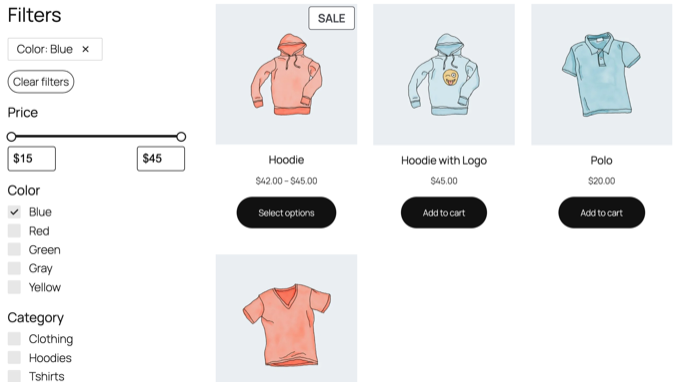
WooCommerce comes with its own filtering feature, and it costs nothing. The Product Filters block lets shoppers narrow your products by price, customer rating, attributes like color or size, stock status, category, brand, and tag.
The block only works if your store uses a block theme, such as Twenty Twenty-Five, and shows products with the Product Collection block. If you use a classic theme, you’ll need one of the plugins below.
My Experience
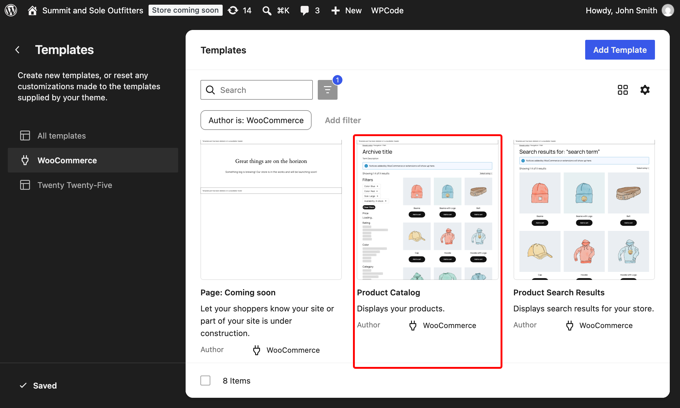
I tested the block on a store running the latest version of WooCommerce with the Twenty Twenty-Five theme. To add it, go to Appearance » Editor » Templates and open the Product Catalog template.
Next, click the blue ‘+’ button in the top left corner and search for ‘Product Filters’. Then, click the block to add it to the template.
I placed mine in a column next to the Product Collection block. This way, the filters sit in a sidebar beside the product grid.
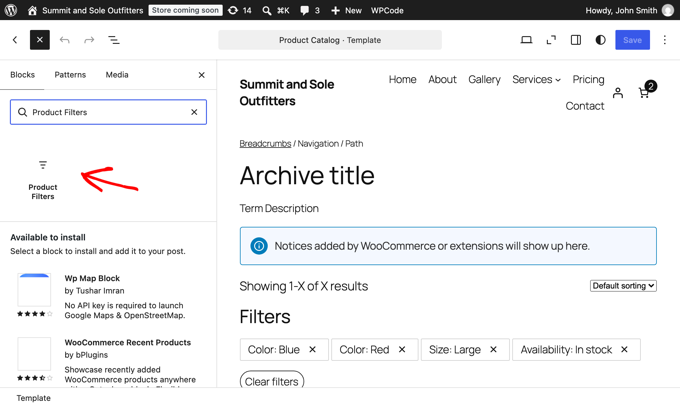
The block adds price, rating, color, category, and availability filters by default. You can remove any of them, or add a brand or tag filter, in the same way you edit any other block.
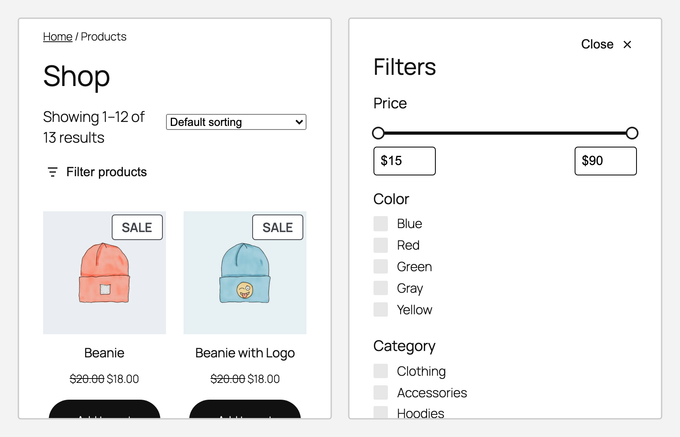
In the block settings, I left the ‘Collapse filters on small screens’ option turned on. This is the setting that turns your filters into a drawer on phones.
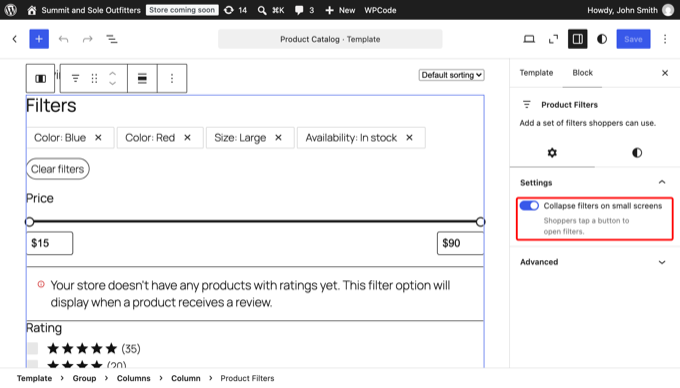
After I saved the template, the filters appeared on my shop page right away. When I checked the blue color option, the product grid updated without reloading the page.
An ‘Active Filters’ chip also appeared above the filters. Shoppers can click it to remove the filter in one click.
On my phone, I only saw a ‘Filter products’ button at first. Tapping it opened a drawer with all the filters, and the product grid updated as soon as I closed it.
During my testing, I also found the limits of the block. It can only filter product data that WooCommerce already stores.
If your store uses custom fields, or you want to filter blog posts or other content, the block can’t do it.
The filtered pages use web addresses like /shop/?filter_color=blue. Shoppers can bookmark and share them, but they are not the clean, keyword-style addresses you would want a search engine to rank as their own pages.
Color swatches are also missing by default. WooCommerce lists ‘Color swatches for attributes’ as an experimental feature under WooCommerce » Settings » Advanced » Features, and you have to turn it on yourself.
The rating filter only shows up once your products have reviews.
Why I Recommend the Product Filters Block: It’s the easiest place to start if your store runs on a block theme and you only need filters for price, attributes, categories, and stock. There’s no plugin to install or maintain.
2. WPFilters
🎖️ Most Powerful WooCommerce Filter Plugin (Best Premium Pick)

| Pros of WPFilters | ✅ No-code setup with seamless WordPress block editor integration ✅ Filters WooCommerce products and other content like posts and digital downloads ✅ Works with categories, tags, and custom fields ✅ Supports AJAX live filtering and search ✅ Shareable filtered results URLs ✅ Mobile-friendly and responsive |
| Cons of WPFilters | ❌ Advanced customization requires learning block settings ❌ No free version to try before you buy |
| Pricing | Starts at $49 per year |
| Best For | Store owners who need custom field filters, a classic theme, or filters for posts and downloads as well as products. |
WPFilters is the plugin I ended up using on my own store, and it is the most powerful one I tested. It fills the gaps the built-in block leaves.
It works on any theme, classic or block, and it can filter by custom fields, which the block cannot do. You can think of it as adding Amazon-style filters to your store.
It also goes beyond products. I used it to add filters to my shop pages, my blog posts, and my digital downloads, which kept the browsing experience the same across my entire site.
For more insights into the plugin, see our detailed WPFilters review.
My Experience
On my store, the shop page filter set took a few minutes to build. I added filters for price, category, and product attributes right inside the WordPress admin area.
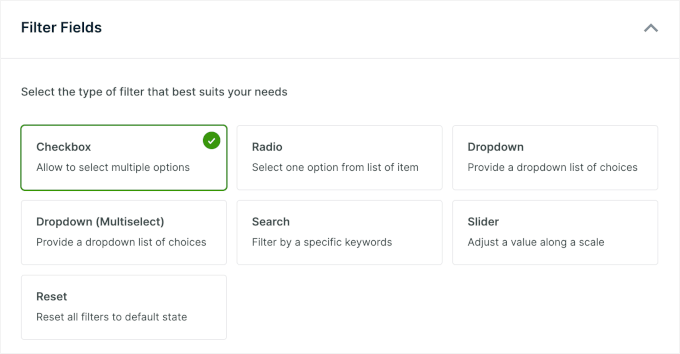
When customers apply filters, WPFilters updates the URL automatically, so they can bookmark a search or share the link with a friend.
WPFilters also integrates with the WordPress block editor. It also has shortcodes, so you can place filters on a classic theme too.
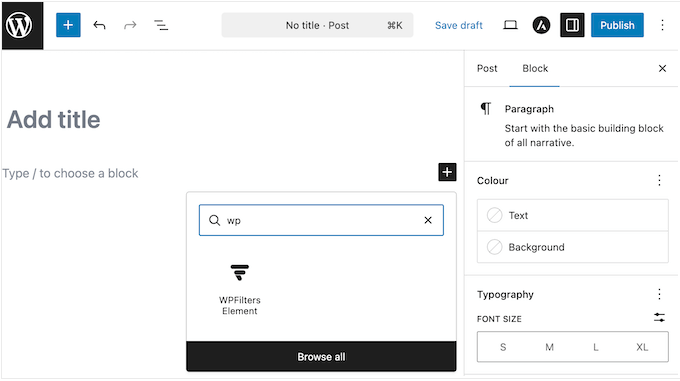
I could add and arrange filter blocks visually alongside my product grid, and preview changes instantly before publishing.
On the front end, the filters appear as clean panels that integrate nicely with the store layout. Customers can apply multiple filters at once, see results update instantly (AJAX), and remove any filter with a single click.
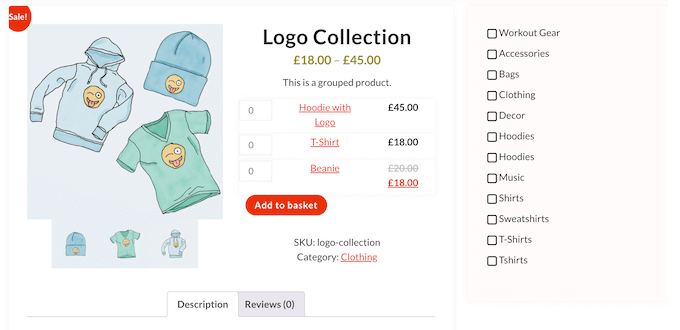
Other than WooCommerce products, WPFilters also allows you to filter other content types like blog posts and digital downloads.
I set up a filter for posts by category, and it worked just as smoothly as the product filters. This flexibility extends to hierarchical filters as well. Selecting a main category automatically revealed related subcategories, which made navigation more intuitive for customers.
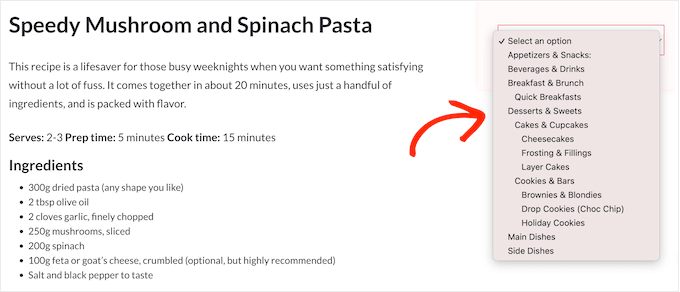
The only downside I noticed was that some advanced settings took a bit of time to explore. Simple changes were easy, but more detailed tweaks required a closer look at the block settings.
Why I Recommend WPFilters: I found that WPFilters is the best choice if you need custom field filters or run a classic theme. It’s also the pick if you want the same filters on your posts and downloads. The no-code builder makes it easy to grow with your store.
3. YITH WooCommerce Ajax Product Filter
🎖️ Best Freemium Filter Plugin for Most Stores
| Pros of YITH WooCommerce Ajax Product Filter | ✅ Unlimited filter sets for different shop pages ✅ Simple widget interface with AJAX ✅ Works with most WooCommerce themes ✅ Checkbox, dropdown, and color swatch filters, all in the free version |
| Cons of YITH WooCommerce Ajax Product Filter | ❌ Design customization options are limited in the free version ❌ Price slider and mobile drawer layout need the premium plan |
| Pricing | Freemium Pro starts at $89.99 per year |
| Best For | Beginners who want an easy way to add basic product filters. |
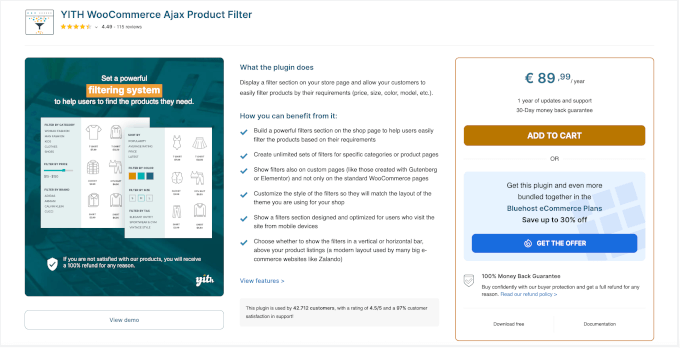
YITH WooCommerce Ajax Product Filter is the easiest way to add product filters if you’re just starting out. It works on classic themes, and has a free version available which is used by over 70,000 stores.
I often recommend it to new store owners because you get working AJAX filters for free. This means your customers can filter products instantly without waiting for the page to reload.
My Experience
After installing the plugin, I added the filter widget to my shop sidebar. The setup took less than five minutes because the options were labeled clearly, so I knew exactly what I could add.
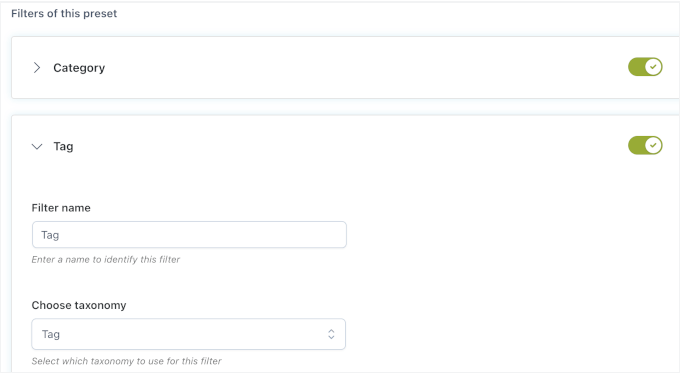
Live AJAX updates worked immediately. When I clicked a filter checkbox, products refreshed without reloading the page, which kept the experience fluid.
The premium version adds a price slider. Customers can drag it to set a budget, and the results update in real time as they move it.
I also tested horizontal filters above the product grid and vertical filters in the sidebar, and both worked without layout conflicts.
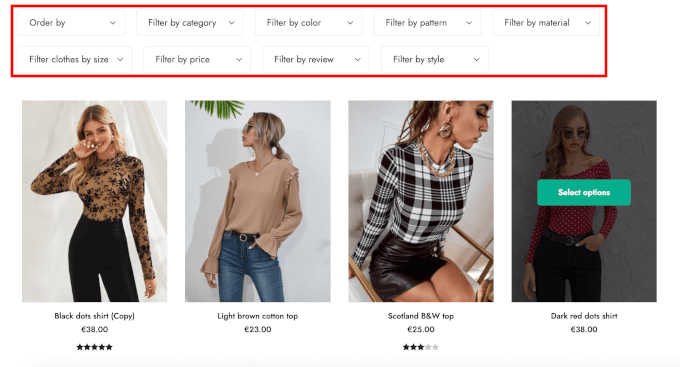
The plugin worked with my theme right away. I didn’t need to adjust any settings or add custom CSS to make filters display properly.
I also tested the widget interface in the WordPress customizer. Filters appeared exactly where I placed them, and I could preview changes before publishing.
The biggest limitation was that the price slider, the on-sale and in-stock filters, and the mobile drawer layout were only available in the premium version. For category, tag, and attribute filters, with checkboxes, dropdowns, or color swatches, the free version handled everything.
⭐ Why I Recommend YITH WooCommerce Ajax Product Filter: It’s perfect for beginners who want reliable AJAX filtering without paying upfront. You can upgrade to YITH WooCommerce Ajax Product Filter Pro if you need advanced layouts.
4. Filter Everything
🎖️ Best Free WooCommerce Filter Plugin
| Pros of Filter Everything | ✅ WooCommerce products and any other WordPress content (posts, pages, custom post types) ✅ AJAX filtering so results update without a full page reload ✅ Works with custom fields, taxonomies, and attributes ✅ You can add filters with widgets or shortcodes |
| Cons of Filter Everything | ❌ Advanced layouts (like horizontal filters or tabbed interfaces) are only in the premium version ❌ Takes some time to learn how to filter more complex post types ❌ To style filters beyond the basics, custom CSS is needed |
| Pricing | Free Pro starts at $69 per year |
| Best For | Store owners who want a free plugin that works on any theme and can filter custom fields and other content. |
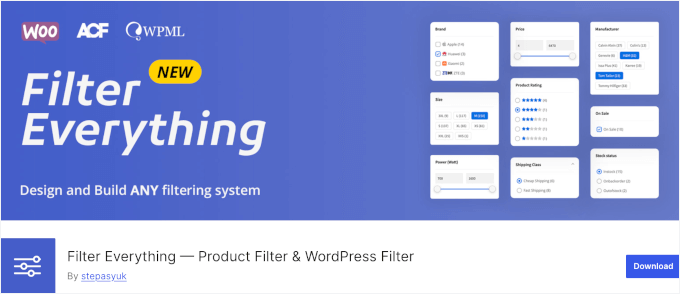
Filter Everything is the best free filter plugin I tested, and over 50,000 sites use it. It does three things the built-in block can’t, and it does them for free.
It works on classic themes and can also filter by custom fields, such as the ones you create with Advanced Custom Fields (ACF). In addition to WooCommerce products, it can filter any content type, like posts, pages, real-estate listings, and recipes.
You can build filter sets and place them anywhere using widgets or shortcodes.
My Experience
I installed Filter Everything and built my first filter set right from the dashboard. The setup lets you choose which content type you want to filter, and I started with WooCommerce products.
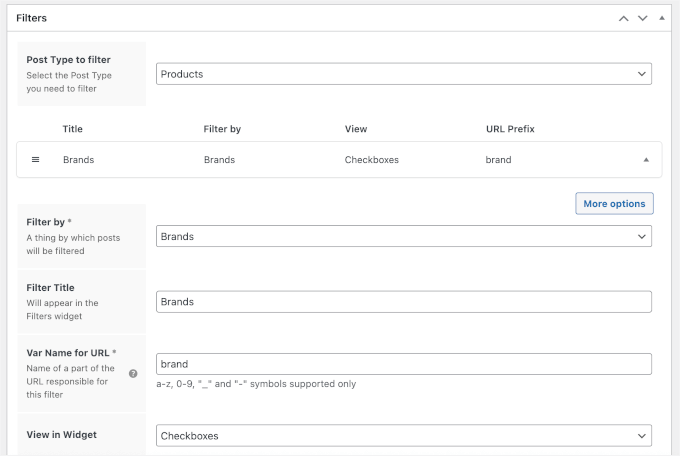
I added filters like brand, price range, and category using the widget interface. Most of the options are clearly labeled, so everything feels easy from the start.
When testing the filters on a shop page, AJAX filtering worked smoothly. When I clicked a filter option, the product list updated quickly without a full page reload.
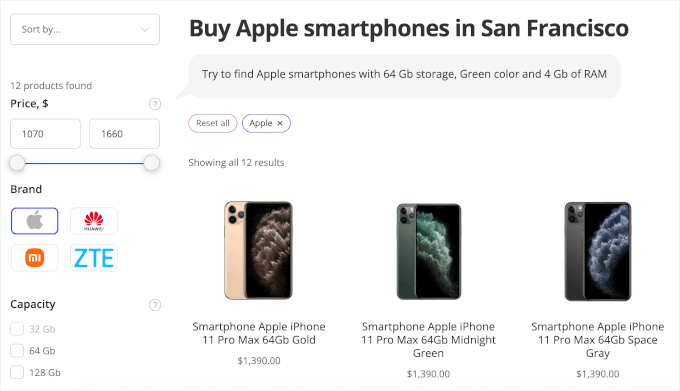
The free version’s main limitation was that advanced filter layouts, such as horizontal grids and tabbed interfaces, required the premium version.
⭐ Why I Recommend Filter Everything: Filter Everything is the plugin I recommend if you want free filters on a classic theme. It’s also the free pick for filtering custom fields, posts, and other content, and you don’t need separate tools for different sections of your site.
5. JetSmartFilters
🎖️ Best for Page Builder Users

| Pros of JetSmartFilters | ✅ Works with Elementor’s Loop Grid and other page builders ✅ Visual filter widgets with live preview ✅ Supports advanced filtering rules ✅ Fast performance on large stores ✅ Multiple filter types like checkboxes, radios, and price ranges |
| Cons of JetSmartFilters | ❌ Requires JetEngine for full functionality ❌ Takes time to learn advanced setups |
| Pricing | Starts at $75 per year |
| Best For | Stores built with custom layouts using Elementor, Gutenberg, or other page builders. |
JetSmartFilters is the best choice if you build your WooCommerce pages with Elementor or Gutenberg. Instead of adding filters separately, you can place them directly inside your product grids and blocks in the page builder.
What makes it even more flexible is that it comes with ready-made filter setups for different niches, like real estate (IDX), car rental and dealership, medical clinics, travel sites, and more. This makes it easy to build advanced filters even if you’re not starting from scratch.
My Experience
I installed JetSmartFilters and opened Elementor to build a filter set for my product grid. Using Elementor’s Loop Grid, I could connect JetSmartFilters to my layout in just a few clicks.
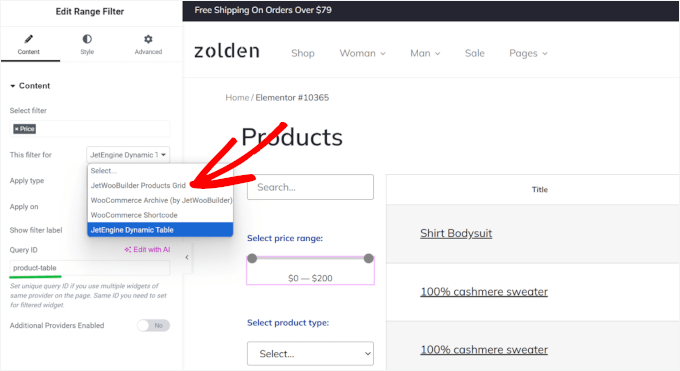
What I liked most was the live preview. As I added dropdowns, checkboxes, and price sliders, I could see exactly how they would look before publishing the page.
If you don’t use Elementor, you can still build the same filters.
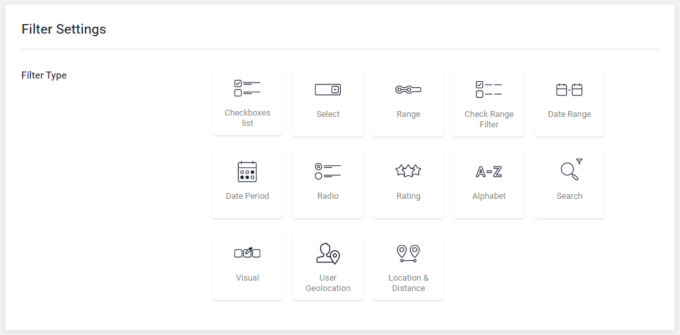
The plugin’s own settings screen in the WordPress dashboard builds the same filters, and you can place them with Gutenberg blocks instead.
This plugin also works well for booking and appointment websites, where visitors need to filter by service type, specialist, location, or price.
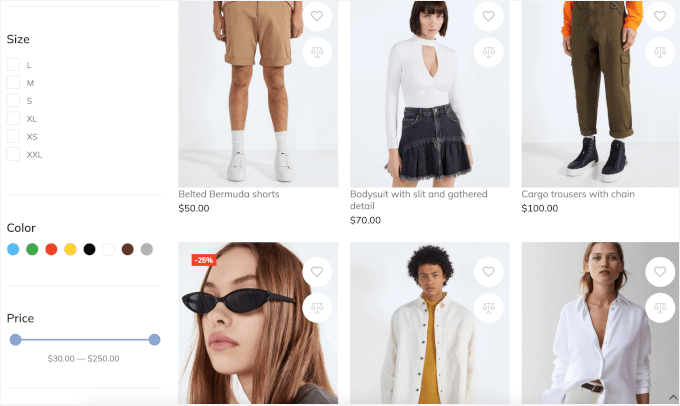
Filters applied quickly and offered a modern user experience. I tested radio buttons, range sliders, and search fields, and each one updated results smoothly without reloading the page.
The main drawback is that you need JetEngine, a separate Crocoblock plugin, for dynamic listings with custom content and fields. On its own, JetSmartFilters handles standard product filtering.
⭐ Why I Recommend JetSmartFilters: If you use Elementor or Gutenberg and want filters that work directly inside your product layouts, JetSmartFilters gives you one of the most flexible and professional setups available.
6. Barn2 WooCommerce Product Filters
🎖️ Best Filter Plugin for Large Online Stores
| Pros of Barn2 WooCommerce Product Filters | ✅ Indexes product data to keep filtering fast on large catalogs ✅ Multiple layouts, including sidebar and horizontal filters ✅ Works with product categories, tags, and attributes ✅ Mobile-friendly design with slide-out filters ✅ Compatible with most WooCommerce themes |
| Cons of Barn2 WooCommerce Product Filters | ❌ More expensive than basic filter plugins ❌ Takes time to learn advanced features ❌ Some custom changes require coding |
| Pricing | Starts at $79 per year |
| Best For | Large stores with huge catalogs that need fast, performance-friendly filtering. |
Barn2 WooCommerce Product Filters is built for stores with a lot of products. It indexes your product data first, which keeps filtering fast as your catalog grows.
It stands out for its modern, minimalist design that looks professional right out of the box.
My Experience
After installing the plugin, I ran its built-in tool to prepare the product database for faster filtering.
This tool indexes your product data, so the plugin doesn’t have to search your entire database for every click. It took a few minutes to run, but after that, everything felt much quicker.
Setting up filters was straightforward. I could choose from common filter types like dropdowns, checkboxes, labels, images, and price sliders. I could also add sorting options like newest products, popularity, and price.
To choose what customers could filter by, I simply picked things like color, size, tags, sale items, and other product details.
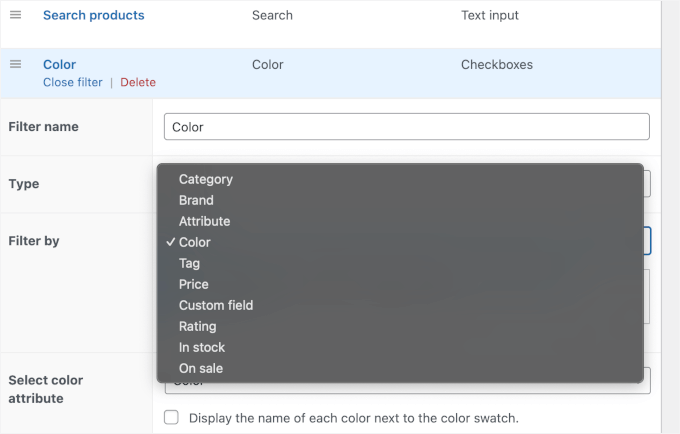
From here, I tested different layouts to see how flexible it was. Besides the usual sidebar filters, I also added horizontal filters above the product grid, which worked well for category pages.
Then, adding filters to the shop sidebar was easy using the built-in widget.
On the front end, the filters felt very smooth. Even with five filters active at once, results appeared instantly, and the page never froze.
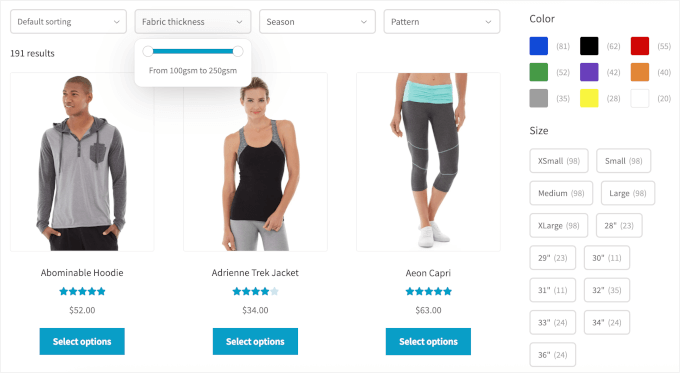
I also appreciate that the plugin worked nicely with popular WooCommerce themes, so I didn’t run into styling issues.
The main downside is customization. Basic setup is simple, but if you want to change how filters behave in very specific ways, you may need to edit a bit of PHP or CSS.
⭐ Why I Recommend Barn2 WooCommerce Product Filters: Barn2 WooCommerce Product Filters is my pick for large online stores. Its indexed filtering is designed to keep results instant as your catalog grows, and it stayed fast in my testing with five filters active at once.
7. Husky Products Filter (formerly WOOF)
🎖️ Best WooCommerce Filter Plugin for Developers
| Pros of Husky Products Filter | ✅ SEO-friendly filter links (good for search engines) ✅ Lots of ways to customize filters for specific needs ✅ Multiple filter types like categories, tags, price sliders, checkboxes, and more ✅ Works with custom taxonomies and meta fields ✅ Lightweight and fast for front-end filtering |
| Cons of Husky Products Filter | ❌ Can feel technical and not very intuitive for beginners ❌ Limited visual customization without CSS ❌ Documentation assumes coding knowledge |
| Pricing | Freemium Pro starts at $49 per year |
| Best For | Developers and SEO-focused stores that need advanced control over filtering behavior. |
Husky Products Filter is the plugin I recommend for flexible filtering and clean URLs that help search engines index filtered results. It used to be called WOOF, and over 80,000 stores use it.
The SEO-friendly URLs were a standout feature for me. Most filter plugins add parameters to the web address, like ?filter_color=red. Husky can create readable addresses instead, like /swoof/color-red/, so a filtered page reads as its own landing page that Google can index for a search like red running shoes.
My Experience
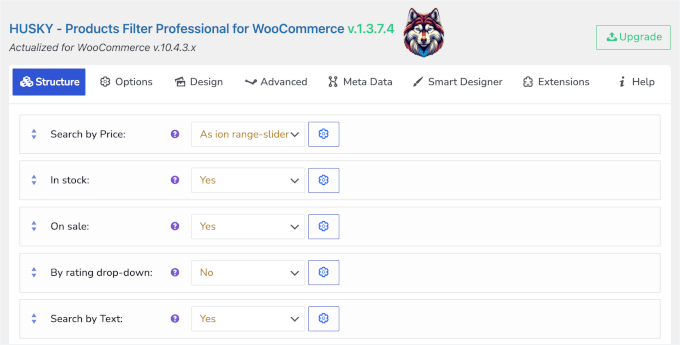
After activating Husky, I built a set of filters through its Structure panel. Husky’s UI is more text- and settings-based, so it can feel a bit technical at first.
I added filters for in-stock items, on-sale products, ratings, price ranges, and a search field. You can also filter by custom product details if your store uses extra fields.
Only turn this on for the few filter combinations shoppers actually search for. You can then add those pages to your sitemap. Indexing every possible combination creates thousands of near-duplicate pages, which does your SEO more harm than good.
And because Husky is flexible, developers can also hook into its system or extend it with custom code. This makes it a good choice if you want precise control over how filters work, but it’s not as beginner-friendly as some drag-and-drop builders.
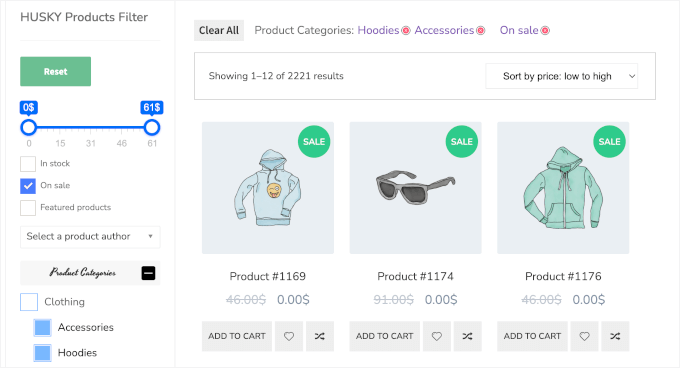
The interface doesn’t provide a visual preview, though. Instead, you work in settings and test on the front end, which may take a little more time to learn.
⭐ Why I Recommend Husky Products Filter: Husky Products Filter is ideal for developers and tech-savvy store owners who want deep control over filter behavior and SEO-friendly filter links.
What Is the Best WooCommerce Filter Plugin?
If you run a block theme and only need basic filters, the built-in Product Filters block is free, and it’s enough. It covers price, attributes, categories, stock, and ratings, and there’s nothing extra to install.
WPFilters is the best choice when you need more. Pick it if you use a classic theme, want to filter by custom fields, or want the same filters on your posts and downloads too.
If you want to stay free, Filter Everything works on any theme and filters custom fields too. For a free start with a paid upgrade path, YITH WooCommerce Ajax Product Filter is my freemium pick. Its free version gives you working AJAX filters on any theme.
FAQs About WooCommerce Product Filters
Below are quick answers to the questions people ask most often about WooCommerce product filters.
Can I filter WooCommerce products without a plugin?
Yes. WooCommerce includes a free Product Filters block that filters by price, rating, attributes, stock status, category, brand, and tag. It only works on block themes, and the first section of this guide shows how to set it up. On a classic theme, you will need a plugin.
What is the best free WooCommerce filter plugin?
Filter Everything is the best fully free plugin I tested. It works on any theme and filters custom fields and other content types.
YITH WooCommerce Ajax Product Filter also has a good free version, and its paid plan adds a price slider and a mobile-friendly filter layout.
Can I add WooCommerce filters with a shortcode?
Yes, but not with the built-in block. Filter Everything, Husky Products Filter, and YITH WooCommerce Ajax Product Filter all give you a shortcode or widget. You can use it to place filters anywhere on a classic theme.
Do WooCommerce filter plugins work with Elementor?
JetSmartFilters is built for Elementor and connects directly to its Loop Grid. Most other plugins in this list, including YITH, Filter Everything, and Husky, work with Elementor through their shortcodes or widgets.
Can customers filter products by attributes (size, color, brand)?
Yes. If your products use attributes like size, color, or brand, customers can filter by them with the built-in block or any plugin in this list. This helps most in stores selling clothing, accessories, or anything with variations.
Next Steps to Complete Your WooCommerce Store Setup
I hope this guide has helped you find the best filter plugin for your WooCommerce store.
Next, you might want to see our list of the best WooCommerce plugins to grow your store and our proven tips to increase your WooCommerce sales.
If you liked this article, then please subscribe to our YouTube Channel for WordPress video tutorials. You can also find us on Twitter and Facebook.


Have a question or suggestion? Please leave a comment to start the discussion.