


Search analytics can mean two different things: what visitors search for on your site and what people search for on Google before they find it.
Your site’s internal search can reveal what visitors want but can’t find, while Google search data shows which keywords are bringing people to your site.
In this guide, we’ll cover both types of search analytics and show you the best free tools for tracking each one. Then, we’ll look at paid options that provide deeper insights, more detailed reports, and advanced features as your needs grow.
What Is Search Analytics in WordPress?
In short, search analytics in WordPress refers to tracking what users search for, both on your WordPress website and in search engines, to better understand their interests and behavior.
It helps you see how people find your content, what they’re looking for once they’re on your site, and where you can improve the user experience.
1. Internal Search Analytics
This shows what people search for while they’re on your website, such as ‘WordPress SEO tips’ or ‘how to add a contact form’. It can help you discover content gaps and better serve your audience.
Here are some examples of internal search analytics:
- Search Terms – See the exact words users type into the search bar, showing whether visitors are looking for specific products, posts, or answers to common questions.
- Search Frequency – Track how often specific terms are entered to identify the most popular topics among your audience.
- Average Number of Results – See how many posts or pages each term returns, so you can spot the terms that come back empty and the ones that bury the answer in too many results.
2. External Search Analytics
This tells you how users find your site through search engines like Google. These insights are important because they help you understand what people are searching for outside your site. That way, you can optimize your content to rank better in the search results.
Key external search metrics include:
- Top Performing Pages – Identify which pages are getting the most organic traffic. Are your product pages or blog posts getting enough traffic you expect?
- Organic Search Keywords – See which keywords are bringing visitors to your site from search engines. For example, users might find your site by searching for ‘best WordPress plugins’ or ‘how to start a blog’.
- Ranking Position – Track how your keywords are ranking in search engines. For example, your site might rank in position #3 for ‘WordPress SEO guide’ or position #12 for ‘best blogging platform’.
Together, internal and external search analytics provide a comprehensive view of your audience’s behavior, from what they search for on your site to how they discover it in the first place.
With these insights, you can uncover content gaps, fine-tune your SEO strategy, and grow your traffic.
Here’s an overview of the topics we’ll cover in this tutorial:
- Method 1: How to See Internal Search Analytics in WordPress
- Method 2: How to See External Search Analytics in WordPress
- Bonus: 3 Pro Tips for Using Your Search Analytics
- FAQs: How to See Search Analytics in WordPress
Method 1: How to See Internal Search Analytics in WordPress
Internal search analytics tell you what people look for once they are already on your site. Because this data is generated directly on your own website, you don’t need a Google account or a third-party tool to read it.
See Your Site’s Search Terms for Free With Search Analytics for WP
Search Analytics for WP is a free plugin that records every search made through the standard WordPress search form and stores the details in your own database. Because processing happens on your own server, your search data stays private and isn’t shared with any third-party platforms.
To get started, install and activate the plugin from the official WordPress directory. If you haven’t done this before, our guide on how to install a WordPress plugin walks you through the process.
Upon activation, go to Search Analytics » Statistics to see your analytics.
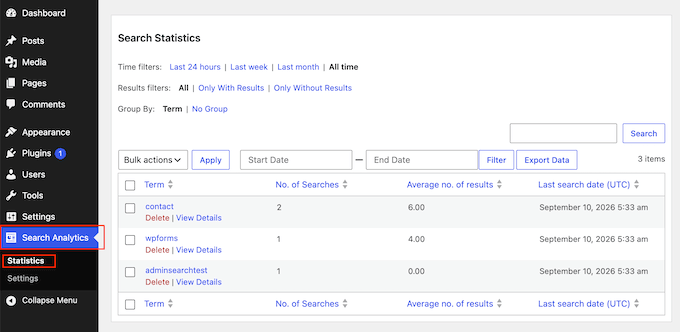
On the Statistics page, the table shows:
- Term – The exact word or phrase typed into your site search form.
- No. of Searches – How many times visitors submitted that specific term.
- Average no. of results – The average number of posts or pages WordPress returned across all searches for that term.
- Last search date – The last time someone searched for this term.
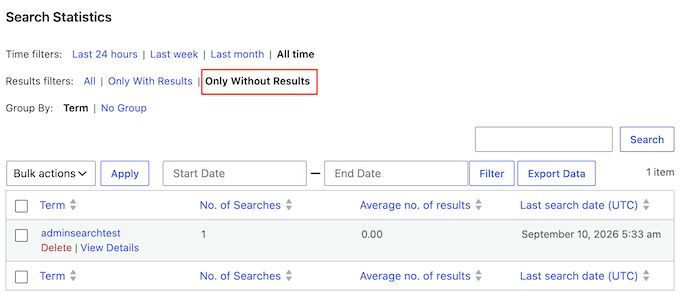
You can use the filtering options to switch between different timeframes, such as the last 24 hours, last week, last month, or all time. Next to those, three filters let you show ‘All’ searches, ‘Only With Results’, or ‘Only Without Results’.
‘Only Without Results’ is a list of things visitors wanted and couldn’t find. This is the easiest way to find content gaps.
To confirm the tracking is working, search for a term on your live website. Then, refresh Search Analytics » Statistics and see if the entry appears in your report table. Your own searches are recorded by default, so the term should show up right away.
When it comes to real visitor data, expect to see your first search terms within a day or two of live traffic. Just keep in mind that the plugin only records data from the moment it’s activated, so it won’t track searches made before then.
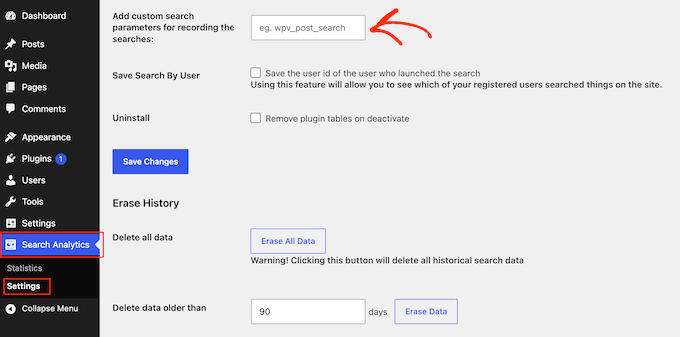
If the Statistics page stays empty even after searching your own site, your theme’s search box likely isn’t using WordPress’s standard search URL.
To fix this, go to Search Analytics » Settings » General Settings. Then, add your theme’s search parameter to the ‘Add custom search parameters for recording the searches’ field.
The downside is that Search Analytics for WP counts searches rather than tracking them. It won’t tell you which result someone clicked or if they searched again, so you learn what visitors wanted without seeing what they did next.
Want to Know Which Result People Clicked? Use SearchWP
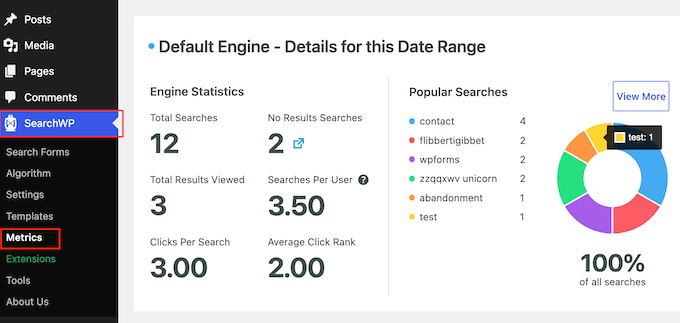
If you need that outcome data, the Metrics extension for SearchWP adds Clicks Per Search, Average Click Rank, and No Results Searches to your reports. This plugin records which result a visitor clicked alongside its search position.
The Metrics extension is included with the SearchWP Pro plan, which costs $199 per year for up to 3 sites.
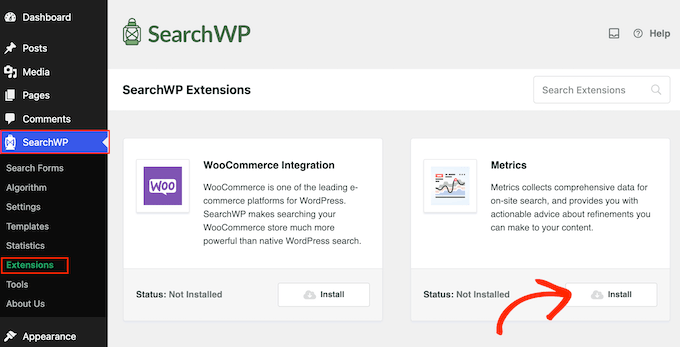
After installing the plugin, go to SearchWP » Extensions, find the Metrics extension and click its Install button.
You can then access your reports by going to SearchWP » Metrics.
For a closer look before you buy, see our full SearchWP review.
Method 2: How to See External Search Analytics in WordPress
External search analytics show you how people find your site on Google in the first place. All this data comes directly from Google Search Console, so every tool in this section is drawing from the exact same source.
Get Your Google Search Data for Free in Google Search Console
Google Search Console is free for every site owner, and you can sign in using your existing Google account. You’ll find your search data in its Performance report.
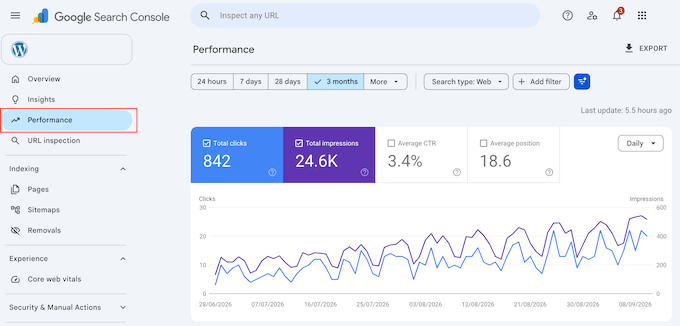
In that report, you’ll see total clicks, total impressions, average click-through rate and average position.
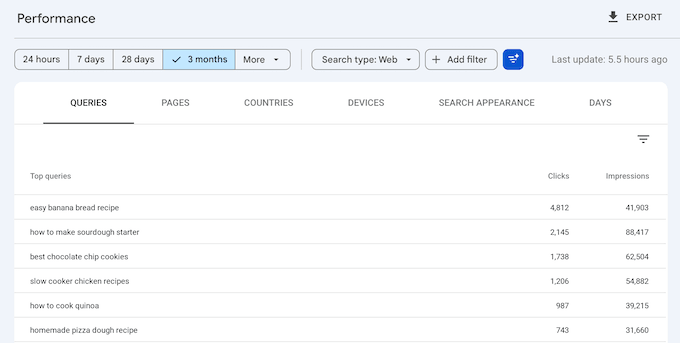
The ‘Queries’ tab underneath lists the actual terms people searched before they clicked.
To set up Search Console, see our guide on how to add your WordPress site to Google Search Console.
If you verify your site today, your first data normally appears within two to three days, and it can take up to a week on a brand-new site.
Prefer to Stay in Your Dashboard? Connect Site Kit by Google
Site Kit by Google is Google’s free plugin that displays your Search Console data in the WordPress dashboard. Connecting Search Console is part of the plugin’s setup, so there’s no extra configuration needed.
On the Site Kit dashboard, you’ll see your total impressions, click-through rates, and top search queries. Because Site Kit mirrors Search Console rather than adding new data points, its reporting matches what you’d see on Google’s own site.
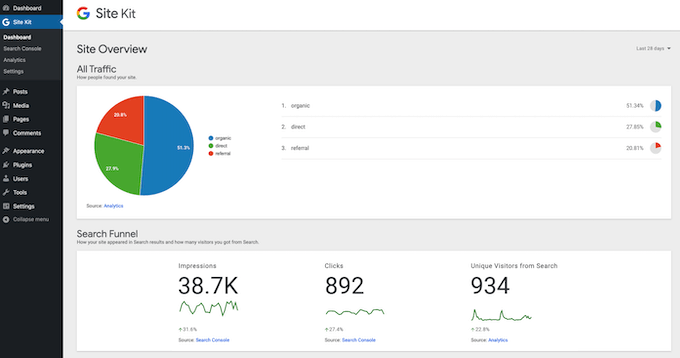
It can take a few days after you connect Site Kit before search data starts showing in the dashboard.
If you want to see how Site Kit compares to a dedicated analytics tool, check out our MonsterInsights vs Site Kit comparison.
Track Rankings Without Leaving WordPress With All in One SEO
All in One SEO (AIOSEO) is the SEO plugin we use on our own websites, and its Search Statistics dashboard is the paid option here. It takes the same Search Console data and adds keyword rank tracking, content-decay reporting and its own TruSEO content scoring on top.
While the free version of AIOSEO lets you connect your site to Google Search Console, the Search Statistics reports aren’t included. Search Statistics is part of AIOSEO’s Elite plan.
Because these reports read directly from Google Search Console, you’ll need to set up Search Console before the dashboard can display your data. Our guide on how to set up All in One SEO covers everything you need to know.
After that, you can see your reports by going to All in One SEO » Search Statistics.
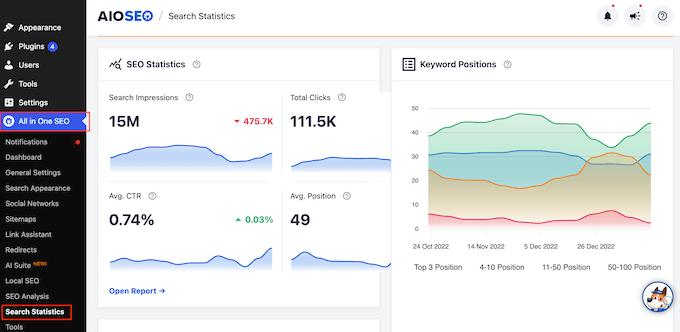
You’ll use these dashboard views the most:
The Search Statistics dashboard – The SEO Statistics card displays your total search impressions, total clicks, average click-through rates, and average position. Next to it, the Keyword Positions chart breaks your content down by ranking tier: Top 3, 4 to 10, 11 to 50, and 51 to 100.
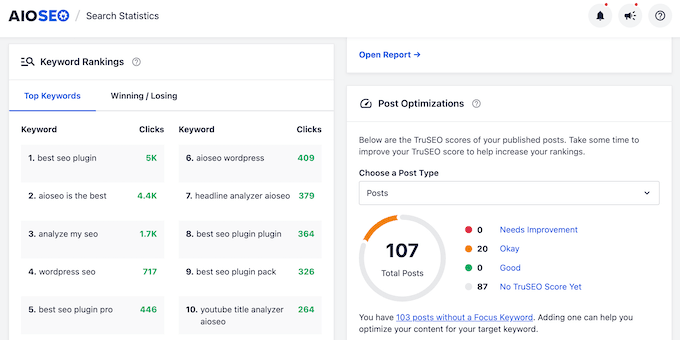
Keyword rankings – Under the Keyword Rankings card, the Top Keywords tab lists the search terms driving the most traffic. The Winning / Losing tab highlights rank movement, separating climbing keywords from slipping ones. This is a key insight missing from Search Console’s default reports.
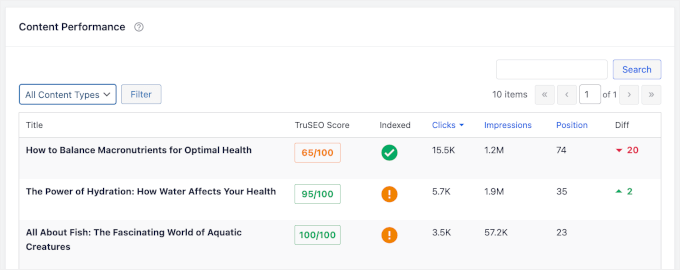
Content performance – The Content Performance table ranks your posts and pages by clicks, impressions, and position. The Indexed column flags whether Google has indexed each page, the Diff column shows position changes since the last check, and the TruSEO Score rates how well each post is optimized.
If you want to audit your site step-by-step, our WordPress SEO checklist works well alongside these reports. If the Indexed column flags any issues, our guide on why a WordPress site gets de-indexed is also worth a read.
If having rank tracking, content decay, and SEO scoring together in your WordPress dashboard is what you need, AIOSEO is a solid choice. If you only need those four core Search Console metrics, Site Kit gives you them for free.
For a closer look, read our complete AIOSEO review, or see how it compares in our roundup of the best WordPress SEO plugins.
FAQs: How to See Search Analytics in WordPress
Search analytics can be a bit confusing at first, so here are some of the top questions we hear, along with simple answers.
Which is more important: internal or external search analytics?
In short, both matter, but for different reasons.
- External analytics (like the ones from AIOSEO) show how people find your site on Google. That’s helpful for improving your SEO and bringing in more traffic.
- Internal analytics (from tools like SearchWP) show what visitors are searching for after they land on your site. This helps you spot content gaps and give your audience exactly what they’re looking for.
Can I see WordPress search analytics for free?
Yes, for both kinds of data. For external search data, the free route is Google Search Console itself, or Site Kit by Google if you’d rather read the same numbers inside your WordPress dashboard.
The free version of AIOSEO can connect your site to Google Search Console, but its Search Statistics dashboard requires the Elite plan, so connecting through the free version won’t unlock those reports.
For internal search data, Search Analytics for WP is free and keeps all your data in your own WordPress database.
How is search analytics different from Google Analytics?
Search analytics shows the exact keywords people use to find and navigate your site. Google Analytics gives you a wider view of your traffic, like where visitors come from, which pages they visit, and how long they stay. It also records your on-site search terms automatically, so it overlaps with the internal half of this guide.
If you’re using WordPress, we recommend MonsterInsights to view this data directly in your dashboard. To learn more about the plugin, you can check out our full MonsterInsights review.
We hope this article has helped you see both kinds of search analytics in WordPress. You may also want to read our guide to WordPress post analytics to see what those searches turn into once people land on your posts.
If you liked this article, then please subscribe to our YouTube Channel for WordPress video tutorials. You can also find us on Twitter and Facebook.





Have a question or suggestion? Please leave a comment to start the discussion.