


We use forms across all our WordPress websites and for good reason: they make it easier for both us and our visitors.
Whether you’re collecting feedback or generating leads, forms help you connect with your audience in a smoother way. At the same time, they help users share their thoughts, sign up for newsletters, and interact with your site.
But forms aren’t just about gathering data. They’re a powerful tool to understand your audience better, improve your website, and support key goals like lead generation, sales, and customer support. 📈
We personally use WPForms for everything from contact forms to annual user surveys. We’ve seen firsthand what it does well and where it has limits, and we highly recommend it. Plus, we’ve tested popular form builders for deeper insights into form creation and management.
In this guide, we’ll walk you through everything you need to know to use WordPress forms like a pro.

🛑 TL;DR: WordPress forms are essential for collecting leads, payments, and feedback. This guide covers how to create contact forms, order forms, surveys, and more.
Since WordPress doesn’t have a built-in form builder, you’ll need a plugin. We recommend WPForms – it’s the best WordPress contact form builder. Plus, install an SMTP plugin, like WP Mail SMTP, to ensure form notifications don’t go to spam.
To help you out, we’ve created a table of contents for easy navigation through our ultimate guide on using WordPress forms:
Table of Contents
- What Are WordPress Forms?
- Why Are Forms Important for Your WordPress Site?
- Choosing the Best WordPress Form Plugin
- How to Build WordPress Forms
- How to Customize WordPress Forms
- How to Embed Forms into Your WordPress Site
- WordPress Form Optimization
- WordPress Form Security and Troubleshooting Tips
- FAQs About WordPress Forms
- More Tips and Tricks for Using WordPress Forms
Let’s dive right in!
What Are WordPress Forms?
WordPress forms are interactive tools that allow your website visitors to submit information. They can be used for various purposes, such as gathering feedback, collecting contact information, accepting payments, registering users, and more.
You can think of a WordPress form as an online version of a paper form you might fill out. Instead of writing on paper, users type their answers directly into fields on your WordPress website.
For example, if you have a contact form, visitors can enter their name, email address, and message before clicking ‘Send,’ ‘Submit,’ or something similar. That information is then stored in your database and/or sent to you by email.
This information is then sent to you so you can respond.
If you run a small business website, adding online forms can really help with communication and make it easier for visitors to connect with you. These interactive tools let users quickly submit their information, making things simpler for both you and your customers.
For example, at WPBeginner, we use forms for various purposes, including:
- Collecting inquiries through our contact forms
- Managing website migration requests
- Conducting annual user surveys for feedback
- Offering free tools like our email signature generator and more.
Why Are Forms Important for Your WordPress Site?
Using WordPress forms is a great way to engage with your visitors and gather valuable information. They’re easy to customize, can fit various needs, and can be embedded almost anywhere on your site (pages, posts, sidebars, and even popups).
Here are some popular types of forms and why they matter:
- 🪪 Contact Forms: These let visitors reach out with questions or comments. They help streamline communication, keep your inbox organized, and protect your email address from being scraped by bots.
- 📝 Registration Forms: If you have a membership site, then registration forms allow users to create accounts. This helps you build a community and manage user access to exclusive content.
- 🧑💻 Survey Forms: Gathering feedback is key to improving your site. Survey forms let you ask visitors about their experience or preferences, making them feel valued.
- 💳 Payment Forms: If you sell products or services, payment forms enable secure transactions directly on your online store. This way, you make the buying process smoother for customers.
In short, WordPress forms can boost user interaction and help you collect essential data. As a result, they help create a better experience for everyone on your site.
Choosing the Best WordPress Form Plugin
When it comes to picking the right WordPress form plugin, there are a few important things to consider, especially if you plan to grow your site over time. You want something that’s easy to use, offers good value for your money, and integrates well with other tools you might need.
Ease of Use
First, ease of use is important. You don’t want to spend hours trying to figure out how to create a simple form.
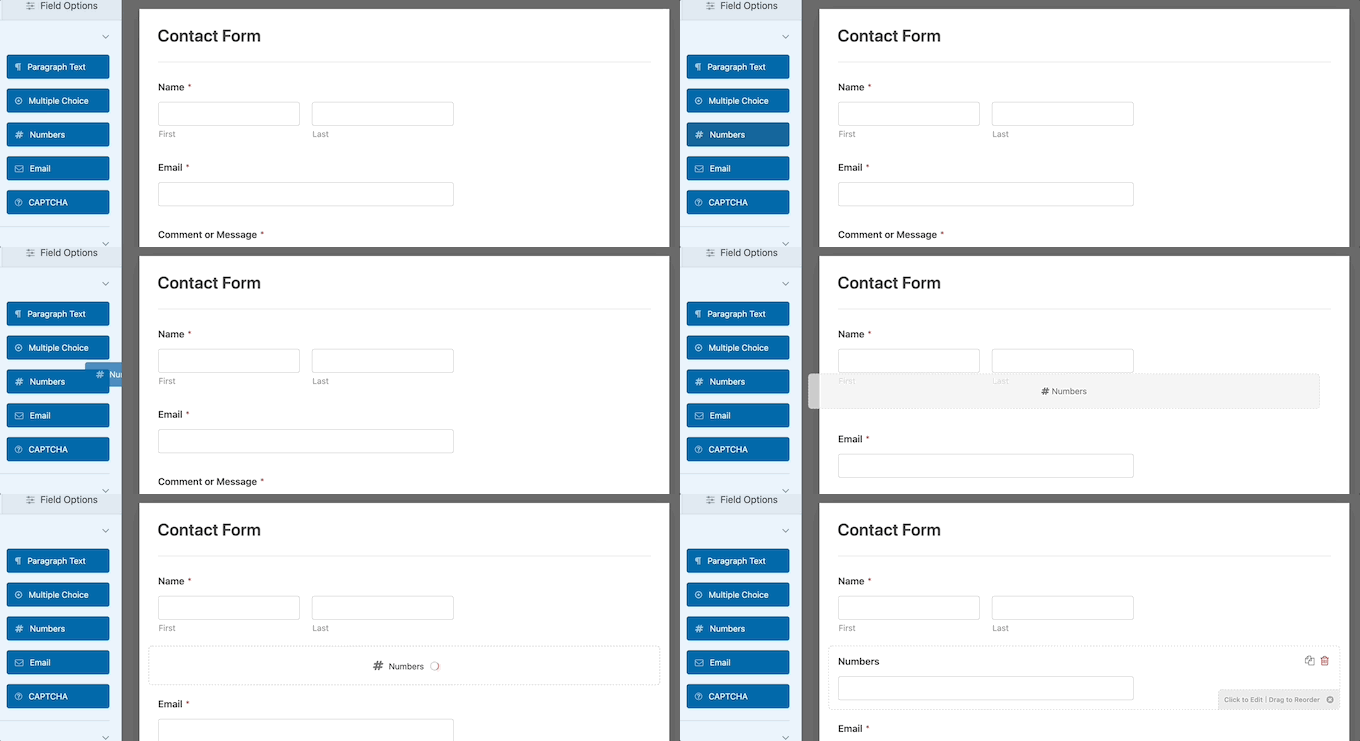
That’s why you should look for plugins with a user-friendly drag-and-drop interface. This makes it simple to add fields and customize your forms without any coding skills.
Add-Ons and Integrations
Next, you might want to consider the add-ons and integrations. The best plugins allow you to expand their functionality.
For example, you might want to let users upload files, make purchases, or sign up for your newsletter.
WPForms is the best choice for contact forms and more advanced use cases because it is super user-friendly and offers various add-ons to extend its capabilities. For example, you can create payments, surveys, user registration forms, and more.
You can even generate forms using AI. Simply share a brief description, and WPForms AI will build the form for you.
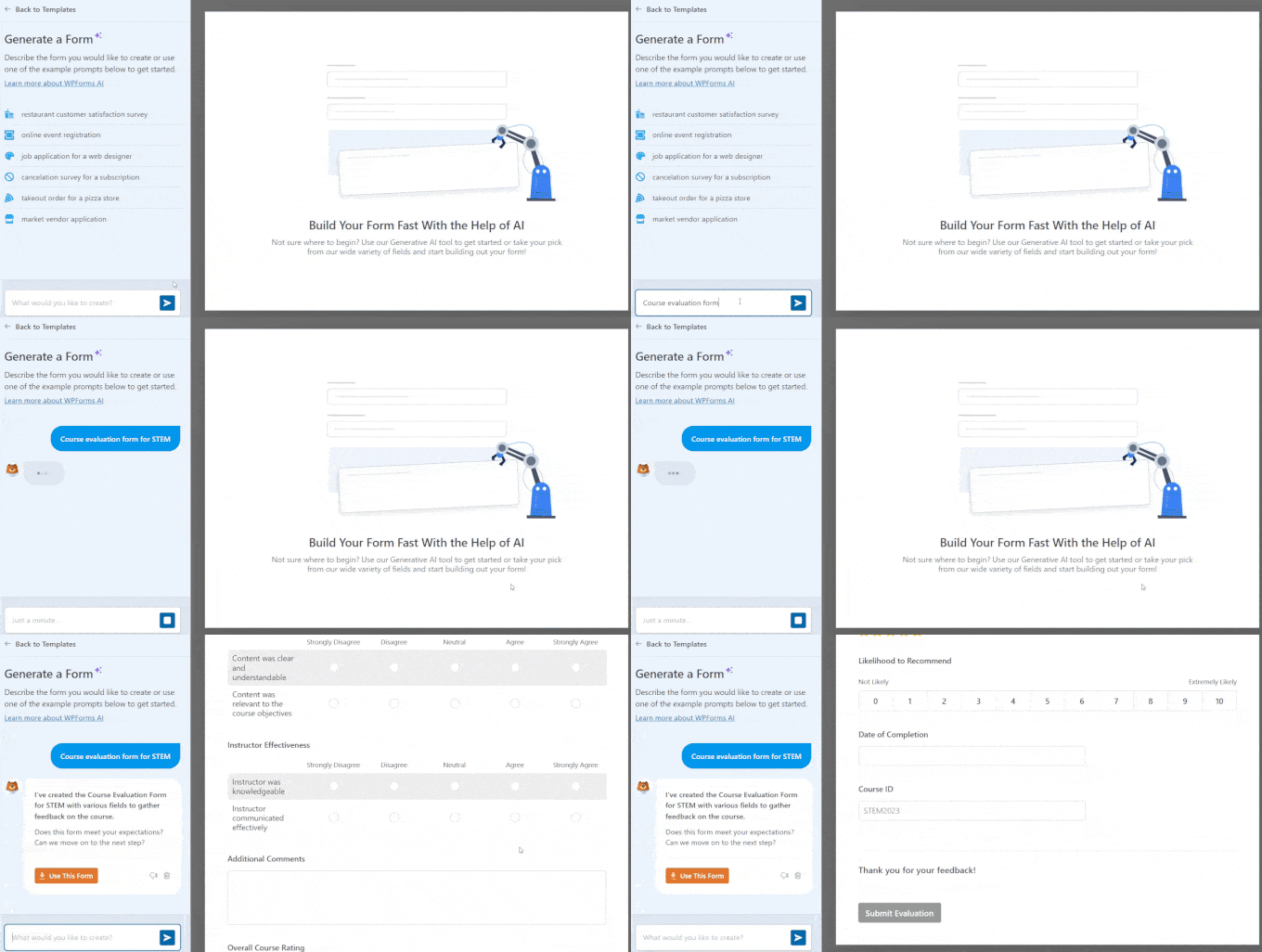
✋ At WPBeginner, we trust WPForms for our contact form, annual user surveys, site migration requests, and more. Don’t miss our full WPForms review.
For alternatives, see our recommendations for the best contact form plugins in WordPress. This article helps you compare features, pricing, and use cases side by side. Don’t have much time? You can read our comparison on WPForms vs. Gravity Forms vs. Formidable Forms.
Pricing
Value for money is another important factor. Some plugins charge a monthly fee, while others offer one-time purchases. Make sure to choose one that fits your budget and provides the features you need.
Keep in mind, too, that some free plugins can be hard to use. For example, Contact Form 7 is a popular option, but it lacks the user-friendliness and advanced features of other options.
For more information, you can read our full comparison of Contact Form 7 vs. WPForms.
📌 Expert Recommendation: For the best solution, we recommend WPForms for your contact forms, OptinMonster for lead generation forms, and Charitable for fundraising efforts.
They offer powerful features and excellent support to help you achieve your goals. If you’re looking for other options, see our full list of the best online form builders.
How to Build WordPress Forms
Generally, building a WordPress form involves just a few simple steps, and the workflow is similar no matter which type of form you create.
After activating a form plugin, you’ll be able to access its form builder to select a template (or start from a blank form) and customize it with your own fields and settings. Then, you will typically be able to set up custom email notifications and other settings for the form.
Finally, you can add the form to your post or page.
Let’s take a look at how this works for all kinds of different WordPress forms, including contact forms, surveys, and more.
Adding Contact Forms in WordPress
Adding a contact form to your WordPress site is easier and more effective than posting your email publicly, which can lead to tons of spam from bots.
A contact form adds a layer of security to keep unwanted emails out. It also allows you to ask for exactly the information you need, such as name, phone number, and email address.
On top of all that, it can help you grow your email list.
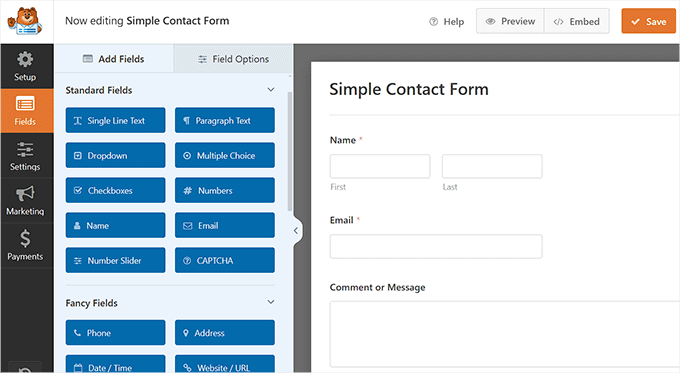
If you need a step-by-step walkthrough, see our guide on how to create a contact form in WordPress.
While you will typically embed your contact form into a post or page, you can also make it floating.
This format is not as intrusive as pop-ups but still easy to spot, giving a subtle nudge for people to engage. This setup can also improve user experience as it lets users ask questions, get help, or leave feedback without leaving the page.
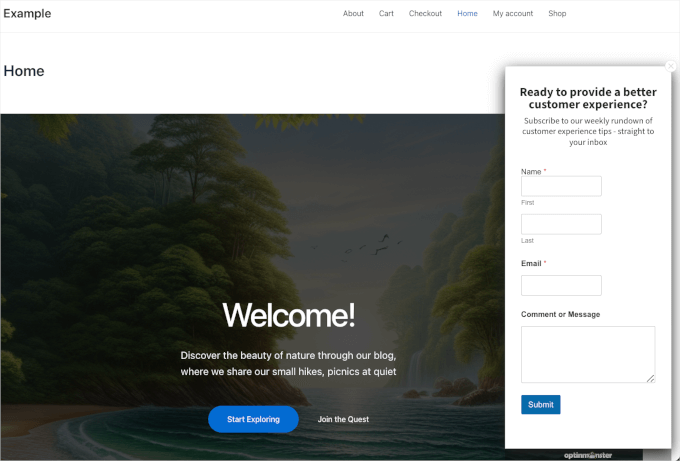
For more information, you can read our guide on how to show a floating contact form in WordPress.
Adding a Job Application Form in WordPress
If you run a small business, you probably get a lot of resumes in your email, making it tough to keep track of applications.
Adding a job application form to your WordPress careers page can really help tidy up your inbox and standardize the information you collect. Thus, making the hiring process smoother for both you and your applicants.

For a complete tutorial, check out our guide on how to create a job application form in WordPress.
Adding WordPress Forms with Dropdown Fields
A dropdown field lets users pick one option from a list of choices by simply clicking on it. You can use dropdown fields in various web forms, like email newsletter signups, contact forms, event registrations, or product orders.
Using dropdown fields can make your forms more effective, especially on mobile devices where long, free‑text inputs can feel tedious. Plus, they keep your data consistent by providing a set list of options, which prevents invalid entries and makes data analysis easier.
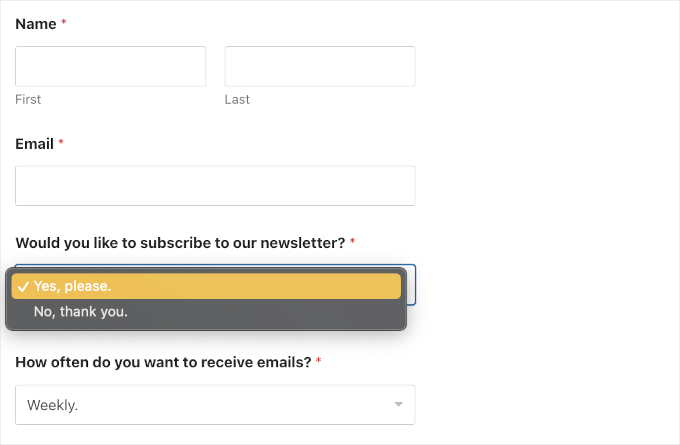
Plus, dropdown fields allow for dynamic features, letting you show additional questions based on user selections. They also help reduce the length of your forms, making them less intimidating and improving the overall user experience.
Plus, dropdown fields can be combined with conditional logic, letting you show additional questions based on user selections. For example, you can only show “Technical Support” questions if the user chose “Support” in a dropdown.
You can learn more in our guide on how to create WordPress forms with dropdown fields.
Adding Order Forms in WordPress
If you’re feeling overwhelmed by setting up an online store, don’t worry – many businesses don’t need a full eCommerce site or complex shopping cart system.
For something simple, like a restaurant, you can just add an order form without all the extra shopping cart features. This makes it easier to take orders and payments, whether online or at pickup, and can help streamline your business.
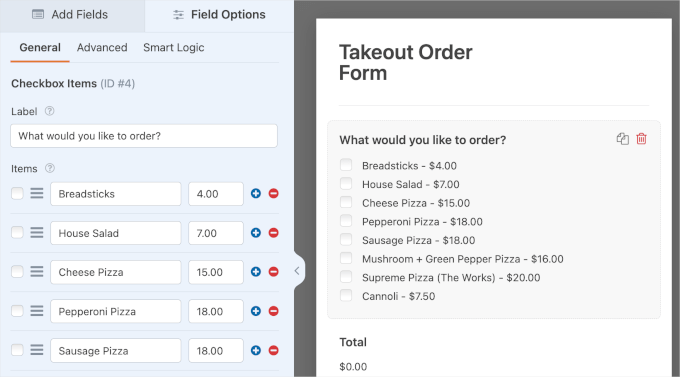
To get started, see our step-by-step tutorial on how to create an online order form in WordPress. We also have an expert pick of the best online order form plugins for WordPress.
In addition to that, automatically generating PDFs from order form submissions makes it easy to send receipts without any manual work. Each order can instantly turn into a clean, ready-to-send PDF receipt, so you don’t have to export data or format documents yourself.
This saves time, reduces errors, and helps you keep consistent records. It also gives customers a faster, more professional checkout experience.
See our guide on how to automatically turn WordPress form entries into PDFs for details.
Adding Forms with Payment Options in WordPress
If you’re only selling a few items or accepting custom payments, then a simple payment form might be a better option than a full eCommerce plugin.
For example, non-profits can accept donations on volunteer forms, or websites can offer ‘pay what you like’ for digital downloads. You can even give visitors free downloads with the option to pay for premium upgrades.
Luckily, many form builders now offer easy payment gateway integrations. So, you can connect your forms to Stripe, PayPal, and other providers without touching any code.
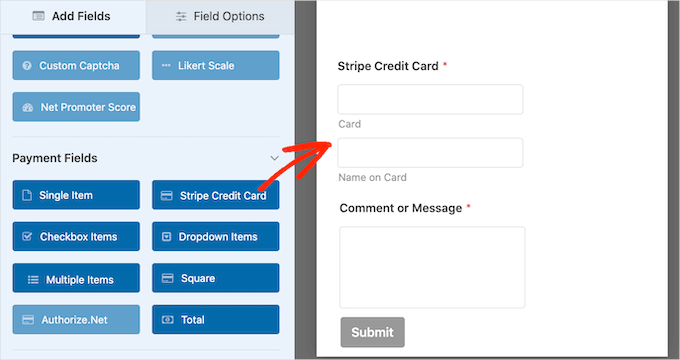
Ready to accept payments? See our guide on how to create a WordPress form with payment options.
Adding HIPAA-Compliant Forms in WordPress
HIPAA, or the Health Insurance Portability and Accountability Act, is a US law that protects people’s private medical information.
If your WordPress website deals with patient data, like on healthcare provider sites or telehealth platforms, then it’s important to keep that information safe and secure.
When you use HIPAA-compliant forms, it helps build trust with your patients. This is because they know their health information is protected with proper encryption, access controls, and secure storage practices.
Plus, if you don’t follow these rules, you could end up facing hefty fines and penalties.
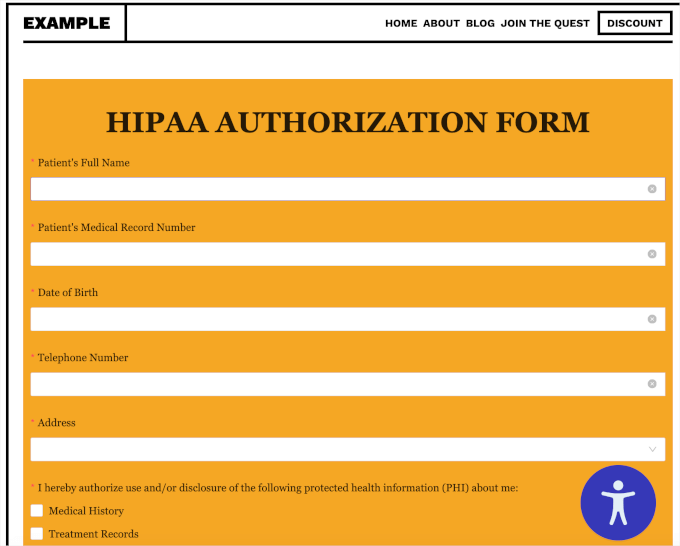
To ensure your forms are compliant, read our guide on how to create a HIPAA-compliant form in WordPress.
Adding User Registration Forms in WordPress
Adding a custom user registration form in WordPress comes with several key benefits, especially if you run a membership site, online course, or community. You can gather specific user details, making the signup process fit your site’s needs.
For example, you can add fields beyond basic info, like preferences, social media, or other data important to your business.
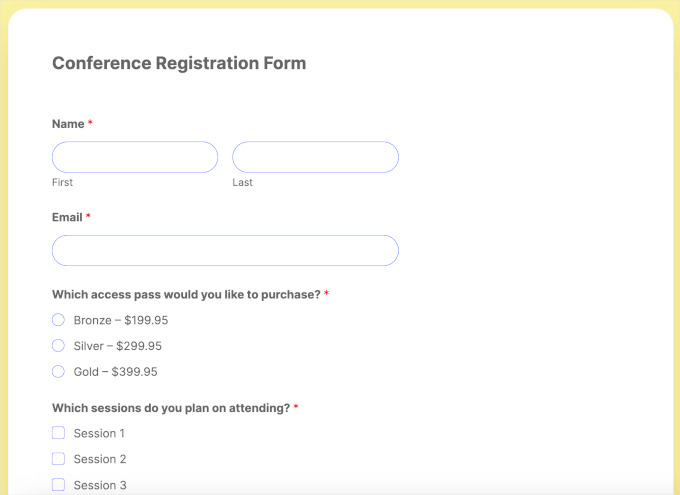
For more details, you can read our guide on how to create a custom user registration form in WordPress.
If relevant, you can also add a live camera capture to your user registration forms. So, instead of uploading files manually, users can take a photo or record a video directly inside the form in just a few clicks.
It’s especially useful for membership sites, online courses, or communities that need profile photos, ID verification, or supporting media at registration.
See or guide on how to let users take live photos and videos in WordPress forms for setup instructions.
Adding an RSVP Form in WordPress
Are you planning a big event like a birthday party, fundraiser, or wedding? You’ll need an easy way to collect RSVPs from your guests.
If you have a WordPress website, then you can create and manage RSVP forms without any coding. This will save you time and help you keep track of who has replied since guests often respond in different ways, like through email, text messages, or even in person.
With an RSVP form, everyone can reply the same way, and all their responses will be saved in your WordPress database. You can then easily export them to a spreadsheet or share them with your team.
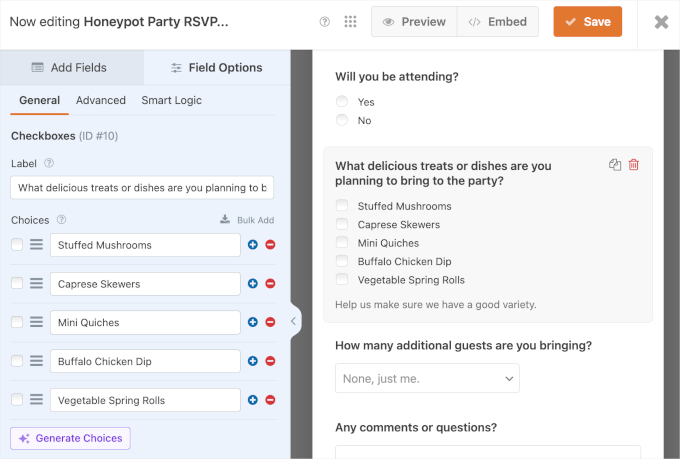
✏️ Note: WPForms comes with AI Choices, which helps you generate options for checkboxes, dropdowns, and multiple-choice fields. Simply add the relevant field to the form and click the ‘Generate Choices’ to use the tool.
Get started today by reading our guide on how to create an RSVP form in WordPress.
Adding a WordPress Form With a Date Picker
A date picker field in a WordPress form is super helpful for letting users easily enter dates in a consistent format. This helps you avoid confusion between formats like DD/MM/YYYY and MM/DD/YYYY.
You might use it for registration forms where users provide their birthdates, order forms for selecting delivery dates, or rental forms for picking up items.
It’s also great for callback requests or leave requests, where users can specify when they want to be contacted or the dates they’ll be off.
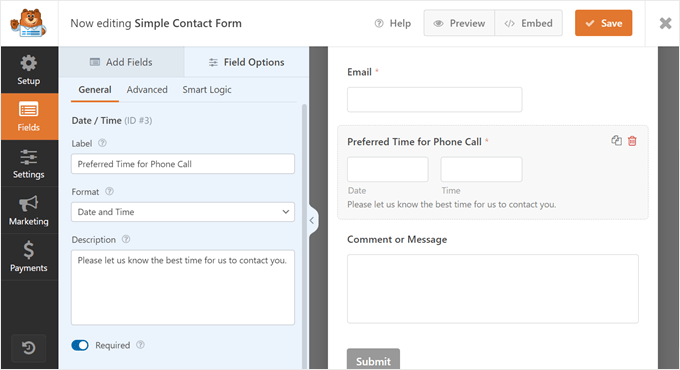
Overall, using a date picker makes it easier for users to input dates correctly and helps keep everything consistent.
For more details, you can see our guide on how to create a WordPress form with a date picker.
Adding Conversational Forms in WordPress
Traditional contact or survey forms, which show all the questions at once, can hurt completion rates because they feel long or overwhelming.
That’s where conversational forms come in handy. They ask one question at a time, simulating a natural conversation, which makes the process more interactive and less intimidating for users.
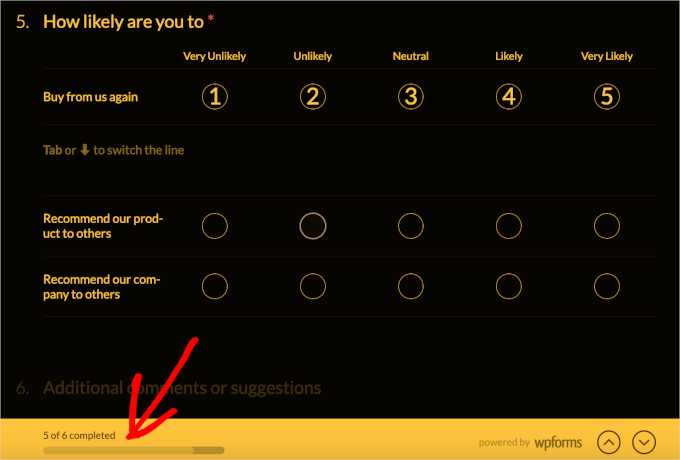
To set this up, check out our guide on how to create conversational forms in WordPress.
Creating a Custom Calculator in WordPress
A custom calculator lets users quickly figure things out without leaving your site, improving both user experience and dwell time.
For example, if you run a health and fitness blog, then adding a BMI calculator can help users decide on products or subscription plans.
Or, if you sell worldwide, then a metric-to-imperial converter can help customers check sizes, while a shipping calculator prevents surprises at checkout.
Plus, you can use calculators to generate leads by asking users for their email addresses to send them their results.
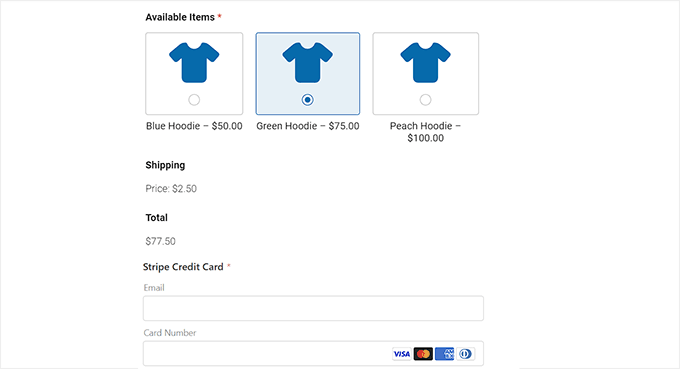
For detailed instructions, please see our guide on how to create a custom calculator in WordPress.
✏️ Note: A good calculator plugin can help you build a calculator in no time. For recommendations, you can go through our expert picks of the best calculator plugins for WordPress.
Adding Survey Forms in WordPress
An online survey is a great way to ask your visitors questions and get their feedback. You can learn what customers want from your products or services, such as which features to add or how to improve their experience.
If you have a WordPress blog, then surveys can help you learn if your content is helpful and what topics your audience wants to read about. You can even create surveys for your team to understand their concerns and find ways to improve teamwork.
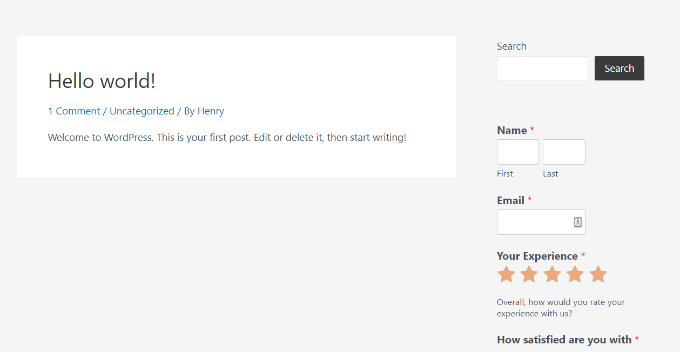
For more details, check out our guide on how to create a survey in WordPress.
Also, please note that having the right survey form builder makes things easier. If you don’t know where to look, you can see our expert picks of the best WordPress survey plugins.
Integrating Contact Forms with Google Tools
Integrating your WordPress contact forms with Google tools can make everyday tasks much easier.
For example, you can turn form submissions into Google Calendar events when someone books an appointment or requests a meeting. This saves you from manually copying details like dates, times, and contact info.
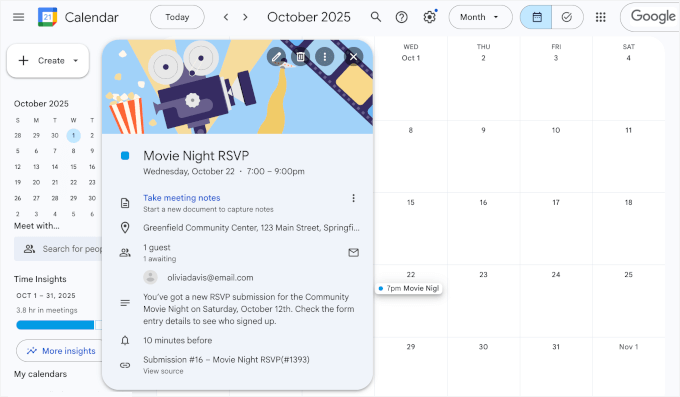
It’s especially helpful for consultations, callbacks, or service appointments where timing matters. See our guide on how to let users take live photos and videos in WordPress forms for setup instructions.
You can also upload form files to Google Drive.
So, instead of downloading files one by one, you can send form uploads straight to Google Drive. This keeps everything stored in one place and makes it easier to share files with your team. It also helps avoid lost attachments buried in email inboxes.
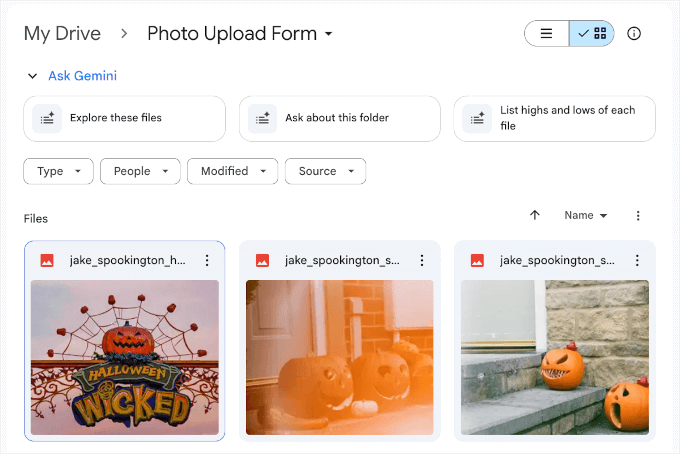
We have a full step-by-step guide on how to upload files from WordPress forms to Google Drive. Feel free to check it out.
In addition to that, if you have forms for delivery requests, on-site services, or event locations, adding a Google Map with a pin lets users select or confirm a location right inside the form. It reduces back-and-forth and helps you get accurate location details from the start.
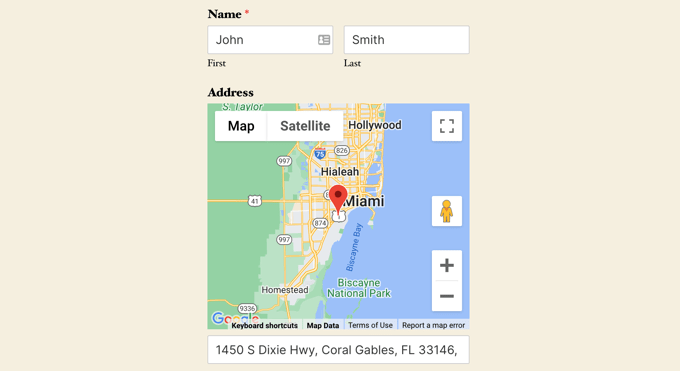
Check out our full guide on how to embed a Google Map with a map pin in contact forms.
Adding a Custom Airtable Form in WordPress
Creating a custom Airtable form in WordPress helps you manage all the data coming in from your website, such as contact form entries and survey responses. This data is stored in a flexible database that’s easier to filter, sort, and share than a simple spreadsheet.
Instead of getting lost in a pile of emails and messy spreadsheets, Airtable lets you organize and visualize your data better. You can use it as a CRM to keep track of leads and contacts from your forms or store user survey data for easy access.
Plus, you can use Airtable to manage tasks by project, create a content calendar for your blog, or keep an inventory list for your online store.
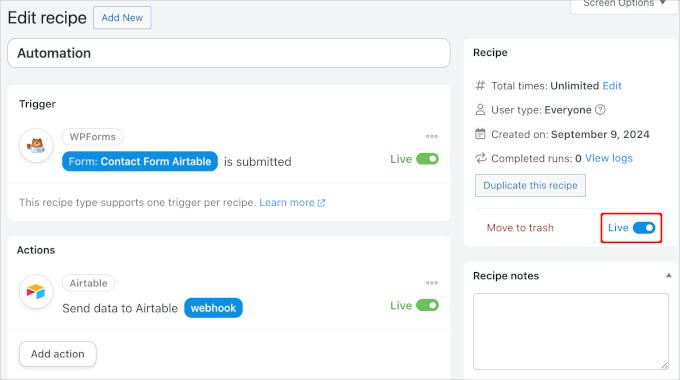
Overall, it’s a smart way to stay organized and make the most of the information you gather.
For detailed instructions, you can read our guide on how to create a custom Airtable form in WordPress.
Building a WordPress AJAX Form
AJAX, which stands for Asynchronous Javascript and XML, is a technique that helps websites transfer data without having to reload the page.
Many popular sites like Gmail and Facebook use AJAX to keep users engaged without interruptions.
On your WordPress site, you can use AJAX for forms to collect feedback, process checkout steps, or allow user logins without reloading the page.
In other words, when you use AJAX forms, only the information from the form is sent to the server instead of refreshing the entire webpage. This means less work for the server and less data being transferred, which can make your website run faster.
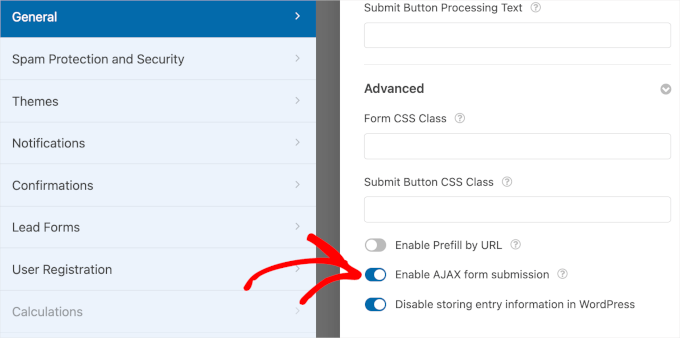
For detailed instructions, you can read our guide on how to build a WordPress AJAX form.
Adding HTML Forms in WordPress
Unlike regular forms created with visual builders, HTML forms are coded manually with HTML. This gives you full control over how they look and function, but also requires more technical knowledge.
While coding your own forms can be a great way to learn, it can also be tricky due to issues like compatibility across different web browsers.
Fortunately, there are tools you can use to add HTML forms to your WordPress site without having to code everything from scratch.
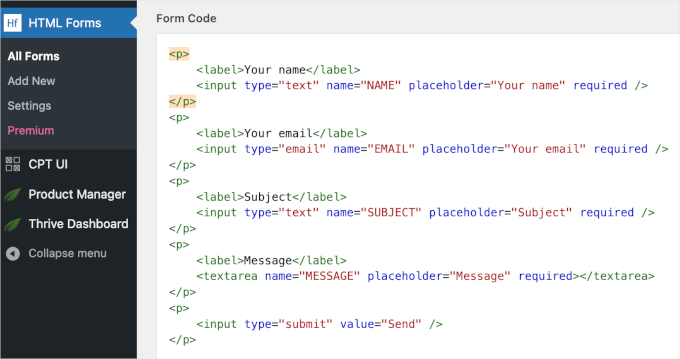
For step-by-step instructions, please refer to our guide on how to add HTML forms in WordPress.
How to Customize WordPress Forms
Customizing your WordPress forms is important to make them match your website’s look and feel. This helps your site look more professional and keeps things consistent, which can build trust with your visitors.
Plus, forms that fit your design are usually easier to use, leading to more people completing and submitting them.
To learn more, you can refer to our step-by-step guide on how to customize and style your WordPress forms.
Now, let’s see some key ways to tweak your forms and make them stand out.
Choosing a Form Template for Your Needs
Many form plugins come with templates that you can use as a starting point.
These templates are designed to save you time and help you create forms quickly. You can choose a template that suits your needs and then quickly customize it to match your site’s branding and specific form needs.
For example, WPForms has a vast library of form templates – more than 2,000 and counting.
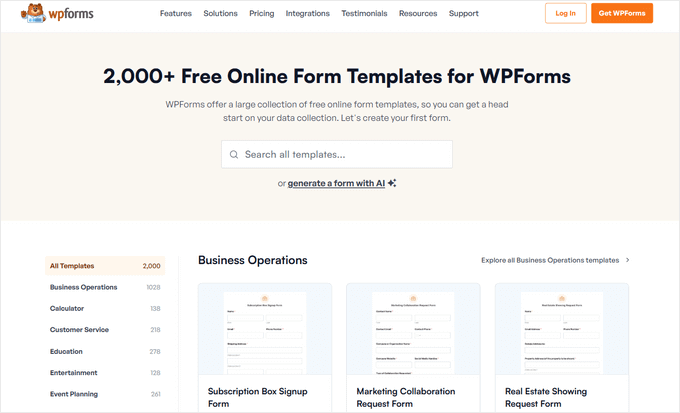
Some of the most common ones include the ‘Simple Contact Form,’ ‘Newsletter Signup Form,’ ‘Billing / Order Form,’ ‘Survey Form’, and ‘Suggestion Form.’ Depending on which form builder you choose, you may have access to a wide variety of customizable form templates.
Using Drag-and-Drop Functionality to Personalize Your Form
A form builder’s interface usually has a drag-and-drop feature, which means you can easily add or remove fields without any coding. It often looks like a simple layout where you can click and drag elements to arrange them how you want.
Typically, the form builder will have a customization panel on one side and a preview on the other, like this:
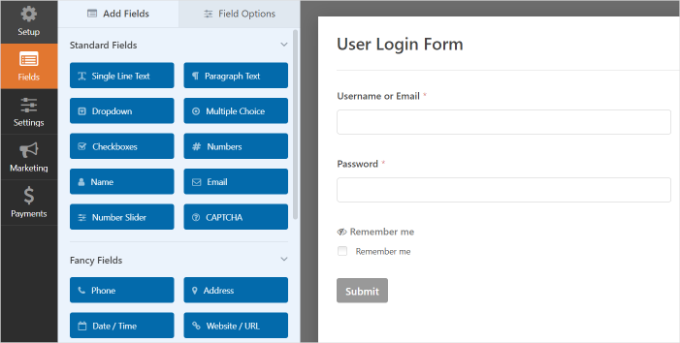
This format makes form creation a breeze, even for beginners. You simply need to drag and drop the element that you want from the left column onto the form builder on the right.
For details, see our guide on how to make a contact form.
Explore Customization Options for Further Adjustments
Now, modern form builders often have plenty of customization options.
First, you can adjust colors, fonts, and button styles to match your website’s theme. Then, they might even offer pre-set themes, allowing you to quickly apply a fantastic look to your forms.
For example, WPForms lets you choose a theme through the WordPress block editor.
With dozens of theme options, you can easily find a theme that matches your site’s look and feel, making customization quick. Just click on the theme you want to use, and your form will instantly take on that style.
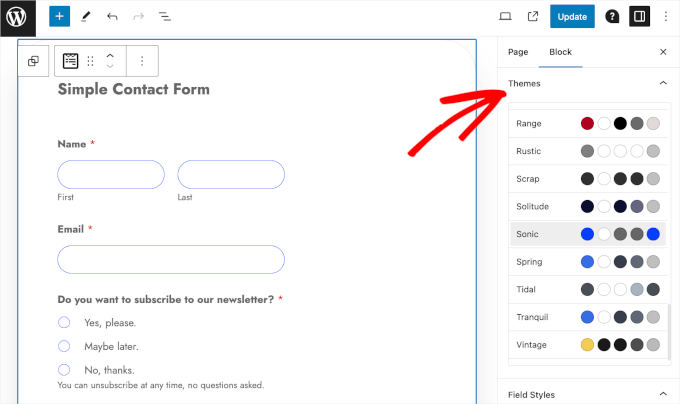
Some plugins also let you choose between light and dark modes for a more tailored visual experience.
For more on this, you can read our guide on how to customize and style your WordPress forms.
Post-Submission Form Tips
After someone submits a form on your WordPress site, there are a couple of important things to consider: redirecting users and sending confirmation emails.
First, you might want to redirect users to a thank-you page after they submit their form. This is a great way to let them know their submission was successful.
For example, you could direct them to a page that says, ‘Thanks for reaching out! We’ll get back to you soon.’ It gives visitors a sense of closure and lets them know what to expect next.

For more information, you can check out our guide on how to redirect users after form submission in WordPress.
Next up is sending confirmation emails. This is an essential step for keeping your users informed.
After they fill out a form, you can automatically send the visitor an email that confirms their submission.
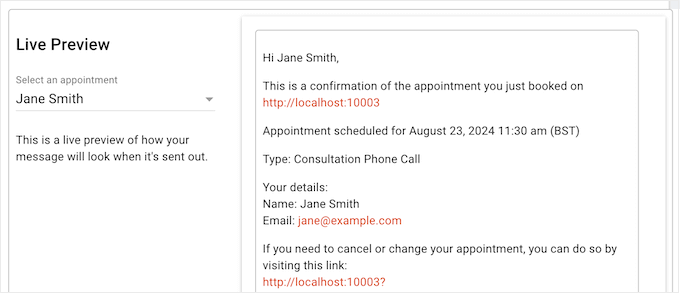
The email can say something like, ‘Thanks for your message! We’ve received your form and will respond shortly.’ In addition to reassuring users that their information went through, this keeps them engaged with your site. Plus, it gives them a record of their submission.
To learn more, you can read our detailed guide on how to send confirmation emails after WordPress form submission.
All in all, customizing your forms adds a personal touch and can improve engagement, so don’t skip this important step.
How to Embed Forms into Your WordPress Site
There are a couple of easy ways to add forms to your WordPress site.
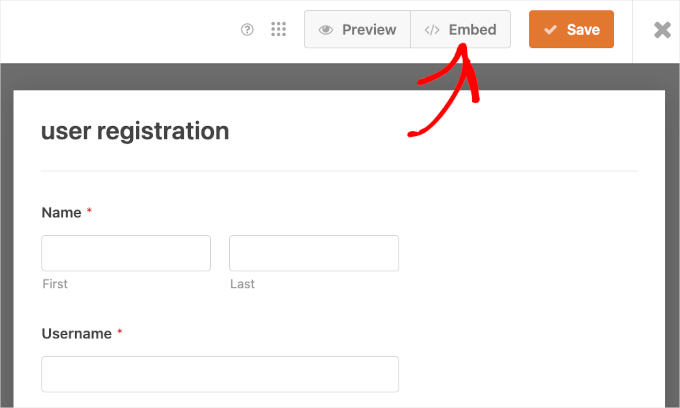
One common method is using the ‘Embed’ button right from the form builder. This button will usually open a popup to help you create a new page or select an existing one. Then, it will take you to the WordPress content editor, where you can add the form.
Another popular method is using a shortcode.
A shortcode is a small piece of code that you can insert into your WordPress editor. When you publish the page, WordPress will automatically replace it with your form.
Both methods are simple and let you get your forms up and running quickly!
To learn more, you can refer to our guide on how to embed forms in WordPress.
WordPress Form Optimization
Making your WordPress forms look and function better can help reduce form abandonment and improve overall performance.
A great way to do this is by tracking how people interact with your forms. With tools like Google Analytics, you can see where users get stuck, which questions slow them down, and how many actually finish the form.
Google Analytics can be tricky to use for beginners – and that’s where MonsterInsights comes in.
It’s the best and most popular Google Analytics plugin for WordPress, and we use it ourselves at WPBeginner. It lets us easily track our conversions for call-to-actions, referral links, forms, and more. Hop on to our complete MonsterInsights review to learn about its features.
MonsterInsights simplifies analytics by giving you the most important stats in a user-friendly way right from your WordPress dashboard. They include impressions, submissions, and conversion rates for each form.
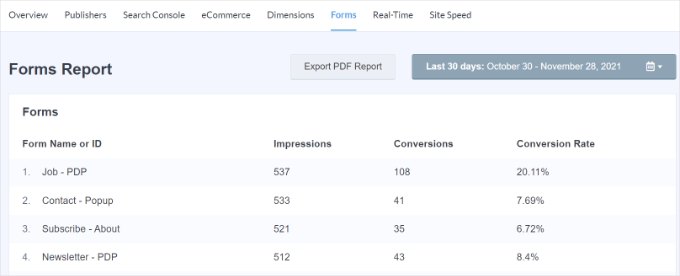
This information helps you spot problems, like confusing questions or too many fields, so you can fix them and get more people to complete the form.
To learn more, you can see our guide on how to set up WordPress form tracking in Google Analytics.
If you have a lead form, we also have a step-by-step guide on how to track user journeys on WordPress lead forms.
You can also make your forms less intimidating.
Long forms can scare people off, so try breaking them into smaller steps or only asking for the most important details.
This is where using conditional logic in your forms can be a massive help.
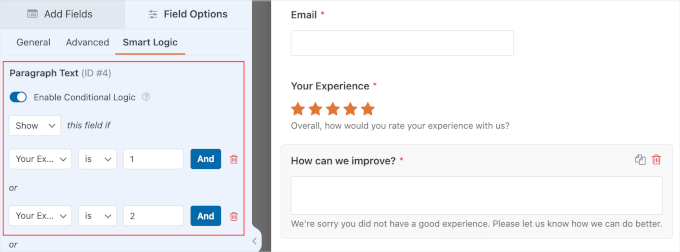
Conditional logic is a smart feature that lets your form fields change based on users’ answers, making the form cleaner and easier to fill out.
For example, if a customer rates their satisfaction as ‘Low,’ then additional questions about their issues will appear, while those who rate it as ‘High’ will see questions about what they liked.
This approach not only makes filling out forms more user-friendly but also helps you collect better data, leading to higher submission rates and more accurate follow-up actions.
For more information, you can check out our blog post on ways to use conditional logic in WordPress forms.
Additionally, adding fun elements like progress bars or interactive questions can make filling out the form more enjoyable. You can see our guide on how to make WordPress forms more interactive for more tips.
WordPress Form Security and Troubleshooting Tips
Keeping your WordPress forms secure is super important, especially when it comes to dealing with spam submissions.
While unchecked spam can flood your forms with useless entries, there are ways to prevent it.
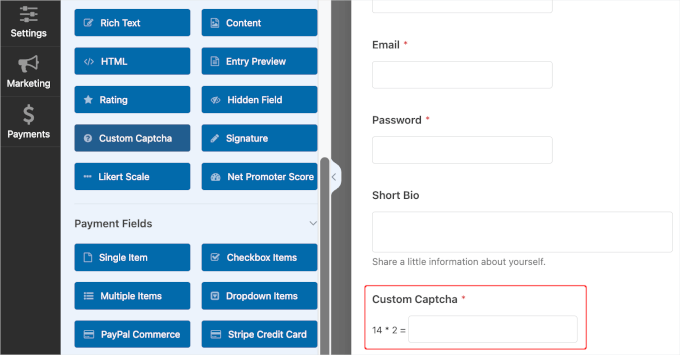
For instance, you can add CAPTCHA to your login and registration forms. This will protect your WordPress login and registration forms, which are often targets for spammers and brute-force attacks.
Limiting the number of form entries can also be really useful in various situations.
For example, you might want to restrict an RSVP form to a certain number of seats or only allow feedback from registered members. You can set limits based on total entries, deadlines, or even user login status.
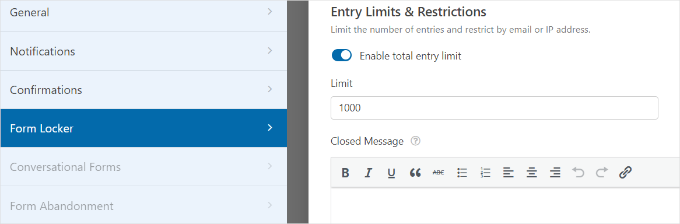
For more information, you can refer to our guide on how to limit the number of WordPress form entries.
Another option is adding a second password layer, but do note that this can be hard to manage for larger sites with multiple users.
You can learn more about it in our guide on how to password-protect your WordPress forms.
However, one of the easiest and most effective methods is to use a firewall plugin or service, such as Cloudflare or a dedicated WordPress security plugin. These tools help keep your site secure and block bots before they even reach your forms.
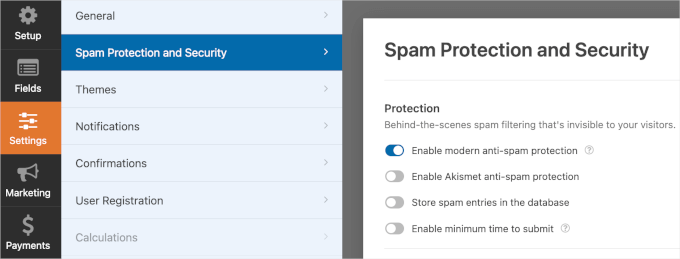
For more on this, you can read our guide on how to create secure contact forms in WordPress.
When it comes to form troubleshooting, you can sometimes run into issues like your form plugin not sending emails, displaying errors, or failing to load properly.
If something goes wrong, start by checking your form plugin’s settings first to make sure everything is set up correctly.
If the form doesn’t display properly, you can test for theme or plugin conflicts. And finally, review your hosting and email configuration (specifically SMTP) if notifications aren’t being delivered.
📌 Expert Recommendation: If you have trouble with your SMTP, we highly recommend installing WP Mail SMTP.
This SMTP Plugin works by routing your WordPress emails through a trusted provider like SendGrid or Brevo to ensure they are not blocked or marked as spam. See our guide on how to fix the WordPress not sending email issue.
Keeping everything updated and testing your forms regularly can help catch problems before they become bigger issues.
For more details, you can refer to our guide on WordPress form does not work: troubleshooting tips.
FAQs About WordPress Forms
We’ve covered a lot of information about WordPress forms so far, but you may still have a few questions. Here are answers to some of the most common ones:
How do WordPress forms work?
WordPress forms collect information when someone fills them out and clicks submit. The form then sends that data to your website, where it can be saved, emailed to you, or sent to other tools you’ve connected.
What is the main purpose of a WordPress form?
The main purpose of a WordPress form is to let visitors contact you or share information easily. Forms are often used for support requests, signups, orders, surveys, and bookings.
What happens when you publish a form?
When you publish a form, it becomes live on your WordPress blog or website. Visitors can start filling it out, and their submissions will be sent and stored based on how you’ve set up the form.
Where do WordPress form submissions go?
Form submissions are usually saved in your WordPress dashboard and sent to your email. Depending on the plugin, they can also be sent to other tools like Google Sheets, Google Drive, or your CRM.
How can I offer discounts in WordPress forms?
You can offer discounts in form builders like WPForms by using the Coupon field. Just set up a pricing field and add a coupon code field where users can enter their codes during checkout.
How do I use WPForms?
To use WPForms, you will need to first install and activate the plugin. Then, you can go to WPForms in your dashboard, create a new contact form using the drag-and-drop builder, and embed it on your site with a shortcode or block.
Can I style a form in WordPress?
Yes. You can style a form in WordPress by using custom CSS. That said, some form plugins, including WPForms, allow you to customize and style your forms directly in their settings or on the WordPress block editor.
More Tips and Tricks for Using WordPress Forms
In this guide, we’ve covered everything you need to know about using WordPress forms.
You’ve learned how to pick the right form builder and create different types of forms for your site. Plus, with tips on optimizing and securing your forms, you are all set to boost user engagement.
Next, you may also like to see our guides on:
- How to Create a Contact Form with Multiple Recipients
- How to Create Multilingual Forms in WordPress
- How to Create a Recurring Donation Form in WordPress
- How to Automate WordPress Forms With n8n
- Tips to Create More Interactive Forms in WordPress
If you liked this article, then please subscribe to our YouTube Channel for WordPress video tutorials. You can also find us on Twitter and Facebook.




Chris R
I had the same question – what happens to the data after a user submits the form? How do you control what happens? i.e. send an email or put into a database?
thanks
Chris
WPBeginner Support
It would depend on the form plugin you use, most if not all will send an email to where you specify in the form’s settings. Other than that, some plugins store the submissions or have a pro version that can store the submissions for you with other features.
Admin
Erwin Tiesma
Hi, Thanks for the extensive tutorial, however I miss the specifications from the output. Is it comma seperated, HTML, XML, text, MYsql database…
BR ERwin
WPBeginner Support
If you mean when exporting from your form, then it would normally be separated by commas.
Admin