


When starting out with WordPress, many site owners make the mistake of using a personal Gmail account for their business communications. While it works, having “@gmail.com” at the end of your email address isn’t doing your professional image any favors.
That’s where Google Workspace (formerly G Suite) comes in.
At WPBeginner, we’ve helped thousands of website owners set up their professional email hosting with Google Workspace. We’ve seen firsthand how this cloud-based productivity suite can transform the way small businesses operate – from seamless collaboration to improved client communication.
In this Google Workspace review, I’ll share everything we’ve learned about this popular productivity suite, to help you decide whether it’s right for your business.
Google Workspace Review: My Honest Opinion (& Firsthand Experience)
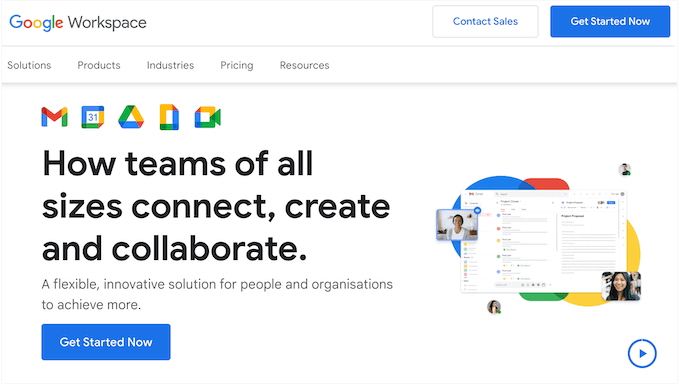
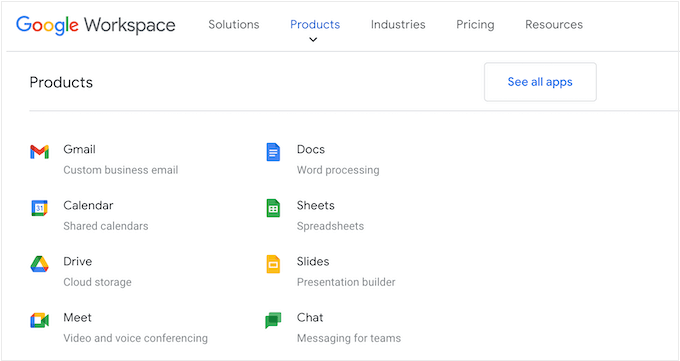
Previously known as G Suite, Google Workspace is a popular productivity suite. It allows you to use all the most popular Google apps like Drive, Docs, Sheets, and Calendar, but with your own domain name.
In particular, you’ll get a branded email address. Immediately, this makes your business seem more trustworthy and professional, which will help convert visitors and leads into customers. In my opinion, this is something that pretty everyone can benefit from: freelancers, small business owners, and even bloggers!
You can also create documents using Google’s real-time collaboration tools and store them in the cloud. This means you can access them from any location, at any time. You can even collaborate on these documents with co-workers, partners, and other contacts, and communicate using text, audio, or video chat.
Plus, Google Workspace now integrates Gemini AI workspace features (available as a paid add-on) that can help you draft emails, summarize documents, and generate content directly within your familiar Google apps.
Google Workspace Review: Is It the Right Productivity Suite for You?
The right cloud-based productivity suite lets you access content from any location, at any time, and collaborate with people around the world. As someone who works as part of a remote team, I know first hand how much time and effort this can save you.
That said, in this Google Workspace review I’ll help you decide whether it’s the right all-in-one productivity suite for your WordPress website.
1. Gmail
Google Workspace allows you to add MX records to your domain, so you can create a professional email address with the name of your business, website, or WordPress blog.
Think about it: you can create an email address like yourname@yourwebsite.com in minutes. This is something we can all agree is important for boosting credibility, whether you’re a freelancer, a small business owner, or running a popular blog.
Since the emails appear to be coming from your own domain, you’ll seem more professional, while also strengthening your professional or personal branding.
You can create up to 30 email aliases for each user, which is helpful if you want to manage all your messages in one location. For example, a consultant could use different aliases for different clients, and manage them all from a single account.
I’ve found this feature incredibly valuable when managing multiple client projects. Instead of juggling separate email accounts, I can route everything through one inbox with different aliases like support@, sales@, or info@. This is one of the most underrated features in any professional email hosting service.
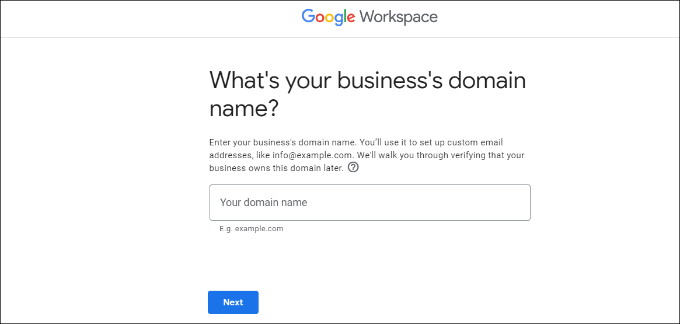
To get started, just enter your domain name and a username, which will become your first professional email address.
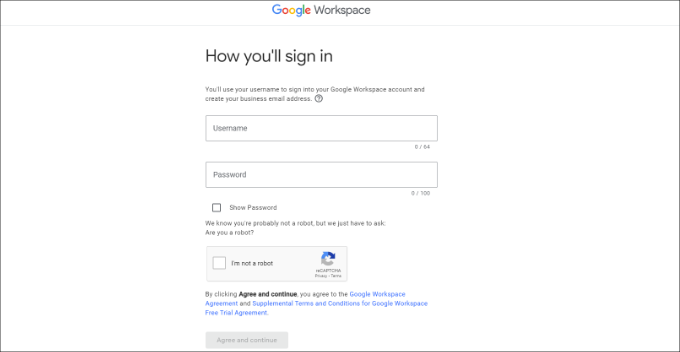
After that, you simply need to verify your domain and your new business email address will be ready to use. This feature is so simple to use, even for beginners.
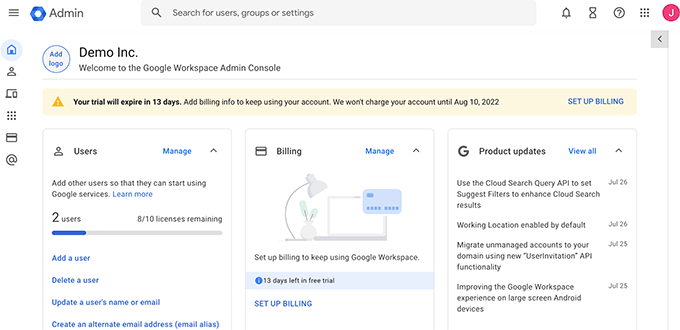
Once you’re up and running, you can easily manage your Gmail account in the Workspace Admin console. For example, you can add new users, increase the storage space on your mail account, make payments, and adjust your account settings all in one place.
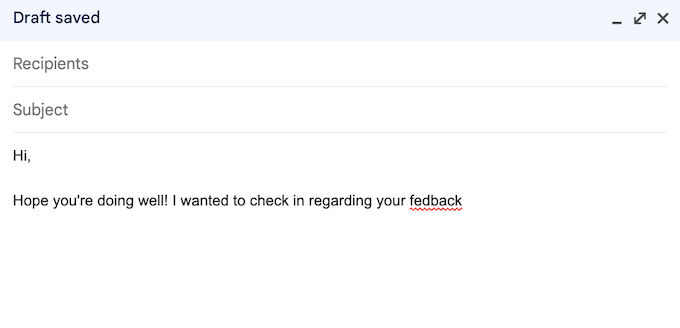
You can also add a professional email signature. We all understand that it’s important to make a good first impression and a well-crafted email signature helps you do just that.
Gmail comes packed with time-saving features like Smart Reply and Smart Compose. These suggestions can really speed up your workflows. It also comes with a built-in grammar checker and spell checker to help you avoid embarrassing typos.
As part of the Google Workspace package, you’ll get access to Google’s advanced security, phishing, and spam filters. In fact, according to Google’s website, their machine learning models prevent more than 99.9% of spam, phishing and malware from reaching Gmail users.
Gmail also offers two-factor authentication and automatic backups for added security.
Beyond that, Google Workspace has a reputation as an extremely reliable email provider with very little downtime and no delays. According to Google’s website, users can expect 99.9% guaranteed uptime and 0% planned downtime.
Google’s high deliverability rates are also a huge plus. You can be confident your emails will land in the inbox, not the spam folder. This is crucial for businesses and individuals who rely on email for communication.
You can access your Gmail account from any device including smartphones and tablets. There’s even a Gmail mobile app so you can manage your emails on the go. I tested the mobile app, and it works perfectly.
Gmail works with many popular desktop clients including Microsoft Outlook, Apple Mail and Mozilla Thunderbird. In fact, Outlook users can sync their emails, events and contacts with Google Workspace. This level of compatibility is a real benefit for users who prefer desktop clients.
If you’re planning a Google Workspace migration from another platform, then Google Workspace has migration tools for Outlook, Exchange, and Lotus. I’ve successfully migrated several clients from Microsoft 365 to Google Workspace, and the process is surprisingly straightforward when you use Google’s built-in data migration service.
Finally, Gmail integrates seamlessly with all the other Google Workspace apps. This means you can perform a ton of tasks directly in the Gmail dashboard including sending a Google Meet invite, creating an event in Google Calendar, and adding tasks to your To Do list.
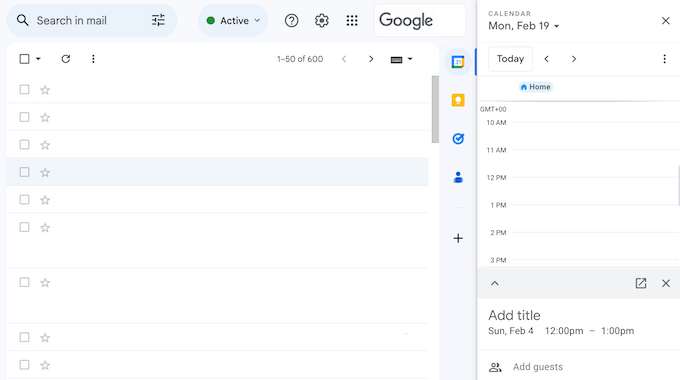
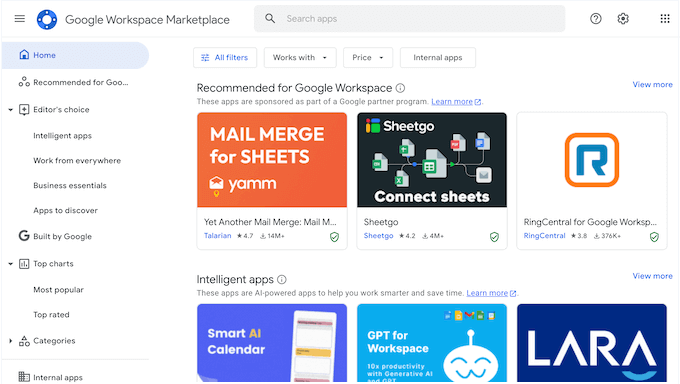
You can even connect Gmail to your favorite third-party apps using Google Workspace Add-ons. The App Marketplace includes hundreds of workspace add-ons that extend functionality beyond what Google provides natively.
For example, you can install add-ons for RingCentral, Slack, and Zoho.
Pro Tip: I’ve tested a lot of email marketing services, and I highly recommend using one alongside your professional email address. With the right service, you’ll get access to advanced features that can help grow your business including autoresponders, marketing automations, and a CRM.
My Honest Review: Getting a professional email with Google Workspace is incredibly straightforward. After that, you can easily manage your Gmail through the Workspace Admin console. You can add team members, upgrade storage, handle billing – all in one place. It’s super handy.
Beyond that, Gmail is packed with productivity-boosting features like Smart Reply and Smart Compose. Plus, there’s a built-in spell checker to save you from those embarrassing typos. And security? It’s top-notch thanks to features like two-factor authentication and automatic backups. Basically, Gmail is an all-around great solution.
2. Google Drive
Google Drive is a cloud storage tool that you can use to store all your Google Docs, Sheets, Slides, and more. It’s the foundation of Google’s collaborative cloud storage approach, making it easy for teams to access files from anywhere.
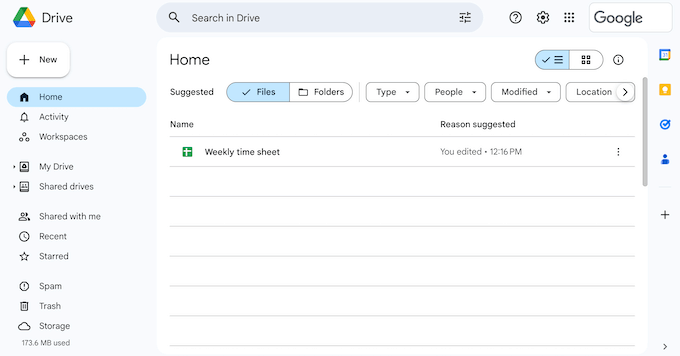
You can open more than 40 different file types in Google Drive, including Microsoft files such as Excel, PowerPoint, and Word documents. This makes it super versatile for all kinds of projects. I tested it with a variety of file types, and it handled everything perfectly. In fact, I’ve started using Google Drive for my own WordPress backups.
Since Google Drive is a cloud-based tool, you can access your files from any location that has an Internet connection, using any device. We all understand how important that is these days!
You can also access your Google Drive files directly from your desktop, using the Drive for desktop app. In this way, you can access documents without waiting for them to sync, and without them taking up space on your local computer.
For teams, Google Workspace offers Shared Drives (previously called Team Drives), which are different from your personal My Drive. Shared Drives belong to the organization rather than individual users, so if someone leaves the company, all their files stay accessible to the team. I’ve found this crucial for maintaining continuity in long-term projects.
Sharing files is a breeze with Google Drive. You can easily give others permission to download, edit, comment, or just view specific files. I find this incredibly useful when collaborating on articles with other WPBeginner writers.
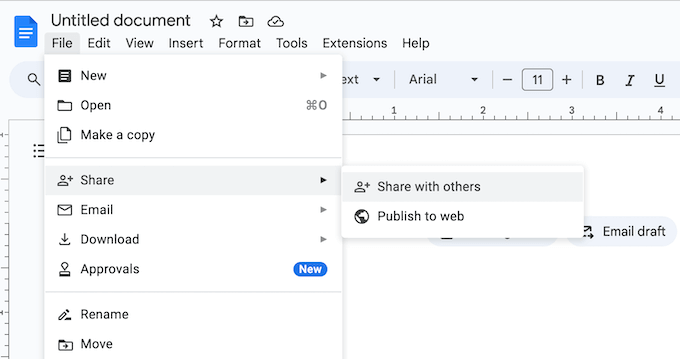
Another great feature is the ability to set expiration dates for shared files. This is perfect for granting temporary access. For example, if you run a WordPress development agency then you might only share files with a client for the duration of their contract. I tested this feature, and it worked flawlessly.
Google Drive takes security seriously, which is something we can all appreciate. They use Vault (available in Business Plus and Enterprise plans), centralized administration, and data loss prevention to protect your files.
Vault is particularly valuable for businesses that need to retain and archive data for compliance purposes. It lets you set retention policies and perform legal holds on specific content. This means you can confidently store and share sensitive information while meeting important data compliance requirements.
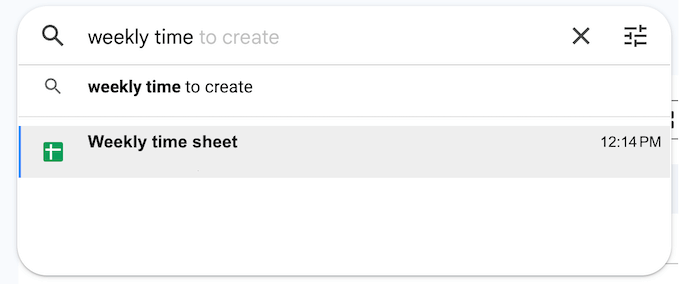
Finding the right file quickly is easy thanks to Google Drive’s artificial intelligence search. I tested this out, and it’s remarkably accurate.
It predicts what you’re looking for and suggests results as you type, saving you valuable time. I can imagine our readers finding this feature incredibly helpful, especially when dealing with a large number of files.
Finally, you can extend your Google Drive using add-ons. For example, you might collect electronic signatures using the DocuSign add-on, or use ChatGPT to generate outlines using AI. I tested a few add-ons, and they integrated seamlessly. This opens up a world of possibilities for streamlining your workflows.
My Honest Review: Google Drive is seriously powerful cloud storage that’s also super versatile.
The way it just works with all the other Google tools you probably already use? That’s a huge win. Plus, the security is solid, and that AI-powered search? Seriously smart – it makes finding your files a breeze.
While there are other cloud storage options available, Google Drive’s comprehensive features and ease of use make it a top contender, and I highly recommend giving it a try – if you haven’t already!
3. Google Docs
Google Docs is a popular online word processor that lets you create and edit documents directly in your browser. No need to install separate software!
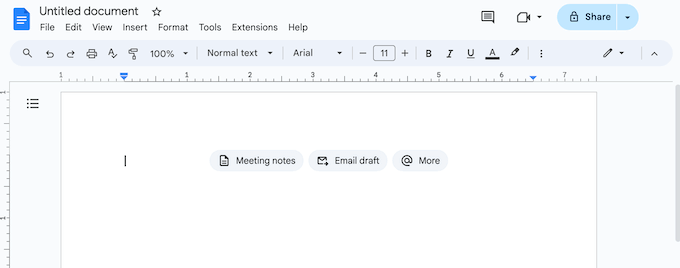
As a WPBeginner writer, I use Google Docs all the time, and I’m always impressed by its capabilities. I know our readers are always looking for efficient writing tools, and this one is definitely worth checking out.
You can even import documents into Google Docs including Microsoft Word and PDF files. I tested this with several different file formats, and it worked seamlessly.
With Google Docs, you can access your work from any location, using any device that has an internet connection. And if you’re using Chrome, you can even work offline. I’ve found this feature incredibly useful when traveling.
Google Docs has easy sharing features, so you can collaborate with other people on the same Google document.
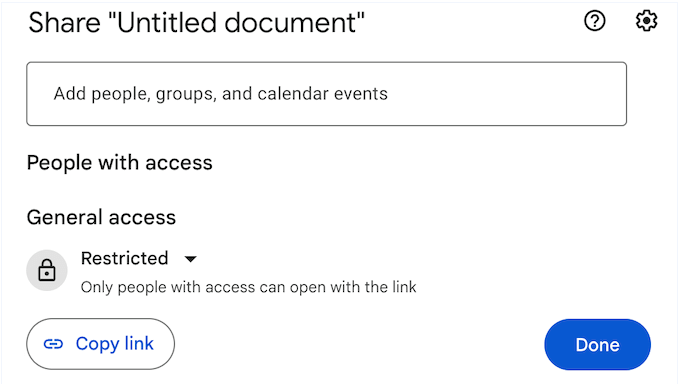
You’ll see changes as the user is making them, and can communicate directly by posting comments or typing into the built-in live chat. Imagine working on a blog post with multiple authors simultaneously – Google Docs makes it effortless.
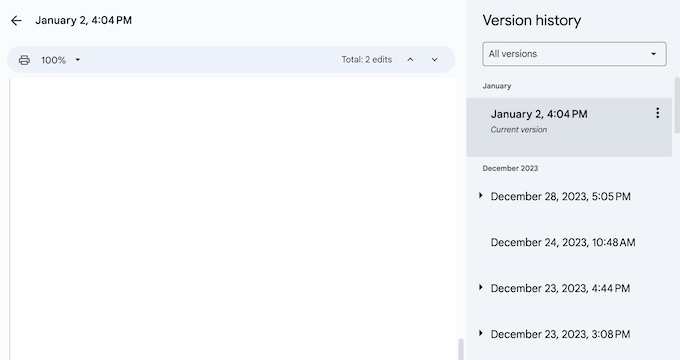
Google Docs also tracks each change, so you can undo an edit at any point if you realize you’ve made a mistake. Google even creates a detailed version history, so you can also revert to an earlier version of the document. I’ve found this incredibly helpful when revisiting older drafts.
When you’re finished, you can export your document in various formats, including .docx, .pdf, .odt, .rtf, .txt, and .html. This flexibility is perfect for sharing documents as email attachments or uploading them to other applications, like your CRM app. I tested all the export options, and they worked perfectly.
My Honest Review: Google Docs is a fantastic online word processor that offers a compelling alternative to traditional desktop software. Its accessibility, real-time collaboration features, and seamless version history make it a powerful tool for individuals and teams.
The fact that you can access it easily from anywhere and work together with others at the same time is a big plus. In addition, it automatically saves every version of your work, which is super helpful for keeping track of changes.
While it may not have every advanced feature of a full-fledged desktop word processor, Google Docs is easy to use, excellent for working with others, and accessible from any device. For most writing tasks, it’s my top recommendation.
4. Google Sheets
Google Sheets is a popular spreadsheet software that you can access directly in the browser.
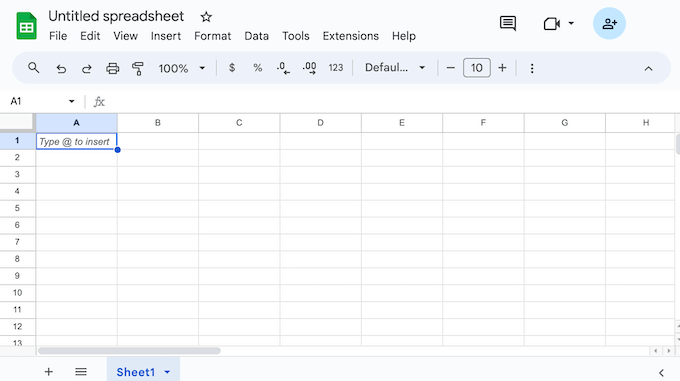
Plus, if you’re using Chrome or Microsoft Edge, you can even work on your spreadsheets offline. I’ve found this feature invaluable when I’m on the go.
Just like Google Docs, Sheets makes collaboration easy. I use this feature all the time when working with my team. You can share spreadsheets, see changes in real-time as others make them, and communicate directly within the document. This streamlined workflow makes teamwork efficient and enjoyable.
Imagine tracking marketing campaign results with your team, all updating the same spreadsheet simultaneously. Google Sheets can even notify you about changes that happen while you’re away.
This ensures you’re always aware of the latest updates to your spreadsheets. For example, Google Sheets can notify you every time a team member adds new data to a sales spreadsheet.
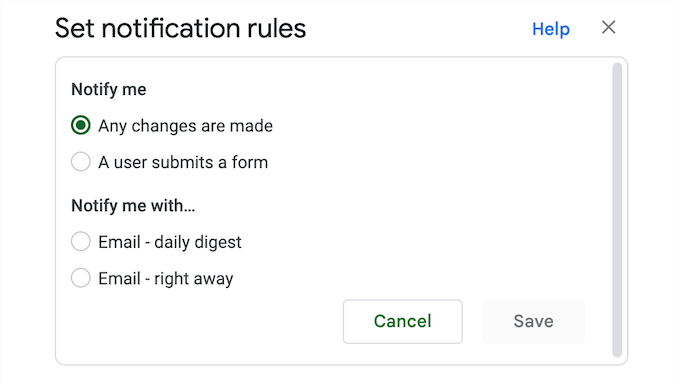
To keep your data safe, you can grant access to individuals, groups, or even set up domain-level access.
You can also add an expiration date, and disable the options to download, copy, or print for specific collaborators. This is essential for protecting sensitive or confidential information. Imagine sharing financial projections with stakeholders while preventing them from downloading or distributing the data.
Another option is to sell Google spreadsheets as downloadable files. I can imagine our readers finding this feature incredibly useful for selling templates, data sets, or other digital products. This opens up new possibilities for monetizing your content.
Google Sheets is compatible with Excel, CSV and plain text documents, plus external systems such as Microsoft Office. This allows you to work across multiple platforms with ease. I tested importing and exporting files in different formats, and it worked flawlessly.
Sheets also integrates seamlessly with Google Forms, so you can record form submissions to a spreadsheet automatically. In this way, you can create a simple automation workflow that saves you a ton of time.
You can also analyze BigQuery data in Google Sheets using Connected Sheets, which is their BigQuery data connector. This is a powerful feature for anyone working with large datasets.
When adding data to spreadsheets, you may need to perform calculations. The good news is that Google Sheets can add, subtract, multiply, and divide values using more than 400 formulas, so you don’t need to use a separate calculator plugin or app.
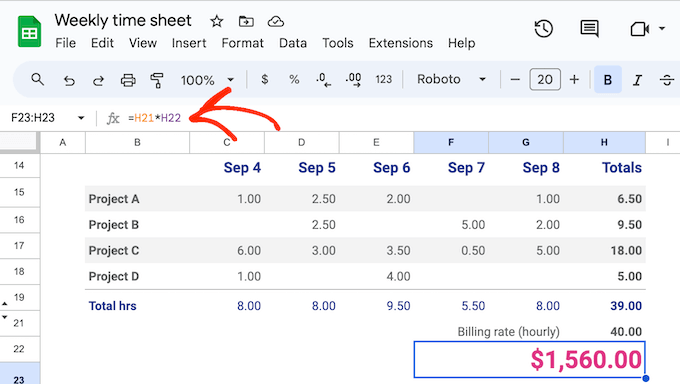
Google Sheets makes working with formulas even easier by suggesting relevant formulas as you type. This is a huge time-saver, especially if you’re not familiar with all the available formulas. I can imagine our readers really benefiting from this intelligent assistance.
Sometimes you may want to present your data visually in a chart or graph. This makes it easier to spot trends and patterns in your data, such as the campaigns that generate the most revenue for your online store.
It can also display lots of complicated data in a way that’s easier to understand, or present to other people.
With Google Sheets, you can create charts and graphs with just a few clicks. Simply select the data you want to use and the kind of chart you want to create, such as line, combo, area, scatter, or a tree map.
Google Sheets will then create a beautiful visual based on your data.
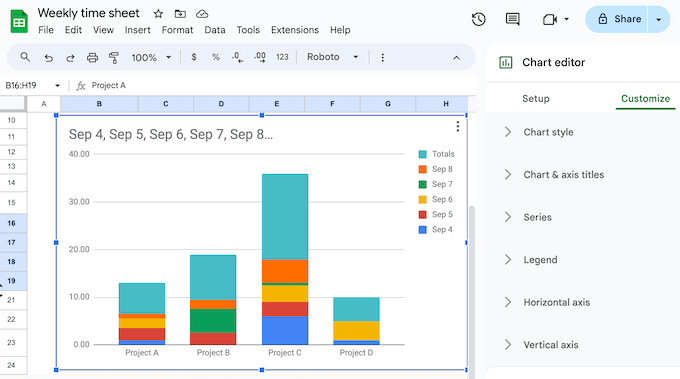
All these charts are fully customizable. This allows you to fine-tune them to display precisely the information you need, in a way that’s clear and easy to understand. I know our readers will appreciate this level of control. You can adjust colors, labels, fonts, and more to create visually appealing and informative charts.
For advanced users, Google Sheets offers powerful extensibility options. I’ve experimented with Apps Script, and it opens up a world of possibilities. You can add custom functions, menu items, and macros using Apps Script. This allows you to automate tasks and tailor Google Sheets to your specific needs.
You can also build custom mobile and desktop apps on top of Sheets using AppSheet. Imagine creating an app that sends web push notifications every time a row is updated. This is a game-changer for real-time data monitoring.
Plus, there are all kinds of innovative ways to integrate Sheets with WordPress. For example, you can connect WordPress forms to Google Sheets or connect Sheets with WooCommerce.
My Honest Review: Overall, I’m incredibly impressed with Google Sheets. Its accessibility, collaborative features, and powerful data visualization tools make it a must-have. The wide range of built-in formulas, customizable charts, and integration options make it a great additional to businesses of all sizes.
Finally, the ability to extend Google Sheets with Apps Script and AppSheet let you create custom tools and automate tasks. This makes Google Sheets way more than just a basic spreadsheet program – it becomes a platform where you can build exactly what you need.
Whether you’re just starting out or you’re a spreadsheet pro, Google Sheets has a really powerful and flexible set of tools for managing and analzying your data. It’s definitely worth checking out.
5. Google Slides
When you think about presentations, many people picture business presentations or class projects. However, you can also add presentations to your website, to keep visitors engaged and display information in an eye-catching way.
I know our readers are always looking for ways to engage their visitors, and this is definitely something worth considering. For example, If you have an online store, then you might create a slideshow showing your latest product’s specifications, features, and positive customer feedback. I tested this on a demo e-commerce site, and it looked fantastic.
With Google Slides, you can create all kinds of presentations directly in the browser and then share them with other people, or add the presentation to your WordPress website. This seamless integration with WordPress is a huge plus for our readers.
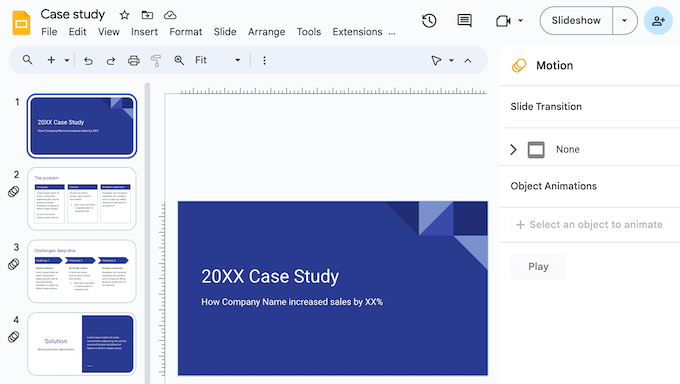
Just like other Google Workspace apps, Google Slides allows for seamless collaboration.
I’ve collaborated on numerous presentations using Google Slides, and it’s incredibly efficient. You can work on presentations with others and set specific permissions for each user. For example, you can give an individual user permission to edit, view or just add comments to a document. This makes teamwork on presentations easy and efficient.
Google Slides comes with a built-in template library so you can easily create beautiful presentations, slideshows, WooCommerce product tours, and more. I’ve used these templates myself, and they’re a great starting point.
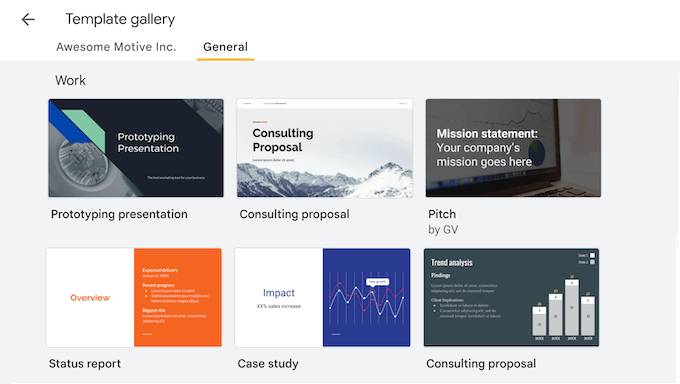
You can add all kinds of content to your presentations including videos, images, charts, GIFs, stickers, and diagrams. This versatility allows you to create engaging and informative presentations.
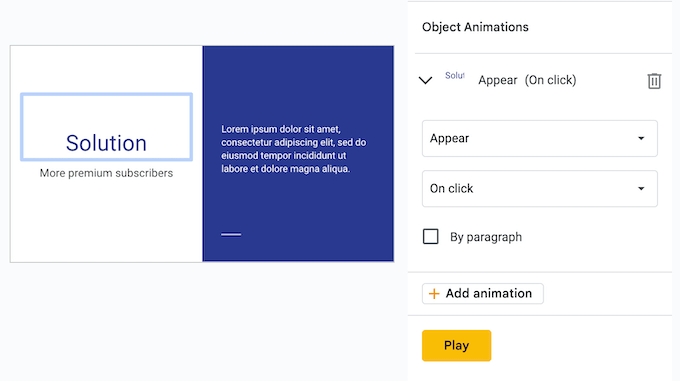
In addition, you can add animations and transitions to keep visitors and potential customers engaged with your content. I’ve used these features to add a dynamic element to my presentations, and they work really well.
And, as always with Google Workspace apps, your work is saved automatically. Plus, there’s a complete revision history so you can undo changes or restore earlier versions.
My Honest Review: Google Slides is a seriously versatile and user-friendly tool for creating presentations.
The ready-made templates, animations to add visual interest, and transitions between slides really simplify the design process. Plus, the ability to work on presentations simultaneously with team members and having a built-in version history is super helpful and provides peace of mind.
And here’s a cool feature for WordPress users – you can even embed your Google Slides presentations directly onto your website, opening up some great ways to share information and capture your visitors’ attention. Imagine easily displaying product demos, step-by-step tutorials, or even event recaps right within your blog posts or pages.
It’s a simple yet powerful way to enhance user engagement and provide valuable content without requiring any complex coding.
6. Google Calendar
Google Calendar is a well-known calendar app that’s become an essential part of my day-to-day workflow. With a Google Workspace subscription, you can use it with your own domain name, adding a professional touch. This is something we can all agree is a nice perk.
Google Calendar makes it easy to share in-person and virtual events, schedule meetings, set up reminders, follow-ups, and much more. I’ve found these features incredibly helpful for staying organized and managing my time effectively.
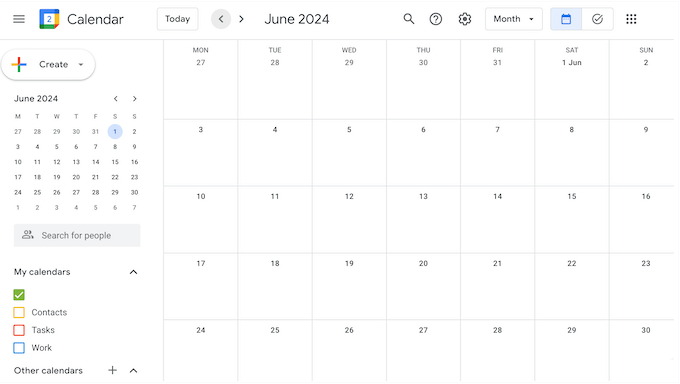
Google Calendar also has a system of notifications and reminders so you never miss an important event. This system is a lifesaver – I can’t tell you how many times it’s saved me from missing important meetings or deadlines. You can customize notifications to suit your preferences, ensuring you get timely reminders for upcoming events.
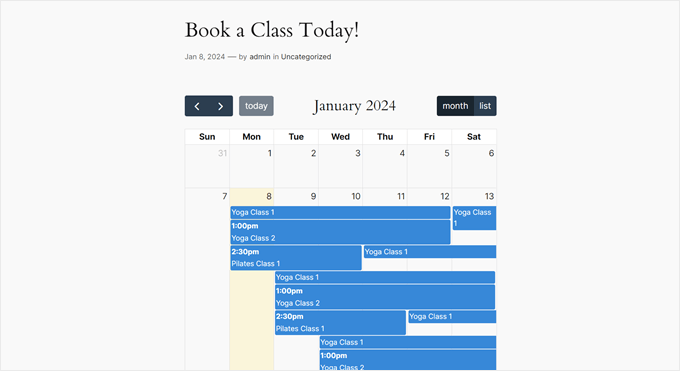
You can even display a Google Calendar on your WordPress website, so visitors and customers can see your schedule at a glance.
I’ve used this feature to share event schedules on community websites, and it works brilliantly. Imagine a local library displaying upcoming events and workshops on their website using a public Google Calendar. It’s a convenient way to keep your community informed.
You can also add meeting rooms and resources like projects to your events, or add a location. I’ve found this incredibly helpful for keeping track of all the moving parts of my projects.
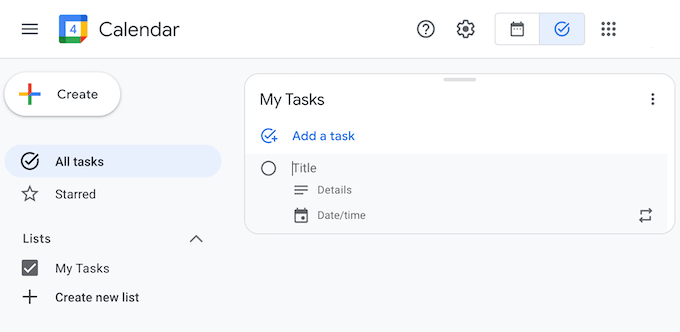
When planning your schedule, you can add tasks to your Google Calendar. You can also set a deadline and mark the task as complete once it’s finished. Imagine a freelancer managing client projects and deadlines all within their Google Calendar – it simplifies project management and keeps everything in one place.
Scheduling group events can be a hassle, but Google Calendar simplifies the process. I’ve used this feature for coordinating team meetings, and it’s a lifesaver. You can overlay multiple calendars in a single view, making it easy to find a time that works for everyone, even with many attendees.
Even better, you can create shared calendars that are perfect for organizing large teams and departments, such as your help desk. I’ve used shared calendars for managing editorial calendars and project timelines, and it’s incredibly effective. You can even create a calendar that’s accessible to everyone in your organization for events like team holidays and town hall meetings.
You can add your working hours and location to your calendar, so colleagues know exactly where and when to contact you.
Another option is to share your availability via a booking page so customers, partners, and other external contacts can schedule time with you. I tested this feature, and it’s incredibly easy to set up. You might even use this feature to accept bookings for your hotel, restaurant, or similar business.
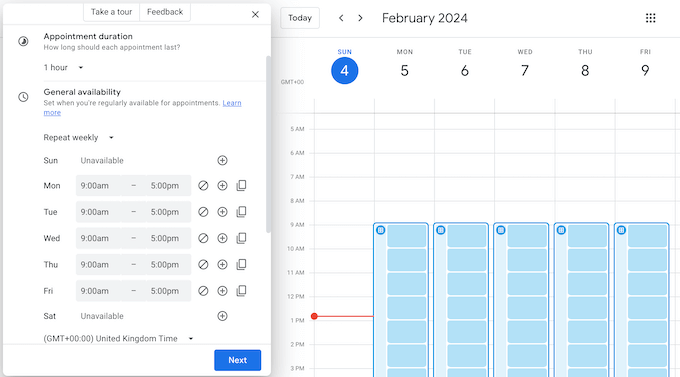
After making an appointment, Google Calendar will send reminders to the attendees so they don’t miss their booking.
This is one of the standout features available in Business Standard and higher Google Workspace pricing tiers.
If you offer paid bookings, then Google Calendar can verify the person’s email address and collect payment via Stripe, adding an extra layer of security. Imagine a coach offering paid online consultations and using Google Calendar to manage bookings and payments seamlessly.
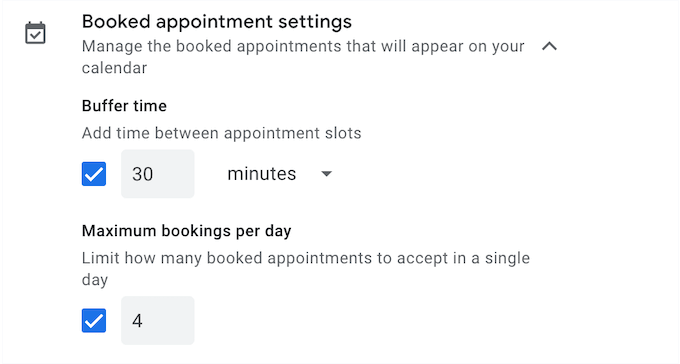
You can even set a maximum number of appointments per day, add a buffer time in between appointments, and control how early or last-minute people can book an appointment with you. I experimented with these settings, and they offer a high degree of control.
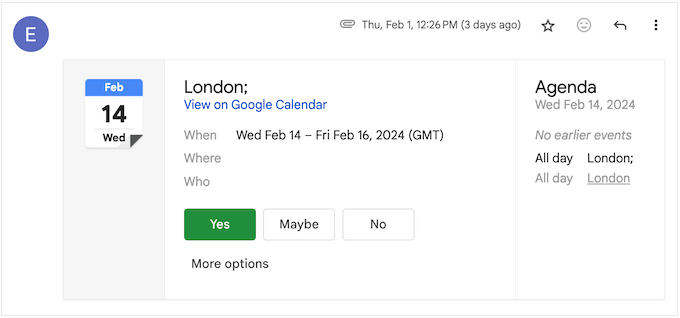
Many companies send an email confirmation about upcoming events or appointments. When you get an email with information about a flight, meeting, restaurant reservation or similar event, Google Calendar will add it to your schedule automatically. This eliminates the need to manually enter event details, saving you time and effort.
When replying to a Google Calendar invite, you can respond with a location-specific RSVP, so attendees will know whether you’re attending virtually or in-person. I tested this feature, and it’s a great addition.
Google Calendar can even help you understand how you’re spending your time.
I’ve used Time Insights to analyze my own work patterns, and it’s incredibly insightful. The Time Insights feature shows how much time you spend in meetings, the types of events you attend, the typical duration of those meetings, and more. I know our readers are always looking for ways to improve their time management, and this feature provides valuable data.

This tool also analyzes your schedule and suggests a ‘focus time.’ During this period, Google Calendar will automatically mute your notifications and decline meetings, so you can work without distractions. I think we can all agree that uninterrupted focus time is essential for deep work and productivity, and Google Calendar makes that easy to schedule.
If you’re currently using a different calendar app, Google Calendar offers migration options for many popular services, including Microsoft Outlook. This makes it easy to switch to Google Calendar without losing your existing schedule data.
My Honest Review: Overall, Google Calendar is a powerful and versatile calendar app that goes beyond basic scheduling. Its seamless integration with other Google Workspace apps, intelligent features like Time Insights and focus time, and flexible sharing and booking options make it a valuable tool for individuals and businesses alike.
The ability to manage tasks within your calendar, create public calendars for your website, and customize notifications and reminders adds even more value.
I highly recommend giving Google Calendar a try, especially if you’re looking for a robust and integrated solution for managing your time and schedule effectively.
7. Google Meet
With the rising trend of remote working, many teams no longer work in the same building. If you’re a big company, then you may even have staff in multiple countries.
That’s where video chat comes in.
Even if you work alone, conference call services are an easy and flexible way to communicate with partners, suppliers, customers, and more.
When you buy a Google Workspace subscription, you’ll also get access to Google Meet.
This solution offers up to 4k video conferencing built on top of Google’s robust and reliable infrastructure. It also provides noise cancellation, live captions, and even studio lighting for a more professional look. I tested these features, and they significantly enhance the video conferencing experience.
Depending on your Workspace plan, you can host lengthy group calls (up to 24 hours!) with a large number of participants (up to 1,000!). Participants can join using their Google Accounts, or the meeting organizer can approve them individually. This flexibility is great for managing different types of meetings.
Much like Google’s other web-based tools, Google Meet runs completely in the web browser so you don’t need to install any specialist software. It supports Google Chrome, Mozilla Firefox, Microsoft Edge, and Apple Safari so compatibility shouldn’t be an issue. I’ve used Google Meet on different browsers, and it’s consistently reliable.
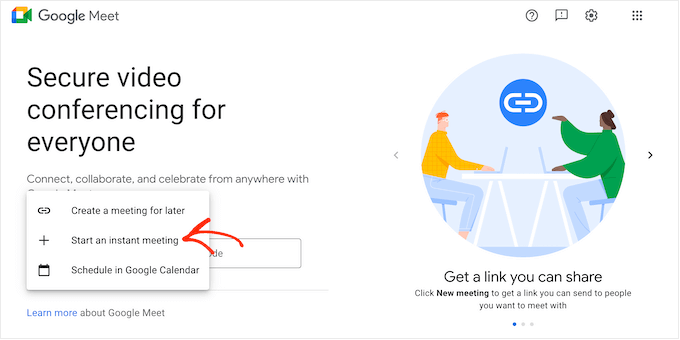
There are a few different ways to access meetings. To start, you can visit the Google Meet website in any supported web browser and start a meeting with just a few clicks. I tested this, and it’s incredibly straightforward.
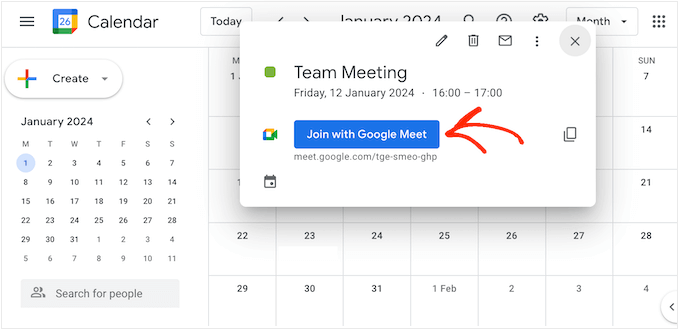
If you’ve already accepted a meeting invitation, joining is even easier.
Simply click on the event in your Google Calendar. This will open a popup with a ‘Join with Google Meet’ button. I use this method all the time, and it’s incredibly streamlined.
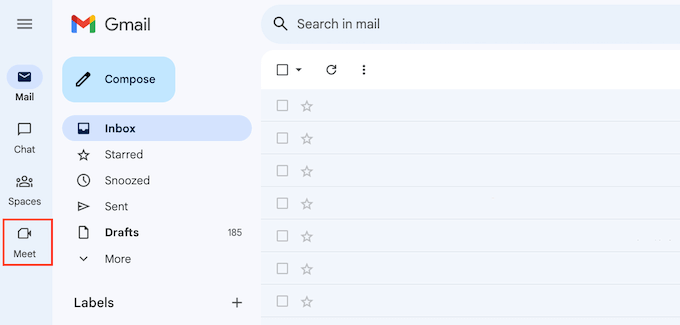
Another option is to click the ‘Meet’ button inside your Gmail account.
As you can see, it’s very easy to create or join a meeting.
Google Meet ensures everyone can join, even without a web browser. For those who can’t log in via a browser, Meet automatically generates a phone number and PIN for each meeting. This provides an alternative access method, ensuring no one misses out.
Before joining the call, Google shows you a pre-meeting ‘waiting room.’ I use this time to double-check my camera and microphone settings, and it’s incredibly helpful. You can also check the sound and video quality, and change the settings before joining the meeting.
While the meeting is running, you can use interactive polls, breakout rooms, and Q&A sessions to keep people engaged, and get their input in real time. Imagine using polls to gather opinions during a team brainstorming session, or breakout rooms for smaller group discussions during a training workshop.
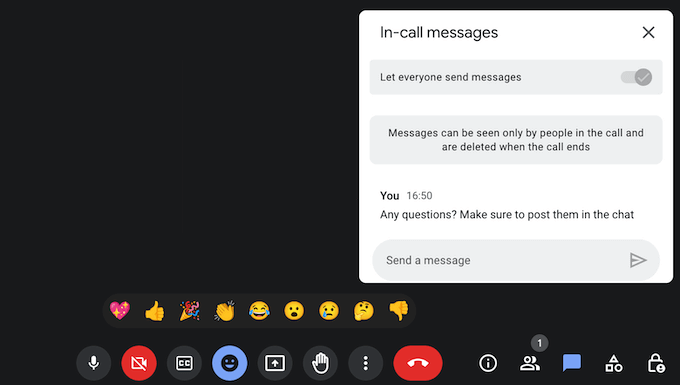
There’s also a row of buttons at the bottom of the screen where you can access some basic settings, send emojis, raise your hand to ask a question, and perform a few other tasks.

You can even use Google Meet to watch YouTube videos with other participants through Meet live sharing. I tested this feature, and it’s a fun way to share and discuss videos collaboratively. Keep in mind that this feature requires a YouTube Premium membership.
Inviting others to a Google Meet meeting is incredibly easy. I’ve used several different methods, and they’re all straightforward. Simply share the automatically generated link or dial-in number.
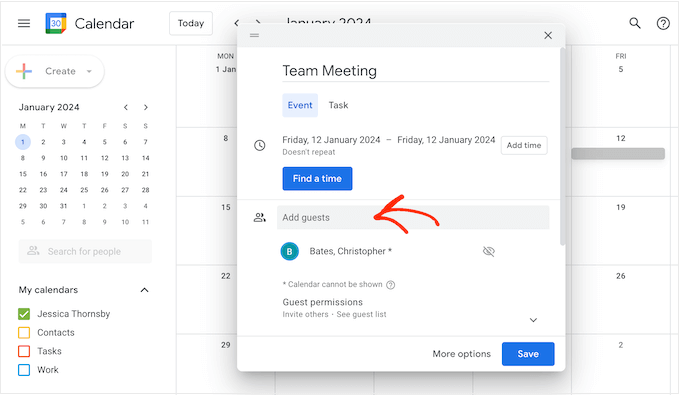
You can also schedule a meeting by creating a new event in Google Calendar.
Google Meet integrates seamlessly with other Google Workspace apps. I use this feature frequently, and it’s a huge time-saver. You can start or join a meeting directly from Google Docs, Sheets, or Slides using Chrome or Edge.
This is perfect for presenting a document and getting immediate feedback or collaborating on a file in context. Imagine a team working on a proposal in Google Docs and seamlessly transitioning to a Google Meet call to discuss revisions.
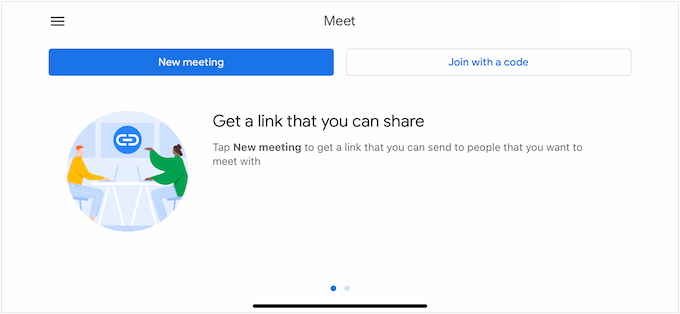
If you regularly run video calls from your smartphone or tablet, then you can download the Google Meet app for iOS or Android. I’ve used the mobile app, and it’s just as user-friendly as the desktop version. It even has a similar user interface, so you can join and create meetings with ease.
During a Google Meet call, you can type messages that appear alongside the main video feed. I’ve used this feature for sharing links and quick messages during meetings, and it’s very convenient. This allows for silent communication and quick information sharing without interrupting the speaker.
Google Meet can also record your calls and create transcripts. These files are saved in the meeting organizer’s Google Drive, ready for you to share with any stakeholders who couldn’t attend the meeting in real time. I know our readers will appreciate this feature for documenting meetings and sharing information with absent stakeholders.
Google takes security and privacy seriously. I know our readers are concerned about these issues, and Google Meet addresses them effectively. All video and audio meetings are automatically encrypted, and anti-abuse measures protect participants. For added security, you can enable two-factor authentication or Single Sign-On (SSO).
Finally, you can connect Google Meet to your WordPress website and create automated workflows using Zapier. For example, you can use this popular tool to automatically schedule a meeting every time you add a new post in WordPress. I tested a similar automation, and it worked seamlessly.
My Honest Review: Google Meet has quickly become my preferred video conferencing tool, particularly with the shift towards remote work. The high quality of both the video and audio is impressive, offering excellent clarity. Features such as noise cancellation (which is incredibly helpful!) and live captions keep everything running smoothly.
I particularly appreciate how straightforward it is for everyone to participate, regardless of whether they are joining via their computer or simply calling in. Plus, its seamless integration with other Google Workspace applications that I already use, like Gmail and Google Calendar, makes Google Meet incredibly convenient.
While there are certainly other video conferencing platforms available, I find Google Meet to be exceptionally user-friendly, equipped with all the necessary features, and I have confidence in its security and privacy measures. If you are seeking a reliable and well-integrated solution for connecting with your team, clients, or partners, I highly recommend trying Google Meet.
8. Google Chat
Google Chat is a collaboration and communication tool that allows you to exchange messages in real time.
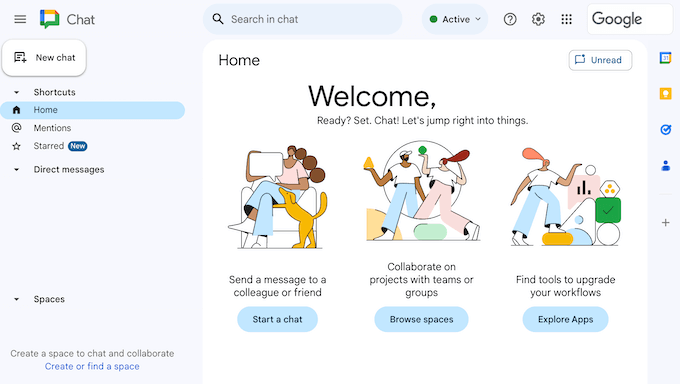
With Chat, you can send a message to anyone who has a Gmail email address or a Google Account. You can exchange direct messages with an individual user or set up a group chat.
Google Chat also lets you create dedicated spaces for different topics or projects. I’ve used spaces for managing specific projects, and it’s a great way to keep conversations organized.
You can add up to 500,000 members to each space and share files, assign tasks, and review the message history.
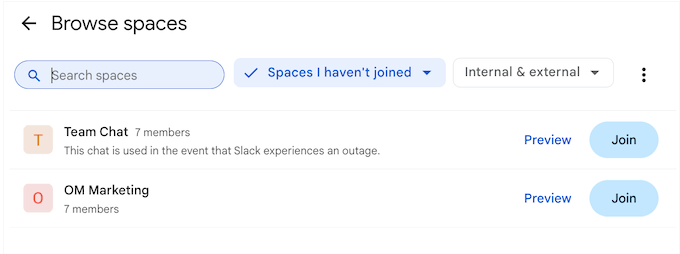
You can even make these spaces announcement-only, which is perfect for sharing important company news with all your co-workers. I can imagine a marketing team using a dedicated space to coordinate a new campaign launch, share files, assign tasks, and discuss progress updates all within the same space.
Similar to Gmail, Google Chat comes with smart compose and smart reply. I’ve found these features incredibly helpful for saving time when responding to messages. It can even generate summaries of unread conversations in spaces you’re a member of, keeping you up-to-date on important discussions. I tested this feature, and it’s surprisingly accurate.
Google Chat is protected by advanced anti-spam, anti-phishing, and anti-malware technology. With that said, you can be confident that your private conversations will remain private.
Need to switch from text to voice? Google Chat makes it easy. I’ve used this feature often when a quick call is more efficient than typing. You can start a video or audio call directly from the Chat interface. It couldn’t be easier!
My Honest Review: Google Chat is a really useful tool for talking and working together, and in my opinion it can seriously boost your teamwork and make communication smoother. The fact that you can message people in real-time, along with having organized spaces for different projects or teams, makes it super easy to keep conversations on track.
Plus, the fact that you can easily jump into a video or audio call right from the chat window is a game-changer for connecting with colleagues, clients, and even partners.
Google Workspace Review: Community and Professional Support
As one of the world’s most popular productivity suites, many people are already familiar with Google’s tools. However, even if you’ve used these tools before, you may need help to unlock Google Workspace’s more advanced features.
The good news is that Google has a ton of online resources that you can access 24/7.
To start, they run regular webinars that you can watch live or access on demand. They also have an online learning center where you’ll find in-depth technical documentation. I referred to the online learning center a lot when writing this Google Workspace review.
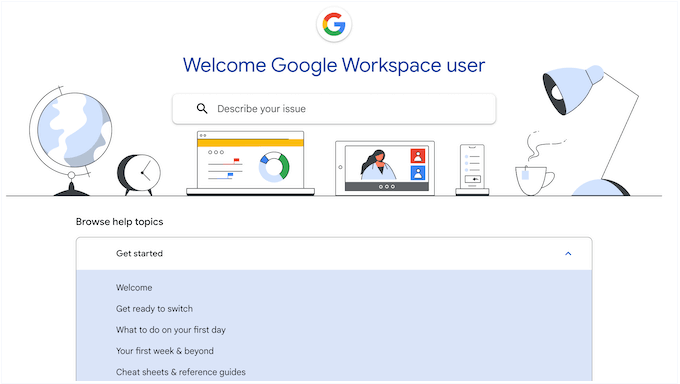
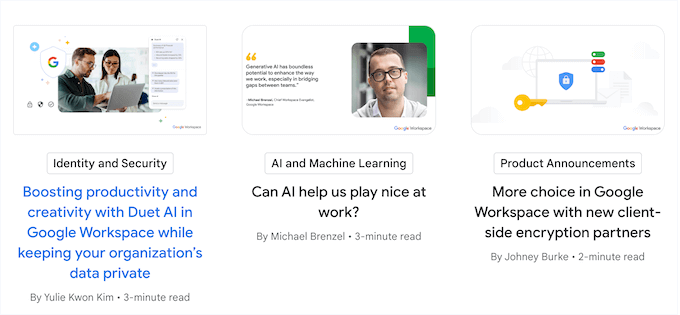
There’s also a tips library, online product demo, and the Google Workspace blog. I’ve found the blog particularly helpful for staying up-to-date on new features and best practices.
Here, you’ll find posts on how to use the specific Google Workspace products, plus general advice on topics such as how to boost your productivity, improve your website security, and write great blog posts. In my opinion, this diverse content does a great job of catering to a wide range of interests and needs.
If you need one-on-one support, then all the Google Workspace plans come with professional support. Simply log into your Google Workspace admin console and create a ticket, and customer support will get back to you.
The bottom line? The combination of targeted content and professional support ensures that Google Workspace users have the resources they need to succeed.
Google Workspace Review: Plans and Pricing
There are a ton of free Google tools that you can use to grow your business online. However, if you want to create a branded business email address and access other advanced features, then you’ll need to buy a premium plan.
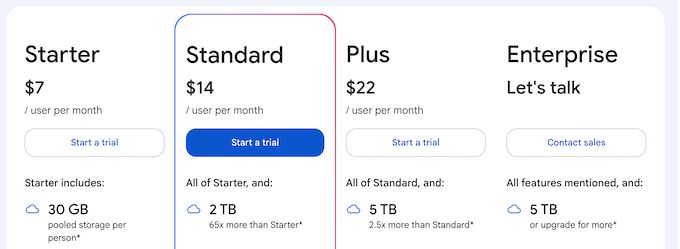
Understanding the Google Workspace pricing tiers is crucial for choosing the right plan. There are 4 paid plans to choose from, and they all include a custom email address. However, there are some key differences between the plans:
- Business Starter. For $7 per user, per month, you can add 100 participants to a video meeting, and access 30 GB pooled storage per user. This is a solid starting point for businesses with basic collaboration and storage needs.
- Business Standard. Priced at $14 per user, per month, this plan allows you to add 150 participants to a meeting. You can also record your meetings and save those files to Google Drive. You’ll get access to 2 TB pooled storage per user, and can create appointment booking forms. That said, I recommend Business Standard if you hold regular meetings, and want to share that content with people who were unable to attend the live event.
- Business Plus. For $22 per user/month, you can create meetings with up to 500 people, record those meetings, and track attendance. With that said, Business Plus is perfect for bigger businesses. You’ll also get access to more advanced security and management controls, including Vault. To sum things up, the Business Plus plan is my top pick for larger businesses, or those with heightened security and control requirements.
- Enterprise. If you need to add more than 500 people to your meetings, then Enterprise raises this limit to 1,000 participants. I’ve seen large corporations use this plan effectively. You can also request more than 5 TB pooled storage per user, and access enhanced support and security. This makes Enterprise a powerful all-in-one productivity suite for big businesses.
⚠️ Important Note on User Limits: Business Starter, Business Standard, and Business Plus plans support up to 300 users.
If your organization needs to support more than 300 users, you’ll need to upgrade to the Enterprise plan.
Google Workspace Review: My Honest Opinion (& Firsthand Experience)
I’ve tested and reviewed numerous productivity suites, and I can confidently say that Google Workspace is one of the best options available for businesses of all sizes.
I’ve used it for my own work, and I’ve seen firsthand how it can streamline workflows and enhance collaboration. From small startups to large corporations, Google Workspace offers a comprehensive set of tools to meet diverse business needs.
One of the key advantages of Google Workspace is the ability to use familiar Google apps with your own business name. I know our readers understand the importance of professional branding, and this is a key feature.
Every Workspace plan includes a custom-branded email domain name. This will instantly make your business seem more professional to visitors, which can help you generate leads, boost your conversions, or get more sales on your online marketplace.
However, there are some key differences between each plan, especially when it comes to meetings. If you run a small business website or have fewer employees, then Business Starter allows you to create meetings with up to 100 participants. I’ve recommended this plan to many small businesses, and it’s a great starting point.
If you need to invite more than 100 people, then Business Standard raises this limit to 150 participants, while also adding noise cancelling and recording features. This is incredibly helpful for ensuring everyone has access to the information shared, even if they can’t attend live.
Meanwhile, Business Plus allows you to invite 500 participants to your meetings, and track meeting attendance. It also comes with more advanced security and management controls, so it’s a good option if you handle sensitive or confidential information.
Finally, Enterprise allows you to create huge meetings with up to 1,000 participants. I’ve seen large organizations use this plan for company-wide meetings and conferences. This plan is ideal for organizations with extensive communication and collaboration needs.
Google Workspace: Your Questions Answered
Want to upgrade your business tools? It’s natural to have questions, especially when you’re thinking about moving from free personal accounts to a more professional set of tools like Google Workspace.
That said, here are common questions and answers to help you decide if Google Workspace is right for your business.
What is Google Workspace and how does it differ from the free Google apps?
Google Workspace (previously G Suite) is essentially a paid upgrade to the free Google apps you’re already familiar with. It offers professional features suited for businesses, such as custom domain email addresses, more storage space, and extra security options.
How can small businesses benefit from using Google Workspace?
Small businesses can get many benefits from Google Workspace’s collaborative tools. For example, they can use shared drives and edit documents and spreadsheets together in real-time using real-time collaboration tools.
Can I integrate Google Workspace with WordPress?
Absolutely! Google Workspace can integrate with your WordPress site in many ways. For example, you can add a Google Calendar to your site, or use a plugin such as MonsterInsights to see Google Analytics data directly in your WordPress dashboard.
What security features does Google Workspace provide?
Google Workspace has a great reputation as a secure and reliable platform. And it’s easy to see why! It includes a ton of security features, including advanced protection against phishing and malware, two-factor authentication, and data encryption. These features make Google Workspace a great choice for businesses that prioritize data privacy and security.
Is it easy to migrate to Google Workspace from another platform?
Yes, Google provides migration tools to help you move from Outlook, Exchange, and Lotus. I’ve successfully completed several Google Workspace migrations, and the process is straightforward when you follow Google’s step-by-step guides.
Does Google Workspace include a CRM?
No, Google Workspace doesn’t include a native CRM tool. This is one area where it differs from all-in-one platforms. However, you can easily integrate third-party CRMs like HubSpot, Salesforce, or Zoho through workspace add-ons available in the App Marketplace.
Additional Resources: Google Workspace
As you explore the power of Google Workspace, having a few extra resources can make all the difference. From boosting productivity to creating engaging email newsletters, tapping into trusted guides and tools can really help you on your journey.
Below, you’ll find some of our top articles that align with the features I covered in this Google Workspace review:
- How to Create an Email Newsletter – Learn how to connect with your audience by writing engaging newsletters.
- Must Have WordPress Plugins for Websites – Our top pick of the best WordPress plugins for any blog, website, or online store.
- How to Add Google Analytics to WordPress – Understand your visitors better with detailed analytics.
- Best Email Marketing Services for Small Businesses – Pick the right email platform to help grow your mailing list, and keep those subscribers engaged over the long term.
I hope this Google Workspace review helped you decide whether it’s the right productivity suite for you. Next, you may want to see our ultimate WordPress SEO guide, or our expert pick of the best plugins to improve your site search.
If you liked this article, then please subscribe to our YouTube Channel for WordPress video tutorials. You can also find us on Twitter and Facebook.

Mzee
Its the best Gmail service now gone to the Worst. Horrible support, worse service quality and such a time waster. If you have a mailbox under 2Gb, stick with them, they’re the best for small mail boxes. My mailbox is 30Gb, grown over decades being with Google, from their inception. And they completely lost my trust the day they said they allow 2.5Gb worth download before kicking out your IMAP service or throttle it. That too didn’t come straight. They complained on my email client. Soon as they discover I am also a techie, they revealed the hidden truth. The truth of the throttling and disconnecting. This limitation was never mentioned when signing up. I’ve been paying thumping amounts of cash to store data that will never be able to take back. Such horrible service.
Traci Markle
I cannot get any support after approximately 15 calls and emails. I can’t cancel my subscription. I am paying for a service I can’t use. You will get ZERO assistance with this product. Don’t bother.