


„Ich schreibe großartige Inhalte, aber niemand findet sie.“ Diese Frustration hören wir ständig von WordPress-Anfängern, und wir haben genau dieselbe Schwierigkeit erlebt, als wir anfingen.
Es ist frustrierend, Stunden mit dem Schreiben eines Blogbeitrags zu verbringen, nur um null Traffic zu sehen. Glücklicherweise erfordert es keine komplizierte Magie, Suchmaschinen dazu zu bringen, Ihre Website zu bemerken.
Wir haben ein einfaches, schrittweises System entwickelt, das heute Millionen von Besuchern auf unsere eigenen Websites bringt. In diesem SEO-Leitfaden führen wir Sie durch unseren genauen Prozess, der im Zeitalter der KI-Übersichten über die traditionellen blauen Links hinaus funktioniert.
Dieser Leitfaden bietet eine umfassende Roadmap zur Verbesserung Ihres WordPress-SEO mit umsetzbaren Strategien, die Sie sofort anwenden können.
Um Ihnen die Navigation in diesem ausführlichen Leitfaden zu erleichtern, haben wir unten eine praktische Inhaltsübersicht erstellt:
Inhaltsverzeichnis
- Was ist SEO? (Und warum ist es 2026 wichtig?)
- WordPress SEO-Grundlagen
- Einrichtung Ihres SEO-Plugins
- On-Page-SEO für WordPress
- Autorität und Vertrauen aufbauen
- Optimierung für KI-Suche
- Lokale SEO für WordPress-Websites
- Mehrsprachige SEO für WordPress-Websites
- Technische SEO für WordPress-Websites
- WordPress SEO Best Practices
- Video-Tutorial
- Häufig gestellte Fragen zu WordPress SEO
- Weitere SEO-Tools und Ressourcen
- Verwandte WordPress SEO-Leitfäden
Was ist SEO? (Und warum ist es 2026 wichtig?)
SEO steht für Search Engine Optimization, also die Praxis, Ihre Website und Inhalte so zu strukturieren, dass Suchmaschinen wie Google sie finden, verstehen und ranken können. Wenn es gut gemacht ist, verwandelt SEO Ihre Website in einen Magneten für kostenlosen, organischen Traffic von Menschen, die aktiv nach Ihrem Angebot suchen.
Sie können sich SEO wie die Organisation einer Bibliothek vorstellen. Ihre Inhalte sind die Bücher und SEO ist das Katalogisierungssystem, das den Lesern hilft, genau das zu finden, was sie brauchen. Ohne sie bleiben selbst die besten Inhalte ungesehen in einem staubigen Regal liegen.

Im Jahr 2026 hat sich SEO über traditionelle blaue Link-Rankings hinaus entwickelt. Google zeigt Inhalte jetzt in KI-Übersichten (KI-generierte Zusammenfassungen am Anfang der Suchergebnisse), Featured Snippets, „Nutzer fragen auch“-Boxen und Wissensfeldern an. Eine moderne WordPress-SEO-Strategie muss all diese optimieren, nicht nur Position #1.
Suchmaschinen bleiben die größte Traffic-Quelle für die meisten Websites. Basierend auf unserer Erfahrung mit der Verwaltung von Websites mit über 100 Millionen Seitenaufrufen pro Jahr glauben wir, dass die Suchmaschinenfreundlichkeit Ihrer WordPress-Website die Investition mit dem höchsten ROI ist, die Sie tätigen können.
Das Beste daran ist, dass dieselben SEO-Strategien auch für ChatGPT, Claude, Perplexity und andere KI-Suchtools funktionieren, die immer beliebter werden.
WordPress SEO-Grundlagen
WordPress ist mit sauberem, standardkonformem Code erstellt, der von Haus aus SEO-Best-Practices folgt. Das ist einer der Gründe, warum so viele Leute WordPress wählen. Aber es gibt ein paar grundlegende Einstellungen, die Sie überprüfen müssen, bevor Sie etwas anderes tun.
Überprüfen Sie die Sichtbarkeitseinstellungen Ihrer Website
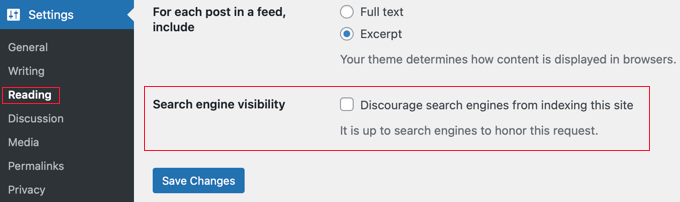
WordPress verfügt über eine integrierte Option, um Ihre Website vor Suchmaschinen zu verbergen (was während der Entwicklung nützlich ist). Wenn diese Option jedoch versehentlich aktiviert wird, ist Ihre Website für Suchmaschinen nicht verfügbar.
Wenn Ihre Website nicht in den Suchergebnissen angezeigt wird, müssen Sie als Erstes sicherstellen, dass diese Option nicht aktiviert ist.
Gehen Sie einfach zur Seite Einstellungen » Lesen in Ihrem WordPress-Adminbereich und stellen Sie sicher, dass das Kontrollkästchen neben „Suchmaschinen vom Indexieren dieser Website abhalten“ nicht aktiviert ist.
SEO-freundliche URL-Strukturen in WordPress verwenden
SEO-freundliche URLs enthalten Wörter, die den Inhalt der Seite klar erklären, und sie sind sowohl für Menschen als auch für Suchmaschinen leicht zu lesen.
Zum Beispiel:https://www.wpbeginner.com/how-to-install-wordpress/
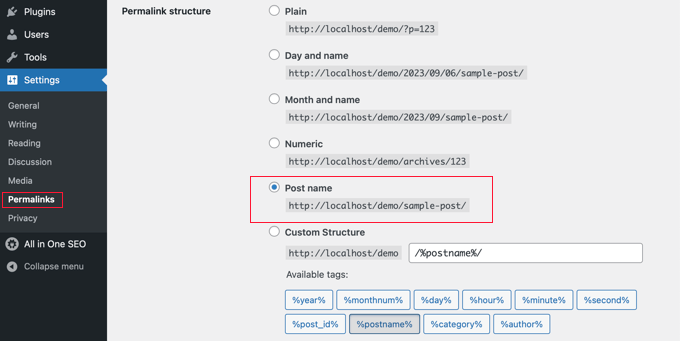
Wenn Ihre Website-URL so aussieht ?p=10467 , dann ist das nicht SEO-freundlich.
Sie können das korrigieren, indem Sie zur Seite Einstellungen » Permalinks gehen und die Option „Beitragsname“ auswählen.
Warnung: Wenn Ihre Website seit 6+ Monaten läuft, ändern Sie Ihre Permalink-Struktur nicht, ohne zuerst ordnungsgemäße 301-Weiterleitungen einzurichten. Das Ändern von URLs auf einer etablierten Website kann Links brechen und bestehende Rankings verlieren.
Für detailliertere Anleitungen werfen Sie einen Blick auf unseren Leitfaden zu URL-Strukturen für WordPress, die SEO-freundlich sind.
WWW vs. Nicht-WWW
Wenn Sie gerade erst mit Ihrer Website beginnen, müssen Sie entscheiden, ob Sie www (https://www.example.com) oder non-www (https://example.com) in der URL Ihrer Website verwenden möchten.
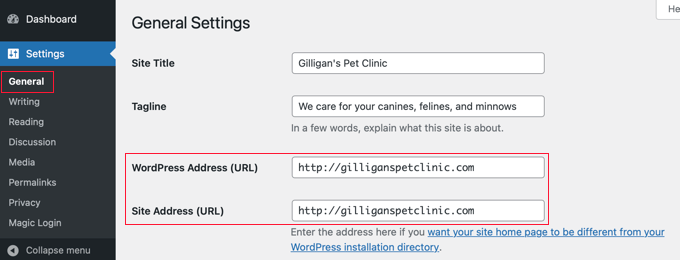
Suchmaschinen betrachten dies als zwei verschiedene Websites, daher müssen Sie eine auswählen und dabei bleiben. Sie können Ihre Präferenz festlegen, indem Sie die Seite Einstellungen » Allgemein besuchen. Geben Sie Ihre bevorzugte URL sowohl in die Felder „WordPress-Adresse“ als auch „Website-Adresse“ ein.
Unabhängig davon, was andere sagen, gibt es aus SEO-Sicht keinen Vorteil, das eine oder das andere zu verwenden. Weitere detaillierte Informationen zu diesem Thema finden Sie unter WWW vs. Nicht-WWW – Was ist besser für WordPress SEO.
Einrichtung Ihres SEO-Plugins
Alle Websites benötigen ein WordPress SEO-Plugin, da es die technische Grundlage wie Titel-Tags, Meta-Beschreibungen, XML-Sitemaps, Schema-Markup, kanonische URLs und mehr verwaltet. Anstatt separate Plugins für jede Aufgabe zu installieren, empfehlen wir eine umfassende Lösung.
Auswahl des besten WordPress-SEO-Plugins
Wir haben jedes wichtige SEO-Plugin auf dem Markt auf Dutzenden von Live-WordPress-Websites getestet. Im Jahr 2021, nach jahrelanger Nutzung von Yoast SEO, wechselten wir WPBeginner zu All in One SEO (AIOSEO), da es schneller innovierte und mehr integrierte Funktionen bietet.
Wenn Sie darüber nachdenken, hier ist unsere Liste der Top WordPress SEO-Plugins:
- AIOSEO – das beste Allround-WordPress-SEO-Plugin, das von 3 Millionen Websites genutzt wird. Eine leistungsstarke kostenlose Version ist ebenfalls verfügbar.
- Yoast SEO – ein etabliertes WordPress-SEO-Plugin, das beliebt ist, aber nicht mehr innoviert.
- RankMath – beliebtes SEO-Plugin, das jedoch kürzlich von einer Private-Equity-Firma übernommen wurde, sodass die Innovation eingestellt wurde.
- SEOPress – ein Neuling auf dem Markt.
Eine detaillierte Anleitung finden Sie in unserem vollständigen Leitfaden zur Einrichtung von All In One SEO für WordPress.
XML-Sitemaps in WordPress hinzufügen
Eine XML-Sitemap ist eine Datei, die jede Seite Ihrer Website in einem für Suchmaschinen lesbaren Format auflistet. Sie verbessert die Rankings nicht direkt, hilft aber Google, Ihre Inhalte schneller zu entdecken und zu indexieren.
Wenn Sie AIOSEO verwenden, wird Ihre Sitemap automatisch erstellt. Sie finden sie unter:
https://yourdomain.com/sitemap.xml
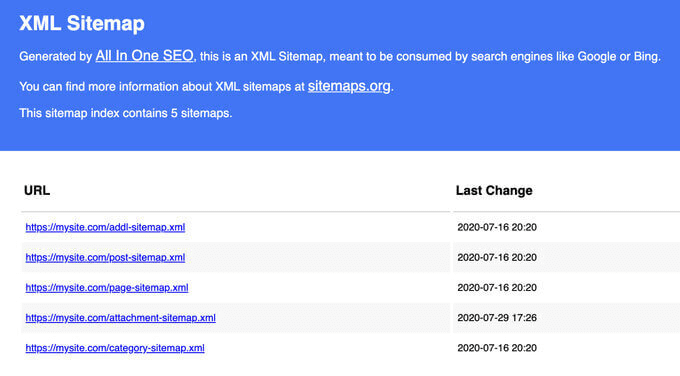
Neben der Standard-XML-Sitemap sollten Sie auch spezialisierte Sitemaps in Betracht ziehen, je nach Art Ihrer Website:
| Sitemap-Typ | Was es ist | Wann man es benutzt | Häufige Anwendungsfälle |
|---|---|---|---|
| Bild-Sitemap | Eine Sitemap, die Bildmetadaten (Bildunterschriften, Titel, Dateinamen) zusammen mit Seiten-URLs enthält | Verwenden Sie sie, wenn Bilder eine Schlüsselrolle dabei spielen, wie Besucher Ihre Website entdecken | E-Commerce-Produktbilder, Fotoportfolios und mehr. |
| Video-Sitemap | Eine Sitemap, die Videometadaten wie Thumbnails, Titel, Beschreibungen und Dauer enthält | Wenn Sie möchten, dass Google Ihre Videoinhalte entdeckt und indexiert | Video-Tutorials, Produktdemos, Online-Kurse, Medienseiten |
| Nachrichten-Sitemap | Eine Sitemap, die für aktuelle Nachrichteninhalte konzipiert ist, die in den letzten 48 Stunden veröffentlicht wurden | Es ist am besten für Sie geeignet, wenn Sie Inhalte veröffentlichen, die für Google News in Frage kommen. | Nachrichtenpublikationen, Medienunternehmen und Presse |
| RSS-Sitemap | Eine Feed-basierte Sitemap, die Suchmaschinen über neu veröffentlichte oder aktualisierte Inhalte informiert | Wenn Sie eine schnellere Indexierung neuer Inhalte wünschen, ohne auf eine Standard-Sitemap-Aktualisierung warten zu müssen | Blogs, Nachrichtenseiten, inhaltsstarke Publisher |
| HTML-Sitemap | Eine für Menschen lesbare Seite, die alle URLs Ihrer Website in einer organisierten Struktur auflistet | Wenn Sie die interne Navigation verbessern und Besuchern helfen möchten, Inhalte zu finden | Große Websites, Ressourcen-Hubs, Verzeichnisse, Wissensdatenbanken |
AIOSEO kümmert sich automatisch um all diese Sitemap-Typen.
Der nächste Schritt ist die Übermittlung Ihrer Sitemaps an die Google Search Console, damit Google weiß, wo es sie finden kann.
Fügen Sie Ihre Website zur Google Search Console hinzu
Google Search Console ist ein kostenloses Tool, das Ihnen genau zeigt, wie Google Ihre Website sieht. Sie können sehen, welche Suchbegriffe Leute auf Ihre Website bringen, wie Ihre Seiten in den Ergebnissen erscheinen und ob Google Probleme beim Crawlen Ihrer Inhalte hat.
Wenn Sie AIOSEO verwenden, folgen Sie diesem Leitfaden, um die Google Search Console zu verbinden. Andernfalls sehen Sie sich unser Schritt-für-Schritt-Tutorial an, wie Sie Ihre WordPress-Website zur Google Search Console hinzufügen.
Nach der Verbindung klicken Sie im linken Menü auf „Sitemaps“ und übermitteln Sie Ihre Sitemap-URL. Google wird sie verwenden, um Ihre Website effizienter zu crawlen.
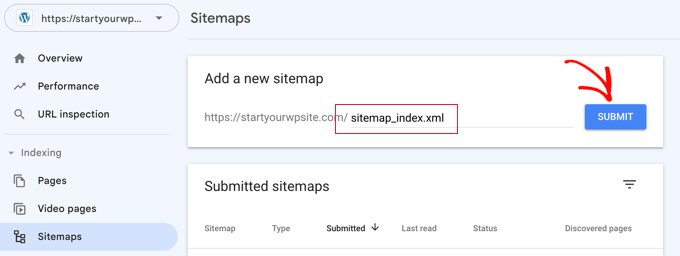
Wir empfehlen, Ihre Search Console mindestens monatlich zu überprüfen. Achten Sie auf:
- Leistungsbericht – zeigt, welche Suchanfragen Impressionen und Klicks generieren
- Bericht zur Abdeckung/Indexierung – kennzeichnet Seiten, die Google nicht indexieren kann oder ausgeschlossen hat
- Bericht zu Core Web Vitals – hebt Probleme mit Geschwindigkeit und Benutzererfahrung hervor (mehr dazu unten)
Profi-Tipp: AIOSEO enthält ein Dashboard für Suchstatistiken, das Ihre Google Search Console-Daten direkt in WordPress anzeigt, sodass Sie den SEO-Fortschritt verfolgen können, ohne Ihre Website zu verlassen.
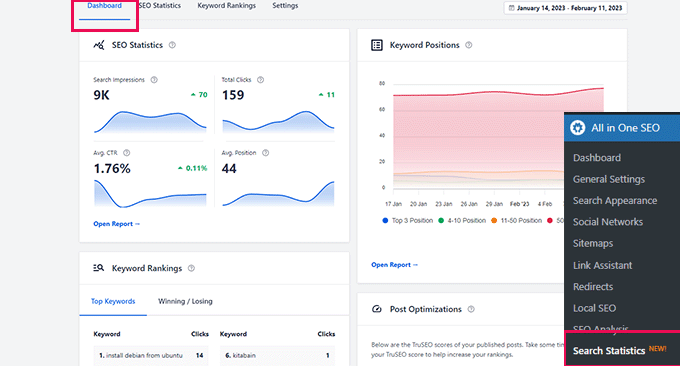
Über Google hinaus empfehlen wir auch, Ihre Website bei Bing, DuckDuckGo und anderen Suchmaschinen einzureichen.
Sie sollten auch MonsterInsights installieren, um Google Analytics-Daten in Ihrem WordPress-Dashboard anzuzeigen. Dies hilft Ihnen zu verstehen, welche Traffic-Quellen und Seiten am besten funktionieren. Sehen Sie sich unseren Leitfaden an, wie Sie Google Analytics in WordPress installieren.
On-Page-SEO für WordPress
Ihr SEO-Plugin kümmert sich um die technische Grundlage, aber die wirklichen Gewinne erzielen Sie durch die Inhalte, die Sie veröffentlichen. In diesem Abschnitt zeigen wir Ihnen, wie Sie jeden Blogbeitrag optimieren, die richtigen Keywords finden und Ihre Inhalte so organisieren, dass Suchmaschinen sie verstehen können.
Optimieren Sie Ihre Blogbeiträge für SEO
SEO ist ein fortlaufender Prozess, und die größten Gewinne erzielen Sie durch die Optimierung jedes einzelnen Beitrags, den Sie veröffentlichen.
AIOSEO (und andere Top-SEO-Plugins) ermöglichen es Ihnen, für jeden Beitrag und jede Seite einen SEO-Titel, eine Meta-Beschreibung und ein Fokus-Keyword festzulegen. Sie erhalten auch eine Live-Vorschau, wie Ihr Eintrag in Google erscheinen wird.
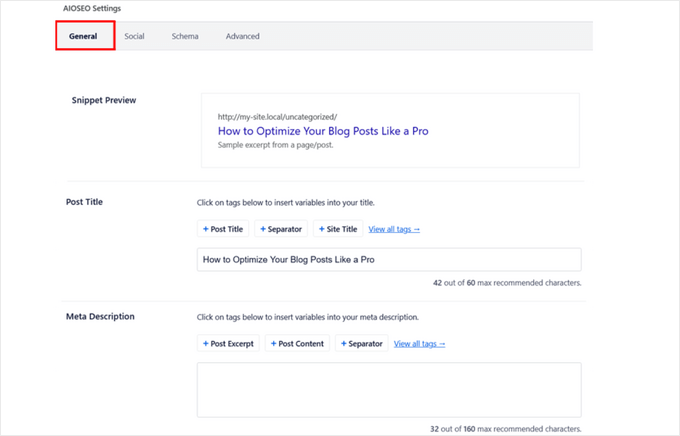
Hier sind die wichtigsten On-Page-Elemente, die für jeden Beitrag optimiert werden sollten:
- SEO-Titel – fügen Sie Ihr Fokus-Keyword am Anfang ein und halten Sie es unter 60 Zeichen, damit Google es nicht abschneidet
- Meta-Beschreibung – schreiben Sie eine überzeugende 160-Zeichen-Zusammenfassung, die Suchanfragen zum Klicken animiert
- Überschriften (H2, H3, H4) – verwenden Sie eine klare Überschriftenhierarchie, bei der jede Überschrift den darunter liegenden Abschnitt beschreibt und relevante Keywords enthält, wo sie natürlich passen
- Erster Absatz – erwähnen Sie Ihr Hauptthema innerhalb der ersten 100 Wörter, damit sowohl Leser als auch Suchmaschinen verstehen, worum es auf der Seite geht
- Featured Snippet-Formatierung – wenn Sie in Googles Antwortfeldern oder KI-Übersichten erscheinen möchten, strukturieren Sie wichtige Antworten als kurze, direkte Absätze oder nummerierte Listen direkt nach einer fragenähnlichen Überschrift
Jetzt kennen Sie die wichtigen Elemente, die Sie in jedem veröffentlichten Inhalt optimieren sollten.
Als Nächstes können Sie die TruSEO On-Page-Analyse von AIOSEO verwenden, um zu analysieren, was Sie gut gemacht haben und was in Ihrem Inhalt verbessert werden muss. Das Beste daran ist, dass Sie es in Echtzeit überprüfen können, während Sie schreiben. Wir verwenden dies bei jedem Artikel, den wir bei WPBeginner veröffentlichen.
Wenn Sie möchten, können Sie auch SEO-Checker-Tools verwenden, um die Lesbarkeit, Keyword-Dichte und Relevanz Ihres Inhalts zu analysieren, bevor Sie auf Veröffentlichen klicken.
Eine vollständige Anleitung finden Sie in unserem Leitfaden zum Thema Blogbeiträge wie ein Profi für SEO optimieren.
Keyword-Recherche für Ihre Website durchführen
Viele Anfänger raten, nach welchen Themen die Leute suchen. Das ist wie ein Schuss ins Dunkle. Keyword-Recherche ersetzt das Raten durch echte Daten, damit Sie Inhalte rund um Begriffe erstellen können, nach denen Ihre Zielgruppe tatsächlich sucht.
Hier ist, was gute Keyword-Recherche Ihnen hilft zu tun:
- Entdecken Sie die genauen Wörter und Phrasen, die Ihre Zielgruppe in Google eingibt
- Finden Sie Themen, bei denen Sie eine realistische Chance haben, zu ranken, auch gegen größere Websites
- Verstehen Sie die Suchintention, damit Sie das abgleichen können, was Nutzer tatsächlich wollen
- Erstellen Sie Themencluster, die Ihre Autorität zu einem Thema stärken
- Vermeiden Sie Zeitverschwendung mit Keywords, die KI-Übersichten bereits vollständig beantworten
Es gibt viele Keyword-Recherche-Tools. Wir empfehlen LowFruits, da es sich auf das Finden von Keywords mit geringem Wettbewerb spezialisiert hat, bei denen Sie eine realistische Chance haben zu ranken.
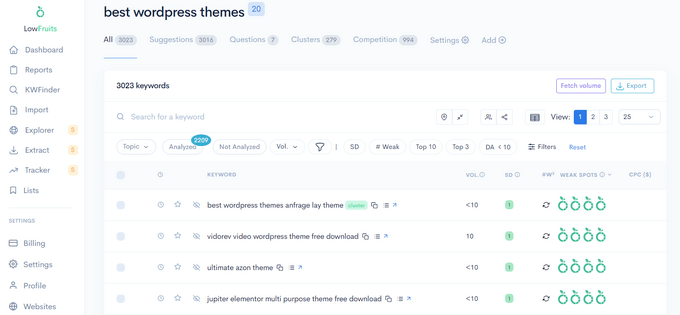
Hier ist ein praktischer Workflow für die Keyword-Recherche, dem Sie folgen können:
- Beginnen Sie mit Seed-Themen – listen Sie 5-10 breite Themen auf, die für Ihre Nische zentral sind
- Erweitern Sie mit Tools – geben Sie jedes Seed-Thema in LowFruits oder den WPBeginner Keyword Generator ein, um Hunderte von verwandten Keywords zu finden
- Gruppieren Sie in Cluster – organisieren Sie verwandte Keywords in Themencluster mit einer Pillar-Seite, die von mehreren verwandten Beiträgen unterstützt wird
- Überprüfen Sie Lücken bei Wettbewerbern – verwenden Sie unseren kostenlosen Keyword Density Checker für URLs von Wettbewerbern, um zu sehen, was diese anvisieren, was Sie nicht tun
- Priorisieren nach Absicht – informative („wie man“), kommerzielle („beste Tools“) und transaktionale („kaufen“) Schlüsselwörter benötigen jeweils unterschiedliche Seitentypen. Konzentrieren Sie sich auf Schlüsselwörter, bei denen Suchanfragen eine Website besuchen müssen, um ihre Antwort zu erhalten.
LowFruits enthält auch eine Keyword-Clustering-Funktion, mit der Sie verwandte Schlüsselwörter gruppieren können. Dies stärkt Ihre Autorität zu einem Thema und hilft Ihnen, mit weniger Artikeln für mehrere Begriffe zu ranken.
Wenn Sie kostenlose Alternativen wünschen, hier sind zwei, die wir selbst entwickelt haben:
- WPBeginner Keyword Generator – generiert sofort über 300 Keyword-Ideen aus jedem Startbegriff
- Keyword Density Checker – zeigt an, welche Schlüsselwörter Ihre Konkurrenten auf jeder Seite anvisieren
Wichtig: Die Absicht des Schlüsselworts ist wichtiger als das Schlüsselwortvolumen. Ein Schlüsselwort mit 500 monatlichen Suchanfragen und klarer Kauf- oder Lernabsicht wird oft mehr Wert bringen als ein generischer Begriff mit 10.000 Suchanfragen, auf den Google mit einer KI-Übersicht antwortet. Konzentrieren Sie sich auf Schlüsselwörter, bei denen der Suchende eine Website besuchen muss, um seine Antwort zu erhalten.
Eine vollständige Anleitung finden Sie in unserem Leitfaden zur Keyword-Recherche für Ihren WordPress-Blog.
Kategorien und Tags in WordPress richtig verwenden
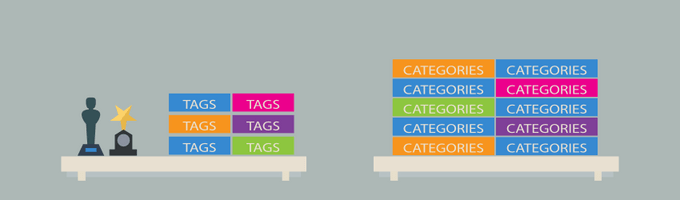
WordPress ermöglicht es Ihnen, Beiträge in Kategorien und Schlagwörtern zu organisieren. Richtig eingesetzt, helfen sie sowohl Lesern als auch Suchmaschinen, die Struktur Ihrer Website zu verstehen.
Nachdem wir dies Tausenden von Lesern erklärt haben, denken wir so darüber:
- Kategorien sind breite Themenbereiche, wie das Inhaltsverzeichnis eines Buches. Ein Food-Blog könnte Kategorien für Rezepte, Bewertungen und Kochtipps haben. Kategorien sind hierarchisch (Sie können Unterkategorien erstellen).
- Schlagwörter sind spezifische Deskriptoren, wie das Register eines Buches. Ein Beitrag in der Kategorie Rezepte könnte mit „Pasta“, „vegetarisch“ oder „30-Minuten-Mahlzeiten“ verschlagwortet werden.
Der häufigste Fehler ist, zu viele Kategorien zu erstellen oder Schlagwörter und Kategorien austauschbar zu verwenden. Beschränken Sie Ihre Kategorien auf 8-12 breite Themen und verwenden Sie Schlagwörter für Details.
Weitere Informationen zu diesem Thema finden Sie in unserem Leitfaden zu Kategorien vs. Schlagwörter und SEO-Best Practices und in unserem Leitfaden zur Taxonomie-SEO.
Autorität und Vertrauen aufbauen
Das Veröffentlichen großartiger Inhalte ist nur die halbe Miete. Google bewertet auch, ob Ihre Website autoritativ und vertrauenswürdig ist, bevor es sie rankt. Die folgenden Praktiken helfen Ihnen, diese Glaubwürdigkeit im Laufe der Zeit aufzubauen.
Machen Sie interne Verlinkung zur Gewohnheit
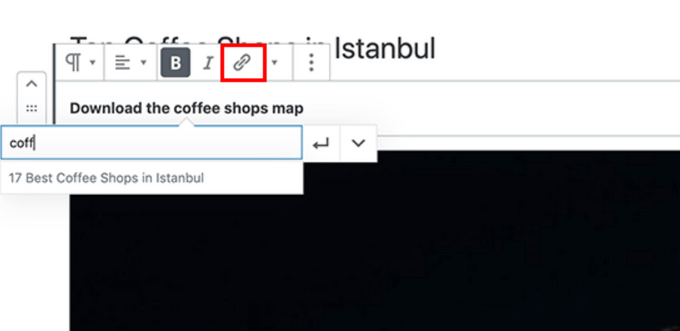
Suchmaschinen weisen jeder Seite eine Punktzahl zu, die allgemein als „Seitenautorität“ bezeichnet wird. Eines der stärksten Signale, die diese Punktzahl beeinflussen, sind Links – sowohl von anderen Websites als auch von Ihrer eigenen Website.
Deshalb ist interne Verlinkung so wichtig. Jedes Mal, wenn Sie von einem Ihrer Beiträge zu einem anderen verlinken, übertragen Sie Autorität und helfen Suchmaschinen zu verstehen, welche Seiten am wichtigsten sind.
Machen Sie es sich zur Gewohnheit, in jedem Beitrag, den Sie veröffentlichen, mindestens 3-4 interne Links einzufügen. Wenn Sie mehrere Autoren haben, nehmen Sie diese Regel „mindestens 4 interne Links hinzufügen“ in Ihre Checkliste vor der Veröffentlichung auf.
Priorisieren Sie beim Verlinken die Verlinkung zu Ihren umfassendsten, leistungsstärksten Artikeln (oft als Eckpfeiler-Inhalte oder Pillar Pages bezeichnet). Dies hilft, die Autorität Ihrer Website zu verteilen und Suchmaschinen genau mitzuteilen, welche Seiten am wichtigsten sind.
Das manuelle Hinzufügen interner Links kann zeitaufwändig sein, weshalb AIOSEO den Link Assistant entwickelt hat. Er durchforstet Ihre Website automatisch und schlägt relevante interne Links vor, die Sie mit einem Klick hinzufügen können.
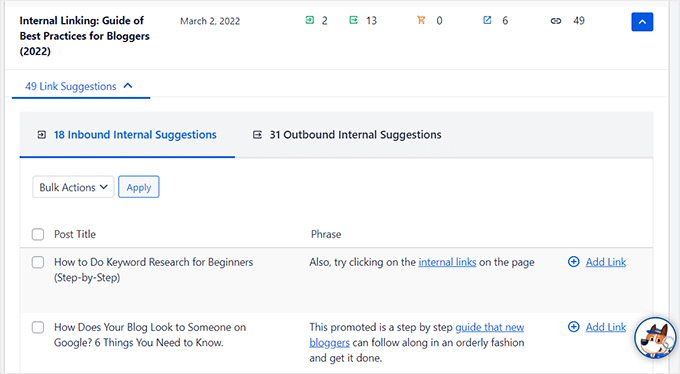
Weitere Strategien finden Sie in unserem Leitfaden für interne Verlinkung mit Best Practices und in unserer Liste der besten Plugins für interne Verlinkung für WordPress.
Verwandt: AIOSEO bietet auch ein kostenloses Broken Link Checker Plugin, das Ihre Website auf defekte Links scannt und es Ihnen ermöglicht, diese zu beheben, ohne WordPress zu verlassen.
Schema-Markup und Rich Snippets (FAQ-Schema, Bewertungen und mehr)
Haben Sie bemerkt, dass einige Google-Ergebnisse anders aussehen? Einige zeigen Sternebewertungen, FAQ-Dropdowns, Rezeptkarten oder Veranstaltungsdetails. Diese erweiterten Einträge werden als Rich Snippets bezeichnet und werden durch Schema-Markup angetrieben.
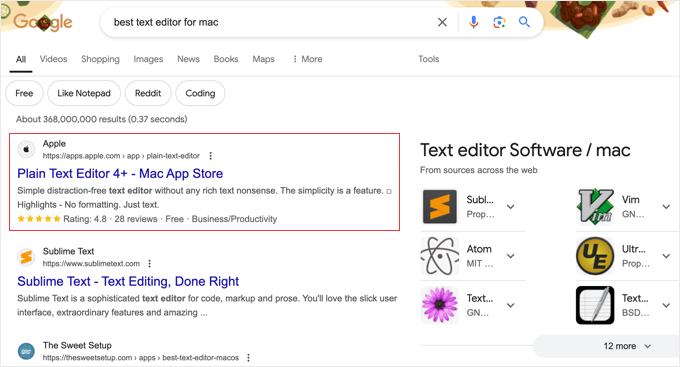
Schema-Markup ist strukturierte Daten, die Sie Ihrer Website hinzufügen und die Suchmaschinen genau mitteilen, was Ihre Inhalte sind – ein Rezept, ein Produkt, eine FAQ, eine Veranstaltung oder ein Artikel. Suchmaschinen verwenden diese Daten dann, um Rich Results anzuzeigen, die hervorstechen und höhere Klickraten erzielen.
Schema spielt auch eine zunehmend wichtige Rolle bei KI-Übersichten. Googles KI-generierte Zusammenfassungen stammen aus Seiten mit klaren, strukturierten Daten. Das Hinzufügen von korrektem Schema erhöht die Wahrscheinlichkeit, dass Ihre Inhalte in diesen KI-Zusammenfassungen zitiert werden.
Die gute Nachricht ist, dass Sie keinen Code schreiben müssen. AIOSEO enthält einen Schema-Generator direkt in Ihrem Beitragseditor. Wählen Sie einfach den Schema-Typ (Artikel, FAQ, HowTo, Produkt, Rezept, Veranstaltung usw.), füllen Sie die Felder aus, und das Plugin fügt automatisch den richtigen JSON-LD-Code hinzu. AIOSEO hat kürzlich auch einen KI-Schema-Generator eingeführt, der den Inhalt Ihrer Seite analysieren und das entsprechende Schema für Sie erstellen kann – keine manuelle Konfiguration erforderlich.

Zum Beispiel kann das Hinzufügen von FAQ-Schema zu einem Beitrag dazu führen, dass Ihr Eintrag direkt in den Suchergebnissen mit Frage-und-Antwort-Dropdowns erweitert wird:
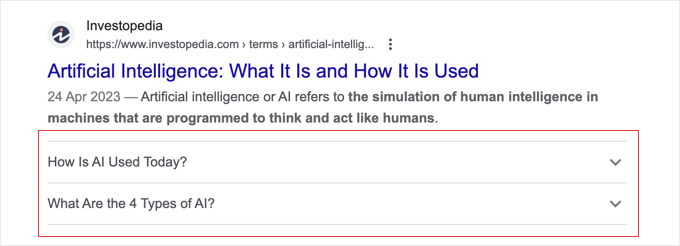
Sie können ähnliche Techniken für Rezept-Schema, Produkt-Schema, Veranstaltungs-Schema und mehr verwenden. Wir empfehlen, Schema für jeden Beitrag zu nutzen – es ist eine der einfachsten Möglichkeiten, Ihre Klickrate zu verbessern.
Aufbau von E-E-A-T-Signalen auf Ihrer WordPress-Website
E-E-A-T steht für Erfahrung, Fachwissen, Autorität und Vertrauenswürdigkeit. Es ist ein Rahmenwerk, das Google zur Bewertung der Inhaltsqualität verwendet und in den letzten Jahren zu einem der wichtigsten Rankingfaktoren geworden ist.
Einfach ausgedrückt: Google möchte wissen: Wurden diese Inhalte von jemandem geschrieben, der tatsächlich weiß, wovon er spricht? Und können die Leser dieser Website vertrauen?
Hier sind die wichtigsten E-E-A-T-Signale, die Sie Ihrer WordPress-Website hinzufügen können:
- Autoren-Biografien in jedem Beitrag – fügen Sie eine kurze Biografie mit den Qualifikationen, Erfahrungen und relevanten Links des Autors hinzu. Ein Plugin für Autoren-Bio-Boxen macht dies einfach.
- Dedizierte Autorenseiten – erstellen Sie vollständige Autorenprofilseiten, die die veröffentlichten Artikel, Qualifikationen und Social-Media-Profile jedes Autors auflisten.
- Eine „Über uns“-Seite – erklären Sie, wer die Website betreibt, die Erfahrung Ihres Teams und warum Leser Ihren Inhalten vertrauen sollten.
- Belegen Sie Ihre Quellen – verlinken Sie auf maßgebliche Quellen, wenn Sie Daten, Statistiken oder Behauptungen zitieren, um zu signalisieren, dass Ihre Inhalte gut recherchiert sind.
- Zeigen Sie echte Erfahrung – teilen Sie eigene Erfahrungen, Screenshots, Originaldaten oder Fallstudien. Google legt besonderen Wert auf die Komponente „Erfahrung“.
- Redaktionelle Transparenz – Erwägen Sie das Hinzufügen einer redaktionellen Richtlinie, eines Faktencheck-Prozesses oder „Geprüft von“-Abzeichen für wichtige Inhalte.
Die Funktion Author SEO von AIOSEO automatisiert vieles davon. Sie generiert die richtige Schema-Markup für Autoren, strukturiert Ihre E-E-A-T-Signale für Suchmaschinen und unterstützt die Zuweisung von Autoren/Prüfern für jeden Beitrag – und das alles ohne Code-Änderungen.
Für eine tiefere Betrachtung, wie Google die Qualität von Inhalten bewertet, lesen Sie unseren Leitfaden zu Was ist Google E-E-A-T und wie kann man es verbessern.
Optimierung für KI-Suche
Suche ist nicht mehr nur auf zehn blaue Links beschränkt. Google AI Overviews, ChatGPT, Perplexity und andere KI-Tools verändern die Art und Weise, wie Menschen Informationen finden. Hier erfahren Sie, wie Sie sicherstellen, dass Ihre WordPress-Inhalte in diesen neuen Kanälen erscheinen.
Optimierung für KI-Übersichten und generative Suche
Google AI Overviews sind KI-generierte Zusammenfassungen, die bei vielen Suchanfragen am Anfang der Suchergebnisse erscheinen. Anstatt nur Links anzuzeigen, liest Google nun mehrere Webseiten und erstellt eine synthetisierte Antwort – mit Zitaten, die auf die verwendeten Quellen verweisen.
Wenn Ihre Inhalte in einer KI-Übersicht zitiert werden, kann dies erheblichen Traffic generieren, auch wenn Sie nicht auf der traditionellen Position #1 stehen. Hier erfahren Sie, wie Sie dafür optimieren:
- Beantworten Sie Fragen direkt – strukturieren Sie Ihre Inhalte mit klaren Frageüberschriften (H2/H3), gefolgt von prägnanten, sachlichen Antworten in den ersten 1-2 Sätzen. KI-Modelle ziehen Inhalte heran, die direkte Antworten liefern.
- Verwenden Sie strukturierte Formatierung – nummerierte Listen, Aufzählungszeichen, Vergleichstabellen und Definition-artige Absätze sind für KI leichter zu analysieren und zu zitieren.
- Fügen Sie einzigartigen Wert hinzu – KI-Übersichten bevorzugen Inhalte mit Originaldaten, eigenen Erfahrungen, Expertenmeinungen und spezifischen Beispielen. Generische Ratschläge werden übersprungen.
- Halten Sie Inhalte aktuell – KI-Modelle bevorzugen kürzlich aktualisierte Inhalte. Aktualisieren Sie Ihre Beiträge daher regelmäßig mit aktuellen Informationen, Screenshots und Daten.
- Verwenden Sie Schema-Markup – wie wir oben behandelt haben, hilft strukturierte Daten der KI, den Typ und die Autorität Ihrer Inhalte zu verstehen.
Die gleichen Strategien, die Ihnen helfen, in Google AI Overviews zitiert zu werden, funktionieren auch für ChatGPT, Perplexity und andere KI-Suchtools. Diese Tools scannen und zitieren Webinhalte auf ähnliche Weise.
Diese Praxis wird jetzt allgemein als Generative Engine Optimization (GEO) bezeichnet. Eine vollständige Strategie finden Sie in unserem Leitfaden für Anfänger zur GEO für WordPress.
Einrichten von llms.txt für KI-Agenten
Eine neuere Entwicklung in der KI-Suche ist der llms.txt -Standard. Ähnlich wie robots.txt Suchmaschinen-Crawlern mitteilt, wie sie auf Ihre Website zugreifen können, teilt llms.txt KI-Agenten (wie ChatGPT, Claude und Perplexity) mit, worum es auf Ihrer Website geht und wie Ihre Inhalte verwendet werden sollen.
Das Hinzufügen einer llms.txt-Datei zu Ihrer WordPress-Website hilft KI-Tools, Ihre Inhaltsstruktur zu verstehen, welche Seiten am wichtigsten sind und wie Ihre Informationen bei der Beantwortung von Benutzerfragen korrekt dargestellt werden.
Profi-Tipp: Dies ist immer noch ein sich entwickelnder Standard, aber eine frühe Übernahme verschafft Ihnen einen Vorteil, da die KI-gestützte Suche weiter wächst. Viele WordPress-Benutzer sehen bereits Verweisverkehr von KI-Tools, und eine llms.txt-Datei erleichtert es diesen Tools, Ihre Inhalte zu finden und korrekt zu zitieren.
Eine Schritt-für-Schritt-Einrichtungsanleitung finden Sie in unserem Tutorial zu Was ist llms.txt und wie füge ich es zu meiner WordPress-Website hinzu.
Lokale SEO für WordPress-Websites
Wenn Ihr Unternehmen einen physischen Standort hat – ein Restaurant, ein Einzelhandelsgeschäft, eine Klinik oder ein regionales Büro –, dann müssen Sie für Local SEO optimieren. Dies stellt sicher, dass Ihre Website in lokalen Suchergebnissen und Google Maps angezeigt wird, wenn Leute in der Nähe nach Unternehmen wie Ihrem suchen.
Wenn jemand beispielsweise nach „Italienische Restaurants in meiner Nähe“ sucht, zeigt Google eine Liste und eine Karte relevanter Unternehmen in ihrer Nähe an:
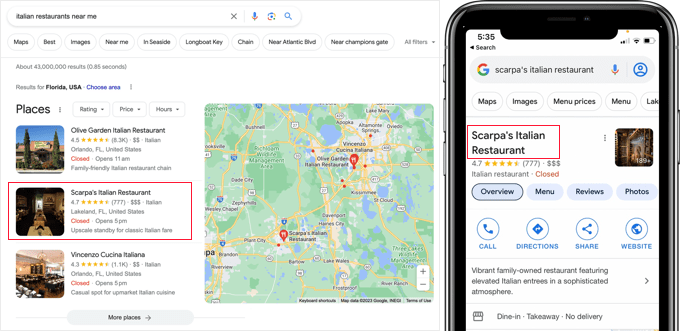
Google berichtet, dass Suchanfragen nach lokalen Orten wie „Geschäfte in meiner Nähe“ von Jahr zu Jahr dramatisch zunehmen (Quelle). Wenn Ihr Unternehmen in lokalen Ergebnissen nicht sichtbar ist, verpassen Sie potenzielle Kunden.
Die Schlüsselfaktoren für lokale SEO-Rankings sind:
- Google Unternehmensprofil – beanspruchen und vervollständigen Sie Ihren Eintrag mit genauen Öffnungszeiten, Fotos und Kategorien
- Positive Bewertungen – ermutigen Sie zu echten Kundenbewertungen auf Google und Ihrer Website
- NAP-Konsistenz – stellen Sie sicher, dass Ihr Name, Ihre Geschäftsadresse und Telefonnummer auf jeder Plattform identisch sind
- Lokale Schema-Markup – fügen Sie strukturierte Daten hinzu, damit Suchmaschinen Ihre Standortinformationen genau lesen können
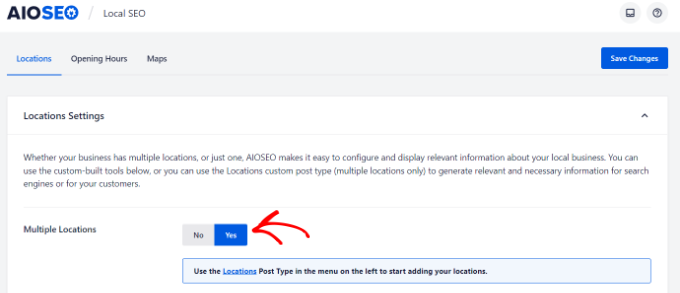
Der einfachste Weg, lokales Unternehmens Schema-Markup hinzuzufügen, ist die Verwendung des Local SEO-Moduls von AIOSEO. Es ermöglicht Ihnen, Standortdaten, Kontaktinformationen, Öffnungszeiten und Karten mit Routenbeschreibungen hinzuzufügen.
Wenn Ihr Unternehmen mehrere Standorte hat, schalten Sie einfach die Einstellung „Mehrere Standorte“ um, um sie alle von einem Ort aus zu verwalten.
Mehrsprachige SEO für WordPress-Websites
Wenn Ihre Zielgruppe aus verschiedenen Ländern auf der ganzen Welt kommt, dann kann die Übersetzung Ihrer WordPress-Website Ihrem Content völlig neue Traffic-Quellen eröffnen.
Mehrsprachige SEO stellt sicher, dass Suchmaschinen verstehen, für welche Sprache und Region jede Version Ihrer Seite bestimmt ist.
Ohne die richtige Einrichtung können Suchmaschinen jedoch Schwierigkeiten haben, die richtige Sprachversion für den richtigen Besucher bereitzustellen, oder sie indexieren Ihre übersetzten Inhalte möglicherweise gar nicht.
Hier sind die wichtigsten Dinge, die Sie für mehrsprachige SEO richtig machen müssen:
- Verwenden Sie hreflang-Tags – Diese teilen Suchmaschinen mit, welche Sprache und Region jede Seite anvisiert, damit die richtige Version in den Suchergebnissen des richtigen Landes angezeigt wird. Hreflang-Tags müssen wechselseitig sein (wenn Ihre englische Seite auf Ihre französische Seite verlinkt, muss die französische Seite zurück verlinken), sonst können Suchmaschinen sie ignorieren. Fügen Sie auch einen x-default-Tag als Fallback für Besucher hinzu, deren Sprache keiner Version entspricht.
- Geben Sie jeder Sprache eine eigene URL – Ob Sie Unterverzeichnisse (/es/), Subdomains (es.example.com) oder separate Domains verwenden, Sie müssen jeder Sprache eine eigene, eindeutige Webadresse geben. Achten Sie darauf, nicht mehrere Sprachen in eine URL zu packen.
- Übersetzen Sie Metadaten, nicht nur Inhalte – Ihr SEO-Titel, die Meta-Beschreibung, der Alt-Text von Bildern und strukturierte Daten sollten ebenfalls übersetzt werden, nicht nur der sichtbare Seiteninhalt.
- Fügen Sie einen sichtbaren Sprachumschalter hinzu – Machen Sie es Besuchern leicht, ihre bevorzugte Sprache direkt im Navigationsmenü oder in der Seitenleiste Ihrer Website zu finden und umzuschalten.
- Lassen Sie Übersetzungen überprüfen – KI und maschinelle Übersetzung haben sich stark verbessert, aber Sie sollten in Erwägung ziehen, wichtige Seiten (wie rechtliche Seiten, Produktseiten und Ihre Kasse) von einem Muttersprachler überprüfen zu lassen, um die Qualität zu sichern.
Für die eigentlichen Übersetzungen empfehlen wir Universally, ein KI-gestütztes Übersetzungstool, das Ihre gesamte Website in 110 Sprachen in wenigen Minuten übersetzen kann.
Universally generiert automatisch hreflang-Tags, übersetzte Meta-Beschreibungen, mehrsprachige XML-Sitemaps und korrekt strukturierte URLs für jede Sprache. So können Suchmaschinen jede Sprachversion als eigene Seite crawlen und indexieren.
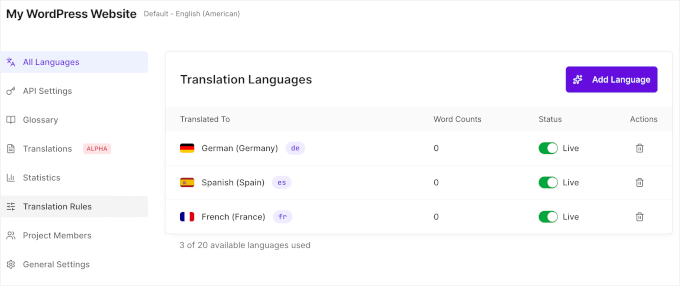
Außerdem speichert Universally übersetzte Inhalte nicht auf Ihrer Website, im Gegensatz zu Übersetzungs-Plugins, die eine doppelte Kopie jeder Seite in Ihrer Datenbank erstellen (wie WPML oder Polylang).
Übersetzungen werden aus der eigenen Cloud bereitgestellt und von Servern geliefert, die jedem Besucher am nächsten sind. Das Hinzufügen weiterer Sprachen verlangsamt Ihre Website also nicht, was auch für SEO wichtig ist.
Weitere Details zur Verwendung finden Sie in unserem Leitfaden zur Übersetzung Ihrer Website mit KI.
Technische SEO für WordPress-Websites
Selbst die besten Inhalte werden Schwierigkeiten haben, ein Ranking zu erzielen, wenn Ihre Website langsam, unsicher oder für Suchmaschinen schwer zu crawlen ist. Technisches SEO befasst sich mit der Gesundheit Ihrer Website im Hintergrund, die sich direkt auf Ihre Rankings auswirkt.
Core Web Vitals und Seitengeschwindigkeit
Google verwendet Core Web Vitals als direkten Rankingfaktor. Dies sind drei spezifische Metriken, die messen, wie schnell und reibungslos Ihre Website für echte Besucher wirkt:
- LCP (Largest Contentful Paint) – wie schnell der Hauptinhalt geladen wird. Ziel: unter 2,5 Sekunden
- INP (Interaction to Next Paint) – wie schnell Ihre Website reagiert, wenn ein Benutzer klickt, tippt oder tippt. Ziel: unter 200 Millisekunden
- CLS (Cumulative Layout Shift) – wie stabil das Seitenlayout beim Laden ist (keine springenden Schaltflächen oder verschiebenden Texte). Ziel: unter 0,1
Sie können Ihre Ergebnisse mit dem kostenlosen PageSpeed Insights -Tool von Google oder im Core Web Vitals-Bericht in der Google Search Console überprüfen.
Hier sind die WordPress-spezifischen Geschwindigkeitsoptimierungen, die den größten Unterschied machen:
- Wählen Sie schnelles Hosting – Hosting ist Ihre Geschwindigkeitsgrenze. Keine Optimierung kann einen langsamen Server ausgleichen. Ein schneller WordPress-Host wie SiteGround oder Hostinger macht den größten Unterschied
- Installieren Sie ein Caching-Plugin – WP Rocket ist unsere Empfehlung. Es kümmert sich mit minimalem Aufwand um Seiten-Caching, Dateiminimierung und Lazy Loading. Sehen Sie sich unseren Leitfaden an, wie Sie WP Rocket einrichten
- Verwenden Sie ein CDN – ein Content Delivery Network liefert Ihre Seiten von den nächstgelegenen Servern zu jedem Besucher aus und reduziert so die Ladezeiten weltweit. Die meisten guten Hoster beinhalten dies
- Plugins minimieren – entfernen Sie alles, was nicht verwendet wird. Jedes Plugin fügt JavaScript und CSS hinzu, was Ihre Ladezeit verlangsamt
- Bilder komprimieren und Lazy Loading verwenden – verwenden Sie WebP- oder AVIF-Formate für kleinere Dateigrößen. Sehen Sie sich unseren Abschnitt zur Bildoptimierung unten an
- Schriftarten optimieren – begrenzen Sie benutzerdefinierte Schriftgewichte und verwenden Sie font-display: swap, um Rendering-Verzögerungen zu vermeiden
Für eine vollständige Optimierungsanleitung sehen Sie sich unseren ultimativen Leitfaden zur Beschleunigung von WordPress und unser detailliertes Tutorial zur Optimierung von Core Web Vitals für WordPress an.
Bilder in WordPress für SEO optimieren
Bilder machen Ihre Inhalte ansprechender, aber nicht optimierte Bilder sind eine der häufigsten Ursachen für langsame Seitenladezeiten.
Hier erfahren Sie, wie Sie Ihre Bilder schnell und SEO-freundlich halten:
- Vor dem Hochladen komprimieren – verwenden Sie Tools oder Plugins, um die Dateigröße ohne sichtbaren Qualitätsverlust zu reduzieren. Sehen Sie sich unseren Leitfaden zur Optimierung von Bildern für das Web an
- Moderne Formate verwenden – WebP- und AVIF-Formate sind deutlich kleiner als JPEG/PNG und behalten dabei die Qualität bei. Die meisten modernen WordPress-Bild-Plugins können automatisch konvertieren
- Lazy Loading aktivieren – dies lädt Bilder nur, wenn sie in den Ansichtsbereich scrollen, und verbessert so die anfängliche Seitenladezeit. WordPress beinhaltet standardmäßig ein grundlegendes Lazy Loading
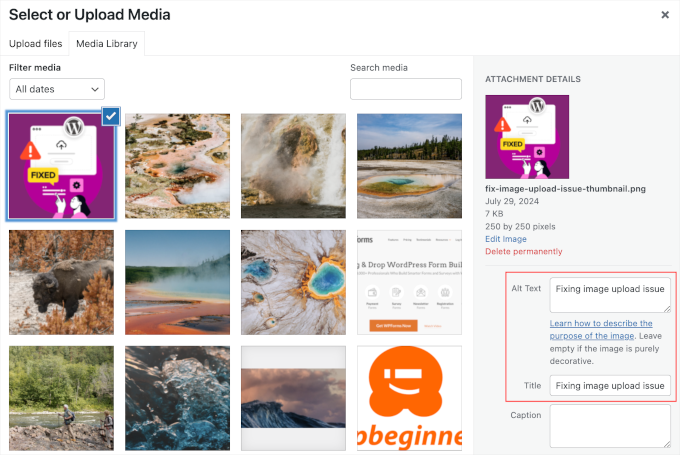
- Beschreibende Alternativtexte schreiben – Alt-Tags helfen Suchmaschinen, Ihre Bilder zu verstehen und verbessern die Barrierefreiheit für Screenreader. Beschreiben Sie das Bild natürlich und überladen Sie Alt-Texte nicht mit Schlüsselwörtern.
Wenn Sie viele Bilder zu Ihrer Website hinzufügen, empfehlen wir die Verwendung von Envira Gallery zusammen mit AIOSEO. In unseren Geschwindigkeitstests war es das schnellste WordPress-Galerie-Plugin und ist von Haus aus vollständig SEO-freundlich.
Weitere Tipps finden Sie in unserem vollständigen Leitfaden für Anfänger zur Bild-SEO. Und wenn Sie Videoinhalte haben, lesen Sie unseren Leitfaden zur Einrichtung von Video-SEO in WordPress.
Sicherheit und Schutz Ihrer WordPress-Website
Jede Woche schwarze Liste Google Tausende von Websites wegen Malware und Phishing. Eine Website auf der schwarzen Liste verschwindet vollständig aus den Suchergebnissen – all Ihre SEO-Arbeit ist sofort dahin.
Die gute Nachricht ist, dass die Sicherung Ihrer WordPress-Website nicht schwierig ist. Befolgen Sie die Schritt-für-Schritt-Anweisungen in unserem ultimativen Leitfaden zur WordPress-Sicherheit.
Bei WPBeginner verwenden wir Cloudflare, um unsere Websites vor Angriffen zu schützen. Zuvor haben wir viele Jahre Sucuri verwendet – sehen Sie sich unsere Fallstudie an, wie Sucuri uns geholfen hat, 450.000 Angriffe in 3 Monaten zu blockieren.
SSL/HTTPS verwenden
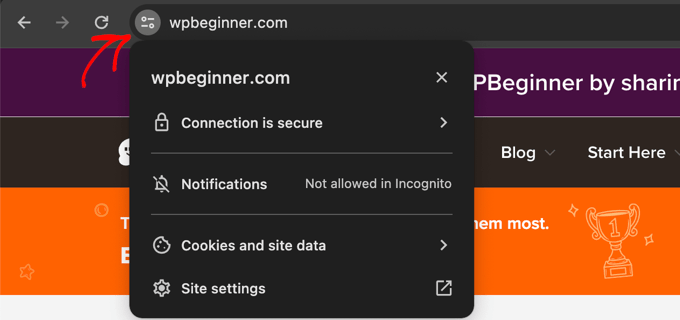
SSL verschlüsselt die Verbindung zwischen dem Browser Ihres Besuchers und Ihrem Server. Google hat bestätigt, dass HTTPS ein Ranking-Signal ist, und Browser wie Chrome zeigen Warnungen zur Sicherheit auf Websites ohne SSL an.
Wenn Sie einen Online-Shop betreiben oder Benutzerdaten sammeln, ist SSL nicht optional – es ist erforderlich.
Alle großen WordPress-Hosting-Unternehmen bieten kostenlose SSL-Zertifikate über Let's Encrypt an. Sehen Sie sich unseren Leitfaden an, wie Sie ein kostenloses SSL-Zertifikat für Ihre Website erhalten.
Wenn Sie ein Premium-Wildcard-SSL oder ein Zertifikat mit einer Sicherheitsgarantie benötigen, empfehlen wir Namecheap. Ihre Zertifikate beinhalten Sicherheitsgarantien und ein TrustLogo-Siegel für zusätzliche Glaubwürdigkeit.
WordPress SEO Best Practices
Wenn Sie die obigen Schritte befolgt haben, sind Sie den meisten Websites bereits voraus. Diese zusätzlichen Best Practices sind schnell zu implementieren und können Ihnen einen zusätzlichen Vorteil in den Suchergebnissen verschaffen.
WordPress-Kommentare optimieren

Echte Kommentare sind ein starkes Signal für Benutzerengagement. Sie können zu mehr Links, längerer Verweildauer auf der Seite und wiederkehrenden Besuchern führen – all das hilft der SEO.
Spam-Kommentare mit schlechten Links können jedoch Ihre Rankings aktiv beeinträchtigen. Wir empfehlen die Verwendung von Akismet (vorinstalliert mit WordPress), um Spam automatisch zu filtern. Wenn Sie zusätzlichen Schutz benötigen, lesen Sie diese Tipps und Tools zur Bekämpfung von Kommentar-Spam.
Wenn Ihre Beiträge viele echte Kommentare anziehen, ist das großartig – aber zu viele Kommentare auf einer einzigen Seite können sie verlangsamen. Sie können dies beheben, indem Sie Ihre Kommentare paginieren, um sie auf mehrere Seiten aufzuteilen.
Mehr Engagement gewünscht? Schauen Sie sich diese Möglichkeiten an, mehr Kommentare auf Ihrem WordPress-Blog zu erhalten.
NoFollow externe Links in WordPress
Wenn Sie auf eine andere Website verlinken, geben Sie einen kleinen Teil der Autorität Ihrer Website (sogenannte „Link Equity“) an diese Seite weiter. Dies ist normal und in Ordnung für vertrauenswürdige Quellen.
Für Links, für die Sie nicht bürgen möchten – gesponserte Links, von Benutzern eingereichte URLs oder nicht vertrauenswürdige Websites – sollten Sie jedoch ein nofollow Attribut hinzufügen. Dies teilt Suchmaschinen mit, dass sie Ihre Autorität nicht an diesen Link weitergeben sollen.
Ein normaler Link sieht so aus:
<a href="http://example.com">Example Website</a>
Ein Nofollow-Link sieht so aus:
<a href="http://example.com" rel="nofollow">Example Website</a>
WordPress enthält standardmäßig keine Nofollow-Option, aber AIOSEO fügt sie direkt zum Link-Editor hinzu. Schalten Sie beim Einfügen eines Links einfach die Option „Nofollow hinzufügen“ um:
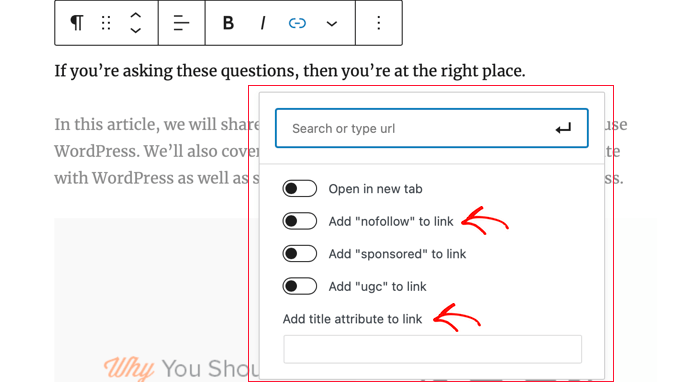
Weitere Details finden Sie in unserem Leitfaden zum Hinzufügen von Nofollow-Links in WordPress.
Vollständige Beiträge vs. Zusammenfassungen oder Auszüge
Standardmäßig zeigt WordPress den vollständigen Artikelinhalt auf Ihrer Homepage, Ihren Kategoriearchiven, Tag-Seiten und im RSS-Feed an. Dies schafft zwei Probleme: Suchmaschinen könnten dies als doppelte Inhalte betrachten, und es verlangsamt Ihre Archivseiten.
Die Lösung ist einfach – zeigen Sie Zusammenfassungen (Auszüge) anstelle von vollständigen Artikeln auf diesen Seiten.
Für Ihren RSS-Feed gehen Sie zu Einstellungen » Lesen und wählen Sie „Auszug“.
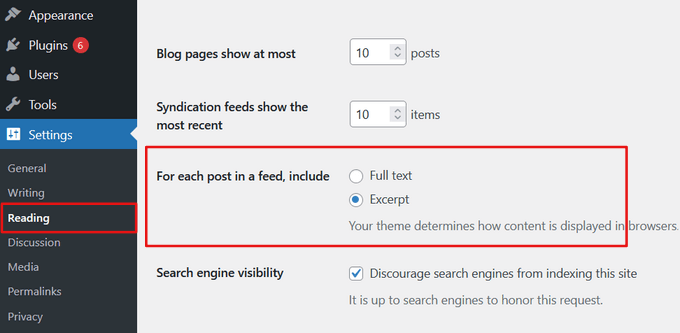
Für die Frontend-Archivseiten Ihrer Website können Sie dies normalerweise in den Einstellungen Ihres Themes konfigurieren (über den Customizer oder den Site Editor) oder den „Mehr“-Block in einzelnen Beiträgen verwenden, um den Abschlusspunkt zu steuern.
Ausführliche Anweisungen finden Sie in unserem Leitfaden zum Anpassen von WordPress-Auszügen ohne Programmierung.
Video-Tutorial
Häufig gestellte Fragen zu WordPress SEO
Hier sind die Antworten auf einige der häufigsten Fragen, die wir zu WordPress SEO erhalten.
1. Wie lange dauert es, bis WordPress SEO funktioniert?
Einfache On-Page-Optimierungen können innerhalb weniger Wochen geringfügige Ergebnisse zeigen, aber signifikante Ranking-Verbesserungen dauern in der Regel 3 bis 6 Monate. SEO ist eine langfristige Strategie, die sich mit konsequentem Aufwand im Laufe der Zeit verstärkt.
2. Ist WordPress von Haus aus gut für SEO geeignet?
Ja, WordPress bietet eine solide SEO-Grundlage mit sauberem Code, den Suchmaschinen leicht lesen können. Um Ihre Sichtbarkeit jedoch zu maximieren, benötigen Sie ein SEO-Plugin wie All in One SEO und die in diesem Leitfaden behandelten Best Practices.
3. Kann ich SEO selbst machen oder muss ich einen Experten engagieren?
Sie können Ihr eigenes SEO absolut selbst durchführen, indem Sie diesem Leitfaden folgen. Viele Kleinunternehmer verwalten erfolgreich die Optimierung ihrer Website. Wenn es Ihnen zu zeitaufwendig erscheint, ist die Beauftragung eines Fachmanns eine gute Option.
4. Was ist der wichtigste Teil von SEO für Anfänger?
Beginnen Sie mit Keyword-Recherche und On-Page-SEO. Verstehen Sie, wonach Ihre Zielgruppe sucht, und optimieren Sie dann Ihre Titel, Meta-Beschreibungen und Inhalte, um diese Keywords abzugleichen. Das erzielt die größten anfänglichen Auswirkungen.
5. Wie optimiere ich meine WordPress-Website für KI-Übersichten?
Strukturieren Sie Ihre Inhalte mit klaren Frageüberschriften, gefolgt von direkten, sachlichen Antworten. Verwenden Sie Listen, Tabellen und Schema-Markup. Fügen Sie einzigartigen Wert hinzu, wie z. B. Originaldaten oder Erfahrungen aus erster Hand. Sehen Sie sich unseren vollständigen Abschnitt zur Optimierung für die KI-Suche oben und unseren Leitfaden zur Generative Engine Optimization an.
6. Was ist E-E-A-T und unterstützt WordPress es?
E-E-A-T (Erfahrung, Fachwissen, Autorität, Vertrauenswürdigkeit) ist ein Framework, das Google zur Bewertung der Inhaltsqualität verwendet. WordPress unterstützt dies gut – Sie können Autoren-Biografien, Über-uns-Seiten, redaktionelle Richtlinien und korrektes Autoren-Schema-Markup hinzufügen. Plugins wie AIOSEO machen dies mit ihrer Author SEO-Funktion noch einfacher.
7. Was ist der essentielle Leitfaden für WordPress SEO?
Sie lesen ihn gerade! Dieser Leitfaden behandelt alles, von grundlegenden WordPress-Einstellungen bis hin zu fortgeschrittenen Strategien wie KI-Suchoptimierung und E-E-A-T. Befolgen Sie diese Best Practices und verwenden Sie ein umfassendes SEO-Plugin, und Sie werden eine solide Grundlage für das Ranking in Suchergebnissen haben.
Weitere SEO-Tools und Ressourcen
Sobald Sie sich mit den oben genannten WordPress-SEO-Best-Practices vertraut gemacht haben, helfen Ihnen diese Tools und Ressourcen dabei, weiterzukommen.
Unsere Top-Empfehlungen für WordPress SEO-Tools:
- AIOSEO – das beste All-in-One-WordPress-SEO-Plugin, das von über 3 Millionen Websites verwendet wird. Eine leistungsstarke kostenlose Version ist verfügbar
- Semrush – unsere Top-Wahl für Keyword-Recherche und Wettbewerbsanalyse. Es ist teuer, aber extrem leistungsfähig. (Kostenlose Alternativen: WPBeginner Keyword Generator und Keyword Density Checker)
- MonsterInsights – das beste Google Analytics-Plugin für WordPress. Was man nicht messen kann, kann man nicht verbessern. Eine kostenlose MonsterInsights Lite-Version ist verfügbar
- LowFruits – ein Keyword-Recherche-Tool, das sich auf das Finden von Keywords mit geringem Wettbewerb konzentriert, die leichter zu ranken sind
- SEOBoost – ein KI-gestützter Schreibassistent, der Ihren Inhalt während des Schreibens auf Keyword-Dichte, Lesbarkeit und Relevanz analysiert
Für einen vollständigen Vergleich sehen Sie sich unsere Liste der besten WordPress SEO-Plugins und Tools an.
Verwandte WordPress SEO-Leitfäden
Dieser Leitfaden ist die Pillar Page unseres WordPress-SEO-Wissenszentrums. Tauchen Sie mit diesen Begleit-Leitfäden tiefer in spezifische Themen ein:
Content und On-Page-SEO
- Checkliste für Blogpost-SEO
- Leitfaden zur Keyword-Recherche
- Strategie für Themencluster
- SEO für Kategorien und Taxonomien
- Best Practices für interne Verlinkung
KI und fortgeschrittene SEO
- Google AI Overviews – Tipps für WordPress-Benutzer
- Leitfaden für Anfänger zur Generative Engine Optimization (GEO)
- Was ist Google E-E-A-T und wie kann man es verbessern
- Was ist llms.txt und wie fügt man es in WordPress hinzu
- Voice Search SEO für WordPress
Technische SEO und Performance
- Wie man Core Web Vitals für WordPress optimiert
- Der ultimative Leitfaden zur Steigerung der WordPress-Geschwindigkeit
- Das WordPress SEO Crawl Budget Problem
- Wie man IndexNow in WordPress hinzufügt
- Umfassender Leitfaden zur WordPress-Sicherheit
SEO-Tools und Plugins
- Die besten WordPress SEO-Plugins im Vergleich
- Die besten Keyword-Recherche-Tools
- Die besten internen Verlinkungs-Plugins
- WordPress SEO Audit Checkliste
- So erstellen Sie einen SEO-Bericht für Ihre WordPress-Website
- So erhalten Sie Google Sitelinks für Ihre WordPress-Website
Wir hoffen, dieser Leitfaden hat Ihnen geholfen zu lernen, wie Sie Ihre WordPress-Website richtig für SEO optimieren. Beginnen Sie noch heute mit der Umsetzung dieser Tipps, und Sie sollten innerhalb weniger Monate aussagekräftige Verbesserungen Ihres Suchverkehrs feststellen, während Suchmaschinen Ihre Änderungen verarbeiten.

Joško Lopar
Professioneller, prägnanter und klar geschriebener Text. Und mehr als nützlich für mich, der ich lange damit gekämpft habe, in die „kleinen“ Geheimnisse von WordPress einzudringen. Danke Syed, dass du dein Versprechen gehalten hast, dein Wissen selbstlos zu teilen.
WPBeginner-Support
Wir freuen uns, dass Sie unseren Leitfaden hilfreich fanden
Administrator
Shawn Cooper
Wenn ein Blog in den verschiedenen SEO-Taktiken erwähnt wird, ist er gleichbedeutend mit einer Website? Oder benötigen Websites andere Anwendungen?
Danke!
WPBeginner-Support
Sie sind ungefähr gleich, der Hauptunterschied liegt darin, wo sich der Inhalt der Website befindet. Sie sollten sich unseren Artikel hier ansehen, um eine ausführlichere Erklärung zu erhalten: https://www.wpbeginner.com/beginners-guide/what-is-a-blog-and-how-is-it-different-from-a-website-explained/
Administrator
Benyamin Belal
Wunderbare Erfahrungen, die ich beim Lesen Ihres großartigen Artikels gesammelt habe. Machen Sie weiter so und viel Glück zu jeder Zeit.
WPBeginner-Support
Schön, dass Ihnen unser Tutorial gefallen hat
Administrator
Ruby Singh
Vielen Dank, ich war immer verwirrt wegen WordPress-Websites aufgrund so vieler interner Duplicate Content-Fehler.
Ich gebe mein Bestes, um auch an diesen Fehlern zu arbeiten. Obwohl ich Ihren Artikel geliebt habe, werde ich noch einmal von vorne anfangen und hoffe, dass es funktioniert!
Danke
WPBeginner-Support
Gern geschehen, wir hoffen, unser Artikel hilft Ihnen, die Logik von SEO besser zu verstehen
Administrator
Babatunde Peter
Wow! Ich liebe das. Aber ich brauche mehr Wissen über die Optimierung der Geschwindigkeit meiner Website. Können Sie mir bitte einen Beitrag auf Ihrer Website empfehlen?
WPBeginner-Support
Um Ihre Website zu beschleunigen, sollten Sie sich unseren Artikel hier ansehen: https://www.wpbeginner.com/wordpress-performance-speed/
Administrator
Ndo
Hey, ich möchte mich nur ganz herzlich für diesen großartigen Artikel und die Seite insgesamt bedanken. Über die Jahre habe ich mich mit vielen Nischen im Internet beschäftigt. Bis vor kurzem habe ich Blogging nicht wirklich als etwas mit so viel Potenzial gesehen, wie es vielleicht hat. Kürzlich habe ich an einem Projekt gearbeitet und da meine SEO-Kenntnisse im Laufe der Zeit eingerostet sind, war dies ein großartiger Artikel, um sie aufzufrischen, und sehr spezifisch für WordPress, so dass ich bei meinem ersten Projekt damit keine Schwierigkeiten hatte, dies einzurichten, wie ich es ohne diesen gehabt hätte.
Gut gemacht bei der Erstellung dieser Seite und der Menge an Arbeit, die Sie tatsächlich in die Erstellung dieser Inhalte gesteckt haben, die auch kostenlos sind.
Genießen Sie Ihren Tag!
Mit freundlichen Grüßen,
Nando
WPBeginner-Support
Vielen Dank, schön, dass Ihnen unser Artikel gefallen hat und dass er als gute Auffrischung dienen konnte
Administrator
Shalini Singh
Vielen Dank für all diese Informationen. Ich bin sicher, ich werde immer wieder darauf zurückkommen.
WPBeginner-Support
Gern geschehen, schön, dass Sie diese Inhalte hilfreich fanden
Administrator
rob
Danke dafür, bin gerade von Blogger herübergekommen und ich bin so froh, dass ich es getan habe. Diese Tipps haben mir heute sehr geholfen, Prost
WPBeginner-Support
Schön, dass unser Leitfaden hilfreich sein konnte
Administrator
Jane Spelce
Ich freue mich so sehr, Ihre Lehr-E-Mails zu erhalten! Sie haben meine Befürchtung, dass diese Dinge zu „technisch“ oder komplex für mich sind, um sie selbst zu bewältigen, vollständig zerstreut. Ihre Anleitungen sind so klar und gut geschrieben, dass ich keinerlei Probleme habe, die Schritte nicht nur zu verstehen, sondern auch umzusetzen! Sie haben mir tatsächlich zwei Geschenke gemacht: 1. Die Fähigkeit, alle Aspekte eines erstklassigen, erfolgreichen Reiseblogs zu bewältigen, und 2. ein völlig neues und verbessertes Selbstvertrauen in meine Fähigkeit, meine Ziele zu erreichen. Bravo und Danke!
WPBeginner-Support
Gern geschehen, schön, dass unser Newsletter und unsere Artikel Ihnen helfen konnten
Administrator
Terry Simelane
Vielen Dank für diesen sehr aufschlussreichen Artikel. Ich habe viel gelernt und werde Ihre Seite öfter besuchen. Machen Sie weiter so.
WPBeginner-Support
Gern geschehen, schön, dass Ihnen unser Artikel gefallen hat
Administrator
Florence Hu
Danke für die Information über die Anzeige von Zusammenfassungen im Vergleich zu vollständigen Beiträgen.
Frage: Ich baue eine Portfolio-Website, keine Blogging-Seite.
Gilt dieser Tipp für Informationsseiten genauso wie für Blogs?
danke
WPBeginner-Support
Ja
Administrator
macronimous
Wirklich ein großartiger Artikel für Anfänger mit Bildern zum besseren Verständnis.
WPBeginner-Support
Wir freuen uns, dass Ihnen unser Artikel gefallen hat
Administrator
Anonymoua
Ich liebe Ihre Artikel
WPBeginner-Support
Danke
Administrator
Mike
Sind Seiten, die nicht bloggen, bei Google zum Unsichtbarsein verdammt?
WPBeginner-Support
Nein, aber ohne ständig aktualisierte Inhalte ist es schwieriger, hoch zu ranken
Administrator
Mike
Danke, sind Ihnen Ressourcen zu diesem speziellen SEO-Thema bekannt?
WPBeginner-Support
im Moment nicht
Jamal Mehmood
Das ist ein großartiger Artikel
WPBeginner-Support
Danke
Administrator
xman
Hallo
In Ihrem Beispiel für Alternativtext und Titel für Bilder haben Sie denselben Text verwendet.
Dürfen wir denselben Text in Titel, Alternativtext, Beschreibung und Bildunterschrift verwenden, oder wird das als doppelter Text angesehen?
WPBeginner-Support
Sie können denselben Text im Titel und im Alt-Text hinzufügen, aber für Ihre Beschreibung und Bildunterschrift wird diese Information je nach Theme für alle Besucher angezeigt und normalerweise verwendet, um mehr Informationen über das Bild als den Titel zu geben.
Administrator
Muhammad Farhan
Beste Seite für Anfänger und auch für Profis und sie ist von einem Pakistani, der uns stolz macht, so stolz, das zu sehen, Sie helfen vielen Menschen, ihr Leben und das Leben um sie herum zu verändern, Sie sind definitiv ein Held
WPBeginner-Support
Schön, dass Ihnen unsere Seite gefällt
Administrator
Shweta Rishabh Jain
Hallo,
Danke für das Teilen des Artikels. Ich blogge mit selbst gehostetem WordPress und es ist ziemlich einfach und effektiv. Es ist ein großartiger Versuch für Anfänger mit Hilfe Ihres Artikels.
WPBeginner-Support
Gern geschehen, wir freuen uns, dass Ihnen unser Artikel gefällt
Administrator
Nifi Istiak Borsho
Danke für diesen schönen detaillierten Blog.
Liebe aus Bangladesch ❤️
WPBeginner-Support
Gern geschehen, schön, dass Ihnen unsere Inhalte gefallen
Administrator
Suraj Pokhrel
Schöner und detaillierter Blogbeitrag. Was mir fehlt, ist die Optimierung der Website-Geschwindigkeit. Können Sie mir Plugins empfehlen, die meine Website schneller laden lassen?
Vielen Dank.
WPBeginner-Support
Um Ihre Website zu beschleunigen, sollten Sie sich unseren Artikel hier ansehen: https://www.wpbeginner.com/wordpress-performance-speed/
Administrator
Frank Jonker
Toller Artikel – Gut gemacht
WPBeginner-Support
Danke
Administrator
Zeeva Natasha Zazhinne
Bezieht sich diese SEO-Optimierung nur auf Google-Suchen? Ich möchte etwas über all die ANDEREN Suchmaschinen wissen, die derzeit von vielen Leuten genutzt werden, zum Beispiel DuckDuckGo. Warum? Google ist nicht mehr das Google, das wir alle einst kannten & liebten! Die Website, die ich aufbaue, ist eine Website für natürliche Gesundheit & Wohlbefinden. Was ist die Lösung?
WPBeginner-Support
Die SEO-Empfehlungen in unserem Artikel sollten für jede Suchmaschine gelten, nicht nur für Google
Administrator
Satya Vara Prasad
Hallo.. danke für die besten SEO-Tipps. Ich habe so viel von wpbeginner gelernt, jetzt sind die SEO-Tipps dran. Ich werde diese SEO-Tipps bald auf meiner Website implementieren und bin zu 100 % sicher, dass ich die besten SEO-Ergebnisse für meine Website erzielen werde.. vielen Dank
WPBeginner-Support
Gern geschehen, wir hoffen, unser Artikel hilft Ihnen bei der Umsetzung unserer Empfehlungen
Administrator
Dibyandu Pal
Hallo.. danke für das Teilen Ihres Wissens mit uns. Ehrlich gesagt, alles, was ich über WordPress gelernt habe, sind 99% von WPBeginner. Als ich WPBeginner betrat, war mein erstes Interesse WordPress SEO, aber es beschränkt sich nicht nur auf SEO von Ihrem Blog. Heute ist mein Blog bei Google, nur wegen Ihnen. Nochmals vielen Dank aus tiefstem Herzen..
WPBeginner-Support
Gern geschehen, schön, dass wir Ihnen den Einstieg erleichtern konnten, und wir hoffen, dass wir auch weiterhin eine hilfreiche Ressource für Sie sein können
Administrator
Gautam
Ausgezeichneter Beitrag. Teilen Sie weiterhin solche Blogs. Menschen wie ich, die an Big-Data-Verarbeitungstechnologien arbeiten, würden davon profitieren, Wissen mit Menschen zu teilen, die wissbegierig sind und Neues lernen wollen.
Nochmals vielen Dank.
WPBeginner-Support
Vielen Dank, schön, dass Ihnen unser Artikel gefällt
Administrator
manigandan
Toller Blog, danke fürs Teilen..!
WPBeginner-Support
Gern geschehen, schön, dass Ihnen unsere Inhalte gefallen
Administrator
Anas Arshad
Herr, können Sie mir bitte Ihr WP-Theme geben, ich mag es wirklich
WPBeginner-Support
Leider bieten wir unser Theme derzeit nicht zum Download an.
Administrator
tarun
Danke für diesen Beitrag. Er war sehr hilfreich
WPBeginner-Support
Wir freuen uns, dass unser Beitrag hilfreich war
Administrator
Szymon Owedyk
Toller Leitfaden zu WordPress und SEO – für mich und meine Kunden
WPBeginner-Support
Danke, es freut uns, dass Ihnen unsere Inhalte gefallen
Administrator
Sujatha Veeranala
Danke, Sie haben mir geholfen, meinen Blog als SEO-fähigen Blog einzurichten.
WPBeginner-Support
Schön, dass unser Tutorial hilfreich sein konnte
Administrator
faizanusuf
Warum tust du das? Was hat dich motiviert, so viel deiner Zeit darin zu investieren…
Sehr geschätzt!
WPBeginner-Support
Wir wollten Menschen helfen, die SEO besser verstehen wollten. Schön, dass es hilfreich war
Administrator
Fatima Zahra
Vielen Dank, all diese Informationen sind wirklich hilfreich, behalten Sie die guten Inhalte bei, viel Glück ^^
WPBeginner-Support
Vielen Dank, schön, dass Ihnen unsere Inhalte gefallen und sie hilfreich waren
Administrator
Tecla
Hallo!
Vielen Dank für den sehr guten Artikel…… Könnten Sie bitte erklären, warum manchmal in der Beschreibung die Sitelinks erscheinen und manchmal nicht?
Könnten Sie bitte auch erklären, wie man den Autor des Blogs und die Beitrags kategorien aus den Sitelinks ausblendet?
Ich benutze auch YOAST SEO
Nochmals vielen Dank!
WPBeginner-Support
Um den Autor aus Ihrem Beitrag zu entfernen, können Sie sich unseren Leitfaden hier ansehen: https://www.wpbeginner.com/wp-themes/how-to-remove-author-name-from-wordpress-posts/
Für die Sitelinks hängt es von Google ab, wie diese behandelt werden.
Administrator
Joe
Danke für alles... Sie sind großartig
WPBeginner-Support
Danke, es freut uns, dass Ihnen unsere Inhalte gefallen
Administrator
Ajay Goyal
Danke, dass Sie einen so großartigen Artikel mit uns geteilt haben.
WPBeginner-Support
Schön, dass Ihnen unsere Inhalte gefallen
Administrator
Ayesha
Es ist hilfreich. Vielen Dank.
WPBeginner-Support
Schön, dass unsere Inhalte hilfreich sein konnten
Administrator
Abdul Manan Abbasi
Assalam o Alaikum
Sehr geehrte/r, meine Bewerbung wurde von AdSense wegen „Scrapped Content“ abgelehnt. Ich wollte wissen, ob meine eigenen Inhalte, die bereits auf einer Website geteilt wurden, unter „Scrapped“ fallen? Wie können wir den Website-Traffic verbessern?
WPBeginner-Support
Das Teilen Ihrer Inhalte in sozialen Medien sollte kein Problem sein, wenn Sie Gastbeiträge wiederverwenden, die normalerweise ein Problem wären. Um den Website-Traffic zu verbessern, sollten Sie sich unseren Artikel hier ansehen: https://www.wpbeginner.com/beginners-guide/how-to-increase-your-blog-traffic/
Administrator
Fahad Malik
Nun, ich liebe diese Seite wegen der qualitativ hochwertigen Inhalte, die sie bietet. Ich liebe diese Seite wirklich
WPBeginner-Support
Schön, dass Ihnen unsere Inhalte gefallen
Administrator
Ubaid
Hallo, ich habe eine Sitemap in der neuen Google Search Console eingereicht, aber im Status wird angezeigt, dass die Sitemap nicht abgerufen werden konnte. Ich warte ein paar Stunden, aber nichts passiert. Warum kann die Sitemap nicht gelesen werden?
WPBeginner-Support
Wenn Sie Caching auf Ihrer Website haben und den Cache nicht geleert haben, wird sie möglicherweise nicht richtig angezeigt.
Administrator
Roshni
Wie üblich ein guter Artikel!
Nur aus Neugier – Warum ist nofollow nicht der Standard? Angesichts der Erklärung frage ich mich, in welchen Fällen jemand überhaupt 'follow' zulassen möchte?
Wie kann ich diesen Vorschlag an WordPress weitergeben?

WPBeginner-Support
Follow-on-Links wären für interne Verlinkungen zu anderen Artikeln. Für Vorschläge sollten Sie sich an die WordPress.org-Foren wenden.
Administrator
Saumya Choudhary
Wirklich toller Beitrag, da ich neu hier bin, aber ich habe SEO-Projekte in PHP bearbeitet und kannte nur die Grundlagen von WordPress SEO. Aber Sie haben es wirklich gut erklärt, jetzt werde ich mein Projekt nach dem Lesen dieses Blogs starten.
Danke,
Saumya
WPBeginner-Support
Danke, wir freuen uns, dass unser Artikel hilfreich war
Administrator
Acha Mercy
vielen Dank; das ist so hilfreich für mich. Ich bin froh, dass ich auf Ihre Seite gestoßen bin. so lehrreich.
WPBeginner-Support
Wir freuen uns, dass unser Artikel hilfreich sein konnte
Administrator
Abdurahman Omer
Wirklich, ich liebe es, gut erklärt, vielen Dank
WPBeginner-Support
Gern geschehen
Suresh Agarwal
Toller Beitrag, es ist interessant zu lesen, ein großartiger Versuch für Anfänger. Ich mag Ihren Blog und Ihre Schreibweise. Ich finde diesen Beitrag wirklich nützlich, großartige SEO-Tipps. Dieser Beitrag ist wirklich hilfreich und lehrreich. Nur notwendig, wenn es darum geht, meine Website bei Google zu bewerben. Danke für die Einblicke.
WPBeginner-Support
Danke, es freut uns, dass Ihnen unsere Inhalte gefallen
Administrator
Afrasiab Ali
Hallo,
Ich habe eine Frage: Führt der Wechsel des WordPress-Hosting-Anbieters zum Verlust der gesamten WordPress-Site-SEO?
Bitte sagen Sie mir
Danke,
WPBeginner-Support
Normalerweise sollte der Wechsel des Hosting-Anbieters die SEO Ihrer Website nicht beeinträchtigen
Administrator
Ritesh Sharma
Derzeit habe ich meinen eigenen Blog gestartet (inspiriert von WPBeginner).. gute Inhalte zu schreiben reicht nicht aus, wenn man SEO nicht versteht. Danke an Syed Sir, dass Sie sich für die Community einsetzen. Vielen Dank.
WPBeginner-Support
Wir freuen uns, dass Sie unseren Artikel hilfreich fanden
Administrator
Hemendra
Vielen Dank, Wordpress, für diesen Beitrag und den Blogbereich, der uns Licht zeigt. Ich blogge mit selbst gehostetem WordPress und es ist ziemlich einfach und effektiv. Ich weiß, dass es Zeit braucht, um mit SEO an Fahrt zu gewinnen. Machen Sie weiter so.
WPBeginner-Support
Gern geschehen
Administrator
Dirk Bailey
Ich hatte Probleme mit Ihrer SEO-Optimierungshilfe, da die Menüstruktur der Beispiele nicht mit den Menüoptionen in meiner Website-Administration übereinstimmt. Einstellungen Permalinks ist zum Beispiel nicht dort, wo Sie sagen.
WPBeginner-Support
Nur um sicherzugehen, wenn Sie auf WordPress.com sind, hätten Sie diese Option nicht. Unsere Tutorials sind für WordPress.org-Sites.
Administrator
Glaube
Ich hatte das gleiche Problem – vielleicht war es ein Layout-Update? Die Links und Schritte waren da, es hat nur ein wenig Klicken gedauert, um sie zu finden. Dieser Beitrag war super hilfreich, da ich völlig neu in WordPress und SEO bin… fühle mich jetzt viel selbstbewusster.
Peter Rwigema
Danke für diesen Beitrag. Er war sehr hilfreich
WPBeginner-Support
Gern geschehen
Administrator
Harry Hoerenz
Können Sie bei der Erstellung eines Wikis über Empathie helfen? Besorgt darüber, wer Änderungen vornehmen kann? Die Kosten usw.?
WPBeginner-Support
Als Ausgangspunkt empfehlen wir Ihnen, unseren Artikel hier zu lesen: https://www.wpbeginner.com/wp-tutorials/how-to-create-a-wiki-knowledge-base-using-wordpress/
Wen Sie als Autor zulassen und welche Berechtigungen Sie für diesen Benutzer festlegen, bestimmt, wer bearbeiten darf.
Administrator
Verdienstvoll
Wow.
Das ist etwas, das ich für den Start eines neuen Blogs brauchte, dieses Mal einen vollständig selbst verwalteten, da ich sicherstellen wollte, dass ich ihn vollständig und richtig aufbaue und optimiere, damit er, sobald er der Öffentlichkeit zugänglich gemacht wird, leicht indiziert, gelesen und abgerufen werden kann und fabelhaft gut aussieht
Danke für dieses Tutorial.
WPBeginner-Support
Gern geschehen
Administrator