


„Piszę świetne treści, ale nikt ich nigdy nie znajduje”. Ciągle słyszymy tę frustrację od początkujących użytkowników WordPressa i sami doświadczyliśmy dokładnie tego samego problemu, gdy zaczynaliśmy.
Frustrujące jest poświęcanie godzin na pisanie posta na blogu, tylko po to, by zobaczyć zerowy ruch. Na szczęście sprawienie, by wyszukiwarki zauważyły Twoją witrynę, nie wymaga skomplikowanej magii.
Opracowaliśmy prosty, krok po kroku system, który obecnie przyciąga miliony odwiedzających na nasze własne strony internetowe każdego miesiąca. W tym przewodniku SEO przeprowadzimy Cię przez nasz dokładny proces, który działa dzisiaj w erze podsumowań AI, wykraczając poza tradycyjne niebieskie linki.

Ten przewodnik stanowi kompleksowy plan działania, który pomoże Ci zwiększyć SEO WordPress dzięki praktycznym strategiom, które możesz wdrożyć natychmiast.
Aby pomóc Ci poruszać się po tym obszernym przewodniku, poniżej przygotowaliśmy poręczną tabelę treści:
Spis treści
- Czym jest SEO? (I dlaczego ma znaczenie w 2026 roku)
- Podstawy SEO dla WordPress
- Konfiguracja wtyczki SEO
- SEO na stronie dla WordPress
- Budowanie autorytetu i zaufania
- Optymalizacja pod kątem wyszukiwania AI
- Lokalne SEO dla stron WordPress
- Wielojęzyczne SEO dla stron WordPress
- Techniczne SEO dla witryn WordPress
- Najlepsze praktyki SEO dla WordPressa
- Samouczek wideo
- Najczęściej zadawane pytania dotyczące SEO dla WordPressa
- Więcej narzędzi i zasobów SEO
- Powiązane przewodniki SEO dla WordPress
Czym jest SEO? (I dlaczego ma znaczenie w 2026 roku)
SEO to skrót od Search Engine Optimization, czyli praktyka strukturyzowania Twojej strony internetowej i treści w taki sposób, aby wyszukiwarki takie jak Google mogły ją znaleźć, zrozumieć i ocenić. Dobrze wykonane SEO zamienia Twoją stronę w magnes przyciągający darmowy, organiczny ruch od osób aktywnie poszukujących tego, co oferujesz.
Możesz myśleć o SEO jak o organizacji biblioteki. Twoje treści to książki, a SEO to system katalogowania, który pomaga czytelnikom znaleźć dokładnie to, czego potrzebują. Bez niego, nawet najlepsze treści pozostają niewidoczne na zakurzonej półce.

W 2026 roku SEO ewoluowało poza tradycyjne rankingi niebieskich linków. Google wyświetla teraz treści w Podsumowaniach AI (generowanych przez AI podsumowaniach na górze wyników wyszukiwania), wyróżnionych fragmentach, sekcjach „Ludzie też pytają” oraz panelach wiedzy. Nowoczesna strategia SEO dla WordPress musi optymalizować pod kątem wszystkich tych elementów, a nie tylko pozycji #1.
Wyszukiwarki pozostają największym źródłem ruchu dla większości stron internetowych. W oparciu o nasze doświadczenie w zarządzaniu stronami z ponad 100 milionami wyświetleń stron rocznie, uważamy, że uczynienie Twojej strony WordPress przyjazną dla wyszukiwarek jest inwestycją o najwyższym zwrocie z inwestycji, jaką możesz poczynić.
Najlepsze jest to, że te same strategie SEO działają również dla ChatGPT, Claude, Perplexity i innych narzędzi wyszukiwania AI, które zyskują na popularności.
Podstawy SEO dla WordPress
WordPress jest zbudowany z czystego, zgodnego ze standardami kodu, który od razu spełnia najlepsze praktyki SEO. To jeden z powodów, dla których tak wiele osób wybiera WordPress. Istnieje jednak kilka podstawowych ustawień, które musisz zweryfikować, zanim zrobisz cokolwiek innego.
Sprawdź ustawienia widoczności swojej witryny
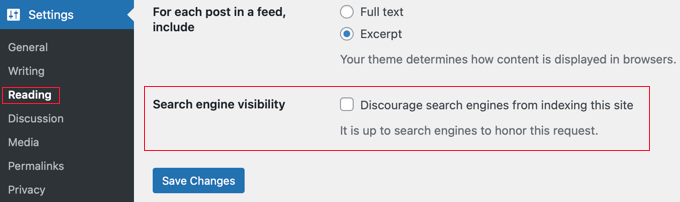
WordPress posiada wbudowaną opcję ukrywania Twojej strony internetowej przed wyszukiwarkami (co jest przydatne podczas tworzenia). Jednak jeśli ta opcja zostanie przypadkowo zaznaczona, Twoja strona internetowa stanie się niedostępna dla wyszukiwarek.
Jeśli Twoja strona internetowa nie pojawia się w wynikach wyszukiwania, pierwszą rzeczą, którą musisz zrobić, jest upewnienie się, że ta opcja jest odznaczona.
Po prostu przejdź do strony Ustawienia » Czytanie w swoim panelu administracyjnym WordPress i upewnij się, że pole obok „Zniechęcaj wyszukiwarki do indeksowania tej witryny” jest odznaczone.
Używanie przyjaznych dla SEO struktur adresów URL w WordPressie
Adresy URL przyjazne dla SEO zawierają słowa, które jasno wyjaśniają zawartość strony i są łatwe do odczytania zarówno przez ludzi, jak i wyszukiwarki.
Na przykład:https://www.wpbeginner.com/how-to-install-wordpress/
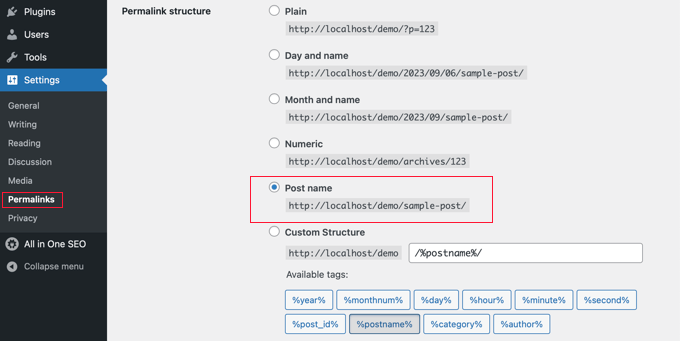
Jeśli adres URL Twojej strony wygląda podobnie do ?p=10467 to nie jest przyjazny dla SEO.
Możesz to poprawić, przechodząc do strony Ustawienia » Permalinks i wybierając opcję „Nazwa wpisu”.
Ostrzeżenie: Jeśli Twoja strona działa od 6+ miesięcy, nie zmieniaj struktury permalinków bez wcześniejszego skonfigurowania odpowiednich przekierowań 301. Zmiana adresów URL na istniejącej stronie może spowodować błędy linków i utratę istniejących rankingów.
Aby uzyskać bardziej szczegółowe instrukcje, zapoznaj się z naszym przewodnikiem na temat struktury adresów URL przyjaznych dla SEO w WordPress.
WWW vs. Nie-WWW
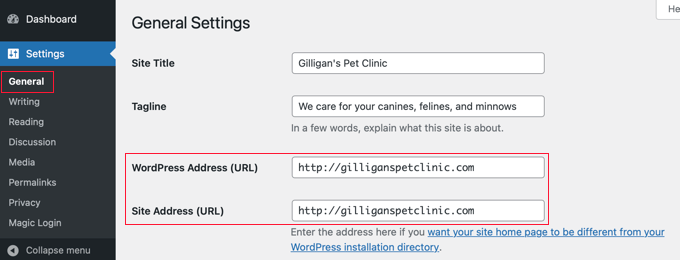
Jeśli dopiero zaczynasz swoją przygodę z witryną, musisz zdecydować, czy chcesz używać www (https://www.example.com) czy bez www (https://example.com) w adresie URL swojej witryny.
Wyszukiwarki uznają je za dwie różne strony internetowe, więc musisz wybrać jedną i się jej trzymać. Preferowany adres URL możesz ustawić na stronie Ustawienia » Ogólne. Dodaj preferowany adres URL w polach „Adres WordPress” i „Adres witryny”.
Wbrew temu, co mogą mówić inni, z punktu widzenia SEO nie ma przewagi w używaniu jednego lub drugiego. Aby uzyskać więcej informacji na ten temat, zobacz www vs non-www – co jest lepsze dla SEO WordPress.
Konfiguracja wtyczki SEO
Wszystkie strony internetowe potrzebują wtyczki SEO WordPress, ponieważ obsługuje ona techniczne podstawy, takie jak tagi tytułowe, meta opisy, mapy witryn XML, znaczniki schematu, kanoniczne adresy URL i inne. Zamiast instalować oddzielne wtyczki do każdego zadania, zalecamy użycie jednego kompleksowego rozwiązania.
Wybór najlepszej wtyczki SEO dla WordPressa
Przetestowaliśmy każdą główną wtyczkę SEO na rynku na kilkudziesięciu aktywnych stronach WordPress. W 2021 roku, po latach korzystania z Yoast SEO, przenieśliśmy WPBeginner do All in One SEO (AIOSEO), ponieważ szybciej wprowadzała innowacje i oferowała więcej wbudowanych funkcji.
Jeśli rozważasz, oto nasza lista najlepszych wtyczek SEO WordPress:
- AIOSEO – najlepsza wszechstronna wtyczka SEO WordPress używana przez 3 miliony stron internetowych. Potężna bezpłatna wersja dostępna.
- Yoast SEO – starsza wtyczka SEO WordPress, która jest popularna, ale już nie wprowadza innowacji.
- RankMath – popularna wtyczka SEO, ale niedawno została przejęta przez fundusz private equity, więc innowacje ustały.
- SEOPress – nowy gracz na rynku.
Szczegółowy opis znajdziesz w naszym kompletnym przewodniku na temat konfiguracji All In One SEO dla WordPress.
Dodaj mapy witryn XML w WordPress
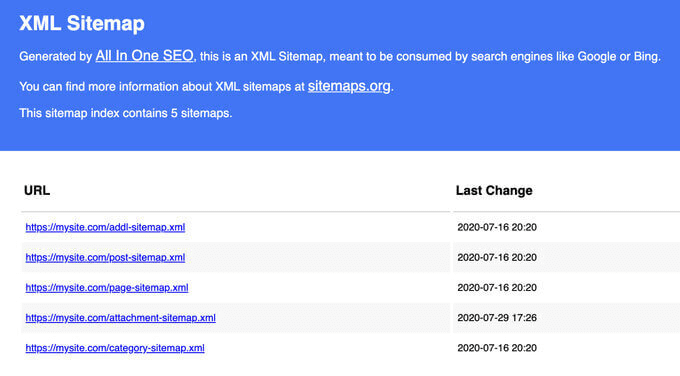
Mapa witryny XML to plik zawierający listę każdej strony w Twojej witrynie w formacie czytelnym dla wyszukiwarek. Nie zwiększa ona bezpośrednio pozycji w rankingu, ale pomaga Google szybciej odkrywać i indeksować Twoje treści.
Jeśli używasz AIOSEO, Twoja mapa witryny jest tworzona automatycznie. Znajdziesz ją pod adresem:
https://yourdomain.com/sitemap.xml
Oprócz standardowej mapy witryny XML, powinieneś również rozważyć dodanie specjalistycznych map witryn w zależności od typu prowadzonej witryny:
| Typ mapy witryny | Czym jest | Kiedy jej używać | Typowe przypadki użycia |
|---|---|---|---|
| Mapa witryny obrazów | Mapa witryny zawierająca metadane obrazów (podpisy, tytuły, adresy URL plików) wraz z adresami URL stron | Używaj jej, jeśli obrazy odgrywają kluczową rolę w tym, jak odwiedzający odkrywają Twoją witrynę | Obrazy produktów w sklepach internetowych, portfolio fotograficzne i inne. |
| Mapa witryny wideo | Mapa witryny zawierająca metadane wideo, takie jak miniatury, tytuły, opisy i czas trwania | Gdy chcesz, aby Google odkrywał i indeksował Twoje treści wideo | Samouczki wideo, demonstracje produktów, kursy online, strony medialne |
| Mapa witryny aktualności | Mapa witryny przeznaczona dla aktualnych treści informacyjnych opublikowanych w ciągu ostatnich 48 godzin | Najlepiej sprawdzi się dla Ciebie, jeśli publikujesz treści kwalifikujące się do Google News | Wydawnictwa prasowe, media i prasa |
| Mapa witryny RSS | Mapa witryny oparta na kanale informacyjnym, która powiadamia wyszukiwarki o nowo opublikowanych lub zaktualizowanych treściach | Gdy chcesz szybszego indeksowania nowych treści, nie czekając na standardowe odświeżenie mapy witryny | Blogi, strony informacyjne, wydawcy z dużą ilością treści |
| Mapa witryny HTML | Strona czytelna dla człowieka, zawierająca listę wszystkich adresów URL Twojej witryny w uporządkowanej strukturze | Gdy chcesz poprawić nawigację wewnętrzną i pomóc odwiedzającym znaleźć treści | Duże witryny, centra zasobów, katalogi, bazy wiedzy |
AIOSEO automatycznie obsługuje wszystkie te typy map witryn.
Następnym krokiem jest przesłanie map witryn do Google Search Console, aby Google wiedziało, gdzie je znaleźć.
Dodaj swoją witrynę do Google Search Console
Google Search Console to bezpłatne narzędzie, które pokazuje dokładnie, jak Google widzi Twoją witrynę. Możesz zobaczyć, jakie terminy wyszukiwania przyciągają ludzi na Twoją stronę, jak Twoje strony pojawiają się w wynikach i czy Google ma problemy z indeksowaniem Twoich treści.
Jeśli korzystasz z AIOSEO, postępuj zgodnie z tym przewodnikiem, aby połączyć Google Search Console. W przeciwnym razie zapoznaj się z naszym samouczkiem krok po kroku, jak dodać swoją witrynę WordPress do Google Search Console.
Po połączeniu kliknij „Mapy witryn” w menu po lewej stronie i prześlij adres URL swojej mapy witryny. Google zacznie jej używać do bardziej efektywnego indeksowania Twojej witryny.
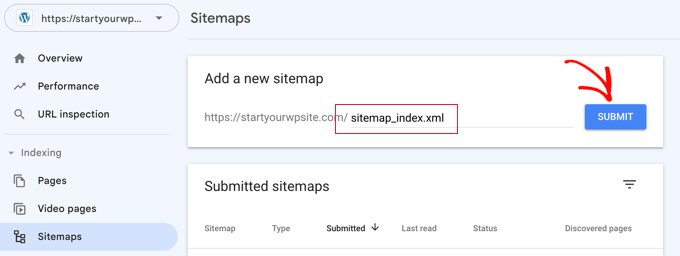
Zalecamy sprawdzanie Konsoli wyszukiwania co najmniej raz w miesiącu. Zwróć uwagę na:
- Raport wydajności – pokazuje, które zapytania generują wyświetlenia i kliknięcia
- Raport zasięgu/indeksowania – oznacza strony, których Google nie może zaindeksować lub które wykluczył
- Raport Core Web Vitals – podkreśla problemy z szybkością i doświadczeniem użytkownika (więcej na ten temat poniżej)
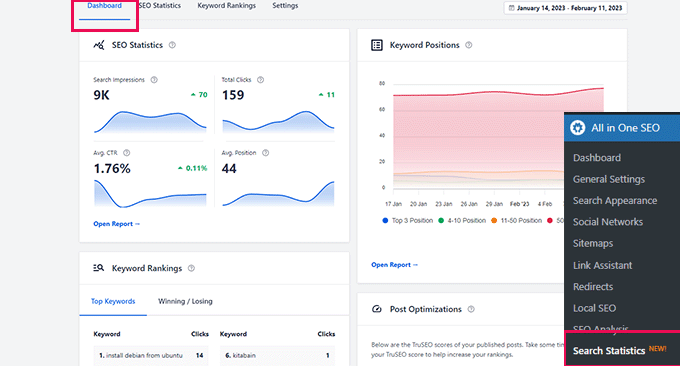
Wskazówka Pro: AIOSEO zawiera panel statystyk wyszukiwania, który przenosi dane z Google Search Console bezpośrednio do WordPressa, dzięki czemu możesz śledzić postępy SEO bez opuszczania swojej witryny.
Oprócz Google zalecamy również przesłanie swojej witryny do Bing, DuckDuckGo i innych wyszukiwarek.
Powinieneś również zainstalować MonsterInsights, aby zobaczyć dane Google Analytics w panelu WordPress. Pomoże Ci to zrozumieć, które źródła ruchu i strony działają najlepiej. Zobacz nasz przewodnik, jak zainstalować Google Analytics w WordPress.
SEO na stronie dla WordPress
Twój wtyczka SEO zajmuje się technicznymi podstawami, ale prawdziwe zyski pochodzą z publikowanych treści. W tej sekcji pokażemy Ci, jak zoptymalizować każdy wpis na blogu, znaleźć odpowiednie słowa kluczowe i zorganizować treści, aby wyszukiwarki mogły je zrozumieć.
Optymalizacja Twoich wpisów na blogu pod kątem SEO
SEO to ciągły proces, a największe zyski pochodzą z optymalizacji każdego opublikowanego wpisu.
AIOSEO (i inne najlepsze wtyczki SEO) pozwalają ustawić tytuł SEO, meta opis i słowo kluczowe dla każdego wpisu i strony. Otrzymasz również podgląd na żywo, jak Twoje ogłoszenie pojawi się w Google.
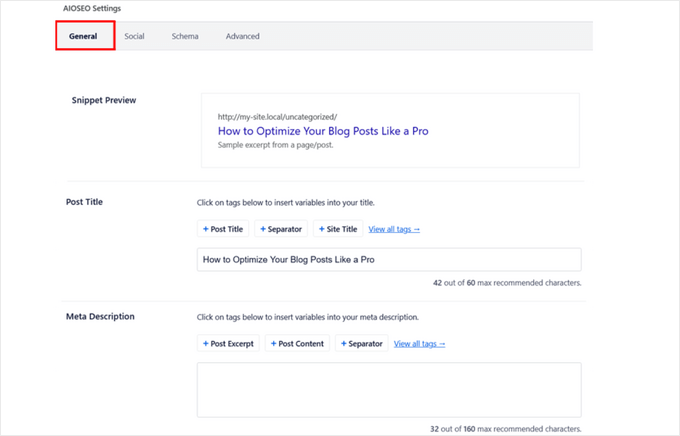
Oto kluczowe elementy na stronie, które należy zoptymalizować dla każdego wpisu:
- Tytuł SEO – umieść swoje słowo kluczowe na początku i zachowaj długość poniżej 60 znaków, aby Google nie obcięło tytułu
- Meta opis – napisz przekonujące podsumowanie o długości 160 znaków, które zachęci użytkowników do kliknięcia
- Nagłówki (H2, H3, H4) – używaj jasnej hierarchii nagłówków, gdzie każdy nagłówek opisuje sekcję poniżej i zawiera odpowiednie słowa kluczowe tam, gdzie pasują naturalnie
- Pierwszy akapit – wspomnij o głównym temacie w pierwszych 100 słowach, aby zarówno czytelnicy, jak i wyszukiwarki zrozumiały, o czym jest strona
- Formatowanie fragmentu wyróżnionego – jeśli chcesz pojawić się w polach odpowiedzi Google lub w przeglądach AI, przedstaw kluczowe odpowiedzi w postaci krótkich, bezpośrednich akapitów lub list numerowanych bezpośrednio pod nagłówkiem w formie pytania
Teraz znasz ważne elementy, które powinieneś optymalizować w każdym publikowanym przez siebie treści.
Następnie możesz użyć wyniku analizy na stronie TruSEO z AIOSEO, aby przeanalizować, co zrobiłeś dobrze, a co wymaga poprawy w Twoich treściach. Najlepsze jest to, że możesz sprawdzać to w czasie rzeczywistym podczas pisania. Używamy tego w każdym artykule, który publikujemy na WPBeginner.
Jeśli chcesz, możesz również użyć narzędzi do sprawdzania SEO, aby przeanalizować czytelność, gęstość słów kluczowych i trafność swoich treści przed ich publikacją.
Kompletny przewodnik znajdziesz w naszym poradniku jak optymalizować posty na blogu pod kątem SEO jak profesjonalista.
Badanie słów kluczowych dla Twojej witryny
Wielu początkujących zgaduje, jakich tematów ludzie szukają. To jak strzelanie strzałą w ciemność. Badanie słów kluczowych zastępuje zgadywanie rzeczywistymi danymi, dzięki czemu możesz tworzyć treści wokół terminów, których Twoi odbiorcy faktycznie szukają.
Oto, w czym pomaga dobre badanie słów kluczowych:
- Odkryj dokładne słowa i frazy, które Twoi odbiorcy wpisują w Google
- Znajdź tematy, w których masz realną szansę na ranking, nawet w porównaniu z większymi witrynami
- Zrozum intencję wyszukiwania, aby dopasować to, czego użytkownicy faktycznie chcą
- Zbuduj klastry tematów, które wzmocnią Twoją autorytet w danej dziedzinie
- Unikaj marnowania czasu na słowa kluczowe, na które przeglądy AI już udzielają pełnych odpowiedzi
Dostępnych jest wiele narzędzi do badania słów kluczowych. Polecamy LowFruits, ponieważ specjalizuje się w znajdowaniu słów kluczowych o niskiej konkurencji, w których masz realną szansę na ranking.
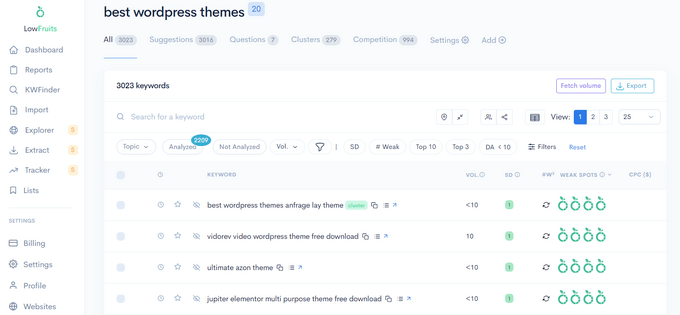
Oto praktyczny przepływ pracy badawczej słów kluczowych, który możesz zastosować:
- Zacznij od tematów bazowych – wymień 5-10 szerokich tematów centralnych dla Twojej niszy
- Rozszerz za pomocą narzędzi – wpisz każdy temat bazowy do LowFruits lub Generatora Słów Kluczowych WPBeginner, aby znaleźć setki powiązanych słów kluczowych
- Grupuj w klastry – zorganizuj powiązane słowa kluczowe w klastry tematów z jedną stroną filarową wspieraną przez kilka powiązanych postów
- Sprawdź luki konkurencji – użyj naszego darmowego Narzędzia do sprawdzania gęstości słów kluczowych na adresach URL konkurentów, aby zobaczyć, co oni targetują, a Ty nie
- Priorytetyzuj według intencji – słowa kluczowe informacyjne („jak zrobić”), komercyjne („najlepsze narzędzia”) i transakcyjne („kup”) wymagają różnych typów stron. Skup się na słowach kluczowych, dla których wyszukujący potrzebują odwiedzić stronę internetową, aby uzyskać odpowiedź.
LowFruits zawiera również funkcję grupowania słów kluczowych, która pomaga grupować powiązane słowa kluczowe razem, co wzmacnia Twoją pozycję w danym temacie i pomaga Ci uzyskać ranking dla wielu terminów przy mniejszej liczbie artykułów.
Jeśli chcesz darmowych alternatyw, oto dwie, które sami stworzyliśmy:
- Generator Słów Kluczowych WPBeginner – generuje ponad 300 pomysłów na słowa kluczowe natychmiast z dowolnego terminu początkowego
- Narzędzie do sprawdzania gęstości słów kluczowych – ujawnia, jakie słowa kluczowe są celem Twoich konkurentów na dowolnej stronie
Ważne: Intencja słowa kluczowego jest ważniejsza niż jego wolumen. Słowo kluczowe z 500 miesięcznymi wyszukiwaniami i jasną intencją zakupu lub nauki często przyniesie więcej wartości niż ogólny termin z 10 000 wyszukiwaniami, na które Google odpowiada podsumowaniem AI. Skup się na słowach kluczowych, dla których wyszukujący potrzebuje odwiedzić stronę internetową, aby uzyskać odpowiedź.
Aby uzyskać pełny opis, zobacz nasz poradnik na temat jak przeprowadzić badanie słów kluczowych dla Twojego bloga WordPress.
Prawidłowe używanie kategorii i tagów w WordPressie
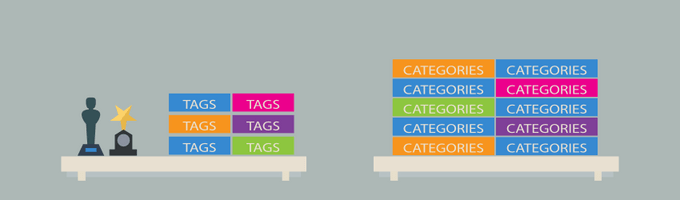
WordPress pozwala organizować posty w kategorie i tagi. Używane poprawnie, pomagają zarówno czytelnikom, jak i wyszukiwarkom zrozumieć strukturę Twojej witryny.
Po wyjaśnieniu tego tysiącom czytelników, oto jak myślimy o tym:
- Kategorie to szerokie grupy tematów, jak spis treści książki. Blog kulinarny może mieć kategorie Przepisy, Recenzje i Wskazówki kulinarne. Kategorie są hierarchiczne (możesz tworzyć podkategorie).
- Tagi to specyficzne deskryptory, jak indeks książki. Post w kategorii Przepisy może być oznaczony tagami „makaron”, „wegetariański” lub „posiłki 30-minutowe”.
Najczęstszym błędem jest tworzenie zbyt wielu kategorii lub używanie tagów i kategorii zamiennie. Ogranicz swoje kategorie do 8-12 szerokich tematów i używaj tagów do szczegółów.
Więcej na ten temat znajdziesz w naszym poradniku na temat kategorii vs tagów i najlepszych praktyk SEO oraz w naszym poradniku na temat SEO taksonomii.
Budowanie autorytetu i zaufania
Publikowanie świetnych treści to tylko połowa sukcesu. Google ocenia również, czy Twoja witryna jest autorytatywna i godna zaufania, zanim ją oceni. Poniższe praktyki pomogą Ci zbudować tę wiarygodność w czasie.
Uczyń wewnętrzne linkowanie nawykiem
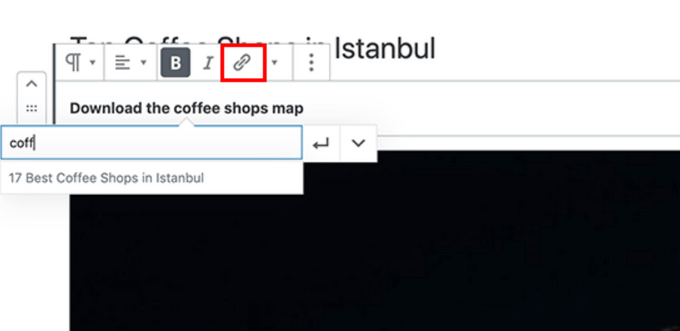
Wyszukiwarki przypisują każdej stronie wynik, powszechnie nazywany „autorytetem strony”. Jednym z najsilniejszych sygnałów wpływających na ten wynik są linki – zarówno z innych stron internetowych, jak i z Twojej własnej witryny.
Dlatego wewnętrzne linkowanie jest tak ważne. Za każdym razem, gdy linkujesz z jednego ze swoich postów do innego, przekazujesz autorytet i pomagasz wyszukiwarkom zrozumieć, które strony są najważniejsze.
Wypracuj nawyk dodawania co najmniej 3-4 wewnętrznych linków w każdym publikowanym poście. Jeśli masz wielu autorów, uwzględnij tę zasadę „dodawania co najmniej 4 wewnętrznych linków” w swojej liście kontrolnej przed publikacją.
Podczas linkowania wewnętrznego priorytetowo traktuj linkowanie do swoich najbardziej wyczerpujących, najlepiej działających artykułów (często nazywanych treścią filarową lub stronami filarowymi). Pomaga to w dystrybucji autorytetu Twojej witryny i dokładnie informuje wyszukiwarki, które strony są najważniejsze.
Ręczne dodawanie linków wewnętrznych może być czasochłonne, dlatego AIOSEO stworzyło Link Assistant. Automatycznie skanuje Twoją witrynę i sugeruje odpowiednie linki wewnętrzne, które możesz dodać jednym kliknięciem.
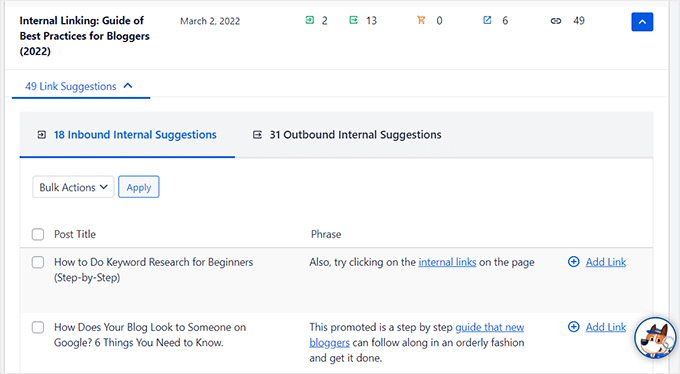
Więcej strategii znajdziesz w naszym przewodniku po linkowaniu wewnętrznym z najlepszymi praktykami oraz w naszym zestawieniu najlepszych wtyczek do linkowania wewnętrznego dla WordPress.
Powiązane: AIOSEO oferuje również darmową wtyczkę Broken Link Checker, która skanuje Twoją witrynę w poszukiwaniu niedziałających linków i pozwala je naprawić bez opuszczania WordPressa.
Schemat znacznika i bogate fragmenty (schemat FAQ, recenzje i więcej)
Czy zauważyłeś, że niektóre wyniki Google wyglądają inaczej? Niektóre pokazują oceny gwiazdkowe, rozwijane listy FAQ, karty przepisów lub szczegóły wydarzeń. Te rozszerzone listingi nazywane są rich snippets i są zasilane przez schemat markup.
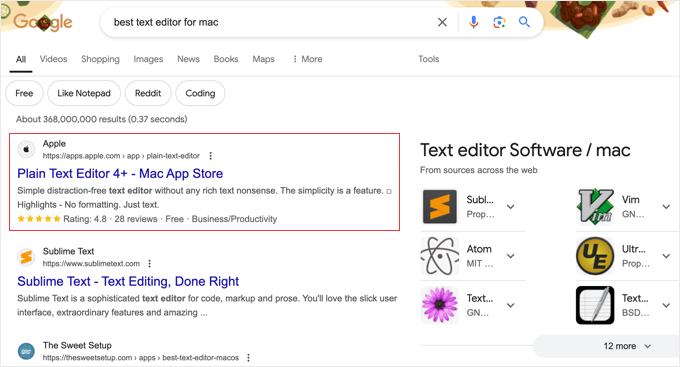
Schemat markup to ustrukturyzowane dane, które dodajesz do swojej witryny, aby dokładnie poinformować wyszukiwarki, czym jest Twoja treść – przepisem, produktem, FAQ, wydarzeniem lub artykułem. Wyszukiwarki wykorzystują te dane do wyświetlania rozszerzonych wyników, które wyróżniają się i uzyskują wyższy wskaźnik klikalności.
Schemat odgrywa również coraz ważniejszą rolę w AI Overviews. Generowane przez AI podsumowania Google czerpią z stron z jasnymi, ustrukturyzowanymi danymi. Dodanie odpowiedniego schematu zwiększa prawdopodobieństwo, że Twoja treść zostanie przytoczona w tych podsumowaniach AI.
Dobrą wiadomością jest to, że nie musisz pisać żadnego kodu. AIOSEO zawiera generator schematów bezpośrednio w edytorze Twojego posta. Wystarczy wybrać typ schematu (Artykuł, FAQ, Jak to zrobić, Produkt, Przepis, Wydarzenie itp.), wypełnić pola, a wtyczka automatycznie doda poprawny kod JSON-LD. AIOSEO niedawno wprowadziło również AI Schema Generator, który może analizować treść Twojej strony i tworzyć odpowiedni schemat – bez ręcznej konfiguracji.

Na przykład dodanie schematu FAQ do posta może spowodować, że Twój listing rozwinie się z rozwijanymi pytaniami i odpowiedziami bezpośrednio w wynikach wyszukiwania:
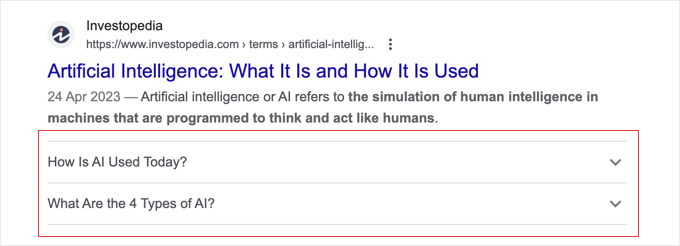
Możesz użyć podobnych technik dla schematu przepisu, schematu produktu, schematu wydarzenia i innych. Zalecamy wykorzystanie schematu w każdym poście – jest to jeden z najłatwiejszych sposobów na poprawę wskaźnika klikalności.
Budowanie sygnałów E-E-A-T w Twojej witrynie WordPress
E-E-A-T oznacza Experience, Expertise, Authoritativeness, and Trustworthiness (Doświadczenie, Wiedza, Autorytet i Wiarygodność). Jest to framework, którego Google używa do oceny jakości treści i stał się on jednym z najważniejszych czynników rankingowych w ostatnich latach.
Mówiąc prościej, Google chce wiedzieć: czy ta treść została napisana przez kogoś, kto faktycznie wie, o czym mówi? I czy czytelnicy mogą ufać tej stronie internetowej?
Oto najważniejsze sygnały E-E-A-T, które możesz dodać do swojej witryny WordPress:
- Bio autorów przy każdym wpisie – dodaj krótkie bio z kwalifikacjami, doświadczeniem i powiązanymi linkami autora. Wtyczka do tworzenia bio autorów ułatwia to.
- Dedykowane strony autorów – twórz pełne profile autorów, które zawierają listę opublikowanych artykułów każdego pisarza, jego kwalifikacje i profile społecznościowe.
- Strona „O nas” – wyjaśnij, kto prowadzi witrynę, jakie jest doświadczenie Twojego zespołu i dlaczego czytelnicy powinni ufać Twoim treściom.
- Cytuj swoje źródła – linkuj do autorytatywnych źródeł podczas odwoływania się do danych, statystyk lub twierdzeń, aby zasygnalizować, że Twoje treści są dobrze zbadane.
- Pokaż rzeczywiste doświadczenie – udostępniaj bezpośrednie doświadczenia, zrzuty ekranu, oryginalne dane lub studia przypadków. Google szczególnie ceni komponent „Doświadczenie”.
- Przejrzystość redakcyjna – rozważ dodanie polityki redakcyjnej, procesu weryfikacji faktów lub odznak „przejrzane przez” w ważnych treściach.
Funkcja SEO autorów AIOSEO automatyzuje wiele z tych czynności. Generuje odpowiednie znaczniki schematu autora, strukturyzuje sygnały E-E-A-T dla wyszukiwarek i obsługuje przypisywanie pisarzy/recenzentów do każdego wpisu – wszystko bez dotykania kodu.
Aby dowiedzieć się więcej o tym, jak Google ocenia jakość treści, zapoznaj się z naszym przewodnikiem na temat czym jest Google E-E-A-T i jak je poprawić.
Optymalizacja pod kątem wyszukiwania AI
Wyszukiwanie to już nie tylko dziesięć niebieskich linków. Google AI Overviews, ChatGPT, Perplexity i inne narzędzia AI zmieniają sposób, w jaki ludzie znajdują informacje. Oto, jak zapewnić, że Twoje treści WordPress pojawią się w tych nowych kanałach.
Optymalizacja pod kątem AI Overviews i wyszukiwania generatywnego
Google AI Overviews to generowane przez AI podsumowania, które pojawiają się na górze wyników wyszukiwania dla wielu zapytań. Zamiast po prostu wyświetlać linki, Google odczytuje teraz wiele stron internetowych i tworzy syntetyczną odpowiedź – z cytatami prowadzącymi z powrotem do użytych źródeł.
Uzyskanie cytatu dla Twoich treści w AI Overview może przynieść znaczący ruch, nawet jeśli nie zajmujesz tradycyjnej pozycji #1. Oto jak zoptymalizować pod tym kątem:
- Bezpośrednio odpowiadaj na pytania – strukturuj swoje treści za pomocą jasnych nagłówków z pytaniami (H2/H3), a następnie zwięzłych, rzeczowych odpowiedzi w pierwszych 1-2 zdaniach. Modele AI pobierają informacje z treści, które dostarczają bezpośrednich odpowiedzi.
- Używaj ustrukturyzowanego formatowania – listy numerowane, wypunktowania, tabele porównawcze i akapity w stylu definicji są łatwiejsze do przetworzenia i zacytowania przez AI.
- Dodaj unikalną wartość – AI Overviews priorytetyzują treści z oryginalnymi danymi, doświadczeniem z pierwszej ręki, opiniami ekspertów i konkretnymi przykładami. Ogólne porady są pomijane.
- Utrzymuj aktualność treści – modele AI faworyzują ostatnio aktualizowane treści, dlatego regularnie odświeżaj swoje wpisy o aktualne informacje, zrzuty ekranu i daty.
- Używaj znaczników schematu – jak omówiliśmy powyżej, dane strukturalne pomagają AI zrozumieć typ i autorytet Twoich treści.
Te same strategie, które pomagają Ci uzyskać cytowania w Google AI Overviews, działają również w przypadku ChatGPT, Perplexity i innych narzędzi wyszukiwania AI. Narzędzia te skanują i cytują treści internetowe w podobny sposób.
To praktyka jest obecnie powszechnie nazywana Generative Engine Optimization (GEO). Pełną strategię znajdziesz w naszym przewodniku dla początkujących po GEO dla WordPress.
Konfiguracja llms.txt dla agentów AI
Nowszym rozwiązaniem w wyszukiwaniu AI jest standard llms.txt. Podobnie jak robots.txt informuje roboty wyszukiwarek o dostępie do Twojej witryny, llms.txt informuje agentów AI (takich jak ChatGPT, Claude i Perplexity) o czym jest Twoja witryna i jak korzystać z Twoich treści.
Dodanie pliku llms.txt do Twojej witryny WordPress pomaga narzędziom AI zrozumieć strukturę Twoich treści, które strony są najważniejsze i jak dokładnie przedstawić Twoje informacje podczas odpowiadania na pytania użytkowników.
Wskazówka Pro: Jest to wciąż rozwijający się standard, ale wczesne przyjęcie daje Ci przewagę w miarę wzrostu wyszukiwania opartego na sztucznej inteligencji. Wielu użytkowników WordPressa już widzi ruch z narzędzi AI, a posiadanie pliku llms.txt ułatwia tym narzędziom znalezienie i poprawne cytowanie Twoich treści.
Szczegółowy przewodnik po konfiguracji znajdziesz w naszym poradniku na temat czym jest llms.txt i jak dodać go do swojej witryny WordPress.
Lokalne SEO dla stron WordPress
Jeśli Twoja firma ma fizyczną lokalizację – restaurację, sklep detaliczny, klinikę lub biuro regionalne – musisz zoptymalizować ją pod kątem SEO lokalnego. Zapewnia to wyświetlanie Twojej witryny w lokalnych wynikach wyszukiwania i Mapach Google, gdy ludzie szukają firm takich jak Twoja w pobliżu.
Na przykład, gdy ktoś szuka „włoskich restauracji w pobliżu”, Google wyświetla listę i mapę odpowiednich firm w ich okolicy:
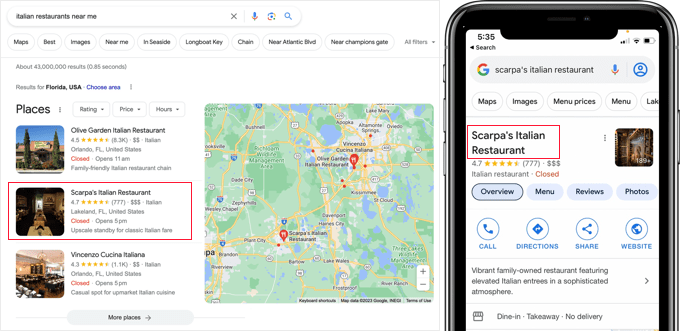
Google podaje, że wyszukiwania lokalnych miejsc, takich jak „zakupy w pobliżu”, stale rosną rok do roku (źródło). Jeśli Twoja firma nie jest widoczna w lokalnych wynikach, tracisz potencjalnych klientów.
Kluczowe czynniki rankingowe w lokalnym SEO obejmują:
- Profil Firmy w Google – odbierz i uzupełnij swój wpis o dokładne godziny otwarcia, zdjęcia i kategorie
- Pozytywne opinie – zachęcaj do autentycznych opinii klientów w Google i na swojej stronie internetowej
- Spójność NAP – upewnij się, że Twoja nazwa, adres firmy i numer telefonu są identyczne na każdej platformie
- Lokalne znaczniki schema – dodaj dane strukturalne, aby wyszukiwarki mogły dokładnie odczytać informacje o Twojej lokalizacji
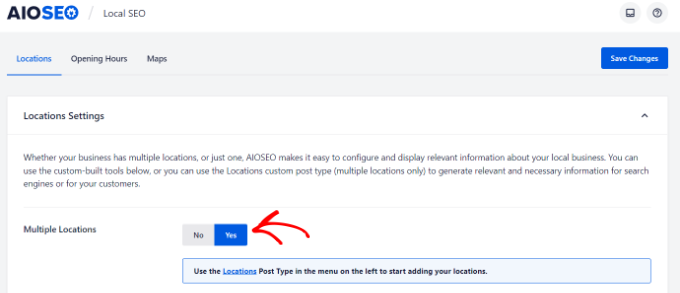
Najłatwiejszym sposobem dodania lokalnych znaczków schema dla firm jest użycie modułu Local SEO w AIOSEO. Pozwala on na dodawanie danych lokalizacyjnych, informacji kontaktowych, godzin otwarcia i map z nawigacją zakręt po zakręcie.
Jeśli Twoja firma ma wiele lokalizacji, po prostu przełącz ustawienie „Wiele lokalizacji”, aby zarządzać nimi wszystkimi z jednego miejsca.
Wielojęzyczne SEO dla stron WordPress
Jeśli Twoja grupa docelowa pochodzi z różnych krajów na całym świecie, to przetłumaczenie Twojej witryny WordPress może otworzyć Twoje treści na zupełnie nowe źródła ruchu.
Wielojęzyczne SEO zapewnia, że wyszukiwarki rozumieją, dla jakiego języka i regionu przeznaczona jest każda wersja Twojej strony.
Bez odpowiedniej konfiguracji wyszukiwarki mogą jednak mieć trudności z serwowaniem właściwej wersji językowej właściwemu użytkownikowi lub w ogóle nie zaindeksować przetłumaczonych treści.
Oto kluczowe rzeczy, które należy prawidłowo skonfigurować w wielojęzycznym SEO:
- Używaj tagów hreflang – informują one wyszukiwarki, jaki język i region jest celem każdej strony, dzięki czemu właściwa wersja pojawia się w wynikach wyszukiwania dla danego kraju. Tagi Hreflang muszą być wzajemne (jeśli Twoja strona w języku angielskim linkuje do Twojej strony w języku francuskim, strona w języku francuskim musi linkować z powrotem), w przeciwnym razie wyszukiwarki mogą je zignorować. Dodaj również tag x-default jako zapasowy dla użytkowników, których język nie pasuje do żadnej wersji.
- Nadaj każdemu językowi własny adres URL – Niezależnie od tego, czy używasz podkatalogów (/es/), subdomen (es.example.com), czy oddzielnych domen, musisz nadać każdemu językowi własny, unikalny adres internetowy. Pamiętaj, aby unikać umieszczania wielu języków w jednym adresie URL.
- Tłumacz metadane, nie tylko treść – Twój tytuł SEO, opis meta, tekst alternatywny obrazu i dane strukturalne również powinny zostać przetłumaczone, a nie tylko widoczna treść strony.
- Dodaj widoczny przełącznik języka – Ułatw użytkownikom znalezienie i przełączenie się na preferowany język bezpośrednio z menu nawigacyjnego lub paska bocznego Twojej witryny.
- Zlecaj przegląd tłumaczeń – Tłumaczenia AI i maszynowe znacznie się poprawiły, ale warto rozważyć zlecenie natywnemu użytkownikowi języka przeglądu stron o wysokiej stawce (takich jak strony prawne, strony produktów i strona realizacji zakupu), aby zapewnić jakość.
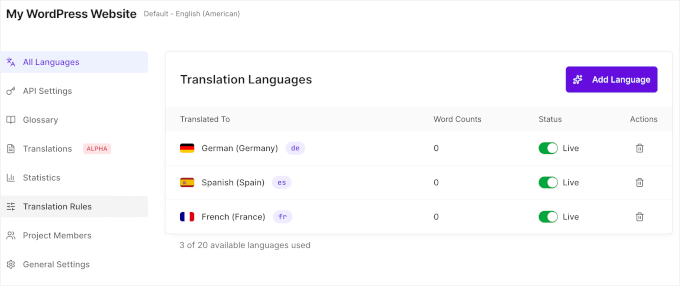
Do obsługi rzeczywistych tłumaczeń polecamy Universally, narzędzie do tłumaczenia oparte na sztucznej inteligencji, które może przetłumaczyć całą Twoją witrynę na 110 języków w ciągu kilku minut.
Universally automatycznie generuje tagi hreflang, przetłumaczone opisy meta, wielojęzyczne mapy witryn XML i prawidłowo ustrukturyzowane adresy URL dla każdego języka. W ten sposób wyszukiwarki mogą indeksować każdą wersję językową jako osobną stronę.
Ponadto, w przeciwieństwie do wtyczek do tłumaczeń, które tworzą zduplikowaną kopię każdej strony w Twojej bazie danych (takich jak WPML czy Polylang), Universally nie przechowuje przetłumaczonych treści w Twojej witrynie.
Tłumaczenia są serwowane z własnej chmury i dostarczane z serwerów najbliższych każdemu użytkownikowi. Dodawanie kolejnych języków nie spowalnia Twojej witryny, co jest również ważne dla SEO.
Więcej szczegółów na temat korzystania z niego znajdziesz w naszym przewodniku jak przetłumaczyć swoją witrynę za pomocą AI.
Techniczne SEO dla witryn WordPress
Nawet najlepsze treści będą miały trudności z rankingiem, jeśli Twoja witryna jest wolna, niezabezpieczona lub trudna do zaindeksowania przez wyszukiwarki. Techniczne SEO obejmuje stan Twojej witryny „za kulisami”, który bezpośrednio wpływa na Twoje rankingi.
Core Web Vitals i szybkość witryny
Google używa Core Web Vitals jako bezpośredniego czynnika rankingowego. Są to trzy konkretne metryki, które mierzą, jak szybko i płynnie Twoja witryna działa dla rzeczywistych użytkowników:
- LCP (Largest Contentful Paint) – jak szybko ładuje się główna treść. Cel: poniżej 2,5 sekundy
- INP (Interaction to Next Paint) – jak szybko Twoja witryna reaguje, gdy użytkownik klika, dotyka lub pisze. Cel: poniżej 200 milisekund
- CLS (Cumulative Layout Shift) – jak stabilny jest układ strony podczas ładowania (brak przesuwających się przycisków lub tekstu). Cel: poniżej 0,1
Możesz sprawdzić swoje wyniki za pomocą bezpłatnego narzędzia Google PageSpeed Insights lub w raporcie Core Web Vitals w Google Search Console.
Oto specyficzne dla WordPressa optymalizacje szybkości, które przynoszą największą różnicę:
- Wybierz szybki hosting – hosting to Twój limit szybkości. Żadna optymalizacja nie zrekompensuje wolnego serwera. Szybki hosting WordPress, taki jak SiteGround lub Hostinger, robi największą różnicę
- Zainstaluj wtyczkę do buforowania – WP Rocket jest naszą rekomendacją. Obsługuje buforowanie stron, minifikację plików i leniwe ładowanie przy minimalnej konfiguracji. Zobacz nasz przewodnik, jak skonfigurować WP Rocket
- Użyj sieci CDN – sieć dostarczania treści serwuje Twoje strony z serwerów najbliższych każdemu odwiedzającemu, globalnie skracając czas ładowania. Większość dobrych hostingów zawiera tę funkcję
- Zminimalizuj liczbę wtyczek – usuń wszystko, co nieużywane. Każda wtyczka dodaje JavaScript i CSS, które spowalniają czas ładowania
- Kompresuj i leniwie ładuj obrazy – używaj formatów WebP lub AVIF dla mniejszych rozmiarów plików. Zobacz naszą sekcję optymalizacji obrazów poniżej
- Optymalizuj czcionki – ogranicz niestandardowe grubości czcionek i użyj font-display: swap, aby zapobiec opóźnieniom w renderowaniu
Kompleksowy przegląd optymalizacji znajdziesz w naszym ostatecznym przewodniku po przyspieszaniu WordPressa oraz w naszym szczegółowym tutorialu, jak zoptymalizować Core Web Vitals dla WordPressa.
Optymalizacja obrazów w WordPressie pod kątem SEO
Obrazy sprawiają, że Twoje treści są bardziej angażujące, ale nieoptymalizowane obrazy są jedną z najczęstszych przyczyn wolnego ładowania stron.
Oto jak utrzymać szybkość i przyjazność obrazów dla SEO:
- Kompresuj przed przesłaniem – używaj narzędzi lub wtyczek do zmniejszenia rozmiaru pliku bez widocznej utraty jakości. Zobacz nasz przewodnik po optymalizacji obrazów dla sieci
- Używaj nowoczesnych formatów – formaty WebP i AVIF są znacznie mniejsze niż JPEG/PNG przy zachowaniu jakości. Większość nowoczesnych wtyczek do obrazów WordPress może automatycznie konwertować
- Włącz leniwe ładowanie – ładuje obrazy tylko wtedy, gdy pojawią się w widoku, poprawiając początkową szybkość ładowania strony. WordPress domyślnie zawiera podstawowe leniwe ładowanie
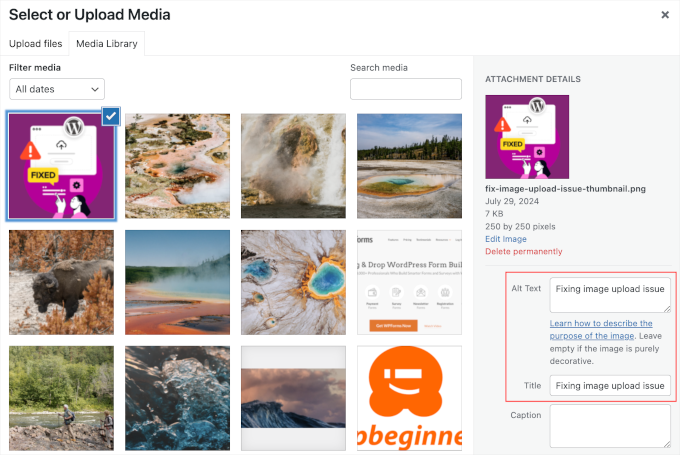
- Napisz opisowy tekst alternatywny – tagi alt pomagają wyszukiwarkom zrozumieć Twoje obrazy i poprawiają dostępność dla czytników ekranu. Opisz obraz naturalnie i nie przepełniaj tekstu alternatywnego słowami kluczowymi.
Jeśli dodajesz dużo obrazów do swojej witryny, zalecamy używanie Envira Gallery w połączeniu z AIOSEO. W naszych testach szybkości była to najszybsza wtyczka galerii WordPress i jest w pełni przyjazna dla SEO od razu po wyjęciu z pudełka.
Aby uzyskać więcej wskazówek, zobacz nasz kompletny przewodnik dla początkujących po SEO obrazów. A jeśli masz treści wideo, zobacz nasz przewodnik po konfiguracji SEO wideo w WordPress.
Bezpieczeństwo Twojej witryny WordPress

Każdego tygodnia Google umieszcza na czarnej liście tysiące witryn z powodu złośliwego oprogramowania i phishingu. Witryna z czarnej listy znika całkowicie z wyników wyszukiwania – cała Twoja praca SEO przepadnie w jednej chwili.
Dobrą wiadomością jest to, że utrzymanie bezpieczeństwa witryny WordPress nie jest trudne. Postępuj zgodnie z instrukcjami krok po kroku w naszym ostatecznym przewodniku po bezpieczeństwie WordPress.
W WPBeginner używamy Cloudflare do ochrony naszych witryn przed atakami. Przez wiele lat używaliśmy Sucuri – zobacz nasze studium przypadku jak Sucuri pomogło nam zablokować 450 000 ataków w 3 miesiące.
Zacznij używać SSL/HTTPS
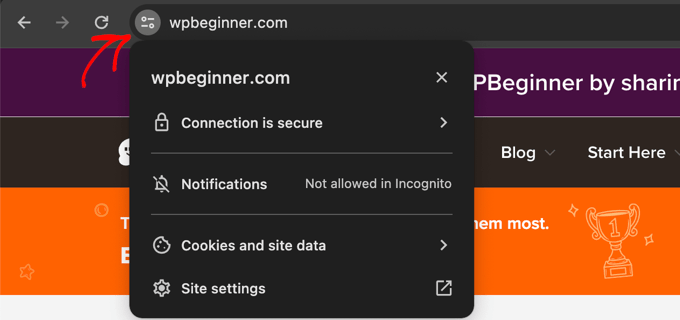
SSL szyfruje połączenie między przeglądarką odwiedzającego a Twoim serwerem. Google potwierdził, że HTTPS jest sygnałem rankingowym, a przeglądarki takie jak Chrome wyświetlają ostrzeżenia o bezpieczeństwie na witrynach bez niego.
Jeśli prowadzisz sklep internetowy lub zbierasz dane użytkowników, SSL nie jest opcjonalny – jest wymagany.
Wszystkie główne firmy hostingowe WordPress oferują darmowe certyfikaty SSL za pośrednictwem Let's Encrypt. Zobacz nasz przewodnik po uzyskaniu darmowego certyfikatu SSL dla swojej witryny.
Jeśli potrzebujesz premium certyfikatu wildcard SSL lub certyfikatu z gwarancją bezpieczeństwa, polecamy Namecheap. Ich certyfikaty zawierają gwarancje bezpieczeństwa i pieczęć TrustLogo dla zwiększenia wiarygodności.
Najlepsze praktyki SEO dla WordPressa
Jeśli wykonałeś powyższe kroki, jesteś już przed większością witryn. Te dodatkowe najlepsze praktyki można szybko wdrożyć i mogą dać Ci dodatkową przewagę w wynikach wyszukiwania.
Optymalizuj komentarze w WordPress

Autentyczne komentarze są silnym sygnałem zaangażowania użytkowników. Mogą prowadzić do większej liczby linków, dłuższego czasu na stronie i powracających odwiedzających – wszystko to pomaga SEO.
Jednak spamujące komentarze ze złymi linkami mogą aktywnie szkodzić Twoim rankingom. Zalecamy używanie Akismet (preinstalowany z WordPress) do automatycznego filtrowania spamu. Jeśli potrzebujesz dodatkowej ochrony, zobacz te wskazówki i narzędzia do zwalczania spamu w komentarzach.
Jeśli Twoje posty przyciągają wiele autentycznych komentarzy, to świetnie – ale zbyt wiele komentarzy na jednej stronie może ją spowolnić. Możesz to naprawić, stronicując swoje komentarze, aby podzielić je na wiele stron.
Chcesz większego zaangażowania? Sprawdź te sposoby na uzyskanie większej liczby komentarzy na blogu WordPress.
Linki zewnętrzne NoFollow w WordPress
Kiedy linkujesz do innej strony internetowej, przekazujesz niewielką część autorytetu swojej witryny (tzw. „wartość linku”) do tej strony. Jest to normalne i dopuszczalne w przypadku zaufanych źródeł.
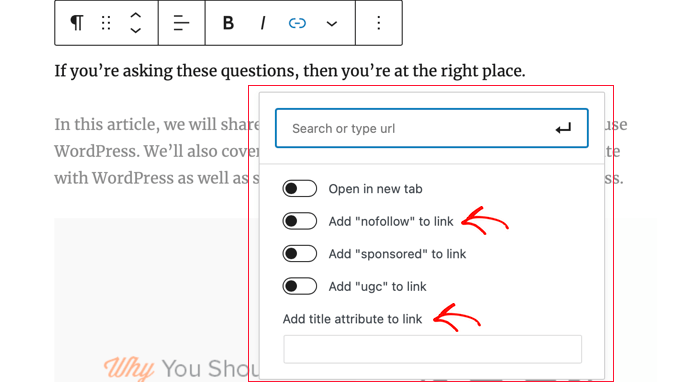
Jednak w przypadku linków, których nie chcesz popierać – linków sponsorowanych, adresów URL przesłanych przez użytkowników lub niezaufanych witryn – należy dodać atrybut nofollow. Informuje to wyszukiwarki, aby nie przekazywały autorytetu do tego linku.
Normalny link wygląda tak:
<a href="http://example.com">Example Website</a>
Link nofollow wygląda tak:
<a href="http://example.com" rel="nofollow">Example Website</a>
WordPress domyślnie nie zawiera opcji nofollow, ale AIOSEO dodaje ją bezpośrednio do edytora linków. Podczas wstawiania linku wystarczy przełączyć opcję „Dodaj nofollow”:
Więcej szczegółów znajdziesz w naszym przewodniku na temat dodawania linków nofollow w WordPress.
Pełne wpisy vs. podsumowania lub fragmenty
Domyślnie WordPress wyświetla pełną treść artykułu na stronie głównej, stronach archiwum kategorii, stronach tagów i w kanale RSS. Stwarza to dwa problemy: wyszukiwarki mogą uznać to za zduplikowaną treść, a także spowalnia strony archiwum.
Rozwiązanie jest proste – zamiast pełnych artykułów wyświetlaj na tych stronach podsumowania (wyciągi).
Dla swojego kanału RSS przejdź do Ustawienia » Czytanie i wybierz „Wyciąg”.
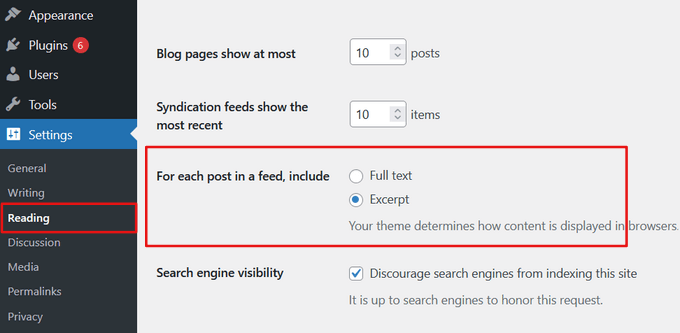
W przypadku stron archiwum front-end witryny zazwyczaj można to skonfigurować w ustawieniach motywu (za pomocą narzędzia Dostosuj lub Edytora witryny) lub użyć bloku „Więcej” w poszczególnych postach, aby kontrolować punkt odcięcia.
Szczegółowe instrukcje znajdziesz w naszym przewodniku na temat dostosowywania wyciągów WordPress bez kodowania.
Samouczek wideo
Najczęściej zadawane pytania dotyczące SEO dla WordPressa
Oto odpowiedzi na niektóre z najczęściej zadawanych pytań dotyczących SEO w WordPress.
1. Ile czasu zajmuje, aby SEO WordPress zaczęło działać?
Podstawowe optymalizacje na stronie mogą przynieść niewielkie rezultaty w ciągu kilku tygodni, ale znaczące poprawy pozycji zazwyczaj zajmują od 3 do 6 miesięcy. SEO to długoterminowa strategia, która z czasem narasta dzięki konsekwentnym wysiłkom.
2. Czy WordPress jest dobry dla SEO od razu po wyjęciu z pudełka?
Tak, WordPress zapewnia solidne podstawy SEO dzięki czystemu kodowi, który wyszukiwarki mogą łatwo odczytać. Jednak aby zmaksymalizować swoją widoczność, potrzebujesz wtyczki SEO, takiej jak All in One SEO, oraz najlepszych praktyk opisanych w tym przewodniku.
3. Czy mogę samodzielnie zająć się SEO, czy muszę zatrudnić eksperta?
Możesz absolutnie samodzielnie zająć się SEO, postępując zgodnie z tym przewodnikiem. Wielu właścicieli małych firm z powodzeniem zarządza optymalizacją swoich witryn. Jeśli uznasz to za zbyt czasochłonne, zatrudnienie profesjonalisty jest dobrą opcją.
4. Jaka jest najważniejsza część SEO dla początkującego?
Zacznij od badań słów kluczowych i SEO na stronie. Zrozum, czego szuka Twoja publiczność, a następnie zoptymalizuj swoje tytuły, meta opisy i treści, aby pasowały do tych słów kluczowych. Daje to największy początkowy wpływ.
5. Jak zoptymalizować moją witrynę WordPress pod kątem podsumowań AI?
Strukturyzuj swoje treści za pomocą jasnych nagłówków z pytaniami, a następnie bezpośrednich, rzeczowych odpowiedzi. Używaj list, tabel i znaczników schematu. Dodaj unikalną wartość, taką jak oryginalne dane lub doświadczenia z pierwszej ręki. Zobacz naszą pełną sekcję na temat optymalizacji pod kątem wyszukiwania AI powyżej i nasz przewodnik po optymalizacji silnika generatywnego.
6. Czym jest E-E-A-T i czy WordPress je obsługuje?
E-E-A-T (Doświadczenie, Ekspertyza, Autorytatywność, Niezawodność) to framework, którego Google używa do oceny jakości treści. WordPress dobrze go wspiera – możesz dodawać biografie autorów, strony „O nas”, polityki redakcyjne i odpowiednie znaczniki schematu autora. Wtyczki takie jak AIOSEO ułatwiają to jeszcze bardziej dzięki funkcji Autora SEO.
7. Jaki jest niezbędny przewodnik po SEO w WordPressie?
Czytasz go! Ten przewodnik obejmuje wszystko, od podstawowych ustawień WordPressa po zaawansowane strategie, takie jak optymalizacja pod kątem wyszukiwania AI i E-E-A-T. Postępuj zgodnie z tymi najlepszymi praktykami i używaj kompleksowej wtyczki SEO, a będziesz mieć solidne podstawy do pozycjonowania się w wynikach wyszukiwania.
Więcej narzędzi i zasobów SEO
Gdy już zapoznasz się z powyższymi najlepszymi praktykami SEO w WordPressie, te narzędzia i zasoby pomogą Ci pójść dalej.
Nasze najlepsze rekomendacje dotyczące narzędzi SEO dla WordPressa:
- AIOSEO – najlepsza kompleksowa wtyczka SEO dla WordPressa, używana przez ponad 3 miliony witryn. Dostępna jest potężna bezpłatna wersja
- Semrush – nasz najlepszy wybór do badań słów kluczowych i analizy konkurencji. Jest drogi, ale niezwykle potężny. (Bezpłatne alternatywy: Generator Słów Kluczowych WPBeginner i Sprawdzanie Gęstości Słów Kluczowych)
- MonsterInsights – najlepsza wtyczka Google Analytics dla WordPressa. Nie możesz ulepszyć tego, czego nie możesz zmierzyć. Dostępna jest bezpłatna wersja MonsterInsights Lite
- LowFruits – narzędzie do badań słów kluczowych skupiające się na znajdowaniu słów kluczowych o niskiej konkurencji, które są łatwiejsze do pozycjonowania.
- SEOBoost – asystent pisania oparty na sztucznej inteligencji, który analizuje Twoje treści pod kątem gęstości słów kluczowych, czytelności i trafności podczas pisania.
Pełne porównanie znajdziesz w naszym zestawieniu najlepszych wtyczek i narzędzi SEO dla WordPressa.
Powiązane przewodniki SEO dla WordPress
Ten przewodnik jest filarem naszego centrum wiedzy o SEO w WordPressie. Zagłęb się w konkretne tematy dzięki tym powiązanym przewodnikom:
Treść i SEO na stronie
- Lista kontrolna SEO dla wpisów na blogu
- Przewodnik po badaniach słów kluczowych
- Strategia klastrów tematycznych
- SEO kategorii i taksonomii
- Najlepsze praktyki linkowania wewnętrznego
AI i zaawansowane SEO
- Przeglądy AI Google – wskazówki dla użytkowników WordPressa
- Przewodnik dla początkujących po optymalizacji pod kątem silników generatywnych (GEO)
- Co to jest Google E-E-A-T i jak je poprawić
- Co to jest llms.txt i jak dodać je w WordPressie
- SEO wyszukiwania głosowego dla WordPressa
Techniczne SEO i wydajność
- Jak zoptymalizować Core Web Vitals dla WordPressa
- Ostateczny przewodnik po zwiększeniu prędkości WordPressa
- Problem budżetu indeksowania SEO w WordPressie
- Jak dodać IndexNow w WordPressie
- Kompletny przewodnik po bezpieczeństwie WordPress
Narzędzia i wtyczki SEO
- Najlepsze wtyczki SEO WordPress w porównaniu
- Najlepsze narzędzia do badania słów kluczowych
- Najlepsze wtyczki do linkowania wewnętrznego
- Lista kontrolna audytu SEO WordPress
- Jak stworzyć raport SEO dla swojej witryny WordPress
- Jak uzyskać linki do witryny Google dla Twojej witryny WordPress
Mamy nadzieję, że ten przewodnik pomógł Ci dowiedzieć się, jak prawidłowo zoptymalizować witrynę WordPress pod kątem SEO. Zacznij wdrażać te wskazówki już dziś, a powinieneś zobaczyć znaczące usprawnienia w ruchu z wyszukiwarek w ciągu kilku miesięcy, gdy wyszukiwarki przetworzą Twoje zmiany.

Oyekanmi olamilekan
Nigdy mnie nie zawiedliście, jeśli chodzi o tworzenie strony internetowej spełniającej oczekiwania. Wasze treści są bogate i sprawiają, że zatrzymuję swoich klientów.
Wsparcie WPBeginner
Cieszymy się, że nasz przewodnik okazał się pomocny
Administrator
Sora
Dzięki wielkie za szczegółowy artykuł. Mam pytanie. Niedawno założyłem bloga o podróżach i myślę o wtyczce SEO do WordPressa. Która jest lepsza: AIOSEO czy Yoast SEO?
Wsparcie WPBeginner
W przypadku naszych rekomendacji warto zapoznać się z poniższą listą:
https://www.wpbeginner.com/showcase/9-best-wordpress-seo-plugins-and-tools-that-you-should-use/
Administrator
Amber German
Chciałem tylko powiedzieć, że jesteś genialny. Niedawno przeniosłem swojego bloga z darmowego konta Blogger na samodzielnie hostowane konto WordPress, opierając się na Twoich rekomendacjach i wiedząc, że będzie to lepsze dla mojego bloga. Uwielbiam oglądać Twoje wyjaśnienia wszystkich kroków i opcji budowania strony internetowej lub bloga, a następnie widzieć je w akcji tutaj, na Twojej stronie. Pomaga to w procesie nauki. Zdecydowanie nie jest to tak proste, jak sobie wyobrażałem (200 prostych kroków oznacza znacznie więcej komplikacji), ale dzięki tej stronie wiem, że w końcu mi się uda. Dosłownie nie mógłbym tego zrobić bez Ciebie.
Wsparcie WPBeginner
Cieszymy się, że nasze treści okazały się pomocne
Administrator
Andre Lima
Doskonały artykuł. Bardzo mi pomaga i mogę uzyskać lepszy wynik SEO. Mam wątpliwość, czy moja strona jest bez prefiksu WWW. Ale mogę dotrzeć do obu (z WWW i bez WWW). Moja konfiguracja w WordPress jest bez WWW. Czy są jakieś problemy dla wyszukiwarek z zachowaniem takiej konfiguracji?
Wsparcie WPBeginner
Nie powinno być z tym problemu, warto upewnić się u swojego hosta, czy przekierowanie następuje do wersji, którą preferujesz dla swojej strony.
Administrator
Mireia
To jest niesamowite, dzięki!
Wsparcie WPBeginner
Cieszę się, że uznałeś to za pomocne
Administrator
Rustom Gutierrez
Bardzo przydatna treść. Podoba mi się cały artykuł. Zastosuję go.
Wsparcie WPBeginner
Cieszymy się, że nasz przewodnik okazał się pomocny
Administrator
Kate
Super! Z tego artykułu dowiedziałem się wielu potrzebnych informacji, dziękuję bardzo.
Wsparcie WPBeginner
Cieszymy się, że nasz przewodnik okazał się pomocny
Administrator
Shiv Raj
Dzięki za świetne wskazówki
Wsparcie WPBeginner
Proszę bardzo, cieszymy się, że nasz przewodnik był pomocny
Administrator
Chinny Ivy
Ułatwiasz nam życie. Dziękuję. To było bardzo pomocne
Wsparcie WPBeginner
Cieszymy się, że nasz przewodnik był pomocny
Administrator
Veting
Czy pomocne byłoby udostępnienie linku do mojej strony?
Wsparcie WPBeginner
Udostępnianie linków do Twojej witryny może pomóc ludziom ją znaleźć.
Administrator
James Emmanuel
Świetny artykuł, dzięki za ładnie przeanalizowane kroki. Rozważę ich wykonanie krok po kroku dla mojego posta.
Tak trzymajcie. Dobra robota.
Wsparcie WPBeginner
Cieszymy się, że nasze treści okazały się pomocne
Administrator
shoaib sohail
świetny artykuł, bardzo mi pomógł i wprowadziłem wiele zmian!
Dzięki chłopaki! tak trzymajcie!
Wsparcie WPBeginner
Cieszymy się, że nasz przewodnik był pomocny
Administrator
Trina
Dosłownie najlepszy artykuł, jaki przeczytałem od czasu, gdy zdecydowałem się założyć bloga. Czytałem go godzinami, ale zrobiłem tyle notatek i nie mogę się doczekać, aby zastosować wszystko, co omówiłeś. Wielkie uznanie dla Ciebie za uczynienie tego artykułu interesującym i bardzo pomocnym. Wrócę po więcej!
Wsparcie WPBeginner
Cieszymy się, że nasz przewodnik był pomocny
Administrator
Azeem Haq
Świetna robota! Bardzo szczegółowy artykuł. Dziękuję.
Wsparcie WPBeginner
Proszę bardzo
Administrator
Nisar Ahmad
Doskonałe i bardzo pomocne informacje.
Wsparcie WPBeginner
Cieszymy się, że nasz przewodnik okazał się pomocny
Administrator
Malati Shankar
Tak dogłębne informacje. Jako nowy bloger tego rodzaju posty są naprawdę zachęcające i motywujące.
Dziękuję i pozdrawiam.
Wsparcie WPBeginner
Cieszę się, że nasz przewodnik jest pomocny
Administrator
Sumedha Dutta
Ogromne dzięki za ten naprawdę pouczający i dogłębny artykuł. Znaczy to wiele dla nowych blogerów takich jak ja.
Wsparcie WPBeginner
Proszę bardzo
Administrator
Adam Joseph
W sekcji dotyczącej permalinków nie mogę wykonać kroków, ponieważ opcja nie jest dostępna w menu administratora. Czy ta opcja jest dostępna tylko dla kont biznesowych WordPress? Mam tylko konto Premium.
Wsparcie WPBeginner
Nasze poradniki dotyczą WordPress.org, możesz zobaczyć nasze porównanie obu platform w naszym artykule poniżej:
https://www.wpbeginner.com/beginners-guide/self-hosted-wordpress-org-vs-free-wordpress-com-infograph/
Administrator
Riyanna
Dziękuję za ten wspaniały i pouczający artykuł. Jako początkujący, informacje udostępnione tutaj pomogły mi znacznie lepiej zrozumieć Wordpress SEO. Dziękuję i życzę wszystkiego najlepszego w przyszłych przedsięwzięciach...
Wsparcie WPBeginner
Cieszymy się, że nasze treści okazały się pomocne
Administrator
Mohd Noman Khan
Dziękuję bardzo, było to bardzo pomocne.
Wsparcie WPBeginner
Proszę bardzo
Administrator
Max Lai
Dziękuję bardzo! Bardzo pomocne
Wsparcie WPBeginner
Proszę bardzo, cieszę się, że nasz post był pomocny
Administrator
AbdulRaheem
Miły i przydatny artykuł. Ta strona jest moim kluczowym odniesieniem od 6 lat, a treści nadal wyglądają na nowe.
Wsparcie WPBeginner
Cieszymy się, że nasze treści nadal są dla Ciebie pomocne
Administrator
Ogbonnia Victor
To jest niesamowite
Nigdy nie wiedziałem, że znajdę tak pomocne treści
Dzięki
Wsparcie WPBeginner
Cieszymy się, że nasz przewodnik był pomocny
Administrator
Niedziela
Dziękuję za tę informację. Jest jasna i łatwa do zrozumienia.
Wsparcie WPBeginner
Cieszymy się, że nasz przewodnik był pomocny
Administrator
Rashidah
Bardzo pouczający artykuł (dla cyfrowego laika takiego jak ja); dziękuję!
Ten post jest pełen przydatnych wskazówek. Czytelnicy znajdą cenne informacje dotyczące wielu tematów.
Próbowałem uczyć się WordPressa zewsząd (zamierzam zacząć blogować). Było to mylące, ale odkąd dołączyłem do strony WPBeginner na FB, nauka jest znacznie łatwiejsza (to jak centrum nauki w jednym miejscu).
Tak trzymajcie, Zespole!
Wsparcie WPBeginner
Cieszymy się, że nasze treści i grupa na Facebooku okazały się dla Ciebie pomocne
Administrator
Muhammad Usman
Bardzo pomocna strona
Wsparcie WPBeginner
Dziękuję
Administrator
Dhruvi Gohil
Dziękuję bardzo! Ten blog bardzo mi pomaga i nawet wyjaśnia wątpliwości, które mam do TERAZ!
Wsparcie WPBeginner
Proszę bardzo
Administrator
Akaninyene
Jasne i łatwe do naśladowania. Bardzo pomocne. Wielkie dzięki.
Wsparcie WPBeginner
Proszę bardzo, cieszymy się, że nasz przewodnik był pomocny
Administrator
MANOJ CHITARA
jak zawsze świetna treść, świetna wiedza, tak trzymaj
Wsparcie WPBeginner
Dziękuję
Administrator
Hannan Ahmed
wpbeginner jest po prostu niesamowity. Bardzo jasne koncepcje, używa zwykłych angielskich słów. Nigdy nie widziałem takiego pomocnego bloga.
Wsparcie WPBeginner
Cieszymy się, że nasz przewodnik okazał się pomocny
Administrator
Isaias Cuvula
Uwielbiam ten artykuł, jest bardzo prosty i jasny!
SEO było dla mnie nieznanym światem, dzięki temu artykułowi nie czuję się już zagubiony! Zastosuję wszystkie te rady. Dziękuję
Wsparcie WPBeginner
Proszę bardzo, cieszymy się, że nasz przewodnik mógł rozwiać wszelkie wątpliwości
Administrator
Drivestreak
To jest niesamowity post. Zapisałem ten adres URL do wykorzystania w przyszłości.
Wsparcie WPBeginner
Cieszę się, że nasz post okazał się pomocny
Administrator
Wanja Wannbäck
Dziękuję bardzo za wszystkie informacje, nauczyłem się dużo.
Wsparcie WPBeginner
Proszę bardzo
Administrator
Helen
Wow… po prostu dziękuję!
Wsparcie WPBeginner
Proszę bardzo
Administrator
zelmer william
Naprawdę doceniam, dziękuję
Wsparcie WPBeginner
Proszę bardzo
Administrator
nissi
Jest to bardzo pomocne. Dziękuję za udostępnienie
Wsparcie WPBeginner
Proszę bardzo
Administrator
Bijendra Patre
Bardzo pouczające dla nowego blogera, jest naprawdę użyteczne.
Wsparcie WPBeginner
Cieszymy się, że nasz artykuł okazał się pomocny
Administrator
Alberto
Dziękuję za ten świetny materiał.
Będę go dalej zgłębiać i reklamować!
Pozdrawiam
Wsparcie WPBeginner
Cieszymy się, że podobają Ci się nasze artykuły i dziękujemy za udostępnienie ich tym, którzy mogą ich potrzebować
Administrator
Sahil Ahuja
Stary. Nauczyłem się tak wiele z Twojej strony. Daj znać, jak mogę Ci się kiedyś odwdzięczyć. Nie prawdziwymi pieniędzmi, oczywiście
Wsparcie WPBeginner
Cieszymy się, że nasze przewodniki okazały się dla Ciebie pomocne
Administrator
leeken
Bardzo dobry artykuł, przeczytałem ten artykuł, jest to bardzo przydatny artykuł dla SEO.
Wsparcie WPBeginner
Dziękujemy, cieszę się, że podobał Ci się nasz artykuł
Administrator
David Mortimer
Kolejny świetny artykuł od wpbeginner! Dziękuję za wskazówki, obecnie próbuję poprawić SEO mojej strony internetowej. Dwa dni temu nic nie wiedziałem o SEO, ale to pomogło mi lepiej zrozumieć.
Wsparcie WPBeginner
Proszę bardzo, cieszymy się, że spodobał Ci się nasz artykuł i mamy nadzieję, że nasze przewodniki nadal będą Ci pomagać
Administrator
Prabin
Niesamowita i świetna treść. To idealny blog, aby dowiedzieć się wszystkiego od A do Z o WP.
Podobało mi się.
Wsparcie WPBeginner
Dziękuję, cieszę się, że nasze treści okazały się pomocne
Administrator
Daleen
Cześć
Jaka jest różnica między https a http i czy mogę po prostu wpisać https w moich ustawieniach, czy potrzebuję do tego wtyczki?
Daleen
Wsparcie WPBeginner
Do HTTPS wymaga certyfikatu SSL, zapoznaj się z naszym artykułem tutaj:
https://www.wpbeginner.com/wp-tutorials/how-to-add-ssl-and-https-in-wordpress/
Administrator
Komal Tariq
Jak mogę zrobić dobre SEO dla mojej strony sklepu internetowego? Proszę o wskazówki w tej kwestii.
Wsparcie WPBeginner
Większość zaleceń zawartych w tym artykule powinna nadal pomagać w prowadzeniu sklepu, ale sprawdzimy, czy w przyszłości będziemy mogli uwzględnić więcej szczegółów dotyczących sklepów.
Administrator
Abhay
Zacząłem/zaczęłam bloga, ale nie miałem/miałam ruchu i po tym, jak zacząłem/zaczęłam Cię śledzić, mam ruch, nie za dużo, ale tak, ludzie przychodzą.
Wsparcie WPBeginner
Cieszymy się, że nasz przewodnik mógł pomóc Ci poprawić Twoje SEO
Administrator
Mary J. Freese
Jeśli poważnie myślisz o zwiększeniu ruchu na swojej stronie internetowej, musisz zwrócić uwagę na najlepsze praktyki SEO dla WordPressa.
Wsparcie WPBeginner
Dziękujemy za podzielenie się swoimi odczuciami, mamy nadzieję, że nasz artykuł pomoże ludziom, którzy chcą poprawić swoje SEO
Administrator
Angelia Vangiller
Zawsze pouczające i interesujące. Moje pytania są zawsze odpowiadane, gdy odwiedzam tę stronę, więc stała się moim ulubionym miejscem, gdy nie jestem pewien, co robić. Dziękuję!
Wsparcie WPBeginner
Proszę bardzo, cieszę się, że nasze artykuły okazały się pomocne
Administrator
Kiran patil
Dziękujemy za wskazanie nam drogi do nauki WordPressa.
Wsparcie WPBeginner
Proszę bardzo, cieszę się, że nasze poradniki okazały się pomocne
Administrator
Shaneen
Jasne i zwięzłe, dziękuję. Bardzo pouczające
Wsparcie WPBeginner
Proszę bardzo, cieszę się, że spodobał ci się nasz artykuł
Administrator
Ankush Singla
Bardzo dobry artykuł. Nauczyłem się z niego mnóstwo.
Wsparcie WPBeginner
Dziękujemy, cieszymy się, że podobał Ci się nasz przewodnik
Administrator