


Some WordPress site owners feel uneasy about using Google Analytics because of how much personal data it collects and shares with third parties. With stricter privacy laws like GDPR, it makes sense to look at privacy-focused analytics platforms.
This is where Matomo Analytics can be a good alternative.
Many site owners choose Matomo because it gives them the same powerful insights—traffic, conversions, and user behavior—while keeping all the data stored safely on their own website. This helps them stay compliant with privacy regulations and build trust with their audience.
The best part is that setting up Matomo in WordPress is much easier than you might think.
In this guide, we’ll walk you through the process step by step so you can start tracking your site’s performance without sacrificing privacy. 🙌
But before we begin the tutorial, we’ll cover the basics so you know exactly what you’re getting into.
If you’re already confident about your decision to use Matomo analytics with WordPress, then feel free to use the jump links below to skip ahead:
What Is Matomo Analytics?
Matomo is an open-source platform for tracking website traffic, user behavior, and more. It’s similar to Google Analytics, but it prioritizes privacy for both website owners and visitors.
With Matomo, you own all your data. This is fantastic for privacy, as the data lives on your own server, giving you complete control. But the trade-off is that you’re responsible for keeping that data secure.

So, what can Matomo help you track? Here are some of the most essential tracking features:
- Campaign Tracking – Track where your visitors come from using UTM tags, which are perfect for measuring ads, social media posts, and email campaigns.
- User ID Tracking – See how logged-in users move across devices and sessions, giving you a clearer view of their journey.
- eCommerce Tracking – Monitor sales, cart behavior, and product views to optimize your WooCommerce or online store.
- Form Analytics – Find out where visitors struggle with forms so you can improve sign-ups and conversions.
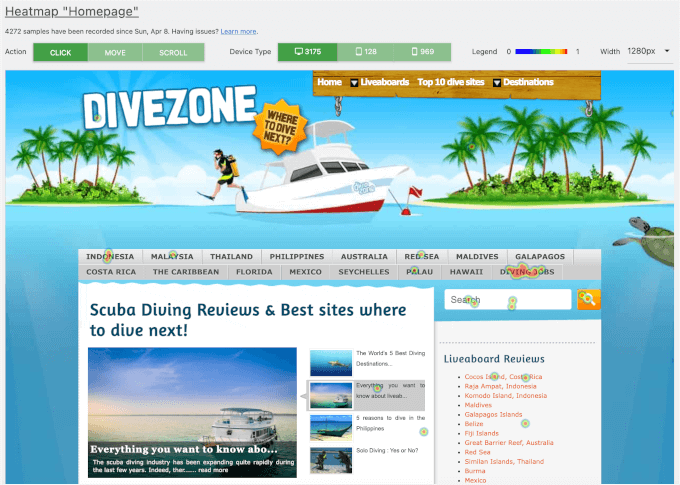
- Heatmaps & Session Recording – See where users click, scroll, and drop off with visual heatmaps and session replays.
Since Matomo lets you do all of this while giving you the added bonus of data protection, lots of people are making the switch from other analytics solutions.
Matomo vs. Google Analytics
When it comes to choosing between Matomo and Google Analytics, it’s all about which platform best fits your needs.
🔒 If keeping your data private is a top priority, then Matomo is the way to go. It’s an open-source platform that lets you host data on your own servers, giving you full control and helping with privacy compliance.
On the flip side, Google Analytics stores your data on Google’s servers, which might be a concern if you’re worried about data privacy.
📊 In terms of analytics features, both Matomo and Google Analytics offer a wide range of tools, including real-time data and visitor tracking.
Matomo provides extras like heatmaps and session recordings, though these require a premium plan.
Google Analytics, on the other hand, integrates seamlessly with other Google services, like Google Ads, Google Search Console, and Google Tag Manager. This can be super helpful if you’re already using these services.
It’s also a better option for advanced analytics and reporting, including custom funnels and predictive analytics. Plus, since Google Analytics is so popular, there is a large community of users and documentation if you run into any problems.
💸 In terms of costs, Google Analytics offers a free version packed with features. Meanwhile, its premium counterpart, Google Analytics 360, has a higher price tag.
Matomo offers flexibility with a free, self-hosted version (where you manage the software on your own server) and a paid cloud option (where they handle the hosting for you).
💡 Note: If you’re still undecided whether Matomo is right for you, we personally recommend Google Analytics. We use it across our own business because it comes with highly detailed reports that help us improve our marketing strategies.
Since the Google Analytics interface can be tricky to navigate, we suggest installing MonsterInsights. This beginner-friendly WordPress plugin turns your Google Analytics data into easy-to-understand reports and charts right inside your WordPress dashboard.
For details on how to get started, just check out our guide on how to install Google Analytics in WordPress.
How to Set Up Matomo Analytics in WordPress
Ready to set up Matomo? Let’s do a quick system check first.
Your WordPress website needs to be running WordPress version 4.8 or higher, along with PHP 7.2 or above. Plus, you’ll want MySQL 5.5 or greater, and we recommend having at least 128MB of memory available.
Before we start, it helps to know there are a few ways to use Matomo. You can use:
- The On-Premise version – where you install the software on your own server.
- The cloud service version – where they host everything for you.
For this guide, we’re going to use Matomo for WordPress. It’s an all-in-one solution that runs directly on your WordPress site. This way, you won’t need to create an external account or manage separate servers.
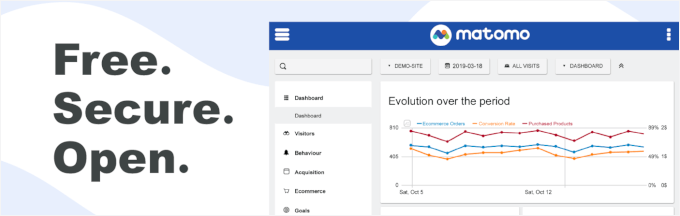
It’s the easiest way to get started, especially if you’re new to this. It’s maintained directly by the Matomo team, so you’ll get top-notch support and the latest features.
In the following sections, we’ll show you how to set up Matomo in WordPress.
Step 1: Installing the Matomo for WordPress Plugin
The first step is to install and activate the Matomo for WordPress plugin. Go to Plugins » Add New Plugin in your WordPress dashboard.

On the next screen, you can use the search feature to quickly find the plugin. Simply type in ‘Matomo for WordPress’ and hit enter.
Once you have the result, you can go ahead and click the ‘Install Now’ button.
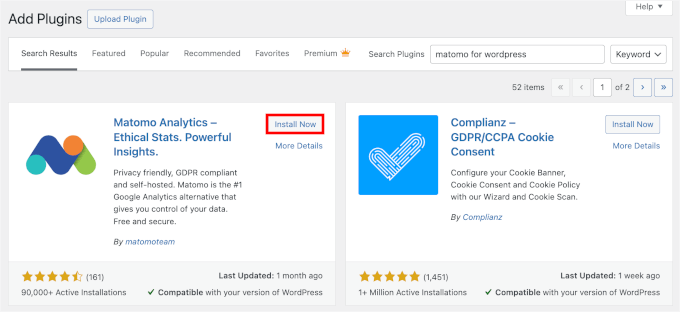
Then, you’ll need to click the ‘Activate’ button.
For more detailed instructions, you can check out our guide on how to install a WordPress plugin.
Step 2: Enabling Matomo Tracking on Your WordPress Site
Once you activate Matomo, you’ll be redirected to the Matomo Analytics » Get Started page.
From there, follow the setup wizard to configure the basic settings. You’ll need to complete 2 steps: updating your privacy policy page and enabling Matomo Analytics tracking. The plugin will then save and apply your new settings.
Now, let’s go through each step individually.
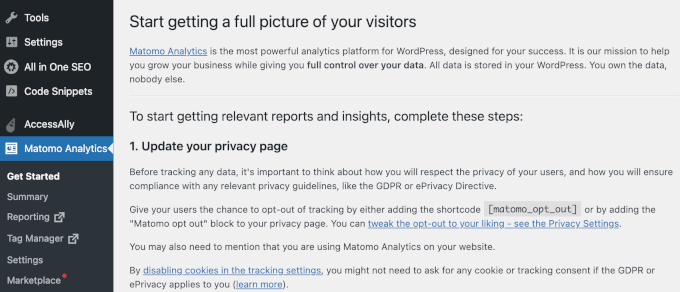
Update Your Privacy Policy
The first step is to update your Privacy Policy page.
Here, Matomo asks you to make sure that your Privacy Policy page reflects a commitment to user privacy and compliance with regulations like GDPR and ePrivacy.
This means including an option for users to opt out of tracking, which you can add using the [matomo_opt_out] shortcode or the ‘Matomo opt-out’ block.
So, if you don’t have a ‘Privacy Policy’ page yet, then you’ll need to create one.
Simply head over to your WordPress dashboard and navigate to Settings » Privacy.
In the dropdown menu, WordPress will tell you if it already has a privacy policy page in place for you. You can simply click on the ‘Use This Page’ button to make it live.
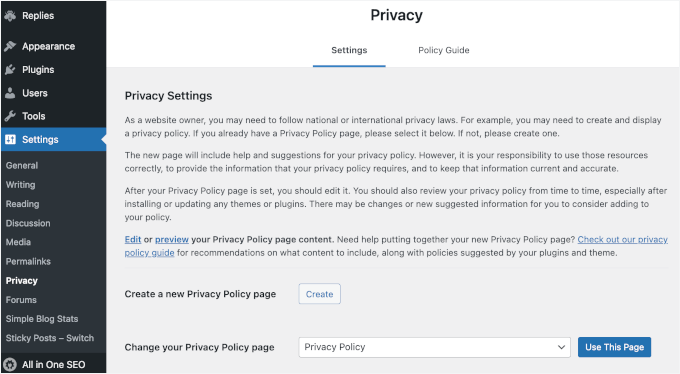
If you’d like to draft a new one, all you have to do is click on the ‘Create’ button.
WordPress will then create a draft for you.
On the other hand, if you have already used this default and want to make adjustments, just click on the ‘Edit’ button.
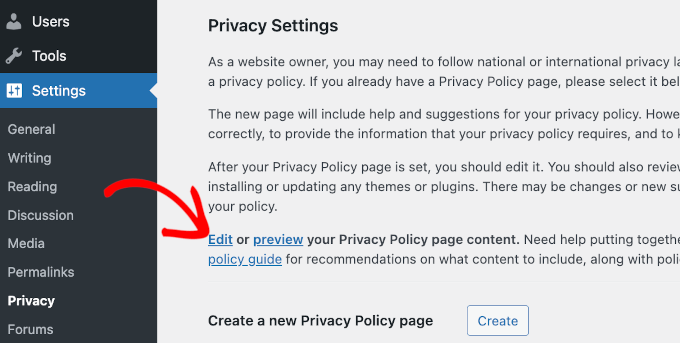
This will open your Privacy Policy page in the block editor, ready for you to edit.
For details, see our guide on how to add a privacy policy in WordPress.
🧑💻 Expert Tip: Looking to improve your site’s privacy? WPConsent is a beginner-friendly WordPress plugin that lets you easily set up cookie banners, record user consent, and manage user privacy across your site. You can also get started with the free version of WPConsent.
Enable Matomo Tracking
After updating your privacy policy, you should be ready to enable Matomo tracking on your WordPress site.
On the ‘Get Started’ page, go ahead and click the ‘Enable tracking now’ button to start the process.
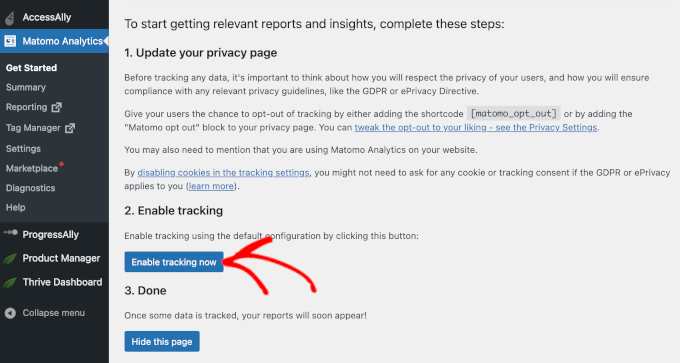
Once enabled, you’ll see a green checkmark along with a success notification.
That said, Matomo needs a little time to start collecting data.
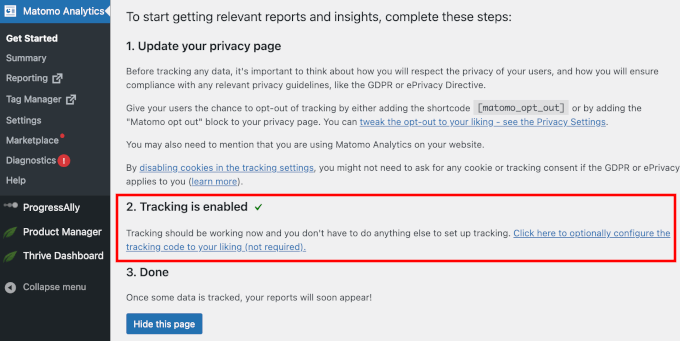
So, don’t worry if you don’t see analytics right away – you can check back in a few hours to see your first visitor statistics.
Do note that if you’re using a caching solution (either through a caching plugin or your hosting provider), then you’ll need to clear your cache for tracking to work properly. For details, see our tutorial on how to clear your cache in WordPress.
Step 3: Navigating Through the Analytics Dashboard
Now that you’ve set up Matomo, let’s take a look at the dashboard. This is where you’ll find all the important data about your website, including who’s visiting, what they’re doing, and how your site is performing.
In this section, we’ll go over 3 key areas: Summary, Reporting, and Tag Manager. Each one gives you different insights and tools to help you track your site’s activity.
Summary
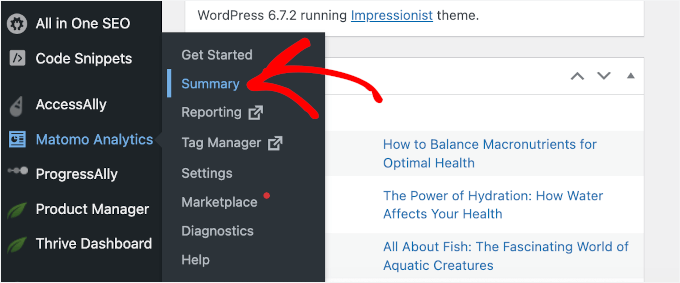
The ‘Summary’ section offers a quick overview of your website’s performance directly within your WordPress admin area.
Simply go to Matomo Analytics » Summary to access this report.
Once inside the ‘Summary’ page, you can immediately track key visitor metrics like visits, countries, user devices, and user actions.
You can also choose a timeframe that works best for you. It can be today, this week, this month, this year, and so on.
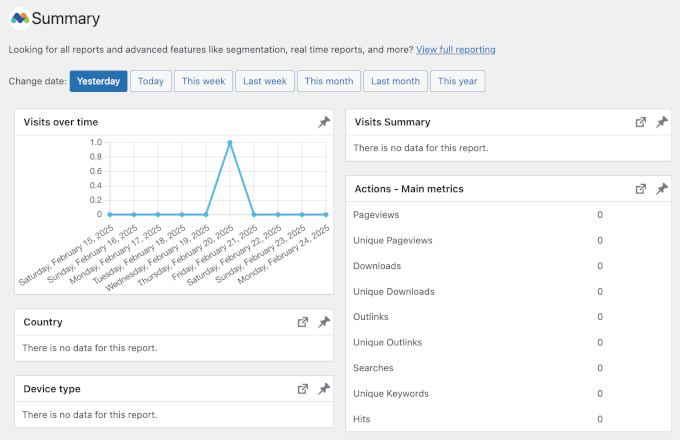
As you scroll down, you’ll see more report widgets.
Some focus on user details, like the devices’ screen resolution, operating system, browser, entry pages, and exit pages. Others are conversion-related, showing data about goals, visits per hour (based on your site’s timezone), and outbound links.
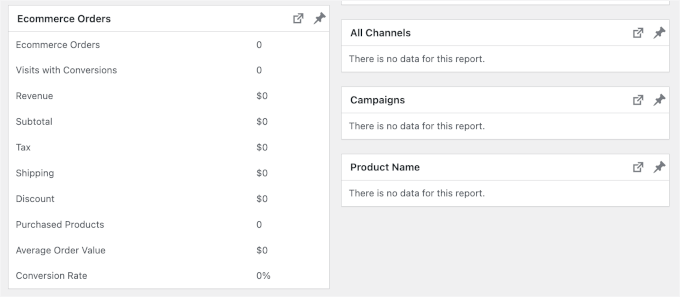
If you run an online store, then you can track its performance in the ‘Ecommerce Orders’ section.
For example, you can see your online store’s general statistics, including total orders, visits with conversions, and purchased products. Plus, there are more specific data points like tax, shipping, and discount calculations.
🧑💻 Expert Tip: Are you a WooCommerce store owner? You might want to check out our expert picks for the best WooCommerce reporting and analytics plugins.
Reporting
If you’re looking for deeper insights, the ‘Reporting’ section is where you’ll find all the details you need.
To access it, go to your WordPress admin area and navigate to Matomo Analytics » Reporting.
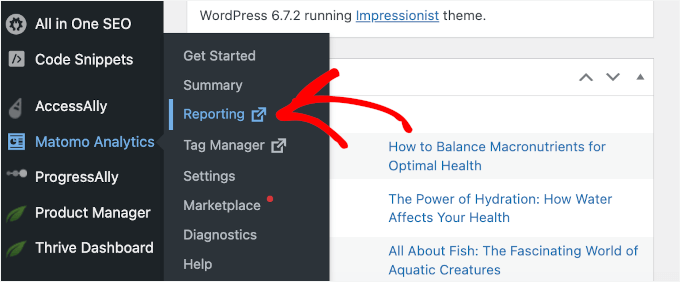
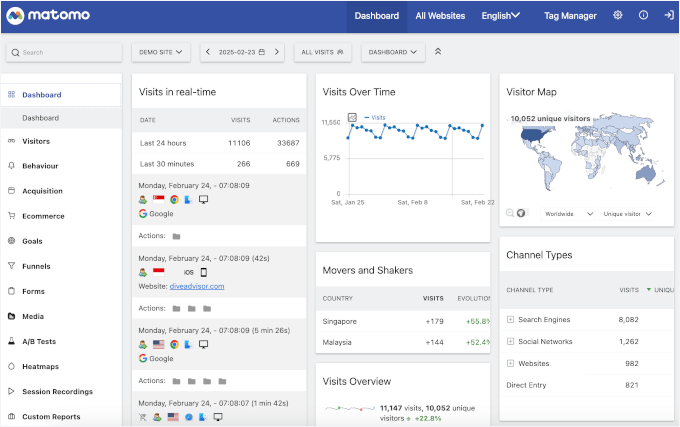
This will take you to the full Matomo analytics interface, where you can explore in-depth reports for different parts of your website, including:
- Visitor data – Get insights into who’s visiting your site and where they’re coming from.
- User behavior – See how visitors interact with your posts and pages.
- eCommerce – Monitor sales performance, order tracking, and customer journey.
- Marketing insights – Analyze acquisitions, conversion goals, sales funnels, and form tracking.
- Media performance – Measure engagement with images, videos, and other media content.
- A/B tests – Compare different page versions to optimize performance.
- Heatmaps and session recordings – Visualize how users navigate your site.
Each one has its own dedicated panel that you can explore.
For example, in the image below, the submenus are under the ‘Visitors’ section alone.
This page has detailed visit logs with real-time flows and maps. It also gives you insights into user locations, devices, software, IDs, and more.
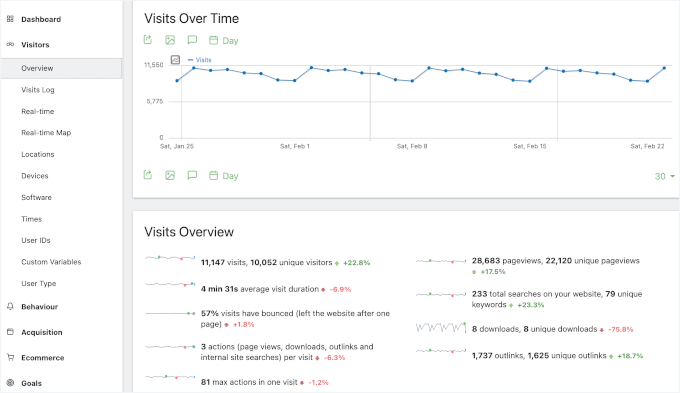
This detailed analysis can help you make informed decisions to boost your site’s effectiveness.
Tag Manager
Matomo comes with its own Tag Manager, similar to Google Tag Manager.
It simplifies adding and managing analytics scripts, ad pixels, and other marketing tools on your WordPress site – without touching a single line of code. Plus, it makes it easy to embed both first- and third-party application resources.
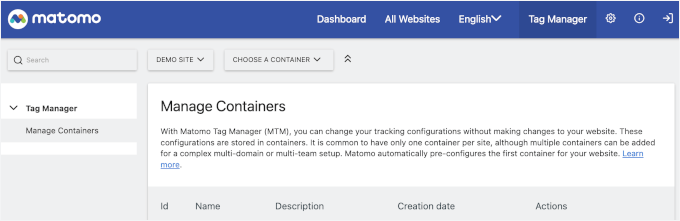
To access the ‘Tag Manager’ reports, simply go to Matomo Analytics » Tag Manager in your admin panel.
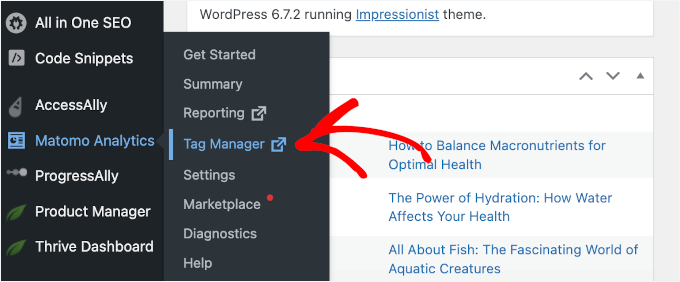
This will take you to the ‘Tag Manager’ tab in your Matomo dashboard.
Once inside, you can switch between containers using the dropdown menu. Think of a container like a toolbox for your website’s tracking codes. Inside this toolbox, you keep:
- all your tags (the codes themselves)
- triggers (the rules for when to run a code)
- variables (helpful pieces of information)
This keeps everything organized in one place.
Matomo Alternatives: Top Analytics Plugins for WordPress Users
Matomo can be a great solution if privacy is your top priority. But if you’re looking for other analytics platforms, then here are some of our recommendations for Matomo alternatives:
- MonsterInsights – The best Google Analytics plugin for WordPress. It is ideal for beginners who want easy-to-read Google Analytics reports directly in their WordPress dashboards. We use it ourselves to track conversions, referrals, and more. See our detailed MonsterInsights review for more details.
- ExactMetrics – This plugin offers more detailed Google Analytics reports, catering to users who need in-depth insights without leaving WordPress. We’ve tested this tool extensively for our complete ExactMetrics review.
- OnePageGA – This beginner-friendly tool turns all your Google Analytics 4 data into a one-page analytics dashboard. It’s ideal for users who prefer a simple setup without extensive features. Learn more in our full OnePageGA review.
- HubSpot – An all-in-one CRM platform with built-in analytics to track website traffic, user behavior, and conversions. See our article on how to set up HubSpot analytics in WordPress for more details.
For a more extensive list of analytics solutions tailored for WordPress users, you might want to see our list of the best analytics solutions for WordPress users.
You may also wish to check out our ultimate WordPress security guide to protect your website and visitor data. 🔒
FAQs About Matomo Analytics
What is Matomo used for?
Matomo is a web analytics platform that tracks website traffic and user behavior. It helps you see where visitors come from, which pages they view, and how they interact with your site – all while keeping data privacy a top priority.
Is Matomo really free?
Yes! Matomo offers a free, open-source version called Matomo On-Premise. This is a self-hosted option, which means you install the software and store all the data on your own server, giving you full control.
They also have paid cloud-hosted plans if you want them to handle the hosting for you.
Which is better, Matomo or Google Analytics?
It depends on what matters most to you. Matomo is a great choice if you care about privacy and owning your data. Google Analytics is strong for marketing because it integrates seamlessly with other Google services like Ads and Search Console.
Does Matomo slow down a WordPress website?
When set up correctly, Matomo shouldn’t noticeably slow down the user-facing side of your site. However, because this plugin processes and stores analytics data on your own hosting server, it does use more resources than a cloud-based tool like Google Analytics.
On most modern WordPress hosting plans, this isn’t an issue, but it’s something to keep in mind if you have a very high-traffic site or use a budget shared hosting plan.
Learn More About WordPress Analytics
We hope this article has helped you set up Matomo on your WordPress website.
If you want to learn more about WordPress tracking, here are a few other helpful guides you can read:
- How to See Search Analytics in WordPress
- How to Manage, Track, and Control File Downloads in WordPress
- How to Track SEO Changes on Your WordPress Site
- How to Track Third-Party Domain Requests in WordPress
- How to Add WordPress Analytics Without Cookies
- How to Set Up WordPress Heatmaps (Easy Ways)
- Best WordPress Activity Log and Tracking Plugins
If you liked this article, then please subscribe to our YouTube Channel for WordPress video tutorials. You can also find us on Twitter and Facebook.



Have a question or suggestion? Please leave a comment to start the discussion.