


When someone submits a form on your site, that’s a big win. But most WordPress forms stop short with a plain “Success!” message.
This is a huge missed opportunity. Rather than leaving users at a dead end, why not give them somewhere to go next — like your most popular posts or a Facebook group where they can connect with others?
That small change turns a simple form submission into a more meaningful interaction. It encourages users to stay involved, helps grow your email list, boosts social followers, and keeps visitors exploring your website.
In this guide, we’ll show you how to set up redirects after form submission in WordPress to keep users engaged. 🔁
Why Redirect Users After Form Submission?
Redirecting users after they submit a form helps you keep them engaged and guide them to what’s next – instead of ending their visit with a plain “thank you” message.
For example, you can:
- Send users to a thank-you page that features your most popular or high-converting articles. This helps boost pageviews and sales.
- Redirect shoppers to a special offer page where you upsell products or share discounts and free shipping deals in your online store.
- Take users to a download page where they can instantly get a free resource like an eBook, checklist, media file, or other lead magnets after filling out your form.
A simple redirect keeps people exploring your site, builds trust, and helps you get more value from every form submission. It truly is an easy way to turn one interaction into more clicks, signups, or sales.
That said, here are four ways you can easily redirect users after form submission in WordPress.
Just use the links below to jump to your preferred section:
- Tip 1: Redirect Users After Form Submission in WordPress
- Tip 2: Redirect Users Based on Their Responses After Form Submission
- Tip 3: Redirect Users After Comment Submission in WordPress
- Tip 4: Redirect Users After Registration in WordPress
- Bonus Tip: Create a Beautiful Redirect Page in WordPress
- Next Step: Track Form Conversions in Google Analytics 📊
- FAQ: Redirect Users After Form Submissions
- Video Tutorial: Redirect Users After Form Submissions
- More Guides to Using and Optimizing WordPress Forms
Let’s get started!
Tip 1: Redirect Users After Form Submission in WordPress
The easiest way to redirect users after a form submission is to use WPForms, the best contact form plugin for WordPress. Over 6 million professionals, including our own team, use it to create different types of forms.
At WPBeginner, we use WPForms to display contact forms and manage site migration requests, among other things. It’s been a great experience, and you should see our complete WPForms review to find out why we highly recommend it.
WPForms includes a built-in setting that lets you choose to display a thank-you message, show a specific page, or redirect users to another URL. You get a drag-and-drop form builder to easily customize your form.
You can also use the AI-powered form builder – simply enter a description, and WPForms will generate your form within seconds.

Creating a Form with WPForms
For this tutorial, we’ll use WPForms Lite because it is free and lets you redirect users in just a few clicks. There is also a WPForms Pro version, offering over 2,000 pre-built form templates, advanced customization, and powerful addons.
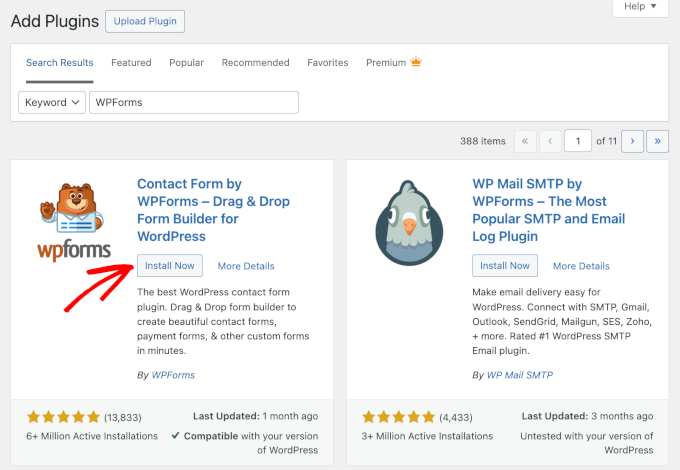
To get started, install and activate the WPForms plugin from your WordPress dashboard. Go to Plugins » Add New Plugin.

On the next screen, you can use the search bar to quickly find the plugin
Just click ‘Install Now’ in the search result, and then ‘Activate’ to enable it.
For more details, please see our guide on how to install a WordPress plugin.
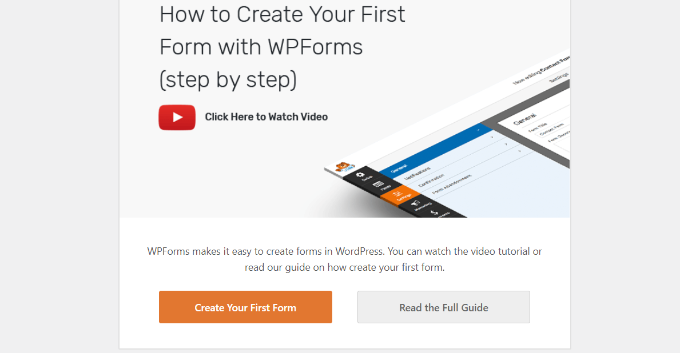
Upon activation, you will see the WPForms welcome page in your WordPress dashboard. Click the ‘Create Your First Form’ button. Go ahead and click the ‘Create Your First Form’ button.
Next, you can choose how to create your forms – using AI, starting from scratch, or selecting a ready-made template.
For this tutorial, we’ll go with a template.
Let’s start by entering a name for your form at the top. Then, hover over any template and click the ‘Use Template’ button to select it. For example, we’ll choose the ‘Simple Contact Form’ template.
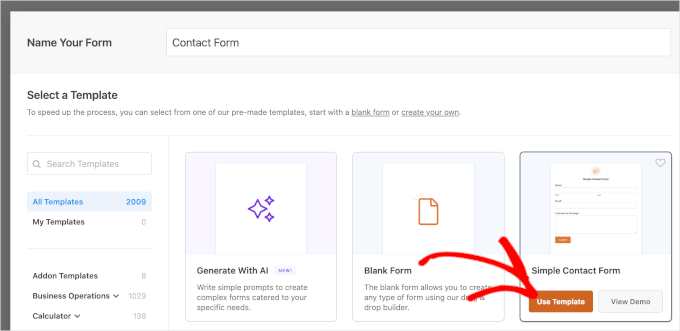
After selecting a template, the WPForms form builder will launch.
Here, you can customize your form and add new fields from the menu on your left. Simply drag and drop the fields you’d like to add. You can then rearrange their order to your liking.
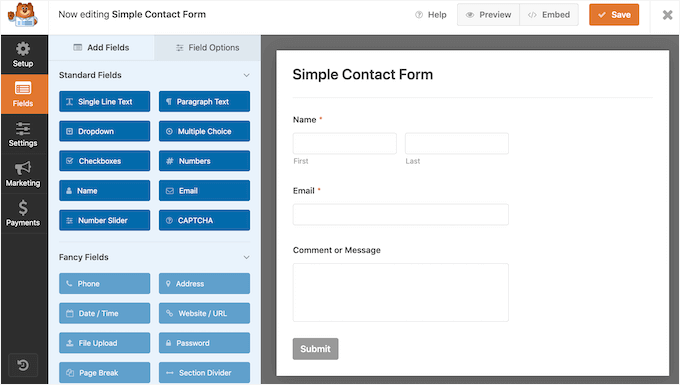
If you want to add fancy fields like a website URL, phone number, address, file upload option, and more, then we recommend upgrading to the WPForms Pro license.
You can also further customize existing fields on the template. For more details, please see our guide on how to create a contact form in WordPress.
Setting Up the Redirect URL After Form Submission
Once you’ve customized your contact form, go to Settings » Confirmations in the form builder.
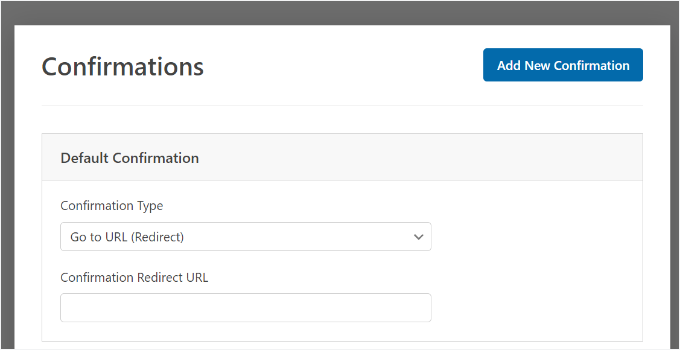
Under the ‘Confirmation Type’ setting, click the dropdown menu and select the ‘Go to URL (Redirect)’ option.
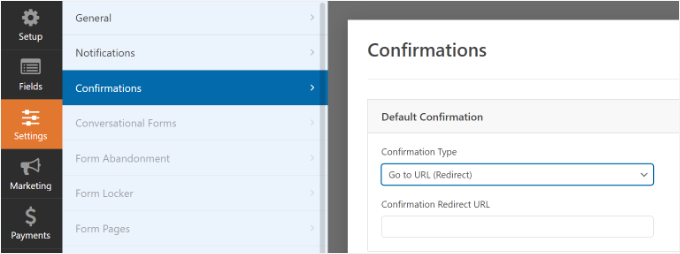
After that, simply enter a link in the ‘Confirmation Redirect URL’ field and specify where you’d like to redirect users after they’ve submitted a form.
Embedding Your Form in WordPress
Once you’ve added a redirect URL, the next step is to embed the form on your website.
Go ahead and click the ‘Save’ button at the top to store your form settings, and then click the ‘Embed’ button beside it.
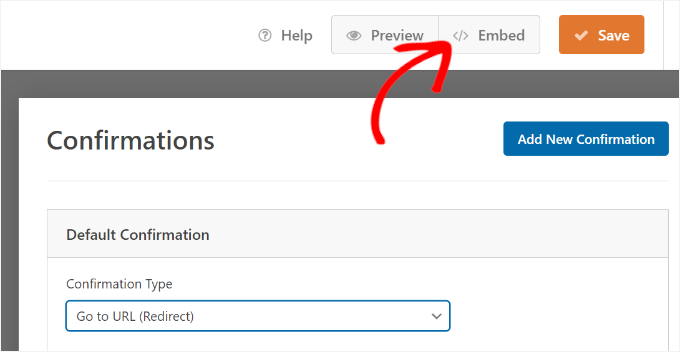
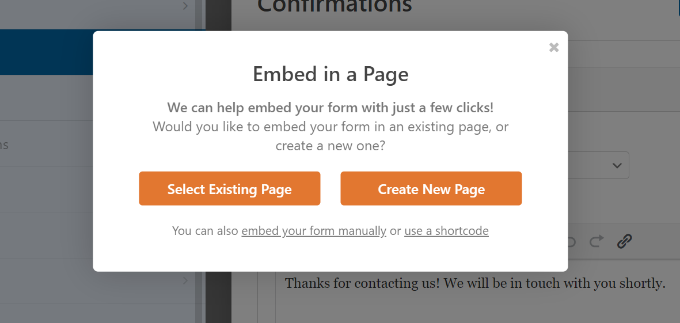
WPForms will now ask if you’d like to embed the form on an existing page or on a new page.
We’ll choose the ‘Create New Page’ option for this tutorial.
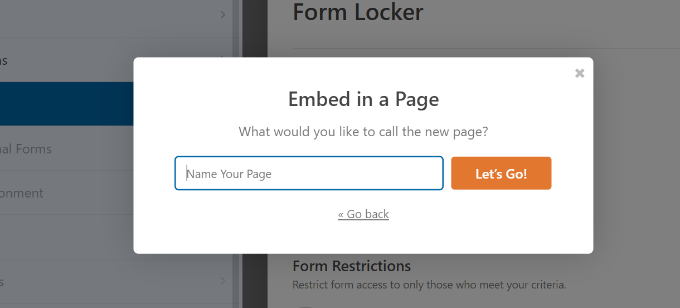
Next, you’ll need to enter a name for your new page.
After entering the name, simply click the ‘Let’s Go’ button.
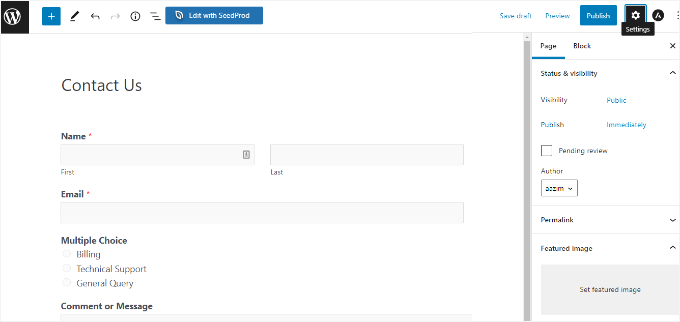
The plugin will now automatically add your form to the WordPress content editor inside the WPForms block.
When you’re ready, simply click the ‘Publish’ button at the top.
Tip 2: Redirect Users Based on Their Responses After Form Submission
WPForms also lets you set up conditional logic, which automatically redirects users to different pages based on their responses when submitting a form.
For example, let’s say you have different teams that handle questions sent by users, like billing, technical support, and general inquiries. Based on the choice a user selects in the form, you can redirect them to a specific URL that relates to their needs.
Note that you’ll need a WPForms Pro license to use the conditional logic feature. You also get more form fields to add to the template, and you can use addons like User Journey to see how people interact with your forms.
To get WPForms Pro, you can start by creating an account through the WPForms website. Simply click the ‘Get WPForms Now’ button, choose a plan, and then follow through the steps to complete signup.

With that done, you’ll get your own WPForms dashboard, where you can copy your license key to upgrade your free WPForms version.
From here, you can go ahead and install WPForms in WordPress. Head over to Plugins » Add New Plugin from your WordPress admin area.
On the next screen, you can use the search bar to quickly find the plugin.
In the search result, you can click the ‘Install Now’ button and then ‘Activate’ when it appears.
From here, you can activate WPForms Pro using your license key.
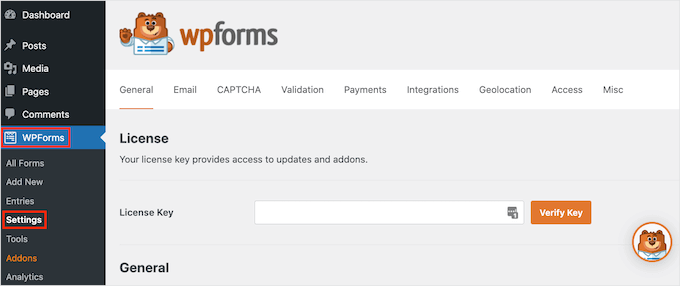
Let’s navigate to WPForms Settings, add your license key, and click ‘Verify Key.’
Creating a Form with Multiple Choices
First, you need to create a new form or edit an existing one.
In the form builder, simply add a multiple-choice, checkbox, or any other field that allows users to select different options. We’ll add a ‘Multiple Choice’ field in our tutorial.
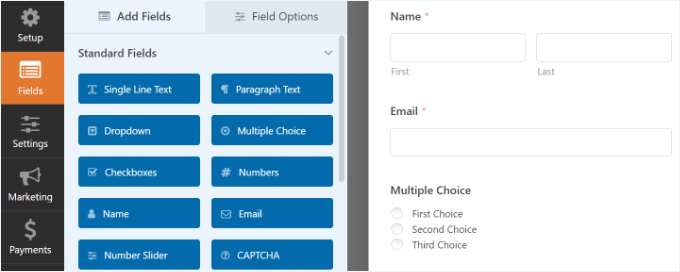
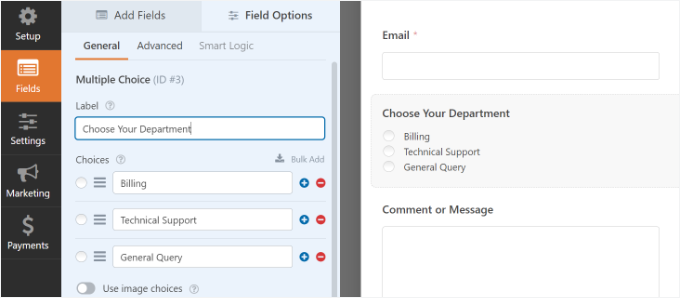
Next, you can edit the options in the ‘Multiple Choice’ form field by simply clicking on the fields in the template to the right.
For instance, you can see in the image below that we renamed the options to different departments that would handle specific questions.
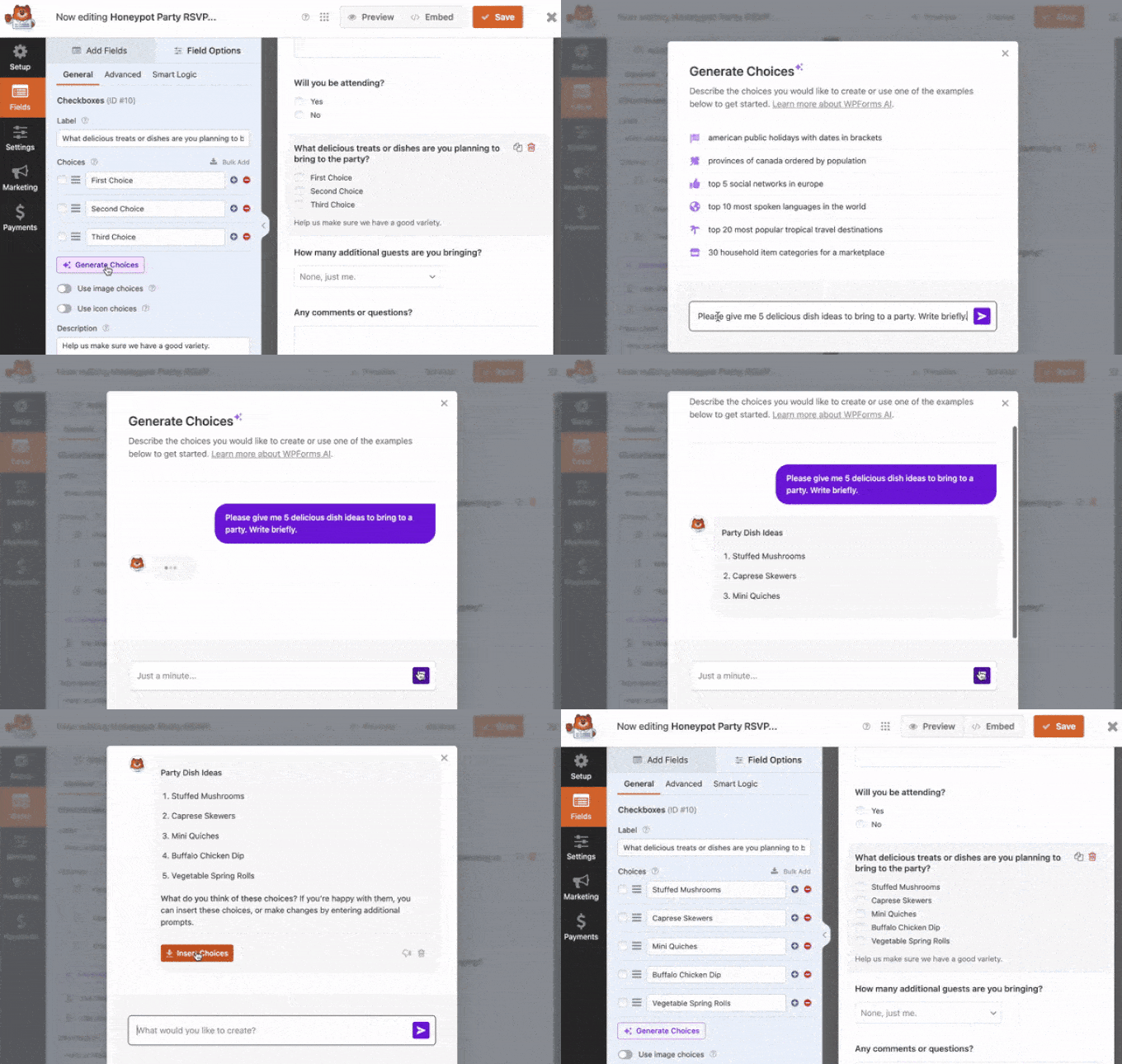
🧑💻 Insider Tip: Stuck? Use AI to auto-generate multiple choices!
Click the ‘Generate Choices’ button in WPForms to access pre-made prompts or enter your custom idea.
WPForms will instantly generate a list of choices, saving you time and effort!
Setting Up Conditional Logic
After that, you can head to Settings » Confirmations in the form builder.
Now, click the ‘Add New Confirmation’ button to set up conditional logic.
Next, you will have to enter a name for your new redirect. Be specific so you are able to track it easily.
Simply click the ‘OK’ button when you’re done.
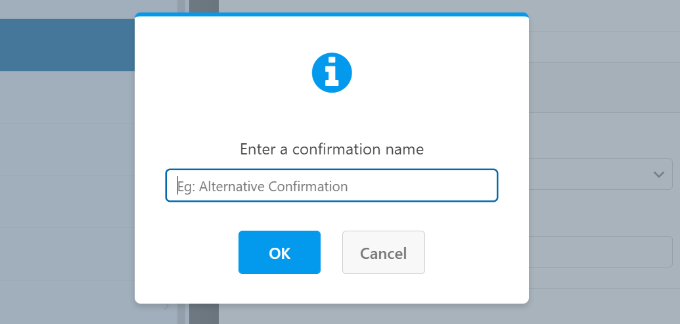
For this tutorial, we want to direct users to specific pages based on the department they select in the form.
First, you can select ‘Go to URL (Redirect)’ from the Confirmation Type dropdown menu and then enter a link to the respective page in the ‘Confirmation Redirect URL’ field.
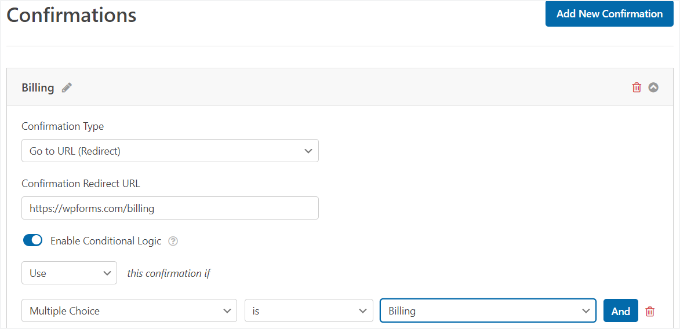
Go ahead and toggle on ‘Enable Conditional Logic.’
Then, you can set the rule to ‘Process’ this confirmation if ‘Multiple Choice’ is ‘Billing’. This will redirect users to a URL that holds more information about billing when they submit a form.
That’s it! You can now simply save the form, and the WPForms block you added earlier will automatically redirect users to the different URL you set based on their responses.
Next, you can just repeat this step for other multiple-choice options in the form and create new confirmation notifications with conditional logic.
Tip 3: Redirect Users After Comment Submission in WordPress
Did you know that you can redirect users to a specific page immediately after they leave a comment on your WordPress site?
For example, you can show a simple thank-you page with an email signup form and get users to subscribe to your newsletter after commenting. Similarly, you can redirect people to a page with your social media links and increase followers.
Redirecting users after comment submission can also help boost pageviews and conversions. You can redirect commenters to your top blog posts, show a special offer or coupon page, or display a lead magnet page to get more conversions.
Thrive Comments is a top WordPress comments plugin that gives you full control over your blog’s comment section. One of its standout features is the ability to redirect new commenters to any page you want.
You can read more about the plugin in our full Thrive Themes Suite review.
Getting Started with Thrive Comments
First, let’s head over to the Thrive Themes website and create an account. You can click the ‘Start Now’ button to proceed.

Once you’re signed in, you’ll see your account dashboard.
Inside your member dashboard, click the link to download the Thrive Product Manager plugin. This will connect your WordPress site to your Thrive products.
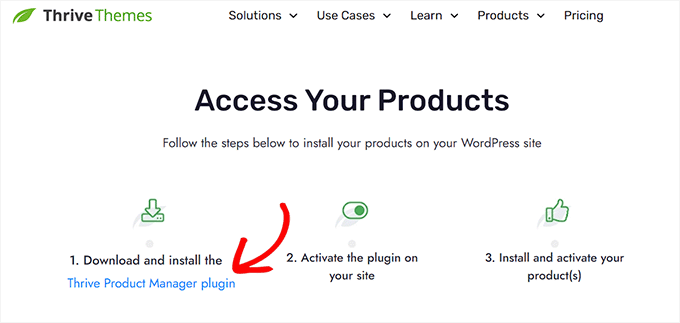
With that done, you can install and activate the Thrive Product Manager plugin on your WordPress site.
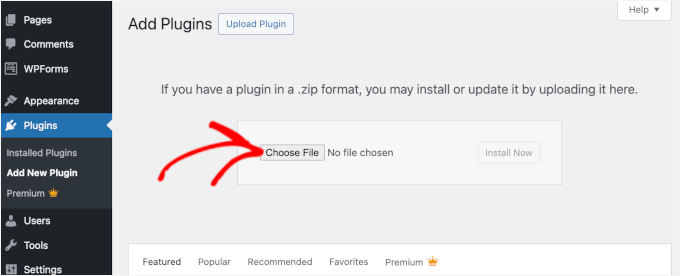
In your admin area, go to Plugins » Add New Plugin.
After that, you can click ‘Upload Plugin,’ then select the Thrive Product Manager zip file you downloaded.
Click the ‘Install Now’ button and then ‘Activate’ to complete the process. For more information, see our step-by-step guide on how to install a WordPress plugin.
After activation, you can navigate to Product Manager in your admin sidebar.
Then, go ahead and click ‘Log into my account.’
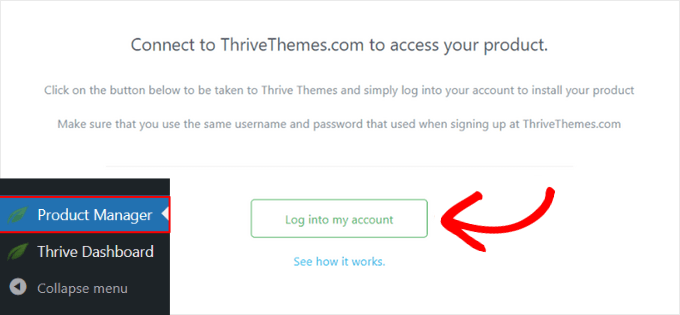
Once logged in, you’ll see the Thrive Product Manager dashboard.
Now select ‘Thrive Comments’ and click ‘Install selected products.’
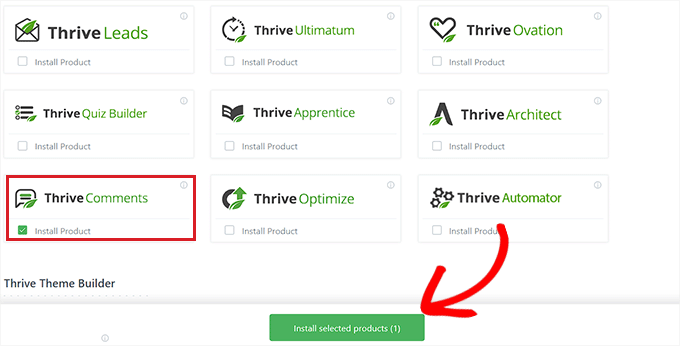
When it’s done, you’ll see a message saying “Ready to use.” The plugin is now active and ready to configure.
Setting Up Comment Redirects
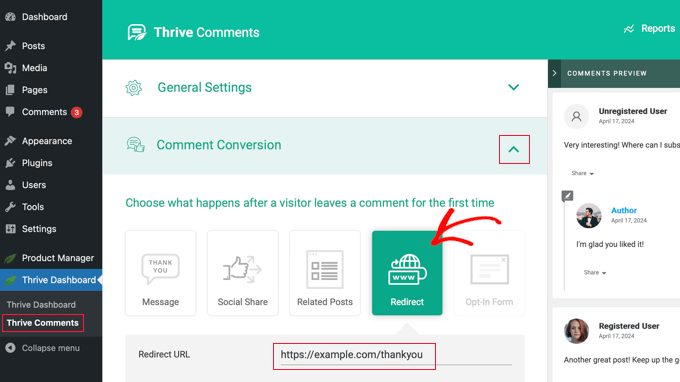
To set up the comment redirects, go to Thrive Dashboard » Thrive Comments.
Next, expand the ‘Comment Conversion’ section by clicking the arrow.
Here, you can decide what happens after someone leaves their first comment. Options include sending a message, showing related posts, encouraging social shares, displaying an optin form, or redirecting them to a page.
To redirect commenters, choose the ‘Redirect’ option and then enter the URL of the page you want them to go to
And you’re basically done here.
To test it, you might first want to log out of WordPress.
After that, you can go to any post and leave a comment using a random name and email address. You’ll be automatically redirected to your chosen page.

For more details, please see our guide on how to redirect your user’s attention with a comment redirect.
💡 Note: Redirecting new commenters is just one of the many things Thrive Comments can do. You can also let users like or dislike comments, feature or hide comments, and much more.
Tip 4: Redirect Users After Registration in WordPress
If you allow user registration on your website, then redirecting your members can come in handy.
For example, on membership websites or eLearning portals, you can send users to their account area or dashboard right after they register. This makes it easy for them to access downloads, license keys, course materials, or other member-only content.
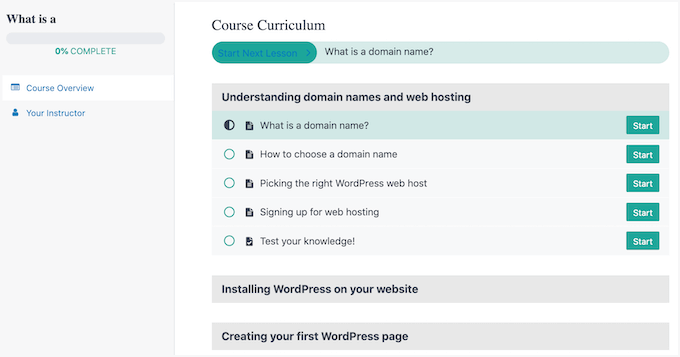
One of the best tools for this is MemberPress. It’s a powerful membership plugin that lets you restrict access to different parts of your site and set up multiple membership levels with ease.
At WPBeginner, we use MemberPress to power our free video site. It helps us offer 100% free access through a membership program that requires user registration. Read our complete MemberPress review for details about the plugin.
Installing the MemberPress Plugin
Now, the first thing you’ll need to do is create a MemberPress account.
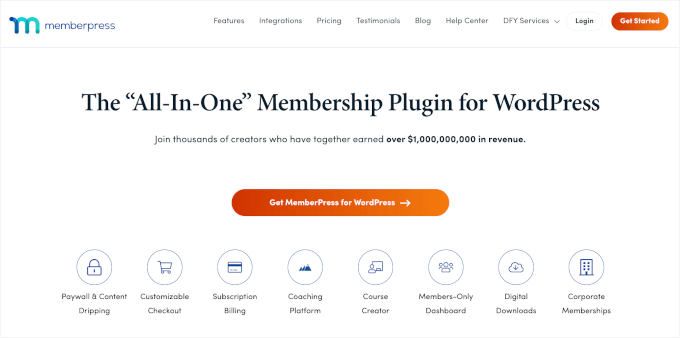
On the MemberPress website, you can click the ‘Get MemberPress for WordPress’ button, choose your plan, and follow the steps to finish checkout.
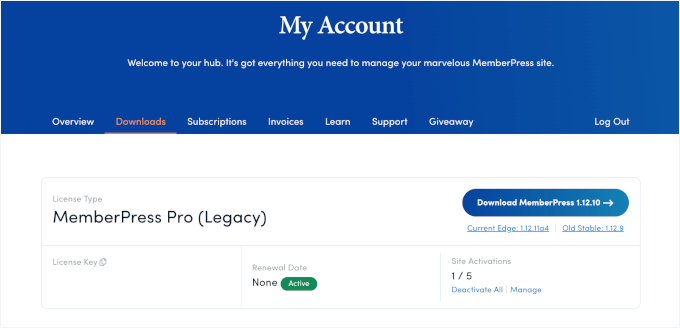
Once you’re signed up, go ahead and download the MemberPress zip file. You might also want to copy your license key and keep that key somewhere safe, like in a password manager.
Now it’s time to install and activate the plugin.
In your WordPress dashboard, go to Plugins » Add New Plugin.
On the next screen, you can click on ‘Upload Plugin’.
Then, choose the MemberPress zip file you downloaded and click ‘Install Now.’
Don’t forget to click ‘Activate’ when it appears to complete the process. If you need help, see our guide on how to install a WordPress plugin.
After activation, let’s head over to MemberPress » Settings to verify your license key.
Once inside, you can switch to the ‘License’ tab and add your license key to the respective field. You can find this key in your MemberPress account on their website or in the email you received when you purchased the plugin.
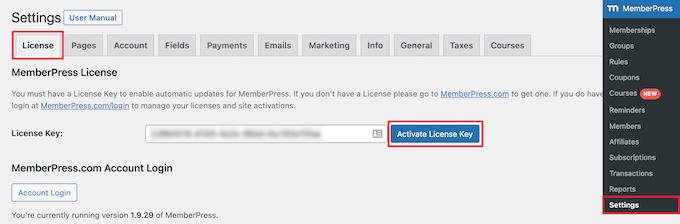
Go ahead and hit ‘Activate License Key,’ and in a few seconds, your plugin should be ready for setup.
Adding a Payment Method
Before selling memberships, you’ll need to connect at least one payment gateway.
To do this, let’s switch to the Settings » Payments page. Then, you can click the ‘Add Payment Method’ button.
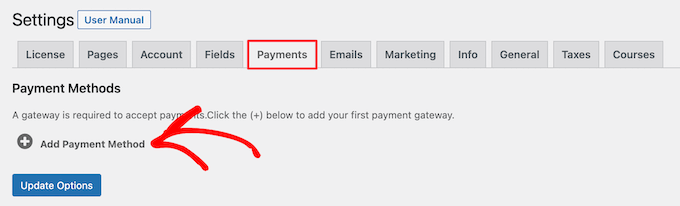
You’ll see a dropdown where you can choose from options like Stripe, PayPal (Standard, Express, or Pro), and Authorize.net.
Select your gateway, enter the required credentials, and save your settings.
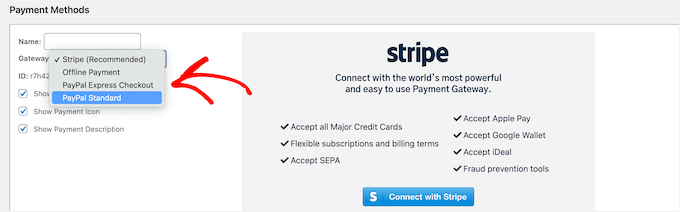
Do note that you can also add multiple payment methods. Most sites use Stripe for credit cards and PayPal as a backup option since many users prefer it.
Creating Membership Levels
Next, you’ll want to set up the membership plans your users can buy. Each plan can have its own price, features, and access rules.
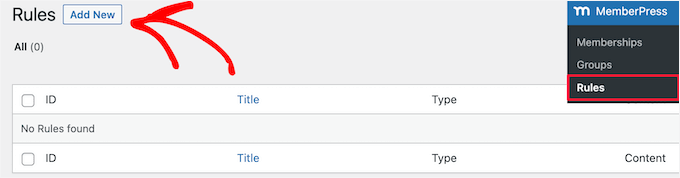
To get started, you can go to MemberPress » Memberships and click ‘Add New.’
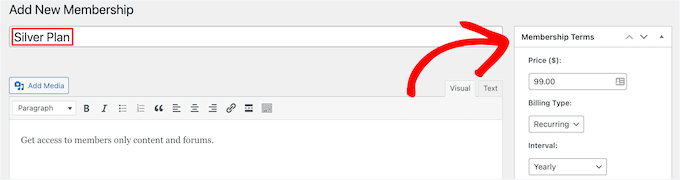
On the next screen, you can go ahead and give your plan a name. It can be something like “Silver Plan” or “Gold Plan”.
After that, you can add the details, set the price, and choose whether the plan should expire or renew automatically. You can also choose to offer a subscription with free trials.
For full details on setting this all up, see our guide on how to create a membership website with WordPress.
Setting Up Custom Redirect After Registration
To set up a custom redirect after user signups, you can scroll down to the ‘Membership Options’ area and switch to the ‘Registration.’
Then, go ahead and tick the ‘Enable custom thank you page message’ box.
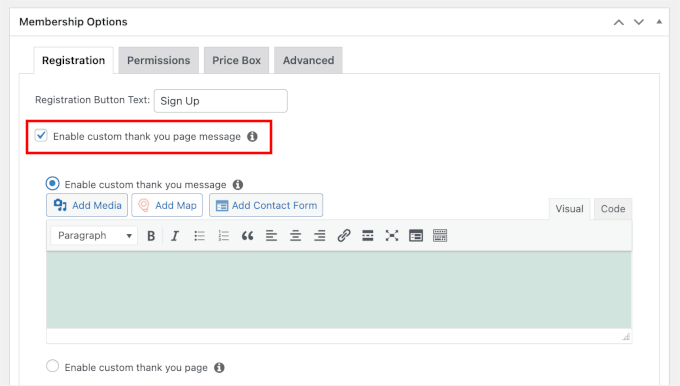
Then, you can select the ‘Enable custom thank you page’ radio button.
In the dropdown, go ahead and choose an existing page in your WordPress site.
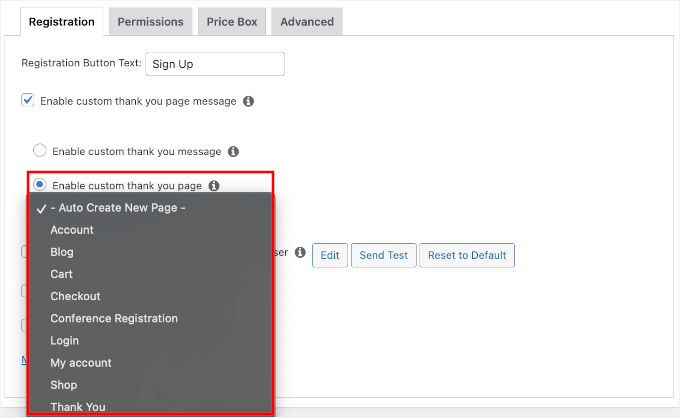
Once everything looks right, hit ‘Publish.’
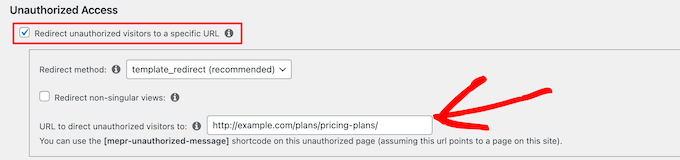
Note: Using MemberPress, you can also create a pricing page using one of the plugin’s built-in templates. If an unregistered user tries to access restricted content, then you can redirect them to a pricing page.
You can simply enter the URL in the ‘Unauthorized Access’ section of MemberPress to redirect unregistered users to your pricing or registration form page.
Bonus Tip: Create a Beautiful Redirect Page in WordPress
The default WordPress registration page is plain, with only the WordPress logo and branding.
To create a beautiful redirect page in WordPress, we recommend using a page builder like SeedProd. It’s the best drag-and-drop WordPress page and theme builder that makes it super easy to customize the layout and design of any page.

We use SeedProd to create custom designs across some of our business partners’ sites. We have great experience with it, and you can go to our extensive SeedProd review to learn more about the plugin.
SeedProd allows you to easily build stunning custom pages, such as a ‘Thank You’ page or a ‘Welcome’ landing page, without writing any code.
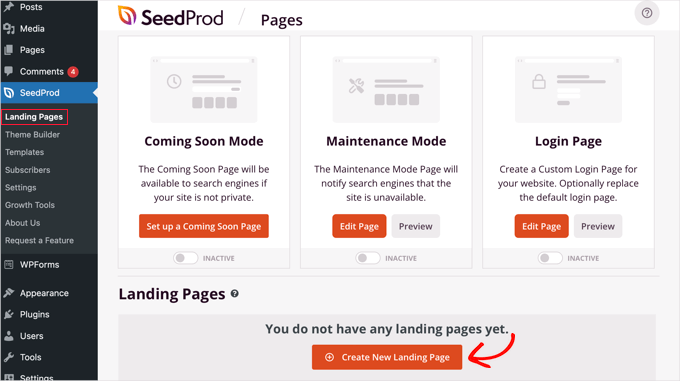
Simply install the plugin and go to SeedProd » Landing Pages. Once inside, click the ‘Create New Landing Page’ button.
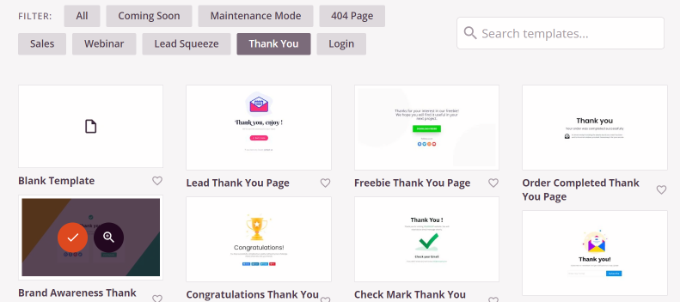
On the next screen, you’ll see various page templates you can choose from.
You can use the filters at the top to narrow the options to thank-you page templates. When you find a design you like, hover over it and click the orange checkmark to select it.
The next steps include naming your custom page and customizing it using SeedProd’s visual builders. Once published, you can then use this page’s URL as the redirect destination in the methods above.
For details, see our guide on how to create a thank-you page in WordPress.
Next Step: Track Form Conversions in Google Analytics 📊
If your form redirects to a thank-you page, you can track it as a conversion in Google Analytics. This helps you measure how well your forms are performing, especially if you’re collecting leads or running ad campaigns.
We recommend using MonsterInsights to set this up more easily.
At WPBeginner, we rely on MonsterInsights to track key site metrics, including form conversions. Want to know how it can help you, too? Take a look at our in-depth MonsterInsights review.
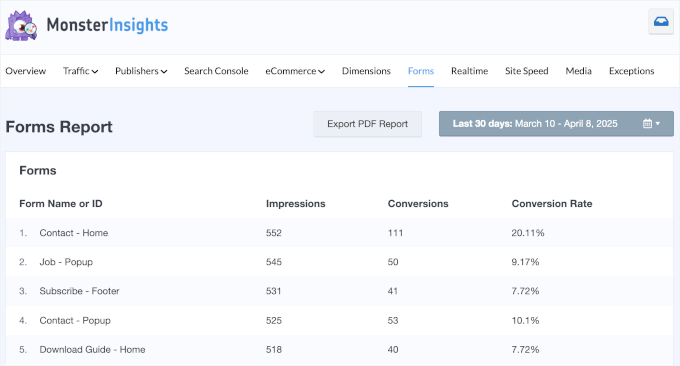
With the Forms addon, the plugin makes it super simple to view your form stats right inside your WordPress dashboard. In the ‘Forms Report’ page, you’ll see:
- Conversion Rate: The percentage showing how well your form is converting.
- Impressions: The number of people who have viewed your form.
- Conversions: The number of users who completed the form.
This helps you quickly spot your top-performing forms and find opportunities to improve others.
Want help getting started? Check out our full guide on how to set up WordPress form tracking in Google Analytics.
FAQ: Redirect Users After Form Submissions
Once you’ve set up your form redirects, you might have a few related questions about what else you can do after someone submits a form. Here are some quick answers:
How do I refresh a page after a form submission?
Most contact form plugins let you refresh or reload the same page after submission by configuring the confirmation settings. This is useful if you want users to submit multiple entries without leaving the page.
How can I send an email response after a WordPress form submission?
Most modern form builders, including WPForms, make this super easy to set up. Just open your form settings and go to the Notifications or Email tab. From there, enable the option to send an email to the person who filled out the form, then customize your message.
Is there a way to email everyone who filled out my WordPress form?
Yes. Some plugins let you export all form entries as a list of email addresses. You can then use that list in your email marketing service, like Constant Contact or Brevo, to send updates or follow-up emails to everyone who submitted the form.
Video Tutorial: Redirect Users After Form Submissions
Prefer video tutorials? Check out our step-by-step guide on how to redirect users after form submission – brought to you by our own video team. Hit play and follow along! ▶️
More Guides to Using and Optimizing WordPress Forms
We hope this article helped you learn how to redirect users after form submission in WordPress. You may also want to see our guides on:
- How to Create a Multilingual Form in WordPress
- How to Create a More Interactive WordPress Form
- How to Create Conversational Forms in WordPress (Typeform Alternative)
- How to Add Image Choices in WordPress Forms (and Boost Engagement)
- How to Add Save & Continue Functionality in WordPress Forms
If you liked this article, then please subscribe to our YouTube Channel for WordPress video tutorials. You can also find us on Twitter and Facebook.



Mrteesurez
I admire to automatically redirect users to the different URL based on their responses this let one decide which contents or url is suitable for user or appreciate that he can read more or order the products.
I am looking forward to aquired WPForms pro, thanks.