


Quando qualcuno lascia il suo primo commento sul tuo sito WordPress, ha già fatto qualcosa che la maggior parte dei visitatori non fa mai: ha smesso di leggere e ha deciso di interagire.
Ma dopo aver premuto 'Invia commento', WordPress di solito fornisce un messaggio generico e lascia lì l'interazione. È un'opportunità persa.
Con un reindirizzamento dei commenti, puoi inviare i commentatori per la prima volta a una pagina che li ringrazia e offre loro un motivo per rimanere, che si tratti di leggere un altro post, unirsi alla tua lista email o dare un'occhiata ai tuoi prodotti.
In questa guida, ti mostreremo tre modi per impostare il reindirizzamento dei commenti in WordPress.
Risposta rapida: Reindirizzare l'attenzione degli utenti con il reindirizzamento dei commenti
Ci sono tre modi per reindirizzare i commentatori per la prima volta, a seconda di quanto controllo desideri:
- Plugin gratuito. Comment Experience di Progress Planner. Installalo, scegli una pagina a cui reindirizzare e hai finito in circa 2 minuti.
- Snippet di codice. Aggiungi uno snippet di codice al tuo sito che reindirizza i tuoi commentatori per la prima volta se preferisci saltare l'installazione di un plugin dedicato ai commenti.
- Plugin per commenti a pagamento. Usa Thrive Comments se desideri anche like ai commenti, commenti in evidenza e altro ancora oltre al reindirizzamento.
Esamineremo tutte e tre le opzioni di seguito, iniziando con l'opzione gratuita. Prima di iniziare, ecco tutto ciò che tratteremo in questa guida:
- 1: Reindirizzare l'attenzione degli utenti con Comment Experience (Gratuito)
- 2: Reindirizzare l'attenzione degli utenti con uno snippet di codice (Avanzato)
- 3: Reindirizzare l'attenzione degli utenti con una suite di conversione commenti (a pagamento)
- Testa il tuo reindirizzamento dei commenti
- Domande frequenti sul reindirizzamento dell'attenzione degli utenti con un reindirizzamento dei commenti
Metodo 1: Reindirizzare l'attenzione degli utenti con Comment Experience
Comment Experience di Progress Planner (precedentemente Yoast Comment Hacks) è un plugin gratuito che aggiunge una manciata di utili modifiche ai commenti a WordPress, incluso un reindirizzamento per i commentatori per la prima volta.
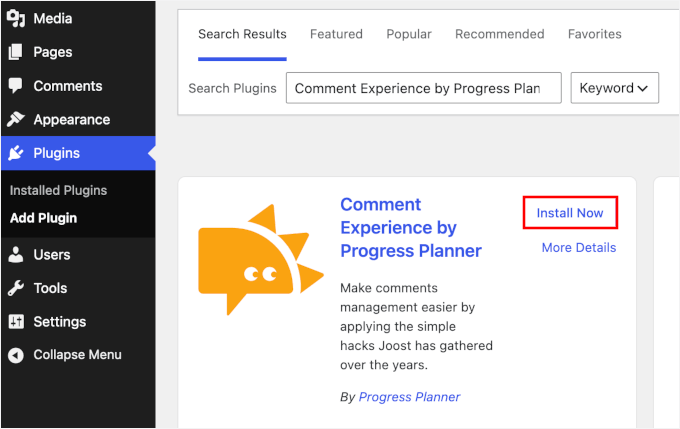
Innanzitutto, installa e attiva il plugin. Vai su Plugin » Aggiungi Plugin nella tua area di amministrazione di WordPress, cerca “Comment Experience”. Quindi fai clic su ‘Installa ora’ e poi attivalo facendo clic su ‘Attiva.’
Se hai bisogno di aiuto, consulta la nostra guida su come installare un plugin di WordPress.
Una volta attivo, vai su Impostazioni » Comment Experience e fai clic sulla scheda ‘Reindirizzamento commenti’. Nel menu a discesa ‘Reindirizza a’, seleziona la pagina a cui desideri inviare i commentatori per la prima volta. Quindi fai clic su ‘Salva modifiche.’
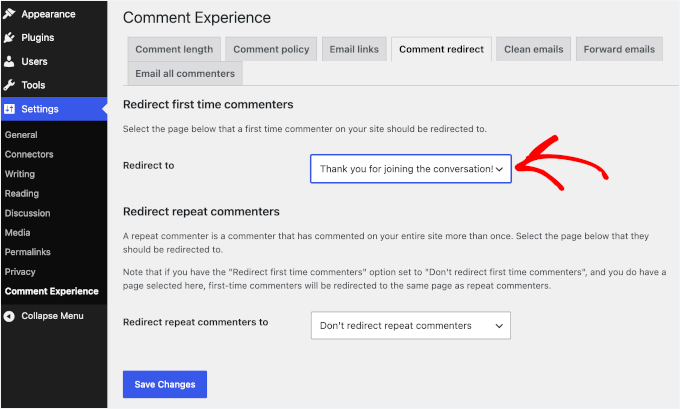
Il plugin offre anche un'opzione per reindirizzare i commentatori abituali a una pagina diversa.
Se non desideri reindirizzare i commentatori abituali, seleziona ‘Non reindirizzare i commentatori abituali’ dal menu a discesa ‘Reindirizza i commentatori abituali a’. Oppure scegli una pagina a cui desideri reindirizzarli dallo stesso menu a discesa.
Metodo 2: Reindirizzare l'attenzione degli utenti con uno snippet di codice
Se non desideri installare un plugin per reindirizzare i tuoi utenti, puoi aggiungere invece uno snippet di codice al tuo sito. Nello snippet di codice, utilizzeremo il filtro integrato di WordPress chiamato comment_post_redirect per modificare dove gli utenti vengono inviati dopo l'invio di un commento.
Sebbene tu possa copiare lo snippet direttamente nel file functions.php del tuo tema, il problema è che un piccolo errore può mettere fuori uso l'intero sito. Ecco perché consigliamo invece di utilizzare il plugin WPCode. Ti consente di aggiungere uno snippet di codice al tuo sito in modo sicuro senza toccare i file del tuo tema.
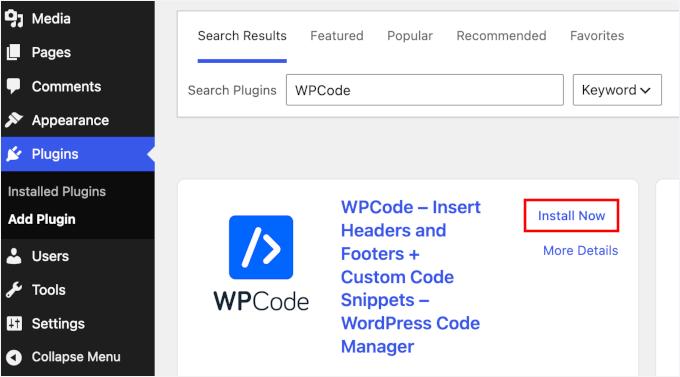
Vai semplicemente su Plugin » Aggiungi Plugin nella tua dashboard di WordPress e usa la casella di ricerca per trovare rapidamente WPCode. Fai clic su ‘Installa ora’ e poi su ‘Attiva’ quando appare.
Se hai bisogno di aiuto, consulta la nostra guida su come installare un plugin di WordPress.
Una volta installato WPCode, vai su Snippet di codice » + Aggiungi snippet e scegli ‘Aggiungi il tuo codice personalizzato (Nuovo snippet).’
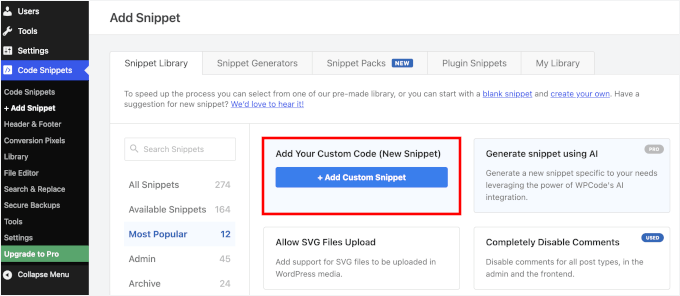
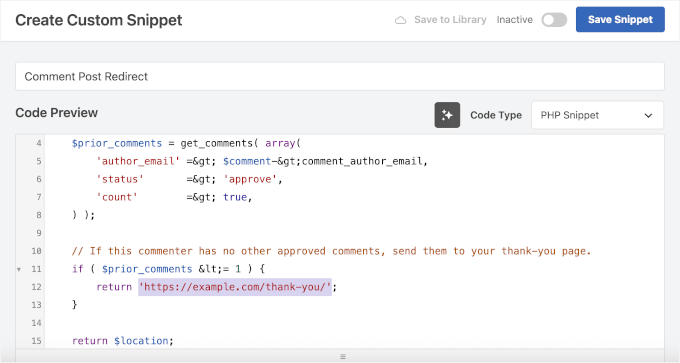
Quindi, copia il seguente snippet PHP in WPCode:
add_filter( 'comment_post_redirect', 'wpb_redirect_first_time_commenters', 10, 2 );

function wpb_redirect_first_time_commenters( $location, $comment ) {

    $prior_comments = get_comments( array(
        'author_email' => $comment->comment_author_email,
        'status'       => 'approve',
        'count'        => true,
    ) );

    // If this commenter has no other approved comments, send them to your thank-you page.
    if ( $prior_comments <= 1 ) {
        return 'https://example.com/thank-you/';
    }

    return $location;
}
Con questo snippet, reindirizzerai i commentatori per la prima volta.
Non dimenticare di sostituire il seguente URL nello snippet con l'URL a cui desideri reindirizzare i tuoi commentatori: https://example.com/thank-you/
Quindi attiva e salva lo snippet.
Metodo 3: Reindirizzare l'attenzione degli utenti con Thrive Comments
Se desideri personalizzare completamente l'esperienza di commento, allora Thrive Comments è la tua migliore opzione. Oltre a reindirizzare gli utenti dopo l'invio di un modulo, è dotato di funzionalità come mi piace ai commenti, commenti in primo piano, richieste di condivisione sui social dopo aver commentato e altro ancora.
Puoi acquistarlo come plugin WordPress autonomo o ottenere l'accesso completo a Thrive Suite, che viene fornito con un set completo di strumenti incentrati sulla conversione per WordPress.
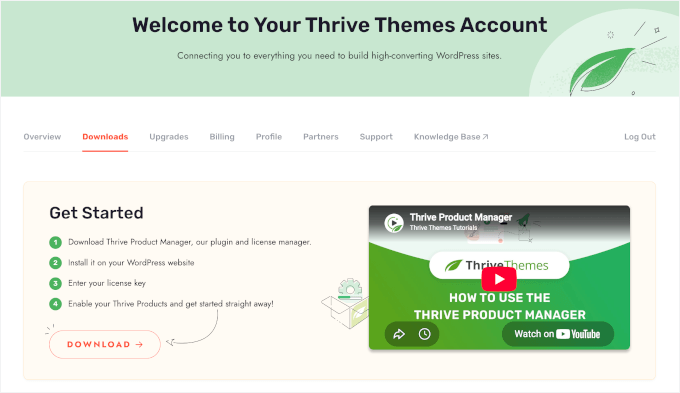
Una volta creato un account Thrive Themes, installa il plugin Thrive Product Manager, dove puoi abilitare Thrive Comments. Per maggiori dettagli, consulta la guida rapida di Thrive.
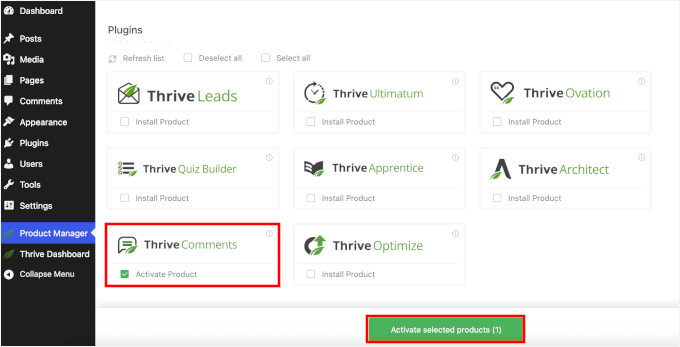
Una volta che Product Manager è attivo, vai su ‘Product Manager’ nella barra laterale di amministrazione, seleziona ‘Thrive Comments’ e fai clic su ‘Attiva prodotti selezionati’.
Vedrai un messaggio ‘Pronto all’uso’ una volta installato.
Da qui, vai su Thrive Dashboard » Thrive Comments ed espandi ‘Comment Conversion. Scegli l’opzione ‘Redirect’ e inserisci l’URL della tua pagina di ringraziamento.
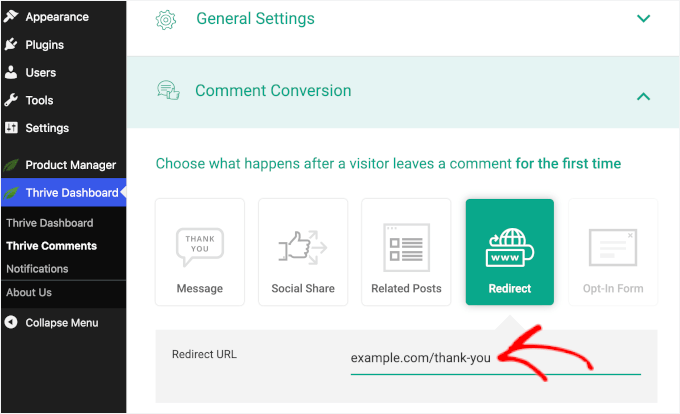
Reindirizzare i nuovi commentatori a una pagina specifica è solo l’inizio di ciò che puoi fare con Thrive Comments. Puoi anche usare questo plugin per consentire agli utenti di mettere mi piace o non mi piace ai commenti, mettere in evidenza o nascondere i commenti, notificare agli utenti solo le risposte ai loro commenti e molto altro.
Se tutto ciò che desideri è un semplice reindirizzamento, i Metodi 1 e 2 sopra lo copriranno gratuitamente.
Testa il tuo reindirizzamento dei commenti
Prima di procedere, conferma che il reindirizzamento funzioni.
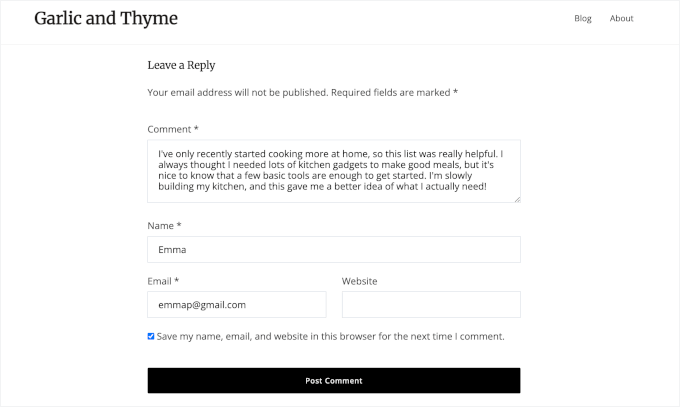
Apri una finestra del browser in incognito o privata, lascia un commento su qualsiasi post utilizzando un indirizzo email diverso che non sia collegato al tuo sito WordPress.
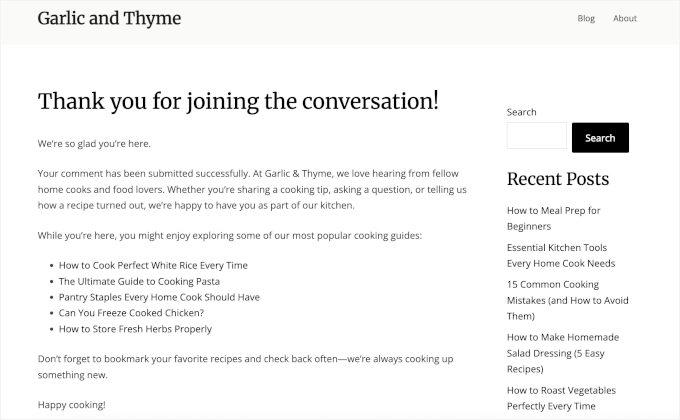
Dovresti atterrare subito sulla pagina scelta.
Tutti e tre i metodi spiegati in questo articolo ti aiutano a reindirizzare i tuoi commentatori per la prima volta a una pagina di ringraziamento.
Domande frequenti sul reindirizzamento dell'attenzione degli utenti con un reindirizzamento dei commenti
Ecco alcune domande frequenti sul reindirizzamento dei commenti.
Il reindirizzamento funzionerà se i commenti sono in attesa di moderazione?
Sì, poiché il reindirizzamento viene eseguito immediatamente dopo l’invio del commento, può comunque inviare il visitatore a un’altra pagina anche quando il suo commento è in attesa di moderazione.
A cosa dovrei reindirizzare i commentatori dopo che hanno inviato un commento?
Una pagina di ringraziamento è una buona opzione, ma puoi anche reindirizzare i commentatori a un articolo correlato, a una pagina di iscrizione alla newsletter, a una risorsa gratuita o a un’altra pagina che desideri visitino successivamente.
Posso reindirizzare i commentatori a un sito web diverso?
Sì. Puoi reindirizzarli a un sito web esterno così come a una pagina del tuo sito WordPress. Tuttavia, è generalmente meglio inviare i commentatori a una destinazione pertinente e attesa piuttosto che a qualcosa di non correlato al commento che hanno appena inviato.
Speriamo che questo articolo ti abbia aiutato a imparare come reindirizzare l'attenzione dei tuoi utenti con un reindirizzamento dei commenti in WordPress.
Successivamente, potresti anche voler consultare la nostra guida per principianti sulla moderazione dei commenti di WordPress e sui migliori plugin per commenti di WordPress.
Se ti è piaciuto questo articolo, iscriviti al nostro Canale YouTube per tutorial video su WordPress. Puoi trovarci anche su Twitter e Facebook.




Jennifer Parker
Nel Metodo 2, il conteggio dei commenti approvati e dei reindirizzamenti quando il conteggio è uno o inferiore. Cosa succede quando un lettore abituale ha esattamente un commento approvato e il suo nuovo commento è in attesa di moderazione? Il conteggio sarebbe ancora uno, quindi sembra ricevere nuovamente il reindirizzamento per la prima volta. L'esclusione dell'ID del commento corrente e il controllo di zero commenti approvati in precedenza gestirebbero entrambe le impostazioni di moderazione in modo più coerente?
Supporto WPBeginner
In quello scenario, preferiamo inviare l'utente alla pagina di ringraziamento poiché, a meno che un utente non stia effettuando un numero molto elevato di secondi commenti, inviare qualcuno a una pagina di ringraziamento è comunque una buona pratica per confermare che il commento è andato a buon fine per l'utente.
Amministratore
Chris Pinnock
Un metodo per reindirizzare gli utenti che non è stato menzionato è suggerire post simili a quelli sui quali gli utenti hanno appena commentato. Gli utenti sono più propensi a commentare post contenenti contenuti che hanno già trovato interessanti.
Supporto WPBeginner
Grazie per il tuo suggerimento
Amministratore
Mrteesurez
Ottima idea, questo è fantastico. Mi piace implementare questa idea sul mio sito web, grazie.
Inoltre, la pagina reindirizzata dovrebbe mostrare un messaggio di successo per l'invio del commento con diversi post correlati o post simili che potrebbero interessare agli utenti.
Dayo Olobayo
Assolutamente! Suggerire post simili è un modo brillante per mantenere gli utenti coinvolti dopo aver commentato. Sfrutta il loro interesse attuale e dà loro la possibilità di scoprire altri contenuti pertinenti. Ciò potrebbe aumentare significativamente l'interazione degli utenti e costruire una community più forte.
Jiří Vaněk
Esattamente. Uso qualcosa di simile sulla mia pagina 404. Per evitare che gli utenti se ne vadano, offro loro post che potrebbero interessarli in base al testo simile che stavano cercando. E infatti, il tasso di rimbalzo della mia pagina 404 è diminuito significativamente grazie a questo metodo. Quindi, se viene utilizzato nel modo in cui lo stai suggerendo, è possibile che questo approccio possa aumentare drasticamente il numero di visualizzazioni di pagina. Quindi, come idea, è davvero ottima.
Jiří Vaněk
Grazie per il secondo tutorial che utilizza il plugin hack. Ho provato a creare una pagina in cui offro agli utenti una newsletter dopo aver pubblicato un commento e funziona brillantemente. Grazie.
hadil
grazie molto bel sito web articolo
Supporto WPBeginner
Prego, lieto che ti piaccia il nostro sito
Amministratore
Julien Guiard
Ciao. Sì, c'è un modo per reindirizzare solo per il primo commento con uno snippet?
Grazie