


Ever tried adding more than one gallery to a WordPress page, only to find the default options clunky and limited? The built-in Gallery block works for simple setups, but it quickly falls short when you want multiple galleries or more control over their design.
That’s where a gallery plugin makes all the difference. 🙌
With the right tool, you can create as many galleries as you need, customize their layouts, and make them look polished and professional. This not only improves your site’s design but also keeps visitors engaged with your content.
After thorough testing with popular solutions, Envira Gallery stood out as the best one for this.
In this guide, we’ll walk you through step by step how to use it to add multiple beautiful, customizable galleries to your WordPress posts and pages. Let’s get started.

Why Add Multiple Galleries in WordPress?
Adding multiple galleries in WordPress makes it easier to organize your images, showcase them in different contexts, and create a more engaging experience for your visitors.
Many photographers, artists, and designers use WordPress to share their work with the world. Website owners also rely on photo galleries to showcase products in their online stores or make their content more visually interesting.
For example, if you run a food blog, you may want to create separate image galleries for your recipes and restaurant reviews.
Similarly, a fashion blogger could use multiple galleries to display fall, winter, and spring collections separately.

WordPress does include a built-in gallery, but it has several limitations.
You can’t open images in a lightbox, browse them without leaving the page, add tags, or create albums.
Most importantly, your galleries are not stored separately. This means that if you want to reuse a gallery in another post, then you will need to make it all over again.
With that in mind, let’s walk through the easiest way to add multiple galleries to your WordPress posts and pages. Here’s a quick overview of everything we’ll cover in this guide:
- Create Your Image Galleries Using Envira Gallery
- Add Multiple Galleries to a WordPress Post or Page
- Add Multiple Galleries to Your WordPress Sidebar
- Add Multiple Galleries Using the Full Site Editor
- Bonus Tip: Display Video Galleries to Your WordPress Site
- FAQs: Show Multiple Galleries in WordPress
- Additional Resources on WordPress Galleries & Images
Create Your Image Galleries Using Envira Gallery
You can easily add multiple image galleries to WordPress posts and pages using Envira Gallery.
It’s the best WordPress gallery plugin on the market, allowing you to create beautiful image galleries on your WordPress site.
With Envira Gallery, your users can view your images in a lightbox popup. They can also browse images without leaving the page, and you can even reuse your galleries in other posts and pages. Take a look at our full Envira Gallery review to learn more.
To get started, let’s install and activate the Envira Gallery plugin. For details, you can see our step-by-step guide on how to install a WordPress plugin.
📝 Note: You can use the free Envira Gallery version for this tutorial. But upgrading to Envira Pro unlocks advanced features like lightbox customization, WooCommerce integration, and mobile optimization, giving you even more control over your galleries.
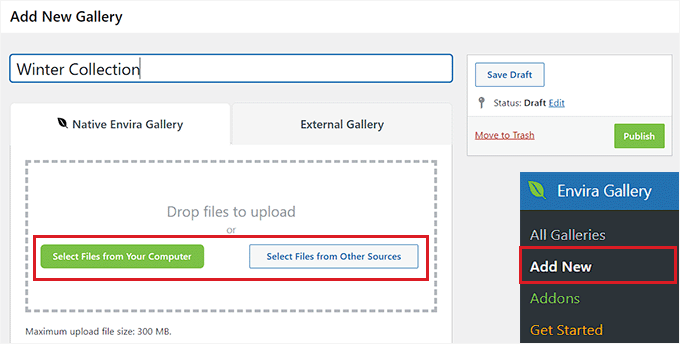
Upon activation, you’ll need to navigate to Envira Gallery » Add New from the WordPress admin sidebar. From here, you can start by typing a name for your gallery.
Next, let’s click the ‘Select Files from Your Computer’ button to upload gallery images from the computer.
Alternatively, you can click the ‘Select Files from Other Sources’ button to use images already in your WordPress media library.
This will open the library, where you can select all the photos you want to include in your gallery.
Once you have done that, you’ll want to scroll down to the ‘Currently in your Gallery’ section.
Here, you will see a preview of all the images you uploaded to your Envira Gallery.

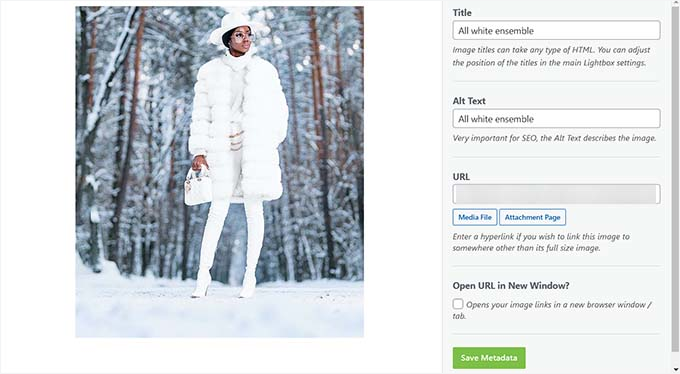
Now, you can click on the pencil icon at the top of each image to open the ‘Edit Metadata’ prompt on the screen.
From here, you will be able to add the caption, status, title, and alt text for individual images.
Once you are happy, don’t forget to click the ‘Save Metadata’ button to store your settings.
Next, you can switch to the ‘Configuration’ tab from the left sidebar to change your gallery layout. Here, you can choose the number of columns, image lazy loading, size, title and caption positioning, margins, heights, and more.
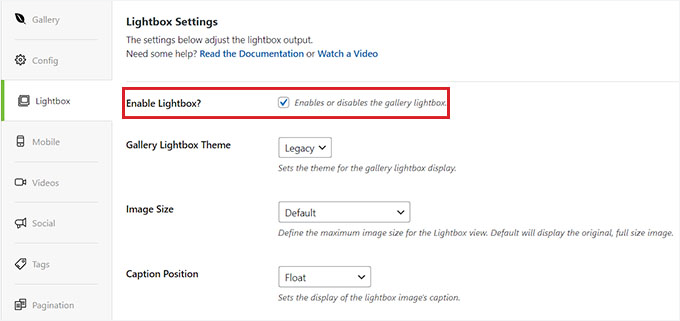
In the ‘Lightbox’ tab, you can check the ‘Enable Lightbox’ option. This will allow users to enlarge images and browse them without ever leaving the page.
After that, you can also configure other settings, including videos, social sharing, tags, pagination, and more.
For detailed instructions, see our beginner’s guide on how to create an image gallery in WordPress.
Finally, go ahead and click the ‘Publish’ button at the top to store your settings.
Now, simply repeat this process to create any other galleries you need for your WordPress blog. You can create as many as you like.
Add Multiple Galleries to a WordPress Post or Page
Now that you have created multiple image galleries, it’s time to add them to your WordPress posts and pages.
To start, you can simply open the post or page where you want to add your galleries in the WordPress content editor.
Once you are there, click the ‘+’ button in the top left corner of the screen to open the block menu. From here, let’s find and add the Envira Gallery block to the page or post.
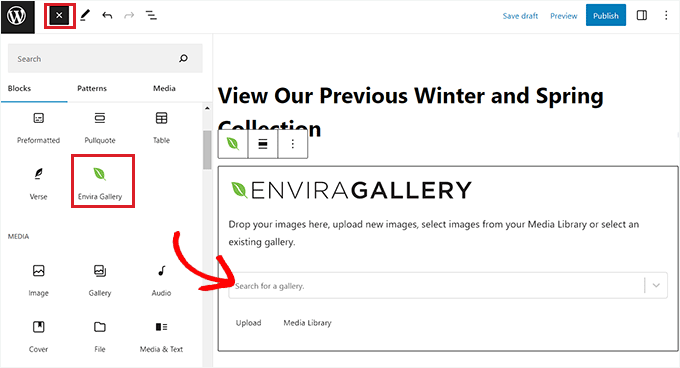
The next step is to select one of the galleries that you created from the dropdown menu in the block itself.
To add another gallery, simply add a new Envira Gallery block right below the first one and select your second gallery from its dropdown menu.
Once you have done that, you can change the gallery layout, enable the lightbox, or set the row height from the block panel as well.
You can even upload new images to your gallery by clicking the ‘Upload’ or ‘Media Library’ button under each gallery.
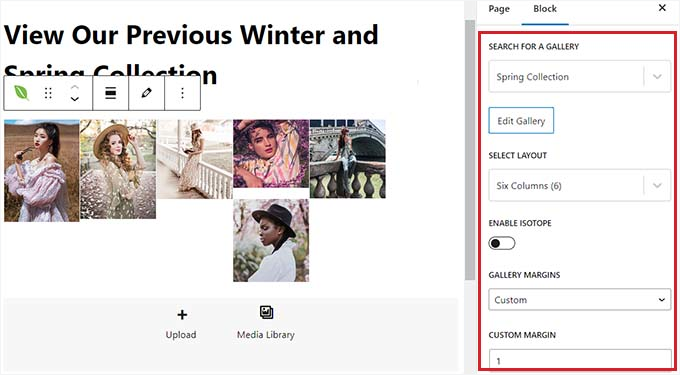
Finally, simply click the ‘Publish’ or ‘Update’ button at the top to store your settings.
Now, you can visit your WordPress site to view the multiple image galleries in action.
Add Multiple Galleries to Your WordPress Sidebar
Envira Gallery makes it super easy to add your galleries to sidebars and other widget-ready areas.
First, you need to head over to Appearance » Widgets from the WordPress dashboard.
📝 Note: If you are using a block theme, then you won’t be able to see the widgets menu. Instead, you can jump to our next method, where we show you how to insert multiple galleries using the full site editor.
From here, just click the ‘+’ button at the top left corner to open the block menu and add the Envira Gallery block to the sidebar.
Once the block is added, select your first gallery from the dropdown menu. To add a second gallery, just add another Envira Gallery block below the first one and choose a different gallery.
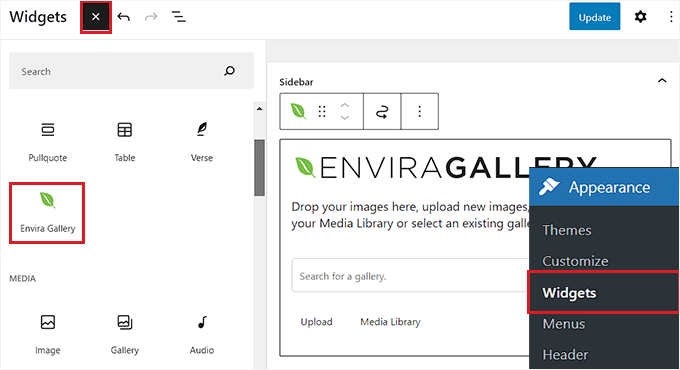
Next, simply repeat the process to add another image gallery to the WordPress sidebar.
Once you have done that, you can further configure the layout for each gallery from the block panel on the right side of the screen.
You can also click the pencil icon in the block toolbar to launch the gallery edit screen.
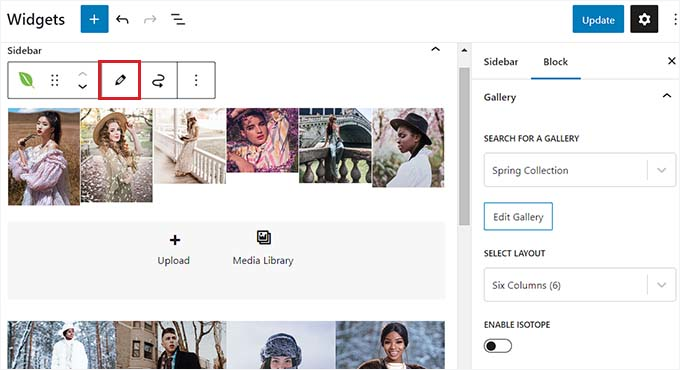
Once you are happy with your image galleries, click the ‘Update’ button at the top to save your changes.
Now, go ahead and visit your WordPress site to view multiple image galleries in your sidebar.

Add Multiple Galleries Using the Full Site Editor
If you are using a block theme, then the ‘Widgets’ menu tab won’t be available for you.
Instead, you’ll need to visit Appearance » Editor from the WordPress dashboard and select the ‘Templates’ option from the left column.

This will open a list of all the pages on your website in the left column. From here, you can select the page where you want to add the galleries.
This will open the page in the WordPress full site editor.
🚨 Important: When you edit a template, your changes will apply to all pages or posts that use it. If you only want to add galleries to a single page, you should edit that page directly from the Pages menu in your dashboard instead.
From here, click the + ‘Add Block’ button, find the Envira Gallery block, and add it to your template.
Then, simply select the gallery you want to display from the dropdown menu inside the block. And you can repeat this process to add as many galleries as you need.
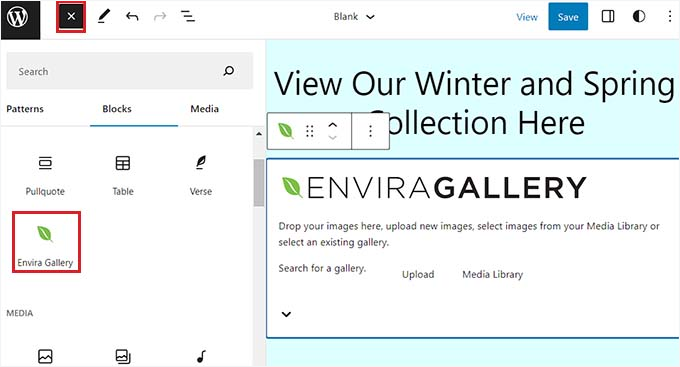
After that, you can configure the gallery settings from the block panel.
Alternatively, you can click the pencil icon in the block toolbar to launch the gallery edit screen.
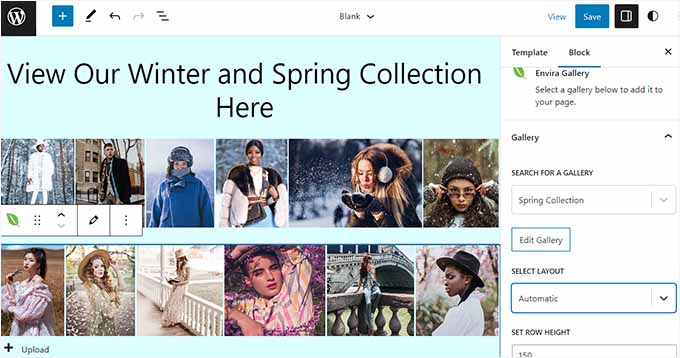
Finally, let’s click the ‘Save’ button at the top to store your settings.
Now, you can visit your WordPress site to view the multiple image galleries.

Bonus Tip: Display Video Galleries to Your WordPress Site
Envira Gallery is also one of the best YouTube video gallery plugins for WordPress. This can help you show off your filmography, products, or informational video clips on your website.
To do this, you’ll need the Envira Videos Addon. Upon activation, you can create a YouTube gallery on your site simply by using the URL for each video.
This can help improve your site’s SEO, showcase your expertise, and increase user engagement.
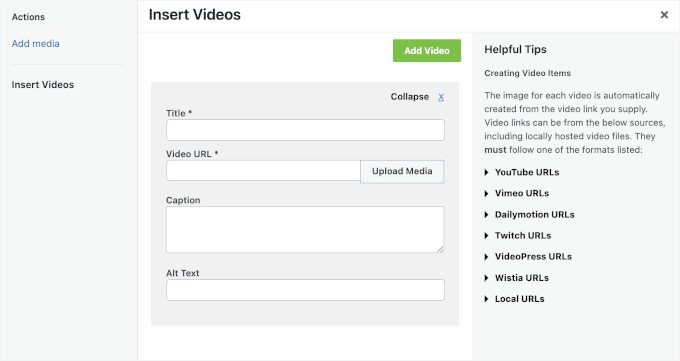
It also lets you adjust the playback sound, use video autoplay, use fullscreen by default, hide the playback controls, and much more.
To learn more, you can see our list of the best YouTube video gallery plugins for WordPress.
FAQs: Show Multiple Galleries in WordPress
What is the best plugin for creating multiple galleries in WordPress?
We recommend Envira Gallery because it’s easy to use and packed with powerful features. You can create unlimited responsive galleries with options like albums, watermarking, and social sharing.
It’s the tool we use ourselves, and the one we suggest if you want to showcase your images in a professional way.
Can I add multiple galleries in WordPress without a plugin?
Yes, you can. The default WordPress Gallery block can be added multiple times in a single post or page. This works fine for very simple setups.
However, you’ll miss out on important features like lightbox popups, reusing galleries across posts, and advanced styling options that a plugin provides.
Are image galleries made with Envira Gallery mobile-responsive?
Yes. Envira Gallery is fully responsive by default, so your galleries will automatically look great on desktops, tablets, and smartphones.
Is there a limit to how many galleries I can add to one page?
With a plugin like Envira Gallery, there’s no real limit. You can add as many galleries as you need. That said, it’s a good idea to optimize your images so your pages continue to load quickly for visitors.
Additional Resources on WordPress Galleries & Images
We hope this article helped you add multiple galleries to WordPress posts and pages. Next, you may also want to check out these other useful guides related to managing images on your website:
- How to Create Responsive WordPress Image Galleries with Envira
- How to Create a Photo Gallery with Albums in WordPress
- How to Sell Photos Online with WordPress
- How to Automatically Add Watermarks to Your Images
- Ways to Prevent Image Theft in WordPress
- How to Fix Featured Image Not Showing in WordPress
If you liked this article, then please subscribe to our YouTube Channel for WordPress video tutorials. You can also find us on Twitter and Facebook.




THANKGOD JONATHAN
Thank you for this article.
If I use this method and create a photo gallery, will the gallery appear in search results.
For instance, if a create a gallery for “best shops in X town” and add the keywords in metadata and the title. if someone search for that keywords will my gallery appear in search results?
WPBeginner Support
They certainly can, the main thing to keep in mind is if you are trying to rank for a specific geographical area you would want to look into local SEO to add that metadata.
Admin
THANKGOD JONATHAN
I am using All In One SEO and I believe this feature is available.
Thank you. This will really help me.
Moinuddin Waheed
Images play important role in visual appearance of the website. it creates visually appealing sense of accomplishment while browsing the website.
But the downside of having too many images in websites is that it causes website to load slow.
Is there a way in envira gallery or other plugin that can optimize the images right when we upload in the media?
it will be very effective in terms of its fast loading speed of the website.
WPBeginner Support
For optimizing your images, we would recommend taking a look at our article below that covers a few options:
https://www.wpbeginner.com/beginners-guide/speed-wordpress-save-images-optimized-web/
Admin
Kim Carney
Because our new stream player is not compatible with Site Builder, I’m having to rebuild our radio station’s website using WordPress. I have spent days going thru dozens of blogs & tutorials to find a way to re-create this page using WP:
Our Featured Artists must be in alphabetical order so listeners can find them and because we are constantly adding new artists, I need to be able to place new artists in specific places to keep them all in alpha order.
Does anyone know if building a page like this in WP is even possible?? I’m losing my patience and my marbles trying to figure this out…lol. Any help is MUCH appreciated. Thank you!!
uncommonchick
Thank you! I have been searching for a way to do this for awhile now…wordpres should really add this to the core product. Seems very simple to do without having to add yet another plugin.
Thanks again!
inkdork
@wpbeginner Update- I had to disable the plug-in because it removed my ability to access any images I had previously uploaded to the site.
Once I disabled it, I have full functionality back again. Not sure if it is a conflict with another plug-in or something else, will try disabling other plugins I really don’t need and see if it works then.
inkdork
@wpbeginner If you go to http://kittyloafdesigns.com, you’ll see one way I made this plug-in work. I had wanted a photo of myself posted next to my intro, and a small gallery below it to show some samples of my work, but without being able to separate the two, the best I could get before was to have my photo at the top, then have it appear a second time within the gallery. Now I am able to have the two apart from each other, which is great!
There’s just one more thing I would like to see this plug-in do, and that would be to be able to assign images previously or later uploaded to galleries on a page, not just the ones upload with that post. Then it would be perfect!
inkdork
@wpbeginner I can definitely do that. We’re about to head off to bed, but this evening I’ll be installing it and making a few changes. I have one page in particular that will be able to make very good use of this plug-in.
wpbeginner
@inkdork Yea a lot of folks don’t know about this very neat feature Do show us the example once you are done.
inkdork
I should have dug through the archives sooner- I’ve been wondering about this for a while. Looks like I’ll be adding this to my site tonight.
PauldeWouters
thanks, I hadn’t heard of this plugin, and I need this for a client. I had used the gallery shortcode parameters to create multiple galleries [gallery exclude="1,2,3"], but it’s not very beginner friendly
iamdesigning
Interesting stuff to read & sounds great with clean implementation. Really an useful & effective informational posting for me at this time.
Thanks a lot for share this nice read : ) Looks forward to hear more good stuffs from you ever . . . !
Dragan
Thanks. Other solution would be to add another gallery tag manually and list picture id’s for that gallery. This is definitely one of those things that need to improve in WordPress core in future versions.