


Creating beautiful content in WordPress doesn’t have to feel overwhelming.
The block editor (Gutenberg) was specifically designed to make building pages and posts as simple as dragging and dropping blocks into place. No technical skills are required.
Think of it like building with digital Lego blocks. Each piece of content – whether it’s text, images, or buttons – becomes a block that you can easily move around and customize.
We have been using it for years. This has helped us guide thousands of WPBeginner users through mastering this system.
In this tutorial, we’ll show you exactly how the WordPress block editor works.
You’ll learn simple techniques that make content creation faster. Plus, you will discover features that give your website a polished look without any coding knowledge.
Note: In this article, we are talking about using the block editor, which is designed for editing your posts and pages. If you’re wondering how to edit your entire website with blocks, then please see our complete guide to WordPress full site editing.
What’s the Difference Between the Block Editor (Gutenberg) and the Classic Editor?
The biggest difference lies in how you create content. The Classic Editor was a simple text writer, while the Block Editor is a modern page builder.
Here is a quick comparison of the key differences:
| Feature | Classic Editor | Block Editor (Gutenberg) |
|---|---|---|
| Content Structure | Single text field (like MS Word) | Individual blocks for every element |
| Layout Options | Limited (needs plugins for columns) | Drag-and-drop columns, groups, and rows |
| Media Handling | Basic alignment (left, right, center) | Full-width images, galleries, and cover blocks |
| Mobile Responsiveness | Often requires custom CSS code | Blocks stack automatically on mobile |
| Shortcodes | Pasted directly into text | Dedicated Shortcode block for cleaner code |
The Block Editor gives you more control over the look and feel of your content. You can build complex layouts that were simply impossible with the old editor.
How Is the WordPress Block Editor Better Than the Classic Editor?
The WordPress block editor offers a faster, more visual way to create content. It eliminates the need for many single-purpose plugins that used to slow down websites.
Here are the proven benefits of switching to the Block Editor:
- Media Richness: It includes powerful media options like the Cover block (for hero images) and the Media & Text block, which were previously impossible without custom coding.
- Reduces Plugin Bloat: You no longer need separate plugins for tables, buttons, or columns. These are all built-in core blocks now.
- Mobile Responsive by Default: In the classic editor, complex layouts often break on phones. Block columns automatically stack vertically on mobile devices, ensuring a seamless experience for visitors.
- Visual Editing: You can see exactly what your content looks like while you edit. There is no need to switch back and forth between the editor and the “Preview” button.
- Future-Proofing: The Block Editor is required for modern WordPress features like Full Site Editing (FSE) and Block Themes. The classic editor cannot access these new design tools.
Here is what we will cover in this Gutenberg tutorial:
- Using Gutenberg – The WordPress Block Editor
- Creating a New Blog Post or Page Using The Block Editor
- How to Add a Block in the Block Editor
- Working With Blocks in the New Editor
- Organizing Blocks in Groups and Columns
- Saving and Reusing Content with Synced Patterns (Reusable Blocks)
- Publishing and Managing Options in Gutenberg Block Editor
- Plugin Options in Gutenberg
- Adding Some Common Blocks in the Block Editor
- Exploring Other Content Blocks in the Block Editor
- Bonus Tips to Use Gutenberg Like a Pro
- Adding More Blocks to Gutenberg Block Editor in WordPress
- Frequently Asked Questions About Gutenberg – The Block Editor in WordPress
- Video Tutorial
- Bonus Resources
Ready? Let’s dive in.
Using Gutenberg – The WordPress Block Editor
The block editor is designed to be intuitive and flexible. While it looks different from the old WordPress editor, it still does all the things that you could do in the classic editor.
Let’s start by covering the basic things you did in the classic editor and how they are done in the block editor.
Creating a New Blog Post or Page Using The Block Editor
You will start creating a new blog post or page like you normally would. Simply click on the Posts » Add New Post menu in your WordPress admin.
If creating a page, go to the Pages » Add New menu instead.
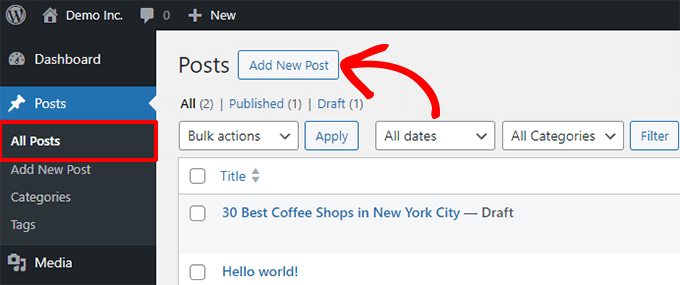
This will launch the block editor.
How to Add a Block in the Block Editor
The first block of every post or page is the title.
You can use the mouse to move below the title or press the Tab key on your keyboard to move the cursor down and start writing.
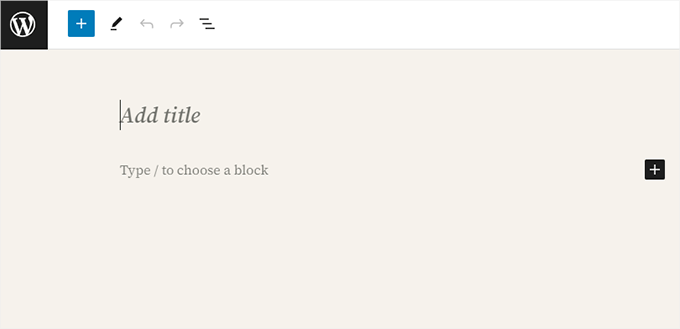
By default, the next block is a Paragraph block. This allows users to start writing right away.
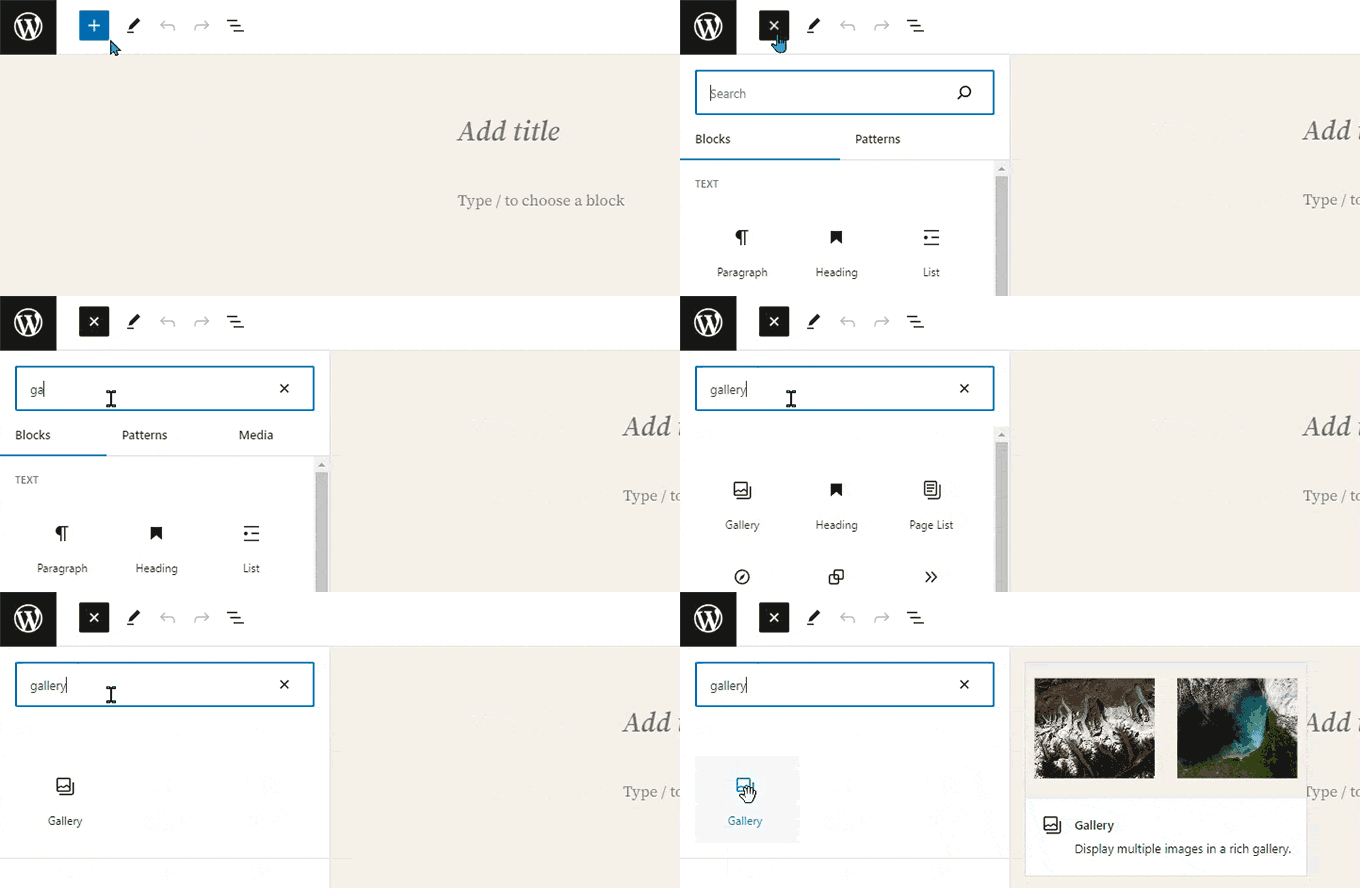
However, if you want to add something different, then you can click on the add new block button [+] in the top left corner of the editor, below an existing block, or to the right side of a block.
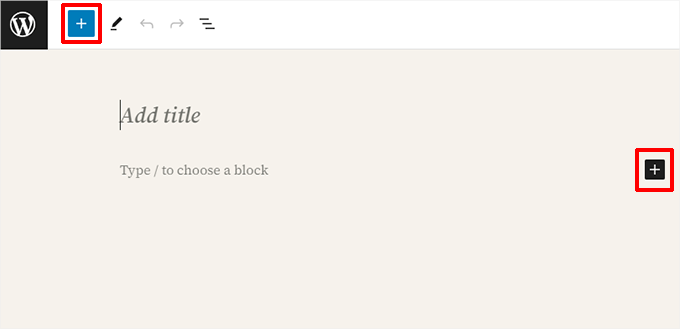
Clicking on the button will show the add block menu with a search bar on top and commonly used blocks below.
You can click on tabs to browse block categories or type in a keyword to quickly search for a specific block.
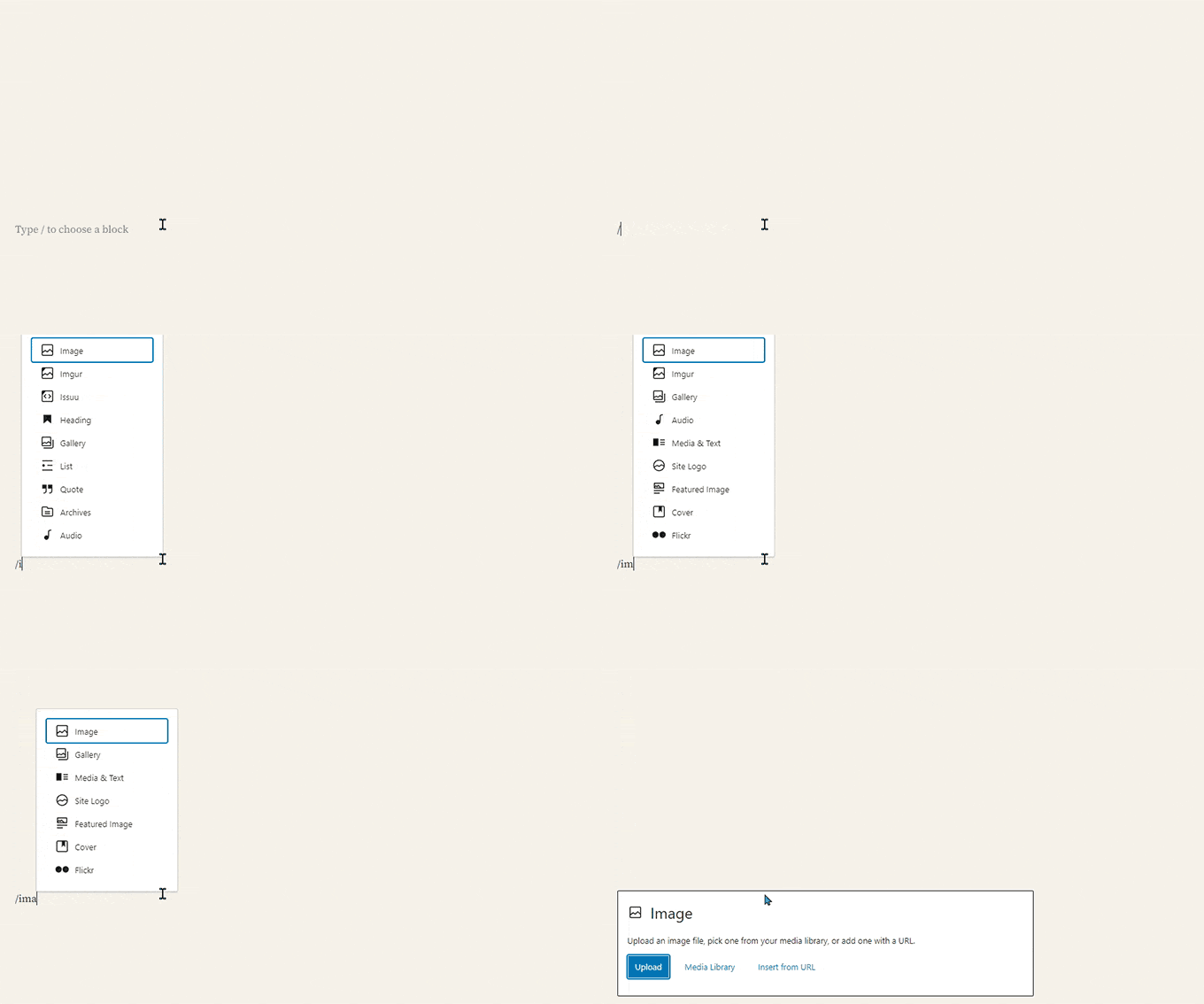
If you don’t want to use the mouse to click on the button, then you can also use a keyboard shortcut.
Start by typing / to search for a block and then insert it by pressing the Enter key on your keyboard.
Working With Blocks in the New Editor
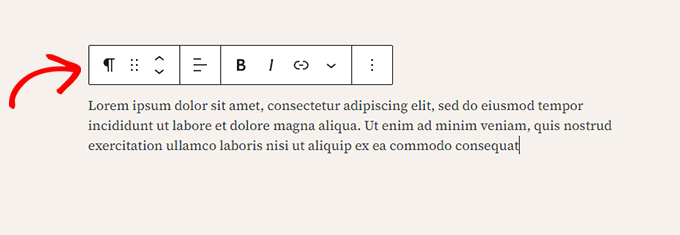
Each block has a toolbar that appears on top of it. The buttons in the toolbar change depending on the block you are editing.
For example, in the screenshot below, we are working on a Paragraph block that shows basic formatting buttons like text alignment, bold, italic, insert link, and more options that are available under the three-dot menu.
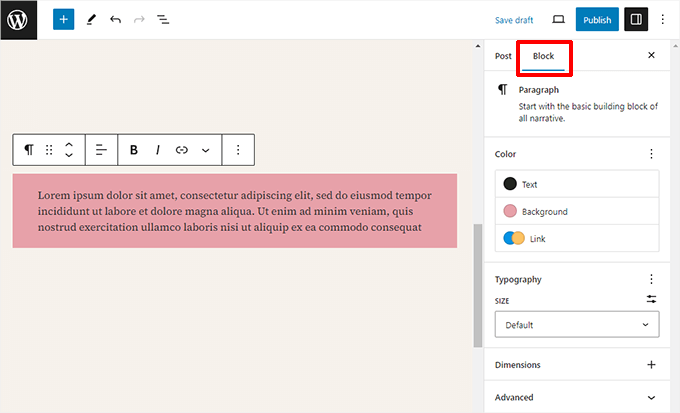
In addition to the toolbar, each block can have its own block settings, which appear in the right column of the edit screen.
These settings vary depending on which block you are editing. For example, the Paragraph block lets you edit the text, background, and link color, as well as the typography.
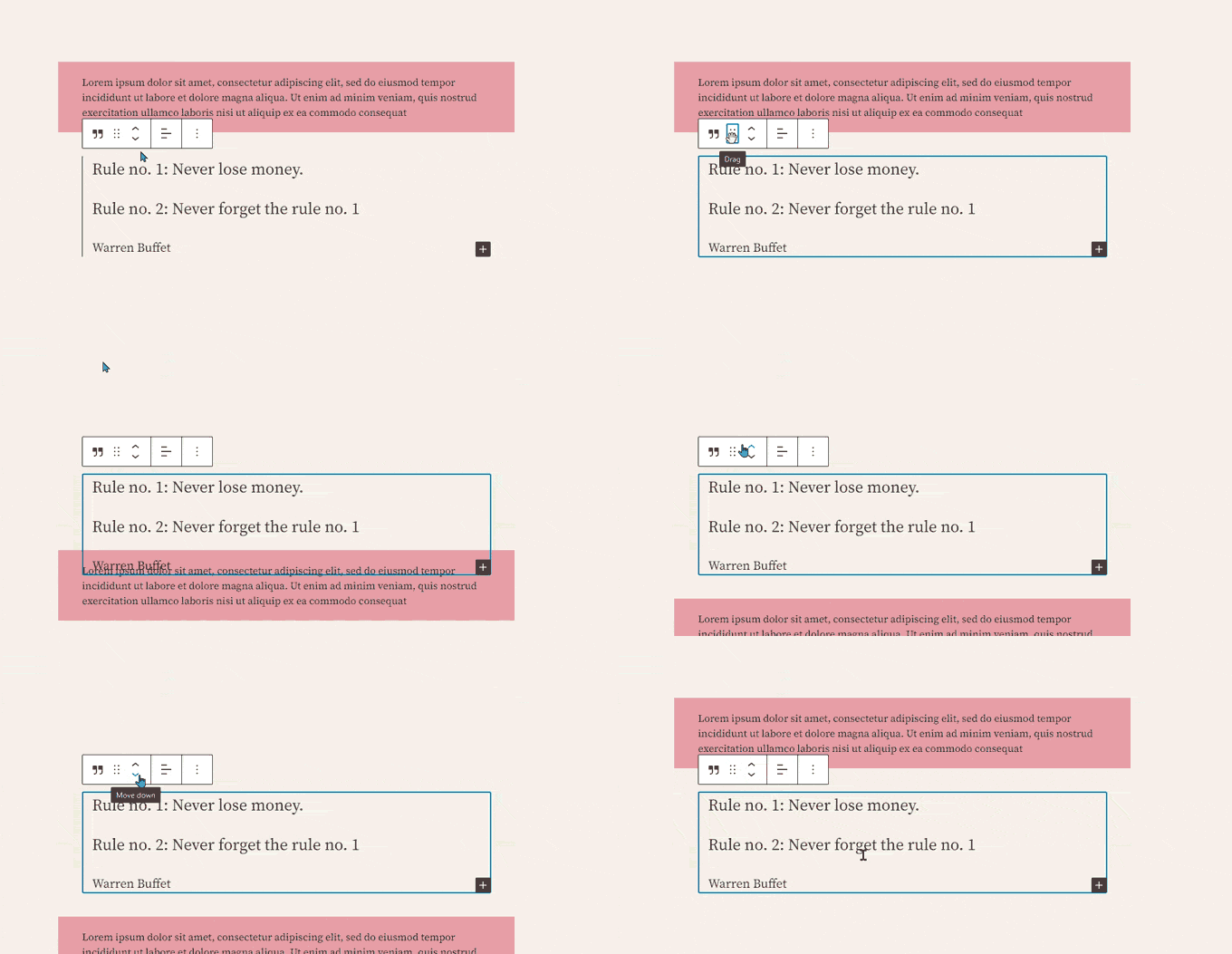
You can move blocks up and down and rearrange them.
If you want to do this, just click to drag or drop or click the up and down buttons in the block toolbar.
Related: See our guide on how to remove a block in WordPress.
Organizing Blocks in Groups and Columns
The block editor comes with handy tools to manage and organize your layouts.
You can select multiple blocks by clicking on them while pressing the Shift key on your keyboard.
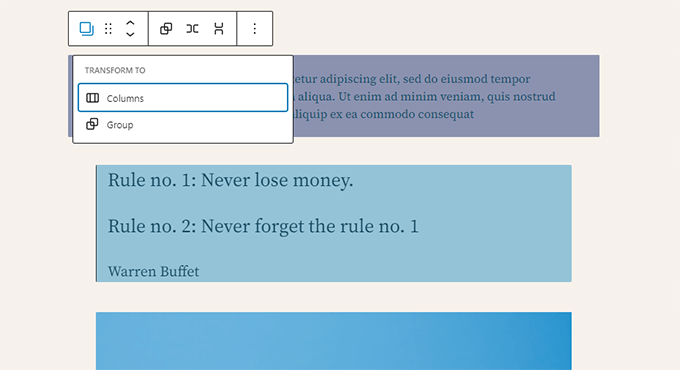
After that, go ahead and click on the block type button in the toolbar to transform the selected blocks into Groups or Columns.
You can then apply styles to the entire Group block, such as changing the alignment or spacing.
Pro Tip: When working with groups and columns, it can be hard to select the exact block you want. We recommend using the List View.
Simply click the three horizontal lines icon in the top toolbar. This shows you a clear outline of all blocks on your page, making it easy to select nested groups and move them around.
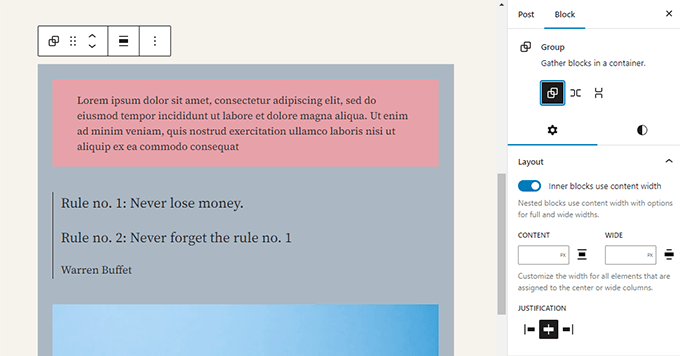
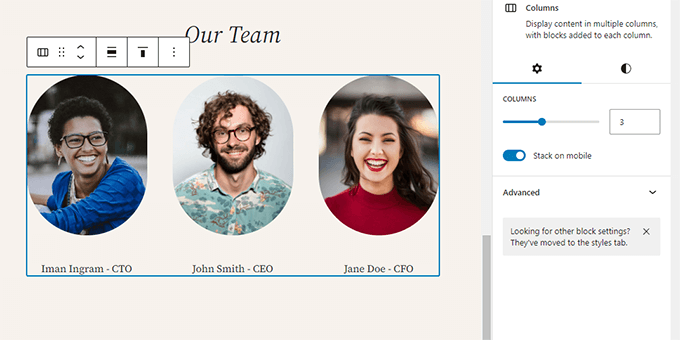
The block editor also allows you to add an empty Group or Columns block.
After that, you can fill them with other blocks.
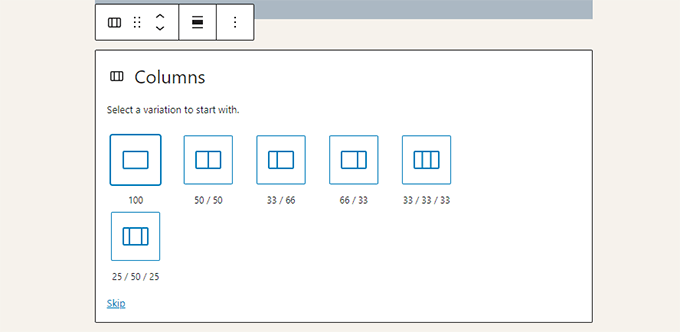
You can add any type of block in each column as needed.
This allows you to create beautiful layouts for different use cases.
Saving and Reusing Content with Synced Patterns (Reusable Blocks)
One of the most powerful features of the block editor is the ability to save and reuse content across your site. This is done using Synced Patterns (formerly known as Reusable Blocks).
A Synced Pattern is a block, or a group of blocks, that you can use on multiple posts and pages.
The best part is that when you edit the pattern, it automatically updates everywhere you’ve used it. This is perfect for content that needs to remain consistent, such as a call-to-action box or affiliate disclosure.
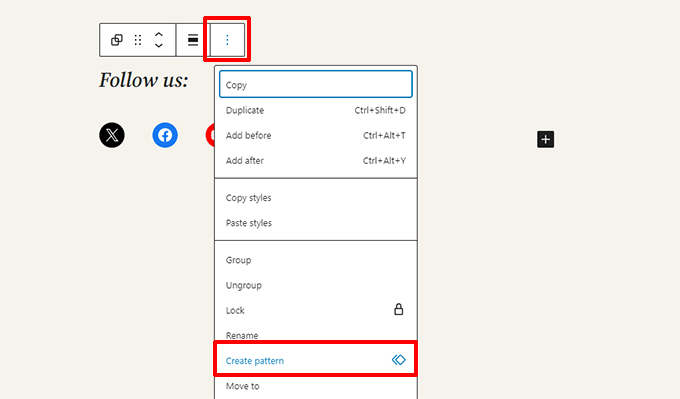
To create one, simply select the block or blocks you want to save. Then, click the three-dot menu icon in the block toolbar and choose the ‘Create Pattern’ option.
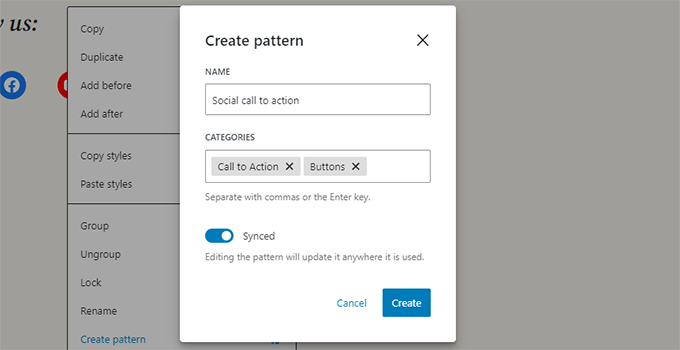
A popup window will appear. Here, you can give your pattern a name and assign it to a category to keep things organized.
Most importantly, you need to make sure the ‘Synced’ option is turned on. This is what makes the pattern update everywhere at once.
Note💡: You can also use entire groups and columns as reusable blocks. This allows you to save entire sections and use them whenever needed.
After you click ‘Create’, your new Synced Pattern will be saved.
To use it in another post or page, just click the block inserter (+) button and find it under the ‘Patterns’ tab, or simply search for it by name.
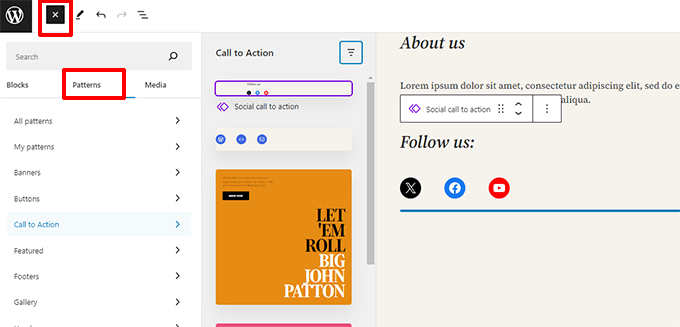
Patterns make it easy for site owners to add commonly used elements to their layouts, such as calls to action, social media buttons, banners, and more.
Your WordPress theme or plugins may even come with their own patterns, or you can find patterns created by others in the WordPress Block Patterns library.
If you need more help, we have a separate guide for beginners on finding and using WordPress block patterns.
Publishing and Managing Options in Gutenberg Block Editor
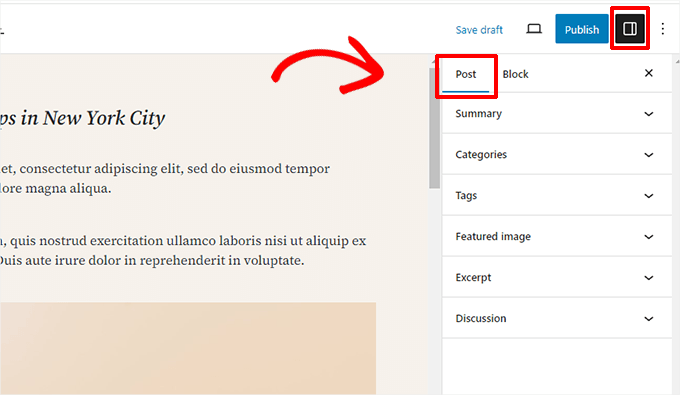
Each WordPress post contains a lot of metadata. This includes information like the publishing date, categories and tags, featured images, and more.
All these options are neatly placed in the right column on the editor screen.
Plugin Options in Gutenberg
WordPress plugins can take advantage of the block editor’s API to integrate their settings within the edit screen.
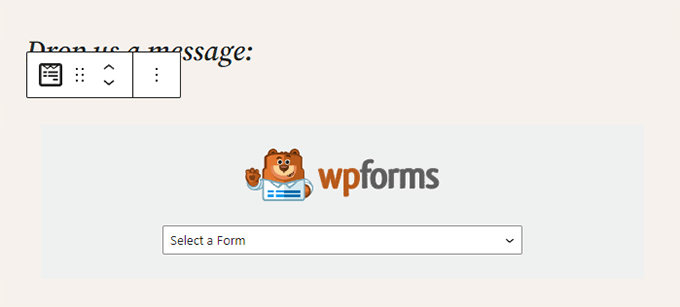
Some popular plugins come with their own blocks.
For example, WPForms, the best WordPress contact form plugin, allows you to add forms to your content using a block.
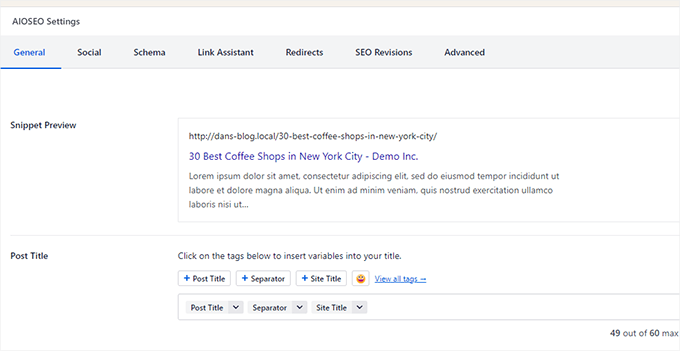
Other WordPress plugins may also add their settings to the block editor screen.
For instance, here is how All in One SEO for WordPress allows you to edit your SEO settings at the bottom of the block editor:
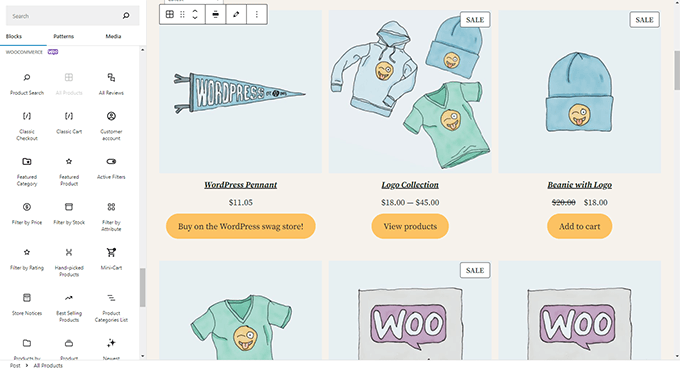
Similarly, if you run an online store using WooCommerce, then you’ll notice that it also has its own blocks.
These blocks allow you to add your products to any of your WordPress posts and pages.
Adding Some Common Blocks in the Block Editor
The block editor can do everything the older classic editor did.
However, you will be doing things more quickly and elegantly than before. Plus, it can do much more, like letting you style your content with a bunch of no-code options.
Here are some of the common blocks that you can use.
1. Adding an Image in the WordPress Block Editor
There is a ready-to-use Image block in the WordPress block editor. Simply add the block and then upload an image file or select it from the media library.
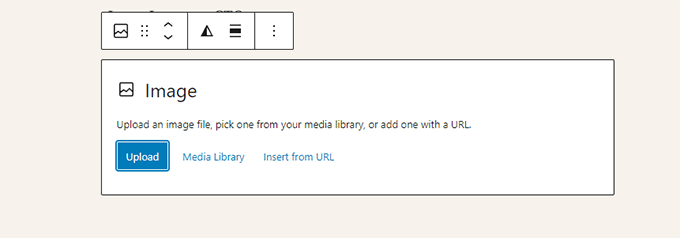
You can also drag and drop images from your computer, and the editor will automatically create an Image block.
Once you have added an image, you will be able to see the block settings, where you can add metadata for the image, like the alt text, image resolution size, and adding a link to the image.
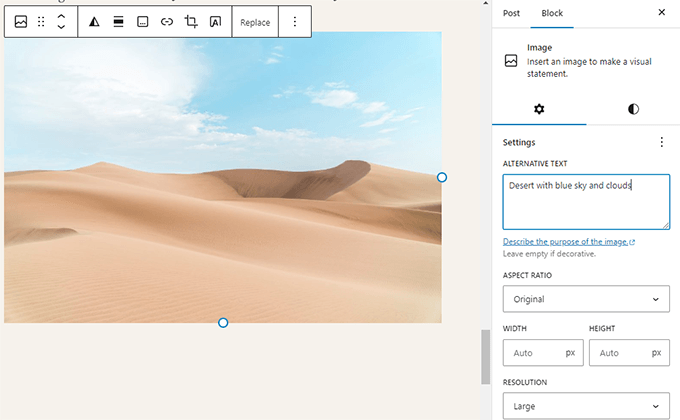
For more information, just take a look at our tutorial on how to add images in WordPress.
2. Adding a Link in the Block Editor
The block editor comes with several blocks where you can add text. The most commonly used one is the Paragraph block, which has an insert link button in the toolbar.
All other commonly used text blocks also have a link button in the toolbar.
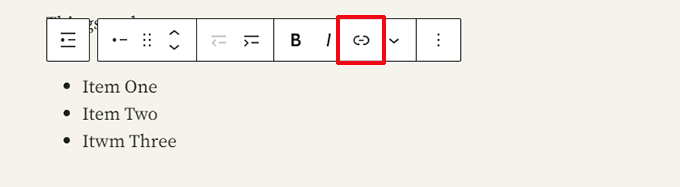
You can also insert a link using the keyboard shortcut, which is Command + K for Mac and CTRL + K on Windows computers.
3. Adding an Image Gallery in Gutenberg
The Gallery block works like the image block. You add it and then upload or select image files.
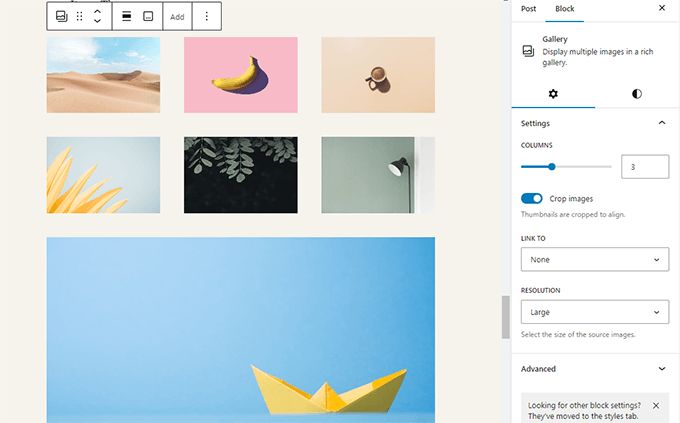
For more details, see our guide on creating an image gallery in WordPress.
4. Adding Shortcodes in WordPress Posts Using Gutenberg
All your shortcodes will work just like they used to. However, we recommend using the dedicated ‘Shortcode’ block.
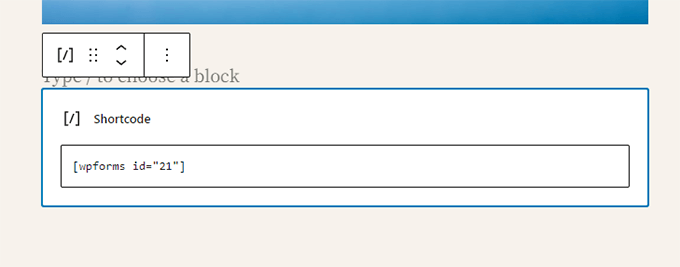
While you can technically paste shortcodes into a Paragraph block, the Shortcode block prevents formatting issues and ensures your code renders correctly.
Exploring Other Content Blocks in the Block Editor
The Gutenberg editor promised to solve some long-standing usability issues in WordPress by introducing new blocks.
The following are some of the favorites that we believe users will find immensely helpful.
1. Adding an Image Next to Some Text in WordPress
Many of our users could not place an image next to the text using the old editor. You can do this now with the Media & Text block.
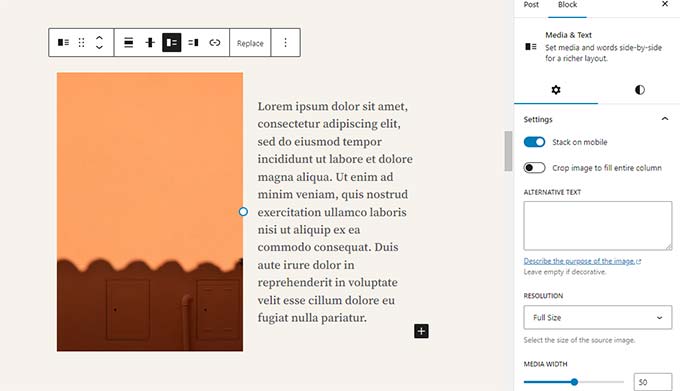
This simple block comes with two blocks placed side-by-side, allowing you to easily add an image with some text next to it.
2. Adding a Button in WordPress Posts and Pages
Another annoyance of the old editor was adding a button to your blog posts or pages. You either had to use a plugin that created a shortcode for the button or switch to HTML mode and write code.
Luckily, Gutenberg has a Button block that lets you quickly add a button to any post or page.
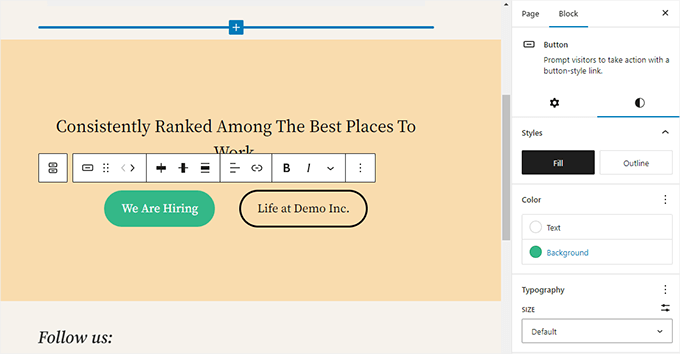
You can add a link for your button, change colors, and more. For details, see our article on how to easily add buttons in WordPress.
3. Adding Beautiful Cover Images in Blog Posts and Landing Pages
Another cool feature you may want to try is the Cover block, which allows you to add cover images or color background covers to your posts and pages.
A cover image is a wider image often used for a new section on a page or the beginning of a story. It looks beautiful and allows you to create engaging content layouts.
Simply add a Cover block and then upload the image you want to use. You can choose an overlay color for the cover or make it a fixed background image to create a parallax effect when users scroll down the page.
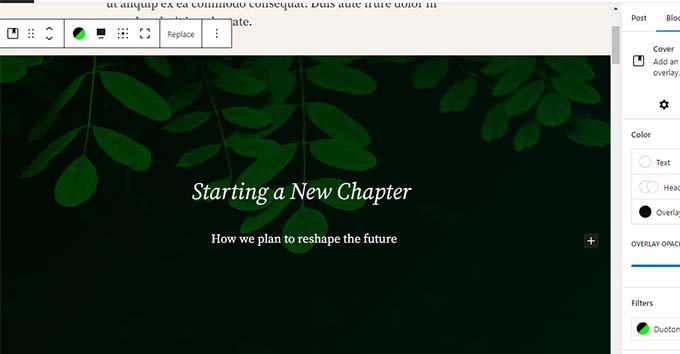
For more details, see our article on the difference between cover and featured images in WordPress.
4. Creating Tables Inside Articles
The classic editor didn’t have a button to add tables to your WordPress posts. You had to use a plugin or create a table by writing custom CSS and HTML.
Now, the block editor has a default Table block, making adding tables to your posts and pages super easy. Simply add the block and select the number of columns and rows you want to insert.
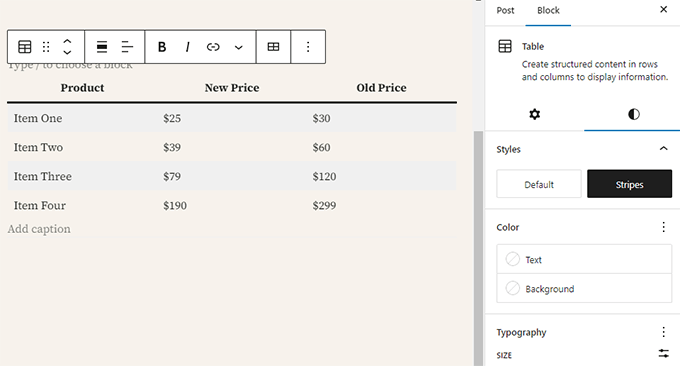
You can now start adding data to table rows. You can always add more rows and columns if needed, and two basic style options are available.
5. Creating Multi-Column Content
Creating multi-column content was a major pain point in the past. Fortunately, the block editor allows you to add a Columns block easily.
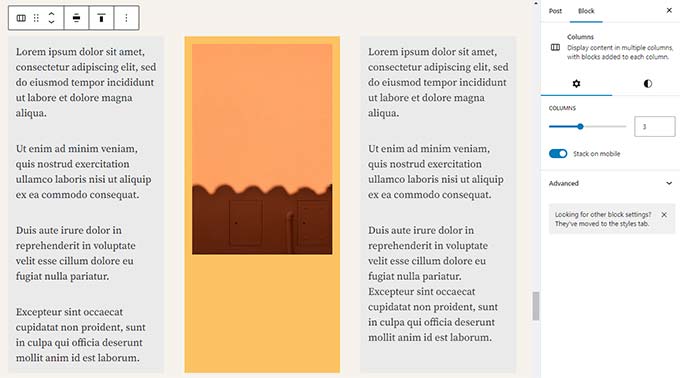
This block is quite flexible. You can add up to 6 columns in a row and even use other blocks inside each column.
Best of all, these columns are mobile-responsive. WordPress automatically stacks them vertically on smaller screens, so your site looks great on all devices without extra coding.
Bonus Tips to Use Gutenberg Like a Pro
Looking at the block editor, you may wonder whether you will spend more time adding and adjusting blocks than creating actual content.
Well, the block editor is incredibly fast, and even very basic usage for a few minutes will allow you to add blocks instantly without even thinking.
Pretty soon, you will realize how much faster your workflow will become with this approach.
Here are some bonus tips for power users to help you work even faster with the WordPress block editor.
1. Move the Block Toolbar to the Top
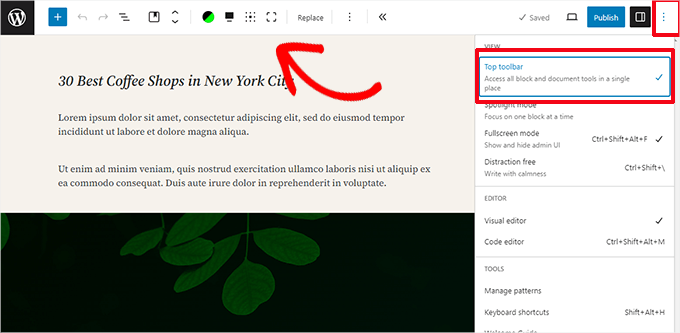
You may have noticed in the screenshots above that a toolbar appears at the top of every block. You can move this toolbar to the top of the editor.
To access the ‘Top toolbar’ option, click on the three-dot button at the top right corner of the screen.
2. Use Keyboard Shortcuts
Gutenberg comes with several handy shortcuts that will make your workflow even quicker and easier. The first one you should start using right away is the /.
Simply enter /, start typing, and then the editor will show you matching blocks that you can instantly add.
For more shortcuts, click on the three-dot menu at the top-right corner of your screen and select ‘Keyboard shortcuts.’
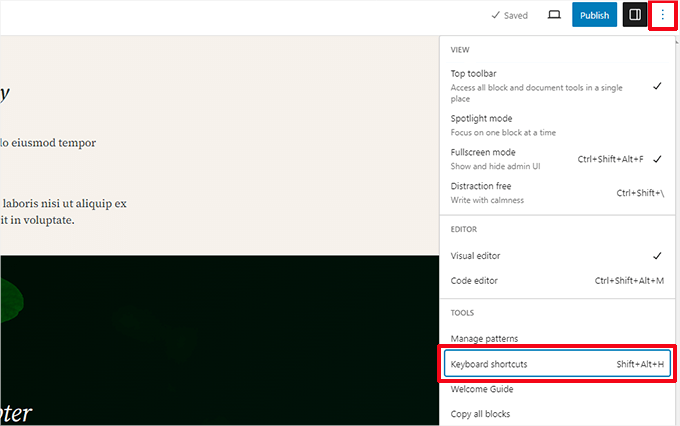
This will bring up a popup with a list of all the keyboard shortcuts you can use. The list will have different shortcuts for Windows and Mac users.
3. Drag and Drop Media to Automatically Create Media Blocks
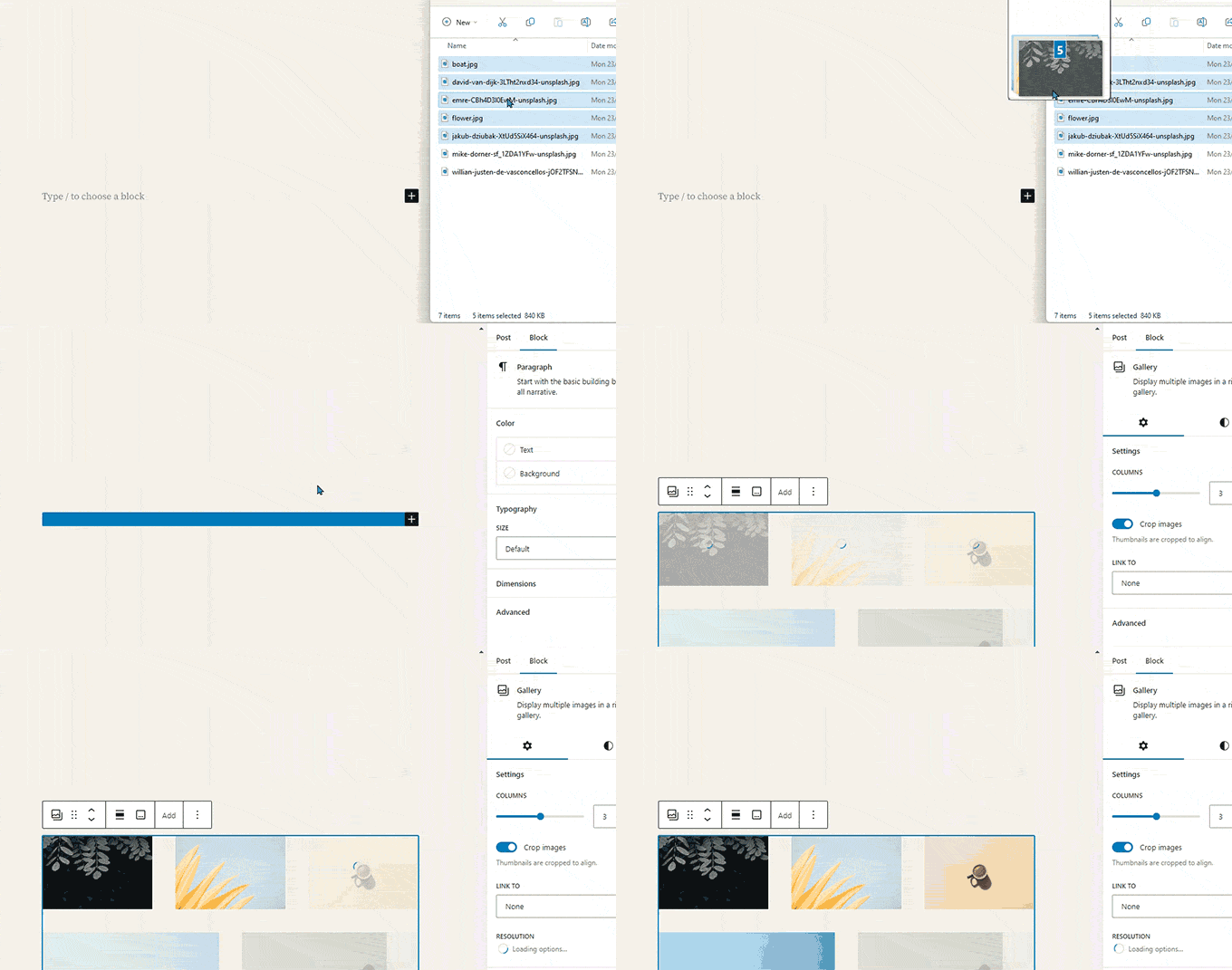
Gutenberg allows you to drag and drop files anywhere on the screen, automatically creating a block for you.
For instance, you can drop a single image or video file, and it will create the block for you. Alternatively, you might drop multiple image files to create a Gallery block.
4. Adding YouTube, Twitter, Vimeo, and Other Embeds
The block editor makes embedding third-party content into your WordPress content easier. There are blocks for popular services like YouTube, X (Twitter), Vimeo, and Spotify.
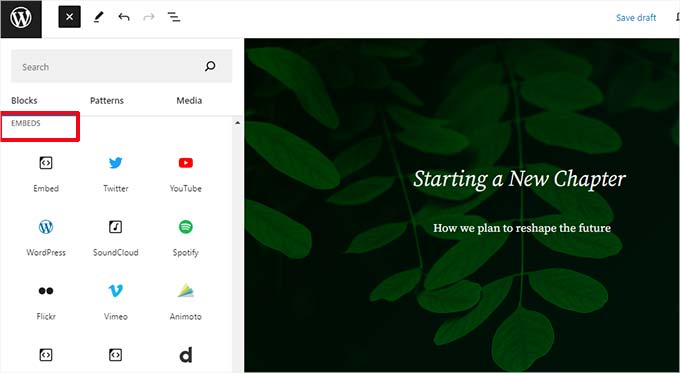
You can also just copy and paste the embed URL at any point, and it will automatically create a block for you.
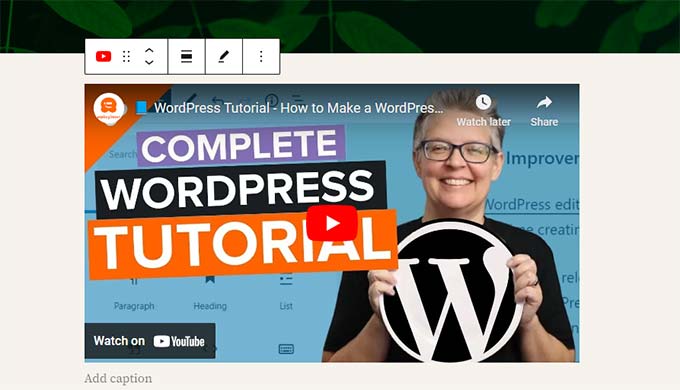
For example, adding a YouTube video URL will automatically create a YouTube embed block and display the video.
Note: Pasting a URL directly will NOT work for Facebook and Instagram posts. This is because these platforms changed their API privacy settings and removed open oEmbed support.
To fix this, you need to use a plugin that authenticates the connection. We recommend using Smash Balloon Social Photo Feed to enable the ‘oEmbeds’ feature.
For complete details, see our article on embedding Facebook and Instagram posts in WordPress.
Adding More Blocks to Gutenberg Block Editor in WordPress
The block editor in WordPress allows developers to create their own blocks. Some excellent WordPress plugins offer block bundles for the new editor.
Here are a few of them:
1. Spectra WordPress Gutenberg Blocks
Spectra WordPress Gutenberg Blocks is a block library with many advanced blocks that help you add more design elements to your content.
Spectra, created by the folks behind the popular Astra WordPress theme, helps you create beautiful designs without writing any code.
For more information, see our complete Spectra review.
2. PublishPress Blocks
PublishPress Blocks is another powerful block library that comes with additional blocks to extend the Gutenberg block editor.
It includes beautiful layout options, sliders, buttons, icons, image galleries, maps, tabs, testimonials, accordions, and more.
3. Stackable – Gutenberg Blocks
Stackable – Gutenberg Blocks is a collection of beautifully designed Gutenberg blocks you can use on your website. It includes blocks for the container, posts, feature grid, accordion, image box, icon list, call to action, and more.
For some more options, see our complete list of the best WordPress Gutenberg block plugins.
Frequently Asked Questions About Gutenberg – The Block Editor in WordPress
Since Gutenberg became the default WordPress editor, we have been getting a lot of questions about how to use it. Here are the answers to some of the most frequently asked questions about the block editor.
1. What happens to my older posts and pages in the block editor? Can I still edit them?
The block editor does not affect your old posts and pages. You can still edit them, and the block editor will automatically open them in a block containing the classic editor.
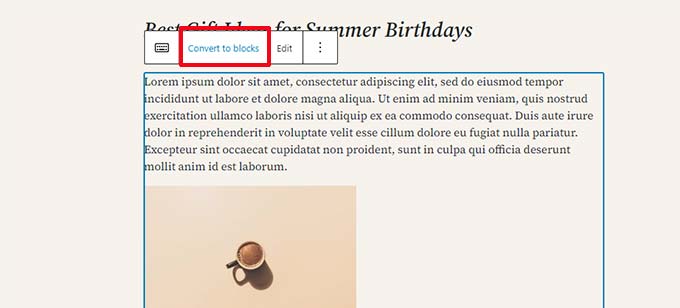
You can edit them inside the old editor, or you can convert older articles into blocks and use the block editor.
2. Can I still keep using the old editor?
Yes, you can still keep using the old editor. Simply install and activate the Classic Editor plugin.
Upon activation, the block editor will be disabled, and you will be able to continue using the classic editor.
The Classic Editor plugin will be officially supported for the foreseeable future. However, we highly recommend you start using the block editor now to get familiar with the modern way of creating content in WordPress.
3. What do I do if the block editor doesn’t work with a plugin or theme I am using?
Project Gutenberg was long in development, which gave plugin and theme authors plenty of time to test their code for compatibility.
However, there is still a chance that some plugins and themes may not work well with the block editor. In that case, you can install the Classic Editor plugin, request the developer to add Gutenberg support, or find an alternative plugin or theme.
4. How can I learn more about Gutenberg tips and tricks?
WPBeginner is the best place to learn about the block editor in WordPress. We are the largest WordPress resource site on the internet.
We will publish new articles and update our old resources to help you master the block editor.
Meanwhile, if you have any questions, feel free to contact us by leaving a comment or using the contact form on our website.
5. Running into Gutenberg problems?
If you are having trouble with the WordPress block editor, we have created a quick troubleshooting guide that lists all the common block editor problems users encounter and how to fix them.
Video Tutorial
Prefer video? You can watch our tutorial below:
Bonus Resources
The following are some additional resources that will help you use the block editor more efficiently:
- WordPress Block Editor vs Page Builders: What’s the Difference?
- How to Create a Custom WordPress Block (Easy Way)
- How to Import / Export Your WordPress Gutenberg Blocks (2 Steps)
- WordPress Widgets vs Blocks – What’s the Difference? (Explained)
- A Complete Beginner’s Guide to WordPress Full Site Editing
- Best Block Themes for Full Site Editing in WordPress
- Tips for Mastering the WordPress Content Editor
If you liked this article, then please subscribe to our YouTube Channel for WordPress video tutorials. You can also find us on Twitter and Facebook.


jeff
I inserted a hyperlink on a phrase and I want to change the font color for that phrase. how do I do that? please help
WPBeginner Support
If only for that specific phrase, you would need to edit the text as HMTL to add styling to that phrase at the moment
Admin
Anne
Hello!
I created a column block with 3 columns. Added content and everything was distributed across the page width equally. Then I added a 4th column and now the column block no longer distributes across the entire page width. It’s seems like it has “squooshed” (sorry, can’t think of a better word right now), all 4 columns and shrunk the info as well. I tried various alignments for each individual column and it still would not spread the entire block back out. Hope this makes sense and hope you can help. Thanks!!
WPBeginner Support
It sounds like what you added to your largest column has a minimum width that is not allowing the content to adjust which would be the root of your problem.
Admin
Mark Watts
I’m struggling with the Gutenberg block editor. Heres a couple of questions but there will surely be many more to come.
How do I add a pdf document so it opens when I click a link? Used to create and highlight the link text then select “add media” and all worked fine.
When I try to add a link from within the paragraph block I no longer see a list of possible pages and posts so that I can chose. How do I get this list.
WPBeginner Support
You would manually need to take the link from the document in your media library unless you wanted to embed it. In the paragraph block, there is the link button which is third from the right, as you type into it the dropdown should appear
Admin
Tuan
This upgrade so stupid. I spent more time to write. Haiz
WPBeginner Support
Learning a new interface can certainly be troublesome but as the interface improves it should slowly become better to use
Admin
Jennifer
I’ve searched and can’t find an applicable answer to my issue, so I’m hoping you can help me.
I upgraded to the new block system for our website this past week. I need to find and copy the url for one of our buttons (it’s a redirect to PayPal), but I can’t find the url anywhere.
There’s no “edit button” when I hover over the button in the block. I checked the html and couldn’t find it there, either – the only thing I could see were the image files for the button itself.
Clicking on the button live still redirects correctly, so I know the link is working – I just can’t find it.
Any advice?
Thanks!
Jennifer
WPBeginner Support
When you select the block there should be the block settings on the right-hand side where you would find the link settings for where the button links to if it was transferred as an image. If it is a button block then there should be the url beneath the button where you can edit it.
Admin
Franklyn Fosu
Please help me resolve the “Update failed” issue when trying to publish my articles using the Gutenberg.
WPBeginner Support
To start, you would want to go through the steps in our troubleshooting guide: https://www.wpbeginner.com/beginners-guide/beginners-guide-to-troubleshooting-wordpress-errors-step-by-step/
For a temporary workaround, you could also enable the classic editor plugin and reach out to the support for Gutenberg.
Admin
Carlos Goncalves
How to use the new advanced Css option. I Tried to put some code there, but It´s not run.
WPBeginner Support
That is for adding a class to the object, you would want to take a look at our explanation of CSS to understand classes better: https://www.wpbeginner.com/glossary/css/
Admin
Candi Clark
On the top right of my block edit page, it doesn’t say publish. The button says update. When I click that button it says page has updated but when I go take a look at it on my website it hasn’t changed. Did something not upgrade correctly to have that button not say publish?
WPBeginner Support
You may want to check any caching that you have on your site that could be causing the problem.
Admin
Jim Kielbaso
How do I go back to the old version? There was nothing wrong with it, and this version does not add anything. In fact, it makes it MUCH more confusing. It is NOT user-friendly, and it has been very frustrating. Upgrades should only be made to improve something, not just for the sake of changing.
WPBeginner Support
The new editor was created to help those new to WordPress have less of a barrier to entry. For those who prefer the old editor, there is the Classic Editor plugin and we explain that plugin in our article here: https://www.wpbeginner.com/plugins/how-to-disable-gutenberg-and-keep-the-classic-editor-in-wordpress/
Admin
Sufyan Shaikh
Good article.
WPBeginner Support
Thank you
Admin
AlannaMH
How do I change the font of text in blocks?
WPBeginner Support
For setting up your site’s font, you would want to take a look at our article here: https://www.wpbeginner.com/wp-themes/how-to-add-custom-fonts-in-wordpress/
Admin
Viktor
Time consuming, if you go to WP you will see very negative comments
For me the solution was to activate a plugin called “Disable Gutenberg”
I understand there´s a learning curve…but I pass..sorry
WPBeginner Support
If you’re not ready to use the Gutenberg editor then using a plugin like that is certainly understandable.
Admin
Frank Kinghorn
I am a complete novice in website writing and decided to use WP because it seemed to have good support. At that time I did not realise WPbeginner existed but wow! now that I’ve found various guides from wpbeginner I am convinced that I made the right choice. Specifically, this guide on the new editor is fantastic. Even its existence helped me out of a deep hole: I have installed WP on my pc so I can play with it before starting my first real website but got stumped because when I got to the stage of trying to edit a page there was no sign of the editor shown in the “Getting Started with WordPress” guide by iThemes. I spent hours trying to see if my download to my pc was corrupted or if I was missing something simple – now I know the classic editor has been replaced! Sorry for the long post but a real thank you for this guide and the several other documents I have found from WPbeginner.
WPBeginner Support
Thank you, glad our site and articles could help you get up and running with WordPress
Admin
vivek
everytime i try to publish ..all i get is Auto Draft.
cant understand what is going on
WPBeginner Support
For a starting point, you may want to go through our troubleshooting article here: https://www.wpbeginner.com/beginners-guide/beginners-guide-to-troubleshooting-wordpress-errors-step-by-step/
Admin
Aaron P
Thanks for a great article! This really helped me make the transition. I was hesitant to switch, but now that I’ve played around for a while I like the new block editor.
WPBeginner Support
You’re welcome, glad our article could ease the transition
Admin
Matthew Pan
Hi, thanks for this, was really helpful.
May I ask, for adding a button block, I’m currently unable to add one such that it opens up in a new tab. There used to be an easy checkbox for this. Do you know how to do so?
2. Adding a button in WordPress posts and pages
Thanks!
WPBeginner Support
When adding a link you should have an option with three dots that you can click to have the open in new tab option again.
There is a button block you can use to add a button to your posts and pages
Admin
sally
How do I use Grammarly app with this new editor, because I cannot see Grammarly popping down there to correct my mistakes or even show me my mistakes? Thank you.
WPBeginner Support
Once you reach the second line in a paragraph block the Grammarly check should appear in the bottom corner. If it’s not appearing you could reach out to Grammarly’s support and they should be able to help ensure it appears correctly in your editor.
Admin
Linn
Hi, as a brandnew beginner, I took two courses on Wordpress 5 by Morten on Lynd. Gutenberg is easy to use. However, I still don’t know how to build header and footer with Gutenberg. I need a full width color background, onto which I add several buttons such as “about,” “services,” “products,” etc. Can you help?
WPBeginner Support
Headers and footers styling is normally handled from your theme, you would either need knowledge of HTML, CSS, and PHP or you could take a look at our article here: https://www.wpbeginner.com/wp-themes/how-to-easily-create-a-custom-wordpress-theme/
Admin
Ima
Do you know if they have been able to fix the scrolling issue in the block editor? It is really annoying that you can’t scroll to the bottom of the block section without having to go to the Settings section and scroll there. I have googled and googled some more, and I am not finding a solution. Thanks so much!
WPBeginner Support
Unless I hear otherwise, the error shouldn’t be an issue but you could reach out to the WordPress.org support for if the specific error you are running into was resolved.
Admin
Steve Briese
Come on, folks. These are not the people who created Wordpress. These are the people who are kind enough to help you adjust to the blocks. How many times do they need to tell you to install the Classic Editor plugin if you don’t like blocks? I don’t know if I like blocks or not, but I feel more confident in testing them after reading this introduction. Thank You!
WPBeginner Support
Glad our article could help
Admin
Sandeep
Hi, after I installed WordPress 5.1 , using Gutenberg if go to write text, on top of first word one line will come . I am not getting what’s issue. Can tell how to solve this
WPBeginner Support
Have you tried disabling all of your plugins to see if this could be a plugin specific issue?
Admin
Denny Gibson
I’ve found no way to wrap text around images. Am I missing something or is this not as popular as I thought?
WPBeginner Support
You would want to use the Media&Text block to have your text wrap with the block editor
Admin
Tom Schulte
Is there a way to still code in html in the block editor?
I ask this because the block editor inserted an extra wide space between 2 lines which I did not want. I could and did use the classic editor’s text option to get rid of the extra space.
WPBeginner Support
Yes, you can use the ellipses in the top right to swap to HTML or you could use a classic block if you only wanted to edit a specific section in HTML
Admin
Rick Swift
I grudgingly started using this new block mentality, and I wasn’t happy about it. I am glad I found your article, though, because it has made navigating this new concept much easier.
Wondering if anyone has had this experience though. While adding tags to my Document, I will add the tags, hit enter and the little box doesn’t expand at all. I have NO idea how to see my tags that I have entered.
I use WooThemes – Canvas
Very frustrating experience right now.
WPBeginner Support
If you have not already, you may want to try disabling your plugins and/or swapping themes to see if it is a conflict with one of those that is preventing the auto-expanding tag section from displaying properly.
Admin
Charles
Maybe one day I will figure out how to use this, but at the moment it seems impossible. I have used over a dozen word processors, and various web editors, but that experience is not helping me now.
I would like to indent a number of paragraphs. Sounds simple, but I have not found a way to do it. What is the use of having a paragraph block that can’t indent?
Last time I gave up on putting in a table and went back to editing HTML in the old system.
WPBeginner Support
While the paragraph block does not have an indent option at the moment, should you use the block editor again you could add an indent using the Classic block
Admin
Craig Wallace
So the concept of allocating a Template to a new page is gone?
As far as I can see, when you are making a new page ‘from blocks’ there is not way to select a template that you may have constructed in the old way? (i.e. the drop down for templates is no where to be seen).
WPBeginner Support
You would want to check under page attributes to set the template for a page if your current theme has templates.
Admin
Nina Haeringer
How do you increase font size in a list block? I have looked everywhere. I am new to WordPress and find it not very user friendly but I’m trying to get the hang of it. I need to be able to increase list block font size. Please help.
WPBeginner Support
You would need to manually add CSS to change that font size or you could use a plugin such as CSS Hero:
https://www.wpbeginner.com/plugins/css-hero-review-wordpress-design-customization-made-easy/
For how to find the CSS you need to change you can use inspect element which we explain how to use in our article here: https://www.wpbeginner.com/wp-tutorials/basics-of-inspect-element-with-your-wordpress-site/
Admin
Mario Garcia
I just installed the new Word Press (blocks) and I am having trouble because Ido the title block fine, then whatever I type for the second block appears duplicated when I do the preview: I see that block under the title TWICE in the post. What am I doing wrong?
WPBeginner Support
You may want to check with your theme’s support to ensure that this is not a style of your specific theme
Admin
Ericka
I’m trying to navigate the new Block editor. I’m simply looking for the “read more” button that you use to be able to simply click a button on the Classic editor and it would place the “read more” button to divide the text on the home page.
WPBeginner Support
It was renamed into the More block
Admin
TEGA PERKINS ODJEGBA
How do I increase the size of my block, I have read through the guide several times. You did not address that.
If I want to increase the writings in a block, how do I do that, and is it possible to join two block?
WPBeginner Support
It would depend on what you’re trying to change. You can copy and paste the content then remove the block you moved the content from but there is not a simple merge button at the moment. If you’re looking for the font size, that is normally governed by your theme’s CSS
Admin
Kelsey
I can’t figure out how to do a “read more” option so that the first few sentences of a blog show up as a preview on the main blog page. Any insight? Also is there a way to change the colour of the font of hyperlink? Thanks!!
WPBeginner Support
You would want to add the More block to use the read more function. For the hyperlink color, you would want to modify the CSS, you can test the color changes you want to make using inspect element then copy the custom CSS to your Appearance>Customize>Additional CSS section: https://www.wpbeginner.com/wp-tutorials/basics-of-inspect-element-with-your-wordpress-site/
Admin
Vicky
Great introduction, thank you!
WPBeginner Support
You’re welcome
Admin
Curry
Under the classic edit I could place a picture within a paragraph and keep everything inside the margins. I have not been able to do it with Guttenberg. I have followed the instructions re: media-paragraph block and it appears to work fine. But when I switch to preview it places the picture before the paragraph. If I simple add a new bloick I can only place the picture left or right but then it is outside the margins of the script – which does not look good. Very frustrating. Looking for help.
WPBeginner Support
Your browser window may not be wide enough for the text to not automatically be placed below, you would want to reach out to the support for your specific theme to see if the styling needs to be updated for it to work with the block editor.
Admin
Curry
I have followed your instructions for placing an image next to text in the new Gutenberg Editor. It looks fine – until I click on Preview. It then shows up as a large picture prior to the text. I have been unable to get it to transfer into Preview correctly
WPBeginner Support
If you are on mobile it may be stacking the text and image due to the advanced settings for the image in that block.
Admin
Debra Oakland
Since this new format will no longer size my Fotolia cover photos as they wereiin the old editor, (I need them wide and narrow) I chose The Cover Block which widened and narrowed the photo. I put the title in the center of the cover block. The article says no title (obviously) so I need to change the permalink. I can’t delete the uncategorized and the number after it to put the proper permalink in. Just trying to work things out without going back to the old editor. Can’t find any info on changing this permalink. Hoping this makes sense. Thank you for this tutorial, it’s very helpful.
WPBeginner Support
For editing your image’s size you may want to use an image editor such as one in our article: https://www.wpbeginner.com/showcase/tools-to-create-better-images-for-your-blog-posts/
If you have your category in your permalink then you would need to change your category and manually save your draft for the permalink to update to the new category.
Admin
Silke
Hi, how do I assign a menu to the footer bar wo it appearing underneath as well? Atm I create a custom footer menu. By assigning it to ‘Footer menu’ in Dashboard/Appearance/Menus it automatically appears on the page. If I now assign it to the footer bar I’ll have the menu twice.
Here’s the problem: If I DON’t assign ‘footer menu’ to my custom footer menu it’s not available in the footer bar editor.
WPBeginner Support
Your theme may have a specific setting that could be causing an issue. If you reach out to your specific theme’s support and let them know about it not appearing/appearing twice
Admin
Mark Braunstein
I don’t have time to learn a new editor. Nor do I want to. Change is not always good. I have lost days of work. Thanks!
If it was better, then Microsoft Word would operate like Gutenberg. Really doesn’t matter. It needs to operate in a way we all know. Not some fancy theoretical method. Productivity is key, and if we cannot make it work, we have lost productivity. We dont need a better mousetrap, simply one that works. I guess I have to find another site platform.
I and I guess many others find it counter intuitive. There was once a button to use the Classic editor but now I cannot find it. I don’t want to keep adding plugins to my sight. They are fraught with bugs.
WPBeginner Support
We are not in control of the development of WordPress, we try to help people understand how to use WordPress. Not all plugins are fraught with bugs, you may want to take a look at the plugin here: https://www.wpbeginner.com/plugins/how-to-disable-gutenberg-and-keep-the-classic-editor-in-wordpress/
Admin
Cheryll
I have been so confused and it already feels time consuming trying to learn this new way if doing things. As someone who is not tech savvy but really enjoys diy, this has set me back. Your article has definitely been helpful though so a huge thank you!
WPBeginner Support
Glad our guide could help, if you wanted to revert to the old editor for the time being you could also take a look at: https://www.wpbeginner.com/plugins/how-to-disable-gutenberg-and-keep-the-classic-editor-in-wordpress/
Admin
Virginia
I find this Gutenberg time-consuming and not worth the effort, yet I feel I must make it work.
However, I am not seeing those marks at the left of the blocks, and can’t figure out how to move them.
Also, when I insert a pull quote it messes up the spacing of the other blocks and I can’t figure out how to fix that either.
WPBeginner Support
For the quote, you may want to check with your theme’s support about the styling. For the icons on the left, they should appear when you hover your mouse near the block’s left side as long as you have more than one block. You may want to expand your browser window to see if that allows you to see them.
Admin
Virginia
Thank you. I figured out what the issue is. I have to enable Jet Pack for the icons to show. The weird thing is, I have to enable it for each post individually. I still hate this “improvement”.
Kevin
Thanks for the helpful post. I haven’t tried WP Blocks yet, but it looks like it could be useful. I’ve been using Elementor for the past eight months and Blocks seems similar.
Can I make templates w/ blocks so that I can use the same layout on many pages/posts?
Thanks again.
WPBeginner Support
The block editor does not have that level of customization at the moment, the closest to what you’re asking would be a reusable block: https://www.wpbeginner.com/beginners-guide/how-to-create-a-reusable-block-in-wordpress/
Admin
Mike How
Hi,
I upgraded to Wordpress 5 and my updates page tells me I have the latest version. I have no gutenburg block editor, however. I see that the classic editor is activated on my list of plug ins. I’d like to try the block editor, but don’t know if it’s installed as I didn’t reactivate the classic editor after the update. What should I do? Just deactivate the classic editor? or use the prompt to re install Wordpress 5? or something else? Goes without saying that I’ll back up first. Please advise
WPBeginner Support
Hi Mike,
You can deactivate classic editor plugin to start using Gutenberg. You may also want to see our guide on testing your site for updating to Gutenberg.
Admin
Sheriena
I am trying to learn the new Gutenberg by practicing writing a post. My problem is after so many paragraphs the yoast plugin block is in front of the paragraphs so I can’t see what I am typing.
WPBeginner Support
You may want to reach out to the support for the Yoast plugin to let them know about that for them to take a look into it.
Admin
Hank Baust
I have started edit with blocks and after a certain number I also can’t add any more. Is there a max page length for using blocks? The Yoast Plugin is at the bottom of the page but I don’t know it that is stopping additional blocks.
WPBeginner Support
By default, there is not a max height. If you are being prevented from adding blocks by a plugin, if you reach out to that plugin’s support they should be able to assist in avoiding that issue.
Admin
Janet Donaldson
Block editing is not working at all on my site. It refuses to update and will not save any of my changes. I’m a little confused, how is this so much better? And there’s this huge tutorial on how to use it? That’s not making my life easier.
WPBeginner Support
Sadly as it is a new WordPress feature there are bugs that are being worked out for different types of sites. For the time being, you can use the old editor with: https://www.wpbeginner.com/plugins/how-to-disable-gutenberg-and-keep-the-classic-editor-in-wordpress/
Admin
Tim Bolen
This Gutenberg is a real disappointment. I have 31 writers at who, with Wordpress prior, could create superb health care articles, simply, right on the page – letting the content creative juices flow. Now, we have ANGRY writers, stumbling around in some batch of idiot boxes, losing focus – sending me whole articles via e-mail attachment for ME to figure out.
I ran out of swear words in the first 24 hours.
These people remind me of the Coca-Cola “New Coke” debacle.
Want to help? Start with what Gutenberg can ADD to a page or post, then go back and show how to do it using blocks. I am up for new things – but show me WHY I would want to do that, first.
Adnan
i like your site
WPBeginner Support
Glad you like our site
Admin
Chris
Hi
How well tested for responsiveness across various devices is Gutenberg ?
Chris
Ryan
Really good article. I’m not a fan of this so far.
A couple reasons are:
1. I don’t see how to change the font face.
2. I can’t re-size table cell widths by dragging.
3. I don’t really need blocks.
WPBeginner Support
WordPress developers will likely start creating tools to expand the block editor and give those controls but to revert to the old editor you could use: https://www.wpbeginner.com/plugins/how-to-disable-gutenberg-and-keep-the-classic-editor-in-wordpress/
Admin
Mathukutty P. V.
Today I tried to add a giphy gif but error showed could not embed. I tried some blocks and created 3/4 posts. Multi column blocks is a new information. Thanks.
Rama Rao
Good article.
Editorial Staff
Thanks Rama, glad you found it helpful
Admin
Archer
So many things to upgrade on wordpress (ex. Search fuction), but nooooo, lets change something that works and make it harder, more time consuming and confusing. Hey investors, we now have a hipster editor, look how great we are.
Gutenberg should be something optional and not mandatory.
Editorial Staff
Hi Archer,
You can always install the Classic Editor plugin to keep the old editor
Admin