


It’s a familiar moment for many store owners. A shopper adds items to their cart, heads to checkout, and then vanishes without completing the purchase.
It always feels like a missed opportunity, and we’ve seen it happen enough times on our own eCommerce websites to know how frustrating it can be.
The good news is that many of those sales can still be recovered. A simple, friendly reminder email is often enough to bring shoppers back and encourage them to finish their order.
In this guide, we’ll show you how to set up abandoned cart emails in WooCommerce and share several examples you can use. It’s one of the easiest ways to win back sales you thought were gone.
TL;DR: Setting up abandoned cart emails is one of the most effective ways to recover lost sales in your WooCommerce store. With FunnelKit Automations, you can create professional email campaigns that automatically remind customers about items they left behind and encourage them to complete their purchases.
Why Send WooCommerce Abandoned Cart Emails to Customers?
Sending abandoned cart emails helps you recover sales that would otherwise be lost. When customers add items to their cart but leave without purchasing, a well-timed email can bring them back to complete the transaction.
Cart abandonment happens for many reasons. Sometimes, shoppers get distracted and forget about their purchase. Other times, they’re comparison shopping or waiting for payday.
High shipping costs, complicated checkout processes, and mandatory account creation are also common reasons people abandon carts. An abandoned cart email reminds these potential customers about the items they left behind and gives them an easy way to return.
Here’s why abandoned cart emails are so effective for WooCommerce stores:
- Recover lost revenue without extra advertising costs — You’re reaching people who already showed interest in your products and are more likely to convert than cold leads.
- Improve customer relationships through helpful reminders — Many customers genuinely forget about items in their cart, and a friendly email shows you care about their experience.
- Increase cart recovery rates by up to 30% — Studies show that abandoned cart emails have some of the highest conversion rates because they target “warm” leads who have already engaged with your business.
- Gather insights about checkout problems — If certain products have high abandonment rates, it can signal issues with pricing, shipping costs, or descriptions that you can fix.
The best part is that abandoned cart emails work automatically once you set them up. You don’t need to manually track who abandoned their cart or send individual emails.
Tip: Setting up abandoned cart emails is one of the most effective ways to recover lost sales. However, it’s just one part of a complete cart recovery system.
To be even more effective, you can combine emails with other strategies like exit-intent popups, SMS alerts, and push notifications to prevent abandonment before it happens.
We cover all of these methods in our ultimate guide on how to set up WooCommerce cart recovery the right way.
For this tutorial, we will focus on setting up your automated email sequence, step by step:
How to Set Up WooCommerce Abandoned Cart Emails
You can easily set up automated WooCommerce abandoned cart emails using FunnelKit Automations. It is the best marketing automation tool for WooCommerce stores.
The plugin comes with a drag-and-drop builder and pre-built email sequences, so you can get everything set up in just a few minutes without any technical knowledge.
During testing, we liked that you can even design your emails from scratch and create workflows without writing any code. The plugin also tracks abandoned carts automatically and sends perfectly timed follow-up emails to recover lost sales.
To learn more, see our FunnelKit Automations review.
Step 1: Install FunnelKit and Enable Cart Tracking
First, you need to install and activate the FunnelKit Automations plugin. For detailed instructions, see our beginner’s guide on how to install a WordPress plugin.
🚨 Note: FunnelKit Automations also has a free version that you can use for this tutorial. However, the pro version gives you access to advanced features like smart delays, unlimited automations, and more customization options.
Upon plugin activation, visit the FunnelKit Automations » Settings page from the WordPress admin sidebar and switch to the ‘Cart’ tab in the left column.
Once you’re there, check the ‘Enable Cart Tracking’ box. This is an essential step because FunnelKit Automations cannot track abandoned carts until you enable this feature.
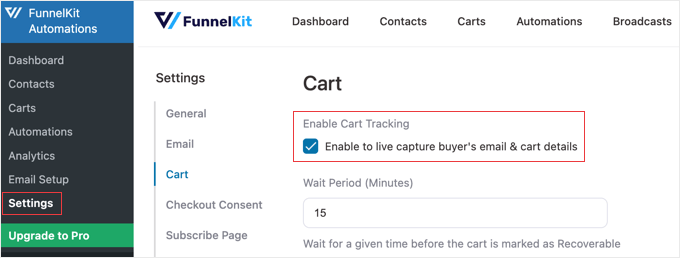
You can also configure other settings here, including the waiting period to mark a cart as recoverable, blacklist emails, and GDPR consent options. This is important if you have customers in the European Union because it helps you comply with privacy regulations.
After that, just click the ‘Save’ button at the bottom of the page to store your changes.
Step 2: Create the Abandoned Cart Workflow
Next, head to the FunnelKit Automations » Automations page from the WordPress dashboard.
Here, click the ‘Create Automation’ button at the bottom of the screen.

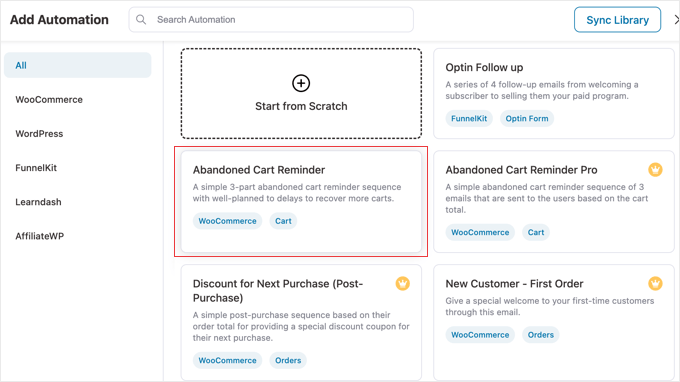
This will take you to the ‘Add Automation’ page, where you can select from premade email templates with abandoned cart email examples and workflows. These templates are designed by marketing experts and have proven conversion rates.
For this tutorial, we will choose the ‘Abandoned Cart Reminder’ workflow, which sends users 3 abandoned cart emails over time. This multi-email approach gives customers several opportunities to return and complete their purchases.
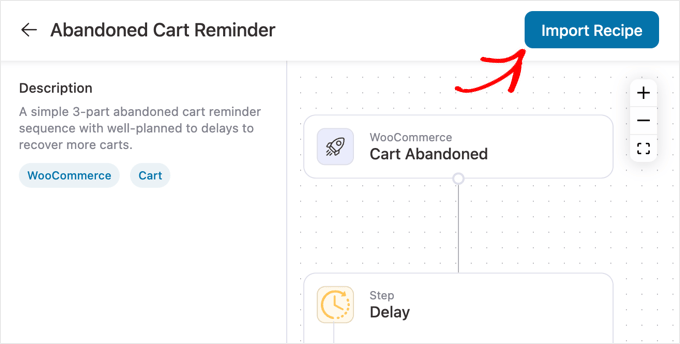
You will now be taken to a new screen where you can see the trigger, action, and delays for this workflow. The visual workflow editor makes it easy to understand how your automation will work.
Next, click the ‘Import Recipe’ button in the top-right corner. FunnelKit calls its workflow automations “recipes”. This will load the pre-built workflow into the editor, turning it into your own customizable automation.
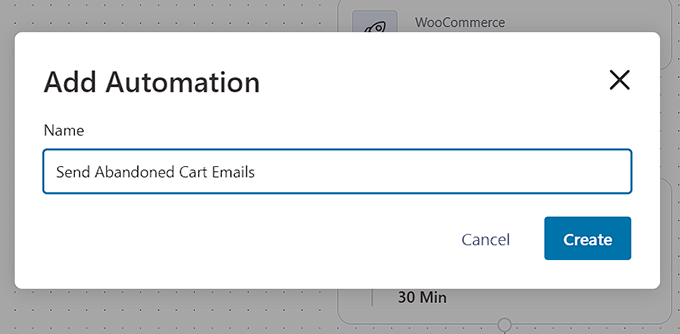
Once you do that, an ‘Add Automation’ prompt will open up on your screen. Here, give your new workflow a name you’ll easily recognize, then click the ‘Create’ button.
I recommend using a descriptive name like ‘Send Abandoned Cart Emails’ so you can easily identify it later.
FunnelKit will now open the template in its automation editor, where you can edit your workflow’s trigger, delay, and actions.
You can even add other actions and delays by clicking the ‘+’ button. This flexibility lets you create more sophisticated campaigns as you get comfortable with the tool.
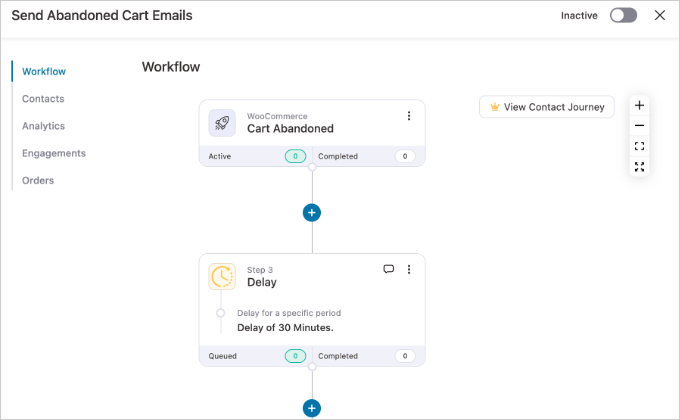
The workflow’s trigger is already set to ‘Cart Abandoned,’ so the sequence will begin automatically whenever a shopper leaves without completing their purchase.
Step 3: Customize Your 3-Part Email Sequence
The real power of this template is that it creates a 3-part email sequence for you. Now, let’s customize the timing and content for each email to maximize your chances of recovering the sale.
The goal is to move from a gentle reminder to a final, compelling offer.
Email 1: The Gentle Reminder (Sent After a Short Delay)
The first email should be a simple and helpful reminder. Many customers get distracted and just need a little nudge.
Just click on the ‘Delay’ action to configure its settings.
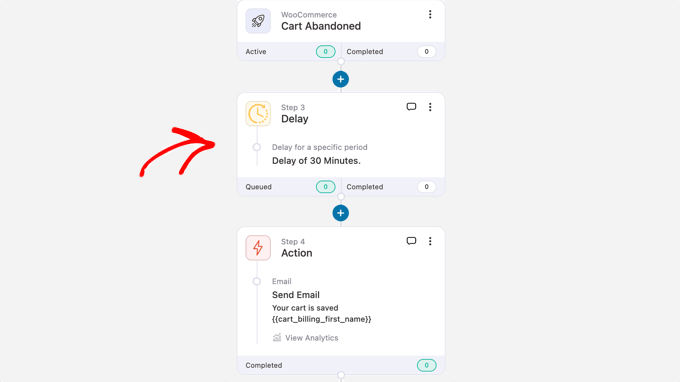
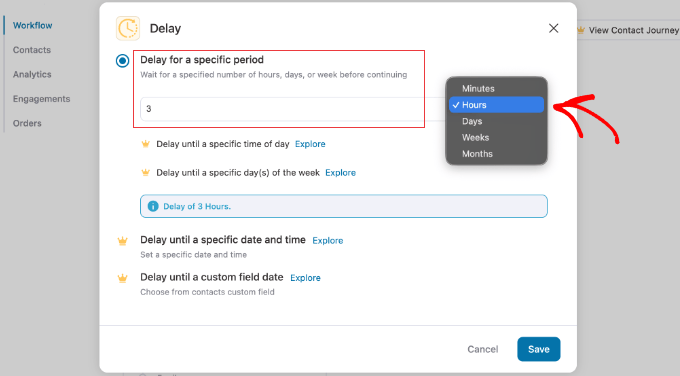
A prompt will appear. We recommend sending the first email within 1 to 24 hours.
A delay of 3 hours is a great starting point. Once you’ve set the time, click ‘Save’.
Next, click on the first ‘Send Email’ action right below the delay you just configured.
In the prompt, you can customize the subject line and body.
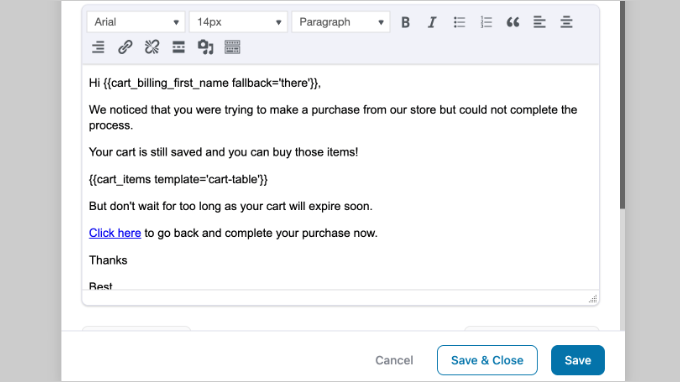
FunnelKit also allows you to use merge tags, which are like personalized codes. For example, you can use tags to automatically fill in the customer’s name.
Here is a great abandoned cart email example you can adapt:
- Subject: Did you forget something?
- Body: Hi {{cart_billing_first_name fallback=’there’}},
We noticed you left some items in your cart and wanted to make sure everything was okay. We’ve saved them for you!
When you’re ready, you can return to your cart to complete your purchase.
Once you’re done, click ‘Save’.
Email 2: The Social Proof Follow-Up (Sent After 1-2 Days)
If the first email didn’t bring the customer back, they might still be hesitant. For the second email, you can build trust by adding social proof, like a customer testimonial.
In the workflow, click on the next ‘Delay’ and set it for 1 day. Then, click on the second ‘Send Email’ action. This time, you can add a short testimonial about your store or a popular product to build trust.
For example:
- Subject: Still thinking it over?
- Body: Hi {{cart_billing_first_name fallback=’there’}},
Your cart is waiting! We think you’ll love what you picked out. Here’s what one of our happy customers had to say about their experience:
[Insert a positive customer testimonial here. For example: “I love my new items! The quality is amazing and shipping was super fast. – Jane D.”]
Still have questions? Just reply to this email or visit our FAQ page.
Remember to save your changes before moving on.
Email 3: The Final Offer (Sent After 2-3 Days)
The third email is your last chance to bring the customer back. Creating a sense of urgency with a small discount can be very effective.
Click the final ‘Delay’ action and set it for another 2 days. Then, click the last ‘Send Email’ action. In this email, consider offering a small discount to seal the deal.
- Subject: A special offer just for you
- Body: {{cart_billing_first_name fallback=’there’}},
We’ve missed you! To help you complete your purchase, we’d like to offer you 10% off your entire order. This offer is only good for the next 24 hours.
Use code: SAVE10
Click the button below to complete your order and claim your discount.
Remember that you will need to create this coupon code before adding it to the email. For details on how to do this, please see our guide on creating smart coupons in WooCommerce.
After customizing all three emails and their delays, you’re ready to go live.
Step 4: Activate Your Automation
Finally, toggle the ‘Inactive’ switch to ‘Active’ to activate your automated workflow.

Now, any shopper who abandons a cart in your store will automatically receive this email sequence, helping you recover sales around the clock.
Here is an automated abandoned cart email example from our testing site:
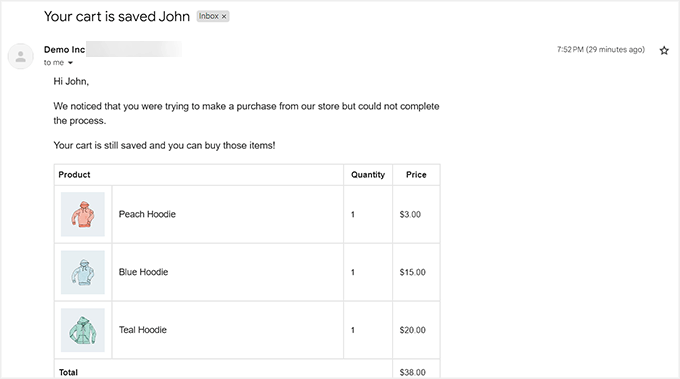
Pro Tip: To make sure your abandoned cart emails always land in your customers’ inboxes, we strongly recommend using an SMTP service.
A plugin like WP Mail SMTP will drastically improve your email deliverability and prevent your automated reminders from being marked as spam.
Great work, your automated abandoned cart system is now active.
Bonus: Use WooCommerce Automations to Increase Sales
Apart from sending cart abandonment emails, you can also use other automated workflows to increase your WooCommerce sales.
An automated workflow is a sequence of tasks that is executed once an event is triggered on your website. You simply set up the trigger and the action, and the automation will take care of the rest.
For example, you can send automated coupons to bring back users to your website or create personalized email marketing strategies. These workflows help you build stronger customer relationships and increase repeat purchases.
You can do all of this using Uncanny Automator.
While FunnelKit Automations focuses on marketing funnels and email campaigns, Uncanny Automator acts like a Zapier for your WordPress site.
We love it because it’s super easy to use and can connect your WooCommerce store with over 150 tools to create automated workflows.
For example, you could create workflows like:
- When a user submits a product question via WPForms, automatically create a task in a project management tool like Asana for your team to follow up.
- When a customer buys a specific product, automatically enroll them in a related course in your learning plugin.
- If a customer’s payment fails, instantly send them an SMS message with a link to update their details.
Its integrations include WPForms, Zoom Meetings, Facebook, Twilio, WhatsApp, and tons more. The connections let you build powerful marketing campaigns that respond to customer behavior in real time.
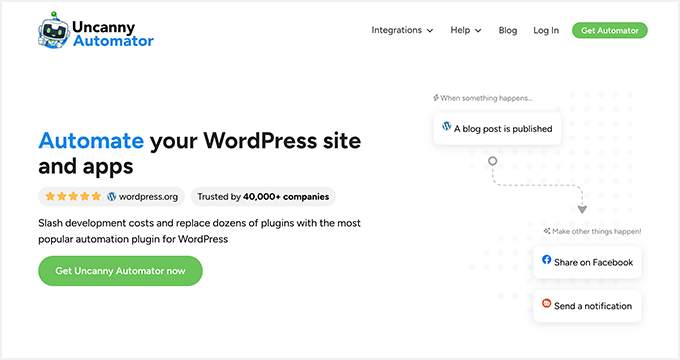
We have tested this tool extensively for our full Uncanny Automator review. And we discovered that it lets you send emails and SMS messages to users upon a failed transaction, product statuses, coupons, product reviews, and so much more.
You can also create, update, and delete users based on various triggers, like user registration or form submissions. This flexibility makes it perfect for growing stores that need advanced automation capabilities.
For detailed instructions, you can see our tutorial on how to create automated workflows in WordPress with Uncanny Automator.
Frequently Asked Questions About WooCommerce Abandoned Carts
Setting up abandoned cart emails often raises questions, especially if you’re new to email marketing automation. Here are answers to the most common questions we receive about WooCommerce abandoned cart recovery.
How long should I wait before sending an abandoned cart email?
Most successful stores send the first abandoned cart email within 1-24 hours after cart abandonment. Sending too quickly can feel pushy, while waiting too long means customers may forget about their purchase or buy elsewhere.
How many abandoned cart emails should I send?
I recommend sending 2-3 abandoned cart emails spaced 2-3 days apart for the best results. The first email serves as a gentle reminder, the second can include social proof or testimonials, and the third might offer a small incentive to complete the purchase.
What should I write in an abandoned cart email?
Your abandoned cart email should be helpful, not pushy. Start with a friendly reminder, show the items they left behind, and include a clear link back to their cart.
For your follow-up emails, you can add social proof like customer reviews or offer a small discount to encourage them to complete their purchase. We cover a few great abandoned cart email examples you can use in our section above.
Should I offer a discount in abandoned cart emails?
You don’t need to offer a discount in your first abandoned cart email, as many customers will return without an incentive. Save discount offers for the second or third email to create urgency without training customers to abandon carts to get discounts.
Can I customize the abandoned cart email templates?
Yes, FunnelKit Automations lets you fully customize your abandoned cart email templates, including subject lines, body text, images, and buttons. You can also use merge tags to personalize emails with customer names and specific cart items.
Will abandoned cart emails work with any WooCommerce theme?
Yes, abandoned cart emails work with any WooCommerce theme because they operate independently of your theme design. The emails are sent from FunnelKit Automations and display in your customers’ email inboxes, not on your website.
Do I need coding knowledge to set up abandoned cart emails?
No, you don’t need any coding knowledge to set up abandoned cart emails with FunnelKit Automations. The plugin provides pre-built templates and a visual drag-and-drop editor that makes it easy to create and customize your email campaigns.
Additional Resources to Boost Your WooCommerce Store
We hope this article helped you learn how to set up effective abandoned cart emails.
Now that your recovery system is running, you may find these other guides helpful for growing your store:
- How to Customize the WooCommerce Checkout Page – Learn how to simplify your checkout to reduce abandonment in the first place.
- Best WooCommerce Plugins for Your Store – Explore our top picks for plugins that can help you manage your store and increase sales.
- Ways to Recover WooCommerce Abandoned Cart Sales – Discover even more strategies to bring customers back and secure lost revenue.
If you liked this article, then please subscribe to our YouTube Channel for WordPress video tutorials. You can also find us on Twitter and Facebook.




Have a question or suggestion? Please leave a comment to start the discussion.