


A WooCommerce store owner recently shared with us how one of their customers emailed them during a routine update, asking if the business had shut down. Why? The customer landed on a broken checkout page while the site was being updated.
Situations like this are more common than you’d think, and they show why every online store needs a proper maintenance mode. It’s like putting up a professional “Coming Soon” sign that keeps your brand looking polished while you make behind-the-scenes changes.
This is important because even brief downtime can lead to lost sales and shake customer trust.
In this guide, I’ll show you how to easily enable maintenance mode for WooCommerce using tested tools and practical tips — so you can update your store with confidence. 🌟
Why and When You Need to Enable WooCommerce Maintenance Mode
Technically, maintenance mode works by sending an HTTP 503 ‘Service Unavailable’ status code to search engines. This tells bots that your site is down for a short period, preventing them from indexing broken pages or removing your store from search results while you work.
There are a few good reasons to use maintenance mode for your WooCommerce store:
- When you’re making big changes to the store, enabling the WordPress maintenance mode prevents users from visiting the site and seeing a mess.
- If your online store has issues, especially with WooCommerce payments, turning on maintenance mode stops customers from facing problems. In turn, you can fix these maintenance tasks until you can make your store live again.
- If you’re adding a new online store to your existing website and want it to be a surprise until it’s ready, maintenance mode is perfect. You can show a cool maintenance mode page to get people excited while you’re working on your WooCommerce shop page.
If you are experiencing any of these scenarios, then this article is for you.
In the following sections, I’ll show you how to enable maintenance mode in WooCommerce. You can use these quick links to navigate through the steps:
- Install a Maintenance Mode Page Plugin
- Create Your Maintenance Mode Page
- Configure the Maintenance Mode Settings
- Put Your WooCommerce Store in Maintenance Mode
- Bonus Tip: Create a Viral Waitlist Landing Page for Your WooCommerce Store
- FAQs About WooCommerce Maintenance Mode
- More WordPress Maintenance Guides
Let’s get started.
Step 1: Install a Maintenance Mode Page Plugin
The easiest way to enable maintenance mode for WooCommerce is by using SeedProd.
SeedProd is the best landing page builder for WordPress, used on more than 1 million websites. It allows you to create beautiful coming soon pages, improve your 404 page, and even design unique landing pages using drag and drop.
Some of our partner brands use SeedProd to build their websites. They have had great experiences with it, and we also strongly recommend you check it out. See our detailed SeedProd review for more information.
To start, let’s create a SeedProd account. On the SeedProd website, click the ‘Get SeedProd Now’ button, pick a plan, and follow the on-screen instructions to complete checkout.

ℹ️ Note: There’s a free version of SeedProd that lets you create a maintenance mode page. But we will be using SeedProd Pro because it lets you put your WooCommerce store into maintenance mode while keeping the rest of your site available.
Next, you will land in your own SeedProd account dashboard, where you can find your license key. You can keep this tab open or store these details in your password manager.
Now, you need to install and activate the SeedProd plugin.
In your WordPress admin area, go to Plugins » Add New Plugin. Then, you can use the search bar to quickly find the SeedProd plugin.
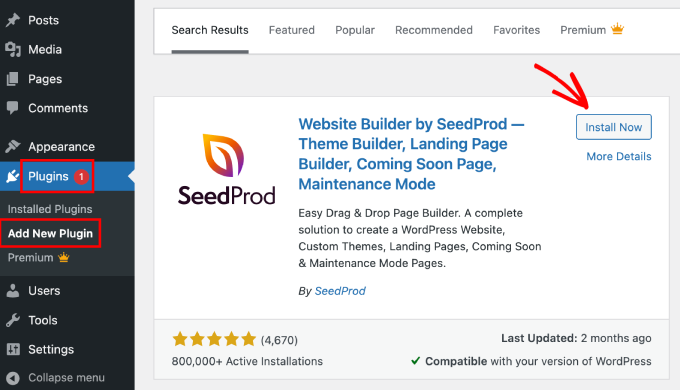
When you see it, you can click ‘Install Now’ and then ‘Activate.’ For more details, see our guide on how to install a plugin in WordPress.
After activating the plugin, SeedProd will ask for your license key.
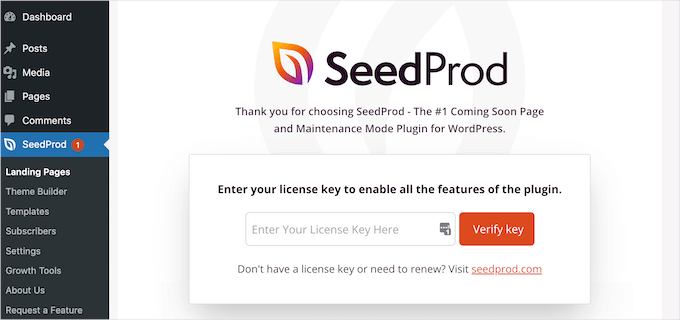
You can find this information in your account on the SeedProd website. After entering the license, click on the ‘Verify Key’ button.
Once you have done that, you are ready to put your WooCommerce store in maintenance mode.
Step 2: Create Your Maintenance Mode Page
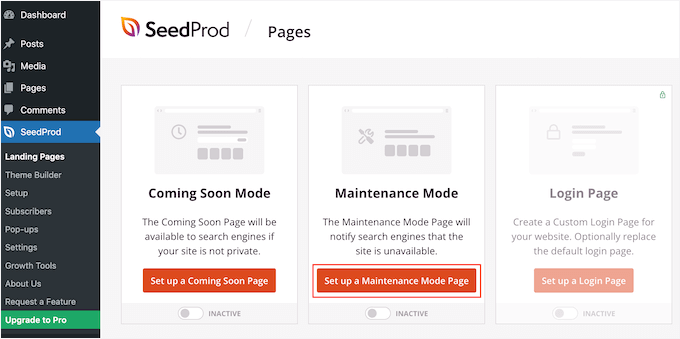
After activating SeedProd, go to SeedProd » Landing Pages. Here, you can choose whether to create a maintenance mode page or a coming soon page.
Now, before we start, let’s clear up the difference between maintenance mode and a coming soon page. Although some people use these terms interchangeably, there are some important differences you should know:
| Coming Soon Page | Maintenance Mode | |
|---|---|---|
| Best for | New online stores not ready to accept orders yet | Live stores undergoing short-term maintenance |
| Search engine access | Search engines can still crawl and index your store pages | Search engines are told the site is temporarily unavailable |
| SEO impact | Helps your site get indexed before launch | Protects your rankings during downtime |
| HTTP status code | Normal 200 status code | Sends HTTP 503 “Service Uniavailable” |
| Visibility to visitors | Shoppers see a “Coming Soon” message | Shoppers see a maintenance message |
Check out our detailed explanation in our coming soon vs. maintenance mode article.
We will create a maintenance mode page in this guide, but the steps will be the same no matter whether you click on the ‘Set up a Maintenance Mode Page’ or ‘Set up a Coming Soon Page’ button.
The next step is building the page that shoppers will see when you enable maintenance mode for your online marketplace or store.
You can either choose a ready-made template or start with a blank design. We are using ‘Celebrate Coming Soon’ in all our images, but you can use any template you like.
To select a SeedProd template kit, simply hover your mouse over that design’s thumbnail and then click the ‘checkmark’ icon.
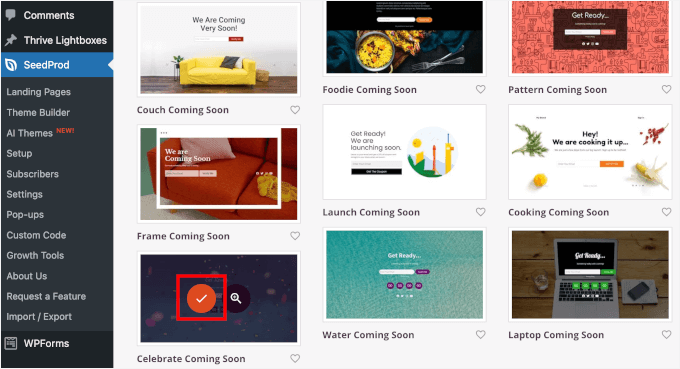
After selecting a template, you will be taken to the drag-and-drop page builder, where you can start customizing the maintenance mode design.
On the left side of the screen, you will find blocks and sections that you can add to your design. The right side of the page is the live preview.
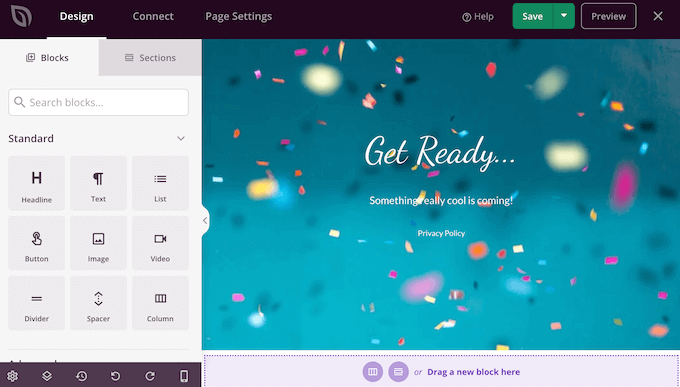
Most templates already have some blocks, which are a core part of all SeedProd designs. To start, you will typically want to customize these blocks by editing the text or adding your image, links, and other content.
To change the text in any Headline or Text block, simply click to select that block in your layout. This brings up all the settings for that particular block.
You can now type your text into the small text editor.
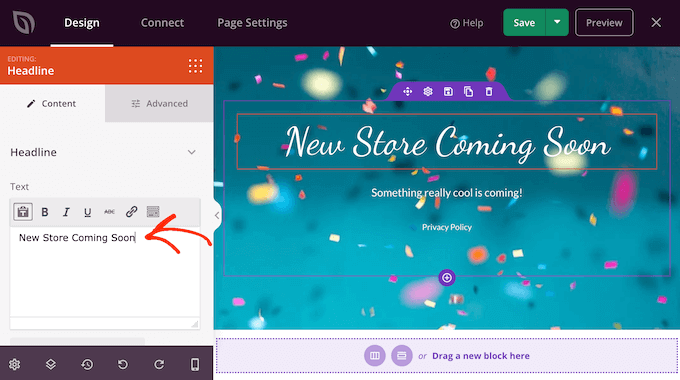
You can also use these settings to style the text, including adding bold and italic formatting, changing the text alignment, changing the font size, and more.
You can add more blocks to your maintenance page by dragging them from the left-hand menu and then dropping them onto your design.
For example, if you wanted to add a custom logo, then you could simply drag an Image block onto your layout.
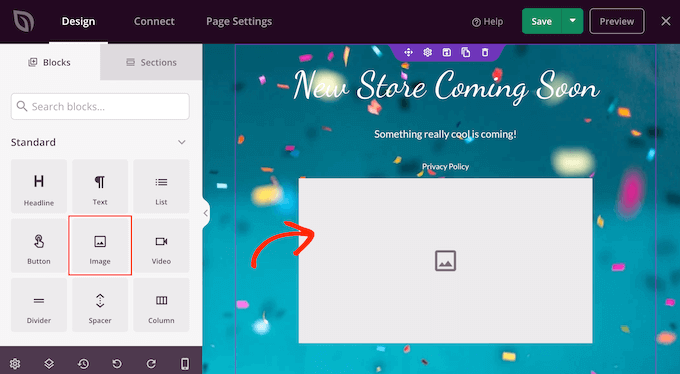
Then, just click to select that block in your layout, and the left-hand menu will show all the settings for that block.
To add a logo, go ahead and click on ‘Use Your Own Image.’
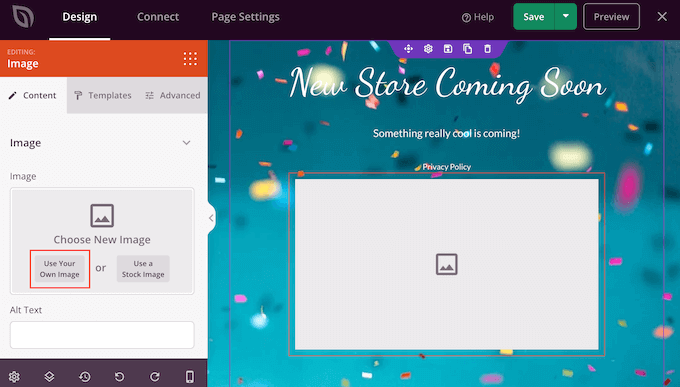
You can then either choose an image from the WordPress media library or upload a new file from your computer.
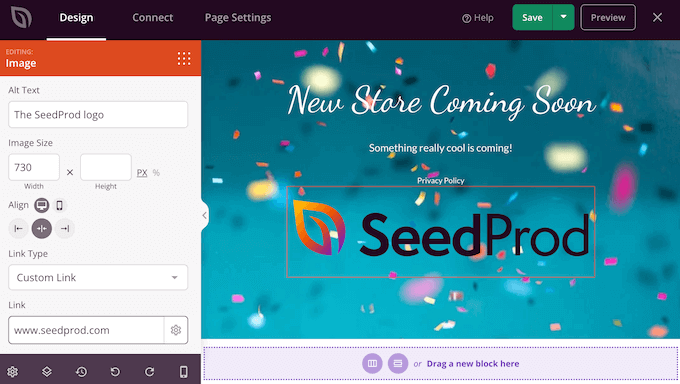
After adding an image, you can change the size, add image alt text, embed a link, and more using the settings in the left-hand menu.
If you are using the WPForms plugin, then you can quickly and easily add a contact form to the maintenance page. This gives shoppers a way to talk to you even when your WooCommerce site is down for maintenance.
ℹ️ Note: WPForms is our go-to contact form builder here at WPBeginner. We use it to create all of our forms, including our annual readers’ surveys and site migration request form. Learn more about the plugin in our full WPForms review.
After creating a contact form, you can drag the Contact Form block onto your SeedProd layout.
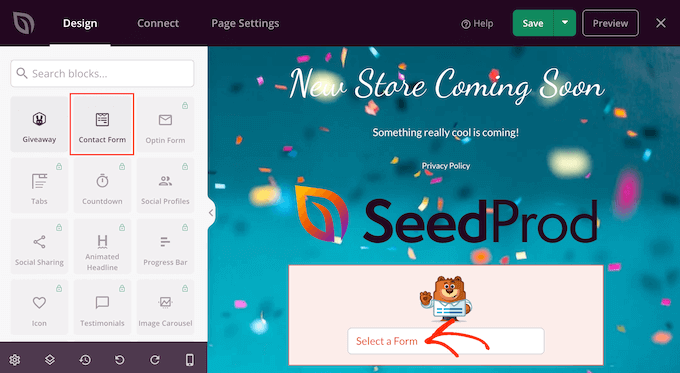
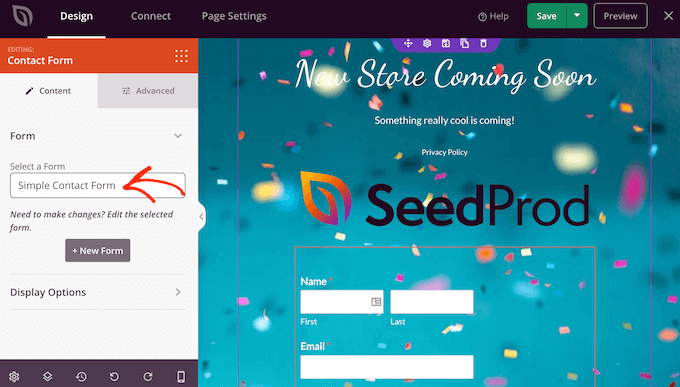
Then, simply click to select the Contact Form block to open its settings.
In the left-hand menu, open the dropdown menu and choose the form you created earlier.
You might even use WPForms to create an email signup form so that you can notify subscribers when your store is open for business. For step-by-step instructions, please see our guide on how to build an email list in WordPress.
To remove a block from your design, simply go ahead and click on it. You can then select the trash can icon.

You can also move blocks around the page using drag and drop.
Simply continue adding blocks to your layout and then customizing them using the settings in the left-hand menu.
For example, if you are using RafflePress, then you might create a WooCommerce coupon giveaway and then promote it on your maintenance mode page.
ℹ️ Note: RafflePress is also one of our favorite plugins, and we use it to run our annual birthday giveaway. See our complete RafflePress review for more insights into the plugin.
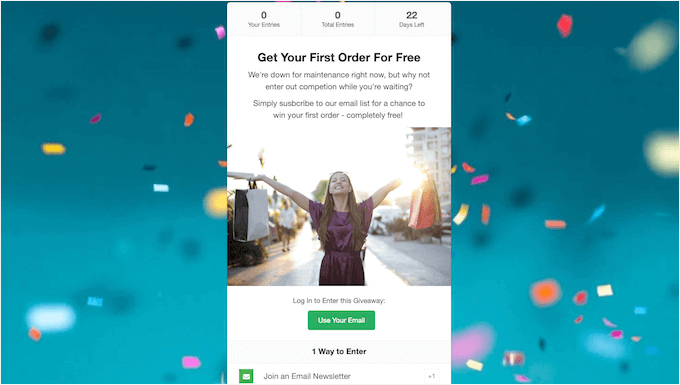
For more information, please see our guide on how to run a contest in WordPress.
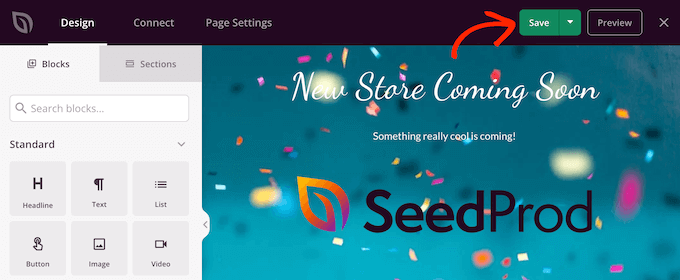
When you are happy with how the maintenance page looks, make sure you click ‘Save.’
Step 3: Configure the Maintenance Mode Settings
Now that you have created a custom coming soon or maintenance mode page, let’s go ahead and enable it on your eCommerce site.
Here, we want to put the store into maintenance mode, but not the entire site. To do this, click on the ‘Page Settings’ tab inside the SeedProd editor.
Then, select the ‘Access Control’ tab.
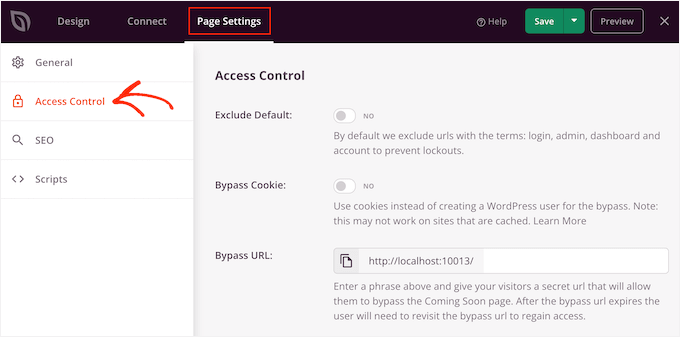
You can use these settings to specify where the coming soon or maintenance page appears on your WordPress website and who sees it. For example, you might show this page to people who have a particular user role or IP address.
Since we want to put only the WooCommerce parts of your site into maintenance mode (while keeping your homepage and blog live), scroll to the ‘Include/Exclude URLs’ section.
Then, just click on the ‘Include URLs’ button.
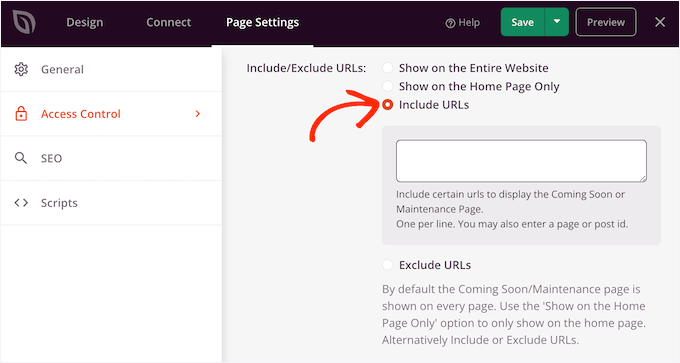
Now, you need to enter the URLs for your WooCommerce store.
This may vary depending on how your store is set up and whether you only want it to display on certain pages. For example, you might want to add it to your custom WooCommerce cart page or a custom checkout page.
If you want to put your entire WooCommerce store in maintenance, then you can add all the pages that WooCommerce creates automatically:
https://example.com/shop
https://example.com/cart
https://example.com/checkout
https://example.com/my-account
Make sure to replace ‘example.com’ with your actual website domain name in the URLs.
You will also need to add the product URLs and include the asterisk (*).
The asterisk (*) is a wildcard character to include all sub-pages under a specific path. This tells SeedProd to apply the maintenance screen to every page that matches the pattern before it.
This means that shoppers will see the maintenance page when they try to access any product, product category, or product tag.
https://example.com/product/*
https://example.com/product-category/*
https://example.com/product-tag/*
ℹ️ Note: If your store uses a custom URL structure, be sure to go to Settings » Permalinks and scroll down to the ‘Product permalinks’ section. You need to ensure the paths you enter in SeedProd match the structure shown there.
After adding all these URLs, click on the ‘Save’ button to store your changes.
Step 4: Put Your WooCommerce Store in Maintenance Mode
You can now put your WooCommerce store in maintenance at any point. In the WordPress admin area, simply go to SeedProd » Landing Pages.
Then, click on the ‘Inactive’ slider under ‘Coming Soon Mode’ or ‘Maintenance Mode’ so that it changes to ‘Active.’
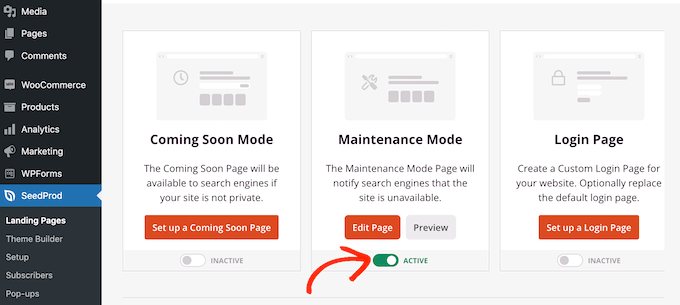
Now, simply visit your WooCommerce store in an incognito browser tab, and you will see your custom design rather than your online store.
Once you have finished working on your store and are ready to make it public again, simply go back to SeedProd » Landing Pages. Then click on the ‘Active’ slider so that it shows ‘Inactive.’
Bonus Tip: Create a Viral Waitlist Landing Page for Your WooCommerce Store
Besides putting your online store in maintenance mode, another thing you can do with SeedProd is create a viral waitlist landing page.
With this landing page, you can let your audience know that something exciting is coming. You can also add a form inviting them to join your waitlist and be the first to know when you’ve made the page public.
Plus, you can use this waitlist information to send email newsletters about upcoming promotions.
If you are interested in this topic, check out our article on how to create a viral waitlist landing page in WordPress.

FAQs About WooCommerce Maintenance Mode
Here are some of the most frequently asked questions we receive about putting a WooCommerce store in maintenance mode.
Does maintenance mode affect SEO?
No, if you use the Maintenance Mode setting in SeedProd. It uses the HTTP 503 status code, which tells search engines the downtime is temporary and prevents them from de-indexing your pages.
Can I still access the admin dashboard in maintenance mode?
Yes, logged-in administrators and users with the proper permissions can still access the WordPress dashboard and see the live site to make changes.
What is the difference between a private store and maintenance mode?
Maintenance mode is a temporary screen used during updates or fixes. A private store is a permanent setting used to restrict access to products to specific members or logged-in users only.
More WordPress Maintenance Guides
I hope this article helped you learn how to enable maintenance mode for WooCommerce.
Next, you may also want to see our articles on:
- eCommerce Website Maintenance Tips
- How to Prepare Your WordPress Site for a High-Traffic Event
- WordPress Maintenance Tasks to Perform Regularly
- How Long Does WordPress Maintenance Take?
- Best WordPress Support Agencies
If you liked this article, then please subscribe to our YouTube Channel for WordPress video tutorials. You can also find us on Twitter and Facebook.



kzain
This guide on enabling maintenance mode for WooCommerce is incredibly practical! I recently needed to put a WooCommerce site into maintenance mode for updates, and having clear, actionable steps like these would have made the process much smoother.
WPBeginner Support
Glad our guide was helpful
Admin
Jiří Vaněk
It’s great to have the option to separate WooCommerce from the rest of the website and put only the e-shop in maintenance mode without affecting other parts of the website. Thanks, I’ll try out your procedure.
Francesco
Hi,
what about users with “Customer” role? will they still see the store?
WPBeginner Support
They would not while your store was in maintenance mode.
Admin
Tom Backlack
This doesnt helps if you have for example blog and shop, and you would like to disable only shop.
Disappointing
WPBeginner Support
We would recommend reading our entire article, we cover how to only have the maintenance mode on certain pages of your site
Admin
Shaha Alam
wow, it is helpfull post for us. thank you for shared with us.
WPBeginner Support
You’re welcome, glad you liked our post
Admin