


Keeping your WordPress site updated with fresh images can feel like a chore, especially if you’re already posting everything to Flickr.
Instead of updating two places separately, you can connect Flickr to WordPress.
When you do, your latest shots will appear on your site automatically.
This keeps your content fresh, gives visitors a reason to return, and helps grow your Flickr following while saving WordPress storage space.
Over the years, I’ve tested different ways to make this connection easy and reliable. In this tutorial, I’ll show you the simplest way to add a Flickr widget to WordPress (no coding required).

Why Should I Add a Flickr Widget in WordPress?
Adding a Flickr widget to WordPress keeps your site updated automatically with your newest photos. It saves you from extra uploads, makes your site look active, and helps grow your audience on Flickr.
Here are just a few ways this can help:
- 📸 Photographers – You already spend so much time perfecting your shots — let your online portfolio update itself, so you can focus on your craft.
- 🌍 Travel bloggers – No need to double up on uploads because you can share your latest adventures effortlessly as you go.
- 🎨 Visual creatives – Show off your work in a photo gallery that updates on its own. That way, you can spend more time creating and less time managing.
- 📅 Busy site owners – Even if blog posts slow down, your site will still look active.
Best of all, visitors can click through to follow you on Flickr, helping you grow your audience across platforms. And since the images are hosted externally on Flickr, you’ll save WordPress storage space and help your site load faster.
With that in mind, we’ll walk you through the easiest way to add a Flickr widget to WordPress.
Here’s a quick overview of what we’ll cover in this guide:
- How to Add a Flickr Widget in WordPress
- Step 1: Install, Activate, and Set Up a Flickr Widget Plugin
- Step 2: Authenticate and Configure Your Flickr Account
- Step 3: Customize Your Flickr Widget Settings
- Step 4: Embed the Automated Flickr Gallery Block
- Bonus Tip: Prevent Image Theft in WordPress
- Frequently Asked Questions About Flickr Widgets
- Keep Exploring: More Ways to Use Images in WordPress
Note: While we call it a ‘Flickr widget,’ the tool we’ll be using is a WordPress ‘block.’ This means you can add it anywhere inside your posts and pages, not just in traditional widget areas like your sidebar.
How to Add a Flickr Widget in WordPress
The easiest way to add a Flickr widget in WordPress is by using Photonic. After testing different options, this plugin stood out as it lets you show content from many websites and platforms. They include Google Photos, SmugMug, and Flickr.
⚠️ Important: To show content from Flickr, you’ll need an SSL certificate. If you need help, please see our guide on how to get a free SSL certificate for your WordPress website.
Step 1: Install, Activate, and Set Up a Flickr Widget Plugin
Once you do that, you’re ready to install and activate the free Photonic plugin. You can see our guide on how to install a WordPress plugin for step-by-step instructions.
Upon activation, you’ll want to head over to Photonic » Settings. You can then go ahead and click on the ‘Flickr’ tab.
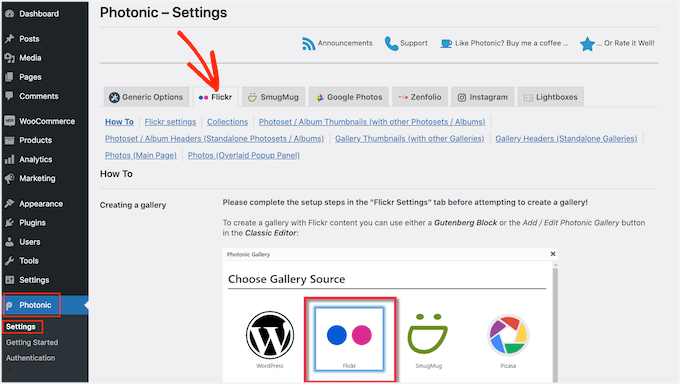
The next step is to click on the ‘Flickr settings’ link.
To get started, you’ll need to connect Photonic to your Flickr account by creating an API key and secret key. To get this information, you’ll need to create an app on the Flickr website.
Creating an app sounds technical, but don’t worry. You don’t need to know any code, and we’ll walk you through every step.
Now, it’s smart to create the key and secret in a new tab so you can easily switch between the Flickr website and your WordPress dashboard.
In the new browser tab, you can visit the Flickr API page. On this page, simply click the ‘Apply for your key online now’ link.
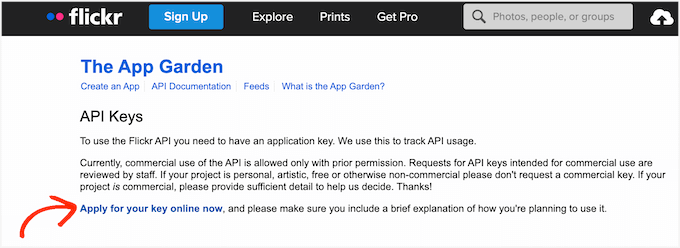
You can now type in the email address and password that you use for your Flickr account.
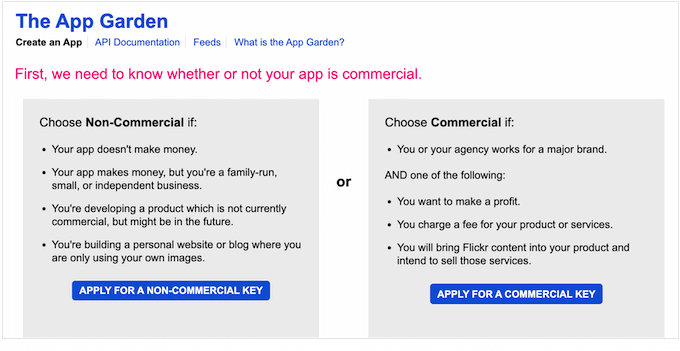
Once you’re logged into your account, you’ll need to let Flickr know whether you plan to use the Flickr widget for a commercial or non-commercial project.
If you’re creating a personal WordPress blog or small business website, then you can click on the ‘Apply for a non-commercial key’ button.
On the next screen, you’ll need to name your app by typing it into the ‘What’s the name of your app’ field. Note that your site visitors won’t see the name; it’s for your own reference only.
There is also a ‘What are you building’ text field where you can tell Flickr how you’ll use the app.
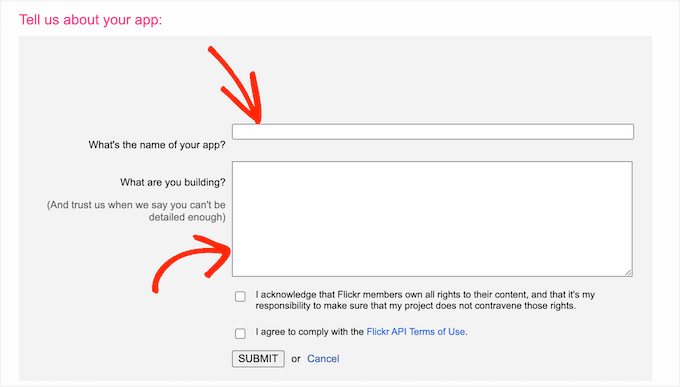
After typing in all of this information, it’s a good idea to read Flickr’s terms and conditions carefully. If all is well, then you can click on the ‘Submit’ button.
Flickr will now show an API key and secret that you can use to connect the Flickr website to the Photonic app.
Simply copy the key and secret and then switch back to your WordPress dashboard. You can now paste these two values into the ‘Flickr API Key’ and ‘Flickr API Secret’ fields.
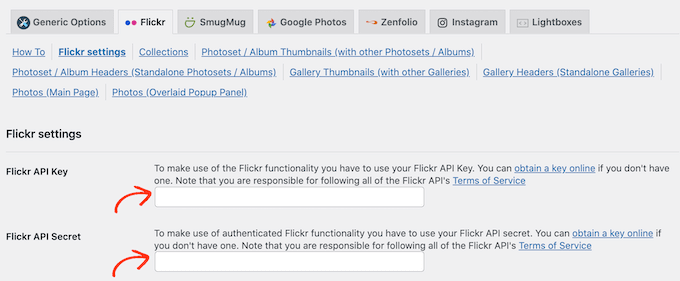
After that, you’ll want to scroll to the bottom of the screen and click the ‘Save page Flickr settings’ button.
At this point, Photonic will have access to the Flickr website. So, the next step is giving the plugin permission to access your Flickr account.
Step 2: Authenticate and Configure Your Flickr Account
From here, you can go to Photonic » Authentication from your WordPress admin dashboard.
Then, go ahead and click the ‘Login and get Access Token from Flickr’ button.
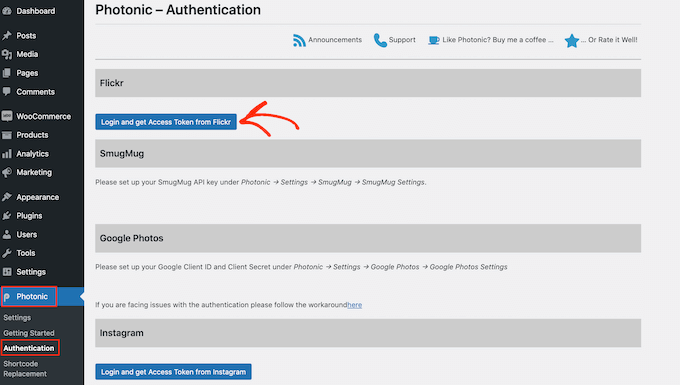
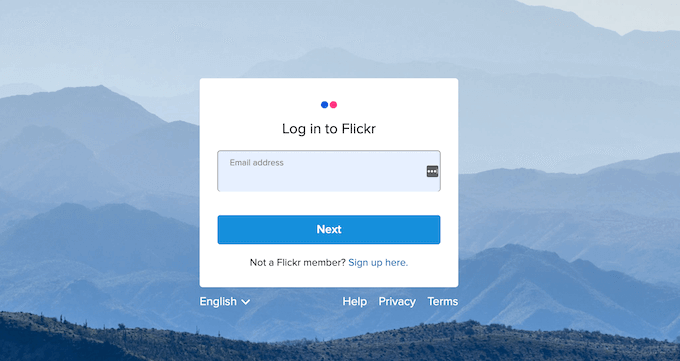
This will take you to a screen where you can type in your Flickr username and password.
Once you’ve done that, just click on ‘Sign in.’
Flickr will now show some information about the actions that Photonic can perform and the data it can access.
If you’re happy to grant Photonic these permissions, then you can click on the ‘OK, I’ll authorize it’ button.
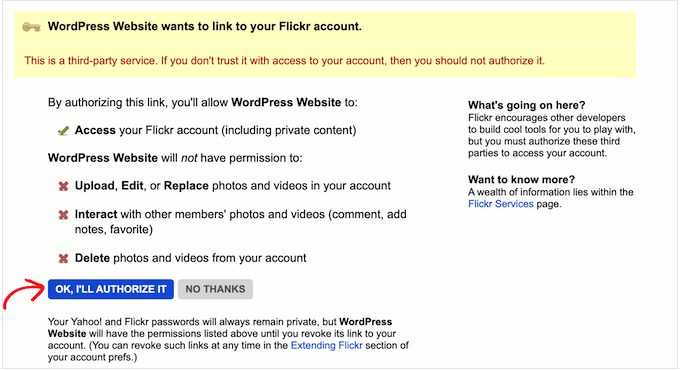
After clicking on this button, you’ll be sent back to the WordPress admin area automatically.
On the following screen, you’ll see the new ‘Access Token’ and ‘Access Token Secret’ information. To add these tokens to Photonic’s settings, simply click the ‘Save Token’ button.
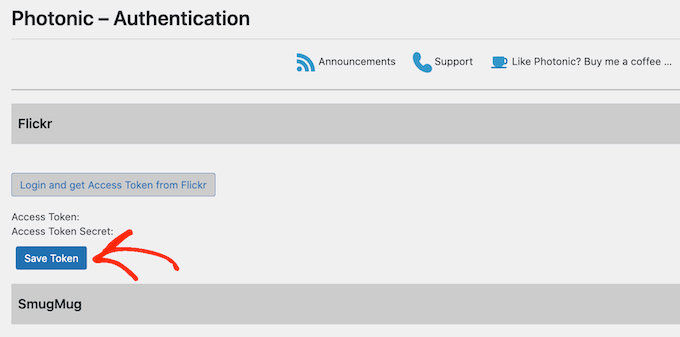
WordPress will now take you to Photonic’s settings area, where the ‘Access Token’ and ‘Access Token Secret’ have already been pasted into the right fields.
After that, you’ll need to configure a few more settings.
To do this, you may want to set a default user. Photonic lets you show content from your personal Flickr account or any other public account.
In the following sections, we will show you how to display different Flickr accounts when creating the Flickr widget.
However, you may want to set up a default account first. For example, if you only plan to show content from your personal Flickr account, then setting it as the default can save you time. You can always override this setting if you need to.
To set a default user, open a new tab and then head over to the Flickr account that you want to use. You can then copy the URL in your browser’s address bar, which should be something like https://www.flickr.com/photos/username/.
Now, you can switch back to your WordPress dashboard and paste the Flickr URL into the ‘Default user’ field.
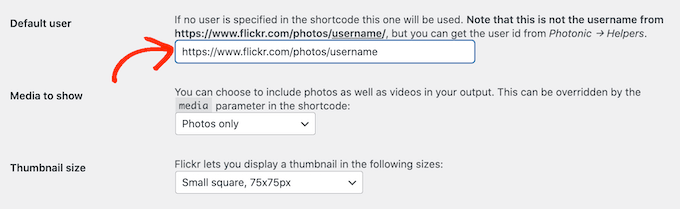
Once you’ve done that, you can customize how Photonic shows the content inside your website’s Flickr widget.
Step 3: Customize Your Flickr Widget Settings
To get started, you can click on the ‘Media to show’ dropdown and choose whether to show photos only, video only, or both photos and videos.
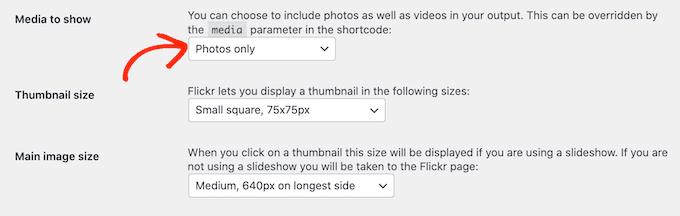
After that, you can choose how big the photo or video thumbnails will appear in your Flickr widget.
When a visitor arrives at your site, Photonic will show a thumbnail preview of all your images and videos, as shown in the following image:
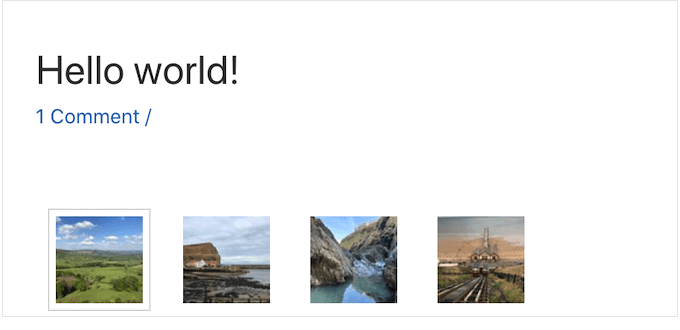
Visitors can see a larger version of each image or video by clicking on its thumbnail.
Photonic has a few different layouts, but the following image shows an example of how the larger versions may look on your website.
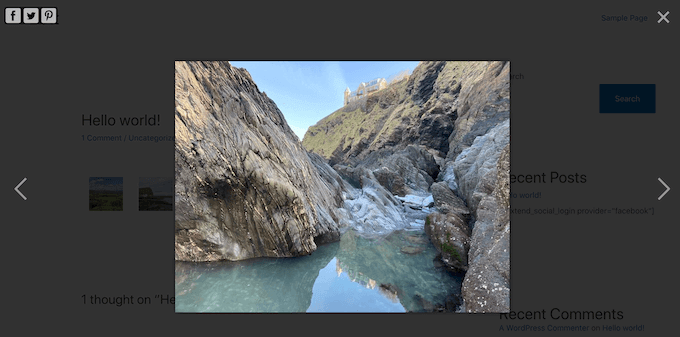
To change the size of the thumbnails, open the ‘Thumbnail size’ dropdown and choose a value from the list.
Next, you can choose the image size that appears when the visitor clicks on a thumbnail. To do this, just open the ‘Main image size’ dropdown and choose a size from the list.
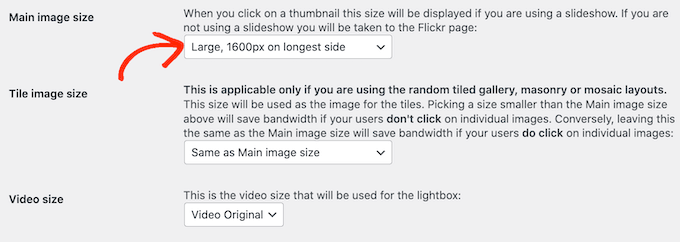
Are you planning to show videos in your Flickr widget? Then, you’ll need to open the ‘Video size’ dropdown and choose how big the video lightbox will appear on your website.
A lightbox is simply a popup window that shows the video content, similar to a video player. While the lightbox is open, visitors won’t be able to interact with the rest of the page.

There are some more settings that you may want to look at. However, this should be a good start for most WordPress websites.
When you’re happy with the information you’ve added, you can scroll to the bottom of the screen and then click the ‘Save page Flickr Settings’ button.
Step 4: Embed the Automated Flickr Gallery Block
Now that you’ve configured the plugin, you can add a Flickr widget to any post, page, or widget-ready area.
For this example, we’ll show you how to add it to a post or page, but the steps are similar for any widget-ready area.
To start, simply open the page or post where you want to add the Flickr widget. Here, click on the + icon and then type ‘Photonic Gallery’ to find the right block.
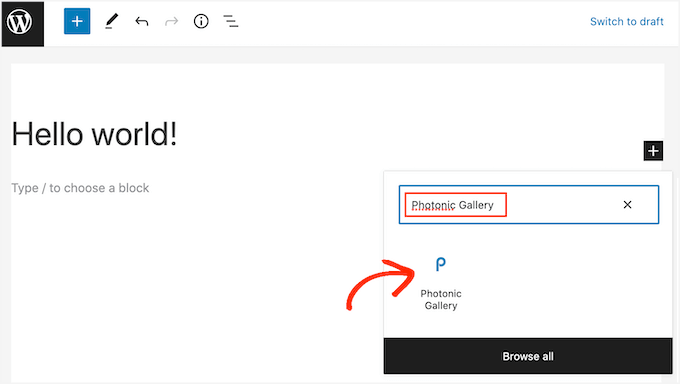
Once you click on the Photonic Gallery block, it will add the block to your website.
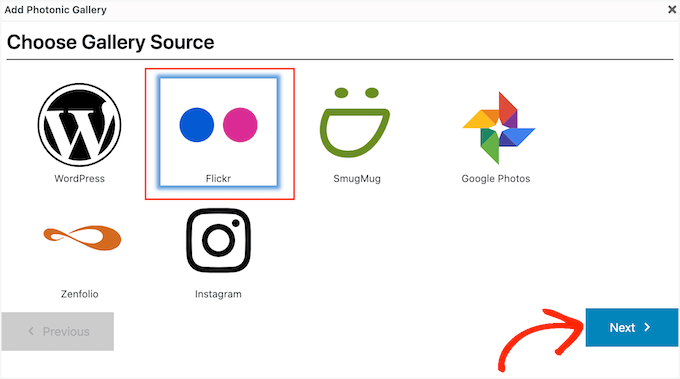
After that, go ahead and click on ‘Add Photonic Gallery.’
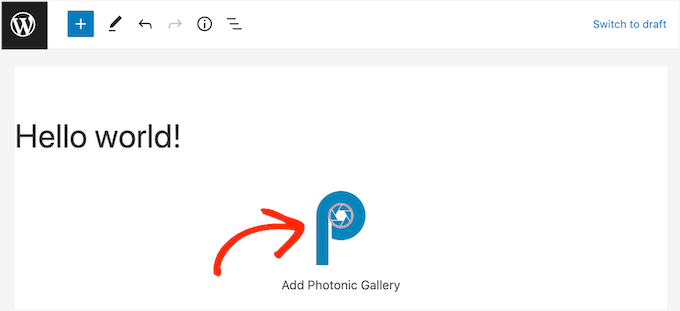
This will open a popup where you can choose where Photonic should get its images and videos from, such as Instagram or Google Photos.
💡 Note: Want to set up an Instagram gallery on your website? We recommend the Smash Balloon plugin because it’s easy to use and super powerful.
For more details, see our guide on how to create a custom Instagram photo feed in WordPress.
Since we want to add a Flickr widget in WordPress, let’s click ‘Flickr’ and the ‘Next’ button.
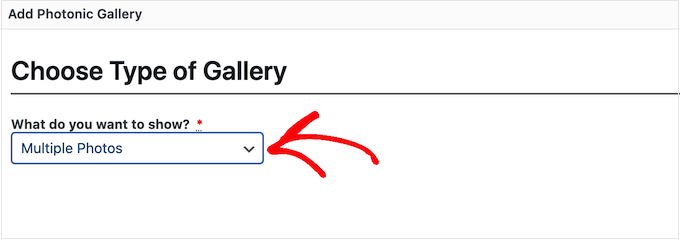
You can now open the dropdown menu and choose the type of content that you want to show.
This could be a single photo only, multiple photos, or even entire Flickr albums, image galleries, or collections.
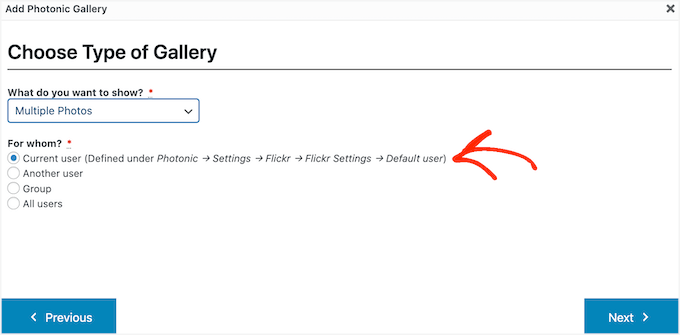
After choosing an option, you’ll need to specify the Flickr account from which Photonic should get the content.
The easiest option is to get the photos or videos from the default username you added to the Photonic settings. To do this, simply click on the ‘Current user’ radio button.
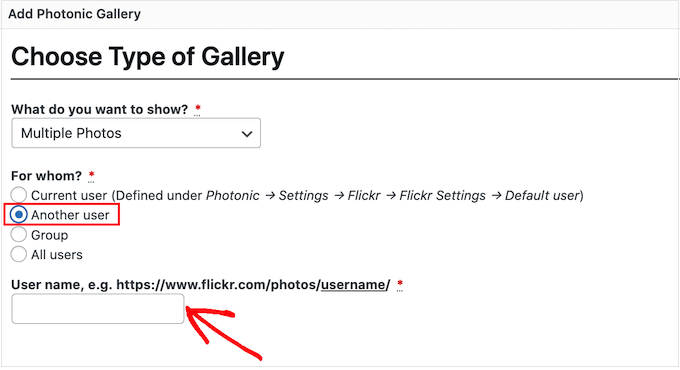
Want to show content from a different Flickr account? Then, you should choose the ‘Another user’ radio button instead.
This will add a new field where you can paste the URL of the Flickr account that you want to use.
Another option is to show images and videos from a Flickr group. To do this, simply click on the ‘Group’ radio button.
Then, in a new tab, you can head over to the group that you want to use. You’ll copy the URL, which should look something like https://www.flickr.com/groups/group-name.
Once done, switch back to the WordPress dashboard and paste the URL into the ‘Group name’ field.
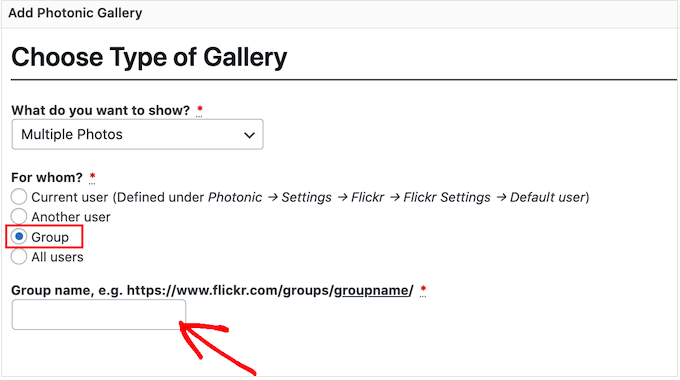
After choosing an option, go ahead and click on the ‘Next’ button.
On the next screen, you’ll see a preview of all the different images and videos that Photonic will show in your Flickr widget.
If you don’t want to show all these images and videos, then you can filter the content based on how it’s tagged on Flickr.
In the ‘Tags’ field, simply type the tags that you want to use. If you want to use multiple tags in your filter, then you’ll need to separate each tag with a comma.
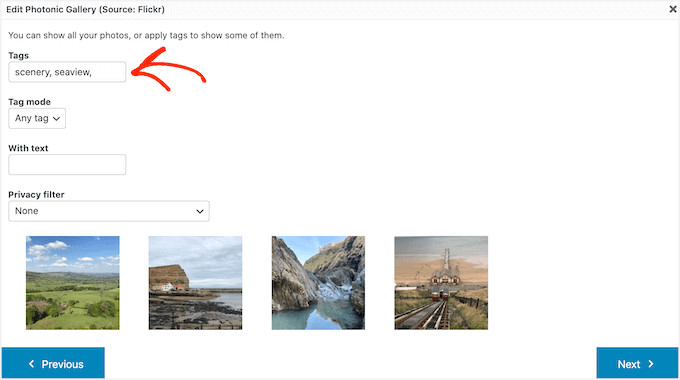
Now, Photonic will only show images and videos that have these tags.
If you type in more than one tag, you’ll need to choose whether to show all the media with one of these tags or only the media with all of the tags.
To do this, open the ‘Tag mode’ dropdown and click on either ‘Any tag’ or ‘All tags.’
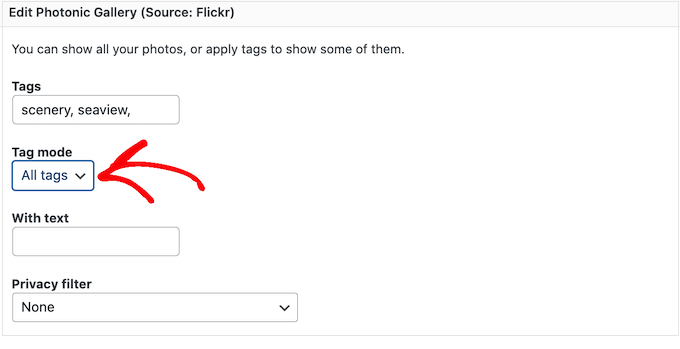
Just be aware that the thumbnail previews on this page won’t update automatically. If you make any changes, the preview may not show the images and videos that will be included in your finished Flickr widget.
When you’re happy with your changes, click on ‘Next.’
On this screen, you’ll see all the different layouts for the Flickr widget, such as ‘Square Grid’ and ‘Slideshow.’
Simply click on the layout you want to use and then click the ‘Next’ button.
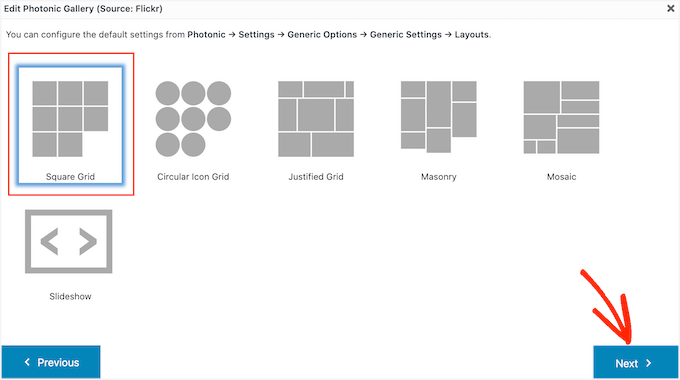
Then, you’ll see some settings that you can use to customize how the images and videos are displayed in your Flickr widget.
You may see different settings depending on your chosen layout. For example, if you’re using a ‘Circular Icon Grid’ or ‘Square Grid’ layout, you’ll be able to decide how many columns to include in the Flickr widget.
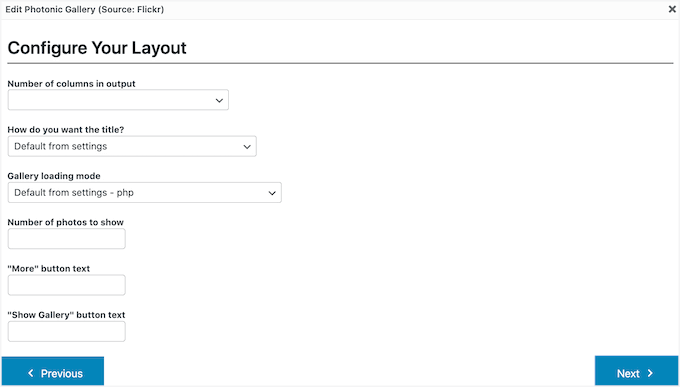
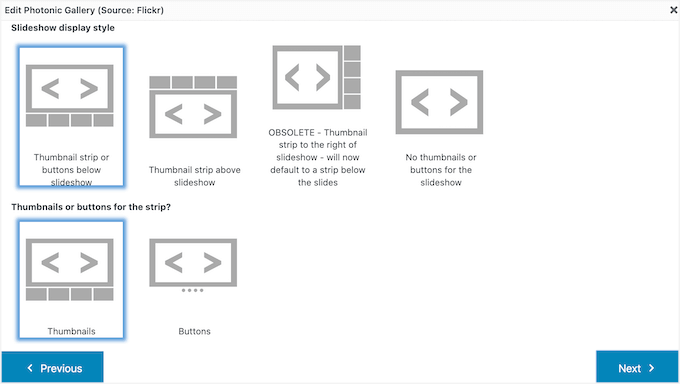
Meanwhile, if you’re using a Slideshow layout, then you’ll need to choose whether to show the thumbnails above or below the slideshow.
Once you’re finished reviewing your layout settings, go ahead and click on the ‘Next’ button.
The popup will now show the code that it will add to your website. When everything looks great for you, you can click the ‘Next’ button.
Photonic doesn’t show Flickr content inside the post editor, so you’ll need to click on the ‘Preview’ button to see how the widget will look to the people who visit your website.
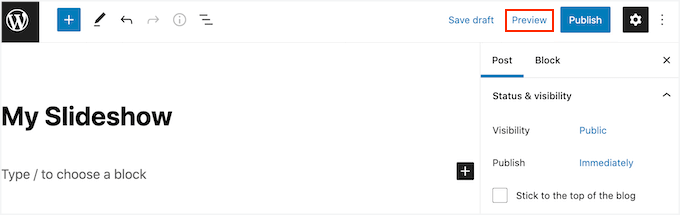
Once you’re happy with how the Flickr widget looks, you can go ahead and update or publish this page as normal.
Bonus Tip: Prevent Image Theft in WordPress
Copyright laws are universal and protect your creative work automatically. Whether or not it’s mentioned on your WordPress blog, your images, text, videos, and other content are protected by copyright.
The problem is that images and text can be easily copied. Plus, many people think no one will notice if they steal an image and use it on their own site. 🤔
While it’s flattering when others use your work, it can be upsetting to see blatant disregard for your rights. Stealing others’ work isn’t just illegal – it’s unethical.
While you can’t completely stop image theft, there are plenty of ways to discourage it:
- Disabling right-clicking.
- Using watermarks on your images.
- Disabling hotlinking.
- Adding copyright notices to your site.
After reviewing a lot of WordPress image plugins, we believe that Envira Gallery is among the best ones for image protection.
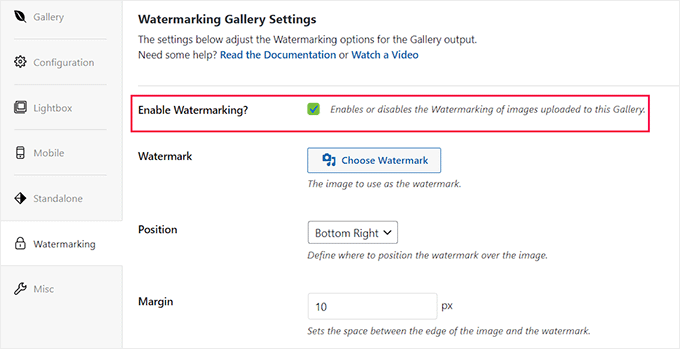
It comes with powerful tools to safeguard your images, including a watermarking addon and an option to disable right-clicking. These are two of the most effective ways to discourage theft. You can read our complete Envira Gallery review for a full feature breakdown.
For detailed instructions, please refer to our expert tips for preventing image theft in WordPress.
Frequently Asked Questions About Flickr Widgets
Got questions about adding a Flickr widget to WordPress? We’ve got you covered. Below are some of the most common questions we hear from users.
Can I display photos from a private Flickr account?
Generally, plugins like Photonic require your photos or albums on Flickr to be public. This allows the plugin to fetch images using Flickr’s public API without needing special login credentials for each visitor.
While an authenticated user like you can see private content when logged in, your public visitors cannot. For a gallery that everyone can see, you will need to use public photos or albums.
Will adding a Flickr widget slow down my website?
Displaying many images can affect page load times. But since the photos are hosted on Flickr’s servers, it reduces the load on your WordPress website’s hosting.
To ensure your site remains fast, we always recommend using a good caching plugin like WP Rocket. You can also enable lazy loading for all of your images.
These approaches help improve performance and the overall user experience.
Can I customize the look of my Flickr gallery?
Yes, the Photonic plugin offers several customization options. As we covered in the tutorial, you can choose different layouts like grids or slideshows, adjust thumbnail sizes, and filter the content you want to show.
For more advanced styling, features like watermarking, and eCommerce integration, you might consider a premium gallery plugin. We use and recommend Envira Gallery for its power and ease of use.
Keep Exploring: More Ways to Use Images in WordPress
And that’s it! We hope this article helped you learn how to add a Flickr widget in WordPress. Next, you can also go through our guides on:
- How to Resize and Make Images Larger without Losing Quality
- How to Add Custom Links to Gallery Images in WordPress
- How to Add Image Hover Effects in WordPress
- How to Create a Photo Gallery with Albums in WordPress
- How to Allow Users to Upload Images on a WordPress Site
- How to Create a Photo Contest in WordPress
- Best WordPress Slider Plugins for Performance and Quality
If you liked this article, then please subscribe to our YouTube Channel for WordPress video tutorials. You can also find us on Twitter and Facebook.




Jasper Frumau
This Quick Flickr Widget plugin has not been updated in ages and no longer works properly.
aman
Quick Flickr Widget don’t work! show the erro on the page SSL is required