


Du har en bild som är för liten, och att göra den större gör den suddig. I AI-eran är lösningen en AI-uppskalare, eftersom den genererar nya detaljer istället för att sträcka det du redan har.
Vi testade tre sätt att göra detta utan suddighet: ett gratis onlineverktyg, en gratis skrivbordsapp och ett premiumalternativ för de största jobben.
I den här guiden visar vi varför bilder tappar kvalitet när de förstoras. Sedan går vi igenom alla tre metoderna så att du kan välja den som passar din bild.
Varför förlorar bilder kvalitet när de förstoras?
Bilder tappar kvalitet när de förstoras eftersom de inte har tillräckligt med pixelinformation för att stödja den större storleken.
De flesta bilder på webben, inklusive JPEG- och PNG-filer, är i ett format som kallas bitmap.
En bitmappsbild består av tusentals små rutor som kallas pixlar. Varje pixel innehåller lite färg och sitter på en fast plats i bilden (därav namnet bitmap).
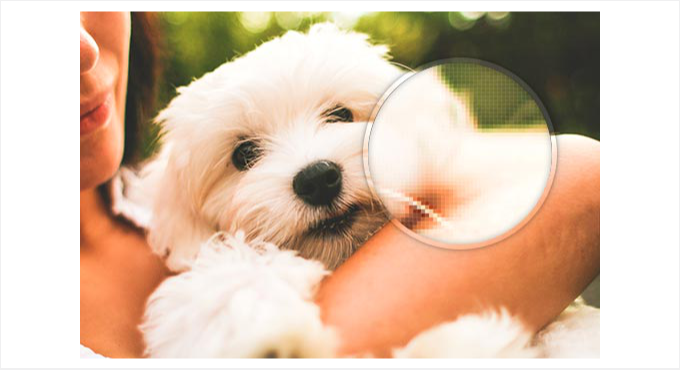
Att krympa en bild ser vanligtvis bra ut eftersom du pressar ihop pixlarna, vilket döljer imperfektioner. Men när du gör den större, sträcker du bara ut de befintliga pixlarna.
Eftersom förstoringen inte lägger till några nya detaljer, blir bilden till slut suddig eller blockig.
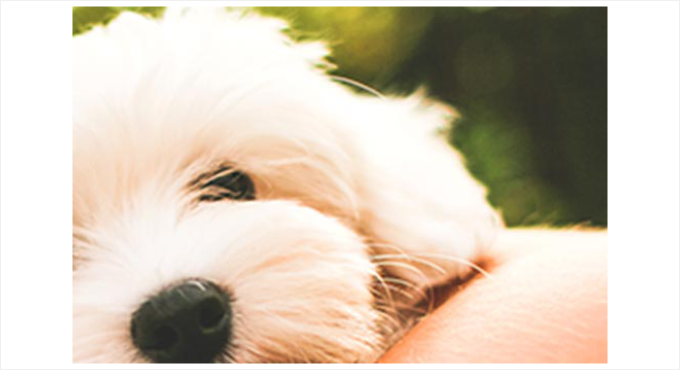
AI-uppskalning löser detta genom att generera nya detaljer istället för att sträcka befintliga pixlar. Utvecklare tränar AI-modellen på miljontals bilder.
Modellen använder sedan den träningen för att förutsäga och lägga till de saknade detaljerna, så att resultatet ser mycket skarpare ut än grundläggande sträckning.
💡Obs: Börja alltid med en högupplöst bild. Ju fler pixlar originalbilden har, desto bättre hanterar den förstoring.
Samma logik gäller innan du ens tar en skärmdump. Om det är för ditt eget blogginlägg, fånga det i rätt storlek från början, så slipper du problemet med förstoring helt.
I avsnitten nedan går vi igenom tre sätt att använda AI-uppskalning. Du kan använda länkarna nedan för att hoppa till valfri metod med bara ett klick:
Metod 1: Förstora bilder med en gratis online AI-uppskalare
Det snabbaste sättet att förstora en bild utan kvalitetsförlust är en gratis online AI-uppskalare som Upscale.media.
Den kör AI-modellen på sina servrar och ger dig ett skarpt resultat i din webbläsare.
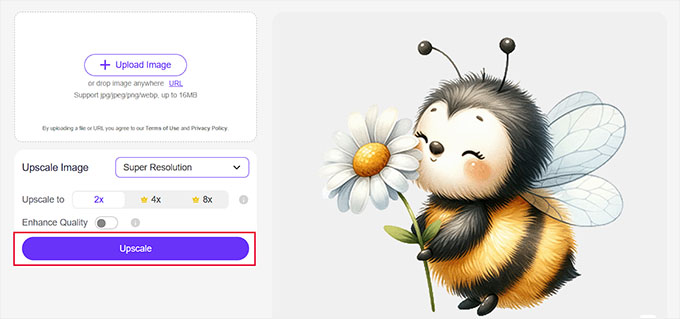
Gå till Upscale.media och klicka på 'Upload' för att välja fotot du vill förstora. Verktyget accepterar JPG, PNG och WebP-filer upp till 16 MB.
Den visar en förhandsgranskning av din bild i realtid så snart den har laddats upp.
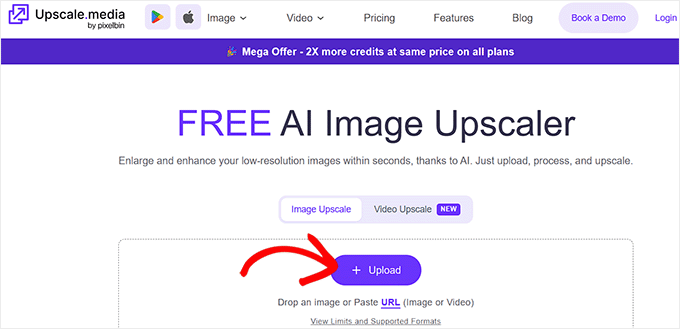
Under 'Upscale Image', lämna Super Resolution valt, och välj hur mycket du vill förstora ditt foto. 2x är gratis och kräver inget konto, medan 4x och 8x kräver betalda krediter.
Upscale.media markerar båda betalda alternativen med en liten kronikon.
Klicka på Upscale när du har valt en skala. Verktyget bearbetar bilden på några sekunder.
Vi körde detta på en 400 x 400 pixlars testbild. Gratis 2x-alternativet gav ett 800 x 800 pixlars resultat med synligt skarpare kanter, ingen inloggning och ingen vattenstämpel.
En före-och-efter-reglage låter dig dra över bilden för att jämföra de två versionerna innan du laddar ner.
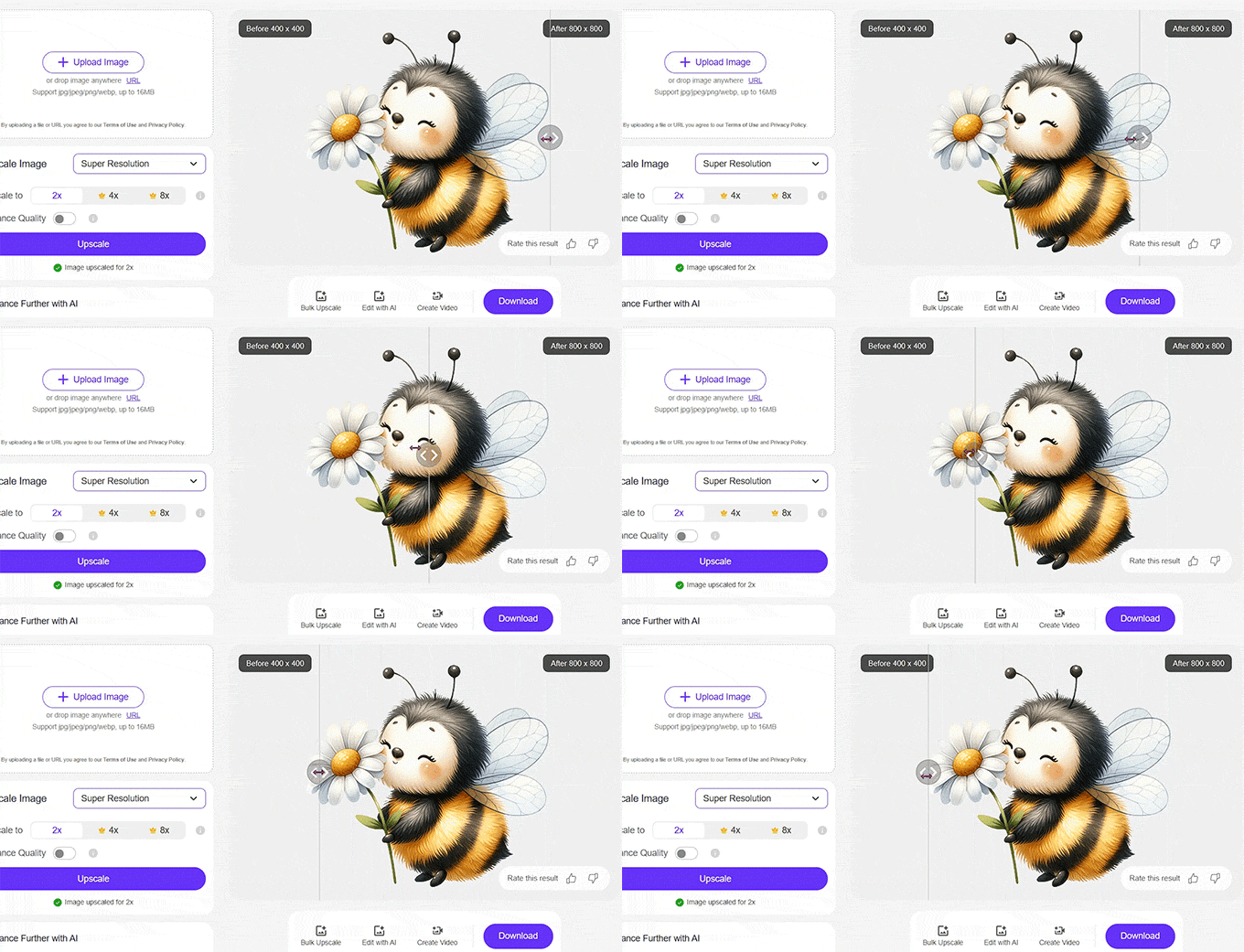
Klicka på Download för att spara den förstoringen bilden när du är nöjd med den. Du behöver inget konto för en förstoring per dag, och ett gratis konto ger tre krediter per månad.
Metod 2: Förstora bilder med Upscayl (gratis skrivbordsversion)
Upscayl är det bättre gratisalternativet för batchjobb, privata bilder eller filer som är för stora för en webbläsaruppladdning. Den kör AI-modellen på din egen dator.
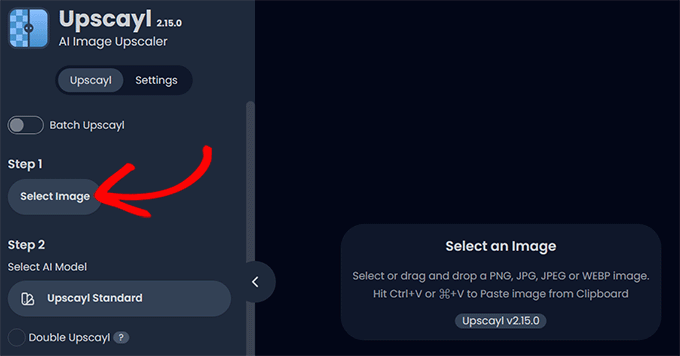
Ladda ner Upscayl gratis från upscayl.org, tillgängligt för Windows, Mac och Linux. Installera det, öppna appen, och du kommer till en enkel tre-stegs layout.
Klicka på Select Image under Steg 1 för att välja ditt foto. Om du vill förstora en hel mapp på en gång, slå på omkopplaren 'Batch Upscayl' först.
Under Steg 2, välj din AI-modell från rullgardinsmenyn och ställ in 'Image Scale' till hur mycket du vill förstora den, upp till 16x.
Upscayl Standard är standardmodellen, och den fungerar bra för de flesta foton.
Steg 3 låter dig välja var Upscayl sparar den förstoringen filen, och den standardinställs till samma mapp som din originalbild.
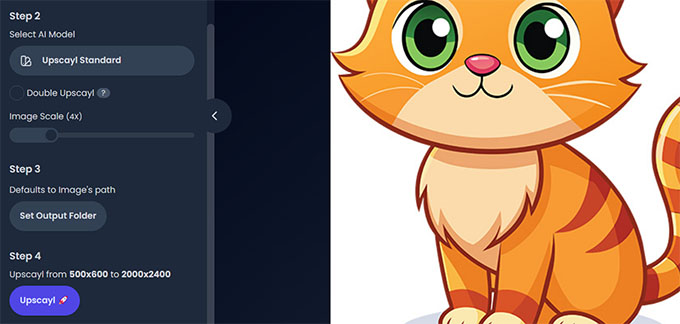
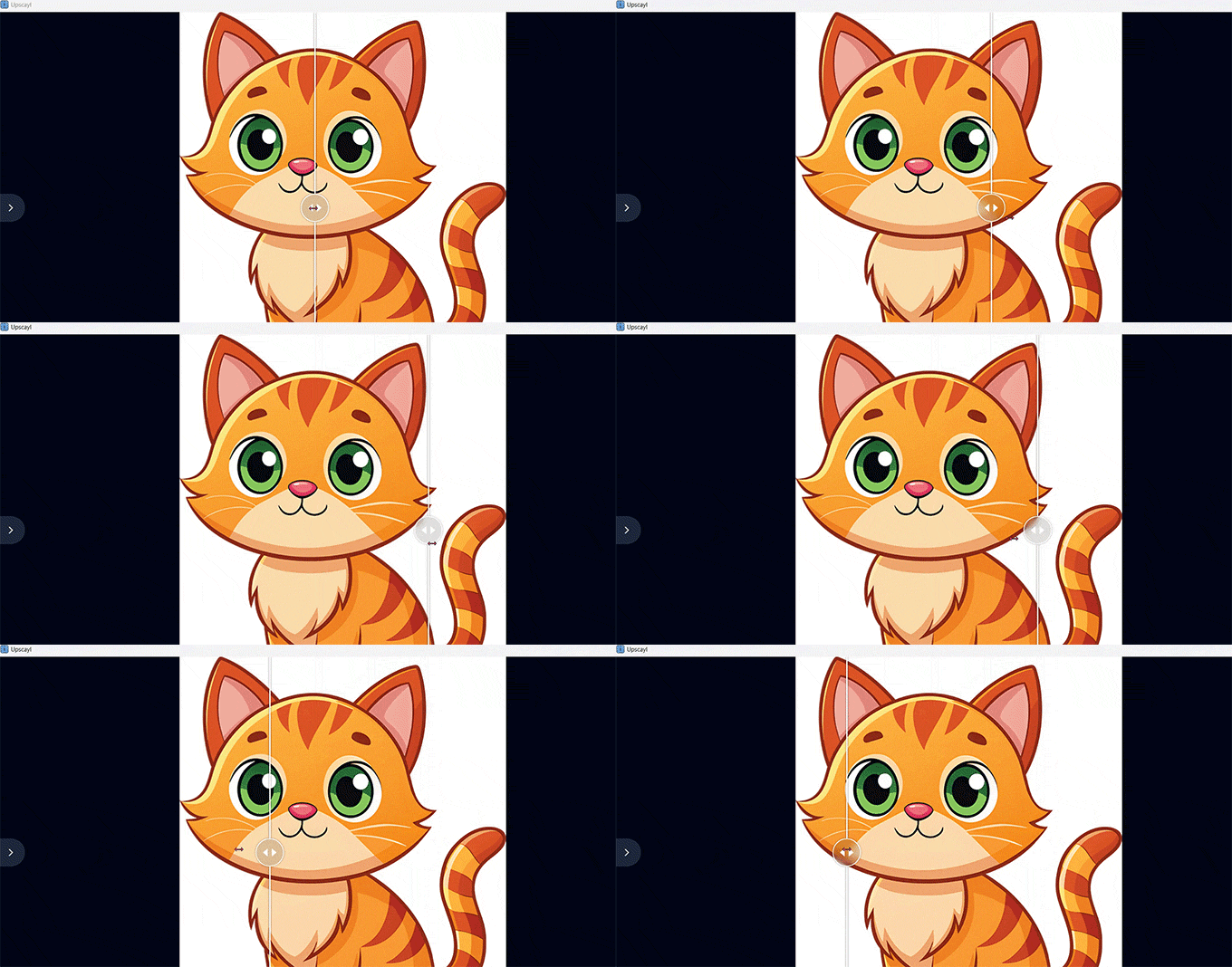
Klicka på Upscayl för att starta AI-modellen som körs lokalt på din dator. Vi testade detta på en 500 x 600 pixlars bild.
Upscayls standardmodell gav ett 2000 x 2400 pixlars resultat vid 4x, och den lade till textur och kantdetaljer istället för att bara sträcka pixlar.
Metod 3: Förstora bilder med ON1 Resize AI 2026 (premium)
ON1 Resize AI är premiumvalet när du behöver en mycket stor förstoring, upp till 10 gånger originalstorleken, för ett tryck eller en affischstorlek.
Den kombinerar sina AI-modeller med Genuine Fractals, den skalningsteknik som ON1 har förfinat i över två decennier.
ON1 Resize AI 2026 fungerar som en fristående app eller som ett plugin inuti Photoshop, Lightroom Classic, Capture One och Apple Photos. Det betyder att du kan förstora en bild utan att lämna din vanliga redigerare.
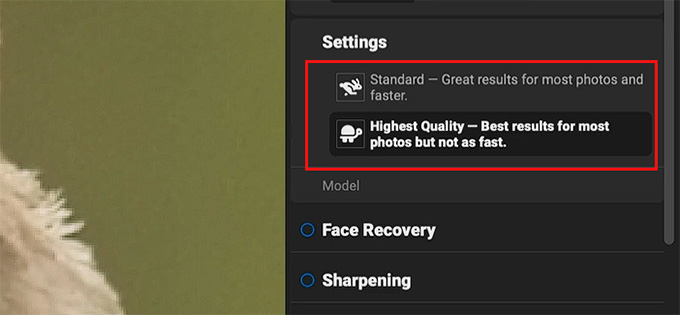
Öppna ditt foto och välj sedan din AI-modell i 'Inställningar'.
Standardmodellen är byggd för snabbhet och stora batchjobb, medan modellen Högsta Kvalitet är ett diffusionsbaserat alternativ avsett för täta beskärningar och utskrifter av gallerikvalitet.
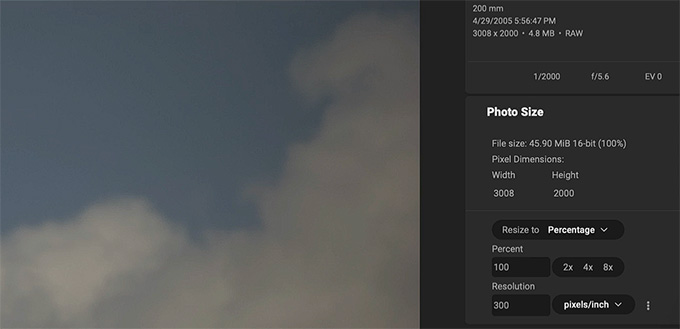
Ställ in din målstorlek efter bredd, höjd eller lång kant. Om du förbereder en fysisk utskrift, använd istället en utskriftsstorlek och upplösning.
En före- och efterbild med zoom låter dig kontrollera detaljer och skärpa innan du exporterar.
Om du ändrar storlek på mer än en fil kan ON1 batchbearbeta flera bilder med hjälp av en sparad förinställning.
ON1 erbjuder en 30-dagars gratis provperiod som är fullt fungerande utan vattenstämpel, så att du kan testa den på dina egna bilder innan du betalar.
Den fristående appen är ett engångsköp, för närvarande 69,99 USD.
Det priset täcker 2 datorer, och ON1 backar upp det med en 30-dagars pengarna-tillbaka-garanti.
Vanliga frågor: Ändra storlek på bilder för att göra dem större utan att förlora kvalitet
Varför blir bilder suddiga när de skalas om?
Bilder blir suddiga eftersom förstoring sträcker de befintliga pixlarna. Eftersom processen inte lägger till några nya detaljer kan bilden se mjuk eller pixlig ut.
Hur kan fraktal interpolering hjälpa till att ändra storlek på bilder?
Vissa avancerade verktyg använder en teknik som kallas fraktal interpolering för att fylla i saknade detaljer. Det fungerar genom att blanda varje pixel med de runt omkring, vilket hjälper till att skapa ett mjukare, skarpare resultat när en bild förstoras.
Finns det några tips för att förbättra bildkvaliteten innan du skalar om?
Att börja med den högsta kvalitetsversionen av din bild ger dig det bästa resultatet, eftersom mer originaldetalj alltid hjälper. Efter storleksändring kan du också justera skärpa och kontrast för att förbättra det slutliga resultatet.
Vad är ett gratis sätt att skala upp en bild utan kvalitetsförlust?
Upscale.media är ett gratis sätt att skala upp en bild utan kvalitetsförlust, eftersom den kör en AI-modell som lägger till verkliga detaljer snarare än att bara sträcka pixlar.
Du kan förstora en bild om dagen med 2x utan konto. Om du behöver mer, registrera dig för 3 gratis krediter per månad.
Fungerar AI-uppskalning på alla bilder?
Resultatet beror på hur mycket information din källbild har att börja med. Det är inte samma sak som att lägga till detaljer som din kamera aldrig fångade i originalfotot.
Vi hoppas att den här guiden hjälpte dig att förstora dina bilder utan kvalitetsförlust. När dina bilder ser skarpa ut, se vår guide om att optimera bilder för webbprestanda för att även hålla din WordPress-webbplats snabb.
Om du gillade den här artikeln, prenumerera gärna på vår YouTube-kanal för WordPress-videoguider. Du kan också hitta oss på Twitter och Facebook.


Suman Sourabh
Jag använde GIMP för att skapa miniatyrer för min YouTube-kanal men använde aldrig den här funktionen. Tack för den här artikeln!
WPBeginner Support
Glad we could share another way to use it
Admin
Shamsad
För alla som ser detta 2022 fungerade gimp-lösningen för mig. Sinc(Lanczos3) ersattes av NoHalo. Genom att använda detta och skalning kunde jag ändra storlek på min png.
Jag hittar alltid kvalitetslösningar på wpbeginner. Fortsätt det goda arbetet.
WPBeginner Support
Tack för att du delade med dig och glad att vår guide var till hjälp!
Admin
Dorki3
Ingen av ovanstående lösningar hjälpte mig att ändra storlek till önskad storlek och kvalitet, jag lyckades ändra storlek på bilden men kvaliteten var mycket dålig! tack för ansträngningen dock! hittade lite fin bildprogramvara!
WPBeginner Support
Sorry that you couldn’t solve the issue on your end but glad you liked our recommendations for tools
Admin
Giorgio
Hej, med Gimp är det perfekt. Men om jag har många foton finns det en lösning för att automatisera med Gimp?
Tack
Giorgio
WPBeginner Support
Om jag inte hör något annat har vi för närvarande inget automatiseringsverktyg för att arbeta med Gimp på det sättet.
Admin
Chris Campbell
Tyvärr kräver instruktionerna att man öppnar en bild i PS och sedan väljer Arkiv > Automatisera > Perfekt storleksändring, men det finns inget alternativ för Perfekt storleksändring tillgängligt. Inte säker på hur en artikel så här ny är felaktig, men det är vad jag ser. Mycket frustrerande nu eftersom artikeln uppmuntrade mig att spendera 60 dollar.
WPBeginner Support
Det kan ha skett en uppdatering av alternativets placering. Om du kontaktar Perfect Resizes support bör de kunna tala om var knappen finns för närvarande.
Admin
Jim Barker
ja, förklaringen av varje objekt att använda var bra, förutom att jag försökte ladda ner båda gratisversionerna och ingen av dem gjorde något med bilden jag försökte förstora. den var plånbok till 5×7. synd
Peter
Hej, hur gör man sina mobilbilder från Nokia större för att ladda ner på en t-shirt
Linto
Tack så mycket för den här handledningen!!
Liene
Tack för det här inlägget. Jag hade inte hört talas om IrfanView, laddade precis ner det och det gör verkligen sitt jobb. Bra. Tack.
Melissa
Hej!
Jag provade den perfekta storleksändringen som jag tror nu kallas ON1, och jag kunde inte ändra storlek från 3 tum till 8 tum utan att förlora kvalitet. Jag ville bara fråga dig om du har någon aning om varför.
Tack!
manish
Jag är glad att jag har hittat lösningen på mitt stora och stora problem.
Jag tackar programmeraren av Irfanview och webbplatsdesignern.
Tack så mycket!!!!
Dufner
Jag har använt Perfect Resize-programvaran själv utan Photoshop och den fungerar bättre än att bara ändra storlek med Photoshop utan plugin. Jag gjorde det i skolan där de hade licensen för programmet. Har aldrig provat det i Photoshop med Resize-pluginet, bra att veta! Tack
anupama
snälla berätta för mig vad är krokar i wordpress? vad är krokar arbete?
Safura Abbas
Hej team,
I am glad to have found my solution on this site. So very well explained and understood. Appreciate your help. I downloaded the trial version of ON1 software and my image that i was trying to enlarge for hours to print right on the paper went in vain until I found your blog. Kudos to Syed Balkhi and team for this informative site. Happy me
Tack än en gång.
ashish
fin tutorial grym
Mike
Tack! Mycket användbart
sedatbasman
tack för din hjälp.
Rebecca Cunningham
Det fungerar som magi! Jag har provat allt, och detta är ren perfektion. Tack så mycket.
DBlake
Rebecca... vilken använde du?
Tej
Hej, jag tog en bild av gammal fotografi men den ser värre ut. Hur kan jag öka dess kvalitet?
Irineu
Jag har använt tillägget Simple Image Resizer, Chrome, och har haft bra resultat. Jag kommer från Brasilien. Grattis.
Rosie
Men det gör inte bilderna STÖRRE – vilket är poängen med artikeln!
Anthony
Det här är vad jag har letat efter. PS CC har begränsade alternativ för att behålla bildstorleken efter att ha slagit ihop den med flera andra lager. Tack så mycket!
maj
Jag använder Gimp-storleksändring (logotypen erhölls men företaget vill inte ändra storlek) och det är fortfarande en upplösning som jag inte kan använda?
Dana
Tack! Jag har letat efter ett plugin för att ändra storlek i photoshop! – Fungerar jättebra!!!!
Carol
Jag har två frågor:
1. Jag kan nästan ingenting om Photoshop, men jag använder Lightroom 6 när jag redigerar bilder. Finns det ett sätt som liknar de metoder som nämns här för att göra samma sak i Lightroom?
2. I en annan artikel här på WPBeginner kommenterade någon att dagarna då man sänkte fotoupplösningen för en snabbare webbplats i princip är över. Om så är fallet, vad är den rekommenderade storleken i MB och dpi för de flesta bloggfoton? (Det här är en fotoblogg, så jag vill att de ska vara så tydliga som möjligt.)
Tack.
Rebecca Rose
Hej och tack för din webbplats. Jag är en nybörjare (för att uttrycka det milt) och hittade din webbplats när jag sökte på nätet efter information om hur man ändrar storlek på foton för Windows Movie Maker.
Just nu vill jag göra bildspel "filmer" för musiken jag komponerar ... men de svarta panelerna på vardera sidan av de mindre foton som jag använder är en riktig avskräckning! Så jag gör mitt bästa för att lära mig vad jag ska göra ... Jag äger Photo Shop – men tyvärr har jag hittills aldrig använt det. Efter att ha läst kommentarerna ovan tror jag att det är dags! Alla andra kommentarer du har skulle vara MYCKET välkomna ...
Richard Cunningham
Här är en enkel lösning om du har problem med förlust av definition/oskärpa eller överpixellering när du ändrar storlek på en bild. Mitt problem var med ett visitkort där jag hade en utmärkt stor bild i .jpg-format men jag kunde inte lista ut hur jag skulle behålla definitionskvaliteten när jag minskade den med gimp.
Voilà!
Anta att du har en utmärkt .jpg-bild som är A4-storlek och du vill minska den till storleken av ett visitkort, med hänsyn till trimning och utfall på 3,6 tum gånger 2,1 tum vid 300 dpi. Om du försöker redigera filen i Gimp kommer du att få oacceptabel kvalitet. Jag slösade bort timmar!
Prova detta:
1. Öppna en ny fil med en 300 dpi-mall. Ställ in storleksparametrarna som du vill ha dem – 3 600 x 2 100.
2. Öppna filen du vill skala om – i det här fallet vill du förminska.
3. Medan du är i den här filen, tryck på Redigera – Kopiera.
4. Gå till den nya filen och klicka på Redigera – Klistra in.
Kontrollera bilddetaljerna så hittar du en perfekt definierad reducerad bild på 3,6 tum x 2,1 tum vid 300 dpi!
Eshaan
How do you make an image smaller than its original size without losing quality?
And I mean really small. In pixel units “10×10”
The answer to this question will mean a lot to me!
If possible please email me the answer at
Thank you!
Tom
@Eshaan
Saken är den att när man minskar en bilds storlek måste man förlora pixlar. En bild på 100×100 pixlar innehåller 10 000 olika pixlar, medan en bild på 10×10 bara innehåller 100. Det betyder att om man krymper en 100×100 bild till 10×10 måste man släppa 9900 pixlar. När man gör en bild större lägger man till pixlar, vilket är fysiskt möjligt, till skillnad från vid krympning.
john jr.
Hej jag försöker ladda upp filer till dig men det står att filstorleken är för liten.
Hur kan jag fixa detta så att jag kan skicka bilderna jag gillar.
joycebartley
hej jag försöker ladda ner några bilder från min dator till en tävling och de måste vara mindre än 4 mg tyvärr är de flesta av mina bilder lite över det ... så hur kan jag minska storleken på mg till under 4?????? jag hoppas att det finns ett enkelt sätt att göra det ..... från och med nu ska jag ta bilden med min mobiltelefon närmare eller längre bort?????
Dan
Även om detta erbjuder några användbara tekniker, och några dyra sådana. Personligen tycker jag inte att du någonsin ska förstora en bild. NÅGONSIN!! Jag har arbetat med tryck i åratal såväl som webben och detta är bara ett stort nej nej, eller så lärde jag mig.
Storleksnedgång, aldrig uppåt. Detta är en teknik som jag ALDRIG kommer att ta till mig. Men tack för inlägget.
Dave
Jag håller med Dan. Om du vill ha bilden större måste du hämta den från källan eller ta om den.
Joe Turner
Dave, det där är verkligen inte särskilt hjälpsamt. Uppenbarligen skulle jag tro att alla förstår att de borde ta om det, om de kunde. Folk skulle inte behöva försöka hitta det ”bästa” av alla ofullkomliga sätt att ändra storlek om de bara kunde ta om ett foto. Men de flesta av dessa foton är från evenemang eller vid tidpunkter och/eller platser som inte kan besökas igen och att gå tillbaka i tiden är inte riktigt ett alternativ, så att ta om det är oftast ganska omöjligt. Jag tror att du borde inse att de flesta som vill förstora inte trodde att de skulle behöva skriva ut fotot så stort som de nu vill, utan vill ha bästa möjliga resultat givet de omständigheter de befinner sig i.
Mawande
Tack Joe
Jag skakade också på huvudet innan din kommentar. Uppenbarligen föredrar folk att göra saker rätt första gången, men omständigheter och situationer kan förändras ofrivilligt och allt folk kan göra är att göra det bästa av dessa situationer genom att komma med lösningar.
Peggy Woods
Jag måste verkligen lägga lite tid på att lära mig hur jag använder Photoshop som jag köpte för ett tag sedan. Jag brukar bara skala om foton med Picasa3 för beskärning och sådant. Kommer att dela den här informationen på g+. Tack!
Nora
Jag har bara använt Photoshop för att ändra storlek på bilder. Men bara till en viss gräns. När du börjar med en lågupplöst bild kan den bara ändras i storlek till en viss gräns. Öppna filen i Photoshop, klicka på ”image size, avmarkera ”Resample image”, börja sedan justera pixelstorleken under bredd tills du kommer så nära 300 dpi som möjligt. Du kommer att se upplösningsnumret ändras när du ändrar pixelstorleken. När du har kommit till cirka 300 dpi klickar du på ”save”. Gå sedan tillbaka och markera ”Resample image” igen. Klicka på ”save” igen. Klart.
Leon Quinn
Visst finns det något sätt att göra detta i Photoshop utan en kommersiell plugin?
Darshan Gajara
Detta är fantastiskt material. Kan du vänligen föreslå några gratis Photoshop-plugins för att förenkla fotomanipulation?
Mark Narusson
Trevlig artikel tack för att du delade. Du kan också överväga att använda Photoshop, göra bilden till ett smart objekt, förstora duken och sedan skala bilden för att passa. Detta är inte perfekt men det har hjälpt mig ur en knipa vid några tillfällen.
Jim Massman
En notering för alla som är intresserade av att redigera bilder: Bildformat som generellt används på webben bygger på komprimeringsalgoritmer och du kan lätt hamna i problem när du redigerar dessa format om du inte redigerar en "förlustfri" kopia. Detta är ett gammalt knep som jag har använt i åratal efter att ha sett några hemska resultat… spara helt enkelt den första filen i ett filformat utan kompression, som till exempel ".tif"; redigera den filen efter behag, och spara sedan som .jpg eller .png.
Kom ihåg att varje gång du öppnar, redigerar och sedan sparar en .jpg- eller .png-fil, kommer de komprimeringsinställningar som ditt grafikredigeringsprogram har ställts in på att "komprimera om" filen. De flesta program låter dig bestämma komprimeringsgraden, så det skadar inte att ställa in standardvärdet till den inställning med minst "förlust". Dagarna då man "behövde" pressa filstorlekar för snabba sidladdningar är i stort sett borta... men du kanske inte vet vad programstandarderna har ställts in på.
0,02 kr
Jim
_.- M -._
”Dagarna då man behövde” pressa ner filstorlekar för snabba sidladdningar är i stort sett borta…
Det skulle bero på din definition av 'behov', samt en grundläggande förståelse för din målgrupp.
Är din målgrupp enbart stadsbor med tillgång till snabbt bredband, som bara besöker din webbplats när de är hemma? Då är det *kanske* sant.
Om du å andra sidan är intresserad av att nå någon landsbygdsbefolkning alls, måste du komma ihåg att *25 %* av befolkningen på landsbygden i USA inte har tillgång till bredband, och att 6 % av den totala amerikanska befolkningen inte har bredbandstillgång.
Om du fortfarande säger: ”Åh, jag bryr mig inte om dessa 16 miljoner potentiella besökare”, så stanna upp och se det ur mobilwebbens perspektiv. Har din besökarbas smartphones? Vill du stödja en mobilupplevelse? (En liten ledtråd här, ditt svar bör vara 'ja'.) Gissa igen. Du 'behöver' fortfarande göra bildoptimering för att minimera bandbreddskraven för din webbplats.
Om du är en riktig professionell i branschen att tillhandahålla innehåll till användare, då *JA* behöver du bry dig om den faktiska användarupplevelsen för personer som besöker din webbplats. Och en del av det *ÄR* fortfarande webbplatsoptimering för hastighet.
Richard
Killar, det finns inget sätt att förstora eller krympa en pixel. Pixelstorlek är relativ. Du kan bara lägga till eller ta bort pixlar.
Akash KB
Very nice and useful tips for resizing images. Specially the ‘Perfect Resize’ Plugin for Photoshop. Resizing of images is a very common day to day activity of bloggers while adding photos to blog posts
Melissa Klotz
Jag älskar den här webbplatsen och många av dina inlägg har varit mycket hjälpsamma. Men jag kliar mig verkligen i huvudet över det här. Kanske är det mina ögon, kanske min bildskärm, men jag ser väldigt liten skillnad mellan "normal storleksändring" och de andra storleksändringarna. Det finns gott om andra resampling-alternativ i Photoshop. Jag förstår inte varför du skulle köpa ett Photoshop-plugin för 150 dollar (extremt dyrt för ett plugin) eller ladda ner gratis programvara för att göra något som Photoshop är i grunden kapabelt till.