


Running two separate WordPress sites is often twice the work. You have to juggle multiple updates, split your marketing budget, and create double the content.
We often hear from users who want to combine their websites but are terrified of losing their search rankings. It is a valid concern, as a wrong move can hurt your traffic.
However, we have helped hundreds of users consolidate their sites successfully. In our experience, merging your content properly can actually boost your SEO and authority.
In this guide, we will show you how to merge two WordPress sites together without losing SEO.

Why Merge Two WordPress Sites Together?
Over the years, we’ve seen WordPress site owners merge their sites for several reasons, and the benefits often go beyond what they initially expected.
The most common scenario we encounter is business consolidation. Maybe you started a WordPress blog separate from your business site, but now you want everything under one roof to strengthen your brand presence and simplify your content strategy.
We also help site owners who have one underperforming site that they want to merge with their successful primary site. This approach lets you save valuable content and potentially redirect any existing search traffic to your stronger domain.
But here’s the biggest reason we see: efficiency. Managing multiple WordPress installations means multiple security updates, separate backup routines, divided marketing efforts, and split analytics data. It’s exhausting and expensive.
When you merge sites strategically, you often end up with a stronger domain authority, better user experience, and more focused SEO efforts. Plus, you can finally stop juggling multiple dashboards and concentrate on growing one powerful website.
Ready to get started? Here’s our step-by-step process for merging WordPress sites without losing your hard-earned SEO rankings:
1. Preparing for the Migration
For the sake of this tutorial, we will say that you have a secondary WordPress site at https://secondarysite.com and you want to merge it with your primary website at https://primarysite.com/.
To make sure your content transfers smoothly from one site to the other, there are a few things you need to do in preparation.
Check Permalink Structures
You need to make sure that the permalink structure on both sites is exactly the same.
If your old site uses URLs like domain.com/2024/01/post-name/ and your new site uses domain.com/post-name/, your redirect setup will be very difficult, and you could lose SEO rankings. It is best to match the structures before you begin.

Check WordPress Media Settings
You should check your media settings to make sure that the primary site won’t reject any images from the secondary site because of their size.
First, you need to visit the Media » Add New page on both websites.
Look for the text that says ‘Maximum upload file size’ at the bottom of the upload area.

You need to make sure this setting on the primary site is the same or larger than the setting on the secondary site. If it is smaller, then some of your images may not be imported properly.
You can learn how to change this setting in our guide on how to increase the maximum file upload size in WordPress.
Install Any Necessary Plugins
Many WordPress plugins store data. These include eCommerce plugins, membership plugins, forum plugins, and more.
If this plugin data is stored in a special database table, and that table doesn’t exist on the secondary site, then it won’t be able to be imported. So, make sure you install the plugins on the primary site before you try to import their data.
Now, plugins handle data in a variety of ways, so there is a chance that data from some plugins won’t be imported anyway. It’s very important to manually check that all your important data has been successfully imported after following this tutorial.
Important: Don’t forget to create a complete WordPress backup of both of your websites using a plugin like Duplicator. This will come in handy in case anything goes wrong and you want to revert the changes.
2. Exporting Content From the Secondary WordPress Site
Now, you are ready to export all of the content out of the secondary WordPress website.
First, you need to visit the admin area of your secondary WordPress site and then navigate to the Tools » Export page.
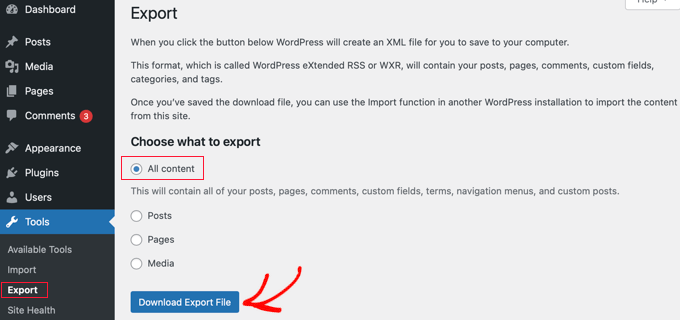
Make sure that you select ‘All content’ option and then click on ‘Download Export File’ button.
WordPress will immediately prepare an XML file and download it to your computer. You will need this file in the next step.
This exported file will contain the following:
- All your WordPress posts and pages
- All custom post types (if you have any)
- All categories and tags and custom taxonomies (if you have any)
3. Merging Content Into the Primary WordPress Site
Now that you have exported content from your secondary site, it is time to merge it with the content on your primary WordPress site.
Head over to the admin area of the destination site (the primary site where you want the content to be merged) and visit the Tools » Import page.
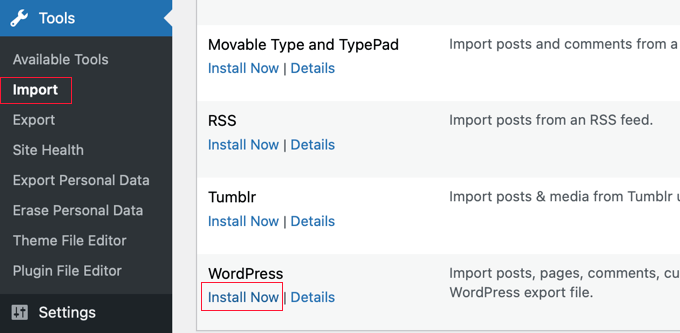
This page lists all the import tools that you can install and run on your WordPress site. Scroll down to the bottom and click on the ‘Install now’ link under WordPress.
Once the WordPress importer is installed, click the ‘Run Importer’ link to continue.
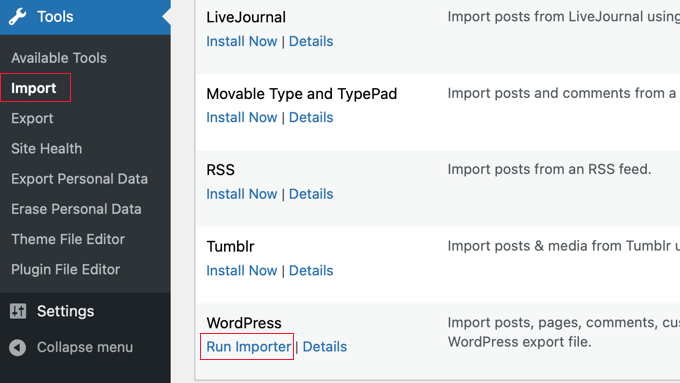
Next, you will be asked to upload the WordPress export file.
You need to click the ‘Choose File’ button and then select the XML file you downloaded earlier.
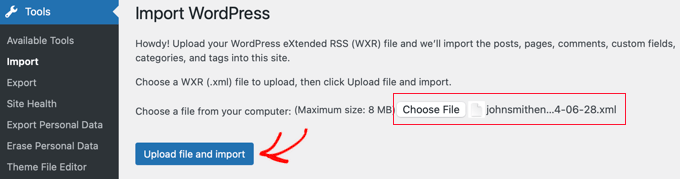
Click on the ‘Upload file and import’ button to continue.
WordPress will now upload your export file and analyze it. After that, it will redirect you to the import settings page.
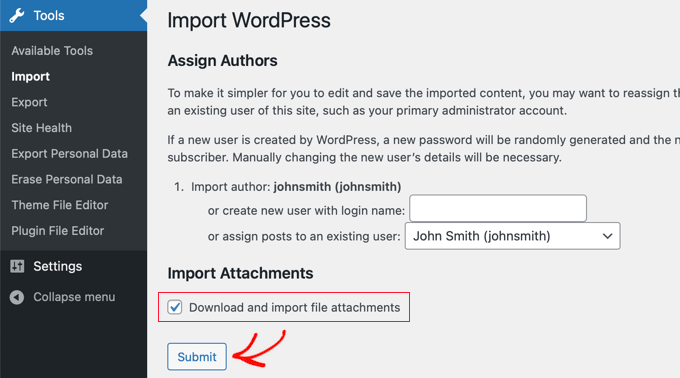
It will ask you to assign authors or create new authors. You can assign the imported content to an existing user on your WordPress site or create a new author.
Next, check the box in the ‘Import Attachments’ section. This will download and import file attachments such as your images and other media files from the other website.
However, in some cases, there may be images that fail to import, so some posts may still link to images on the secondary website. We will fix this in the next step.
You can now click on the ‘Submit’ button to run the final step of the import.
WordPress will import content from your export file and add it to your primary WordPress site. Once finished, you will see a success message.
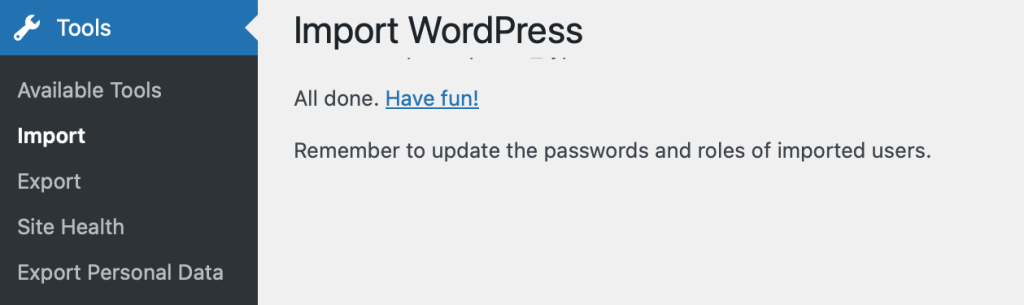
Now, this page may also display a list of items that failed to import. Often this is because the item already exists on the website, but not always.
It may be that there was a problem importing an image or that a table that exists on your secondary site doesn’t exist on your primary site. As we said earlier, this can be caused by differing image settings on the two sites, by a missing plugin, or some other issue.
You may want to take note of these failed items in case you need to manually copy them from the secondary website.
4. Importing External Images
If there were any image import problems, then some of the posts you imported might still be loading images from the secondary website. These are called ‘external images’ and are not the best for WordPress performance or SEO. We will fix that in this step.
The easiest way to import external images is to install and activate the Auto Upload Images plugin. For more details, see our step-by-step guide on how to install a WordPress plugin.
Note: While this plugin has not been updated in some time, it still works fine in our tests. You may want to read our article on whether to use plugins not tested with your WordPress version.
The plugin’s default import settings will work for most users, but you can change them by visiting the Settings » Auto Upload Images page. For example, if you wish to import images wider than 600px, then you will need to change the image size settings.
Next, you need to visit the Posts » All Posts page and select all of your posts so that the plugin can update any external images they contain.
You can only select the posts on one page at a time, so you will make faster progress by displaying as many posts on a page as possible.
You can do that by clicking the Screen Options button at the top of the Posts page.
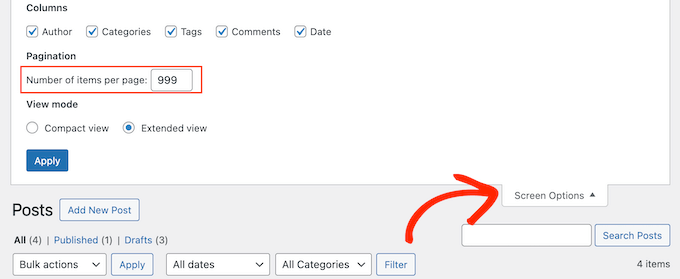
You need to increase the number in the ‘Number of items per page field’ field to ‘999’ and click the ‘Apply’ button.
Important: If you are on shared WordPress hosting, setting this to 999 may timeout your server. We recommend trying a smaller number first, like 50 or 100, to make sure your server can handle the bulk update.
WordPress will reload the page and it will list 999 posts. You can quickly select them all by clicking the checkbox next to ‘Title’.
After that, select ‘Edit’ from the Bulk actions menu and click the ‘Apply’ button.
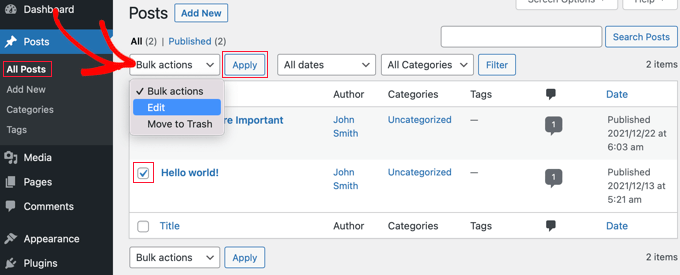
WordPress will now show you a ‘Bulk Edit’ box with all selected posts. Make sure you don’t change any of the settings in this box.
Simply click the ‘Update’ button, and the plugin will import any external images it finds in the selected posts.

Now, if you have more than 999 posts, then you will need to visit the next page to select the remaining posts.
For detailed instructions, see our guide on how to import external images in WordPress.
5. Setting Up Redirects
After successfully merging content from two WordPress sites, the next step is to set up redirects so that users visiting the old site are automatically redirected to the new WordPress site.
You will need to edit the .htaccess file on the old WordPress site.
You can edit the .htaccess file by connecting to your WordPress site using an FTP client or by using the File Manager tool in your WordPress hosting dashboard’s cPanel.
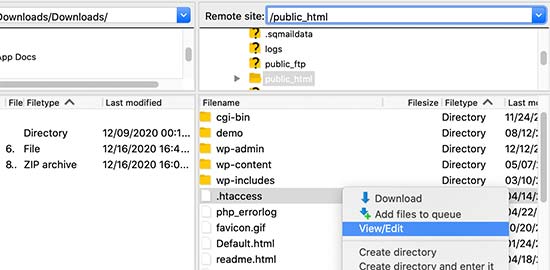
The .htaccess file is located in the root folder of your website. If you can’t find it, then see our guide on why you can’t find the .htaccess file on your WordPress site to unhide it.
You need to place this code at the top of your .htaccess file:
#Options +FollowSymLinks
RewriteEngine on
RewriteRule ^(.*)$ http://www.primarysite.com/$1 [R=301,L]
Don’t forget to replace primarysite.com with the domain name of your primary WordPress site. Then, you need to save your changes and upload the file back to your server.
You can now visit any post URL from your secondary WordPress site, and you will be automatically redirected to the same post on the primary site.
6. Troubleshooting After Merging Two WordPress Sites
Now that you have merged your two WordPress websites, you should make sure that you’re not missing any important data and that your merged site is working as expected.
Here are some troubleshooting steps you can take.
How to Merge and Bulk Edit Categories and Tags
You may want to clean up categories and tags after merging two WordPress sites. For detailed instructions, check out our tutorial on how to merge and bulk edit categories in tags in WordPress.
How to Fix URLs Pointing to the Old Domain in Posts and Pages
All internal links in imported posts and pages will still be pointing to your old site. Since you have redirects set up, your users will still land on the correct post on your new site.
However, you still need to update URLs for improved SEO and better user experience.
Luckily, this is easy to do with the Search & Replace Everything plugin.
For step-by-step instructions, see our tutorial on how to update URLs when moving your WordPress site.
Frequently Asked Questions About Merging WordPress Sites
We have helped many users combine their websites over the years. Here are answers to some of the most common questions we get about the process.
1. Will merging two sites hurt my SEO?
If you do it correctly, your SEO should not be negatively affected. In fact, consolidating content often improves your rankings because it creates a single, more authoritative site. The key is setting up proper 301 redirects so search engines know exactly where the content has moved.
2. Can I merge a WordPress.com site with a WordPress.org site?
Yes, you can. The process is very similar. You will export your content from the WordPress.com dashboard and import it into your self-hosted WordPress site. You can follow our guide on how to move from WordPress.com to WordPress.org for more specific details.
3. Do I need to keep paying for the old hosting account?
You need to keep your old hosting account active for at least a few months. This ensures your 301 redirects continue to work while Google updates its index. After that, you can potentially switch to domain-level forwarding through your registrar, but keeping the redirects active is the safest option for SEO.
4. What happens to the old domain name?
You should keep ownership of your old domain name. Even after merging, that domain likely has backlinks pointing to it. By keeping the domain and redirecting it, you pass that “link juice” to your new site. If you let it expire, you lose that SEO value.
5. Can I merge WooCommerce stores?
Yes, merging eCommerce stores is possible, but it is more complex because you have to move customer data and order history. The standard WordPress importer does not handle this data well. We recommend using a specific plugin designed for WooCommerce migrations specifically.
Additional Resources
Now that you have merged your WordPress sites, you might want to learn more about maintaining your new setup and keeping your SEO strong. Here are some guides to help you out:
- How to Move Your Blog from WordPress.com to WordPress.org
- Beginner’s Guide to Creating 301 Redirects in WordPress
- How to Change Your WordPress Site URLs (Step by Step)
- Must Have WordPress Plugins for Every Website
- Ultimate WordPress SEO Guide for Beginners (Step by Step)
If you liked this article, then please subscribe to our YouTube Channel for WordPress video tutorials. You can also find us on Twitter and Facebook.


Melody
Would this be the same as copying the posts and products to the new website?
WPBeginner Support
Similar, this would also tell search engines to go to the new post on your site instead of the old post on the old sites
Admin
micibama
Thanks for sharing this important guide. I have followed the guide accordingly however, my old site contents are not showing on my new site. They are saying page not found. Do i need to replace all the codes in the .htaccess with the one given above? Please help
WPBeginner Support
You shouldn’t need to replace your entire htaccess unless you have code that would conflict with our recommendation. You would likely want to resave your permalinks to help with the most likely reasons.
Admin
Keval Padia
Excellent content. We used to maintain two separate blogs for individual niche and were looking to merge both together without hampering our SEO. These steps are detailed and easy to follow, thanks for writing!!
WPBeginner Support
You’re welcome, glad our guide was helpful
Admin
Monique Martens
Hi there,
Thanks for this interesting and helpful guide!
Can you tel us what will happen with pages and posts that have the same name and/or ID number? For example, each website has a home, blog and contact page. Will these be separate pages with the same name?
Best regards,
Monique
WPBeginner Support
The posts will have the same name but the slug will be modified to be unique unless they are an exact copy of what you have currently on your site.
Admin
Keir Briscoe
I get a 405 error when I try to import. I am the creator and admin for both sites. I am also logged into both sites. I doubt anyone will reply to this message. but though I would leave it anyway
Romona
Hello,
If I have a new theme at my new site and new host, where will the pages go and will they automatically adjust to the new theme? By pages I mean (diy, recipes, life, etc). Will I need those exact page headings for it to fall into the correct category or will they all fall together into one category?
THANK YOU for your help!
Paul
Hello,
Very good article! Exactly what I was looking for in terms of merging two WordPress sites. I was curious though if this could be applied on sites with WooCommerce for example?
Thank you for this well written procedure.
Steve
I have oldsite.org which has a blog in the root and 2 more blogs at /nytips/ and /nynews/ and a community at /nyforum/ and want to make /nytips/ and /nynews/ a category of the blog in the root so the search box will work for the entire site plus giving me the chance to maintain one blog and one forum. Will this article help or will I have to use oldsite.net first then move it back to oldsite.org?
Each folder was a domain which I consolidated 5+ years as I did not want to buy SSL certs for each domain and their aliases.
Edmond Chan
Hi team, thanks very much for this info. I edited my .htaaccess file in my old wordpress site to redirect to the new site. I used the code in the article above. However, I’m not able to access oldsite.com/wp-admin anymore as it redirects to newsite.com/wp-admin! Is there anyway to still access the old site’s admin dashboard to update plugins, wordpress itself or for any other reasons? Many thanks, Ed
WPBeginner Support
Hi Edmond,
You will need to remove the .htaccess redirect to access old site admin area.
Admin
Edmond Chan
Hi Team,
Thanks very much for your reply. The problem is that because the old site admin area immediately redirects to the new site’s admin area, I literally can’t access the old site’s .htaccess file in order to edit/remove the redirect. It’s chicken and egg! Is there any way to fix this?? Many thanks, Ed
WPBeginner Support
Hi Edmond,
You can use FTP to edit .htaccess file.
ranga
Hi!
We moved our content from siteA to siteB both of which use wordpress CMS. After merging the content do we need to change the address in google websmaster tools.? Thanks.
Ilyas
I have merged my websites and all of the posts are on my new website.
But When I search an article, still the url and name of my old website my old website appear on the search engine.
What if I delete my old website or if it expires?
Alan
The best thing is to set redirects up from your old website to your new website and never let it expire.
John
Thanks for an interesting and useful article.
I am in process of merging three websites with my older and larger main site. I’ve been doing this manually and it’s taking ages. I didn’t realise it was possible to do it automatically. HOWEVER, one issue I’m facing doesn’t seem to be covered in your article. If I choose “all content” when I export from one site, will that include the comments the posts have attracted? If not, how to export/import comments?
Many thanks,
John
WPBeginner Support
Hi John,
Yes, comments will included in the export file.
Admin
Jack
Would it be ok to redirect single blog posts one by one over a time periode of one year.
E.g. Every week two blog posts from one blog (the one fizzling out) are republished to the main focus blog. And 2 redirects are done every week for a year.
This process goes on until all are moved to main blog (say 100 posts over a year). Would that be a bad idea in teems of SEO?
Chris
Hi Folks,
With a merge, what’s the situation about page/post IDs? If we are dealing with bigish sites surely there is a chance the page ID will be duplicated on import? Will that cause problems, and if so how to avoid/fix it?
Cheers,
Chris
Jack
Would it be ok to redirect single blog posts one by one over a time periode of one year.
E.g. Every week two blog posts from one blog (the one fizzling out) are republished to the main focus blog. And 2 redirects are done every week for a year.
This process goes on until all are moved to main blog (say 100 posts over a year). Would that be a bad idea in teems of SEO?
Gemma
Hi,
I’m curious to know, when importing the OLD site into the NEW, will it adopt the theme settings of the NEW site automatically?
How can I make sure they match?
Thanks
Melissa
How long before you could delete the original WP site?
WPBeginner Support
Once you are satisfied that the old site is no longer getting any traffic, you can delete it. However, if the original site is still getting significant traffic from sources other than search engines, then you may want to keep the domain up as long as possible.
Admin
Karakaplan
How long should keep Redirect htaccess file in old server?
Alan
I’d like to import one websites posts into a particular category or custom post type. Then a different redirect will be needed. Can you make a tutorial fo that?
Valentine
Thanks for this information. I’ve successfully merged my two sites and they are working properly from one dashboard. Nice Job
WPBeginner Support
Glad you found it helpful don’t forget to follow us on Facebook for more WordPress tips and tutorials.
Admin
Georgina Moon
This is interesting and helpful. But I have the opposite question – I want to start a new Wordpress blog, and export only certain posts to the new blog (e.g., all my posts with certain tags or categories, such as Greece, sailing etc). I have laboriously been copying and pasting, but I have to add the photos again, plus tags and categories. Is there a quicker way, please?
WPBeginner Support
Hi Georgina,
Yes, you can do this here is how.
First create a new category in WordPress, you can all it anything you want.
Next, you need to go to Posts -> All Posts screen. Click on screen options button at the top right corner. Under ‘Number of items to show per page’ enter a number larger than total number of posts on your site then click on Apply button.
WordPress will now load all your posts on the same page. Check the box next to the posts you want to move. Then select ‘Edit’ from ‘Bulk Options’ drop down menu and click on the Apply button.
A box will appear with a number of options. Simply select the category you created earlier to file all selected posts under that category. Click on update button to save your changes.
Now you can go to Tools -> Export page. Select posts and then under export settings select the category that has all the posts you want to move.
Admin