


Remember when Gutenberg first launched and everyone was confused about how to use it? We do because we were answering dozens of questions about it every day.
Now, several years and WordPress updates later, we are still helping users understand how to make the most of the block editor. What we have learned from helping tons of WordPress users is that most Gutenberg confusion comes from a few common areas.
Once these are cleared up, users typically find that the block editor actually makes their work easier and more efficient.
In this FAQ guide, we will answer the most pressing questions about Gutenberg that we regularly receive. We have broken down complex concepts into simple explanations, based on years of using and teaching others about the block editor.
Introducing Gutenberg, or the WordPress Block Editor
For a long time, WordPress used a TinyMCE-based editor to create posts and pages. The Classic WordPress editor was a simple text window with few buttons on top for basic formatting options.
While it worked well, users had to learn different approaches to add images, create galleries, embed videos, add tables, and other content elements. This learning curve, combined with modern web standards, made WordPress seem like it’s harder to use when compared to other popular website builders.
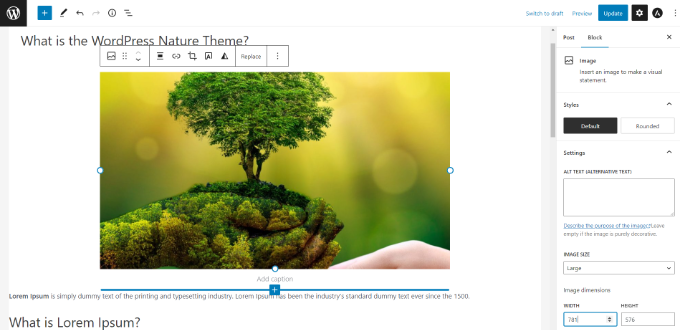
The new WordPress block editor introduces a modern, streamlined writing experience where each content element is wrapped in a block. You can move these blocks around the editor, change their settings, and create engaging content layouts without writing code.
The Gutenberg editor also provides a powerful framework for WordPress theme and plugin developers to build advanced solutions for WordPress.
That said, here are some of the most commonly asked questions about Gutenberg. You can click the links below to jump to any section:
- How Can I Check if the Theme and Plugins I’m Using Are Gutenberg-compatible?
- How Can I Manage My Old Posts in the Gutenberg Block Editor?
- How to Bulk Convert Classic Blocks to Gutenberg?
- How Can I Disable Gutenberg and Bring Back the Classic Editor?
- Is Gutenberg a WordPress Landing Page Builder?
- How Can I Update Page Builder Content with Gutenberg?
- Does Gutenberg Support Shortcodes?
- Can I Reuse Blocks in WordPress Content Editor?
- How Can I Import and Export Gutenberg blocks?
- Who Can I Contact if Something is Broken after Upgrading to Gutenberg?
- How Can I Learn More about Gutenberg?
1. How to Check If the Theme and Plugins Are Gutenberg-Compatible?
The easiest way to check if your theme and plugins are Gutenberg-compatible is to find out which WordPress version they support.
Gutenberg Editor was launched as the default content editor in WordPress 5.0. A theme or plugin that has been tested with version 5.0 or above means that they are compatible with Gutenberg.
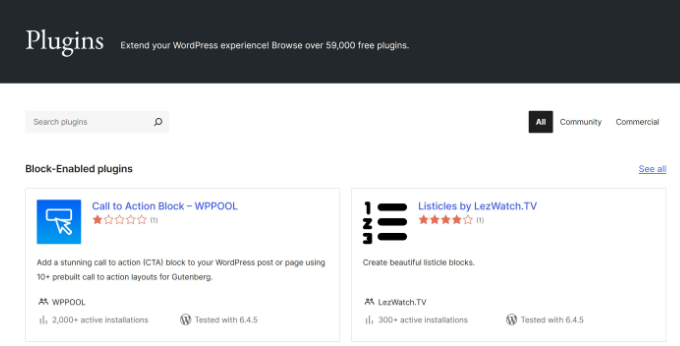
You can find the ‘Tested with’ label in the WordPress.org plugins directory.
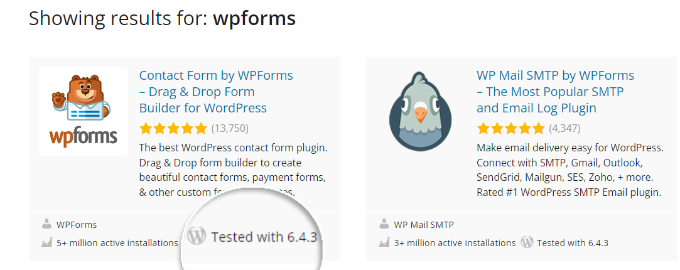
In the results, you’ll see the WordPress version your plugin is tested with.
For instance, you can see WPForms is tested with the latest version of WordPress. This means that WPForms is a Gutenberg-compatible plugin.
For a WordPress theme, it’s best to visit your theme’s official website and check if they’ve made any official announcement about Gutenberg support.
If you don’t see any information on their marketing page, then you can visit their blog or knowledgebase and search the ‘Gutenberg’ keyword.
For example, if you’re using the Divi theme, you can search their documentation.
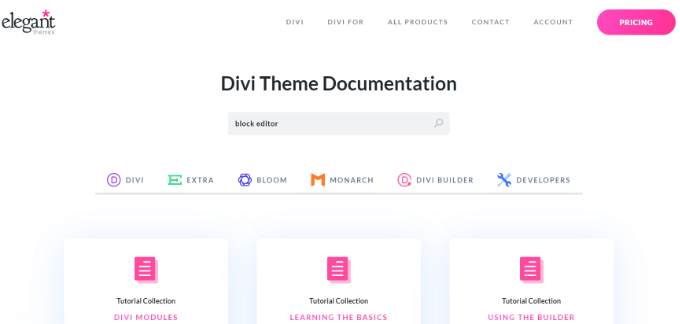
This will help you find articles, including their official announcement on Gutenberg support.
If you don’t see any article from your theme or plugin authors about Gutenberg or block editor upgrades, then you’ll need to contact them.
Once you’ve confirmed all your theme and plugins’ Gutenberg compatibility, you can confidently update your site to the latest version of WordPress.
To prevent errors and conflicts, we have created a complete guide on how to test your WordPress site for upgrading to Gutenberg.
2. How Can I Manage My Old Posts in the Gutenberg Block Editor?
When you update your site to a version of WordPress that uses the block editor, your old content is automatically placed inside a single ‘Classic’ block. This ensures your existing posts and pages work without any issues.
You have two options for managing this content. You can either continue editing it within the Classic block, which functions just like the old editor, or you can convert it into individual blocks.
Converting the content gives you more granular control, allowing you to easily rearrange, style, and manage each element like paragraphs, images, and headings separately.
To do this, simply click the ‘Convert to Blocks’ option in the block’s toolbar.
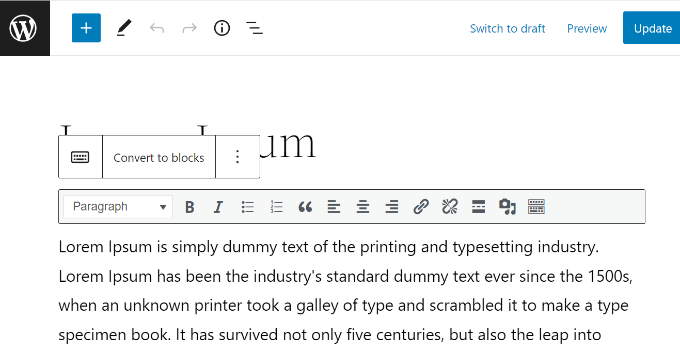
For detailed instructions, you can read our step-by-step guide on updating your old WordPress posts with Gutenberg.
3. How to Bulk Convert Classic Blocks to Gutenberg?
WordPress does not have a built-in feature to bulk convert old posts, so you must use a plugin for this task.
For this, you’ll need a plugin like Convert to Blocks. The plugin will automatically convert all your posts that used the Classic editor and update them to the Block editor.
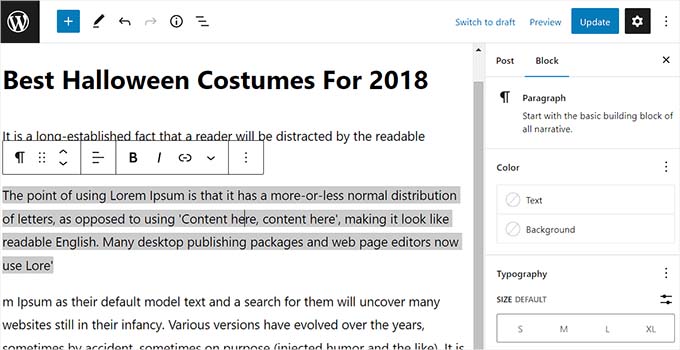
You can follow our tutorial on how to bulk convert classic blocks to Gutenberg in WordPress.
4. How Can I Disable Gutenberg and Bring Back the Classic Editor?
A lot of users are not ready to make the switch to the Gutenberg editor for a number of reasons. In that case, you do have the option to disable Gutenberg and bring back the Classic Editor.
All you need to do is install and activate the Classic Editor plugin. Simply activating this plugin will disable Gutenberg and use the classic editor on your site.
The Classic Editor plugin is officially supported and will be available for the foreseeable future. However, we still urge users to test their websites with the block editor and upgrade when they feel comfortable.
5. Is Gutenberg a WordPress Landing Page Builder?
The answer is yes and no. While the block editor can be used to create custom page layouts, it serves a different purpose than a dedicated landing page builder plugin.
For example, if you use a block-compatible theme, you can now use blocks to edit all parts of your theme, including the header, footer, and page templates, thanks to the Full Site Editing (FSE) feature. This allows you to build basic custom layouts with Gutenberg.
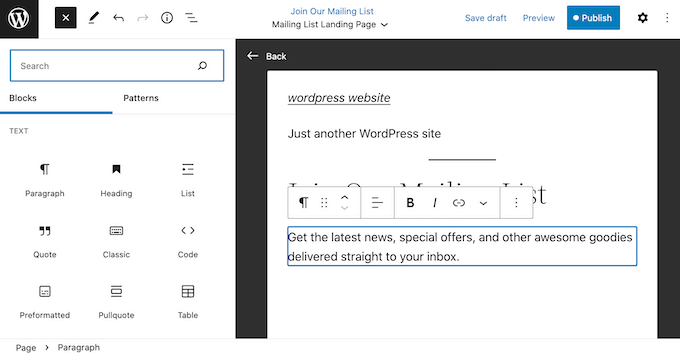
However, dedicated page builder plugins like SeedProd offer far more flexibility and advanced features specifically designed for creating high-converting landing pages.
They provide a true visual, drag-and-drop experience that is separate from the constraints of your theme.
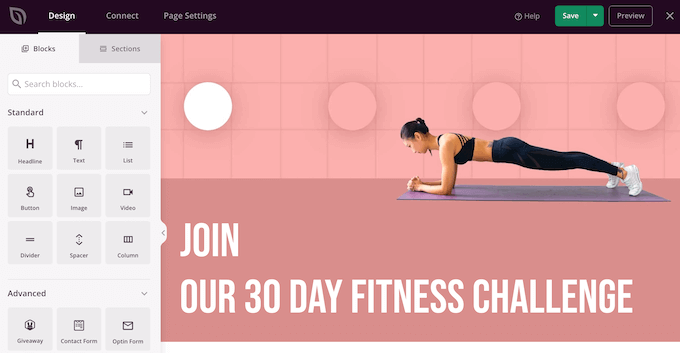
Gutenberg vs. Page Builders: Key Differences
| Feature | Gutenberg Block Editor | SeedProd Page Builder |
|---|---|---|
| Drag & Drop | Limited to reordering blocks in a set structure | True free-form canvas; place elements anywhere |
| Templates | Relies on basic block patterns | Includes hundreds of professional landing page templates |
| Advanced Modules | Standard content blocks (text, images, buttons) | Conversion-focused blocks (countdown timers, optin forms, etc.) |
| Design Freedom | Often constrained by the active theme’s styles | Complete, independent control over layout and styling |
For a more detailed answer, please see our detailed explanation of Gutenberg vs WordPress Page Builders.
6. How Can I Update Page Builder Content with Gutenberg?
You generally do not use the Gutenberg editor to update content that was built with a page builder plugin.
Most page builders operate independently from the default WordPress editor to provide their unique design experience.
When you edit a page built with a plugin like SeedProd, you will typically see a dedicated button to launch the page builder’s interface.
For instance, SeedProd adds an ‘Edit with SeedProd’ button directly on the page editor and at the top of the standard editor.

Clicking this button will launch the custom visual editor for that plugin, where you can make your changes. The process is similar for other popular page builders.
If you’re unsure, we recommend checking your specific page builder’s documentation for their recommended workflow.
7. Does Gutenberg Support Shortcodes?
Yes, Gutenberg supports shortcodes. There’s a separate ‘Shortcode’ block in Gutenberg for adding content with shortcodes.
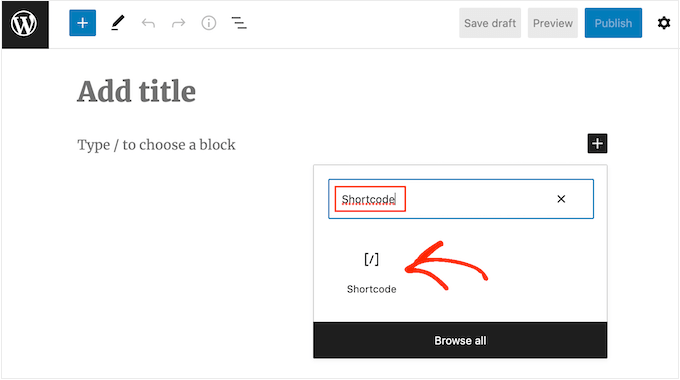
WordPress blocks are often considered an evolution of shortcodes, so using regular Gutenberg blocks is recommended instead of shortcodes when possible.
For example, you can add your WPForms to your posts or pages using a shortcode.
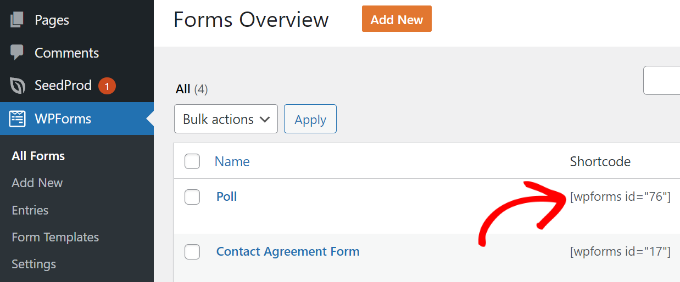
All you have to do is copy the shortcode from the ‘Forms Overview’ screen and then paste it into the Shortcode block on the post-edit screen.
However, the better option is to use the ‘WPForms’ Gutenberg block directly instead of pasting the form shortcode in the ‘Shortcode’ block.
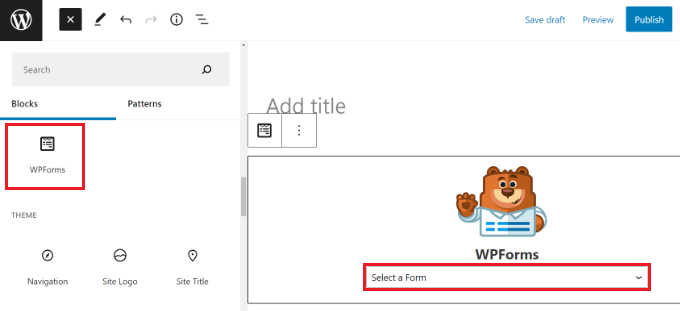
Simply select your form from the dropdown menu, and you’ll see a preview of your form in the WordPress content editor.
8. Can I Reuse Blocks in WordPress Content Editor?
Yes, if you frequently use the same block layouts, you can save them as Patterns to reuse later. This saves a lot of time since you don’t have to create them from scratch every time.
It’s important to know there are two types of patterns. A regular Pattern is a starting layout that you can insert and then modify without changing the original saved version. A Synced Pattern (formerly called a Reusable Block) is a global block.
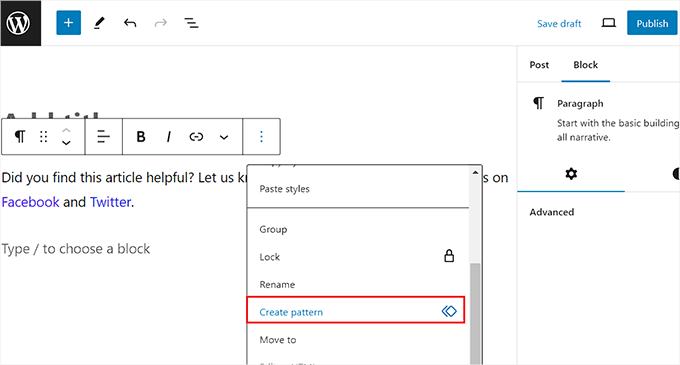
If you edit a Synced Pattern, it will update everywhere you have used it on your site.
You can create a pattern for anything, like a call-to-action box, an author bio, affiliate banners, and more.
For step by step instructions, see our guide on how to create a reusable block in the WordPress content editor.
9. How Can I Import and Export Gutenberg Blocks?
After you’ve created custom or synced patterns in WordPress, you can also import and export them.
This is especially useful if you’re building multiple websites for clients or have blog posts that use the same custom content snippets.
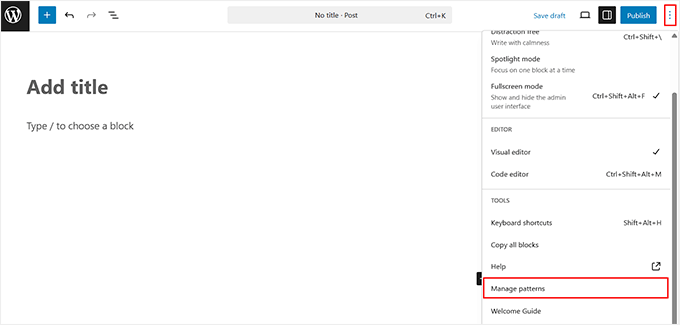
To manage your patterns, go to the post editor and click on the three-dot menu in the top-right corner. From the dropdown, select the ‘Manage patterns’ option.
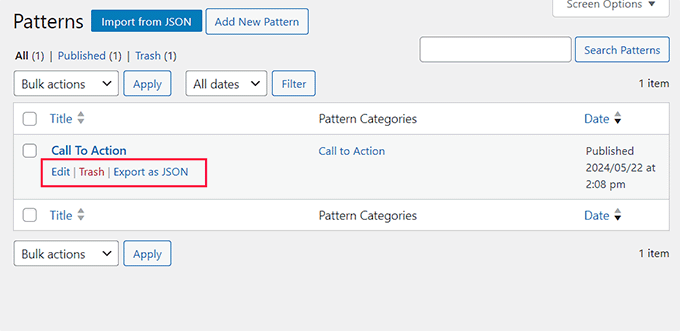
Here you can easily manage all the synced patterns on your WordPress website. Just click the ‘Export as JSON’ option under your preferred pattern to download the file.
If you want to import a pattern, then simply click the ‘Import from JSON’ button on the same page.
For more details, please see our guide on how to import/export your WordPress Gutenberg blocks.
10. Who Can I Contact if Something is Broken after Upgrading to Gutenberg?
While the block editor is stable, conflicts with themes or plugins can sometimes cause unexpected errors. We recommend a few troubleshooting steps that can help you solve the problem.
First, start by clearing your WordPress cache and your browser cache. This ensures you are seeing the latest version of your site.
If the issue persists, the next step is to check for a plugin conflict. You can do this by deactivating all of your plugins and then reactivating them one by one, checking for the error after enabling each one.
When the error reappears, you have found the conflicting plugin. You can now reach out to your theme and plugin team to request support.
11. How Can I Learn More About Gutenberg?
You can learn more about Gutenberg right here on WPBeginner. We are the best free WordPress resource website on the internet.
We’ve already published a number of articles on the new WordPress Block Editor, aka Gutenberg. We’ll be publishing more tutorials in the future to help you master the new content editor.
Here are more useful resources about the Gutenberg block editor you can check out:
- Best Gutenberg Blocks Plugins for WordPress (Super Useful)
- How to Add and Align Images in WordPress Block Editor (Gutenberg)
- How to Create a Custom WordPress Block (Easy Way)
- Best Gutenberg-Friendly WordPress Themes
- How to Add Drop Caps in WordPress Posts
- How to Disable Fullscreen Editor in WordPress
- Cover Image vs. Featured Image in WordPress Block Editor (Beginner’s Guide)
- How to Add or Remove Blank Space Between WordPress Blocks
We hope this article helped you find answers to the common Gutenberg questions on your mind. You may also want to see our list of essential tips for using shortcodes in WordPress and how to use WordPress block patterns.
If you liked this article, then please subscribe to our YouTube Channel for WordPress video tutorials. You can also find us on Twitter and Facebook.





Jiří Vaněk
Is there a way to convert blocks from other builders to Gutenberg? Some websites built in Elementor cannot be managed in Gutenberg, because Gutenberg cannot display articles written in Elementor. Is there a way to convert the site to Gutenberg?
WPBeginner Support
You would need to check with the builders for if they have a tool or recommended method for converting one of their blocks.
Admin
Jiří Vaněk
Thank you for the advice. So far, it seems that it’s not possible because the blocks created in Elementor are fundamentally different from those in Gutenberg. If I edit an article created in Elementor using the block editor, it practically breaks the entire layout of the article. I guess I’ll have to accept that unfortunately, they just can’t be combined. I haven’t found any external plugin for conversion. So it looks like I can use either Elementor or Gutenberg, but they just don’t work together. Thank you for your time and advice.
Rizwan Sheikh
Great.
thanks for guidance like a good teacher to their little kids students
WPBeginner Support
You’re welcome, glad our guide could be helpful
Admin
Rohan
Nice to check your blog content. Keep on writing.
WPBeginner Support
Thank you
Admin
Sue McLean
I support my church’s page (HRMCC.org) and am confused how to use Gutenburg with the free option. It looks like in order to add things, we need a plugin which costs money and unfortunately, we can’t offered such things.
WPBeginner Support
It sounds like you may be on WordPress.com in which case you may want to take a look at our article: https://www.wpbeginner.com/beginners-guide/self-hosted-wordpress-org-vs-free-wordpress-com-infograph/
The editor on WordPress.com should currently be using Gutenberg/the Block Editor without the need to install anything.
Admin
Brian
I Am unable to get images to display alongside text using the block editor. The text editor does not give option of adding media, so have to use an image block and then the images appear before (or after) the text.
Any ideas?
WPBeginner Support
You may want to look for a Media & Text block for what it sounds like you’re wanting
Admin
Mark Woodward
I have exactly the same problem as Brian, but I can’t find a media and text block in the options that appear when I click “Add a new block”. Is there another way around this?
WPBeginner Support
If you’re unable to find the block then you could use an image block and align it to a side. As long as the image is small enough there should be the option to add text beside it.