


Nobody likes a slow website. It is frustrating for your visitors and can actually cost you money in lost sales.
We know this because we have spent more than 15 years optimizing WordPress performance for high-traffic sites. A faster site ranks higher in Google and keeps your readers engaged longer.
In this guide, we will share our ultimate checklist to boost your WordPress speed and performance.
Unlike other “X best WordPress caching plugin” lists or generic “X tips to speed up WordPress” tutorials, this article is a comprehensive guide to WordPress performance optimization.
We tried to cover everything from why speed is important to what slows down your WordPress site and actionable steps that you can take to improve your WordPress speed immediately.
To make it easy, we have created a table of contents to help you navigate through our ultimate guide to speeding up your WordPress site.
Table of Contents
Basics of WordPress Performance
- Why Speed Is Important for Your WordPress Site
- How to Check Your WordPress Website Speed
- What Slows Down Your WordPress Website?
- Importance of Good WordPress Hosting
Speeding Up WordPress in Easy Steps (No Coding)
WordPress Performance Optimization Best Practices
- Keep Your WordPress Site Updated
- Optimize Background Processes
- Use Excerpts on Homepage and Archives
- Split Comments into Pages
- Use a Content Delivery Network (CDN)
- Don’t Upload Audio or Video Files Directly to WordPress
- Use a Theme Optimized for Speed
- Use Faster Plugins
Fine-Tuning WordPress for Speed (Advanced)
- Split Long Posts into Pages
- Reduce External HTTP Requests
- Reduce Database Calls
- Optimize WordPress Database
- Limit Post Revisions
- Disable Hotlinking and Leeching of Your Content
- Use Lazy Loading if Needed
- Use DNS Level Website Firewall
- Fix HTTPS/SSL Errors without Plugin
- Use the Latest PHP Version
Why Speed Is Important for Your WordPress Site
Studies show that over the last two decades, the average human attention span has dropped significantly to around 8 seconds.
What does this mean for you as a website owner?
It means that you have very little time to show users your content and convince them to stay on your WordPress website.
A slow website means users will potentially leave your page before it even loads.
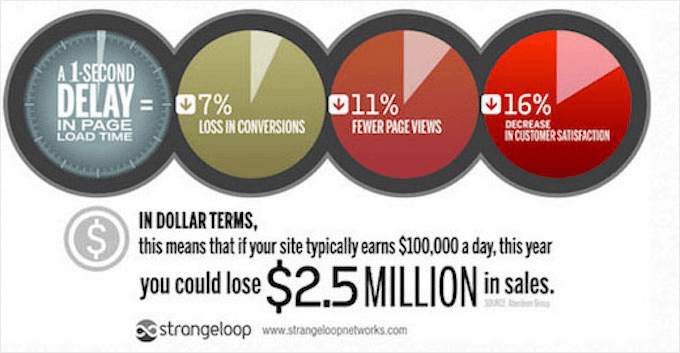
According to a StrangeLoop case study that involved Amazon, Google, and other larger sites, a 1 second delay in page load time can lead to a 7% loss in conversions, 11% fewer page views, and a 16% decrease in customer satisfaction.
On top of that, Google and other search engines have already started penalizing slower websites by pushing them down in the search results, which means lower traffic for slow websites.
To sum it all up, if you want more traffic, subscribers, and revenue from your website, then you must make your WordPress website FAST!
How to Check Your WordPress Website Speed
Often beginners think that their website is OK just because it doesn’t feel slow on their computer. That’s a HUGE mistake.
Since you frequently visit your own website, modern browsers like Chrome store your website in the cache and automatically prefetch it as soon as you start typing an address. This makes your website load almost instantly.
However, a normal user who is visiting your website for the first time may not have the same experience. In fact, users in different geographical locations will have a completely different experience.
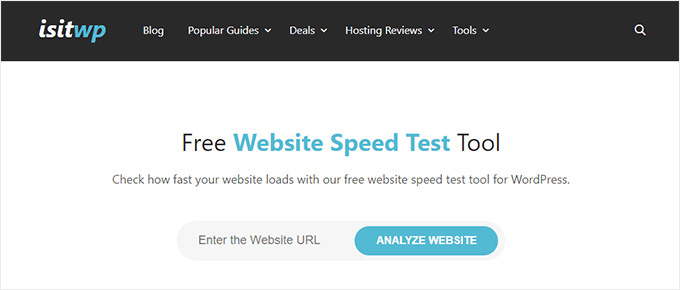
This is why we recommend that you test your website speed using a tool like IsItWP’s WordPress speed test.
It is a free online tool that allows you to test your website’s speed.
For more recommendations, you can see our guide on how to properly run a website speed test.
After you run your website speed test, you might be wondering what website speed you should aim for.
A good page load time is under 2 seconds.
However, the faster you can make it, the better. A few milliseconds of improvements here and there can add up to shaving off half or even a full second from your load time.
What Slows Down Your WordPress Website?
Your speed test report will likely have multiple recommendations for improvement. However, most of that is technical jargon that is hard for beginners to understand.
Learning what slows down your website is the key to improving performance and making smarter long-term decisions.
The primary causes for a slow WordPress website are:
- Web Hosting – When your web hosting server is not properly configured, it can hurt your website speed.
- WordPress Configuration – If your WordPress site is not serving cached pages, then it will overload your server and cause your website to be slow or crash entirely.
- Page Size – Pages load slowly if you use images that aren’t optimized for the web.
- Bad Plugins – If you are using a poorly coded plugin, then it can significantly slow down your website.
- External scripts – External scripts such as ads, font loaders, and so on can also have a huge impact on your website performance.
Now that you know what slows down your WordPress website, let’s take a look at how to speed up your WordPress website.
Pro Tip: Want to reduce the number of plugins on your site? Start using WPCode, which is a powerful code snippet management plugin for WordPress. It will easily help you reduce at least 5 plugins.
Importance of Good WordPress Hosting
Your WordPress hosting service plays an important role in website performance. A good shared hosting provider like Bluehost or SiteGround takes extra measures to optimize your website for performance.
However, on shared hosting, you share the server resources with many other customers. This means that if your neighboring site gets a lot of traffic, then it can impact the entire server performance, which, in turn, will slow down your website.
On the other hand, using a managed WordPress hosting service gives you the most optimized server configurations to run WordPress. Managed WordPress hosting companies also offer automatic backups, automatic WordPress updates, and more advanced security configurations to protect your website.
We recommend SiteGround as our preferred managed WordPress hosting provider. We use them for the WPBeginner blog and they are one of the most popular provider in the industry. (See our special Siteground coupon.)

Speeding Up WordPress in a Few Easy Steps (No Coding)
We know that making changes to your website configuration can be a terrifying thought for beginners, especially if you are not a tech geek.
But don’t worry, there are ways you can tackle this.
If you’re not comfortable making changes to your site on your own, you can hire a WordPress support agency to handle it for you.
It’s a great option if you’re not tech-savvy, you don’t have time to do the optimizations yourself, or if just want total peace of mind.
However, we’ve helped thousands of WordPress users improve their WordPress performance. So, we’ll show you how you can speed up your WordPress site with just a few clicks (no coding required).
If you can point and click, then you can do this!
Install a WordPress Caching Plugin
WordPress pages are dynamic. This means they are built on the fly every time someone visits a post or page on your website.
To build your pages, WordPress has to run a process to find the required information, put it all together, and then display it to your user.
This process involves a lot of steps, and it can really slow down your website when you have multiple people visiting it at once.
That’s why we recommend every WordPress site use a caching plugin. Caching can make your WordPress site anywhere from 2x to 5x faster.
Here’s how it works.
Instead of going through the whole page generation process every time, your caching plugin makes a copy of the page after the first load and then serves that cached version to every subsequent user.
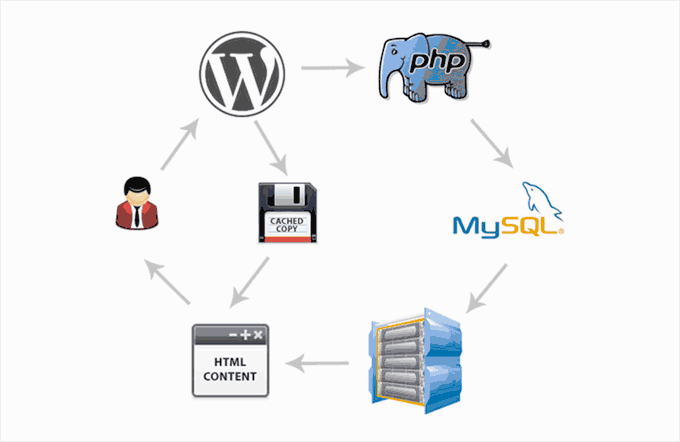
As you can see in the graphic above, when a user visits your WordPress site, your server retrieves information from a MySQL database and your PHP files. It then puts it all together into HTML content, which is served to the user.
It’s a long process, but you can skip a lot of it when you use caching instead.
There are a lot of good WordPress caching plugins available, but we recommend using either WP Rocket (premium) or WP Super Cache (free).
Check out our step-by-step guide on how to install and set up WP Super Cache on your WordPress site. It’s not difficult to set up, and your visitors will notice the difference.
Also, many WordPress hosting companies like Bluehost and SiteGround offer caching solutions.
SiteGround SG Optimizer
If you are using SiteGround, then your WordPress site will come pre-installed with their SG Optimizer. This plugin has all the powerful features that you’d get with a premium WordPress caching plugin like WP Rocket.
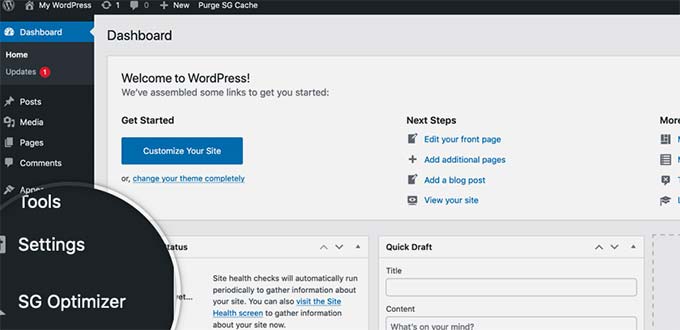
The best part is that it’s specially optimized for the SiteGround Google Cloud servers to give you superior performance results.
Aside from caching, you also get various other performance settings, WebP image conversion in WordPress, database optimization, CSS minification, GZIP compression, and more.
It also has dynamic caching features to help you speed up your eCommerce website.
Bluehost Caching
If you are using Bluehost, then you can go to the Websites » Speed section to adjust your caching settings.
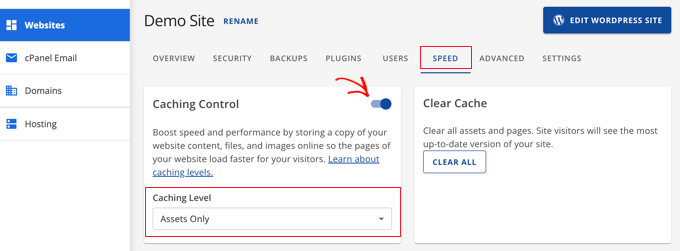
If you are using a managed WordPress hosting provider, then you don’t need a caching plugin because it is built-in and turned on by default.
Bonus: You can combine caching plugins with a web application firewall like CloudFlare or Sucuri for maximum performance boost.
Optimize Images for Speed
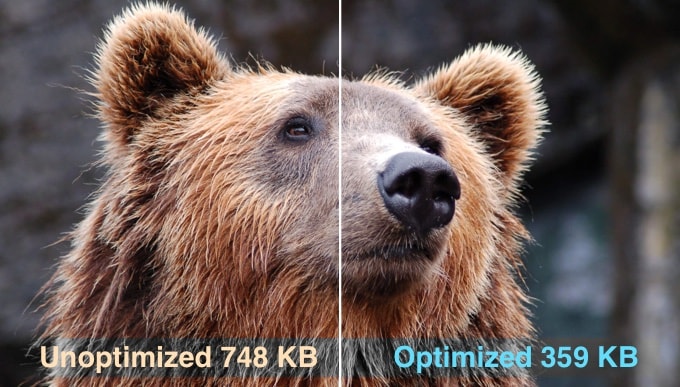
Images bring life to your content and help boost engagement. Researchers have found that using colored visuals makes people 80% more likely to read your content.
However, if your images aren’t optimized, then they could be hurting more than helping. In fact, non-optimized images are one of the most common speed issues that we see on beginner websites.
Before you upload a photo directly from your phone or camera, we recommend that you use photo editing software to optimize your images for the web.
In their original formats, these photos can have huge file sizes. But based on the image file format and the compression you choose in your editing software, you can decrease your image size by up to 5x.
At WPBeginner, we only use two image formats: JPEG and PNG.
Now you might be wondering: what’s the difference?
Well, the PNG image format uses lossless compression. This means that when you compress the image, it doesn’t lose any visual data, so the image will be higher quality with more detail. The downside is that it’s a larger file size, so it takes longer to load.
JPEG, on the other hand, is a compressed file format that slightly reduces image quality, but it’s significantly smaller in size.
So how do we decide which image format to choose?
- If our photo or image has a lot of different colors, then we use JPEG.
- If it’s a simpler image or we need a transparent image, then we use PNG.
Below is a comparison chart of the file sizes achieved by different compression tools on one particular image.
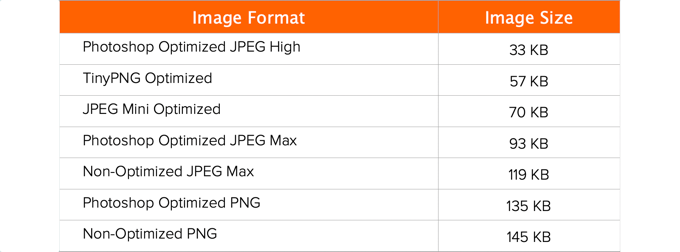
As you can see in the chart, the image format you use can make a HUGE difference in file size, and this will affect your website performance.
For details on exactly how to optimize your images using Photoshop and other popular editing tools, without sacrificing quality, see our step-by-step guide on how to optimize images for web performance without losing quality.
WordPress Performance Optimization Best Practices
After installing a caching plugin and optimizing your images, you’ll notice that your site will start loading a lot faster.
But if you really want to keep your website as fast as possible, then you’ll need to use the best practices listed below.
These tips aren’t too technical, so you don’t need to know any code to implement them. But using them will prevent common problems that will slow down your website.
Keep Your WordPress Site Updated
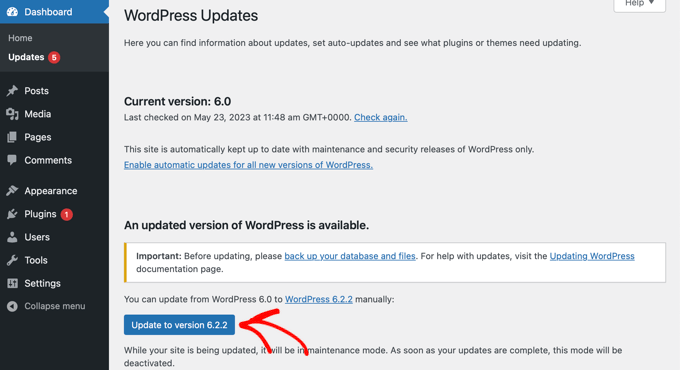
As a well-maintained, open-source project, WordPress is updated frequently. Each update will not only offer new features but it will also fix security issues and bugs. Your WordPress theme and plugins may have regular updates, too.
As a website owner, it’s your responsibility to keep your WordPress site, theme, and plugins updated to the latest versions. Not doing so may make your site slow and unreliable, and make you vulnerable to security threats.
For more details on the importance of updates, see our article on why you should always use the latest WordPress version.
Optimize Background Processes
Background processes in WordPress are scheduled tasks that run in the background of your WordPress site. The following are some examples of background tasks that run on a WordPress site:
- WordPress backup plugin tasks
- WordPress cron jobs to publish scheduled posts
- WordPress cron jobs to check for updates
- Search engines and other crawlers trying to fetch content
Tasks like cron jobs for scheduled posts and updates have minimal impact on website performance.
However, other background processes like backup plugins and excessive crawling by search engines can slow down a website.
You need to make sure that your WordPress backup plugin only runs during low-traffic times on your website. You also need to adjust the frequency of backups and data that needs to be backed up.
For example, if you are creating a complete daily backup while you only publish new content twice a week, then you need to adjust that.
If you want more frequent backups such as real-time backups, then we recommend using a SaaS solution like BlogVault so you are not taxing your server.
As for crawling, you need to keep an eye on your crawl reports in the Google Search Console. Frequent crawls that result in errors can cause your website to slow down or become unresponsive.
See our complete Google Search Console guide to learn how to adjust the crawl rate.
Use Excerpts on Homepage and Archives
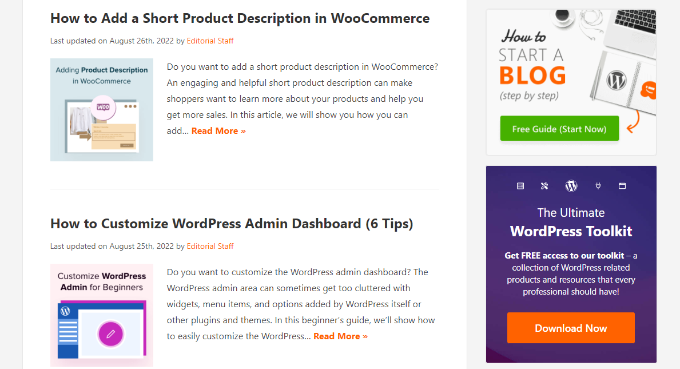
By default, WordPress displays the full content of each article on your homepage and archives. This means your homepage, categories, tags, and other archive pages will all load slower.
Another disadvantage of showing full articles on these pages is that users don’t feel the need to visit the actual article. This can reduce your pageviews and the time your users spend on your site.
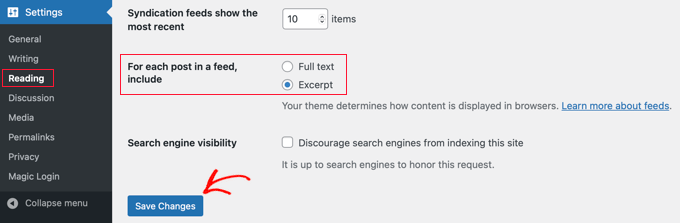
In order to speed up your loading times for archive pages, you can set your site to display excerpts instead of the full content.
You can navigate to Settings » Reading and select ‘Excerpt’ instead of ‘Full text’ next to the setting about what should be shown for each article in a feed.
For more details on the pros and cons of displaying summaries, see our article on full post vs summary (excerpt) in your WordPress archive pages.
Split Comments Into Pages
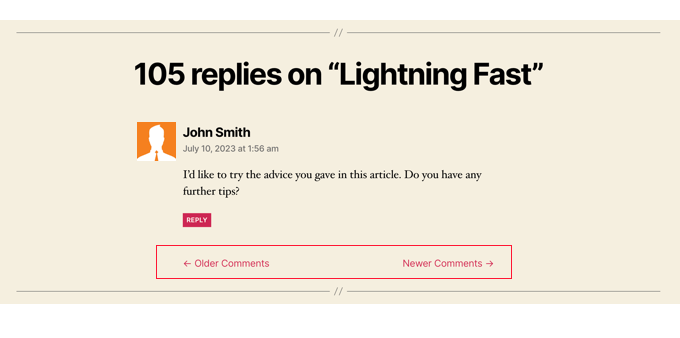
Getting lots of comments on your blog posts? Congratulations! That’s a great indicator of an engaged audience.
But the downside is that loading all those comments can impact your site’s speed.
WordPress comes with a built-in solution for that. Simply go to Settings » Discussion and check the box next to the ‘Break comments into pages’ option.
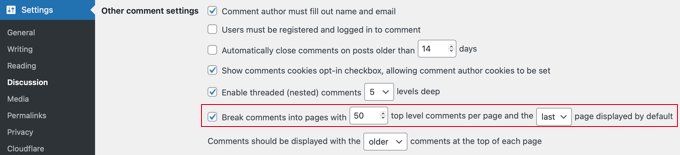
For more detailed instructions, see our guide on how to paginate comments in WordPress.
Use a Content Delivery Network (CDN)
Remember how we mentioned above that users in different geographical locations may experience different loading times on your site?
That’s because the location of your web hosting servers can have an impact on your site speed.
For example, let’s say your web hosting company has its servers in the United States. A visitor who is also in the United States will generally see faster loading times than a visitor in India.
Using a Content Delivery Network (CDN) can help to speed up loading times for all of your visitors.
A CDN is a network made up of servers all around the world. Each server will store static files used to make up your website.
These static files include unchanging files such as images, CSS, and JavaScript, unlike your WordPress pages which are dynamic as explained above.
When you use a CDN, every time a user visits your website they are served those static files from whichever server is closest to them. Your own web hosting server will also be faster since the CDN is doing a lot of the work.
You can see how it works in this infographic.

We recommend using Bunny CDN, Cloudflare (free), or Envira CDN (specifically for images).
A CDN works well with WordPress websites and compliments your existing WordPress caching plugins for even faster loading times.
Don’t Upload Audio or Video Files Directly to WordPress

You can directly upload audio and video files to your WordPress site, and it will automatically display them in an HTML5 player…
But you should NEVER do that!
Hosting audio and videos will cost you bandwidth. You could be charged overage fees by your web hosting company, or they may even shut down your site altogether, even if your plan includes ‘unlimited’ bandwidth.
Hosting large media files also increases your backup sizes tremendously, and makes it difficult for you to restore WordPress from backup.
Instead, you should use an audio and video hosting service like YouTube, Vimeo, DailyMotion, or SoundCloud, and let them take care of the hard work. They have the bandwidth for it!
WordPress has a built-in video embed feature, so you can copy and paste your video’s URL directly into your post and it will embed automatically.
Find out more details on how it works in our guide on embedding videos in WordPress.
If you are making a podcast website with WordPress, then we recommend the podcast hosting service Blubrry for the best performance.
Use a Theme Optimized for Speed
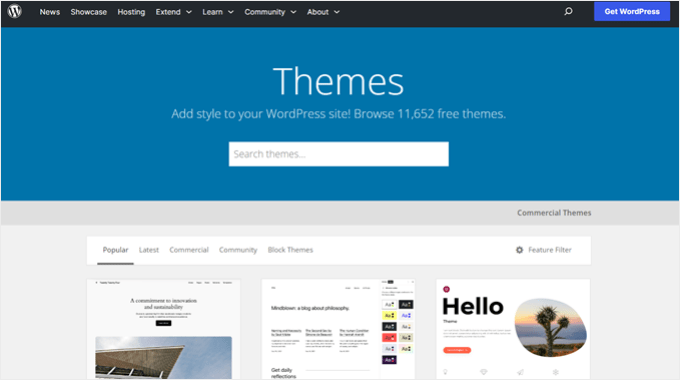
When selecting a theme for your website, it’s important to pay special attention to speed optimization. Some beautiful and impressive-looking themes are actually poorly coded and can slow your site way down.
It’s usually better to go with a simpler theme than to choose a theme that’s bloated with complex layouts, flashy animations, and other unnecessary features. You can always add those features using quality WordPress plugins.
Premium WordPress theme shops like aThemes, Themify, CSSIgniter, and Astra offer themes that are well-coded and optimized for speed. You can also check out our article on selecting the perfect WordPress theme for advice on what to look for.
Before you activate your new theme, see our guide on how to properly switch your WordPress theme for a smooth transition.
Use Faster Plugins
Poorly coded WordPress plugins often add a lot of bloat, whether your site actually needs the plugin or not. This increases your page load speed and slows down your site.
To help you choose the best plugins, we often publish our expert picks of the best WordPress plugin showcases. We pay special attention to ease of use, user experience, and most importantly performance.
The following are some of our top picks for the most common WordPress plugin categories:
- WPForms – Fastest and most beginner-friendly contact form plugin for WordPress.
- All in One SEO – Powerful WordPress SEO plugin that emphasizes website performance to help you get higher SEO rankings.
- MonsterInsights – Best Google Analytics plugin for WordPress that doesn’t slow down your site. It even includes options to load gtag.js locally to speed up your Google Core Web Vitals scores.
- Novashare – Many social media plugins load additional scripts and not so gracefully. Novashare is one of the fastest social media plugins for WordPress.
- SeedProd – A drag & drop WordPress landing page plugin that helps you build blazing-fast landing pages and even design an entire theme from scratch.
Apart from our own recommendations, you also can run your own tests. Simply run speed tests before and after installing a plugin to compare its impact on performance. For more details, see our guide on how to run a WordPress speed test.
You can also use this tutorial to figure out which WordPress plugins are slowing down your site.
Fine-Tuning WordPress for Speed (Advanced)
By using the WordPress optimization best practices and basic speed tips listed above, you should see a big improvement in your site’s loading times.
But every fraction of a second counts. If you want to get the very fastest speed possible, then you’ll want to make a few more changes.
The following tips are a little more technical, with some requiring you to modify your site files or have a basic understanding of PHP.
You’ll also want to make sure to back up your site first just in case.
Split Long Posts into Pages
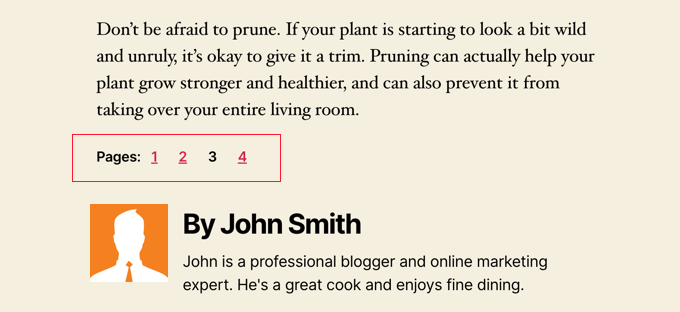
Readers tend to love blog posts that are longer and more in-depth. Longer posts even often rank higher in search engines.
But if you are publishing long-form articles with lots of images, then they could be hurting your page loading times.
Instead, consider splitting up your longer posts into multiple pages.
WordPress comes with built-in functionality to do that. Simply add a Page Break block in your article where you want to start a new page.
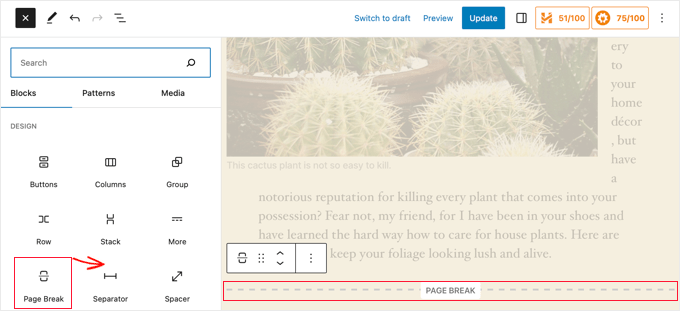
For more detailed instructions, see our tutorial on post pagination – how to split WordPress posts into multiple pages.
Reduce External HTTP Requests
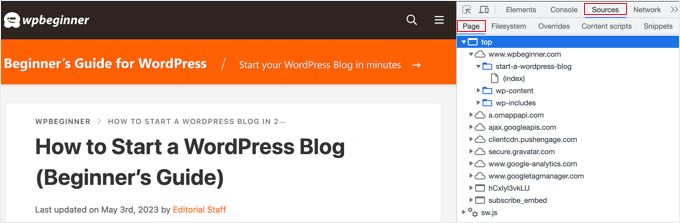
Many WordPress plugins and themes load all kinds of files from other websites. These files can include scripts, stylesheets, and images from external resources like Google, Facebook, analytics services, and so on.
It’s ok to use a few of these. Many of these files are optimized to load as quickly as possible, so it’s faster than hosting them on your own website.
But if your plugins are making a lot of these requests, then it could slow down your website significantly.
You can reduce these external HTTP requests by disabling scripts and styles or merging them into one file.
For more details, here’s a tutorial on how to disable your plugins’ CSS files and JavaScript.
Reduce Database Calls
Unfortunately, there are a lot of poorly coded WordPress themes out there. They ignore WordPress standard practices and end up making direct database calls, or too many unnecessary requests to the database.
This can really slow down your server by giving it too much work to do.
Even well-coded themes can have code that makes database calls just to get your blog’s basic information.
Note: This step is a little more technical and will require basic knowledge of PHP and WordPress template files.
In this example, every time you see <?php, that’s the start of a new database call:
<html xmlns="http://www.w3.org/1999/xhtml" dir="<?php language_attributes(); ?>">
<head profile="http://gmpg.org/xfn/11">
<meta http-equiv="Content-Type" content="<?php bloginfo('html_type'); ?>
charset=<?php bloginfo('charset'); ?>" />
You can’t blame theme developers for that. They simply have no other way to find out what language your site is in.
But if you are customizing your site using a child theme, then you can replace these database calls with specific information instead. This will reduce all those database calls.
<html xmlns="http://www.w3.org/1999/xhtml" dir="ltr">
<head profile="http://gmpg.org/xfn/11">
<meta http-equiv="Content-Type" content="text/html; charset=UTF-8" />
You can review your parent theme for instances like this that can be replaced with static information.
However, note that hard-coding these values prevents your site from automatically switching languages, and modern HTML5 themes may look slightly different than the example above.
Optimize WordPress Database
After using WordPress for a while, your database will have lots of information that you probably don’t need anymore. For improved performance, you can optimize your database to get rid of all that unnecessary information.
This can be easily managed with the DB Optimizer plugin or the WP-Optimize plugin. Both tools allow you to clean your WordPress database by deleting things like trashed posts, revisions, unused tags, etc. These plugins will also optimize your database’s structure with just a click.
See our guide on how to optimize your WordPress database for improved performance.
Limit Post Revisions
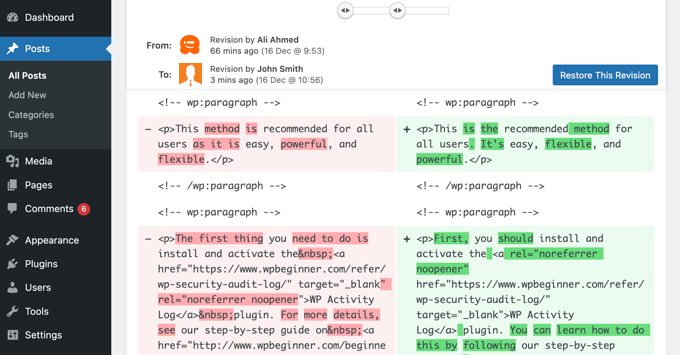
Post revisions take up space in your WordPress database. Some users believe that revisions can also affect some database queries run by plugins. If the plugin doesn’t specifically exclude post revisions, then it might slow down your site by searching through them unnecessarily.
You can easily limit the number of revisions WordPress keeps for each article. Simply add this line of code to your wp-config.php file:
define( 'WP_POST_REVISIONS', 4 );
This code will limit WordPress to only save your last 4 revisions of each post or page, and discard older revisions automatically.
Disable Hotlinking and Leaching of Your Content
If you are creating quality content on your WordPress site, then the sad truth is that it will probably get stolen sooner or later.
One way this happens is when other websites serve your images directly from their URLs on your website, instead of uploading them to their own servers. In effect, they are stealing your web hosting bandwidth, and you don’t get any traffic to show for it.
Simply add this code to your .htaccess file to block the hotlinking of images from your site:
#disable hotlinking of images with forbidden or custom image option
RewriteEngine on
RewriteCond %{HTTP_REFERER} !^$
RewriteCond %{HTTP_REFERER} !^http(s)?://(www\.)?wpbeginner.com [NC]
RewriteCond %{HTTP_REFERER} !^http(s)?://(www\.)?google.com [NC]
RewriteRule \.(jpg|jpeg|png|gif)$ – [NC,F,L]
Don’t forget to change wpbeginner.com with your own domain.
Note: If you are using NGINX or a managed hosting provider, this code may not work. In that case, you should ask your hosting provider to enable hotlink protection for you.
You may also want to check our article showing how to prevent image theft in WordPress.
Some content scraping websites automatically create posts by stealing your content from your RSS feed. You can check out our guide on preventing blog content scraping in WordPress for ways to deal with automated content theft.
Use Lazy Loading if Needed
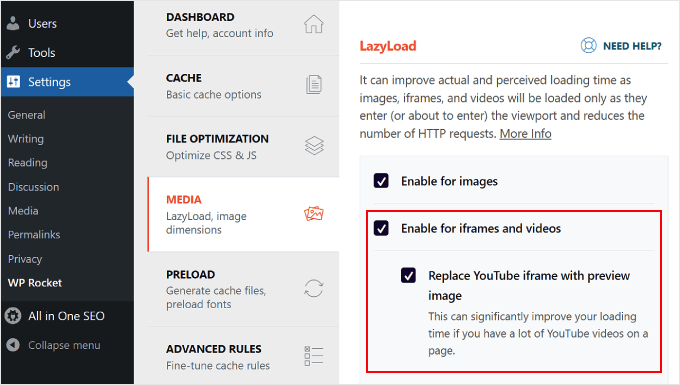
If you add many images, multiple video embeds, and photo galleries to your blog posts, then your site can benefit from lazy loading.
WordPress comes with built-in lazy loading for images. However, to get the best performance, we recommend using a plugin to lazy load other elements like background images, iframes, and videos. It replaces all other images and video embeds with a placeholder image.
As a user scrolls down, your website loads images that are now visible in the browser’s viewing area. You can lazy load images, videos, and even WordPress comments and gravatars.
You can learn more in our guide on how to easily lazy load images in WordPress where we cover how to do this using the WP Rocket and Optimole plugins.
For WordPress comments, see our guide on how to lazy load comments in WordPress.
Use DNS-Level Website Firewall
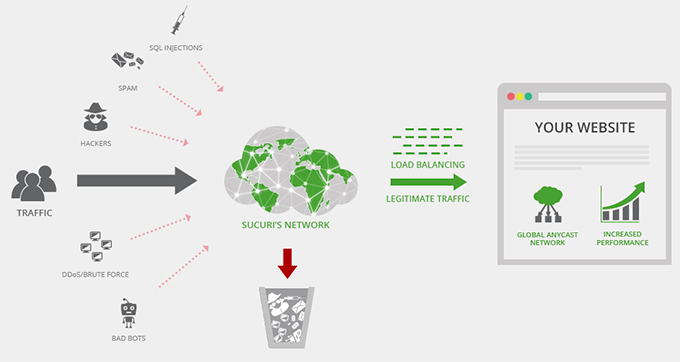
A WordPress firewall plugin helps you block brute force attacks, hacking attempts, and malware. However, not all firewall plugins are the same.
Some of them run on your website, which means attackers are already able to reach your web server before they get blocked. This is still effective for security, but not optimal for performance.
This is why we recommend using a DNS-level firewall like Cloudflare or Sucuri. These firewalls block malicious requests before they even reach your website.
Fix HTTPS/SSL Errors Without Plugin
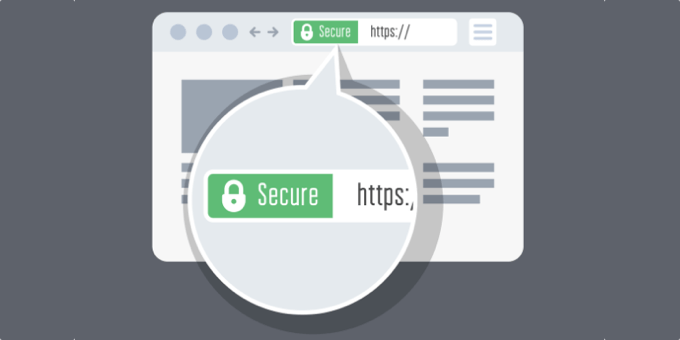
If you are switching your site to HTTPS/SSL, then it is likely that you may run across mixed content errors.
The easiest way to fix this is by installing a plugin like Really Simple SSL. However, the problem is that this plugin catches all URLs first, then changes them to HTTPS before sending them to the users’ browsers.
This has a small but noticeable performance impact. You can reduce this by manually fixing all URLs. For more details see our article on how to fix common SSL issues in WordPress.
Use the Latest PHP Version
WordPress is mainly written in the PHP programming language. It is a server-side language, which means it is installed and runs on your hosting server.
All good WordPress hosting companies use the most stable PHP version on their servers. However, your hosting company may be running a slightly older PHP version.
The latest versions of PHP (8.4+) are significantly faster than their predecessors. That’s a huge performance boost that your website must take advantage of.
You can see which PHP version your site is using by using the Version Info plugin.
Upon activation, the plugin will show your PHP version in the footer area of your WordPress admin dashboard.
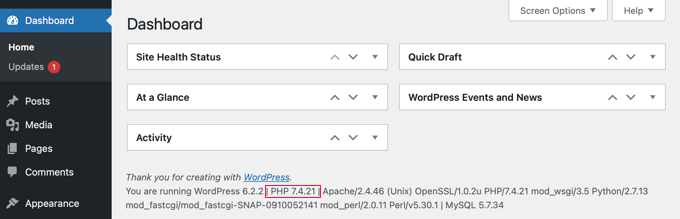
If your website is using a version lower than PHP 7, then ask your hosting provider to update it for you. If they are unable to do so, then it is time to find a new WordPress hosting company.
That’s it! We hope this article helped you learn how to improve WordPress speed and performance.
Go ahead and try out these techniques. Don’t forget to test your website speed before and after implementing these best practices. You’ll be surprised how these changes will boost your WordPress performance.
FAQs About WordPress Performance
Here are the most commonly asked questions about WordPress speed optimization. These answers will help you understand the key concepts and resolve any concerns you might have about making your site faster.
1. What is a good page load time for a WordPress website?
A good page load time is under 2 seconds. However, the faster you can make your site, the better. Studies show that 53% of mobile users abandon sites that take longer than 3 seconds to load. Even small improvements of a few milliseconds can add up to significant speed gains and a better user experience.
2. How do I check my WordPress website’s current speed?
You can test your website speed using tools like IsItWP’s WordPress Speed Test, GTMetrix, or Google PageSpeed Insights. It’s important to test from different locations since users in various geographical areas may experience different loading times. Avoid testing only from your own computer, as browsers cache your site and make it appear faster than it actually is for new visitors.
3. What are the main factors that slow down WordPress websites?
The primary causes of slow WordPress sites are poor web hosting, lack of caching, unoptimized images, poorly coded plugins, and external scripts. Additionally, factors like too many database calls, unoptimized themes, and excessive background processes can significantly impact your site’s performance.
4. Do I need a caching plugin if my hosting provider offers caching?
If you’re using managed WordPress hosting, caching is usually built-in and optimized for their servers, so you typically don’t need an additional caching plugin. However, if you’re on shared hosting, installing a caching plugin like WP Super Cache or WP Rocket can make your site 2x to 5x faster by serving cached versions of your pages instead of generating them dynamically each time.
5. How much difference does image optimization make for site speed?
Image optimization can make a huge difference in your site’s loading speed. Unoptimized images are one of the most common speed issues on beginner websites. By choosing the right image format (JPEG for colorful images, PNG for simple images) and compressing images properly, you can reduce file sizes by up to 5x without sacrificing quality.
6. Will installing too many plugins slow down my WordPress site?
Not necessarily. The number of plugins doesn’t matter as much as the quality of the plugins. Well-coded plugins have minimal impact on performance, while poorly coded plugins can significantly slow down your site regardless of how few you have installed. Focus on using reputable plugins from trusted developers and regularly test your site’s speed when adding new plugins.
Additional Resources
Now that you have optimized your site speed, you may want to look at other ways to improve your website. Here are some selected guides to help you next:
- The Ultimate WordPress Security Guide (Step by Step)
- Must Have WordPress Plugins for Every Website
- Ultimate WordPress SEO Guide for Beginners (Step by Step)
- Why Do You Need a CDN for Your WordPress Blog?
If you liked this article, then please subscribe to our YouTube Channel for WordPress video tutorials. You can also find us on Twitter and Facebook.

Rob Phillips-Legge
I thought you might like to hear my recent experience of speeding up my website. My PageSpeed Insights scores for mobiles read 92, 100, 96, 100. I’m self hosting on a VPS that costs me £5 a month. I don’t use any caching other than Zend Opcache as a default PHP module, and Redis. It’s an eCommerce site. 6 months ago the server it was running on had 6 cores, masses of RAM, cost £20 a month and without caching software (10-Web) struggled to get a PSI mobile score of 63. It also had Plesk installed. Last October Plesk decided to increase their prices so I decided to bite the bullet and see what I could do without it. I rebuilt the server and, with the aid of Copilot, got the website up and running, in about an hour. Instantly my PSI Mobile score had risen to 78. I also found that reinstalling the site using Duplicator took just 4 or 5 minutes (6 Gb of data) and server reboot times dropped from nearly a minute from restarting to getting a site back came down to 7 seconds. PageSpeed Insights showed me a killer directive that really sped up my site and lifted it from 78 to 92 – adding the directive “fontDisplay”: “swap” to the fonts in my theme.json (I use WP 2025 block theme).
WPBeginner Support
Thank you for sharing your personal experience
Admin
haim
I want to get a Google page speed score
All suggestions are green
What should I do for this
WPBeginner Support
For Google’s page speed score, you would need to run their page speed test and it will let you know what it feels is an issue and depending on what is said is an issue would let you know what needs to be changed on your site.
Admin
Sham Sasa
Great guide! The before/after example of reducing load times from 6 seconds to under 2 seconds really drives home why speed matters.
Huge thanks to the WPBeginner team for keeping it actionable at every skill level (shoutout to the “No Coding” vs “Advanced” breakdown).
WPBeginner Support
Glad you found the article helpful
Admin
Josh M
Great article. I will want to refer back to this in the future. Thanks!
WPBeginner Support
You’re welcome!
Admin
Kzain
this are a lot of plugins what do you think how many of them are the must to have for WordPress? Doesn’t having too many plugins slows a site? this is where I get stuck I can’t decide how much is enough for performance and security.
WPBeginner Support
For how many plugins to install on your site, we would recommend taking a look at our post below!
https://www.wpbeginner.com/opinion/how-many-wordpress-plugins-should-you-install-on-your-site/
Admin
Jiří Vaněk
I currently have 40 plugins on my website and everything is still running smoothly. It’s not about the number of plugins but the quality. I used to ask myself the same question: How many plugins are too many? But there is no definitive answer. It depends on the server’s performance and the quality of the plugins. Out of those 40, 10 are paid plugins, where I know the developer has put in the effort to make them perfect. For the rest, I always carefully choose based on how the developer responds to changes in WordPress, the ratings, and the support provided. If you take the time to select your plugins wisely, the number doesn’t matter as much. Of course, there is a limit, but the idea that a fast WordPress site can only have up to 20 plugins is a myth. My website is proof of that. So don’t be afraid—just choose more thoughtfully and strategically.
Kzain
Yeah, you are right. I’ve often seen the “20 plugin limit” mentioned, but it’s clear that this isn’t a hard and fast rule. Proper plugin management and a robust hosting environment are key factors.
Moinuddin Waheed
Yes I agree completely as I have more than 25 plugins and there is no issue as such for the performance and speed.
One thing that I follow regarding the plugin installation is to research the plugin and it’s updates and developers activity regarding updates and security to make extra sure of everything smooth.
wpbeginner articles in this regard are very helpful as they give comparative analysis of different plugins with their pros and cons.
Chris
Regarding Disable Hotlinking and Leaching of Your Content, there exists a .htaccess file in the root file. Should the code be added to this file, or should a new file be created?
WPBeginner Support
You would add the code to your existing htaccess file instead of making a new file
Admin
Jiří Vaněk
I would like to point out an important fact regarding WordPress and the .htaccess file. This file in WordPress contains directives that are placed between the lines # BEGIN WordPress and # END WordPress. Do not insert your code between these lines. These are WordPress lines, and if you insert your directives between them, you risk having WordPress delete them after an update to a new version. Always insert your directives either before the # BEGIN WordPress line or after the # END WordPress line. Never in between. I’m speaking from personal experience, where WordPress kept deleting my directives, and I didn’t know why.
Moinuddin Waheed
Thank you Jiri Vanek for this useful trick.
i have also realised that with each update anything added in the . htaccess file gets erased and never knew this reason.
Thanks for this valuable information and help.
Dayo Olobayo
May I also add that before making any changes to your .htaccess file, it’s crucial to create a backup. This way, if something goes wrong and your website malfunctions, you can easily restore it.
Dennis Muthomi
Fantastic guide, WPBeginner! I always find your guides to be incredibly helpful and informative.
The tip about using a Content Delivery Network (CDN) really caught my attention. After reading your advice, I decided to switch to Cloudflare and integrate it with my WordPress site. The setup process was surprisingly easy, and the results were amazing!
My Page Speed Insights score jumped from 61 to an impressive 97. I couldn’t be happier with the outcome.
Thank you for providing top-notch WordPress tips and being a go-to resource for the community.
WPBeginner Support
Glad to hear our recommendation was helpful!
Admin
Hajjalah
I found this article very useful for my new blog. Following this guide enabled me to increase my blog speed in very simple steps. The only feature i am yet to implement is Image Lazy Loading because i here that some users hate it and since i am still gathering users, i hope to use it later as my blog grows. Thankfully, WPBeginner has made me a WordPress expert!
WPBeginner Support
Glad to hear our guide was helpful!
Admin
Moinuddin Waheed
I think choosing the right hosting provider is one of the main factor for website speed and performance.
If one has a bad hosting provider, no matter what tweaks one is doing, website will get in toruble anytime.
It must be noted though, other factors mentioned in this article as best practices are also important considerations for website performance and speed.
Kushal Phalak
Can you give any advice to reduce DOM elements? I tested my website’s performance on google pagespeed insights and it suggested to reduce DOM elements. But my website is pretty minimal, and I don’t know from where the extra DOM elements are coming from.
WPBeginner Support
Your DOM size would normally be determined by your theme or page builder as that is from your theme’s HTML.
Admin
Ralph
An excessive DOM size isn’t much fun to sort out.
The easiest way to think of DOM elements is “things put on the page”. These are either things that you’ve put on the page, or they’re things that your page builder (some drag and drop editors add a lot of DOM elements) has put on the page.
Based on what you mentioned about your site being fairly minimal it doesn’t sound like you’ve put a lot of elements on your pages when building them, so I’d guess you’re using a page builder that adds a lot of DOM elements. A really quick (yet slightly vague) way of checking might be to do something like visit a page on your site, right click, view source, ctrl+f (find on page) then search for the name of your page builder. If a lot of mentions are found, then it’s probably the page builder contributing to the excessive DOM size.
If you establish what it is that’s adding lots of DOM elements to your site, you have some direction to take to address this issue.
Some page builders have options that can help reduce the DOM size (you’d have to check), but some don’t, and if they don’t, you’re then left with little choice but to rebuild your site using a different page builder. This can be quite a job. Setting up a staging site, then using Wordpress’ export/import tool to clone content to the staging site will cut down on the amount of work you have to do, but you’ll most likely still have to check and possibly rework pages using something like the blocks editor (rather than another drag and drop page builder).
This probably sounds like an epic amount of hassle, but if you do this, then it will do more than just improve page load times, and stop pagespeed insights complaining about DOM size.
By reducing the DOM size you’ll also end up with an improved text to code ratio. This is because you’re reducing the amount of page code, but leaving the human readable words the same. The human readable words then make up a greater percentage of each page. This can have a positive impact on SEO, as well as improving page performance from the perspective of human visitors, so it is worth working out and making an effort to address.
Kushal Phalak
Thanks for the reply! I use Elementor page builder, and I just found out that there is an option to optimize the DOM elements. In my case, as I created custom post type listings, the DOM elements increased, so right now, activating the ‘Optimize DOM elements’ option does help a little.
Ayanda Temitayo
i just want to add to it that one of the best ways to check your website speed is to use Google pagespeed Insight or GtMetrix. This are good tools that will tell you about your website speed score and how you can optimize speed.
Thanks for this awesome article. Very Insightful.
Harshvardhan kadam
It really Helped Me , I am getting several time database error on my site ,but after that as you said in post I installed wp-optimize plugin and cleaned the database.now it much better not getting database errors and also my site site speed up little bit so that’s nice!
WPBeginner Support
Glad our recommendations were able to help!
Admin
Anuoluwapo Olabode Oludare
A fast loading website is a website developer and also a customer’s dream. I’ve used several speed optimization plugins to make my website load faster and so far. I’ve tried Nitropack, WP Rocket, Litespeed Server Cache, WP Fastest Cache, W3 Total Cache, Seraphinite and so on.
I believe the best is Seraphinite because it beats all the others I’ve tested and my website is an heavy one, built with Elementor. I really recommend using a webp image converter like Converter for Media plugin as it’ll help convert your images and get your website loading faster too.
WPBeginner Support
Thank you for sharing which plugin worked for you and your needs
Admin
Moinuddin Waheed
I have used wp rocket for caching and found it to very useful in terms of making the website load faster.
The interesting thing that I found in this article is to disable css and js for external http requests as it may slowdown the website speed.
we do install many plugins for functionality and never knew what resources burden they can cause to our websites.
I have a query, if we disable js and css from loading, will still they be working as intended?
or how would we know which to disable and which not to?
WPBeginner Support
For the moment the only way to know would be to test as there is no guarantee either way on what specific way it would work or if it would have a problem.
Admin
Peter Iriogbe
I’m writing this comment to ask a question regarding what you mentioned that could be affecting the slow loading of a website – which you mentioned “outdated PHP version”. Is it the site owner that would need to update the PHP version of the WordPress site on the open-source developers? I’m confused
WPBeginner Support
The site owner would need to update the PHP version or reach out to their hosting provider to update the PHP version. When doing an update of that it is important to make sure you have proper backups should there be any trouble during the update.
Admin
Jiří Vaněk
There are two options when it comes to shared web hosting. Either the provider has a tool (settings) in the administration panel where you can switch between different PHP versions, or you have to request it from them. Sometimes, it may happen that the desired PHP version is not available on the server, and the provider will need to migrate your website to a different server. If it is a VPS, that is, a virtual private server, changing the PHP version is up to you since you manage the server yourself. First, the new PHP version must be installed and then switched in the server configuration. It is advisable to not only have a backup of the website itself but also, if possible, create a snapshot of the server so that you can revert to the original configuration if necessary.
mohadese esmaeeli
The webp image format is much lighter than png images, but the challenge is that they are not easily downloadable. If a user encounters images from our site in a Google search, it can be somewhat inconvenient. Nevertheless, what is your opinion? Which standard is more reliable and user-friendly?
WPBeginner Support
For the moment we do not have a definitive on what is best.
Admin
Jiří Vaněk
Although the webp format is not too much to download, there are many online tools for converting from png or jpeg to webp. That’s how I do it. I download the png, convert it to webp and then upload the finished webp image to the website.
Moinuddin Waheed
fast loading of websites not only helps in good user experience but in turns help reduce bounce rate and retain visitors for a long time.
I am implementing the steps for making the websites ultra fast and good performance.
But even after doing many of these steps, at times it feels like something is missing may be it is due to shared hosting plan.
what is the appropriate time when we must plan to upgrade to business or managed wordpress hosting?
WPBeginner Support
There are multiple things to consider, for a starting point we would recommend taking a look at our article below:
https://www.wpbeginner.com/beginners-guide/when-should-you-change-your-wordpress-web-hosting-top-7-key-indicators/
Admin
Jiří Vaněk
I would like to ask about the prohibition of hotlinking on the website. Webp images are missing in your example. Is it possible to ban images in webp format in this way?
WPBeginner Support
To add WebP to the hotlink protection you would add |webp to the list of file types to include it
Admin
Jiří Vaněk
I tried that and it just didn’t work. However, I’ve already found out why it’s not working. This is due to CDN CloudFlare serving images from their network and not from my VPS. Unfortunately, there is probably no solution for this, because although they provide protection against hotlinking, it still does not include protection for the webp format. That’s a big shame these days, because as I found out, I have a lot of stolen images on the Internet. According to Semrush, I looked up those sites but can’t do anything about it.
mohadese esmaeeli
hi. We had some redirects that got stuck in a loop, causing the site to hang. For example, page A redirected to B, then B to C, and finally, C back to A. Resolving such redirect loops improved site performance and Some links were still loading with the http protocol, requiring redirects. However, after reinstalling the SSL certificate once, the SSL issue was resolved, and no more redirects were needed.
After completing the research, the site speed unbelievably improved from 5 seconds to 1 second.
Moinuddin Waheed
I got new insights from this bookmarked page that I thought I would visit to ensure implementing these tips to improve my website performance.
I used to upload video on my website directly through media files which caused it to slow down.
When uploading videos from YouTube, does it make any difference in terms of performance and speed for unlisted YouTube videos and listed videos because often I have seen advise of embedding unlisted videos?
WPBeginner Support
Unless we hear otherwise, there is no performance benefit for embedding an unlisted video.
Admin
Jiří Vaněk
Videos on youtube are on very fast servers that can handle millions of visits per hour in 4k resolution. It doesn’t really matter if the video is public or private. YouTube will never generate such a large load to slow it down.
THANKGOD JONATHAN
Really interesting article.
I have learn that website speed is very important for SEO and UX.
But today I get aome new insights: Split comments into pages and don’t upload madias directly to Wordpress.
Moinuddin Waheed
Website speed is one of the important factor for Google to rank in its search engine. Moreover most visitors left the website and not wait if it gets loaded slow.
This is one of those guides which needs to be bookmarked to get back to it and ensure that I have implemented it to my blog posts.
Thanks wpbeginner for this helpful guide.
Ahmed Omar
Really a wonderful post.
my site hosted on siteground and my first time to know about SiteGround SG Optimizer
really thank you
but how I can test my site for performance speed?
WPBeginner Support
You can see our guide below for how to test your site’s speed.
https://www.wpbeginner.com/beginners-guide/how-to-properly-run-a-website-speed-test-best-tools/
Admin
Sameer Hussain
I love how this article highlights the common problems first and then goes onto what less common problems could arise. Amazing stuff considering you are reading this all in one scroll.
WPBeginner Support
Glad you like our our content is laid out
Admin
Naveera Batool
Great information, implemented 7 tips from above
WPBeginner Support
Thank you, glad to hear you’ve implemented some of our recommendations!
Admin
Lara Carter
This article was so helpful in helping me understand all the small detail that that I never even thought of that would help the website run smoother and faster. I am learning about website development and currently doing a lot of research on it. This webpage was in so much more detail that I thought. This webpage also explained to me so many new concepts that I hadn’t heard of before and explained most of them well. There were a couple concepts that took a while for me to wrap my head around, but as a visual learner the pictures really helped me to put into context what I was reading and learning. Cant wait to try these and eventually get round to building the website.
WPBeginner Support
Glad to hear our guide was helpful
Admin
Tash Hughes
That is a comprehensive guide to speeding up a site, thank you.
I have implemented a number of these recommendations (either from here or already in place).
There are a lot of images on the site. I have always reduced the size (ie not put photos straight from my camera on there!) and usually they are jpgs. I notice that WP makes various copies of each image, and then the optimising feature of my cache app makes new versions. It feels like so many versions of images has to be slowing down my site! But which images are safe to delete?
If I have linked to great-image1.jpg, for example, does an optimising feature mean the post now links to great-image1-optimised.jpg so great-image1.jpg is obsolete? Does the description get carried across into optimised images as well?
WPBeginner Support
It would depend on which plugin you are using to optimize your images but most should replace instead of creating a duplicate and you would keep your description.
Admin
Ian Simpson
Brilliant post. I have already implemented some of the easier tasks and have book marked this site so i can come back for ssome of the other technical stuff! I have also just contacted bunny.net through your link as I am quite happy for you to take a commision (if you do) as this post was really helpful!!
WPBeginner Support
Glad to hear our guide was helpful!
Admin
Amir
amazing post. learned a lot from this website. tq
WPBeginner Support
Glad to hear!
Admin
Devid Cols
That’s a great article. Thanks a lot
WPBeginner Support
Glad you liked our article
Admin
Xiao Wen Goh
This is the most helpful WordPress support site ever! Thank you!
WPBeginner Support
Glad you found our content helpful!
Admin
paul onyeneke
i love this content
WPBeginner Support
Glad you like our content
Admin
Mohamed Imon
Exactly what the image size (width & height
) is good for page speed.
Eric W
Thank you for this ‘fool’ proof language to explain a lot of what I have been struggling with for our DIY site. Looking forward to getting on with implementing all relevant strategies – as soon as I can get Admin access back for my site!
WPBeginner Support
Glad you found our guide helpful
Admin
Imran
That’s a great article. Thanks a ton.
WPBeginner Support
Glad you found our recommendations helpful
Admin
János Szűcs
Thanks for this very useful and detailed guide!
WPBeginner Support
Glad you found it helpful
Admin
Fahim
very helpful.Its help me a lot.Thanks.
WPBeginner Support
Glad our guide was helpful
Admin
Brian Thomasson
You guys are the best for answering basics we overlook. Thank you very much!
WPBeginner Support
Glad our guide was helpful
Admin
Kaitlyn
This was incredibly thorough and helpful! In about 20 minutes this morning I sped up my current ad landing page lead time from 7.66 seconds to 1.91s.
WPBeginner Support
Glad our guide was helpful
Admin
John
Thanks this helped so much!
WPBeginner Support
You’re welcome
Admin
Nana Yeboah Boafo
My website went from 77% on GTmetrix to 92% by the time i was done with the article. thanks
WPBeginner Support
You’re welcome
Admin
uzoma ichetaonye
wow, this is very fantastic especially for the faxct that website speed is a google ranking factor.
please can you share what aspect of this guide did you take that resulted in improving your website speed from 72% to 92%?.
Maybe your response could help my site as well because my website speed is currently at 87% after implementing the steps listed in this guide that is within my power to do.
Eric Vanier
Interesting article!Thanks for the post
WPBeginner Support
You’re welcome
Admin
Neha
I check my wordpress site speed on gtmetrix and pagespeed insights . Both shows different value
WPBeginner Support
They are different sites that scan different stats the specific scores should normally be different.
Admin
OptimizDBA
This is very useful and helpful information for those who are want boost WordPress speed & performance.
WPBeginner Support
Thank you
Admin
Shubham Bajoria
Which table of content do you use ?
WPBeginner Support
We manually create our table of contents at the moment
Admin
Reza Prama Arviandi
Dear WP Beginner,
I use several plugins that have to do caching my web. But. I think my web has slow down after I’m installing 2 plugins that have some work. It is called redundant? What I’m going to do?
WPBeginner Support
We would recommend only using one caching plugin on your site at a time to prevent conflicts.
Admin
Azhat
Dear WP Team
I want to know
Is it good to embed FB, twitter post on own blog as news ?
WPBeginner Support
That is a personal preference question, there is no definite on what would be best.
Admin
Mihir Prasad Mahanta
I have installed so many themes and plugins. Some plugins are inactive. Does the inactive plugins slow down my website?
WPBeginner Support
Normally those plugins should not have a major effect on your site’s speed but we would recommend removing unused plugins from your site
Admin
Tariqur Rahman
I have a question. And No one never written about this. Question is When actually should we worry about the page speed?
My website speed is more than 80. Even I have seen this website speed also not more than 90. So when should we worry about page speed? I am waiting your answer.
WPBeginner Support
There is a large amount of debate on when to focus on speed, the main time would be when it becomes an issue for you and once you have your site speed where you would like it, you would keep an eye on when the speed starts to change to look at optimizing again.
Admin
Priyanka
Thanks a lot! Just followed your tips for speeding up my site (except the higher levels)) and it improved site’s performance tremendously! I caanot thank you enough
WPBeginner Support
Glad our recommendations could help
Admin