


Do you want to install the AWeber web form widget in WordPress?
Lots of folks using WordPress turn to AWeber for their email marketing services. We’ve also had WPBeginner readers asking how to get the AWeber web form widget onto their WordPress sites, so we are here to help.
In this guide, we will show you how to easily install the AWeber web form widget in WordPress.
How Do You Integrate AWeber With WordPress?
One way to integrate AWeber with WordPress is with the AWeber for WordPress plugin, which takes only a few steps to set up. It also lets you add the AWeber web form block to your WordPress theme, pages, and posts. We will show you how to do this in the first method of this tutorial.
That said, we recommend using AWeber together with a WordPress plugin like WPForms or OptinMonster. This way, you get more tools to boost your chances of generating leads.
For example, let’s say you run a real estate website. Rather than a simple email signup form, you can create an interactive mortgage calculator form with WPForms, which will then send the calculations to the person’s email.
Alternatively, you can use OptinMonster to run a lead generation popup campaign. When used properly, popups are great for catching your users’ attention. You can create popups with a fun quiz, or even make popups appear when visitors are about to exit.
With that in mind, let’s see how you can install the AWeber web form widget to your WordPress website. You can use the quick links below to jump to your desired method:
Note: If you haven’t already, make sure that you have set up an AWeber account and email list to follow this tutorial. You will complete those steps when you first sign up for AWeber.
AWeber also has a free version that you can try out if you are not ready to commit to a paid plan.
Method 1: Using the AWeber for WordPress Plugin (Free and Quick)
The first method is to use the AWeber plugin for WordPress. We recommend this method if you are just looking for a no-frills solution to add your AWeber signup form to your website.
For this method, we will assume that you already have an email signup form made with AWeber. You can check out our guide on how to connect AWeber to WordPress for more information about creating your first form.
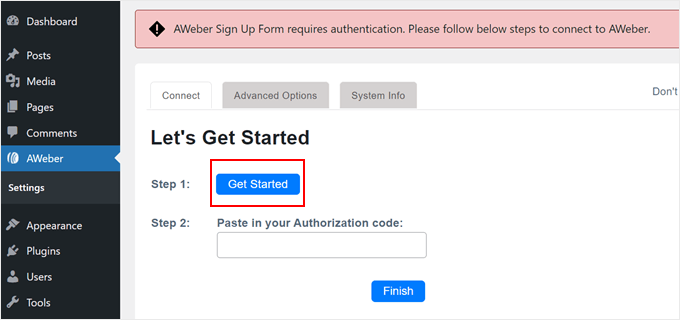
Now, go ahead and install the WordPress plugin in the admin area. Once the plugin is active, go to AWeber and click the ‘Get Started’ button.
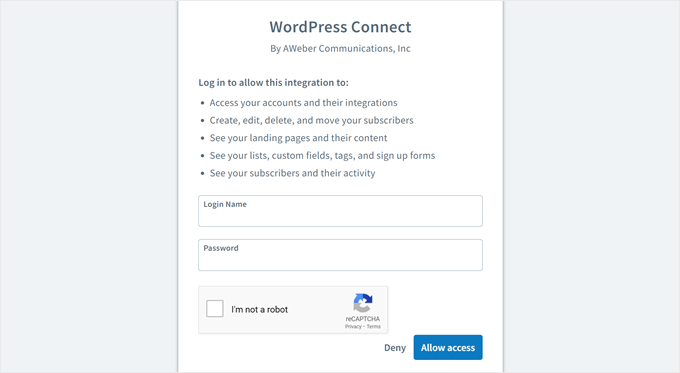
Next, a new tab will open, where you have to enter your AWeber account details like your email address and password. Don’t forget to tick the ‘I’m not a robot checkbox.’
Once done, click ‘Allow access’ at the bottom.
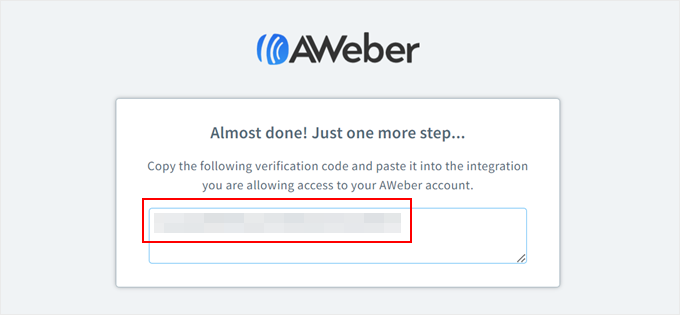
On the next screen, you will see a verification code.
Copy this code and go back to the AWeber plugin page in the WordPress dashboard.
Once you are there, just paste the code in the appropriate field.
Then, click the ‘Finish’ button.
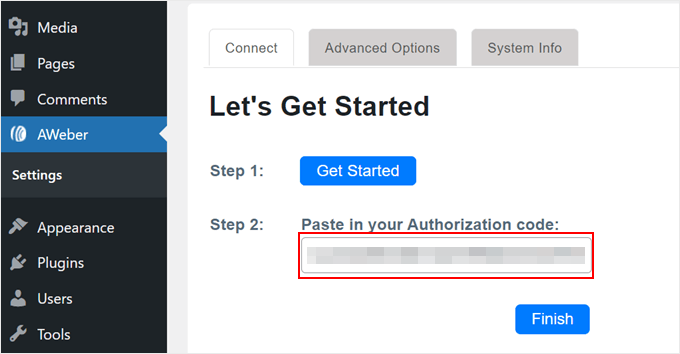
You should now have connected AWeber with WordPress. The plugin also gives you a block or widget for adding an AWeber form anywhere on your WordPress website.
In this example, we will show you how to add the AWeber form to a sidebar, but the steps should be similar whether you are adding it to a WordPress page, post, template, or block pattern using the Gutenberg block editor or Full Site Editor.
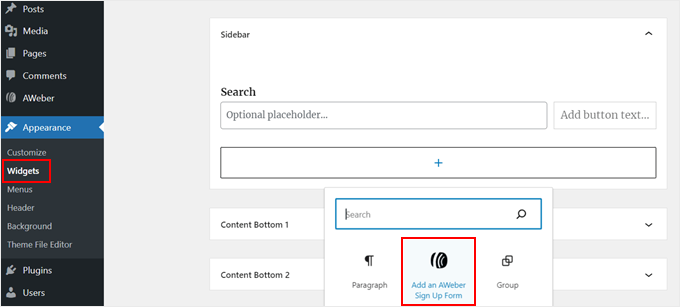
First, go to Appearance » Widgets. Then, click the ‘+ Add Block’ button in a widget area to find the Add an AWeber Sign Up Form widget.
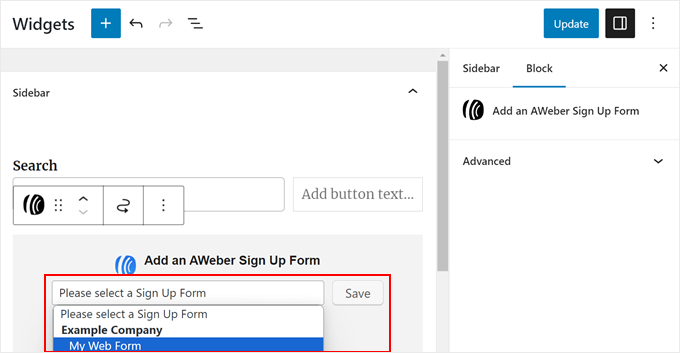
Once done, just open the dropdown menu and select your AWeber signup form. Then, click ‘Save.’
After that, click the ‘Update’ button. For more information about using widgets, check out our full guide on how to add and use widgets in WordPress.
That’s it!
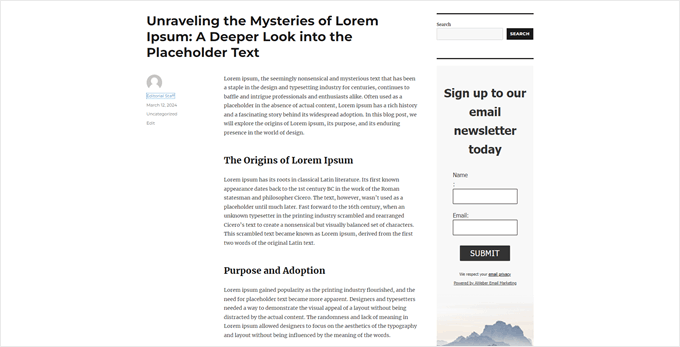
Again, this method is pretty quick and simple if you are happy with the form you’ve created at AWeber. Here is what our web form widget looks like:
However, if you want to take your lead generation efforts to the next level, then check out the next methods.
Method 2: Adding AWeber Web Form Using WPForms (For Customizable Forms)
If you’re looking for more options than what AWeber offers in its newsletter signup form templates, then you should consider using WPForms.
This contact form plugin lets you design AWeber forms with a wide range of customizable templates, like booking forms, surveys, and event registrations.
By linking WPForms with AWeber, you can gather emails from these forms, even if they aren’t specifically designed as email signup forms. This way, you can still use them to send newsletters or inform users of upcoming promotions.
Step 1: Set Up the WPForms Plugin and AWeber Integration
To use the WPForms AWeber addon, you will need a WPForms Plus plan or higher. Once you have purchased a plan, you will get the download link for the WPForms plugin and license key.
Go ahead and install the WPForms plugin first. For guidance, check out our beginner’s guide on how to install a WordPress plugin.
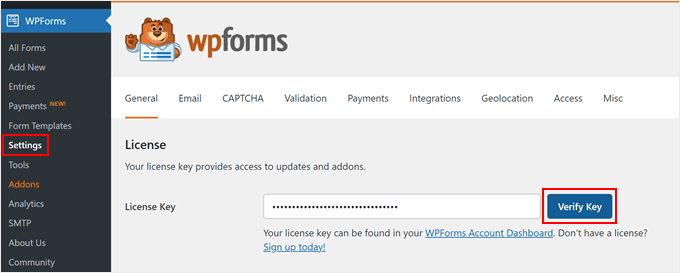
Upon activation, you can go to WPForms » Settings on your WordPress dashboard. There, simply paste your license key into the ‘License Key’ field and click ‘Verify Key.’
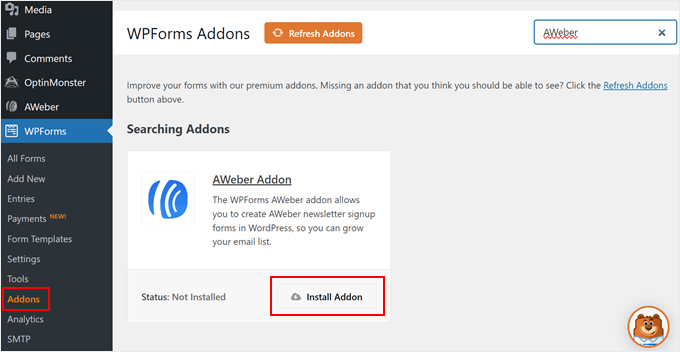
Once you do that, navigate to WPForms » Addons.
Locate the AWeber Addon and click the ‘Install Addon’ button.
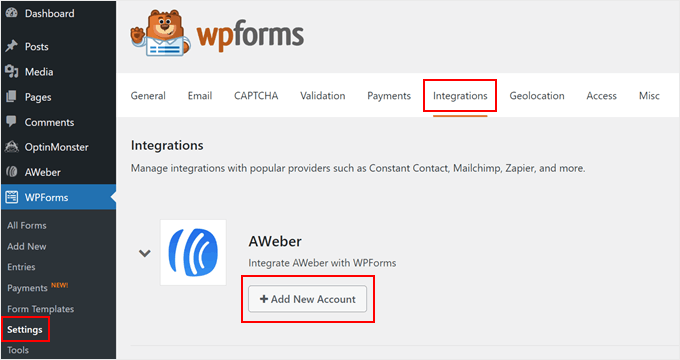
Once the addon is active, you need to go to WPForms » Settings and switch to the ‘Integrations’ tab.
There, find AWeber and click ‘+ Add New Account.’
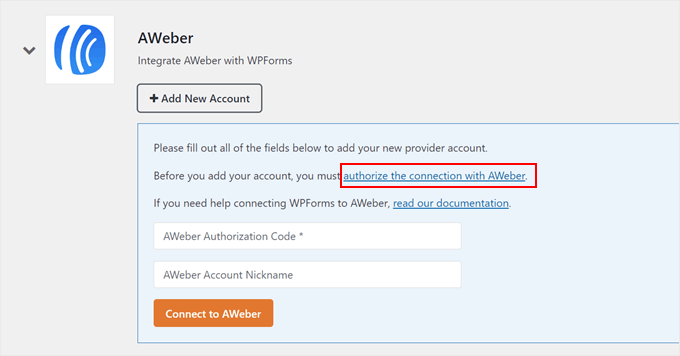
A new section will now open, where you will have to authorize your connection with AWeber.
To start, click the ‘authorize the connection with AWeber’ link.
You should now see a new window, where you have to enter your AWeber account credentials.
Go ahead and enter your email and password here. Then, complete the CAPTCHA and click ‘Allow access.’
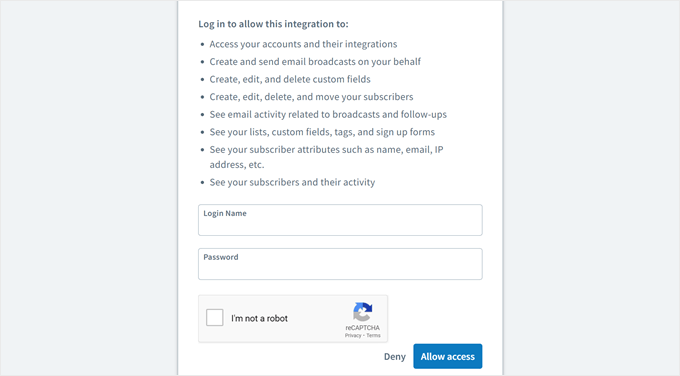
Once you’ve done that, AWeber will provide you with an authorization code.
Make sure to copy this, and go back to the WPForms plugin page.
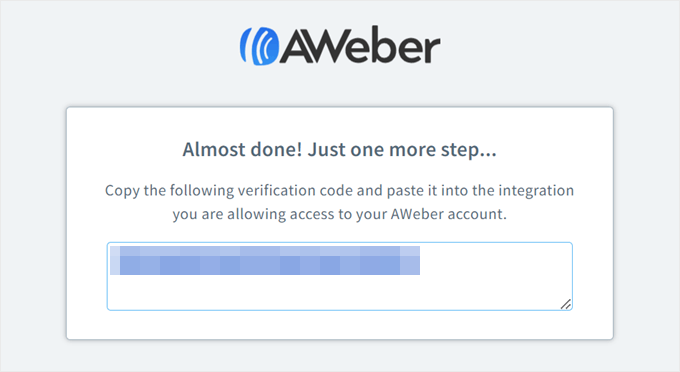
Now, simply paste your authorization code and enter your AWeber email address.
Then, click ‘Connect to AWeber.’
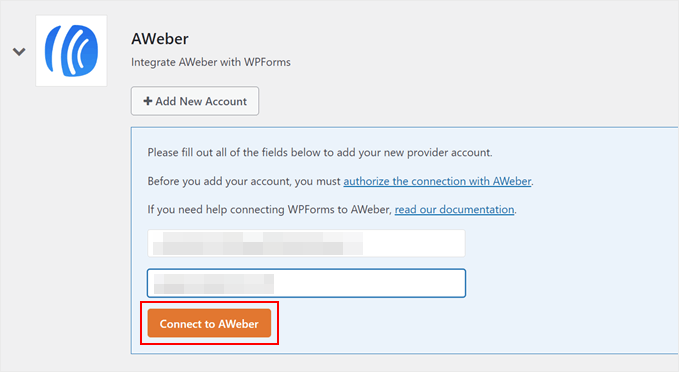
That’s all for integrating AWeber with WPForms.
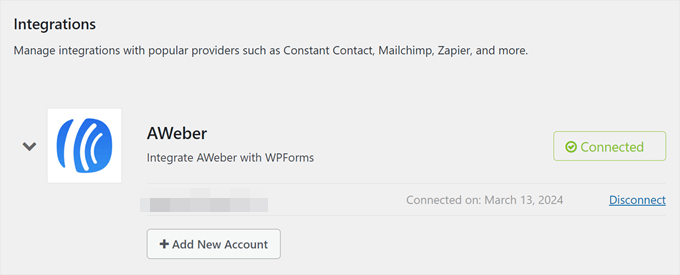
If the connection is successful, then you should see a confirmation message like this:
Step 2: Create Your First Form With WPForms
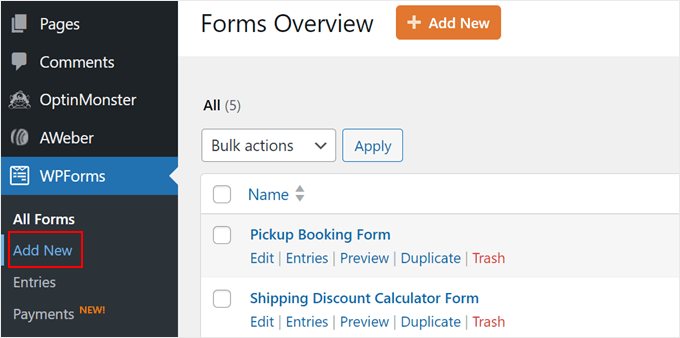
Now that you have connected WPForms with AWeber, you can create a new form. To do that, go to WPForms » Add New.
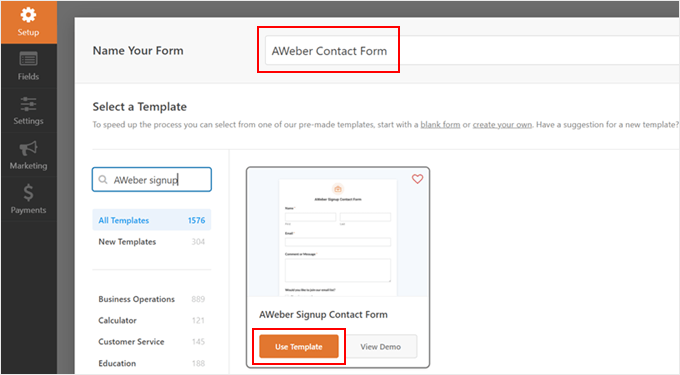
Go ahead and give your form a name. It can be something simple like ‘Contact Form.’
You will also see a bunch of 1500+ form templates to choose from. The categories range from registrations and marketing to event planning and calculators.
For demonstration, we will just use the ‘AWeber Signup Contact Form.’ This template adds an email list signup checkbox to the contact form, which users can tick if they want to subscribe to your newsletter after contacting you.
Once you have selected a template, click ‘Use Template.’
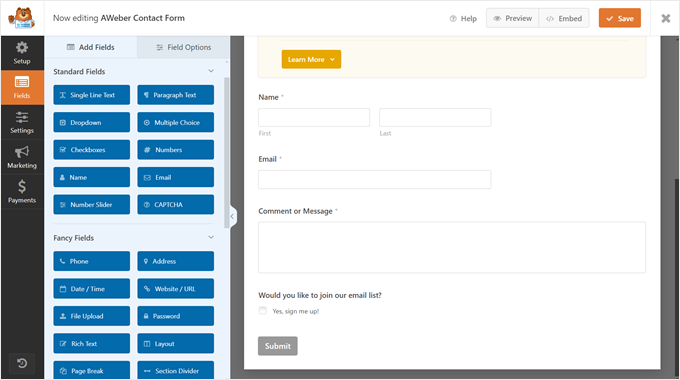
Now, you’ll be able to customize the contact form however you like using the drag-and-drop form builder.
The right side shows you a preview of what the form will look like later. You can drag and drop the existing form fields as you like or add new form fields from the left sidebar in the Add Fields tab.
There are lots of field choices, like multiple choice, phone number, address, file upload, and more.
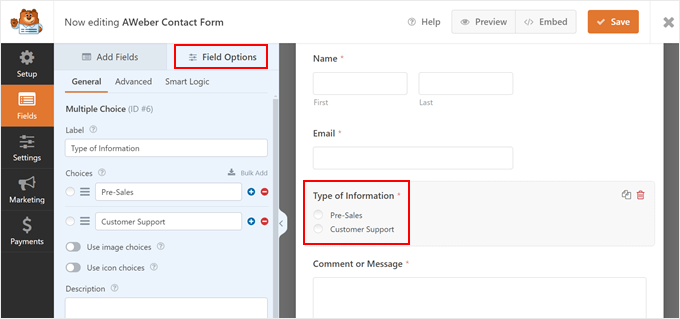
If you switch to the ‘Field Options’ tab, then you can configure the field settings further.
Here, we’ve added a new multiple-choice field called ‘Type of Information’ so that users can let us know the topic they are asking about.
When you are happy with how the form looks, go ahead and click the ‘Save’ button.
For more information about creating a contact form, you can read these guides:
- Best Practices for Contact Form Page Design (with Examples)
- How to Create a Contact Form with Multiple Recipients
- How to Create a Secure Contact Form in WordPress
Step 3: Connect Your Form With AWeber
The next step is to let AWeber know that you want to capture and send leads to the platform via the WPForms form.
To do that, you need to switch to the ‘Marketing’ tab and click ‘AWeber.’ Then, click ‘Add New Connection.’
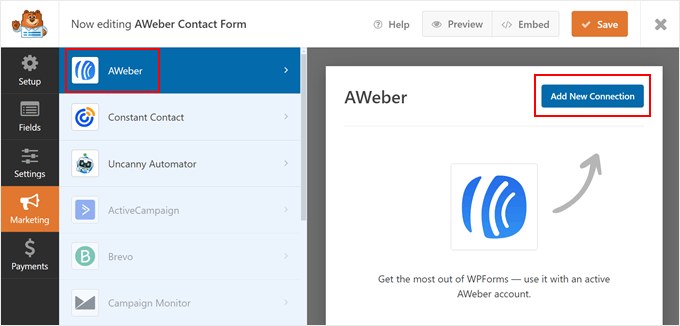
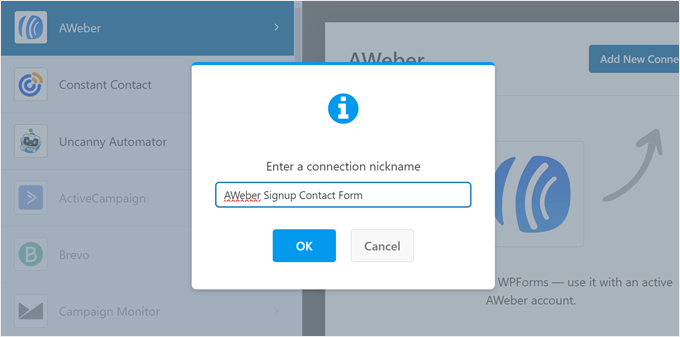
A popup will appear asking you to give this connection a nickname.
You can just use something simple like ‘AWeber Signup Contact Form.’ Then, click ‘OK.’
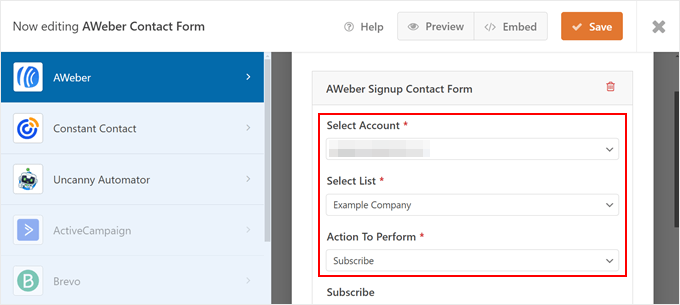
Now, just select the account you connected earlier.
Then, choose an AWeber email list where the leads from this form should be captured. You can leave the ‘Action To Perform’ as ‘Subscribe.’
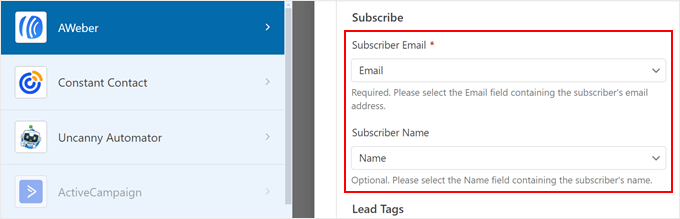
Scrolling down, pick the field from the WPForms form that is used to capture the subscriber’s email (required) and name (optional).
This way, AWeber can properly pull this information.
Next, you can use existing tags from AWeber or add new tags to identify subscribers that you got from this form.
If you decide to add new tags, make sure to separate them with commas.
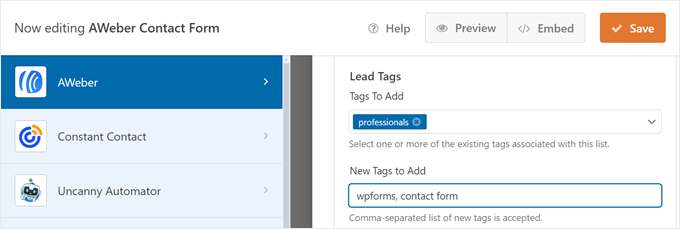
If your WPForms form includes fields beyond the usual name and email address, like the one we’ve added, and you want AWeber to collect that additional information, then you’ll also need to set up custom fields in AWeber.
This ensures AWeber can retrieve and store that data accurately.
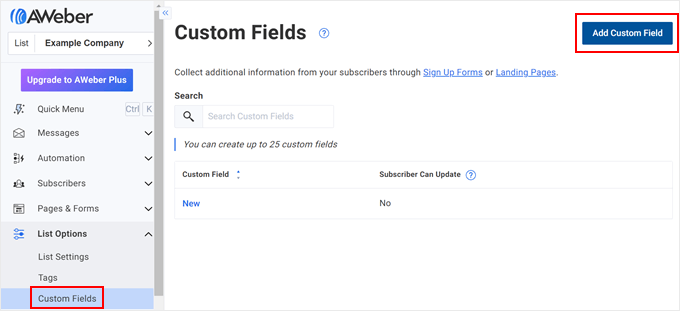
If you are new to this, simply go to your AWeber dashboard and navigate to the ‘Custom Fields’ option under the ‘List Options’ menu.
Then, click ‘Add Custom Field.’
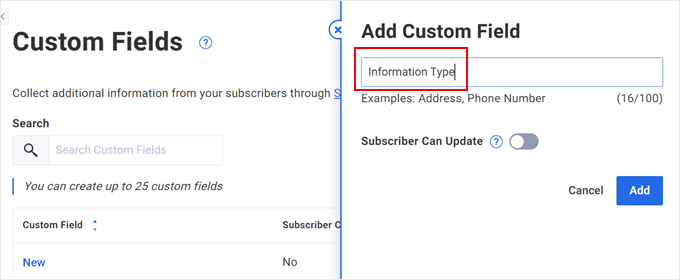
Now, just type in a name for your new custom field. You can also let subscribers update this information if needed.
After that, click ‘Add.’ For detailed instructions, you can read this AWeber documentation.
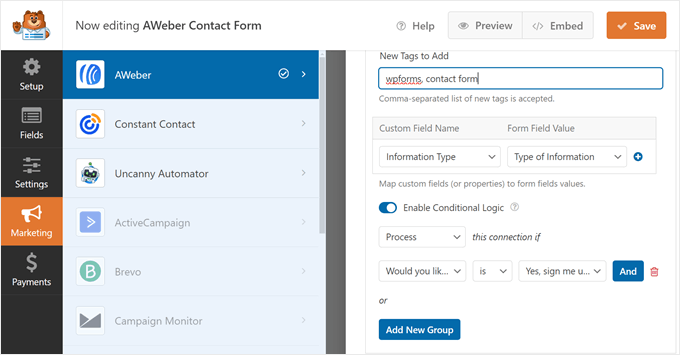
Now, go back to the WPForms plugin page and scroll down. In the Custom Field Name, select the custom field you just created earlier. As for the Form Field Value, choose the corresponding field in your WPForms form.
Since our form includes a checkbox asking if users want to subscribe, we only want to send emails to people who check this box.
To set this up, toggle the ‘Enable Conditional Logic’ button. Then, choose ‘Process’ before ‘this connection if.’
Below, select ‘Would you like to join our email list?’ and set ‘is’ as the connector. After that, choose ‘Yes, sign me up!’
Now, click the ‘Save’ button to save your progress.
Step 4: Embed Your AWeber-WPForms Form on Your Page
The next step is to display your form on a WordPress page. To do this, just click the ‘Embed’ button next to Save.
After that, click either ‘Select Existing Page’ or ‘Create New Page.’ Both options will eventually bring you to the block editor, where you will insert the WPForms block into the page.
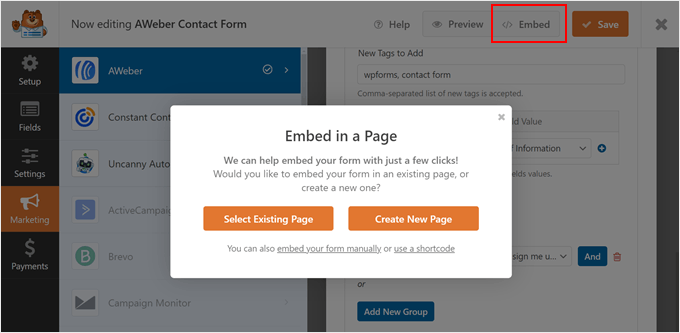
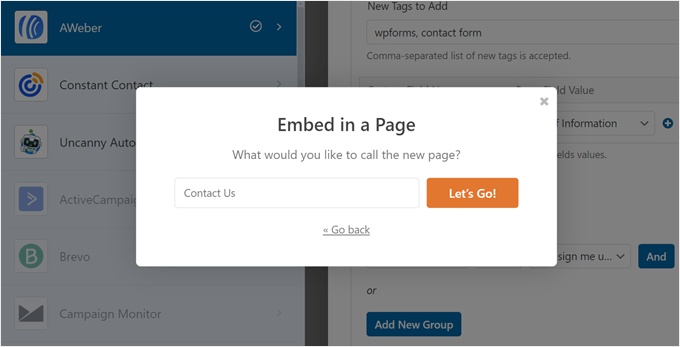
For demonstration, we will create a new page called ‘Contact Us.’
Once you have given your new page a title, click ‘Let’s Go!’
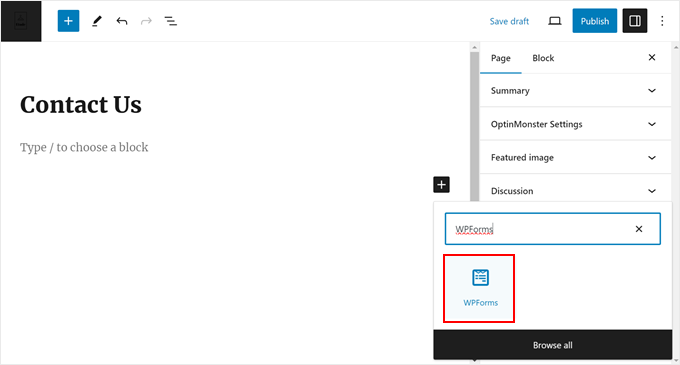
In most cases, WPForms will automatically insert the form block on your page.
But if that’s not happening, you can click the ‘+ Add Block’ button anywhere on the page and select the WPForms block.
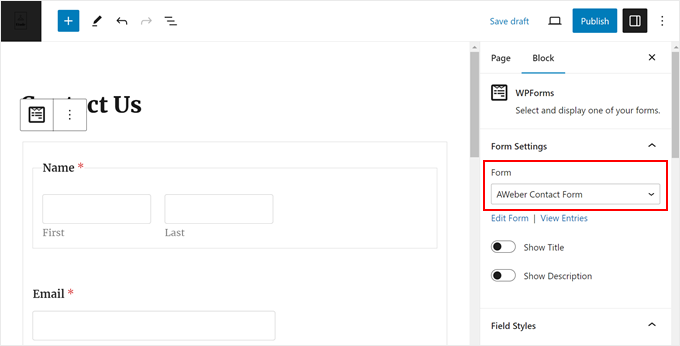
Now, just select the form you created earlier in the ‘Form Settings’ section inside the block settings sidebar.
You can also customize how the form looks by showing its title, changing the field styles, modifying the button colors, adding custom CSS, and so on.
Once you are happy with how the page looks, you can click ‘Publish or ‘Update’ to finalize your changes.
You can also add the form block to your blog posts, widget areas, or template parts if you are a block theme user. Or use a shortcode to add it in other places where the block is not available.
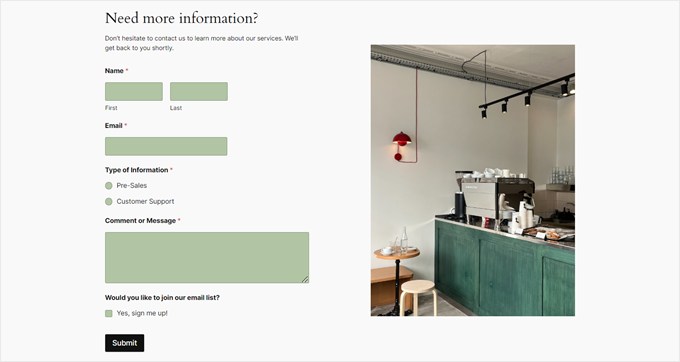
Here is what our form looks like on the front end:
Expert Tip: Want to display your form on a landing page? You can use SeedProd to create a good-looking landing page that can easily convert visitors into leads. You can learn more about how to create a landing page in WordPress in our step-by-step article.
Step 5: Test Your AWeber-WPForms Form
To make sure everything works well, you will need to test out your form and see if the information entered there is also received by AWeber.
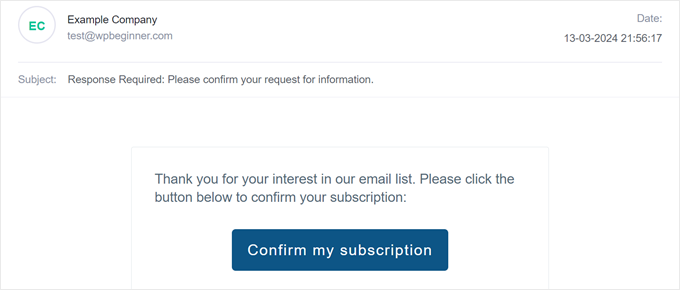
You can use your own business email or a temporary email to do this. After you fill out the form, you should receive an email like below. Make sure to click on the button to confirm your subscription.
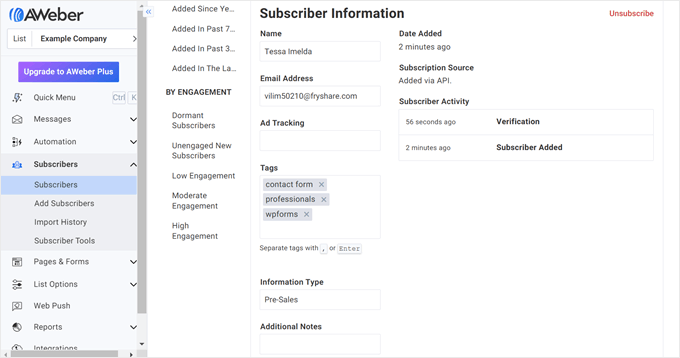
Then, if you go to the ‘Subscribers’ page on AWeber, you will see a new subscriber identified with the tags you added earlier.
The Custom Field will also be there.
Method 3: Adding AWeber Web Form Using OptinMonster (For Popups)
If you want to run a popup campaign on your WordPress site and capture leads for your AWeber mailing list, then you can use OptinMonster.
It’s the best and most beginner-friendly lead-generation software for making engaging marketing campaigns and increasing your email subscribers.
Step 1: Set Up OptinMonster
To connect OptinMonster with AWeber, you will need a Plus or higher plan.
Once you sign up for a plan, you can go ahead and install the OptinMonster plugin in WordPress. For step-by-step instructions, check out our beginner’s guide on how to install a WordPress plugin.
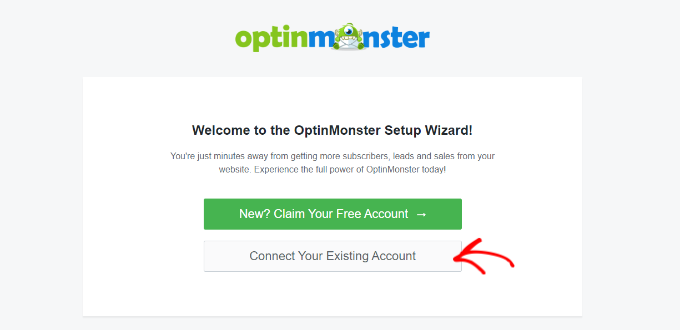
Once the plugin is installed and active, you will see a Welcome page that prompts you to connect WordPress with OptinMonster. Simply click the ‘Connect Your Existing Account’ button to get started.
Then, a new screen will appear.
Here, just click the ‘Connect To WordPress’ button to add your site to OptinMonster.

Step 2: Create Your First OptinMonster Campaign
Now, you can go ahead and set up a new campaign.
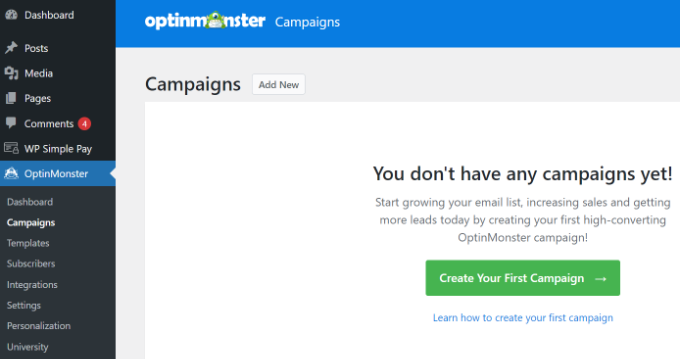
To do this, go to OptinMonster » Campaigns and click ‘Create Your First Campaign.’
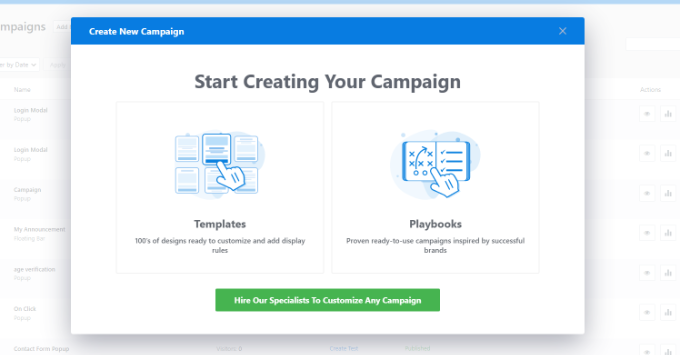
On the next screen, you can pick from ‘Templates’ or ‘Playbooks.’
Templates are pre-designed, professional-looking lead generation forms made by OptinMonster.
On the other hand, Playbooks are fully-formed campaigns inspired by successful marketing strategies from well-known brands.
In addition to the lead generation form, Playbooks come complete with the campaign structure, copy, and display rules, so you can launch a campaign with just a few tweaks.
For demonstration, we will go with ‘Templates.’
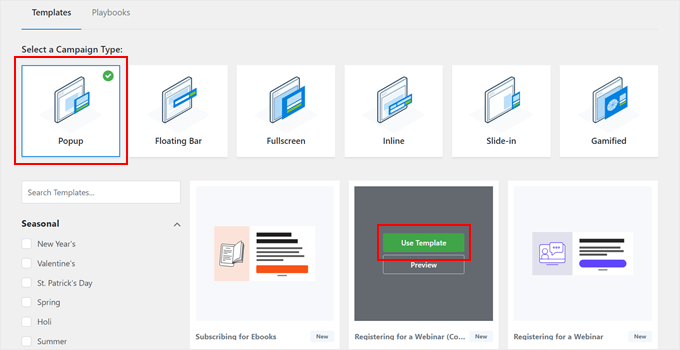
Next, select a Campaign Type and a form design.
We will use ‘Popup’ and ‘Registering for a Webinar (Countdown)’ as an example. Go ahead and click ‘Use Template’ on your desired template.
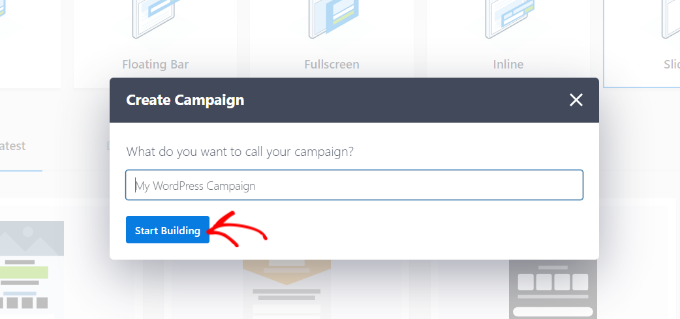
At this stage, you will need to name your campaign.
Any name will work so long as you can easily identify your campaign later. Once you have completed this step, click ‘Start Building.’
You will now be taken to the OptinMonster website to customize your lead generation form.
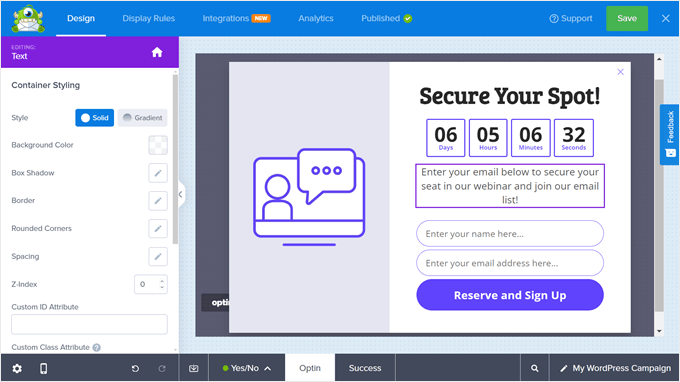
In the Design tab, you can customize how the popup form looks using the available blocks and the drag-and-drop editor.
Besides editing how the initial Yes/No popup looks, you can also modify the Optin section (where users fill in their name and email) and the Success message (after users have completed the form).
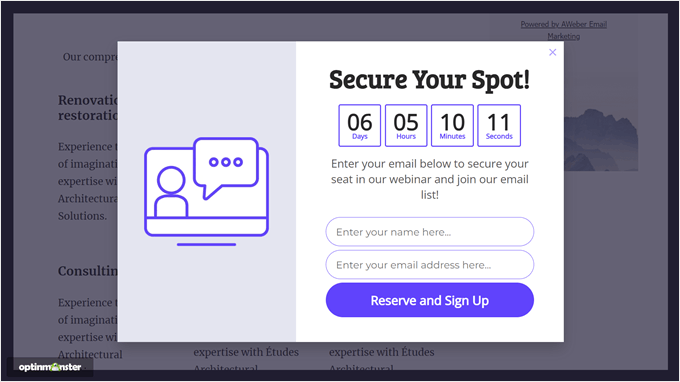
In the example below, we’ve changed the copy so that the reader knows they can join our webinar and email list by entering their name and email.
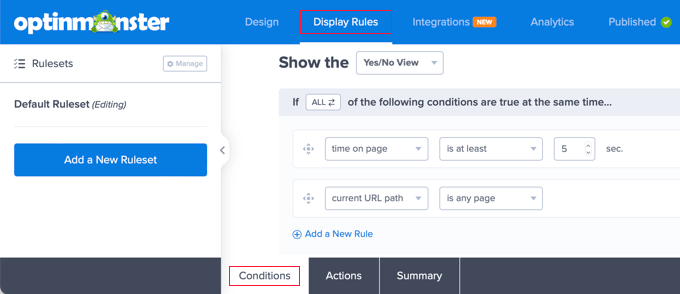
If you navigate to the ‘Display Rules’ tab, then you can set the conditions for when the popup should appear.
You can base the conditions on many aspects, such as whether they are a logged-in user, whether they show signs of leaving, whether they are from a specific location, whether they have not converted, and so on.
Additionally, you can enable any animation or sound effects to make the popup stand out even more.
As you make your changes, make sure to click the ‘Save’ button so that your edits don’t get lost.
For more information about creating a campaign, you can check out these guides:
- How to Create Mobile Popups That Convert (Without Hurting SEO)
- How to Create a WooCommerce Popup to Increase Sales
- How to Add a Contact Form Popup in WordPress
Step 3: Connect OptinMonster With AWeber
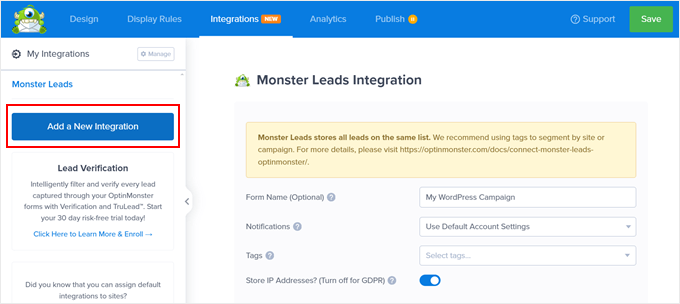
Once you have finalized your campaign design and display rules, let’s switch to the ‘Integrations’ tab. This is where you will configure the OptinMonster-AWeber connection.
There, click ‘Add a New Integration.’
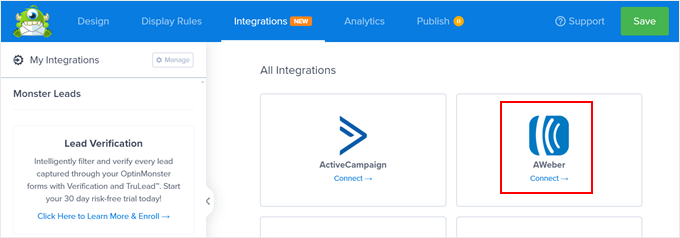
After that, locate the AWeber logo.
Under it, click ‘Connect.’
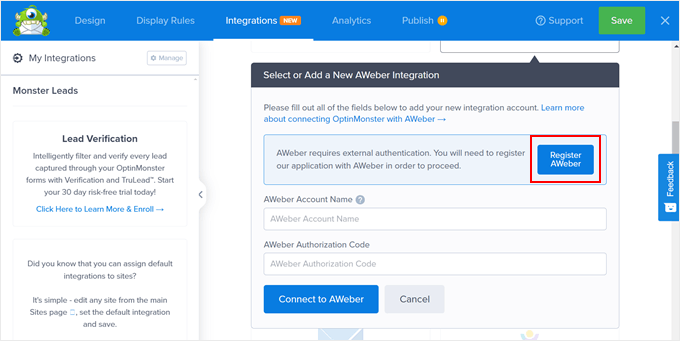
Now, you will be prompted to enter your AWeber account and authorization code.
To get the code, click ‘Register AWeber.’
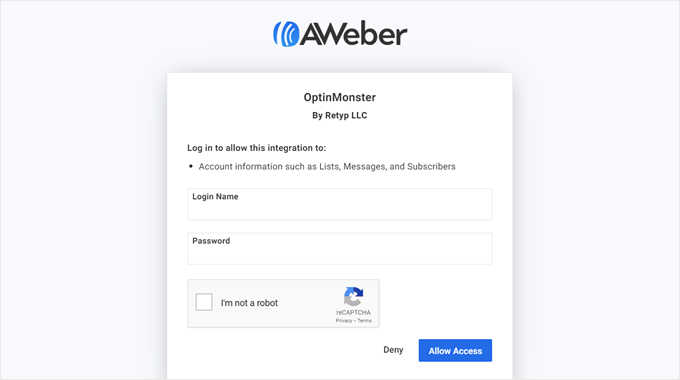
A new window will appear, asking you to enter your AWeber login credentials.
Once you have done that, click ‘Allow Access.’
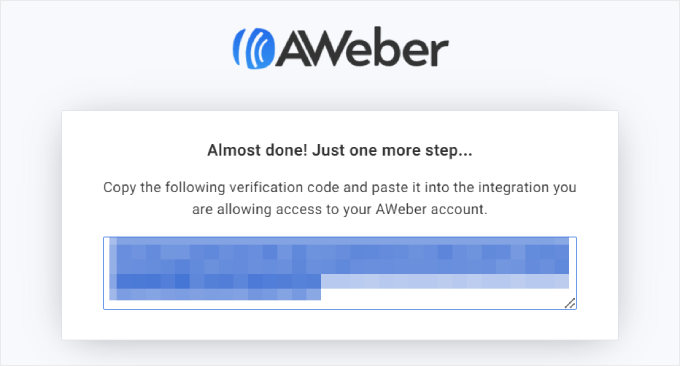
At this point, AWeber will give you the authorization code.
Go ahead and copy this code, and then return to OptinMonster.
Back in OptinMonster, simply enter your AWeber email account and the authorization code from earlier.
Then, click ‘Connect to AWeber.’
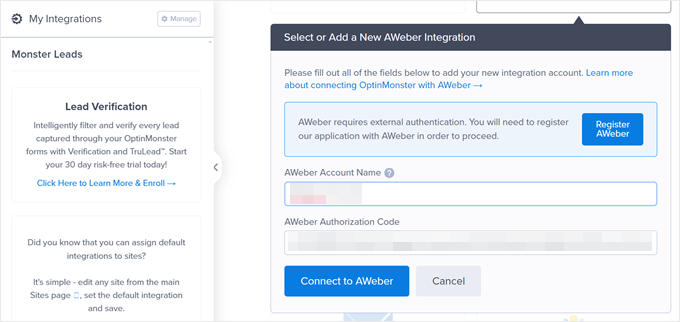
If the connection is successful, then you will go back to the Integrations tab and see your AWeber account listed there.
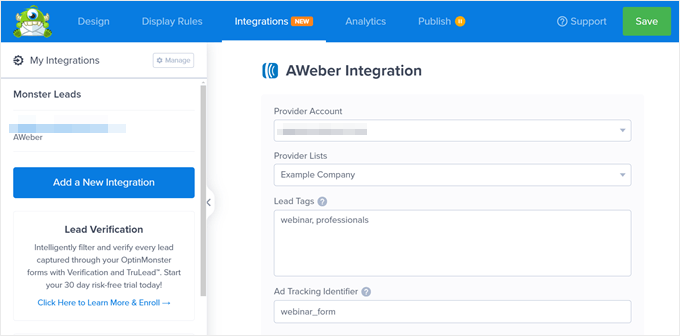
Here, you can select your ‘Provider List’ (the AWeber list you are going to add new leads from OptinMonster to). Below that, you can add some Lead Tags to segment the type of leads acquired from this form. For this example, we will just use ‘webinar’ and ‘professionals.’
Next, you can also add an Ad Tracking Identifier to identify the source of the lead. In this case, since we are creating a webinar registration form, the value can be ‘webinar_form.’
Scrolling down, you will find the ‘Field Mapping’ section.
If your popup form only asks for the user’s name and email, then OptinMonster will automatically map these fields to the corresponding fields available in AWeber.
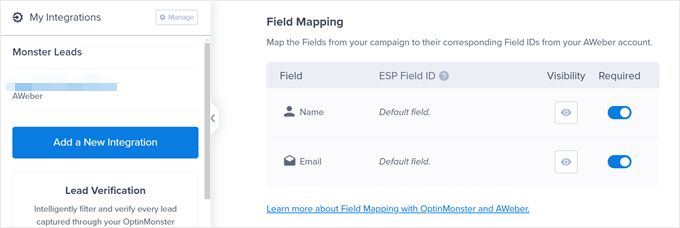
But if you do add other fields beyond that, then you may need to create custom fields in AWeber so that the platform can capture that information properly.
You can scroll up to our WPForms method to see how to add a custom field and read OptinMonster’s documentation on field mapping for more information.
Step 4: Publish Your OptinMonster-AWeber Campaign
Now that you have connected OptinMonster with AWeber, you are ready to publish your campaign.
Go ahead and switch to the ‘Publish’ tab to do this. Then, change the Publish Status to ‘Publish.’
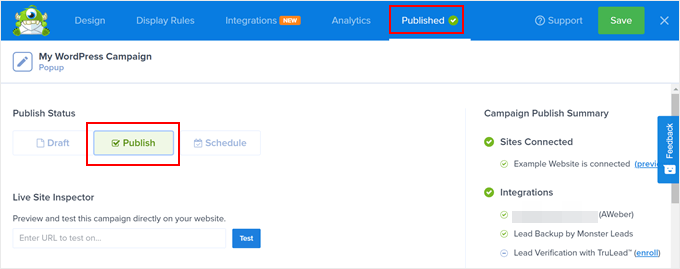
Then, click the ‘Save’ button. Since you have installed the OptinMonster WordPress plugin, your popup should be live in no time. There is no need to use any HTML or JavaScript code.
Here is what our popup looks like on our demo WordPress blog:
Step 5: Test Your OptinMonster-AWeber Campaign
The final step is to see if your campaign works and if the leads captured by OptinMonster get successfully sent to AWeber. To do this, you can visit your website in incognito mode and wait for the popup to appear. Then, try filling out the form like normal.
Once you do that, your test email will receive an email notification like this:
Make sure to click the button in the email.
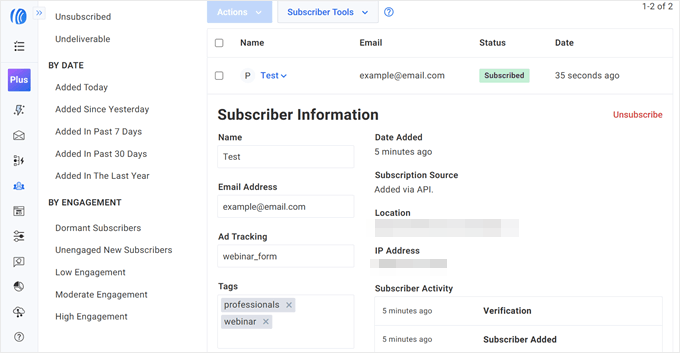
After you do that, you will see your test email on the ‘Subscribers’ page in AWeber, complete with the Ad Tracking Identifier and Lead Tags you set up earlier.
Take Your Email Marketing to the Next Level
Want to convert more visitors to subscribers with AWeber? Check out these guides to improve your email marketing:
- Email Marketing Mistakes WordPress Users Must Avoid
- Beginner’s Guide to WordPress Email Marketing Automation
- Tested and Easy Ways to Grow Your Email List Faster
- How to Use Social Media to Boost Email Subscribers in WordPress
- How to Create a Giveaway to Grow Your Email List
- Best WordPress Newsletter Plugins (Easy to Use + Powerful)
- Best Mailchimp Alternatives (with Better Features + Fair Pricing)
We hope this article helped you learn how to install the AWeber web form widget in WordPress. You may also want to see our tutorial on how to start an online store and our expert pick of the must-have WordPress plugins to grow your website.
If you liked this article, then please subscribe to our YouTube Channel for WordPress video tutorials. You can also find us on Twitter and Facebook.



Syed Balkhi says
Hey WPBeginner readers,
Did you know you can win exciting prizes by commenting on WPBeginner?
Every month, our top blog commenters will win HUGE rewards, including premium WordPress plugin licenses and cash prizes.
You can get more details about the contest from here.
Start sharing your thoughts below to stand a chance to win!