


It’s disappointing to see your WordPress forms get plenty of views but not many submissions. You spend time setting them up, only for visitors to stop halfway through.
Over the years, we’ve tested a variety of methods to make online forms more effective – from simplifying layouts to tracking exactly how users interact with each field.
One thing became clear: when someone abandons a form, it’s usually because something along the way caused confusion or created friction. 😵💫
The good news is, you can fix this once you understand why users are leaving. By tracking form interactions, you can spot problem areas and make straightforward improvements to encourage more people to complete their submissions.
In this guide, we’ll walk you through step-by-step how to track and reduce form abandonment in WordPress, so you can recover lost leads and improve your form conversion rates. 📈
What Is Form Abandonment?
Form abandonment happens when a user starts filling out a form but leaves the page before submitting it. This could be due to a faulty form, a poor user experience, or simply because the user changed their mind.
This applies to any form on your website, such as an email newsletter signup, WooCommerce checkout, contact form, and others.
In short, if users reach the form and either decide not to fill it out or leave it halfway through, that’s considered form abandonment.
Why You Need to Reduce Form Abandonment
Reducing form abandonment is important because every incomplete form means a missed opportunity — whether that’s a new lead, a sale, or a subscriber.
For example, more than 77% of online shoppers abandon their checkout forms, representing significant losses in unfinished sales.
Tracking form abandonment helps you stay on top of your game. It helps you identify which forms are underperforming, so you can take steps to improve them and boost your conversions.
With that in mind, here’s an overview of everything we’ll cover to help you track and reduce WordPress form abandonment:
Let’s start with how to track form abandonment.
Tracking Form Abandonment in WordPress
The best way to track form abandonment on your WordPress website is by using MonsterInsights.
It is the #1 Google Analytics plugin for WordPress and allows you to easily track website traffic using Google Analytics.
At WPBeginner, we use MonsterInsights for a lot of tracking tasks, including form conversions. See our complete MonsterInsights review to learn more about the plugin.
✋ Before we start, note that you’ll need at least their Pro plan to access the Form addon.
To get MonsterInsights Pro, you can go to their website, click the ‘Get MonsterInsights Now’ button, and follow the steps to complete the registration.

Upon signup, you’ll get your own MonsterInsights dashboard, where you can find your MonsterInsights zip file and license key.
Next up, let’s install and activate the MonsterInsights plugin.
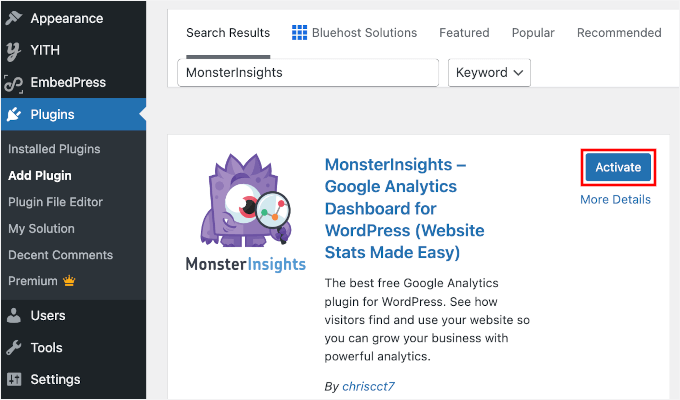
From your WordPress admin area, navigate to Plugins » Add New Plugin.

Then, you can use the search feature to look for the MonsterInsights plugin.
Simply click the ‘Install Now’ button and then ‘Activate’ when it appears.
For more details, see our step-by-step guide on how to install a WordPress plugin.
You will then need to enter your MonsterInsights license key, which you can find in your MonsterInsights account dashboard.
Upon activation, you will see the welcome screen and the setup wizard. Simply click the ‘Launch the Wizard’ button.

You can follow the onscreen instructions to connect your Google Analytics account with your site. For more detailed instructions, please see our beginner’s guide on how to install Google Analytics in WordPress.
Once you have set up MonsterInsights, it is time to set up form tracking.
Simply go to the Insights » Addons page, scroll down to the Forms addon, and then click on the Install button.
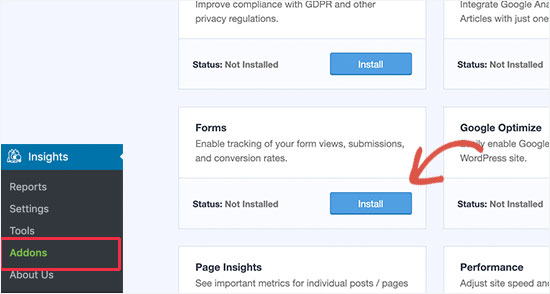
Once you have installed and activated the forms addon, MonsterInsights will automatically detect your WordPress form plugin and enable form tracking.
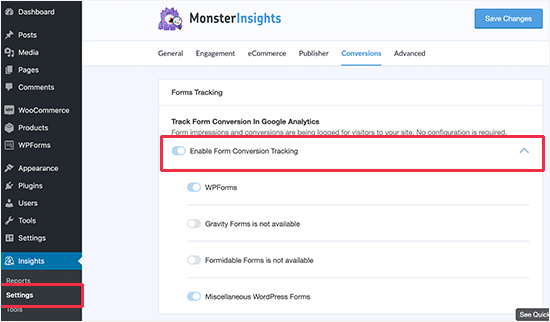
You can verify it by visiting the Insights » Settings page and switching to the ‘Conversions’ tab. From here, you can see your form builder listed under the ‘Enable Form Conversion Tracking’ option.
Now that everything is set up, you just have to wait a few hours for MonsterInsights to collect data as your users fill out forms on your WordPress website.
Viewing Form Reports in MonsterInsights
MonsterInsights makes Google Analytics reports easy to understand. The form addon shows you how users on your website interact with forms in terms of conversions and form abandonment.
Simply go to the Insights » Reports page and switch to the forms tab to access a list of your forms, along with their impressions, conversions, and conversion rates.
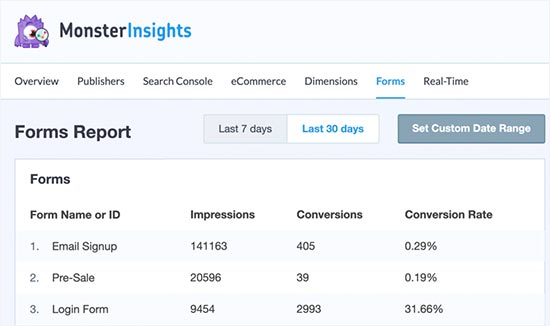
Here, you’ll want to pay close attention to forms with high impressions and low conversion rates. These are the ones users are viewing but not completing.
Next, let’s figure out what’s preventing users from completing those forms.
Recovering Abandoned Form Entries with WPForms
WPForms is the best WordPress contact form plugin on the market.
It comes with a Form Abandonment addon that lets you capture and save partial entries, giving you the opportunity to follow up with users who didn’t complete the form.
We use WPForms for all our forms because it’s powerful and easy to use. We’ve had great experiences with it, and you can see our extensive WPForms review for more insights about the plugin.
✋ Before we jump in, do note that you’ll need at least their Pro plan to access the Form Abandonment addon.
To get WPForms Pro, visit the WPForms website and click the ‘Get WPForms Now’ button. Then, simply follow the checkout steps to complete your purchase.

Next, let’s install and activate the WPForms plugin.
From your WordPress admin area, go to Plugins » Add New Plugin.
After that, you can use the search bar to find WPForms, then click ‘Install Now’ and ‘Activate’ to enable it.
For more details, see our step-by-step guide on how to install a WordPress plugin.
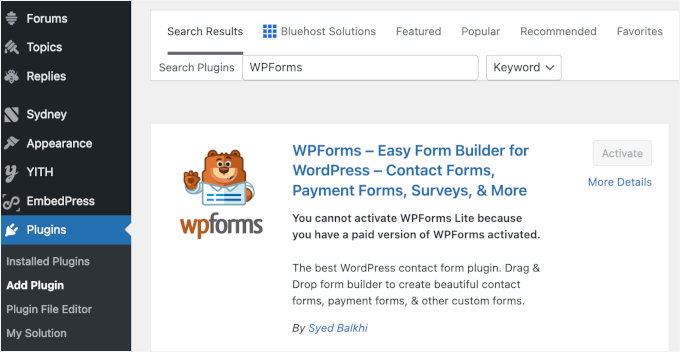
Upon activation, you need to visit the WPForms » Settings page to enter your license key.
You can find this information in your account on the WPForms website.
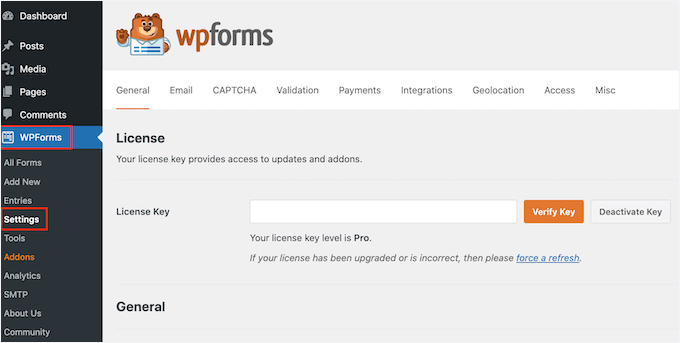
Next, you can go to the WPForms » Addons page from your WordPress dashboard.
From here, go ahead and install the Form Abandonment Addon.
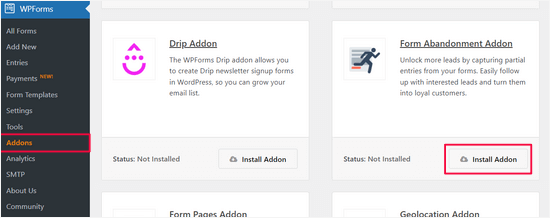
After that, you’re ready to create forms that can automatically save abandoned entries.
Simply go to WPForms » Add New page to create your first form.
On the next screen, you’ll see a ‘Generate with AI’ option. Just enter your prompt, and the tool will automatically build a relevant form for you in seconds.

If you prefer not to use AI, you can also choose from over 2,000 pre-built form templates.
You can start by providing a title for your form and then choosing a template. For this tutorial, we will choose the ‘Request A Quote Form’ template.
To narrow down the choices, simply use the search bar. Then, you can hover over the search results and click ‘Use Template.’
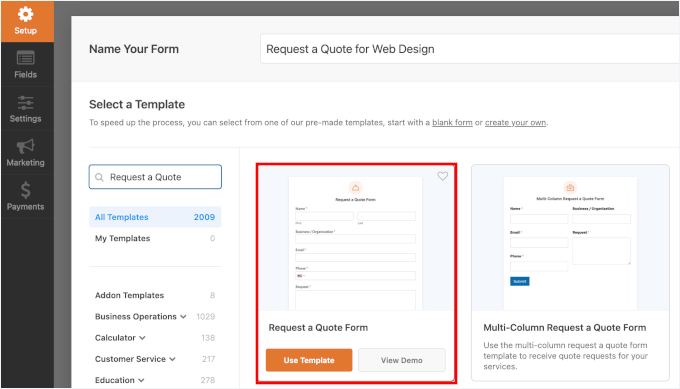
Alternatively, you can use a blank template to build your form from scratch.
WPForms will then load your chosen template in its drag-and-drop editor. You can edit, rearrange, or add new fields as needed.
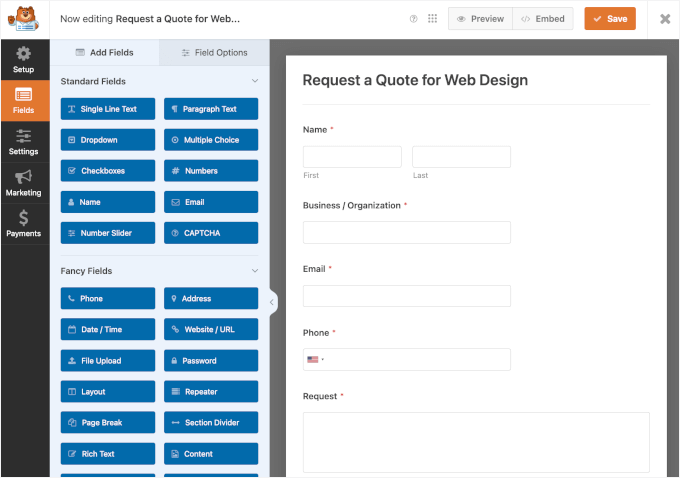
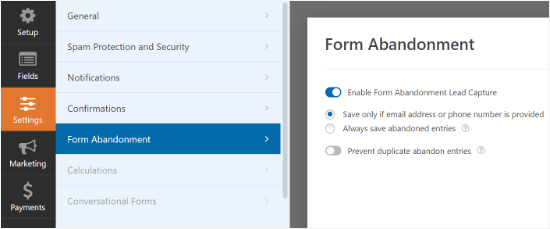
Once you’re done customizing the form template, switch to the ‘Settings’ tab from the left column.
Then select the ‘Form Abandonment’ option and enable the form abandonment feature for this form.
When you’re finished, you can save your form and exit the builder.
Next, let’s add this form to your WordPress site.
Simply edit the post or page where you want to add the form, and then add the WPForms block to the content editor.

After that, select the form you created earlier from the drop-down menu. For details, you can see our guide on how to embed forms in WordPress.
If everything looks good already, you can save or publish your post or page.
Now, give your form a few days to collect entries. After that, you can go to the WPForms » Entries page to see all your form entries.
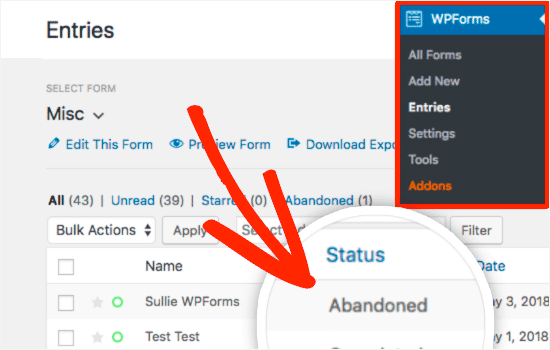
You’ll see abandoned as the status for the entries where a user decided to leave the form without submitting it.
You can click on Entries to view the captured data of your abandoned form.
Tips to Reduce Form Abandonment in WordPress
So far, we have learned how to track and recover abandoned forms in WordPress.
Let’s talk about how to reduce form abandonment.
First, it’s important to identify why a form isn’t converting well. Thankfully, you don’t need to guess – there are concrete tests and data you can use to find out.
1. Improve Form Page Speed
Page speed is one of the main reasons users abandon shopping carts and online forms.
According to a StrangeLoop case study, a 1-second delay in page load time can lead to a 7% loss in conversions, 11% fewer page views, and a 16% decrease in customer satisfaction.

Test the pages containing your forms for speed and performance using an online speed test tool.
If your form pages are loading slowly, then you need to follow our WordPress speed optimization guide to improve performance.
2. Create Better Forms
As a website owner, it’s tempting to collect as much information as possible. However, longer forms tend to cause more users to abandon them.
Here are a few tips to create better forms and increase completion rates:
- Remove unnecessary form fields. These are the form fields that you don’t really need and can do without.
- Use multi-page forms. If you have to create lengthier forms, then try multi-page forms. They are easier to fill and provide a much better user experience.
- Use form landing pages whenever possible. Using form landing pages allows you to remove clutter from the screen, which may be distracting users.
- Use conversational form styles. These kinds of forms can make your forms interactive and fun to fill out.
3. Use Conversion Optimization Software
If you are serious about boosting form conversions, then you need to start using OptinMonster. It’s the best conversion optimization and lead generation software on the market, helping you convert website visitors into subscribers and customers.
It’s also the software we use to create pop-ups, slide-ins, and header banners to promote our special deals. Read our full OptinMonster review to explore its features!
OptinMonster comes with exit-intent popups. This allows you to show targeted popups to users when they are about to leave a page. Using this on your form pages will help you drastically reduce form abandonment on your website.
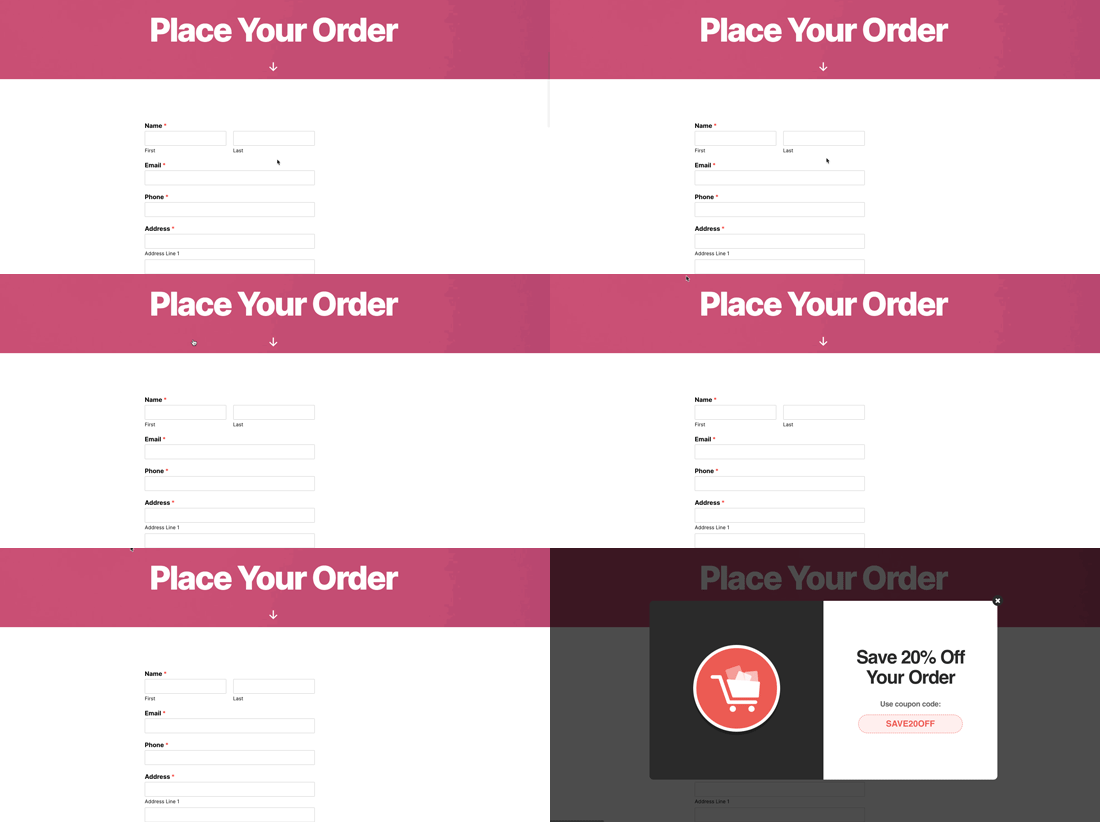
For detailed instructions, see this tutorial on how to create a coupon popup using OptinMonster.
FAQs: Track and Reduce Form Abandonment in WordPress
If you’re trying to figure out why people start filling out your forms but never finish, these quick answers can help you understand what’s happening and how to fix it.
What is form abandonment?
Form abandonment happens when someone begins filling out your form but leaves before hitting the ‘Submit’ button. This can happen for many reasons: the form might be too long, confusing, or missing a clear call to action.
What is the average form abandonment rate?
On average, about 60–80% of users abandon forms before completing them. The rate can vary depending on how long or complex your form is, so shorter, simpler forms usually perform better.
How do I add a conversion tracking tag to WordPress forms?
You can track form conversions easily using tools like MonsterInsights or Google Tag Manager. Just connect your tracking tool to your WordPress site, then set up an event that fires when someone successfully submits a form.
How do you let users save their form progress in WordPress?
If your form takes more than a minute or two to fill out, adding a ‘Save and Continue Later‘ feature can really help. Plugins like WPForms let users save their progress and return later using a link, so they don’t have to start over if they get interrupted.
Video Tutorial: Track and Reduce Form Abandonment in WordPress
Before you go, you might want to watch our video tutorial on how to track and reduce form abandonment in WordPress. Just hit play! ▶️
Extra Resources for Improving Your WordPress Forms
We hope this guide helped you learn how to track and reduce form abandonment in WordPress.
You may also want to see our other helpful guides:
- How to Password-Protect Your WordPress Forms
- How to Upload Files from WordPress Forms to Google Drive
- How to Add Google Calendar Events from WordPress Forms
- Tips to Create More Interactive Forms in WordPress and Increase Conversions
- Ultimate Guide to Using WordPress Forms (All You Need to Know)
If you liked this article, then please subscribe to our YouTube Channel for WordPress video tutorials. You can also find us on Twitter and Facebook.




Dennis Muthomi
Excellent article, WPBeginner!
As a website manager, I’ve seen firsthand how form abandonment can impact conversions. Your tips on tracking and reducing this issue are spot-on.
I appreciate the recommendation to use MonsterInsights for tracking and WPForms for recovering abandoned entries – these tools have been VALUABLE in my projects.
One additional tip I’d like to share is the importance of mobile optimization for forms. With more users browsing on smartphones, ensuring your forms are responsive and easy to fill out on smaller screens can significantly reduce abandonment rates.
Jiří Vaněk
I have the highest version of WPForms but I don’t have Monstersight. As I understood correctly, can I actually track similar things just with the help of WPForms and Google analytics? Or can’t I do without Monstersight?
WPBeginner Support
You can do it without MonsterInsights but it is very difficult to do so without a decent understanding of Google’s tracking.
Admin
Jiří Vaněk
Thanks for the advice. I tried to track it for some time using just WP Forms and Analytics. But as you mentioned, it’s very difficult, or rather, very unclear for me. In the end, I installed the paid version of Monster Insights, and I’m absolutely satisfied. I finally see the data I needed to track. Monster Insights is amazing in how it can translate raw Google Analytics data into a language that’s easy to understand.