


If you’re using Blogger with a custom domain, then moving to WordPress can feel risky. You might worry about losing traffic, breaking links, or messing up your domain settings.
But the move is worth it. With WordPress, you get complete ownership of your website, better SEO options to reach more readers, and the flexibility to grow your blog without any limits.
In this guide, I’ll show you how to move a custom domain Blogger blog to WordPress safely.
I’ll walk you through each step, from setting up WordPress to pointing your custom domain correctly, so your site keeps working as expected.
By the end, your blog will be on WordPress, and your visitors won’t notice the change.
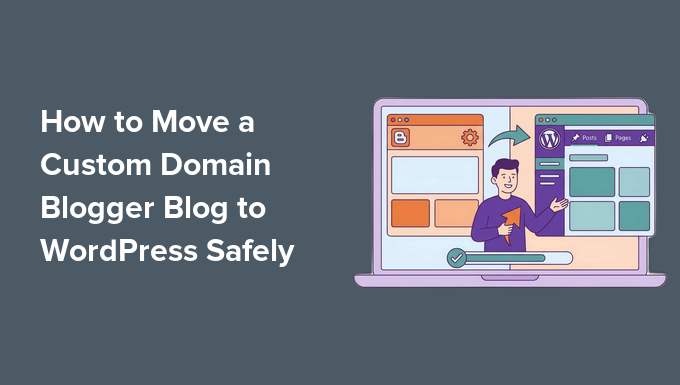
💡Quick Answer: Move a Custom Domain Blogger Blog to WordPress
If you just want a quick overview of the process, here’s a step-by-step summary of how to move your Blogger blog to WordPress safely:
- Get WordPress hosting and set up a self-hosted site (Bluehost or SiteGround recommended).
- Update your domain DNS to point to your WordPress host.
- Remove the blogspot.com redirect in Blogger.
- Install WordPress using your host’s 1-click installer.
- Export your Blogger content using the specific feed URL with the
?max-results=500parameter. - Import content into WordPress using a plugin like WPematico.
- Set permalinks to match your Blogger URLs and use AIOSEO if needed.
- Set up feed redirects so Blogger RSS subscribers get updates from WordPress.
📍Note: If you are looking to move a Blogger subdomain blog to WordPress, then see our guide on how to switch from Blogger to WordPress.
What Are the Limitations of Blogger?
Blogger is a free platform by Google that makes it easy to start a blog quickly. It’s simple and beginner-friendly, but as your blog grows, you might notice some limitations:
- Limited Customization – You can’t fully control your site’s design or layout.
- Less Flexibility With Plugins – Adding advanced features like contact forms, SEO tools, or eCommerce isn’t easy.
- Fewer SEO Options – You don’t get full control over SEO settings, which can make ranking higher in search engines harder.
- Ownership and Portability – While you own your content, moving it to another platform isn’t very smooth.
- Limited Monetization Options – Adding ads or other income streams is more restricted compared to WordPress.
Because of these limitations, many bloggers eventually switch to WordPress for more control, flexibility, and growth potential.
Why I Recommend WordPress for Bloggers
WordPress is the world’s most popular website builder, powering over 43% of the web. While Blogger is a great starting point, WordPress offers the freedom you need to grow.
We use WordPress for WPBeginner because it allows us to customize, optimize, and scale without limits.
Here are the main benefits of switching:
- Full Control Over Design and Layout: Customize your site with themes, page builders, and your own code if you want.
- Extensive Plugin Library: Add almost any feature, from contact forms to SEO tools to eCommerce functionality.
- Better SEO Options: Full control over URLs, meta tags, sitemaps, and more to help your blog rank higher.
- Ownership and Portability: You fully own your site and content, making it easier to move or back up.
- Monetization Flexibility: Add ads, sell products, or run memberships with ease.
Switching to WordPress sets your blog up for long-term growth, and the best part is, it’s not as complicated as it might seem.
That said, let’s see how to easily move from a custom domain blog in Blogger to WordPress. Here are all the steps that I will be covering in this guide:
- Step 1: Set Up Your WordPress Website
- Step 2: Update Your Domain to Point to WordPress
- Step 3: Remove the Domain Redirect in Blogger
- Step 4: Install WordPress
- Step 5: Export Your Content From Blogger
- Step 6: Import Your Blogger Content into WordPress
- Step 7: Set Up Permalinks for Your WordPress Blog
- Step 8: Set Up Feed Redirects
- Step 9: Customizing Your WordPress Site
- Step 10: Extend Your WordPress Site with Plugins
- Frequently Asked Questions About Moving from Blogger to WordPress
- Additional Resources for Your New WordPress Site
Step 1: Set Up Your WordPress Website
Before I dive in, it’s important to know that this guide is for self-hosted WordPress.org sites. If you’re not sure about the difference between WordPress.org and WordPress.com, check out our guide on WordPress.com vs WordPress.org.
To move your Blogger blog, you’ll first need a WordPress hosting provider to set up your self-hosted WordPress website.
I recommend Bluehost because it’s officially recommended by WordPress and offers WPBeginner users an exclusive deal: a free domain, free SSL, and hosting starting at just $2.99 per month.
To claim this exclusive offer, just click on the button below:
If you want another option, SiteGround is a great alternative and offers a special deal for WPBeginner users.
Step 2: Update Your Domain to Point to WordPress
To make your custom domain work with your new WordPress site, you need to update its DNS (Domain Name System) settings.
Think of DNS as the Internet’s address book. Right now, your domain points visitors to Blogger. You need to update it to point to your new WordPress host.
If you want to understand DNS better, check out our guide on domain names and how they work.
The main way to do this is by changing your domain’s nameservers. Your WordPress hosting provider will give you at least two nameserver addresses, which usually look something like this:
NS1.Bluehost.com
NS2.Bluehost.com
I recommend keeping these handy before you start, because you’ll need to enter them when updating your domain.
The process is slightly different depending on where you registered your domain.
📍Note: If you bought your domain through Blogger, it is likely registered with Google Domains (now Squarespace) or GoDaddy. You will need to log in to that specific provider’s dashboard to change these settings.
Below, I’ll walk you through GoDaddy and Network Solutions, two of the most popular registrars.
If your domain is with a different provider, see our full guide on how to change domain nameservers.
Updating DNS Settings in GoDaddy
If your domain is registered with GoDaddy and pointed to Blogger, log in to your GoDaddy account and go to ‘Domains’ under My Account.
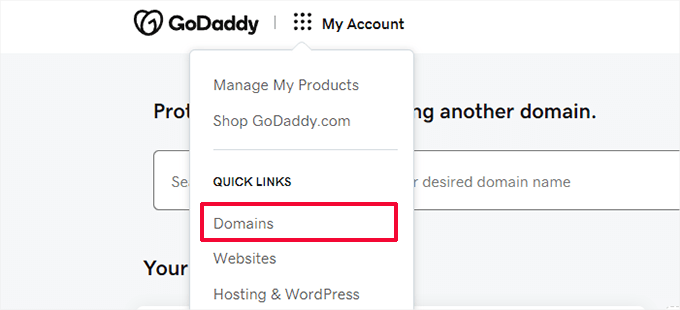
📍Heads up! Dashboards like GoDaddy’s often update their design. If your screen looks a little different from our screenshots, don’t worry! The basic steps are the same. Just look for menu items like ‘My Domains,’ ‘DNS,’ or ‘Manage Nameservers.’
Find your domain, click the three-dot menu, and select ‘Edit DNS.’
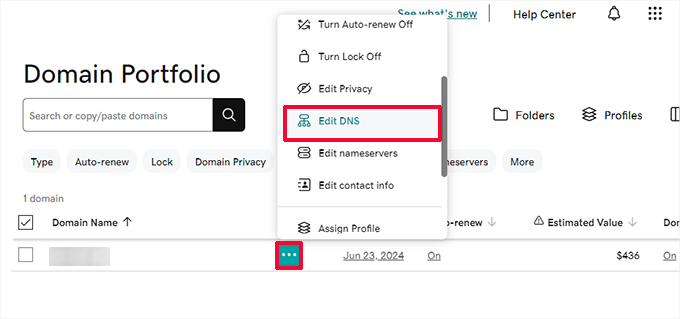
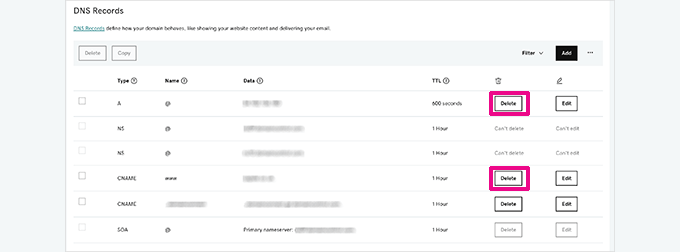
This will take you to the DNS records page.
Here, locate the A and CNAME records that point to Blogger and delete them.
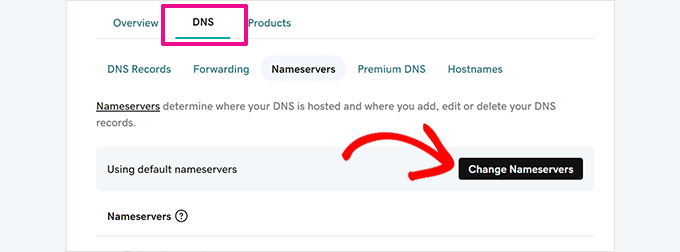
Next, go back to your domain settings and switch to the DNS » Nameservers tab.
Then click the ‘Change Nameservers’ button.
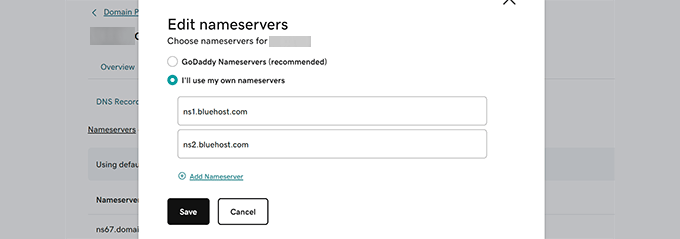
This will bring up a pop-up where you need to click on ‘I’ll use my own nameservers’ and enter the nameservers provided by your WordPress host.
Once you do that, click ‘Save’ to apply your changes.
📍Important: DNS changes may take a few hours to one or even two days to propagate fully. During this time, you can access your Blogger blog by logging in to your account.
Updating DNS Settings in Network Solutions
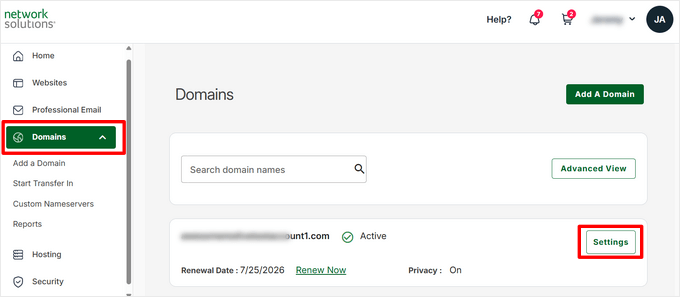
If your domain is with Network Solutions, log in to your account and click ‘Domains’ in the left menu.
Once the new page opens up, click ‘Settings’ next to your domain name.
Then scroll down to the ‘Advanced Tools’ section and expand it.
Click ‘Manage’ next to ‘Advanced DNS Records.’
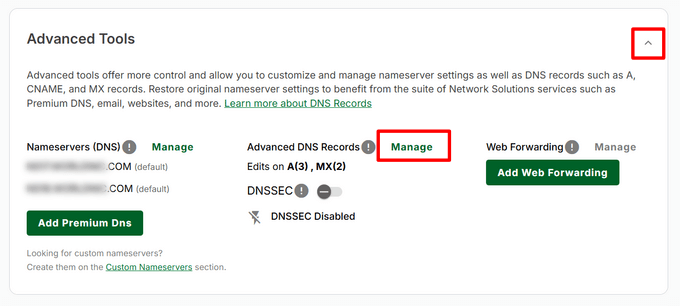
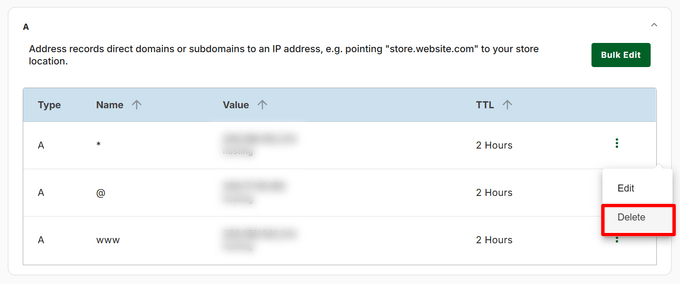
From here, you need to delete any CNAME and A records you added to point to Blogger.
After that, go back to the ‘Advanced Tools’ section.
Now, click the ‘Manage’ link next to ‘Nameservers (DNS).’
This will open a popup, where you can enter the nameservers provided by your WordPress hosting provider.
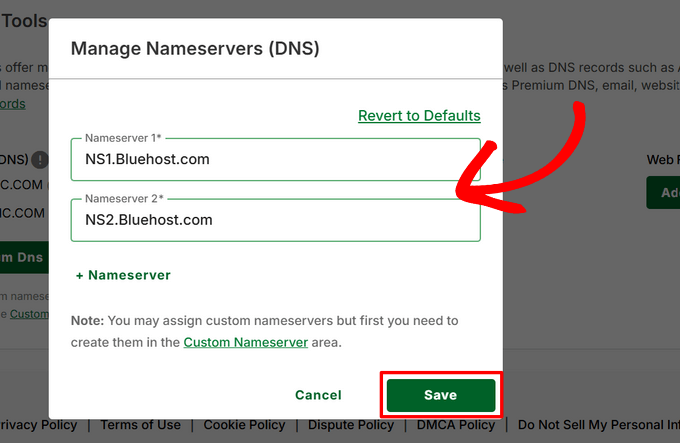
Then, simply click the ‘Save Changes’ button to store your settings.
As with GoDaddy, DNS changes may take 1–2 days to fully propagate. Don’t worry if your WordPress site doesn’t appear immediately—this is completely normal.
Step 3: Remove the Domain Redirect in Blogger
After changing your domain’s DNS settings, you also need to remove the redirect from your Blogger blog.
By default, your original blogspot.com address redirects visitors to your custom domain. Since your domain is now pointing to WordPress, this redirect is no longer needed.
To do this, log in to your Blogger account and go to the ‘Settings’ page. Under the ‘Publishing’ section, click on your custom domain.
You’ll see a popup showing your custom domain name. Click the ‘Delete’ button to remove it.
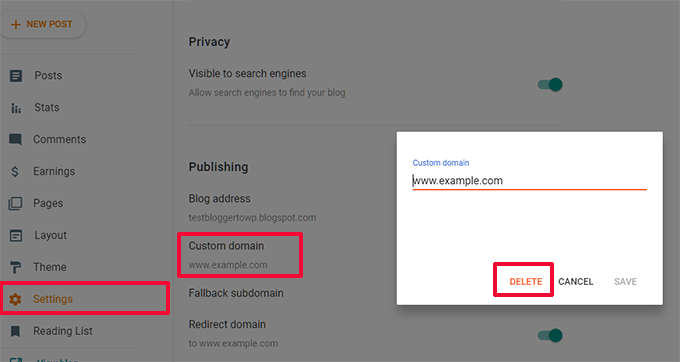
A warning pop-up will appear to confirm your action. Click ‘Delete’ again.
Don’t worry—this only disconnects Blogger from your domain and does not delete your blog content.
That’s it! Your custom domain is now fully pointing to your WordPress hosting provider. I recommend double-checking your domain in a browser after a few hours to make sure everything is working as expected.
Step 4: Install WordPress
Once your domain’s DNS has fully propagated, you’re ready to install WordPress on your hosting provider.
If your domain is registered with a third-party service separate from your hosting provider, you’ll first need to add your domain to your hosting account.
If you’re using Bluehost, log in to your account dashboard and click the ‘Add Site’ button under the ‘Websites’ tab.
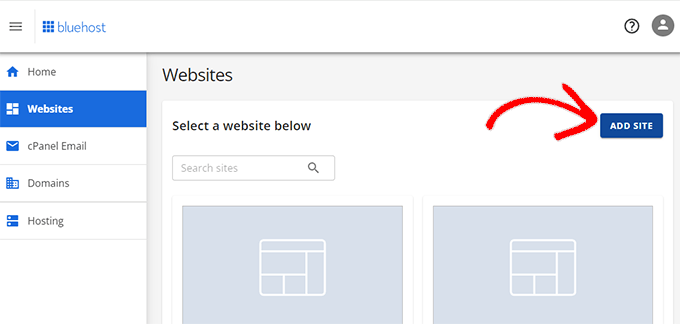
This will launch the Add Site wizard.
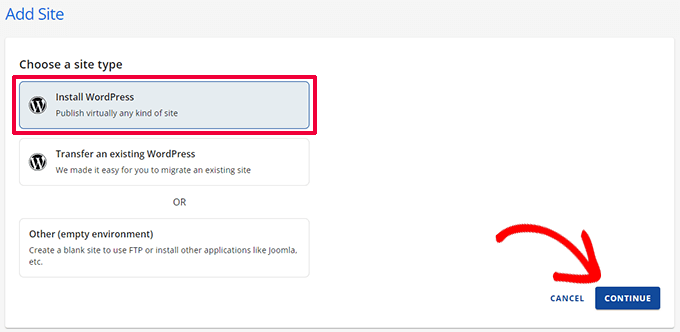
Make sure ‘Install WordPress’ is selected as the site type, then click ‘Continue.’
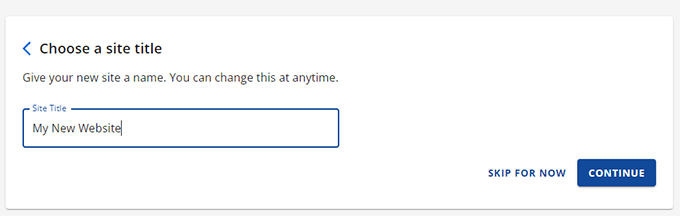
Next, you’ll be asked to enter a site title. You can use the same title as your old Blogger blog, but don’t worry—you can always change it later if needed.
Click ‘Continue’ to move to the next step.
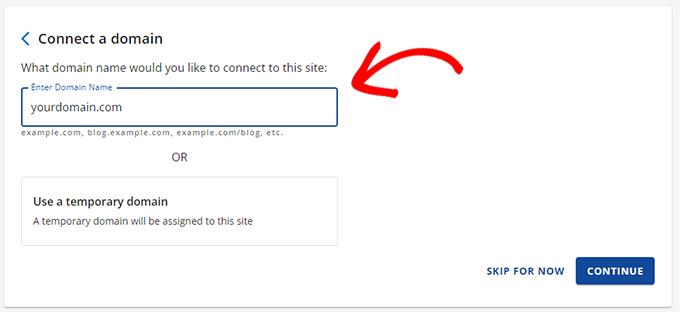
Now, enter your custom domain name in the domain field and click ‘Continue.’
The wizard will handle installing WordPress for you.
📍Note: If you see a “Not Secure” warning immediately after installation, don’t worry. This is normal while your domain’s DNS settings are updating.
The free SSL certificate from Bluehost will be automatically activated, usually within 24 hours.
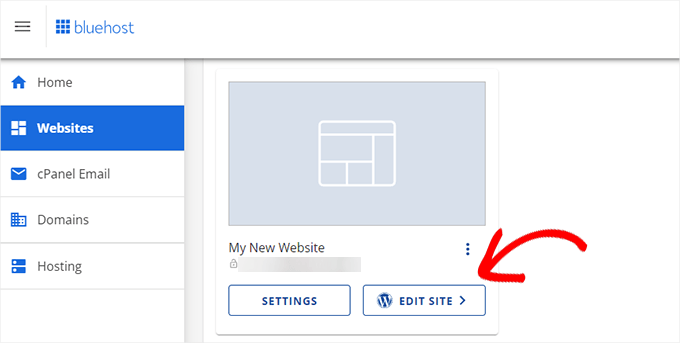
Once the installation is complete, you’ll return to the ‘Websites’ screen in your Bluehost dashboard. Your new site will be listed there.
Simply click the ‘Edit Site’ button to access your WordPress dashboard.
Bluehost may ask a few additional questions to finish your setup. If it asks you to verify your domain ownership, and you just changed your nameservers, you may need to wait a few hours for the changes to propagate before proceeding.
Otherwise, you can follow the prompts to access your WordPress dashboard.
If you’re using a different hosting provider, most of them offer one-click WordPress installers, making the process just as simple.
I recommend checking our complete WordPress installation tutorial if you need extra help.
Once WordPress is installed on your custom domain, you’re ready to move on to importing your content from Blogger.
Step 5: Export Your Content From Blogger
Exporting your Blogger content is a little different from how it used to be. Google now links the Blogger export feature to its Atom feed format, which doesn’t work directly with WordPress.
That means you’ll need to download your Blogger site’s feed first, and then you can use it to import your content into WordPress.
You can start by logging in to your Blogger dashboard and going to the ‘Settings’ tab from the left-hand menu.
Here, scroll down to the ‘Site Feed’ section and make sure the ‘Allow Blog Feed’ setting is set to ‘Full.’ Then, click on ‘Save’.
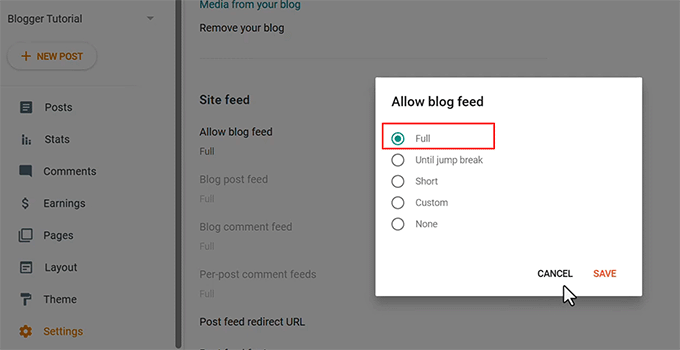
This step is important because WordPress needs the complete content of your posts to import properly.
If your feed is set to something like ‘None,’ WordPress won’t be able to grab the full content of your posts. This can result in missing text, images, or formatting.
Once your feed is set to Full, open your Blogger site in a new tab and go to your site’s feed URL. You can do this by using the following URL format:
https://YOURBLOGNAME.blogspot.com/feeds/posts/default?max-results=500
Make sure to replace YOURBLOGNAME with your actual blog’s name. Adding ?max-results=500 at the end ensures that the feed includes up to 500 of your latest posts, rather than just the default 25.
Note: If you have more than 500 posts, this method will only export the most recent 500. For larger blogs, you may need to perform the import in batches or use a dedicated migration service.
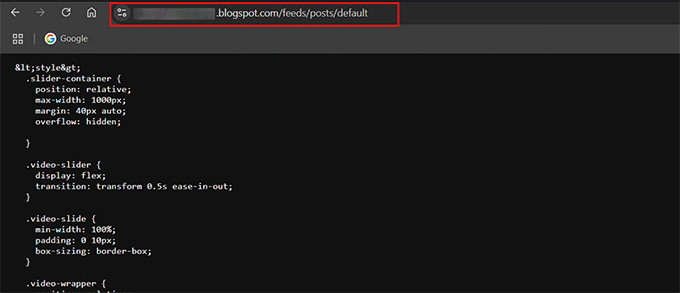
I recommend copying this feed URL and saving it in a safe place. You’ll need it in the next step to export your Blogger content into WordPress.
📍Note: This feed URL only contains your blog posts. If you have static pages (like “About” or “Contact”), you will need to copy and paste those manually into WordPress pages later.
Step 6: Import Your Blogger Content into WordPress
Now that you have copied your Blogger content feed URL, it’s time to bring that content into WordPress.
WordPress doesn’t have a built-in feature to fetch content from external feeds, so you’ll need a plugin to do this. I recommend using WPematico RSS Feed Fetcher because it’s free, reliable, and easy to use.
First, install and activate the plugin. If you’re unsure how to do this, see our tutorial on installing WordPress plugins.
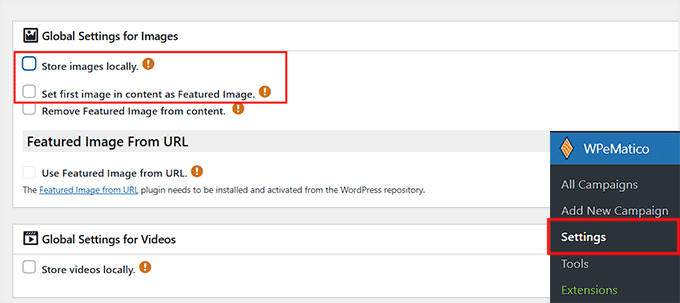
Once the plugin is activated, go to the WPematico » Settings page in your WordPress dashboard. Here, you’ll need to configure some global settings before fetching your Blogger feed.
I recommend checking the boxes to ‘store images locally’ and selecting ‘use the first image in content as the featured image.’
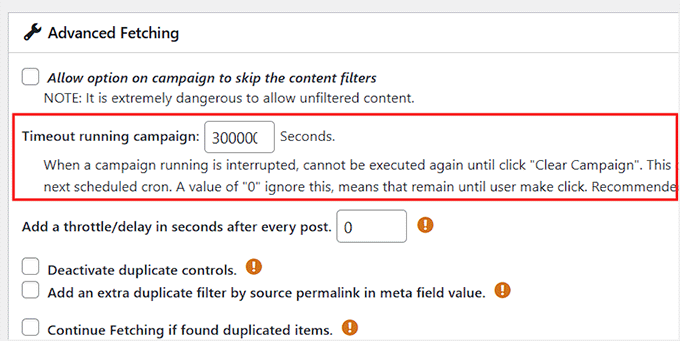
Next, scroll down to the ‘Advanced Fetching’ section. Here, you’ll see that the timeout for running campaigns is set to 300 seconds by default.
I suggest increasing this to 3000. This allows WPematico enough time to fetch all your posts and images without timing out, especially if your Blogger site has a lot of content.
After making these changes, don’t forget to click ‘Save Settings.’
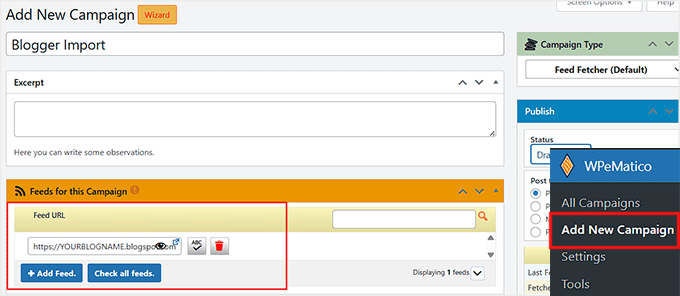
Now, go to WPematico » Add New Campaign. This opens the campaign editor, where you’ll set up your Blogger feed import.
I recommend giving your campaign a clear, identifiable name, such as ‘Blogger Import’ or your blog’s name, so you can easily recognize it later.
Scroll down to the ‘Feeds for this Campaign’ section and click the ‘+ Add Feed’ button. Then, paste the feed URL of your Blogger site here.
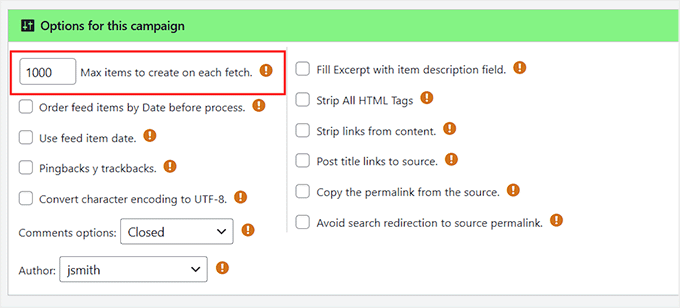
Then, move to the ‘Options for this campaign’ section. Here, change the ‘Max items to create on each fetch’ to a number like 100 or 1,000, depending on how many posts you have. This ensures WPematico imports all your content without skipping posts.
You can also choose whether to open comments, assign an author, and keep the original post dates.
Once everything is set, click ‘Publish’ to save your campaign.
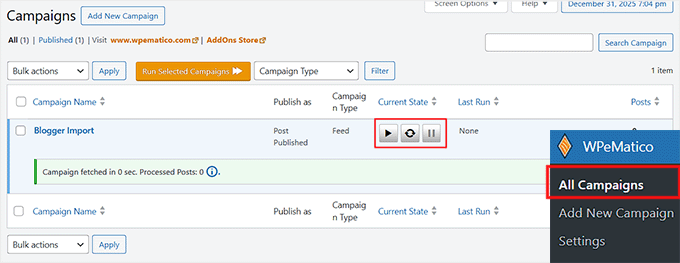
Finally, go to the WPeMatico » All Campaigns page. You’ll see your new campaign listed there.
Click the ‘Play’ icon next to your campaign name to start importing your Blogger content into WordPress.
I suggest double-checking your WordPress site after the import to make sure all posts, images, and videos have transferred correctly.
Step 7: Set Up Permalinks for Your WordPress Blog
WordPress comes with a feature that lets you create SEO-friendly URLs for your posts. Since you’re importing content from Blogger, I recommend setting your permalink structure to closely match your old Blogger URLs.
This helps preserve SEO and ensures your visitors don’t encounter broken links.
To do this, go to Settings » Permalinks in your WordPress dashboard. In the ‘Custom Structure’ field, paste the following:
/%year%/%monthnum%/%postname%.html
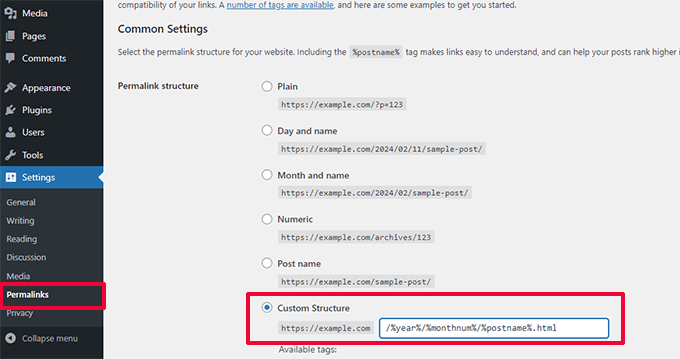
This setup usually matches Blogger URLs. However, I recommend opening one of your old blog posts and comparing the URL to the new WordPress version to be sure.
If they match, you are good to go. If you notice any broken links or mismatched URLs, don’t worry—you don’t need to edit code manually.
I suggest using All in One SEO with its Redirection Manager addon. It lets you safely redirect old Blogger URLs to the new WordPress URLs.
The plugin handles 301 redirects, prevents broken links, and tracks redirect errors, all without touching your site’s code.
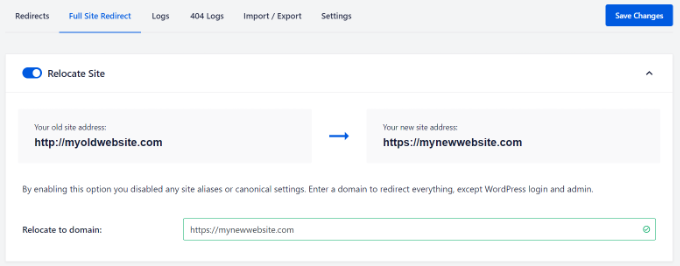
After setting the permalinks, check a few posts to make sure the URLs are working correctly and pointing to the right pages.
For a detailed walkthrough, you can follow our guide on how to do a full site redirect in WordPress.
Step 8: Set Up Feed Redirects
You’ve successfully moved your Blogger content to WordPress, but there’s one more important step.
If people have subscribed to your Blogger RSS feed, they will stop receiving updates unless you redirect those feed requests to your new WordPress feeds.
I recommend doing this by editing the .htaccess file in your WordPress site’s root folder. If you can’t find your .htaccess file, check out our tutorial on locating and editing .htaccess.
Note: This step applies to sites running on Apache servers (like Bluehost). If you are using NGINX or a managed hosting provider and cannot find this file, please reach out to your hosting support team, and they can set up these redirects for you.
Start by connecting to your WordPress site using an FTP client.
Make sure to enable the ‘Force showing hidden files’ option in your FTP client settings, as the .htaccess file is hidden by default. If you’re using FileZilla, you can find this option in the ‘Server’ menu.
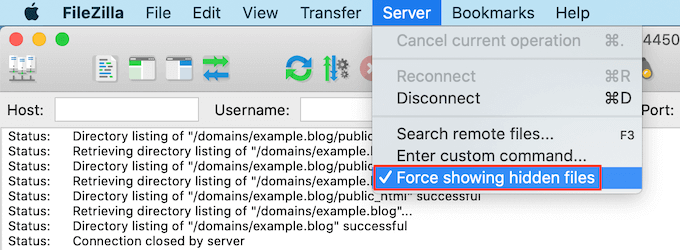
Once connected, you’ll find the .htaccess file in your WordPress site’s root directory (usually a folder named public_html).
Open this file for editing and paste the following code before any other code:
<IfModule mod_rewrite.c>
   RewriteEngine on
   RewriteRule atom.xml /feed? [L,R=301]
   RewriteRule rss.xml /feed? [L,R=301]
   RewriteRule ^feeds/posts/?.*$ /feed? [L,R=301]
   RewriteRule ^feeds/comments/?.*$ /comments/feed? [L,R=301]
</IfModule>
After that, save your changes and upload the .htaccess file back to your server.
With this in place, anyone who subscribed to your Blogger RSS feed will now automatically receive updates from your new WordPress site.
Step 9: Customizing Your WordPress Site
Now that your content is on WordPress, it’s time to make your site look great. In WordPress, themes control the appearance of your website. They let you change your site’s colors, layout, fonts, navigation menus, and more.
By default, WordPress comes with a very simple theme that doesn’t offer many options.
Luckily, there are thousands of themes available, both free and premium, so you can find one that suits your style and needs. I suggest looking for a theme that is simple, flexible, and mobile-friendly, as simplicity is often the best design.
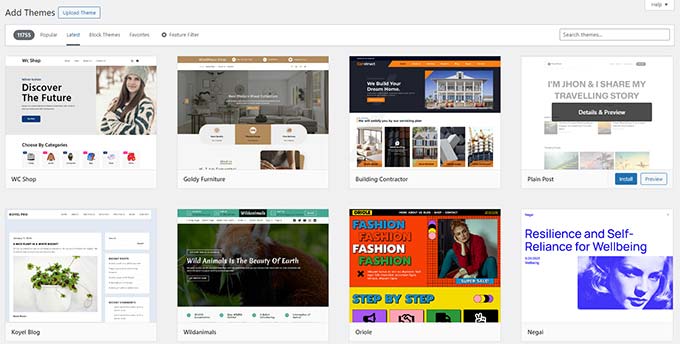
You won’t find a theme that looks exactly like your Blogger site, but you can pick one with a similar layout or color scheme.
Always choose themes from reliable sources, such as WordPress.org or well-known theme shops, to ensure security and support.
If you want inspiration, here are some curated lists of themes that work great for bloggers:
- Best free WordPress blog themes
- Best simple WordPress themes
- Minimalist WordPress themes for writers
Once you have found a theme, you can install it. For this, take a look at our beginner’s guide on how to install a WordPress theme.
If you want more control over your design without touching code, you can also use drag-and-drop page builders like SeedProd to create custom layouts and designs. This is a great option if you want a unique look for your WordPress site.
To get started, take a look at our guide on how to create a WordPress theme from scratch.
Step 10: Extend Your WordPress Site with Plugins
One of the biggest advantages of WordPress is the huge number of plugins available.
Think of plugins as apps for your website—they let you add new features and extend WordPress functionality without touching code.
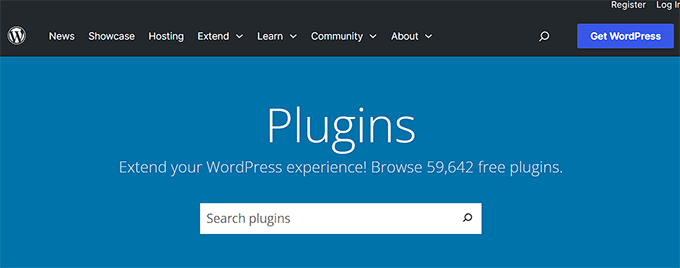
As a beginner, you might wonder which plugins you should try first. Don’t worry—I’ve got you covered. Our team has put together a list of essential WordPress plugins that every new site should have to improve functionality, security, and performance.
WordPress isn’t just for blogs anymore. With the right plugins, you can turn your site into any type of website you can imagine.
For example, you can:
- Add an online store: You can use WooCommerce to sell physical products easily.
- Build a membership website: You can use MemberPress to sell subscriptions and premium content.
- Sell digital downloads: You can use Easy Digital Downloads to sell eBooks, art, or music.
As you start exploring WordPress, you’ll find that plugins make it easy to expand your site as your needs grow. And if you ever need help, WPBeginner is the largest resource site for WordPress beginners.
I recommend taking advantage of our free tutorials, guides, and tools to make the most of your new WordPress site.
Frequently Asked Questions About Moving from Blogger to WordPress
If you’re thinking about moving your blog from Blogger to WordPress, you might still have a few questions. I’ve answered some of the most common ones to help make your migration easier and less stressful.
1. Will I lose my SEO rankings when moving from Blogger to WordPress?
You shouldn’t lose your SEO rankings as long as you follow the steps in this guide. The key things are setting up the correct permalink structure and redirecting your RSS feeds.
This ensures that both search engines and visitors land on the correct pages on your new WordPress site.
2. Is WordPress free after I move from Blogger?
The WordPress software itself is free and open-source. However, running a self-hosted WordPress site (WordPress.org) requires a domain name and web hosting.
I recommend hosts that include a free domain, which keeps your startup costs very low.
3. How long does the migration from Blogger to WordPress take?
The active steps—exporting from Blogger and importing into WordPress—usually take under an hour. The part that takes the longest is waiting for DNS changes to propagate, which can take anywhere from a few hours to up to 48 hours.
4. Will my images be moved to WordPress?
Yes. Using a plugin like WPeMatico in WordPress will bring the images from your Blogger posts and add them to your new WordPress media library.
5. What should I do with my old Blogger blog after the migration?
I recommend not deleting your old Blogger blog. Once you’ve confirmed everything moved successfully, set your Blogger blog’s visibility to private. This keeps it as a private backup while making it unavailable to visitors and search engines.
Additional Resources for Your New WordPress Site
Now that your site is running on WordPress, you can start taking it to the next level.
Here are some essential guides I recommend:
- Ultimate WordPress SEO Guide for Beginners – Learn how to optimize your new site to rank higher in search engines and get more traffic.
- Proven Tips to Increase Your Blog Traffic – Discover actionable strategies that we use to grow our traffic and audience.
- The Ultimate WordPress Security Guide – Protect your new website from security threats with this comprehensive step-by-step guide.
- Make the Most of WPBeginner’s Free Resources – Find out how to use our tutorials, videos, and guides to become a WordPress pro.
I hope this article helped you move your custom domain blogger blog to WordPress. You may also want to see our guide on the difference between a domain name and web hosting or our expert pick of the best WordPress hosting providers.
If you liked this article, then please subscribe to our YouTube Channel for WordPress video tutorials. You can also find us on Twitter and Facebook.




Dayo Olobayo
Thanks for yet another well-written article. One thing I would add to this is the importance of backing up your Blogger blog before making the move. It’s always better to be safe than sorry.
Jiří Vaněk
Hello, we tried to move the articles from blogger to wordpress, but there was a problem with the image, which does not have the original quality. They are smaller and clickable. Only then will it be displayed in full size but on a new page. Where is the error? Can someone help?
WPBeginner Support
Your theme may have different image dimensions than what you were using previously, you could try regenerating the images using our guide below to fix their dimensions:
https://www.wpbeginner.com/plugins/regenerate-thumbnails-new-image-sizes-wordpress/
Admin
Jiří Vaněk
Thanks for the advice and I’ll check out the article. I was already a bit worried that I would have to manually edit everything, which is a nightmare for me considering the number of images.
Ahmed robi
I already have AdSense on my custom domain blogger site. now I can move it to WordPress without losing adsense approval. Thank You.
Aman Pathak
I want to migrate from blogger to wordpress with custom domain.
I found this post really helpful. But i have a query –
I want to migrate blogger blog to wordpress blog on another domain and after setting up wordpress. I will replace new domian of wordpress website with old domain which i used in blogger.
Is it possible or not.
WPBeginner Support
That would be possible and it would depend on your hosting provider for the steps involved in the domain changes and if a temporary domain is available.
Admin
Aman Pathak
Hello WP-Begginer, I want to migrate my blog to wordpress. But I have a doubt. In blogger custom domain consits www in url but how can i assure that Wordpress blog also consists www in url.
WPBeginner Support
Depending on your host, when you first install the site you can ensure the site has www in your URL or not depending on your personal preference.
Admin
Justine
Thank you for this really easy to follow instructions. I’m a beginner blogger and it made the process really easy.
WPBeginner Support
Glad we could make the process easier
Admin
Frederick
“If you have a custom domain Blogger blog, and you want to move it to WordPress, then this tutorial is for you.”
I have a custom google domain registered via Blogger, and I want to move to WP, can I still rely on this tutorial? Thanks
WPBeginner Support
Yes, you can
Admin
viktorokiro
Really informative post for them those are searching for custom domain on blogger, This is really helpful for everyone and for beginners also. Keep giving updates.
WPBeginner Support
Thank you, glad our tutorial could be helpful
Admin
Zaman
I used a custom domain in blogger. Then I moved to Wordpress. After doing all processing my permalink like ‘example.com/2019/02/how-to.html’.
But when I changed my permalink to example.com/sample-post
then It changed into ‘example.com/how-to’.
I would like to keep my permalink like ‘example.com/how-to’.
Now, what should I do for not losing Google SEO…??
WPBeginner Support
For that, you would need to set up redirects from the old url structure to the new structure for the links to continue working: https://www.wpbeginner.com/beginners-guide/beginners-guide-to-creating-redirects-in-wordpress/
Admin
Billa Singh
Thank you so much for this tips and knowledge about Wordpress, i have also a site in Wordpress and with this blog, I will complete my work now thanks a lot.
WPBeginner Support
Glad our content can help
Admin
Adam Muiz
Can i chane permalink to /author/post-name/
how do I redirect to that url
thanks
WPBeginner Support
If you wanted to change your permalinks then you would want to take a look at our permalink article here: https://www.wpbeginner.com/wp-tutorials/how-to-create-custom-permalinks-in-wordpress/
However, without creating redirects, it will cause issues with previous links on your site.
Admin
Manish
I recently moved from blogger to wordpress and now I am facing a really big problem. I have custom links for all the posts in my blogger blog and now the urls have changed in wordpress. So, how am I going to fix this issue? Please help me asap.
WPBeginner Support
You likely did not update your permalink settings to the Blogger setup we recommended. Under step 7 you would want to take a look at that recommendation.
Admin
TECH MAHATO
Thanks for sharing Great Article.I am using these websites regularly beacause Great information.
Jeba
I have more than 14000 posts. It is big file of 145 MB. Then how will I do it? What will be the moving time. If it is removed from blogger, then is there any downtime? Will my site loose rank? Can I copy abc.com on blogger custom domain to xyz.com on WordPress press? and then set back to abc.com on the same hosting? Pls guide me.
Nabita
what to do for google adsense and how to show google ad on new website (moved from blogger to wordpress which have custom domain) .
reverification of google adsense for new website or anything else
Thanks in advance
Usama Munir
Hi, I have a blog on blogspot with 200 + post. Recently I have purchased the domain from godaddy and hosting from hostgator. Hostgator sent me an email with username and password. There is no any option of cpanel login. I have purchased the wordpress hosting plan. Now on my hostgator profile, it says that wordpress installed. But when I try to login admin panel. It says no page found.
I want to migrate my blog from blogger to wordpress blog but don’t know what to do with that domain or How can i shift.
Looking forward to your positive response.
Anupam
Thanks for this valuable and clear guide.
But still I have couple of questions:-
1. why This Importer is only importing my blogger site posts not the static Pages.
2. Blogger site Posts urls are pointing perfectly to respective WordPress permalink urls but why the static page url (bloggerexample.com/p/pageurl) is not redirecting to WordPress concern urls (wordpressexample.com/pageurl) ? I have more then 100 static pages on my blogger site so I think using a redirection plugin is not a good idea.
2. how to perfectly mapping these static blogger pages urls to respective WordPress pages url in bulk?
Thanks in advance.
Favour
Please If registering for the bluehost web hosting where do you start, is it with the new domain or I already have domain options?
2. When or how do you know the DNS setting has fully propagated?
Please help with an explicit directions on the 1 and 2 steps
WPBeginner Support
Hey Favour,
If you already have a custom domain name (example: wpbeginner.com), then please select that option. IF you don’t already have a domain name then start with a new domain name.
There are online tools that you can use to check if DNS has propagated. However, the easiest way to check it is by simply typing your url in a new browser window.
Admin
Favour
Hi, please can you help me move from blogspot to wordpess, cos I don’t want to be stuck in the process?
Modupre Modupe
Why can’t I use godaddy domain name on wordpress without new billings attached.
Himanshu Pandey
I have a blogger blog on a custom sub-domain http://www.blog.example.com.
I wish to move my blogger blog to Wordpress on the same root domain http://www.example.com. May I do so?
OR, I’ve to install Wordpress on thecustom sub-domain http://www.blog.example.com, where my blogger blog is already being redirected.
And If I am able to install wordpress on http://www.example.com then how can I manage my http://www.blog.example.com ‘Blogger’ blog to redirect my new wordpress site.
Please help me and oblige.
Thanks.
Kristin
Will this still allow viewing on my Blogger site until my Wordpress site goes live? Or does it transfer the domain immediately since we are altering on GoDaddy.
WPBeginner Support
It will start pointing to your new WordPress site as soon as Namserver changes are propagated across internet.
Admin
divya
I’ve been trying to import my custom domain blogger to wordpress for a while now. I changed the DNS and took away the redirect. It’s still not working. Is there anything else I could try to get the job done.
Thank you in advance.
Prof Bhagwan Deen
I was searching for about one week on net to solve the problem i facing to move my custom domain blogger blog to WP but I could not get solution. This is only wpbeginner.com to help me on the problem. Now I have decided to move. Thanks.
ilayaraja
Dear sir, i migrated my custom domain blog to wordpress. but images are not imported from blogspot to wordpress. only post texts and links are migrated. How can i import my post images? please give a solution.
Joanne De Leon
Hi, My blogger site is still using the .blogspot.com, meaning I haven’t setup a 3rd party URL and my blog has not yet been ranked with only less than 20 posts and only a couple of static pages, can I just simply copy the content and delete the blogger so I could use Wordpress and a different domain name coz right now and I don’t know what has gotten into me that I used the pronunciation for the actual word.
WPBeginner Support
We believe that you should still set 301 redirect so that search engines don’t panelize your new WordPress site for duplicate content.
Admin
Imran
Blogger Importer is not working. What should I do now? Is there any other way to import blogger post without losing traffic?
Jesse Stay
This was helpful. However, my Blogger blog truncates the post names if they’re too long. Is there a way to set the permalink to respect the Blogger title truncation?
Eliana Silva
Hello. I’m moving my blog to wordpress and this is so helpful… However, I have a couple of questions:
1. Do you need to have your domain active for a month before the change? My log is under one domain (which is expiring) but the new one will be under another (That I bought this week). Since I wouldn’t like to have a “down blog” I would like to know if I can add the domain to my blog right before transfer and then transfer it. Hope it makes sense.
2. Where do I find my new WordPress hosts nameservers? I’m lost.
Thank you so mych
WPBeginner Support
You can point your old blog to the new blog by updating its name server or DNS settings. You will need to point it to your new domain name.
Admin
Eliana Silva
Thank you so much!
One more thing… when I try to import my blog, it says the maximum file size is 2MB (which is too low. My blog file has 9mb.) Is there a way for me to increase this number?
Thank you!
Jericho
What if I changed to Permalinks to Post name what will happen? One of the reasons why I want to migrate to WordPress is because I want to get rid of dates in blogger URL. Can you give options? Is it possible to set Permalinks to Post name without losing traffic or search engine rankings?
Lene
Thank you very much for this useful information. I would like to know the same as Jericho. Once I have imported my Blogger content to Wordpress, can I then change the Permalinks to Posts name without loosing search engine rankings?
Ali
Thank You so much.
Bless
Thanks so much.
..Pls in case u re having AdSense codes on ur blogspot before switching in fr a custom domain and nw changing to WordPress with ur new domain, pls ll AdSense deactivate ur acct or it ll still be the same….
my site name.xyzloversbrain.blogspot.com
Adrienne
Totally needed this about 6 months ago. Oh well…. But i will save this for another time.