


Managing team communication and files for a small business can get messy. Emails pile up, important documents get lost, and projects slip through the cracks.
I’ve been there, and I found a simple solution: building a small business intranet with WordPress.
It’s basically a private workspace where your team can communicate, share files, manage projects, and stay organized—all in one place.
In this guide, I’ll show you my proven way to set up a secure and easy-to-manage intranet.
By the end, you’ll have an internal hub that keeps everything connected without relying on expensive intranet tools.
![[Duplicated]Stop Paying for Intranet Tools: Build One Yourself with WordPress](https://www.wpbeginner.com/wp-content/uploads/2017/08/create-an-intranet-for-small-businesses-with-wordpress-in-post.png "Stop Paying for Intranet Tools: Build One Yourself with WordPress")
💡Quick Summary: How to Create a WordPress Intranet
If you’re in a hurry and just want the main steps, here’s a simple roadmap to get your intranet up and running:
- Install WordPress on a private domain or subdomain.
- Add BuddyPress for profiles, groups, messages, and activity feeds.
- Install All-in-One Intranet to make your site private.
- Add a code snippet to secure file uploads so only logged-in users can view them.
These are just the main steps. I’ll go into more details for each one, so you’ll know exactly how to set everything up.
What Is a WordPress Intranet And Why Does Your Small Business Need One?
A WordPress intranet is a private internal website that your team can use to communicate, share files, and manage projects, all in one secure place.
Think of it as your company’s own mini social network or workspace, built right inside WordPress. Instead of juggling endless email threads or switching between multiple tools, an intranet brings everything together.
Here’s why it’s worth setting up:
- Centralized communication: Keep all team updates and discussions in one spot.
- Reduced email clutter: No more digging through email inboxes to find information.
- Secure file sharing: Control who can access sensitive documents.
- Easy onboarding: New employees can quickly find resources and company information.
- Affordable solution: Build an intranet with free or low-cost plugins instead of expensive enterprise tools.
The best part? You don’t need special software to make it happen.
With free WordPress plugins like BuddyPress (for team communication) and All in One Intranet (for privacy), you can turn your existing website into a fully functional team workspace.
What You’ll Need Before Setting Up Your Intranet
Before you start building your WordPress intranet, it’s important to prepare a few things. Don’t worry, because these are simple, and I’ll explain what each one means so you know exactly what to do.
Here’s your quick checklist:
- WordPress hosting: This is where your website lives online. For an intranet, a VPS (Virtual Private Server) or managed WordPress hosting plan is a great choice for reliability as your team grows. However, if you’re just starting out with a small team, a high-quality shared hosting plan is often a more affordable option that works perfectly well.
- Subdomain or domain name: You can create your intranet on a subdomain like intranet.yourcompany.com or use a separate domain such as yourcompanyintranet.com.
- SSL certificate: This adds a secure padlock to your site and keeps logins and shared files private. Most good hosting providers include this for free.
- Enough server resources: If you’ll be using plugins that add social or file-sharing features, make sure your hosting plan offers good memory and bandwidth.
- User roles plan: Decide who can access what before inviting users. For example, Admins, Managers, Employees, or Contractors.
- BuddyPress plugin: Adds team communication features like profiles and messages.
- All in One Intranet plugin: Keeps your site private and helps manage employee access.
Now that you know what’s required, let’s look at how much it might cost to set up your own intranet:
| Item | Typical Cost |
|---|---|
| WordPress Hosting (VPS or Managed) | $25–$40/month |
| Domain or Subdomain | Free–$15/year |
| SSL Certificate | Free (usually included) |
| BuddyPress Plugin | Free |
| All in One Intranet Plugin | Free |
💡 How Much Will It Cost?
Overall, you can expect to spend around $30–$50 per month to keep your intranet running smoothly. Most essential tools are free, so your main cost will be hosting.
Once everything is set up, you’ll have a secure, private workspace for your team, without any recurring software fees or hidden costs.
That said, let’s take a look at how to set up an intranet using WordPress. You can use the links below to jump to the step you want:
- Step 1: Install WordPress and Configure Basic Settings
- Step 2: Turn Your Site Into an Intranet with BuddyPress
- Step 3: Make Your Intranet Private with All-in-One Intranet
- Step 4: Secure Media Uploads on Your Intranet
- Step 5: Create Announcements & Notices
- Step 6: Secure Your Intranet
- Step 7: Configure User Roles & Permissions
- How to Keep Your WordPress Intranet Running Smoothly
- Frequently Asked Questions About Creating an Intranet in WordPress
Step 1: Install WordPress and Configure Basic Settings
WordPress is the best choice for building an intranet because it’s affordable, flexible, and beginner-friendly. You can customize it to fit your team’s needs, add new features with plugins, and keep everything private without paying for expensive enterprise tools.
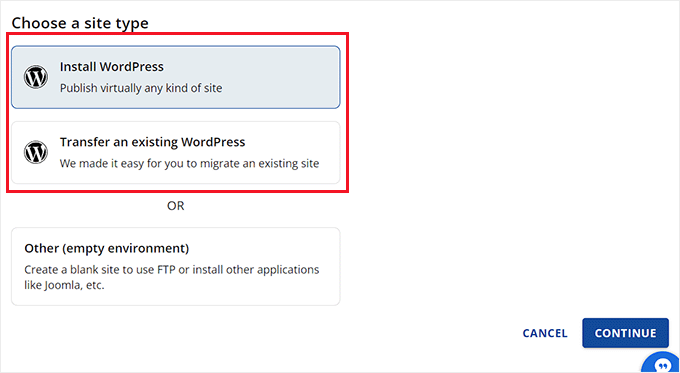
First, you’ll need to install WordPress on your chosen domain or subdomain (for example, intranet.yourbusiness.com).
Most hosting providers let you do this with a one-click installer from your hosting dashboard. For more details, you can see our tutorial on how to install WordPress.
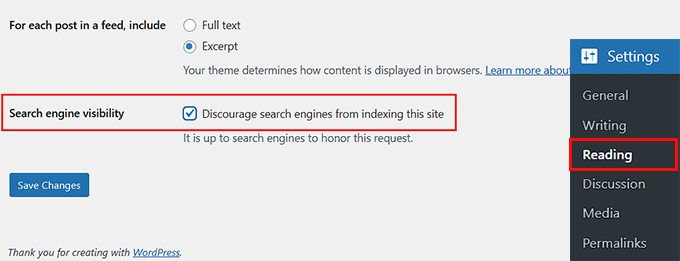
Once WordPress is installed, go to the Settings » Reading page from the admin dashboard and check the ‘Discourage search engines from indexing this site’ box.
This keeps your intranet private and hidden from Google and other search engines.
Next, I recommend installing a few essential plugins to improve functionality and communication in your intranet:
- WP Mail SMTP – ensures all email notifications (like password resets and private messages) are delivered.
- WPForms – lets you create simple internal forms like feedback, leave requests, or file submissions.
- Duplicator – automatically backs up your intranet so you never lose important data.
If you’re new to WordPress, I also recommend checking these helpful guides before moving on:
- How to Make a WordPress Website (Ultimate Guide)
- How to Install a WordPress Plugin – Step by Step for Beginners
- Beginner’s Guide to Creating a Survey in WordPress
- How to Properly Configure Your WordPress Email Settings
- How to Back Up Your WordPress Site
These resources will help you set up your entire website in just a couple of hours.
Step 2: Turn Your Site Into an Intranet with BuddyPress
BuddyPress is a free plugin that will transform your simple WordPress site into a fully interactive workspace.
It adds social features like user profiles, activity feeds, private messaging, and team groups. Everything your employees need to communicate and collaborate in one place.
Instead of managing endless email threads or scattered chat apps, BuddyPress helps you create a private social network for your business.
Install And Activate BuddyPress
BuddyPress is a completely free plugin. This means that you can easily install and activate it from your WordPress admin area or the WordPress.org plugin directory.
If you need step-by-step instructions, please see our tutorial on how to install a WordPress plugin.
Choose and Enable BuddyPress Components
Upon activation, the plugin will take you to the Settings » BuddyPress page. Here, you can choose which components you want to enable for your intranet.
A component is basically a feature or module that adds specific functionality. For example, user profiles, group discussions, or activity streams. You can turn components on or off based on your team’s needs.

To do this, check the boxes next to the features you want to enable. I recommend selecting:
- Extended Profiles: Let users create detailed profiles with their name, department, and role.
- Activity Streams: Displays team updates, announcements, and file shares in one place.
- User Groups: Allows you to create private spaces for departments or projects.
- Private Messaging: Enables direct messages between team members.
- Notifications: Sends alerts for new messages or activity updates.
Once you’ve selected your components, click ‘Save Changes’ at the bottom of the page.
👉 Tip: These are just my suggested components to start with, but every intranet is different. The tools you need may vary depending on your size, workflow, and goals.
I recommend only enabling the components you actually use to keep your intranet lightweight, fast, and easy to manage.
Configure User Profiles
When you activate BuddyPress, it automatically adds a new menu option called Profile Fields under the Users section in your WordPress dashboard.
This feature lets you decide what information appears on each team member’s profile — making your intranet more personal and organized.
For example, instead of showing just usernames, you can include useful details like Job Title, Department, Phone Number, and Email Address.
To do that, go to the Users » Profile Fields page and click the ‘Add New Field’ button.
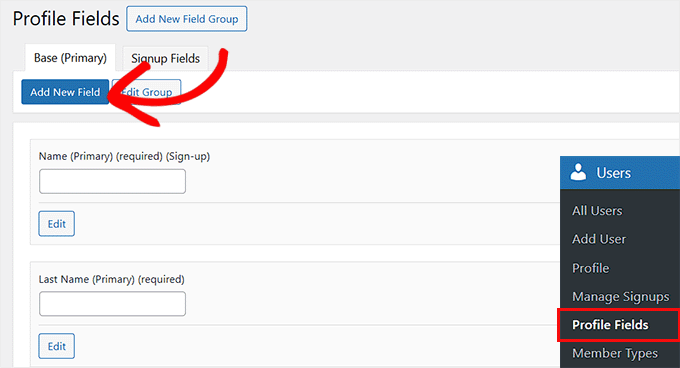
This will take you to a new screen where you can enter a name and a short description for the field you want your team members to fill out.
From the dropdown on the right, choose whether the field is required or optional. You can also check the ‘Signups’ box if you’d like new team members to provide this information when signing up for your intranet.
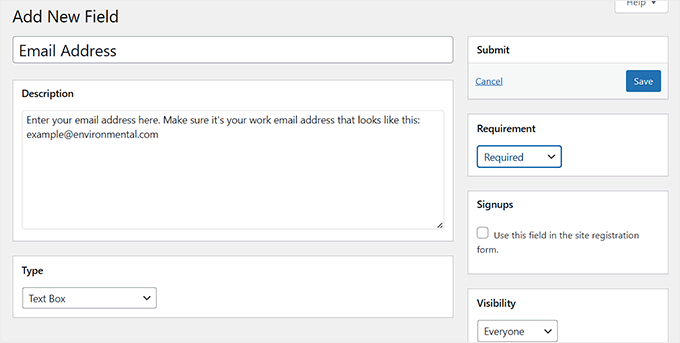
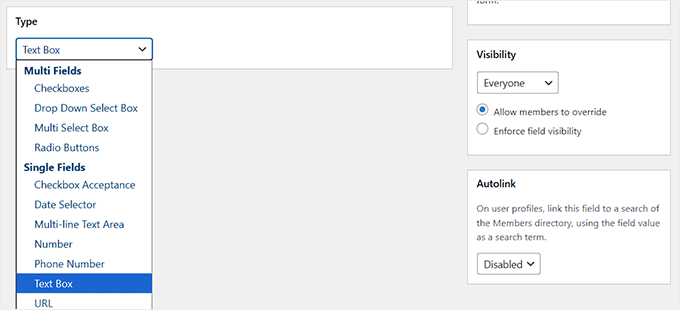
Then, you can configure the field type by scrolling down to the ‘Type’ section.
For instance, you may want to use a checkbox for yes/no options like ‘Remote Employee,’ or a dropdown for departments.
Additionally, BuddyPress lets you control who can view each profile field. You can make a field visible to everyone, logged-in members only, or just site admins.
I recommend choosing logged-in members for most fields so your intranet stays private while still allowing your team to learn more about each other.
Once you are done, just click the ‘Save’ button at the top. These fields will now appear on each user’s profile, helping everyone quickly identify who’s who and how to get in touch.
Create and Organize Groups
Groups in BuddyPress are perfect for organizing your team into departments or project-based spaces, such as Marketing, Sales, or Product Development.
Each group gets its own private activity feed, discussion area, and member list, helping everyone stay focused on their specific tasks.
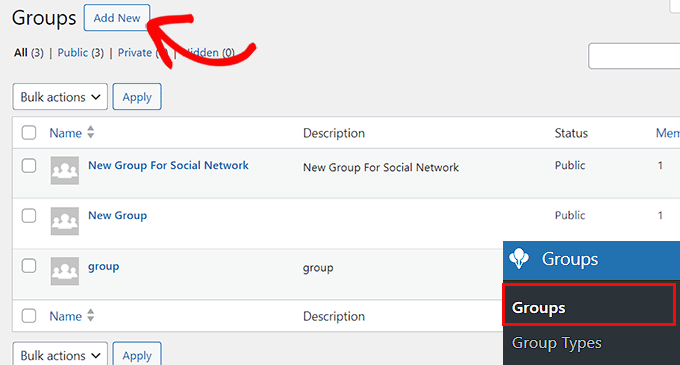
To create your first group, go to the Groups page from the WordPress admin sidebar and click the ‘Add New’ button.
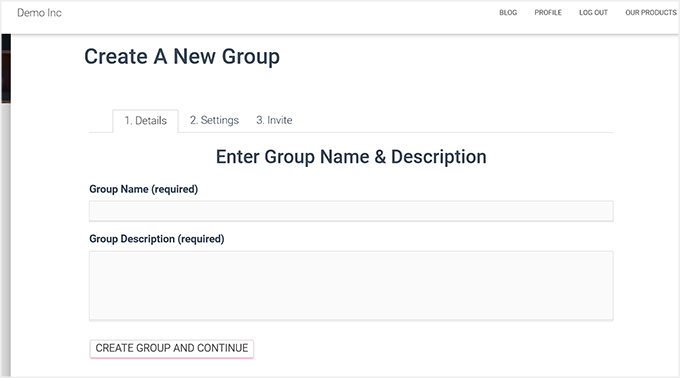
This will direct you to your site’s frontend, where you’ll need to enter a name and description for your group. For example, ‘Marketing Team’ with a short note like ‘For sharing campaign ideas and content updates.’
Once done, click the ‘Create Group and Continue’ button.
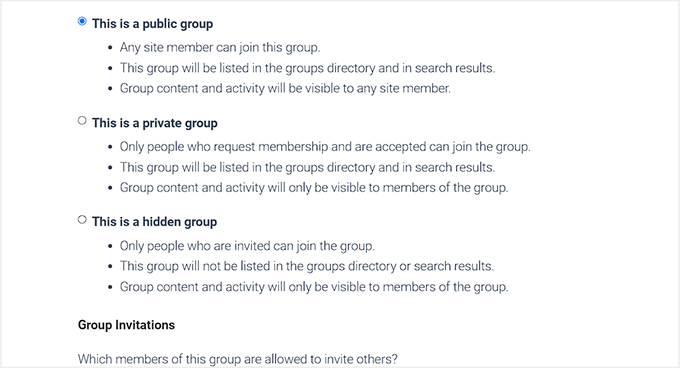
Next, you’ll be asked to choose a privacy level for your group.
If you select ‘Public’, anyone on your intranet can view and join the group to participate in discussions. Selecting ‘Private’ means the group will still appear in your intranet’s directory, but users will need approval to join or view its content.
Finally, the ‘Hidden’ option keeps the group completely invisible to non-members, making it ideal for management or HR discussions.
After selecting the option that best fits your needs, click ‘Next Step’ to continue.
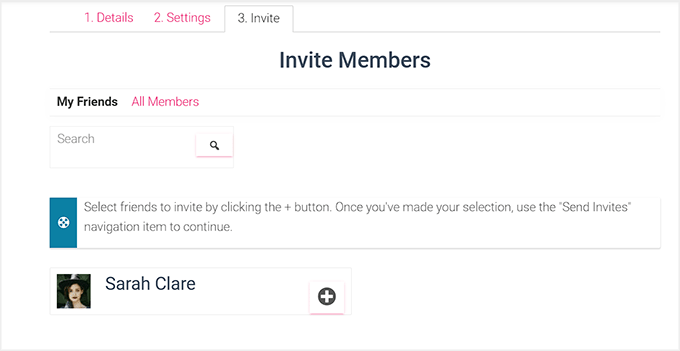
You’ll then see an option to invite members to your group, so it’s not empty. You can invite team members you’ve added on your intranet (or skip this step and add them later).
Once ready, click the ‘Finish’ button to create your group.
You can now repeat the process to create as many groups on your intranet as you want.
Configure Activity Streams and Notifications
Since you’ve already enabled Activity Streams and Notifications during setup, BuddyPress automatically creates dedicated pages for them.
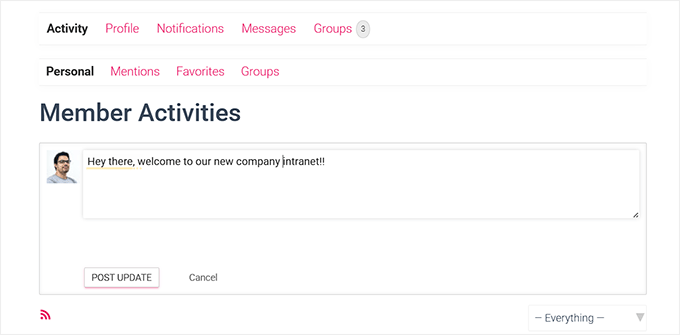
The Activity page works like a live news feed where your team can post updates, share progress, and comment on each other’s activities — similar to a private social network.
To test it out, visit the Activity page from your site’s front end and post a short update (like “Welcome to our new intranet!”).
Then, ask a teammate to reply or react to your post. You should instantly receive a notification inside your intranet, showing that the system is working correctly.
This quick test helps confirm that your team will stay connected and informed without needing endless email chains.

Test Private Messaging
Private messaging is one of the best parts of using BuddyPress because it lets your team members communicate directly without leaving the intranet.
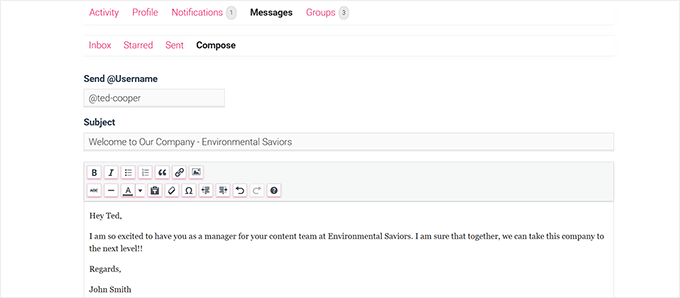
To test it, log in using a test user account and go to the Messages » Compose section from your Activity page.
Then, type the username of another user, write a short message, and click the ‘Send Message’ button.
Next, log in as the recipient (or ask a teammate to help) and check that the message appears in their inbox.
They should also see a small notification alert, confirming that private messaging is working properly.
This feature makes it easy for your team to share quick updates, ask questions, or send files privately — all inside your secure WordPress intranet.
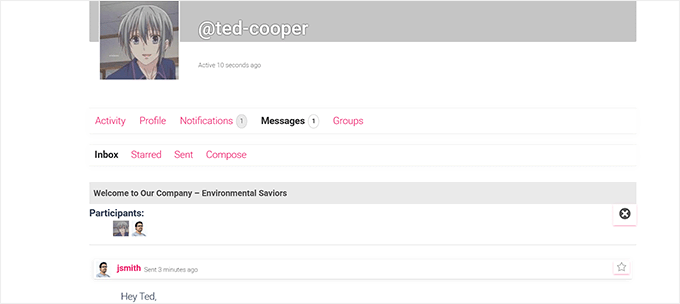
In this tutorial, I’ve covered the most essential features you’ll need to set up a functional intranet using BuddyPress, including profiles, groups, messages, and activity feeds.
These are enough to get your team communicating and collaborating smoothly.
However, BuddyPress can do much more. You can expand your intranet by adding forums, advanced member directories, file-sharing tools, or even custom dashboards as your needs grow.
If you’d like to explore these advanced features, check out our full guide on how to create a social network in WordPress.
Step 3: Make Your Intranet Private with All-in-One Intranet
Now that your team area is set up with BuddyPress, the next step is to lock it down and make sure only authorized users can access it. That’s where the All-in-One Intranet plugin comes in.
By default, WordPress is built for public websites, which means that anyone can view your pages if you don’t secure them. All-in-One Intranet fixes this by adding privacy controls, login redirects, and auto-logout features that keep your internal content safe.
It’s an all-in-one solution that is essential for protecting your team’s communication, documents, and data.
Install And Activate All-In-One Intranet
All-in-One Intranet is a free plugin, so you can install it directly from your WordPress dashboard.
Just go to Plugins » Add New and type ‘All-in-One Intranet‘ into the search bar. When you see the plugin in the results, click ‘Install Now’, and then hit ‘Activate.’
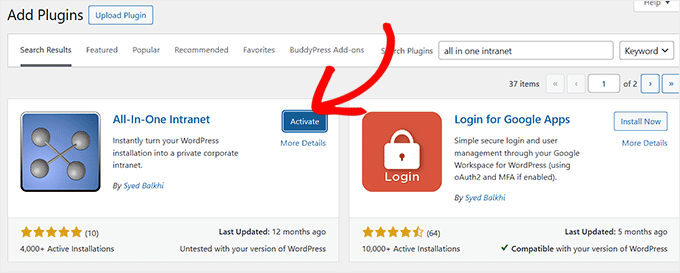
If you are confused about this step, feel free to check out our detailed guide on how to install a WordPress plugin.
Configure Privacy Settings
Once the plugin has been activated, head over to the Settings » All-in-One Intranet page from your WordPress dashboard.
Here, you’ll see an option called ‘Force site to be entirely private.’ Check this box to make sure only logged-in users can access your intranet.
This means that if someone tries to visit your intranet without logging in, they’ll automatically be redirected to the login page instead of seeing your private content.
Additionally, you can set ‘Auto Logout’ to automatically log out inactive users after a specific number of minutes. Simply enter the number of minutes in the field.

If you leave it blank, auto-logout will be turned off. This helps protect your sensitive company information if someone forgets to log out.
Once you are done, don’t forget to click the ‘Save Changes’ button to store your settings.
⚠️ Warning: Skipping this step will leave your intranet visible to the public. Always enable privacy before adding internal files or team discussions.
Set Up Login Redirects
By default, WordPress logs users into their profile page after signing in, which isn’t always helpful for an intranet.
However, All-in-One Intranet lets you set a custom landing page for everyone who logs in. This gives your team a central starting point to access important information, tools, and links.
This landing page should include a welcome message, quick links to groups or projects, announcements, and any essential resources your team needs daily.
🎁 Bonus Tip: Create a Custom Landing Page First

Before setting up your login redirect, you have to create a dedicated landing page for your intranet.
A tool like SeedProd, one of the best page builders for WordPress, makes it easy to design a professional and user-friendly page.
For example, you can add widgets for recent announcements, quick links to important team groups, and a welcome message.
To get started, check our guide on how to create a custom landing page in WordPress.
Once your landing page is ready, copy its URL and go to the Settings » All-in-One Intranet page from the admin sidebar.
After that, scroll down to the ‘Login Redirect’ section and enter the link. Then, click the ‘Save Changes’ button.
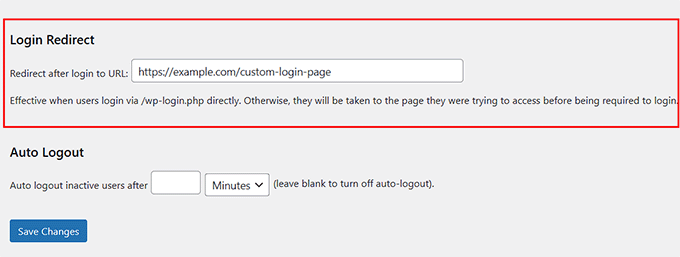
Now, every team member will land on the page you designed immediately after logging in, making it easier to find important information and tools.
Step 4: Secure Media Uploads on Your Intranet
Even if your intranet is private, the files you upload, like PDFs, images, or documents, can still be opened by anyone who knows the direct link.
This can be a problem if the files contain sensitive company information.
To fix this, I suggest using a small PHP script. This script works like a security guard by checking if a user is logged in before showing them the file.
If the user is logged in, they can see the file. If not, they are sent to the login page first. This way, only your team members can access your files.
To make your files secure, open a plain text editor on your computer, like Notepad. Then, copy the PHP code below and save the file as download-file.php on your desktop:
<?php
require_once(__DIR__ . '/wp-load.php');

is_user_logged_in() ||  auth_redirect();

list($basedir) = array_values(array_intersect_key(wp_upload_dir(), array('basedir' => 1)))+array(NULL);

$file =  rtrim($basedir,'/').'/'.str_replace('..', '', isset($_GET[ 'file' ])?$_GET[ 'file' ]:'');
if (!$basedir || !is_file($file)) {
    status_header(404);
    die('404 — File not found.');
}

$mime = wp_check_filetype($file);
if( false === $mime[ 'type' ] && function_exists( 'mime_content_type' ) )
    $mime[ 'type' ] = mime_content_type( $file );

if( $mime[ 'type' ] )
    $mimetype = $mime[ 'type' ];
else
    $mimetype = 'image/' . substr( $file, strrpos( $file, '.' ) + 1 );

header( 'Content-Type: ' . $mimetype ); // always send this
if ( false === strpos( $_SERVER['SERVER_SOFTWARE'], 'Microsoft-IIS' ) )
    header( 'Content-Length: ' . filesize( $file ) );

$last_modified = gmdate( 'D, d M Y H:i:s', filemtime( $file ) );
$etag = '"' . md5( $last_modified ) . '"';
header( "Last-Modified: $last_modified GMT" );
header( 'ETag: ' . $etag );
header( 'Expires: ' . gmdate( 'D, d M Y H:i:s', time() + 100000000 ) . ' GMT' );

// Support for Conditional GET
$client_etag = isset( $_SERVER['HTTP_IF_NONE_MATCH'] ) ? stripslashes( $_SERVER['HTTP_IF_NONE_MATCH'] ) : false;

if( ! isset( $_SERVER['HTTP_IF_MODIFIED_SINCE'] ) )
    $_SERVER['HTTP_IF_MODIFIED_SINCE'] = false;

$client_last_modified = trim( $_SERVER['HTTP_IF_MODIFIED_SINCE'] );
// If string is empty, return 0. If not, attempt to parse into a timestamp
$client_modified_timestamp = $client_last_modified ? strtotime( $client_last_modified ) : 0;

// Make a timestamp for our most recent modification...
$modified_timestamp = strtotime($last_modified);

if ( ( $client_last_modified && $client_etag )
    ? ( ( $client_modified_timestamp >= $modified_timestamp) && ( $client_etag == $etag ) )
    : ( ( $client_modified_timestamp >= $modified_timestamp) || ( $client_etag == $etag ) )
    ) {
    status_header( 304 );
    exit;
}

readfile( $file );
Now, connect to your website using an FTP client and upload the download-file.php file you just created to the root directory of your WordPress site (the same folder that contains wp-config.php).
If you don’t know how to do that, follow our beginner’s guide on using FTP to upload files to WordPress.
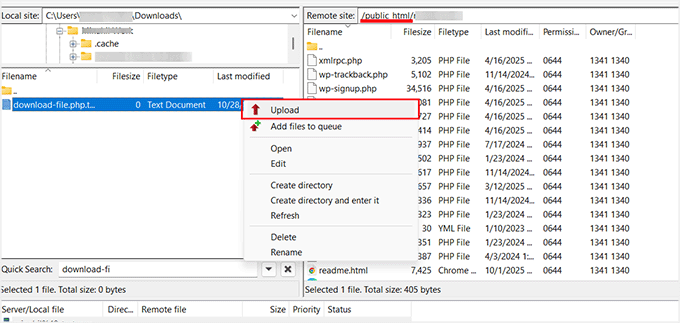
After that, open the .htaccess file in your website’s root folder. This is a special file that tells your web server how to handle requests, like which pages to load or how to redirect users.
Be careful, as this is a very sensitive file, and a small mistake could make your site inaccessible. Before making any changes, I strongly recommend downloading a copy of the file to your computer as a backup.
Scroll to the bottom of the file and add the following lines of code:
RewriteCond %{REQUEST_FILENAME} -s
RewriteRule ^wp-content/uploads/(.*)$ /download-file.php?file=$1 [QSA,L]
After that, save the .htaccess file and upload it back to your server.
Now, whenever someone tries to access a media file directly, the PHP script checks whether they are logged in. If they are not, they will be redirected to the login page.
This ensures that only your team members can view the files on your intranet.
Step 5: Create Announcements & Notices
An intranet is a great place to share company news, reminders, and updates with your team. You can do this easily in WordPress by creating a post.
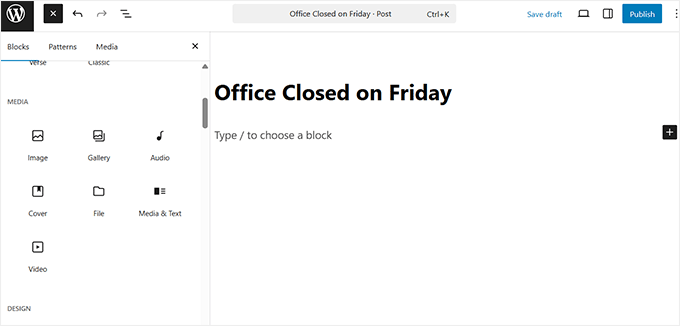
To create an announcement, go to your WordPress dashboard and navigate to Posts » Add New. This will open the block editor, where you can enter a title (for example, ‘Office Closed on Friday’) and write your message in the content area.
You can also attach files, such as PDFs or images, for more details using different blocks.
Pro Tip: If you’d like to keep announcements separate from your regular posts, I recommend creating a custom post type.
A custom post type is a special type of content that works just like regular posts but is organized separately. For example, you can create one called ‘Announcements’ that’s only used for company updates.
This makes it easier for employees to find the latest notices without mixing them up with blog articles or internal pages.
To get started, see our tutorial on how to create a custom post type in WordPress.
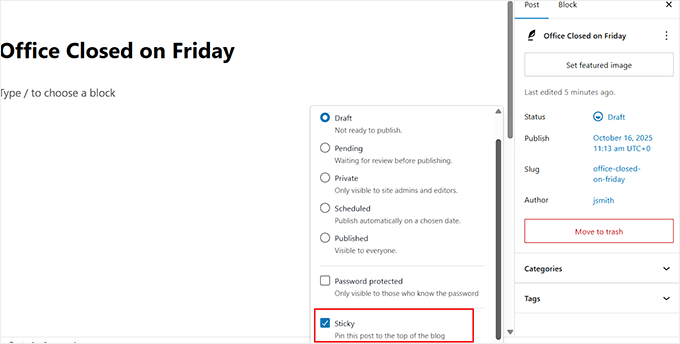
You can also keep your announcement pinned to the top of your blog by marking it as sticky. To do this, open the post settings in the editor, click ‘Status’, and then check the box labeled ‘Sticky’ from the dropdown menu.
This ensures that your most important updates —such as new policies, event reminders, or team announcements —always appear first, so employees don’t miss them.
To manage timing, you can schedule your announcements to publish automatically at a specific date and time. This is useful for upcoming events or planned communications.
Simply click on ‘Immediately’ next to the ‘Publish’ option in the post editor and choose a specific date or time for your announcement to go live.

📘 Need help? Check out our tutorials on:
- How to Use the WordPress Block Editor (Gutenberg Tutorial)
- How to Auto-Schedule Your WordPress Blog Posts
- Beginner’s Guide to Adding Categories and Subcategories in WordPress
- Categories vs Tags – SEO Best Practices for Sorting Your Content
Step 6: Secure Your Intranet
Your WordPress intranet will likely store sensitive company data — such as employee details, project files, and internal updates. That’s why it’s important to secure it from the start.
Let’s look at a few simple but powerful ways to protect your intranet and keep your information private.
1. Limit Login Attempts
By default, WordPress allows unlimited login attempts. This means hackers could try thousands of username and password combinations until they get in. This method is known as a brute-force attack.
To prevent this, I recommend installing and activating a plugin like Limit Login Attempts Reloaded. This tool temporarily blocks users who enter the wrong password too many times.

It is super important for intranets, where every account gives access to private company data. Limiting login attempts makes it much harder for unauthorized users to break in.
For detailed instructions, see our tutorial on how and why you should limit login attempts in WordPress.
2. Disable User Registration
Most public WordPress sites allow anyone to register, but an intranet should always be invite-only. If public registration is left on, strangers could still create accounts and access your site.
The All-in-One Intranet plugin already helps by making your site private to logged-in users. However, it doesn’t automatically stop new user registrations.
That means if someone finds your registration page, they could still sign up unless you turn this option off.
To fix this, go to Settings » General in your WordPress dashboard and uncheck the box that says ‘Anyone can register.’

This ensures that only administrators can manually add team members, keeping your intranet completely secure and restricted to approved users only.
3. Keep Plugins and Themes Updated
Outdated plugins, themes, or even WordPress itself can create security risks. Hackers often look for known vulnerabilities in older versions to gain entry.
By keeping everything up to date, you ensure that these security holes are closed as soon as fixes are released.
To do this, visit the Dashboard » Updates page regularly, or enable automatic updates so that your intranet stays protected without manual work.
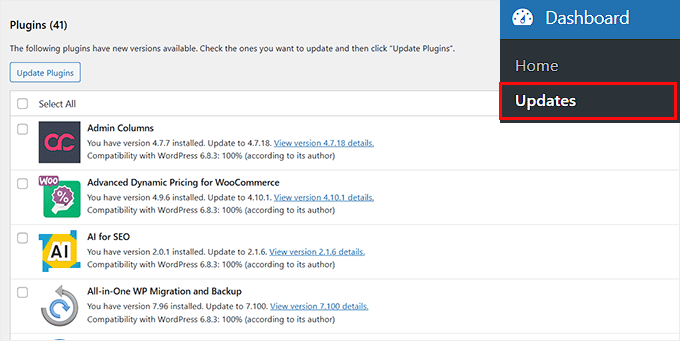
This step might seem small, but it’s one of the easiest and most effective ways to secure your site long-term.
4. Install a Security Plugin
I recommend using a dedicated security plugin to protect your intranet from unauthorized access.
For instance, Sucuri can automatically scan your site for malware, block suspicious visitors, and send alerts if something looks wrong.
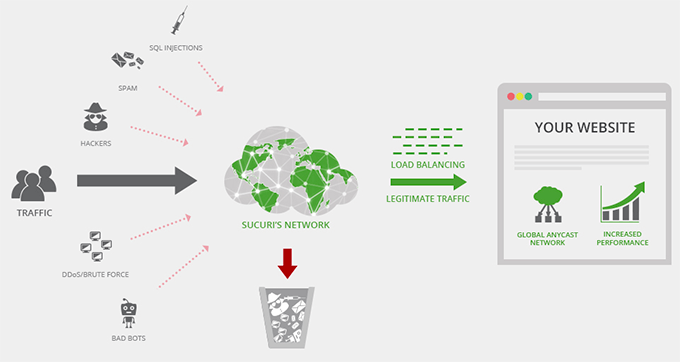
For intranet sites where you store company files or internal messages, this kind of monitoring is essential. Even the free versions offer solid protection, while premium plans include real-time scanning and stronger firewalls.
You can also use Cloudflare to add an extra layer of security. It protects your site from bots and DDoS attacks, hides your real server IP, and filters out unwanted traffic before it ever reaches your intranet.
For more tips and tricks, you can check out our ultimate WordPress security guide.
Step 7: Configure User Roles & Permissions
When running an intranet, not everyone should have the same level of access. Some team members may only need to read announcements, while others need to upload files, create posts, or manage settings.
Setting proper user roles and permissions helps you control who can see and do what on your intranet, keeping your content secure and organized.
Here’s a suggested structure for a small business intranet:
| Role | Permissions |
|---|---|
| Administrator | Full control over the intranet: manage users, plugins, settings, and content. |
| Manager/Editor | Can manage and publish announcements, posts, and some internal content. |
| Author | Can create their own posts or project updates but cannot publish others’ content. |
| Contributor | Can write posts or updates, but they need approval to publish. |
| Subscriber | Can view content, participate in groups, and comment, but cannot edit or publish. |
To add or edit a user in WordPress, go to the Users » Add User page from your dashboard.
Once the new screen opens, enter the user’s name, email, and password, then select the appropriate role from the dropdown menu.
After that, click the ‘Add User’ button to save your changes.

If you want a deeper understanding of each user role and how to customize them for your intranet, check out our guide on WordPress user roles and permissions.
How to Keep Your WordPress Intranet Running Smoothly
Running an intranet for a small business is easier when you have a simple routine. I recommend doing a monthly check-up to make sure everything is fast, secure, and organized.
It also helps you catch small issues before they turn into big problems.
Here’s a checklist that I follow:
- Check BuddyPress component updates: BuddyPress powers the social and collaboration features of your intranet. Regularly checking for updates ensures that activity streams, messaging, and groups keep working smoothly.
- Review user roles & permissions: Double-check that team members have the right access. This prevents mistakes like interns accessing sensitive HR documents or contractors seeing private projects.
- Clean up inactive users or old groups: Old accounts and unused groups clutter the intranet. Removing them keeps your workspace organized and reduces security risks.
- Optimize the database: I use a plugin like WP-Optimize to remove old revisions, spam comments, and overhead. This keeps the site faster and prevents slow loading times as the intranet grows.
- Clear cache (especially for activity streams): Activity streams show the latest updates, so clearing the cache ensures everyone sees real-time information without delays.
By following this routine, you can keep your intranet running smoothly and avoid issues.
Frequently Asked Questions About Creating an Intranet in WordPress
Running a private intranet for your small business comes with a lot of questions. In this section, I’ll answer the most common ones and explain why these things matter for your team.
Can I build an intranet for free?
Yes. At its core, WordPress is free, and you can use free plugins like BuddyPress and All-in-One Intranet to add essential features. This lets you create a fully functional intranet without paying for expensive enterprise software.
You might choose premium plugins for extra speed, design options, or advanced security, but the basic setup doesn’t cost anything beyond hosting.
Can I customize the intranet for different departments or teams?
Absolutely. Using BuddyPress, you can create groups for departments, projects, or special teams. Each group can have its own discussions, activity streams, and file access.
Custom post types and role-based permissions allow you to show specific content to the right people, keeping everything organized and relevant.
What is the best way to onboard new employees onto the intranet?
The best way is to create clear user roles, profile fields, and a central landing page. A landing page guides new employees to key resources, while profile fields and groups help them find teammates and relevant projects.
You can also create “Welcome” announcements or tutorials directly on the intranet, so new hires can start using it immediately without confusion.
How can I securely share files and documents within an intranet?
By default, WordPress does not enforce strict access controls on media files. To secure files, you can use a combination of user permissions and a PHP script that checks if users are logged in before downloading files.
What are the security risks of an intranet?
Even private intranets can be exposed if security isn’t configured properly. Risks include unauthorized user registration, weak passwords, malware, and unprotected file access.
Using security plugins like Sucuri, limiting registration to invited users only, and monitoring inactive users are essential steps to reduce risks.
You can also add Cloudflare to filter bots and DDoS attacks, giving your intranet an extra layer of protection.
I hope this article helped you learn how to create an intranet for your small business. You may also want to see our guide on how to add documentation in WordPress and our expert picks for the best communication tools for small businesses.
If you liked this article, then please subscribe to our YouTube Channel for WordPress video tutorials. You can also find us on Twitter and Facebook.




John Akpama
The article is very helpful. Quick question please, for an intranet, how do other computers on my internal network access the wordpress intranet? If there is a previous article on this please share the link let me go through it. TIA
WPBeginner Support
It would depend on how your intranet is set up as each intranet can have its own tools for customizing what URL goes where. If the tool you are using for your network has documentation we would recommend checking that and there should be the option to set where a specific URL directs to.
Admin
Megan
How would you update WP if you do not have access to the internet? Does it have to be done manually through FTP?
WPBeginner Support
Correct, we cover how to do this as option two in our article here: https://www.wpbeginner.com/beginners-guide/ultimate-guide-to-upgrade-wordpress-for-beginners-infograph/
Admin
AdamGreenberg
I’m a US Peace Corps volunteer in Zambia considering the possibilities of doing this in the rural village where I live. Starting with the two schools who have a few, older computers. There’s no internet here, so this could be fantastic for sharing offline learning like Khan Academy Lite and such. I understand the localhost WordPress component of this, but how do I start by even connecting two computers in a LAN? Is it with cat 5 cables or can it even be done with wireless routers? Thank you. I think an Intranet could be a huge help here.
WPBeginner Support
That question is a bit beyond this article, it would depend on what tools you have available but normally one computer would need to be the web server while the other computers need the ability to connect to that computer
Admin
Hjason
Will my media or my content will be indexed by google or is it 100% safe?
WPBeginner Support
If you are installing it on a local network then Google should be unable to crawl the site. If you’re publishing the site online with hosting then you can make the site private using the method in our article here: https://www.wpbeginner.com/beginners-guide/how-to-make-your-wordpress-blog-completely-private/
Admin
Blair Hewitt
Why are my users not sending comments?
WPBeginner Support
There are multiple possible reasons, you may want to go through the steps in this article to make users want to comment more: https://www.wpbeginner.com/beginners-guide/how-to-increase-your-blog-traffic/
Admin
Ken
I tried to implement the Securing Media Uploads script and configured in .htaccess but when I tried to copy the exact image link and access it in a browser that does not have the intranet session it can still access! Did I missed some PHP modules?
Michael
I have been using the method described in this article to protect my media for a couple of days now when all of a sudden it stopped working – not sure if sue to a change in server configuration or something else. Media wouldn’t show up for registered users, when diretly requesting a file being logged in a 404 error would appear.
Solved it by changing two things:
.htaccess:
RewriteCond %{REQUEST_FILENAME} -s
RewriteRule ^wp-content/uploads/(.*)$ wp-content/uploads/download-file.php?file=$1 [QSA,L]
download-file:
<?php
$parse_uri = explode( 'wp-content', $_SERVER['SCRIPT_FILENAME'] );
require_once( $parse_uri[0] . 'wp-load.php' );
is_user_logged_in() || auth_redirect();
Just in case someone has the same problem…
Stephen
Thanks Michael, was having the same problem, added this and it’s working for me now.
Sean
This post was just what I was looking for, so thank you for posting it!
However, something isn’t right.
I may be brand spanking new to this whole thing but either the adding of the script for securing media files and/or the 2 lines added to the .htaccess file prevents images from being displayed in the Media Library.
I’m thinking it’s a permission issue of some type but I’m not really sure how to proceed.
Sean
Looks like it’s the .htaccess file (2 lines of code) that is causing the images to not load in the Media Library. I put the old one back and the images load. Any advice would be appreciated.
Michael
Sean, I am having the same problem here. I did a small workaround in the .htaccess:
RewriteCond %{REMOTE_ADDR} !123.456.789.000
RewriteCond %{REQUEST_FILENAME} -s
RewriteRule ^wp-content/uploads/(.*)$ download-file.php?file=$1 [QSA,L]
The first line makes an exception for my home IP, I might be adding office IPs too. Seems to work quite well.
Jonathon
Your code for restricting the uploads folder doesn’t seem to be working anymore or I might have a plugin conflict.
WPBeginner Support
Hi Jonathan,
Are you seeing an error message? If not, then you probably missed something. Please follow the instructions again. Let’s us know how it went. Good Luck
Admin
LFreitas
Hi, thanks for the article!
I’m planning to use WP in a extranet and this will be very helpful.
To meet the requirements I also need an unique calendar for the staff.
It should allow schedule meetings with multiple people and these people should receive an email with the invitation; also this email should contain metadata that added the event to outlook calendar, as it is used to remind people of the meeting. (Everyone uses Outlook as email here).
Do you guys know any plugin or method to do this?
I’ve tried several calendar and booking plugins, but none meets this requirement. Specially because it is possible to have multiple meetings at the same time, with different people.
Thanks in advance!
WPBeginner Support
Hey LFreitas,
Have you looked into Google Calendar? It syncs well with outlook and you can Embed the calendar in WordPress.
Admin
Thomas
Well – what if I don*t want to feed Google with my data? Is there any CalDAV/CardDAV integration possible?