


Visitors are constantly searching your WordPress site for answers, products, tutorials, or resources. If your search tool can’t deliver the right results quickly, you risk losing them to competing sites.
Here’s the problem: the default WordPress search is pretty limited. It only searches post titles and content, ignoring categories, tags, and other important information.
As a result, relevant content often gets buried, and your visitors miss out on valuable information that could help them.
The good news is, fixing it isn’t complicated once you know what to do. In this guide, we’ll break down how WordPress search works and share the best ways to make it much more effective. ✅

How Does WordPress Search Work?
WordPress.org comes with a search system that will look for content within your website.
How the search bar looks and where it appears varies depending on your WordPress theme, but most themes show the search bar in the top-right corner.
💡 Note: If your theme doesn’t show the WordPress search bar by default, then skip ahead to our FAQs, where we will show you how to add it.

Visitors can type a search query into this field, and the default WordPress installation will search:
- Page and Post Titles
- Page and Post Content
- Post Excerpts
It doesn’t search user comments, categories, tags, or PDF documents. Let alone images, alt text, and captions. This means valuable information in your media library is hidden from search results.
You can search this content using a search engine plugin like SearchWP.

🧑💻 Insider Tip: We’ve tested a lot of tools, and SearchWP stands out as the best WordPress search plugin. You can learn more in our detailed SearchWP review.
WordPress search uses the WP_Query class. It starts by displaying posts that have the search term in the post title, arranged in reverse chronological order, so the newest entries appear at the top of the results.
After that, it shows posts that have the matching term in the post content.
For example, imagine you’ve just published a blog post about cats titled “My Favorite Pet,” and you also have an older post titled “Best Cat Photos.” In this case, searching for “cat” will display the older “Best Cat Photos” post first since it has the search term in the title.
This may not be a problem for WordPress blogs or websites that only have small amounts of content.
However, this ordering logic often shows inaccurate or confusing results for bigger blogs, online stores, or business websites.
The built-in system is also missing some of the features that people expect from modern search engines. This includes autocomplete, live Ajax search, filtering, and spellcheck.
Why Improve the Default WordPress Search?
An advanced, fast, and accurate on-site search tool helps visitors find interesting and relevant content, which keeps them on your website longer. This can increase pageviews and reduce bounce rate in WordPress.
When visitors spend more time on your site, it sends positive signals to search engines. This can improve your WordPress SEO, which means search engines like Google will show your content to more people and drive more visitors to your website.
For more information, please see our guide on how to increase your blog traffic.
When people use your site’s internal search, they’re typically highly engaged. They’re actively looking for specific content, which may mean they’re ready to take actions such as buying a product, signing up for your WordPress membership site, or booking an appointment.
If these people can’t find what they’re looking for, they may give up and go to a different website. This means you are losing out on visitors and customers who were ready to convert.
A search results page is also an example of personalized content since you are showing results that match the visitor’s unique search query. By pointing users to the content that’s accurate and helpful, you can improve the user experience.
Performance is another reason it’s a good idea to replace the default WordPress search with a better alternative.
The larger your WordPress website gets, the longer it takes WP_Query to scan your database and return results. This means your site’s search will get slower as your website gets bigger.
With that in mind, we’ll look at some easy ways you can start optimizing the WordPress search experience. You can use the quick links below to skip to your preferred topic:
- Show Instant Results With Live Ajax Search
- Change the Default Search URL Slug
- Make PDF Files Searchable in WordPress
- Add a Search By Category Feature to WordPress
- Make a Smart WooCommerce Product Search
- Create a Search Form for Custom Post Types
- Exclude Content From WordPress Search
- Make Blog Post Comments Searchable in WordPress
- Add Multilingual Search
- Enable Fuzzy Search in Your Website
- Adding Filter Options to Your WordPress Search
- WordPress Search FAQs
- Bonus Resources: More Ways to Improve Your WordPress Search
Let’s get started.
1. Show Instant Results With Live Ajax Search
Live Ajax search adds a dropdown and autocomplete feature that’s common in search engines like Google.
As the user types, live search guesses what they’re looking for and shows results without reloading the page.
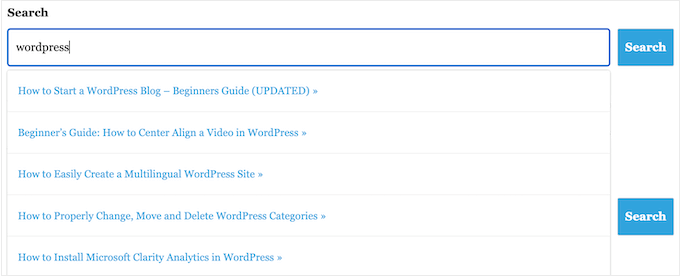
This helps visitors find the right content without having to press the Search button or wait for the page to reload.
The easiest way to add Ajax live search to WordPress is by using the free SearchWP Live Ajax Lite Search plugin. It enables instant search automatically, and there are no settings for you to configure, so it’s very easy to set up.
The first thing you need to do is install and activate the plugin. For more details, see our step-by-step guide on how to install a WordPress plugin.
Upon activation, the default WordPress search form will automatically use the Ajax live search function. If you visit your site and start typing into the search bar, then you’ll see the instant search in action.
For details, see our guide on how to add a live AJAX search in WordPress.
2. Change the Default Search URL Slug
By default, WordPress search URLs typically look something like this:
http://example.com/?s=search-term
The extra ?s= characters make this URL more difficult to read and understand. This can confuse visitors who are trying to find their way around your site.
Even worse, these URLs aren’t optimized for search engines, which can stop them from correctly indexing your site’s content.
The easiest way to change these URLs is by adding custom code to WordPress using a plugin such as WPCode.
Some of our partner brands actually use WPCode to add and manage their custom code snippets. We’ve also tested it to see how well it works, and you can see what it can do in our full WPCode review.
In the WPCode editor, add the following custom code to replace the /?s=search-term structure with a clean /search/ slug.
function wpb_change_search_url() {
    if ( is_search() && ! empty( $_GET['s'] ) ) {
        wp_redirect( home_url( "/search/" ) . urlencode( get_query_var( 's' ) ) );
        exit();
    }
}
add_action( 'template_redirect', 'wpb_change_search_url' );
Your search URL will look something like this when finished: http://example.com/search/wordpress
And if you want to use something other than ‘search’ in your URL, you can just customize the code snippet.
For detailed instructions on how to insert this code into your WordPress website, please see our guide on how to change the default search URL slug in WordPress.
3. Make PDF Files Searchable in WordPress
By uploading PDFs to your WordPress site, you can share information about your services and products in a format that works well on all devices.
They’re also perfect for offering your visitors eBooks, user manuals, restaurant menus, and more.
But WordPress only searches the contents of its database by default, so it looks at the title and description of your PDF files, not their full contents. So, your visitors may struggle to find the best PDF for their search query.
The good news is that you can use a custom search plugin to improve the default WordPress search experience. If your PDFs are unencrypted, the right search plugin can index their contents and metadata and include them in search results.

For step-by-step instructions, please see our guide on how to add PDF indexing and searching in WordPress.
4. Add a Search By Category Feature to WordPress
If you have multiple categories of content on your website, you might want to let users restrict their search to a specific category. This can help visitors find the right content faster.

For example, if you have an online marketplace, it often makes sense to let customers search within a particular product category.
If you run a membership site, then you might use search by category to help visitors find other members, groups, forums, online courses, and other specific kinds of content.
For more information, please see our guide on how to add search by category in WordPress.
5. Make a Smart WooCommerce Product Search
WooCommerce has its own built-in search, but it often ignores matches in product attributes (like size or color) and customer reviews. This can stop shoppers from finding, for example, the digital products they want to buy on your online store, leading to fewer sales.
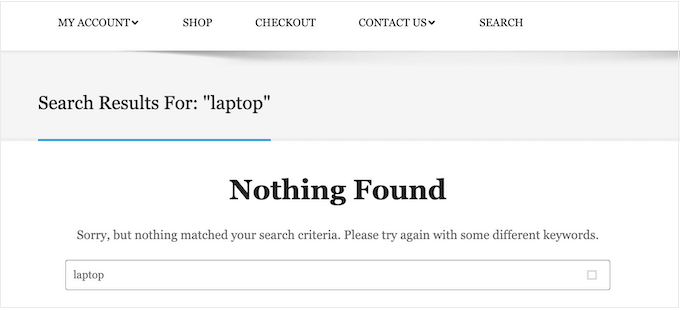
Luckily, there are excellent WooCommerce plugins that can show more helpful search results and fetch them faster.
To learn more, please see our guide on how to make a smart WooCommerce product search.

To get even more eCommerce sales, you may want to fine-tune which products WooCommerce includes in its search results. For example, you might only show products that are on sale or come with free shipping.
To learn more, please see our guide on how to customize the WooCommerce product search results page.
6. Create a Search Form for Custom Post Types
Custom post types let you go beyond posts and pages and create different content types for your website. So, they have different custom fields and their own custom category structure.
For example, if you run a movie review website, you might create a movie reviews post type with fields for the director, release date, and more.
At WPBeginner, we use custom post types for our Glossary section to keep it separate from our blog posts.
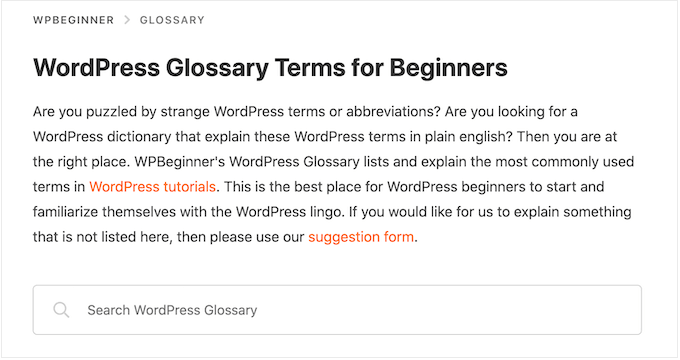
If you use custom post types, then you may want to create a form that allows visitors to search only that content.
For example, we also have a form that only searches WPBeginner’s coupon codes.

This helps visitors find the right content faster, even when you have lots of different content types. For step-by-step instructions, check out our guide on how to create advanced search forms in WordPress for custom post types.
You can also make custom fields searchable in WordPress, which is ideal if you’ve added extra metadata to your pages and posts.
7. Exclude Content From WordPress Search
By default, the built-in WordPress search includes all posts and pages in its search results. However, you may want to exclude certain pages and posts from the search results.
For example, if you are running a WordPress membership website or selling online courses, then you’ll typically want to exclude your premium content from public search results.
If you’re running an online store, you may want to hide pages like your account, checkout, and thank-you pages.
Do you want to exclude posts, authors, custom post types, categories, tags, or even custom taxonomies? Then, you can take a look at our guide on how to exclude specific pages, authors, and more from WordPress search.
8. Make Blog Post Comments Searchable in WordPress
Sometimes, readers want to revisit conversations on your blog but forget the exact comment they were reading. In this case, making your comments searchable can be very helpful.
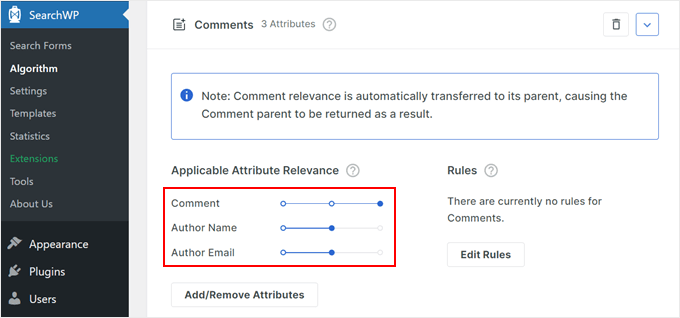
If you use SearchWP, you can easily do that when customizing your search algorithm. All you need to do is select ‘comments’ as one of the sources for the search feature.
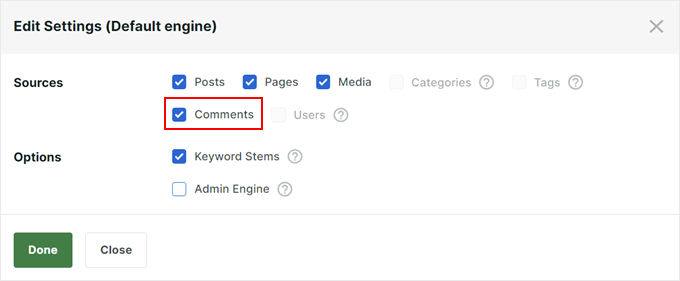
Additionally, you can prioritize search results based on the comment’s message, author name, or author email.
This feature lets you tailor the search experience to better suit your audience’s needs.
You can learn more in our article on how to make blog comments searchable in WordPress.
9. Add Multilingual Search
If your WordPress site is available in more than one language, adding multilingual search can help users find what they need faster.
Without this, users might miss important content just because they’re searching in the wrong language. This can make visitors frustrated, and they might leave your site.
When you add multilingual search, it makes your site easier to use for everyone. Visitors can find what they want in their preferred language, which makes your site friendlier for people from all over the world.
There are two main steps to add multilingual search. One is to use TranslatePress, a plugin that helps you make your WordPress site multilingual. It’s easy to use, and you can translate your site with a simple visual editor.
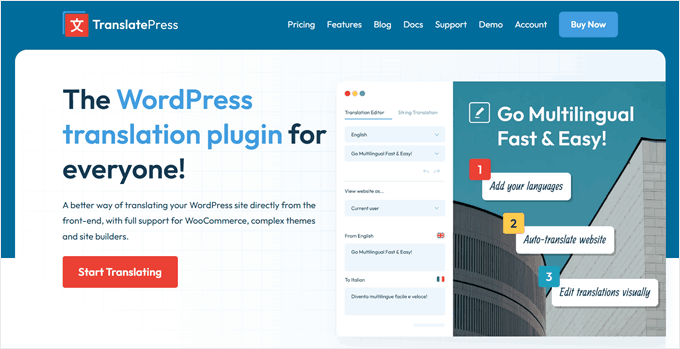
TranslatePress works right away with WordPress’s built-in search. This means once you translate your content, people can search in different languages automatically.
The basic WordPress search is okay, but using SearchWP generally provides better results.
By combining TranslatePress and SearchWP, you can create a robust multilingual search experience that not only understands different languages but also provides more accurate and comprehensive search results.
To learn more about how to do this, check out our article on how to add multilingual search in WordPress.
10. Enable Fuzzy Search in Your Website
Fuzzy search is a smart way to help visitors find what they want, even if they don’t type the exact words. It’s like having a helpful friend who knows what you mean, even when you make small mistakes.
Adding fuzzy search to your WordPress site makes it easier for people to find your content. This is really useful because sometimes people make typos or don’t know the exact words to use.
For example, with regular WordPress search, if someone types “recepies” instead of “recipes,” they might not find anything.

SearchWP is different. It’s smarter and can understand what people mean, even if they make small mistakes. It looks for matches in lots of places, like titles, content, products, and even PDFs.
This makes searching on your site much easier and more user-friendly. People can find what they need, even if they’re not sure of the exact words or make small spelling mistakes.

Check out our easy guide on how to add fuzzy search to WordPress.
11. Adding Filter Options to Your WordPress Search
If your site has a lot of content, search results alone may not be enough to help visitors find what they’re looking for.
Adding filters lets them narrow down results by category, tag, date, or other attributes without reloading the page.
WPFilters is a plugin from the same team as SearchWP. You can add filter blocks to any page directly from the WordPress editor with no coding required.
You can choose from checkboxes, radio buttons, dropdowns, sliders, and keyword search boxes to match how your content is organized.

It works with any type of WordPress content, including blog posts, WooCommerce products, custom post types, and EDD downloads — making it useful for all kinds of sites, from blogs and online stores to membership sites and directories.
If you have a long list of filter options, WPFilters can collapse them automatically and show a “See More” link, keeping the filter panel tidy without hiding anything from visitors who want to explore further.
There’s also an option to hide filters that would return zero results. This prevents visitors from selecting a filter and landing on an empty page, which can be a frustrating experience.
If you want to learn more, check out our our full WPFilters review.
WordPress Search FAQs
In this guide, we’ve explored how the default WordPress search works and shared practical tips on how to improve its capabilities.
If you still have some questions about this important feature, here are some of the most frequently asked questions about WordPress search:
How Do I Improve WordPress Search?
The best way to improve the built-in WordPress search is by using SearchWP.
SearchWP is the best custom search plugin for WordPress and allows visitors to search any content on your site, including documents, WooCommerce products, custom fields, tags, comments, and more.
It also lets you customize the WordPress search algorithm so you can control exactly where the content appears in the search results. For more information, please see our guide on how to improve WordPress search.
Does WordPress Search Include Tags?
By default, WordPress search doesn’t include tags. The easiest way to make tags searchable is by using a WordPress search plugin like SearchWP.
SearchWP also has a relevancy slider, so you can control exactly how much the tags influence where an item appears in the search results.
How Do I Add Search to My WordPress Theme?
If your theme doesn’t have a built-in search form, we recommend adding a search box to the WordPress navigation menu.
Since the main navigation menu typically appears across your entire site, visitors will be able to search for pages, posts, products, and more from any page of your website.
If you use a classic theme, then you can read our article on how to add a search bar to the WordPress navigation menu for step-by-step instructions.

If you’re using a block-based theme such as ThemeIsle’s Hestia Pro or Divi, you can add a search bar to your theme using the Full Site Editor (FSE).
To do this, go to Appearance » Editor in the WordPress dashboard.

You’ll now see settings to customize your theme.
To add the search bar to the navigation menu, click ‘Navigation.’
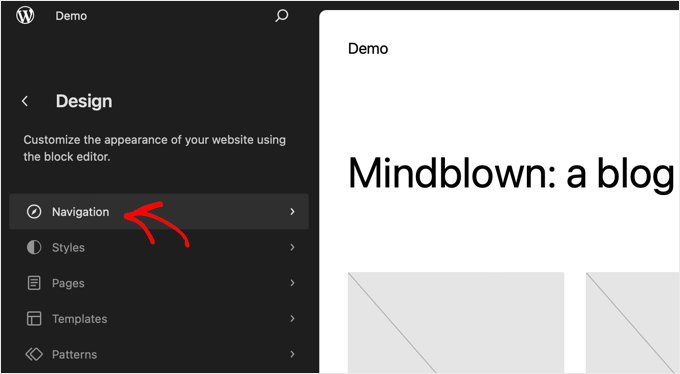
On the next screen, you will see a pencil ‘Edit’ button.
Go ahead and click that button to access the block editor.
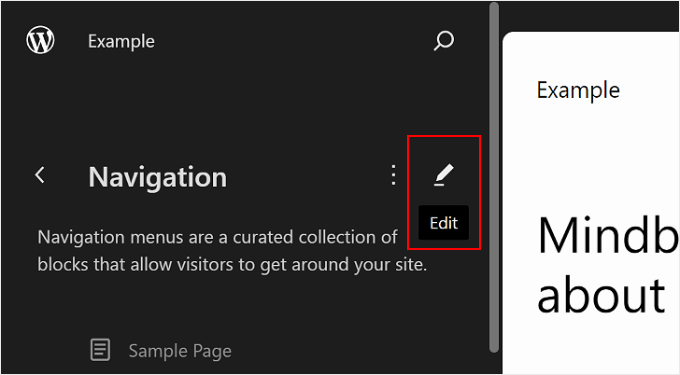
You will now see your default navigation menu.
Now, go ahead and click the ‘+’ button anywhere on the screen. Then, select the Search block.
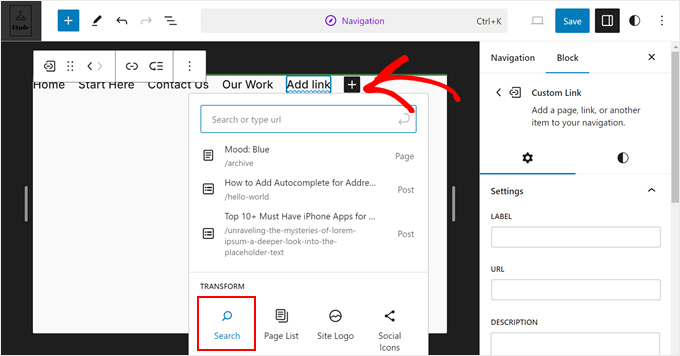
Your Search block should now appear in the navigation menu.
Feel free to add placeholder text (like “What are you looking for?”) and further customize the block in the settings sidebar.
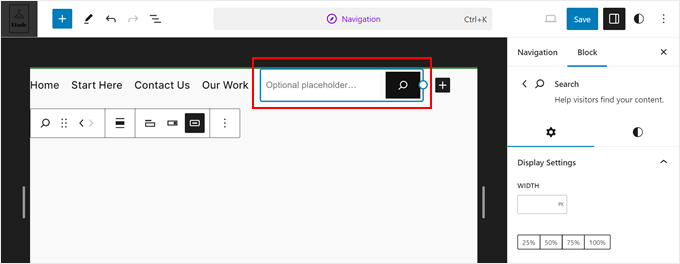
When you’re done, click the ‘Save’ button.
How Do I Add Search to a WordPress Page or Post?
You can add a search bar to a specific page or post using the built-in Search block.
This is a good choice if you want to control exactly where the search bar appears on each page and post, or if you only need to offer search in specific areas of your site.
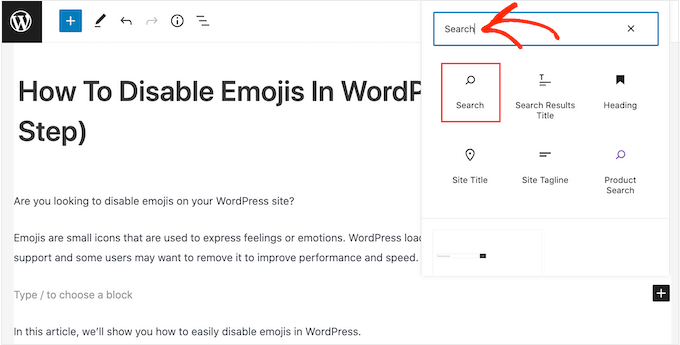
To get started, simply open the page where you want to add a search form and then click on the + icon.
In the popup that appears, type ‘Search’ to find the block. Once you click on it, you’ll see it on your page.
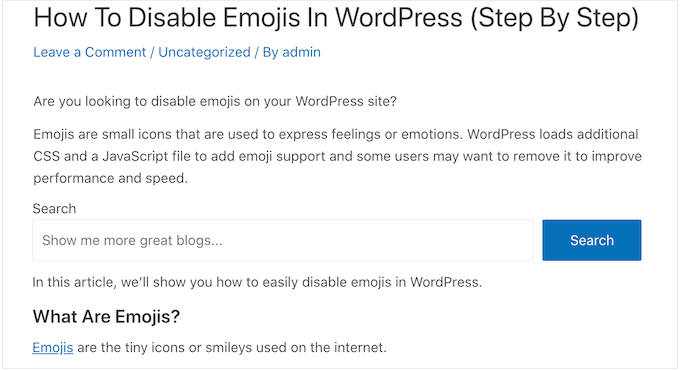
By default, the block uses ‘Search’ for both its label and the button text.
This will be visible to visitors, so you may want to replace it with something more descriptive by typing into the text fields.
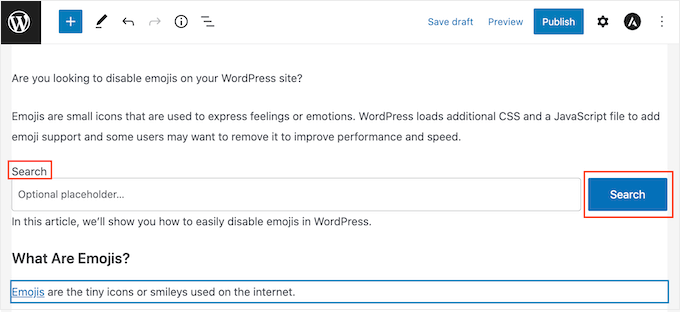
You can also add some placeholder text to the search bar. This text will disappear automatically when the visitor starts typing.
To add a placeholder, click ‘Optional placeholder…’ and then start typing.
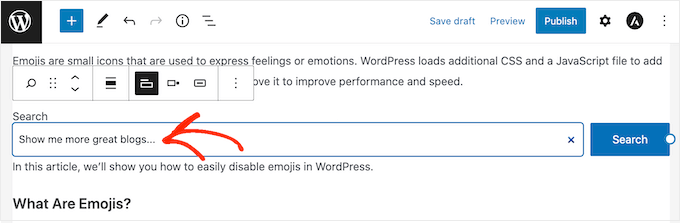
When you’re happy with how the Search block looks, you can publish or update the post.
Bonus Resources: More Ways to Improve Your WordPress Search
We hope this tutorial helped you learn how WordPress search works and how to make it better. Next, you may also want to check out our guides on:
- How to See Search Analytics in WordPress
- How to Create a Searchable Database in WordPress
- How to Add Voice Search Capability to Your WordPress Site
- Voice Search SEO – Optimize Your WordPress Blog for Voice Search
- How to Fix WooCommerce Product Search Not Working
- How to Fix WordPress Search Not Working
If you liked this article, then please subscribe to our YouTube Channel for WordPress video tutorials. You can also find us on Twitter and Facebook.


Dennis Muthomi
Thank you so much WPBeginner team for this very helpful guide!
I’m signing up for SearchWP right now actually because of that searchable comments feature.
Appreciate you putting this together
Sally
Thanks so much for writing this detailed guide. I’m building a digital archive and this helps me a lot.
Mike
Does this searchWP support Chinese? Once I add it to the menu, it will mess with the Chinese characters, becomes ?? question mark.
Is it option to set UTFcode?
Thanks!
WPBeginner Support
You would want to reach out to SearchWP directly for their current ability to translate to Chinese and what steps to take.
Admin
Radan
Hello.
Wouldn’t you know how to modify default WP search to respect diacritics? For example, in my language (Czech) we have á, č, ě, etc. i would like to force WP to respect that when searching.
Thanks.
WPBeginner Support
Unless we hear otherwise, you would need to change your database collation but that is not a beginner friendly task that we would recommend. Instead we would recommend using a plugin for the time being.
Admin
blossom
nice post , thanks for sharing
WPBeginner Support
You’re welcome!
Admin