


“I write great content, but nobody ever finds it.” We hear this frustration from WordPress beginners constantly, and we experienced the exact same struggle when we first started.
It is frustrating to spend hours writing a blog post only to see zero traffic. Luckily, getting search engines to notice your site does not require complicated magic.
We developed a simple, step-by-step system that now brings millions of visitors to our own websites every month. In this SEO guide, we will walk you through our exact process that’s working today in the era of AI overviews beyond the traditional blue-links.
This guide provides a comprehensive roadmap to boost your WordPress SEO with actionable strategies you can put into practice immediately.
To help you navigate this in-depth guide, we have created a handy table of contents below:
Table of Contents
- What Is SEO? (And Why It Matters in 2026)
- WordPress SEO Basics
- Setting Up Your SEO Plugin
- On-Page SEO for WordPress
- Building Authority and Trust
- Optimizing for AI Search
- Local SEO for WordPress Sites
- Multilingual SEO for WordPress Sites
- Technical SEO for WordPress Sites
- WordPress SEO Best Practices
- Video Tutorial
- Frequently Asked Questions About WordPress SEO
- More SEO Tools and Resources
- Related WordPress SEO Guides
What Is SEO? (And Why It Matters in 2026)
SEO stands for Search Engine Optimization which is the the practice of structuring your website and content so search engines like Google can find, understand, and rank it. When done well, SEO turns your website into a magnet for free, organic traffic from people actively searching for what you offer.
You can think of SEO like organizing a library. Your content is the books, and SEO is the cataloging system that helps readers find exactly what they need. Without it, even the best content sits unseen on a dusty shelf.

In 2026, SEO has evolved beyond traditional blue-link rankings. Google now surfaces content in AI Overviews (AI-generated summaries at the top of search results), featured snippets, People Also Ask boxes, and knowledge panels. A modern WordPress SEO strategy needs to optimize for all of these, not just position #1.
Search engines remain the largest source of traffic for most websites. Based on our experience managing sites with 100M+ annual pageviews, we believe making your WordPress site search-engine friendly is the single highest-ROI investment you can make.
The best part is that the same SEO strategies also work for ChatGPT, Claude, Perplexity, and other AI search tools that are gaining popularity.
WordPress SEO Basics
WordPress is built with clean, standards-compliant code that follows SEO best practices out of the box. That’s one reason so many people choose WordPress. But there are a few foundational settings you need to verify before doing anything else.
Check Your Site’s Visibility Settings
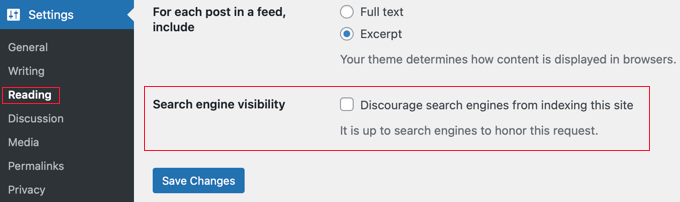
WordPress comes with a built-in option to hide your website from search engines (which is useful during development). However, if this option gets checked accidentally, then it makes your website unavailable to search engines.
If your website is not appearing in search results, then the first thing you need to do is to make sure that this option is unchecked.
Simply go to the Settings » Reading page in your WordPress admin and make sure the box next to “Discourage search engines from indexing this site” is unchecked.
Using SEO-Friendly URL Structures in WordPress
SEO-friendly URLs contain words that clearly explain the content of the page, and they are easy to read by both humans and search engines.
For example:https://www.wpbeginner.com/how-to-install-wordpress/
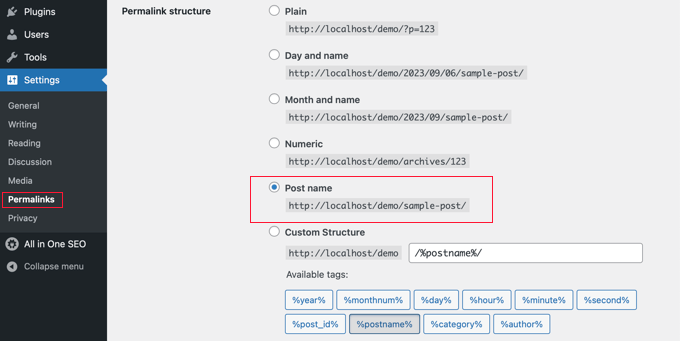
If your website URL looks something like ?p=10467 then that’s not SEO friendly.
You can correct that by going to Settings » Permalinks page and selecting the “Post name” option.
Warning: If your site has been running for 6+ months, don’t change your permalink structure without setting up proper 301 redirects first. Changing URLs on an established site can break links and lose existing rankings.
For more detailed instructions, take a look at our guide on what is an SEO-friendly URL structure in WordPress.
WWW vs. Non-WWW
If you are just starting out with your website, then you need to choose whether you want to use www (https://www.example.com) or non-www (https://example.com) in your site’s URL.
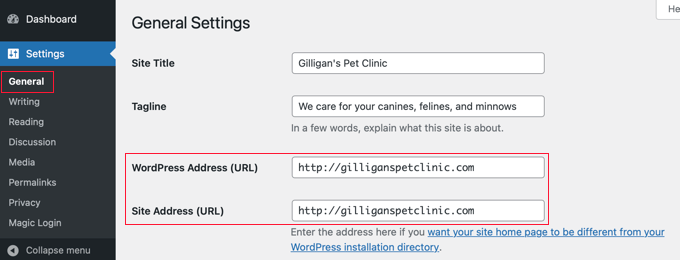
Search engines consider these to be two different websites, so this means you need to choose one and stick to it. You can set your preference by visiting the Settings » General page. Add your preferred URL in both the ‘WordPress Address’ and ‘Site Address’ fields.
Despite what someone else might say, from an SEO standpoint, there is no advantage to using one or another. For more detailed information on this topic, see www vs non-www ΓÇô which is better for WordPress SEO.
Setting Up Your SEO Plugin
All websites need a WordPress SEO plugin because it handles the technical groundwork such as title tags, meta descriptions, XML sitemaps, schema markup, canonical URLs, and more. Instead of installing separate plugins for each task, we recommend using one comprehensive solution.
Choosing the Best WordPress SEO Plugin
We’ve tested every major SEO plugin on the market across dozens of live WordPress sites. In 2021, after years of using Yoast SEO, we switched WPBeginner to All in One SEO (AIOSEO) because it was innovating faster and offers more built-in features.
If you are considering, here’s our list of top WordPress SEO plugins:
- AIOSEO – best all around WordPress SEO plugin used by 3 million websites. Powerful free version available as well.
- Yoast SEO – legacy WordPress SEO plugin that’s popular but isn’t innovating anymore.
- RankMath – popular SEO plugin but was recently acquired by a private equity, so innovation has stopped.
- SEOPress – new comer in the market.
For a detailed walkthrough, see our complete guide on how to set up All In One SEO for WordPress.
Add XML Sitemaps in WordPress
An XML sitemap is a file that lists every page on your website in a format search engines can read. It does not directly boost rankings, but it helps Google discover and index your content faster.
If you are using AIOSEO, your sitemap is created automatically. You can find it at:
https://yourdomain.com/sitemap.xml
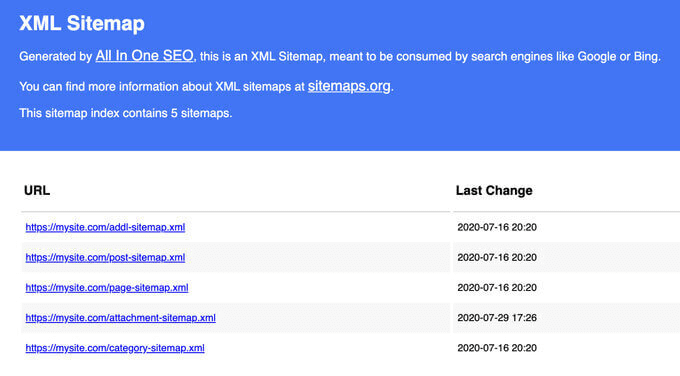
Beyond the standard XML sitemap, you should also consider adding specialized sitemaps depending on the type of site you run:
| Sitemap Type | What It Is | When to Use It | Common Use Cases |
|---|---|---|---|
| Image Sitemap | A sitemap that includes image metadata (captions, titles, file URLs) alongside page URLs | Use it if images play a key role in how visitors discover your site | Ecommerce product images, photography portfolios, and more. |
| Video Sitemap | A sitemap that includes video metadata like thumbnails, titles, descriptions, and duration | When you want Google to discover and index your video content | Video tutorials, product demos, online courses, media sites |
| News Sitemap | A sitemap designed for timely news content published in the last 48 hours | It’s best suited for you if you publish content eligible for Google News | News publications, media outlets, and press |
| RSS Sitemap | A feed-based sitemap that notifies search engines of newly published or updated content | When you want faster indexing of new content without waiting for a standard sitemap refresh | Blogs, news sites, content-heavy publishers |
| HTML Sitemap | A human-readable page listing all your site’s URLs in an organized structure | When you want to improve internal navigation and help visitors find content | Large websites, resource hubs, directories, knowledge bases |
AIOSEO handles all of these sitemap types automatically.
The next step is submitting your sitemaps to Google Search Console so Google knows where to find them.
Add Your Site to Google Search Console
Google Search Console is a free tool that shows you exactly how Google sees your website. You can see which search terms bring people to your site, how your pages appear in results, and whether Google has any trouble crawling your content.
If you are using AIOSEO, follow this guide to connect Google Search Console. Otherwise, see our step-by-step tutorial on how to add your WordPress site to Google Search Console.
Once connected, click ‘Sitemaps’ in the left menu and submit your sitemap URL. Google will start using it to crawl your site more efficiently.
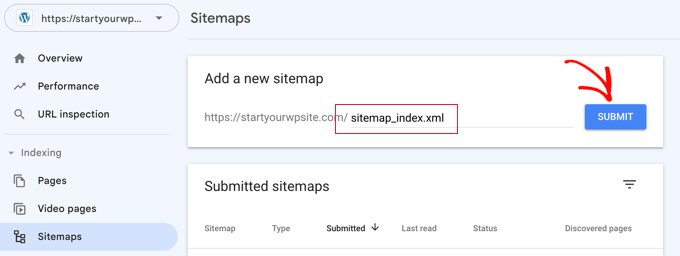
We recommend checking your Search Console at least monthly. Pay attention to:
- Performance report – shows which queries bring impressions and clicks
- Coverage/Indexing report – flags pages Google cannot index or has excluded
- Core Web Vitals report – highlights speed and user experience issues (more on this below)
Pro Tip: AIOSEO includes a Search Statistics dashboard that brings your Google Search Console data right inside WordPress, so you can track SEO progress without leaving your site.
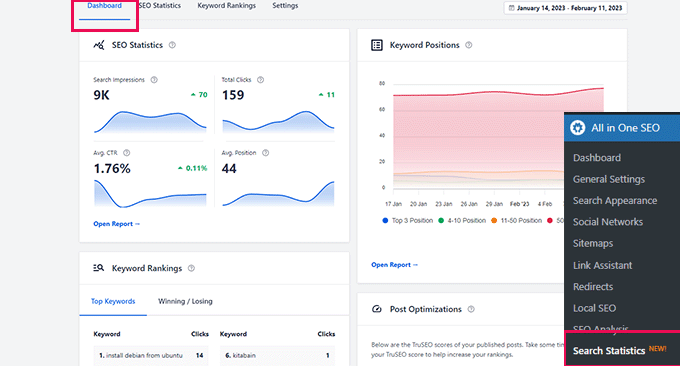
Beyond Google, we also recommend submitting your site to Bing, DuckDuckGo, and other search engines.
You should also install MonsterInsights to see Google Analytics data inside your WordPress dashboard. This helps you understand which traffic sources and pages are performing best. See our guide on how to install Google Analytics in WordPress.
On-Page SEO for WordPress
Your SEO plugin handles the technical foundation, but the real gains come from the content you publish. In this section, we will show you how to optimize every blog post, find the right keywords, and organize your content so search engines can understand it.
Optimizing Your Blog Posts for SEO
SEO is an ongoing process, and the biggest gains come from optimizing every individual post you publish.
AIOSEO (and other top SEO plugins) let you set an SEO title, meta description, and focus keyword for every post and page. You also get a live preview of how your listing will appear in Google.
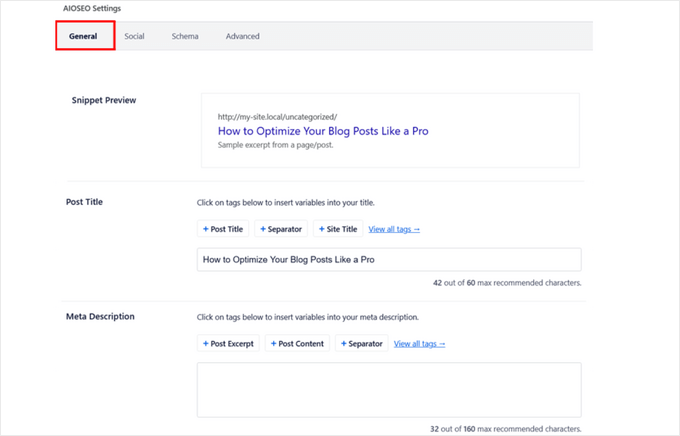
Here are the key on-page elements to optimize for every post:
- SEO title – include your focus keyword near the beginning and keep it under 60 characters so Google does not cut it off
- Meta description – write a compelling 160-character summary that makes searchers want to click
- Headings (H2, H3, H4) – use a clear heading hierarchy where each heading describes the section below it and includes relevant keywords where they fit naturally
- First paragraph – mention your main topic within the first 100 words so both readers and search engines understand what the page is about
- Featured snippet formatting – if you want to appear in Google’s answer boxes or AI Overviews, structure key answers as short, direct paragraphs or numbered lists right after a question-style heading
Now you know the important elements that you should be optimizing in every piece of content you publish.
Next, you can use AIOSEO’s TruSEO on-page analysis score to analyze what you have done well and what needs improvement in your content. The best part is that you can check it in real time as you write. We use this on every article we publish at WPBeginner.
If you want, you can also use SEO checker tools to analyze your content’s readability, keyword density, and relevance before you hit publish.
For a complete walkthrough, see our guide on how to optimize your blog posts for SEO like a pro.
Doing Keyword Research for Your Website
Many beginners guess what topics people are searching for. That is like shooting an arrow in the dark. Keyword research replaces guesswork with real data so you can create content around terms your audience is actually searching for.
Here is what good keyword research helps you do:
- Discover the exact words and phrases your audience types into Google
- Find topics where you have a realistic chance of ranking, even against larger sites
- Understand search intent so you can match what users actually want
- Build topic clusters that strengthen your authority on a subject
- Avoid wasting time on keywords that AI Overviews already answer completely
There are many keyword research tools available. We recommend LowFruits because it specializes in finding low-competition keywords where you have a realistic chance of ranking.
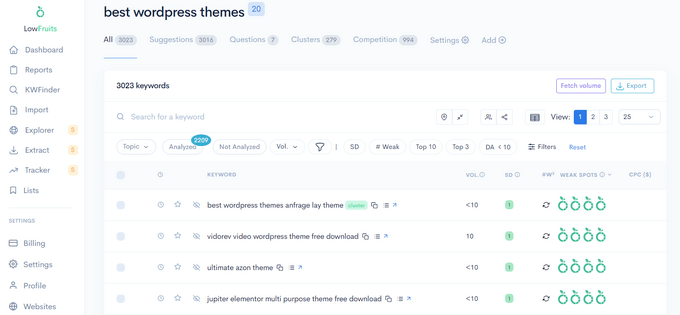
Here is a practical keyword research workflow you can follow:
- Start with seed topics – list 5-10 broad topics central to your niche
- Expand with tools – plug each seed topic into LowFruits or the WPBeginner Keyword Generator to find hundreds of related keywords
- Group into clusters – organize related keywords into topic clusters with one pillar page supported by several related posts
- Check competitor gaps – use our free Keyword Density Checker on competitor URLs to see what they are targeting that you are not
- Prioritize by intent – informational (“how to”), commercial (“best tools”), and transactional (“buy”) keywords each need different page types. Focus on keywords where searchers need to visit a website to get their answer
LowFruits also includes a Keyword Clustering feature to help you group related keywords together, which strengthens your authority on a subject and helps you rank for multiple terms with fewer articles.
If you want free alternatives, here are two we built ourselves:
- WPBeginner Keyword Generator – generates 300+ keyword ideas instantly from any seed term
- Keyword Density Checker – reveals which keywords your competitors are targeting on any page
Important: Keyword intent matters more than keyword volume. A keyword with 500 monthly searches and clear purchase or learning intent will often drive more value than a generic term with 10,000 searches that Google answers with an AI Overview. Focus on keywords where the searcher needs to visit a website to get their answer.
For a complete walkthrough, see our guide on how to do keyword research for your WordPress blog.
Properly Using Categories and Tags in WordPress
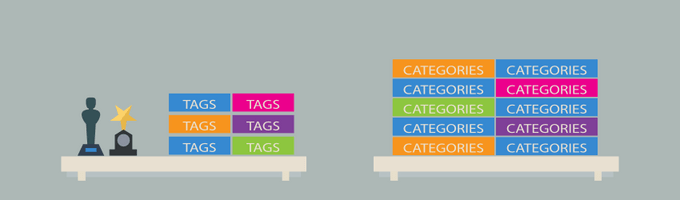
WordPress lets you organize posts into categories and tags. Used correctly, they help both readers and search engines understand your site’s structure.
After explaining this to thousands of readers, here is how we think about it:
- Categories are broad topic groups, like a book’s table of contents. A food blog might have categories for Recipes, Reviews, and Cooking Tips. Categories are hierarchical (you can create sub-categories).
- Tags are specific descriptors, like a book’s index. A post in the Recipes category might be tagged “pasta,” “vegetarian,” or “30-minute meals.”
The most common mistake is creating too many categories or using tags and categories interchangeably. Keep your categories to 8-12 broad topics and use tags for specifics.
For more on this topic, see our guide on categories vs. tags and SEO best practices and our guide on taxonomy SEO.
Building Authority and Trust
Publishing great content is only half the equation. Google also evaluates whether your site is authoritative and trustworthy before ranking it. The practices below help you build that credibility over time.
Make Internal Linking a Habit
Search engines assign each page a score commonly called “page authority.” One of the strongest signals that influence this score is links – both from other websites and from your own site.
That is why internal linking matters so much. Every time you link from one of your posts to another, you pass authority and help search engines understand which pages are most important.
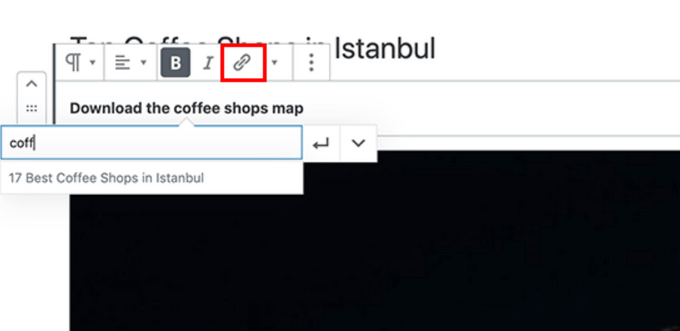
Make it a habit to add at least 3-4 internal links in every post you publish. If you have multiple authors, include this rule of “adding at least 4 internal links” in your pre-publish checklist.
When interlinking, prioritize linking back to your most comprehensive, top-performing articles (often called cornerstone content or pillar pages). This helps distribute your site’s authority and tells search engines exactly which pages are the most important.
Adding internal links manually can be time-consuming, which is why AIOSEO created Link Assistant. It automatically crawls your site and suggests relevant internal links you can add in one click.
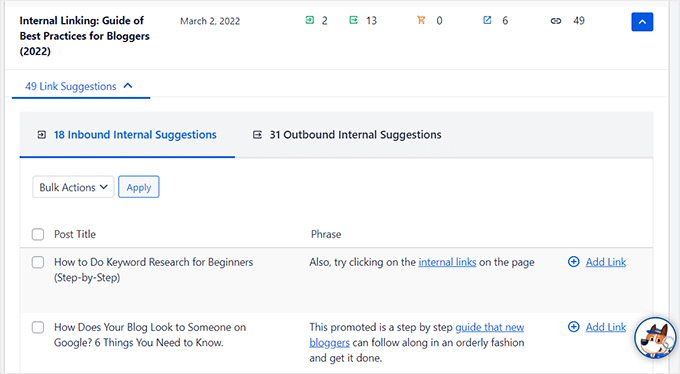
For more strategies, see our internal linking guide with best practices and our list of the best internal linking plugins for WordPress.
Related: AIOSEO also offers a free Broken Link Checker plugin that scans your site for broken links and lets you fix them without leaving WordPress.
Schema Markup and Rich Snippets (FAQ Schema, Reviews, and More)
Have you noticed that some Google results look different? Some show star ratings, FAQ dropdowns, recipe cards, or event details. These enhanced listings are called rich snippets, and they are powered by schema markup.
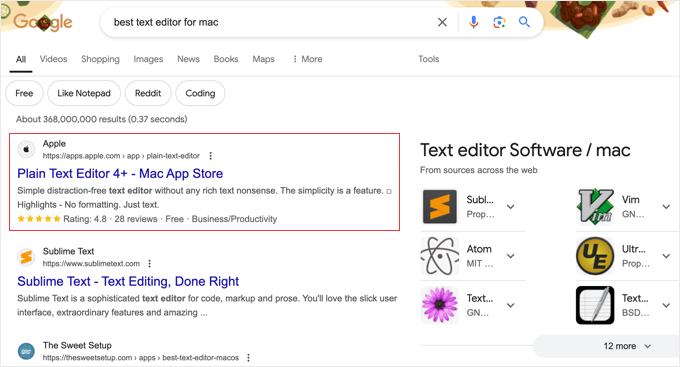
Schema markup is structured data you add to your site that tells search engines exactly what your content is – a recipe, a product, a FAQ, an event, or an article. Search engines then use this data to display rich results that stand out and get higher click-through rates.
Schema also plays an increasingly important role in AI Overviews. Google’s AI-generated summaries pull from pages with clear, structured data. Adding proper schema makes it more likely that your content gets cited in these AI summaries.
The good news is that you don’t need to write any code. AIOSEO includes a schema generator right in your post editor. Just select the schema type (Article, FAQ, HowTo, Product, Recipe, Event, etc.), fill in the fields, and the plugin adds the correct JSON-LD code automatically. AIOSEO also recently introduced an AI Schema Generator that can analyze your page content and create the appropriate schema for you – no manual configuration needed.

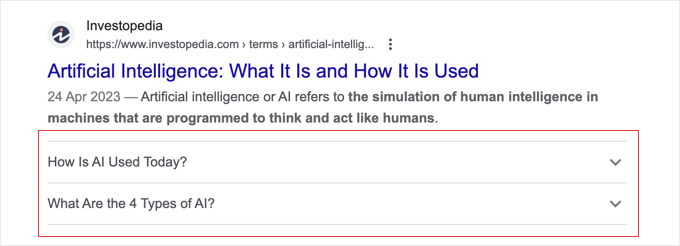
For example, adding FAQ schema to a post can make your listing expand with question-and-answer dropdowns right in the search results:
You can use similar techniques for recipe schema, product schema, event schema, and more. We recommend taking advantage of schema on every post – it is one of the easiest ways to improve your click-through rate.
Building E-E-A-T Signals on Your WordPress Site
E-E-A-T stands for Experience, Expertise, Authoritativeness, and Trustworthiness. It is a framework Google uses to evaluate content quality, and it has become one of the most important ranking factors in recent years.
In plain language, Google wants to know: was this content written by someone who actually knows what they are talking about? And can readers trust this website?
Here are the most important E-E-A-T signals you can add to your WordPress site:
- Author bios on every post – include a short bio with the author’s credentials, experience, and relevant links. An author bio box plugin makes this easy
- Dedicated author pages – create full author profile pages that list each writer’s published articles, qualifications, and social profiles
- An “About” page – explain who runs the site, your team’s experience, and why readers should trust your content
- Cite your sources – link to authoritative sources when referencing data, statistics, or claims to signal that your content is well-researched
- Show real experience – share first-hand experience, screenshots, original data, or case studies. Google specifically values the “Experience” component
- Editorial transparency – consider adding an editorial policy, fact-checking process, or “reviewed by” badges on important content
AIOSEO’s Author SEO feature automates much of this. It generates proper author schema markup, structures your E-E-A-T signals for search engines, and supports writer/reviewer assignments on each post – all without touching code.
For a deeper dive into how Google evaluates content quality, see our guide on what is Google E-E-A-T and how to improve it.
Optimizing for AI Search
Search is no longer just about ten blue links. Google AI Overviews, ChatGPT, Perplexity, and other AI tools are changing how people find information. Here is how to make sure your WordPress content shows up in these new channels.
Optimizing for AI Overviews and Generative Search
Google AI Overviews are AI-generated summaries that appear at the top of search results for many queries. Instead of just showing links, Google now reads multiple web pages and creates a synthesized answer – with citations linking back to the sources it used.
Getting your content cited in an AI Overview can drive significant traffic, even if you are not in the traditional #1 position. Here is how to optimize for it:
- Answer questions directly – structure your content with clear question headings (H2/H3) followed by concise, factual answers in the first 1-2 sentences. AI models pull from content that provides direct answers
- Use structured formatting – numbered lists, bullet points, comparison tables, and definition-style paragraphs are easier for AI to parse and cite
- Add unique value – AI Overviews prioritize content with original data, first-hand experience, expert opinions, and specific examples. Generic advice gets skipped
- Keep content current – AI models favor recently updated content, so regularly refresh your posts with current information, screenshots, and dates
- Use schema markup – as we covered above, structured data helps AI understand your content’s type and authority
The same strategies that help you get cited in Google AI Overviews also work for ChatGPT, Perplexity, and other AI search tools. These tools scan and cite web content in similar ways.
This practice is now commonly called Generative Engine Optimization (GEO). For a complete strategy, see our beginner’s guide to GEO for WordPress.
Setting Up llms.txt for AI Agents
A newer development in AI search is the llms.txt standard. Similar to how robots.txt tells search engine crawlers how to access your site, llms.txt tells AI agents (like ChatGPT, Claude, and Perplexity) what your site is about and how to use your content.
Adding an llms.txt file to your WordPress site helps AI tools understand your content structure, which pages are most important, and how to accurately represent your information when answering user questions.
Pro Tip: This is still an emerging standard, but early adoption gives you an advantage as AI-powered search continues to grow. Many WordPress users are already seeing referral traffic from AI tools, and having an llms.txt file makes it easier for these tools to find and cite your content correctly.
For a step-by-step setup guide, see our tutorial on what is llms.txt and how to add it to your WordPress site.
Local SEO for WordPress Sites
If your business has a physical location – a restaurant, retail store, clinic, or regional office – then you need to optimize for local SEO. This ensures your site appears in local search results and Google Maps when people search for businesses like yours nearby.
For example, when someone searches for “Italian restaurants near me,” Google shows a list and map of relevant businesses in their area:
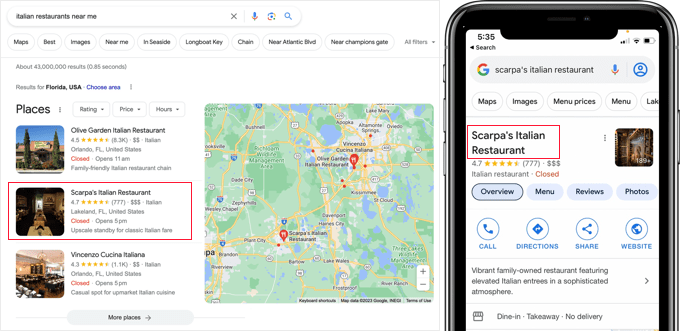
Google reports that searches for local places like “shopping near me” continue to grow dramatically year over year (source). If your business is not visible in local results, you are missing potential customers.
The key factors for local SEO rankings include:
- Google Business Profile – claim and complete your listing with accurate hours, photos, and categories
- Positive reviews – encourage genuine customer reviews on Google and your website
- NAP consistency – make sure your name, business address, and phone number are identical across every platform
- Local schema markup – add structured data so search engines can read your location info accurately
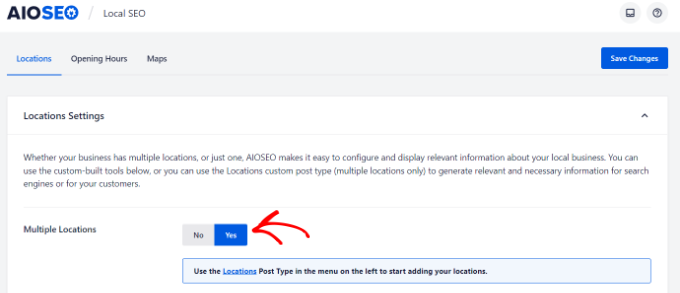
The easiest way to add local business schema markup is using AIOSEO’s Local SEO module. It lets you add location data, contact info, opening hours, and maps with turn-by-turn directions.
If your business has multiple locations, simply toggle the “Multiple Locations” setting to manage them all from one place.
Multilingual SEO for WordPress Sites
If your target audience comes from different countries around the world, then translating your WordPress site can open your content up to entirely new sources of traffic.
Multilingual SEO makes sure search engines understand which language and region each version of your page is meant for.
Without proper setup, though, search engines may struggle to serve the right language version to the right visitor, or they might not index your translated content at all.
Here are the key things to get right for multilingual SEO:
- Use hreflang tags – These tell search engines which language and region each page targets, so the correct version shows up in the correct country’s search results. Hreflang tags must be reciprocal (if your English page links to your French page, the French page must link back), or search engines may ignore them. Also, include an x-default tag as a fallback for visitors whose language doesn’t match any version.
- Give each language its own URL – Whether you use subdirectories (/es/), subdomains (es.example.com), or separate domains, you need to give each language its own unique web address. Make sure to avoid stuffing multiple languages onto one URL.
- Translate metadata, not just content – Your SEO title, meta description, image alt text, and structured data should be translated too, not just the visible page content.
- Add a visible language switcher – Make it easy for visitors to find and switch to their preferred language right from your website’s navigation menu or sidebar.
- Have translations reviewed – AI and machine translation have improved a lot, but you should consider having a native speaker review high-stakes pages (like legal pages, product pages, and your checkout) to protect quality.
For handling the actual translations, we recommend Universally, which is an AI-powered translation tool that can translate your entire site into 110 languages in minutes.
Universally automatically generates hreflang tags, translated meta descriptions, multilingual XML sitemaps, and properly structured URLs for every language. This way, search engines can crawl and index each language version as its own page.
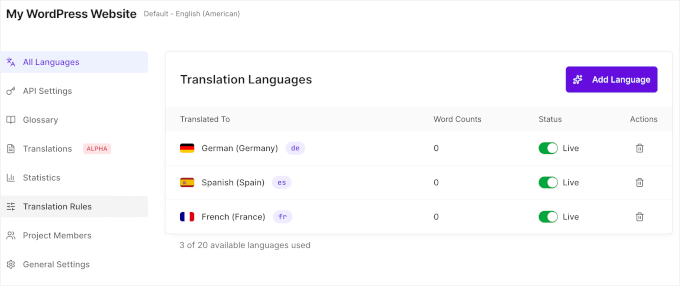
Plus, unlike translation plugins that create a duplicate copy of every page in your database (like WPML or Polylang), Universally doesn’t store translated content on your site.
Translations are served from its own cloud and delivered from servers closest to each visitor. So, adding more languages doesn’t slow your site down, which is also important for SEO.
For more details on how to use it, see our guide on how to translate your website with AI.
Technical SEO for WordPress Sites
Even the best content will struggle to rank if your site is slow, insecure, or difficult for search engines to crawl. Technical SEO covers the behind-the-scenes health of your website that directly affects your rankings.
Core Web Vitals and Site Speed
Google uses Core Web Vitals as a direct ranking factor. These are three specific metrics that measure how fast and smooth your site feels to real visitors:
- LCP (Largest Contentful Paint) – how quickly the main content loads. Target: under 2.5 seconds
- INP (Interaction to Next Paint) – how fast your site responds when a user clicks, taps, or types. Target: under 200 milliseconds
- CLS (Cumulative Layout Shift) – how stable the page layout is as it loads (no jumping buttons or shifting text). Target: under 0.1
You can check your scores using Google’s free PageSpeed Insights tool, or in the Core Web Vitals report inside Google Search Console.
Here are the WordPress-specific speed optimizations that make the biggest difference:
- Choose fast hosting – hosting is your speed ceiling. No optimization can compensate for a slow server. A fast WordPress host like SiteGround or Hostinger makes the biggest difference
- Install a caching plugin – WP Rocket is our recommendation. It handles page caching, file minification, and lazy loading with minimal setup. See our guide on how to set up WP Rocket
- Use a CDN – a content delivery network serves your pages from servers closest to each visitor, reducing load times globally. Most good hosts include this
- Minimize plugins – remove anything unused. Each plugin adds JavaScript and CSS that slows your load time
- Compress and lazy-load images – use WebP or AVIF formats for smaller file sizes. See our image optimization section below
- Optimize fonts – limit custom font weights and use font-display: swap to prevent rendering delays
For a complete optimization walkthrough, see our ultimate guide to speed up WordPress and our detailed tutorial on how to optimize Core Web Vitals for WordPress.
Optimizing Images in WordPress for SEO
Images make your content more engaging, but unoptimized images are one of the most common causes of slow page loads.
Here is how to keep your images fast and SEO-friendly:
- Compress before uploading – use tools or plugins to reduce file size without visible quality loss. See our guide on optimizing images for the web
- Use modern formats – WebP and AVIF formats are significantly smaller than JPEG/PNG while maintaining quality. Most modern WordPress image plugins can convert automatically
- Enable lazy loading – this loads images only when they scroll into view, improving initial page load speed. WordPress includes basic lazy loading by default
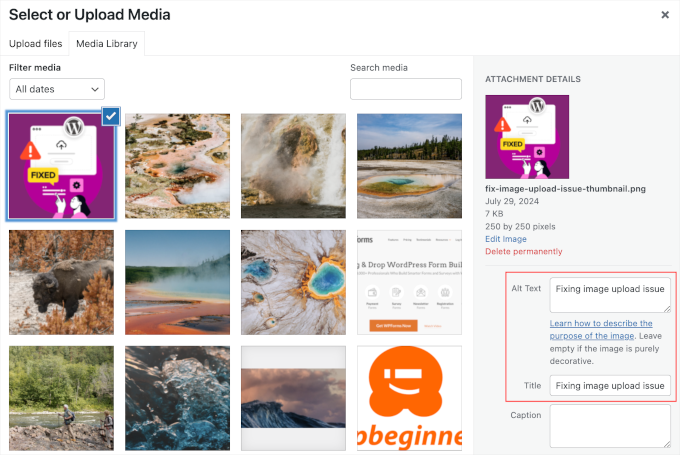
- Write descriptive alt text – alt tags help search engines understand your images and improve accessibility for screen readers. Describe the image naturally and do not stuff alt text with keywords
If you add a lot of images to your site, we recommend using Envira Gallery alongside AIOSEO. In our speed tests, it was the fastest WordPress gallery plugin and is fully SEO-friendly out of the box.
For more tips, see our complete beginner’s guide to image SEO. And if you have video content, see our guide on how to set up video SEO in WordPress.
Security and Safety of Your WordPress Site
Every week, Google blacklists thousands of websites for malware and phishing. A blacklisted site disappears from search results entirely – all of your SEO work gone in an instant.
The good news is that keeping your WordPress site secure is not difficult. Follow the step-by-step instructions in our ultimate WordPress security guide.
At WPBeginner, we use Cloudflare to protect our sites from attacks. We previously used Sucuri for many years – see our case study on how Sucuri helped us block 450,000 attacks in 3 months.
Start Using SSL/HTTPS
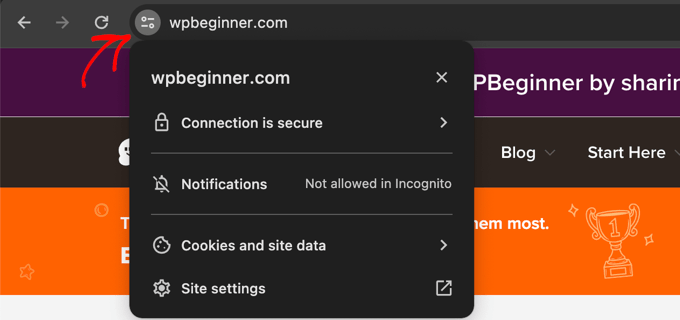
SSL encrypts the connection between your visitor’s browser and your server. Google has confirmed that HTTPS is a ranking signal, and browsers like Chrome show security warnings on sites without it.
If you are running an online store or collecting any user data, SSL is not optional – it is required.
All major WordPress hosting companies offer free SSL certificates through Let’s Encrypt. See our guide on how to get a free SSL certificate for your website.
If you need a premium wildcard SSL or a certificate with a security warranty, we recommend Namecheap. Their certificates include security warranties and a TrustLogo site seal for added credibility.
WordPress SEO Best Practices
If you have followed the steps above, you are already ahead of most websites. These additional best practices are quick to implement and can give you an extra edge in the search results.
Optimize WordPress Comments

Genuine comments are a strong signal of user engagement. They can lead to more links, longer time on page, and repeat visitors – all of which help SEO.
However, spam comments with bad links can actively hurt your rankings. We recommend using Akismet (pre-installed with WordPress) to filter spam automatically. If you need additional protection, see these tips and tools to combat comment spam.
If your posts attract many genuine comments, that is great – but too many comments on a single page can slow it down. You can fix this by paginating your comments to split them across multiple pages.
Want more engagement? Check out these ways to get more comments on your WordPress blog.
NoFollow External Links in WordPress
When you link to another website, you pass a small amount of your site’s authority (called “link equity”) to that page. This is normal and fine for trusted sources.
However, for links you don’t want to vouch for – sponsored links, user-submitted URLs, or untrusted sites – you should add a nofollow attribute. This tells search engines not to pass your authority to that link.
A normal link looks like this:
<a href="http://example.com">Example Website</a>
A nofollow link looks like this:
<a href="http://example.com" rel="nofollow">Example Website</a>
WordPress does not include a nofollow option by default, but AIOSEO adds it directly to the link editor. When inserting a link, simply toggle the “Add nofollow” option:
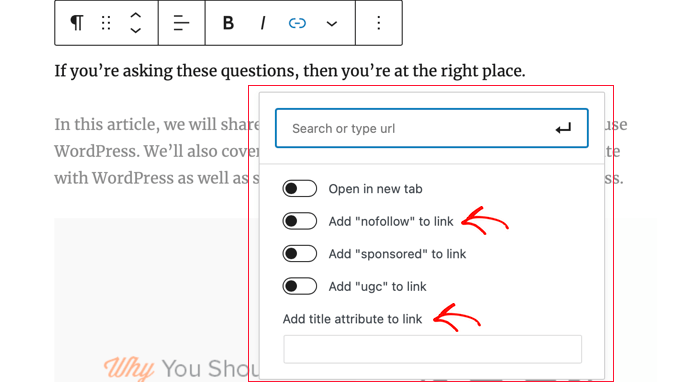
For more details, see our guide on how to add nofollow links in WordPress.
Full Posts vs. Summaries or Excerpts
By default, WordPress shows the full article content on your homepage, category archives, tag pages, and RSS feed. This creates two problems: search engines may see it as duplicate content, and it slows down your archive pages.
The fix is simple – show summaries (excerpts) instead of full articles on these pages.
For your RSS feed, go to Settings » Reading and select “Excerpt.”
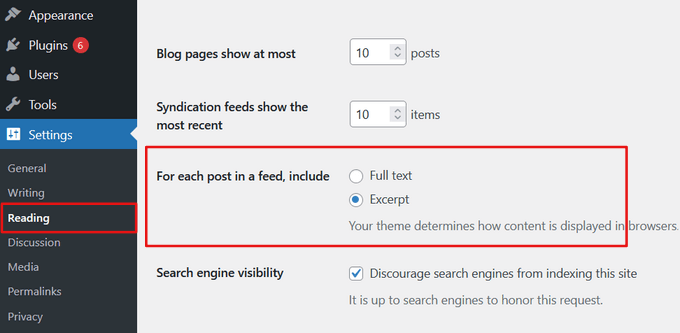
For your site’s front-end archive pages, you can usually configure this in your theme’s settings (via the Customizer or Site Editor), or use the “More” block in individual posts to control the cutoff point.
For detailed instructions, see our guide on how to customize WordPress excerpts without coding.
Video Tutorial
Frequently Asked Questions About WordPress SEO
Here are the answers to some of the most common questions we receive about WordPress SEO.
1. How long does it take for WordPress SEO to work?
Basic on-page optimizations can show minor results within weeks, but significant ranking improvements typically take 3 to 6 months. SEO is a long-term strategy that compounds over time with consistent effort.
2. Is WordPress good for SEO right out of the box?
Yes, WordPress provides a solid SEO foundation with clean code that search engines can easily read. However, to maximize your visibility, you need an SEO plugin like All in One SEO and the best practices covered in this guide.
3. Can I do SEO on my own, or do I need to hire an expert?
You can absolutely do your own SEO by following this guide. Many small business owners successfully manage their site’s optimization. If you find it too time-consuming, hiring a professional is a good option.
4. What is the most important part of SEO for a beginner?
Start with keyword research and on-page SEO. Understand what your audience is searching for, then optimize your titles, meta descriptions, and content to match those keywords. That gives you the biggest initial impact.
5. How do I optimize my WordPress site for AI Overviews?
Structure your content with clear question headings followed by direct, factual answers. Use lists, tables, and schema markup. Add unique value like original data or first-hand experience. See our full section on optimizing for AI search above and our guide to Generative Engine Optimization.
6. What is E-E-A-T and does WordPress support it?
E-E-A-T (Experience, Expertise, Authoritativeness, Trustworthiness) is a framework Google uses to evaluate content quality. WordPress supports it well – you can add author bios, about pages, editorial policies, and proper author schema markup. Plugins like AIOSEO make this even easier with their Author SEO feature.
7. What is the essential guide to WordPress SEO?
You are reading it! This guide covers everything from basic WordPress settings to advanced strategies like AI search optimization and E-E-A-T. Follow these best practices and use a comprehensive SEO plugin, and you will have a strong foundation for ranking in search results.
More SEO Tools and Resources
Once you are comfortable with the WordPress SEO best practices above, these tools and resources will help you go further.
Our top recommendations for WordPress SEO tools:
- AIOSEO – the best all-in-one WordPress SEO plugin, used by over 3 million websites. A powerful free version is available
- Semrush – our top pick for keyword research and competitor analysis. It is pricey but extremely powerful. (Free alternatives: WPBeginner Keyword Generator and Keyword Density Checker)
- MonsterInsights – the best Google Analytics plugin for WordPress. You cannot improve what you cannot measure. A free MonsterInsights Lite version is available
- LowFruits – a keyword research tool focused on finding low-competition keywords that are easier to rank for
- SEOBoost – an AI-powered writing assistant that analyzes your content for keyword density, readability, and relevance as you write
For a full comparison, see our list of the best WordPress SEO plugins and tools.
Related WordPress SEO Guides
This guide is the pillar page of our WordPress SEO knowledge hub. Dive deeper into specific topics with these companion guides:
Content and On-Page SEO
- Blog post SEO checklist
- Keyword research guide
- Topic clusters strategy
- Category and taxonomy SEO
- Internal linking best practices
AI and Advanced SEO
- Google AI Overviews – tips for WordPress users
- Beginner’s guide to Generative Engine Optimization (GEO)
- What is Google E-E-A-T and how to improve it
- What is llms.txt and how to add it in WordPress
- Voice search SEO for WordPress
Technical SEO and Performance
- How to optimize Core Web Vitals for WordPress
- Ultimate guide to boost WordPress speed
- The WordPress SEO crawl budget problem
- How to add IndexNow in WordPress
- Complete WordPress security guide
SEO Tools and Plugins
- Best WordPress SEO plugins compared
- Best keyword research tools
- Best internal linking plugins
- WordPress SEO audit checklist
- How to create an SEO report for your WordPress site
- How to get Google Sitelinks for your WordPress site
We hope this guide helped you learn how to properly optimize your WordPress site for SEO. Start implementing these tips today, and you should see meaningful improvements in your search traffic within a few months as search engines process your changes.

Jagdeep Singh
thanks for sharing this. i have used Semrush and Google Keyword Planner before this, but I also learned about a few new tools from this article. The comparison made it easy to understand.
WPBeginner Support
Thank you, glad we could give you some new tools to try
Admin
Hazel Meredith
Thank you for all you do for the WP community! Always helpful advice and recommendations!
WPBeginner Support
Happy to hear you find our recommendations helpful
Admin
Mark
Thanks for all the help. Been using wordpress 15 years now!
WPBeginner Support
You’re welcome, glad we can be helpful and we wish you many more years of using WordPress
Admin
Tina Hobbs
Thanks for all your advice and help as I didn’t grow up with computers and need all the help I can get understanding what is out there and if I need it and how to use it!! Keep up the good work.
WPBeginner Support
You’re welcome, glad we can help make this information easier to understand
Admin
Prajun Bhandari
great content Hello, I wish you could provide a separate and comprehensive guide on on-page SEO and technical SEO along with their respective outlines
WPBeginner Support
Thank you for the suggestion, we’ll look into how to best present that information. For now, we do have 2 articles at the end of the technical SEO section of this article to help with the technical side
Admin
Mahmoud Momani
Good article, it covers most of anyone needs to start with SEO
vicki clark
not exactly a beginner but I always manage to learn something from your articles. thanks
WPBeginner Support
Glad we can bring you some new tidbit with our content
Admin
Joseph Chait
well hello, happy to read your articles and to learn more about SEO. I find this one of the most difficult subjects about building a website and getting traffic to your site. I personally don’t even bother with it I’ll give it to someone else to do or hire someone else to do it for me…
WPBeginner Support
It’s definitely a complex subject. Even if you do decide to have someone else help you with the setup, we hope our guide here helps you have an understanding of what is going on and needs to be done
Admin
Julia Reece
Thank you for the post. I have found a few new plugins to check out when I update my website.
WPBeginner Support
You’re welcome, glad you found the article helpful
Admin
Rick Hawn
Seems like many tools would be useful, thanks
WPBeginner Support
You’re welcome, glad you found the post helpful
Admin
Max
Good article but it is weird that you didn’t mention such a great plugin as RankMath. Also you mention Semrush and silence about Ahrefs. Both of mentioned is not just a plugin and a tool. They are leaders of the market
WPBeginner Support
You can see our those in our comparison articles but for longer content we try to keep it on our top recommendation to prevent choice paralysis and should our top recommendation not work for the user our comparison article would give other options as well as the reason why we recommend one over the other
Admin
A Owadud Bhuiyan
How does the domain name work for the SEO? Why people use .com for most of the time?
WPBeginner Support
The domain name isn’t directly associated with SEO it is more to be memorable to your users. We would recommend taking a look at our article below for choosing a domain for our domain recommendations.
https://www.wpbeginner.com/beginners-guide/tips-and-tools-to-pick-the-best-domain-for-your-blog/
Admin
Olaf
It’s quite remarkable how today’s SEO plugins can handle more than 50% of the work when it comes to SEO. Starting with basic settings, then moving on to sitemaps, schema markup, and much more. For beginners, an SEO plugin is absolutely essential. After that, it depends on how much time each person wants to devote to this incredibly dynamic topic, as well as how much money they are willing to invest in optimization since professional tools like Semrush are not exactly cheap. This is otherwise a great resource full of information on how SEO can be effectively managed at home without an agency.
Digital Giver
I’ve been looking for practical SEO tips, and this article nailed it! The examples you provided for improving on-page SEO are just what I needed. I’m excited to apply these strategies.
Cole
Thank you for this post. It has make some things more clear now.
WPBeginner Support
You’re welcome!
Admin
Betsy Ray Malone
Thanks very much for this! Phew, that’s a lot of work put into this post xD Really very helpful, though I only read bits and pieces. I am keen to get started on using thses tips in real life! Thanks again. God bless.
WPBeginner Support
You’re welcome!
Admin
Daniele Manca
I recently signed up for the WP Beginner newsletter and already had a bunch of article in my inbox to read, which, I hadn’t had the time to read so far. Today I decided to go through them in chronologic order and this was the first read.
I learned a ton of useful information on how to improve a Wordpress site’s SEO, WP Beginner already feels like the Wikipedia for Wordpress enthusiasts. I am so glad the platform exists.
WPBeginner Support
Glad you’ve found our content helpful!
Admin
Oyatogun Oluwaseun Samuel
This article is a gem, Imagine I did not know before now that the way you write your domain name matters when it comes to search engine optimization. www or not www i have been arbitrarily using any of these without knowing that they mean two different things to search engine. Thank you so much for your insight!
WPBeginner Support
You’re welcome!
Admin
Mrteesurez
These are helpful SEO tips, I know understand why backlinks are important as you have shared light on how search engines assign each page on a website a score (page authority). Thanks.
Chris Pinnock
I had some knowledge of SEO before reading this article, but this article has broadened by knowledge of the topic. I didn’t know that speed and security affect SEO rankings. I’ll keep this in mind when I eventually create my own website with WordPress. One thing I’m curious about is if displaying content with JavaScript has any effect on SEO rankings. Do search engines rank higher pages that comes directly from the the server?
WPBeginner Support
Unless we hear otherwise, there should not be an SEO change when using JavaScript to display content.
Admin
Mrteesurez
Happy to hear that the article has broadened your knowledge of SEO as it has broadened mine too. I found that speed and security are indeed crucial for rankings. Regarding your question, displaying content with JavaScript can affect SEO. Search engines can index JavaScript, but it’s not always as straightforward as server-rendered content. You have to ensure your JavaScript is crawlable and doesn’t block important content can help maintain your SEO rankings. Also, one needs no minimize the extensive use of JavaScript to avoid slow page load which could later affect SEO in the aspect of speed.
It’s a good idea to test how your site is being indexed using tools like Google Search Console.
Hajjalah
Indeed your articles are a must-read for every beginner blogger. I personally like the detailed step by step nature of your articles. I usually see articles online suggesting that indexing for a new blog takes weeks to months.
Trust me, that is not correct if you read this article. When I followed this article’s guide, my small new blog was indexed after two days by Google and It is now indexed every two days. Yes two days.
My traffic is now atleast 100 visitors per day and 99% from Google impressions. Indeed WPBeginner is more than best.
WPBeginner Support
Glad to hear our recommendations were helpful!
Admin
Mrteesurez
Thanks for sharing your experience and how the article has helped you achieve progress with your website. I agree, it does not take up to a month for a new website to be indexed by Google. Personally, when I make changes to my site, I notice it takes just a few days. If a new blog is well optimized, I don’t think it would take up to two weeks to be indexed.
Moinuddin Waheed
I have been doing seo so long and I was not aware about whether Google considers www and non www websites as two separate entities.
This is exactly what I mean to say when I say, each time I come across these topics, I get new insights into things which I otherwise wouldn’t have noticed at first.
These simple seo steps may seem unimportant but for seo perspective they are pivotal in making real seo progress.
Temitayo Ayanda
This is a very thorough and detailed explanation regarding SEO. This post is like a course to me. Thanks for this. I’m familiar with Yoast SEO plugin, I think I will also try this AIOSEO plugin for any of my next clients website.
WPBeginner Support
We hope you like the plugin
Admin
Rahul Dubey
Mastering WordPress SEO is a solid foundation, but taking it a step further with the right plugins and tools is the key to staying ahead in the game. Your list is like a treasure trove for anyone looking to elevate their SEO game on WordPress.
WPBeginner Support
Glad you found our guide helpful
Admin
Mudiwa Nyoni
Hey, Just wanted to drop a quick note to say thank you so much! This blog has been a huge help and it’s really cleared up all the confusion I had till now. Seriously, you’re a lifesaver!
WPBeginner Support
Glad our content has been helpful!
Admin
mohadese esmaeeli
In my opinion, SEO is not just optimization for search engines, and we should always prioritize the user. We should create content, offer products, or even design with the user in mind. Google’s robots certainly recognize these delightful user experiences, and user-centric websites are valued more. This way, many additional costs gradually diminish.
WPBeginner Support
It is certainly a good idea to write for your users first, adding SEO recommendations on top of writing for your users is normally the best course for SEO long term
Admin
Jiří Vaněk
It goes hand in hand. If you have very good SEO but the content and website aren’t user-friendly, it won’t do you any good because people will leave. Conversely, if your site is user-friendly but doesn’t attract anyone, you won’t reach your target audience. It’s important to find a balance between the two. In fact, it’s best to first focus on high-quality content that engages people and then ensure that the website is well-optimized as well. However, this is a challenging discipline, especially since Google occasionally changes its algorithms. Nonetheless, as you mentioned, user satisfaction and returning users are the best SEO certificates, and over time, the search engine will notice this too.
mohadese esmaeeli
Yes, I agree. Indeed, this article was gold! It greatly helped me understand my issues, and I learned several new and practical tips. However, I am still studying in the field of technical SEO.
mohadese esmaeeli
great content Hello, I wish you could provide a separate and comprehensive guide on on-page SEO and technical SEO along with their respective outlines.
WPBeginner Support
Thank you for sharing this request we will look into the possibility in the future
Admin
mohadese esmaeeli
Hello, this guide was comprehensive and excellent. Thank you.
I had a question about this section “Using SEO Friendly URL Structures in WordPress”
When setting up WordPress category addresses, the term “category” is displayed in all addresses. How can I configure it so that I can include a custom address without the term “category” in the link?
WPBeginner Support
For customizing your permalinks, we would recommend taking a look at our guide below:
https://www.wpbeginner.com/wp-tutorials/how-to-create-custom-permalinks-in-wordpress/
Admin
mohadese esmaeeli
Hello, thank you very much for this guidance.
I have used this guide and modified the permalinks in WordPress. Previously, I was not satisfied with the address structure, and there were unnecessary category slugs in my links.
That’s why I decided to make the links simpler. Shorter links are better for users, and at the same time, they are more readable.
Jiří Vaněk
Greatly written list. The AIO SEO plugin helped me the most. What really helped to improve the results were the markup schema. He found that it is great to put HOW TO in the instructions and also that it helps a lot to put FAQ questions and answers at the end of the articles in the article where it is useful. This helped me get more in the advanced search results. Although it takes some time for a person to create a mark up schema, it is very easy with AIO SEO. Now it goes back to the older articles and I add them. It really shows a lot in the results. In addition, many websites do not use markup schemes, giving you a certain advantage over the competition website.
Fajri
I am an SEO specialist myself focusing on local SEO.
One of my “a must checklist” is adding FAQ schema to my article as it helps it trigger rich snippet appearance in google search.
Some SEO plugin can help you make it, but you can also get help by using html schema generator available online.
Jiří Vaněk
I absolutely agree. Schemas and FAQs help a lot to get in the advanced search results. If the content of the site allows it, the FAQ and the additional markup scheme are a great tool to get an advanced search for the given keyword, and that’s great. If you don’t know how to use markup schemes, install AIO SEO. It can add them in a few clicks and is easy even for beginners.
mohadese esmaeeli
Hello dear friend,
I used various methods to include schema and frequently asked questions in Google search results. For instance, I used to insert a ready-made code snippet at the end of WordPress articles and then customize it accordingly.
They were displayed quite well in Google search results. The plugin couldn’t be installed before. However, now this feature has been added to the Gutenberg editor, and it is easy to have schema for posts.
Piotr Z
This is gold!
I took a lot of notes. I already have been doing some stuff, but for instance internal links – it is so much I can improve. And for some reason I didn’t check plugins, but if this could be automated?!
Thanks for this comprehensive post!
WPBeginner Support
You’re welcome, we’re glad we can share these recommendations
Admin
Halis SENTURK
Thanks for this complete guide. I’m gonna use it for my new client’s website!
WPBeginner Support
You’re welcome, we hope you find everything helpful!
Admin
Pintu
helo seo is important or not
WPBeginner Support
SEO is important to help search engines find your site and decide to display it to new visitors
Admin
Moinuddin Waheed
Search engine optimisation for every blog and website is of utmost importance because of several reasons.
the main reason for starting a blog is to generate a handsome revenue and the revenue will be generated only if we get traffic on our blog. To get traffic to our blog or website we need to make sure to create relevant content, the content that people/ customer or audience is interested about.
Here comes the role of search engine optimisation. it ensures your articles and posts reaches to the intended audience.
Mrteesurez
SEO as it’s denotes: Search Engine Optimization.
When you optimize your blog for search engines, you will see free direct traffic from Google and other search engine you optimized it for.
Search engines are popular and people go to it daily to search for information and guides. Google only is having almost 80 billion+ visits per months.
You know how much it will take you in term of advertising your blog but with SEO, you will receive free massive traffic of new people visiting your blog.
Jiří Vaněk
Optimizing for SEO will save you a lot of money on paid advertising. If the website is well optimized for SEO, you will save money on paid advertising because you will be seen even without advertising. Plus, everyone who writes a blog wants their content to be seen. The unwritten rule says that people click on the website so that at most the tenth search position. If you continue, no one will probably read your content. That’s why it’s important. The second thing that is related to this is the headlines. Even if you will be in the first positions, it is important to use the headline to attract people to click on the link. Headlines are terribly underrated, but if you make a user-appealing headline, you can have more readers on position 4 than on position 1. They are just attracted by the headline. So SEO is the alpha and omega for increasing the number of visits.
Peter Iriogbe
While the comment makes good points about SEO helping your website get noticed, it’s like a piece of a puzzle. You see, there are other important pieces like having great content, making sure visitors have a good experience, and being relevant to what people are looking for. SEO isn’t a magic fix for everything, and how well it works can depend on what your website is about, who you’re up against, and what you want to achieve with your site. It’s a bit like tailoring a suit – one size doesn’t fit all!
Muayyad M Karadsheh
My Search Engine Visibility section is not showing up in my admin section? what should I do?
WPBeginner Support
While not the memory limit issue, we would recommend going through our guide below for the most likely reasons.
https://www.wpbeginner.com/plugins/why-cant-i-add-or-install-plugins-in-wordpress/
Admin
T.A. Creech
I’ve been banging my head on learning SEO for days. Thanks to this post, I got the basics, FINALLY. Thank you!
WPBeginner Support
Glad we could help make this simpler for you!
Admin
Fred
One the best article I have ever met online. This is so informative and beginner Friendly.
WPBeginner Support
Glad to hear our guide was helpful!
Admin
pardeep
Informative, but you did not mention article length.
WPBeginner Support
There are many different opinions on article length depending on the niche you are in and what you are writing about. If we have a specific recommendation we will be sure to share then in this article but we do not have one at the moment.
Admin
E Weiss
if I started with the Yoast plugin, is it an issue if I change to AIOSEO or will it mess up things ?
WPBeginner Support
No, both have tools to transfer between each other if you wanted to change plugins.
Admin
Jerry
This is such an amazing beginner’s guide on WordPress SEO. I’ve learnt a lot. Thank you.
WPBeginner Support
Glad you found our guide helpful
Admin
GK
Thanks for such a comprehensive SEO guide for WordPress SEO.
I got a really good grasp of WordPress SEO.
mahdi
thanks a lot for this informative article
i have a question
How to SEO store site products?
Kathryn
Thank you for this informative article! Helping me a lot to understand SEO and how to more effectively help my posts to be more effective.
WPBeginner Support
Glad our guide was helpful
Admin
Pragyan
Hi, Syed … Its reall y an awesome article.
But I have one qury …. and that is –
Do I have to create Site Map only once (or) Do I have to create Site Map everytime I create a new post???
WPBeginner Support
You only need to set up the sitemap once
Admin
jane sloan
Thank you for giviing this information
WPBeginner Support
You’re welcome
Admin
Oyekanmi olamilekan
You guys never disappointed me when it comes to building a website that meet expection. Your content are rich and make me keep my clients.
WPBeginner Support
Glad you found our guide helpful
Admin
Sora
Thanx a lot for detailed article. I’ve a question. I recently started a blog about travel and thinking about wordpress seo plugin. Which one is better: AIOSEO or Yoast Seo?
WPBeginner Support
For our recommendations, you would want to take a look at our list below:
https://www.wpbeginner.com/showcase/9-best-wordpress-seo-plugins-and-tools-that-you-should-use/
Admin
Amber German
I just wanted say that you’re brilliant. I’ve recently switched my blog from a free Blogger account to a self hosted WordPress account, based on your recommendations and that I knew it would be better for my blog. I love seeing your explanations for all of the steps and options for building a website or blog, and then seeing them in action right here on yours. It helps the learning process. It’s definitely not as simple as I’d imagined (200 simple steps equals a lot more complication), but thanks to this site, I know I’ll get there eventually. I literally couldn’t do it without you.
WPBeginner Support
Glad you found our content helpful
Admin
Andre Lima
Perfect article. It helps me a lot and I am able to get a better SEO score. I have a doubt my site is without a WWW prefix. But I am able to reach both (with and without WWW). My configuration in wordpress is without WWW. Is there any issues for Search Engines to keep the configuration like that?
WPBeginner Support
There should not be an issue with that, you may want to ensure with your host that you are redirecting to the version you would prefer your site to be found.
Admin
Mireia
This is amazing, thanks!
WPBeginner Support
Glad you found it helpful
Admin