


If you’re like many WordPress site owners, you might think of comments mainly as a way to measure engagement. You reply to them, approve or delete them, and then move on.
But here’s something you might not have considered: the people leaving comments are your most engaged visitors. They didn’t just skim the page – they read your content, thought about it, and took the extra step to share their opinion.
That kind of interaction is meaningful. And since they’ve already entered their email address to comment, you may have a valuable opportunity to reach out (if it’s done thoughtfully and with consent).
In this guide, we’ll show you how to export email addresses from WordPress comments the right way, in a way that respects user privacy and follows email marketing best practices.
We’ll also share some tips to get the most out of these email addresses without hurting deliverability or trust. 🙌
Why Export Email Addresses From WordPress Comments?
The most common reason to export email addresses from WordPress comments is to build an email list. Since these users are already engaging with you, they are perfect candidates for your newsletter.
However, according to digital privacy guidelines, you must have permission to contact the people who comment on your WordPress website.
The standard WordPress comment form doesn’t include an option for users to join your mailing list.
And that matters more than you might think. You can’t simply add commenters to your email list. Privacy laws like GDPR, CCPA, and CAN-SPAM require clear permission before you send marketing emails.
One easy fix is to add custom fields to the comment form in WordPress so that anyone who leaves a comment can opt to get emails from you. The following screenshot shows an example of how this might look on your website.
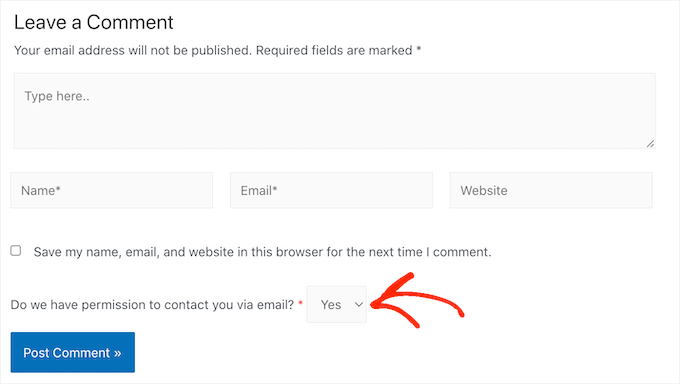
When a person posts a comment, their response is added as comment metadata. You can then export the metadata along with the email address and see whether you have permission to email that person.
In the following image, you can see an example of a spreadsheet containing one comment from an author who has opted into getting email updates and one author who doesn’t want to receive any messages from you.
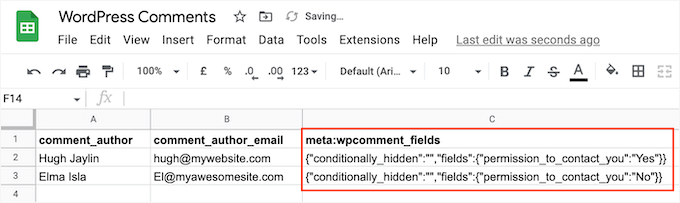
This allows you to build a mailing list without breaking important privacy rules.
There may also be some sites where you already have permission to email anyone who comments on your content. This often includes private WordPress blogs, such as a classroom website or a family blog.
In this case, exporting the list of email addresses may be easier than asking every single person for their contact information.
With that in mind, we’ll show you how to export email addresses from WordPress comments. Here’s a quick overview of all the topics we’ll cover in this article:
- How to Export Email Addresses from WordPress Comments
- Bonus Tip: Getting the Most Out of Your Exported Email Addresses
- FAQs: Exporting Email Addresses from WordPress Comments
- Additional Resources: More WordPress Email Marketing Tips
- FAQs: Exporting Email Addresses from WordPress Comments
- Additional Resources: More WordPress Email Marketing Tips
How to Export Email Addresses from WordPress Comments
The easiest way to export email addresses from your WordPress comments is by using WordPress Comments Import & Export.
This plugin lets you export different information from the WordPress comment section, including email addresses and any metadata that was added via a custom field.
Next, let’s install the plugin on your WordPress site.
From your WordPress dashboard, go to Plugins » Add New.

On the next screen, you can use the search bar to quickly find the plugin.
When you find it, click ‘Install Now.’
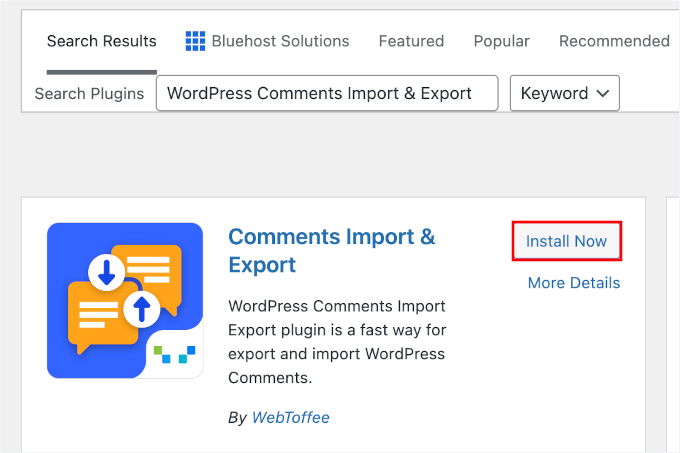
Once the installation finishes, click ‘Activate.’ If this is your first time installing a plugin, see our guide on how to install a WordPress plugin.
Upon activation, go to Comments » Comments Im-Ex.
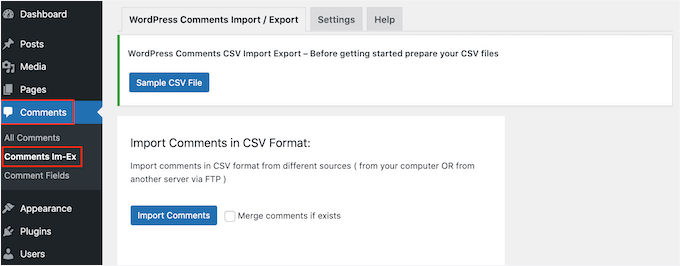
By default, the plugin exports data from all the comments people have posted on your website. Depending on your site, this might be a lot of information for you to read through.
That said, you may want to filter the comments that the plugin exports.
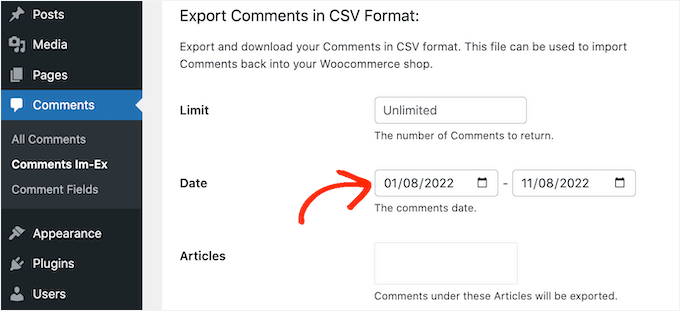
One option is only to export comments that were posted within a particular timeframe. This is also helpful if your privacy policy or consent language changed on a certain date and you only want to use data collected under the new terms.
To set a time limit, you can scroll down to locate the ‘Date’ section. Once found, you’ll want to click on each date field and then choose a start and end date from the calendar popup.
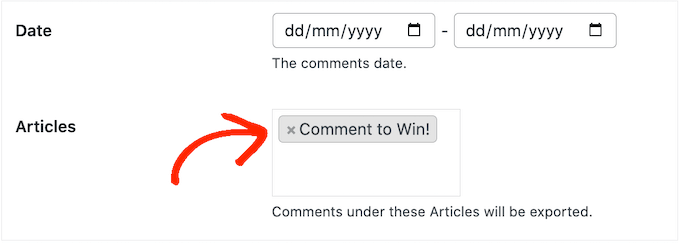
You can also export comments from a specific post only.
For example, you might be running a giveaway or contest where everyone who comments on a particular post is entered into a prize draw. In this case, you can export the email addresses from the post and pick your winner.
To limit the export to a specific page, simply click on the box next to ‘Articles’ and select any post from the list.
Once you’ve done that, scroll to the ‘Columns’ section, which lists all the information you can include in the export.
By default, the plugin exports all the data from each comment, so you’ll typically want to uncheck the information you don’t need.
For example, if you’re not interested in the author’s IP address, then you can click the box to uncheck the ‘comment_author_IP’ option.
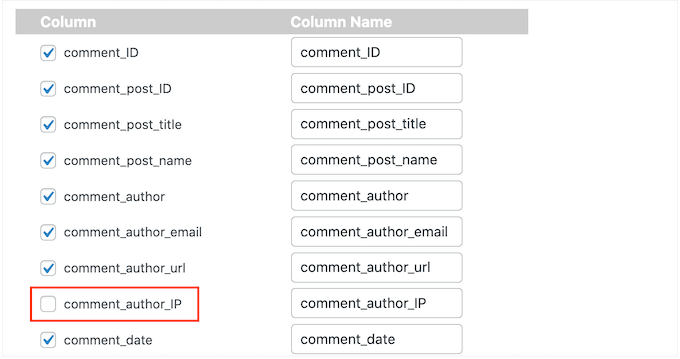
You can check or uncheck any boxes you want. However, since we want to export a list of email addresses, you should check the ‘comment_author_email’ box.
Did you add a custom opt-in field to the comment form? Then, make sure you check the ‘comment_meta’ box so you can see whether the author opted to receive email updates.
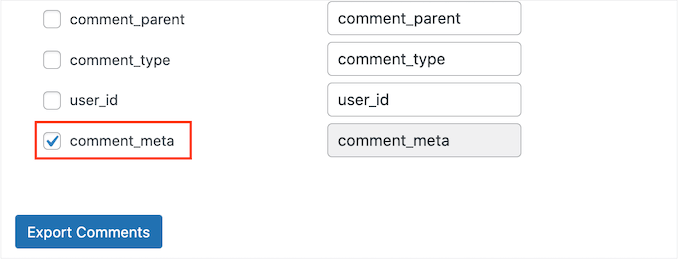
When you’re happy with the way the export is set up, go ahead and click the ‘Export Comments’ button.
The plugin will now export all the email addresses, and you can download that CSV file.
Next, you can open the file using any app or program that supports the CSV format, such as Microsoft Excel or Google Sheets, as you can see below.
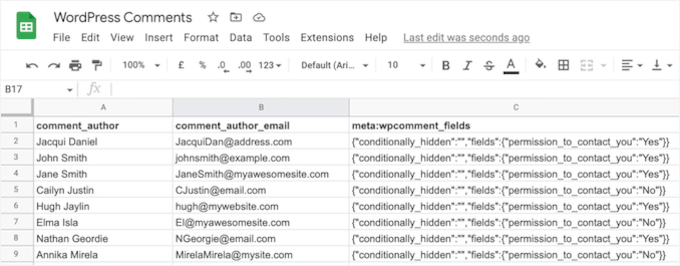
When you open the CSV file, the consent data might look a bit technical (like a line of messy code inside the ‘comment_meta‘ column).
Don’t worry, you don’t need to be a coder to read it. You simply need to verify that the user actually checked your consent box.
In Excel or Google Sheets, use the Find feature (Ctrl+F or Command+F) to search for “yes” or “optin” to quickly highlight the users who gave you permission.
From here, you can take your time to filter the comments based on whether these people opted into receiving emails.
Bonus Tip: Getting the Most Out of Your Exported Email Addresses
After exporting the email addresses from your WordPress comments, there are a few different ways that you can use them.
If the comment author opts to get email updates from you, then you might add them to your email newsletter. You can then send these people news, tips, and updates about your business or website.
For best results, we recommend tagging or segmenting these subscribers as ‘Commenters’ in your email tool. This allows you to:
- Send more personalized messages that reference the type of content they commented on, and
- Measure whether commenters are more engaged than other subscribers (often they are).
You can also add the users to your CRM to do regular personal outreach and build your network.
Another way to use your exported email addresses is to create a ‘Custom Audience’ for Facebook retargeting ads. Facebook allows you to upload a list of email addresses so you can show ads specifically to people who have already commented on your site.
FAQs: Exporting Email Addresses from WordPress Comments
Have questions about collecting commenter emails safely and legally? Below, we’ve answered some common concerns to help you navigate this process responsibly.
Is it legal to export email addresses from WordPress comments?
Yes, it can be legal, but only if you handle the data responsibly and comply with privacy regulations like GDPR, CCPA, and any applicable anti-spam laws in your country.
Exporting data for backup or analysis is usually fine; using it for marketing without consent is where you can get into trouble.
The key factor is consent. If you plan to use the email addresses for marketing or follow-ups, commenters need to explicitly agree to that. This typically means:
- A clearly labeled checkbox that isn’t pre-checked, and
- A short explanation of what they’ll receive (e.g., “Send me weekly WordPress tips and tutorials”).
To stay on the safe side, we recommend adding a clear opt-in consent checkbox to your comment form.
Alternatively, you can use WPForms to create a contact form or discussion form. WPForms comes with built-in dashboard management, making it much easier to export leads and view consent status without dealing with messy CSV files.
How can I add an opt-in field to my comment form?
You can use a plugin to customize your comment form and include an opt-in checkbox for email communication. This gives users a clear choice and helps you demonstrate compliance.
If you’re not sure where to start, our guide on adding custom fields to WordPress comments walks you through the process step by step.
What should I do if I don’t have consent to email commenters?
If you didn’t ask for permission upfront, it’s important not to assume it’s okay to email people, especially for promotional content.
Instead, consider updating your comment form and site with clear opt-in options going forward, and promote those signups through:
- Inline forms below your posts,
- Exit-intent popups, or
- Dedicated newsletter landing pages.
If you’re unsure whether a one-time consent email is allowed in your region, check with a legal professional or your email service provider’s compliance guidelines before sending anything.
How can I filter exported email addresses for specific purposes?
After exporting, you can open the data in a spreadsheet program like Excel or Google Sheets. From there, you can sort by post, comment date, or even consent status (if you’ve collected that info).
This lets you create targeted lists and make sure you’re only emailing users who have opted in. For example, you might:
- Create one segment for commenters on product review posts,
- Another for commenters on tutorials, and
- Use different email angles or offers for each segment to increase relevance and conversions.
Additional Resources: More WordPress Email Marketing Tips
We hope this article helped you learn how to export email addresses from WordPress comments. If you found this guide helpful, you may also want to check out our other articles on:
- Tested and Easy Ways to Grow Your Email List Faster
- How to Create a Paid Newsletter in WordPress
- How to Send a Custom Welcome Email to New Users in WordPress
- How to Send Automated Emails in WordPress
- How We Increased Our Email Subscribers by 600% with OptinMonster
- How to Prevent Newsletter Signup Spam in WordPress
If you liked this article, then please subscribe to our YouTube Channel for WordPress video tutorials. You can also find us on Twitter and Facebook.
FAQs: Exporting Email Addresses from WordPress Comments
Have questions about collecting commenter emails safely and legally? Below, we’ve answered some common concerns to help you navigate this process responsibly.
Is it legal to export email addresses from WordPress comments?
Yes, it can be legal, but only if you handle the data responsibly and comply with privacy regulations like GDPR or CCPA.
The key factor is consent. If you plan to use the email addresses for marketing or follow-ups, commenters need to explicitly agree to that. To stay on the safe side, we recommend adding a clear opt-in consent checkbox to your comment form.
How can I add an opt-in field to my comment form?
You can use a plugin to customize your comment form and include an opt-in checkbox for email communication. This gives users a clear choice and helps you demonstrate compliance.
If you’re not sure where to start, our guide on adding custom fields to WordPress comments walks you through the process step by step.
What should I do if I don’t have consent to email commenters?
If you didn’t ask for permission upfront, it’s important not to assume it’s okay to email people, especially for promotional content.
Instead, consider sending a one-time message (if allowed by your local laws) to ask whether they’d like to opt into future updates. If that’s not an option, it’s best to start fresh with a proper opt-in strategy.
How can I filter exported email addresses for specific purposes?
After exporting, you can open the data in a spreadsheet program like Excel or Google Sheets. From there, you can sort by post, comment date, or even consent status (if you’ve collected that info). This lets you create targeted lists and make sure you’re only emailing users who have opted in.
Additional Resources: More WordPress Email Marketing Tips
We hope this article helped you learn how to export email addresses from WordPress comments. If you found this guide helpful, you may also want to check out our other articles on:
- Tested and Easy Ways to Grow Your Email List Faster
- How to Create a Paid Newsletter in WordPress
- How to Send a Custom Welcome Email to New Users in WordPress
- How to Send Automated Emails in WordPress
- How We Increased Our Email Subscribers by 600% with OptinMonster
- How We Use a Video Membership Site to Grow Our Email List
- How to Prevent Newsletter Signup Spam in WordPress
- Best Email Management Software (Expert Pick)
If you liked this article, then please subscribe to our YouTube Channel for WordPress video tutorials. You can also find us on Twitter and Facebook.




Jiří Vaněk
This is definitely a very interesting way to expand your email list. And it’s quite simple too. I definitely have more comments on my website than added addresses to the newsletter. Thank you for the interesting direction on how to use comments to gain more addresses and thereby expand the community of people who receive updates.
Johnpaul
I have wondered how I was going to do this but Thank God I saw this article now. Thanks.
WPBeginner Staff
Agree, that’s why we have added the note to ask the users for double opt-in.
redcrew
Thank you for the article and tips. Good reminder not to add email addresses automatically to a mailing list, given the Canada Anti-Spam Legislation that just took effect this summer.