


Do you ever wonder if your content is actually reaching the right people? When we launched our first WordPress sites, that question was always on our minds.
Discovering the exact search terms people used to find our articles was a major turning point. It gave us a clear path for creating content our audience was actively looking for.
In this guide, we’ll share the same simple methods we use to track these keywords. These are the proven techniques that have helped us grow our websites and assist thousands of others.
Let’s get you that same clarity and see what your audience is searching for.
What Is Keyword Tracking and Why Is It Important?
Keywords are the phrases users type into search engines to find the content they are looking for.
So, keyword tracking basically means monitoring the position of your WordPress website for specific keywords in search engines like Google and Bing.
It helps you see important metrics, such as which specific search terms people use to find your website. This lets you focus on what’s working and stop spending time on what’s not.
When it comes to WordPress SEO optimization, we often recommend users do keyword research and add proper keywords and meta descriptions to their websites. This helps your website rank higher in search engines.
But what many beginners don’t know is that search rankings change quite often. If a new competitor enters the market or your previous competitor further improves their SEO, then you can lose the rankings that you previously had and the traffic along with it.
Sometimes, Google algorithm updates can also cause your website to increase or decrease in rankings for your top keywords.
At WPBeginner, we believe that it’s easier to double your website traffic and sales when you know exactly how people find and use your website.
With that said, let’s take a look at how to see the keywords people use to find your website.
How to Track the Keywords People Use to Find Your Site
The best way to track the keywords people use and the keywords where your website ranks is to use Google Search Console, which is a free tool offered by Google to help website owners monitor and maintain their site’s presence in Google search results.
We will show you how to access Search Console data directly, plus how to bring those reports right inside your WordPress dashboard for easier monitoring.
Finally, we will cover how to track not just your own keywords but also the keywords your competitors are ranking for.
Here is a summary of what we will cover:
- Track Website Keywords in Google Search Console
- Track Keywords Inside WordPress With AIOSEO (Recommended)
- Track Keywords Inside WordPress With MonsterInsights
- Track Competitor Keywords Using Semrush
- Tips on Improving the Keywords Where Your Website Ranks
- Frequently Asked Questions About Tracking Keywords
- Additional Resources on WordPress Keywords
Sound good? Let’s get started.
Method 1: Track Website Keywords in Google Search Console
If you have not already done so, then you need to add your website to Google Search Console. You can simply visit the Google Search Console website and follow the instructions in our tutorial on how to add your WordPress site to Google Search Console.
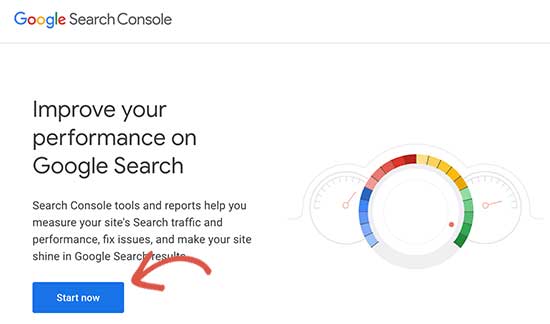
Once you have added your website to Google Search Console, you will be able to use it to monitor your organic search rankings.
To view your keyword positions, click on the ‘Performance’ report and then click on the ‘Average position’ score.
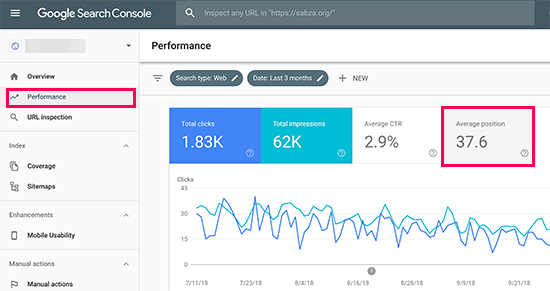
Search Console will now load your reports with the average position column included.
Next, you need to scroll down a bit to see the full list of keywords your website ranks for.
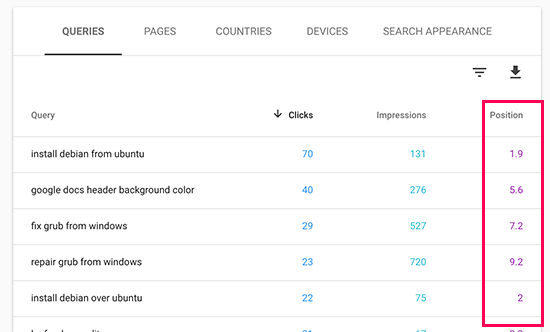
You will see a list of ‘Queries’ (the exact search terms people used) along with the number of clicks, impressions, and the average position for each one on the search results page.
You can sort the data by clicks, impressions, and position columns. You can see your top-ranking keywords by sorting the data by position.
As you scroll down, you will be able to see keywords where your site appears deeper in search results. You can optimize your content to rank higher for those keywords as well.
Method 2: Track Keywords Inside WordPress With AIOSEO (Recommended)
For this method, we will be using All in One SEO (AIOSEO) to see our Google Search Console data inside the WordPress dashboard.
AIOSEO is one of the best WordPress SEO tools on the market, used by over 3 million professionals. This comprehensive SEO toolkit will help you easily optimize your site for better rankings, and it has a Search Statistics addon that lets you track your keywords.
This method has two advantages:
- You get to see your keywords right inside the WordPress admin area.
- You will also see other helpful SEO reports, which will help you plan more efficiently.
To get started, you need to install and activate the AIOSEO plugin on your WordPress website. If you need help, see our guide on how to install a WordPress plugin for step-by-step instructions.
To use the Search Statistics feature, you first need to connect AIOSEO to your Google Search Console account. The plugin makes this super easy!
Just follow these steps:
- Navigate to All in One SEO » Search Statistics from your WordPress dashboard and click the ‘Connect to Google Search Console’ button.
- A Google screen will pop up. Choose the Google account you use for Search Console and sign in.
- Click the ‘Allow’ button to give AIOSEO permission to view your Search Console data.
- You’ll be returned to AIOSEO, where you can click the ‘Complete Connection’ button to finish the setup.
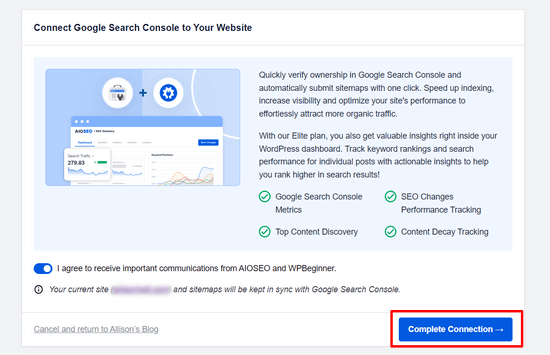
Once that’s done, you will be returned to the Search Statistics settings page.
To use the Search Statistics feature, you will need to connect your AIOSEO account with your Google Search Console account.
To do that, click on ‘Search Statistics’ in the AIOSEO menu from your WordPress dashboard.
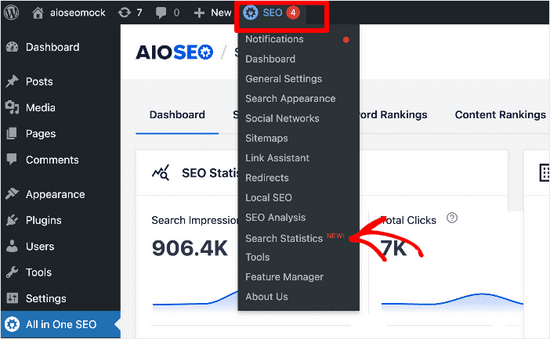
Then, select the ‘Settings’ tab.
From here, you need to click on the ‘Connect’ button to begin connecting your Google Search Console account.
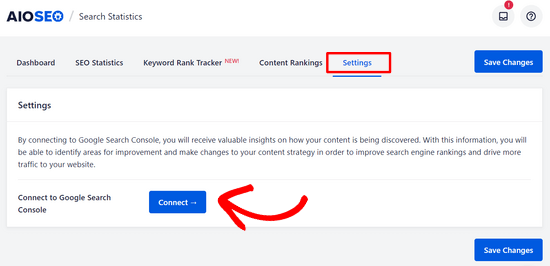
Next, you will see a Google screen where you can choose which Google account you want to use and sign in. After that, simply click the ‘Allow’ button to authorize the connection.
You’ll then be prompted to sign in to AIOSEO and you’ll need to allow the plugin to access your Google account by clicking the ‘Continue’ button.
Finally, you will see a screen where you can connect your website to Google Search Console by clicking the ‘Complete Connection’ button.
Once that’s done, you will be returned to the Search Statistics Settings screen.
Here, you will see a notification informing you that AIOSEO is fetching the data from Google Search Console and that it may take some time.
When AIOSEO finishes fetching the Google Search Console data, you can click on the ‘Dashboard’ tab.
You should now see different reports.
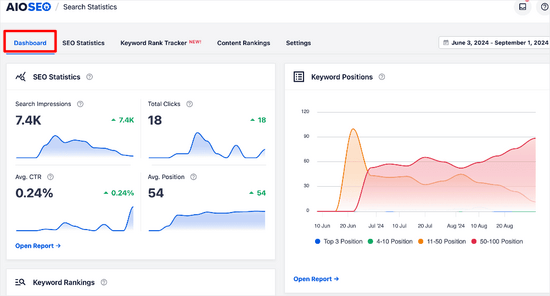
Here, you can see an overview of:
- SEO Statistics – The search impressions, total clicks, average click-through rate, and average position of all of your content for the date range set.
- Keyword Positions – The average position of your keywords in Google search results for the date range you have set.
- Keyword Rankings – The top keywords your content is ranking for and the Winning / Losing keywords that have seen the biggest changes of position in Google search results.
- Content Performance – A detailed report of the top pages, including the top winning and top losing pages, on your website.
To get a more detailed look at the keywords people are using to find your site, you can click on the ‘Keyword Rank Tracker’ tab. Then, click on ‘All Keywords.’
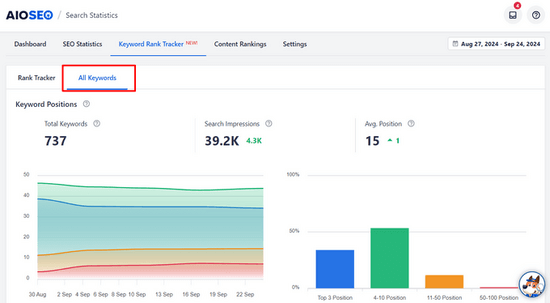
From here, you can scroll down to the ‘Keyword Performance’ table.
Here, you will see all of your top-performing keywords.
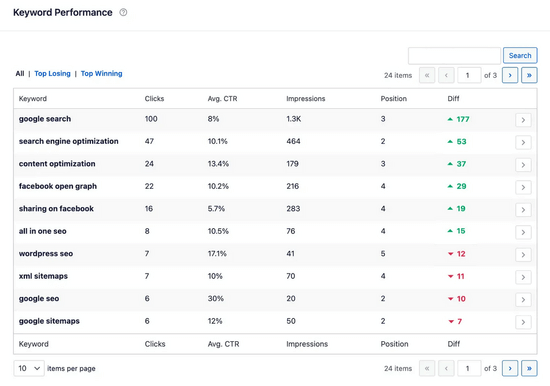
You can search the table for specific keywords or click on the ‘Top Losing’ and ‘Top Winning’ tabs to see only that content.
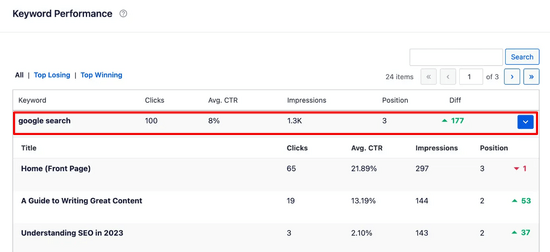
You can also click on a keyword to view the specific content for it, along with statistics like clicks, average click-through rate, impressions, and position.
If you’re curious about specific keywords and want to track them, you can click over the ‘Rank Tracker’ tab. Then, click the ‘Add Keywords’ button.
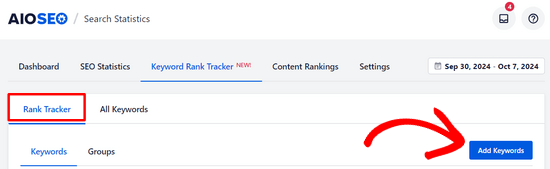
From there, you can manually enter the keywords you want to know about, or import them from your AIOSEO focus keywords or CSV file.
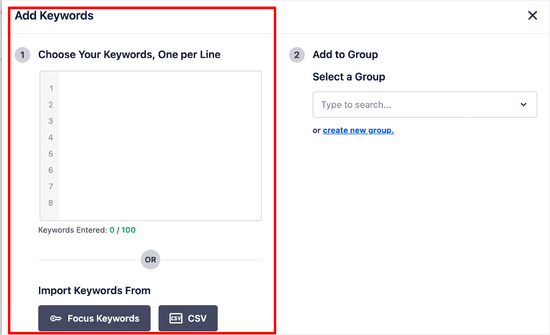
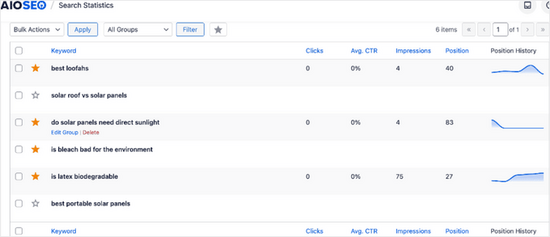
After adding the keywords, you can scroll down the page and see detailed metrics for them including position, clicks, average click-through rate, impressions, and position history.
Method 3: Track Keywords Inside WordPress With MonsterInsights
You can also use MonsterInsights to track your keywords. While both AIOSEO and MonsterInsights bring Search Console reports into your dashboard, they have different core strengths.
AIOSEO is a comprehensive SEO toolkit that helps you optimize your content, while MonsterInsights is a dedicated analytics plugin that gives you deep insights into your website traffic and user behavior.
MonsterInsights is the #1 Google Analytics plugin for WordPress. It allows you to easily connect your site with Google Analytics and shows you human-readable reports right inside your WordPress dashboard.
First, you need to install and activate the MonsterInsights plugin on your website. For more details, see our tutorial on how to install a WordPress plugin.
Once you have installed and set up MonsterInsights, the next step is to connect your Google Analytics 4 account with Google Search Console. This allows MonsterInsights to pull your keyword data into its reports.
Here’s how to do it:
- Log in to your Google Analytics account.
- Click on the Admin gear icon (⚙️) in the bottom-left corner of the screen.
- In the ‘Property’ column, scroll down to the ‘Product Links’ section and click on Search Console Links.
- Click the blue Link button in the top right.
- You will be guided through the steps to choose your website’s Search Console property and connect it to your Analytics property.
For detailed instructions with screenshots, please see our guide on how to install Google Analytics in WordPress .
That’s it! Your Google Analytics and Search Console accounts are now linked. You can now view the keywords your website ranks for inside the WordPress admin area.
Simply go to Insights » Reports and then switch to the ‘Search Console’ tab.
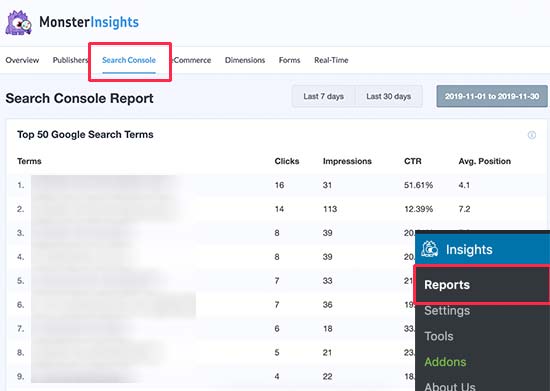
You will see a list of keywords where your website appears in the search results. Next to each keyword, you will also see the following parameters:
- Clicks – How often your site is clicked when it appears for this keyword.
- Impressions – How often it appears in search results for that keyword.
- CTR – The click-through rate for this keyword.
- Average Position – Your site’s average position in search results for that keyword.
Method 4: Track Competitor Keywords Using Semrush
Do you want to track not just yours but also the keywords your competitors are ranking for? This method allows you to do that with actual tips on how to outrank your competition.
We will be using Semrush for this method. It is one of the top SEO rank tracker tools on the market because it helps you get more search traffic to your website.
We use it on our many websites to gather competitive intelligence.
First, you need to sign up for a Semrush account. Note: You can use our Semrush coupon to get a better deal.
After you have created an account, you can enter your domain name at the top search bar under the Semrush dashboard.
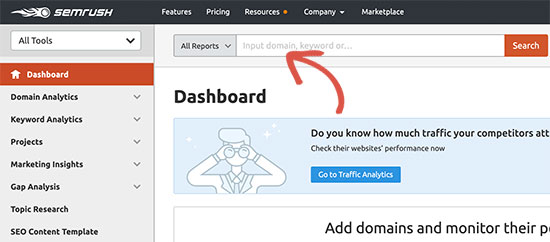
Next, Semrush will show you a full keyword report with a list of your top-ranking keywords.
You should click on the ‘View Full Report’ button to get the full list of keywords.
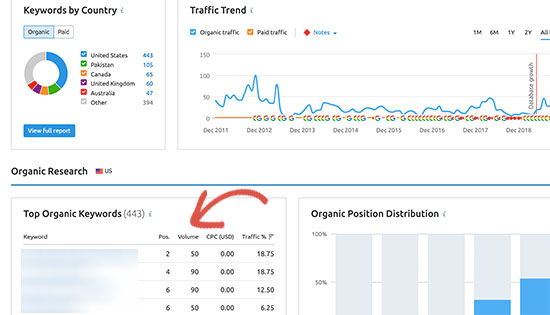
Next to each keyword, you will see its position, volume of search, cost (for paid advertisement), and the percentage of traffic it sends to your website.
You can also enter your competitor’s domain name to download a full list of all the keywords where they rank.
Tips on Improving the Keywords Where Your Website Ranks
As you go through the list of keywords, you will notice some of your results rank quite well (in the top 10) with significant impressions but very low CTR.
This means that while Google is showing your page to users, the title isn’t compelling enough to earn the click. You can often fix this by improving your article’s SEO title and meta description.
For example, let’s say your report shows you rank on page two for ‘best beginner camera’, but your title is just ‘A Guide to Cameras’. A much better title would be ‘5 Best Cameras for Beginners in 2025 (Easy & Affordable!)’ This new title directly matches the searcher’s goal and is much more likely to be clicked.
For more ideas, see our tutorial on how to optimize your blog posts for SEO to rank higher.
You will also see keywords where your website can easily rank higher. You can then edit those articles and improve them by adding more helpful content, adding a video, and making it easier to read.
If you are using Semrush, then you can use their Writing Assistant Tool, which helps you improve your content by making it more SEO-friendly for that particular keyword. See our guide on using the SEO Writing Assistant for more details.
Frequently Asked Questions About Tracking Keywords
We get a lot of questions about keyword tracking from our readers. Here are answers to some of the most common ones to help you get started.
1. What is the best way to see the keywords people use to find my site?
The best way is to use Google Search Console, a free tool directly from Google. You can also use WordPress plugins like All in One SEO or MonsterInsights, which bring this data right into your WordPress dashboard for easier monitoring.
2. Can I track my website’s keywords for free?
Yes, absolutely. Google Search Console is completely free to use. It provides essential data on the queries that bring users to your site, your average ranking position, impressions, and clicks without any cost.
3. Why is it important to track my website’s keywords?
Tracking keywords helps you understand your audience better and see what content resonates with them. It also alerts you to ranking drops from competitor changes or Google algorithm updates, so you can act quickly to protect your traffic.
4. How can I see what keywords my competitors are ranking for?
To analyze competitor keywords, you need a dedicated SEO tool. A tool like Semrush lets you enter any competitor’s website address and see a full report of the keywords they are ranking for, giving you valuable content ideas.
5. What should I do after I find the keywords I’m ranking for?
Once you have your keyword data, look for opportunities. You can improve articles with high rankings but low click-through rates by rewriting their titles. You can also update and expand content for keywords ranking on page two to help them climb higher in the search results.
Additional Resources on WordPress Keywords
We hope this article helped you learn how to see the keywords people use to find your WordPress site. You may also want to see our other guides on WordPress keywords:
- How to Add Keywords and Meta Descriptions in WordPress
- How to Properly Use Focus Keyphrase in WordPress (Beginner’s Guide)
- How to Do Keyword Research for Your WordPress Blog
- How to Check If Your WordPress Blog Posts Are Ranking for the Right Keywords
- How to Analyze Keyword Density to Boost Rankings
- How to Use the SEO Writing Assistant in WordPress to Improve SEO
- Best Online Content Optimization Tools for WordPress
- How to Check if Your Website is SEO Optimized
- Best Keyword Research Tools for SEO (Compared)
If you liked this article, then please subscribe to our YouTube Channel for WordPress video tutorials. You can also find us on Twitter and Facebook.




Mrteesurez
This is definitely a great article.
although I usually use Google for checking it, I don’t know I can also use AIOSEO, this will be easier and access directly from WP dashboard.
Thanks.
WPBeginner Support
Glad we could share a simpler method for you
Admin
Jiří Vaněk
Thank you for the article. I recently started using SEMRUSH. However, the more I discover what AIOSEO is capable of, the more I feel like I should switch from Yoast SEO to your tool. Your features look really great.
WPBeginner Support
You’re welcome, we hope you find AIOSEO helpful if you do decide to swap
Admin
Vivi
So well written, so clear. Thank you for this article, it is very helpful.
WPBeginner Support
Glad you like our article
Admin