


After spending way too many evenings sorting through piles of paper forms and typing everything into spreadsheets, I finally hit my breaking point. I needed a better way to collect information that didn’t eat up all my time and energy.
Switching to paperless forms has been one of the best decisions I’ve made for my business. Digital forms can cut down on mistakes, speed up your day-to-day work, and make it easy to find the information you need.
Plus, your customers will love being able to fill out forms online instead of dealing with paperwork.
In this article, I’ll explain what a paperless business form is and walk you through how to create one step by step. By the end, you’ll be ready to set up your first digital form and start seeing the benefits right away. 🙌

What Are Paperless Business Forms?
A paperless business form is a digital form that people fill out on your WordPress website. They can use a computer, smartphone, or tablet to complete it anytime, from anywhere.
Today, many businesses are ditching paper forms and switching to digital ones to build a fully paperless system. Here are some of the main benefits of going paperless:
- 🌐 Reach a Larger Audience: Digital forms let you collect responses from people anywhere in the world, without geographic limits or mailing delays.
- 🤳 Easy to Access: People can open your form on any device and fill it out from anywhere. Just make sure your website is mobile-friendly so the form is easy to use on phones and tablets.
- ⏱️ Get Instant Responses & Save Time: With digital forms, you see responses as soon as someone hits submit. You don’t have to wait for the mail or manually type in information from paper.
- 💵 Cost Savings: Digital forms can save you a lot of money on paper, printing, and mailing fees.
- 🌳 Good for the Environment: Creating a paperless office reduces your carbon footprint and has a positive impact on the environment. You can help conserve trees, prevent deforestation, and reduce waste.
Now, let’s look at some practical ways you can use paperless forms in your business.
When Use Paperless Forms for Your Business?
You can use paperless forms in almost every part of your business where you use paper now. For example, you can use it for contact forms, job applications, order forms, event registrations, surveys, bookings, and many more.
Here’s a closer look at some of the most common paperless form use cases:
| Scenario | Use Cases | Key Benefits |
|---|---|---|
| Contact with customers. | Add an online contact form to your website. | Collect feedback, get suggestions, and resolve queries faster. |
| Accepting job applications | Use an online application form with file upload. | Streamlines hiring, cuts paperwork, and keeps data organized. |
| Running an online store | Create digital order forms for placing and paying for orders. | Simplifies ordering, supports online payments, and improves UX. |
| Event registrations (webinars, conferences) | Set up online registration forms for upcoming events. | Makes sign-ups easy, centralizes attendee data, and saves manual work. |
Next, let’s look at how you can easily create a paperless digital form in WordPress.
Here’s a quick overview of what I’ll cover in this guide:
Let’s get started.
How to Create a Paperless Business Form in WordPress
The best way to add paperless business forms in WordPress is by using WPForms. It’s the best contact form plugin for WordPress and is used by over 6 million professionals.
At WPBeginner, we also use WPForms for almost all of our digital forms. You can see our detailed WPForms review to explore its features.

With WPForms, you get a drag-and-drop form builder that makes it super easy to customize your form. Plus, the plugin offers AI tools and 2,000+ form templates so you can quickly create just about any kind of WordPress form.
For this tutorial, we’ll create a digital conference registration form using WPForms Lite, which is 100% free. But if you need advanced fields like phone number, password, address, or file uploads, you’ll need the WPForms Pro version.
Install and Activate the WPForms Plugin
First, you’ll need to install and activate the WPForms plugin.
From your WordPress dashboard, go to Plugins » Add New Plugin.

After that, you can use the search bar to quickly find the WPForms plugin.
In the search result, go ahead and click on the ‘Install Now’ button. Then, simply hit ‘Activate’ when it appears.
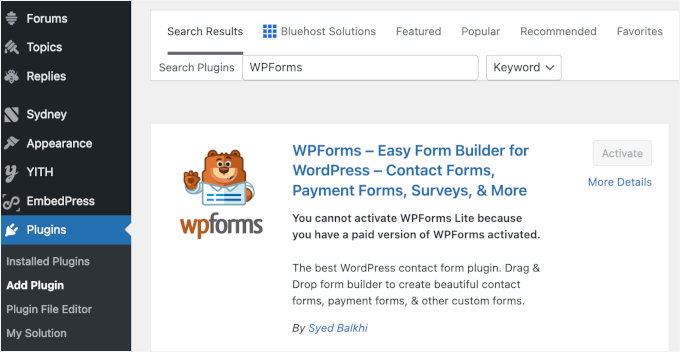
If you need help, please see our guide on how to install a WordPress plugin.
Build and Customize Your First Paperless Form
Upon activation, you can head over to WPForms from the WordPress admin panel and then click the ‘Add New’ button.
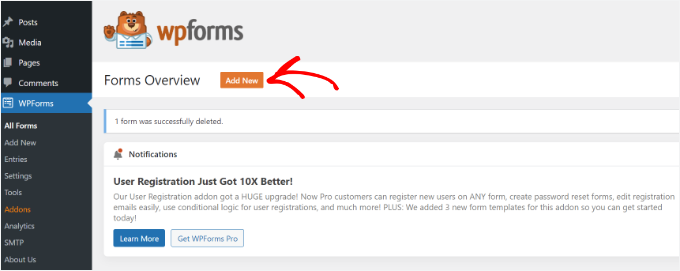
This will take you to the Setup page.
To start, go ahead and name your form at the top.
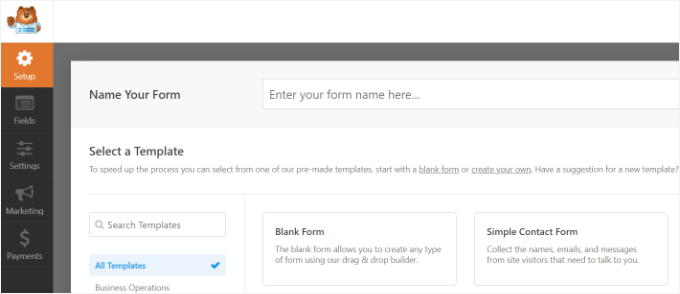
After that, you’ll choose how you will create your online form.
With WPForms, you can AI-generate your forms to speed up the process. All you have to do is enter a simple prompt, and then the tool will build the form for you.

For this tutorial, though, I’ll use a pre-made template.
In the ‘Conference Registration Form’ template box, simply hover over the template and click the ‘Use Template’ button.
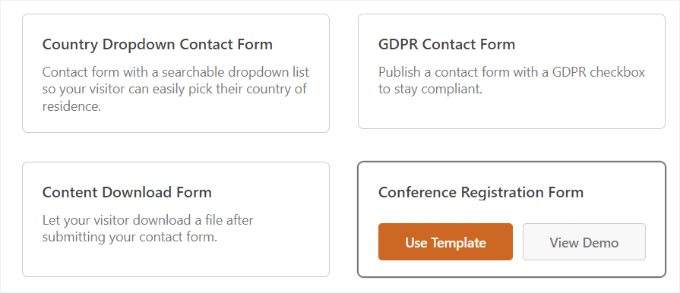
Next, you can customize your form using the drag-and-drop builder.
WPForms offers different fields that you can add to your form. In the Lite version, you can add line text, paragraph text, a dropdown menu, multiple choice, checkboxes, and more.
If you require fancy fields like phone number, password, address, or a file upload option, then I recommend using the WPForms Pro version.

Simply drag a field from the given options on your left and drop it where you’d like to add it to the form.
Besides that, you can further customize existing fields in the template.
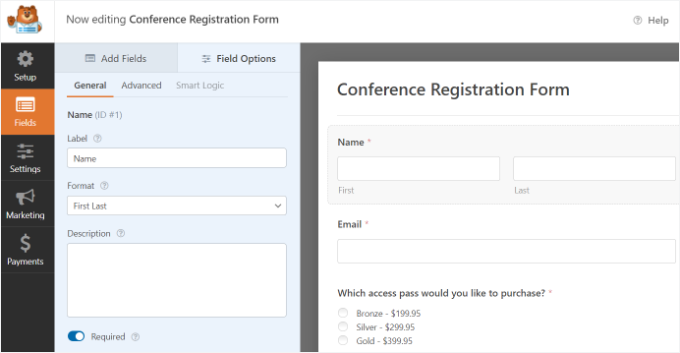
For example, when you click the ‘Name’ field, additional options will appear in the menu on the left. These allow you to edit the label, format, description, and whether the field is required.
Configure the Paperless Form Notifications and Confirmation
Next, click the ‘Settings’ tab in the menu to configure your form options.
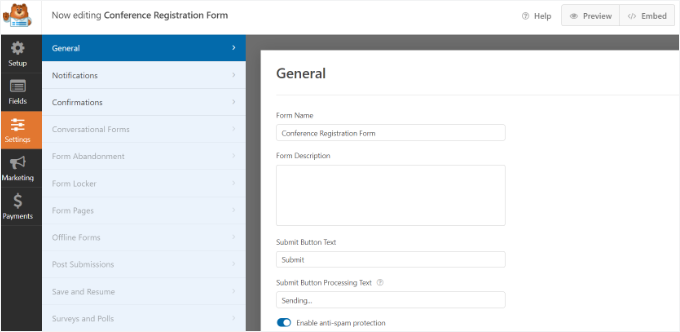
Under the ‘General’ settings, you can edit the form name, add a description, change the submit button text, and more.
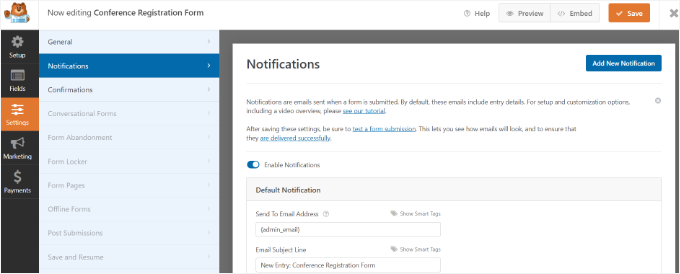
Then, go to the ‘Notifications’ settings and update the email address where you want to receive form submissions.
There are also settings for changing the subject line, the ‘from’ name and email address, and more.
📌 Note: Using an SMTP service is a great way to ensure your email notifications reach the inbox. You can set this up with WP Mail SMTP, and for details, please refer to how to fix WordPress not sending emails.
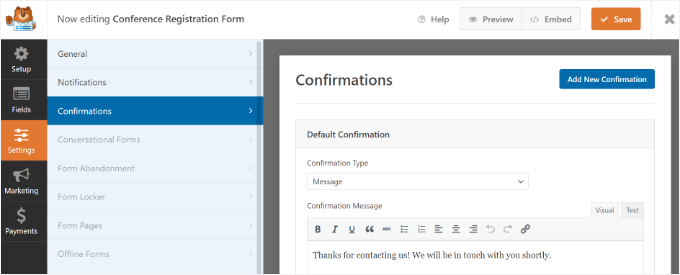
Lastly, you can adjust the ‘Confirmation’ settings.
This controls what people see after they submit the form. You can show a message, show a landing page, or redirect users to another URL.
For more details, check out our guide on how to send confirmation emails after WordPress form submission.
🧑💻 Pro Tip: You can take advantage of WPForms’ Entry Automation feature to automatically export form submissions to your email, Google Drive, Dropbox, or other services.
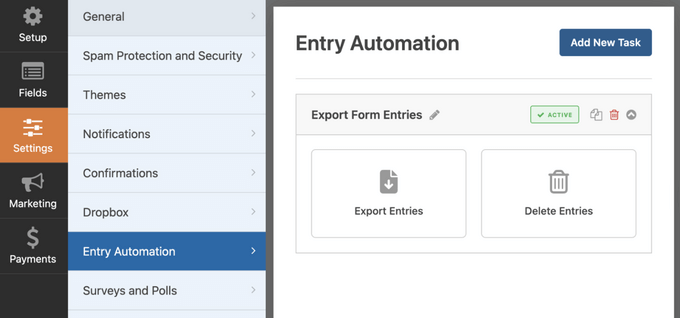
This eliminates the need for printing, filing, or manually transferring data. For step-by-step instructions, see our tutorial on how to auto-export WordPress form entries.
You can also click the Marketing tab on the left to connect your form to different marketing services, such as your email service provider.
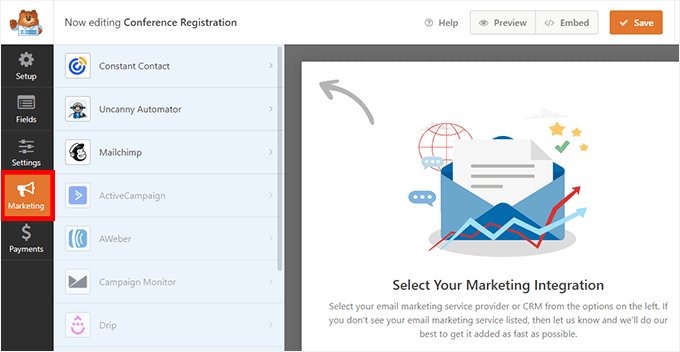
You can even integrate your form with meeting or webinar software such as Zoom or create other automated workflows to save time.
Once you’re happy with your settings, you can click the ‘Save’ button at the top and exit the form builder.

Test and Embed Your Paperless Form into Your WordPress Site
In this step, you’ll test and add your form to any WordPress post or page.
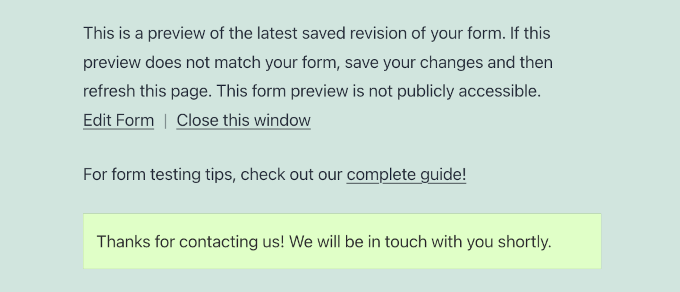
To start, you can click on the ‘Preview’ tab to test the form.
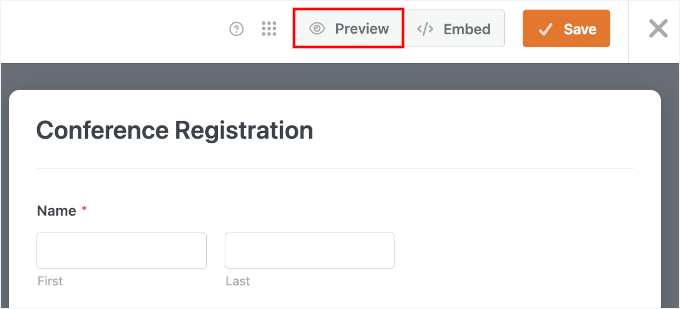
On the preview screen, first make sure all fields are displayed as you expect and that the labels are clear.
Next, fill out the form with some test details. Try leaving a required field empty or typing a wrong email address so you can see if the form catches those errors.
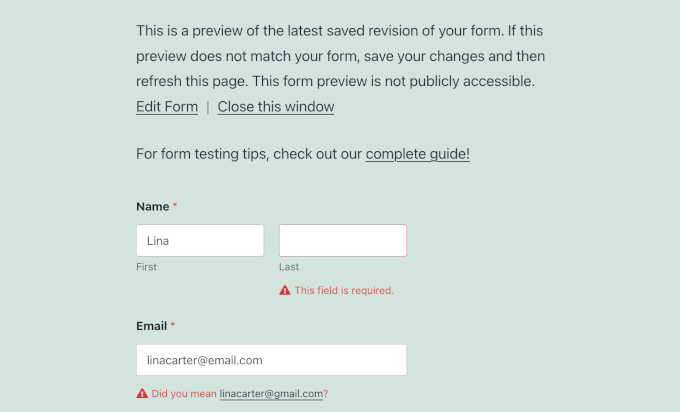
When you’re happy with how everything works, you can click Submit.’
Then, don’t forget to check that your thank-you message or confirmation page shows up correctly./im
Now that you’ve tested the form, you can go back to the WPForms builder.
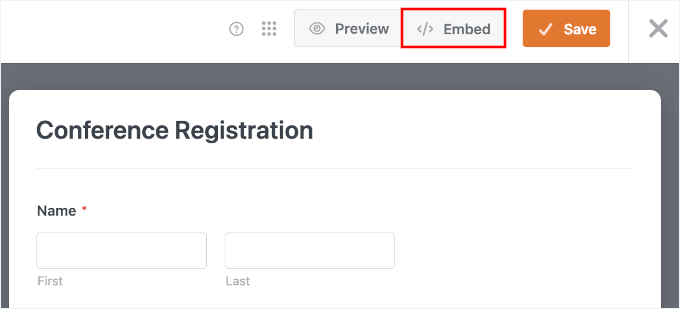
Then, click the ‘Embed’ button next to ‘Save’ to launch the embed wizard.
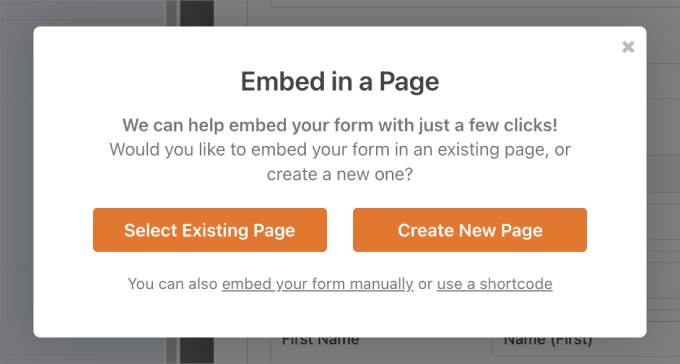
This will open a popup where you can select to embed the form into a new or existing page.
For this tutorial, I’ll choose ‘Create New Page.’
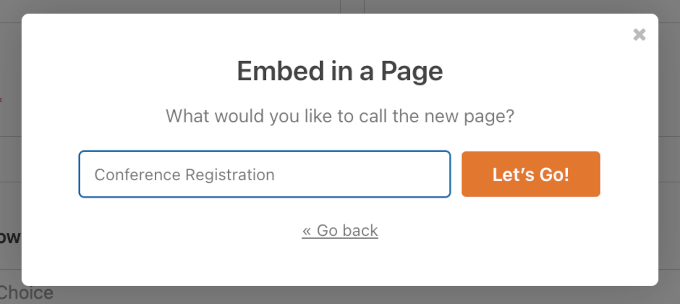
On the next screen, go ahead and name your new page.
Simply type the name into the available field and click ‘Let’s go!’
This will take you to the WordPress content editor.
From here, you can click the ‘+’ button and add the WPForms block.
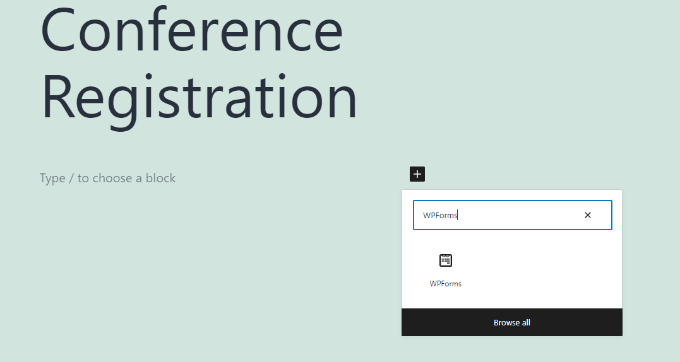
After that, you’ll see a dropdown menu in the WPForms block.
Here, you can select your conference registration form.
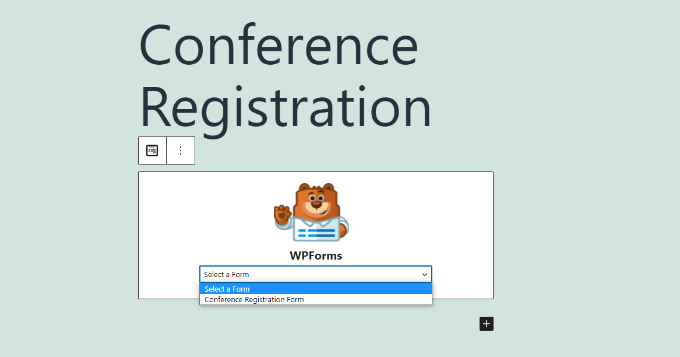
From here, you can enable the form title and description on the Block tab as well as choose a theme to customize your form.
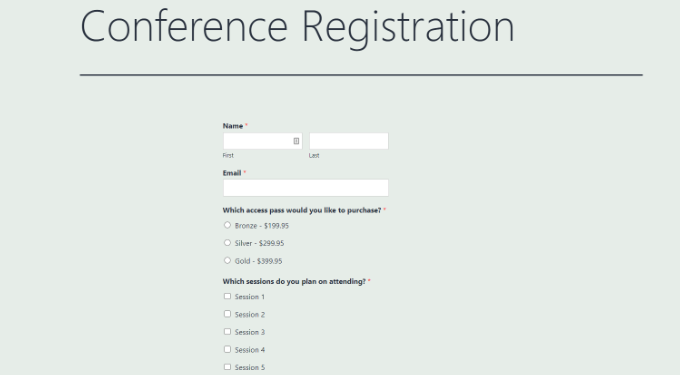
That said, if everything looks good already, it’s time to publish or update your page. Now, if you visit your website, you can see the paperless conference registration form in action:
For step-by-step instructions, you can refer to our guide on how to embed WordPress forms.
Bonus Tip 💡: Automate Your Digital Form Workflows
After creating your paperless form, you can save even more time by setting up automations. That way, your form data doesn’t just sit there – it triggers helpful actions that keep your business running smoothly.
Here are some tools you can connect your forms to:
- Email Marketing Tools. Automatically add new contacts to your email list when someone submits your form. This is great for sending welcome emails, newsletters, or promotions without any manual work.
- CRM Platforms. Send form submissions directly to your customer relationship management (CRM) system. This helps you track leads, manage follow-ups, and organize customer info in one place.
- Spreadsheets. Log form entries into CSV or Excel automatically. It’s a simple way to manage data like orders, registrations, or survey results — especially if you want to sort or filter them later.
These automations can help you avoid repetitive tasks and ensure no lead or submission falls through the cracks. For details, see our guide on how to set up WordPress automations.
FAQs About Building Paperless Business Forms
Still have questions? Here are some common ones I hear from business owners making the switch to digital forms:
Which is better, paper or digital forms?
Digital forms are usually better. They’re faster to process, easier to store and search, reduce manual data entry, and are more eco‑friendly.
What are the disadvantages of electronic forms?
They generally need internet access, can be more challenging for non‑tech‑savvy users, and require good security practices for sensitive data.
Is Google Forms good or bad?
Google Forms is great for simple, free forms and surveys, but it has limited design, branding, and advanced features. For business use, tools like WPForms or Formidable Forms offer more control.
We have an article comparing these form builders, which you can see in WPForms vs Formidable Forms vs Gravity Forms.
Other Helpful Guides for Using Paperless Forms
I hope this article helped you learn what a paperless business form is and how to make one.
You may also want to see our guides on:
- How to Create a Questionnaire in WordPress
- How to Easily Add a Client Feedback Form in WordPress
- How to Create Multilingual Forms in WordPress
- WordPress Form Does Not Work: Troubleshooting Tips
- Best Online Form Builders (Expert Picks)
If you liked this article, then please subscribe to our YouTube Channel for WordPress video tutorials. You can also find us on Twitter and Facebook.




Jiří Vaněk
WP Forms has made my life much easier when it comes to forms. I used to rely on Google Docs and shared documents, with links on my website. It not only looked unattractive but also very unprofessional. WP Forms is fantastic with its hundreds of plugins, allowing you to find a solution for practically anything. I mainly use it for surveys to gather information from users about which changes they’d like to see, what they like, or what they’re dissatisfied with. Feedback is crucial for understanding what the user needs, and WP Forms offers a really simple way to collect this information in a convenient and visually appealing way directly on the website.
Daryl Holle
Is there a “simple” add on that allows a client to sign a form? What is the accepted method to get that accomplished?
WPBeginner Support
WPForms does have the option for signatures
Admin