


Are people visiting your WordPress blog but not coming back? I’ve been there. When I first started blogging, I was happy to see traffic coming in, but it felt discouraging when most visitors never returned.
What made the biggest difference for me was building an email list.
Once I set up a simple subscription form and started sending updates, people came back to read more of my content. They replied to emails, shared my posts, and actually followed what I was doing. It felt like I was building a real connection instead of just hoping for clicks.
In this guide, I’ll show you how to add an email subscription form to your WordPress blog.
Whether you’re starting fresh or want a better email marketing setup, I’ll walk you through the steps in a way that’s easy to follow.
🔖 Quick Summary: To add email subscriptions to WordPress, you need an email marketing service (like Constant Contact) and a connection plugin (like WPForms). This guide covers the setup, integration, and embedding process in 6 steps.
Why Should I Build an Email List for My WordPress Blog?
Building an email list gives you full control over how you reach your audience. While you’ll use an email marketing service to manage it, you’re not stuck relying on algorithms or a single platform.
This is especially helpful if you’re growing your audience through your WordPress blog. Email helps turn one-time visitors into returning readers because you can stay in touch directly.
An email list is just what it sounds like: a collection of email addresses that users give you when they sign up for updates.
At WPBeginner, we’ve seen the impact firsthand. Our email list has grown to over 1 million subscribers, and it’s one of our most important ways of helping people.
Every week, we send out tutorials, plugin tips, and WordPress news that readers might have missed otherwise. It’s how we stay connected with beginners all over the world, even long after they’ve left our site.
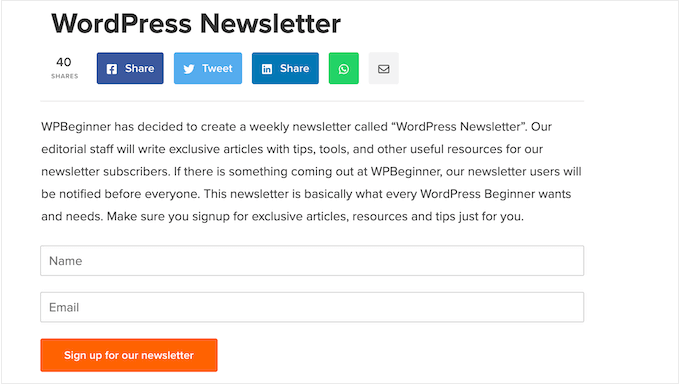
Unlike social media accounts or search rankings, your email list is something you actually own. You can reach out to your readers any time, whether you’re announcing a new post, sharing tips, or promoting a product.
Other platforms, like social media, can be helpful—but they come with limits. Algorithms change, accounts can be suspended, and your content might never reach the people who followed you.
That’s why it’s risky to rely only on outside platforms.
If you’d like more details, check out our guide on why you should start building your email list.
Of course, with that control comes responsibility.
If you’re collecting names and email addresses—especially from users in the EU—you’ll need to follow privacy laws like the GDPR. That means being clear about how you’ll use personal data and getting permission before you send emails.
If this sounds technical, don’t worry. I’ll walk you through everything step by step. Here’s what this guide will cover:
- How to Add Email Subscriptions to Your WordPress Site
- Step 1: Set Up Your Email Subscription List
- Step 2: Create an Email Subscription Form in WordPress
- Step 3: Connect WPForms to Constant Contact
- Step 4: Add the Subscription Form to Your Website
- Step 5: Display Your Email Subscribe Form in a Popup (Optional)
- Step 6: Write and Send Emails to Your Blog Subscribers
- FAQs: How to Add Email Subscriptions to Your WordPress Blog
- Keep Going: More Email Marketing Guides for WordPress Bloggers
Let’s get started!
How to Add Email Subscriptions to Your WordPress Site
Email marketing might seem overwhelming at first, but it’s easier than it looks. With the right tools, you can add email subscriptions to your WordPress blog without any technical hassle.
The first thing you’ll need is an email marketing service. This will help you collect subscribers, send out newsletters, and track how your emails are performing over time.
I recommend using Constant Contact because it’s one of the most beginner-friendly platforms for small businesses.
It comes with helpful features like open and click tracking, so you can understand what’s working and improve your email strategy as you go.
Plus, their paid plans include powerful features like:
- Marketing automations to speed up your workflows
- Subscriber list segmentation so you can send specific emails to specific users
- Surveys and polls
- Targeted landing pages
- A/B subject line testing to get the best results
- SMS marketing
Another benefit? Constant Contact integrates seamlessly with the best WordPress form plugins, which I’ll show you how to use later in this guide.
💡 Alternatives: If Constant Contact isn’t quite what you’re looking for, I have a couple more recommendations: Brevo (formerly Sendinblue) or HubSpot.
For more options, see my roundup of the best email marketing services.
For this tutorial, I’ll walk you through the steps using Constant Contact. But the concepts will still apply even if you’re using a different service, so feel free to follow along.
Step 1: Set Up Your Email Subscription List
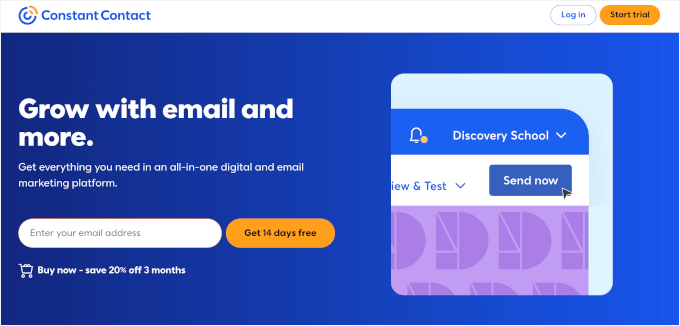
The first thing you need to do is sign up for an account with Constant Contact.
Simply go to their home page, click on the ‘Sign up free’ button, and fill out your information.
Once you’ve created your account, it’s time to set up your email list.
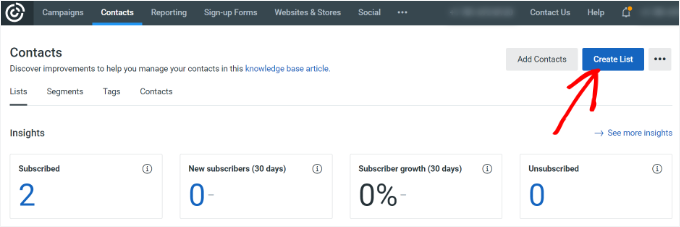
First, you need to navigate to the ‘Contacts’ tab in the dashboard menu (usually found in the top or sidebar navigation).
This will take you to the contacts page. From there, you need to head to the ‘Lists’ tab and click on the blue ‘Create List’ button.
A popup window will now open.
You’ll be asked to provide a name for your email list. It can be whatever you want, but I’ll call it ‘My Newsletter’ for this example.
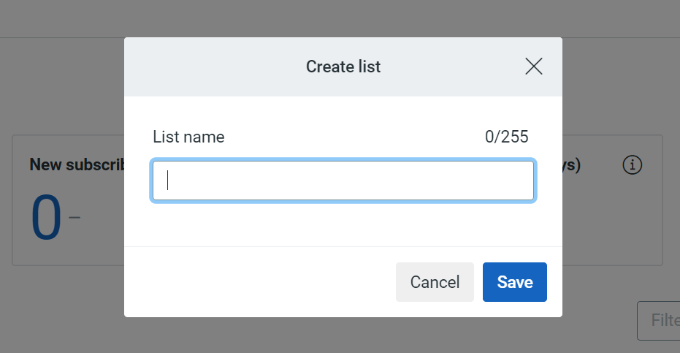
Don’t forget to click the ‘Save’ button when you’re done. Now you have a new list people can subscribe to.
The next step is to add an email subscription form to your WordPress website, where your visitors can sign up and join the list you just made.
Step 2: Create an Email Subscription Form in WordPress
While Constant Contact includes its own signup form builder, the easier way to create forms in WordPress is by using the WPForms plugin, which is the best contact form builder on the market.
At WPBeginner, we use WPForms for all our forms – from our contact form to our annual reader survey. It’s our top recommendation for beginners and small business owners alike, and you can learn more about it in our extensive WPForms review.
First, let’s create a WPForms account.
You can head over to the WPForms website and click the ‘Get WPForms Now’ button. After that, you can just choose the plan that best fits your needs and complete the registration process.

📝 Note: I’ll use WPForms Pro for this tutorial because it has advanced integrations with email marketing tools and comes with other great features like an AI form builder.
If you’re on a budget, then WPForms Lite is a great alternative. It has fewer features, but it still lets you connect your forms to Constant Contact.
Upon registration, you’ll be able to access your license key. You can keep this tab open or store your key somewhere safe, as you’ll need it in a minute.
Now, you can install and activate the WPForms plugin.
Go to Plugins » Add Plugin from your WordPress admin area.

On the next page, use the search box to quickly find the WPForms plugin.
When you see it, click ‘Install Now’ and then ‘Activate.’
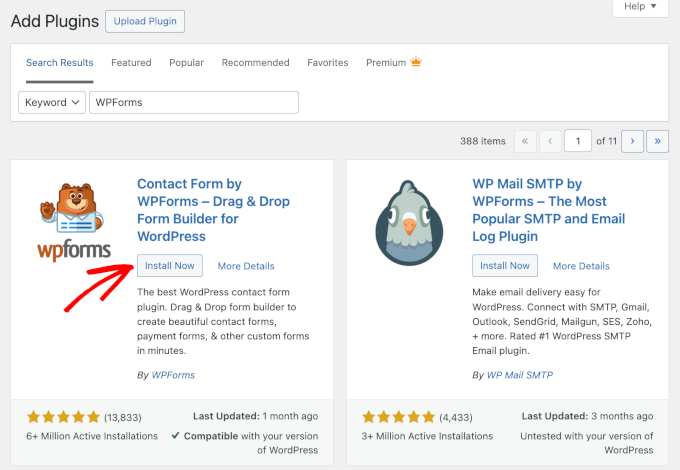
If you need help, then follow our guide on how to install a plugin for detailed instructions.
Once you have activated the plugin, head over to WPForms » Settings and enter your license key. You can find this in your WPForms account area.
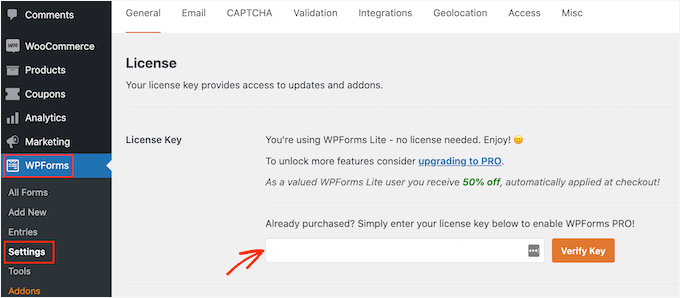
Once your license is verified, scroll down to the ‘GDPR’ section.
Then, go ahead and check the box next to ‘Enable GDPR Enhancements.’
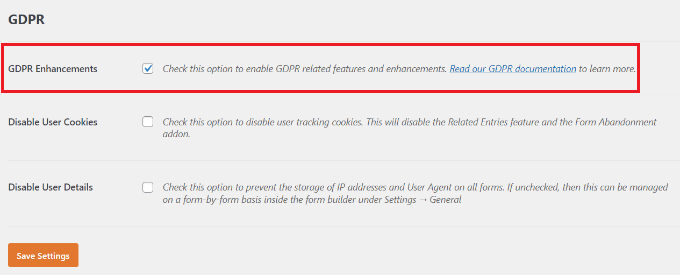
This will unlock two additional privacy options:
- Disable User Cookies – Stops WPForms from setting cookies for things like form abandonment, geolocation, and related entries.
- Disable User Details – Prevents WPForms from storing IP addresses and browser info from form submissions.
These settings are optional. You can enable them based on how much visitor data you want (or need) to collect. And when you’re done, don’t forget to click ‘Save Settings.’
⚠️ Disclaimer: At WPBeginner, we’re not legal professionals, and this guide is for general informational purposes only. I recommend consulting a legal expert to ensure your forms and data practices are fully compliant with regulations like the GDPR.
Now, you can go to WPForms » Add New page from your WordPress admin area to start creating your email subscription form.
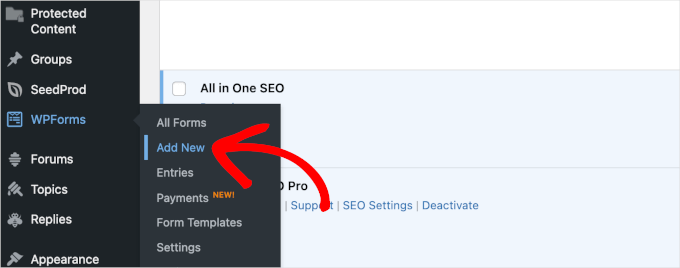
This will open the WPForms ‘Setup’ page.
From here, you can start by entering a name for your form. This is just for your reference, but using a clear, descriptive name can help you stay organized.
Next, you’ll choose how you want to build your email subscription form. WPForms gives you three options: start from scratch, use a pre-made template, or try the AI form builder.
If you want to save time, then you can opt for the WPForms AI builder. All you have to do is add a simple prompt, like “newsletter signup form with name and email,” and the AI will generate a complete form for you in seconds.

For this tutorial, though, I’m going to use a pre-made template.
If you scroll down the ‘Setup’ page, you’ll see 2,000+ form templates to choose from, including email subscription forms, contact forms, and more. You can also use the search bar to quickly find the template that best fits your needs.
Let’s go ahead and select the Newsletter Signup Form template.
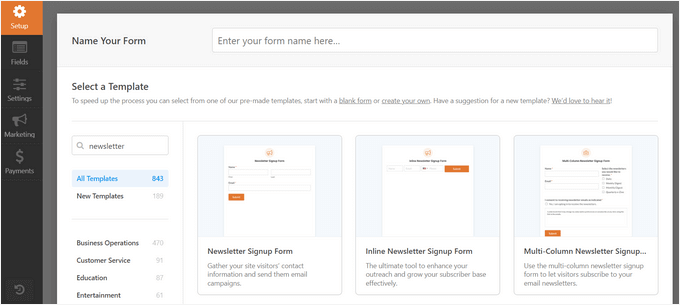
WPForms will now load a sample newsletter sign-up form in the form builder interface.
It will include fields like first and last name and email address by default.
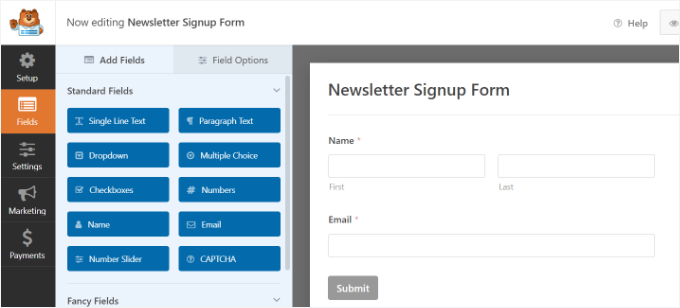
You can customize these fields as needed. For example, you can switch to a single “Full Name” field, rename the field labels, or drag and drop them to change the order.
Next, let’s take some simple steps to help your form follow the GDPR best practices.
You can drag the ‘GDPR Agreement’ field from the left-hand panel and drop it into your form.
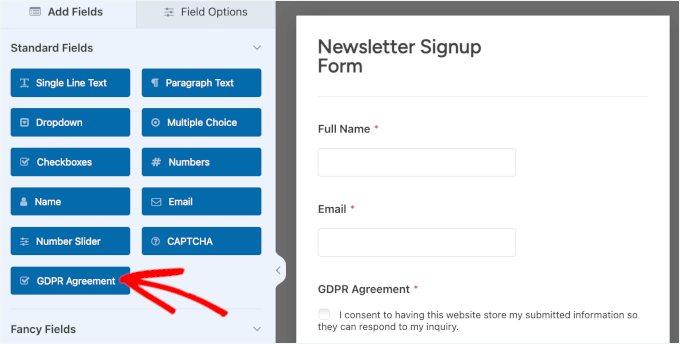
By adding this field, you’re not just following privacy laws. You’re also building trust with your audience. It helps make sure you’re only emailing people who clearly said they want to hear from you, which leads to a more engaged and better-quality email list.
Once added, it will appear at the bottom of your form.
Feel free to click on the field to edit it. You can change the field label, customize the agreement text, and even add a link to your privacy policy or terms and conditions in the description box.
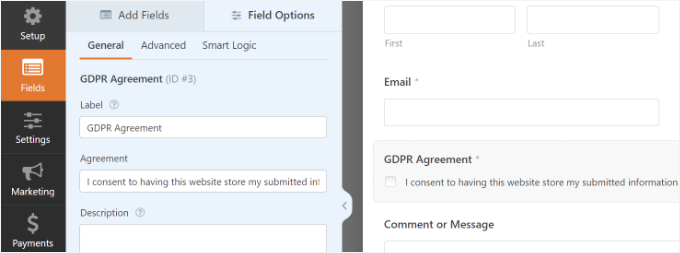
Do note that if you add the GDPR Agreement field, users are required to check it manually before submitting. This field cannot be pre-checked because GDPR laws require users to take an affirmative action to give their consent.
For details, you can check out our guide on how to create GDPR-compliant forms in WordPress.
Next, let’s head over to the ‘Notifications’ tab in the form settings. This is where you can control who gets notified when someone submits your form.
By default, WPForms will send the notification to the admin email address set in your WordPress settings. But you can change that to any email address you prefer – or even send the notification to multiple email addresses by separating them with commas.
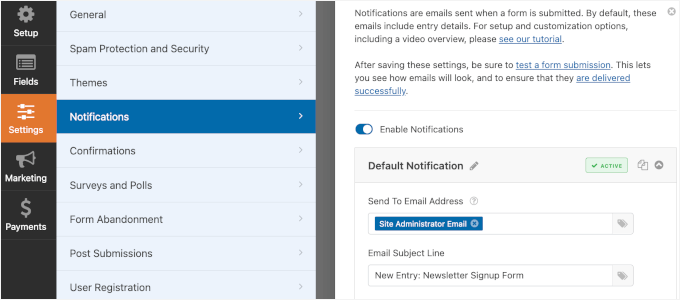
You’ll also see a default subject line based on your form’s name. Feel free to customize this subject line to make your email notifications easier to recognize.
🧑💻 Pro Tip: Sometimes WordPress form emails don’t arrive or get marked as spam. A reliable way to fix this is by using the WP Mail SMTP plugin. It helps improve email deliverability by sending your messages through a proper SMTP service.
We use WP Mail SMTP ourselves to make sure emails land in users’ inboxes, not spam folders. You can follow our guide on how to fix WordPress not sending email issues to get started.
After that, you can switch to the ‘Confirmations’ tab to set up your confirmation message. This is what your users will see when they submit the form.
By default, WPForms will show a confirmation message, which you can change to anything you want.
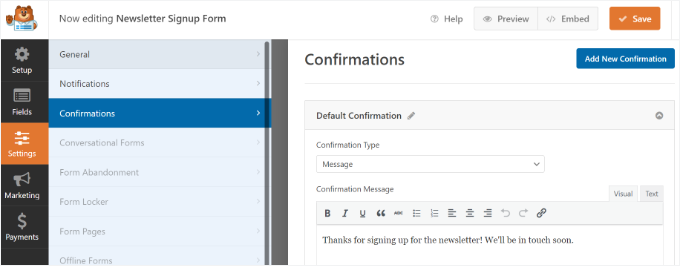
You can also change the confirmation type and redirect users to any page or URL. For example, you could redirect new subscribers to a Thank You page that delivers a free ebook or a list of your best blog posts.
Don’t forget to click the ‘Save’ button at the top to store your changes.
Step 3: Connect WPForms to Constant Contact
Now that your newsletter sign-up form is ready, you’re ready to connect it to Constant Contact.
From the builder interface, let’s switch to the ‘Marketing’ tab and select ‘Constant Contact’.
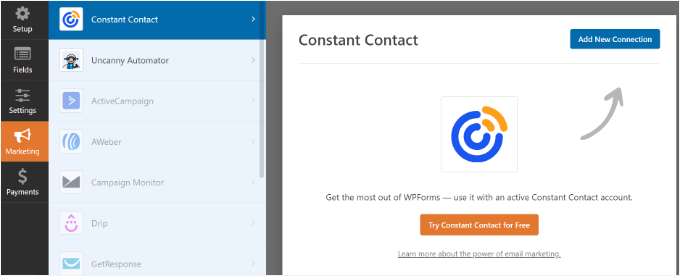
After that, you can click on the ‘Add New Connection’ button, and you’ll see a popup that asks you to name your connection.
I called mine ‘My Newsletter Form’, but you can name it whatever you want. After entering a connection nickname, simply click the ‘Ok’ button.

On the next screen, you’ll need to connect your Constant Contact account with WPForms.
To do that, click on the ‘Click here to register with Constant Contact’ link (or ‘Connect to Constant Contact’ in newer versions).
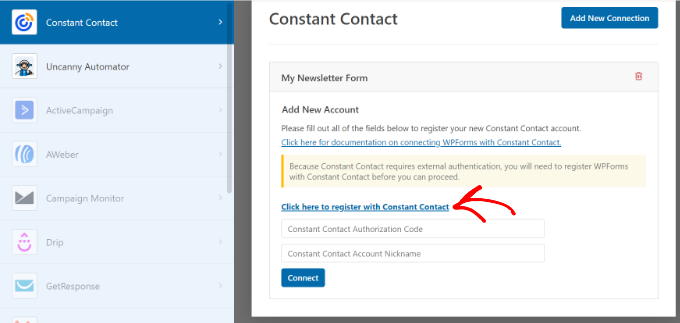
A popup will then appear asking for permission to connect WPForms with your Constant Contact account.
Simply sign in, then click the ‘Allow’ button to authorize the connection and continue.
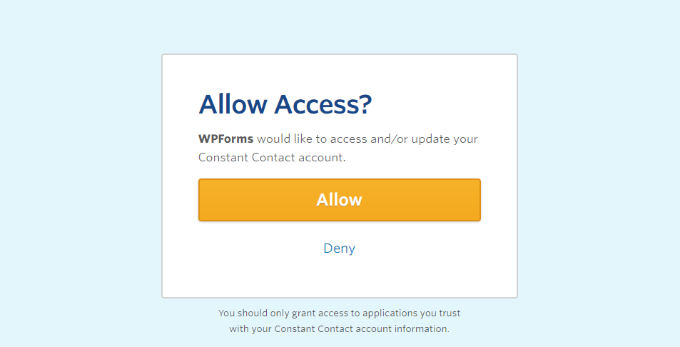
With the modern connection flow, you don’t need to copy or paste any authorization codes. Once you click ‘Allow’, the popup window will close, and the connection will be established automatically.
You will see a notification that your account is connected. Now, you can simply select the Constant Contact account you just added from the dropdown menu.
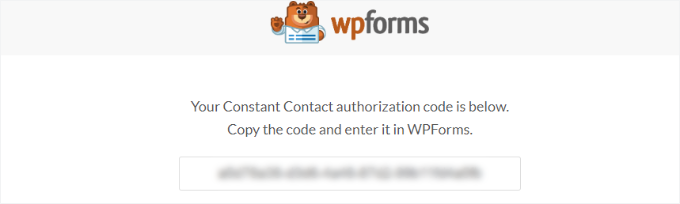
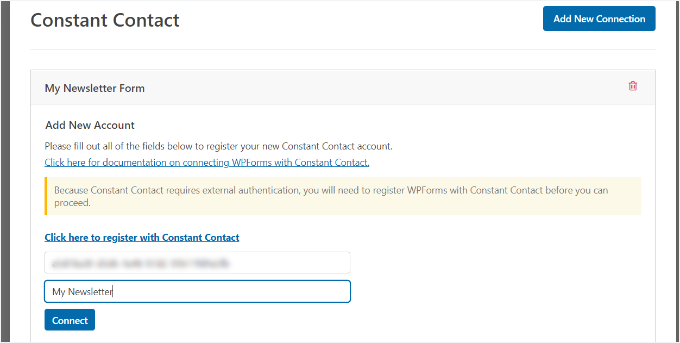
Next, simply provide an account nickname in the WPForms settings. The ‘Account nickname’ could be anything you want.
Finally, click on the ‘Connect’ button to continue.
On the next screen, you’ll be able to select the fields you want to pass through from your form to Constant Contact.
I selected ‘email’ and ‘full name’, but you can select as many as you want. Just be sure that those two fields are included in your newsletter sign-up form fields.
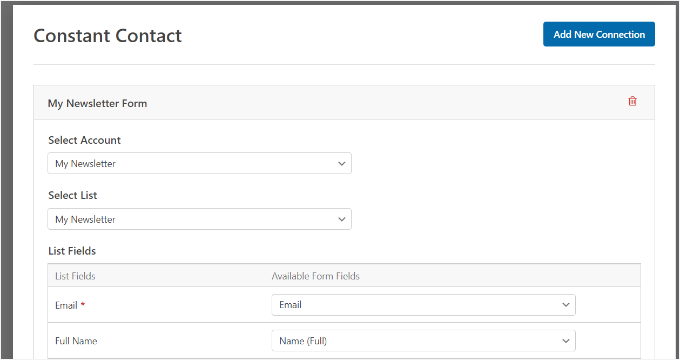
When you’re done, don’t forget to save your changes.
Step 4: Add the Subscription Form to Your Website
Now that you have the form set up, the next step is to add the form to your WordPress website. Luckily, WPForms makes it easy to add your form anywhere on your site, whether that’s on a page, post, or widget area.
To add your form to your site, just click the ‘Embed’ button next to ‘Save.’
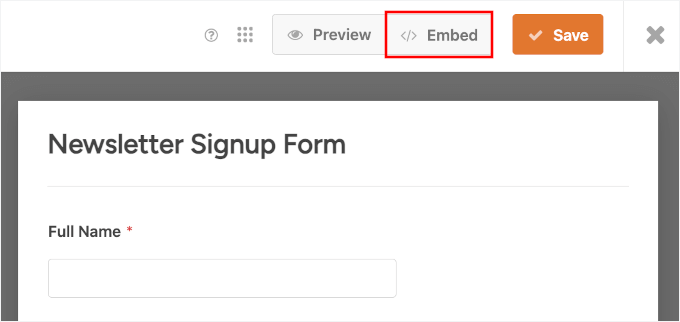
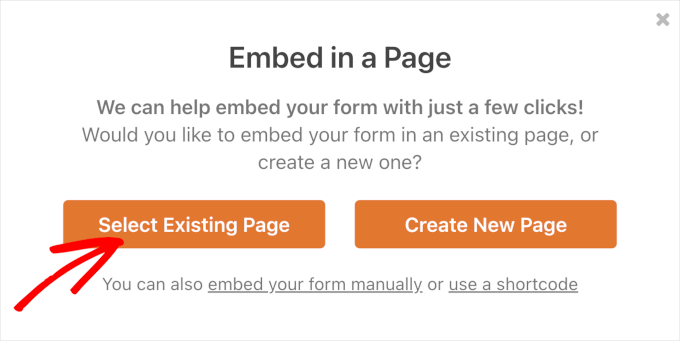
In the popup that appears, you can choose whether to insert it into an existing page or create a new one.
For this tutorial, I’m going to select an existing page.
In the next popup, you’ll see a dropdown field where you can select a page.
Just click to expand the list and choose the page where you want to add your form.
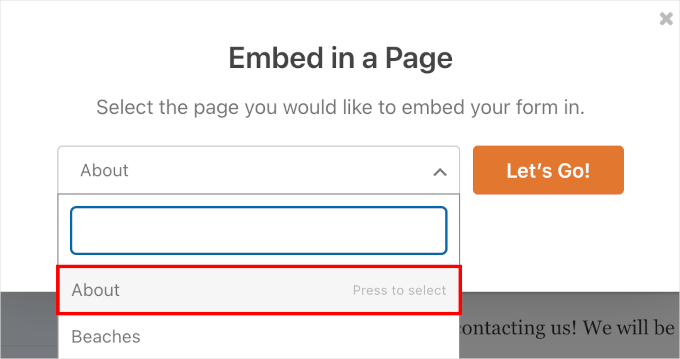
Once you do that, you can just click ‘Let’s Go!’ and you’ll be redirected to the WordPress content editor.
To insert your form, click the ‘+’ icon to add a new block, then search for and select the WPForms block.
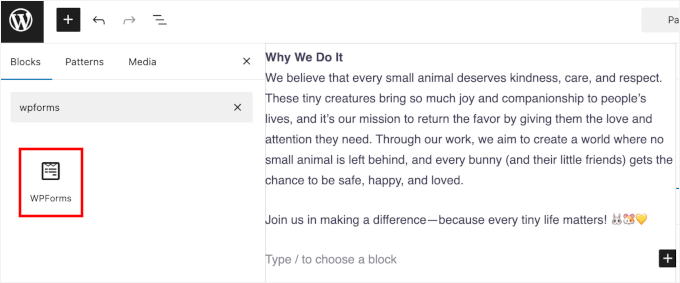
This will add the block to the preview.
From here, you can click ‘Select a Form’ and choose your newsletter signup form from the dropdown menu.
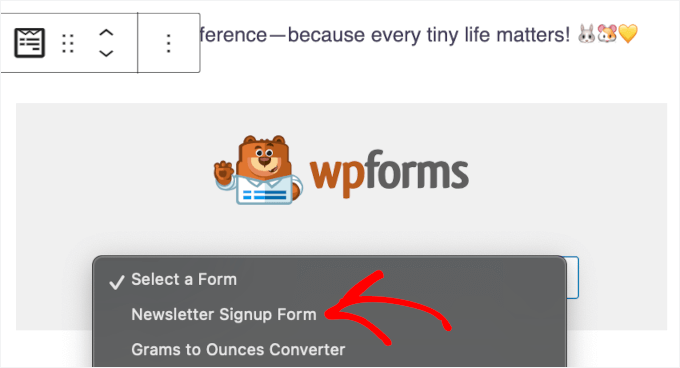
WPForms will then load it on the preview.
If you want, in the form settings on the right-hand panel, you can choose to show the form title by enabling the ‘Show form title’ toggle.
You can also customize the form style under the ‘Themes’ section.
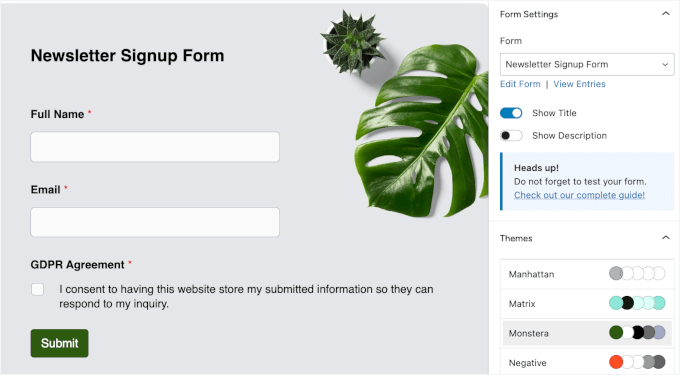
When you’re happy with how your form looks, go ahead and update your page. WPForms is fully responsive, so your form will look great on phones and tablets automatically.
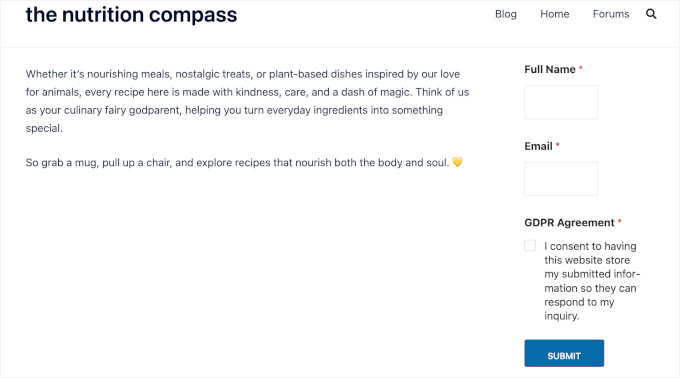
And here’s what it looks like on our demo site:
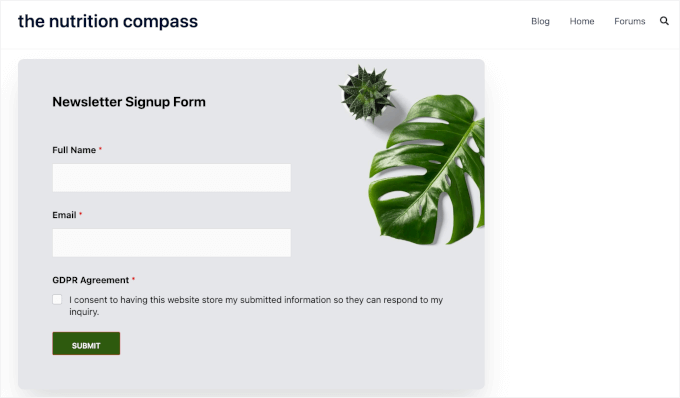
Want to display your form in a widget-ready area?
Simply go to Appearance » Widgets and click the ‘+’ button to add the WPForms block to your sidebar or any other widget area.

Next, you will need to select your newsletter form.
Simply click the dropdown menu in the WPForms block and choose your form.

Once you select the form, you can see the preview in the widgets area.
Don’t forget to click the ‘Update’ button when you’re done.

You can now visit your website to see your email subscription form in action.
Whenever someone fills out their name and email and checks the GDPR Agreement box, they’ll get subscribed to your newsletter.
Now that everything is set up, let’s take a look at how to send emails to your subscribers.
Step 5: Display Your Email Subscribe Form in a Popup (Optional)
Adding a single sign-up form in your sidebar often isn’t enough. To grow your email list faster, it’s better to give visitors multiple opportunities to subscribe, no matter where they are on your site.
This is where OptinMonster comes in. It’s the best conversion optimization and lead generation software, and it can help you convert more website visitors into subscribers.
At WPBeginner, we use OptinMonster for promoting special offers and deals in popups, slide-ins, and header banners. Here’s our complete OptinMonster review for more details.
To get started, you can go to the OptinMonster website and click the ‘Get OptinMonster Now’ button. You’ll then be prompted to choose a plan and create your account.
Upon signup, you can install the free OptinMonster plugin from your WordPress admin area.
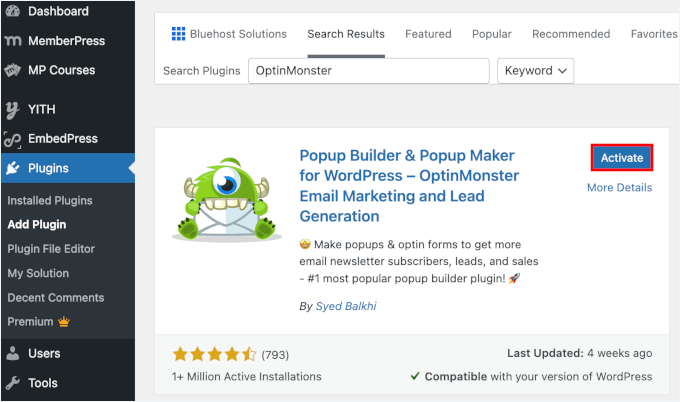
From here, you can install the OptinMonster plugin from your WordPress admin area. Just go to Plugins » Add Plugin to start.
You can then use the search box to quickly find the OptinMonster plugin.
In the search result, click the ‘Install Now’ button and then ‘Activate’ to enable it.
If you need help, check out our guide on how to install a WordPress plugin.
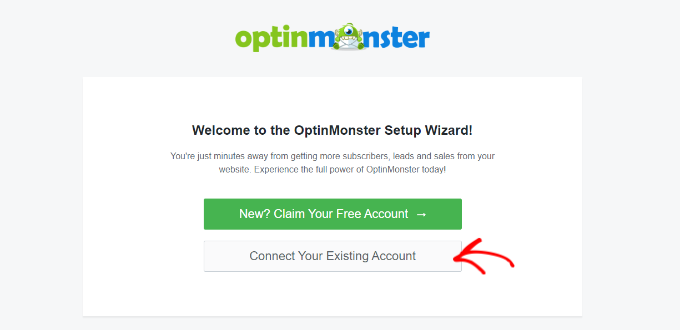
Once the plugin is activated, you’ll see the setup wizard.
Go ahead and click the ‘Connect Your Existing Account’ button.
A popup will appear asking you to confirm the connection.
Just click the ‘Connect to WordPress’ button to continue.

After your account is connected, you’re ready to build your first opt-in form.
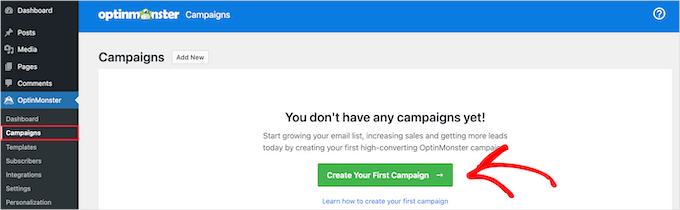
In your WordPress dashboard, go to OptinMonster » Campaigns, then click ‘Create Your First Campaign’.
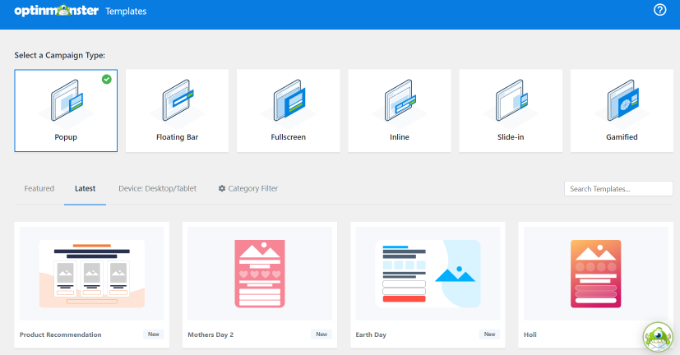
On the next screen, you’ll be asked to choose a campaign type.
With OptinMonster, you can create all kinds of opt-in forms, like floating header and footer bars, slide-in boxes, welcome mats, inline forms, and lightbox popups.
We’ll use the Popup campaign type for this tutorial because it has enough space for both your subscribe form and message.
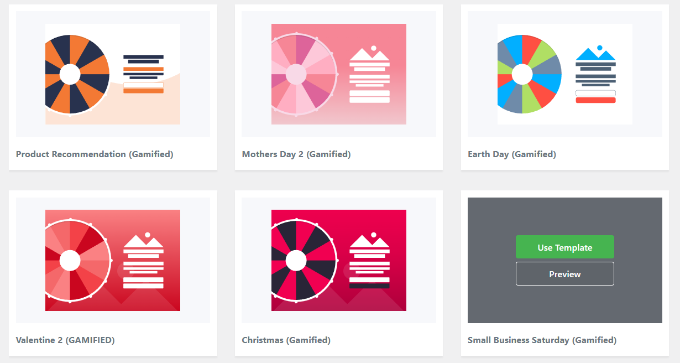
Next, scroll down to browse the available templates.
OptinMonster offers over 75 professionally designed popup templates that are built to convert. You can choose any design that fits your brand or campaign goals.
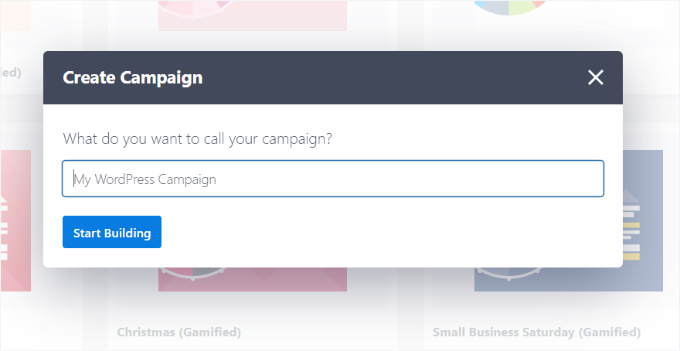
Once you’ve picked a template, go ahead and name your campaign.
Then, click the ‘Start Building’ button.
Now you’ll enter the drag-and-drop builder, where you can customize the layout and design of your popup. Just click on any of the pre-made content elements to edit them and match your branding and message.
On the left-hand side, you’ll see a menu of content blocks. Let’s find the ‘WPForms’ block, then drag and drop it onto the template.
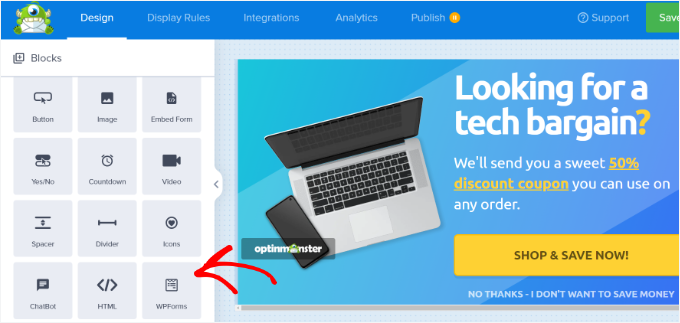
To add the subscription form, you can click the ‘Form Selection’ dropdown from the WPForms block settings in the left-hand menu.
After that, you can just choose the form you want to embed.

⚠️ Just a heads-up: You won’t see a live preview of your contact form inside the template when you add the shortcode. That’s completely normal, and the form will appear correctly once your campaign is published.
You can then go to the ‘Display Rules’ tab at the top, and here’s where OptinMonster shines
In this tab, you can control exactly when and where your campaigns appear. For example, you can show a popup right as someone’s about to leave your site, by using the exit intent technology.
This approach is actually great for capturing abandoning visitors. At WPBeginner, we combined this exit-intent technology with a lead magnet, and we saw a 600% increase in subscribers.
Go ahead and click on it to set up the rules.
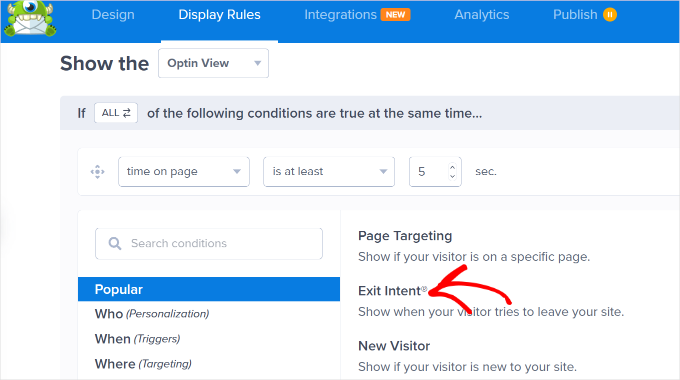
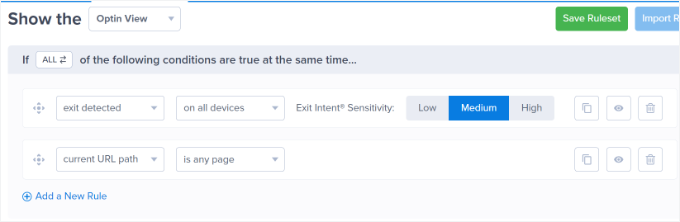
On the next screen, you’ll set up how sensitive the exit-intent trigger is.
By default, it’s set to Medium, but you can adjust it to Low or High depending on how early you want the popup to appear.
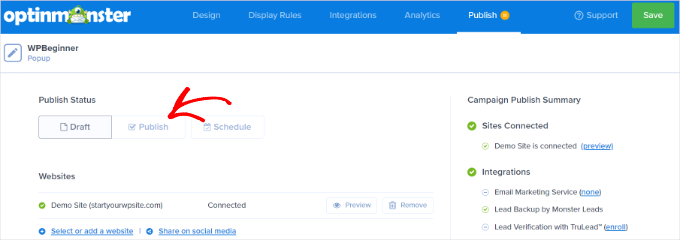
When you’re happy with everything, you can switch to the ‘Publish’ tab at the top.
Then, go ahead and change the ‘Publish Status’ from ‘Draft’ to ‘Publish.’
There you have it!
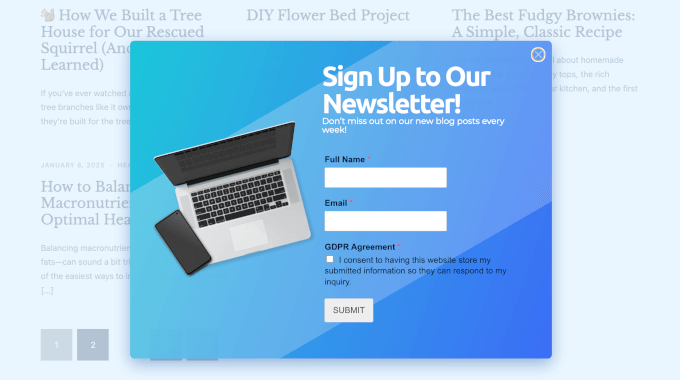
Now, if you visit your website, you can see the popup in action.
Step 6: Write and Send Emails to Your Blog Subscribers
There are a few ways you can notify readers when you publish a new blog post. These include sending regular email newsletters or using an RSS-to-email service.
The RSS method automatically emails users whenever you publish a new post in WordPress. While convenient, these automated emails often have lower open rates (typically 15-20% lower than personalized newsletters) because they can feel less personal.
That’s why I recommend writing your emails manually. This allows you to create a more personal, conversational connection with your readers, highlight your best content, and choose a consistent schedule that works for you.
Most popular bloggers send an email newsletter once a week. But you can set your own frequency and schedule the emails ahead of time, so your audience hears from you consistently.
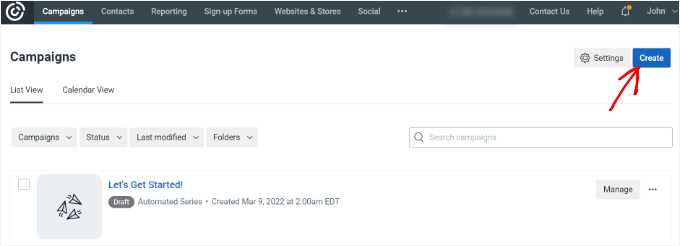
To write and send your first email, you can start by navigating to the ‘Campaigns’ page in your Constant Contact account dashboard. Then, go ahead and click the ‘Create’ button.
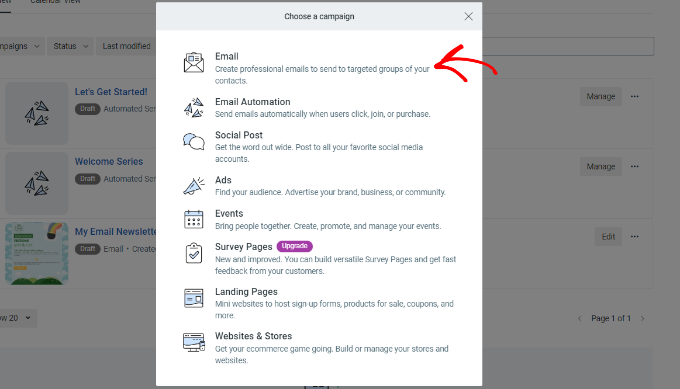
A popup will appear with several campaign types.
Simply choose ‘Email’ under the ‘Choose a campaign’ section.
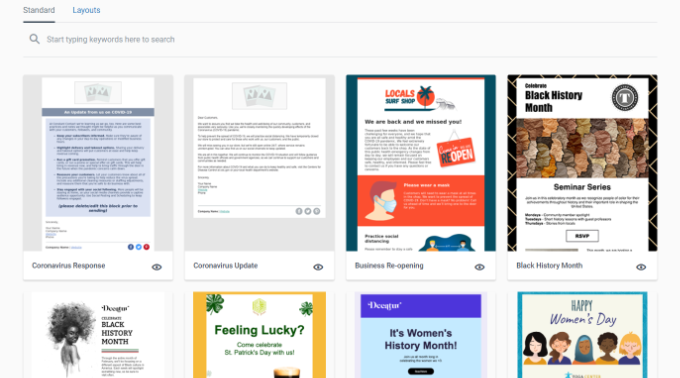
After that, Constant Contact will show multiple email templates.
You can go ahead and select a template for your email newsletter.
Next, you’ll need to name your newsletter. This is just for your reference, and you can always change it later if needed.
Once that’s done, you’ll be taken to the email builder, where you can customize your template. From here, just drag and drop the elements you want to add, edit, or remove.
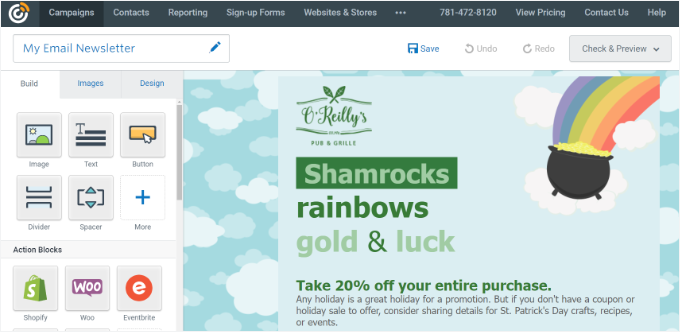
At the top of the builder, you’ll see the subject line and preheader text (the short summary that appears next to the subject line in an inbox).
To update them, click that area and type in whatever you’d like your subscribers to see.
On the left side, you’ll see a handful of options you can drag directly into your newsletter template. You can add images, buttons, texts, and more.
For example, I’m going to add a link to some text in my newsletter. To do this, you can start by highlighting the text you want to turn into a link.
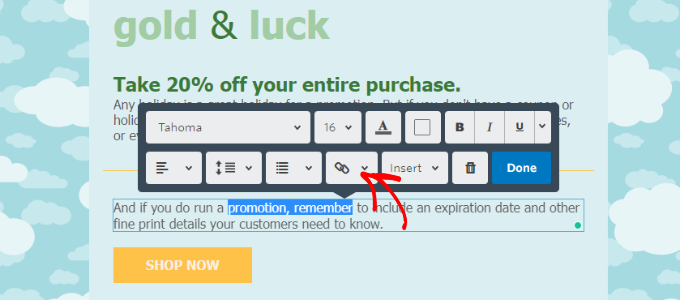
Then, click the chain-link icon and choose ‘Web Page’ from the dropdown options.
From here, you can paste the link to your blog post.
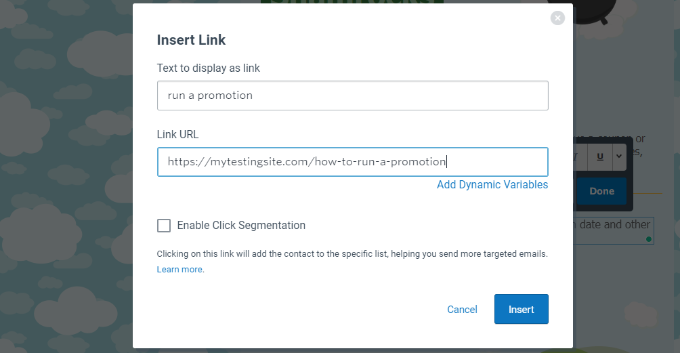
With that done, you can click the ‘Insert’ button, and you’re ready to go.
Now, for the last step, let’s click ‘Continue’ in the upper right corner.
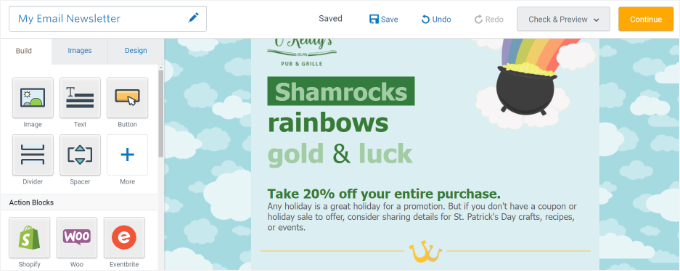
On the next screen, you’ll need to select an email list before sending your newsletter. You can choose specific lists or all of your contacts, which is often called an email blast.
Before you send it to everyone, I strongly recommend using the ‘Preview & Test’ feature to send a test email to yourself. Once you’re sure everything looks right, make sure you check the box next to your list and then hit the ‘Send Now’ button at the top.
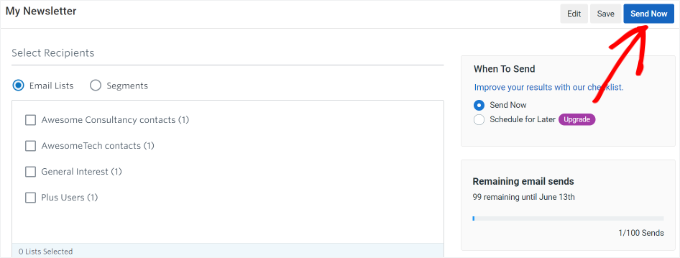
And that’s how you send your very first email manually. If you want to schedule it for later, then you can choose that option and set a date for it to send.
You can repeat this process at any time you want to notify your subscribers about anything new on your WordPress blog.
FAQs: How to Add Email Subscriptions to Your WordPress Blog
Here are some of the most frequent questions we get from our readers about adding email subscriptions to WordPress.
How much does it cost to start an email list?
The cost of starting an email list can vary. Constant Contact offers a 60-day free trial (or 30 days in the UK), which is great for getting started. After that, their plans start at a very affordable monthly rate.
WPForms also has a free Lite version that you can use to connect to Constant Contact.
How often should I email my subscribers?
I find that a weekly newsletter works best for most bloggers. It’s frequent enough to stay top-of-mind but not so frequent that it becomes annoying. The most important thing is to be consistent, whether you choose to send emails weekly, bi-weekly, or monthly.
Can I add subscribers automatically from my blog comments?
Yes, you can add subscribers automatically from your blog comments. For example, the Thrive Comments plugin allows you to create post-comment actions, like redirecting first-time commenters to a user registration form.
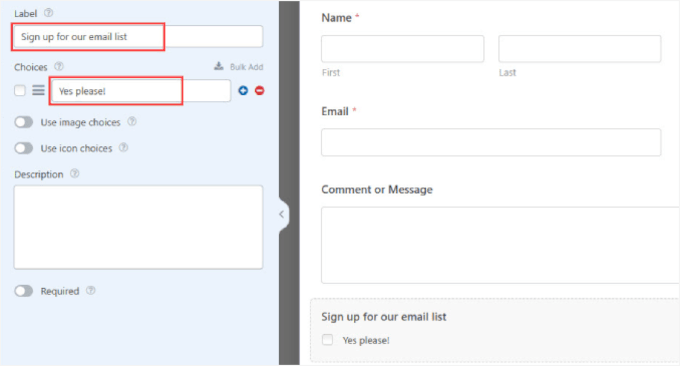
Alternatively, you can use WPForms to add a subscription checkbox to other forms on your site, like your main contact form.
Note that to make this checkbox function correctly (only subscribing users who check it), you will need the Conditional Logic feature available in WPForms Pro.
Keep Going: More Email Marketing Guides for WordPress Bloggers
I hope this article shows you how to add email subscriptions to your WordPress blog. If you found this helpful, you may also want to check out our guides on:
- How to Export Email Addresses from WordPress Comments
- How to Create a Paid Newsletter in WordPress
- How to Create a Giveaway to Grow Your Email List
- How to Prevent Newsletter Signup Spam in WordPress
- Best SMTP WordPress Plugins to Improve Email Deliverability
If you liked this article, then please subscribe to our YouTube Channel for WordPress video tutorials. You can also find us on Twitter and Facebook.




Jiří Vaněk
This was something I always overlooked and didn’t pay much attention to. Then I started blogging, and as the blog evolved over time, I realized how important email lists and newsletters are for staying in touch with users. It was the articles here on WPBeginner that opened my eyes. That’s where I understood how powerful this tool can be from a marketing perspective. For me, it’s now the number one thing to focus on right from the start when creating a website. Thank you for your educational articles, as they helped me understand the real power of newsletters and collecting addresses for maintaining contact.
Ahmed Omar
subscription forms is crucial to maintain contact with the interested visitors and to keep them updated about the new posts. Also the integration between WP forms and Constant Contact made it easy and more convenient
thank you
WPBeginner Support
You’re welcome, glad you found our recommendation helpful!
Admin
Neil
In the example above, what is the email address that the newsletter is sent from? I would want a newsletter to come from my blog, and not from my personal email address.
WPBeginner Support
In the settings for the newsletter, you can set the from email address to a different email.
Admin
David Tye
Love this website,can you send me news letters please.
Regards David
WPBeginner Support
You can start receiving our newsletter by clicking on the email icon in the top-right of the page
Admin
Godfrey
Thanks for this article. Though I haven’t started on my first blog yet, this gives me the insight of what I need.
WPBeginner Support
Glad our guide could help make the process less intimidating
Admin
Jill Cuthbert
Thank you so much for this article. I’ve been struggling with RSS as what I really wanted was an email sign up for RSS. I’ve just started my first campaign with MailChimp and it was so easy and straightforward thanks to your great instructions.
WPBeginner Support
Glad our guide was helpful
Admin
Joe
I use Sendinblue for my SMTP – should I use this? I would prefer not to set up another account if possible, to keep things simple.
WPBeginner Support
You can use that should you want
Admin
Mike D
For the JetPack solution: “Appearance » Widgets. Drag and drop Blog Subscriptions (Jetpack) widget”. The widget does not seem to be a valid option any longer. JetPack v 7.7.1
WPBeginner Support
Unless you’re using Jetpack on a local installation on your computer, the widget should still be available.
Admin
John Richardson
I tried MailChimp and it was easy to set up. However, if you are a home based blogger and don’t have a PO Box, it publishes your home address. In these days and times, I just couldn’t risk it.
WPBeginner Support
If you edit your footer for the messages they should have the option to remove the address.
Admin
Kaitlen D.
Thank you so much for posting this! Do you know how to only send a short spurt of your blog post to your subscribers with Jetpack instead of sending the entire blog post?
WPBeginner Support
You would go under Settings, Reading and for each item in feed you would want to select summary to only send sippets.
Admin
Colby
love this
WPBeginner Support
Thank you
Admin
Colby
Please subscribe me to see this awesome content
WPBeginner Support
We have our subscription in the top right of all of our posts and pages under the envelope icon
Admin
noah
Can you show me how to successfully add youtube subscribe button on my wordpress site !
WPBeginner Support
You can find our article on how to do that here: https://www.wpbeginner.com/wp-tutorials/how-to-add-youtube-subscribe-button-in-wordpress/
Admin
Sam
pls send all update
WPBeginner Support
We will certainly look into updating this article
Admin
Lorraine
Hi
Great article for a newbie!!! Please could you help me with something. The website I’m building (migrating from Business Catalyst) has some custom templates which would be a nightmare to put into a theme. But is it possible to choose a WordPress theme which is only applied to the blog and the homepage which are much easier to change?
Any help really appreciated.
Lorraine
WPBeginner Support
Themes would attempt to style your entire site. You may want to take a look into page builders to recreate the style of your pages: https://www.wpbeginner.com/beginners-guide/best-drag-and-drop-page-builders-for-wordpress/
Admin
Astuti
Thanks for this article.
sanayache
Hi, I like to have a plugin which sends notifications to subscriber when a new page (not post) is published. The subscribers list should remain with WordPress and not on email marketing sites. Please suggest a plugin.
Monazir Ansari
Thanks for sharing……it really works…..!
Doug
I appreciate your super helpful site!
I’m trying to add a signup for people to subscribe to my WP blog posts. Mailchimp shows my mailing address on a confirmation window.
For a simple RSS email signup, how do I avoid showing my mailing address? I’ve seen it done on other sites.
What service will do this (it seems Mailchimp won’t)?
Thank you!
Katie
I am also having this problem. Not interested in broadcasting my mailing address to the world.
Scott Hayden
Why does Mailchimp say my blog feed isn’t valid? Do I have to publish a post before it becomes valid? My blog isn’t ready yet and is in “coming soon” mode.
Natalie
Hi there, I have just had a ‘new user’ subscribe to my blog which is on WordPress.org.
What does this mean? Can they now access the dashboard and all my posts?
Thanks in advance
Natalie
WPBeginner Support
Hi Natalie,
You can go to your WordPress admin area and click on Users. On this page you can see all users who can log into your WordPress site. Next to each user you will be able to see their user role. If a user appears as a Subscriber and you didn’t add them, then you can delete that user.
You may also want to visit Settings » General page and look for the Membership option. If the box next to ‘Anyone can register’ is checked, then you can uncheck it and save your settings.
Admin
Muhammad Fahad ul Hassan
Hi Guys,
On the main page of my website, i am seeing 55000 subscribers but where I can found this list?
WPBeginner Support
Hi Muhammad Fahad ul Hassan,
Depends on which tool you are using to collect email addresses. If you are choosing an email marketing service, then you’ll find your list by signing into your account. If you are using a WordPress plugin, then check out plugin’s settings page.
Admin
Angie Mek
Is there a way to have an email sent to a subscriber every time that single page is updated? Not to the whole site, but just a single page of the site?
This would give followers the option to only be notified when a specific portion of the site is updated.
Jennifer Bate
I have the same question. I am running a genealogy blog and I know there are going to be people who will want to be notified when I am working in a particular category/surname. But until that time, they won’t be needing my feed…. and might stop reading or unsubscribe.
Ashley
Are there any follow by email services for blogs that don’t require having a physical address? I got Mailchimp all set up only to find out my physical address has to be displayed with the messages and as a blogger I don’t require a PO box nor do I want readers to see a physical address.
Melanie Blackburn
I’m at the part to click the “RSS Feed” for the campaign but they don’t list that as an option. I have the top 3 options but the fourth is “Automated”. Have they changed this? Do I need to do something different?
WPBeginner Support
Hi Melanie,
Yes, it has changed a bit since then. We will update the article soon. Meanwhile, go to your MailChimp dashboard and click on the Add Campaign button. From the popup menu select ‘Let us Guide you’. In the next step, select ‘Connect with new contacts’, and then select Share Blog updates.
Admin
Trinity
This was incredibly helpful!! I’m trying to add the “pop up” functionality.. but can’t seem to figure it out but everything else works perfectly! Thanks
WPBeginner Support
Hey Trinity,
Glad you found the article helpful
For pop up functionality you may want to checkout OptinMonster. It is a lead generation software that helps you grow your email list using beautiful email signup forms including lightbox popups.
Admin
Jean Browman
MailChimp works only about half the time for me. I post at the same time every day and have the notice go out two hours later. Sometimes it does, sometimes it doesn’t. Do you have any idea why?
Kabrina
Very helpful still in 2017, thanks.
khadija Beauty
Mails that are sent through via MailChimp campaign to my subscribers does not appear in their inbox, instead they are stored directly in the promotion section. Why does that happen? Is there any way to make them appear in the inbox?
Hector
Hello. Can someone please reply this reader? I think she asked a valid question. Thank you.
WPBeginner Support
Hi Khadija,
Gmail automatically sorts email and sends them to promotions or updates tabs. Users can decide whether they want to see an email into their primary tab. Many Gmail users actually turn off the tabbed email view to only view the primary inbox. A recent Study by ReturnPath showed that promotions tab does not affect your email’s deliverability or even its open rates.
But if you are still concerned, then you can ask your subscribers to move your email message from promotions to primary by showing them instructions on how to do that.
Admin
Mark
Does anyone know how frequently Jetpack Subscriptions sends out notification emails when I post new content on my blog? Is there a way to configure how often/how quickly notifications get sent? Thanks.
Stephen Wells
Hi Mark,
Use Better Notifications for WordPress plugin, it will allow you to configure your email notifications.
Regards
Stephen W.
Robin
I am trying to switch to Mad Mini. I have a custom sign up button on my site, but don’t know how to connect Mad mini to my site. Help.
WPBeginner Support
Please contact Mad Mimi for support.
Admin
Mehedi Hasan
I have just started making my own blog, on WordPress. After few post, i am getting good no of users as well views but this views do not convert into subscription very well rather the result is zero. My only E-mail subscription widget is at footer widget area. Now after reading your article, i am going to place two more subscription widget. One will be at Top sidebar and another will be at the last of the content. So thanks for your great Article.
WPBeginner Support
Glad you found it helpful. You may also want to follow us on Twitter for more useful WordPress tips and tutorials.
Admin
Hayley
Ah! FINALLY the answer to getting the Subscribe widget on a self-hosted blog!
neha
This is very helpful resource
Jim Keough
What about zapier?
Nicole
Thank you! I set up the RSS feed via MailChimp within an hour. You made this SO easy!
WPBeginner Support
Glad you found it helpful
Admin
Dale Fletcher
Would you not recommend Feed-burner by Google?
WPBeginner Support
Please take a look at Stop Using FeedBurner – Move to FeedBurner Alternatives
Admin
Victor
Is there a way i can make the Follow Blog Check box always checked?
Michele
I went through all the steps using my Mail Chimp account but I can’t get the text widget in my wordpress.com site to accept the embedded code. Do I need wordpress.org site for this to work?
WPBeginner Support
Please see our guide on the difference between self hosted WordPress.org vs free WordPress.com blog.
Admin
Ian
Hello! I just activated Jetpack subscriptions on my website. I chose Jetpack just for the simplicity and I don’t really feel the need at this point to have access to the subscription list.
Thanks,
Ian
Sesan Oguntade
Thanks for this article. God bless you. I am a subscriber to your newsletter. I must say i have enjoyed every bit of what you provide here. I am getting better with my wordpress blogs because of what i read on your blog. Thanks and God bless you again.
rogerpacker
MailPoet is another great option. It’s free up to 2,000 subscribers and just $75 a year for a single site after that and has some great email templates.