


Discounts work best when they’re easy for customers to use.
If someone has to search for a code or type it in manually, it can be frustrating – and that takes away from the excitement of getting a deal.
That’s why we recommend using auto-applying coupon URLs. These special links instantly apply the right discount to your customer’s cart without any extra steps. It’s a simple way to make the checkout process smoother and more enjoyable.
We’ve helped many WooCommerce store owners set this up, and it often leads to better conversions and fewer abandoned carts.
In this guide, we’ll show you how to create automatic coupon URLs in WooCommerce. You’ll learn the step-by-step setup and how to use them in your marketing to increase sales.
⚡Quick Answer: Auto-Applying Coupons in WooCommerce
The easiest way to auto-apply coupons is by using the premium Advanced Coupons plugin.
It allows you to create unique Coupon URLs (like yoursite.com/deal). When a customer clicks this link, the discount is instantly applied to their cart.
This removes the need for manual code entry, making the redemption process frictionless and boosting your conversion rates.
Why Use WooCommerce Coupon URLs?
Smart coupons with links are an excellent way to increase sales because they remove friction from the buying process.
Here are a few reasons why you should use auto-apply coupon links in your online store:
- Faster Checkout: Shoppers do not have to memorize codes or type them manually. This reduces errors and speeds up the transaction.
- Lower Cart Abandonment: Studies show that nearly 70% of customers abandon their carts. By removing extra steps, you make it more likely that visitors will complete their purchase.
- Easier Social Sharing: Auto-apply links are perfect for social media, email newsletters, and QR codes. Followers can simply click to get the deal immediately.
- Seasonal Promotions: During high-traffic events like Black Friday, speed is key. A one-click coupon helps you capture sales before customers look at a competitor’s site.
With that said, let’s go through the steps to create an auto-apply coupon code URL in your WooCommerce store to improve your customer journey. Here’s what we will cover:
Let’s get right to it.
Step 1: Install and Activate Advanced Coupons
The best way to create coupon links in WooCommerce is by using Advanced Coupons. It is the best WooCommerce coupon plugin on the market.
We’ve tried this plugin many times, and you can learn more about our experience in our Advanced Coupons review.
For this tutorial, you will need the premium version of Advanced Coupons because it includes the URL Coupons feature.
First, you need to install and activate both the free Advanced Coupons plugin and the premium Advanced Coupons addon. For more information, please see our guide on how to install a WordPress plugin.
Upon activation, head over to Coupons » License.
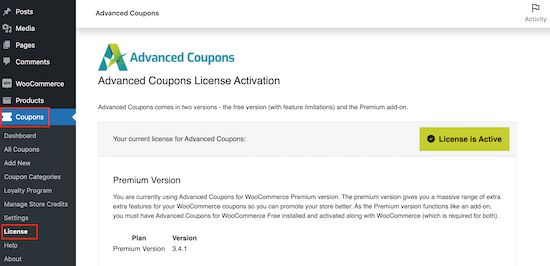
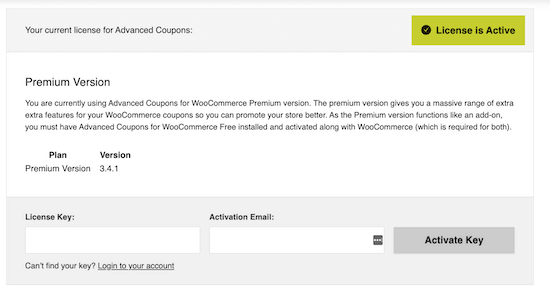
Next, enter your license key into the ‘License Key’ field.
You can find this information in your account on the Advanced Coupons website. You will also need to enter your ‘Activation Email’, which is the email address you used when you purchased the plugin.
Once you’ve done that, click ‘Activate Key.’
Step 2: Create Your Auto-Apply WooCommerce Coupon URL
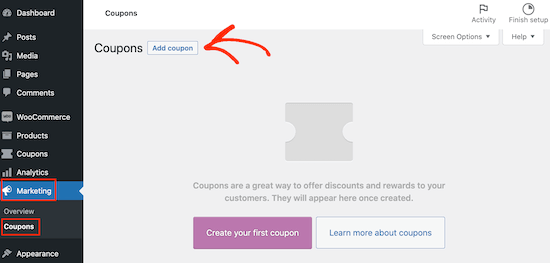
To create a coupon URL, go to the Marketing » Coupons page (or WooCommerce » Coupons, depending on your setup).
Here, click on the ‘Add coupon’ button to create a new smart coupon.
On the next screen, you need to type in a title for the coupon URL. This will become the actual coupon code that customers use.
Since we are creating a coupon URL, most shoppers won’t see the actual coupon code. However, it is still a good idea to make it easy to remember in case someone wants to type it manually at checkout.
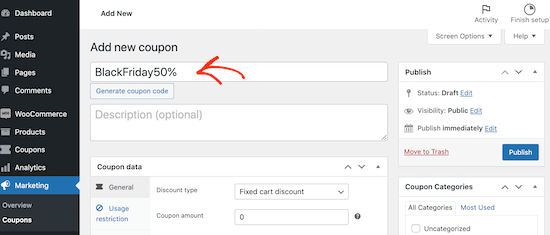
If you don’t want to create your own code, you can click ‘Generate coupon code’ to use a random string of letters and numbers.
Next, scroll down to the ‘Coupon Data’ section to set up the discount details. Open the ‘Discount type’ dropdown and choose the kind of offer you want to create, such as a fixed cart discount or percentage off.
For this guide, we will create a 50% discount.
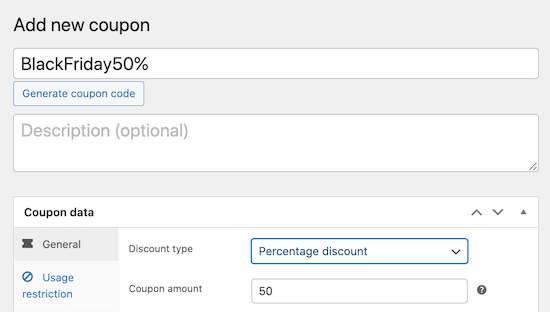
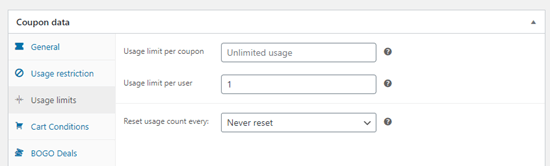
You can also set rules for the coupon using the ‘Usage restriction’ and ‘Usage limits’ tabs.
For example, you might limit the coupon to one use per customer.
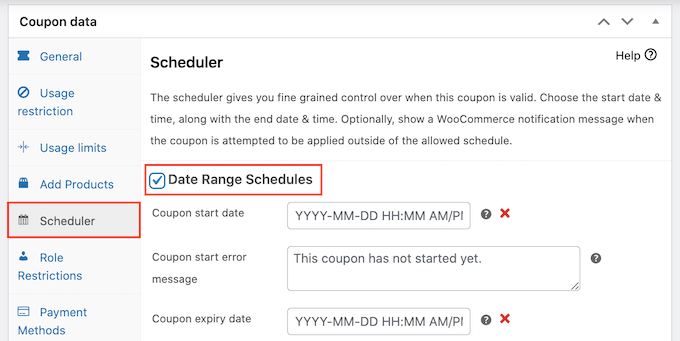
If you want to schedule the promotion in advance, click the ‘Scheduler’ tab and check the ‘Date Range Schedules’ box.
Then, simply enter the start and end dates.
When you are happy with the settings, click on the ‘URL Coupons’ tab. This is where you will configure the auto-apply link.
By default, the plugin generates a URL using your site address and the coupon code.
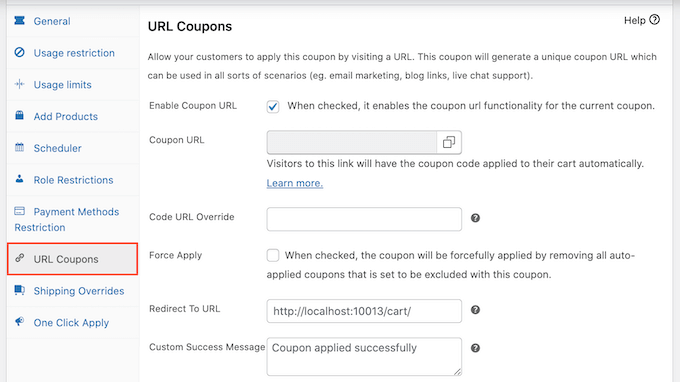
For example, if your code is BlackFriday50, the URL will be www.example.com/BlackFriday50.
You can customize this link by typing a new value into the ‘Code URL Override’ field.
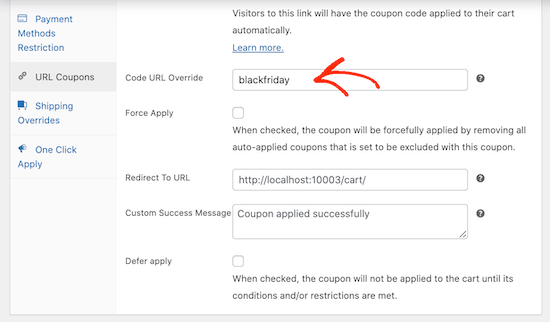
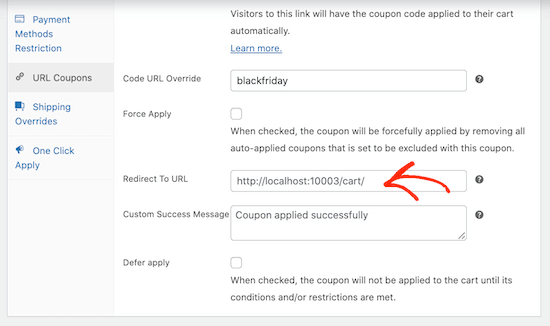
By default, Advanced Coupons redirects users to the cart page. If you want to send them to a specific product page or landing page, you can change this setting.
Simply enter the destination in the ‘Redirect to URL’ field. Make sure you use the full URL, including https://, or the redirect may not work.
Advanced Coupons will also show a ‘Coupon applied successfully’ message to anyone who lands on your WordPress blog or website using the coupon link.
If you want to show a different message, then simply type it into the ‘Custom Success Message’ box.
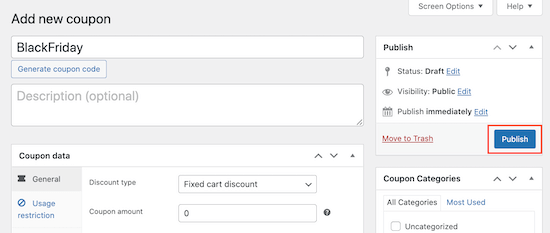
When you are happy with how the coupon is configured, simply click on the ‘Publish’ button to make it live.
Before sending this link to your customers, we strongly recommend testing it yourself. Open a new Incognito or Private window and visit the coupon URL to ensure the discount is applied correctly to the cart.
Then share this link with your customers, for example, by sending them an SMS notification or email newsletter. Every time someone clicks the link, Advanced Coupons will automatically apply the coupon code to their cart.
Step 3: Promote Your Auto-Coupons for WooCommerce
The next step is promoting the coupon URL so that users can find it and automatically apply it.
First, it’s smart to promote the coupon URL to your email list and social media followers. Once you’ve done that, you can also promote the coupon URL on your WordPress website.
The easiest way to do this is by using OptinMonster. It is the best conversion optimization software on the market and helps you turn website visitors into paying customers.
It comes with beautiful lightbox popups, slide-in popups, fullscreen welcome mats, and more.
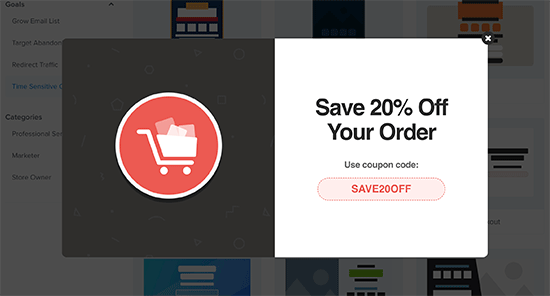
You can add popups to individual product pages with a button that auto-applies the URL coupon. For details, see our article on how to add coupon popups in WooCommerce.
If you have lots of different coupon URLs, then you can even challenge customers to get the best deal with a spin to win optin.
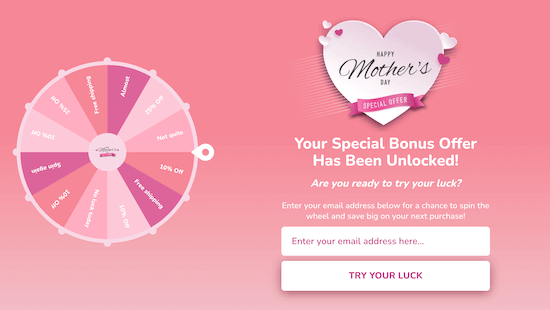
No matter how you promote your coupon URLs, it’s important to track visitors to your WordPress website and monitor how they are using those coupons.
This allows you to see what’s working and what isn’t, so you can constantly improve your marketing and deals to get more sales. For more information, please see our guide on how to set up WooCommerce conversion tracking.
Frequently Asked Questions About Auto-Applying Coupons
Here are some questions frequently asked by our readers about adding auto-apply coupons:
Can I use coupon URLs in emails or ads?
Absolutely. Coupon URLs are perfect for email newsletters, Google Ads, and social media posts. Since the discount is applied automatically, you remove friction from the buying process.
Just make sure the link is formatted correctly (e.g., https://yourstore.com/summer-sale) and that the coupon has not expired.
What happens if the customer removes the coupon from their cart?
If a customer manually removes an auto-applied coupon from their cart, it will not reappear unless they click the coupon URL again. This gives shoppers control over which discounts they want to use.
Are there any limitations I should know about?
While coupon URLs are effective, keep these points in mind:
- Usage Restrictions: If you set a minimum spend requirement, the coupon will only apply if the customer’s cart meets that criteria.
- Sharing: Auto-apply links can be easily shared. If you want to limit how many times a code is used, make sure to set usage limits in the coupon settings.
- Caching: Some aggressive caching plugins might interfere with how URLs are processed. We recommend testing your links in an Incognito window before launching a major campaign.
To avoid issues, always test your coupon URLs in a private browser or incognito mode before sharing them with customers.
We hope this article helped you learn how to auto-apply coupons in WooCommerce using URLs. You might also like our expert pick of the best WooCommerce plugins and our guide on how to create a WooCommerce contest to boost loyalty and engagement.
If you liked this article, then please subscribe to our YouTube Channel for WordPress video tutorials. You can also find us on Twitter and Facebook.





Mrteesurez
I like this plugin, it offers all what you need to add coupon code and generate the link to make it easy for user to apply coupon with a click. O can also upsell products below the payment gateways, above or below the order summary, mini cart and others.
I also like the idea of spin to win for the coupon. Thanks for this insightful post.
WPBeginner Support
You’re welcome!
Admin
Jiří Vaněk
Thank you for the guide. With woocommerce, I’m starting to pressure people who want to have even a small e-shop. I have never worked with woocomerci for a long time, and like everyone else, I find it complicated at first. Coupons were one of the tasks. Thank you