


Client feedback has been a key driver of WPBeginner’s growth. We learned early on that the best way to improve is to simply ask.
Of course, getting honest feedback isn’t always easy — you need the right tools to make it happen.
That’s why we put together this guide to show you exactly how to add a client feedback form to your WordPress site.
In this guide, you’ll learn how to use WPForms for in-depth surveys and UserFeedback for quick insights. These are the same tools that have helped us build a thriving community of millions of WordPress users. 🌟

Why Do You Need a Client Feedback Form?
A client feedback form is important because it gives your customers a simple way to share their thoughts on your products or services. It can give you insights into what your clients really think – whether it’s about how you run things, what you sell, or your brand as a whole.
This way, you’ll know where to make improvements or what to keep doing more of.
By taking this feedback seriously, you can adjust your business to better meet customer needs, keeping them satisfied and bringing in new clients.
So really, a client feedback form is more than just a contact form. It’s a powerful tool that helps your business stay on track and grow, thanks to genuine customer input.
In this guide, we’ll cover two powerful and easy-to-use tools:
- WPForms is perfect if you want to create a dedicated, detailed feedback page or survey.
- UserFeedback is the best choice for adding a quick pop-up survey to get immediate feedback on specific pages.
With that in mind, let’s explore how to add a client feedback form to WordPress:
Method 1: Creating a WordPress Client Feedback Form with WPForms (Recommended)
The easiest way to add a client feedback form in WordPress is by using WPForms. It is the best WordPress contact form plugin on the market, and over 6 million professionals use it.
The WPForms drag & drop form builder makes it easy for anyone to create an online form. Plus, you get lots of pre-built templates and customization options.
At WPBeginner, we use WPForms to run and manage our annual reader surveys. It’s helped us better understand what our readers truly want from our content and resources. To learn more about the plugin, feel free to see our in-depth WPForms review.
To get started, let’s create a WPForms account. On the WPForms website, just click the ‘Get WPForms Now’ button, choose a plan, and complete the signup process.
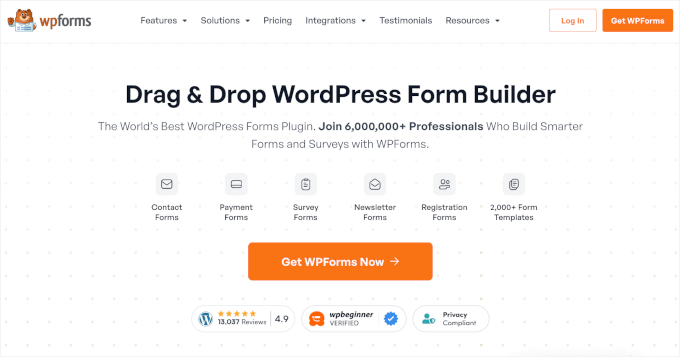
📝 Note: We will use WPForms Pro for this tutorial because it includes a Suggestion Form template and powerful features like star ratings, Likert scales, and conditional logic, which help you get much more detailed feedback.
There is also a WPForms Lite version you can use for free.
After signing up, you’ll get access to your WPForms account dashboard. This is where you can find your license key, which you’ll need in a moment.
Let’s install and activate the WPForms plugin. From your WordPress admin area, go to Plugins » Add New Plugin.

On the next screen, go ahead and use the search bar to quickly find the WPForms plugin.
Then, in the search result, click the ‘Install Now’ button and ‘Activate.’
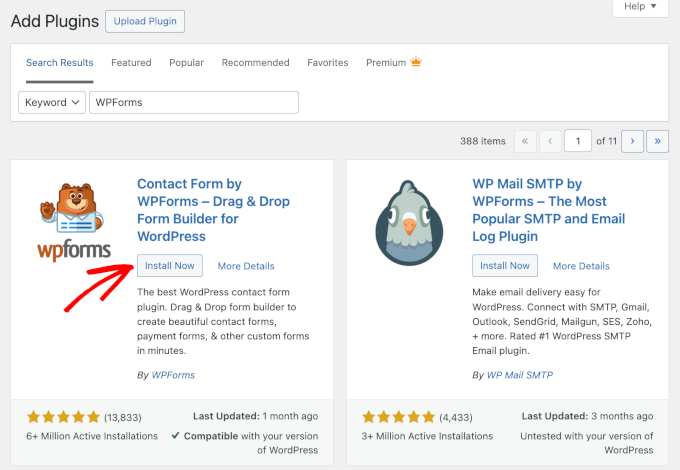
For more details, see our step-by-step guide on how to install a WordPress plugin.
Upon activation, you will need to go to WPForms » Settings from your WordPress dashboard and enter the license key.
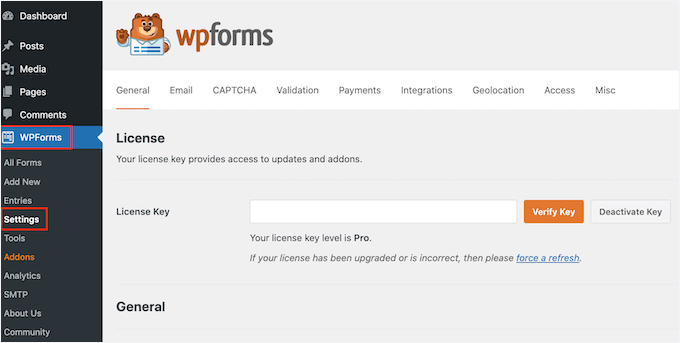
You can easily find the license key in your WPForms account area.
Next, you can visit the WPForms » Add New page to create your feedback form.
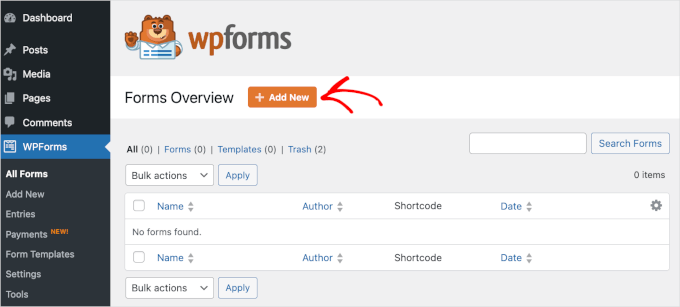
After that, you will see the WPForms ‘Setup’ page.
Here, you can create your form from scratch using the ‘Blank Form’ option or the WPForms AI option.
To use the AI tool, you just need to click ‘Generate Form,’ write a simple prompt, and wait for a few seconds for the tool to generate the form for you.
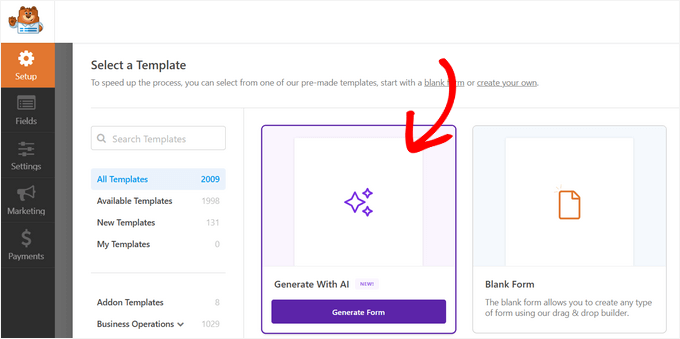
You can also use a ready-made form template. With over 2,000 templates available, you’re likely to find one that best suits your needs.
Start by adding a name for your feedback form and then select the ‘Suggestion Form’ template. You can search for the template in the search bar on the left and then click the ‘Use Template’ button.
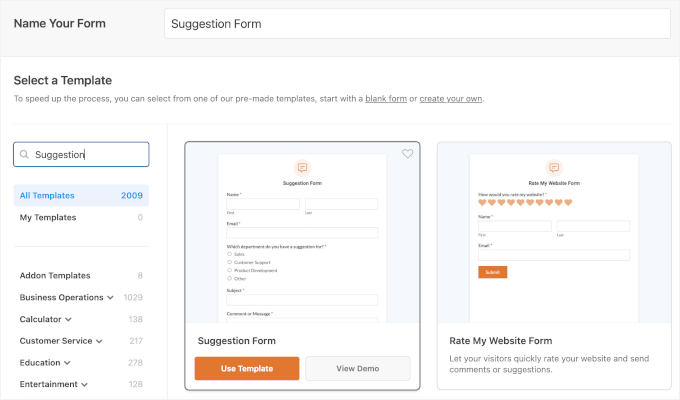
WPForms will now load the form template with basic feedback form fields already added. You can click on any field to edit it or drag and drop it to change the order.
If you want to add a new field, then you can simply select it from the left side of the screen and drag it over onto the template.
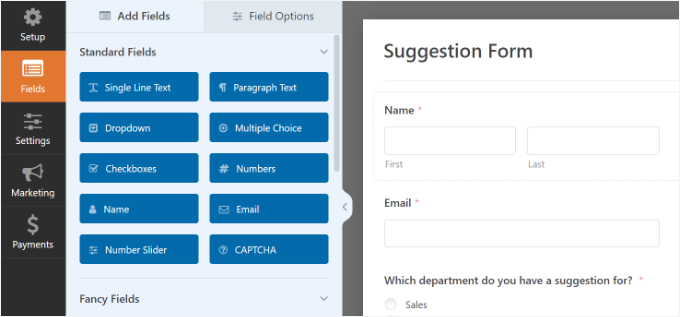
You can also further customize existing form fields in the template.
Simply click on any element and view more options to change. For example, you can edit the field’s label, add a description, set up smart conditional logic, and more.
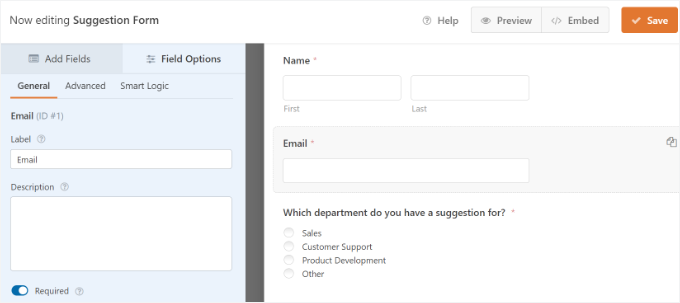
Once done, click the ‘Save’ button to store these settings.
Configuring Form Notifications and Confirmation
After creating the feedback form in WordPress, the next step is to configure the form notifications and confirmation.
While confirmation is for the user, form notifications will be for you. You will receive an email when a client submits the feedback form on your WordPress website.
WPForms allows you to manage both settings and customize them as you want from the ‘Settings’ tab within the WPForms builder.
First, you can edit the form confirmation settings. Simply go to the ‘Confirmation’ tab and select a confirmation type from the dropdown to change the settings.
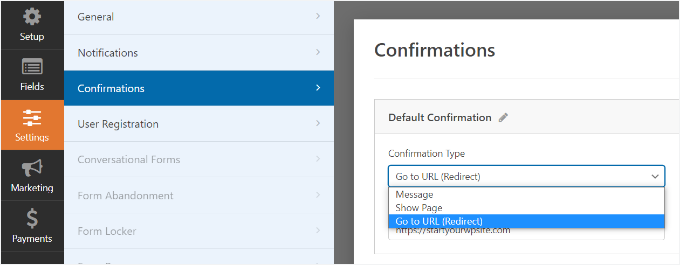
If you choose to display a thank-you message, then there is a pre-built message below the confirmation type section. You can change this message to add your own.
You can also redirect users to a separate thank-you page or a different URL from the confirmation type dropdown.
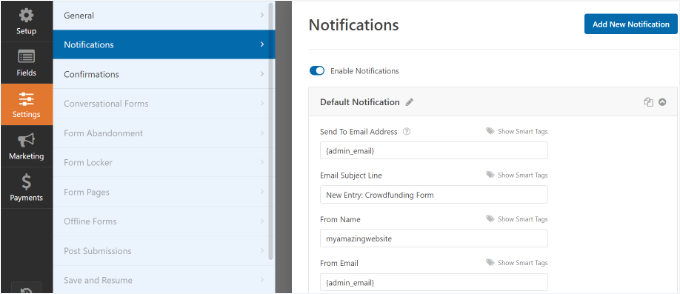
Next, just go to the ‘Notifications’ tab. It has default settings to send all the feedback form notifications to the admin email of your WordPress website. These are ideal for a feedback form and may not need any changes.
🧑💻 Pro Tip: If your notifications aren’t landing in your inbox, your site is probably having trouble sending emails. To fix this, we recommend using WP Mail SMTP. It connects your site to a mail provider and helps your emails get delivered reliably.
You can read all about the plugin in our detailed WP Mail SMTP review.
If you want to send the notifications to another email address, then you can simply add it to the notifications setting. You can also add comma-separated emails to send notifications to multiple email addresses.
For details, see our guide on how to create a contact form with multiple recipients.
Adding the Client Feedback Form to Your Website
Now, you’re ready to add the form to your WordPress site.
In the WPForms form builder, you can click the ‘Embed’ button at the top and then select an existing page or create a new page to add your feedback form.
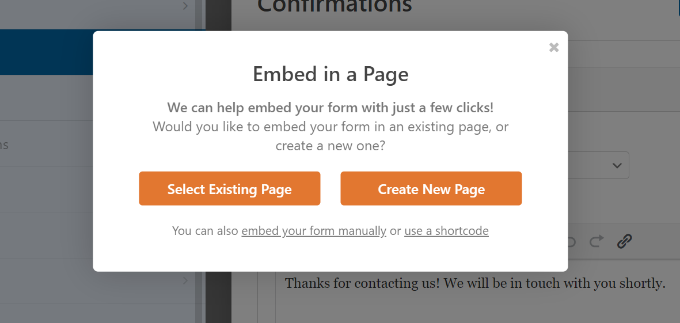
Let’s choose the ‘Create New Page’ option for this tutorial.
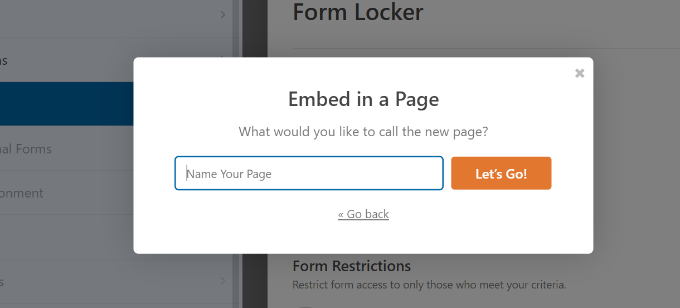
Next, you will need to enter a name for your new page. This will also act as the page URL. After that, click the ‘Let’s Go’ button.
Alternatively, you can use the WPForms block to add your client feedback form.
Simply edit a WordPress post or page where you want to add the form. Next, click the ‘+’ button and add the WPForms block.
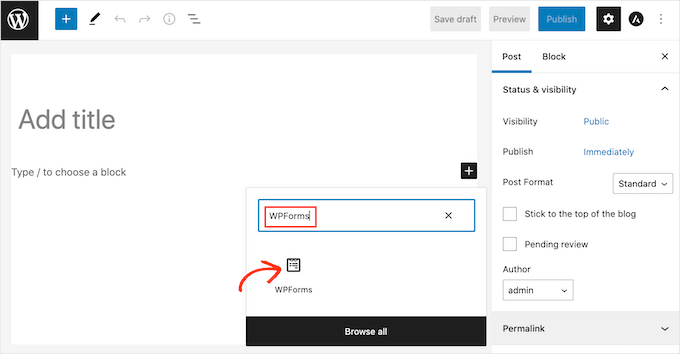
In the WPForms block, you can click the dropdown menu and select your form. You can go ahead and save or publish your post/page.
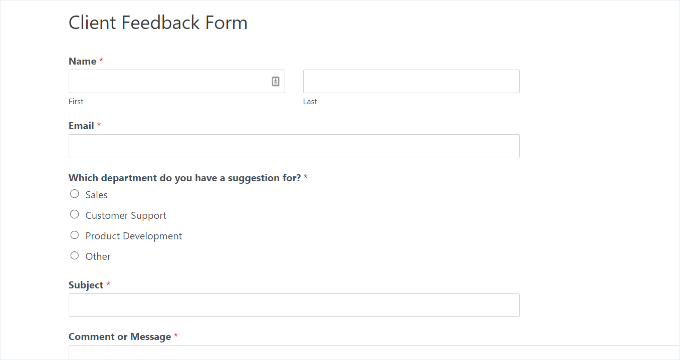
Next, you can visit your website to see the client feedback form in action:
WPForms comes with a widget that you can use to add your client feedback form to the sidebar or any other widget area in WordPress.
First, you need to go to the Appearance » Widgets page in your WordPress admin area. On this page, you can add the WPForms widget to the sidebar widget area.
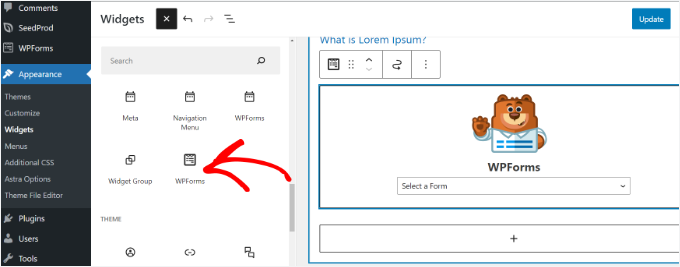
Next, select your form from the dropdown menu in the WPForms widget to show it in the sidebar.
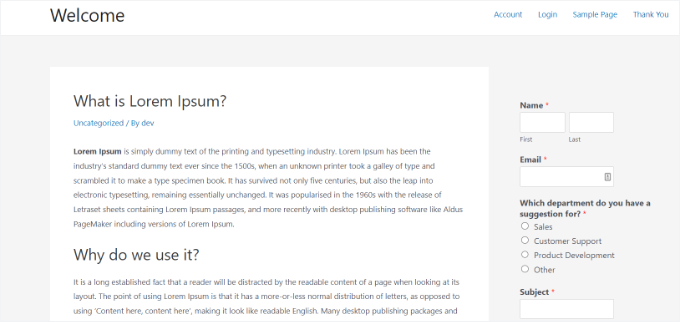
When you are done, make sure to click on the ‘Update’ button. You can now visit your website to see your client feedback form displayed in a sidebar widget.
For step-by-step instructions, see our guide on how to embed WordPress forms.
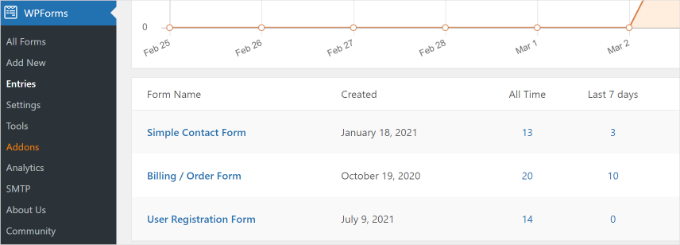
Now, when a client submits the form, their feedback will be sent to your email. You can also view all entries right from your WordPress dashboard by going to WPForms » Entries.
Method 2: Creating a WordPress Client Feedback Form with UserFeedback
UserFeedback is one of the best user feedback plugins for WordPress. It lets you create instant, on-site survey forms to collect insightful feedback from your website visitors.
When using UserFeedback, we were able to create interactive surveys that helped us better understand the needs of our web design customers.
Plus, the plugin is super easy to use, and it comes with 20+ pre-made templates like website feedback, NPS survey, B2B satisfaction survey, post-purchase review, and more.
For more insights into the plugin’s features, check out our full UserFeedback review.
To get started, let’s create a UserFeedback account.
Simply go to the UserFeedback website, hit the ‘Get UserFeedback Now’ button, and pick a plan. After that, you can just follow through the checkout to complete the process.
📝 Note: For this tutorial, we’ll use the UserFeedback Pro version because it offers more templates and advanced features. However, there is a free version of UserFeedback that you can use.
Upon signup, you can find the UserFeedback Pro zip file and license key in your UserFeedback dashboard.
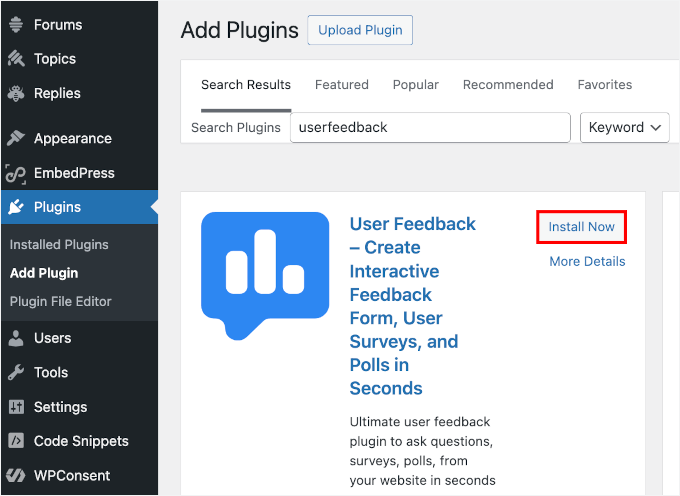
From here, you can install and activate the UserFeedback plugin. In your WordPress admin area, go to Plugins » Add New Plugin.
Then, you can look for the UserFeedback plugin using the search bar.
In the search result, click ‘Install Now’ and then ‘Activate’ to enable it.
If you need help, see our guide on how to install a WordPress plugin.
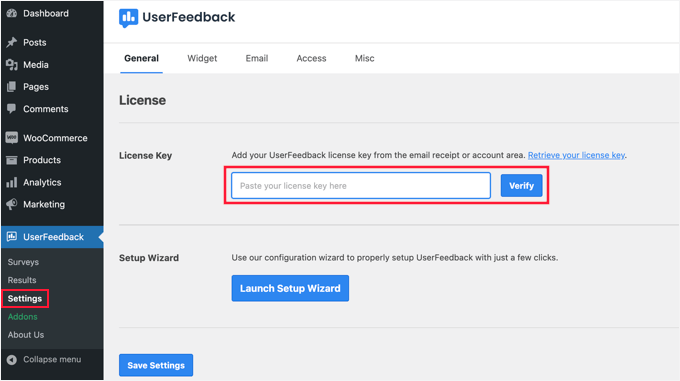
Once the plugin is activated, you can unlock all the premium features by going to UserFeedback » Settings.
Go ahead and enter your license key in the available field.
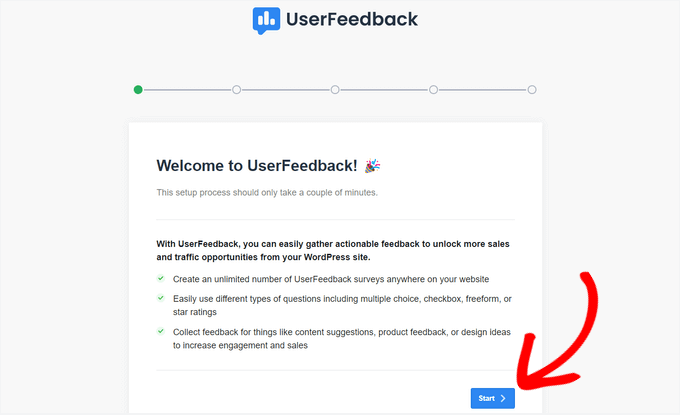
The UserFeedback setup wizard will then automatically launch.
Simply click the ‘Start’ button to begin the setup process.
Next, you can choose what type of question you want to ask your clients or customers.
You can select a pre-written question from the list or create your own question.
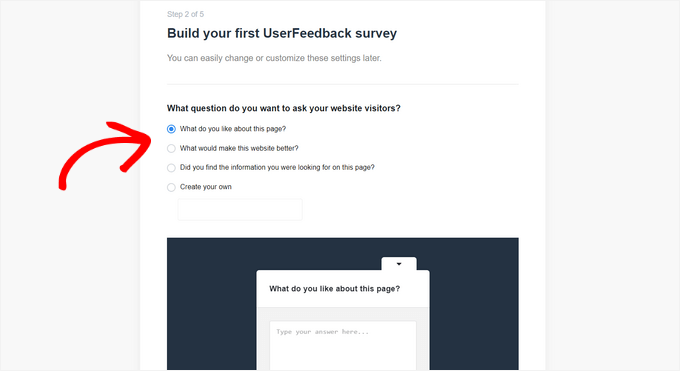
Don’t worry, you’ll be able to change your question later.
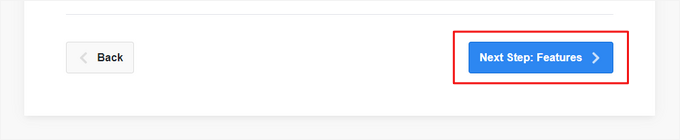
After picking a question, click the ‘Next Step’ button to continue.
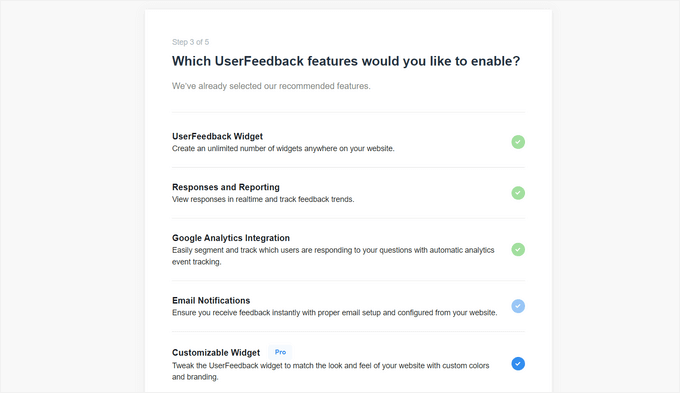
On the next page, you can enable specific UserFeedback features. Select the features that you want, or that your license level allows.
Then, click the ‘Next Step’ button at the bottom of the page.
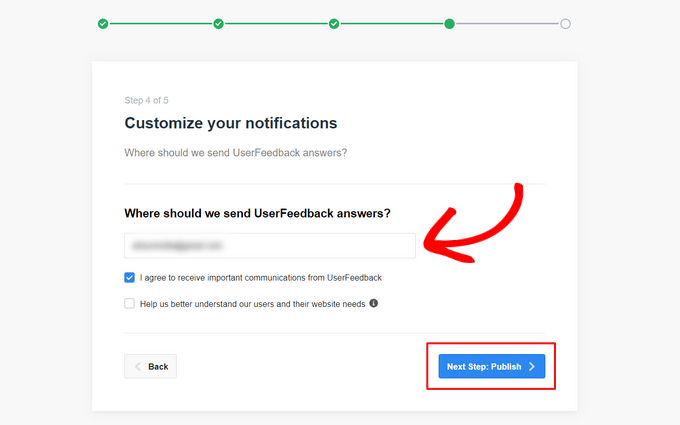
Now, you can enter the email address to which you want the client feedback responses to be sent.
After entering your email address, click the ‘Next Step’ button to continue.
In the last step of the setup wizard, the features that you enabled will be installed.
You should see success messages like this:
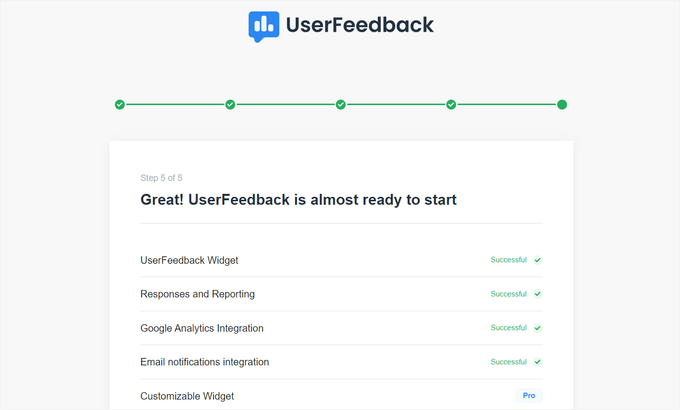
You can now click on the ‘Exit to dashboard’ button at the bottom of the page.
With that done, you’re ready to customize your UserFeedback client feedback form.

Editing Your Client Feedback Form
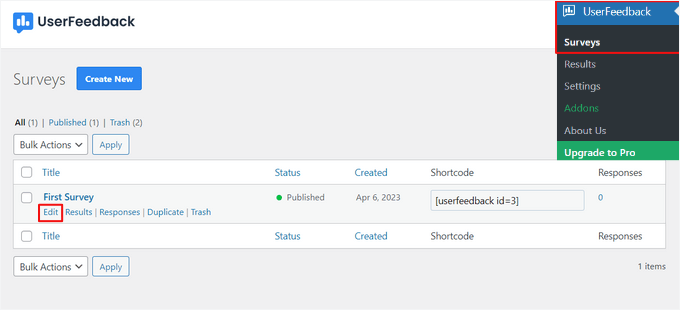
From the UserFeedback dashboard, you can now edit your survey form and change the survey settings.
To do that, hover over your first survey and click the ‘Edit’ link.
Now, you can change the question type from the dropdown menu and edit your question title by typing in the field.
To add additional questions, just click on the ‘Add Question’ button.

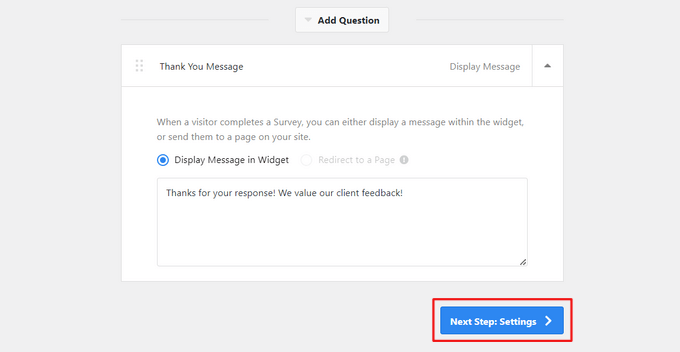
You can also create a custom thank-you message and redirect users to a specific page after they submit their feedback.
When you’re finished editing your questions, click the ‘Next Step’ button.
From the Settings page, you can enable or disable Google Analytics tracking with MonsterInsights, the best WordPress analytics solution.
Next, in the Targeting section, you can choose which device types and pages the survey will appear on.
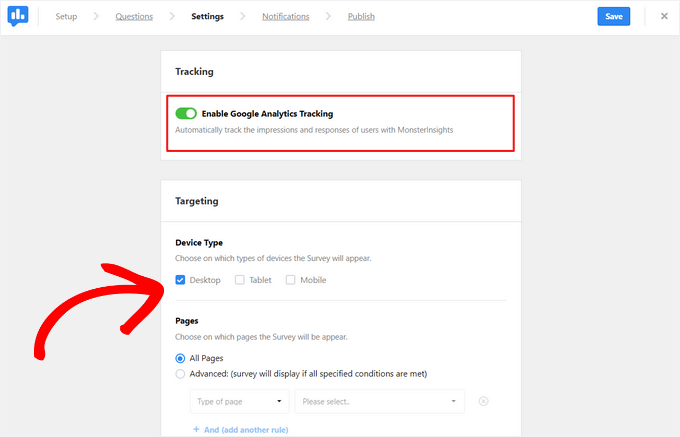
Then, you can scroll down to the Behavior section to configure:
- Display timing – Choose how soon the survey appears after a visitor lands on your site.
- Display length – Set how long the survey stays visible on the screen.
- Survey run time – Decide how many days or weeks the survey should stay active on your site.
For example, you might set the survey to pop up 10 seconds after a visitor arrives on your homepage, keep it visible for 30 seconds, and run it for a month.

This approach can help you gather meaningful insights while ensuring visitors have a chance to engage with your survey without feeling overwhelmed.
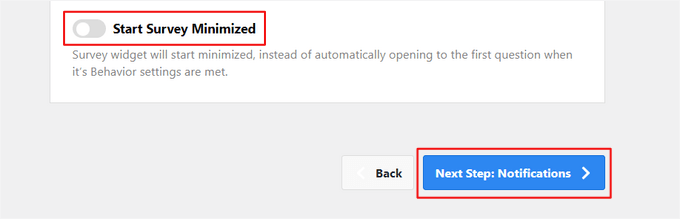
At the bottom of the page, you can enable or disable the ‘Start Survey Minimized’ option. This will display a less visible version of your survey form to website visitors, instead of automatically opening the first question.
Click the ‘Next Step’ button to continue.
Then, on the ‘Notifications’ page, you can configure email notification settings.
They include enabling conditional logic to only send email notifications when visitors respond in a certain way.
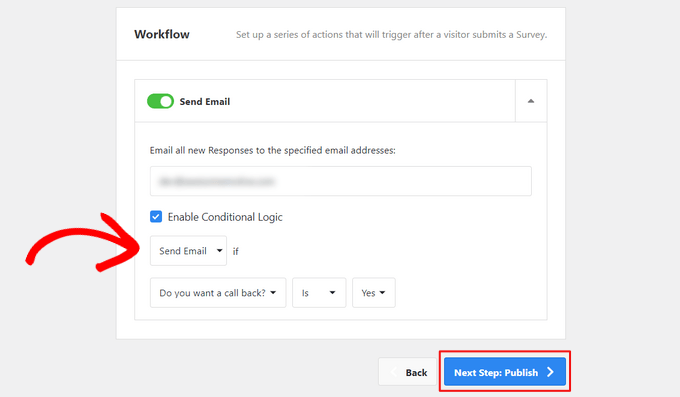
After that, click on the ‘Next Step: Publish’ button.
Publishing Your Client Feedback Form
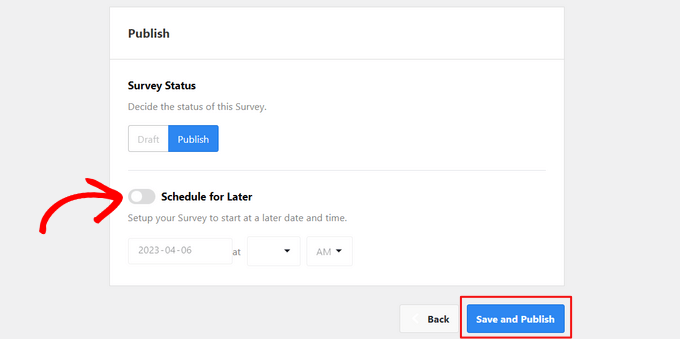
Lastly, you have the option to schedule the client feedback form to appear at a later date and time.
If you’re ready to publish your form now, simply click the ‘Save and Publish’ button.
That’s it! You can now visit your website to see your client feedback form in action.
Here is how it appears on our demo site:

As visitors fill out your survey, you’ll get email notifications.
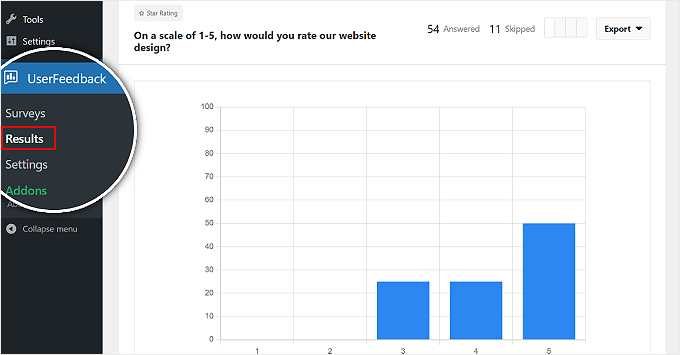
You can also see all the results and detailed reports by going to UserFeedback » Results in your WordPress dashboard.
FAQs: Add a Client Feedback Form in WordPress
Can I create a feedback form using HTML without a plugin?
Although manually writing the HTML for a form is possible, you’ll require backend coding to manage submissions. This is complex and not recommended for beginners. Plugins like WPForms handle all of this for you safely and easily.
What is the best tool to create feedback forms?
For detailed feedback forms and surveys, WPForms is best. For quick feedback with pop-up surveys, UserFeedback is an excellent option.
How can I encourage clients to leave reviews?
We recommend making the process simple, asking at the right time, and offering a small incentive, like a discount on a future service.
What’s the best way to display client reviews on my site?
Consider embedding reviews from third-party platforms such as Google, Yelp, or Facebook with a plugin like Smash Balloon.
We hope this article helped you learn how to easily add a client feedback form in WordPress.
Bonus Resources 🔗: More Ways to Improve UX with Feedback
Want to explore more ways to collect feedback and improve your WordPress site? Here are some helpful tutorials to keep the momentum going:
- How to Get Quick Feedback on Your Articles on WordPress – Learn how to add simple feedback options so readers can quickly share what they think about your content. Best for bloggers and content creators.
- How to Get Website Design Feedback in WordPress – Find out how to gather useful input on your site’s layout, colors, and overall design from real users. Ideal for web designers, freelancers, and agency websites.
- User Experience Feedback Questions to Ask Website Visitors – Get a list of smart, UX-focused questions you can use to learn what’s working on your site. Useful for business site owners, marketers, and anyone improving site usability.
- How to Add WordPress Reaction Buttons to Boost Engagement – Let visitors react to posts with emojis or buttons to increase interaction without needing long responses. Great for blogs, online magazines, and personal sites.
If you liked this article, then please subscribe to our YouTube Channel for WordPress video tutorials. You can also find us on Twitter and Facebook.




kzain
WPForms is definitely the way to go – it’s so easy to use, even for non-techy people like me.
The drag-and-drop builder is fantastic, and it lets you create professional-looking forms in no time.
Thanks for this informative article! Appreciate it!
Jiří Vaněk
When using WPForms, following your guide, it’s possible to set up so that each department has a designated email where the form will be sent. So, if a user selects the business department, the email will be sent there, and if they choose the technical department, it will be sent to a different email. Is this possible?
WPBeginner Support
Yes, WPForms will allow you to decide where the email goes based on the department selected.
Admin
Jiří Vaněk
That’s perfect, and I’m glad it works this way. I need to create a form for one website where there will be multiple departments, each with its own email for processing. I love WP Forms. Thanks for the response, I’m sure I can handle it on my own now.
Ian Loughlin
Hi, I’ve just created a new Contact Page for my website but it has placed it in the main area (where new posts go). I wanted it as a separate page (link) alongside the ‘About Me’ page. In other words prospects would have to click on that page (link) to access the contact form instead of seeing it in the main text.
How would I do this ?
Thanks.