


Your WordPress site visitors browse around, read your content, maybe even add items to their cart. But then they just disappear.
It’s frustrating because you know they’re interested, but something’s not quite clicking.
That’s exactly why cookie retargeting has become such a game-changer. It lets you display custom on-site messages based on user behavior, so your content feels personal and timely instead of generic. 🍪
After testing different approaches, we’ve discovered the most effective ways to use cookie retargeting in WordPress sites to show custom on-site messages. In this guide, we’ll walk you through exactly how to set it up, using the tool that works best – OptinMonster.

📕 TL;DR: Cookie retargeting lets WordPress sites show personalized messages or offers based on visitor behavior. Using tools like OptinMonster, you can set up onsite popups, create follow-up campaigns, and conduct different A/B testing variations to maximize results.
What Is Cookie Retargeting?
Cookie retargeting is a marketing technique where websites use cookies to track user behavior and offer a personalized experience.
There are two types of cookie retargeting techniques.
First, there is off-site cookie retargeting. This method is used to track user activities across the web.
Facebook pixel and Google remarketing are two of the most popular advertising programs that allow you to use their massive reach and show targeted ads to people who visit your website.
Secondly, you have on-site cookie retargeting, which allows you to show targeted messages to users based on how they interact with your WordPress website.
What are cookies?
Cookies are small text files containing pieces of data.
Websites set cookies in users’ browsers to store temporary information such as login status, user preferences, session details, and more.
If you’ve landed a specific product page, only to be retargeted with ads for that exact product while browsing on other websites, you know how powerful cookie retargeting is.
Cookie consent and legal requirements
Before setting up any cookie retargeting strategies, you need to make sure your website complies with privacy regulations like GDPR. These laws require you to get permission from your visitors before tracking their activity with cookies.
We recommend using a cookie consent plugin like WPConsent to handle this requirement properly. Unlike other plugins, WPConsent actually protects user privacy by automatically blocking all tracking scripts and cookies until visitors give consent.
Here at WPBeginner, we use WPConsent across all of our business websites to manage cookie and privacy compliance. It gives us peace of mind knowing we’re handling user data responsibly. See our complete WPConsent review for details.
Need help setting up cookie consent? Check out our tutorial on how to add a cookies popup in WordPress for GDPR/CCPA.
How to Use On-Site Cookie Retargeting to Boost Conversions?
There are a number of ways website owners use on-site retargeting messages to boost conversions and increase sales.
Cookies are mainly used to track users’ behavior, like which pages they visit or items they add to their cart, and then serve targeted content based on those past interactions.
For instance, online stores can show a popup with a 10% discount on a product someone viewed but didn’t buy. This creates a dynamic sales funnel that gently encourages users to complete a purchase.
Another use-case is lead generation. For example, if a visitor closes a newsletter signup popup, you can show them a different message offering a free ebook or webinar. This helps increase the chances they’ll subscribe.
On-site retargeting messages are highly effective because:
- 💬 Personalized engagement – Show personalized messages that match what visitors are doing on your site.
- 🧑💻 Smarter campaigns – Adapt and improve with every interaction until they convert.
- 💰 Cost-effective – Get more from your existing traffic and spend less on ads.
- 🌐 Wider reach – Reconnect with visitors through ads on platforms like Facebook or Google.
The idea is to keep your brand top-of-mind and gently nudge your audience down the funnel.
For example, when website visitors leave without converting, you could offer them a limited-time discount to help sweeten the deal and remind them what they’re missing out on.
That being said, let’s take a look at how to use cookie retargeting in WordPress. Here’s a quick overview of all the steps we’ll share in this article:
- Step 1: Creating an On-Site Retargeting Campaign in WordPress
- Step 2: Creating a Retargeting Campaign to Show Custom Messages
- Step 3: Adding Cookie Retargeting with Custom Messages
- Bonus Step: Optimizing Your Retargeting Campaigns with A/B Tests
- FAQs: Using Cookie Retargeting in WordPress
- You Might Also Like: WordPress Guides on Cookies & Conversions
Let’s get started.
Step 1: Creating an On-Site Retargeting Campaign in WordPress
The best way to create on-site retargeting messages is by using OptinMonster, the best conversion optimization and lead generation software in the world.
You can use it to easily create attention-grabbing signup forms, popups, welcome mats, in-line offers, custom offers, and more.
We actually use OptinMonster on our site to create promotional pop-ups and slide-ins. You can read our complete OptinMonster review for details on what it can do.
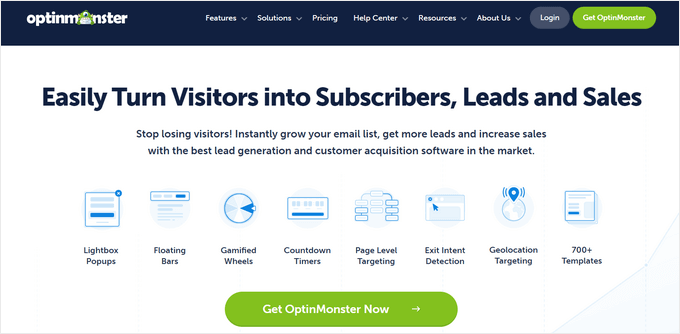
To get started, you need to sign up for an OptinMonster account by visiting their website and clicking the ‘Get OptinMonster Now’ button. You will need the OptinMonster Growth plan, which unlocks advanced features like cookie retargeting and follow-up campaigns.
Next, you’ll need to install and activate the OptinMonster plugin. This plugin acts as a connector between your WordPress site and the OptinMonster app.
If you need help, see our step-by-step guide on how to install a WordPress plugin.
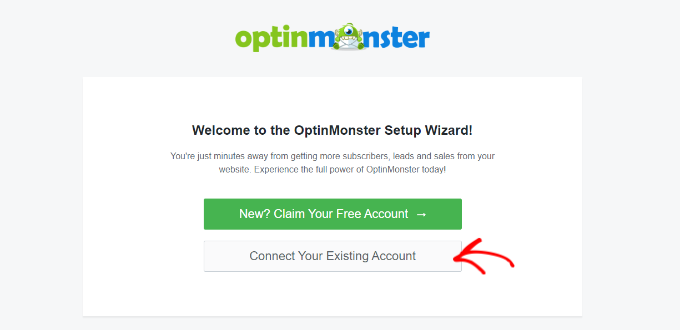
Upon activation, you will see the welcome screen. Simply click the ‘Connect Your Existing Account’ button.
Next, a new window will open, where you’ll need to sign in to your account and connect your website with OptinMonster.
Go ahead and click the ‘Connect to WordPress’ button.

Now, you’re ready to create a new campaign.
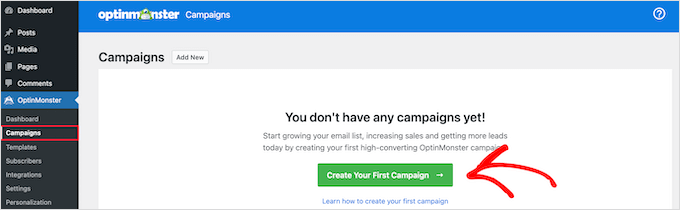
First, you’ll need to go to OptinMonster » Campaigns from your WordPress admin area and then click the ‘Create Your First Campaign’ button.
This will take you to the OptinMonster website, where you’ll be asked to choose a campaign type and a template.
You can choose any campaign type or template, but for this tutorial, we’ll be creating a lightbox popup. This format works because it gives you enough space for a personalized message or offer.
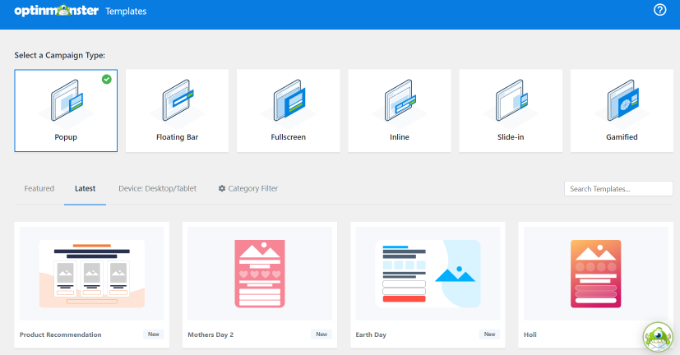
That said, you can select any template that you’d like to use for your campaign.
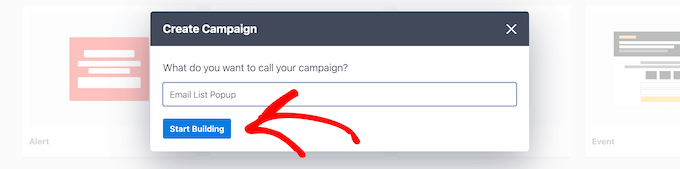
Next, you’ll be asked to provide a name for your campaign and click the ‘Start Building’ button.
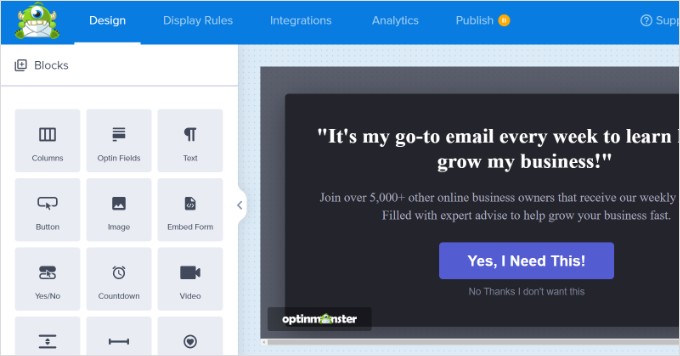
After that, you’ll enter the drag-and-drop campaign builder interface.
It is a powerful design tool where you can simply point and click on any item to edit it. You can also add new items like buttons, images, columns, and more to your popup campaign.
Next, you can switch to the ‘Display Rules’ tab at the top.
Here, OptinMonster will give you different options for displaying your on-site targeting campaigns.
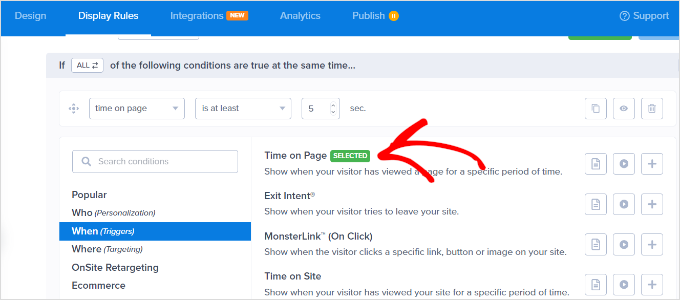
For instance, you can show the popup after users spend a certain amount of time on the page, are from a particular location, or are about to exit your website.
By default, OptinMonster will show your campaign after a visitor spends at least 5 seconds on the site. Plus, it appears on all the pages.
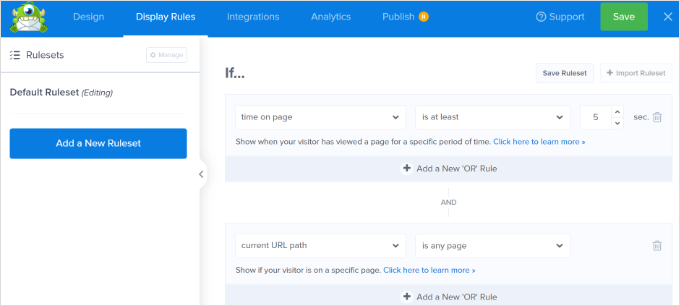
Once you are satisfied, simply switch to the ‘Publish’ tab.
Next, you’ll need to make your campaign live by changing its status from ‘Draft’ to ‘Publish.’ Don’t forget to click the ‘Save’ button when you’re done.
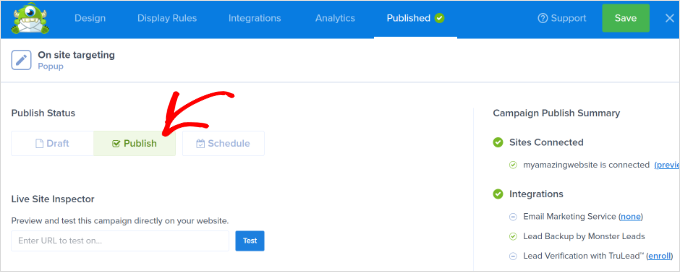
Now, by default, OptinMonster will show this campaign to all users who visit your WordPress website. Users will be able to close the popup or perform their desired action.
Step 2: Creating a Retargeting Campaign to Show Custom Messages
Now that you have launched your first campaign, let’s add another campaign using the follow-up retargeting feature.
Click on the ‘Create New Campaign’ button in the OptinMonster dashboard and select your campaign type and template. For this one, we’ll be using a ‘Floating bar’ for our retargeting campaign.
They are less intrusive, stay visible as users scroll (sticky), and work well for follow-up messages or reminders without interrupting the browsing experience.
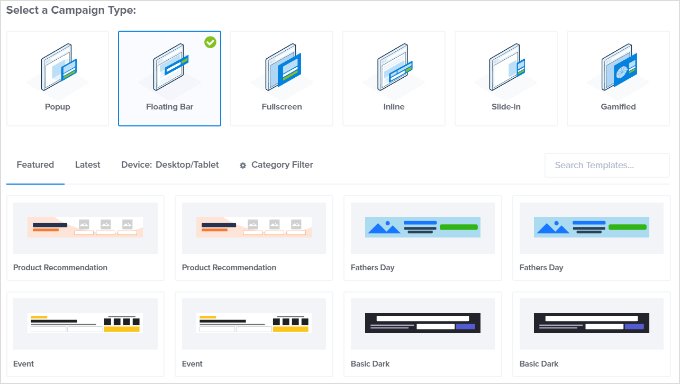
After selecting a template, you’ll enter your campaign name.
Then, simply click the ‘Start Building’ button to continue.
After that, you’ll enter the OptinMonster builder, where you can design your campaign using simple drag-and-drop tools.
You can edit the optin text, adjust the countdown timer to generate FOMO, add a coupon, and so much more.
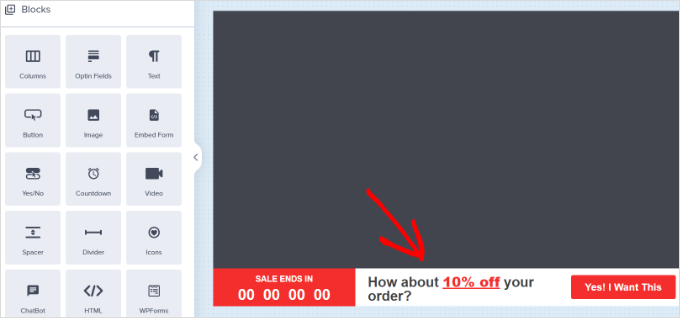
Once you are satisfied with the design, it is time to select which users you want to show this custom message to.
To do this, simply switch to the ‘Display Rules’ tab at the top of the builder. OptinMonster offers a ton of display rules from which you can choose. You can also add multiple rulesets.
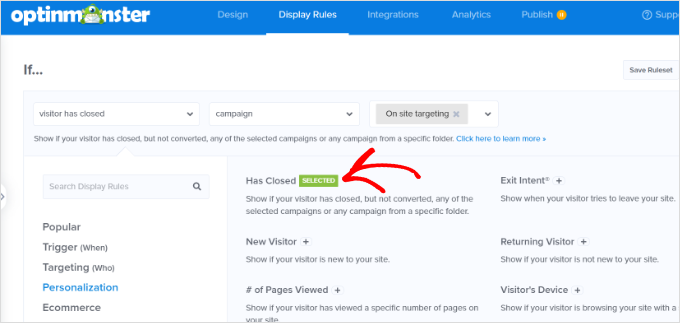
Next, under the If menu, go to the ‘Personalization’ display rules options, and you’ll want to select ‘Has Closed’.
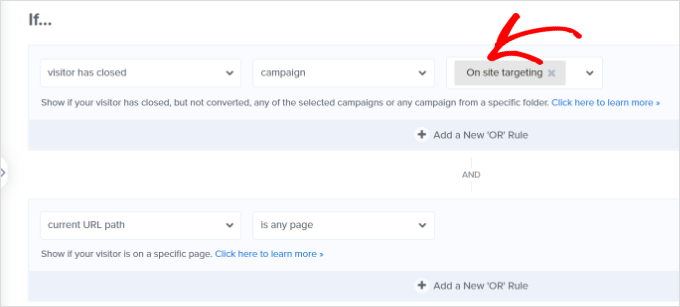
This rule makes sure your new campaign is only shown to visitors who previously closed your first popup. It’s a simple way to follow up with a softer or alternative message instead of showing them the same offer again.
After that, select ‘Campaign’ and then select your previous campaign.
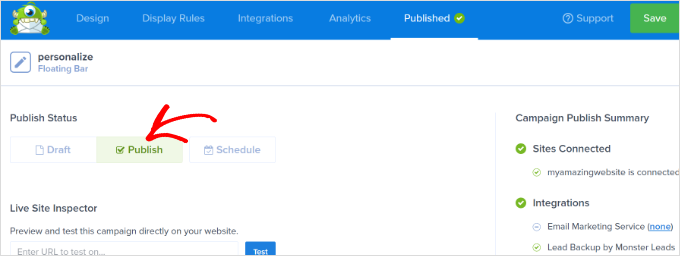
Next, you need to switch to the ‘Publish’ tab.
Here, simply change your campaign status from Draft to Publish under ‘Publish Status.’ Once that’s done, simply click the ‘Save’ button and exit the campaign builder.
You can now visit your website in the incognito browser tab to see your campaign and the follow-up retargeting message.
Step 3: Adding Cookie Retargeting with Custom Messages
Cookie retargeting allows you to show custom messages to users based on their previous actions, cart status, shopping history, and more.
This allows you to create promotions and upsells designed for customers at different stages of your sales funnel.
When customizing your campaign, simply switch to the ‘Display Rules’ tab.
Under the If menu, you can go to the ‘Targeting (Who)’ display rules options and select Cookie Targeting.
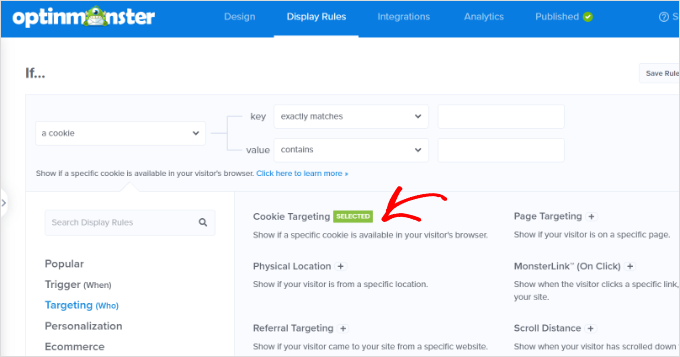
Next, you’ll need to enter the cookie key and value. The key is the cookie name, and the value parameter is the contents of the cookie.
OptinMonster lets you select different operators for your display rule, such as:
- “match exactly” for a specific product cookie.
- “contain” if the cookie includes multiple products.
- “exist” to target any user with that cookie.
For instance, if you are using WooCommerce, then you can use WooCommerce cookies to target users who have added products to their cart. You would simply enter the cookie key woocommerce_items_in_cart into the rule settings.
This way, you can cross-sell items in their cart, reduce cart abandonment, and more.
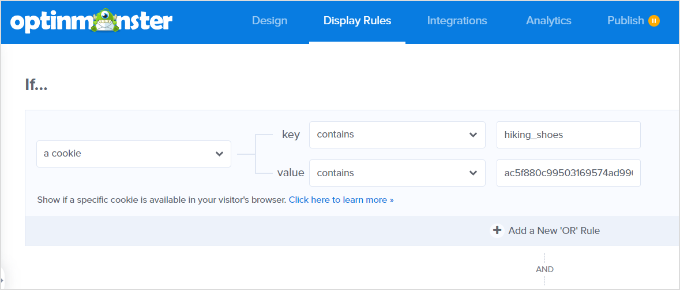
After adding cookie retargeting rules, go to the ‘Publish’ tab.
From here, simply change the ‘Publish Status’ from ‘Draft’ to ‘Publish’ for your campaign.
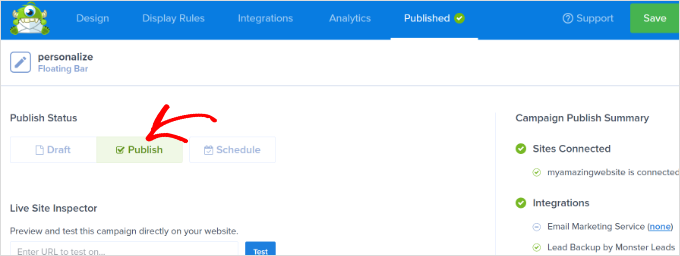
OptinMonster will now display your custom message based on the cookie-targeting rules you have set.
🧑💻 Pro Tip: When testing your new campaign, make sure to open your website in an Incognito or Private browser window. This ensures your own WordPress admin cookies don’t hide the popup.
Bonus Step: Optimizing Your Retargeting Campaigns with A/B Tests
Don’t make the mistake of just letting your retargeting campaigns run on autopilot without checking how they’re performing.
Like any marketing campaign, you need to always run A/B split tests so that you know which ones are most effective.
You should be tweaking the headlines, copy, offer, or even the target segmentation in your campaigns to boost conversion rates. The good news is that OptinMonster makes setting up various versions of your retargeting messages super easy.
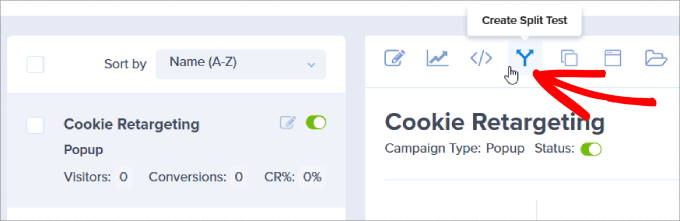
All you need to do is hit the ‘Create Split Test’ icon located in your account dashboard.
A pop-up window will appear. Include any notes so you know which elements of the campaign are being tested.
Click the ‘Create Split Test’ button.
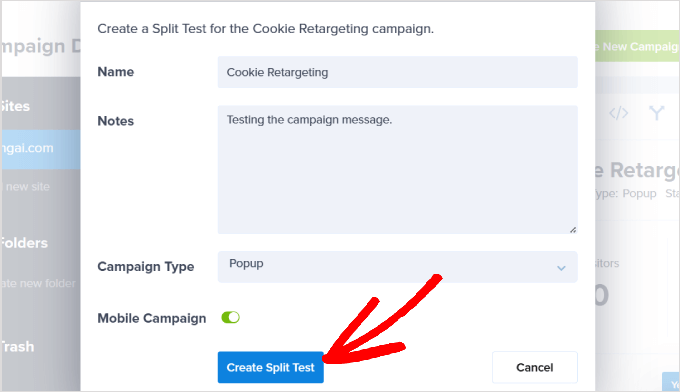
This automatically duplicates your campaign and its cookie retargeting rules. So, you can tweak elements like the headline, offer, or image to see which version performs better in your A/B test.
Once published, OptinMonster will randomly show the different versions to your website visitors and track which one gets the most conversions.
Over time, you’ll know what your visitors respond best to, thereby boosting your conversion rates by conducting A/B testing with your cookie retargeting campaigns.
For details, you can refer to our guide on how to do A/B split testing in WordPress.
FAQs: Using Cookie Retargeting in WordPress
Cookie retargeting can seem tricky at first, but these common questions – answered – will help clarify how it works and how to use it effectively.
What is the main difference between on-site and off-site cookie retargeting?
On-site retargeting shows personalized messages to visitors while they’re still browsing your website. Off-site retargeting, on the other hand, shows your ads to them later on other platforms like Facebook or Google after they’ve left your WordPress site.
Is it legal to use cookie retargeting on my website?
Yes! It’s perfectly legal as long as you follow privacy laws like GDPR. That means you need to get clear consent from your visitors before placing any tracking cookies in their browsers.
Will using a tool like OptinMonster for retargeting slow down my website?
Not at all. Tools like OptinMonster are built with performance in mind. Their scripts load asynchronously, which is a technical way of saying they load in the background.
This means they won’t block your main website content from appearing or slow down your page load speed.
What are some good examples of on-site retargeting campaigns?
- Offering a shipping discount to a visitor who has items in their cart.
- Showing a different lead magnet to someone who closed your first popup.
- Displaying a related post suggestion after a visitor finishes reading an article.
You Might Also Like: WordPress Guides on Cookies & Conversions
We hope this article helped you learn how to use cookie retargeting in WordPress to show custom on-site messages. Next up, you may also want to see our guides on:
- WordPress Geolocation Targeting (Ultimate Guide)
- How to Grow Pricing Page Conversions by 30%
- How to Add a Cookies Popup in WordPress for GDPR/CCPA
- How to Fix ‘Cookies Are Blocked Due to Unexpected Output’ Error in WordPress
- WordPress Conversion Tracking Made Simple
If you liked this article, then please subscribe to our YouTube Channel for WordPress video tutorials. You can also find us on Twitter and Facebook.





Have a question or suggestion? Please leave a comment to start the discussion.