


Copying WordPress form submissions into spreadsheets takes up a lot of time. It takes up hours every week, and a single wrong paste can throw off your entire workflow.
But managing form submissions doesn’t have to mean dealing with messy spreadsheets and scattered data.
By connecting your forms to Airtable, it keeps everything organized for you, streamlines your workflows, and saves you from wasting time on manual entry. 🗂️
At WPBeginner, we’ve tested different plugins and methods, and we’ve found the easiest way to create custom Airtable forms in WordPress. In this guide, we’ll show you exactly how – no technical skills required.

Why Create a Custom Airtable Form in WordPress?
A custom Airtable form in WordPress gives you a smarter way to collect, organize, and use your form data – all in one place.
Imagine you’re running a busy website with loads of data coming in from contact forms, surveys, and customer questions. Keeping track of all this information can quickly become a nightmare.
You find yourself lost in a sea of emails, spreadsheets, and poorly organized data, wasting precious time trying to make sense of it all. This is where custom Airtable forms come to the rescue.
Airtable is a data management tool that allows you to create custom data-driven apps. That way, you can better visualize the data collected on your website using WordPress forms.
For instance, you can use your WordPress contact form data in Airtable as a CRM (Customer Relationship Management) tool to manage leads and contacts captured by your WordPress forms.
You can also store data from user surveys on Airtable.
Here are a few other use cases for using Airtable with WordPress:
- 📄 Organization – Keep tasks organized by project, assign responsibilities, and use Kanban views to track progress.
- 📅 Content Planning – Build a content calendar, track publication dates, and assign writers and editors to grow your blog traffic.
- 🛒 Inventory Tracking – Maintain a database of products to monitor stock levels for your online store.
Basically, you can use data collected from your WordPress contact forms in Airtable to create custom apps, workflows, and tools for your business.
With that in mind, let’s see how you can easily create a custom Airtable form in WordPress.
How to Create a Custom Airtable Form in WordPress
To create our custom Airtable form in WordPress, we will first make a contact form using WPForms.
We will then connect the form to Airtable by using a service called Uncanny Automator. It works as a bridge to connect two different apps without any code. You can use it with dozens of online apps, including WPForms and Airtable.
Here is an overview of the steps we will cover in this post:
Ready? Let’s get started.
Step 1: Create Your Form in WPForms
WPForms is the best WordPress contact form builder plugin on the market and allows you to create any kind of form easily using a simple drag-and-drop interface.
At WPBeginner, we trust WPForms for various tasks, including creating our contact forms and annual user surveys. It keeps form creation smooth and efficient, and you can check out our detailed WPForms review to see for yourself.
First, you need to install and activate the WPForms plugin. For more details, see our step-by-step guide on how to install a WordPress plugin.
📝 Note: You can use the WPForms free version to integrate Airtable with WPForms. However, upgrading to WPForms Pro unlocks all 2,000+ form templates, advanced form features like conditional logic, more payment options, and more!
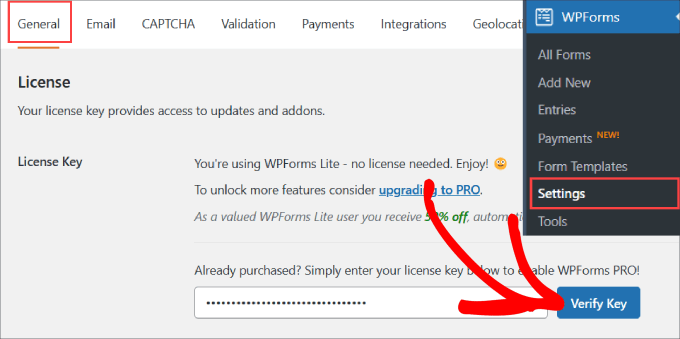
Upon activation, you need to go to the WPForms » Settings page.
Under the ‘General’ tab, enter the license key from your account on the WPForms website and hit ‘Verify Key.’
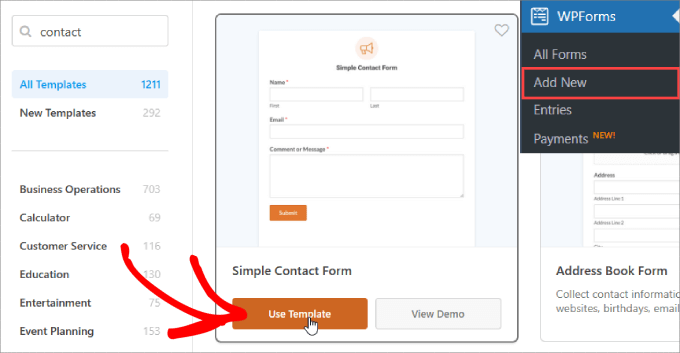
Next, you need to visit the WPForms » Add New page in your WordPress dashboard. This will launch the WPForms builder interface, where you can choose from over 2000 pre-built templates.
WPForms also has an AI-powered form builder, so you can create forms simply by entering a short prompt.

This makes it even faster to generate custom forms without starting from scratch.
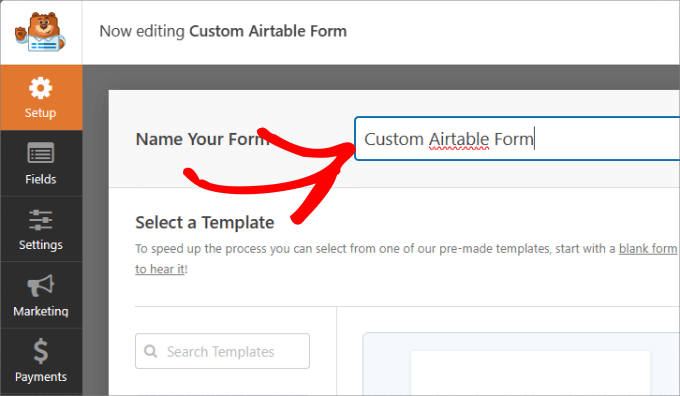
On the Setup page, make sure to give your form a name so you can easily refer back to it.
And for this tutorial, we will be using the ‘Simple Contact Form’ template.
So, let’s hover over it and click on ‘Use Template.’
From here, you’ll be taken to the drag-and-drop editor, where you can easily customize the form.
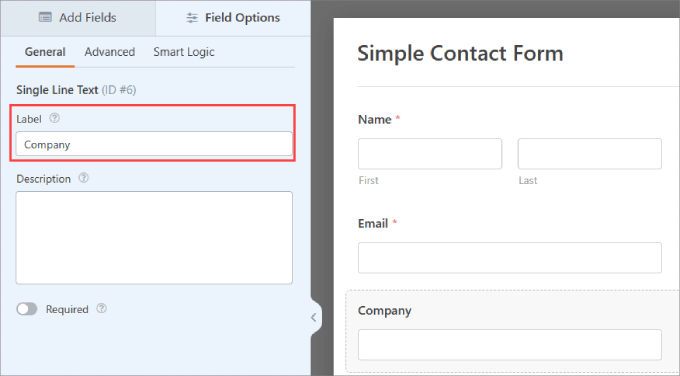
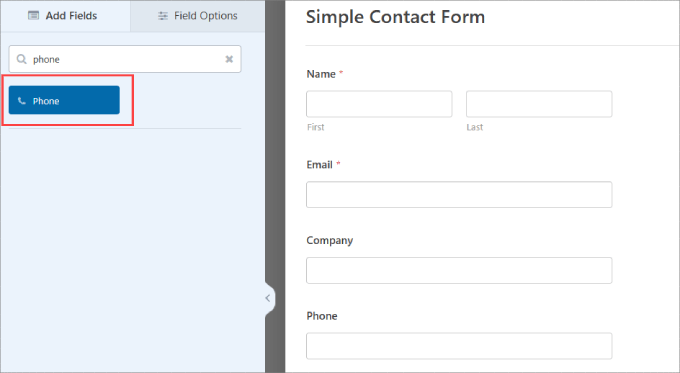
Let’s say we are creating a contact form to collect leads from B2B prospects. In this case, we will want to add ‘Company’ and ‘Phone Number’ to our contact form.
To add the ‘Company,’ you need to add a ‘Single Line Text’ item, then click on the element and rename the field to ‘Company.’
If you want prospects to provide their phone number, just drag the field option ‘Phone’ onto the editor.
Feel free to add any other fields that fit your needs. For more details, you can see our guide on how to create a contact form in WordPress.
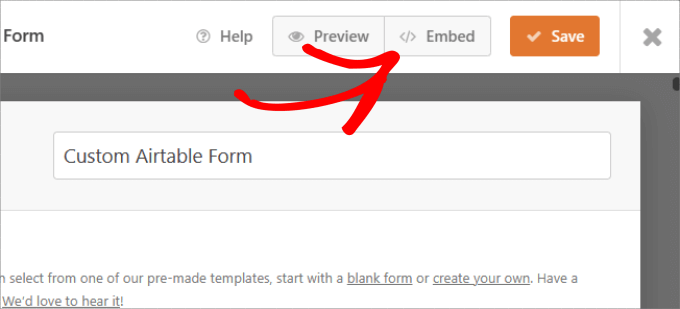
Once you’ve set up your form, you need to add it to your WordPress website.
Simply hit the ‘Embed’ button at the top.
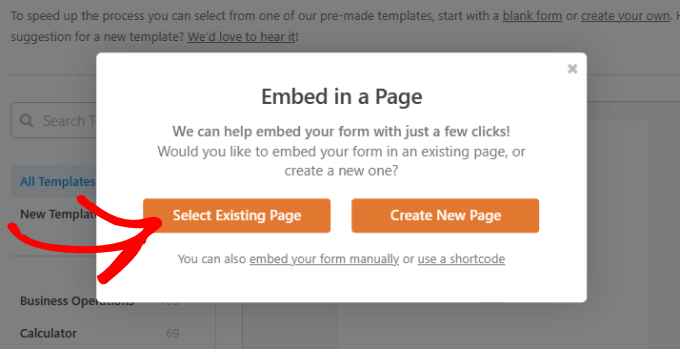
You can choose to embed the contact form on an existing page or a new page.
In this case, we will pick ‘Select Existing Page.’
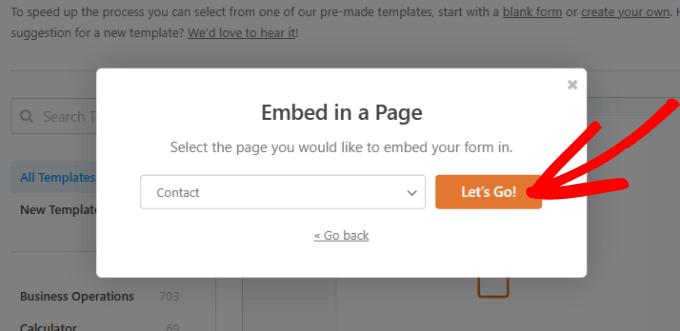
After that, you can choose any page you’d like and select the ‘Let’s Go!’ button.
This will take you to the WordPress content editor of that page.
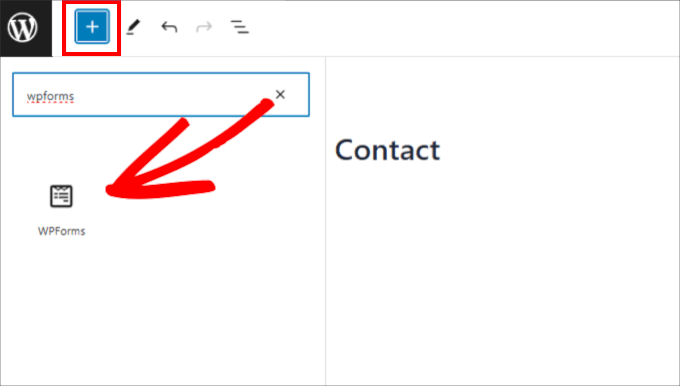
All you have to do is hit the ‘+’ button in the top left corner.
Then, find and select the WForms widget to add it to your page.
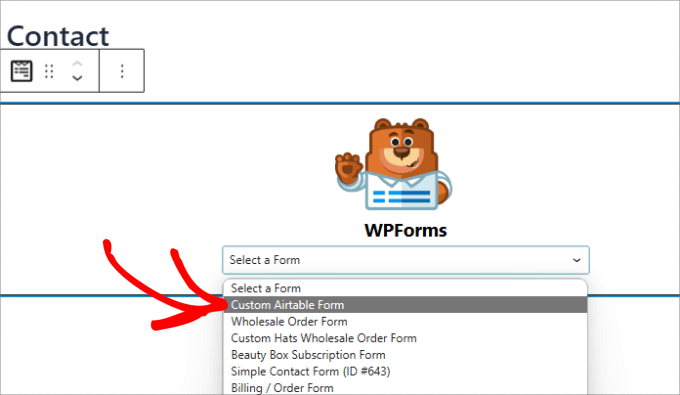
From here, you can choose the contact form you’ve just created.
That will automatically embed the form into your page.
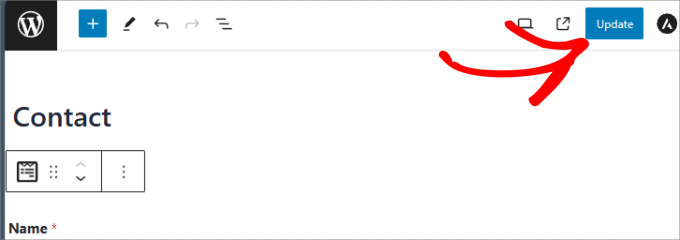
Next up, make sure to hit the ‘Update’ button up top.
Now, your form should be added to your WordPress page.
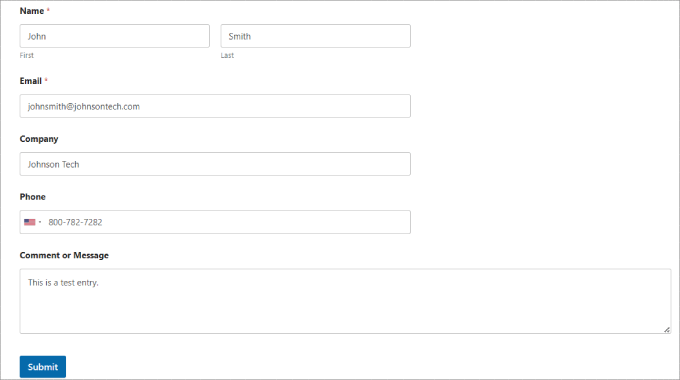
After you have added your form to your website, go ahead and create a test entry. This will be used to set up and check the connection between WPForms and Airtable.
Here’s our test entry, with name, email, phone, company name, and a message:
🧑💻 Pro Tip: Sometimes WordPress form emails get lost or end up in spam. To fix this, we recommend using WP Mail SMTP to make sure your notifications reach inboxes. Follow our step-by-step guide to fix WordPress not sending emails.
Step 2: Create Your Airtable Account
Before integrating Airtable using Uncanny Automator, let’s make sure you have an Airtable account.
On its website, simply click the ‘Sign Up for Free’ button to get started.

You’ll then be prompted to enter your email address. Alternatively, you can use Single Sign On or your existing Google account to create an Airtable account.
Feel free to choose the method you prefer. We will choose ‘Continue with Google.’

Next up, simply follow the account setup wizard.
Upon creating an account, you can switch to the ‘Automations’ tab at the top left corner of Airtable.
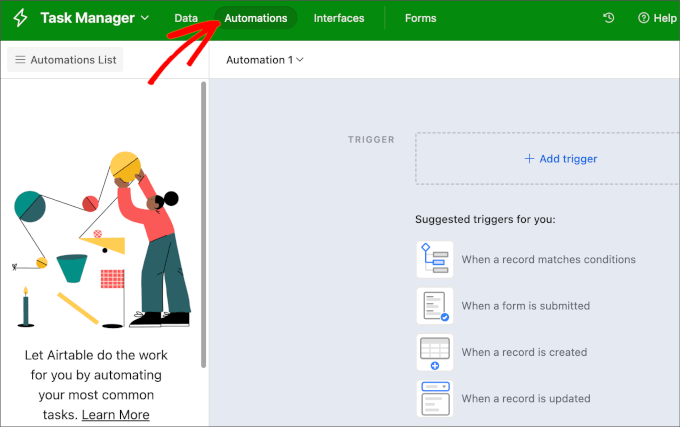
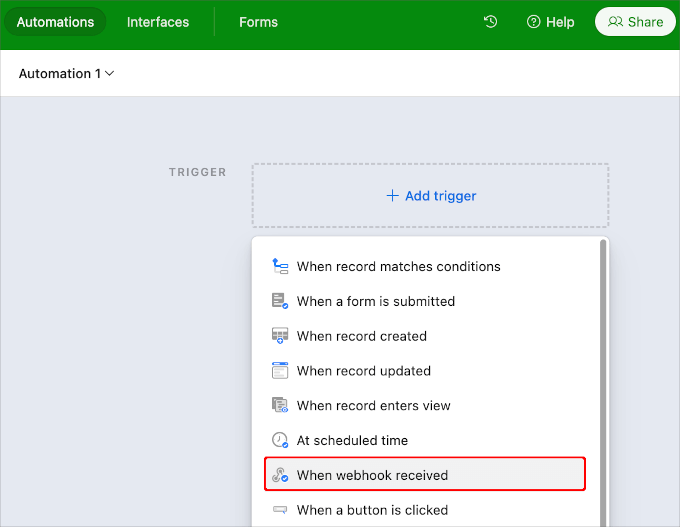
Go ahead and click the ‘+ Add trigger’ button.
This will open the dropdown menu items, and you’ll want to click on ‘When webhook received.’
Once added, you should see a right sidebar where you can access the unique webhook URL.
You’ll need this URL for the next part of the tutorial, so you’ll want to click the ‘Copy’ button next to it.
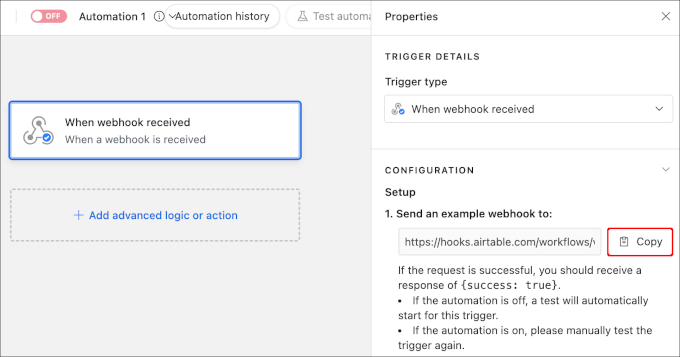
Then, you can temporarily store this URL somewhere convenient, like a notepad. We will use it later in the guide.
Step 3: Set Up a Base and Table in Airtable
Next, we need to create a base in Airtable to store all of the information that we collect from our contact form.
If you are new to Airtable, then you may not know how to set up a base and table.
First off, the base is the top-level database used to organize and store information. A table in Airtable is similar to a sheet in a spreadsheet.
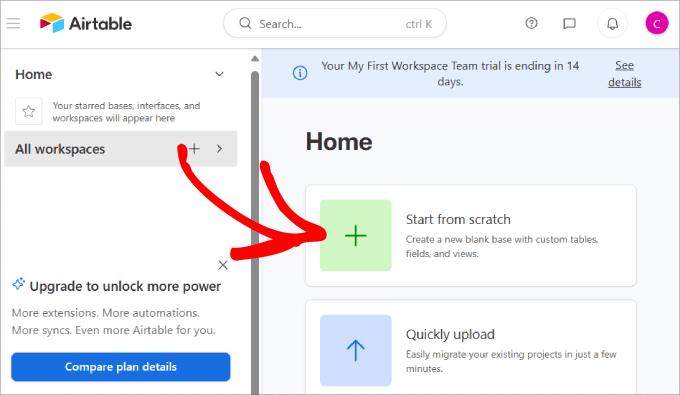
In your Airtable account, go ahead and click the ‘Start from scratch’ option in your home dashboard.
If you have an existing spreadsheet that you want to migrate over to Airtable, then just click the ‘Quickly upload’ option.
Go ahead and name your base and table.
We’ve decided to name our base ‘Sales CRM’ and the table ‘Contacts.’
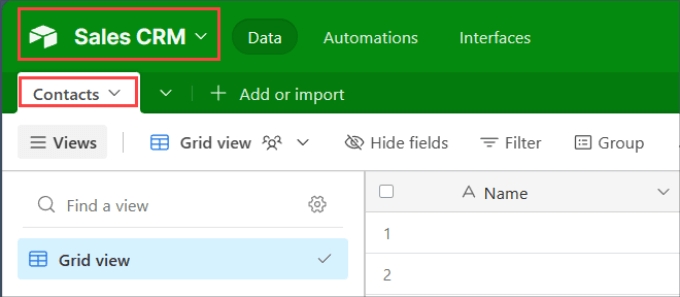
Then, change the top column labels to match the form fields you’ve just created in WPForms.
In this case, we added labels for ‘Name,’ ‘Company,’ ‘Email,’ and ‘Phone.’
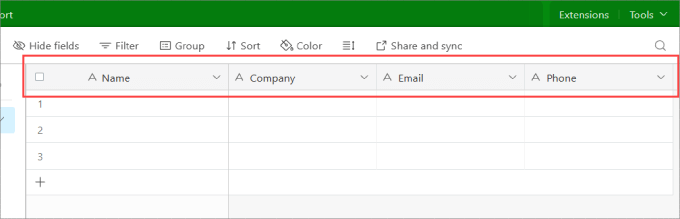
You’ll want to keep this tab open, as we will refer back to it later to check whether our WordPress automation works.
Step 4: Integrate Uncanny Automator With WPForms
Now, let’s go back to your WordPress dashboard.
To build a bridge between WPForms and Airtable, we will use Uncanny Automator. It’s one of the best and most popular automation plugins on the market, used by more than 40,000 WordPress users.
We’ve tested it thoroughly and found it incredibly reliable for automating WordPress processes. Take a look at our Uncanny Automator review to see how it can boost your workflow.
So, let’s install and activate the Uncanny Automator plugin. If you need help, then you can refer to our guide on how to install a WordPress plugin.
📝 Note: You can use the free version of Uncanny Automator to connect WPForms and Airtable. That said, Uncanny Automator Pro unlocks more advanced workflows, like adding delays or conditional rules to your recipes.
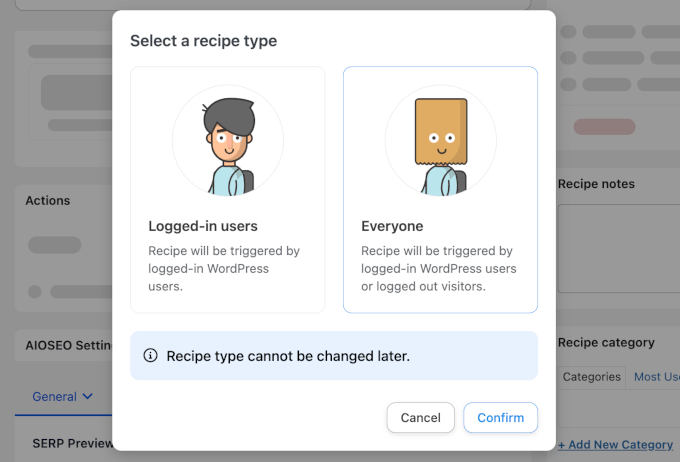
Upon installation, you’ll want to navigate to Automator » Add New to create a new recipe. In the pop-up that appears, choose ‘Everyone.’
This makes sure the automation applies to all visitors, not just logged-in users or specific roles, so the recipe runs whenever any visitor triggers the action.
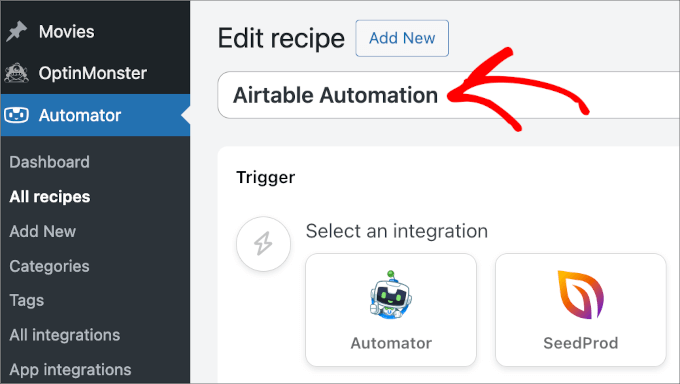
In the editor, go ahead and name your recipe.
We recommend using an easy name so that you can easily refer to it whenever you need it. For example, we’re going to use ‘Airtable Automation’ as the recipe name.
Now, let’s move on to the ‘Trigger’ section.
Here, you’ll want to choose WPForms and then select the trigger from the available list in the dropdown menu. Let’s choose ‘A form is submitted.’
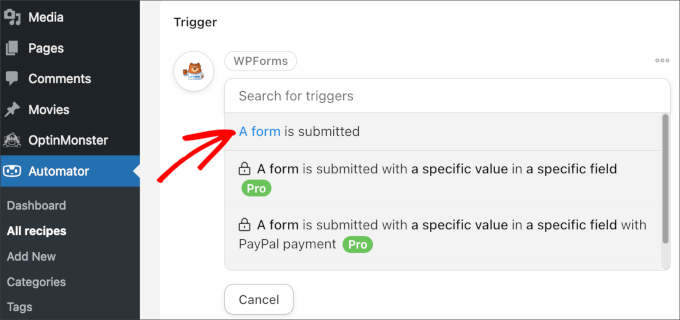
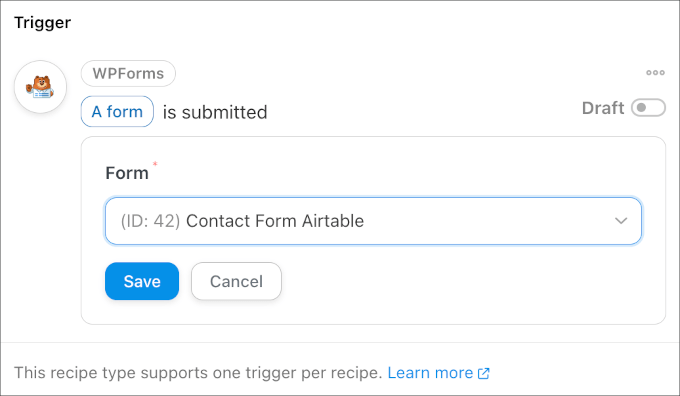
After that, you’ll need to choose which form to trigger the automation.
Go ahead and choose the one we just created from the dropdown menu. Then, don’t forget to click the ‘Save’ button.
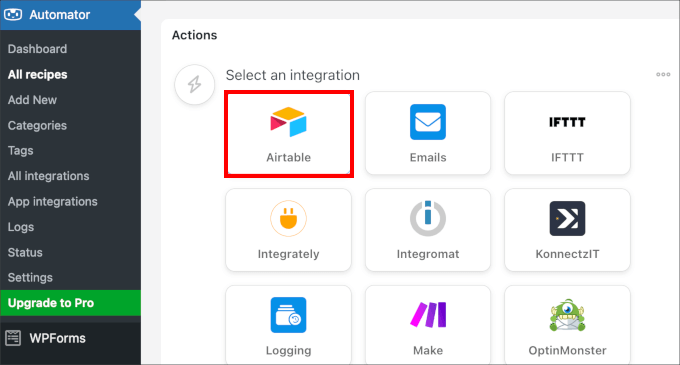
With that done, let’s scroll down to the ‘Action’ section.
From here, you can click ‘Add action’ and select ‘Airtable.’
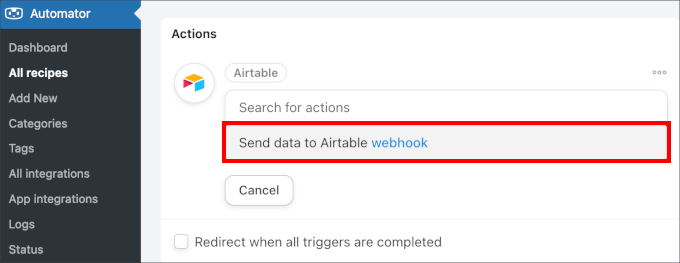
You’ll then be prompted to click on ‘Send data to Airtable webhook.’
Go ahead and select the option.
From here, you’ll want to open the note where you stored the unique Airtable webhook URL from the previous step. Simply copy the URL to the clipboard.
Then, let’s return to the WordPress tab.
Go ahead and paste the webhook URL into the ‘URL’ field.
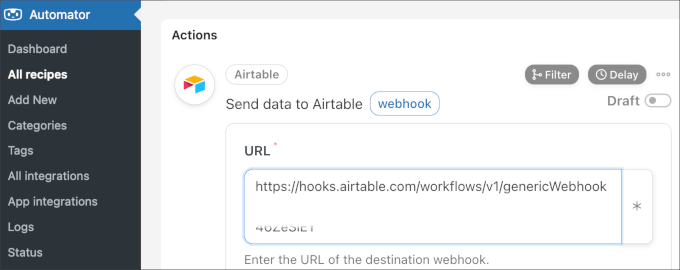
After that, you can leave all the other settings as they are and scroll to the bottom of the panel.
Here, you’ll see some options. If you want, you can click on ‘Send Test’ to see if your Airtable account receives the data. Then, there’s the ‘Check data format’ button, which lets you preview the outgoing data.
When you’re happy with everything, you can go ahead and click the ‘Save’ button.
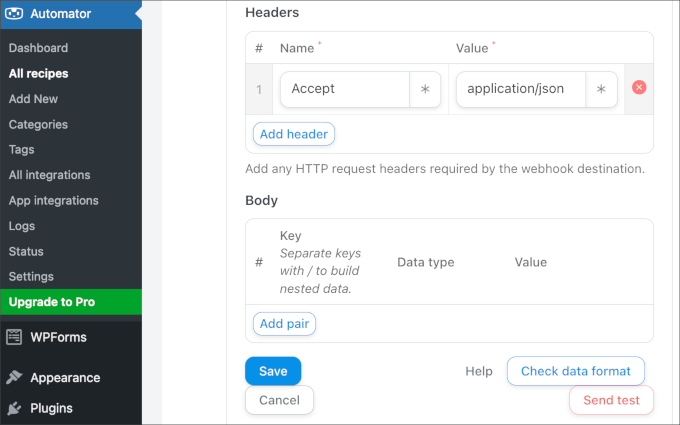
Once you’ve set up your recipe’s trigger and action, you’ll want to make sure it starts working.
Simply toggle the switch on the right-hand panel from ‘Draft’ to ‘Live.
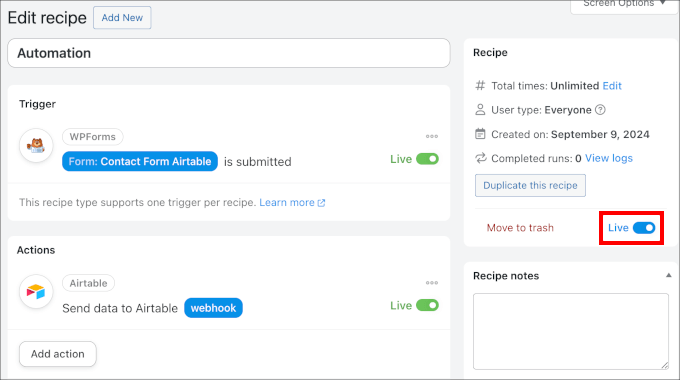
And that’s all there is to it!
Now, whenever someone submits a form, the data will go to Airtable.
Bonus Tip: Send SMS Messages to Your Leads
If you found this integration helpful, then you may also want to send SMS notifications to people who have completed your contact form.
This is a great way of keeping them up to date with the status of their request.
For example, let’s say you have prospects who visit your landing page and then complete your form, indicating interest in your services. While the form data is entered into an Airtable, you will want another connection that automatically sends SMS messages to your leads so they know what to expect from you.
One of the best options is to use Brevo, which is a popular email marketing service that also lets you send SMS messages to your leads.
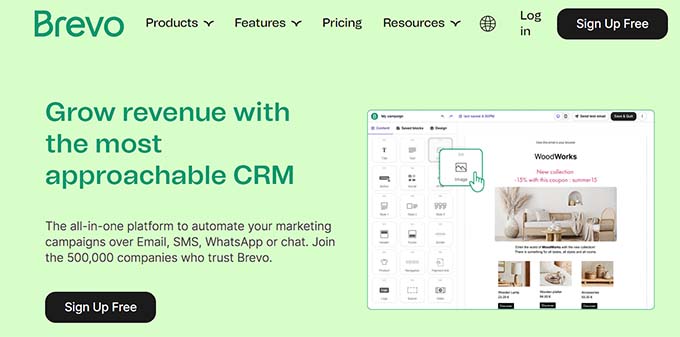
With this software, you will be able to import your contacts and then send text message campaigns. For more information, just follow our tutorial on how to send SMS messages to your WordPress users.
FAQs: Create a Custom Airtable Form in WordPress
Here are some common questions about using Uncanny Automator with WPForms and Airtable:
Can I use other WordPress form plugins besides WPForms?
Yes, you can. Uncanny Automator integrates with many other popular online form builders, including Formidable Forms and Gravity Forms.
The setup process is very similar. You would simply select your preferred form builder as the trigger when creating your Uncanny Automator recipe.
Do I need the paid version of Uncanny Automator for this?
No, the free version of Uncanny Automator is all you need to connect WPForms and Airtable as shown in this tutorial. The Pro version offers more app integrations and advanced features if you have more complex needs.
Is Airtable free to use?
Airtable offers a free plan that is quite generous and works perfectly for this integration. It’s an excellent starting point for most small businesses and personal websites.
If your data needs grow, they also offer paid plans that provide more records, storage, and advanced features.
Further Reading: Grow Your Business with WordPress
Congratulations, you now know how to create a custom Airtable form in WordPress! This powerful connection will keep your form data organized and save you a ton of manual work.
Now that your data collection is automated, you can explore more ways to grow your business. We recommend checking out:
- Tips to Grow Your Business Online (Without a Lot of Money)
- A Small Business Owner’s Guide to Artificial Intelligence
- How to Use Contact Form to Grow Your Email List in WordPress
- How to Get SMS Text Messages from Your WordPress Forms
- How to Create Multilingual Forms in WordPress
- How to Track and Reduce Form Abandonment in WordPress
- How to Create a Free Business Email Address (in Just 5 Minutes)
- Best Business Phone Services for Small Businesses
If you liked this article, then please subscribe to our YouTube Channel for WordPress video tutorials. You can also find us on Twitter and Facebook.





kzain
This is an amazing post! I’ve been looking for a way to streamline my form data management. Combining Airtable with WordPress sounds like a game-changer. I’m excited to try this out. Thanks for the detailed post
Jiří Vaněk
I have some polls on my blog, but this way is more comfortable for doing sheets with answers an data of users on my blog. This is a good idea how to do it in better way. Thanks a lot.
ibrar
This is really helpful to me, thank you! Keep up the good work.
WPBeginner Support
Glad our guide was helpful
Admin