


Ever watched visitors browse your site, only to leave without getting in touch? It’s frustrating, especially when you know they’re interested but can’t seem to connect.
A simple, well-timed popup can make all the difference. 💡
When placed thoughtfully, it puts your contact form right where visitors need it. This can lead to more inquiries, feedback, and conversions.
At WPBeginner, we’re big fans of WPForms because it’s beginner-friendly, powerful, and perfect for creating all kinds of forms. Even better, you can pair it with OptinMonster to create a contact form popup that feels helpful, not pushy.
In this guide, we’ll walk you through how to add a contact form popup in WordPress. One that turns visitors into leads, without annoying them.

🧑💻 TL;DR: Build your contact form with WPForms, copy its shortcode, and embed it into an OptinMonster popup campaign that’s triggered based on user behavior (like clicking a button or spending time on a page).
Why Use a Contact Form Popup?
A contact form popup makes it easier for visitors to contact you without interrupting their browsing or searching for your contact page.
This matters because every WordPress site needs a simple way for users to send questions, feedback, or support requests. But when your contact form lives on just one page, many visitors may never find it. And this often leads to lost leads.
A contact form popup solves this by letting visitors open the form with a single click, from any page on your site. They can reach out right away without leaving the page they’re currently viewing.
It also helps keep people on your website instead of sending them elsewhere. And as a bonus, you can use these popups to collect email addresses and grow your email list.
In this guide, we will show you how to create a contact form and add it to a popup in WordPress.
We will also share our expert tips on creating a popup that grabs attention without being intrusive. This approach makes sure your WordPress site stays user-friendly while maximizing interaction opportunities.
And here’s a quick overview of all the steps you’ll go through:
Ready? Let’s get started.
Step 1: Create a WordPress Contact Form
First, you will need to select a WordPress contact form plugin.
There are many free and paid options, but we recommend using WPForms, because it is the best WordPress form builder on the market. It’s also the most beginner-friendly, thanks to the AI tools, drag-and-drop builder, and prebuilt form templates.
At WPBeginner, we use it ourselves on our website to display contact forms, annual user surveys, and site migration forms.
For details on our experience with the plugin, check out our complete WPForms review.
To start, go to the WPForms website and click the ‘Get WPForms Now’ button. Then, simply follow the steps to create your account and complete the purchase.
After checkout, you’ll land on your WPForms account dashboard, where you can find the plugin’s license key.
💡 Note: To follow this tutorial, you can use WPForms Lite, as it includes a contact form template. But you can upgrade to WPForms Pro to unlock 2,000+ form templates, powerful add-ons, and payment features with no additional transaction fees.
From here, navigate to WPForms » Add New from your WordPress dashboard.

On the next screen, use the search bar to quickly find the WPForms plugin.
When it appears in the search result, click ‘Install Now’ and then ‘Activate.’
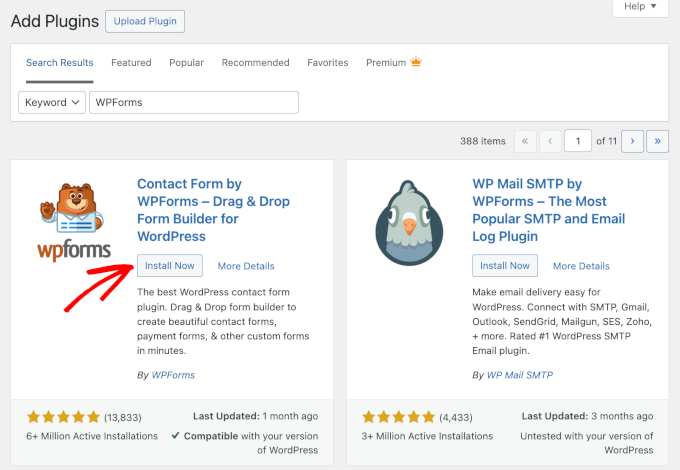
If you need help, then you can see our step-by-step guide on how to install a WordPress plugin.
If you purchase WPForms Pro, you’ll need to activate your license key. Go to WPForms » Settings, enter your key in the respective field, and hit ‘Verify Key.’
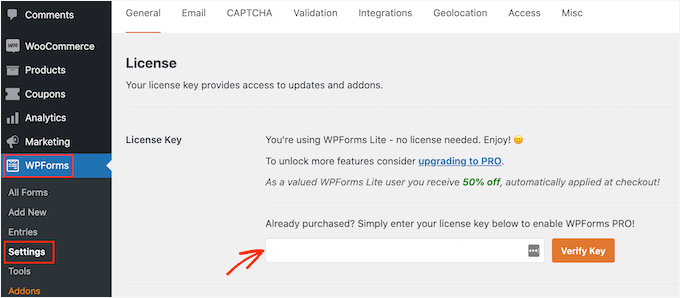
From here, you are ready to create your contact form.
Go ahead and navigate to WPForms » Add New from your WordPress dashboard.
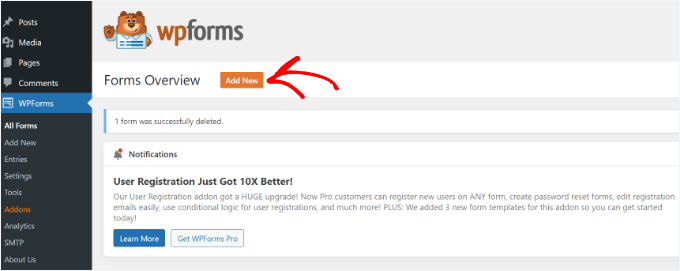
On the next screen, you can enter a form name.
Then, you’ll select how you’ll build your form – using WPForms AI, a pre-made template, or a blank canvas.

If you want to use the AI form builder, simply enter a prompt. Within seconds, your form will be generated.
That said, we’ll use the ‘Simple Contact Form’ template for this tutorial because it has everything we need.
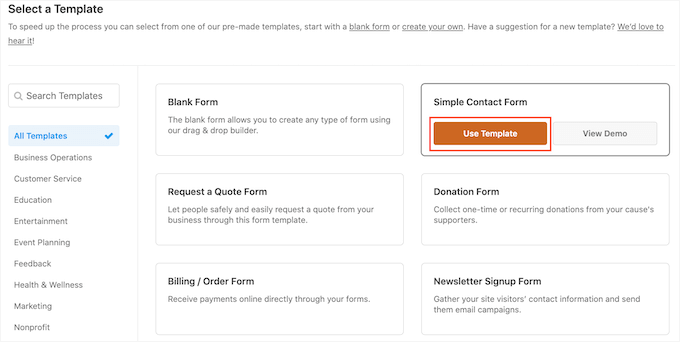
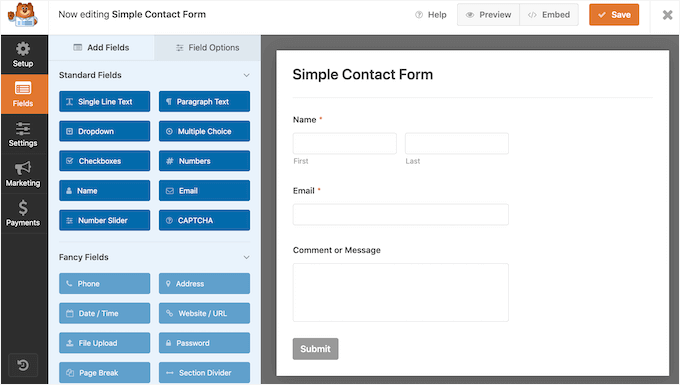
Next, you can add fields in the form using the drag-and-drop builder.
Simply drag the fields you want to add to the form from the options given in the menu on your left. You can also reorder the fields in the form.
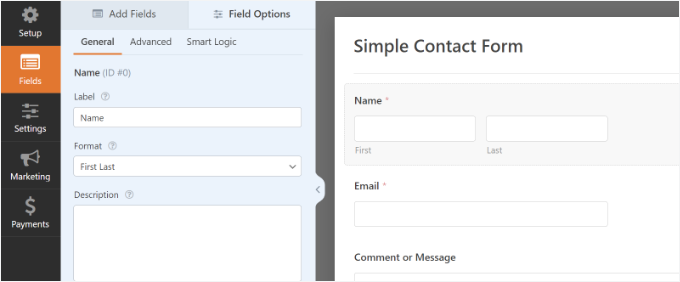
WPForms also lets you customize each field in the contact form.
For example, if you click the ‘Name’ field, you’ll see options to change its label and format. You can even add a description or mark any field as required.
For step-by-step instructions, see our guide on how to create a contact form.
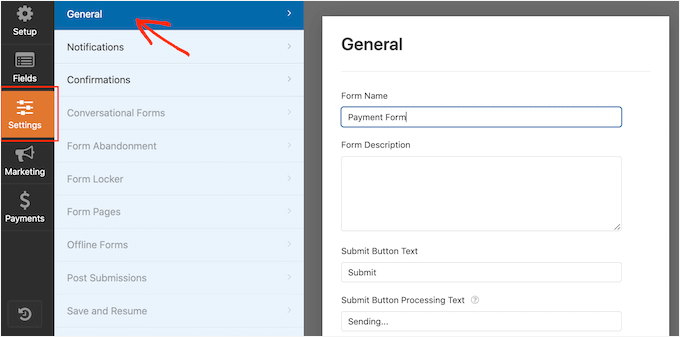
Once you are done, click the ‘Settings’ option to configure the form notification and confirmation.
In the ‘General’ section, you can rename the form, add a form description, change the submit button text, enable anti-spam protection, and more.
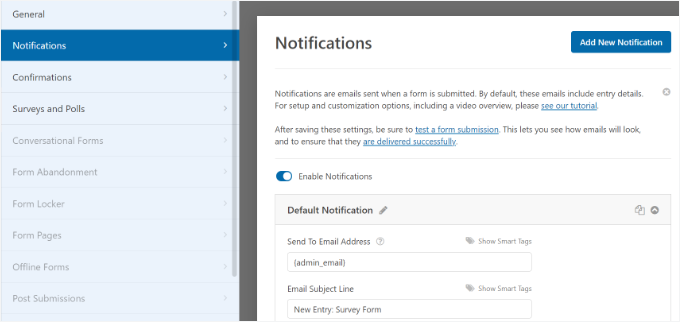
Next, you can go to the ‘Notifications’ settings option. By default, the notifications are sent to the admin email that is set up on your WordPress website.
However, you can send your contact form notification to any email address you want. If you wish to receive send form notifications to multiple emails, then separate each email with a comma.
For the email subject line, WPForms uses the name of the form you entered earlier. However, you can edit the subject line’s text to whatever you wish.
Now, let’s go to the ‘Confirmations’ option.
WPForms uses ‘Message’ as the default confirmation type. This shows a thank-you message immediately after the form is submitted. Other than that, you’ll see the ‘Show Page’ and ‘Go to URL (Redirect)’ options.
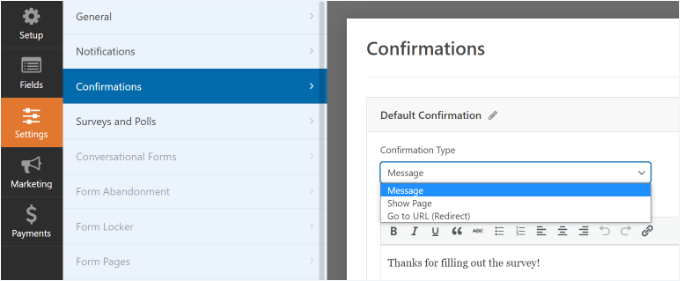
For popups, though, we recommend keeping this ‘Message’ setting. Redirecting users to a different page can sometimes feel abrupt when they are interacting with a popup.
Once you are done creating a contact form, make sure to click the ‘Save’ button in the top right corner to save your changes.
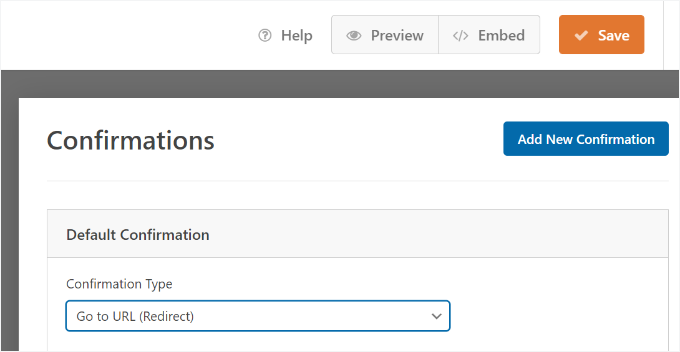
Next, you can click the ‘Embed’ option in the top corner next to the ‘Save’ button to get the form’s shortcode. You will need this information to display your form in a popup.
When a new popup appears, you can select the ‘Use a shortcode’ option.
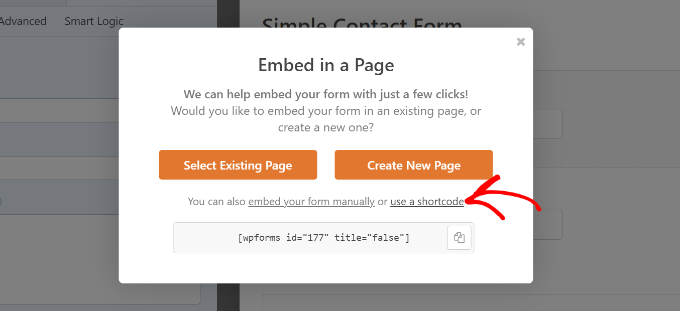
WPForms will then display the shortcode for your contact form as soon as you click the link. We suggest you keep this tab or window open because you will need the shortcode in the next step, where we’ll show you how to add your contact form in a popup.
Step 2: Add a Contact Form Popup to Your WordPress Site
To create a contact form popup, you will need a WordPress popup plugin.
We recommend using OptinMonster, as it’s the best lead generation and conversion optimization plugin for WordPress. It’s also one of the most popular, with over 1.2 million websites using this powerful tool.
At WPBeginner, we use OptinMonster for various tasks, including promoting special offers and deals on popups, slide-ins, and header banners. If you want more information, feel free to read our full OptinMonster review.
🔗 Related: For more insights, you might also want to read our article on how we increased our email subscribers by 600% with OptinMonster.
For this tutorial, we will use the OptinMonster Pro version, which includes a clutter-free template and advanced display rules to show the popup.
So, let’s sign up for an account by going to the OptinMonster website. Simply visit the website and click the ‘Get OptinMonster Now’ button.

After signing up, you’ll land in your OptinMonster account dashboard. Keep this tab open, as we will connect your account to WordPress in a moment.
Next, you need to install and activate the free OptinMonster plugin on your website. This plugin acts as a connector between your website and your OptinMonster account.
In your WordPress dashboard, go to Plugins » Add Plugin.
On the next screen, use the search bar to find ‘OptinMonster’.
Then, click ‘Install Now’ and ‘Activate’ to properly enable it.
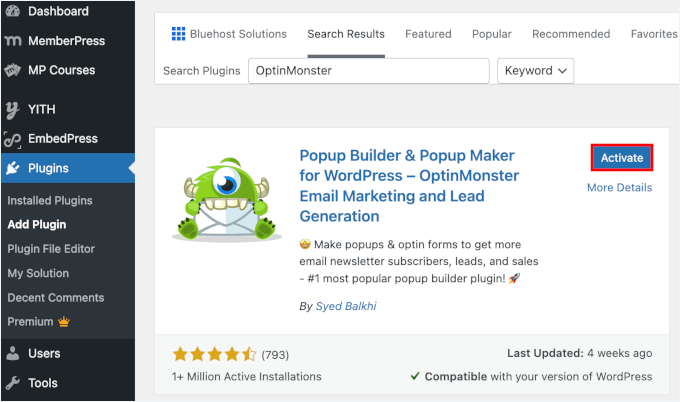
For details, you can follow our guide on how to install a WordPress plugin.
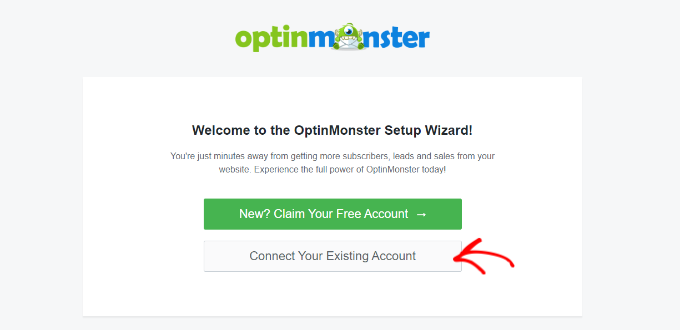
After the plugin is active, you will see the setup wizard.
Go ahead and click the ‘Connect Your Existing Account’ button.
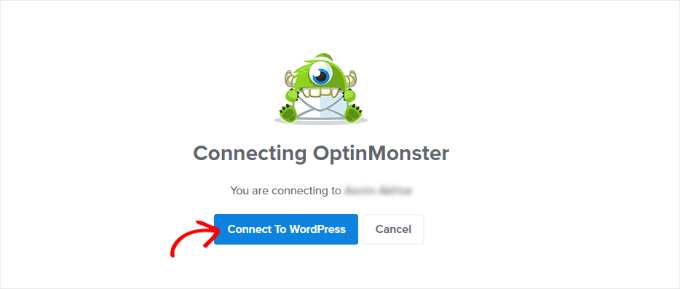
A popup window will now appear, and OptinMonster will ask to connect to your account.
Simply click the ‘Connect To WordPress’ button.
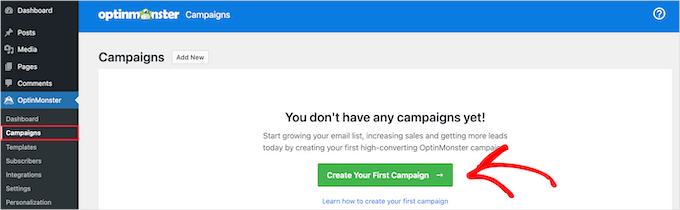
Now that your account is connected, the next thing to do is create a new campaign for your contact form popup.
You can start by going to OptinMonster » Campaigns and then clicking the ‘Create Your First Campaign’ button.
On the next screen, you will have to select a campaign type.
Since we will create a contact form popup, select ‘Popup’ as your campaign type.
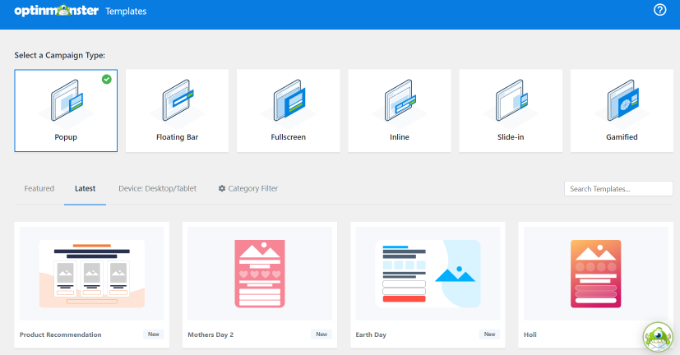
After that, you’ll want to scroll down the page to choose a template.
OptinMonster offers over 75 attractive and highly converting designs for your popups. You can select any template that you like.
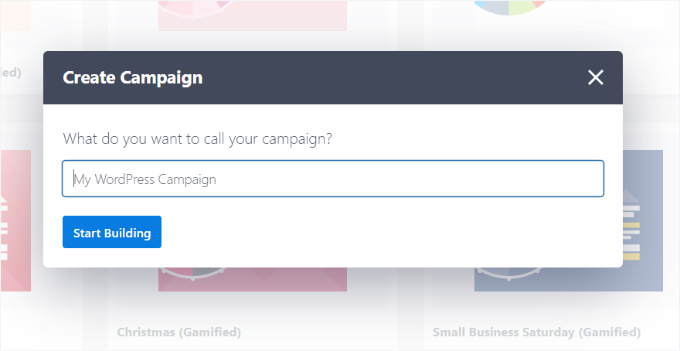
Once you’ve decided on the template, simply enter a name for your campaign and click the ‘Start Building’ button.
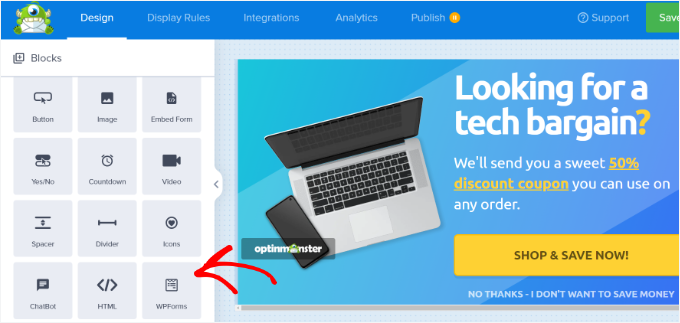
Now, using the drag-and-drop builder in OptinMonster, you can edit your popup template.
You will see different blocks appear in the menu on your left. Locate the ‘WPForms’ block, then drag and drop it onto your template.
After that, click the ‘Form Selection’ dropdown menu in the block settings on the left.
Simply choose the contact form you created earlier from the list. If you don’t see your form listed, you can select ‘Add Shortcode Manually’ and paste the shortcode you copied in Step 1.
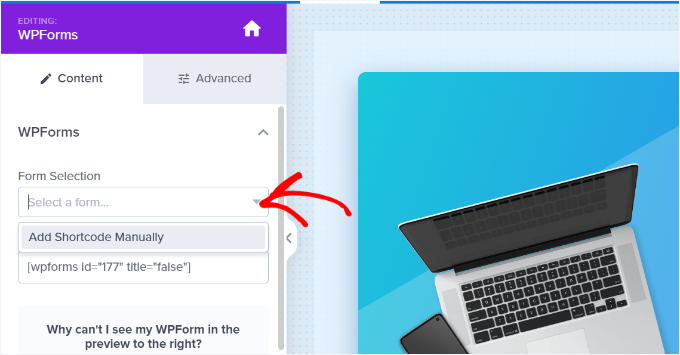
Go ahead and enter your WPForms contact form shortcode in the block. If you lost your shortcode, you can go back to your WPForms embed settings page and copy the shortcode.
It’s important to note that you won’t see a preview of the contact form in the template when you add the shortcode. This is normal, as your contact form will appear when the campaign is published.

Next, you can go to the ‘Display Rules’ tab at the top to choose when the popup should appear on your website.
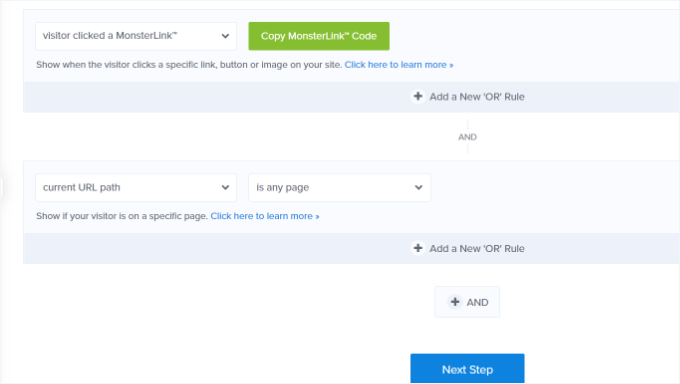
By default, OptinMonster will set it to when the time on the page is 5 seconds, and the popup will appear on any page. However, you can change the display rule settings and select different triggers and targeting options.
We recommend using the MonsterLink (On Click) targeting. This triggers the popup only when a user clicks a specific link or button. It puts the visitor in control and is much less intrusive than a popup that opens automatically.
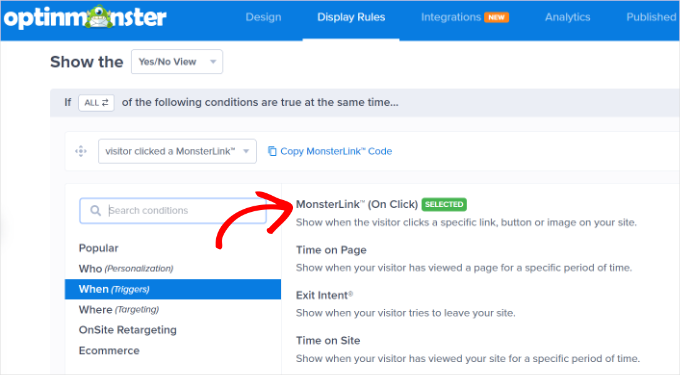
Next, you can click the ‘Copy MonsterLink Code’ button and add it to any text, image, or button on your website.
For more details, you can follow our beginner’s guide on how to add a link in WordPress.
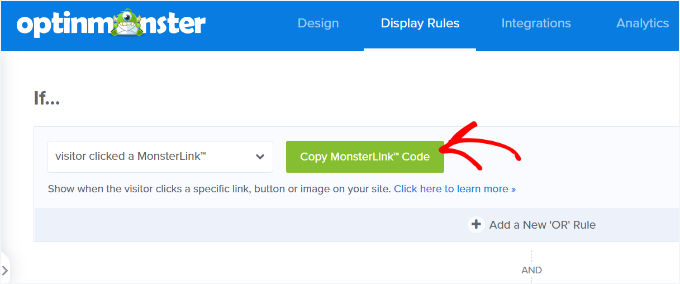
Your MonsterLink code will look like this in HTML:
<a href="https://app.monstercampaigns.com/c/ep6f5qtakxauowbj8097/" target="_blank" rel="noopener noreferrer">Subscribe Now!</a>
You do not need the full HTML code – you only need the URL. So you can copy the link text that starts with https://.
Here’s what the URL should look like:
https://app.monstercampaigns.com/c/ep6f5qtakxauowbj8097/
For example, let’s say you want to add a Contact Us button on your site.
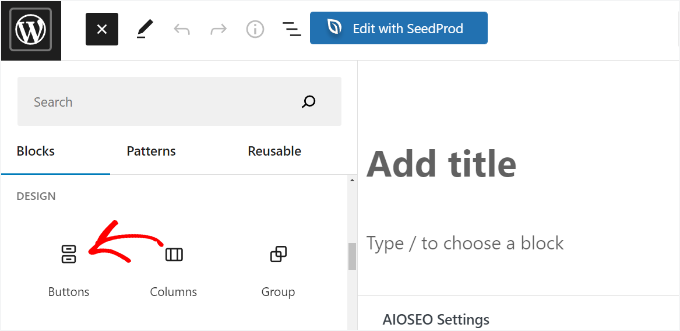
In this case, you can start by editing any page or post and going to your WordPress editor. Then, you’ll want to click the (+) plus sign at the top and add a ‘Buttons’ block.
After that, you can enter text for your button and click the link icon. For example, we use ‘Contact Us’ as the button’s copy.
Now, let’s add the MonsterLink URL. Click on the button block to select it, then click the Link icon in the toolbar. Simply paste the URL you copied earlier and press ‘Enter.’
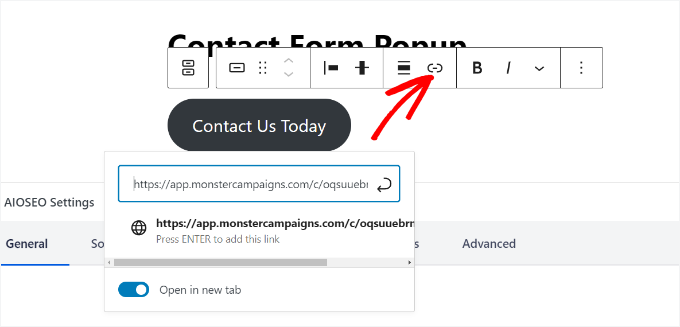
Once you have done that, go ahead and publish your WordPress post or page. The MonsterLink will now be added to your ‘Contact Us’ button.
Now, let’s head back to your OptinMonster campaign to complete the configuration.
After selecting MonsterLink as your target and showing it on any page, you can click the ‘Next’ button at the bottom.
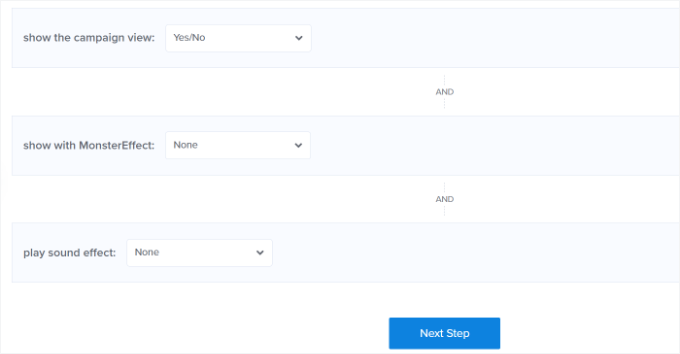
On the next screen, you will see options to change the campaign view type, add a MonsterEffect animation, and play a sound when the popup appears.
Feel free to experiment with different animation and sound settings. When you are done, click the ‘Next Step’ button.
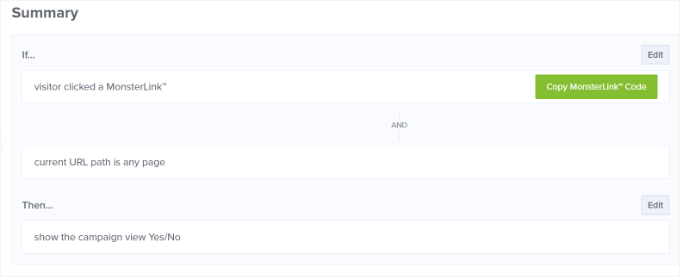
OptinMonster will then show a summary of your ‘Display Rule’ settings.
This helps to ensure you have correctly set up when your campaigns will appear on your website.
Now, you are ready to take your campaign live and publish your contact form popup.
To do that, you’ll want to go to the ‘Publish’ tab at the top. Then, click the ‘Preview’ button to see how your popup looks before going live.
🧑💻 Pro Tip: You should also click the Mobile icon in the OptinMonster preview footer. This ensures your contact form looks good on smaller screens before you go live.
When you are happy with your campaign’s appearance, change the ‘Publish Status’ from ‘Draft’ to ‘Publish.’
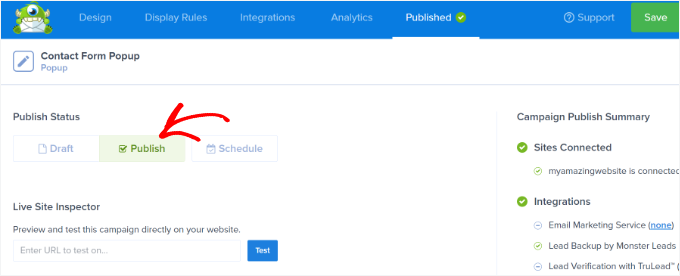
Once done, you can exit the OptinMonster campaign builder and check the status of your campaign from your WordPress dashboard.
Navigate to OptinMonster » Campaigns and click the ‘Status’ dropdown menu. Then, you can change it from ‘Pending’ to ‘Publish.’
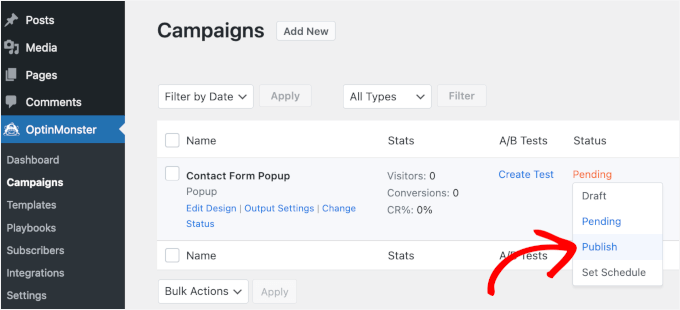
OptinMonster will automatically update the changes.
Next, you’ll want to go to where you display the ‘Contact Us’ button with MonsterLink integration and see the contact form popup in action.
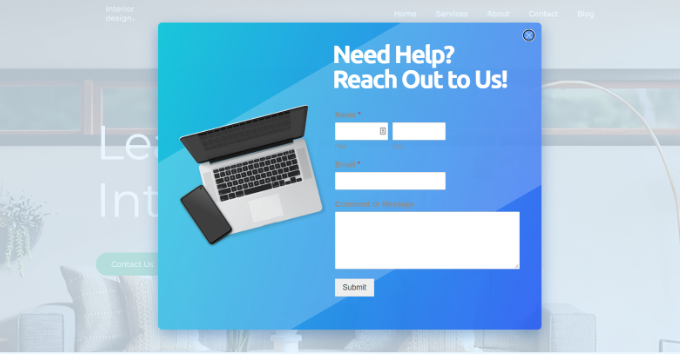
There you have it!
You’ve successfully created a contact form popup in WordPress. Even better, you’ve done so in a way that keeps your contact form easy to access without being intrusive.
Bonus Tips to Boost Your Popup Signups
Now that you know how to create a contact form popup, the next step is making sure it improves user experience instead of causing visitors to bounce from your site.
To maximize signups, you should focus on creating helpful and relevant popups rather than intrusive ones:
| Tip | What to Do | Example |
|---|---|---|
| Timing | Show popups after users have spent some time on your site or scrolled down the page. | Trigger the popup after 15 seconds or when a user scrolls 50% of the page. |
| Personalization | Match your popup message to what the visitor is currently viewing or doing. | Offering a discount on the product they’re browsing. |
| Color & Design | Use colors that grab attention without overwhelming the design. | Bold colors for buttons, softer tones for the background. |
| Urgency & fear of missing out (FOMO) | Encourage fast action with limited-time messages or benefits they might miss. | Use phrases like “Limited time offer” or “Only a few spots left.” |
| Social proof | Add reviews, ratings, or usage stats to build trust. | Display “Trusted by 10,000+ users” or a short testimonial. |
By combining these strategies, you can create popups that grab attention, connect with your audience, and drive action without feeling pushy.
For more details and examples, you can check out our guide on how to use the psychology of popups to boost signups by 250%.
FAQs: How to Add a Contact Form Popup in WordPress
Have questions about contact form popups? Here are quick answers to help you set them up the right way.
How do I ensure my contact form popup isn’t annoying?
It’s all about timing and context. To avoid frustrating visitors, show popups based on behavior, like after a few seconds on the page or when someone scrolls down. Tools like OptinMonster let you fine-tune these settings so your popup feels helpful, not intrusive.
Can I use a contact form popup for mobile visitors?
Yes, but be mindful of screen space. WPForms and OptinMonster are mobile responsive, meaning your popups will adapt to smaller screens. Just make sure the design is clean and easy to close on mobile devices.
How can I track the performance of my contact form popups?
You can use MonsterInsights to track important form metrics like views, clicks, and conversions, all from your WordPress dashboard. This helps you understand what’s working and where you can improve.
Will a contact form popup slow down my site?
Not if it’s built and configured properly. Lightweight tools like WPForms and OptinMonster are optimized for performance, so they won’t noticeably slow down your site when used correctly.
Video Tutorial
Before you go, we’ve prepared a video tutorial on adding a contact form popup to your WordPress site. Be sure to check it out!
Explore Our WordPress Form Guides
We hope this article helped you learn how to add a contact form popup in WordPress.
Next, you may also want to check out our guides on:
- How to Use Contact Form to Grow Your Email List in WordPress
- How to Send Confirmation Emails After WordPress Form Submissions
- How to Track and Reduce Form Abandonment
- WordPress Form Does Not Work: Troubleshooting Tips
- The Ultimate Guide to Using WordPress Forms
If you liked this article, then please subscribe to our YouTube Channel for WordPress video tutorials. You can also find us on Twitter and Facebook.




Dennis Muthomi
WOAH, you mean I can add a form that is built by WPForms and use it on OptinMonster?!
I did not even know that two of my most favourite tools can be used together.
THANK YOU SO MUCH WPBeginner, now I have some work to do on my site. You are the best!
Jiří Vaněk
Elementor has a feature that allows you to set animations for popups. This lets you make the popup slide up from the bottom of the webpage like a card instead of just appearing as a traditional popup. This can also be done using tools like OptinMonster with their “slide-in” feature.
kzain
I was looking for this on adding a contact form popup to a WordPress site! The ability to capture leads directly is invaluable, and popups offer a convenient way to grab user attention. The step-by-step instructions with plugin recommendations make it easy to implement. Thanks for sharing this helpful resource
Ankit
A well written article. Must read for non-tech beginners like me.
WPBeginner Support
Glad you found our content helpful
Admin
Deepak
Hi i want to popup form whn i clk button… How i can do this
WPBeginner Support
For what it sounds like you are wanting, you would want to take a look at OptinMonster: https://www.wpbeginner.com/wordpress-plugins/optinmonster-wordpress-popup-plugin/
Admin
Isaac
This is nice, but can you explain/show how to do this without OptinMonster? I don’t want to have to buy a second plugin just to show a form in a popup. This should be do-able with WP Forms and a free lightbox plugin.
Editorial Staff
Hi Isaac, there are likely other plugins that can do this, but we recommend the solution that we’re using ourselves. We have a good tutorial on how to pick the best plugin while you look through the WordPress.org plugin directory.
Admin
Kulwant Singh
can i create differents popup for different post ? it is possible or not
WPBeginner Support
Hi Kulwant,
Yes, you can create different popups for different posts.
Admin
Lela Donelson
My WP menu does not have a WP forms option. I have a GoDaddy managed WP.
WPBeginner Support
Hi Lela,
WPForms is a WordPress Plugin. You will first need to install and activate it. For more details, see our step by step guide on how to install a WordPress plugin.
If you have already installed and activated the plugin, and you still can’t see it in your WordPress admin menu, then please contact WPForms Support or your hosting company.
Admin
Michael Wahhab
Where’s the demo?
Nick Vail
Are pop up windows only available with the paid “business plan”?
Ruben
Before buying I want to ask, can I have two call-to-action buttons in a popup? I want two buttons one for downloading my app from App Store and second from Play Store.
WPBeginner Support
Yes you can.
Admin
shagufta
how to have tabs in the popup that will link to div’s which will open in the same popup
Jhorene
Hello,
Before I buy Optinmonster, can you tell me if it is fully mobile responsive to have a form inside the canvas popup?
Thank you.
Regards,
Jhorene
WPBeginner Support
OptinMonster comes with a feature called mobile friendly popups. You can create different popups for your desktop and mobile users, providing a much better user experience to your mobile audiences.
Admin
Ian Perera
can i pass data to gravity form
Dave E
Hi, I’m looking for the same. Did you ever find a solution? Thanks
Alicia Beale
How can I use this pop-up contact form to notify different email addresses?
Mike Whaling
Is there a way to do this in the new version of Optin Monster? This worked great when I was using the local WP plugin, but it doesn’t seem to recognize the Gravity shortcode now that I’ve switched over to the new OM.
Any tips or suggestions?
WPBeginner Support
Please open a support ticket on OptinMonster website.
Admin
Silvan
could this work as well in a Wordpress navigation? I’m having some trouble adding the data-optin-slug bit via the WP menu system.
sharul
Can you please show us some demo.
Thank you
WPBeginner Staff
Please submit a support ticket on OptinMonster’s support website.
Alvin Ng
heya man, need some help here. No matter what i do, i can’t get optinmonster to pop up. do i need to replace the # with a link?
Don DeMaio
This would be great if they offered a demo to check it out.