


Ever scrolled through a long WordPress blog post or product page on your phone, only to realize you had to swipe all the way back up just to find the menu? Your visitors might feel the same.
On longer pages, that small inconvenience can quickly turn into frustration. And some may simply leave your WordPress site instead of navigating back.
A smooth scroll-to-top button can help you fix this instantly. This feature gives readers a quick way to jump back up, which can keep them engaged and encourage them to explore more of your site.
In this guide, we’ll share exactly how to add a smooth scroll-to-top effect in WordPress using jQuery. Don’t worry, it’s simpler than you might think! 💡
📚 TL;DR: A smooth scroll-to-top button gives users a less jarring way to navigate long pages, especially for features like “back to top” buttons. We will cover two ways to add this effect:
- Using the WPFront Scroll Top plugin – best for beginners who want a quick, no-code solution with minimal setup.
- Using WPCode to add custom jQuery code – best for users who want more control over styling, behavior, and placement.
What Is Smooth Scroll, and When Should You Use It?
Smooth scroll is a navigation effect that moves the page up or down in a steady, fluid motion instead of jumping instantly to a section.
Unless the site has a sticky header menu, users who scroll to the bottom of a long WordPress post or page have to manually swipe or scroll their way back to the top to navigate the site.
That can be a real annoyance, and often, users will simply hit the back button and leave. That’s why you need a button to quickly send users to the top of the post or page.
Typically, you can add this functionality as a simple text link without using jQuery, like this:
<a href="#" title="Back to top">^Top</a>
That will send users to the top by scrolling up the entire page in milliseconds. It works, but the effect can be jarring, kind of like when you hit a bump in the road.
A smooth scroll is the opposite of that. It will slide the user back to the top with a visually pleasing effect. Using elements like this can drastically improve the user experience on your site.
With that in mind, we’ll share two methods to add a smooth scroll-to-top effect on your WordPress site using a plugin and jQuery. Here’s a quick overview of all the things we’ll cover in this guide:
Without further ado, let’s start with the first method.
- Tip 1: Adding a Smooth Scroll-to-Top Effect Using a WordPress Plugin
- Tip 2: Adding Smooth Scroll to Top Effect with jQuery in WordPress
- Bonus Tip: Other Subtle Animation Effects to Keep Visitors Engaged
- FAQs: Adding a Scroll-to-Top Effect in WordPress Using jQuery
- Further Reading: More Resources Around WordPress Themes
Tip 1: Adding a Smooth Scroll-to-Top Effect Using a WordPress Plugin
This method is recommended for beginners since it allows you to add a scroll-to-top effect to a WordPress website without touching a single line of code.
The first thing you’ll need to do is install and activate the WPFront Scroll Top plugin. If you need help, then please see our guide on how to install a WordPress plugin.
Upon activation, you can go to Settings » Scroll Top from your WordPress dashboard. Here, you can configure the plugin and customize the smooth scroll effect.
From here, the first thing you’ll need to do is click the ‘Enabled’ checkbox to activate the scroll-to-top button on your site. Next, you’ll see options to edit the scroll offset, button size, opacity, fade duration, scroll duration, and more.
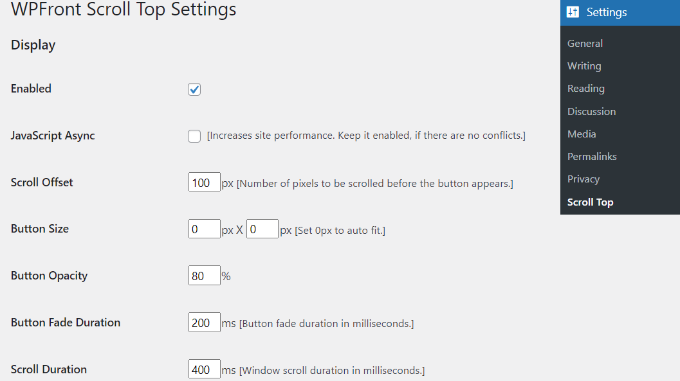
If you scroll down, you’ll find more options, such as editing the auto-hide time and enabling the option to hide the button on small devices or the wp-admin screen.
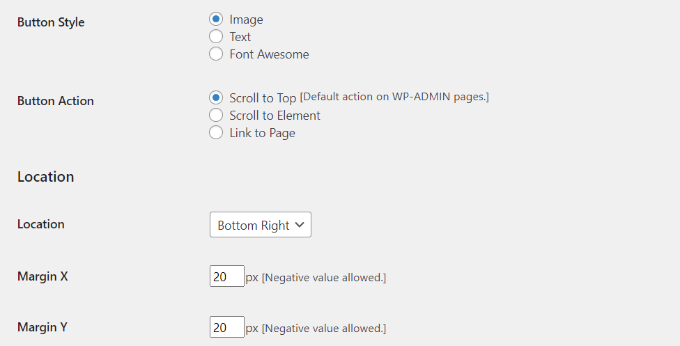
You can also edit what the button does when you click it. By default, it will scroll to the top of the page, but you can change it to scroll to a particular element in the post or even link to a page.
Additionally, you can adjust the button’s location. While it typically appears in the bottom right corner of the screen, you have the option to move it to any other corner.
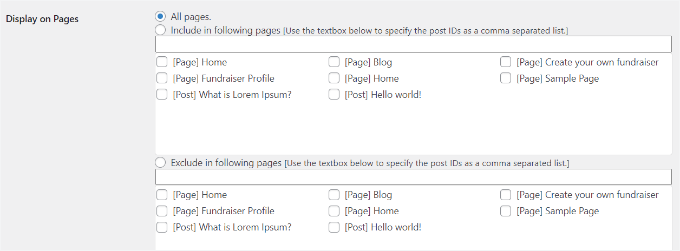
The WPFront Scroll Top plugin offers filters to show the scroll-to-top button only on selected pages.
Normally, it will appear on all the pages on your WordPress blog.
However, you can navigate to the ‘Display on Pages’ section and choose where you’d like to display the scrolling to the top effect.
The plugin also offers pre-built button designs. You should easily be able to find a design that matches your site.
If you can’t find a pre-built image button that works for you, then there is an option to upload a custom image from the WordPress media library.
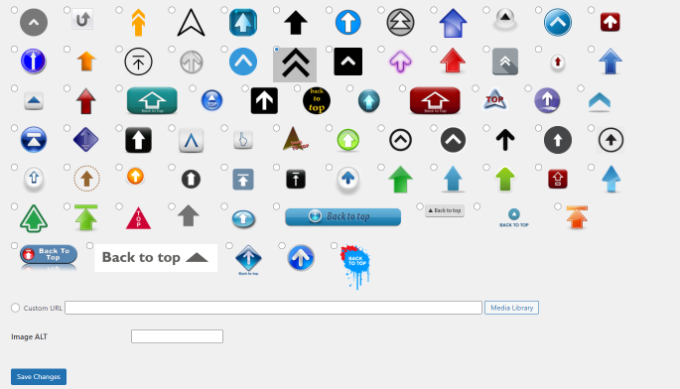
When you’re done, simply click the ‘Save Changes’ button.
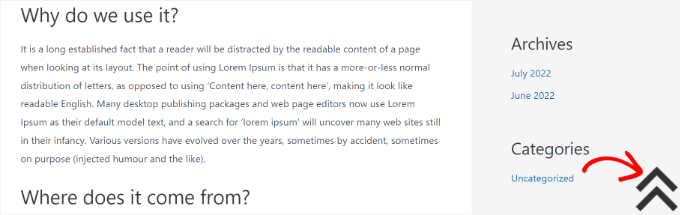
You can now visit your WordPress website to see the scroll-to-top button in action.
Tip 2: Adding Smooth Scroll to Top Effect with jQuery in WordPress
🛑 Important: This method requires your theme to have jQuery enabled. If you are using a modern block theme that disables jQuery and this code doesn’t work, we recommend using the WPFront Scroll Top plugin method above.
In this method, we’ll add the smooth scroll-to-top effect using jQuery, some CSS, and a single line of HTML code. Our team has manually tested and verified this exact code snippet on a fresh WordPress installation to ensure it works without breaking theme functionality.
Having said that, many tutorials will have you edit your theme files to add a smooth scroll-to-top button. But that’s not very beginner-friendly — even a tiny mistake could break your site.
That’s why we recommend using WPCode whenever you want to add custom functionality like a smooth scroll effect. It’s the best code snippet plugin for WordPress, and it lets you safely add custom snippets – all without touching your theme files.
Some of our partner brands use WPCode to add and manage their custom code snippets, and it’s working really well.
To learn more about it, you can check out our full WPCode review to see all its features.
First, you need to install and activate the free WPCode plugin. If you need help, see our guide on how to install a WordPress plugin.
💡 Note: You can use the free version of WPCode. Upgrading to WPCode Pro unlocks additional features like code scheduling, revision history, and more.
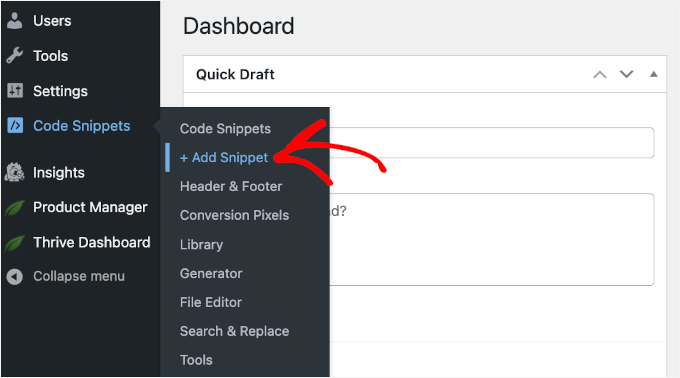
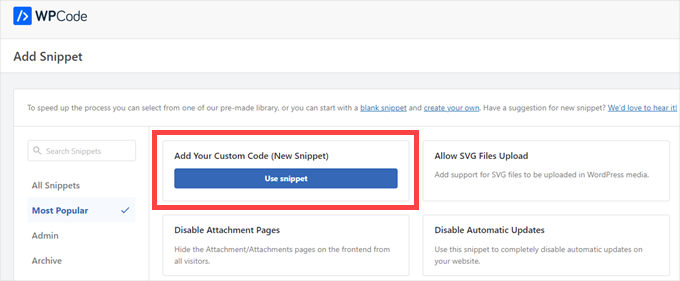
Once activated, go to Code Snippets » + Add Snippet from your WordPress dashboard.
On the next screen, you’ll see the WPCode code library.
Click ‘Use snippet’ under ‘Add Your Custom Code (Custom Snippet).’
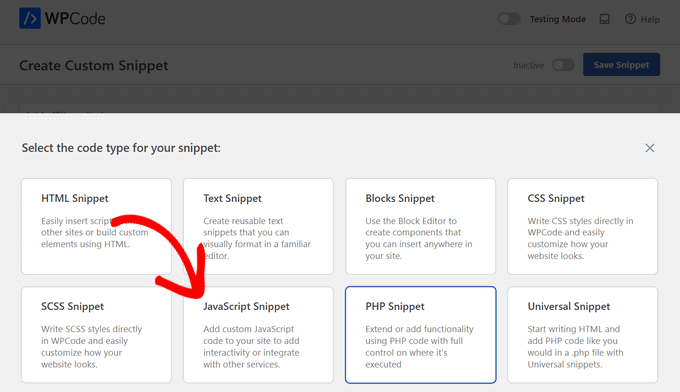
A popup will appear to ask for your code type.
Make sure to select ‘JavaScript Snippet’.
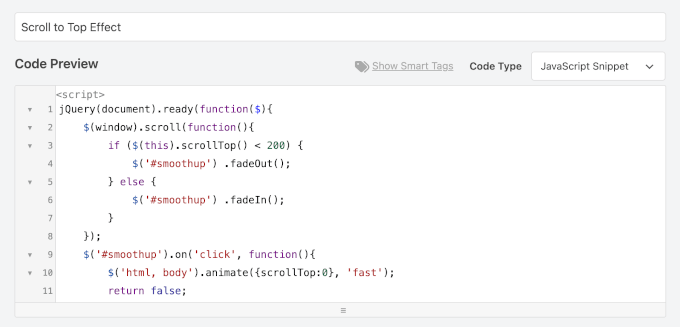
Now that you’re in the code editor, let’s first give your custom code snippet a clear name. This is for your reference only, but we recommend using a clear, descriptive name.
Then, paste the following code into the ‘Code Preview’ box:
jQuery(document).ready(function($){
	$(window).scroll(function(){
        if ($(this).scrollTop() < 200) {
			$('#smoothup') .fadeOut();
        } else {
			$('#smoothup') .fadeIn();
        }
    });
	$('#smoothup').on('click', function(){
		$('html, body').animate({scrollTop:0}, 'fast');
		return false;
		});
});
This jQuery script does all the heavy lifting for your smooth scroll effect.
First, it hides the button until the user scrolls down 200 pixels. When the user clicks the button, the script smoothly animates the page back to 0 pixels (the very top).
We also included a return false; line to prevent the default HTML link behavior, which would instantly jump the user to the top and ruin the animation.
Here’s what it might look like on your screen:
Next, scroll down to the ‘Insertion’ section.
First, make sure you have ‘Auto Insert’ selected. This ensures the snippet runs automatically on your site without requiring manual placement.
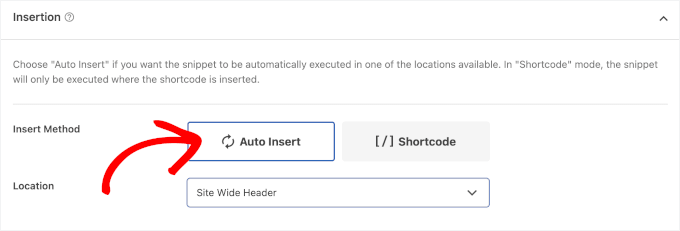
Then, let’s check the location.
There are a lot of options to choose from, including header, footer, navigation menu, and more. For a scroll-to-top button, ‘Site Wide Footer’ is a great option because it ensures the button is available on all pages without interfering with your site’s content.
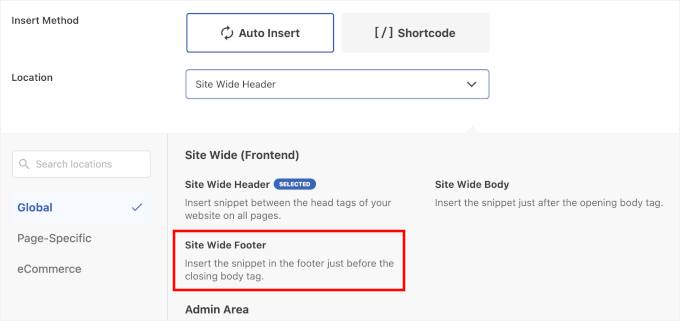
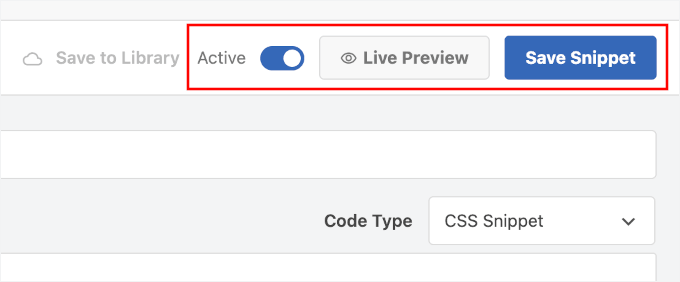
With that done, you can toggle the switch to ‘Active’ so that the script starts running immediately on your site.
And after that, don’t forget to click the ‘Save Snippet’ button to enable the script.
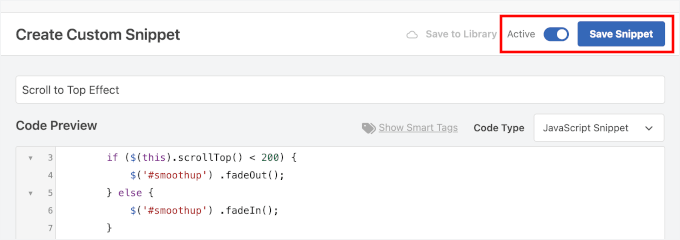
Now that we have added jQuery, let’s add an actual link to our WordPress site that takes users back to the top.
💡 Note: Some WordPress themes may already include a back-to-top button. If your site already has one, you can skip adding the HTML and CSS steps below. But including them allows you to customize the button’s appearance and position.
To do this, simply add this HTML to your site’s footer using WPCode.
Head over to Code Snippets » Header & Footer and add this snippet to the ‘Footer’ area:
<a href="#top" id="smoothup" title="Back to top"></a>
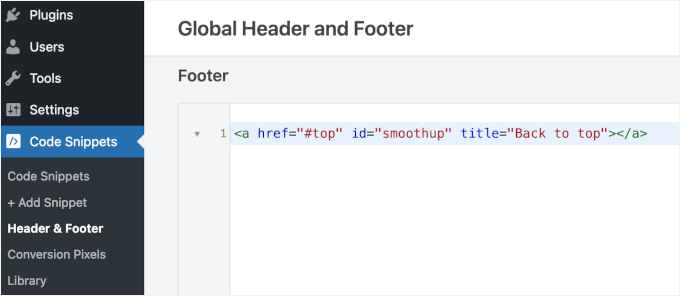
Don’t forget to click ‘Save Changes’ when you’re done. If you need help, please see our tutorial on how to add header and footer code in WordPress
If you view your site right now, you won’t see any button. That’s because our HTML code includes a link, but no anchor text. It is currently completely invisible.
To fix this, we will use an image icon (like an up arrow) to display a back-to-top button. For this, you’ll need to add a custom CSS.
You can add the CSS in your theme’s stylesheet or via WPCode. Using WPCode is safer because it won’t be lost if you update your theme.
Before adding the code, you’ll need to:
- Upload an image icon (like an arrow) to your WordPress Media Library. The size can be whatever works best for your site — we used 40x40px as an example. If you use a different size, make sure to change the
heightandwidthvalues in the CSS code below. - Copy the image URL you just uploaded. Then, make sure you replace the dummy image URL (
https://www.example.com/wp-content/uploads/2013/07/top_icon.png) in the CSS snippet below with your actual image URL.
This will ensure your scroll-to-top button displays correctly and has the hover rotation effect.
Now let’s navigate to Code Snippets » + Add Snippet.
Next, you can hover over the ‘Add Your Custom Code (Custom Snippet).’
Click the ‘Use snippet’ button when it appears.
In the popup that appears, you’ll need to choose a code type.
Let’s select ‘CSS Snippet.’
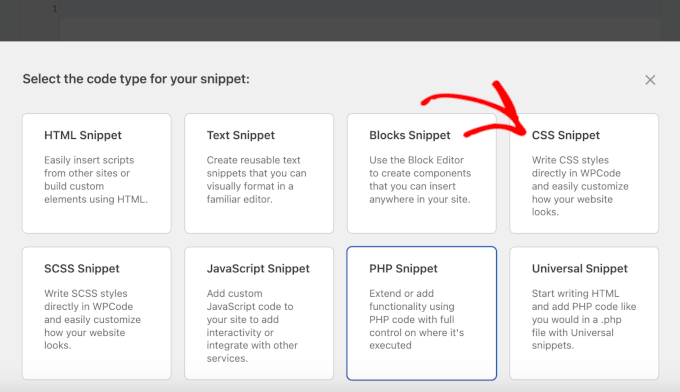
In the editor, go ahead and give your custom code snippet a clear name for easy organization.
Then, you can add the following custom CSS code into the ‘Code Preview’ box:
<pre class="wp-block-syntaxhighlighter-code">#smoothup {
    height: 40px;
    width: 40px;
    position: fixed;
    bottom: 50px;
    right: 20px;
    text-indent: -9999px;
    display: none;
    background: url("https://www.example.com/wp-content/uploads/2013/07/top_icon.png");
    -webkit-transition-duration: 0.4s;
    -moz-transition-duration: 0.4s;
    transition-duration: 0.4s;
}

#smoothup:hover {
    -webkit-transform: rotate(360deg);
    transform: rotate(360deg);
}</pre>
This CSS sets it in a fixed icon size and position, as well as adds a small hover animation that rotates the button.
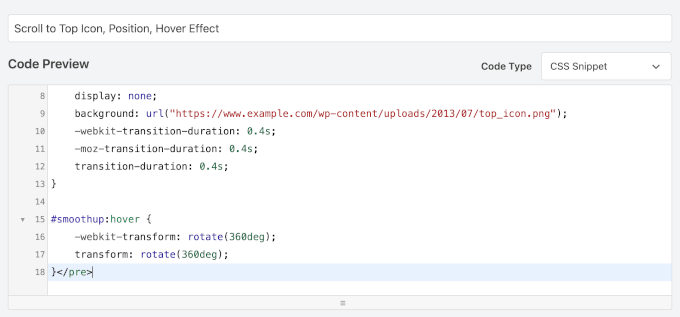
You don’t need to edit anything in Insertion. This ensures the CSS is applied site-wide without affecting other elements.
Finally, toggle the switch to activate the snippet and hit ‘Save Changes’.
And that’s basically it!
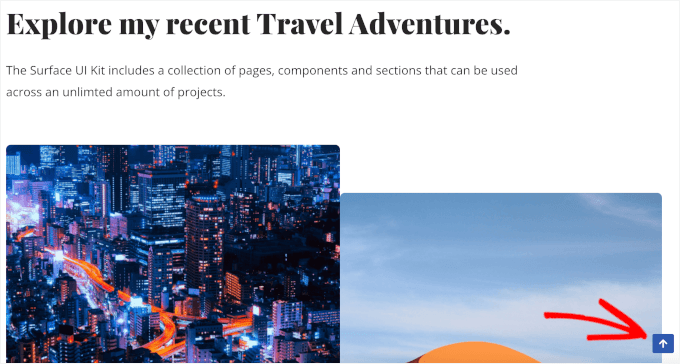
You can now visit your website to see your smooth scroll-to-top in action:
Bonus Tip: Other Subtle Animation Effects to Keep Visitors Engaged
A smooth scroll-to-top button is just one way to make your site feel more user-friendly. There are plenty of other small animation effects you can add to gently guide attention and make browsing your site feel effortless.
For example, a parallax effect makes background images move at a different speed than your content, creating a sense of depth and movement. Modern page builders like SeedProd have this functionality built-in, allowing you to create this effect without writing code.
It’s a simple way to make your pages feel more alive. For step-by-step instructions, see our guide on how to add a parallax effect.
A search toggle effect keeps things clean by showing the search bar only when someone clicks the icon. This feature hides the search input field until a user actively clicks a button to reveal it. This helps your design feel less cluttered while still making it easy for visitors to find what they need.
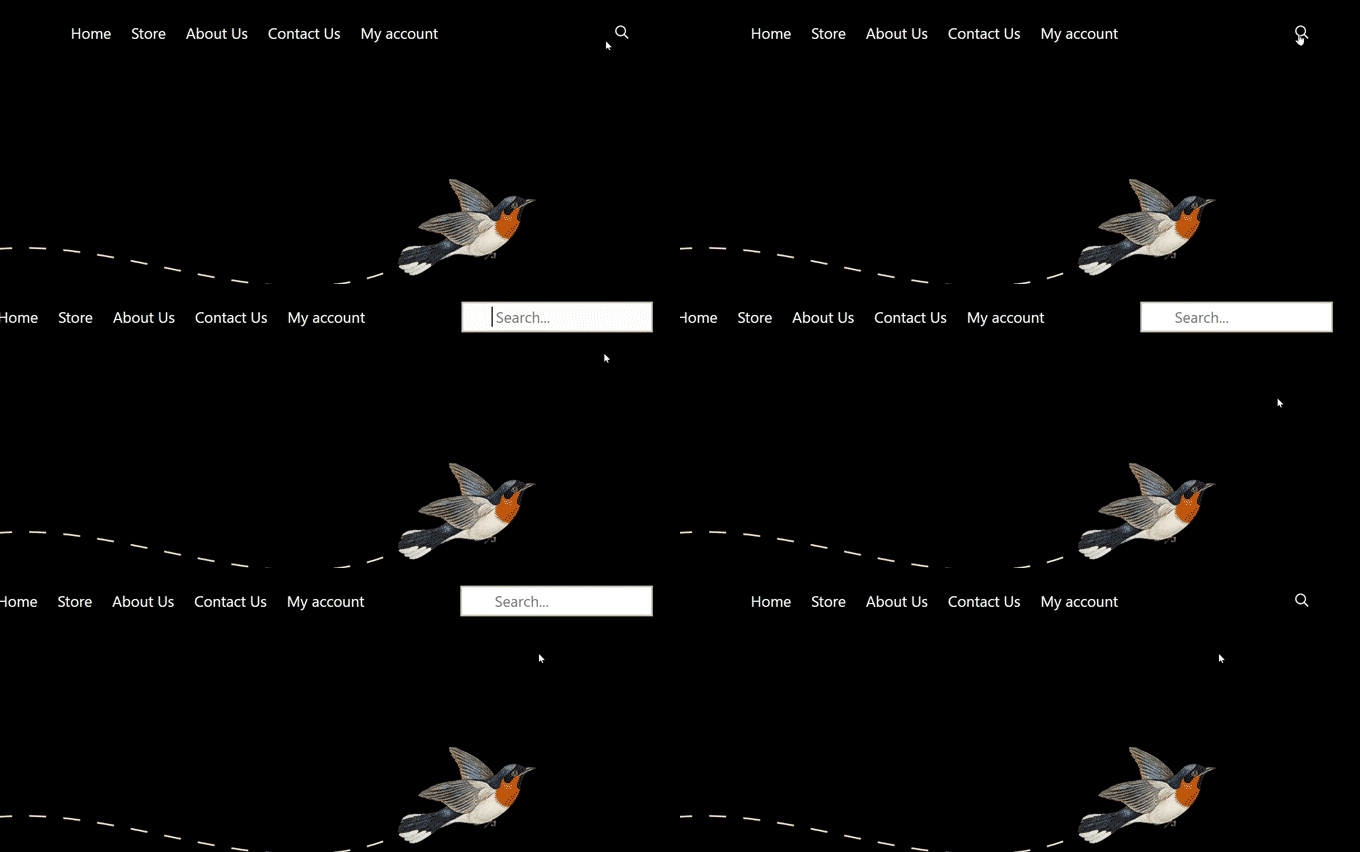
If your theme doesn’t already have this built in, plugins like WPCode can help. For details, check out our guide on how to add a search toggle effect in WordPress.
And if you have an image gallery, a lightbox effect lets people view photos in a larger, distraction-free pop-up without leaving the page. This overlay effect displays images in a focused window while dimming the rest of the page. It’s a small detail, but it makes a big difference for anyone who loves to explore your visuals.
Plus, gallery plugins like Envira Gallery make adding this feature easy. To do this, you can refer to our guide on how to add a gallery in WordPress with a lightbox effect.
These touches aren’t just “nice to have”; they show visitors you’ve thought about their experience. This can make them more likely to stick around and explore. 🕵️
FAQs: Adding a Scroll-to-Top Effect in WordPress Using jQuery
Before we wrap up, here are some common questions readers have about adding a scroll-to-top button in WordPress.
Is a scroll-to-top button necessary for every website?
Not always. But it’s a smart addition for pages with a lot of content. On long blog posts or tutorials, it saves visitors from the hassle of scrolling all the way back up, which makes their browsing experience more enjoyable.
Will adding a scroll-to-top button slow down my site?
It shouldn’t. The plugin method is lightweight and optimized for performance, and the jQuery code snippet is tiny. So, it won’t have any noticeable impact on your site speed.
Where is the best place to put the scroll-to-top button?
Most sites place it in the bottom-right corner of the screen. This spot keeps it visible and easy to reach without distracting from the main content.
Can I use a text link instead of an image for my button?
Absolutely. Both the plugin and custom code methods can be set up with a simple “Back to Top” text link instead of an icon. The plugin offers this option out of the box, and with the code method, you just tweak the HTML and CSS to match your style.
Further Reading: More Resources Around WordPress Themes
We hope this article helped you add a smooth scroll-to-top effect on your site using jQuery. Customizing your theme with features like this is just one step in building a user-friendly site. Want to dive deeper into WordPress themes? These resources will help you out:
- Most Popular and Best WordPress Themes
- What Happens When You Switch Your WordPress Theme?
- Things You MUST DO Before Changing WordPress Themes
- What Is a WordPress Theme Framework and What Are the Best Theme Frameworks?
- How to Customize Your WordPress Theme
- How to Find Which Files to Edit in a WordPress Theme
- How to Use WordPress Theme Customizer Like a Pro
- A Complete Beginner’s Guide to WordPress Full Site Editing
If you liked this article, then please subscribe to our YouTube Channel for WordPress video tutorials. You can also find us on Twitter and Facebook.




Olaf
This small icon is great for desktop solutions, where users have to scroll a lot to get back to the top. It’s a nice detail, and I personally like it. On mobile devices, the purpose is somewhat lost, as quick swiping is available, and sometimes the button just gets in the way. The plugin mentioned in the article is one of the few in the WordPress repository that works truly everywhere and as it should. I recommend it and occasionally use it myself. However, based on my experience, I suggest disabling it specifically on mobile devices.
Dennis Muthomi
One tip I’d LOVE to add is to consider matching the button’s color scheme to your website’s theme for a more cohesive look.
This tiny detail can make a big difference in the overall user experience.
Mrteesurez
I see implementing a scroll to top feature is beneficial for websites especially sites that post very long contents, users might need to see the beginning of the post or to get back to top so this functionality will indeed add more improve users experience. I see most website including WPbeginner not using it but why ?
Is there any benefit in not using it maybe for more user retention or what ?
You can include pros and cons of it in this post in a later update.
WPBeginner Support
We will look into the possibility for the future, for now we do not have it as personal preference. As someone goes through a tutorial they normally want to see the previous step by scrolling manually and not the start of the article
Admin
Mrteesurez
Well, possibly, but to me, the use case is more than just seeing the previous step in articles. This article highlighted that “Unless the site has a sticky header menu, users who scroll to the bottom of a long WordPress post or page have to manually swipe or scroll their way back to the top to navigate the site. That can be a real annoyance, and often, users will simply hit the back button and leave. That’s why you need a button to quickly send users to the top” I just want to point out that the use case mentioned in the article are beneficial and justify use it. Thanks.
Jiří Vaněk
Previously, I didn’t have a ‘back to top’ button on the page, but as my articles became longer and longer, I didn’t want users to spend several seconds scrolling. I started using this exact plugin, and it’s fantastic. It significantly enhances user comfort, even though at first glance it might seem unnecessary. It isn’t.
Asha
Thank you very much! This is very clearly explained. Helpful.
Marco
The Jquery method didn’t work for me using a Twenty-seventeen child theme. Oh well. The hyperlink version did work perfectly, thankfully, and it’s good enough for me.
Marco
One question…could one reason why this is not working for me (the jquery method) be because my WordPress installation is in a subfolder? It’s the only reason I can think of.
Taffeltrast
Would love this, but it break the footer.php. The footer simply does not load.
When i try ad it to footer.php i get “There is a syntax error on line 14. etc etc”, and when i try upload it anyway, the footer does not load.
oliver
thanks a lot, simple and effective.
my two cents, if you allready have a custom.js file in your theme you can simply add the jquery function in this file instead of creating a new file and enqueue again.
Personnally i prefer to have all my small scripts in one file.
Stuart
Child Theme Designed by Blank |
<?php }
add_action('wp_head', 'my_favicon');
What am I doing wrong ? This is my funtions.php new to wp_enqueue_scripts.
Stuart
Twenty Fifteen-Child Theme made a Js folder added all the wp_enqueue_script but no dice not sure what went wrong. I want to use less plugins as possible they seem to slow WordPress sites down. Added A favicon perfect wp_enqueue_script kind of new to me. Any help?
Donald
Hi, does this still work? The icon appears (if I temporarily change the CSS to display:block), the script shows up as loaded in the Firefoxe developers’ toolbox console. However I get the following error message for line 1:
‘SyntaxError: missing ; before statement’
I’ve copied the script as above:
01 jQuery(document).ready(function($){
02 $(window).scroll(function(){
03 if ($(this).scrollTop() < 200) {
04 $('#smoothup') .fadeOut();
05 } else {
06 $('#smoothup') .fadeIn();
07 }
08 });
09 $('#smoothup').on('click', function(){
10 $('html, body').animate({scrollTop:0}, 'fast');
11 return false;
12 });
13 });
Can anyone see what the problem might be?
Donald
Josh Patterson
Is there any way to make this fade out before it gets to the bottom of the page?
jaybob
Hi, its working fine. Thank you for the tutorial but i only have just one problem, the image appears to quick. can i do something to appear later / a little bit down, after scrolling?
Aaron
This is a very clean way to pull this off. By far my favorite I’ve found.
Quick question… I have put it in my footer.php file… How can I get it to stop sticking at a certain point? For example, I have a footer that is 575px tall and I don’t want the icon going into that area. Basically stop the fixed position at say, 600px from the bottom of the page.
Ulv
Would this solution add the smoothscroll.js file to the portion of the html file or…?
emanuele
Hi,
is possible to add smooth scroll in menu for scroll page?…i have create a one page template and i want to scroll it by menu…thank you
StefsterNYC
If I understand you correctly you want to add it to the main menu nav? Correct? Simply use the same selector name but change the css completely. So that the image won’t appear.
Make sense?
Paul
Thanks à lot for this tip ! However I’ve got a problem. When I reduce the size of the screen, my arrow go away while I want it in a specific place.
Is there a way to fix that ?
Thanks
Paul
Paul
I found a solution for my problem. I just had to change my css to :
#smoothup {
top: 572px;
left: auto;
margin-left: -68px;
}
Mushir
Thank you man! works like magic.. you really made my day!
Steven Wolock
Thanks for this! It works great.
Question: Is that closed bracket correct after -webkit-transform: rotate(360deg)?
etech0
I set this up on my site, but I don’t see the icon! How can I find out why it’s not working?
Thanks!
WPBeginner Support
There could be any possible reasons. First make sure you have uploaded the image, then check that the background: url has the correct URL and that it leads to your image. Lastly check that jquery and your .js file is loaded. Lastly, try tweaking CSS values for display, position, and text-indent.
Admin
etech0
I figured it out – I had to change the 40px height and width to conform with my image.
Thanks for a great tutorial!
Alexander Gruzov
Thanks!