



Managing customer relationships on a WordPress site can get messy fast.
Between contact forms, email subscribers, and potential clients, it’s easy to lose track of important leads. That’s exactly what happened to us at WPBeginner before we invested in a customer relationship management (CRM) solution.
After figuring it out the hard way, I made it my mission to help others find their perfect fit.
So, when our readers started asking us about HubSpot, I knew it was time for a deep-dive to see how well it works with WordPress websites.
This isn’t just another HubSpot CRM review based on marketing promises. I spent the last several months living in HubSpot – testing its WordPress integrations, using it for real-world tasks, and comparing it head-to-head with other leading platforms like Salesforce, ActiveCampaign, and Pipedrive.
Forget the sales pitch. In this detailed HubSpot review, I’m sharing my honest findings so you can decide whether it’s the perfect fit for your business goals.
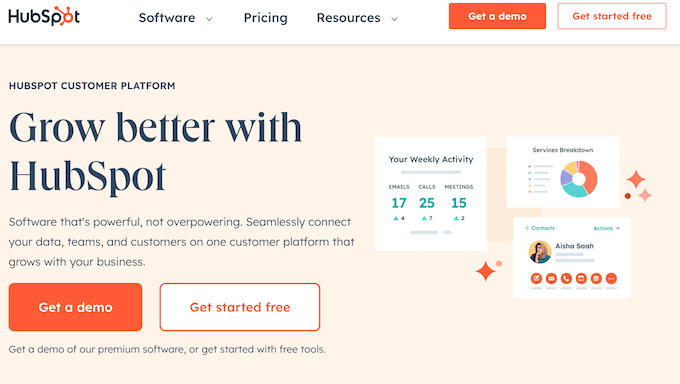
HubSpot Review: Why Use It In WordPress?
As a a long-time member of the WordPress community, I’m constantly asked for my recommendation on the best CRM (Customer Relationship Management) platform for a growing business.
One name that comes up more than any other is HubSpot, largely due to its famously powerful and free CRM.
While it’s not the primary CRM we use to run WPBeginner, I’ve spent a significant amount of time putting the HubSpot platform through its paces to see if it truly lives up to the hype.
HubSpot’s core promise is to be the “single source of truth” for all your customer data.
The idea is to have one central place where you can track every interaction a person has with your business: whether they fill out a form, open a marketing email, or have a conversation with your support team via a chatbot.
This means your sales, marketing, and customer service teams can all follow up on leads effectively, track the user journey, and generally make the customer experience better.
HubSpot CRM also integrates with more than 300 apps and services, including lead generation software like OptinMonster. Because of all this, it’s a great fit for lots of different online businesses, websites, and blogs.
The core HubSpot CRM app is free and includes many powerful tools and features.
However, it’s important to understand that this is a classic freemium model. The free tools come with HubSpot branding on all your public-facing assets (forms, emails, chat widgets).
The moment you want to remove that branding or unlock more advanced automation and reporting features, you’ll need to upgrade to their paid CRM Suite plans.
HubSpot Review: Quick Overview
In a hurry? No problem – here’s a quick summary of the points I’ll be covering in this HubSpot review:
| Category | Details |
|---|---|
| Best For |
|
| Key Features |
|
| Pros |
|
| Cons |
|
| Pricing |
|
HubSpot Review: The Right CRM Software For You? (My Honest Opinion)
Choosing a CRM is one of the most critical decisions you’ll make for your business.
The challenge is always finding the right balance. Some platforms are incredibly powerful but so complex that your team never fully adopts them. Others are easy to use but lack the features you need to actually grow your business online.
As I mentioned, HubSpot’s unique approach is to offer a free and user-friendly starting point with the option to add more advanced features as you grow. But does it truly deliver on that promise without becoming too complex or too expensive?
In this detailed, hands-on review, I’m going to break down each of HubSpot’s core “Hubs”—Marketing, Sales, and Service.
I’ll share where I found the platform to be genuinely impressive and where its limitations might be a deal-breaker for some users, so you can decide if it’s the right fit for your WordPress website.
1. Easy to Set up
HubSpot offers a limited free plan, which is great for trying out the app.
After creating my free HubSpot account, I connected their CRM to my WordPress test site using their official HubSpot plugin. The process was straightforward, but you can check out our guide on how to install a WordPress plugin for step-by-step instructions.
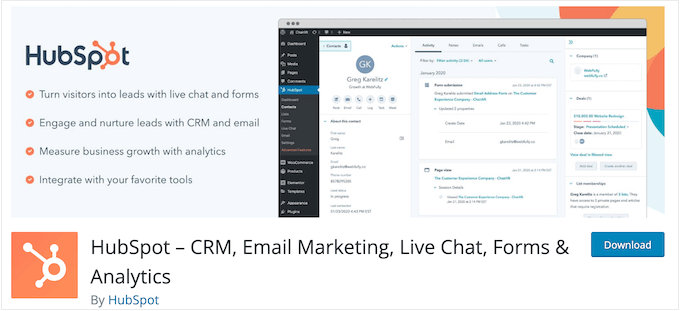
Once activated, the plugin adds a handy ‘HubSpot’ menu item right in the WordPress sidebar.
I just clicked it to launch the setup wizard, which walked me through the process of connecting WordPress to my HubSpot account. It couldn’t be easier!
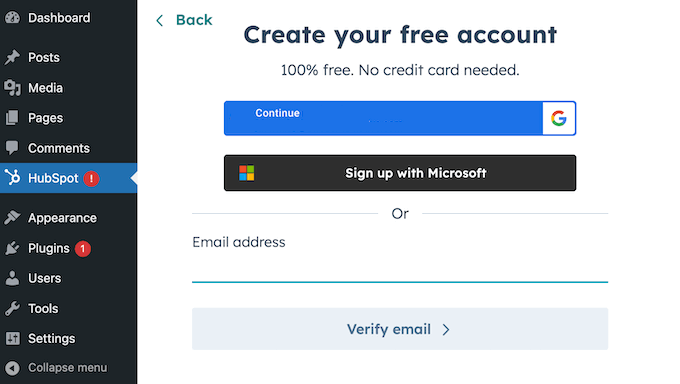
Key takeaway: HubSpot has done an excellent job of simplifying the often-technical process of integrating a CRM with WordPress. The official plugin and its setup wizard make the connection process about as easy as it can possibly be, even for a non-technical user.
2. Email Marketing
Email marketing is one of the most cost-effective ways to promote your business. In fact, email marketers get an average 4400 percent return on investment (ROI) for businesses in the US – that’s incredible!
That said, HubSpot has everything you need to send targeted messages and email blasts to your contacts.
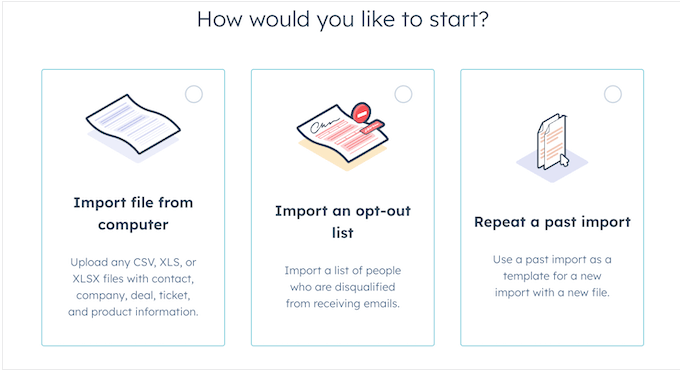
If you’ve already got a list of contacts, bringing them into HubSpot is super simple. You can just upload it as a CSV, XLS, or XLSX file.
I tested this by exporting a standard CSV file from another service and uploading it into HubSpot. The tool did an excellent job of automatically mapping the common fields like ‘First Name’ and ‘Email Address,’ and the import process was fast and error-free.
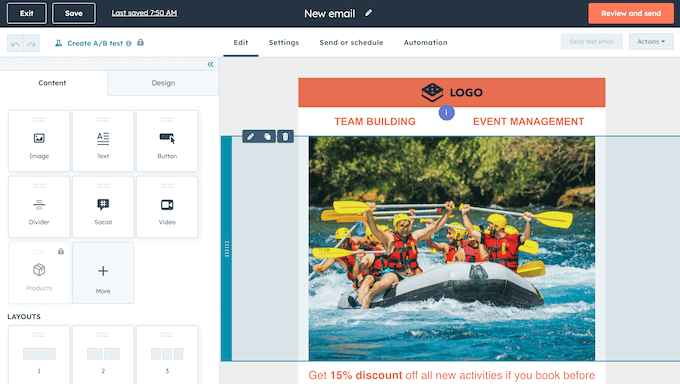
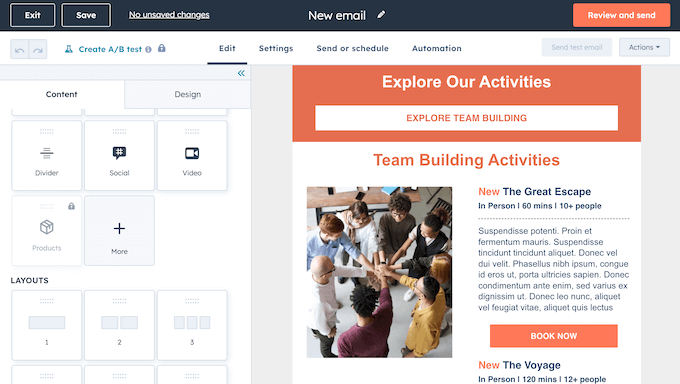
Next, I spent time in their drag-and-drop email editor.
The interface feels modern and is very intuitive. I was able to quickly build a clean, professional-looking campaign, add our WPBeginner logo, customize the colors, and create call-to-action buttons.
For designing beautiful and responsive emails without needing to know any code, the editor is a very capable tool. Once your email is ready, you can send it immediately, schedule it for later, or send it to a specific segment of your list.
However, I need to warn you about something most reviews don’t mention: HubSpot email deliverability.
Based on online discussions and user complaints, some businesses experience lower inbox rates with HubSpot’s email system compared to dedicated email services like Constant Contact or Mailchimp.
If email marketing is your primary growth channel, you might want to consider using HubSpot purely for CRM and integrating a specialized email service that has higher email deliverability track records.
Key takeaway: HubSpot’s email marketing tools are powerful and remarkably easy to use, especially considering what’s available on their free plan. The contact import is seamless, and the drag-and-drop editor makes it simple for anyone to create a beautiful campaign.
Just be aware of potential deliverability challenges if you’re sending high volumes.
3. Manage and Nurture Leads
By nurturing leads you can push them down the sales funnel and keep them engaged with your business over the long term.
HubSpot helps you manage your leads in several ways. When I clicked into a test contact, I was presented with a clean, chronological timeline of every single interaction. I could see the original page on my website where they first signed up, which marketing emails they opened, and any notes that I had manually added.
This unified view is incredibly powerful. It means that before a team member makes a call or sends an email, they understand the complete customer journey.
From this central screen, you can also take action. I could assign the lead to a specific team member, create a task for them to follow up on a certain date, or schedule a conference call.
The ability to assign contacts to team members is particularly useful for larger teams.
You can also change the contact’s status based on their position in the sales funnel. For example, you can mark the status as lead, potential lead, customer, opportunity, and more. I found this especially useful for helping me visualize the sales pipeline.
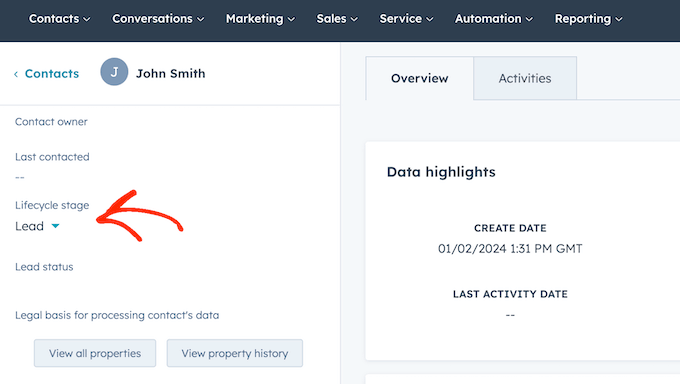
However, it’s important to understand the distinction between manual lead management and automated lead nurturing.
While the free and starter plans are excellent for manually tracking leads, many of the most powerful, time-saving automation features are reserved for the more expensive HubSpot pricing tiers.
Key takeaway: HubSpot’s contact record provides a brilliantly clear and unified view of every lead. The ability to see all interactions in a single timeline and to manually manage tasks from one screen is a huge benefit for any sales or marketing team looking to get organized and be more efficient.
4. Create Segmented Messages
Sending the same generic email to every subscriber is one of the biggest mistakes I see businesses make.
In my experience, customers and users almost always respond better to targeted messages, compared to general email blasts. To help you convert subscribers into customers, HubSpot lets you segment your contact list based on properties in the HubSpot database.
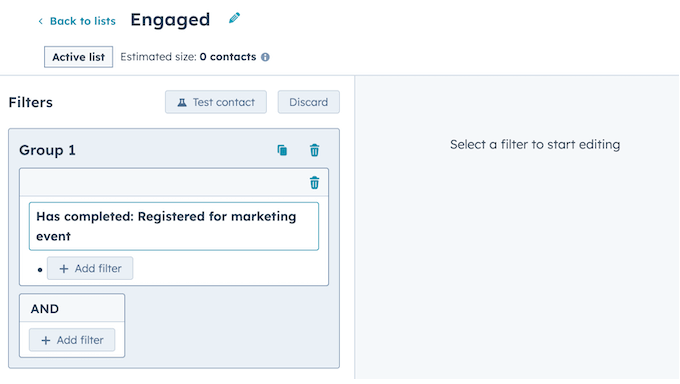
You can then send targeted messages to these different segments. For example, a blogger might group readers based on the content categories they’re interested in, and then send them updates about those topics.
However, there is a very important distinction between the free and paid plans that you need to be aware of.
On the free plan, you’re largely limited to creating “Static Lists.” These are segments that don’t update automatically.
However, the real power comes from “Active Lists.” These lists update automatically as contacts meet or no longer meet your criteria.
While the free tools give you a taste of segmentation, true, dynamic, hands-off segmentation requires a paid subscription.
Key takeaway: HubSpot’s segmentation tools are powerful and flexible, giving you the ability to create highly targeted audiences for your marketing campaigns.
The interface for building these lists is logical and lets you combine different criteria to get very specific. It’s an essential tool for sending more relevant emails.
5. Email Automation
If sending a single email campaign is like making a phone call, then email automation is like building a 24/7 communications center.
It allows you to scale your marketing and nurture your audience over time, even when you’re focusing on other parts of your business. This is one of the most powerful, and most complex, parts of the HubSpot platform.
Think about it – HubSpot can send an email automatically when someone replies to one of your messages, or even when they unsubscribe.
In my opinion, the most essential automation for any business is a “Welcome Series” for new subscribers.
I tested this by building a simple, three-part email sequence using HubSpot’s visual workflow builder. The process was logical: you set a trigger (like a contact joining a specific list), add your first email, create a time delay (e.g., 2 days), add your second email, and so on.
Even better, HubSpot lets you create automated workflows directly in the email editor, so you can use the tools and interface you’re already familiar with. It’s all incredibly intuitive and easy.
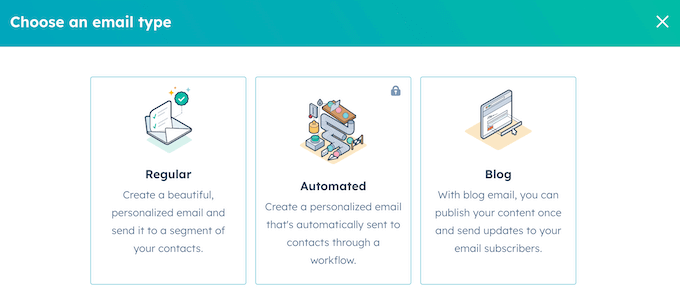
Key takeaway: HubSpot’s visual workflow builder is a powerful and intuitive tool for creating sophisticated, multi-step email campaigns. For a business looking to move beyond simple email blasts and start building automated customer journeys, the potential is enormous.
6. Convenient User Management
Do you need to share your CRM with other team members? Sometimes, you might even need to give temporary access to someone outside your team, like an affiliate marketing partner. Trust me, I’ve been there.
With HubSpot CRM, it’s really easy to add new users, deactivate users who’ve moved on, and remove people from your account altogether.
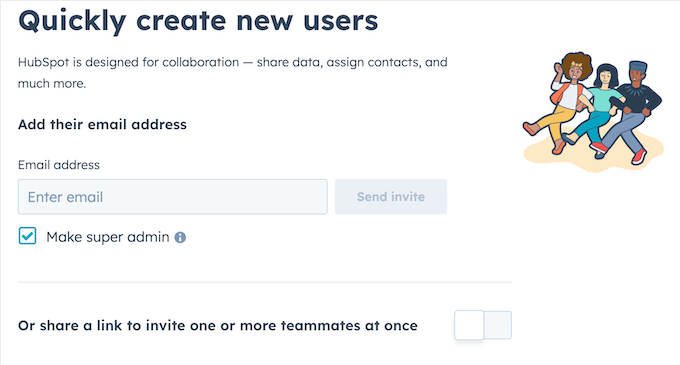
Plus, you can set up specific access permissions for each user. This means you can control exactly what tools and information they can see and use, which is fantastic for improving your WordPress security.
I tested this by creating a few sample user roles in my account. For example, I was able to create a “Junior Sales Rep” role and configure it so that user could only view, edit, and communicate with the specific contacts assigned to them.
I created another role for a “Content Writer” who could draft marketing emails but didn’t have permission to actually send them.
This level of granular control is essential for managing a team, minimizing the risk of costly mistakes, and protecting sensitive customer data.
Just be aware that this feature requires careful thought and a good amount of planning to set up correctly. It’s definitely not a simple, five-minute task.
It’s very easy to make a mistake and accidentally restrict a team member from a tool they need, or worse, give them access to data they shouldn’t have
Key takeaway: HubSpot’s user management and permission settings are a must-have when more than one person has access to your CRM.
7. Create High-Converting Forms
Your website’s forms are the most important bridge between a casual visitor and a valuable lead.
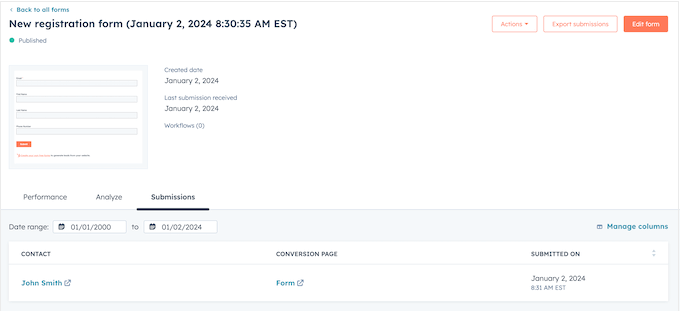
HubSpot offers several different types of forms, including standard embedded forms, pop-ups, and standalone pages. I found their drag-and-drop builder to be clean and simple for creating a basic contact or newsletter signup form.
You can add the fields you need, customize the colors, and then embed it on your WordPress blog by copying and pasting a shortcode.
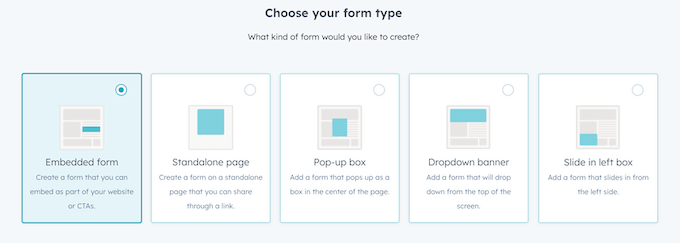
To improve the customer experience, you can even send an automated welcome email when someone completes your signup form.
HubSpot also plays nicely with many popular form builder plugins. For example, you can use WPForms HubSpot to send leads from WordPress directly to your HubSpot CRM. If you’re already using WPForms, then you’re going to love this.
However, HubSpot’s forms are not a replacement for a dedicated WordPress form builder or lead generation plugin.
The design and customization options are very basic compared to a tool like WPForms. You have far less control over the layout, styling, and you’ll miss out on advanced features like conditional logic, multi-page forms, and payment integrations.
Similarly, HubSpot’s pop-up forms lack the advanced targeting rules, A/B testing, and extensive template library you get from a specialized conversion optimization tool like OptinMonster.
Key takeaway: For a free, built-in tool, HubSpot’s form builder is solid. It’s a convenient, all-in-one solution that allows you to start capturing leads and getting them into your CRM without needing any other tools. The builder is easy to use, and it covers the basics well.
8. Live Chat Widget
I’ve said it for years: the fastest way to lose a sale is to make a potential customer wait for an answer. Live chat is one of the most powerful conversion tools you can add to a website because it closes that gap, and I’ve seen its positive impact on our own businesses firsthand.
With that in mind, I was very keen to test HubSpot’s chat tools.
Using their WordPress plugin, I was able to add live chat to my test site in a matter of minutes.
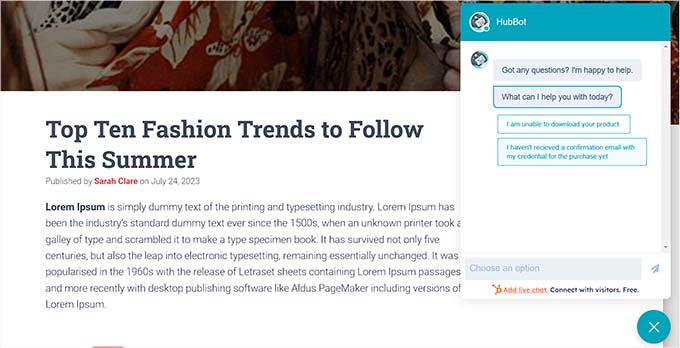
When a visitor starts a chat, the conversation can be managed by your team directly from the central “Conversations” inbox inside HubSpot.
The free chat widget does have the HubSpot branding, but in my opinion that’s a pretty reasonable trade-off. If you want to add your own branding, then you can go ahead and upgrade to their CRM Suite Starter plan.
Another option is adding a chatbot that’ll automatically route visitors to the right content or customer support agent, depending on how they interact with the bot.
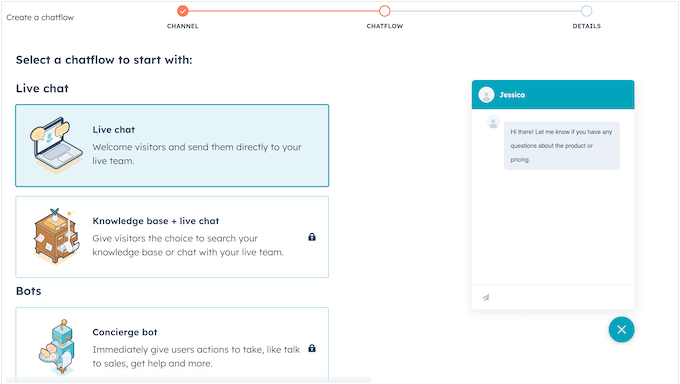
For example, I built a bot that could answer common questions like “What are your business hours?” or “Where is your pricing page?” It could also connect the visitor to a live agent if they needed more help.
For handling these kinds of repetitive, basic inquiries, a bot can be a huge time-saver for your team.
However, it’s important to understand that the chatbot is a simple, rule-based tool, and not a true AI chatbot. It can’t understand open-ended, complex questions. It can only follow the specific conversational paths that you build for it.
For creating a basic FAQ or triage bot it’s very effective, but it’s not a replacement for an advanced AI platform that can interpret natural language.
Key takeaway: HubSpot’s chat tools are incredibly easy to set up and are a fantastic way to offer instant support. The fact that these tools are integrated directly into the CRM is a major workflow advantage.
9. Facebook Messenger Integration
For any modern business, customer inquiries don’t just come from your website; they come from everywhere, especially social media.
Facebook Messenger has become a major customer service channel, but managing a separate inbox can be inefficient and lead to slow response times.
This is exactly the problem that HubSpot’s Messenger integration is designed to solve.
I tested this by connecting my HubSpot account to a Facebook Business Page, and the process was simple and well-guided.
Once connected, any new message sent to my Messenger account appeared directly in the HubSpot “Conversations” inbox, right alongside the live chats coming from my website.
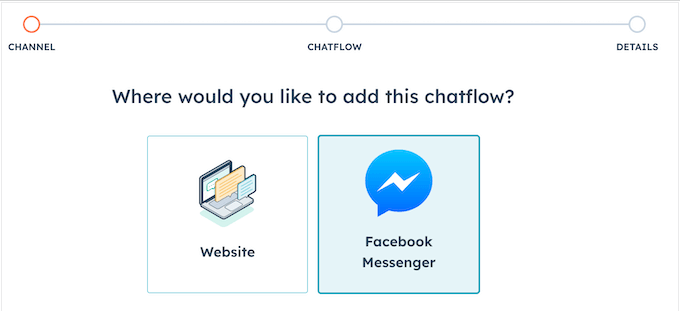
This is a huge workflow improvement. It means my team doesn’t have to constantly monitor a separate Facebook tab. They can handle a website chat and then immediately claim a Facebook message, all from the same queue and using the same internal tools.
Even better, when a new person messages your page, HubSpot automatically creates a contact record for them in your CRM. The entire conversation is then logged on that contact’s timeline, giving you a complete history of every interaction, regardless of the platform.
The reports are also excellent, showing you data on response times and conversation volume, which is key for managing your support team’s performance.
Key takeaway: HubSpot’s Facebook Messenger integration is a powerful tool for any business that gets a significant number of customer inquiries through social media.
The unified inbox is a massive efficiency boost for a support team, and the automatic contact creation is a brilliant way to grow your CRM database.
10. Convenient Shared Inbox
We all know how tricky it can be to keep track of messages coming in from different places, which is why I’m such a big fan of HubSpot’s shared inbox. Here, you can track and view communications across all your channels including live chat, Facebook Messenger, chatbots, and more.
The most powerful part of this feature is the ability to connect your team email addresses, like support@yourdomain.com or sales@yourcompany.com. I tested this, and every email sent to each address appears in the Conversations Inbox as a new, trackable conversation.
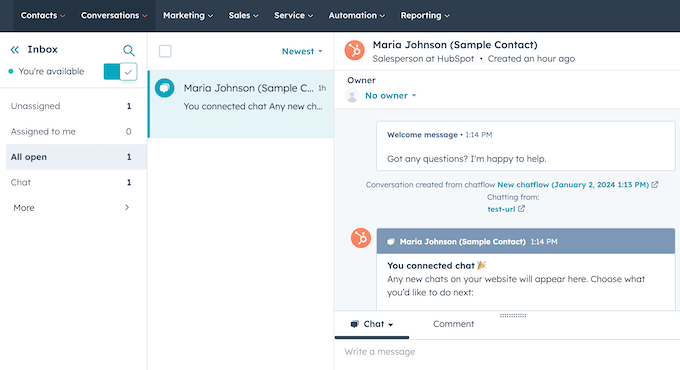
This is a huge upgrade from a standard email client for a few key reasons.
First, multiple team members can be in the inbox at once. Second, you can “assign” a conversation to a specific person, so everyone knows exactly who is responsible for replying.
You can also leave private, internal notes on an email thread to collaborate with a colleague. This completely solves the problem of two people accidentally replying to the same email, or worse, no one replying at all.
Another clever feature is the ability to turn emails into support tickets. This way, your customer service team never miss an incoming question or support request.
Key takeaway: For a small to medium-sized business, the Conversations Inbox can be a game-changer for team collaboration. It brings a level of organization and accountability to your customer communications that’s simply not possible with a standard email account. It’s one of the most valuable features in the HubSpot platform.
11. Create Beautiful Landing Pages
A focused landing page is the most effective way to convert visitors from a specific marketing campaign, whether it’s from an email, a social media ad, or a Google search.
Ideally, I always recommend using a dedicated landing page plugin like SeedProd. This gives you the most design flexibility, the best branding (by using your own domain), and the most control.
That said, I understand the appeal of an all-in-one tool, so I spent time testing HubSpot’s built-in landing page builder.
The drag-and-drop editor is clean and very easy to use, especially for non-designers.
It comes with a library of professional, mobile-responsive templates that you can customize with your own text, images, and branding. I found that I could create a simple, good-looking page for a lead magnet in about 20 minutes.
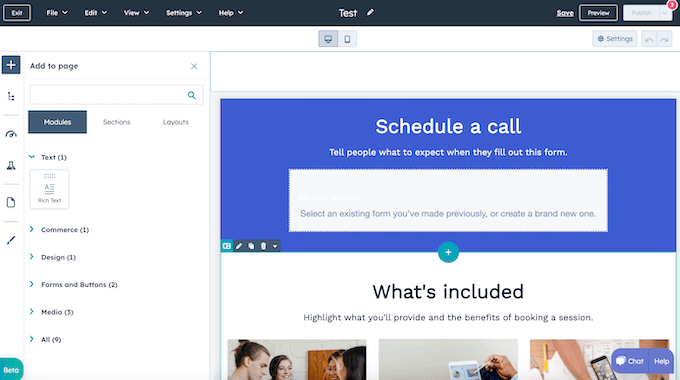
Key takeaway: For a beginner who finds WordPress intimidating or doesn’t have a website yet, HubSpot’s landing page builder is a fantastic and simple tool. It allows you to create a professional-looking page and start capturing leads with minimal effort.
12. Supports Multiple Languages
For any business with an international audience, translating your key marketing pages is a powerful way to increase engagement and conversions.
On a WordPress site, this is typically handled with a dedicated translation plugin like WPML, which is a very robust solution. With that as my benchmark, I was curious to test HubSpot’s built-in approach to multilingual content.
I found that you can translate content on a HubSpot page into 3 languages. Then, you can add a simple language switcher so your visitors can pick the language they want to read.
Everything was easy to use, plus HubSpot groups all those different language versions together in your dashboard. This makes them much easier to manage. In this way, you can create multilingual content and connect with people all over the world, with ease.
Key takeaway: HubSpot’s multi-language feature is a simple and user-friendly way for a business to start creating content for an international audience. If you’re looking to create a version of your main landing page for one or two new regions, it’s a very straightforward tool to use.
However, restricting you to just 3 variations makes this feature a non-starter for any truly global business. In that case, I recommend investing in a dedicated translation plugin, so you can support an unlimited number of languages.
13. Website Traffic Analytics
As a website owner, simply publishing content isn’t enough. You need to understand how people are finding it and what they’re doing once they arrive.
Analytics are the key to making smarter decisions about your content strategy and identifying opportunities for growth.
HubSpot’s CRM includes a built-in suite of analytics tools designed to give you this insight directly within their platform.
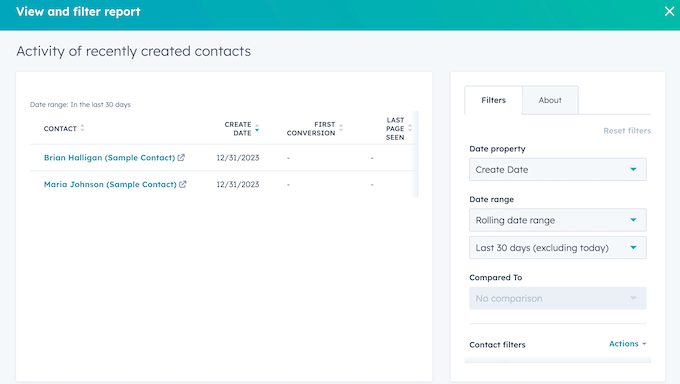
I spent time exploring these reports using the data from my test site. The dashboard provides clear visuals for key metrics like website traffic sources (e.g., organic search, social media, direct), top-performing pages, bounce rates, and average time on page.
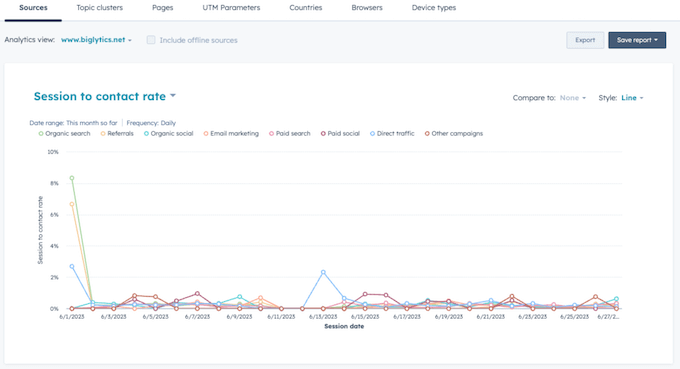
I found the ability to filter this data particularly useful. For example, I could easily drill down to see the traffic sources just for my blog posts, or analyze the performance of visitors using mobile devices versus desktops.
Sometimes you may need to share your data with people who don’t have access to HubSpot CRM. For example, if you run a WordPress development agency then you might need to share information with your clients.
You might even want to take this data and use it in another program, such as a CRM app. The good news is that you can easily export your HubSpot data as a CSV, XLS, or XLSX file.
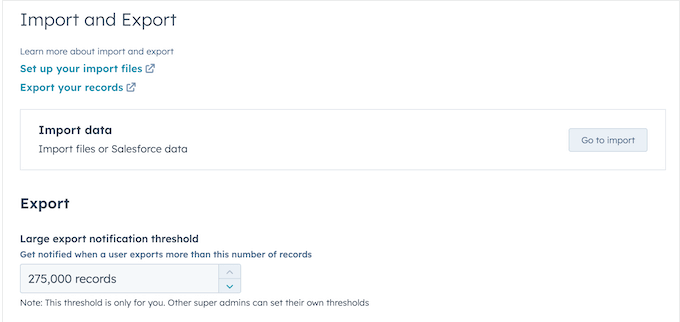
By the way, we have a tutorial on how to setup HubSpot analytics in WordPress if you want step-by-step instructions.
Key takeaway: HubSpot’s built-in analytics provide a convenient and user-friendly overview of your website’s performance, especially for tracking how your marketing efforts are driving traffic and engagement. The reports are clear, well-visualized, and make it easy to understand the basics.
14. Reports, Analytics, and Tracking
Simply having data isn’t enough. You need to be able to organize it and surface the insights that actually matter.
HubSpot’s reporting dashboard is designed to be your central command center for understanding performance across your marketing, sales, and service activities.
One of the strengths I noticed immediately is the ability to customize this dashboard.
You can add, remove, and rearrange different report widgets to create a view that highlights the specific KPIs you care about most.
For example, I could create a dashboard focused purely on email engagement, pulling in reports on open rates, click-through rates, and top-performing campaigns, all onto one screen. This flexibility is great for cutting through the noise and focusing on the metrics that are relevant to your goals.
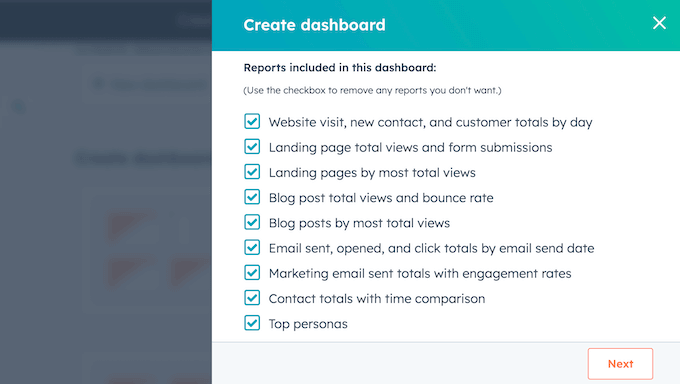
HubSpot can also track the actions that users are taking on your website or online store, including the pages they visit, and the forms they submit.
Imagine being able to see precisely what shoppers are putting in their carts. That information is absolutely invaluable for understanding customer interest and boosting sales
You can also identify prospects that are highly engaged and ready to convert.
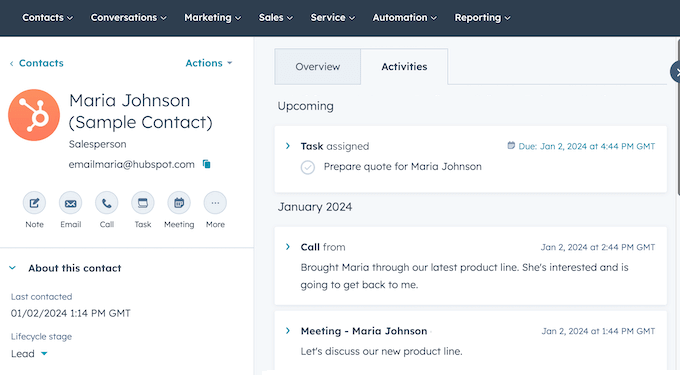
Going further, you can track which contact responded to each email, and get real time notifications when an email is opened or clicked.
This is incredibly valuable for sales teams, as it allows them to identify highly engaged prospects and follow up at the exact moment the lead is showing interest.
However, I found that the sheer volume of activity data generated can quickly become overwhelming if you haven’t clearly defined what you’re looking for.
Setting up meaningful reports that filter out the noise and highlight genuinely actionable insights requires a good understanding of the system’s filtering capabilities and a clear plan for how you intend to use that information.
Without that focus, you risk drowning in data points rather than gaining real clarity.
Key takeaway: HubSpot’s customizable reporting dashboard and real-time activity tracking are a powerful combination when it comes to making data-driven decisions.
15. SEO Recommendations
If you’re serious about increasing your website traffic, then you absolutely need to work on your SEO. After all, SEO is the key to attracting those free, organic clicks from search engines.
If your content isn’t optimized for SEO, then Google and other search engines won’t know how to show it to people, and you’ll miss out on potential visitors.
With that in mind, I was very interested to see how a CRM platform like HubSpot would handle providing SEO advice. I found that HubSpot has a dedicated SEO page where it gives you specific advice on how to optimize your content for the search engines.
Inside the Marketing Hub, there is a dedicated SEO section that provides on-page optimization recommendations for your website. I connected it to my test site, and it began scanning my content.
The tool generated a clean, prioritized list of recommended actions.
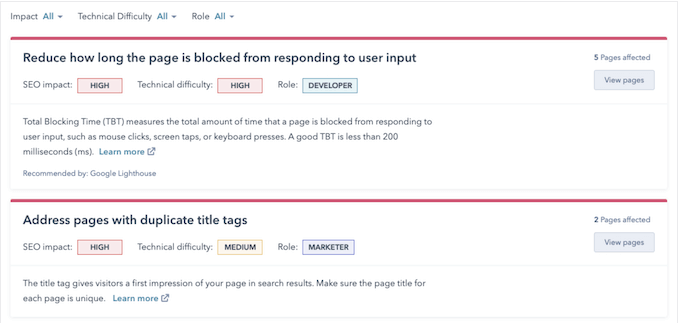
It correctly identified foundational SEO issues like pages that were missing meta descriptions, images that needed alt text, and articles with a low word count.
For someone new to SEO, this kind of straightforward, actionable checklist is incredibly valuable for learning and applying the fundamentals.
You can also get recommendations for a specific page, which is perfect for optimizing your site’s most important pages.
Key takeaway: HubSpot’s SEO tool is an excellent resource for beginners. It does a great job of demystifying the technical basics of on-page SEO and presents them in a simple, easy-to-understand checklist. For a business owner just starting to focus on search engine performance, this guidance is invaluable.
16. Cookie Tracking Tools
As an online business with a global audience, complying with international data privacy laws like the EU’s GDPR is a non-negotiable legal requirement.
A key part of GDPR is getting explicit consent from your visitors before placing tracking cookies on their devices. While many WordPress users handle this with a dedicated cookie consent plugin like WPConsent, I was interested to test HubSpot’s built-in solution.
Overall, it was pretty straightforward to set up. If you have visitors from the EU, this built-in feature is going to be really useful.
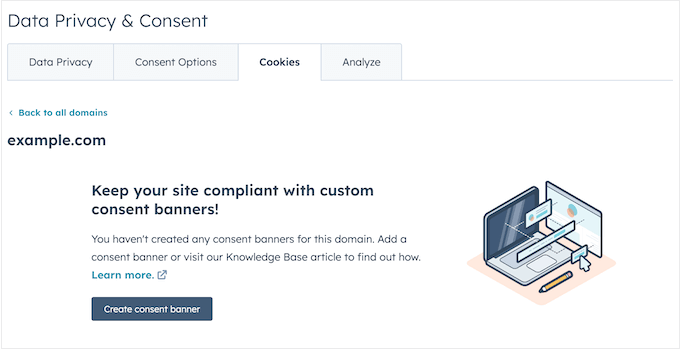
HubSpot also lets you create up to 100 different consent banners. Even better, you can set them up with different rules based on where your visitors are coming from, what language they speak, and even choose from different banner designs.
However, the standard banner that you can create includes HubSpot branding. From a professional standpoint, having another company’s logo on your site’s legal consent banner can detract from your own brand’s authority.
If you decide to upgrade to HubSpot’s paid CRM Suite Starter plan, you can remove the HubSpot branding from your cookie banners. In my opinion, this gives your banner a much more professional look.
Key takeaway: For a business that needs a simple and quick way to add a basic GDPR cookie consent banner to their site, HubSpot’s built-in feature is incredibly convenient. The ability to target the banner by visitor location is a particularly well-thought-out feature.
17. Manage Your Online Ads
Running paid ad campaigns on platforms like Google and Facebook is a great way to drive traffic, but the biggest challenge is always connecting your ad spend to actual business results.
How many of those clicks actually turned into customers? Integrating your ad management with your CRM is the key to answering that question.
I tested this by connecting one of our ad accounts to my HubSpot portal. Once connected, the tool allows you to manage and monitor your campaigns from Google, Facebook, Instagram, and LinkedIn, all from a single dashboard.
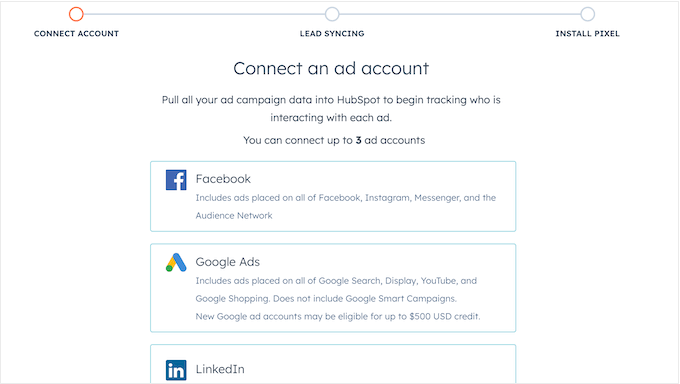
But the most powerful feature, in my opinion, is the ability to create retargeting audiences based on your CRM data.
For example, I was able to create a list of contacts who had visited our pricing page but had not yet booked a call. HubSpot can then sync this list with Facebook, allowing you to run a highly specific ad campaign targeted only at that group of warm leads.
This is far more effective than simply retargeting all website visitors, and it’s where the real power of a CRM-integrated ad tool lies.
Key takeaway: HubSpot’s ad tools provide a fantastic way to centralize your campaign reporting and bridge the gap between your ad spend and your customer data. The ability to build hyper-targeted retargeting audiences based on your CRM lists is an incredibly powerful feature for improving your return on ad spend.
18. Accept Payments Online
For any business, the final step in the customer journey is getting paid.
The main advantage of using a payment processor that’s built directly into your CRM is that it automatically connects your revenue data to your customer records. This gives you a much clearer picture of customer lifetime value and overall business health.
If you upgrade to a paid plan, then you’ll also get access to HubSpot’s payment processing tool. This allows you to accept credit card payments online.
For ACH payments, you’ll pay 0.5% of the transaction amount, and a 2.9% fee for card transactions. These rates are pretty competitive with other payment processors out there.
Just be aware this service is only available to US customers who also have a US bank account, and is subject to underwriting approval. For our international audience, this tool is not an option.
I found the payment links feature to be the most practical application.
You can create a unique link for a specific service or product and share it anywhere, such as in an email, a chat conversation, or on a social media post.
It’s a very simple way for a freelancer, consultant, or small business to bill for a one-time service without needing a full e-commerce setup.
HubSpot also includes basic tools for creating and tracking invoices from within a contact’s record.
📝 HubSpot isn’t designed to handle a complex online store with a large product catalog, advanced shipping calculations, or inventory management. If you run a full online store, you will still need a dedicated e-commerce platform.
Key takeaway: For US-based businesses, HubSpot Payments is a very convenient tool for simplifying the process of getting paid. The seamless integration with the CRM is its biggest strength.
19. Android and iOS Mobile Apps
For a modern business owner, work rarely stops when you leave the office.
A good mobile CRM app is essential for managing your business on the go, and I installed the HubSpot app on my iPhone to see how well it translates their powerful desktop platform to a small screen.
I was impressed with its scope. The app gives you access to the core features across all the main “Hubs.” I was able to:
- Pull up a contact’s full history and recent activities right before a meeting.
- Respond to a new message in the Conversations Inbox while away from my computer.
- Check the performance of a recent email marketing campaign.
- Make calls using my business number.
The app successfully brings the most important day-to-day management tools into a mobile-friendly format, which is a must-have for any remote or traveling team.
However, the app is not a complete replacement for the desktop experience.
For example, trying to build a complex email automation, design a new landing page, or configure a custom report on the small screen is difficult and inefficient.
Think of the mobile app as a fantastic tool for managing and monitoring your business on the go, but for any serious creation or configuration, you’ll definitely want to be at your computer.
Key takeaway: HubSpot has done an excellent job of packing an incredible amount of functionality into its mobile app. It genuinely allows you to monitor and manage the core aspects of your sales and marketing funnels from anywhere, which is a huge advantage.
20. A Ton of Integrations
While HubSpot’s built-in tools are powerful, no single platform can be the absolute best at everything.
A smart platform focuses on integrating seamlessly with the specialized, best-in-class tools you already love. This is an area where HubSpot really excels.
Naturally, I started my testing with the tools I know best.
The integration with WPForms is incredibly powerful. Beyond just sending completed form entries to HubSpot, you can connect it with our Form Abandonment addon. This captures partial entries from people who start filling out a form but don’t finish, and sends those valuable leads directly to your HubSpot CRM for follow-up.
💡 If you’re not using WPForms, then you can check out our detailed WPForms review for more info.
Similarly, the OptinMonster integration means you can use our powerful conversion optimization toolkit to grow your HubSpot list. You can create a high-converting campaign like an Exit-Intent popup and have all the leads you generate sent straight to a specific HubSpot list.
Beyond our own tools, HubSpot connects with a huge range of other essential platforms, from business phone services like RingCentral, to other chat tools like LiveChat if you prefer a more dedicated solution.
This flexibility allows you to build your ideal marketing and sales “stack” with HubSpot acting as the central database.
However, it’s important to understand that not all integrations are created equal.
The term “integration” can mean very different things. While some offer a deep, two-way data sync, others can be much more basic, sometimes doing little more than passing a name and email from one app to another.
The depth and reliability of an integration can vary widely depending on who developed it.
Before you commit to HubSpot because of a specific integration, I highly recommend you read the documentation and user reviews for that particular app in their marketplace to understand its true capabilities and limitations.
Key takeaway: HubSpot’s commitment to an open ecosystem is one of its greatest strengths. The vast App Marketplace is impressive and ensures that you can almost always connect the tools you’re already using, making HubSpot the true central hub for your customer data.
What HubSpot Won’t Tell You: The Reality Check
I’ve spent thousands of words highlighting HubSpot’s strengths, but now I need to be completely honest with you about the challenges that most reviewers leave out.
Automatic Upgrades
HubSpot’s pricing tiers are based on your number of contacts, and the system automatically upgrades you when you reach certain thresholds. There’s no hard stop, no clear warning – just a sudden jump in your monthly bill.
Before you start using HubSpot, I recommend calculating your expected growth rate. If you’re adding 500+ contacts per month, you could hit expensive tiers faster than you think.
With that in mind, consider setting up regular contact cleaning routines to remove inactive or unengaged contacts.
Navigating the Learning Curve
HubSpot markets itself as easy to use, and the initial setup process is quite simple. However, I’ve seen multiple users complain about being overwhelmed once they get past the onboarding process.
The HubSpot learning curve is steep, especially when compared to other, more straightforward tools. Typically, you should plan to invest 3+ months into mastering the platform’s automation workflows, reporting dashboards, and segmentation tools.
If you don’t invest that time into training, or have a team member who can become your ‘HubSpot expert,’ then you may end up paying for a powerful tool that you’re only using 20% of.
HubSpot Review: Community and Professional Support
HubSpot has built an entire educational empire around the concept of “inbound marketing,” and this commitment to teaching is clear in their support resources.
For free users, support is entirely self-service. I spent a lot of time exploring these resources and found them to be exceptional. You can access them anytime, day or night, and they include a really detailed knowledge base plus comprehensive video tutorials.
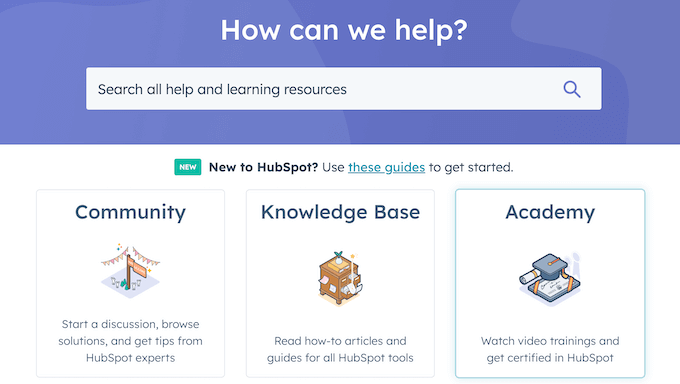
There’s also a company blog where you’ll find advice and best practices for marketers, such as how to do an SEO audit. If you’re always looking to expand your marketing knowledge, then this blog is a fantastic resource.
Prefer to get one-on-one help directly from the experts? If you upgrade to the CRM Suite Starter plan then you’ll also get access to email and in-app chat support.
Basically, HubSpot’s support resources are top-notch, whether you’re diving into their knowledge base and videos, exploring their blog, or reaching out directly through email or chat as a paid user.
HubSpot Review: Pricing and Plans
Let’s start with the Free plan, because I was genuinely impressed by how many powerful tools you get without paying a cent. You get a full CRM, email marketing, live chat, forms, and more. For a brand-new business, this is fantastic value.
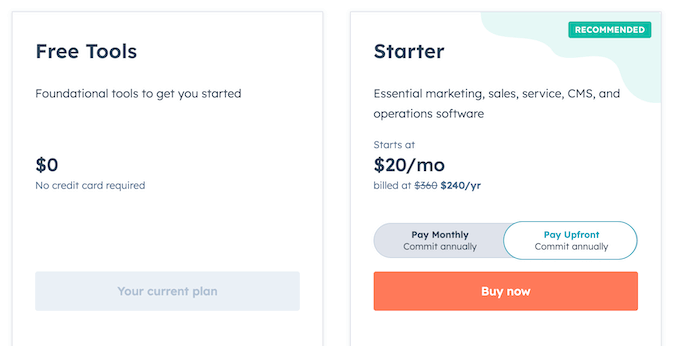
However, every form, email, live chat widget, and landing page you create will have the “Powered by HubSpot” logo. For a business that’s serious about its brand image, this is a major drawback.
You can upgrade to the CRM Suite Starter for $20 per month. This removes the HubSpot branding from your forms, the Facebook Messenger integration, live chat widget, cookie banners, and landing pages.
When you consider the extra features and the option to add your own branding, it’s a pretty reasonable price.
With the free plan, you’re limited to 1 email and 1 form automation. However, the paid plan gives you 10 automated email actions and 10 automated form actions.
Similarly, the free plan lets you create 10 active email lists and 1,000 static lists, while the CRM Suite Starter raises that limit to 100 active lists and 1,000 static lists. In my opinion, having that extra list capacity is essential as you start to scale up your email marketing.
When it comes to email tracking, the CRM Suite Starter plan gives you unlimited email open and click notifications, while the free plan limits you to 200 notifications per month.
I know just how valuable email tracking data is for understanding what’s working, and those unlimited notifications in the paid plan are a major plus. If you rely heavily on email marketing, then you’ll definitely appreciate this.
To help you make the right decision for your business, here’s a quick summary of the main HubSpot plans:
| Feature / Tier | Free | Starter | Professional | Enterprise |
| Best For | Testing & solopreneurs (Basic CRM) | Small businesses needing clean branding & slightly more usage. | Growing companies needing full automation, and advanced SEO tools. | Large, complex organizations |
| Pricing (Monthly) | $0 | $15 per month, per seat | $1,450 per month (5 seats included) | $4,700/month (7 seats included) |
| Email Marketing (Monthly) | 2,000 email sends | 5x marketing contact tier email send limit per calendar month | 10x marketing contact tier email send limit per calendar month | 20x marketing contact tier email send limit per calendar month |
| Branding | HubSpot branding | Remove HubSpot branding | Remove HubSpot branding | Remove HubSpot branding |
| Automation | 1 automated action | Up to 10 automated actions | Unlimited actions, plus omni-channel marketing automation | Unlimited actions, plus omni-channel marketing automation |
| SEO tools | Basic recommendations | Basic recommendations | Advanced recommendations and full site auditing | Advanced recommendations and full site auditing |
HubSpot Review: My Honest Opinion (& Firsthand Experience)
After looking at the features, support, and pricing, I’m confident that HubSpot is a really great CRM. What really stands out is their free plan, which includes a ton of advanced features that can seriously optimize every part of your marketing strategy.
I was genuinely impressed with just how much functionality you get without you having to spend a cent.
For new businesses and startups on a tight budget, the HubSpot free plan provides a powerful suite of tools to get started. You simply won’t find a better free offering.
However, this all-in-one model and its “freemium” approach come with significant trade-offs.
As I’ve noted, the built-in tools are often not as powerful or flexible as dedicated, best-in-class solutions. The functional limitations of the free plan are also significant, with mandatory HubSpot branding on all your assets and a complete lack of one-on-one support.
For any growing business that’s serious about its brand image and wants to begin using automation, I would recommend the CRM Suite Starter plan. The most critical feature it unlocks is the ability to remove HubSpot’s branding from all your marketing.
However, be very aware of the contact tier pricing traps. If you’re successfully growing your email list, your costs can escalate quickly. What starts as $20/month can easily become $200-$500/month as your database grows.
HubSpot is genuinely powerful, but with that power comes complexity. Unlike simpler tools that you can master in a weekend, HubSpot requires a significant time investment to use effectively. If you’re a solopreneur or small team without dedicated training time, you might end up paying for features you never fully utilize.
Finally, if you’re a WordPress power user who prefers to use the best-in-class plugin for each job (like WPForms for forms, SeedProd for landing pages, OptinMonster for popups), then you may find HubSpot’s built-in tools a bit limiting.
However, because of its excellent integrations, you can still use HubSpot as your central CRM ‘brain’ while continuing to use your favorite specialized tools. This is actually my recommended approach for most WordPress sites.
FAQs: HubSpot CRM and Its Integration with WordPress
Managing customer relationships effectively is essential for any business, so it’s important to choose the right CRM.
Still wondering whether HubSpot is the best CRM for your needs? To help you decide, here’s the answers to some frequently asked questions.
What makes HubSpot CRM a good choice for WordPress sites?
HubSpot CRM integrates smoothly with WordPress and also works well with many must have WordPress plugins. In particular, it connects to form builders like WPForms so you can send leads directly to your CRM.
Want to learn more about WPForms? Then head over to our in-depth WPForms review.
Can I track user activity on my WordPress site with HubSpot?
Yes, HubSpot has advanced analytics so you can monitor user interactions, such as page visits and form submissions. You can then use this insight to improve your customer engagement, optimize your sales funnel, and generally enhance the visitor experience.
Does HubSpot offer email marketing features that integrate with WordPress?
Yes! HubSpot provides powerful email marketing tools that integrate seamlessly with WordPress. This means you can create targeted emails and automate your communication, which can have a big impact on your results.
However, be aware of potential email deliverability challenges. Some users report lower inbox rates compared to dedicated email services. If email marketing is critical to your business, consider testing HubSpot’s email deliverability with a small campaign before fully committing.
Is HubSpot free, or do I need to pay for its features?
HubSpot offers a free CRM that includes a range of features suitable for small businesses and bloggers. However, upgrading to a paid plan unlocks more advanced tools and removes the HubSpot branding.
The free plan is genuinely useful, but remember that HubSpot pricing tiers increase based on your contact count. As your business grows, so will your costs.
How does HubSpot handle GDPR compliance with WordPress?
HubSpot provides tools to manage GDPR compliance, such as cookie tracking and consent banners. This helps you to collect and manage user data responsibly.
What’s the biggest hidden cost with HubSpot?
The biggest surprise for most users is the contact tier pricing. As your email list grows and you exceed contact limits, HubSpot automatically upgrades you to higher pricing tiers. What starts as a $20/month investment can quickly become $200-$500/month or more as your database expands.
With that in mind, I recommend using HubSpot’s ‘non-marketing contact’ designation for leads you don’t actively email to keep them out of your billing count.
How long does it take to learn HubSpot?
While the initial setup is straightforward, the HubSpot learning curve is steeper than marketing materials suggest. You should expect to invest 2-4 months before becoming truly proficient with automation workflows, advanced reporting, and segmentation tools.
If you’re a solopreneur without dedicated training time, this learning curve can be frustrating.
Is HubSpot better than Salesforce for WordPress users?
For most WordPress site owners, HubSpot is the better choice. It’s more user-friendly, has better WordPress integration through plugins, and doesn’t require a dedicated admin team.
Salesforce is more powerful for large enterprises with complex needs, but it requires significantly more technical expertise and investment.
Can I migrate my data to HubSpot from another CRM?
Yes, but HubSpot data migration can be complex. Basic contact information migrates easily, but automation workflows, historical engagement data, and complex custom fields often require manual rebuilding.
For large databases (10,000+ contacts), I recommend hiring a HubSpot certified partner to handle the migration process.
Additional Resources: HubSpot Review
Exploring CRM options and understanding how they work with WordPress can take time and effort.
To help streamline your journey, I’ve put together some additional resources on related topics and tools that I think you’ll find helpful:
- Best CRM Software for Small Businesses (With Free Options) – Still unsure whether HubSpot is the right CRM for you? This guide has some more suggestions for you.
- Best WordPress Caching Plugins Compared – Discover plugins that can help speed up your website’s performance, making it load faster for your visitors.
- Best Landing Page Plugins for WordPress – Find tools to create effective landing pages for your marketing campaigns.
- How to Increase Your Blog Traffic – Explore effective strategies to bring more visitors to your blog, helping you expand your reach and engage a larger audience.
I hope this HubSpot review helped you decide whether it’s the right CRM software for you. You can also check out our guide on how to create an email newsletter, or see our expert pick of the best web push notification software.
If you liked this article, then please subscribe to our YouTube Channel for WordPress video tutorials. You can also find us on Twitter and Facebook.

John Smith
If you are a home serviced based company, be very careful signing up for HubSpot. I was told the program would work great for our company but it is missing a ton of features for it to actually make sense. Even though they mislead me, they will not let me out of my $500/month contract no matter how many times I explain to them that they lied, we no longer use it and that it is hurting our business.
Their only solution is to tell me for weeks that I should talk to their customer support team for features that do not exist.
Also, they will just continue to upsell you on all of their “hubs” for every little feature. You could easily wind up paying thousands of dollars a month for an overcomplicated program that doesn’t work as good as other programs out there for literally a tenth of the cost.
I encourage you to be very careful with this program/company especially with a home service based business.