


You spend all this time creating content for your WordPress blog, people finally start leaving comments… and then they disappear.
That’s the tricky part. The readers who are most interested (the ones who actually comment) don’t really have a clear next step.
One helpful trick is to send new users to a special “Thank You” page after they leave their first comment. It shows some appreciation and gently invites them to stay connected.
In this post, we’ll show you how to redirect a user’s attention with a comment redirect, so you can turn more of those readers into subscribers and loyal followers. 🙌

Why Redirect First-Time Commenters on Your WordPress Blog?
When your WordPress blog has an active and interesting comments section, users will feel more engaged. This can create a sense of community that encourages visitors to stay longer.
Since WordPress comments are so important, you should do everything you can to get more comments on your blog posts.
Using a comment redirect is an excellent way to recognize first-time commenters and thank them for their interest in your website.
For example, you can redirect users to a Thank-You page after they leave their first comment. Then, they are more likely to keep interacting with your content and leave more comments.
Let’s take a look at how to redirect your users’ attention with a comment redirect:
- Method 1: Redirecting Users’ Attention With Thrive Comments (Recommended)
- Method 2: Redirecting Users’ Attention With Comment Experience (Free)
- Bonus Tip: Creating a Powerful Comment Redirect Page
- FAQs About Redirecting Users’ Attention With a Comment Redirect
- Expert Guides for Improving WordPress Comments
Method 1: Redirecting Users’ Attention With Thrive Comments
Thrive Comments is the best WordPress comments plugin that allows you to take total control over your blog’s comments, including redirecting new commenters to a page of your choice.
You can learn more about the plugin in our detailed Thrive Comments review.
First, you need to visit the Thrive Themes website and sign up for an account.

📝 Note: If you prefer to use a free plugin, please see Method 2 below.
After you’ve done that, you’ll see your account dashboard.
Next, you need to click the ‘Download and install the Thrive Product Manager plugin’ link. This will give your WordPress website access to your Thrive products.
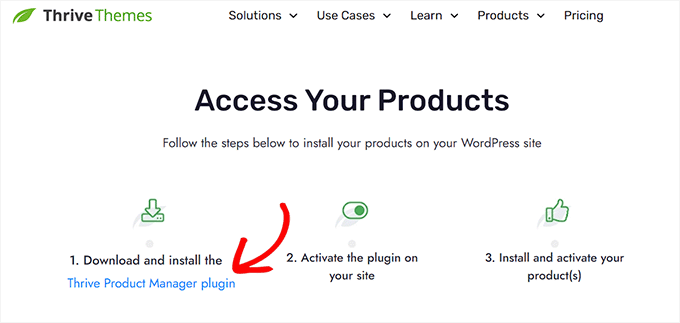
Now, you can install and activate the Thrive Product Manager plugin you downloaded.
In your WordPress admin dashboard, let’s navigate to Plugins » Add New Plugin.

On the next screen, you can click the ‘Upload Plugin’ button to open the file uploader.
From here, click the ‘Choose file’ button and select the Thrive Product Manager zip file from your computer.
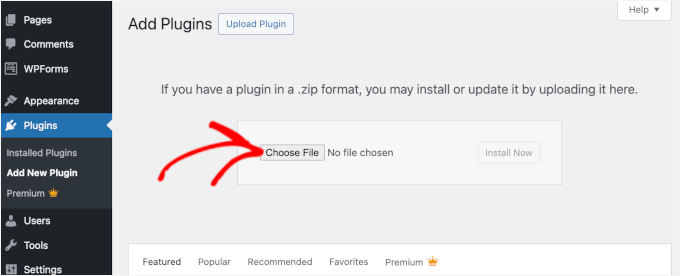
Once uploaded, go ahead and hit ‘Install Now’ and then ‘Activate’ when it appears. For detailed instructions, see our guide on how to install a WordPress plugin.
Upon activation, you can navigate to Product Manager in your admin sidebar. You need to click the ‘Log into my account’ button.
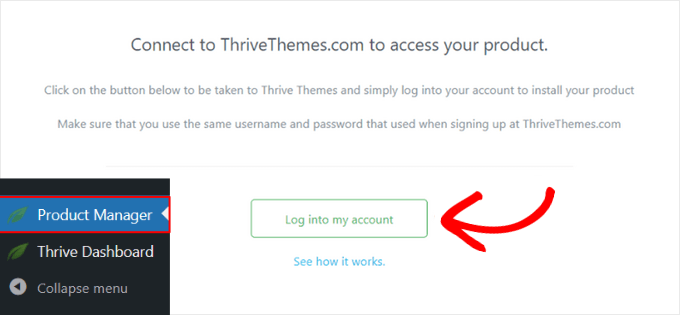
Once you have logged in to your account, you’ll see the Thrive Product Manager dashboard.
Go ahead and select ‘Thrive Comments,’ then click the ‘Install selected products’ button.
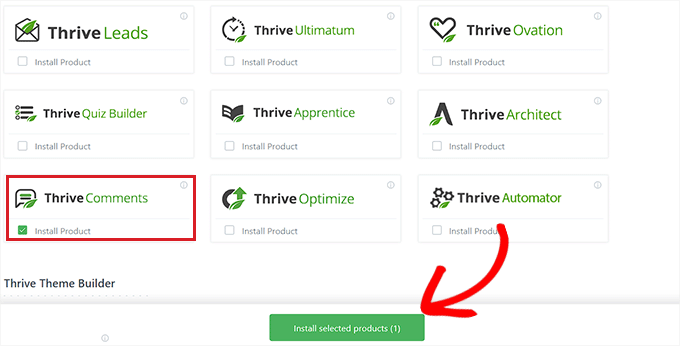
Once the plugin is installed, you will see a success message saying ‘Ready to use.’ Thrive Comments has been successfully activated on your site and is ready for you to configure.
You can now navigate to the Thrive Dashboard » Thrive Comments page.
This page displays the Thrive Comments menu. You’ll need to expand the ‘Comment Conversion’ section by clicking the arrow on the right.
These settings allow you to choose what happens after a visitor leaves a comment for the first time. There are options to send them a message, share on social media, show them related posts, redirect them to a new page, or display an optin form.
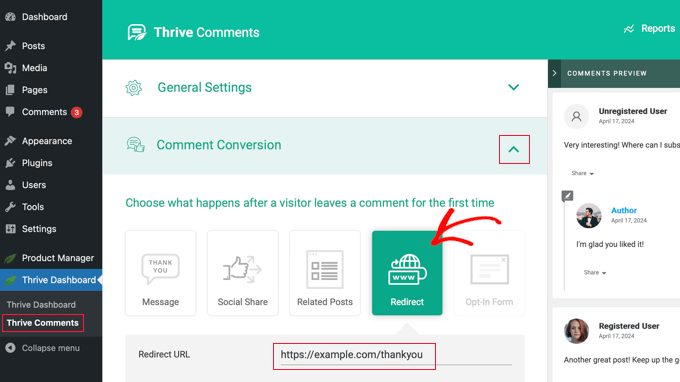
Simply click the ‘Redirect’ option, and then enter the URL of the page you wish to send commenters to. The new settings will be automatically saved.
You could redirect users to a simple thank-you page with an email signup form, social media links, and your most popular posts. Or you could paste the URL of a landing page, special offer, or a specific lead magnet page.
📝 Note: Need help creating these pages? We’ve included a section later in this article with helpful tips on creating a powerful comment redirect page.
To see the comment redirect in action, you first need to log out of your WordPress website. After that, you can go to any post and leave a comment using a random name and email address.
You will be automatically redirected to your selected page when you submit the comment.
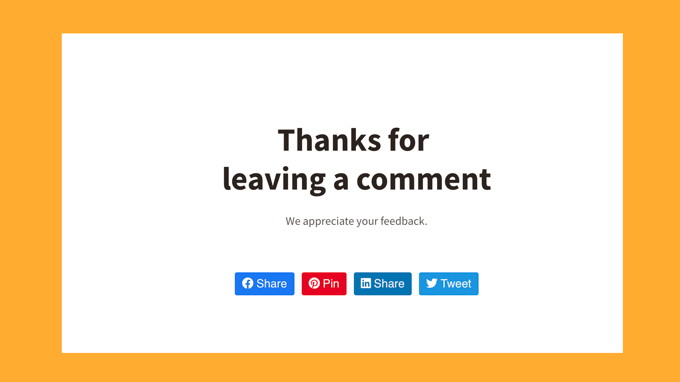
Redirecting new commenters to a specific page is just the start of what you can do with Thrive Comments.
You can also use this plugin to allow users to like or dislike comments, feature or bury comments, notify users only on replies to their comments, and much more.
Method 2: Redirecting Users’ Attention With Comment Experience
If you are looking for a free plugin option, this method is for you.
The first thing you need to do is install and activate the Comment Experience plugin. In your WordPress admin area, let’s navigate to Plugins » Add New Plugin.
After that, simply type ‘Comment Experience by Progress Planner’ into the search bar to find the plugin.
In the search result, click on ‘Install Now’ and then ‘Activate’ to start using the plugin in your WordPress site.
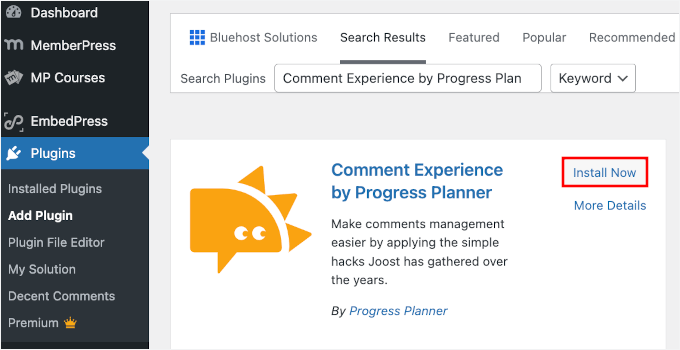
For more details, see our step-by-step guide on how to install a WordPress plugin.
Upon activation, you need to visit the Settings » Comment Experience page to configure the plugin.
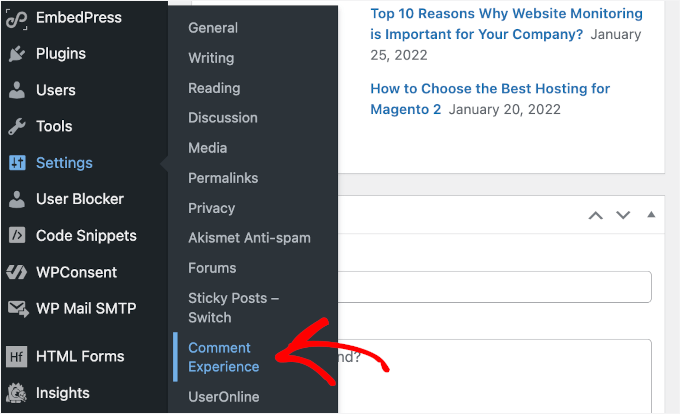
The Comment Experience plugin combines many useful hacks that can improve the default WordPress comment system. You can learn about them in our guide on how to install and set up Comment Experience for WordPress.
For now, we’ll focus on the comment redirect feature in the plugin. Go ahead and click on the ‘Comment redirect’ tab on the settings page.
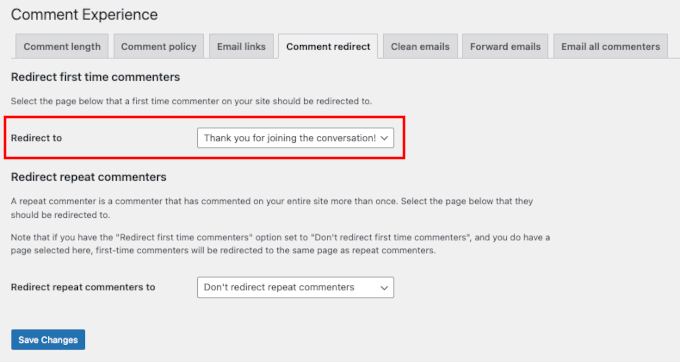
Here, you need to select the page where you want to redirect commenters after they leave their first comment.
After selecting your page, simply click on the ‘Save Changes’ button to store your settings.
Bonus Tip: Creating a Powerful Comment Redirect Page
The Thrive Comments and Comment Experience plugins only redirect first-time commenters. This means you only get one shot at leaving a meaningful impression and converting those users into customers or loyal readers.
That’s why we recommend carefully choosing and designing the page that you will redirect commenters to.
First, you will want to set a goal for your comment redirect page. This goal could be any task you would like the user to perform.
For example, you might encourage new commenters to buy a product, sign up for your email list, follow you on social media, or take another action.
Then, we recommend spending some time creating a powerful comment redirect page.
You can design a beautiful custom page using a drag-and-drop page builder plugin. We recommend using SeedProd because it has several ready-to-use page templates that will work perfectly for this purpose.
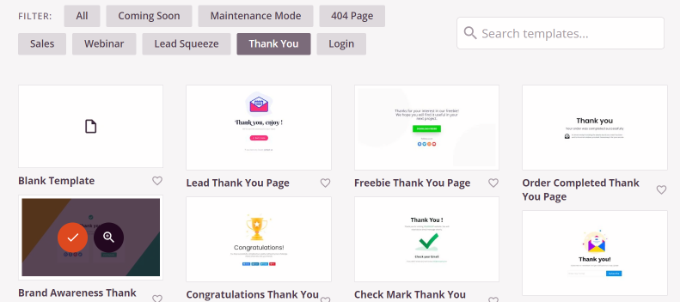
SeedProd allows you to add blocks for contact forms, social profiles, videos, text, and more.
For more details, you can see our guide on how to create a thank-you page in WordPress.
FAQs About Redirecting Users’ Attention With a Comment Redirect
Still have questions? Here are some common questions users often ask about redirects in WordPress:
How do I redirect a URL to another URL in WordPress?
You can set up a redirect using a plugin like All in One SEO. It lets you create a simple rule: when someone visits URL A, they’re automatically sent to URL B. No coding needed.
How do I redirect users’ roles in WordPress login?
You’ll need a plugin that supports role-based redirects, such as WPCode. These tools let you choose where subscribers, editors, or other roles should land right after logging in.
What is the most common redirect problem in WordPress?
The most common issue is a redirect loop. It’s when one redirect points to another in an endless cycle. This usually happens because of misconfigured rules, conflicting plugins, or incorrect URL settings.
What is the difference between redirect and RedirectPermanent?
A regular redirect (often called a 302 redirect) is like a temporary detour sign. It tells search engines the move is only for a short time. A RedirectPermanent (301 redirect) is like a permanent change of address card. It tells search engines the content has moved forever.
For most SEO tasks, the permanent (301) option is best.
Expert Guides for Improving WordPress Comments
We hope this article helped you learn how to redirect your users’ attention with a comment redirect in WordPress.
Next, you may also want to see some other articles related to increasing user engagement with comments in WordPress:
- Ways to Get More Comments on Your WordPress Blog Posts
- How to Allow Your Users to Subscribe to Comments in WordPress
- How to Allow Users to Edit Their Comments in WordPress
- How to Display the Most Recent Comments First in WordPress
- How to Make Blog Post Comments Searchable in WordPress
If you liked this article, then please subscribe to our YouTube Channel for WordPress video tutorials. You can also find us on Twitter and Facebook.


Chris Pinnock
One method to redirect users that was not mentioned is suggest similar posts to ones on which users have just commented. Users are more likely to comment on posts containing content that users have already found interesting.
WPBeginner Support
Thank you for your suggestion
Admin
Mrteesurez
Great idea, this is fantastic. I like to implement this idea in my website, thanks.
In addition, the redirected page should show successful comment submission message with several related posts or similar posts users might be interested in.
Dayo Olobayo
Absolutely! Suggesting similar posts is a brilliant way to keep users engaged after commenting. It capitalizes on their current interest and gives them a chance to discover more relevant content. This could significantly increase user interaction and build a stronger community.
Jiří Vaněk
Exactly. I use something similar on my 404 page. To prevent users from leaving, I offer them posts that might interest them based on the similar text they were searching for. And indeed, my 404 page’s bounce rate has significantly decreased thanks to this method. So, if it’s used in the way you’re suggesting, it’s possible that this approach could drastically increase the number of page views. So as an idea, it’s really great.
Jiří Vaněk
Thanks for the second tutorial using the hack plugin. I tried making a page where I offer users a newsletter after posting a comment and it works brilliantly. Thanks.
hadil
thank you very nice website article
WPBeginner Support
You’re welcome, glad you like our site
Admin
Julien Guiard
Hello. Si there’s a way to redirect just for the first comment with a snippets?
Thank you