


When we first started testing WordPress email delivery, messages would often end up in spam folders or disappear entirely.
After trying numerous solutions, we discovered WP Mail SMTP, which has consistently proven to be the most reliable option for tracking and managing WordPress emails.
Through extensive testing, we’ve found that the plugin not only fixes delivery issues but also provides comprehensive email logging for both WordPress and WooCommerce.
Its integration with popular email services like Gmail and Amazon SES makes it significantly more reliable than WordPress’s default mail system.
In this guide, we’ll show you how to set up email logging in WordPress using WP Mail SMTP, the solution we recommend to all our readers.

After following this tutorial, you will be able to view the email logs directly from your WordPress admin area in an easy-to-understand format.
Why Set Up Email Logs in WordPress or WooCommerce?
Setting up email logs in WordPress gives you a complete record of every email sent from your website. This is the best way to confirm that your users are receiving important messages and to troubleshoot any delivery failures.
Your site sends many automated emails for things like password resets, new user notifications, and contact form entries. For an online store, it also sends critical WooCommerce emails like customer receipts and order details.
Without logs, you have no way of knowing if these emails are reaching the inbox or failing to send. This can lead to a poor user experience and lost sales.
Here are just a few of the key situations where having an email log can be a real lifesaver:
- Make sure that email notifications are delivered promptly.
- Track your WordPress contact form plugin emails.
- See if emails sent by a plugin are working.
- Keep track of user activity using the email logs.
- Track user activity if you run a membership website or sell online courses.
- Keep an email log of your WooCommerce orders, receipts, and customer notifications.
What You’ll Need to Set Up Email Logs
Before we begin, let’s quickly go over what you’ll need to follow this tutorial:
- A Domain Name and Web Hosting: This guide requires a self-hosted WordPress.org website. If you don’t have one set up yet, you can follow our complete guide on how to make a WordPress website.
- WP Mail SMTP Pro: The email logging feature is a premium tool included in the Pro version of the WP Mail SMTP plugin. This is required to view and manage your WordPress emails directly from your dashboard.
That being said, let’s see how to easily set up email logs on your WordPress or WooCommerce website.
How to Set Up Email Logs in WordPress & WooCommerce
For this tutorial, we will be using the WP Mail SMTP plugin. It allows you to send WordPress emails using any SMTP service provider, including Gmail, Outlook, SendGrid, Amazon SES, and more.
Several of our partner brands are also using it to send their emails and have reported high deliverability rates. For more information, you can check out our WP Mail SMTP review.
Step 1: Install and Set Up WP Mail SMTP
First, you need to install and activate the WP Mail SMTP plugin. For more details, see our step-by-step guide on how to install a WordPress plugin.
Upon activation, visit the WP Mail SMTP » Settings page to configure the plugin’s settings.
Here, you will have to enter your license key. You can find this information in your account on the WP Mail SMTP website.
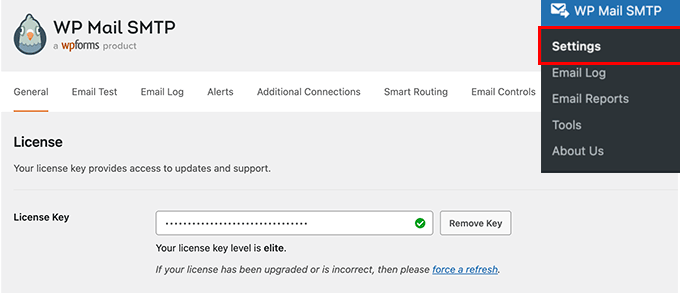
Simply copy and paste your license key and then click on the ‘Verify’ button.
After that, scroll down to the Mailer section and select how you would like to send your WordPress emails.
WP Mail SMTP works with any SMTP service. It has easy configuration options for popular SMTP service providers like SendLayer, SMTP.com, Gmail, Outlook, Brevo, Mailgun, SendGrid, Amazon SES, and other SMTP services.
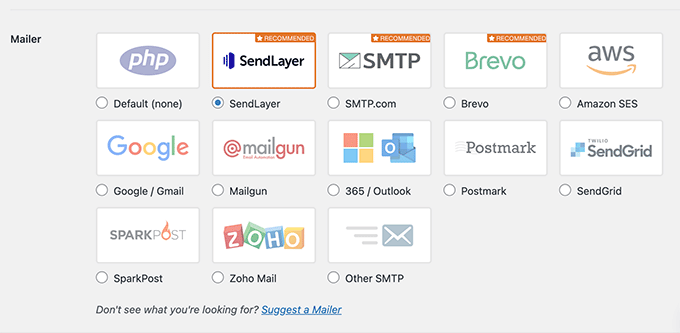
Clicking on the mailer will show you instructions on how to set it up.
The default option is set to PHP mailer. We don’t recommend using that because it is not reliable.
Since most WordPress hosting servers are not properly configured for emails, choosing this option means that your WordPress emails may never reach users’ inboxes or even spam folders.
We recommend using a provider like SendLayer, SMTP.com, or Brevo. Dedicated SMTP services use highly optimized servers to improve email deliverability.
This helps your emails avoid spam filters, which is a common problem when using WordPress’s default mail function.
If you choose Other SMTP as your mailer option, then you will need to provide SMTP settings. You can get them from your SMTP service provider’s website:
- SMTP Host: Your SMTP host address, which usually looks like this: smtp.yoursmtpserver.com
- Encryption: Usually, it is either SSL or TLS
- SMTP Port: Usually, it is 465
- Authentication: Turn on the authentication
- Username: The username provided by your SMTP service. Usually, it is your email address
- Password: The password for your SMTP service
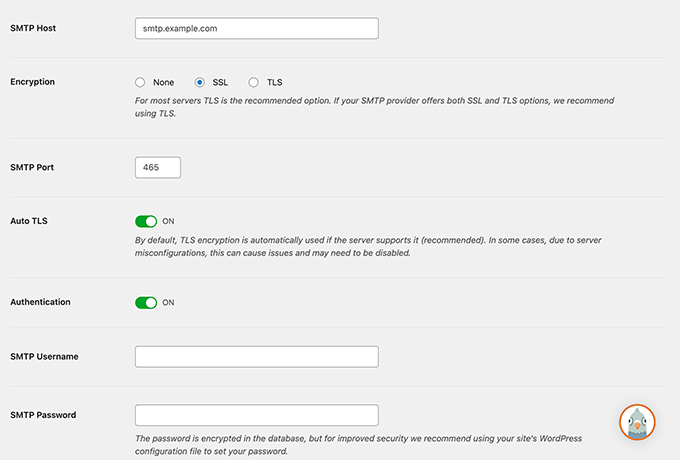
After entering your mailer credentials, don’t forget to click on the ‘Save Settings’ button to store your settings.
💡 Bonus: It’s important to use a professional business email address to make sure that your emails look trustworthy.
Step 2: Enable the Email Log Feature
Now that you have set up mailer settings in the WP Mail SMTP plugin, it is time to turn on the email logging feature.
From the plugin’s settings page, switch to the ‘Email Log’ tab and toggle the ‘Enable log’ switch.
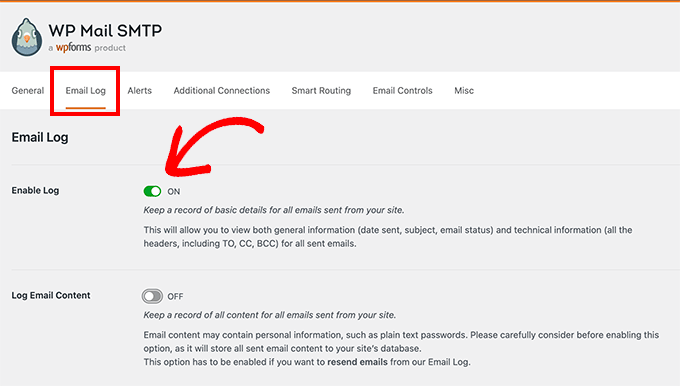
The email log option will save general and troubleshooting information about each email message, including the date and time, subject, email status, email addresses of the sender and recipient, BCC and CC, and attachments.
The plugin also allows you to enable complete WordPress email logs, but we strongly advise you to keep this setting turned off.
Enabling it will save all email contents in your database as plain text. This includes sensitive data like password reset links and customer information, creating a significant security risk.
Don’t forget to click on the ‘Save settings’ button to save your changes.
Step 3: Testing WP Mail SMTP Setup
Now that you have set up the WP Mail SMTP plugin, let’s test it to make sure that everything is working as expected.
WP Mail SMTP makes this step easy. Just go to the WP Mail SMTP » Tools page and switch to the ‘Email Test’ tab.
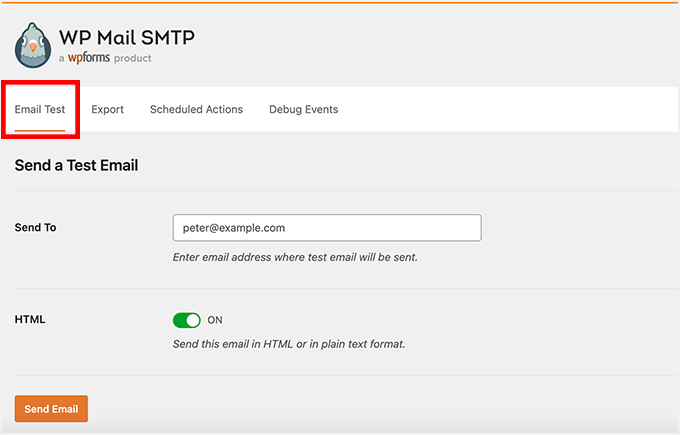
From here, simply enter your email address and click on the ‘Send Email’ button.
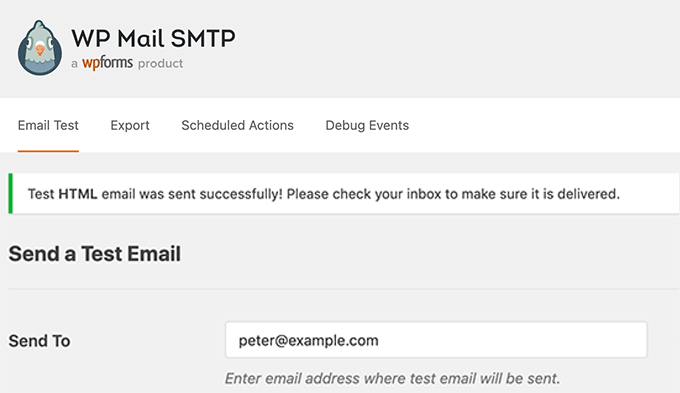
The plugin will now send a test email to the address you provided. It will then show you the status of the email delivery on the screen.
Step 4: Viewing Your Email Logs in WordPress
You can view your WordPress email logs anytime without leaving the WordPress admin area.
How to View Your Email Logs
Simply go to the WP Mail SMTP » Email Log page. You will see the log with a list of entries since you enabled the email log.
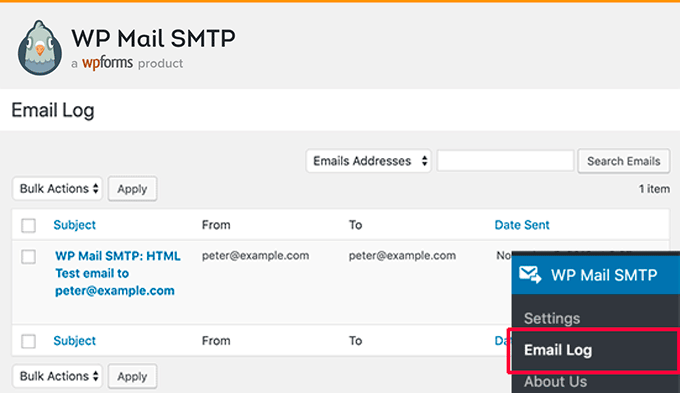
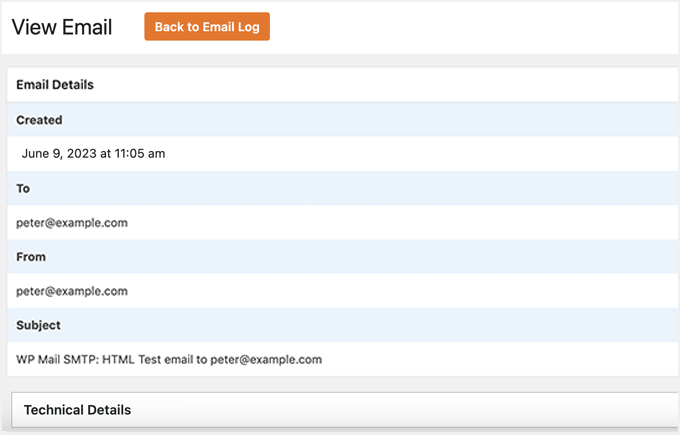
To view entry details, take your mouse over it and then click on the ‘View’ link below it.
This will open the email log entry with a detailed view.
Searching and Deleting Log Entries
The email log page includes a search feature that lets you find entries by email address, subject line, or content (if you have content logging enabled).
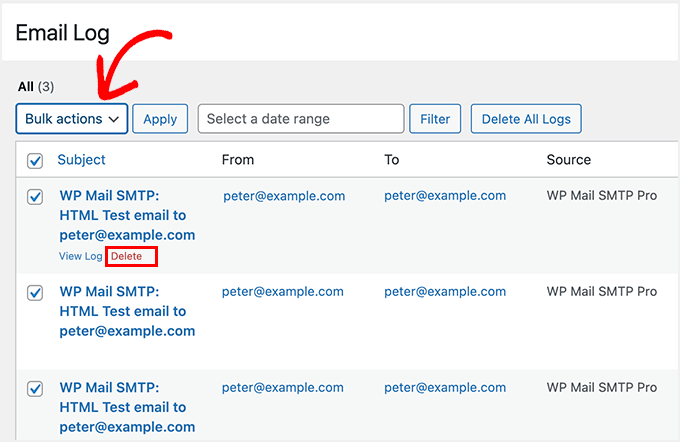
You can also delete older entries from your email log. Simply use the ‘Delete’ link below any entry.
To delete multiple entries, you need to select each email and then click on the ‘Bulk actions’ dropdown menu to select ‘Delete’.
After that, you must click on the ‘Apply’ button.
Exporting Logs and Viewing Reports
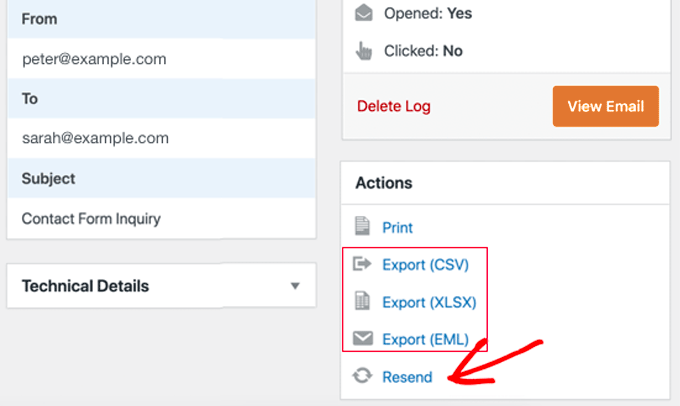
If you need to analyze your email logs more carefully or create your own deliverability reports, then you can export your logs to your favorite spreadsheet software or email marketing service.
You can also easily resend an email that has failed.
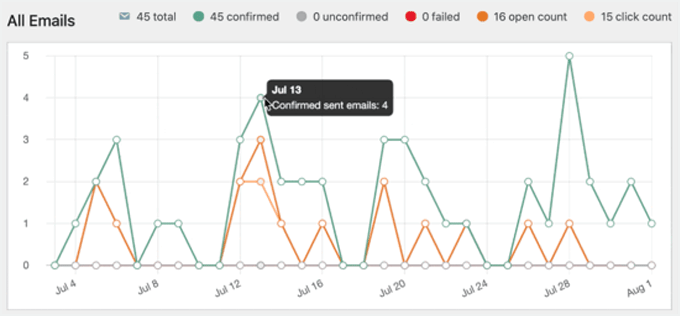
WP Mail SMTP Pro subscribers can also visualize their email deliverability in a chart that shows how many emails were sent, opened, and clicked each day.
This is super useful for WooCommerce users.
It’s easy to check the engagement of each campaign or newsletter. The logs include open and click counts for each email subject.
Clicking the graph button displays a chart of how the specific email is performing.
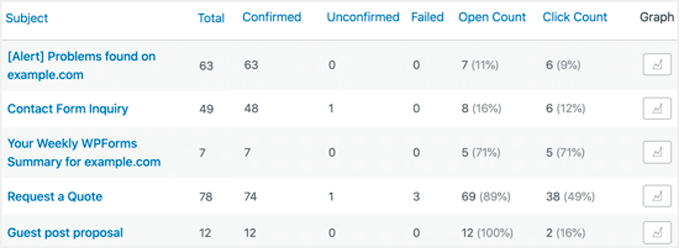
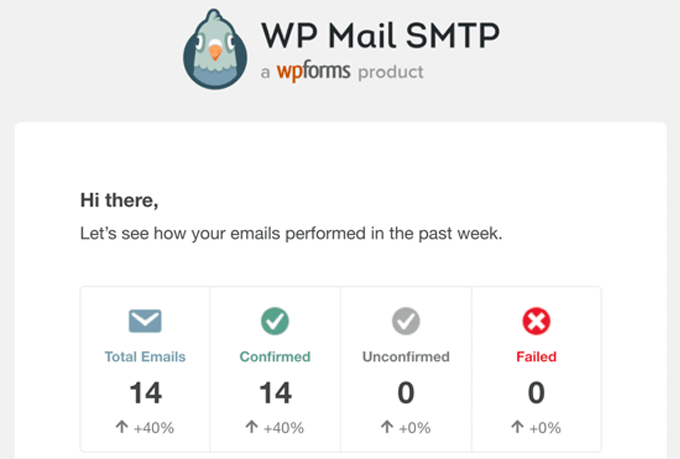
Plus, every week, WP Mail SMTP will email you a helpful summary of your email performance statistics.
It looks something like this.
Bonus: Start Your Email Marketing Campaign in WordPress
Now that you have ensured that your emails will be delivered to users on time, it is time to launch your email marketing campaigns and build an email list.
This will allow you to send emails for discount offers, cart abandonment, welcome messages, and coupons, bringing back customers to your website and ultimately leading to more conversions.
For this, we recommend Constant Contact. It is a popular email marketing service that comes with premade templates, which makes it super easy to create automated email workflows for your website.

You can even create drip campaigns to send different email notifications to users over time. For details, see our guide on how to set up automated drip notifications in WordPress.
However, if you have an online store, then FunnelKit Automations is the better option for you. It lets you send abandoned cart emails, welcome messages, post-purchase messages, and so much more using its intuitive builder.
Plus, you can use its other tools to create order bumps and sliding carts and manage customers’ data with its CRM.

For more instructions, see our tutorial on how to build an email list in WordPress.
Video Tutorial
If you’re not a fan of written instructions, we also created a video tutorial on how to set up email logs in WordPress:
Frequently Asked Questions About WordPress Email Logs
Here are some questions that our readers have frequently asked about setting up email logs in WordPress and WooCommerce:
1. Will enabling email logs slow down my website?
No, it should not. WP Mail SMTP is built for performance, and the logging feature is designed to be lightweight.
It runs as a background process and saves log data efficiently in your WordPress database. This means that it won’t have a noticeable impact on your site’s speed for visitors.
2. Why is my email log empty even after I enabled it?
The log only records emails sent *after* the feature is enabled. If it’s still empty, first try sending a test email from the WP Mail SMTP Tools menu to confirm your mailer is working.
If the test email arrives but isn’t logged, it could be a plugin conflict or a server configuration issue.
3. Does WP Mail SMTP track email opens and clicks for all mailers?
Open and click tracking depends on your chosen mailer service. This feature works best with recommended mailers like SendLayer, SMTP.com, and Brevo, which provide this data to the plugin.
If you are using the ‘Other SMTP’ option with a basic mail server, these tracking features may not be available.
4. Can I set up WordPress email logs for free?
While the base WP Mail SMTP plugin is free, the Email Logging feature itself is part of the Pro version. Some transactional email services (like SendGrid or Mailgun) keep their own logs, but you would have to log into their separate websites to view them.
WP Mail SMTP Pro lets you view logs directly in your WordPress dashboard.
We hope this article helped you learn how to set up WordPress email logs and WooCommerce email logs.
You may also want to check out our other WordPress guides to improve email deliverability and email logging:
- Beginner’s Guide to WordPress Email Marketing Automation
- How to Monitor User Activity in WordPress with Security Audit Logs
- How to Setup Email Notifications for WordPress Updates
- Must-Have WordPress Plugins to Grow Your Site
- How to Get a Free Email Domain (5 Quick and Easy Methods)
- How to Resend New User Welcome Emails in WordPress
If you liked this article, then please subscribe to our YouTube Channel for WordPress video tutorials. You can also find us on Twitter and Facebook.




kzain
This is a game-changer for understanding email deliverability on my WooCommerce store! Setting up email logs with WP Mail SMTP feels like a great way to provide customers receive important order updates and avoid missed communications. I like that the plugin can track both regular WordPress emails and those triggered by WooCommerce
Jiří Vaněk
WP Mail SMTP is an absolute necessity these days because the mail function in PHP has not been reliable for some time due to the implementation of SPF and DMARC. That’s why I was looking for a quality solution to send emails from WordPress. I don’t even have the mail function running on my own server, and thanks to this plugin, I can fully send contact forms, website notifications, and much more. I primarily use the free version, which doesn’t have logging, but it’s still one of the few plugins I install on every website.