


We’ve tried lots of ways to make WordPress sites more interactive — and one feature that always grabs attention is a quiz. We’ve built everything from playful personality quizzes to in-depth knowledge tests, and they’re great for boosting engagement.
Quizzes aren’t just entertaining: you can also use them to collect feedback, learn what your visitors care about, and improve the user experience.
At first, adding a quiz to a WordPress site seemed complicated or expensive. But with the right tools, it’s surprisingly simple.
In this guide, we’ll show you three easy ways to create a quiz in WordPress.
We’ll use WPForms for AI-powered quiz creation that gets you up and running fast. Thrive Quiz Builder is great for viral, personality-style quizzes with built-in social sharing features. And Formidable Forms is ideal for advanced quizzes with complex scoring and data analysis.💡
Why Add Quizzes to Your WordPress Site?
Quizzes are fun and engaging. Because they are interactive, users often find quizzes more rewarding than other types of WordPress forms.
Marketers have been using quizzes to generate leads for a long time. For example, you might collect the visitor’s email address so you can send their quiz results or ask them to sign up for your email newsletter.
They are also a great way to get more social shares by encouraging visitors to post their results. BuzzFeed is a perfect example of how quizzes can go viral.

If you sell online courses, quizzes are an important tool for testing students’ knowledge and reinforcing what they’ve learned. These quizzes can be automated, which is an easy way to improve the student experience.
If you run an online store, then you might even create a short quiz that asks the shopper for some information. Then, you can suggest a product or service based on their answers.
This is much more engaging than asking shoppers to read through product descriptions and can help you get more sales.
Having said that, let’s go ahead and see how to easily create a quiz in WordPress. You can use the quick links below to jump straight to the method you prefer:
- Method 1: Creating a WordPress Quiz with WPForms (Best for AI-Generated Quizzes)
- Method 2: Creating a WordPress Quiz using Thrive Quiz Builder (Best for Viral Quizzes)
- Method 3: Creating a Quiz with Formidable Forms (Best for Advanced Quizzes)
- Bonus Tip: Building an Online Quiz Website
- FAQs: Creating a Quiz in WordPress
- More Creative Ways to Use Forms on Your WordPress Site
Method 1: Creating a WordPress Quiz with WPForms (Best for AI-Generated Quizzes)
WPForms is the best WordPress form builder plugin, used by over 6 million websites. Its brand new Quiz addon makes quiz creation incredibly fast with AI-powered generation that can build a complete working quiz in under a minute.
If you want one plugin to handle quizzes, forms, and surveys on your site, then WPForms is an excellent choice.
The Quiz addon is included with all WPForms Pro plans, which means you can create quizzes, contact forms, payment forms, surveys, and more—all with powerful integrations for email marketing, payments, and CRM tools.
To learn more about WPForms, check out our detailed WPForms review.
Step 1: Install the WPForms Plugin and Quiz Addon
To get started, you need to visit the WPForms website and sign up for a Pro plan or higher.
After that, you’ll need to install and activate the WPForms plugin on your WordPress site. For step-by-step instructions, see our guide on how to install a WordPress plugin.
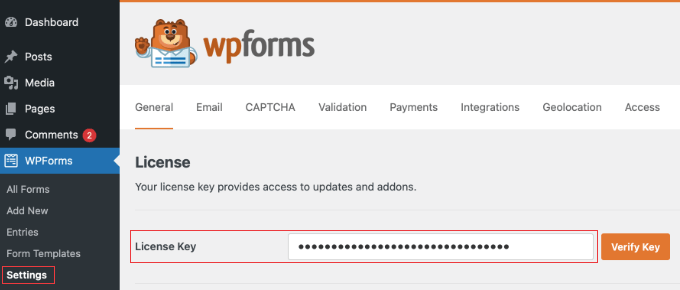
After activating the plugin, go to WPForms » Settings in your WordPress dashboard and enter your license key to verify your account.
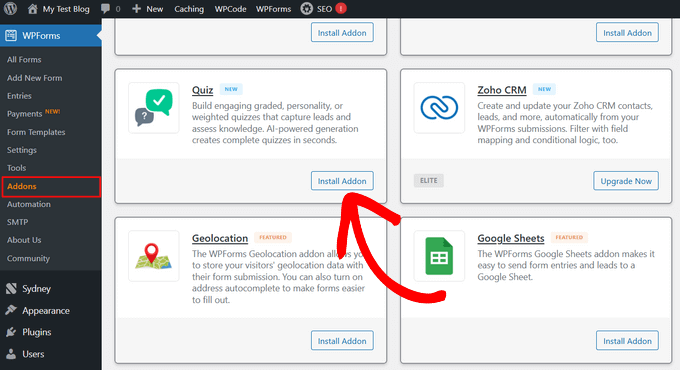
Next, you’ll need to install the Quiz Maker addon. Go to WPForms » Addons and find the Quiz addon in the list.
Simply click the ‘Install Addon’ button, and WPForms will automatically install and activate it for you.
Step 2: Create a WordPress Quiz Using AI
Now that WPForms and the Quiz addon are ready, you can create your first quiz.
WPForms offers two ways to build quizzes: using AI to generate a complete quiz instantly, or building one manually from scratch. We’ll show you both methods.
Option A: Generate a Quiz With AI (Fastest Method)
The fastest way to create a quiz is to let WPForms AI build it for you. Simply describe what you want, and AI will generate the complete quiz with questions, answers, and scoring logic.
To get started, go to WPForms » Add New Form in your WordPress dashboard.
This will take you to the form templates page. From here, you can add a title for your quiz at the top of the page. Then, go to the ‘Generate With AI’ option, hover over it, and click the ‘Generate Form’ button that appears.
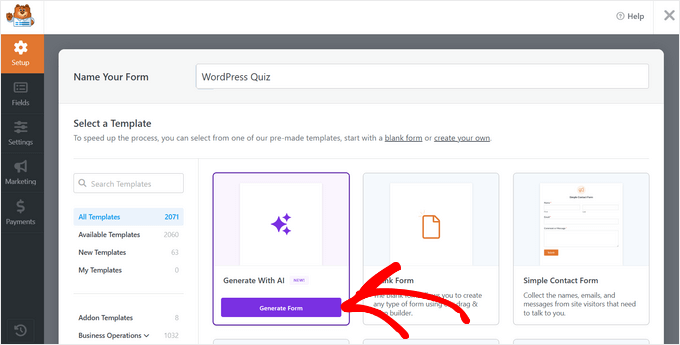
💡 Note: WPForms may prompt you to install additional addons that unlock more field types for AI-generated forms. We recommend clicking ‘Install & Activate’ to give AI access to all available features.
This will open the WPForms AI interface, where you can describe the quiz you want to create.
You’ll see some preset prompts you can use to get started quickly, or you can enter your own custom prompt in the text field at the bottom.
For this guide, let’s create a WordPress knowledge quiz. Type your prompt into the text field, like: “Create a graded quiz with 5 questions about WordPress basics for beginners.”
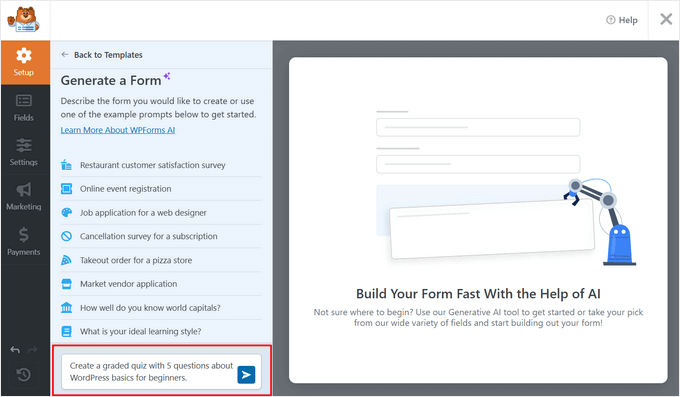
After typing your prompt, press Enter or click the send icon. WPForms AI will take a moment to generate your quiz.
Once it’s done, you’ll see a preview of your quiz in the builder. The AI has automatically created questions, answer choices, and even marked the correct answers for you.
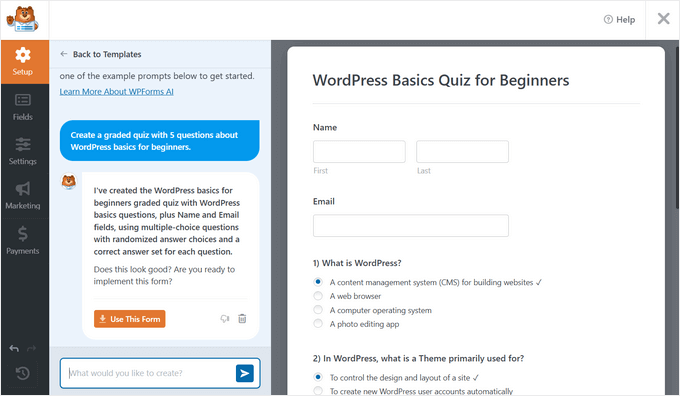
If you want to make changes, you can continue the conversation with AI. For example, you could type:
- “Add 2 more questions about WordPress plugins”
- “Make the questions easier for beginners”
- “Change the last question to be about WordPress security“
WPForms AI will update the quiz based on your instructions. You can keep refining until the quiz is exactly how you want it.
When you’re happy with your quiz, click the ‘Use This Form’ button to open it in the form builder.
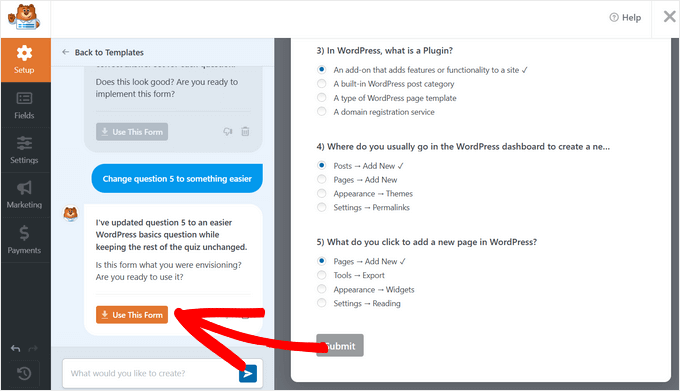
The form builder is where you can make any final adjustments to your AI-generated quiz. You can edit questions, change answer choices, add new fields, or customize the design.
If you’d like to learn how to customize your quiz further in the builder, continue reading through each step. Otherwise, skip ahead to Step 5 to display the quiz on your website.
Option B: Build a Quiz Manually (Full Control)
If you prefer to build your quiz from scratch or want more control over every detail, you can create a quiz manually.
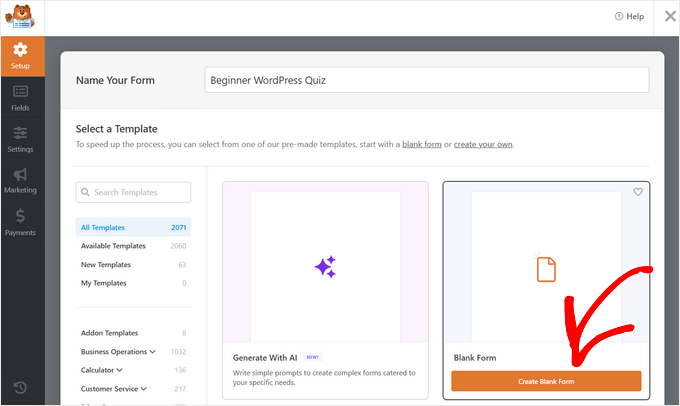
To start, go to WPForms » Add New Form. From here, add a name for your quiz at the top of the page.
Then, choose the ‘Blank Form’ template to start from scratch, or pick any of the 2,000+ pre-made form or quiz templates from the library. After that, you’ll be taken to the WPForms drag-and-drop builder.
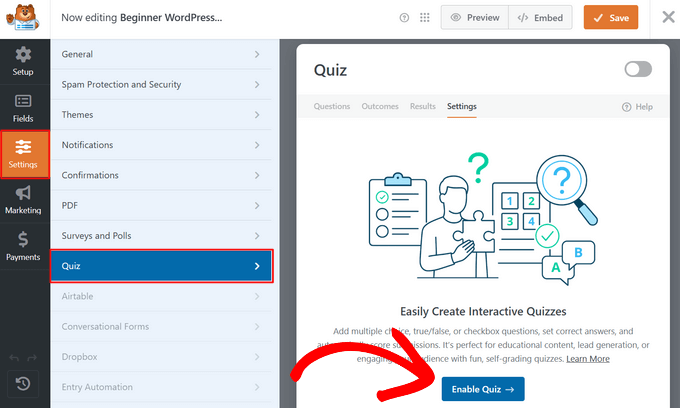
Before you can start adding questions, you need to enable Quiz Mode.
To do that, go to Settings » Quiz in the left sidebar and click the ‘Enable Quiz’ button.
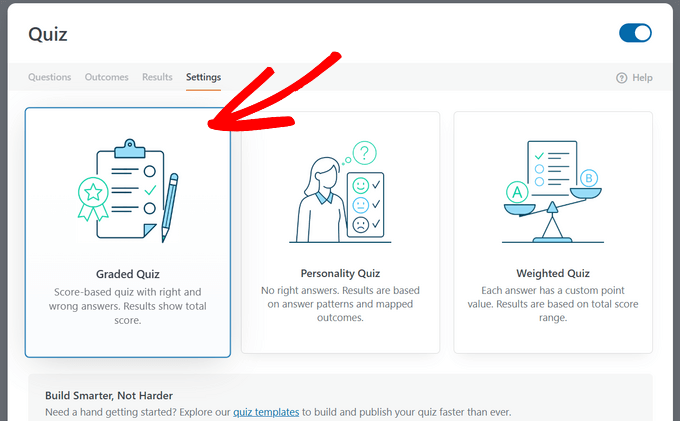
After enabling quiz mode, WPForms will ask you to choose a quiz type:
- Graded Quiz – Test knowledge with correct/incorrect answers (perfect for training, assessments, or trivia)
- Personality Quiz – Match users to outcomes based on their answers (great for “Which product is right for you?” or “What’s your style?”)
- Weighted Quiz – Assign different point values to answers for lead scoring or assessments
For this tutorial, select the ‘Graded Quiz’ option.
Step 3: Add Questions and Configure Your Quiz
Once you select the quiz type, you can start building your quiz.
You’ll see these tabs at the top of the builder: Questions, Outcomes, Results, and Settings. First, click on the ‘Questions’ tab.
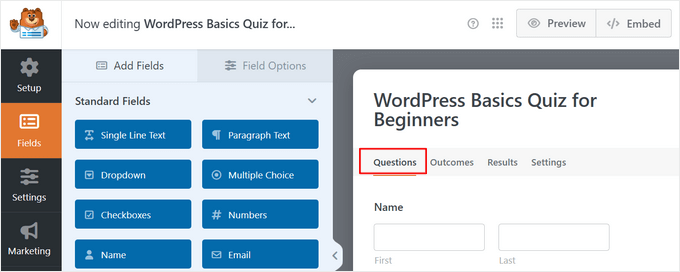
To add a question, drag a field from the left sidebar onto your form. For quiz questions, you can use multiple choice, checkboxes, dropdown, single line text, and paragraph text.
Let’s add a Multiple Choice question. Simply drag the ‘Multiple Choice’ field onto your form.
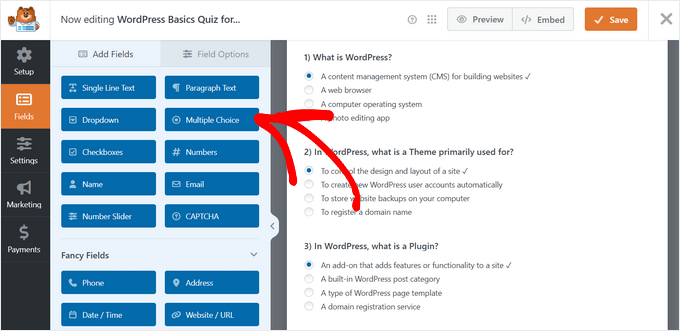
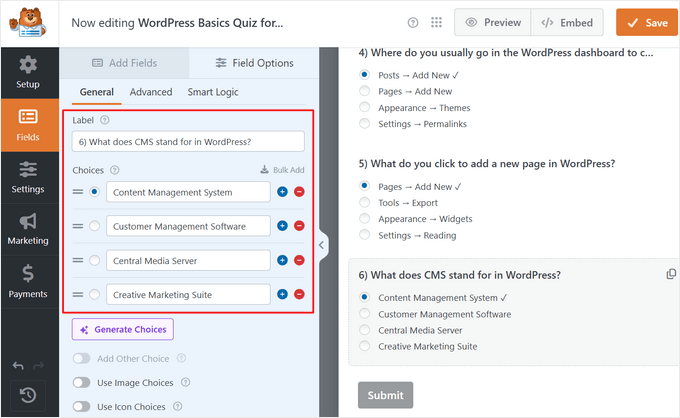
Click on the field to edit it. Type your question into the ‘Label’ field, such as “What does CMS stand for in WordPress?”
Next, add your answer choices in the ‘Choices’ section. You can add as many answers as you need by clicking the ‘+’ icon.
To mark the correct answer, simply click the radio button next to it. WPForms will use this to calculate the user’s score automatically.
🧑💻 Pro Tip: You can also add images to your answer choices to create BuzzFeed-style visual quizzes. Perfect for personality or product recommendation quizzes.
Repeat this process to add more questions to your quiz. Simply drag more Multiple Choice, Checkbox, or Dropdown fields onto your form and configure them the same way.
You can also add standard form fields like Name and Email to collect user information and grow your email list before they start the quiz.
Step 4: Set Up Quiz Results and Grading
Once you’ve added all your questions, it’s time to configure how results are displayed to users.
Creating Quiz Outcomes
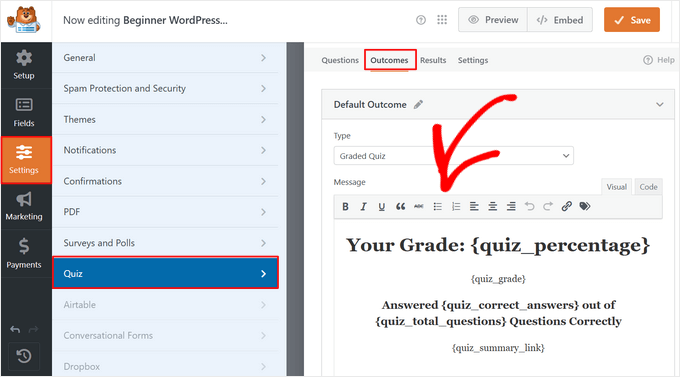
First, click on the ‘Outcomes’ tab near the top of the builder. This is where you control what users see after they complete the quiz.
WPForms has automatically created a default outcome message that uses smart tags like {quiz_score}, {quiz_percentage}, and {quiz_grade} to display the user’s results. You can edit this message if you want to customize it.
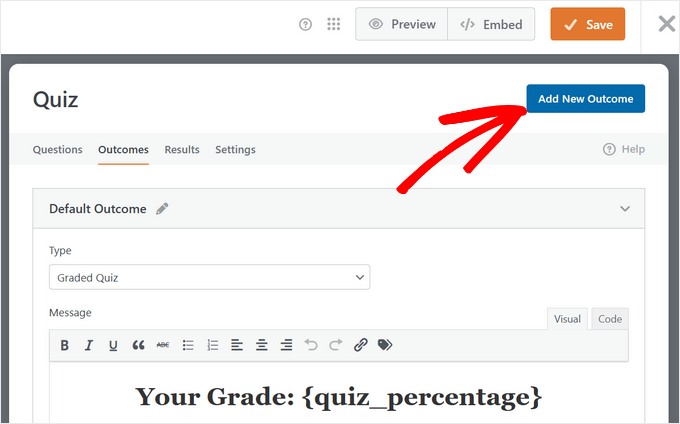
If you want to create different messages for different score ranges, click the ‘Add New Outcome’ button at the top of the page.
For example, you could create:
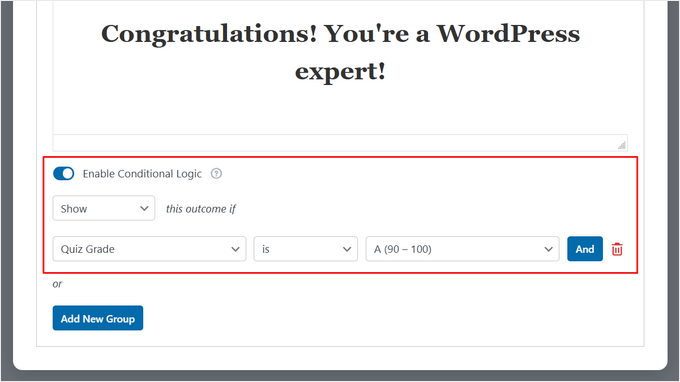
- A “Congratulations! You’re a WordPress expert!” outcome for high scores (90% and above)
- A “Keep learning! Check out our WordPress tutorials.” outcome for low scores (below 49%)
For each new outcome, toggle on ‘Enable Conditional Logic’ and set the conditions.
For example, for a high score outcome, set it to show when quiz grade is equal to ‘A’. For a low score outcome, set it to show when quiz grade is equal to ‘F’.
This way, users will see personalized feedback that matches their performance level.
Reviewing Quiz Settings
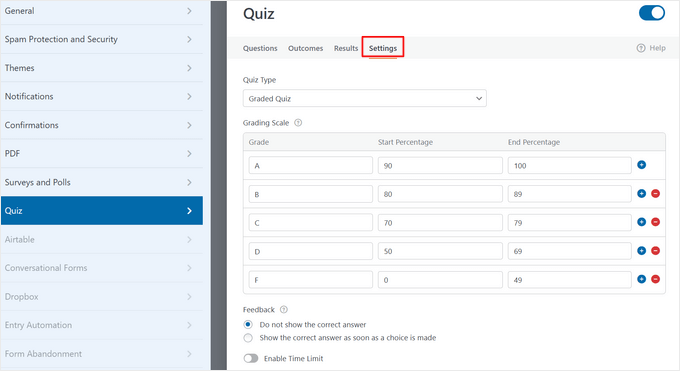
Now click on the ‘Settings’ tab at the top (next to Results). Here you’ll find a few options to customize how your quiz behaves:
- Grading Scale: You can adjust the letter grade ranges and percentage ranges if you want different thresholds for each grade.
- Feedback: You can choose whether to show the correct answer as soon as a choice is made or not show it at all.
- Enable Time Limit: Toggle this on if you want to add a time limit to your quiz, perfect for timed assessments or challenges.
Once you’re happy with your quiz, it’s time to add it to your website.
Step 5: Display the Quiz on Your WordPress Website
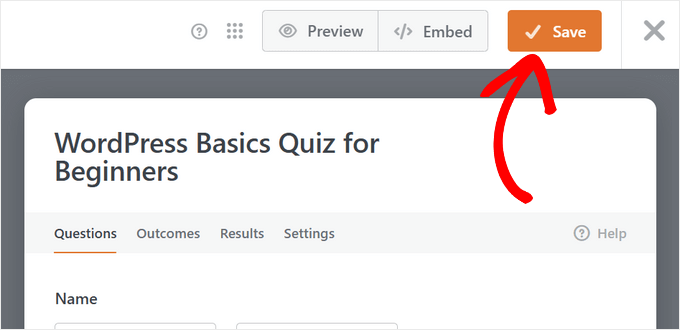
First, save your form by clicking the ‘Save’ button in the top right corner of the builder.
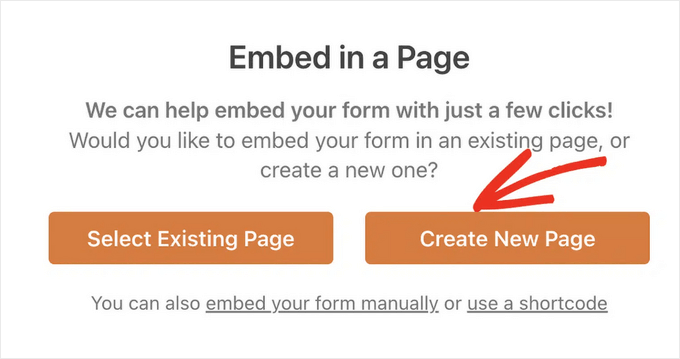
To add the quiz to a page, click the ‘Embed’ button (next to the Save button) at the top of the builder.
You’ll see options to add your quiz to an existing page or create a new page. For this guide, let’s select the ‘Create New Page’ option. After that, simply enter a name for your page and click the ‘Let’s Go!’ button.
WPForms will automatically open the WordPress block editor with your quiz already embedded on the page.
You can now customize how the quiz looks. Click on the area around the quiz to open the styling panel on the right side.
Here you can choose a pre-made theme under ‘Themes’ to quickly style your quiz, or customize individual elements like colors, fonts, and spacing.
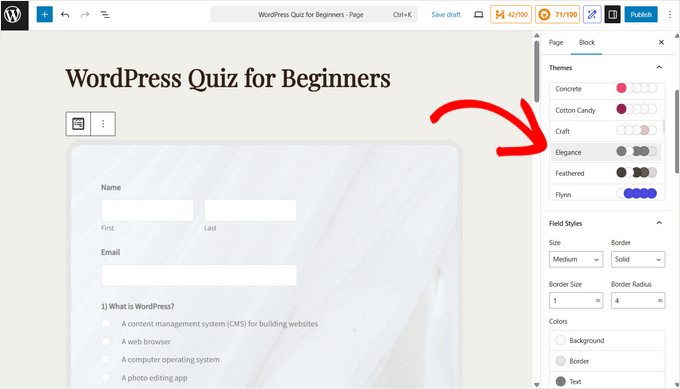
When you’re ready, simply click ‘Publish’ to make your quiz live on your website.
That’s it! Your WordPress quiz is now ready for visitors to take. WPForms will automatically track all quiz submissions and results, which you can view under WPForms » Entries.
Method 2: Creating a WordPress Quiz using Thrive Quiz Builder (Best for Viral Quizzes)
Thrive Quiz Builder is one of the best WordPress quiz plugins on the market. It allows you to easily build engaging and powerful lead quizzes without having to edit any code.
It comes with a user-friendly visual quiz builder, pre-made quiz templates, a built-in badge creator, social share buttons, powerful quiz analytics, and more.
To learn more, see our detailed Thrive Themes review.
Step 1: Install the Thrive Quiz Builder Plugin
To get started, you need to visit the Thrive Quiz Builder website and sign up for an account.
Once you’ve purchased the plugin, you can go to your Member Dashboard. From here, click the green link to ‘Download and install the Thrive Product Manager plugin.’
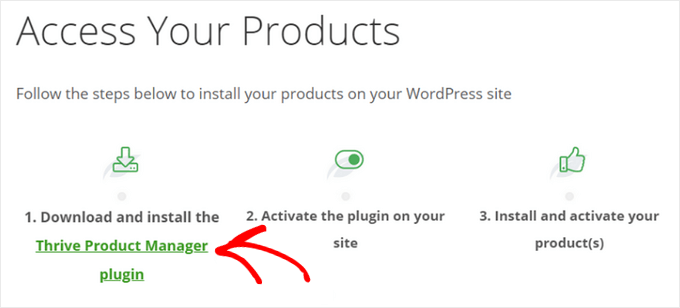
After downloading the Thrive Product Manager plugin, you need to install and activate it on your WordPress site. For step-by-step instructions, see our guide on how to install a WordPress plugin.
In the WordPress dashboard, click on the new menu item labeled ‘Product Manager.’ Then, click the ‘Log into my account’ button.
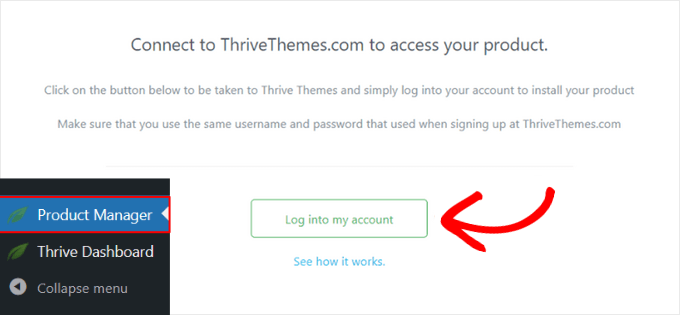
After entering your Thrive username and password, you’ll be able to see your Thrive Product Manager Dashboard.
Now, you can choose which products you want to install. Click on ‘Thrive Quiz Builder’ to select it, then press the ‘Install selected products’ button.
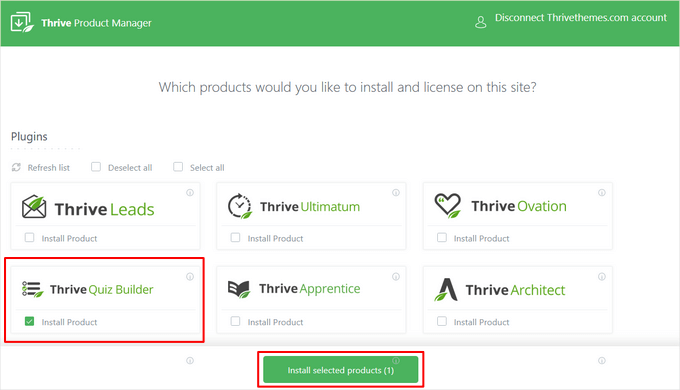
💡 Note: If you purchase the Thrive Suite rather than the standalone quiz plugin, then you can select and install all of Thrive’s powerful plugins, including Thrive Leads, Thrive Apprentice, Thrive Architect, and more.
When the Thrive Quiz Builder plugin is ready to use, you’ll see a success message.
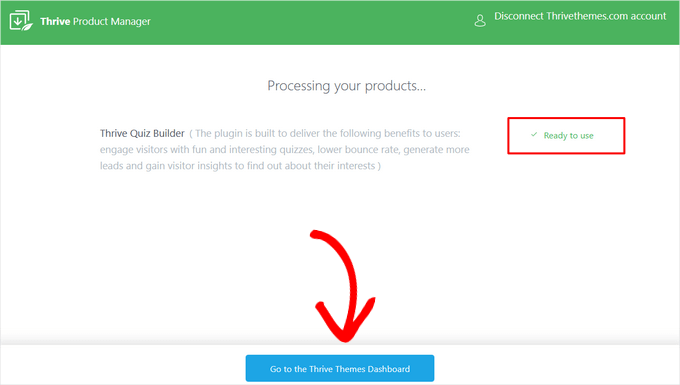
You can click on the ‘Go to the Thrive Themes Dashboard’ button to continue.
Step 2: Create a WordPress Quiz With Thrive Quiz Builder
Next, you’ll see the Thrive Dashboard, where you can manage all your Thrive plugins.
Here, click on the ‘Quiz Builder Dashboard’ button under ‘Thrive Quiz Builder.’
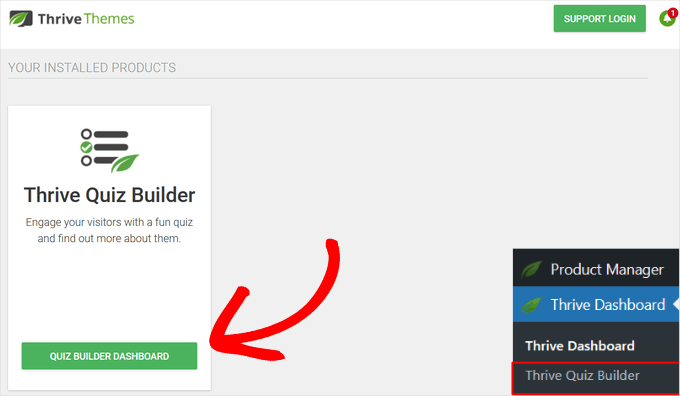
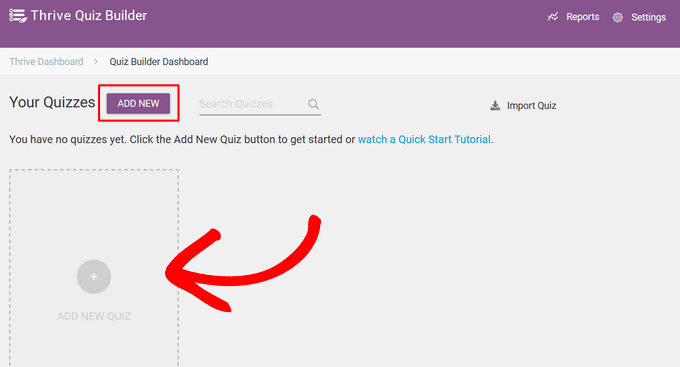
This will take you to the Quiz Builder Dashboard page, ready for you to create your first interactive form.
To get started, click on the ‘Add New’ or ‘Add New Quiz’ button.
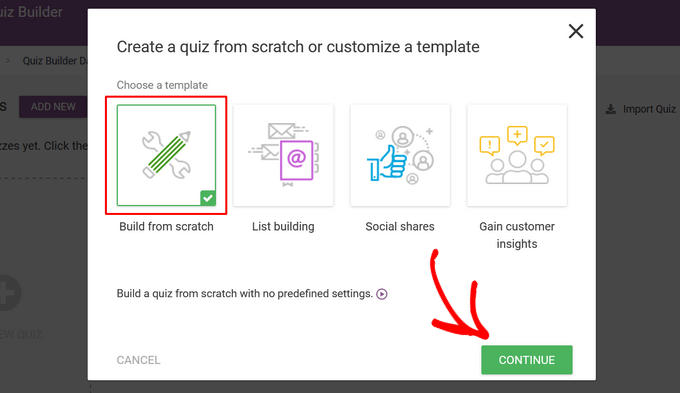
Next, you’ll be prompted to choose a template for your quiz. There are four different options:
- Build from scratch – A blank template with no predefined settings.
- List building – The results page will only appear if a user subscribes to your email list.
- Social shares – The quiz results page encourages visitors to share their results by adding a social share button.
- Gain custom insights – A survey quiz template, which is perfect for learning more about your audience.
For this guide, select the ‘Build from scratch’ template. Then, click on the ‘Continue’ button.
Next, you need to enter a name for your quiz.
This is just for your reference, so you can use anything that helps you remember what the quiz is about.
After entering a quiz name, click the ‘Continue’ button.
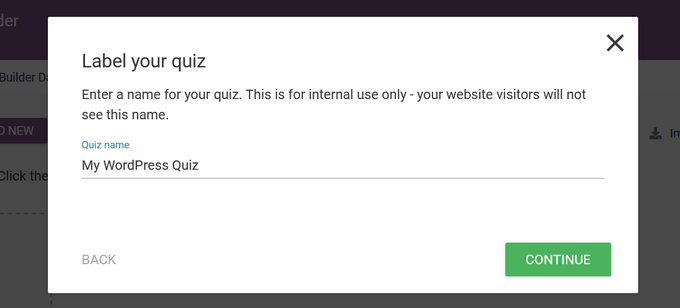
This will take you back to the Quiz Builder Dashboard, where you can start building your quiz.
First, you need to select a quiz type. To do that, simply click on the ‘Change Type’ button.
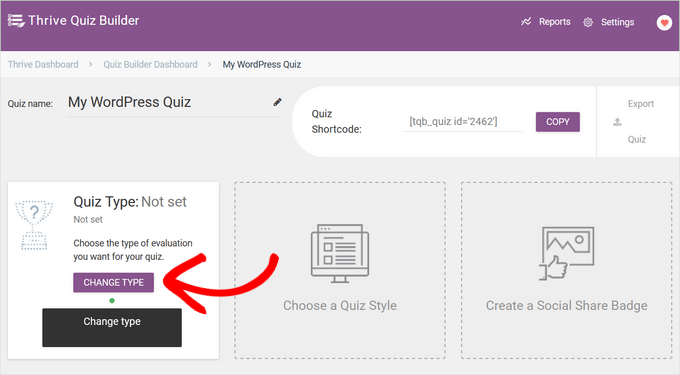
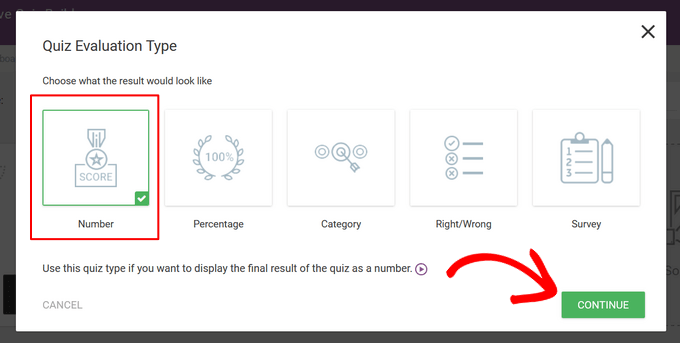
The plugin offers five different quiz types to choose from:
- Number – Display the final result of the quiz as a number.
- Percentage – Display the final result of the quiz as a percentage.
- Category – Create a quiz with multiple possible result categories, such as a personality quiz.
- Right / Wrong – Create a quiz with one or more correct answers to each question, with the correct answer highlighted in the results.
- Survey – Make a survey or questionnaire-type quiz where participants don’t receive any specific results.
For this guide, we will click on the ‘Number’ option to select it and hit the ‘Continue’ button.
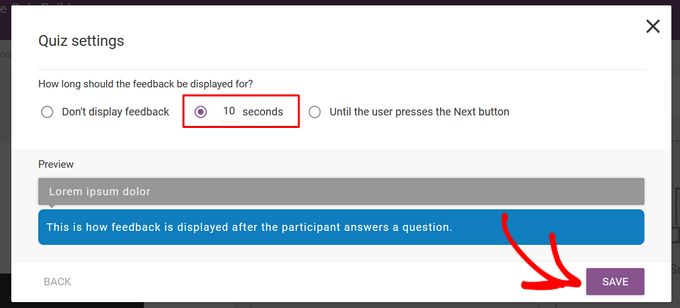
Next, you can choose how long the feedback appears onscreen.
Feedback is a special message that appears after a user has answered a question. The options are:
- Don’t display feedback
- 10 seconds
- Until the user presses the Next button.
Simply click the option you want and then hit the ‘Save’ button.
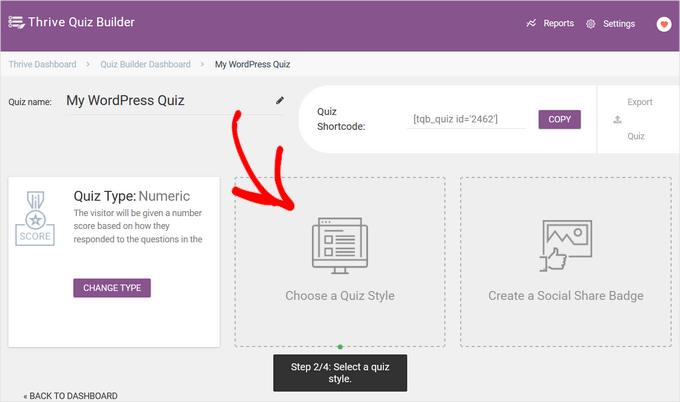
For the next step, you need to choose a quiz style, which controls how the quiz looks.
To do that, click on the ‘Choose a Quiz Style’ option.
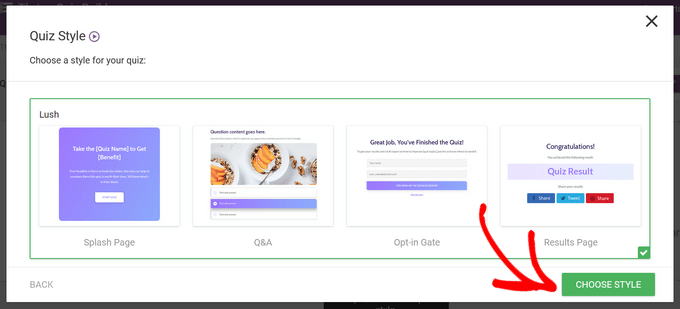
Thrive Quiz Builder comes with multiple pre-designed templates to help you quickly create a beautiful and professional-looking quiz. These templates are a great head start because they include designs for every part of your quiz:
- A splash page to introduce your quiz and get people excited to start.
- The question and answers page where users will interact with the quiz.
- An opt-in gate to optionally ask for an email before revealing the results.
- A results page to display the final score or outcome.
Simply select the template you like and click the ‘Choose Style’ button to continue.
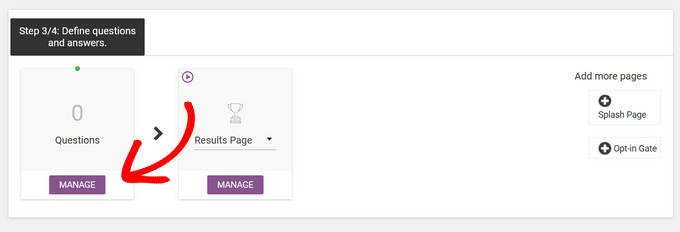
After picking a quiz style, you’ll be be ready to create the questions and answers for your quiz.
To start, click on the ‘Manage’ button in the ‘Questions’ section.
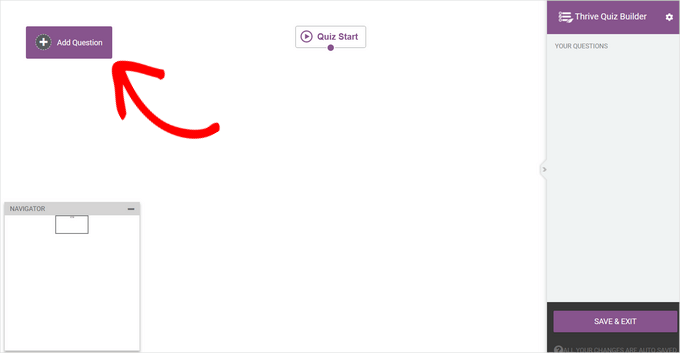
This will take you to Thrive’s Live Questions Editor.
To add the first question to your quiz, click on the ‘Add Question’ button in the top left corner of the screen.
A popup will now appear where you can select the question type. You can choose from:
- Multiple choice with buttons
- Multiple choice with images
- Open-ended question
Here, we’ll select the ‘Multiple Choice with Buttons’ option and click the ‘Continue’ button.
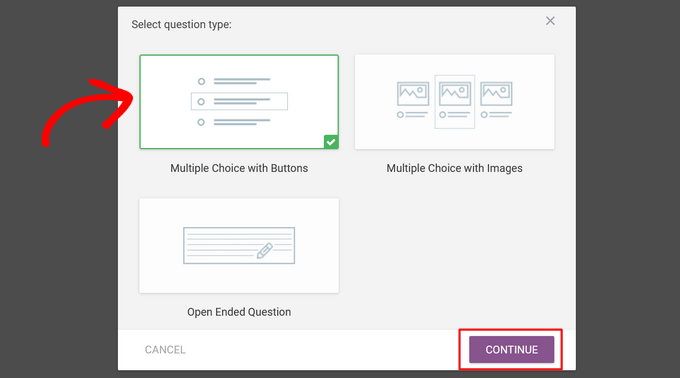
Next, a new popup window will open up.
Here, you can type your question into the ‘Question text’ field.
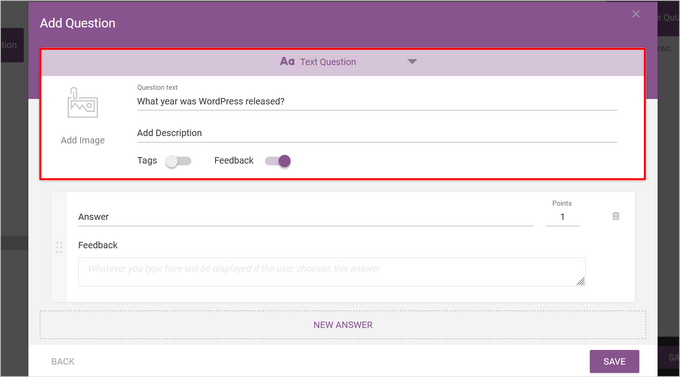
Optionally, you can add an image and description to the question and enable tags.
Tags are a powerful feature that lets you categorize users based on their answers. For example, in a marketing quiz, you could tag users as ‘Beginner’ or ‘Advanced’ to show them different feedback or results.
After that, type the first answer option into the ‘Answer’ field.
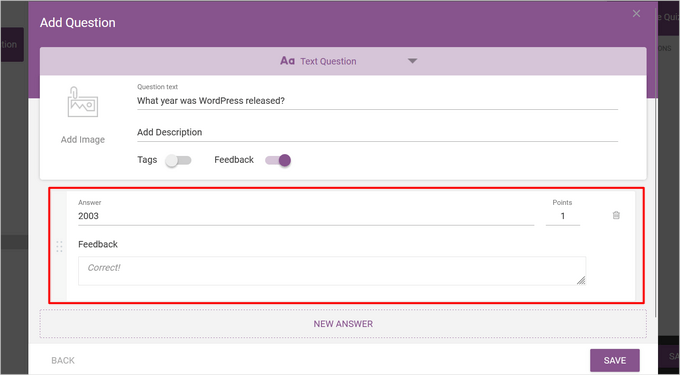
You can also type the text you want to display in the ‘Feedback’ field, if you have it enabled, and change how many points the answer is worth in the ‘Points’ field.
To add more answers, simply click the ‘New Answer’ button.
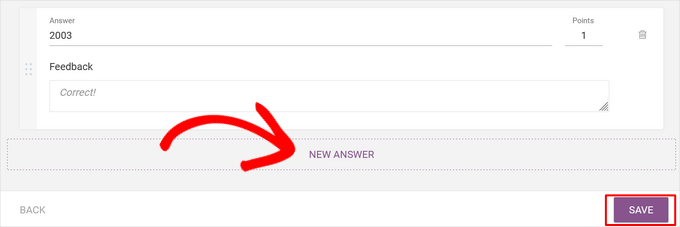
Repeat the process until you’ve added all the possible answers, and hit the ‘Save’ button when you’re done.
Now, you’ll see your first question in the Live Questions Editor.
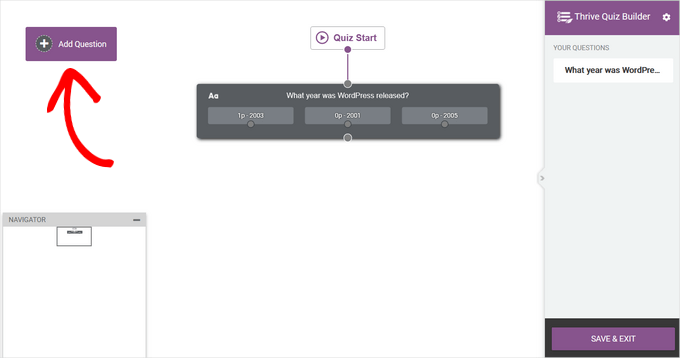
To add another question, simply click ‘Add Question’ again and repeat the process.
Once you’ve added all of your questions and answers, your quiz will look something like this in the Live Questions Editor:
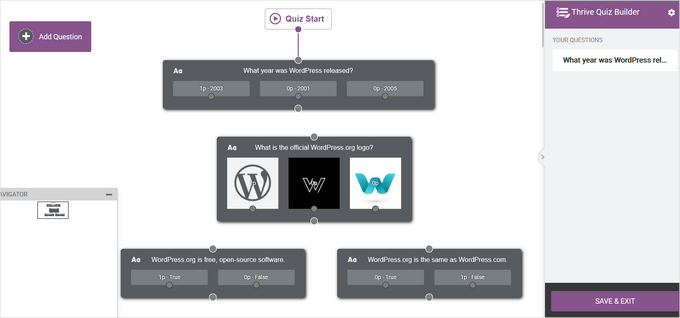
Once you’ve added all your questions, you can rearrange them by dragging and dropping them into place.
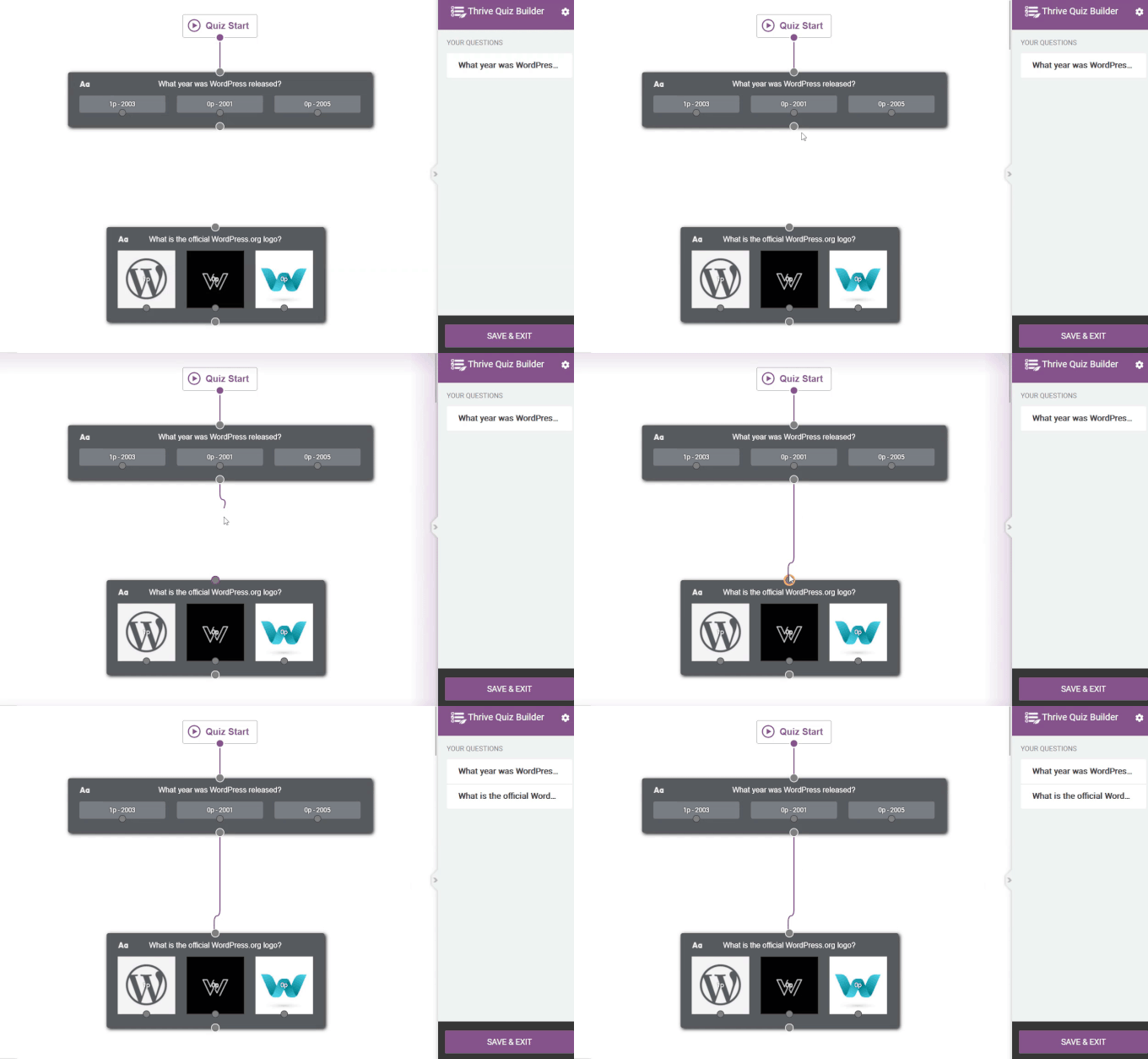
Now, you need to create the flow of your quiz by connecting the questions together.
To connect questions in order, simply click the circle on one question and drag a line to the circle on the next question.
You can also create a more advanced flow. For example, you can build a conditional quiz that shows different questions based on the user’s previous answers.
To do that, click on the circle next to a specific answer and drag a line to the question you want to show next.
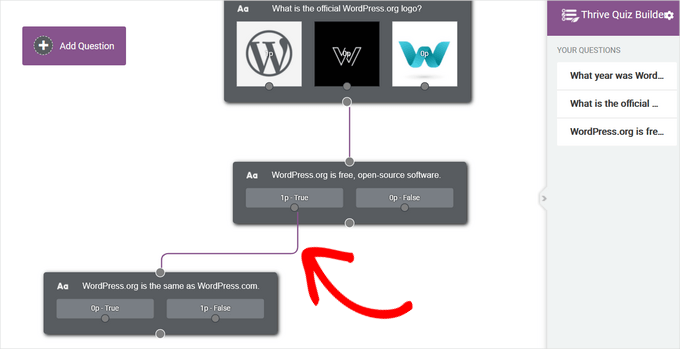
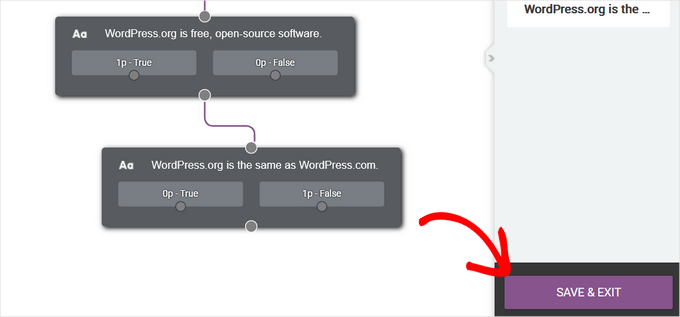
In the image above, we are only showing the next question to users who have answered ‘True.’
When you are happy with how your questions are configured, click the ‘Save & Exit’ button to leave the Live Questions Editor.
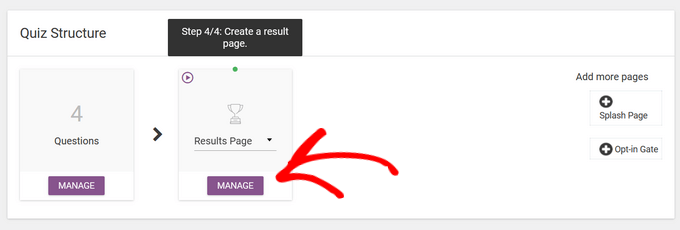
Next, you’ll be directed to the final step, which is creating a results page for your quiz.
Thrive’s quiz templates include ready-made results pages, so you don’t have to do much work here. However, if you want to adjust your results page, you can click on the ‘Manage’ button under the ‘Result Page’ section to get started.
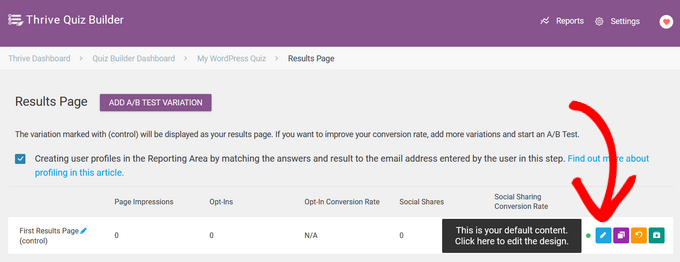
On the next page, click on the ‘Edit’ button (blue pencil icon) to edit the results page.
This will open up the Thrive Quiz Builder page.
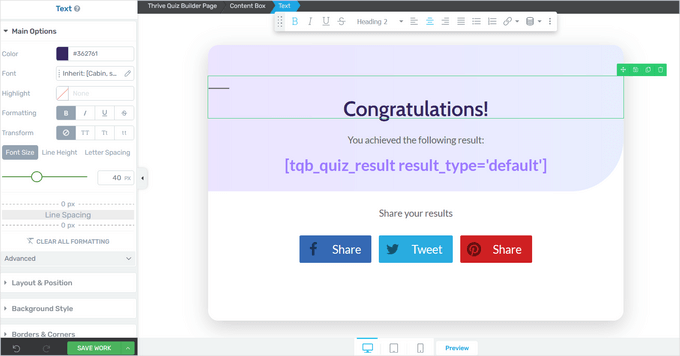
This will open the Thrive page builder, where you can click on any element to change its color, font, layout, and more.
When you are finished, don’t forget to click on the ‘Save Work’ button.
Step 3: Optimize Your Thrive Quiz
That’s all you need to create a simple quiz. However, Thrive Quiz Builder has a few extra features that can improve your quiz.
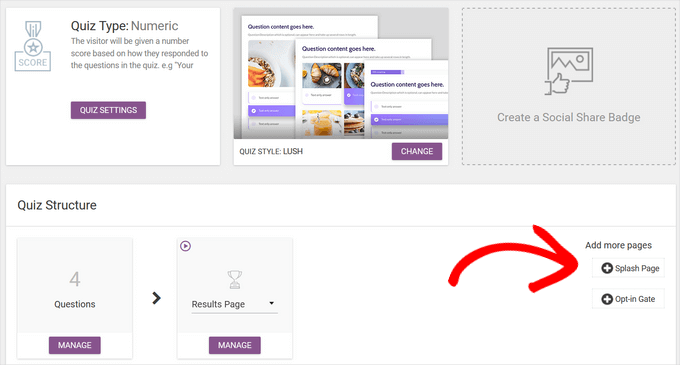
For example, you can add a splash page, which is an introductory page that encourages users to take your quiz.

You can also add an opt-in gate – a form that appears after a user has finished the quiz but before they see their results.
It asks users to provide their email address to view their results, making it a powerful tool for growing your email list.
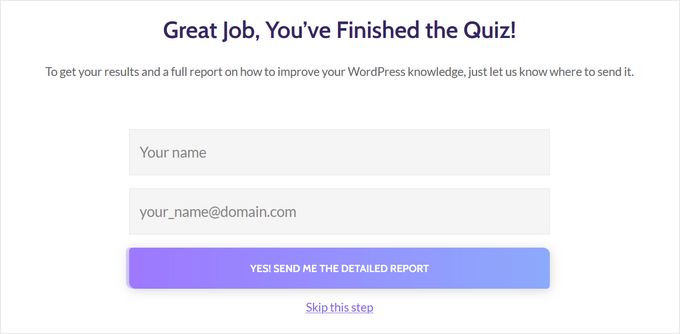
To add these pages, simply click on them in the Thrive Quiz Builder dashboard.
They’ll be added to your quiz automatically.
When you are finished creating your quiz, it’s time to add it to your WordPress site.
Step 4: Display the Quiz on Your WordPress Website
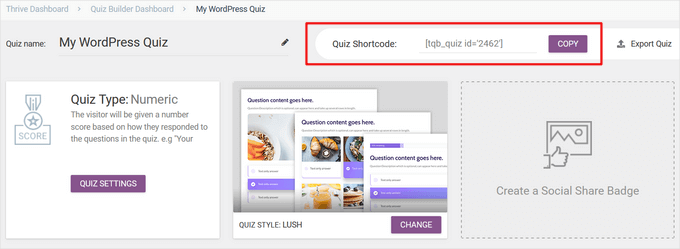
You can easily display your quiz on any page, post, or other areas of your site like a sidebar by using a shortcode. For this guide, we’ll add the quiz to a page, but the steps are similar for other areas on your WordPress site.
To get started, copy the quiz shortcode from the top of the Thrive Quiz Builder dashboard.
Next, go to Pages » Add New from your WordPress admin dashboard. When you are inside the WordPress content editor, click on the ‘+’ button to add a new block.
In the popup that appears, type ‘shortcode’ to find the ‘Shortcode’ block and click on it to add it to your post.
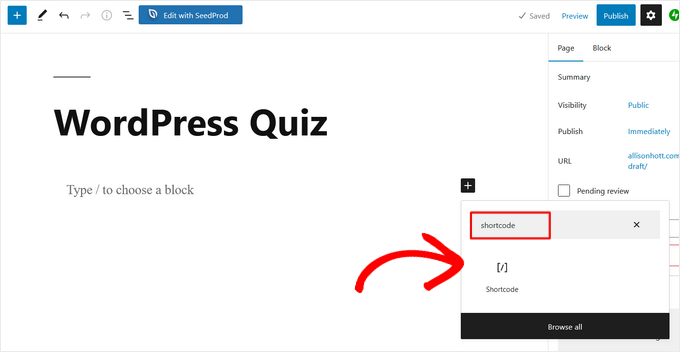
Then, paste the quiz shortcode you copied earlier into the Shortcode block.
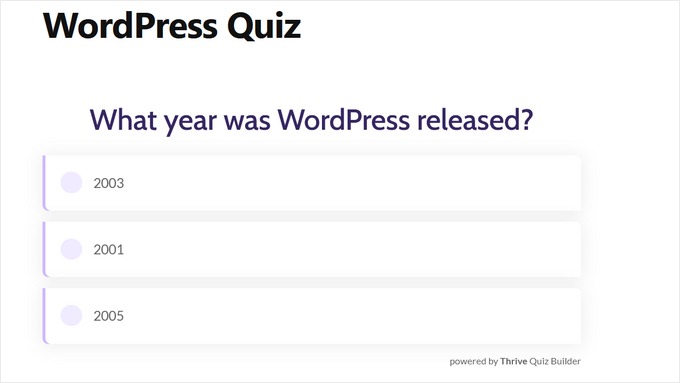
When you’re finished, simply publish or update the page – your quiz will then be live on your website.
Method 3: Creating a Quiz with Formidable Forms (Best for Advanced Quizzes)
Formidable Forms is one of the best WordPress form builder plugins for creating complex, data-driven solutions.
With its drag-and-drop builder, you can create advanced quizzes with custom scoring and weighted answers, plus calculators, surveys, and multi-step forms with conditional logic and detailed analytics.
For more information about the plugin, read our complete Formidable Forms review.
Step 1: Install the Formidable Forms and Quiz Maker Addon
To create a quiz, you’ll need to use the Formidable Forms Business plan, as it includes the Quiz Maker addon.
The first thing you need to do is install and activate the Formidable Forms plugin. For detailed instructions, see our guide on how to install a WordPress plugin.
After activating the premium plugin, you also need to install the free Formidable Forms Lite plugin. The free version provides the core foundation, and the premium version adds the powerful quiz features on top of it.
Once you’ve done that, go to the Formidable Forms » Global Settings page in your dashboard and select ‘Click to enter a license key manually.’
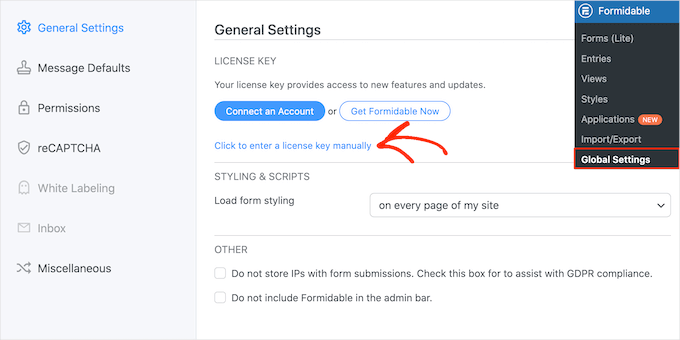
You can find the license key under your account on the Formidable Forms website. After entering this information, go ahead and click the ‘Save License’ button.
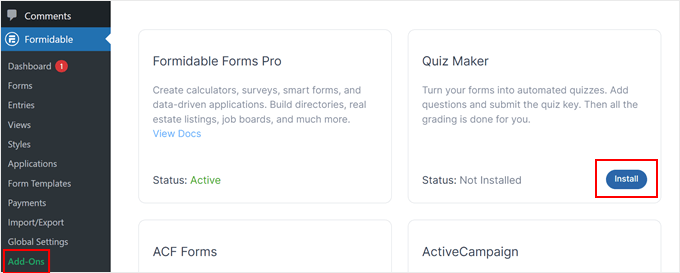
Next, you’ll need to install the Quiz Maker addon by going to Formidable » Add-Ons. On this screen, find Quiz Maker and click on its ‘Install’ button. After a few moments, Formidable Forms will mark the Quiz addon as ‘Active.’
Step 2: Create a WordPress Quiz With Formidable Quiz Maker
Now you’ve installed the Formidable Forms Quiz Maker, you are ready to create your first WordPress quiz.
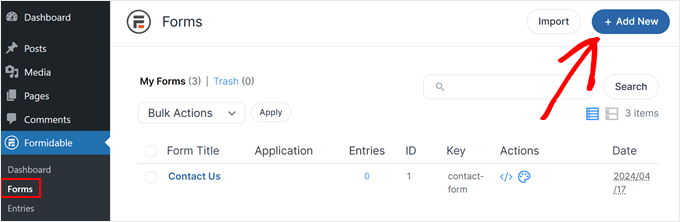
To get started, go to Formidable » Forms and then click the ‘Add New’ button.
This opens a popup showing all the plugin’s ready-made templates, including templates that you can use to create a mortgage calculator and a booking form.
In this guide, we will be starting from scratch, so click on ‘Blank Form.’
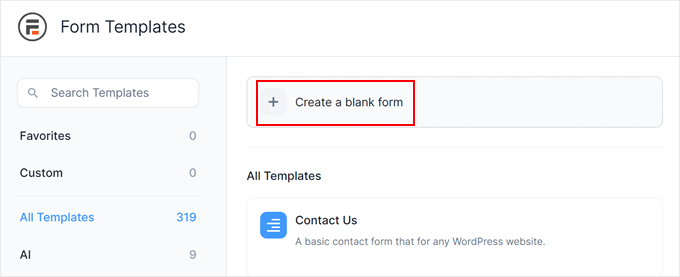
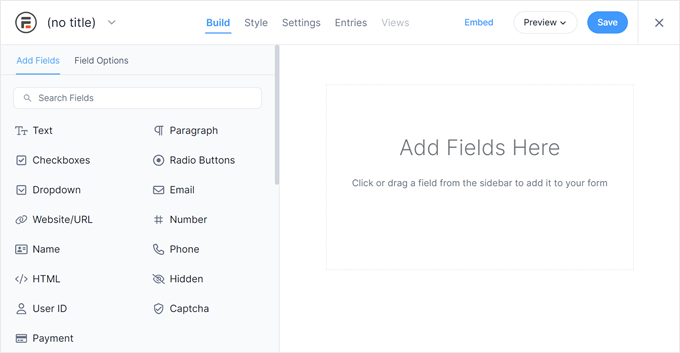
This will open the template in the Formidable Forms editor.
To the right is a live preview, and on the left-hand side is a menu with all the fields you can drag and drop into your quiz.
Quizzes can help you do lots of different things, including getting customer feedback, performing market research on your WordPress blog, testing knowledge, and more.
Depending on the kind of quiz you’re creating, you may need different types of fields. As an example, we’ll show you how to create a knowledge quiz with a mix of question types, including multiple choice.
To add a field to your quiz, simply drag it from the left-hand menu and then drop it onto the live preview. Let’s start by adding a ‘Text’ field.
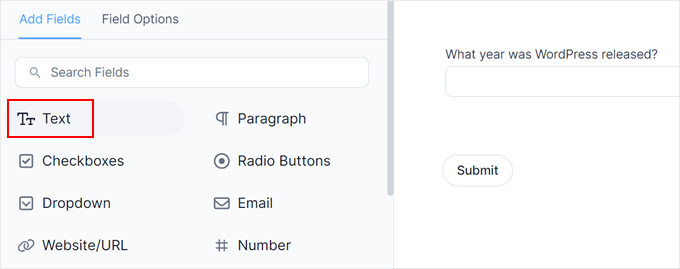
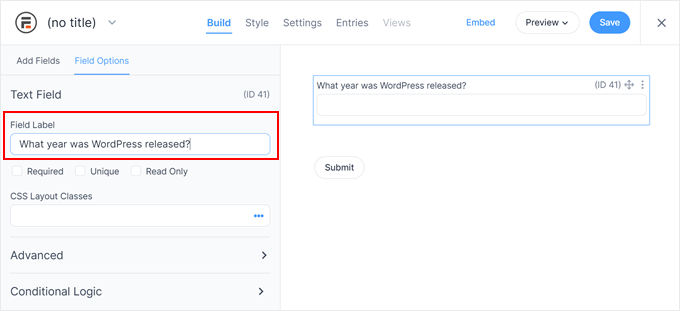
After that, click to select your new ‘Text’ field in the live editor.
You can then go ahead and type your question into the ‘Field Label.’
Next, we are going to create a multiple-choice question.
Simply drag a ‘Dropdown’ field onto the form.
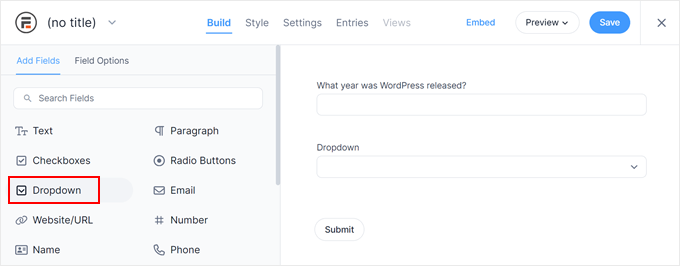
Once again, click the ‘Dropdown’ field in the preview to the right and then type your question into the ‘Field Label.’
You can now type the possible answers into the ‘Dropdown Options’ section.
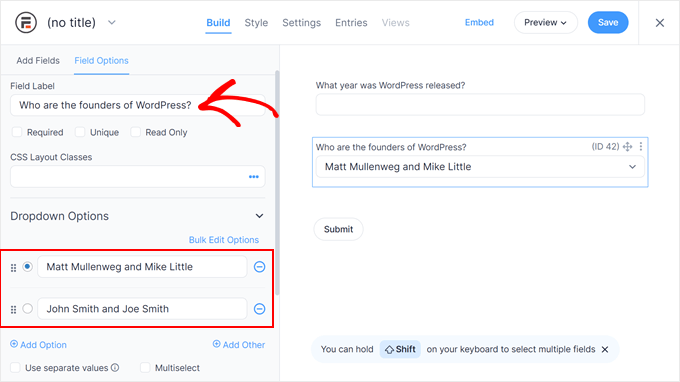
To add more answers to your multiple-choice question, simply click on the ‘Add Option’ button. You can repeat these steps to add more questions to your quiz.
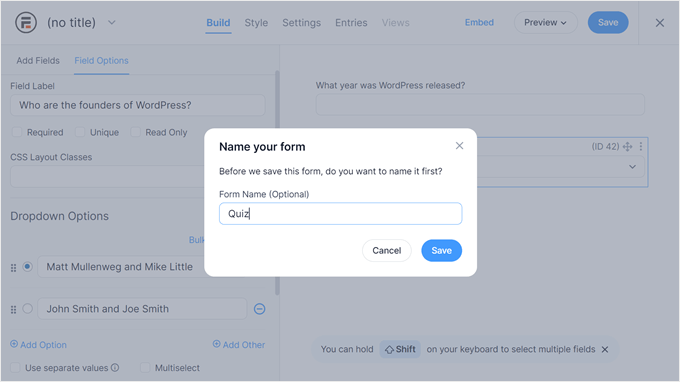
When you are happy with how the quiz looks, click on ‘Save’ to store your changes.
Then, you will be prompted to name your form. This can be anything you want so long as it helps you identify the form later. Once done, just click ‘Save.’
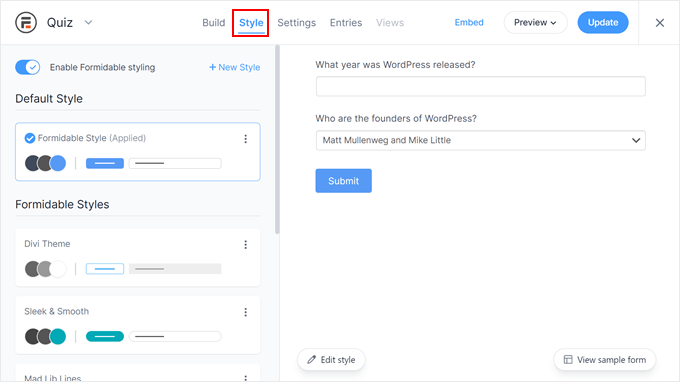
You can also explore the ‘Styles’ tab to try out different pre-made design options.
Feel free to try each one to see which one suits your form design the best.
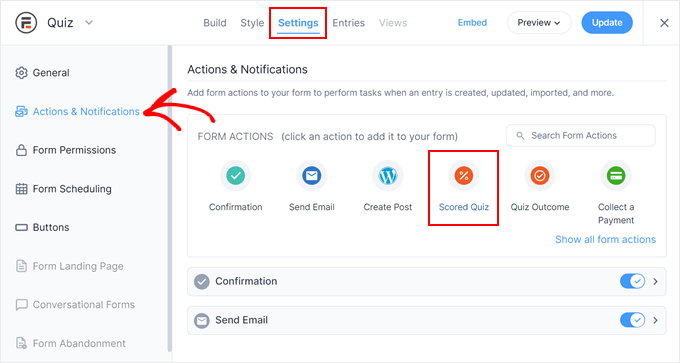
Now it’s time to configure the correct answers and show the user’s score by selecting the ‘Settings’ tab.
In the left-hand menu, choose ‘Actions & Notifications’ and then click on ‘Scored quiz.’
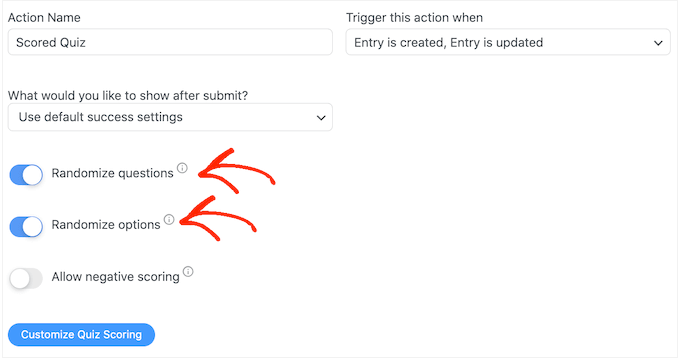
If you scroll to the new ‘Scored Quiz’ section, then you’ll see that this action already has some default settings.
Formidable Forms can randomize the questions and answers, which will make it more difficult for people to cheat.
By default, these settings are disabled. You may want to enable them by clicking on the ‘Randomize questions’ and ‘Randomize options’ toggles.
🧑💻 Pro Tip: Randomizing questions is a great way to prevent cheating, especially if you’re creating a quiz for an online course or a knowledge test.
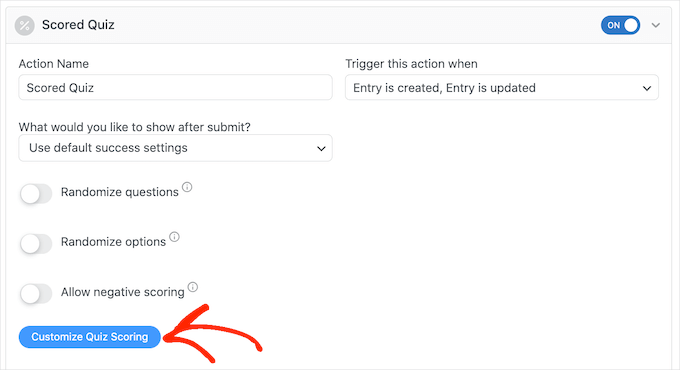
Formidable Forms awards one point for every correct answer by default. That said, you can enable advanced scoring if you want to assign different points or allow negative scoring for wrong answers.
We will be covering advanced scoring shortly, but if you plan to deduct points, then you can click to activate the ‘Allow negative scoring’ toggle.

Next, let’s set the correct answers so that Formidable Forms can score visitors automatically.
To do this, go ahead and click on the ‘Customize Quiz Scoring’ button.
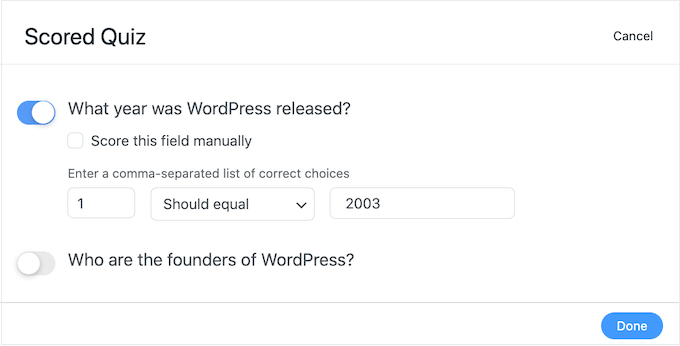
To set the correct answer, simply click on the toggle next to a question.
For text questions, you can simply type the correct answer into the field. You can also use the dropdown to specify whether the user’s answer should include this exact text, some of the text, or none of the text.
For multiple-choice questions, click on ‘Add Correct Answers’ to open a menu showing all the possible options.
You can now check the box next to each correct answer.
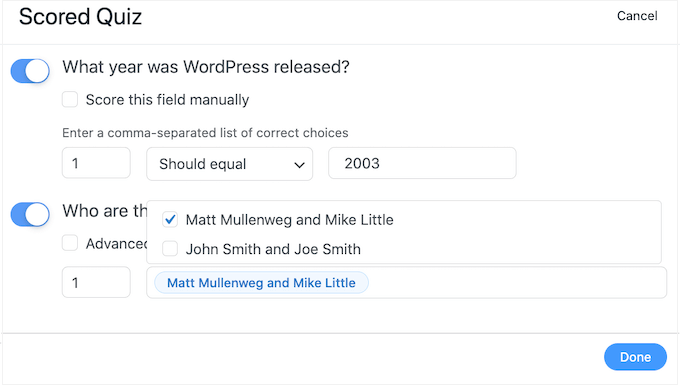
By default, each correct answer is worth 1 point. To award more points, simply type a different number into the ‘Max score’ box.
If you want to assign different point values to each answer in a multiple-choice question, you can check the box next to ‘Advanced scoring’ and enter the desired scores.
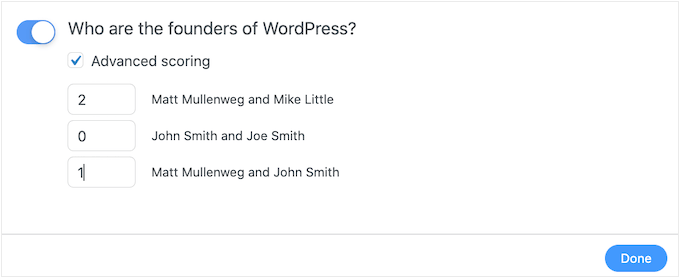
Once you’ve set all the correct answers, click on ‘Done’ to save your changes.
After that, you can set the action that Formidable Forms will perform every time someone submits a quiz. Simply open the following dropdown to see the different options: ‘What would you like to show after submit?’
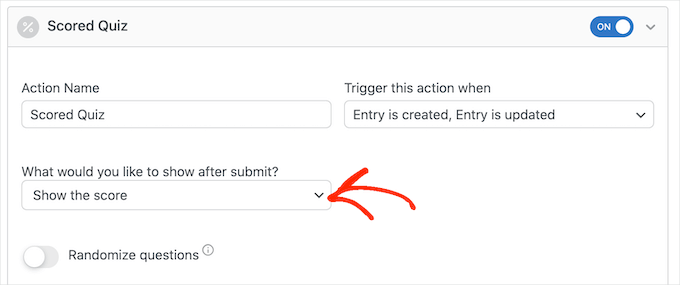
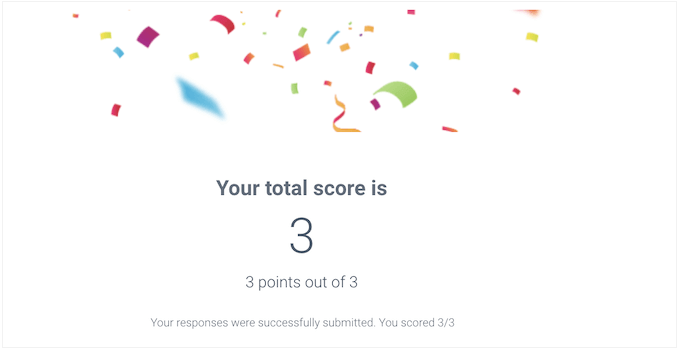
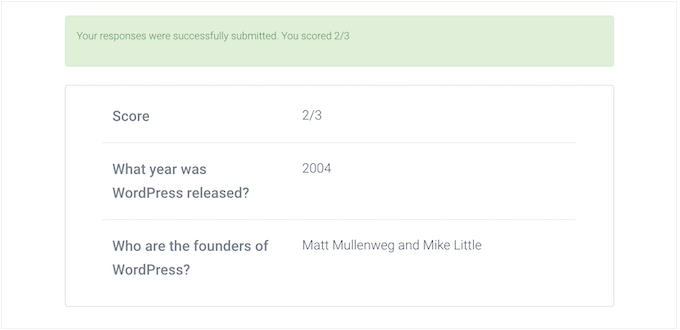
If you choose ‘Show the score,’ then Formidable Forms will display a standard message with the visitor’s score.
You can see an example of this in the following image.
If you select ‘Show user’s answers,’ then Formidable Forms will show the user’s score plus their answers.
This can help reinforce learning by encouraging visitors to review their answers and think about which ones might be wrong.
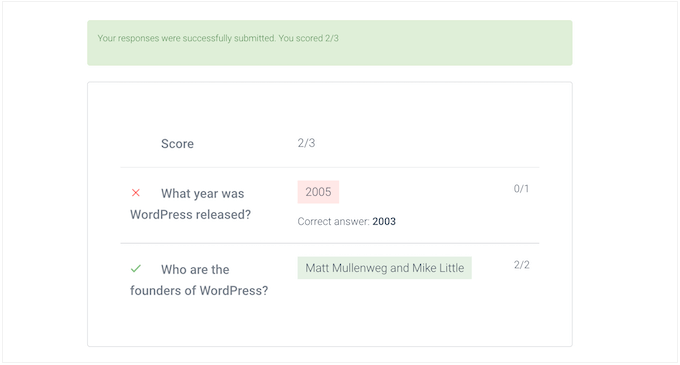
There is also ‘Show correct answers,’ which shows which questions the user got right.
If they get a question wrong, then Formidable Forms will show the right answer. This can help students learn from their mistakes.
However, if you allow users to retake the quiz, this option might make it too easy. In that case, simply showing the user’s answers or their final score is often a better choice.
The final choice is ‘Use default success settings,’ which shows a message that reads, ‘Your responses were successfully submitted. Thank you!’
If you do choose this option, then you’ll typically want to change the message to include the user’s score. To do this, click to expand the ‘Confirmation’ section.
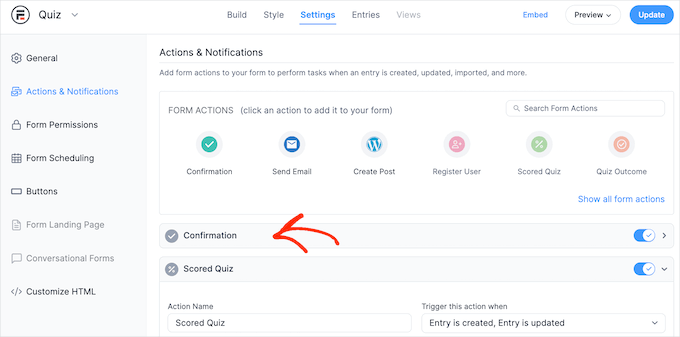
You can now change the message in the small text editor.
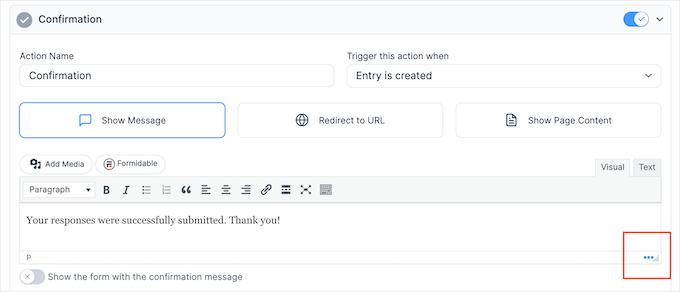
To show the user’s score, you’ll need to use a key, which is a placeholder that Formidable Forms will update with the user’s score. To get this key, click on the dotted icon in the bottom right corner of the text editor.
In the popup that appears, make sure the ‘Fields’ tab is selected.
You can then find ‘Score’ and give it a click.
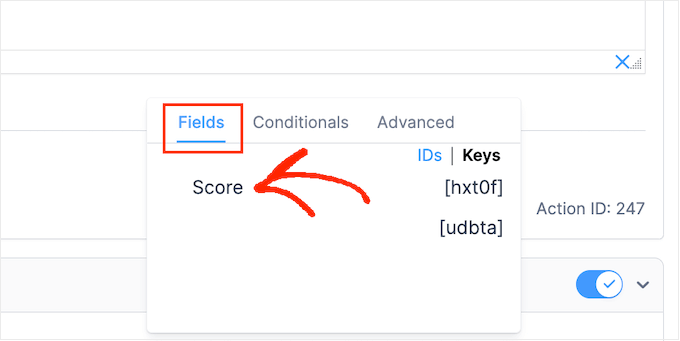
Formidable Forms will now add the key for the user’s score to the text editor.
You can add any extra text you want. For example: ‘Thanks for taking the quiz! You scored [hxt0f].’
Formidable Forms will automatically replace this unique key (in our example, it’s [hxt0f]) with the user’s actual result.
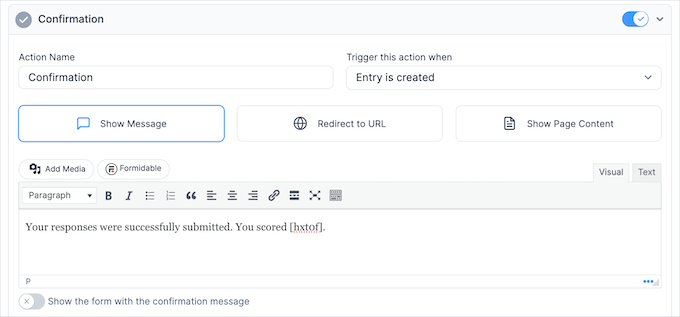
After that, click the ‘Update’ button to store your changes. You’ve now successfully created your first quiz.
Step 3: Adding Your Quiz to Your WordPress Site
You can now add your quiz to any post, page, or widget-ready area. In our example, we’ll add it to a page, but the steps are similar for other areas of your WordPress site.
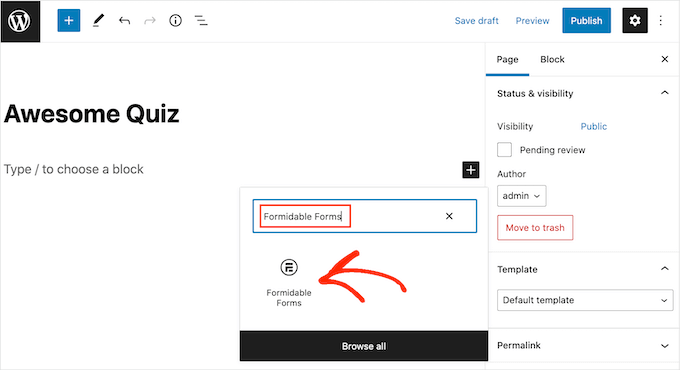
To start, go to Pages » Add New in your WordPress admin area. Once inside the content editor, click on the ‘+’ button to add a new block.
In the popup that appears, type ‘Formidable Forms’ to find the right block and then click to add it to the post.
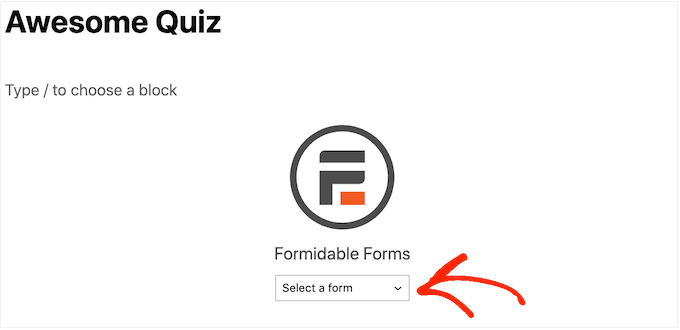
In the block settings, open the ‘Select a form’ dropdown and choose the quiz you just created.
WordPress will load a preview of your quiz automatically.
Now, you can add any other content to the page.
And when you are ready, either publish or update the page. Your WordPress quiz is now live, and users can start answering questions.
Bonus Tip: Building an Online Quiz Website
Want to create a website that’s all about quizzes? Whether you’re looking to entertain, educate, or earn money, it’s completely doable with WordPress.
Here’s what you’ll need to get started — whether you’re building a personality test, a trivia quiz website, or something in between:
- A Powerful Quiz Plugin: Use a tool like WPForms, Thrive Quiz Builder, Formidable Forms, Interact Quiz Maker, or MemberPress Quizzes for advanced features like branching logic, scoring, and custom results pages.
- A Clean, Fast Theme: Pick a WordPress theme that’s lightweight and works well with quiz plugins. Astra or Kadence are great choices.
- A Simple Homepage Layout: Use a page builder like SeedProd or Elementor to showcase your best quizzes front and center.
- Monetization Tools: Add Google AdSense, offer premium quizzes with MemberPress, or recommend affiliate products based on quiz results.
If you’re serious about turning your quiz idea into a full website, this setup gives you everything you need to launch and grow.
Check out our guide on how to make an online quiz website for step-by-step instructions.
FAQs: Creating a Quiz in WordPress
Looking to learn more about building quizzes on your site? Here are some common questions people ask:
What is the best platform to create a quiz?
It depends on your needs. If you’re using WordPress, plugins like WPForms, Thrive Quiz Builder, or Formidable Forms make it easy to design and track interactive quizzes.
Can I create a quiz in WordPress for free?
Yes. Some WordPress quiz plugins, like Watu Quiz and Quiz Cat, offer free versions with basic quiz features you can start with.
How do I create a question and answer section in WordPress?
If you’re referring to a Q&A or FAQ section instead, you can use a plugin like Heroic FAQs or add collapsible blocks to keep your answers organized and easy to browse.
More Creative Ways to Use Forms on Your WordPress Site
Now that you know how to create a quiz, you may also want to check out our other guides on using forms to boost engagement on your site:
- Ways to Use Conditional Login in Your WordPress Forms
- How to Show Confirm Navigation Popup for Forms in WordPress
- How to Create Conversational Forms in WordPress (Typeform Alternative)
- How to Add Google Calendar Events from Your WordPress Contact Form
- How to Add Autocomplete for Address Fields in WordPress
If you liked this article, then please subscribe to our YouTube Channel for WordPress video tutorials. You can also find us on Twitter and Facebook.


Jiří Vaněk
I have a somewhat less specific question. I’ve found that things like FAQs have been quite helpful for my SEO. Since I started placing FAQs at the end of articles, I’ve been better indexed, and it’s not just a feeling; I can see it in GSC as well. Could incorporating quizzes into tutorials also help with indexability? I have tutorials on my website, and at the end of them, I include quizzes for readers to test their understanding of the given topic. However, I’m not sure if this could also aid in indexability and SEO, such as being a better form of content and so on.
WPBeginner Support
We have not tested quizes and their effect on SEO for sites at the moment.
Admin
Jiří Vaněk
Thank you for answer. What I’ve been looking at is that I’m creating separate sitemaps for quizzes in the google search console, and some of them are actually indexed. In other words, it probably improves SEO anyway, although, like you, I haven’t verified it yet.
Dennis Muthomi
I can rant here:
quizzes may not directly impact SEO, but they can indirectly contribute to better rankings through increased user engagement signals.
When users actively interact with the quizzes on your website, it sends positive user engagement signals to Google that your content is valuable and engaging.
You know how Google values user engagement metrics, so if visitors are spending more time on your pages due to the interactive quizzes, it can be seen as a sign of quality content.
Plus, quizzes help reduce bounce rates as users stick around longer to complete them. So while quizzes may not directly improve rankings, the increased engagement and lower bounce rates resulting from their implementation can give your SEO a nudge in the right direction.
Rhys Morgan
Is it better to give each quiz a page or do them in a post format ? |s there any seo benefit for example?
WPBeginner Support
There is no SEO difference with either method, you may want to use posts so you can use categories to group them but it is not required.
Admin
Gabriella
Hi! Nice article. Thanks. Could you post some example/sample sites/blogs using quizzes, please? Stay safe
WPBeginner Support
We will be sure to take your suggestion into consideration when we next update this article
Admin
suresh
can i create maths quiz too?
WPBeginner Support
You certainly could use this to create a math quiz
Admin
Kunj Bihari
Nice article
WPBeginner Support
Thank you
Admin
Muhammad Muzammal
This Article is amazing & Thanks!
WPBeginner Support
Thank you and you’re welcome
Admin
Wiggles
Is there a way to span the quiz questions over several posts/pages? If not with these plugins then is anybody aware of a plugin which allows that?
Anindra
Hi, how do I find who answered all questions correctly and first?
Pranoy Kumar Mahato
Do I post articles and quizzes in a single website.
Or shall I use sub-domain for the quizzes. Which would be better for long term?
Martha
Can I create a quiz to be used as an opt in
Ghouse basha
Hello admin,thanks for the share.I have tried quiz master next in my genesis theme and don’t know why there is some grey border line appears below each and every option.DO it fits genesis theme?
Rishikesh
If you know html CSS then you can easily change your code or that border line from the root dir