


Want to know a secret? The easiest way to boost sales on your WordPress store isn’t fancy marketing. It’s offering simple discounts.
But when we launched our first online stores, adding a coupon code field to our forms felt complicated and expensive. We had no idea where to start.
We then tried many tools and tested different methods. In the end, we found that WPForms makes it the easiest to add coupon code fields to your WordPress forms.
Since then, we’ve helped lots of business owners do the exact same thing.
In this guide, we’ll show you exactly how to add a coupon code field to your WordPress forms. Want to run seasonal sales, reward loyal customers, or launch a promo? We’ve got you covered! You can set it up in minutes — no coding required. 🙌
Why Add Coupons to Your WordPress Forms?
Adding a coupon code field to forms on your WordPress website can encourage users to buy from you.
For example, if you have an order form for your restaurant, then adding a coupon code for discounts can help attract new customers and encourage repeat purchases.
You can also use coupons to promote clearance sales or new products in your online store, celebrate events, or reward loyal customers.
Additionally, you can use a coupon code field to build your email list by offering discount codes to customers who sign up as subscribers.
That being said, we’ll share how to easily add a coupon code field to your WordPress forms. Here’s a quick overview of all the things we’ll cover in this guide:
- Create Coupon Code Field in WordPress Forms
- Add the Coupon Code to a WordPress Form
- Embed the WordPress Form Into a Page/Post
- Set Up a Message for Coupon Errors
- Track Coupon Usage With WPForms
- Bonus 💡: More Tips for Using Coupons in WordPress
- FAQ: Add a Coupon Code Field in WordPress Forms
- Next Steps for Using Forms in WordPress
Let’s get started.
Create Coupon Code Field in WordPress Forms
You can easily add a coupon code field in WordPress forms using WPForms.
It’s the best WordPress contact form plugin on the market, with a drag-and-drop builder that makes it super easy to create any kind of form you want.
At WPBeginner, WPForms powers a lot of our forms, including the contact form, annual reader surveys, and site migration request form. We always have great experiences with it, and we strongly recommend you check out our full WPForms review for details.
To start, let’s create a WPForms account. On the WPForms website, click on the ‘Get WPForms Now’ button, select a plan, and follow the on-screen instructions to complete the process.

📝 Note: WPForms also has a free version. However, you will need a Pro plan to unlock the Coupons addon. Upgrading to Pro also gives you access to many other advanced tools, like AI Calculations and smart conditional logic to help you create smarter forms.
After signing up, you’ll get your own WPForms account dashboard, where you can find your plugin’s ZIP file and license key.
From here, you just need to install and activate the WPForms plugin. In your WordPress dashboard, you can go to Plugins » Add New Plugin.

To quickly find the plugin, simply type “WPForms” into the search bar.
Then, go ahead and click the ‘Install Now’ button in the search result.
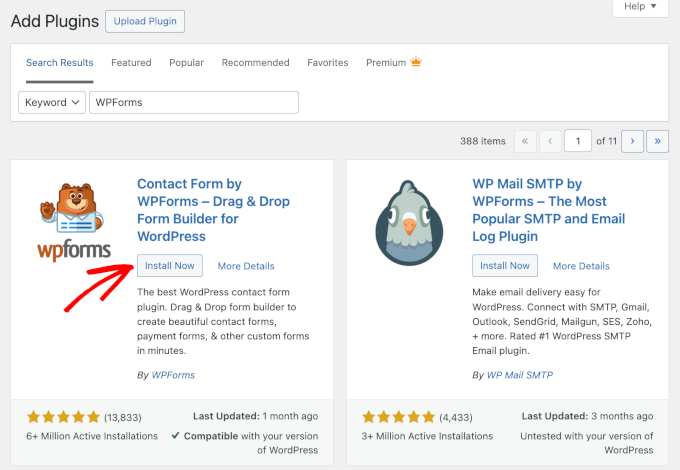
After that, don’t forget to click on ‘Activate’ to start using WPForms on your WordPress site.
For detailed instructions, see our step-by-step guide on how to install a WordPress plugin.
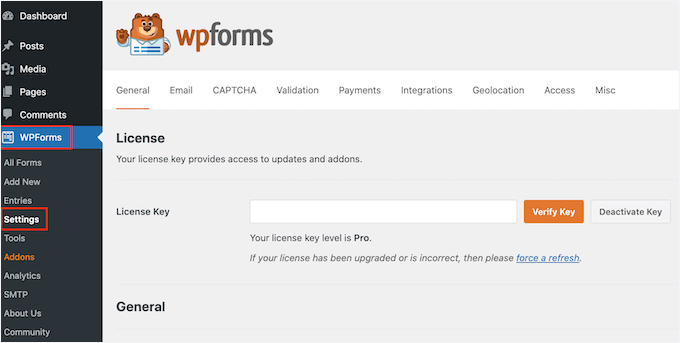
Once activated, head over to the WPForms » Settings page from the admin sidebar and enter your license key. You can get this information from your account on the WPForms website.
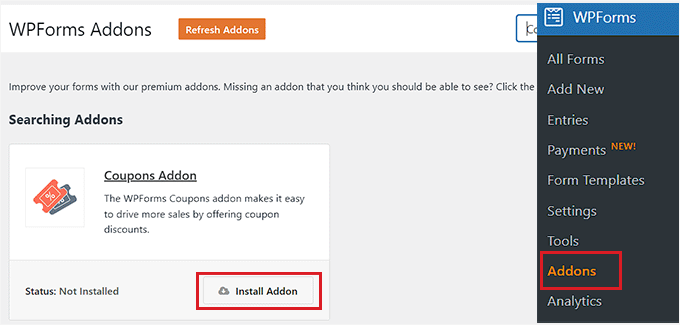
Next, you’ll need to activate the Coupons addon.
To do this, visit the WPForms » Addons page from the WordPress admin area and search for the Coupons addon.
Then, simply click the ‘Install Addon’ button to download and activate it on your website.
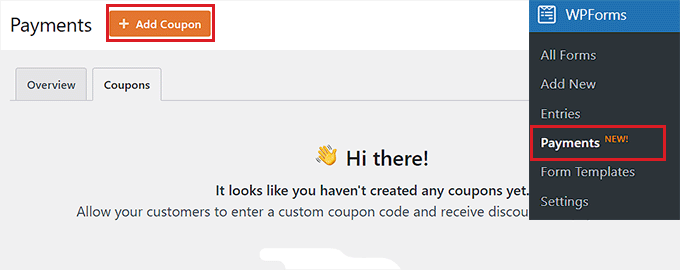
Now, you’ll want to head over to the WPForms » Payments page from the admin area and switch to the ‘Coupons’ tab.
From here, click the ‘+ Add Coupon’ button to continue.
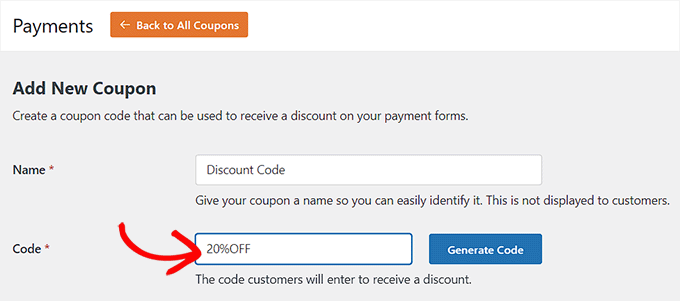
This will take you to the ‘Add New Coupon’ page, where you can start by entering a name for your coupon. Keep in mind that this name won’t be displayed for your users and is just for your reference.
After that, you have to type the code that visitors will use to get a discount on your website.
If you don’t want to create custom code, then simply click the ‘Generate Code’ button to let WPForms generate code for you.
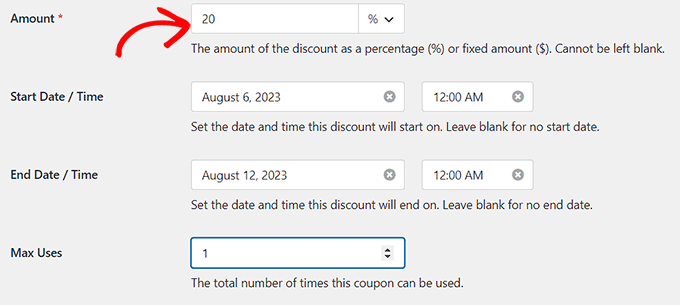
Next, you need to add the amount or percentage discount that customers will receive upon using the coupon in the ‘Amount’ field.
Once you have done that, you can also add a start date and an end date for the coupon code. For example, if you want to create a coupon that will only be valid for a week, then you can add that as an expiration date in the field.
After that, you must add the maximum number of times a single user can use the coupon code in the ‘Max Uses’ field.
Now, scroll down to the ‘Allowed Forms’ section on the page.
Here, toggle the switch next to each form where you want to enable the coupon code.
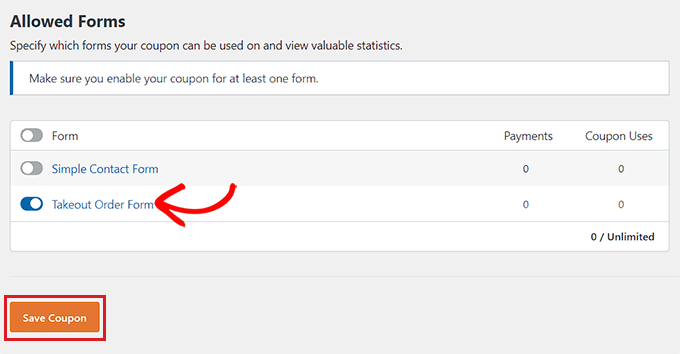
Finally, click the ‘Save Coupon’ button to store your settings.
Add the Coupon Code to a WordPress Form
Next, let’s open the form where you want to add the coupon code field.
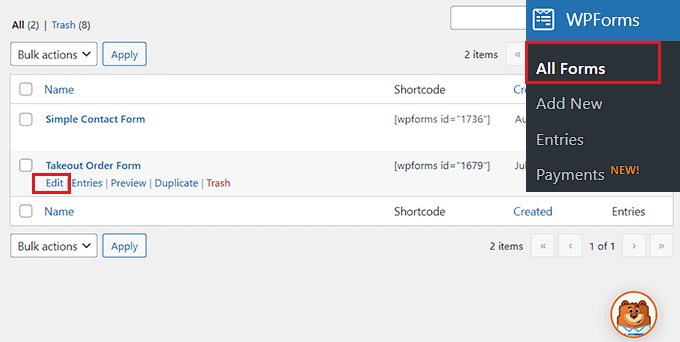
To do this, visit the WPForms » All Forms page from the WordPress dashboard and click the ‘Edit’ link under the form where you want to add a coupon field.
For this tutorial, we will be adding a coupon code field to a takeout order form.
📝 Note: Don’t have a form yet? You can refer to our guide on how to create a contact form to get one up and running.
This will launch the form in the form builder.
Here, you’ll see the available form fields in the left column and a form preview on the right side of the screen. Simply drag and drop the ‘Coupon’ field into the form.
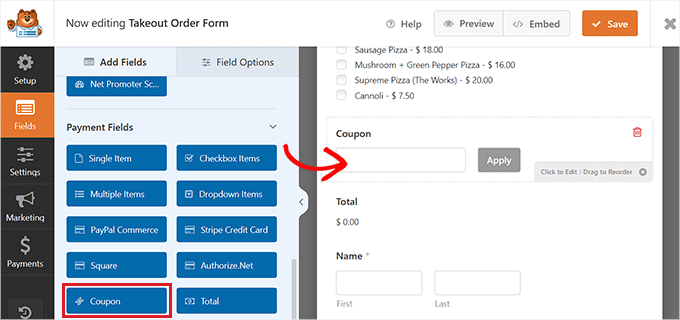
Once you’ve done that, click on the field to open its settings in the left column.
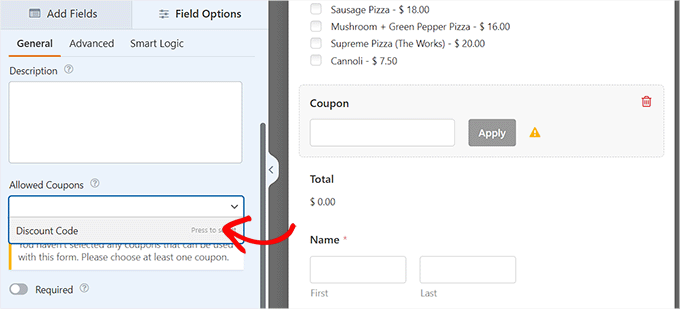
Next, choose the coupon that you created earlier from the ‘Allowed Coupons’ dropdown menu. This links your specific coupon code to this form so it can calculate the discount correctly.
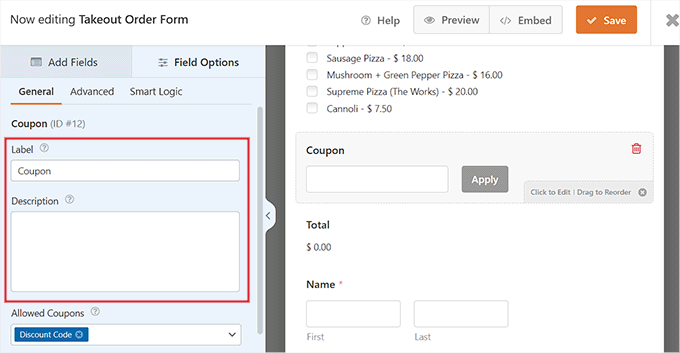
After that, you can add a label or description for the coupon field and also toggle on the ‘Required’ switch.
If you do this, then users won’t be able to submit the form without filling in the coupon code.
Next, switch to the ‘Payments’ tab to configure settings.
With WPForms, you can easily accept payments from popular gateways like Stripe, PayPal, Authorize.net, and more.
All you have to do is activate the addon for the gateway of your choice and then toggle the switch to enable it from the form builder.
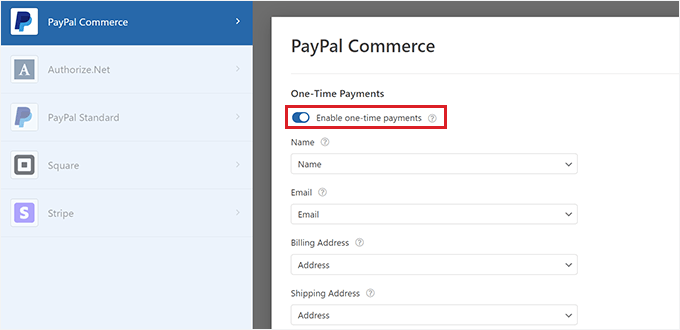
For more detailed instructions, you may want to see our tutorial on how to create a WordPress form with payment options.
Next, switch back to the ‘Fields’ tab and drag and drop the payment gateway field of your choice into the form.
Now, you’ll be able to accept payments directly from WPForms after the user applies the discount coupon code.
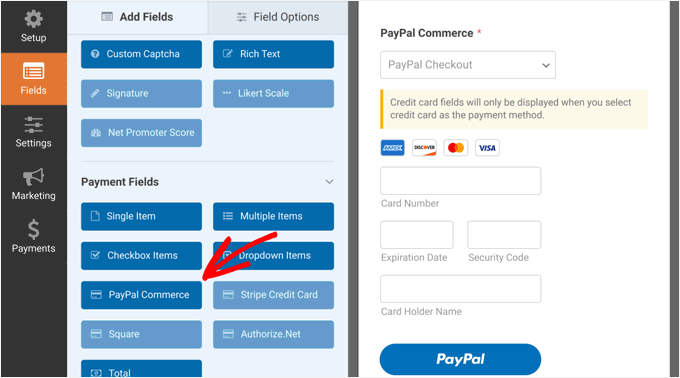
Once you are done, just click the ‘Save’ button at the top to store your settings.
Embed the WordPress Form Into a Page/Post
Now, it’s time for you to add the form with the coupon code to your WordPress site. Keep in mind that if the form where you added the coupon code field is already published on a page/post of your website, then it will automatically be updated.
However, if you haven’t added the form yet, open an existing page or create a new one from your WordPress dashboard.
From here, click the ‘+’ button to open the block menu and add the WPForms block.
After that, you need to choose the form with the coupon code field from the dropdown menu inside the block.

Next, click the ‘Update’ or ‘Publish’ button to store your settings.
Now, you can visit your WordPress site to view the form with a coupon field in action.
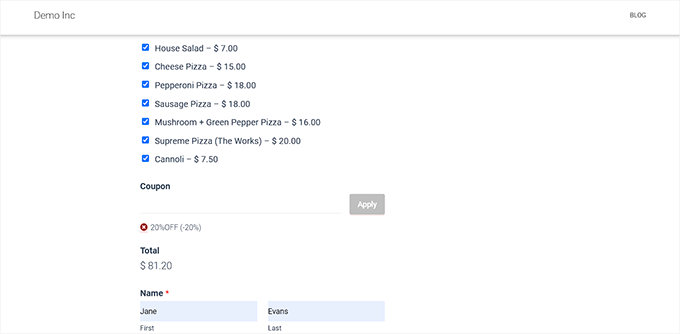
Set Up a Message for Coupon Errors
If you also want to display a message to users who enter the wrong coupon code, then you must visit the WPForms » Settings page from the WordPress sidebar.
From here, switch to the ‘Validation’ tab and scroll down to the ‘Coupon Error’ option.
After that, type the sentence that will be displayed to users upon entering the wrong code.
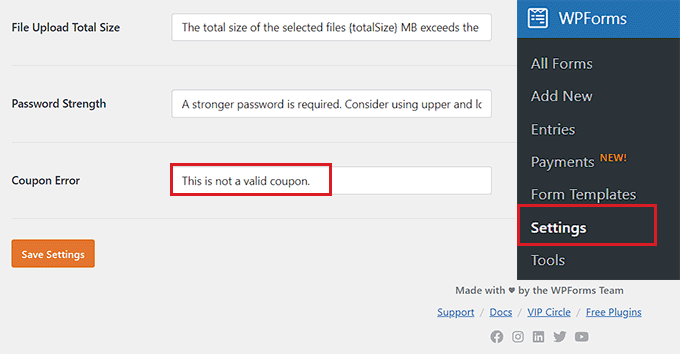
Once you are done, just click the ‘Save Settings’ button to store your changes.
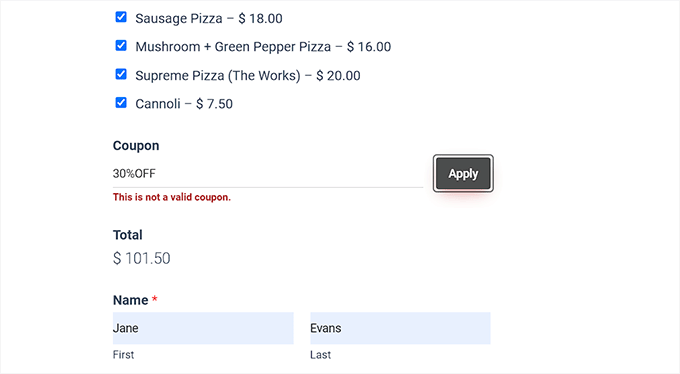
Now, if users enter the incorrect coupon code, then they will see your error message.
Track Coupon Usage With WPForms
With WPForms, you can also track the number of times your coupon was used to get a discount. This can help you see if your coupon codes and discounts are effective in driving sales.
To view your coupon usage, just visit the WPForms » Payments page from the WordPress admin sidebar.
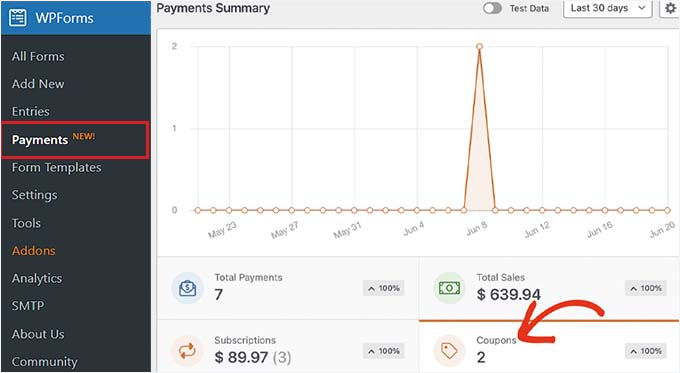
You will see a summary chart of coupon usage on your WordPress site in the ‘Overview’ tab.
From here, you can also click on the ‘Total Payments’ tab to view individual payments and see which customers used the coupon code on your site.
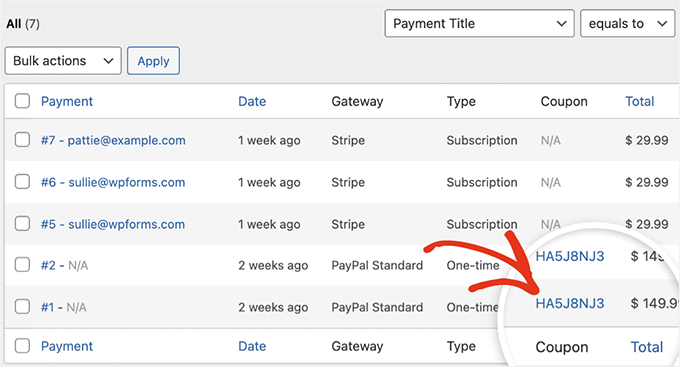
This will help you decide whether adding the coupon code field has helped you generate more revenue and whether the campaign has been successful.
Bonus 💡: More Tips for Using Coupons in WordPress
Coupon marketing is one of the most effective ways to get more sales and grow customer loyalty. Beyond adding coupon fields to your WordPress forms, you can also use coupons to promote new products, clearance sales, and special events.
To do this, you can use the Advanced Coupons plugin, which is the best WordPress coupon code plugin. It lets you create a huge range of deals in your online store.
It easily integrates with WooCommerce and offers features like coupon URLs, scheduled coupons, auto-apply coupons, shipping coupons, and bulk coupons.
We’ve dived deep into its features, which you can see in our complete Advanced Coupons review.

Additionally, you can create coupon popups to convert your website visitors into customers using OptinMonster.
It’s the best lead generation and conversion optimization tool that allows you to design attractive popups with discount coupon codes.
At WPBeginner, we use OptinMonster to offer special deals in popups and header banners, among others. It’s been working exceptionally well for us, and you can explore its features in our extensive OptinMonster review.

We’ve seen how this strategy can help recover abandoned cart rates, increase brand awareness, and improve conversions.
For more instructions, see our tutorial on how to create a coupon popup in WordPress.
FAQ: Add a Coupon Code Field in WordPress Forms
Before we wrap up, here are quick, easy answers to common questions about creating and using coupon codes in WordPress.
How do I create a coupon code in WordPress?
With WPForms, you can create coupons right inside the form builder by choosing the discount amount and any limits you want. If you’re using WooCommerce, just go to Marketing » Coupons and create a new one from there.
That said, keep in mind that WPForms coupons and WooCommerce coupons are separate and do not work interchangeably.
How do I add a 20% discount in WooCommerce?
You can go to Marketing » Coupons, click ‘Add coupon,’ and choose ‘Percentage’ discount as the type. Then, simply enter 20 as the amount, save the coupon, and you’re done.
Can ChatGPT generate discount codes?
Yes. ChatGPT can help you come up with code ideas or formats. But you still need to add the code to WPForms or WooCommerce coupon settings, so WordPress knows it’s valid.
Next Steps for Using Forms in WordPress
We hope this article helped you learn how to easily add a coupon code field in WordPress forms.
You may also be interested in our other guides:
- How to Generate More Leads with Free Online Calculators
- How to Create an Online Order Form in WordPress
- How to Create a Request a Quote Form in WordPress
- Best WooCommerce Spin a Wheel Coupon Plugins
- The Ultimate Guide to Using WordPress Forms
If you liked this article, then please subscribe to our YouTube Channel for WordPress video tutorials. You can also find us on Twitter and Facebook.




Jiří Vaněk
I’m considering offering paid tutorials on the website. I want to avoid other platforms. Since I have WP FORM in the PRO version, it’s a good idea to provide tutorials for specific users on the website while also having the option to offer them a discount to entice them with a lower price.