


We’ve learned that the best websites are the ones that adapt to their users, not the other way around.
One of the most effective ways to do this is by adding a font resizer that lets visitors adjust text size to their comfort level.
Font accessibility benefits everyone. It helps users with visual impairments as well as people reading on small devices or in poor lighting.
When visitors can easily customize text size, they stay longer and read more content. They are also more likely to engage with your website.
In this guide, we’ll show you exactly how to add a font resizer to your WordPress site.
💡Quick Answer: How to Add a Font Resizer
In a hurry? Here are the two methods we recommend to add a font resizer in WordPress:
- Method 1 (Recommended): Use the WP Accessibility plugin. This works with all modern WordPress themes, including block themes.
- Method 2 (Classic Themes): Use the Accessibility Widget plugin. This is a simple solution if you are still using a classic theme with a sidebar.
Why Add Resizable Text to Your Website? 🤔
If the font size is too small on your website, then people will have a hard time reading your articles and eventually abandon your site.
One easy way to improve readability is to offer visitors the option to resize the main text on your website. This allows users to adjust the text size to their liking.
You might be wondering about the browser’s built-in zoom feature (pressed using ‘CTRL and +’ keys). While this works, it increases the size of every element on the page, including images and navigation menus.
A font resizer is a better option. It allows users to increase only the text size while keeping the rest of the layout intact.
That said, let’s see how you can easily add resizable text for your visitors in WordPress. You can use the quick links below to skip to a specific method:
Method 1: Use WordPress Accessibility Plugin (Recommended)
The easiest way to let users resize text is by using the WP Accessibility plugin. It adds a helpful toolbar to your site that works with any theme.
First, you need to install and activate the WP Accessibility plugin on your website. You can see our guide on how to install a WordPress plugin if you need help.
Upon activation, go to the WP Accessibility page in your WordPress admin dashboard to configure the plugin settings.
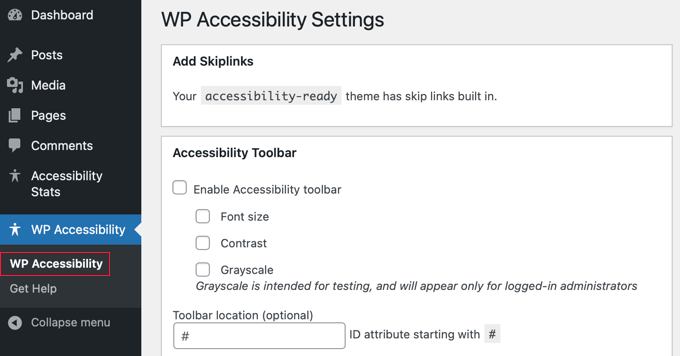
Scroll down to the ‘Accessibility Toolbar’ section. Here, you need to check the box for ‘Enable Accessibility toolbar.’
Make sure you also check the ‘Font size’ option. This creates the actual resizer buttons on the toolbar.
You can also enable other features like ‘Contrast’ and ‘Grayscale’ if you want to offer more accessibility options.
Next, look for the font size settings. We recommend enabling the ‘Use alternate font resizing stylesheet’ option.
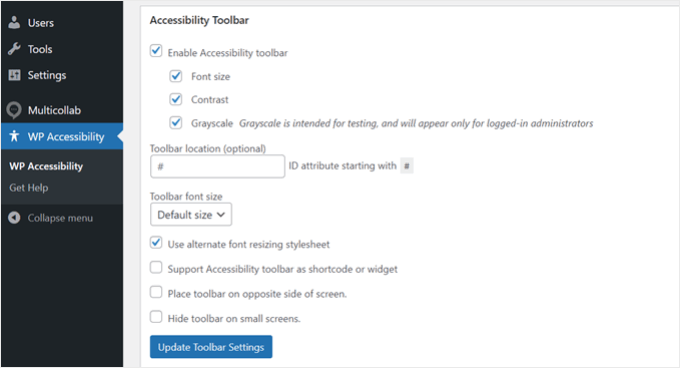
This ensures the plugin uses a separate stylesheet to scale your text. It forces the text to become larger and more readable without breaking your site’s design.
Once you are done, click the ‘Update Toolbar Settings’ button to save your changes.
You can now visit your website to see the toolbar in action. It will usually appear on the side of the screen.

For more information, you can read our guide on how to improve your WordPress site’s accessibility.
Method 2: Add WordPress Font Resizer With Plugin (Classic Themes Only)
If you are using a Classic WordPress theme, you can add a font resizer widget to your sidebar using the Accessibility Widget plugin.
📍Note: This method works best for older themes that use the classic widget system. If you are using a modern block theme (where you see ‘Editor’ instead of ‘Widgets’ in the Appearance menu), please use Method 1 instead.
First, install and activate the Accessibility Widget plugin on your website. If you need help, please see our guide on how to install a WordPress plugin.
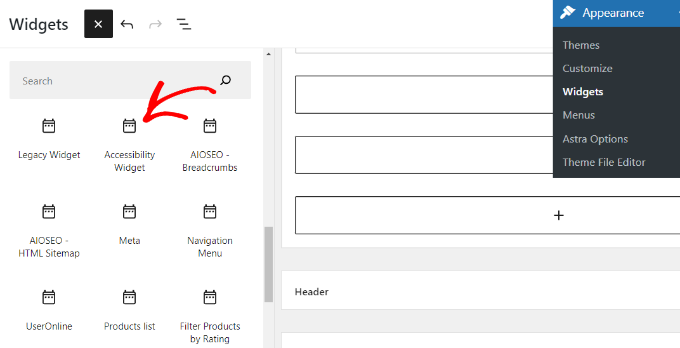
Upon activation, go to Appearance » Widgets in your dashboard. Find the ‘Accessibility Widget’ block and add it to your sidebar area.
Once added, you can customize the widget settings. You can enter a title like ‘Resize Text’ so visitors know what the tool does.
Next, you need to select which parts of your website will be resized. The default options (body, paragraph, list items, and table cells) work well for most sites.
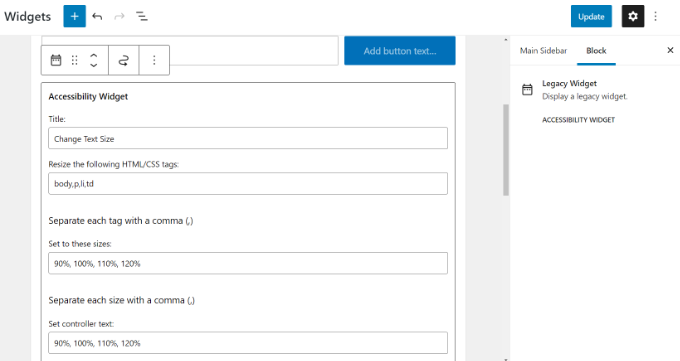
The plugin allows up to four resize options: 90%, 100%, 110%, and 120%. You can adjust these numbers in the ‘Set to these sizes’ field if you want larger or smaller options.
Finally, look at the ‘Controller text’ setting. This is simply the label that your visitors will click on (e.g., ‘A+’, ‘A-‘). You can leave the default text or change it to something else.
Click ‘Update’ to save your widget settings. If you visit your live site, you will see the widget in your sidebar.
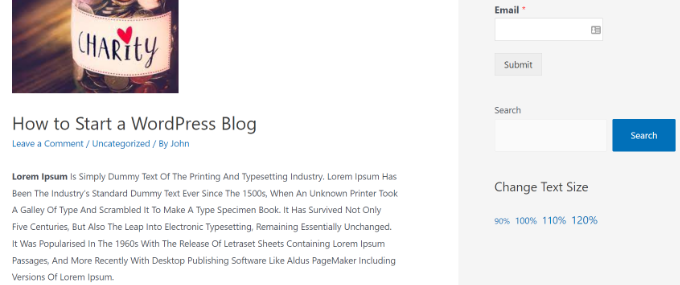
Optional: Customize the Widget Style with CSS
If the text links look too plain, you can style them to look like buttons using CSS.
Go to Appearance » Customize and click on the ‘Additional CSS’ tab.
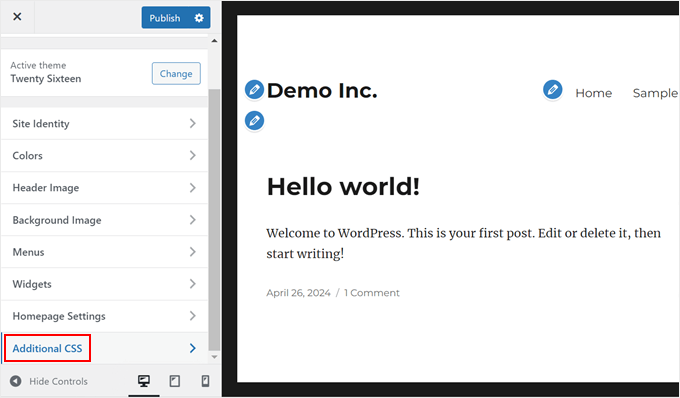
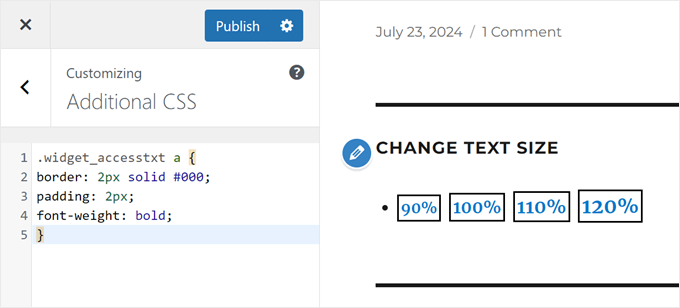
You can paste the following code to add a border and bold text to the widget links:
.widget_accesstxt a {
border: 2px solid #000;
padding: 2px;
font-weight: bold;
}
Note: This code targets the specific CSS class used by the Accessibility Widget plugin. It will not work for other tools.
For more details, please see our guide on how to add custom CSS in WordPress.
Once you are happy with the look, click ‘Publish’ to save your changes.
Video Tutorial
If you don’t want to read the instructions, then you can take a look at our video tutorial:
Frequently Asked Questions About WordPress Fonts
Here are some questions that our readers have asked about fonts in WordPress:
How to resize fonts in WordPress?
You can resize fonts using the ‘Typography’ settings in the block editor sidebar. Simply click on a text block, look to the right panel, and adjust the size options (S, M, L, XL). For site-wide changes, you can use the Global Styles or the Theme Customizer, depending on your theme.
How to add a custom font in WordPress?
The easiest way to add a custom font is by using a plugin like Custom Fonts. It lets you upload font files or connect to Google Fonts without writing code. You can also add fonts manually using CSS if you are comfortable with code.
Why can’t I change font size in WordPress?
If you cannot see the font size option, it is likely hidden in the block settings menu. In the right-hand sidebar, click the three-dot menu next to ‘Typography’ to reveal the full list of font controls.
How do I change font color in WordPress?
You can change font color in the block settings sidebar. Select the text you want to change, find the ‘Color’ section on the right, and click ‘Text’ to pick a new color from the palette.
For help, you can see our tutorial on how to change text color in WordPress.
Make Your WordPress Site Even Easier to Use With These Tips
Want to make your site easier to use and look great? Check out these helpful guides:
- How to Add Arrow-Key Keyboard Navigation in WordPress – Make it easier for people to move around your site.
- How to Customize Colors on Your WordPress Website – Pick the right colors to make your site look good and easy to read.
- How to Add a Preloader Animation to WordPress (Step by Step) – Add a cool loading screen to your site.
- How to Easily Add Dark Mode to Your WordPress Website – Let users switch to a darker theme if they prefer it.
- Ways to Create a Mobile-Friendly WordPress Site – Make sure your site works well on phones and tablets.
- How to Get Website Design Feedback in WordPress (Step by Step) – Learn how to ask people what they think about your site’s design.
- How to Highlight Text in WordPress (Beginner’s Guide) – Learn to make important words stand out on your pages.
We hope this article helped you add resizable text to your WordPress site. You may also want to check out our expert picks of the best WordPress drag-and-drop page builders and our complete guide to WordPress theme updates.
If you liked this article, then please subscribe to our YouTube Channel for WordPress video tutorials. You can also find us on Twitter and Facebook.




Mrteesurez
The second method is what I choose to add the text resizer. I have a website where I post educational contents in orderly manner. I found this to be useful for my site users as some might be dealing blurred vision or need to see text more clearly so the resize will come in handy for them.
Shushanna
Hi, thanks for the amazing post. I wonder if your site does not have a sidebar, is it possible to to put the widget somewhere else, for example above the navigation.
WPBeginner Support
You can place it in your theme’s widget areas if your theme has widget areas available!
Admin
Jasper
I have installed the widget but don’t have the Set Controller Text box so on the website it shows the %s.
Any sugestions? Thanks
Ivo
Hi, I followed the instructions as on the video but noting happens. Please help.
I actually wont it to make my girlfriend site to be zoom-able when open in mobile devices. Please suggest…
Regards,
Ivo
Eric Paquette
is it possible to make the A A A bigger ?
Wrenling
This widget is AMAZING, thank you so much!!
I’m curious, I added it to my blog and it is EXACTLY what I wanted, but it only affects the main page of the blog – if you click on an individual post, the widget disappears. Can you tell me how to fix this?
WPBeginner Support
Your WordPress theme probably uses different sidebars for main page and single posts.
Admin