


If you’re running a hotel, then you know how stressful it can be to manage bookings, avoid double reservations, and keep guests happy. This is especially true if you’re relying on third-party platforms like Booking.com or Airbnb.
These platforms take a big chunk of your revenue in commission fees. Worse, you don’t have much control over the guest experience, limited ability to customize pricing, and no direct access to customer data.
That’s why more hotel owners are turning to WordPress and dedicated booking plugins. This setup allows you to offer direct bookings through your own website, automate booking confirmations, sync your availability across platforms, and collect payments securely. All this without paying commission to anyone else.
In this guide, I’ll show you how to set up a complete hotel room booking system in WordPress using the MotoPress plugin. Whether you’re managing a cozy B&B or a multi-property hotel, I’ll help you take more control over your bookings.
💡Quick Answer: How to Add a Booking System in WordPress
The best way to add a hotel booking system to WordPress is by using the MotoPress Hotel Booking plugin. It is a complete property management system that lets you:
- Accept Direct Bookings: Guests book directly on your site.
- Save Money: You pay 0% commission to third-party platforms.
- Sync Calendars: It automatically syncs availability with Booking.com, Airbnb, and Expedia via iCal to prevent double bookings.
Why I Recommend Adding a Hotel Booking System to Your Website
It makes a huge difference when hotel owners stop relying on third-party booking platforms. The commission fees alone are frustrating enough, but what really gets to many people is the lack of control.
With your own booking system in WordPress, you’re no longer stuck following someone else’s rules. You can manage everything yourself, build a direct connection with your guests, and keep every dollar you earn.
Here’s what I like most about switching to direct bookings:
- No more commission fees – You keep all the revenue instead of giving a chunk to booking platforms.
- Real-time availability – It’s much easier to avoid double bookings and last-minute issues.
- Access to guest information – You can follow up with guests, offer perks, and turn one-time stays into loyal customers.
- Built-in payments – Guests can pay right on your website without being sent somewhere else.
- Automatic confirmations – Emails and reminders go out without you lifting a finger.
If you’ve felt like your hotel is running on someone else’s terms, then this kind of setup helps you take back control. It’s simpler than most people expect, and once it’s running, it’s hard to imagine going back.
Ready to take control? Let’s dive in and add a hotel room booking system to your WordPress site:
- 🛠️ Step 0: Set Up Your WordPress Website
- ✅ Step 1: Install the MotoPress Hotel Booking Plugin
- 🏗️ Step 2: Configure Your Hotel Settings
- 🛏️ Step 3: Add Accommodation Types (Your Rooms)
- 💰 Step 4: Set Room Rates and Seasons
- 📅 Step 5: Manage Availability Calendars
- 💳 Step 6: Enable Online Payments
- 🏁 Step 7: Create Booking Pages Using Blocks
- 🎁 Bonus Plugins to Improve Your Hotel Booking Website
- 💬 Frequently Asked Questions About Creating Hotel Booking Sites
🛠️ Step 0: Set Up Your WordPress Website
Before you can create a hotel room booking system, you’ll need to have a website up and running.
I recommend using WordPress for this because it gives you full control over your website, allows you to install plugins to manage your online bookings, and lets you customize everything.
Note: When I talk about WordPress, I mean self-hosted WordPress.com, not the hosted WordPress.com platform. For more details, you can see our comparison of WordPress.org vs. WordPress.com.
To build a self-hosted WordPress.org website, you’ll need two things:
- A domain name (like ‘yourhotelname.com’)
- A web hosting account (this is where your website lives online)
I recommend using Bluehost because it’s officially recommended by WordPress.org and is a great hosting option for beginners.
You’ll get a free domain name, a free SSL certificate, and a one-click WordPress installation.
Plus, if you’re a WPBeginner reader, you can get a discount by clicking the button below.
However, if your hotel is already getting a lot of bookings, then I recommend choosing SiteGround instead because they offer high-performance hosting at fair prices. For more recommendations, see our roundup of the best WordPress hosting providers.
Once your hosting and domain are set up, you can install WordPress and move on to building your booking system.
Just follow our step-by-step guide on how to create a WordPress website to get started.
✅ Step 1: Install the MotoPress Hotel Booking Plugin
The best way to create a hotel room booking system in WordPress is by using the MotoPress Hotel Booking plugin. It’s designed specifically for rental properties, hotels, vacation homes, and similar businesses.
Whether you’re managing just a couple of rooms or a full hotel, this plugin helps you handle reservations, payments, and availability, all from your WordPress dashboard.
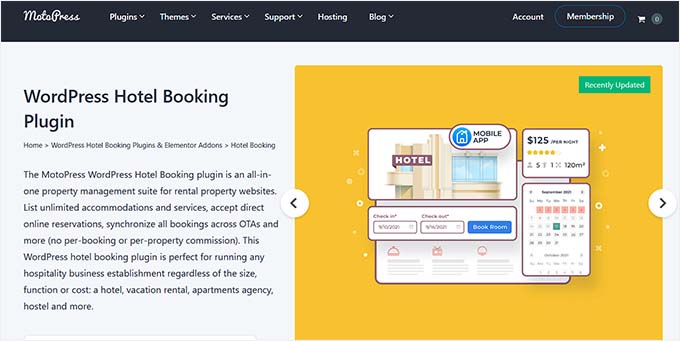
I’ve tested MotoPress extensively on my demo website, and in my opinion, it offers the easiest way to get a functional booking system without hiring a developer.
First, you need to install and activate the MotoPress plugin. For detailed instructions, see our tutorial on how to install a WordPress plugin.
💡 Note: MotoPress offers a free version, which works great for basic bookings. However, some features like payment gateways and more advanced email notifications are locked behind the premium version.
Once it’s active, you’ll see a new ‘Accommodation’ menu in your dashboard. That’s where you’ll set up your rooms, pricing, and booking calendar.
🏗️ Step 2: Configure Your Hotel Settings
Before you configure the settings, you need to create a few pages to handle the booking process.
The plugin needs specific pages to display search results and handle checkouts. If you haven’t created them yet, go to Pages » Add New and create blank pages for the following:
- Search Results Page: Where guests see available rooms.
- Checkout Page: Where guests enter payment details.
- Terms & Conditions: For your booking policies.
- Booking Confirmation: A “Thank You” page after success.
You don’t need to add content to them right now. Just publish the blank pages so they exist in your system.
Now, navigate to the Accommodation » Settings » General page from the WordPress dashboard. Here, you can fine-tune the basics of how the booking system works.
In the ‘Pages’ section, you’ll need to assign key pages that will handle different parts of your booking process.
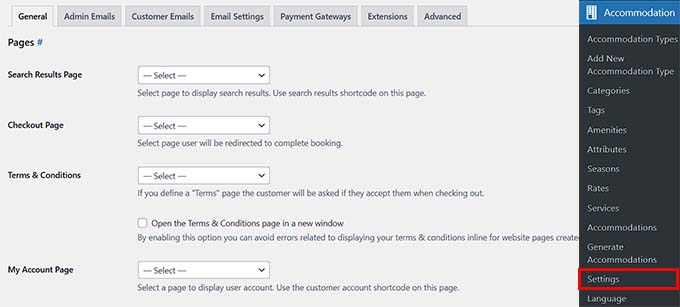
This tells the plugin exactly where to send your guests during the booking process.
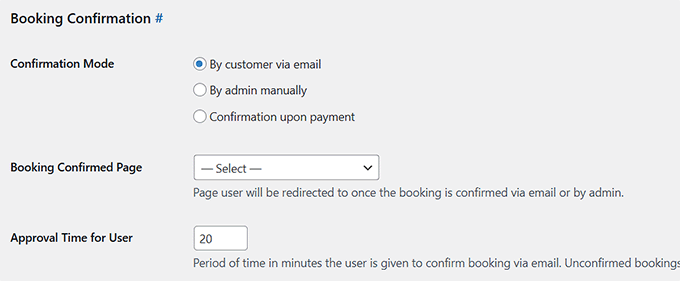
Next, scroll to the ‘Booking Confirmation’ section. You can choose to confirm bookings:
- Automatically upon payment,
- Manually by admin, or
- Via email confirmation from the customer.
I recommend manual confirmation when launching a new site so that you can personally review every reservation. But if you’re comfortable automating things, the other options work well, too.
There’s also a setting on the ‘General’ page to control how long a guest has to confirm their booking via email before it gets marked as abandoned. The default is 20 minutes, but you can extend it if needed.
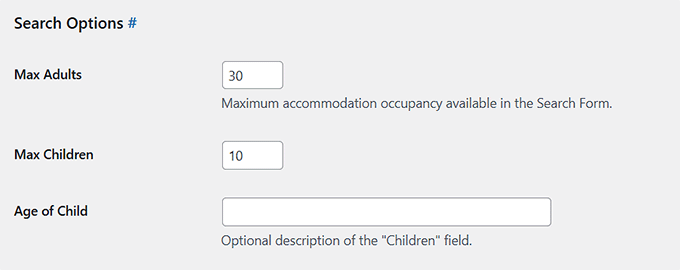
Once that is done, scroll down to the ‘Search Options’ section.
You can define the maximum number of adults and children that can be selected in the booking form, customize the label for children, and choose whether to include a search results page at all.
If you want, you can also show or hide fields for adults and children. For example, if you’re renting out entire homes or cabins, it may make more sense to use a generic ‘Guests’ label instead of asking for adults and kids separately.
These settings give you a lot of flexibility, and once you configure them, your hotel booking system will be aligned with your business rules from the start.
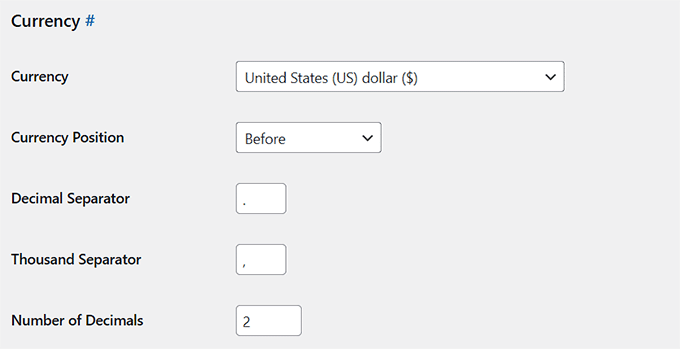
Next, scroll down to the ‘Currency’ section.
Choose the currency you want to display (like USD or EUR), and decide whether the symbol appears before or after the price.
You can also adjust the decimal and thousand separators. For example, if you’re in Europe, you might prefer using commas instead of periods.
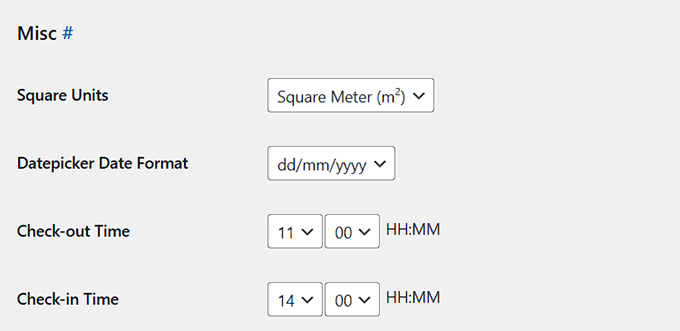
After that, scroll down to the ‘Datepicker Date Format’ field in the ‘Misc’ section.
Here you can customize how dates appear in your booking forms—like dd/mm/yyyy or mm/dd/yyyy.
Then, set your check-in and check-out times, which control when guests are expected to arrive and leave.
A check-in time of 2:00 PM and a check-out time of 11:00 AM are standard, but you can adjust them based on your policy.
You can also configure the rest of the settings from this page, including things like customer email templates, admin notification emails, booking behavior, calendar display, and more.
I recommend taking a few minutes to go through each section and adjust things based on your business needs.
Once you’re done, just scroll to the bottom and click ‘Save Changes’ to apply your settings.
🛏️ Step 3: Add Accommodation Types (Your Rooms)
Now that your core settings are in place, the next step is to add your rooms.
In MotoPress Hotel Booking, rooms are added as ‘Accommodation Types.’ Each type represents a room, apartment, suite, or rental unit that you offer.
If you have multiple rooms of the same kind, like 5 Standard Rooms, you’ll only need to create one accommodation type and set the quantity to 5.
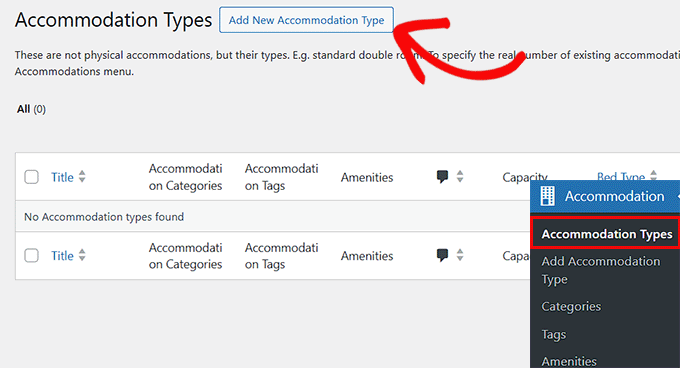
To get started, go to Accommodation » Accommodation Types, then click ‘Add New Accommodation Type.’
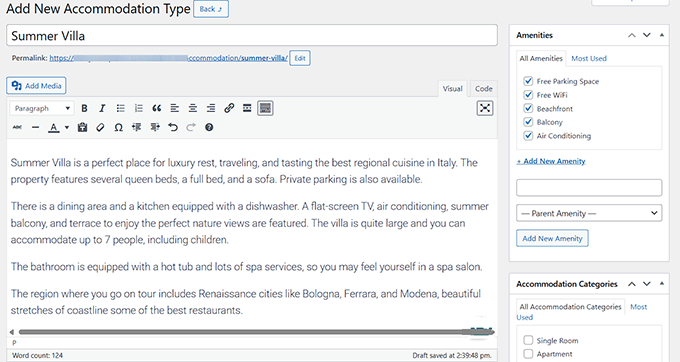
Here, enter the name of the room, like ‘Deluxe King Room.’ Add a detailed description so guests know what to expect.
I also recommend uploading a few high-quality photos using the featured image and gallery options. Good visuals can make a big difference when guests are deciding which room to book.
Important: High-resolution photos can slow down your website. I recommend using a tool like TinyPNG to compress your images before uploading them. This keeps your site fast for mobile users.
You can also set your accommodation category and tags in the panels on the right.
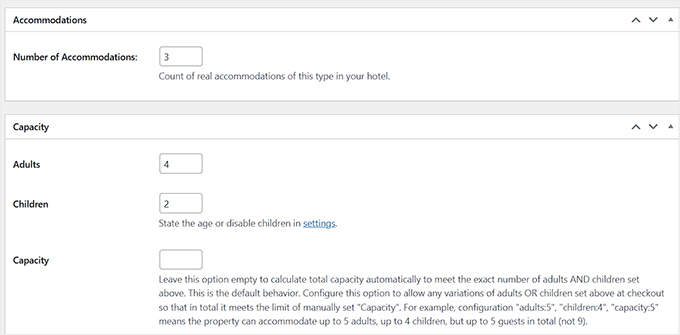
Next, scroll down to the ‘Number of Accommodations’ section. Here, you need to tell the system how many identical rooms of this type are available for booking.
For example, if you have three identical Summer Villas, then set the quantity to 3. The plugin will manage availability automatically.
Then, configure the room capacity by setting the number of adults and children the room can accommodate.
You can also assign available bed types, add custom amenities, or even link specific services like breakfast or airport pickup if you’ve set those up.
Once you’re done filling out the details, click the ‘Publish’ button to save your first room.
Repeat this process for each type of room you want to offer.
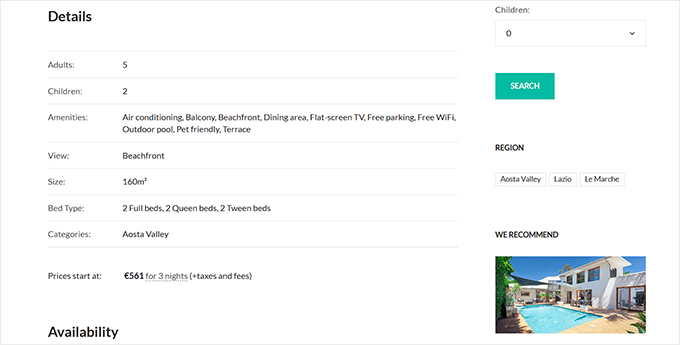
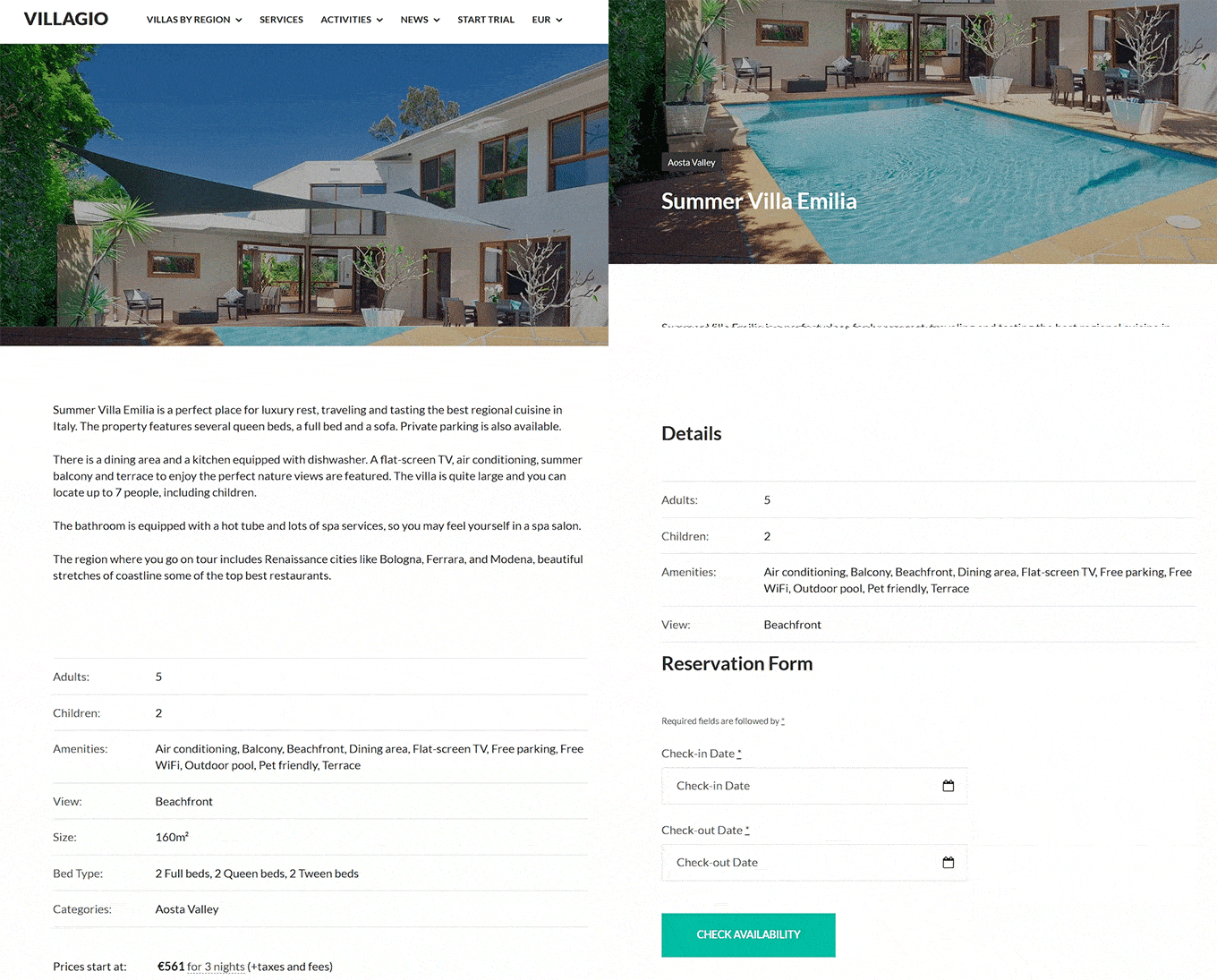
Once published, this is how your accommodation type will appear on your website, complete with the room title, images, description, capacity, pricing, and a booking button.
💰 Step 4: Set Room Rates and Seasons
Now that your rooms are added, it’s time to set up your pricing. MotoPress separates this process into two distinct parts to give you maximum flexibility:
- Rates (The “How Much”): The actual price tag attached to those dates.
- Seasons (The “When”): The specific dates when a price applies (e.g., Summer, Holidays, Weekends).
You must define the timeline (Seasons) before you can attach a price to it (Rates). Let’s do that now.
Defining Your Seasons
First, tell the system which dates are special. Visit the Accommodation » Seasons page and click the ‘Add New Season’ button.
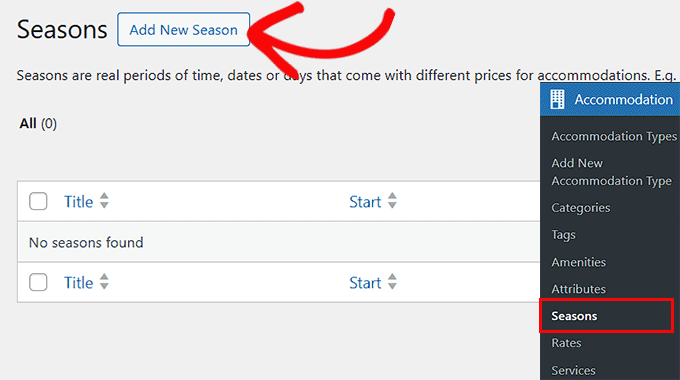
A season is any date range where your pricing changes, like summer, winter holidays, or weekends. Here, you’ll need to give your season a clear name and set the start and end dates.
For example, you could create a ‘Summer Peak’ season that runs from June 1 to August 31, and a ‘Holiday Season’ from December 20 to January 5.
You can also choose whether a season should repeat every year or only apply once.
This is helpful if you have recurring high seasons like summer or Christmas, or special one-time events where rates need to be adjusted just for a specific year.
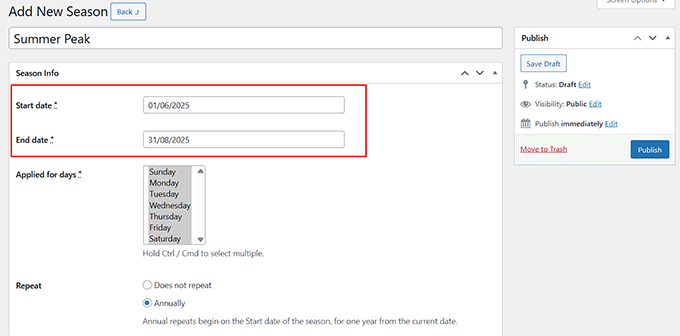
Once you do that, click the ‘Publish’ button to store your settings.
Setting Your Rates
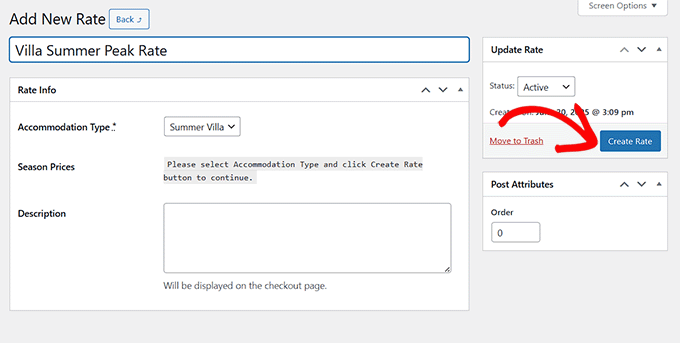
Now that the system knows the dates, you can set the prices. Head over to the Accommodation » Rates page and click ‘Add New Rate.
Select the accommodation type you want to price (e.g., Deluxe King Room) and click ‘Create Rate’.
Inside the rate settings, click the ‘Add New Season Price’ button. This connects your price to the season you just created.
Then enter a base ‘Price per night,’ along with a price for each extra adult or child, if needed.
For example, you might charge $100 per night during the off-season and $150 during the summer.
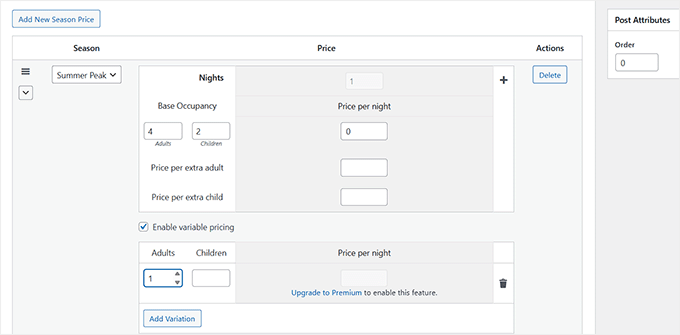
You can also enable variable pricing, which allows you to set different prices based on the number of guests. For instance, charging less for 2 adults and more for 4 adults.
However, this feature is part of the premium version, so you’ll need to upgrade MotoPress to unlock it.
Repeat this process to create rates for each room type according to different seasons. Once you’ve added all the rates, don’t forget to click the ‘Update Rate’ button to save your changes.
📅 Step 5: Manage Availability Calendars
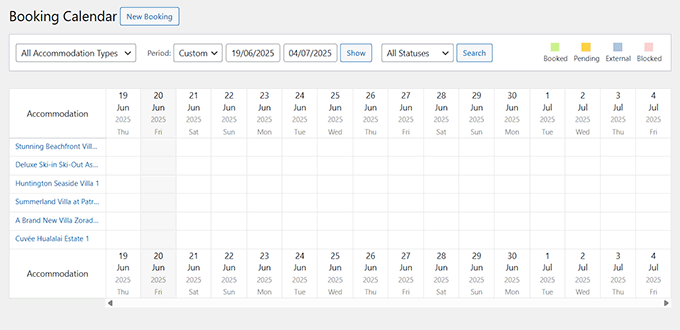
Once your rooms and rates are set up, the next step is to manage availability. The MotoPress Calendar gives you a visual overview of all your bookings.
To access it, go to Bookings » Calendar. This lets you see which rooms are booked and when. However, you cannot click on a date in this calendar to block it out.
If you’re using the pro version of the MotoPress Hotel Booking plugin, you’ll also unlock the ability to create bookings manually from the WordPress dashboard.
Simply click the ‘New Booking’ button at the top of the screen. This takes you to a booking form where you can enter the guest’s check-in and check-out dates, select the accommodation type, and input the number of adults and children.
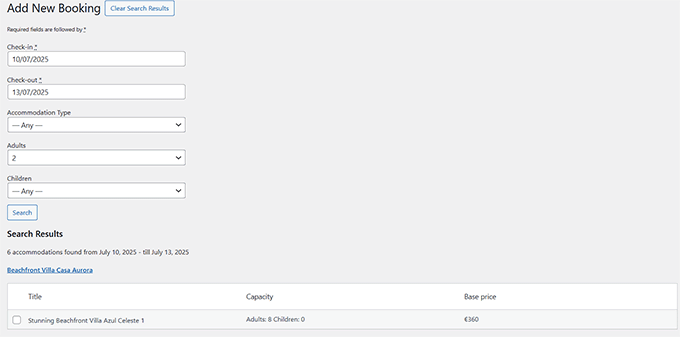
The plugin will then check availability and let you know which rooms are open for those dates.
This feature is especially helpful for handling phone reservations, walk-ins, or any booking that happens outside your website.
Another thing to keep in mind is that the calendar is for viewing bookings, not for blocking dates. You cannot click on a date in the calendar to make it unavailable.
To block dates for maintenance or set rules like a minimum stay, you’ll need to use the ‘Booking Rules’ section. This is a key feature that gives you precise control over your availability.
To set those, go to the Bookings » Booking Rules page.
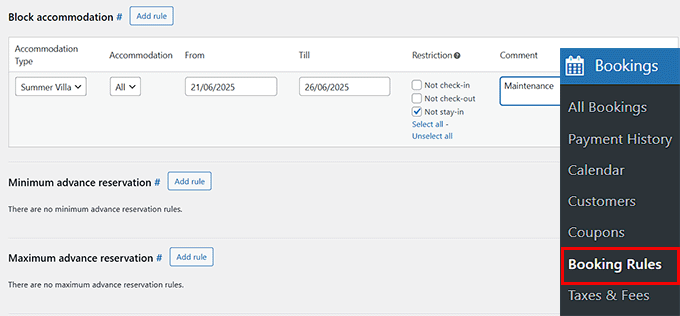
This section allows you to define how and when each room can be booked. You can:
- Set check-in and check-out day restrictions, like only allowing Friday arrivals.
- Block specific rooms during selected dates — for example, for cleaning, maintenance, or personal use.
- Set minimum and maximum stay durations, such as a 2-night minimum.
- Decide how far in advance guests can place a booking.
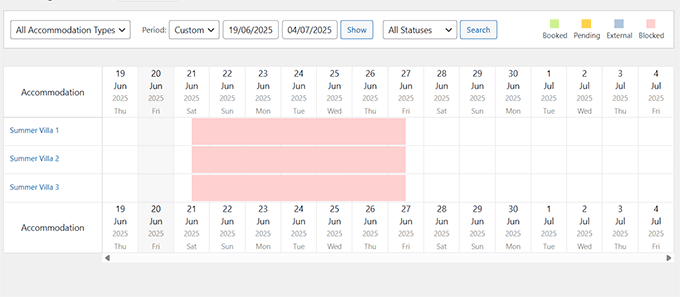
Any rules you create here will automatically update your availability calendar and prevent guests from booking outside your set policies.
Setting up these rules early on gives you more control over your calendar and ensures your booking system behaves the way you expect.
Here’s an example of a calendar with certain dates blocked.
💳 Step 6: Enable Online Payments
To make the booking process easy for your guests, you’ll want to enable online payments.
This allows visitors to pay for their reservations at the time of booking, which not only builds trust but also helps you avoid no-shows and last-minute cancellations.
MotoPress Hotel Booking supports several popular payment gateways. For instance, the free plan allows built-in payment options like direct bank transfers, pay on arrival, and PayPal. This allows you to start accepting payments right away.
However, to accept Stripe, 2Checkout, or Bambora payments, you’ll need the premium version.
To set up payments, go to Accommodation » Settings » Payment Gateways. By default, you’ll land on the general settings page for all available payment options. At the top, you’ll see a list of links for each supported payment gateway.
Simply click on the payment method you want to configure. For example, if you select PayPal, you’ll see the settings below.
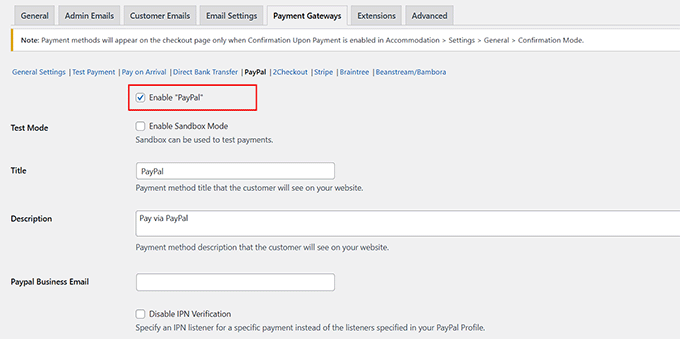
Make sure to click the checkbox to enable your preferred payment method.
If you’re using PayPal, you’ll also be prompted to enter your business email address so the plugin can securely process payments on your behalf.
You can also adjust how and when payments are collected by switching back to the ‘General’ tab at the top of the ‘Payment Gateways’ page.
For instance, you can ask for full payment upfront, charge a deposit, or allow guests to pay on arrival.
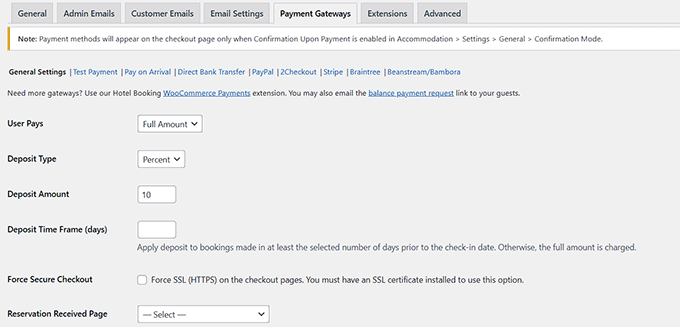
Once your payment methods are active, they’ll automatically appear during the checkout process on your site.
Just make sure to run a test booking to confirm everything works correctly.
🏁 Step 7: Create Booking Pages Using Blocks
Once everything is set up behind the scenes, it’s time to make your booking system visible to your website visitors. You can do this by creating dedicated pages in the WordPress block editor using the built-in MotoPress blocks.
The plugin automatically adds several custom blocks to the editor, making it easy to display accommodation details, availability calendars, booking forms, and more—all without coding.
I recommend starting by creating a separate page for each of your accommodations.
Open the WordPress block editor and add the ‘Single Accommodation Type’ block. Then, use the dropdown menu on the left to choose an accommodation.
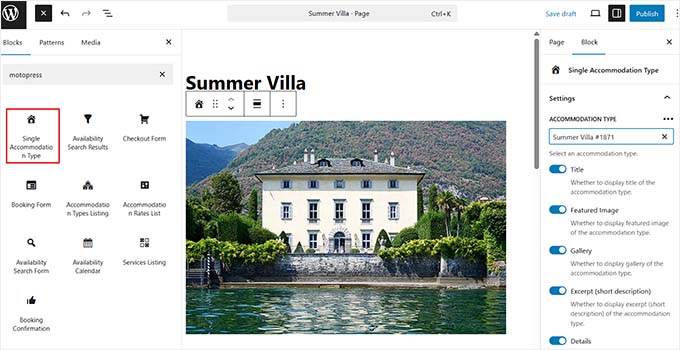
This block automatically displays all the important details for that room, including the title, images, description, amenities, an availability calendar, and a booking form.
That means visitors will be able to check availability and begin the booking process directly from this page. You can repeat the process for your accommodation types.
You may also want to add headings, text, or other content to make your pages more informative and user-friendly.
You can revisit our tutorial on how to create a custom page in WordPress for help with this.
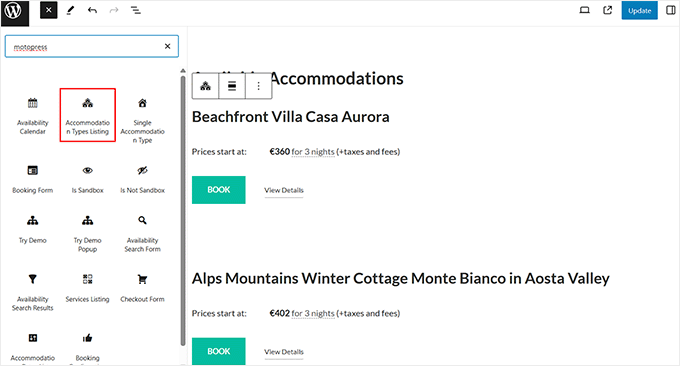
Then, create a main listing page where all of your accommodations are displayed. To do this, simply add the ‘Accommodation Types Listing’ block.
It will pull in every accommodation type you’ve published and display them in a neat layout, making it easy for guests to browse and choose the one that suits them best.
Now, in step 2, we talked about creating the checkout page and search results page and assigning them to the appropriate fields in the plugin settings.
Before everything can work correctly, you’ll need to open each of those pages in the block editor and insert the correct blocks.
On the search results page, add the ‘Availability Search Results’ block. On the checkout page, add the ‘Checkout Form’ block.
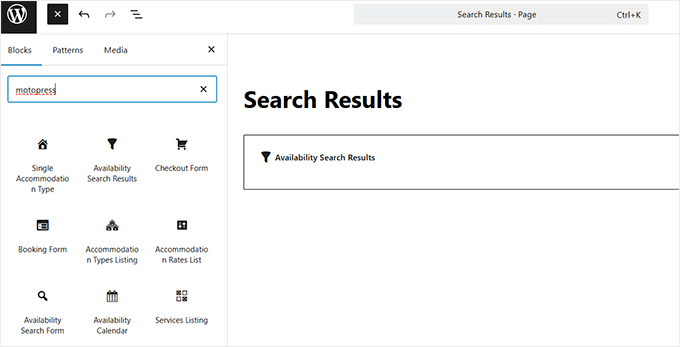
Once you do that, your website’s booking process will work like this:
- A visitor selects their dates on a room page and checks availability.
- They are taken to the ‘Search Results’ page to confirm their choice.
- Finally, they are sent to the ‘Checkout’ page to enter their details and complete the booking.
At this point, you need to test the flow. Do not test while logged in as an admin.
Open your website in an Incognito window (or a different browser). This ensures you see exactly what a new guest sees. Try searching for a room and completing a booking to make sure everything works perfectly.
🎁 Bonus Plugins to Improve Your Hotel Booking Website
Once your hotel booking system is up and running, you can take things a step further by adding a few extra plugins.
These tools help you grow your traffic, improve the booking experience, and make managing your site easier behind the scenes:
- AIOSEO: This is critical for Local SEO. It helps your hotel appear in Google Maps and “hotels near me” searches so travelers can actually find your location.
- WPForms: Use this to create a ‘Special Request’ or ‘Event Inquiry’ form. It lets guests ask about weddings, airport pickups, or dietary needs easily.
- WP Mail SMTP: This ensures your booking confirmation emails actually reach the guest’s inbox. It stops reservation details from ending up in the spam folder.
- MonsterInsights: See exactly where your guests are coming from. It tracks which marketing channels are driving the most bookings so you can spend your budget wisely.
- OptinMonster: Use this to recover lost bookings. You can show a popup with a 5% discount code if a user tries to leave the checkout page without paying.
- Duplicator: Your reservation database is your business. This plugin creates automatic backups so you never lose a booking if your site has a technical issue.
These plugins work great alongside MotoPress Hotel Booking and help you run a more secure, optimized, and guest-friendly hotel website. You don’t need to install everything at once, but adding the right tools based on your goals can make a real difference.
👉 Want more options? Check out our full list of must-have WordPress plugins. It covers everything from performance and security to SEO and marketing.
💬 Frequently Asked Questions About Creating Hotel Booking Sites
Here are some questions that are frequently asked by our readers about adding a hotel room booking system in WordPress:
Do I need to use a specific WordPress theme with MotoPress?
No, MotoPress Hotel Booking works with any well-coded WordPress theme. You can likely use your existing design without issues, though MotoPress does offer specialized themes if you are starting from scratch.
If you’re looking for design inspiration or want a theme that works great with booking functionality, be sure to check out our list of the best hotel WordPress themes.
Is it possible to add seasonal pricing or discount rates?
Yes, you can easily set different rates for peak seasons, holidays, or weekends. The plugin also supports discount coupons and variable pricing based on the length of stay or number of guests.
Is there a way to prevent double bookings?
Yes, the system automatically blocks dates as soon as a room is booked. You can also sync your calendar with platforms like Airbnb and Booking.com via iCal to ensure availability is updated everywhere in real-time.
What are the best SEO practices for a hotel booking website?
The most important practice is to optimize for Local SEO so guests can find your specific location. You should also write unique descriptions for every room type, add alt text to images, and use schema markup to display star ratings in Google search
Here are some key SEO tips I recommend for hotel websites:
- Use an SEO plugin like AIOSEO to manage titles, meta tags, and schema.
- Target long-tail keywords that reflect your location and unique offerings.
- Add reviews or testimonials to build trust and keep content fresh.
- Use schema markup to show star ratings and pricing in Google search.
- Optimize your website speed, especially for mobile users.
For more guidance, see our ultimate WordPress SEO guide.
I hope this article helped you learn how to add a hotel room booking system in WordPress. You may also want to see our beginner’s guide to adding a customer reviews page in WordPress and our list of shopping cart abandonment statistics to improve your site.
If you liked this article, then please subscribe to our YouTube Channel for WordPress video tutorials. You can also find us on Twitter and Facebook.




sreekanth
hi how can i create the hotel website in which the users can search their desired hotel and flight and here the question is how can i get the data of flights and hotels data into my database
Ray Gulick
No Stripe integration?
ken
only one room type allow which i think no hotel can use this system…
Ramesh
interesting article… very informative & thoughtful message on Booking engine how to setup wordpress calender plugins.
見嘉 洪
I can’t see the “add calendar” drop down menu in the visual post editor.
What should i do now?
After the newest version updated, this problem is solved. Thanks~
Stephan Paul
Seems Wicked but I have multiple rooms available with different prices This seems to just do one price for the one room for one night and i cant seem to find how to add more rooms or different prices
jaimin
how to display all room post list in single page ????
Bongo
Very Nice. Looks simple. Well done guys
John
This plugin looks inviting.
However, if you want to book something without using PayPal you need to pay US$49 for the Pro version.
I wouldn’t mind paying for the pro version, but because I don’t want to use PayPal, I’ve no way of knowing if it will work.
Mark
Hi, great writeup and exactly what I’m in the process of looking for. My problem has been that there are so many options out there. Did you review any other paid/free plugins before writing this article? I’m curious as to what led you to choosing this as Your ‘plugin of choice’ for booking systems.
Thanks,
Mark
WPBeginner Support
There are other plugins with similar functionality. Among the free plugins we found this one. Let us know if you find something better.
Admin