


Nothing makes your heart sink faster than seeing a blank error screen instead of your active website. We have helped countless readers recover from unexpected downtime, so we know exactly how stressful this panic feels.
Whether you are staring at a completely blank white screen (known as the White Screen of Death), a 500 Internal Server Error, or a ‘Connection Timed Out’ message, the good news is that you can usually get things running again with a few simple troubleshooting checks.
In this guide, we will walk you through the most common reasons a WordPress site goes down and how to fix them. Let’s start with the easiest solution first.
Why Does Your WordPress Website Keep Going Down?
When your WordPress website is down, your users will see an error message that prevents them from visiting the page.
If your website is down due to one of the common WordPress errors, then you can simply fix it to resolve the issue.
However, if the issue keeps happening or your website is not showing an error, then you will need to investigate it further.
Website downtime can happen for several reasons, including unreliable hosting, an expired domain, security reasons, an error in custom code, and more.
Another reason for downtime can be increased website traffic that exceeds your WordPress hosting resource limits.
No matter the reason, if your WordPress website regularly goes down, it can harm your business. Your conversion rates may fall, and you might lose customers.
Luckily, we have compiled a list of things to do if your WordPress website keeps going down. These steps will help you troubleshoot the cause and fix it easily:
- Check if It Is Just You or if the Website Is Down for Everyone
- Make Sure Your WordPress Hosting Plan Has Not Expired
- Make Sure Your Domain Has Not Expired
- Check Your Plugins and Themes
- Check Your WordPress Settings
- Make Sure the Permalinks Are Not Broken
- Try Reuploading the WordPress Core Files
- Install a Firewall on Your Website
- Move to a Reliable WordPress Hosting Plan
- Frequently Asked Questions (FAQs)
- Additional Resources
1. Check if It Is Just You or if the Website Is Down for Everyone
Your WordPress website may not be down for everyone. Sometimes, you may just be unable to access your site due to a network error or lack of internet connection.
First, you will need to verify that your website is down for everyone and not just you. To do that, you can use IsItWP’s free uptime checker.
To do this, simply visit the Website Uptime Status Checker page and enter your site URL.
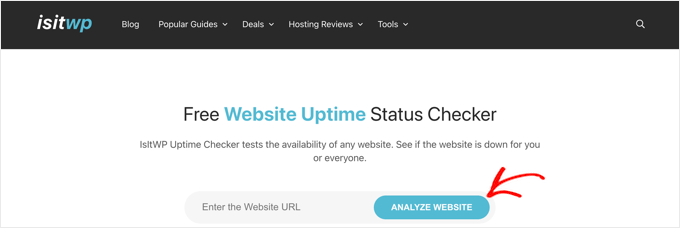
Click on the ‘Analyze Website’ button, and the tool will tell you if your website is down for everyone or just you.
If it is only down for you, then we recommend checking your internet connection. You can try clearing your browser cache, restarting your network router, or flushing your local DNS cache.
On the other hand, if your website is down for everyone, then continue reading to learn how to fix it.
2. Make Sure Your WordPress Hosting Plan Has Not Expired
One of the most common reasons for website downtime is your WordPress hosting provider. Your plan may have expired, or the provider might be having server problems.
First, you must ensure that your hosting plan hasn’t expired. You can usually find this information in your hosting account dashboard.
Before contacting support, it’s a good idea to check your host’s status page. Simply search on Google for “[Your Hosting Company] status page.” Most providers use these pages to announce server maintenance or report widespread outages. This can give you an instant answer and save you a lot of worry!
If your plan has not expired, but your WordPress website keeps going down, you will need to contact your hosting provider. They may be facing a server error on their end, and they can provide you with more information about it.
For example, your hosting company might be performing server maintenance, facing DDoS attacks, or may have taken down a few servers. All of these reasons could result in downtime.
Your website may also be down due to the failure of some hardware components of the host’s server.
In these cases, your website should be up and running again once the hosting provider fixes the issues.
If you’re constantly running into issues with your hosting provider, then it’s a good idea to switch to a more reliable managed WordPress hosting company.
We recommend going with either SiteGround, Hostinger, or WP Engine.
Expert Tip: We use SiteGround to host WPBeginner. Their performance and reliability are a big reason why our site stays online, even when handling millions of visitors.
3. Make Sure Your Domain Has Not Expired
Sometimes, the website goes down because the domain name you bought when starting your website might have expired. If this is the case, it needs to be renewed.
The best way to check your domain’s status is to log in to the account where you purchased it (your domain registrar, like Domain.com, Bluehost, or SiteGround). Your account dashboard will immediately tell you if your domain has expired and guide you on how to renew it.
If you’re unsure where you registered it, you can use a WHOIS lookup tool. This tool will show you public registration details, including the expiration date and registrar.
The tool will then look up details of your domain name. If your domain has expired, it is usually put into a hold or grace period, where you can still log in to your registrar and renew it to get your site back online.
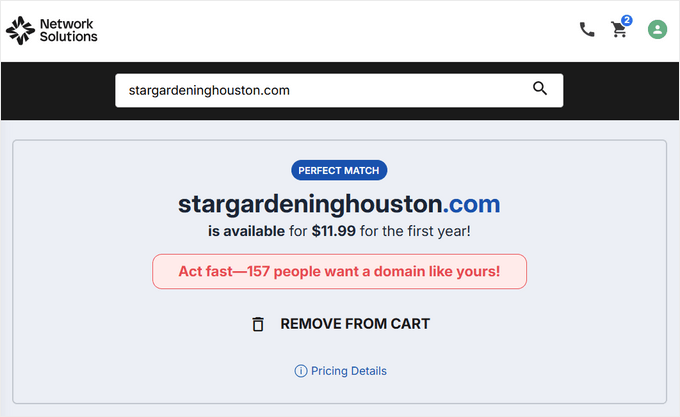
In that case, go ahead and renew it using any domain registrar, such as Network Solutions. For step-by-step instructions, see our guide on how to renew a domain name.
You can also obtain a free domain from some hosting providers, including Hostinger. This is a top WordPress hosting company that provides a free domain name with any web hosting plan.
You can also use our Bluehost coupon code, which provides WPBeginner users with a free domain name, SSL certificate, and a HUGE discount on web hosting plans.
4. Check Your Plugins and Themes
WordPress plugins or themes can sometimes cause website downtime. The software may be outdated or have a vulnerability that hackers can use to take down your site.
Similarly, a WordPress theme can conflict with a particular WordPress version or a plugin on your website.
A conflict happens when two plugins, or a plugin and a theme, try to do the same job in a different way. Think of it like two apps on your phone both trying to use your camera at the same time—it can cause things to freeze or crash. Deactivating plugins is how we figure out which ones aren’t working well together.
To see if a plugin or theme is causing downtime, you will need to deactivate all of your plugins and switch to a default theme.
Deactivate All WordPress Plugins
Disabling all of your WordPress plugins can quickly show you if one of the tools is causing your site’s downtime.
If you have access to the WordPress admin area, then visit the Plugins » Installed Plugins page from the admin sidebar.
From here, you can select all plugins by simply checking the bulk select checkbox at the top.
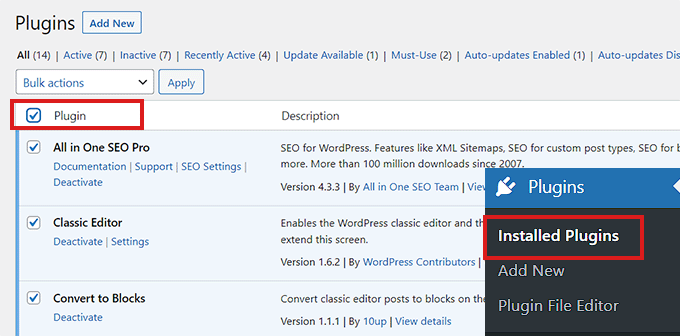
Next, open the ‘Bulk actions’ dropdown menu and select the ‘Deactivate’ option.
After that, click on the ‘Apply’ button to deactivate all of the plugins.
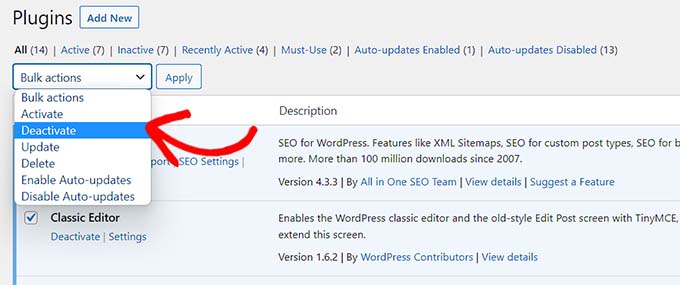
However, if you don’t have access to the WordPress admin, then you can deactivate plugins using a File Transfer Protocol (FTP) client.
First, you need to connect to your website using an FTP client or the File Manager app in your hosting account’s cPanel. Once your site is connected, head to the /wp-content/ folder.
Inside, you should see a folder named ‘plugins.’ This is where all your WordPress plugin files are stored.
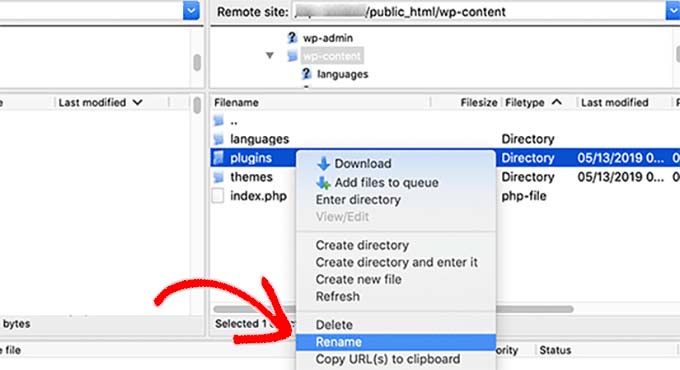
Simply rename the plugins folder to ‘plugins_deactivate.’ This will deactivate all WordPress plugins installed on your website.
For more detailed instructions, please see our tutorial on how to deactivate WordPress plugins when not able to access WP-Admin.
Switch to a Default WordPress Theme
Your WordPress theme may also be the cause of the problem, especially if it’s poorly coded or conflicts with a plugin.
To check this, you can force WordPress to switch to a default theme, like Twenty Twenty-Four.
First, connect to your site using an FTP client or the File Manager in your hosting control panel. Once connected, navigate to the /wp-content/themes/ folder.
Inside, you will see folders for each theme you have installed. Find the folder for your currently active theme and rename it by adding ‘-deactivated’ to the end of the name (for example, rename ‘mytheme’ to ‘mytheme-deactivated’).
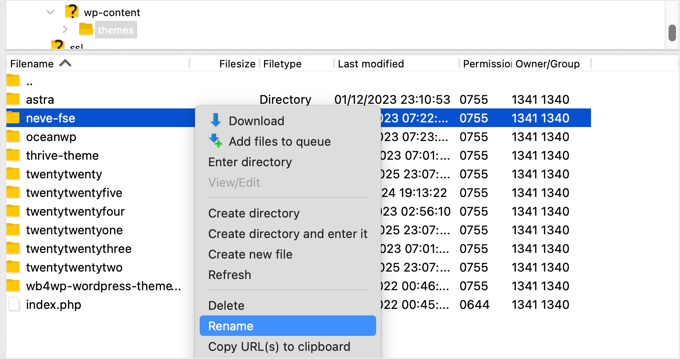
This will deactivate your current theme. If you have a default theme like ‘twentytwentyfour’ already in the themes folder, WordPress will automatically switch to it, and your site should come back online. You can then log in to your admin area to investigate further.
Note: It is always a good idea to back up your site first, as you might need to reassign your widgets after reactivating your primary theme.
If changing the theme or deactivating plugins didn’t resolve the issue, then continue reading.
5. Check Your WordPress Settings
Your website may also experience downtime due to incorrect WordPress configuration settings. Most commonly, your site may be using the wrong WordPress address.
First, you will need to check if your WordPress address and site address are the same.
The WordPress address is where your WordPress files and folders are stored. By contrast, the site address points to the part of your website that visitors see and interact with.
If you have access to the WordPress admin dashboard, then just visit the Settings » General page from the admin sidebar.
From here, make sure that the ‘WordPress Address’ and ‘Site Address’ boxes have the same URL.
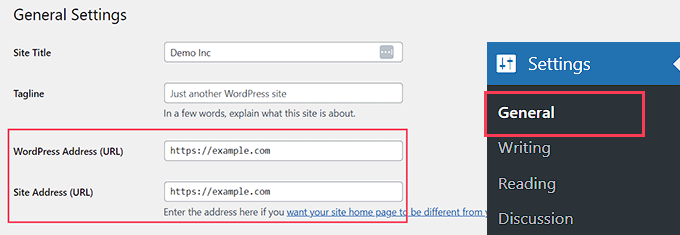
However, if you don’t have access to the WordPress admin, then you can check your site URLs by editing the wp-config.php file.
For detailed instructions, you can check out our tutorial on how to change your WordPress site URLs.
6. Make Sure the Permalinks Are Not Broken
Permalinks are the permanent URLs for posts and pages on your website.
Your permalinks can break when installing or updating a particular theme or plugin. Additionally, migrating your website to a new server or domain can break your permalinks and cause your site to go down.
If you have access to your dashboard, you can regenerate your site’s permalinks by going to Settings » Permalinks. Here, make sure that you have the right permalink structure selected.
Next, click on the ‘Save Changes’ button at the bottom to repair the broken permalinks.
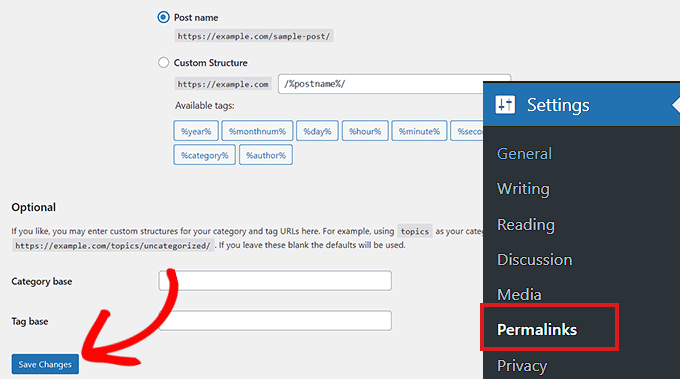
If you cannot access the WordPress dashboard, you can connect to your site via FTP and rename your .htaccess file to .htaccess_old to temporarily bypass the error and regain access.
If these methods don’t work, we recommend checking out our tutorial on how to regenerate permalinks in WordPress for other solutions.
If your website is still down after repairing its permalinks, then you will need to continue reading.
7. Try Reuploading the WordPress Core Files
Updating the core WordPress software can also cause downtime due to changes or corruption of the core files. When this happens, important system files for your website cannot be accessed.
Important: Because replacing core files can be risky if your connection drops, we strongly recommend creating a complete backup using a plugin like Duplicator or your host’s server backup feature before proceeding.
To fix this problem, you can try reuploading the /wp-admin/ and /wp-includes/ folders from a fresh WordPress install.
This method will not remove any information or content from your site but may fix a corrupted core file.
Note: If you can still access your WordPress admin dashboard, there’s a much easier and safer way. Just navigate to Dashboard » Updates. Here, you should see a ‘Re-install version [x.x.x]’ button. Clicking this will automatically replace the core files for you without needing FTP.
First, you must visit the WordPress.org website and click the ‘Download & Extend’ menu link, followed by ‘Get WordPress.’
Next, click the blue ‘Download WordPress’ button to download the .zip folder to your computer.
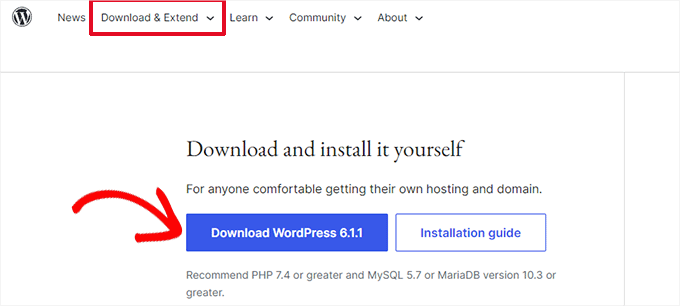
Then, you’ll need to extract the zip file and find the ‘wordpress’ folder inside of it.
After that, connect to your website using an FTP client. Once you have made the connection, head to the root folder of your website. It is typically called ‘public_html’, and it contains the wp-admin, wp-includes, and wp-content folders, along with other files.
Now, open the ‘wordpress’ folder on your computer. Select the wp-admin and wp-includes folders, then upload them to your website’s root directory.
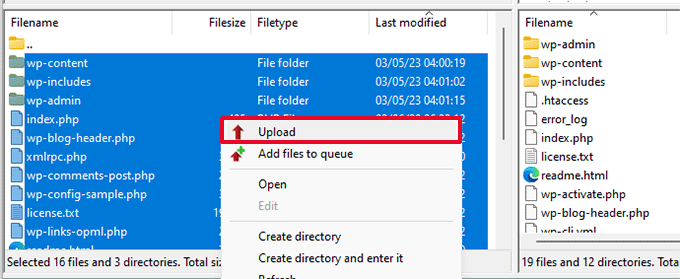
Important: Do NOT upload the wp-content folder from the fresh download. This would overwrite your themes, plugins, and uploads.
Your FTP client will ask if you want to overwrite the existing files. Select ‘Overwrite’ and check the box to ‘Always use this action’ to ensure all corrupted files are replaced.
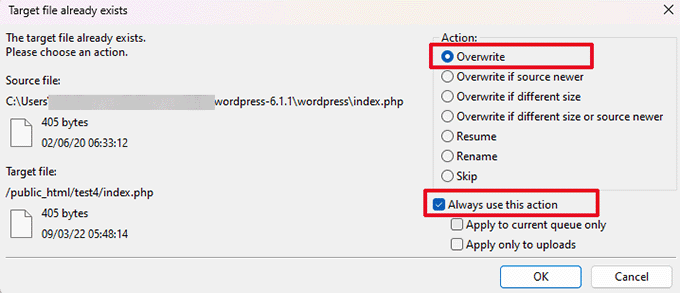
Finally, hit the ‘OK’ button. Your older WordPress files will now be replaced with fresh copies.
If replacing corrupted files doesn’t solve the problem, then you need to move to the next step.
8. Install a Firewall on Your Website
Your WordPress website might also be down due to malware or DDoS attacks.
During a DDoS attack, a hacker sends a large amount of data requests to your WordPress hosting server. This causes the server to slow down and eventually crash.
Similarly, malware is software that injects itself into your WordPress files. It uses up your WordPress server resources by attacking other websites or generating spam.
Luckily, you can easily prevent DDoS attacks and malware by using a web application firewall.
The firewall acts as a filter between your website and incoming traffic. It identifies and blocks all suspicious requests before they reach your server.
We recommend using a DNS-level firewall like Cloudflare. Its powerful free plan includes robust DDoS protection and a web application firewall (WAF) that blocks bad traffic before it even reaches your site. It’s one of the best ways to protect your site from these kinds of attacks.

Expert Tip: We use Cloudflare’s enterprise plan here at WPBeginner. It does a fantastic job of blocking attacks automatically, which is a huge part of our security strategy.
For on-site security, we also recommend installing the free Sucuri plugin. It helps with security hardening, malware scanning, and file integrity monitoring right from your WordPress dashboard. Using both Cloudflare and Sucuri together provides excellent layers of security.
You may want to read our article on Sucuri vs. Cloudflare for a detailed comparison.
For better website protection, you will also need to use security best practices on your WordPress website. For more details, see our complete WordPress security guide with step-by-step instructions on how to secure your site.
9. Move to a Reliable WordPress Hosting Plan
Finally, if you have tried all the steps above and your website keeps going down, then it might be time to move to a reliable WordPress hosting service.
If you have a small business or blog, then we recommend moving to Bluehost or Hostinger.
If you run an online store, then SiteGround is the go-to hosting provider because it comes with a managed EDD hosting plan. This enables you to launch a ready-to-go eCommerce store. It is also a good choice if you have a WooCommerce store.
Alternatively, if you have a rapidly growing business, then you should consider switching to a managed WordPress hosting provider like WP Engine.
Once you have chosen a provider, you will need to move your website to the new host.
Most hosting companies offer a free migration service that allows you to migrate your website without downtime.
You can also move your website on your own. For detailed instructions, you may want to see our tutorial on how to move WordPress to a new host or server.
Frequently Asked Questions (FAQs)
Here are answers to some of the most common questions we receive about WordPress website downtime.
1. Why does my website keep going down?
There are many potential reasons for frequent downtime. The most common causes include an unreliable hosting provider, an expired domain name, a conflicting plugin or theme, or even a security attack.
2. Can a WordPress plugin crash my website?
Yes, a plugin can absolutely crash your site, especially if it is poorly coded or conflicts with another plugin or your theme. This is why one of the most important troubleshooting steps is to deactivate all your plugins to see if that resolves the issue.
3. How much downtime is considered normal for a website?
Ideally, your website should have an uptime of 99.9% or higher. If your site goes down regularly, it’s a clear signal that there’s an underlying problem that needs to be fixed, often related to your hosting service.
4. What is the very first thing I should do when my site is down?
Before you start any complex troubleshooting, you should first confirm the site is down for everyone and not just you. A free tool like IsItWP’s Uptime Checker can quickly tell you if the problem is on your end or with the website’s server.
Additional Resources
We hope this guide helped you learn what to do when your WordPress site keeps going down. Now that your site is back up, you may also find these guides useful for improving it further:
If you liked this article, then please subscribe to our YouTube Channel for WordPress video tutorials. You can also find us on Twitter and Facebook.




Dennis Muthomi
I’ve implemented UptimeRobot with Slack notifications across all client sites, which helps catch issues before they become major problems. And it works REALLY well!!
This complements the article’s first point about checking site status, but allows for immediate response rather than waiting for client reports.
Having these automated alerts has saved countless hours and helped maintain client trust through quick resolution times.
Jiří Vaněk
Sometimes it’s also good to contact your web hosting provider. Your website might be infected with malware. Many providers have their internal software to check suspicious files and can scan the website to detect if it’s compromised and broken due to an attacker. Then, restoring from a backup, if available, can be helpful.