


If you run a WooCommerce store, you’ve probably noticed how many visitors browse and then just… disappear. 😶🌫️
One of the easiest ways to keep them around and boost sales is by adding live chat to your site.
Live chat lets your customers ask questions about shipping, products, or anything else in real time and get quick answers. It’s like having a little helper in your store, ready to guide visitors and nudge them toward making a purchase.
In this guide, I’ll share three super easy ways to add live chat to your WooCommerce store. This will allow you to start helping visitors right away and see your sales go up.
💡Quick Answer: 3 Ways to Add Live Chat to Your WooCommerce Store
If you want a fast overview before diving into the full tutorial, here’s how the three methods compare:
- Method 1: LTVPlus – Outsourced Live Chat with Professional Agent: This is my top pick for beginners or store owners who don’t have time to manage chat themselves.
- Method 2: LiveChat – Full-Featured Live Chat Software: It’s perfect for larger stores, high-traffic sites, or businesses with an in-house team ready to respond to visitors in real time.
- Method 3: WPChat – Connect to Customers’ Favorite Messaging Apps: WPChat is ideal if your customers prefer chatting on WhatsApp, Messenger, Instagram, or Telegram.
Why Add Live Chat to Your WooCommerce Store?
Live chat helps you answer customer questions instantly, guide shoppers through their buying journey, and boost your sales. It’s a simple way to make your store more approachable and reduce abandoned carts.
I’ve seen many eCommerce stores, including our partner brands, use live chat to connect with visitors — and it really makes a difference in conversions.
Here’s why adding live chat to your WooCommerce store is a smart move:
- Answer Questions in Real Time: Visitors don’t have to wait for emails or responses through your contact form. Quick answers can turn casual browsers into buyers.
- Reduce Abandoned Carts: If someone is unsure about shipping, returns, or product details, live chat can give them the confidence to complete their purchase.
- Provide a Personal Touch: Live chat makes your WooCommerce store feel more approachable and customer-friendly, which builds trust.
- Collect Leads: Even if a visitor doesn’t buy immediately, you can capture their email or details through the chat for follow-up later.
- Gain Insights: Live chat can reveal what questions or issues customers have most often, helping you improve your store experience.
Now that you know why live chat is useful, let’s look at three easy ways to add it to your WooCommerce store.
You can jump straight to the method that works best for you using the links below:
- Method 1: Outsource Live Chat with LTVPlus (Most Beginner-Friendly)
- Method 2: Add Live Chat with LiveChat (Best All-Round Option)
- Method 3: Add Live Chat with WPChat (Messaging Platform Integration)
- Bonus: How Live Chat Can Boost Sales on Your Store
- Frequently Asked Questions About WooCommerce Live Chat
Method 1: Outsource Live Chat with LTVPlus (Most Beginner-Friendly)
🥇Best for: Stores with high traffic, limited time, or no in-house team to manage chat who want professional support without the hassle of hiring or training agents.
Managing live chat yourself can be overwhelming, especially if your store gets lots of questions about products, shipping, or returns. That’s why outsourcing is a great option.
Instead of juggling multiple conversations or hiring a support team, you can rely on professionals who handle it all for you.
That’s where LTVPlus comes in. They provide a team of trained chat agents who can handle pre-sales questions, simple support requests, and guide visitors through the purchasing process.

Their agents learn about your products and work as if they’re part of your own store. This means your customers get helpful responses without any extra effort on your part.
Our team at OptinMonster has been using LTVPlus for a while, and it’s been a game-changer. We have noticed a clear increase in conversions because visitors got answers instantly — no waiting for emails or contact forms.
Setting it up is also incredibly simple: just click the ‘Start Hiring’ button on their website to book a consultation, and their team walks you through the process step by step.
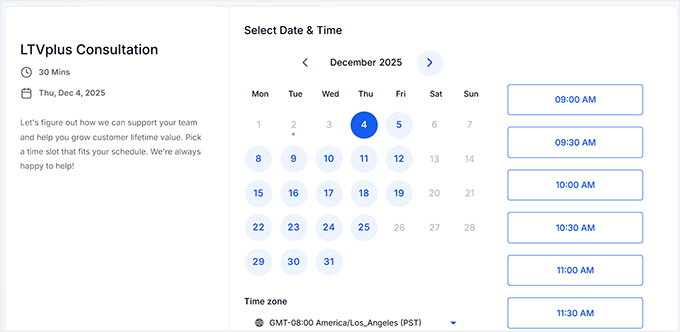
Outsourcing live chat makes managing customer questions much easier and can boost sales. I highly recommend it if you don’t have the time or team to handle chat yourself.
Method 2: Add Live Chat with LiveChat (Best All-Round Option)
🥈Best for: Stores that want a professional live chat solution they can manage themselves, with minimal setup, reliable performance, and features for scaling their businesses.
If you want a fast, reliable, and easy way to add live chat to your WooCommerce store, then LiveChat is one of the best options out there.
I’ve tested several live chat solutions, and have found LiveChat to be the easiest to set up, the most stable, and packed with features that make managing online chat simple and effective.

LiveChat is a paid solution, with plans starting from $19 per agent, per month when billed annually. Plus, you can use our LiveChat coupon code to get a discount and a free trial.
Upon purchasing a plan, you can easily connect LiveChat to your WooCommerce store using their free plugin. This makes setup quick and beginner-friendly, so you can start helping customers in real time almost immediately.
For more information, you can see our detailed LiveChat review.
Step 1: Sign Up for LiveChat
To get started, go to the LiveChat website, enter your business email, and click the ‘Sign up Free’ button.
On the next screen, create a password and add your phone number, then click ‘Sign Up’ again.
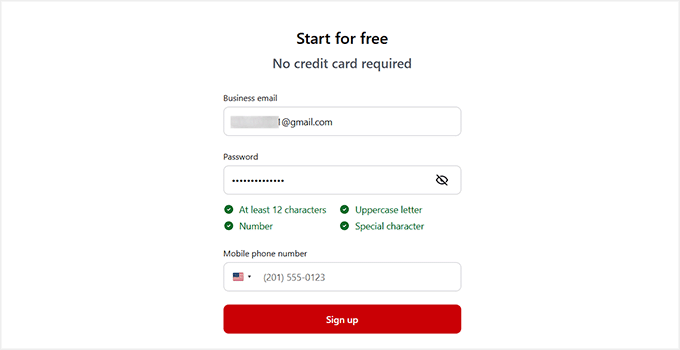
Once your account is created, LiveChat will ask for your name and your website’s URL.
Adding your website link allows LiveChat to verify your site and customize the chat widget’s appearance to match your brand. This ensures the chat window looks good on your site right from the start.
Just enter your website URL and click ‘Continue.’
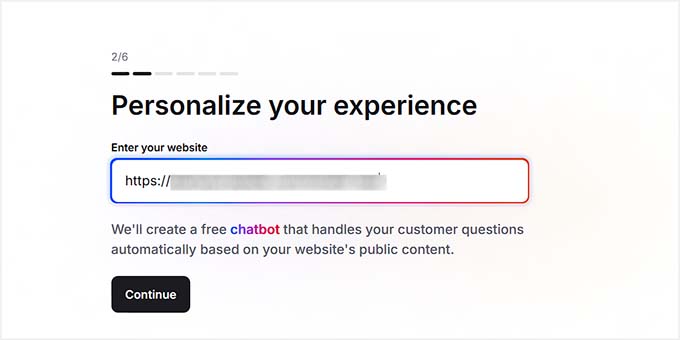
After that, you can go through the setup wizard, where you can choose your company size, invite team members, and customize your account to your liking.
Once you’ve finished the wizard, you will be taken to your dashboard. Your LiveChat account is ready, and you’re now set to connect it to your WooCommerce store.
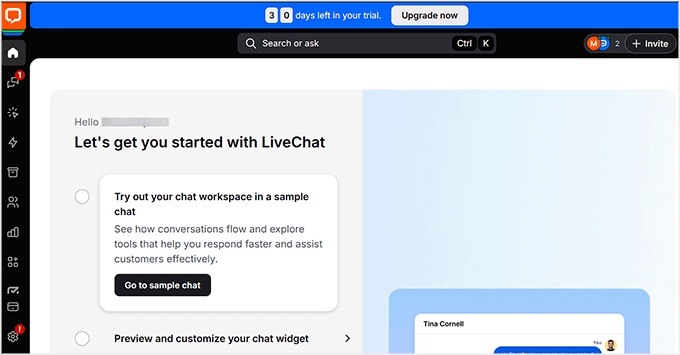
Step 2: Connect LiveChat to Your WooCommerce Store
Now that your LiveChat account is ready, the next step is to connect it to your WooCommerce store so you can start chatting with your customers.
To do this, you’ll need to install the free LiveChat Plugin for WooCommerce. If you’re not sure how to install a WordPress plugin, don’t worry — I’ve got you covered.
Just follow our guide on installing plugins in WordPress, and you’ll be ready in no time.
Once the plugin is installed and activated, you’ll be taken to a new page where you need to click the ‘Connect LiveChat’ button.
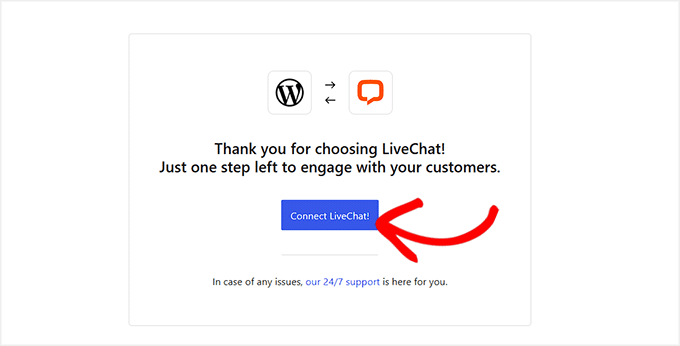
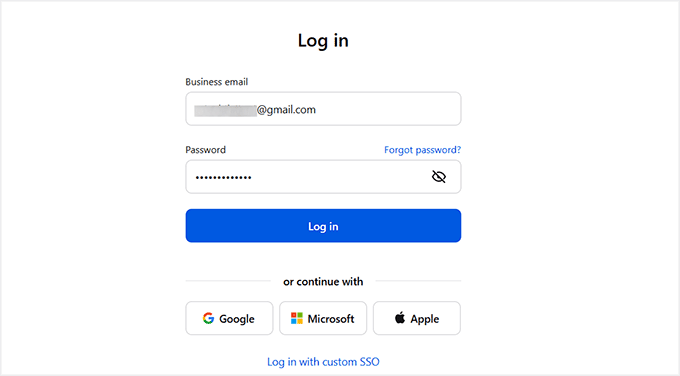
Clicking this will take you back to the LiveChat website, where you’ll log in again to authorize the connection.
After logging in, you’ll be redirected back to your WordPress dashboard. Now, your LiveChat account and WooCommerce store are fully connected.
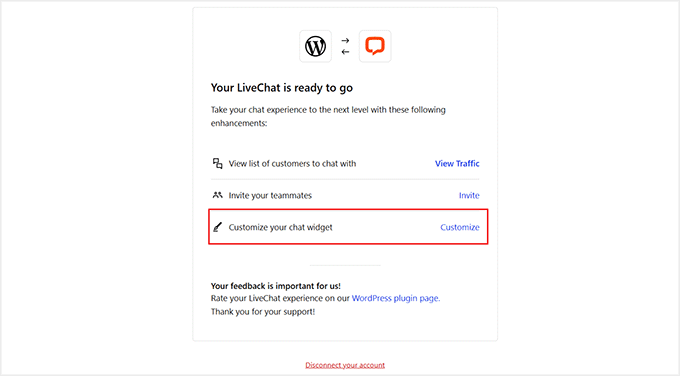
You’ll notice some new settings on this page. To get started, click the ‘Customize’ link next to the ‘Customize your chat widget’ option.
This lets you adjust how the chat looks on your site, set greetings, and personalize the experience for your customers.
Step 3: Customize Your Live Chat
After clicking the ‘Customize’ link, you’ll be taken to your LiveChat account dashboard, where you can start personalizing your chat widget’s appearance and behavior.
Begin by adjusting the widget’s look. You can pick the minimized window style, choose a theme color, and watch your changes in real time in the preview on the right.
This makes it easy to match the chat widget with your store’s branding.
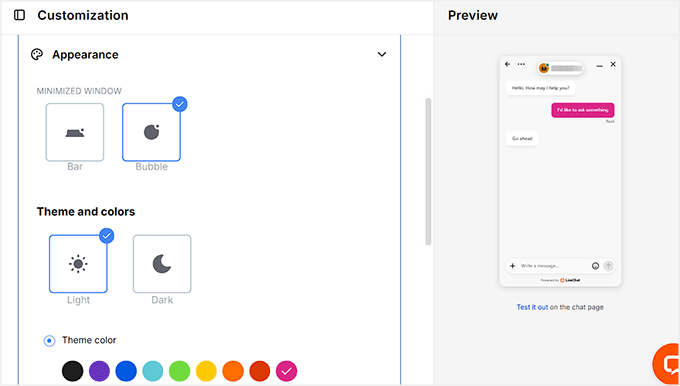
Next, expand the ‘Position’ tab. Here, you can decide where the chat widget appears on your site, including which side of the screen it shows up on and how far it sits from the edges.
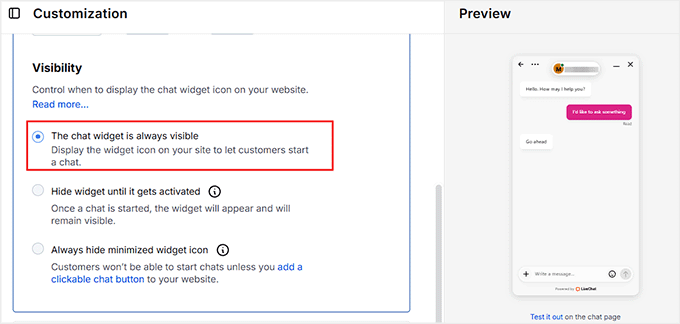
The visibility settings also let you control when the widget should appear. I recommend keeping the chat widget always visible. This ensures visitors can start a chat anytime, which helps reduce abandoned carts and keeps shoppers engaged.
Hiding the widget until a chat starts or keeping it completely hidden can make it harder for customers to reach you, especially new visitors.
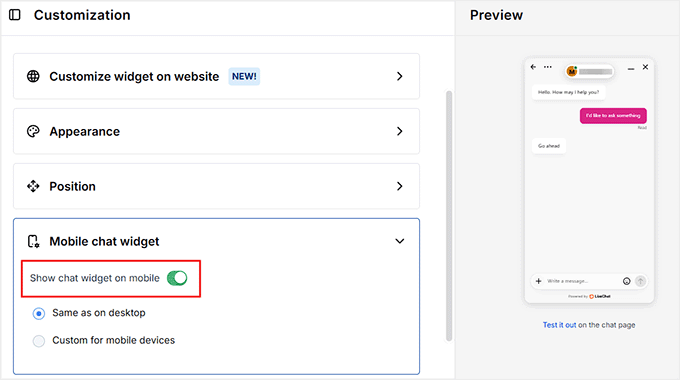
Then, expand the ‘Mobile Chat Widget’ tab. Here, you can toggle the switch to ‘ON’ to show the chat widget for mobile users.
I highly suggest keeping this enabled since most visitors are likely browsing your store from their phones. You can either use the same widget for mobile or create a custom version specifically for mobile devices.
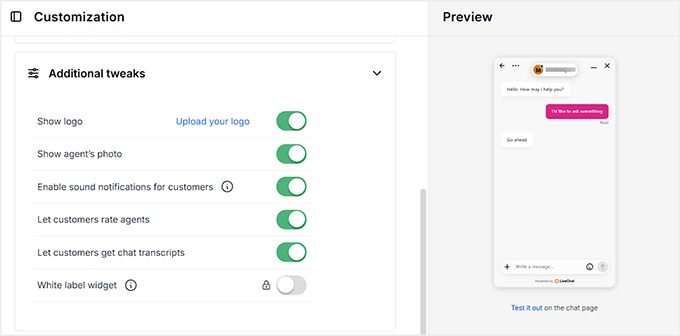
Finally, scroll down to the ‘Additional tweaks’ section. Here, you can choose to show your company logo, which helps with branding.
Displaying the agent’s photo adds a personal touch, while enabling sound notifications lets visitors know when they receive a response. Allowing customers to get chat transcripts is also useful for follow-ups, and letting them rate agents can provide helpful feedback.
Once you’ve customized everything to your liking, click the ‘Save Changes’ button to store your settings.
Your LiveChat widget is now ready, fully branded, and optimized for both desktop and mobile visitors.
Step 4: Setting Up an Eye-Catcher
Next, I recommend setting up an eye-catcher. These are small images or icons that appear when the LiveChat window is minimized. It helps grab your visitor’s attention and encourages them to start a chat.
A well-designed eye-catcher can significantly increase engagement and make your store feel more approachable.
To set one up, go to Engagement » Eye-Catcher from your LiveChat account panel on the left. Once there, toggle the ‘Show eye-catcher’ switch to turn it on.
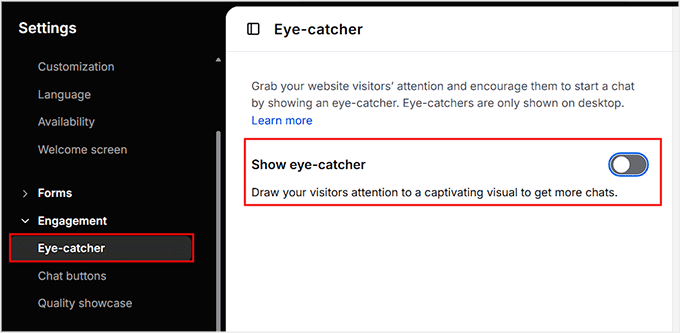
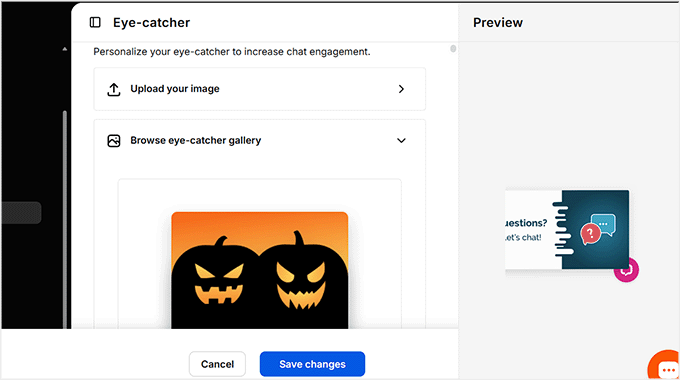
You can then either upload your own image from your computer or browse the eye-catcher gallery to pick a design you like.
As you select an image, you’ll see a live preview on the right, so you can immediately see how it will look on your site and make adjustments as needed.
Once you’re happy with your choice, don’t forget to click ‘Save Changes’ to store your settings.
Step 5: Configure the Pre-Chat Form
Next, it’s time to customize the pre-chat form. This form lets you gather visitor information before a chat even starts. This can be helpful if a conversation gets disconnected or if you want to follow up later.
A good place to start is by asking for basic details like name and email address. You might also include questions about what the visitor is looking for or direct them to specific departments. This allows your agents to provide faster, more personalized support.
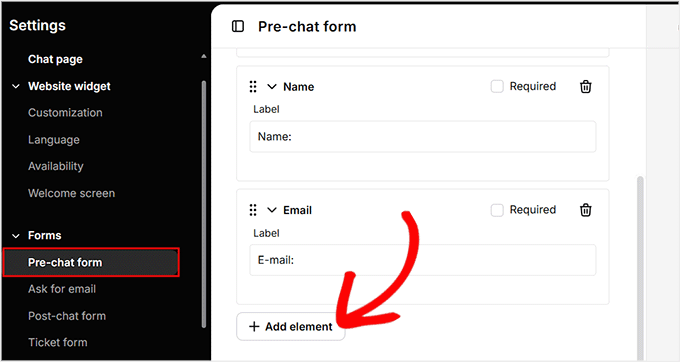
To customize the pre-chat form, go to the Forms » Pre-Chat Form page from the ‘Settings’ panel. You’ll see your current pre-chat form displayed there.
To add a new field, click the ‘Add Element’ button.
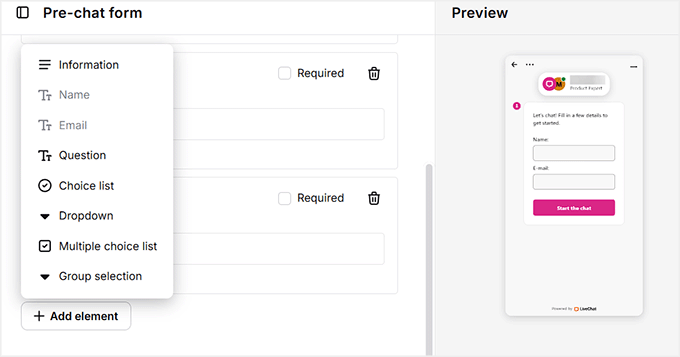
From there, you can choose from a variety of options, including text fields for information, questions, dropdown lists, multiple-choice lists, or group selections.
The interface is drag-and-drop, so it’s easy to move elements around and arrange the form exactly how you want.
Once you’ve added and organized all the elements you need, make sure to click ‘Save Changes’ at the bottom. Now your pre-chat form is ready, helping you collect useful visitor information while keeping the chat experience smooth and professional.
Step 6: Add Canned Responses
Another feature I highly recommend setting up is canned responses. Canned responses are pre-written replies to common questions your customers might ask, such as shipping details, return policies, or product information.
Setting these up saves your team time, ensures consistency in responses, and helps customers get quick answers without waiting.
To add canned responses, click on the ‘Automate’ icon in the left-hand menu of your LiveChat dashboard. Then, go to the Canned Responses » Responses List section.
Here, you can either scroll through existing responses or create your own by clicking ‘+ New Canned Response.’
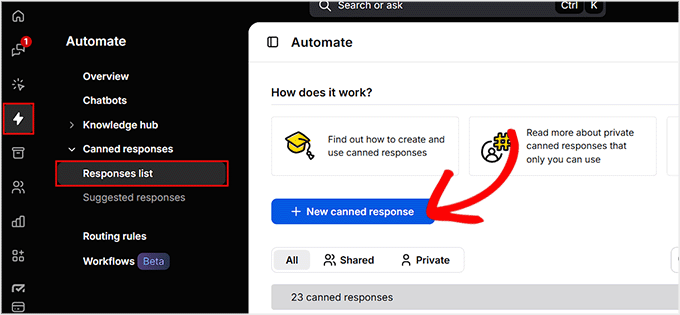
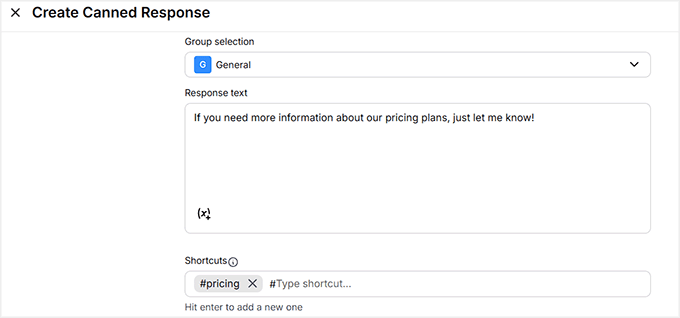
You’ll be taken to the canned response editor, where you can type your response and even assign a shortcut for faster use during chats.
This makes it easy to reply instantly to common questions without retyping the same information over and over.
Once you’ve added your responses, don’t forget to click the ‘Save Changes’ button.
Step 7: Invite Agents to LiveChat
Once you’re happy with your chat widget’s appearance and settings, the next step is to invite agents to your LiveChat account. Agents are the people who will respond to customer chats and help provide support in real time.
To do this, go to the ‘Team’ icon in your LiveChat dashboard and click the ‘+’ button next to ‘Add new agent.’
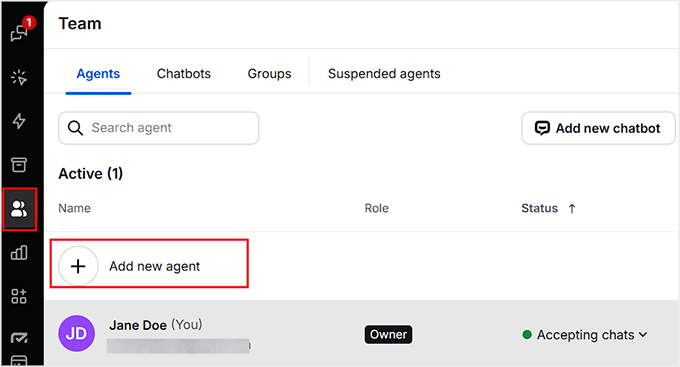
This will open a popup where you can invite your teammates.
You’ll need to enter their email addresses and choose the level of access you want to give them.
You can add someone as an agent, which gives them limited control to handle chats, or as an administrator, which provides full access to your LiveChat account.
After filling in their details and selecting access levels, click ‘Send invites.’
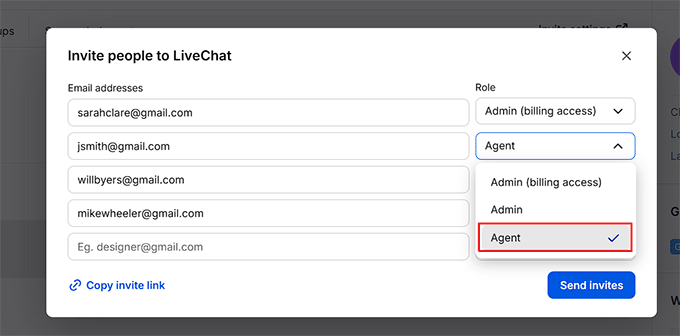
Your team members will now receive an email invitation to join LiveChat. Once they accept, they’ll be ready to start helping your customers immediately.
Step 8: Preview Your Live Chat
With all the setup steps complete, it’s time to see your live chat in action.
Simply visit your WooCommerce store, and your chat widget will automatically appear exactly as you configured it, without any extra settings or adjustments on your end.
This is a great opportunity to make sure everything looks and works the way you want.
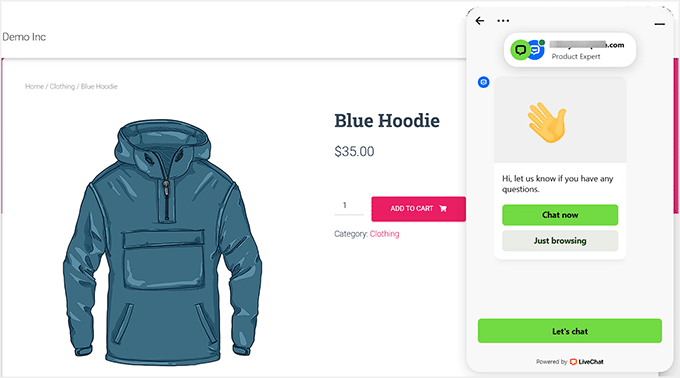
You can test sending a message as a visitor, see how canned responses appear, and check that the mobile version displays correctly.
Once you’re happy with how it looks, you can relax knowing that your agents will automatically handle chats in real time using LiveChat.
Method 3: Add Live Chat with WPChat (Messaging Platform Integration)
🥉Best for: Store owners who want to chat with visitors directly through popular messaging apps like WhatsApp, Messenger, Instagram, or Telegram.
I’ve thoroughly tested WPChat on my demo WooCommerce site, and I recommend it for store owners who want to connect with customers through the messaging platforms they already use.
This seamless handoff makes it super convenient for visitors to reach you, helps you provide faster support, boosts engagement, and increases the chances of turning chats into sales.
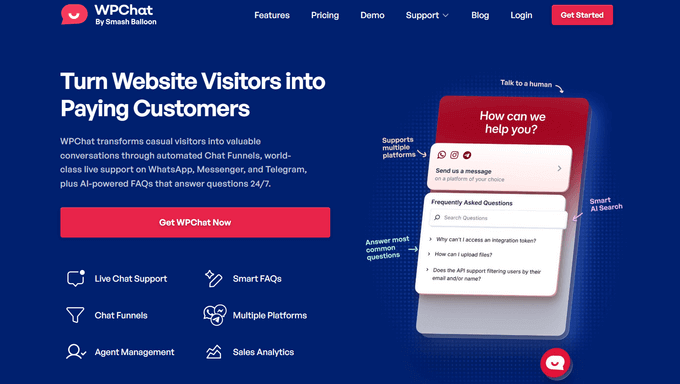
WPChat lets you configure plugin settings directly in your WordPress dashboard. However, unlike the other methods, actual conversations take place in external apps like WhatsApp or Telegram.
This means visitors click the chat button on your site, but you will chat with them using the messaging apps you already use on your phone or computer.
I highly recommend it if you want a modern, flexible approach to live chat without relying on external platforms. For more information about the plugin’s features, check out our complete WPChat review.
Step 1: Install And Activate WPChat
To get started, visit the WPChat website and click the ‘Get WPChat Now’ button to begin the signup process.
From there, choose the plan that best suits your store and complete checkout.
📌 Note: WPChat also has a free version that you can use. However, I will be using the pro plan because it includes all the color palettes, FAQ features, and supports multiple agents.
Once your account is ready, you’ll need to install the WPChat plugin on your WooCommerce site.
In your WordPress dashboard, go to Plugins » Add New, then type ‘WPChat’ in the search box and press Enter. This will bring up the plugin so you can install and activate it.
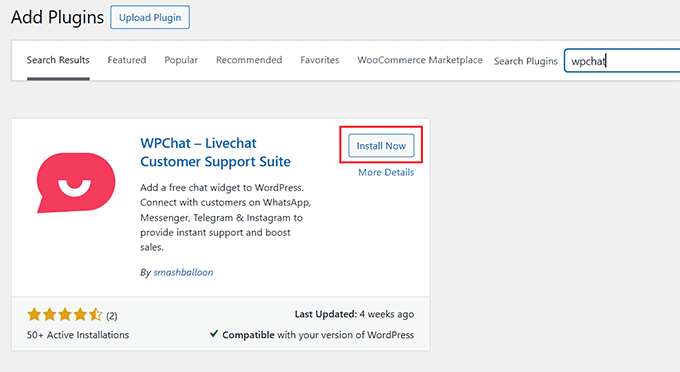
If you’re not familiar with the process, you can follow our guide on installing WordPress plugins for help.
Step 2: Configure the WPChat Setup Wizard
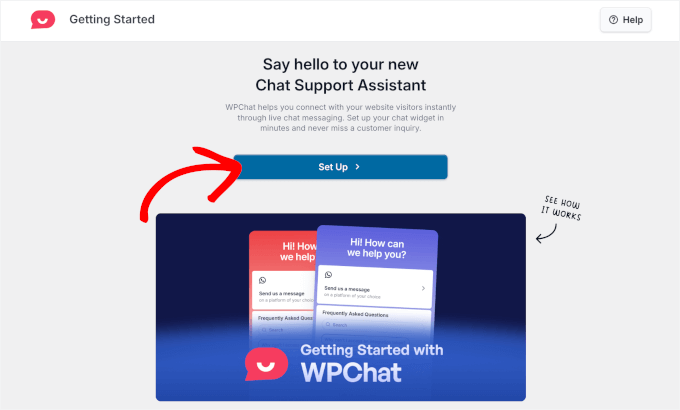
Once you’ve activated the WPChat plugin, you’ll be taken to a new screen. Here, you need to click the ‘Set Up’ button.
This launches the WPChat setup wizard, which will guide you step by step through the configuration.
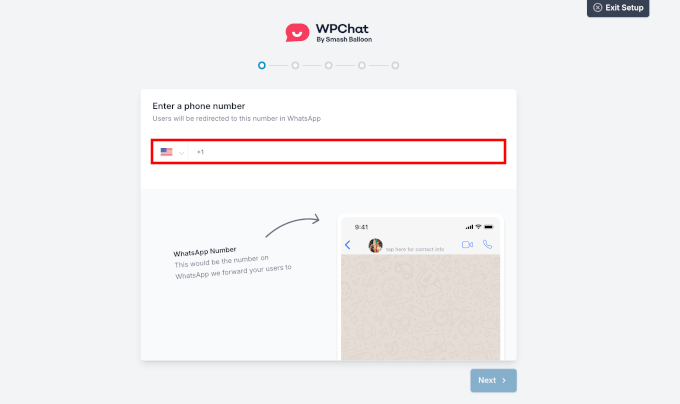
The first thing you need to do is add a business phone number.
This must be the number your business WhatsApp account is registered with because all customer messages sent through WPChat will be directed here. Make sure also to include the correct country code for your phone number.
After entering it, just click ‘Next.’
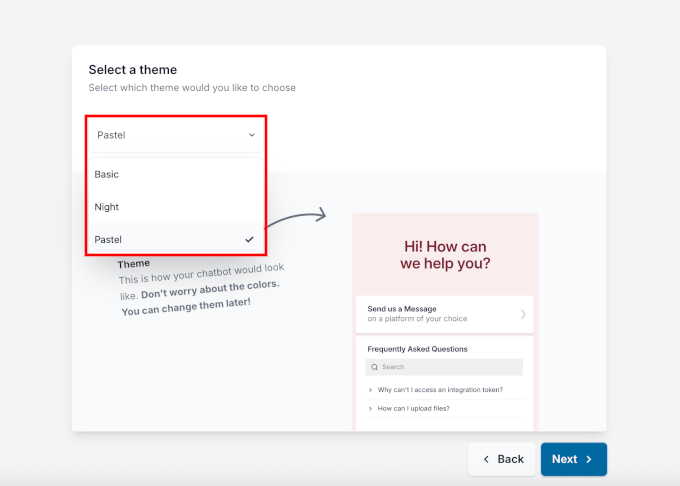
Then, you have to choose a theme for your chat button. WPChat offers three options to match different website styles:
- Basic: A clean, simple look that works well with most WordPress themes.
- Night: A dark theme that complements modern, sleek websites.
- Pastel: Soft, friendly colors that create a welcoming appearance.
I suggest picking a theme that matches your store’s existing design. For example, if your site uses darker colors or has a modern feel, the Night theme will work well with it.
If you’re not sure about the design, then you can always change the theme later to try a different style. Once you’ve made your choice, click ‘Next.’
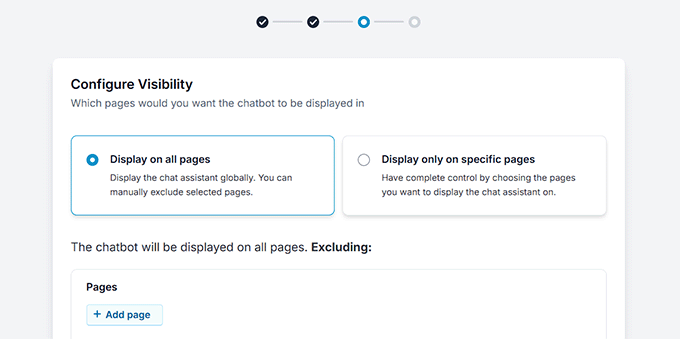
Now it’s time to configure where your chat assistant will appear on your website. WPChat gives you full control over visibility.
By default, the chatbot will be displayed on all pages, but you can also choose to show it only on specific pages if you prefer.
For example, you might want it to appear only on product pages, certain categories, or selected posts. You can also exclude particular pages, categories, or custom post types while keeping the widget visible everywhere else.
I generally recommend displaying the chat assistant on all pages to make it easy for visitors to reach you wherever they are.
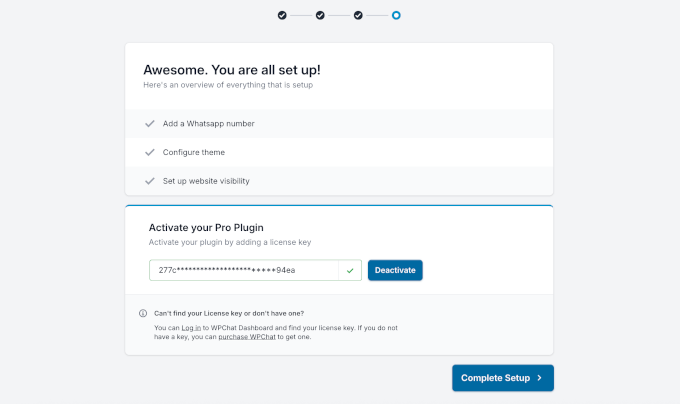
Finally, you’ll reach the review step, where you can double-check all the settings you’ve configured.
If you signed up for WPChat Pro, scroll down to enter and verify your license key. You can find this information on your account page on the WPChat website.
Once everything looks good, click the ‘Complete Setup’ button.
Step 3: Customize Your WPChat Widget
Once your setup wizard settings are configured, you’ll be taken to the WPChat dashboard in your WordPress admin area.
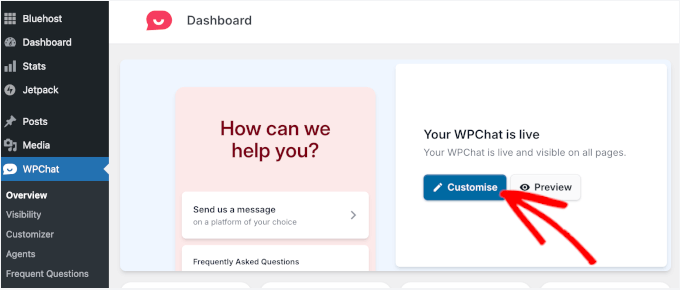
From here, click ‘Customise’ to open the editor where you can style your chat widget to match your store’s look and feel.
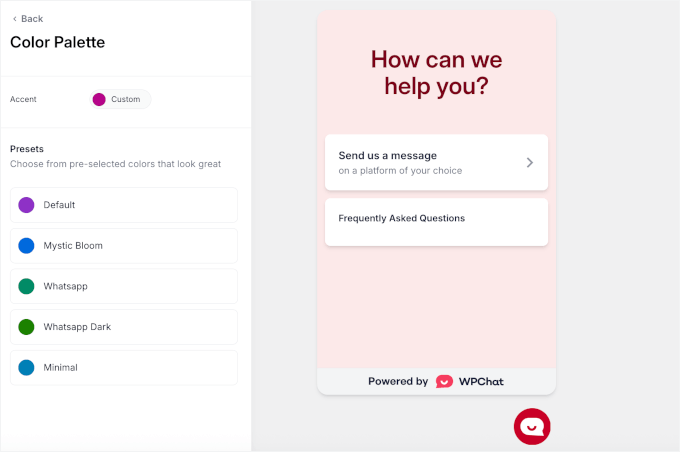
First, you can pick a color scheme for your chat button. WPChat includes several ready-made palettes, but you can also create a custom palette that matches your brand colors.
For WooCommerce stores, I recommend using a color that contrasts with your main website colors so the chat button is easy to spot.
For example, if your site has a white background, a green or blue button will immediately draw attention without feeling out of place.
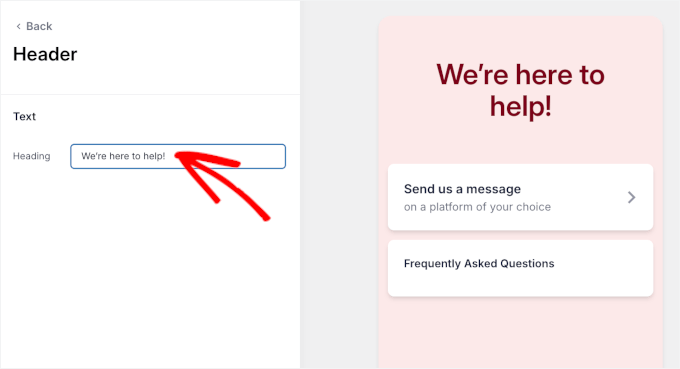
Next, it’s time to set a welcome message.
This is the first thing visitors see when they open the chat, so make it clear and inviting. I usually go with something like, “Hi! Need help finding a product?” or “Hello! Any questions about your order?”
You can also include a short note about response times, like “We reply within an hour,” which reassures customers and encourages them to start a conversation.
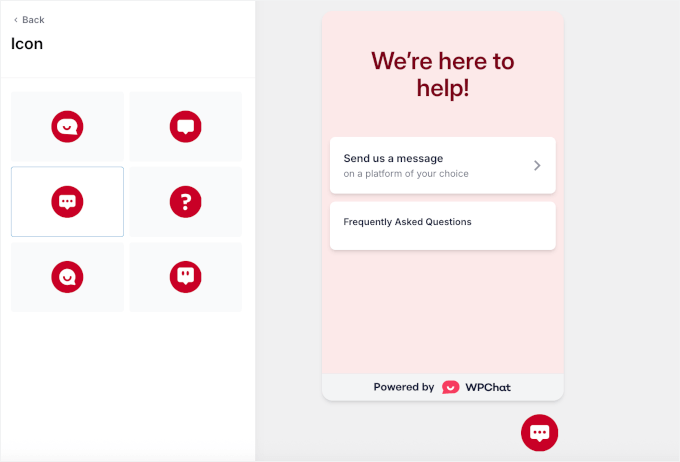
Then, choose an icon for your chat button. Pick one that’s recognizable as a messaging or WhatsApp icon so visitors instantly know they can click to chat.
Make sure it’s large enough to see on both desktop and mobile, but not so big that it feels intrusive.
Finally, select an avatar for your chat assistant. For WooCommerce stores, using a friendly, human-like avatar can increase trust, making visitors feel more comfortable asking product-related questions.
If your store sells high-end products, a professional-looking avatar works best, while casual or playful avatars fit smaller boutiques or lifestyle brands.
You can also upload your own photo to align the avatar with your brand’s personality.
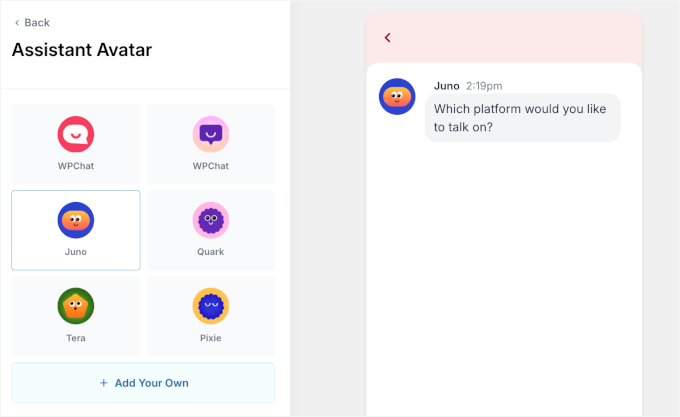
Once you’re happy with the look, click ‘Save.’ Your WPChat widget is now customized, visible, and ready to engage visitors while supporting your WooCommerce store’s sales.
Step 4: Add Your Chat Agents and Connect Messaging Platforms
Now that your WPChat widget is ready, it’s time to set up the team members who will handle incoming messages.
For this, head over to WPChat » Agents in your WordPress dashboard. This is where you can add, edit, and manage anyone who will respond to customer chats.
Click ‘Edit’ next to an existing agent to customize their profile.
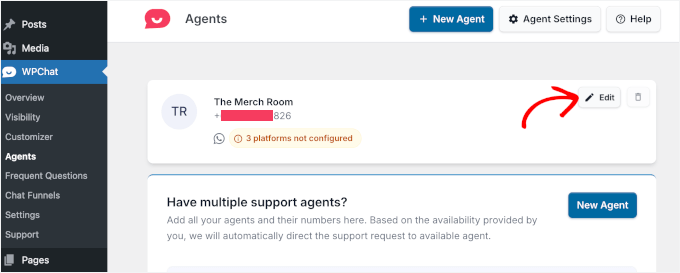
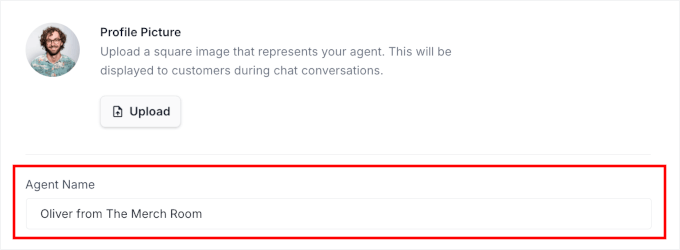
This will open the WPChat editor, where you can upload a profile picture.
I always recommend using real team members’ photos because it makes the chat feel more personal. Customers are much more likely to reach out when they see a real person instead of an irrelevant icon.
Next, enter the agent’s name so visitors know who they’re talking to. You can also include your business name for clarity.
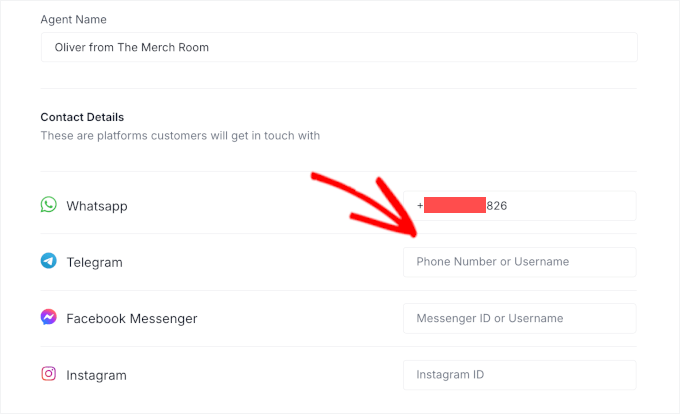
By default, WPChat automatically connects your widget to WhatsApp during the setup wizard, so you don’t need to do anything extra to start receiving messages there.
For other platforms, scroll down to connect your agents to Telegram, Facebook Messenger, and Instagram. If your team uses these channels to chat with customers, simply enter their specific Profile URL or Username here.
If not, you can leave them blank — the widget will still work for the platforms you’ve set up.
You can also add more agents as your store grows.
Click the ‘New Agent’ button, fill in their name, profile photo, and contact info, and assign the platforms they’ll manage.
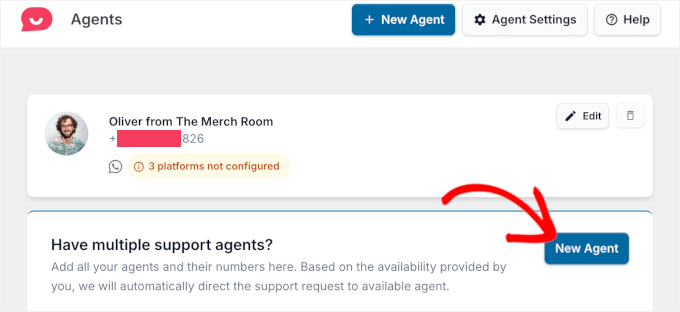
This way, you can set up multiple agents for your WooCommerce store.
Step 5: Set Up Instant FAQs to Save Time
Once your WPChat widget is live, you can make it even smarter by adding a Frequently Asked Questions (FAQ) section.
This feature lets you answer your customers’ most common questions instantly, directly inside the chat widget. For WooCommerce stores, it is perfect for questions about shipping times, product details, returns, or order tracking.
To create a new FAQ, go to WPChat » Frequent Questions and click the ‘Add Question’ button.
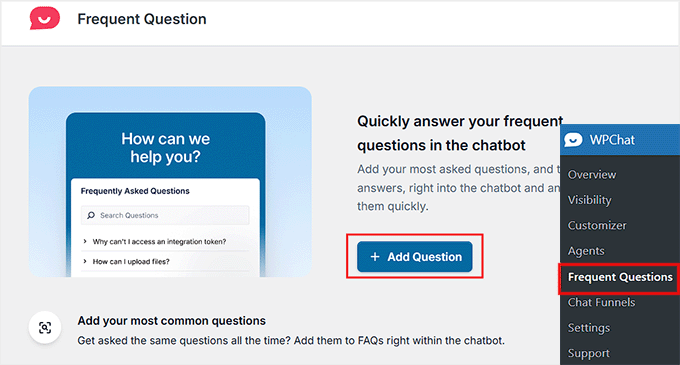
You’ll then see fields to enter your question and answer. Keep your questions short (up to 140 characters) and your answers clear and concise (up to 600 characters).
You can even attach an image if it helps explain your answer better. Once you’re done, click ‘Save Changes’ to publish it.
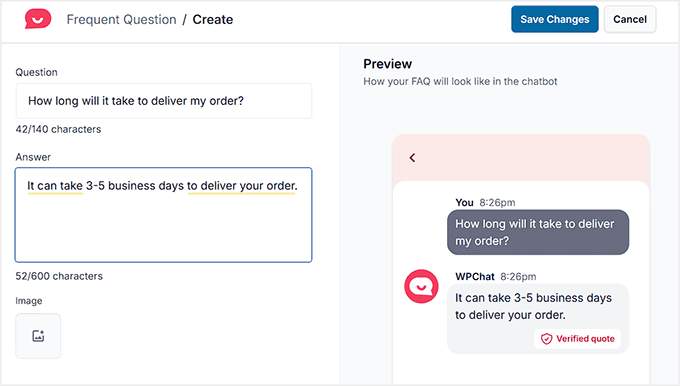
If you’re on the Free plan, you can add up to 10 FAQs. Pro users can create as many as needed, which is great if your store has a wide range of products or services.
💡Pro Tip: WPChat includes an AI Smart Search feature that works as a first line of defense inside the chat widget on your site. It helps your customers find the right FAQ before they are redirected to a messaging app.
For example, if someone asks, “When will my order arrive?” it can match your FAQ about shipping times. This makes it faster and easier for visitors to get answers, keeping them happy and saving your team time.
Setting up this FAQ system is one of the easiest ways to reduce repetitive questions and give your WooCommerce store a more professional, helpful feel, all without adding extra work for your team.
Step 6: Preview Your Chat Widget
Now that all your customizations are complete, it’s time to see your live chat in action.
Simply visit your WooCommerce store, and you’ll notice your chat widget — no extra setup or configuration needed on your end.
From here, visitors can interact with the widget in multiple ways. They can quickly browse your FAQs for instant answers to common questions, or they can start a live conversation with one of your agents.
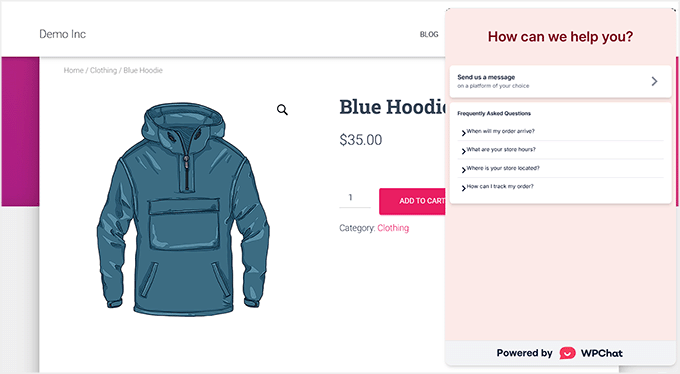
Thanks to WPChat’s multi-platform support, customers can choose their preferred messaging app, like WhatsApp, Facebook Messenger, Instagram, or Telegram, to continue the conversation.
This flexibility makes it easy for customers to reach you on the platform they already use, leading to faster support, higher engagement, and more completed sales.
Bonus: How Live Chat Can Boost Sales on Your Store
Live chat isn’t just a support tool. It can also quietly influence buying decisions and help more visitors complete their purchase.
Based on what I’ve seen across different WooCommerce setups, these simple techniques work especially well:
- Proactive Outreach: When a visitor spends extra time on a product page, a small message like “Let me know if you need help” can open the door for a conversation. Note that this strategy works best with Method 2 (LiveChat), which lets you trigger automated greetings.
- Suggest Helpful Addons: If someone is already interested in a product, recommending related items that genuinely complement what they’re buying can increase average order value without feeling pushy.
- Share Time-Sensitive Perks: Mentioning things like free shipping thresholds, bundle discounts, or limited-time offers often nudges shoppers to make a faster decision.
- Keep Support at the Center: Shoppers respond best when the chat feels helpful from the start. Once their question is answered, they’re naturally more open to product suggestions or upgrade recommendations.
When these techniques are used thoughtfully, live chat becomes more than a simple communication tool. It becomes a subtle sales assistant that improves engagement, reduces abandoned carts, and helps guide shoppers toward the right purchase.
Frequently Asked Questions About WooCommerce Live Chat
Before I wrap up, here are a few common questions readers often ask when they’re getting ready to add live chat to their WooCommerce stores:
How do I add live chat in WordPress?
You can add live chat by installing a compatible chat plugin and connecting it to your account. Most tools—like WPChat or LiveChat’s official plugin—guide you through a quick setup wizard so you can customize your widget and place it on your site without touching any code.
To get started, see our tutorial on how to add free live chat in WordPress.
Does WordPress support live chat?
Yes, WordPress fully supports live chat through plugins. You simply install a chat plugin, connect your preferred messaging platform, and the widget appears automatically on your pages.
How do I add a chatbot to my WordPress website?
You can easily add a chatbot in WordPress using Chatbot.com. It’s the best AI chatbot software that lets you make chatbots using a beginner-friendly visual builder.
For more information, check out our tutorial on creating a chatbot in WordPress.
How do I add a WhatsApp chat to WordPress?
You can add WhatsApp chat by using a plugin like WPChat, which connects your number during the setup wizard. Once activated, visitors can click a WhatsApp option on your site to open a conversation with your team instantly.
Is live chat actually live?
Yes, live chat is real-time messaging that lets visitors talk directly with you or your support team. Some tools also include offline modes or automated replies, but the core experience is live, two-way communication when agents are available
Will adding live chat slow down my WooCommerce store?
Modern live chat solutions like LiveChat and WPChat are designed with performance in mind. The chat widget loads asynchronously, so it doesn’t block the rest of your website from loading first.
While any additional feature adds a small amount of load, the impact is usually minimal and won’t be noticeable to your visitors.
I hope this article helped you add live chat to your WooCommerce store. You may also want to see our article on how to send Twilio SMS notifications from WooCommerce and our top picks for the best WooCommerce automations to increase sales.
If you liked this article, then please subscribe to our YouTube Channel for WordPress video tutorials. You can also find us on Twitter and Facebook.


Chris
I’m a little confused about your pricing. Their website says “starting at US$ 1,750 / month Per Agent”. You say it starts at $16.99 per agent. I’m no math whiz, but those numbers are quite a ways off.
WPBeginner Support
Hi Chris,
LiveChat pricing starts from $16.99 / agent. LTVPLus is a different service and their pricing starts at $1,750 per month per agent.
Admin
ETIENNE RUKUNDO
This is a very good idea to add live chat on our website. i personally i am gona do it to attract users and communicate with them. also if you can could set a video on you on how to use different wordpress themes in one domain name? what i mean is when you click on one page it redirectss you to diffrerent theme. i failed with page theme plugin. plz help
Jodie
This is probably the best step by step live chat tutorial! Helped me add it to my online marketplace in 1 day
Vladimir Djurovic
This is really helpful tip. I’ve been looking for something similar for a while now.
Do you know if it has any impact on site performance?
WPBeginner Support
Hi Vladimir,
LiveChat scripts load from their CDN servers and it is highly optimized for performance.
Admin