


At WPBeginner, we use a WhatsApp share button on our website because it gives readers a quick way to pass our guides along to friends and family. It’s a simple feature that consistently helps our content reach more people.
If you want to add the same feature to your WordPress site, the challenge is figuring out the best way to do it.
You want something easy to set up, that works on every device, and fits naturally into your design. Placement matters as well, because the button needs to appear where visitors will actually notice and tap it.
And with so many plugins promising to be “the best,” it can be hard to know which option is right for your site.
In this guide, I’ll show you how to add a WhatsApp share button in WordPress using a few easy steps. 🧑💻

Why Add a WhatsApp Share Button in WordPress?
Adding a WhatsApp share button makes it super easy for visitors to share your content with their friends and family. If someone finds your post helpful, they can send it through WhatsApp with just one tap or click.
WhatsApp works well for sharing because people already use it every day. Since it feels familiar, they’re more likely to share your blog posts compared to other, less-used sharing options.
Let me break down some of the main benefits:
- 📈 Get more traffic with less effort – Every share can bring in new readers who trust the recommendation from someone they know.
- 📲 Reach people on mobile – WhatsApp has over 2 billion users, and most of them use it on their phones. It’s perfect for quick, mobile-friendly sharing.
- 🤳Boost engagement on mobile – Sharing through WhatsApp feels effortless, while email or other methods can feel slow or clunky.
- 🌐 Reach global audiences – WhatsApp is very popular in Europe, Latin America, and Asia, making it great for international traffic.
- 🤝 Build trust – When content is shared in a private chat, it feels personal and reliable.
I’ve found that WhatsApp buttons work especially well for practical, shareable content like tutorials, how-to guides, and news posts. It basically turns happy readers into promoters of your content.
For example, if you run a recipe blog, readers can instantly send dinner ideas to their family group chat. If you share business tips, someone can forward your article to a coworker in seconds.
Having said that, let’s see how you can add a WhatsApp share button in WordPress.
Here’s a quick overview of all the topics I’ll share in this guide:
Create a WhatsApp Share Button in WordPress
The easiest way to create a WhatsApp share button is by using the free Sassy Social Share plugin. This method automatically adds the button to all your posts and pages, so you don’t have to configure it separately each time.
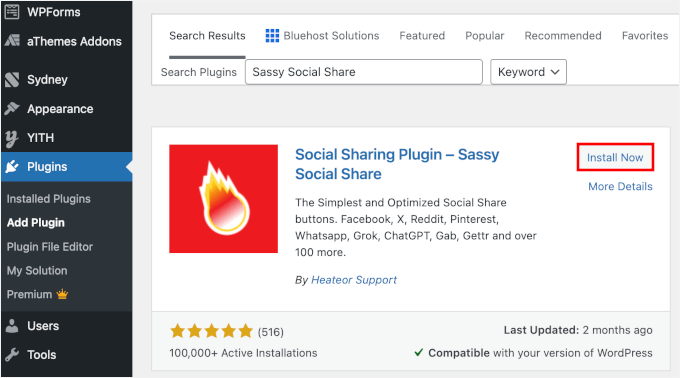
First, you need to install and activate the Sassy Social Share plugin. From your WordPress admin area, you can go to Plugins » Add New Plugin.

Next, you’ll want to use the search bar to quickly find the plugin.
In the search results, click the ‘Install Now’ button and then ‘Activate’ to enable the plugin on your WordPress site.
For detailed instructions, please see our guide on how to install a WordPress plugin.
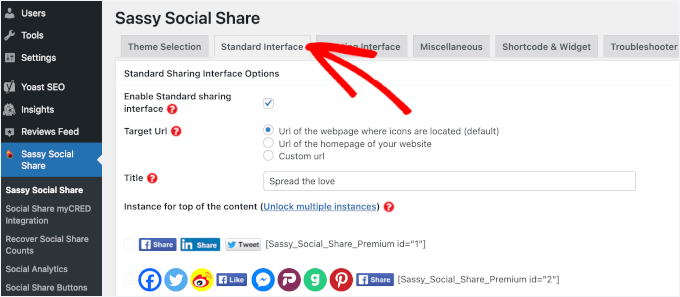
Once the plugin is active, you need to navigate to Sassy Social Share in the left sidebar of your WordPress dashboard.
Then, switch to the ‘Standard Interface’ tab at the top of the page.
Then, you can scroll down to the ‘Select Sharing Services’ section.
Here, you’ll see a list of social media platforms where you can enable share buttons, including Facebook, Instagram, Pinterest, Twitter, and more.
Simply check the box next to the WhatsApp option (and others if relevant).
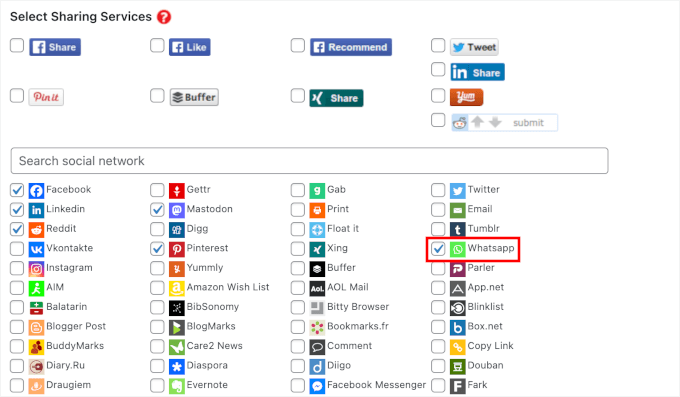
Once you’re done, don’t forget to click on the ‘Save Changes’ button to store your settings.
To customize how your WhatsApp share button looks, you can head to the ‘Theme Selection’ tab.
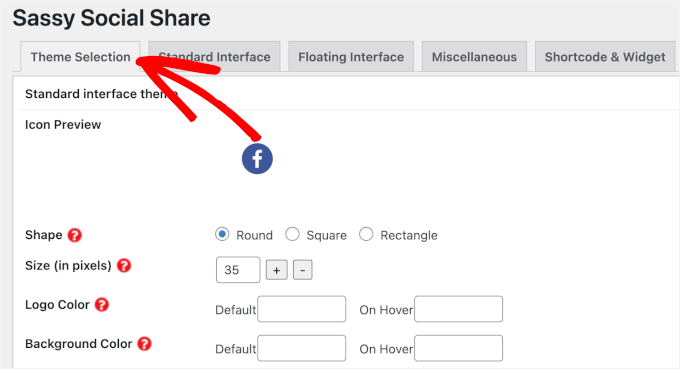
From here, you can adjust the button size, change its shape (square or rounded), modify the logo style, and even update the background colors.
To help users instantly recognize the button, I recommend using WhatsApp’s official brand color, which is a light green (hex code #25D366).
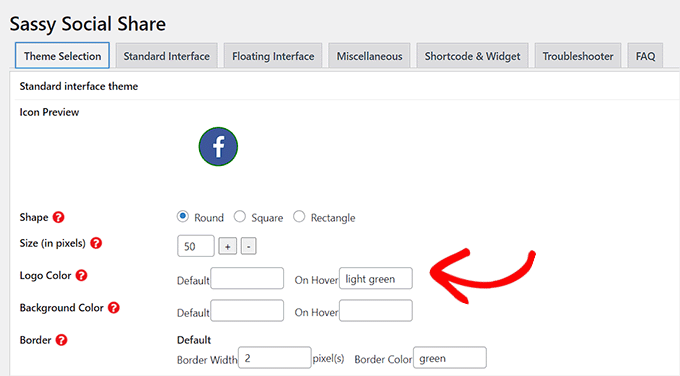
I recommend playing around with these settings until the buttons match your site’s design.
Once you’re happy with the appearance, click the ‘Save Changes’ button again.
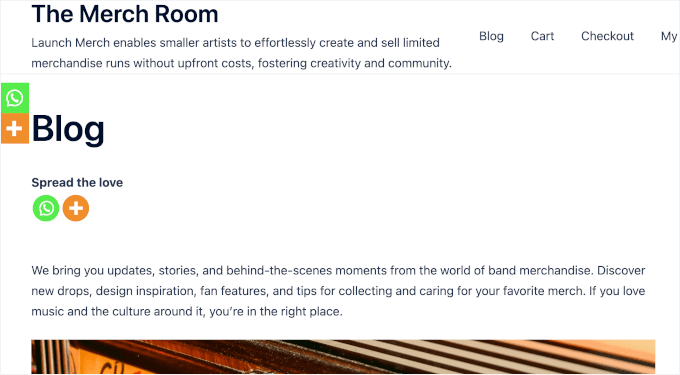
Now, visit any post or page on your website, and you’ll see the WhatsApp share button displayed along with your other social sharing options:
Add the WhatsApp Share Button to Specific Posts, Pages, or Areas
Don’t want to add a WhatsApp button to every page? Don’t worry, the plugin also lets you easily add it to single posts and pages.
If you only want to show the WhatsApp share button on specific posts and pages, then first you need to turn off the global display of sharing buttons.
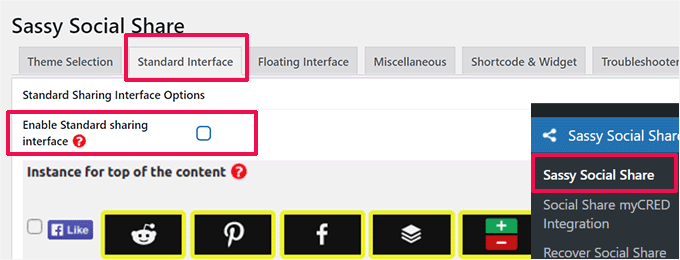
To do that, simply go to the Sassy Social Share page in the WordPress admin sidebar and switch to the ‘Standard Interface’ tab.
Next, you need to uncheck the box for the ‘Enable Standard sharing interface’ option.
Next, you can switch to the ‘Floating Interface’ tab.
From here, simply uncheck the ‘Enable Floating sharing interface’ option.
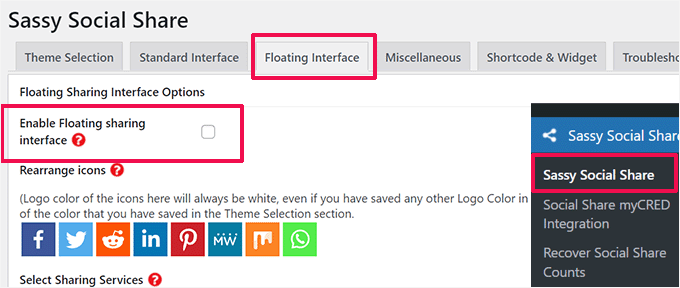
By disabling both the standard and floating social sharing buttons, you’ve cleared the way to add the WhatsApp button manually wherever you want.
It’s a good practice to uncheck both settings because this gives you complete control over placement.
Adding the WhatsApp Share Button in the Block Editor
This method is perfect if you only want the WhatsApp share button to appear on specific pages or posts. Instead of displaying it sitewide, you can control exactly where it shows up using a simple shortcode.
To add the button, open the post or page where you want to display the WhatsApp share button in the content editor, or you can create a new one.
Once you’re in the block editor, click the plus (+) icon at the top left corner and search for the ‘Shortcode’ block. After that, add the block to the page.
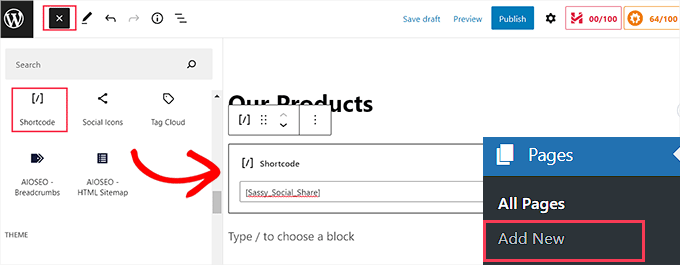
Next, you need to copy the following shortcode and paste it into the ‘Shortcode’ block:
[Sassy_Social_Share]
Once you’re done, simply click on the ‘Publish’ or ‘Update’ button to store your changes.
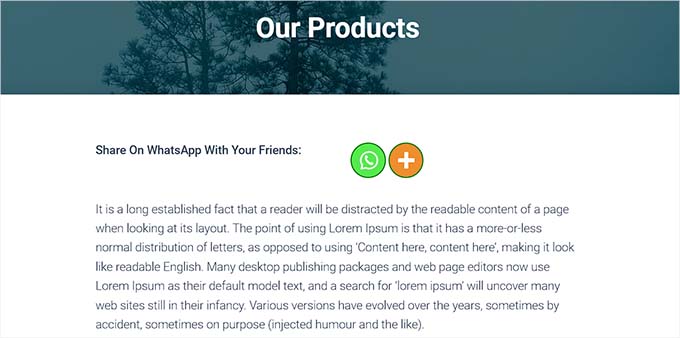
Your WhatsApp Share button will look like this:
Adding WhatsApp Share Button as a Widget (Classic Themes Only)
This method is ideal if you want to add the WhatsApp share button to your sidebar or other widget-ready areas across your site.
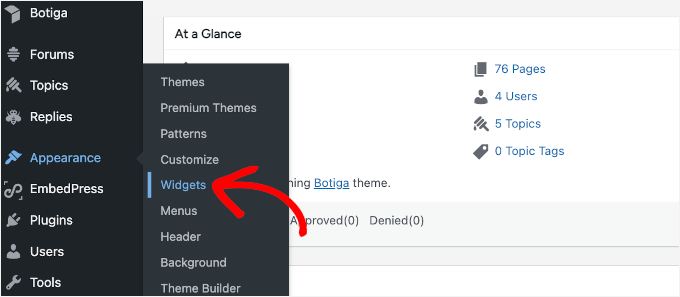
To add the WhatsApp share button to the sidebar of your website, you need to visit the Appearance » Widgets page from the admin area. This will open the WordPress widget management screen.
From here, click on the ‘+’ button at the top left corner and locate the ‘Shortcode’ block.
Once you find it, click and drag the widget to your desired widget area on the right side of the screen. Most sites have areas like ‘Primary Sidebar’, ‘Footer Area’, or ‘Blog Sidebar,’ depending on what your WordPress theme allows.
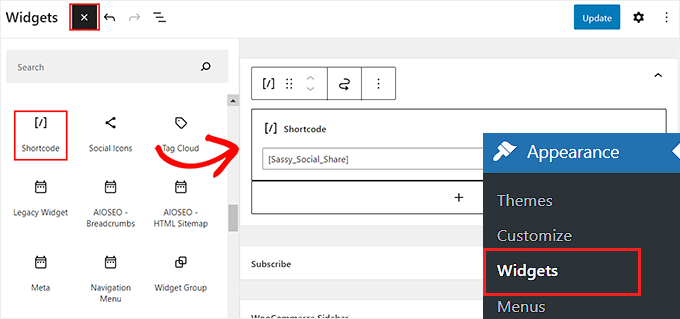
After that, simply copy and paste the following shortcode into the block:
[Sassy_Social_Share]
Next, click on the ‘Update’ button to store your settings.
This is how your WhatsApp share button will look once it’s added to the website sidebar:

Adding the WhatsApp Share Button in the Full Site Editor (Block Themes Only)
If you’re using a block theme, then you’ll be using the full site editor and won’t have access to the ‘Widgets’ page.
First, you need to visit Appearance » Editor from the admin sidebar to launch the full site editor. This opens WordPress’s modern site editing interface, where you can modify your entire theme layout.
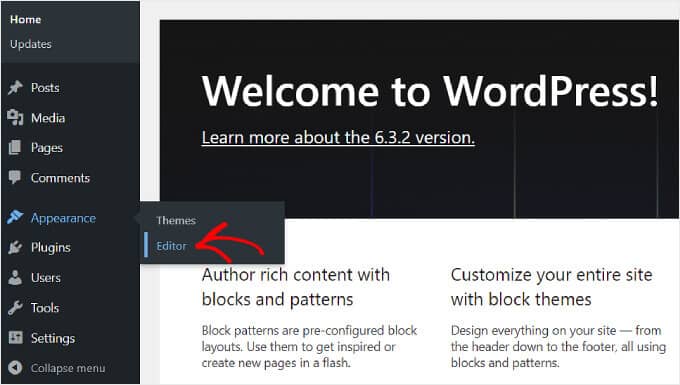
Once the editor loads, you’ll see your site’s design on the right and a navigation menu on the left.
Then, you can head over to ‘Patterns’ or ‘Templates’ in the left sidebar, depending on where you want to add the button.
🧑💻 Pro Tip: Click on ‘Patterns’ if you want to add the button to a reusable block section (like an author box or footer area). Click on ‘Templates’ if you want the button to appear automatically across all posts or pages that use a specific template.
For this guide, I’ll choose ‘Templates.’
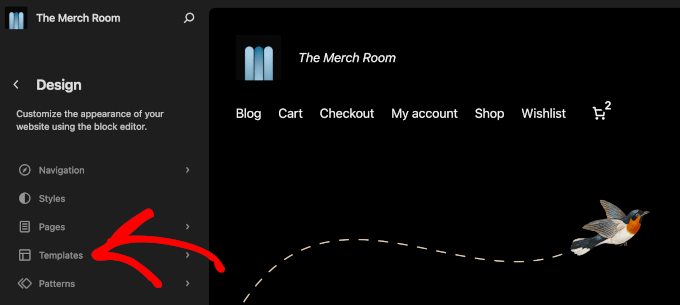
On the next screen, you’ll see a list of templates available in your current theme.
From here, you can choose the template that controls the area where you want the button to appear.
For example, select the template responsible for your blog posts if you want the button to show on all posts. Or pick the one that handles your site footer if you want it displayed there.
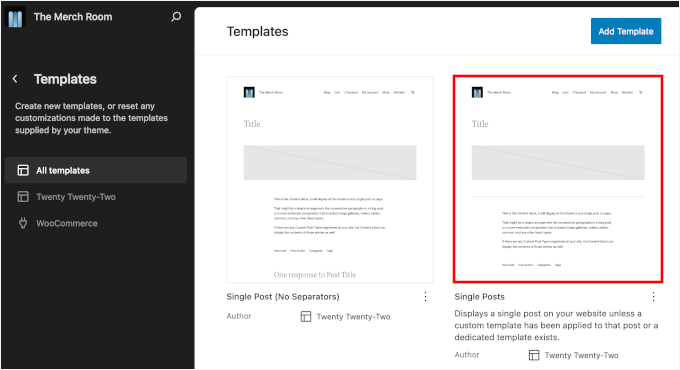
After opening a template, go ahead and click the plus (+) icon to add a new block.
Then, you can search for the Shortcode block and add it to your template.
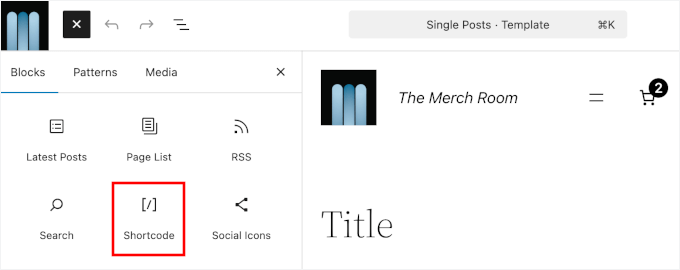
Now, paste the Sassy Social Share shortcode into this block:
[Sassy_Social_Share]
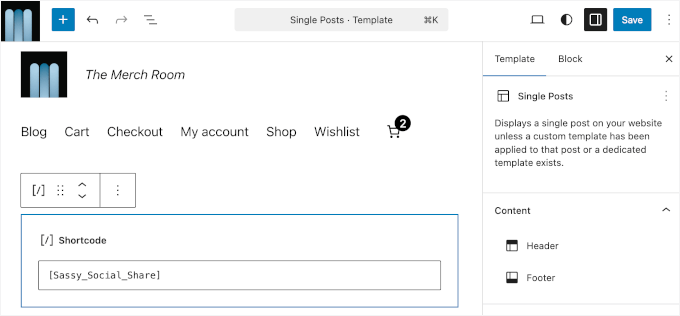
Once you’re done, click on the ‘Save’ button at the top.
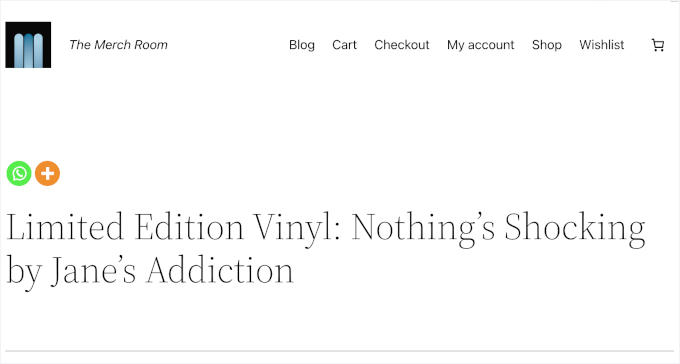
This is how the WhatsApp share button looked on my demo website:
If you’d like to learn more, check out our full guide on how to add a shortcode in WordPress.
Bonus: Add a Click-to-Chat WhatsApp Button in WordPress
If you want visitors to contact you directly, not just share your content, you can also add a WhatsApp click-to-chat button. It lets users message you instantly with one tap, using an app they already trust.
This helps build trust and encourages more people to get in touch. Plus, it works especially well for online stores and service-based sites, where customers often need fast answers before they’re ready to buy.
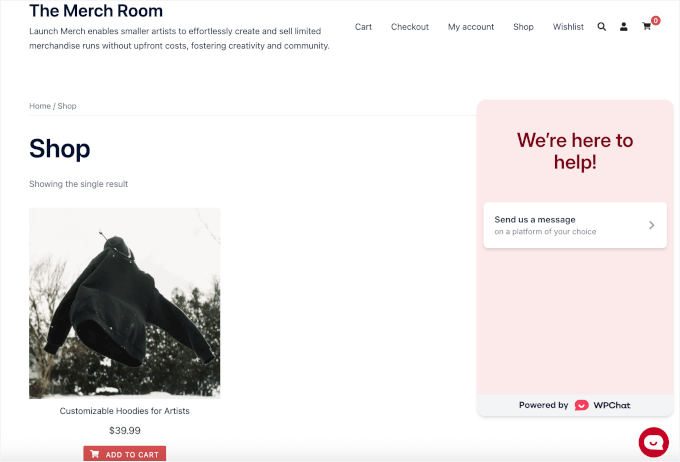
The easiest way to do this is with the WPChat plugin. It’s designed to help you add click-to-chat buttons for popular messaging apps, such as WhatsApp, directly to your WordPress site.
For more details, you can check out our full WPChat review or follow our step-by-step guide on how to add a click-to-chat WhatsApp widget in WordPress.
FAQs: Add a WhatsApp Share Button in WordPress
Now that you’ve added a WhatsApp share button to your site, you might still have a few questions. Here are some quick, clear answers:
How do I add a WhatsApp share button in WordPress?
Just install a social share plugin like Sassy Social Share and turn on the WhatsApp option. You can show the button across your whole site, add it to specific pages with a shortcode, place it in widget areas, or include it in your block theme templates.
Can I add a WhatsApp button without a plugin?
Yes, you can, but it’s quite technical. You would need to manually add a custom HTML link that uses a special whatsapp:// URL format. This can get tricky, and you’d have to do it for every page.
Using a dedicated plugin is much easier because it handles all that code automatically, ensuring your share buttons always work correctly.
Do I need a WhatsApp API for a share button?
No. WhatsApp share buttons use WhatsApp’s public sharing URL, so you don’t need an API key or any special permissions. It works on any WordPress site right away.
Next Steps: Using Chat Tools and Other Social Media in WordPress
I hope this article has helped you add a powerful sharing tool to your WordPress site. Now that you’re making your content easier to share, you might be ready to explore other ways to connect with your audience and boost engagement.
To help you on your way, here are some of our other popular guides:
- How to Add Text-to-Speech in WordPress
- How to Add a Chatbot in WordPress (Step by Step)
- How to Send WooCommerce Order Notifications Straight to WhatsApp
- Expert Picks of the Best Chat Plugins for WordPress
- The Complete Social Media Cheat Sheet for WordPress
If you liked this article, then please subscribe to our YouTube Channel for WordPress video tutorials. You can also find us on Twitter and Facebook.




Moinuddin Waheed
Most of the social share plugins doesn’t include WhatsApp share and chat buttons.
it is good to know that sassy social share plugin provide a holistic solution to WhatsApp share and WhatsApp chat.
Mrteesurez
Ok, If I understand you well, do you mean the WhatsApp chat button will take visitors directly their WhatsApp mobile app or the will be chat on WhatsApp web version directly from chrome ?
WPBeginner Support
Using the share button, the users would be sent to their WhatsApp to start the conversation.
Admin
nitin
which social share plugin do you use ?
WPBeginner Support
At the moment we are using something custom for our site
Admin
Anuradha Chawla
Compared to other social sharing options, I believe WhatsApp, Facebook and Twitter form the bulk of social sharing in India. Thanks for sharing this article.
Kat
Can you add the whats app sharing button to pictures? Some of my blog posts are heavy with pictures and I wouldn’t want the url of the post shared, instead I would want the specific picture inside the post shared. Is that possible?
VIvien
What I noticed is that the more plugin you add to your site the less you understand what happened once your theme crashes.
Toni
I think it might be helpful if there were some sort of description of what the plug is used for.
elsieisy
Installed ! Thank you.
I reduced the size of my screen and i saw it but havent seen it on mobile though
Helpful Colin
Note: This app has not been tested with the latest versions of WordPress above v 4.0.7. My site uses WordPress 4.2.4. How can I be certain it is OK to use?
Panagiotis Tabakis
The only way to be 100% certain is to test it yourself, or consult users that used it with your WP version. According to the developers note, it should work.