


The default WordPress admin area works fine out of the box, but it rarely feels like your site. Whether you’re running a personal blog or managing projects for clients, the generic dashboard doesn’t reflect your brand.
That’s where white labeling comes in. It lets you customize the WordPress back end by replacing the logo, colors, and other elements with your own branding.
We’ve found this especially helpful when working with clients. A custom dashboard not only looks more professional, but it also helps build trust and reinforce your identity.
In this guide, we’ll show you how to white-label your WordPress admin area without writing a single line of code. It’s easier than you might think.
- What Is White Labeled WordPress?
- How to White Label the WordPress Admin Dashboard
- How to Replace WordPress Branding With Your Own Brand
- How to White Label the WordPress Login Page
- How to White Label the WordPress Dashboard Panels
- How to Hide Specific Menu Items in the WordPress Admin
- How to Customize WordPress Admin Settings
- Frequently Asked Questions About White Labeling WordPress Admin
- Bonus Resources for WordPress Admin
What Is White Labeled WordPress?
White labeling lets you replace the default WordPress branding with your own. This includes updating the logo, colors, and layout to better match your brand’s identity.
White labeling can make the backend feel more polished and easier to use. It doesn’t affect how the site looks to visitors, but it can significantly improve the user experience for you or your clients.
Plus, it’s especially helpful when you’re building sites for clients.
We’ve heard from many beginners who found the WordPress dashboard confusing the first time they logged in. They often just want a simple way to update their content without digging through plugin settings or theme menus.
Now let’s take a closer look at how you can white-label the WordPress admin dashboard using a plugin.
How to White Label the WordPress Admin Dashboard
We’ve tested several tools to customize the WordPress admin area, and the easiest by far is the White Label CMS plugin. It’s free and gives you everything you need to white-label the login page, dashboard, admin menus, and more.
Here’s why we recommend White Label CMS:
- Beginner-friendly with no coding needed.
- Free plugin with powerful customization features.
- Gives you full control over admin branding and visibility.
To get started, install and activate the White Label CMS plugin from your WordPress dashboard. If you’re new to this, follow our tutorial on how to install a WordPress plugin.
Once it’s activated, go to the Settings » White Label CMS page to begin customizing your admin experience.
We’ll now walk through the different sections of the plugin and show you how to configure them step by step.
How to Replace WordPress Branding With Your Own Brand
Replacing WordPress branding with your own is an excellent way to create a more professional and personalized experience.
You can start by replacing the default WordPress branding with your custom logo and other branding elements.
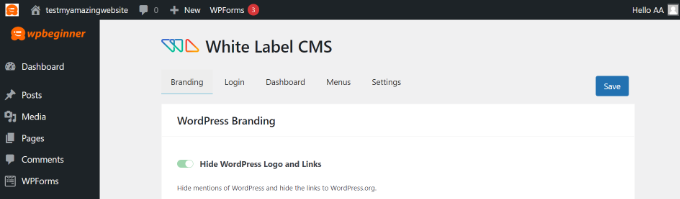
The first step is managing the WordPress logo and links in the admin bar. You can choose to show or hide the logo and links, or even remove the WordPress version number from the footer for a cleaner look.
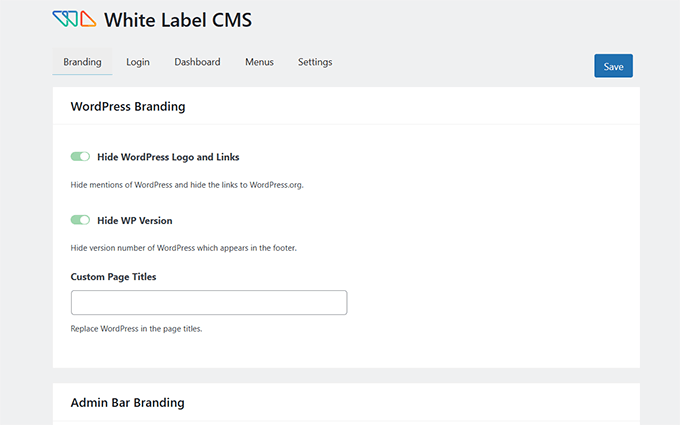
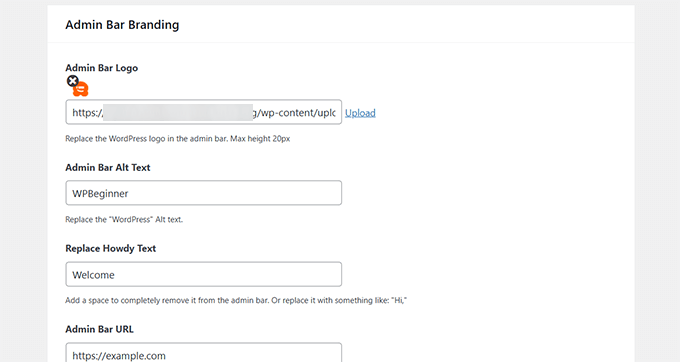
Next, upload your custom logo to replace the WordPress logo in the admin bar. This small change makes a big difference in aligning the dashboard with your brand.
With the plugin, you can also replace the ‘Howdy’ text in the admin bar and swap the WordPress.org URL with a custom link that fits your needs.
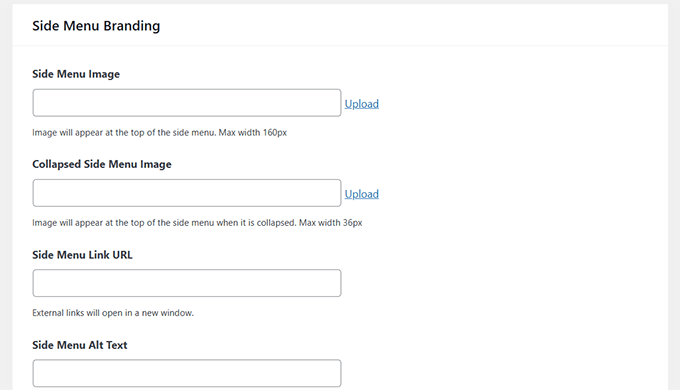
You can further customize the side menu branding in the admin panel.
This includes adding a custom side menu image, an image for the collapsed menu, and configuring links and alt text for these images.
Lastly, you can brand the Gutenberg editor by changing the exit button. You can replace it with a custom icon, admin bar logo, or even your own logo for a consistent experience.
The plugin also lets you add custom branding to the footer of your admin panel. You can include a footer image, text, a custom URL, and even your own HTML code.
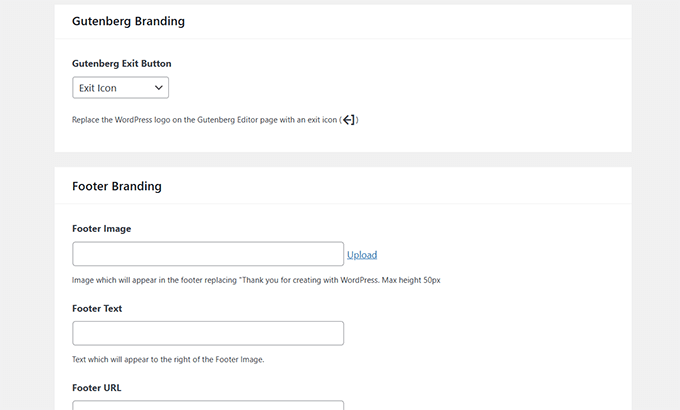
Once you’ve completed these steps, save your changes to apply your custom branding.
Here’s a preview of how these branding changes will look in your WordPress dashboard:
How to White Label the WordPress Login Page
Next, you can go to the ‘Login’ tab in White Label CMS and change what the login screen will look like.
To start, you can upload a login logo and a retina login logo. There are also options to define the logo’s width, height, and bottom margins and add background color.
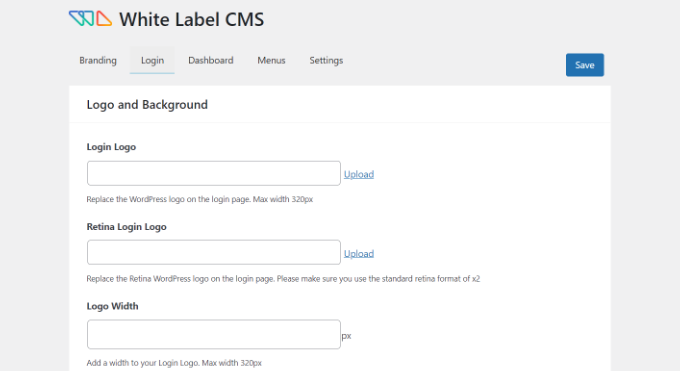
If you scroll down, there are more settings to change the background image and its position.
You can also enable the option to make the background image appear as a full screen on the login page for your WordPress website.
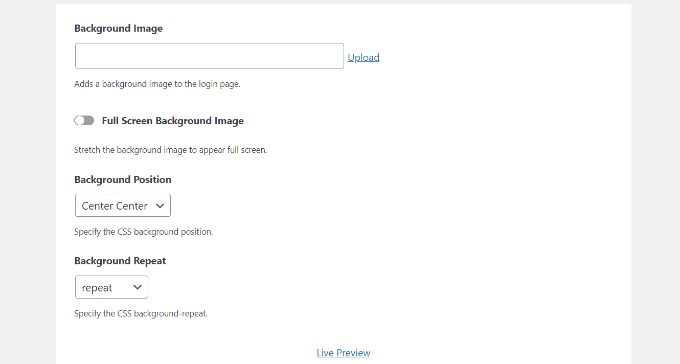
After making these changes, you can click the ‘Live Preview’ button at the bottom.
This will show you what your changes will look like in real time. Once you’re satisfied with the edits, simply save them.
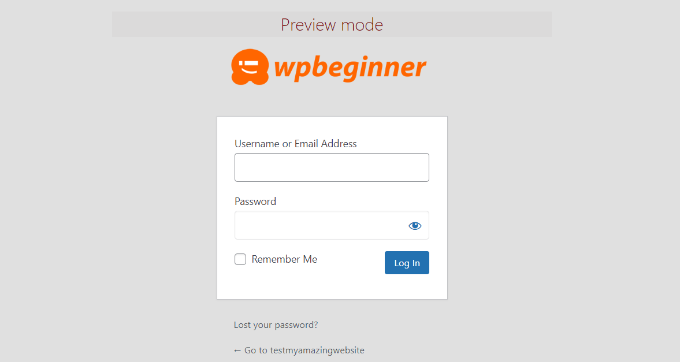
The White Label CMS plugin gives you simple options to customize the login page.
However, if you’d like more control over its design, then we recommend using a drag-and-drop page builder like SeedProd or Thrive Architect. Both come with beautiful login page designs and templates.
We use SeedProd on our partner sites, such as Duplicator, Charitable, and WPForms. For more details, take a look at our full SeedProd review.
You can see more in our guide on how to customize the login page in WordPress.
How to White Label the WordPress Dashboard Panels
The main screen you see after logging into WordPress is called the dashboard. It’s often packed with widgets and panels that show updates, stats, and plugin notices.
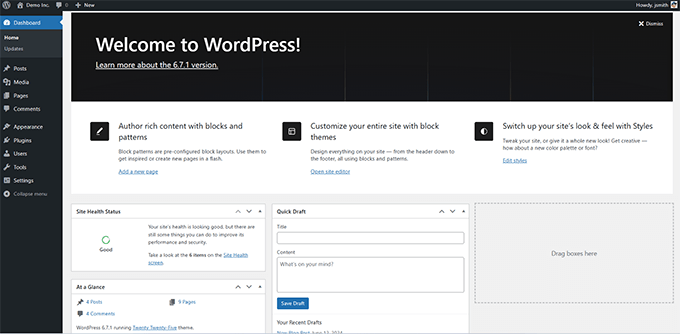
For many users, this can feel cluttered and confusing. Most of the time, they’re not sure what’s useful or what to click.
That’s why we like using the White Label CMS plugin to clean things up. Just click on the ‘Dashboard’ tab in the plugin settings, and you’ll be able to hide panels you don’t need.
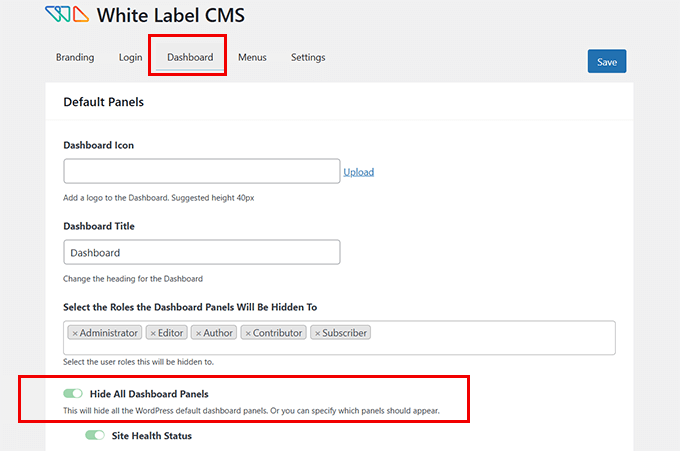
You can also change the dashboard heading, add custom icons, and control which user roles can view certain panels.
If you keep scrolling, there’s an option to add your own welcome panel. This is a great way to greet clients or link to important resources.
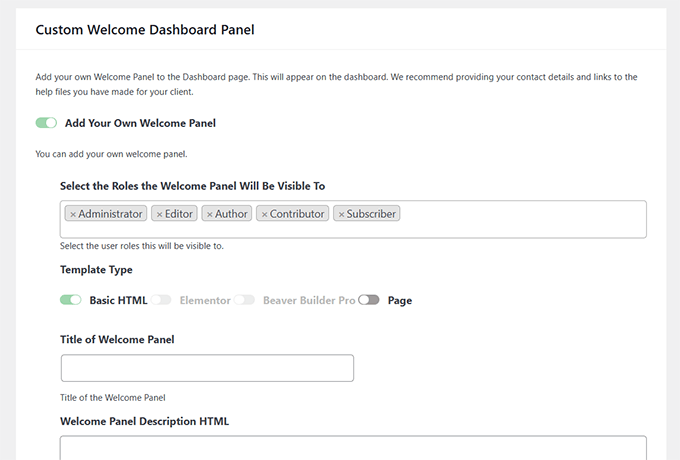
Once everything looks good, go ahead and click ‘Save’ to apply your changes.
How to Hide Specific Menu Items in the WordPress Admin
Next, you can head over to the ‘Menus’ tab in White Label CMS.
Here, you can hide different admin menu items for all user roles except the White Label CMS admins and super admins.
If you are using a bunch of plugins on the site, then those plugins will probably add their own menus as well. This could make your admin menu quite long. Many of your clients or users will probably not need these menus.
Using the plugin, you can hide these menus by enabling the ‘Want to hide menus for your clients’ option.
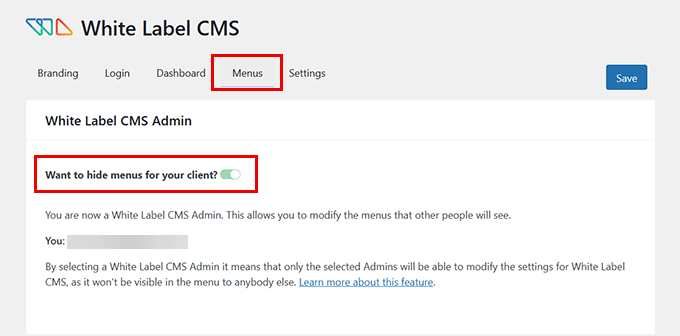
After that, you can scroll down and see different menus to hide.
For each menu, there are sub-menu items that you can see by clicking the blue downward arrow icon.
To hide a menu, simply click the toggle, and it will be hidden for different user roles in WordPress.
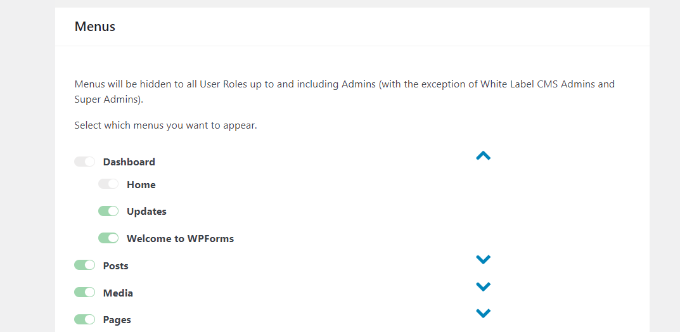
There are also admin bar menus that you can hide using the plugin.
When you’re done, go ahead and save your changes.
How to Customize WordPress Admin Settings
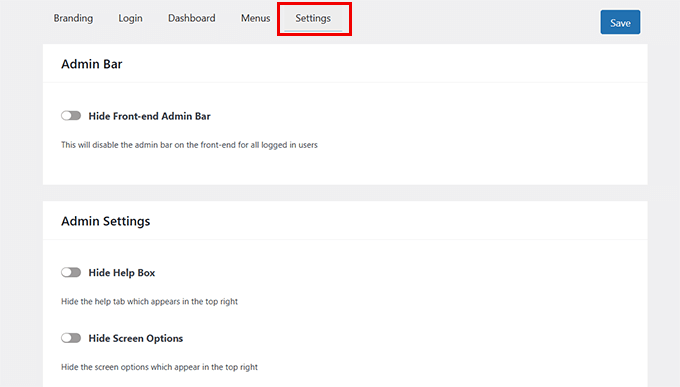
Lastly, you can go to the ‘Settings’ tab in the White Label CMS plugin.
In this section, you’ll get options to hide the front-end admin bar, help box, and other screen options.
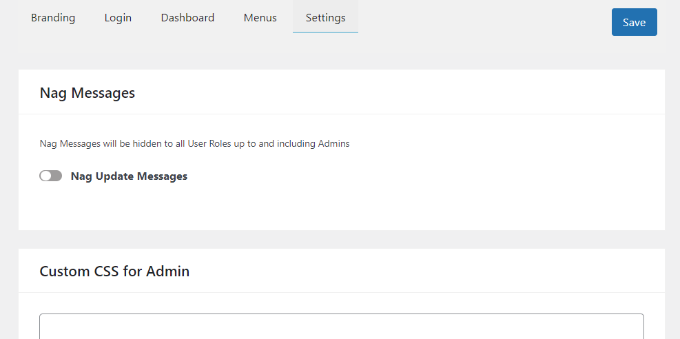
You can also turn off nag messages that appear at the top of the page in your WordPress dashboard. These are messages like rating the plugin or upgrading to a pro plan.
By removing them, you can keep your admin panel clean and clutter-free for your clients.
Other than that, the plugin lets you add custom CSS for the admin and custom editor stylesheet.
Once you’ve made the changes, simply click the ‘Save’ button.
A quick but important tip! We only recommend hiding menus and turning off admin notices if you have an ongoing website management plan with your client.
If you are handing the site over for them to manage on their own, they’ll need to see those menus and notifications for plugin updates, theme changes, and security alerts. Hiding them could cause them to miss something important and potentially put their site at risk.
Frequently Asked Questions About White Labeling WordPress Admin
1. What does white labeling mean in WordPress?
White labeling means replacing the default WordPress branding with your own. This includes changing logos, colors, menus, and dashboard messages to reflect your brand instead of WordPress.
2. Will white labeling affect my website’s design or content?
No, it only changes the admin area that you and your clients see after logging in. It won’t affect your site’s front-end appearance or your published content.
3. Can I undo white labeling if I change my mind?
Yes, if you’re using a plugin like White Label CMS, you can simply deactivate it or reset its settings to restore the default WordPress dashboard.
4. Is white labeling safe to use on client websites?
Yes, as long as you’re managing the site or providing ongoing support. If you won’t be maintaining it regularly, we recommend leaving menus and notices visible so your client doesn’t miss important updates.
5. Do I need coding skills to white label WordPress?
Nope! The method we show in this guide uses a beginner-friendly plugin, so you can customize everything through checkboxes and fields without writing any code.
Bonus Resources for WordPress Admin
The following are a few helpful resources that will help you further customize the WordPress admin dashboard:
- Vital Tips to Protect Your WordPress Admin Area (Updated)
- Plugins and Tips to Improve The WordPress Admin Area
- How to Add Dark Mode to Your WordPress Admin Dashboard
- How to Add a Notification Center in WordPress Admin
We hope this article helped you learn how to white-label your WordPress admin dashboard. You may also want to see our guide on how to white-label WordPress development and our picks of the best web design software.
If you liked this article, then please subscribe to our YouTube Channel for WordPress video tutorials. You can also find us on Twitter and Facebook.


Kzain
this is good to read, if this applies to all users then I can unhide menus in admin areas for administrators right?.
WPBeginner Support
Yes, you can specify which roles the sections are hidden from and you can exclude the admin user role.
Admin
Mrteesurez
Indeed the article is quite demanding and the plugin is great.
At this point, I have a question.
Is it possible to hide the plugin whitelabel CMS it self from the admin. Or do we handover the project to the client when they might see the plugin itself ?
WPBeginner Support
If the client is an admin on the site they would see the options for the plugin in case there is a need to debug the plugin.
Admin
Samuel
for most clients that I have worked with they don’t want to get involved in all the setting and technicalities of plugin. they just want an easy way to update their content and use other functionalities that their site may offer. I found out assigning user roles that allow them to do what they need to do without interfering with the setting of the site is best.
This could include hiding some plugin from them in their alotted roles. I hope this may solve your question here.
Moinuddin Waheed
I have been thinking for whitelabellig option for wordpress dashboard for a long time as it becomes very difficult for me to hand over the dashboard to clients which they don’t make any sense of.
I didn’t know that such option exists and there is already a plugin for that.
i will explore this plugin for my clients websites.
I have a query regarding posts and pages menu options.
I want to show them only these two options so that they can write posts.
can we give these two options in the middle of dashboard after tweaking all other whitelabellig options like hiding side nenu?
WPBeginner Support
If you want to limit access, that would be editing permissions instead of white labeling. You can see more on permissions in our article below:
https://www.wpbeginner.com/beginners-guide/wordpress-user-roles-and-permissions/
Admin
Moinuddin Waheed
I have gone through the article and found that the custom role assigning is what I need for my certain clients.
This helps in preventing doing any extra work that might cause problems in the wordpress website.
I really appreciate your reply and time. thank you.
David
Excellent article!
I appreciate your skills. Thanks for sharing.
WPBeginner Support
Glad you liked our article
Admin
Hjan
Hi,
I was wondering if it is possible to change the link in the custom login logo. Right now, the client´s logo links to the clients web page. But it would be nice to have the option to change this link to something else.
WPBeginner Support
If you wanted a different login page, you would want to take a look at our guide below:
https://www.wpbeginner.com/plugins/how-to-create-custom-login-page-for-wordpress/
Admin
KcBlaQ
I got value from this, thanks alot
WPBeginner Support
You’re welcome, glad it was helpful
Admin
Brett
Under the section “Admin Settings” about allowing users to use /login as their WordPress login URL, how do you disable Permalinks so it does not redirect to /wp-login.php ? Mine keeps redirecting…
Jeff
Excuse my ignorance, but this is just for the admin panel right? If I use this plugin, things like ‘Powered by Wordpress’ will still appear on the front end?
WPBeginner Support
Hi Jeff,
Yes. Powered by link is displayed on the front end by your WordPress theme.
Admin
Polly Gras
How can I hide the name of the wp theme I am using?
Polly Gras
What a waste of time.
Obviously nobody ever looks at this Page!!
Ewan
So when the plugin is installed, do the changes apply to all users – including the administrator? or is there someway to limit it to certain user types?
WPBeginner Support
The branding part applies to all users. However, you can choose to unhide menus in admin areas for administrators.
Admin
Muhammad Sadiq
This is a great Blogs post its very Knowledgeable topic to highlight, and some great information that you have shared with us Syed Balkhi.
Marcelo
A comparison with Adminimize would be really nice, since both looks like having the same features, and this one seems to have copied it from Adminimize
WPBeginner Support
Please take a look at our Adminimize tutorial.
Admin