


Inconsistent date entries can turn a simple WordPress form into a frustrating mess. Slashes, dashes, full month names – when users enter dates however they want, it’s inevitable to deal with a messy data nightmare that takes hours to clean up.
That’s why adding a date picker to your forms is such a smart move.
Instead of leaving formatting up to the user, a date picker gives them a clean calendar interface. This keeps your data uniform and is much easier for mobile users to tap than typing out a date manually.
In this guide, we’ll share the simplest way to create a WordPress form with a date picker. Whether you’re creating booking forms, event registrations, or appointment schedulers, this small upgrade can help both you and your site visitors. 🙌

Why Create a WordPress Form With a Date Picker?
In short, a date picker makes date entry easier for users and more reliable for you.
After managing thousands of online forms in WordPress, we’ve noticed that date-related form fields are often where things go wrong. In fact, incorrect date formats are among the top reasons we see form submissions fail or cause confusion.
A date picker field solves these common frustrations and improves your user experience. We’ve seen it work effectively for:
| Use case | Example |
|---|---|
| Registration forms | Let users select their birthdate instead of typing it. |
| Order forms | Choose a delivery date (and time, if needed). |
| Rental forms | Pick a pickup or drop-off date for a rental item. |
| Callback request forms | Let users choose when they want to be contacted. |
| Leave request forms | Enter the start and end dates for time off. |
| Appointment / booking forms | Select a date for a service or accommodation booking. |
The best part is that a date picker ensures consistency across all submissions. No more wondering whether 03/04/2026 means March 4th or April 3rd, which is a headache we’ve encountered far too often with manual data entry.
Now, we’ll show you how to easily create a WordPress form with a date picker. Here are the steps we’ll cover, and you can use the quick links below to navigate through them:
- Step 1: Install the WPForms Plugin
- Step 2: Choose a Form Template
- Step 3: Add Date Picker Field to Your WordPress Form
- Step 4: Configure the Date Time Picker Settings
- Step 5: Embed the WordPress Form on Your Website
- 🎁 Bonus Step: Enable Appointment Reminders
- FAQs: How to Create a WordPress Form With a Date Picker
- Ultimate Tips to Optimize Your WordPress Form
Let’s get started.
Step 1: Install the WPForms Plugin
We’ve tested dozens of form and date picker plugins over the years, including popular options like Ninja Forms and Gravity Forms.
But for adding date pickers, we’ve found WPForms to be the most user-friendly solution, especially for beginners who want to create professional-looking forms without touching any code.
Besides a date picker, WPForms comes with premium features like conditional logic to show or hide fields based on user selections. Or, you can use smart calculators to automatically handle pricing estimates.
At WPBeginner, we actually use WPForms to build most of our forms, and we can’t recommend it enough. You can see our complete WPForms review for more details.
Start by visiting the WPForms website and creating an account. Simply click the ‘Get WPForms Now’ button, pick the plan that works for you, and finish the signup process.

💡 Note: For this guide, you need to use a premium version of WPForms, as that’s where the date picker field is available. That being said, you can get started with the free version of WPForms to see if it caters to your needs.
Once you’ve signed up, you can log in to your WPForms account dashboard. That’s where you’ll find your plugin’s zip file and your license key. You can leave that page open for now or save those details somewhere safe, like in a password manager.
Next, head over to your WordPress dashboard and go to Plugins » Add New Plugin.

Use the search bar on that page to quickly look for WPForms.
When you see it in the results, click ‘Install Now,’ and then click ‘Activate’ once the installation finishes.
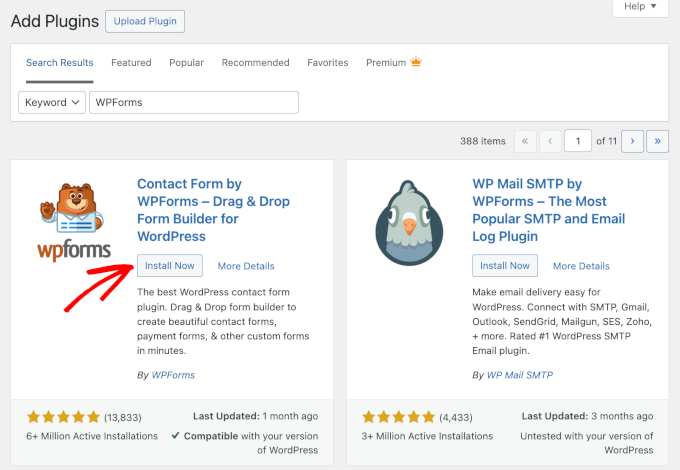
For detailed instructions, you may want to see our step-by-step guide on how to install a WordPress plugin.
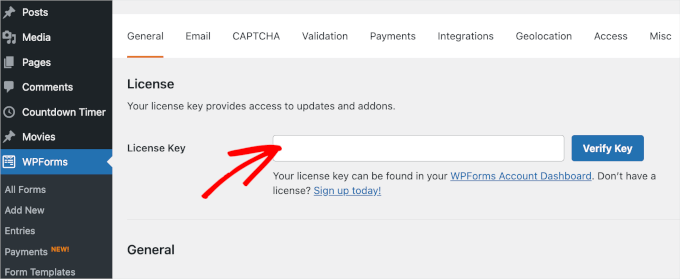
After installing the plugin, you’ll need to activate your license key.
In WPForms » Settings, you can go ahead and paste your license key into the respective field. Then, click the ‘Verify Key’ button.
Step 2: Choose a Form Template
Upon activation, head over to the WPForms » Add New page from your WordPress dashboard.
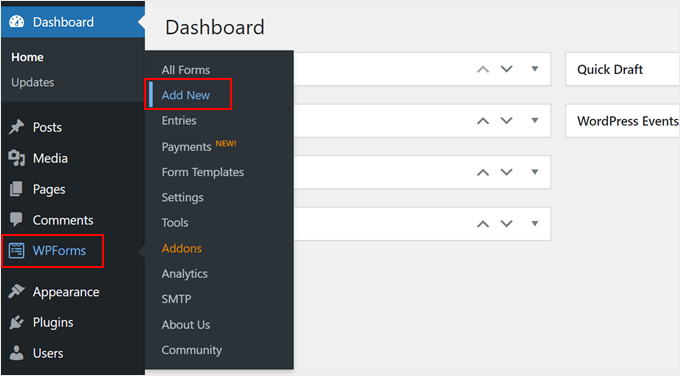
This will direct you to the ‘Select a Template’ page.
Before choosing a template, it’s a good idea to name your WordPress form so that you can easily identify it later.
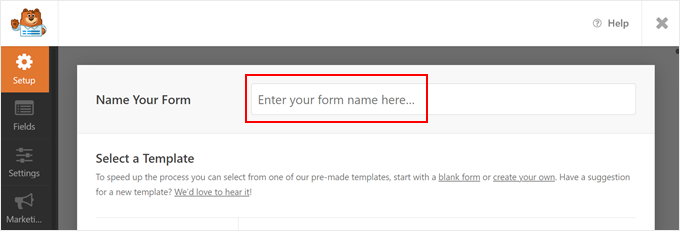
Next, you’ll choose how you’ll build your form – using WPForms AI, a pre-made template, or from scratch.
If you want to use the AI form builder, then all you have to do is write a simple prompt. The AI will then generate the form for you in an instant.

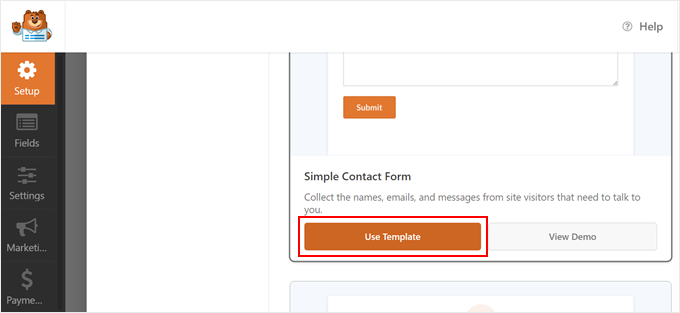
For this example, we will use the Simple Contact Form template and then add the date picker field to it. But feel free to pick a template that suits you best.
Scrolling down the Setup page, you will see more than 2,000 pre-made form templates available here. You can use the search bar to narrow down the choice.
Once you have made your choice, just click the ‘Use Template’ button.
🧑💻 Pro Tip: If you run an accommodation site and want users to insert specific dates for their stay, you can use the Hotel Reservation Form template. It includes two date picker fields: one for the arrival date and the other for the departure date.
Step 3: Add Date Picker Field to Your WordPress Form
Now, you will arrive at the WPForms form builder. You will notice the field options in the left column and a form preview on the right side of the screen.
By default, the Simple Contact Form template only has the name, email address, and comments fields added to the form.
For demonstration, we will show you how to add a date field to your WordPress form. But if your template already has it, then you can skip to the editing portion of this step.
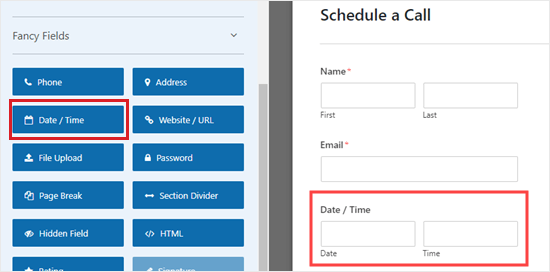
Scroll down to the Fancy Fields section in the left panel to find the ‘Date / Time’ field.
Simply drag and drop that field to where you want it on your form. In this tutorial, we’ve placed it just below the Email field.
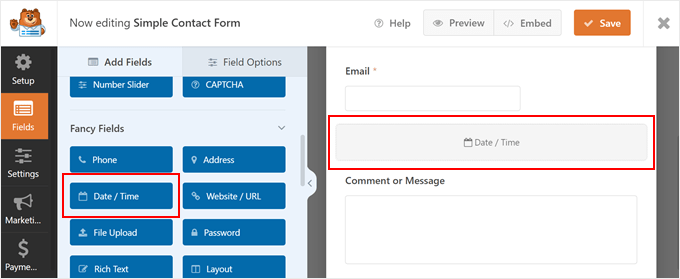
Once you’ve done that, click on the ‘Date/ Time’ field to edit it. This will open up the ‘Field Options’ tab on the left-hand side of your screen.
From here, you can change the label of the field, which defaults to ‘Date / Time.’ We are going to use ‘Preferred Time for Phone Call’ for our field.
You can also change the date format of the field using the Format dropdown menu. The options are Date and Time, Date, or Time only. This may be useful if you want to collect users’ birthdates without a time field.
Other than that, you can fill out the description text to give more context on what the user needs to enter in the field.
Finally, you can check the ‘Required’ box if you want to make this a mandatory field. This means the user will have to select a date and time before they can submit the form.
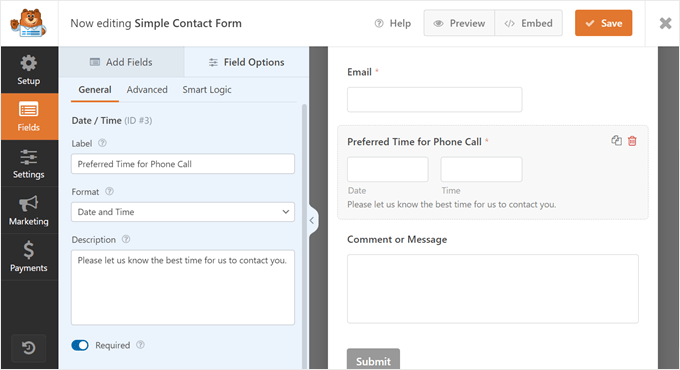
Once you have done that, just click the ‘Save’ button at the top to store your form settings.
Step 4: Configure the Date Time Picker Settings
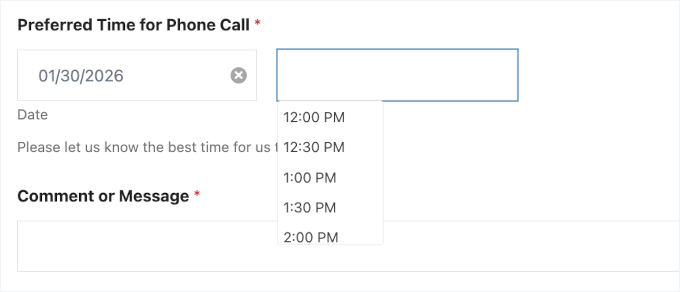
By default, the date range picker field on your WordPress form will be a calendar with a time dropdown menu next to it.
The current date will be selected,
When a user clicks the field, a calendar pops up with the current date selected in the month/day/year format. They can then change it to pick a different date.
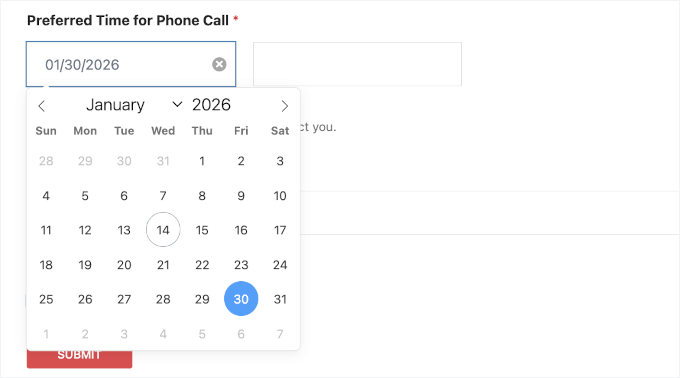
Meanwhile, the time dropdown defaults to a 12-hour clock with 30-minute intervals.
Users can then choose a time slot that works best for them.
In some cases, you may want to change the date picker settings. For example, maybe your country follows the day/month/year or 24-hour date and time formats rather than the default ones.
To do this, you will have to switch to the ‘Advanced’ tab at the top of the left-side panel.
Here, you can adjust the size of the date picker field. Then, in the Date section, you can change the date range from a calendar to a date dropdown menu.
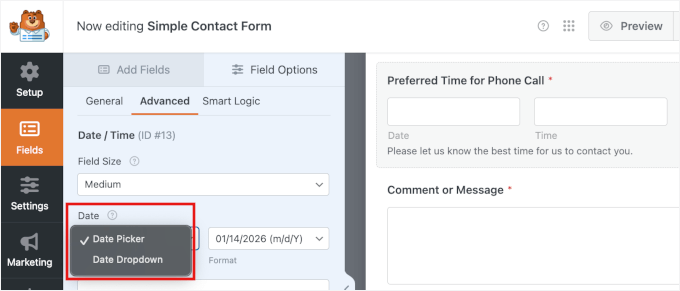
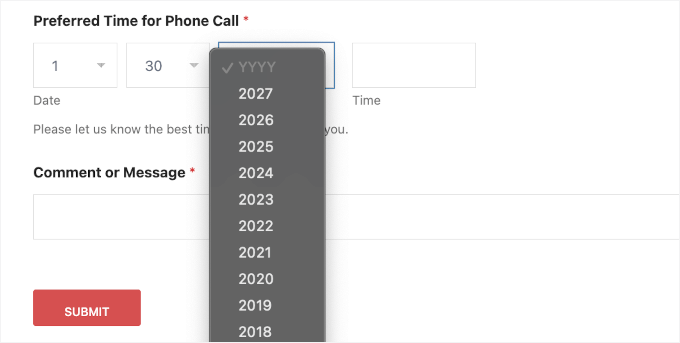
Switching the date calendar picker to a date dropdown menu is a good idea if the form has limited space and the calendar looks rather small.
Here’s what the date dropdown menu looks like:
Below that, you can change the format to match your region. For example, you can switch from the US format (mm/dd/yyyy) to the International format (dd/mm/yyyy).
If you choose the calendar date picker, then you can also insert placeholder text in the ‘Date’ field. You can fill it with your date format to let users know what format you are using, so that they don’t get confused.
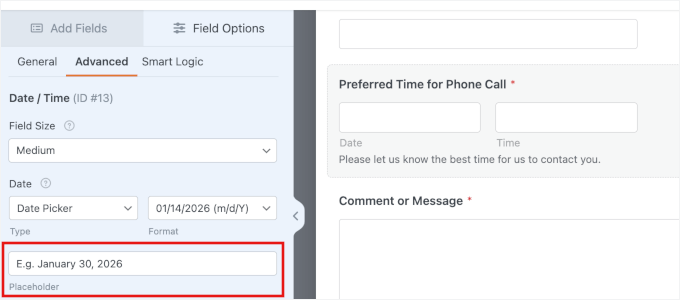
💡 Note: Don’t worry if you don’t see the placeholder in the form builder — it will show up on the front end.
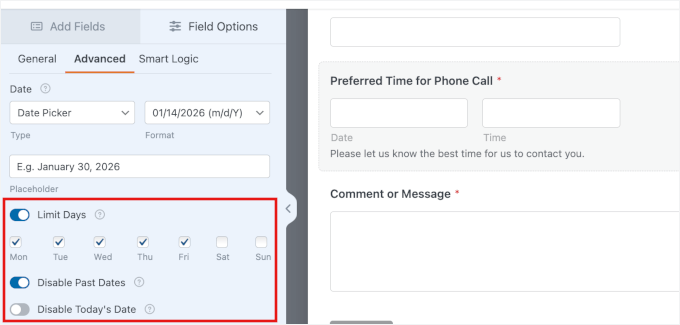
Additionally, you can toggle the ‘Limit Days’ switch to restrict which days are available. This is perfect if you want to prevent bookings on weekends or specific holidays.
We highly recommend checking the ‘Disable Past Dates’ box for appointment forms. This prevents users from accidentally (or intentionally) booking a slot in the past, keeping your schedule error-free.
Plus, you can disable today’s date if you don’t allow same-day bookings.
Next, let’s move down to the ‘Time’ section to change the time picker.
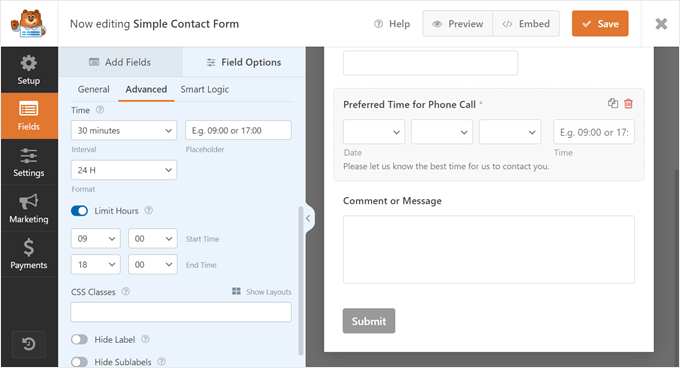
Here, you can change the interval to 15 minutes or 1 hour instead of 30 minutes. It’s also good to input placeholder text here to show what time format you are using.
The time picker defaults to a 12-hour clock, but you can switch this to a 24-hour clock if you prefer.
Also, feel free to turn on the ‘Limit Hours’ setting to specify the start and end times of your services. This way, users cannot make an appointment outside of your business hours.
Other than that, you can enter a CSS class name for the date range field. This is an advanced and optional feature, but you can use this to override the style of the form using code later.
Last but not least, you can hide the form field label and/or sublabel if necessary.
Once you are happy with your new form, you can save it by clicking the ‘Save’ button in the top right corner of the screen.
Step 5: Embed the WordPress Form on Your Website
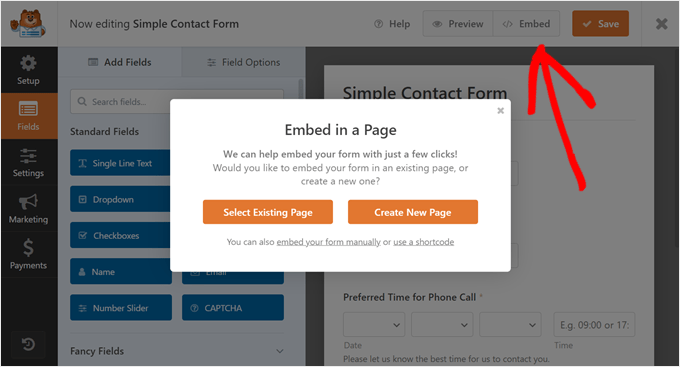
You are now ready to add your new form with the date picker to your WordPress website. To do this, simply click the ‘Embed’ button at the top part of the form builder.
A popup will appear asking you to select an existing page to add the form to or create a new page for the form from scratch. Both options use the block editor, so the steps are pretty similar.
Add the WPForms Block to an Existing or New Page
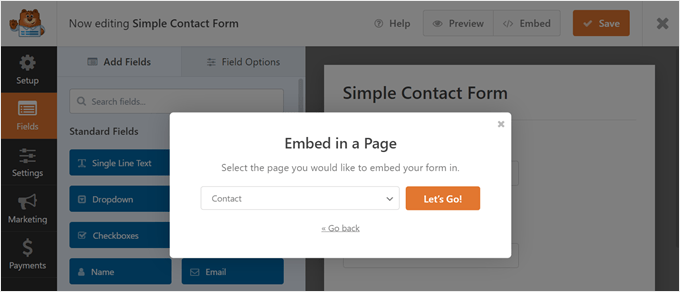
To insert the form in an existing page, click the ‘Select Existing Page’ button. After that, select one of the pages you already have on your WordPress blog or website and click ‘Let’s Go!’
If you want to add the form to a new page, just click the ‘Create New Page’ button.
Then, give your new page a name, and click ‘Let’s Go!’
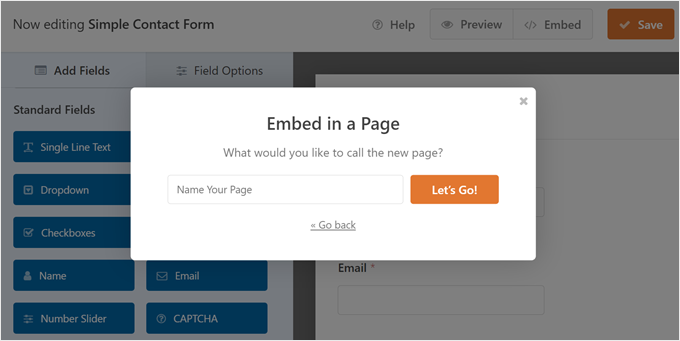
Both of these methods will bring you to the block editor, where you will see some instructions on how to add the WPForms block.
First, click the ‘+’ add block button.
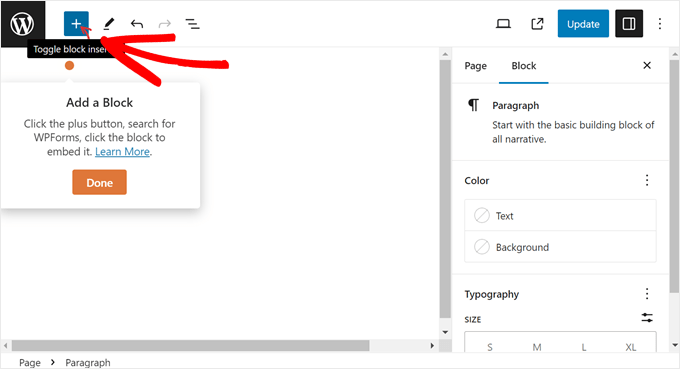
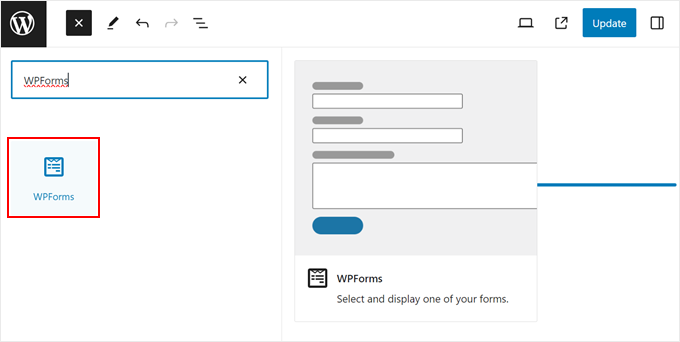
Then, type ‘WPForms’ into the block search bar.
Simply drag and drop the block wherever it looks best on the page.
All you need to do now is click the dropdown menu.
Then, select the form you just created.
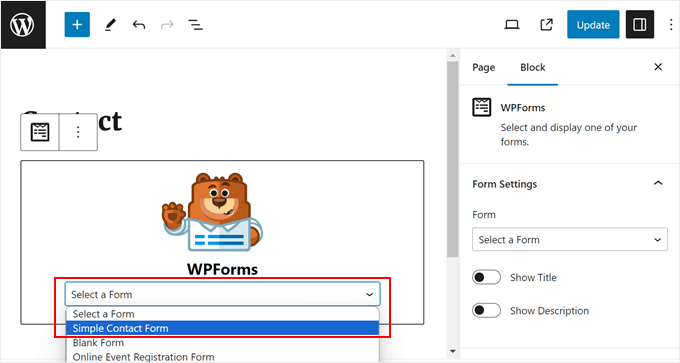
In the Block settings sidebar, you can customize the form field, label, and button styles to make them look nicer with your WordPress theme.
You can change each element’s size, border radius, and colors.
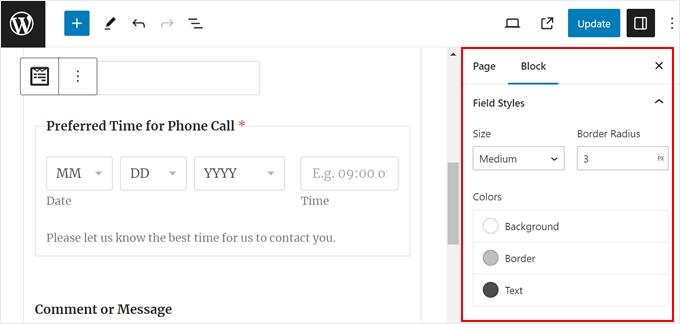
You can now click the ‘Update’ or ‘Publish’ button to make the form live on your website.
It should look something like this on your WordPress website:
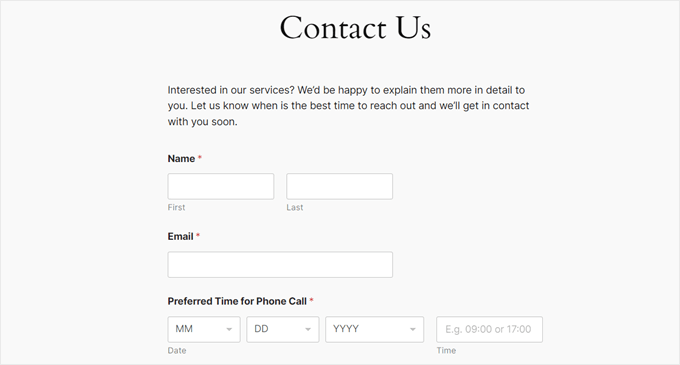
If you want to insert the form widget in a post rather than a page, then you can create a new post or open an existing one in the block editor.
After that, just follow the same steps to add the WPForms block to a page, like in this method.
Add the WPForms Block to a Widget-Ready Area
If you use a classic WordPress theme, then you may want to display your form in a widget-ready header, footer, or sidebar area. This may be a good idea if your form is pretty short and doesn’t take up too much space.
🧑💻 Pro Tip: If you are using a block theme, then this method won’t work for your website.
To do this, just go to Appearance » Widgets from the WordPress admin area. Then, navigate to your desired widget-ready area and click the white ‘+’ add block button inside it. After that, you can search for the WPForms block.
If you see two options, you can choose either one as both do the same thing.
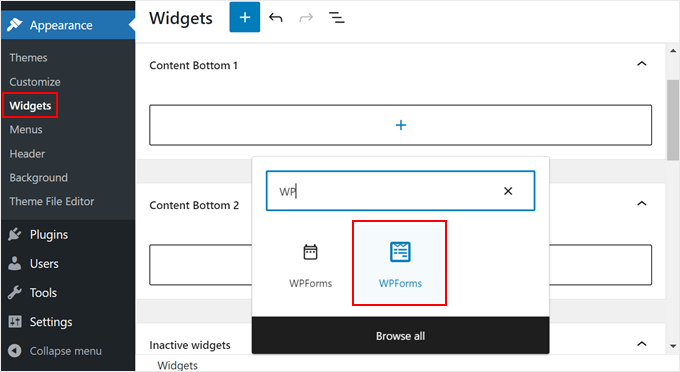
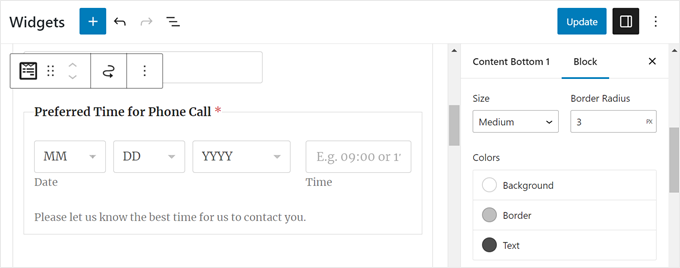
Like in the previous method, simply select the form you just created earlier. In the Block settings sidebar, you can configure the design so that it fits your WordPress theme better.
Once you are happy with the edits, just click the ‘Update’ button.
That’s it!
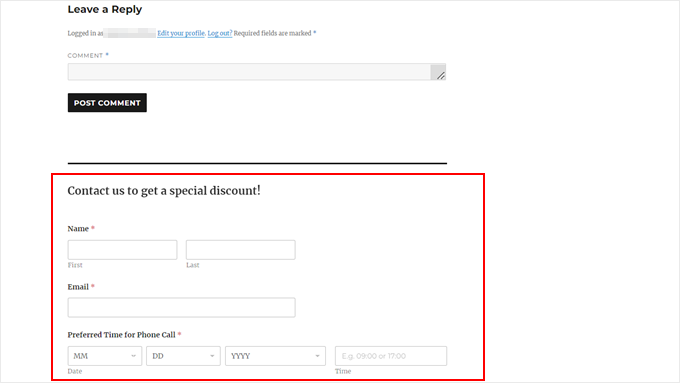
Here’s what our form looks like at the bottom of a WordPress blog post:
Embed Your WordPress Form With a Shortcode
If the WPForms block or widget doesn’t work, then you can also add your WordPress form using a shortcode.
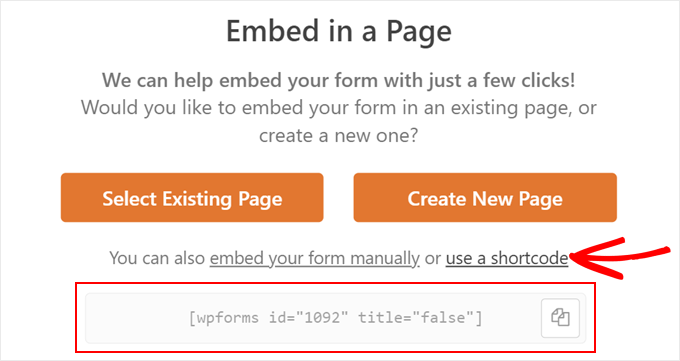
In the ‘Embed in a Page’ popup, simply click the ‘use a shortcode’ link. You will then see a shortcode that you can copy and paste to a page, post, or widget-ready area.
For more information on how to use shortcodes, read our article on how to add a shortcode in WordPress.
🎁 Bonus Step: Enable Appointment Reminders
If you’re using your form to schedule appointments or bookings, adding automated reminders can make a big difference.
Connecting your form to your email marketing service allows you to send appointment reminders, helping reduce no-shows and keeping things organized.
It also reassures users that their submission was successful and their spot is confirmed.
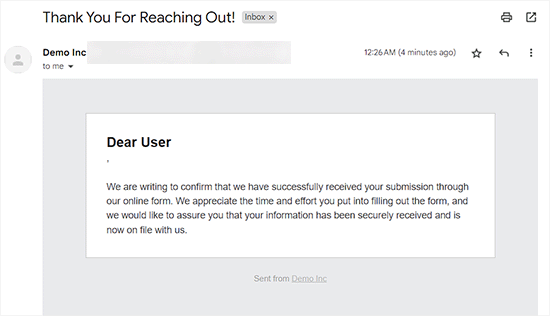
To set this up, you can follow our step-by-step guide on how to send confirmation emails to your form submitters. With just a few clicks, you can ensure users get a timely reminder about their selected date or time. ⏰
FAQs: How to Create a WordPress Form With a Date Picker
Thinking about adding a date picker to your WordPress forms? Here are some common questions to help you get started.
What is a date picker in WordPress forms?
A date picker lets users select a date from a calendar. It helps ensure dates are formatted consistently and reduces input mistakes.
What’s the difference between a date picker and a time picker?
Date picker lets users choose a date from a calendar (like January 14, 2026). Time picker lets users choose a time (like 3:30 PM).
How do I add a time picker in WordPress?
If you’re using a form builder like WPForms, just drag the ‘Date / Time’ field into your form. Then choose the ‘Time’ option in the settings.
How do I show the date on my WordPress site?
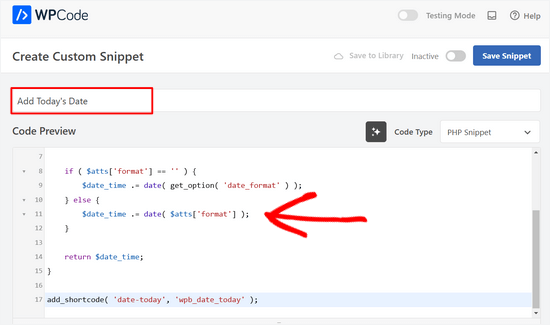
You can display dates using a widget, a shortcode, or a custom PHP code snippet.
WPCode is one of the best code snippet plugins for WordPress. It makes adding custom code, including the one to show today’s date, to your website super safe and easy.
How do I insert a date picker using HTML?
In plain HTML, you can use: <input type="date">. But in WordPress, it’s easier to use a form plugin for better compatibility and control.
Ultimate Tips to Optimize Your WordPress Form
We hope this article helped you learn how to create a WordPress form with a date picker.
Now that you know how to add a date picker in WordPress forms, let’s cover the best tips to take your forms to the next level:
- Accept online payments in your forms – WPForms supports popular payment gateways like Stripe, PayPal, Square, and Authorize.net. You can collect one-time or recurring payments, and there are no additional transaction fees.
- Make your longer forms conversational – If you have an event or user registration form that needs to capture lots of information, then making it conversational can increase the form completion rate.
- Prevent contact form spam – You can enable WPForms’ built-in anti-spam protection and reCAPTCHA check box to filter out spammy form entries.
- Create multilingual forms – Reach a diverse audience and increase your website’s accessibility with forms that display in multiple languages.
- Best practices for contact form page design – This guide can walk you through designing the best WordPress form to convert regular visitors into leads or customers.
- Tips for creating more interactive forms – WPForms co-founder Jared Atchison gives you pointers on how to make forms more engaging, from using conditional logic to adding rich media content.
If you liked this article, then please subscribe to our YouTube Channel for WordPress video tutorials. You can also find us on Twitter and Facebook.


Dennis Muthomi
Hello, could there be a way to disable specific dates, like holidays, in the date picker field.
It would be really useful for businesses that don’t operate on certain days.
THANKS
WPBeginner Support
The plugin’s support can help you set up excluding specific holidays that you want to include.
Admin
Alessandra Del Puglia
hi, how can i do to disable certain days of the week?
Thanks
WPBeginner Support
Reach out to WPForms’ support for the current methods of limiting the days of the week
Admin