


Last month, a reader spotted a broken link in one of my posts on my personal site. By the time they emailed me about it, the post had already been live for three weeks.
That experience made me wish there was an easier way for readers to immediately report issues.
If you’re running a WordPress site, you know how challenging it can be to catch every typo, broken link, or outdated information. Even with careful proofreading, errors can slip through. And when they do, they can hurt your site’s credibility and frustrate your readers.
In this tutorial, I’ll show you how to let users notify you about errors in your content. When set up correctly, this can turn your readers into valuable allies who can instantly alert you to any issues they find.
Why Allow Users to Notify You of Errors?
Allowing users to report errors helps you keep your content accurate, boost engagement, and build trust. It turns your readers into helpful collaborators who can point out typos, broken links, or outdated details you might have overlooked.
Here’s a closer look at the benefits:
- 📖 Readers often catch things you don’t. When I first started my WordPress site, I relied on my own proofreading. But readers frequently pointed out broken links or outdated facts through comments or emails. That’s when I realized I needed a better system.
- 🌐 Your audience has diverse knowledge. Visitors come from different backgrounds and expertise levels. One person might notice a technical mistake, while another spots a small typo or grammar mistake you’ve read past dozens of times.
- 📨 Without a proper system, most errors go unreported. If there’s no simple way to report mistakes, readers usually leave without saying anything. Some might comment, but comments get buried easily and aren’t designed for reporting errors.
Plus, after I added a proper error reporting system to my site, I noticed several benefits:
- Content accuracy improved
- Readers felt more engaged and appreciated
- My site’s credibility increased
- I saved time by not constantly rechecking old posts
Think of it like having hundreds of volunteer editors looking out for your content.
How to Use UserFeedback to Collect Error Reports
Adding an error reporting system to your WordPress site is like having an extra set of eyes reviewing your content. After setting this up on my own sites, I’ve caught and fixed numerous issues that might otherwise have gone unnoticed.
After testing lots of options, I found UserFeedback to be the best user feedback plugin for WordPress. It’s lightweight, so it won’t slow down your site, and it lets you create simple, non-intrusive feedback widgets that are perfect for this task.
At WPBeginner, we also used it to gather feedback from our readers. We had a great experience, which you can learn about in our complete UserFeedback review.
Step 1: Install and Activate UserFeedback
First, head over to the UserFeedback website to create your account.
You can click the ‘Get UserFeedback Now’ button, choose the plan you want, and finish the checkout.
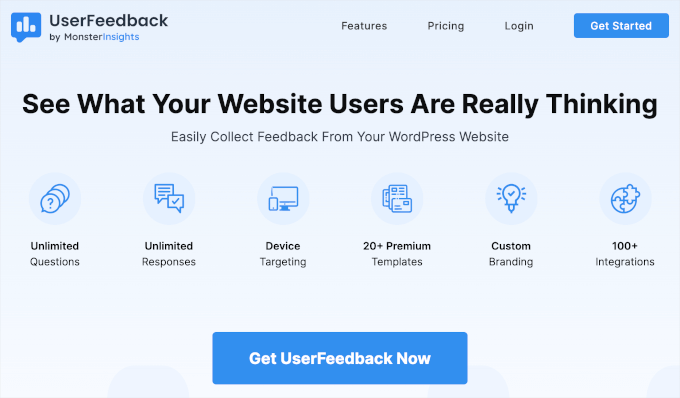
📌 Note: The UserFeedback plugin also has a free version that you can install. However, I will be using the Pro plan for this tutorial to unlock more features.
You’ll land in your UserFeedback dashboard, where you can copy your license key.
Next, open a new tab and log in to your WordPress admin area to install the free version of UserFeedback. We’ll upgrade it with your license key afterward.
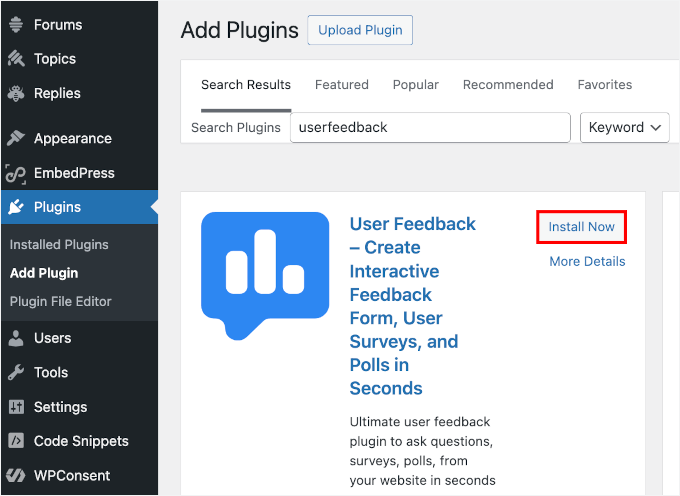
Go to Plugins » Add New Plugin.

On the next screen, you can search for UserFeedback.
Simply click ‘Install Now’ in the search results, and then ‘Activate’ to enable the plugin in your WordPress site.
Once the free version is active, you can upgrade it using your license key.
Just head to the UserFeedback settings in WordPress, paste in your key, and click the ‘Verify’ button to unlock the premium features.
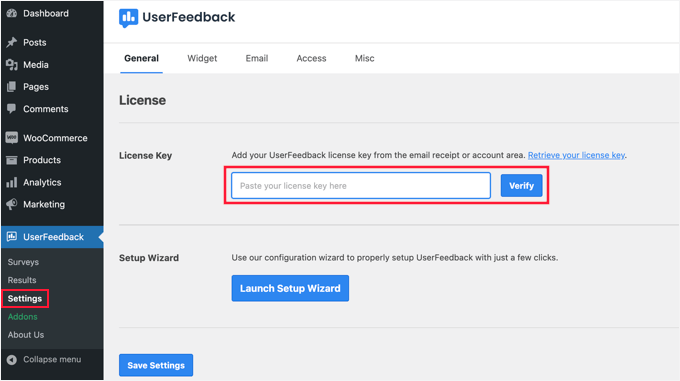
And that’s it! You have now successfully installed and activated the premium version of UserFeedback.
You should see a new menu item called ‘UserFeedback’ in your WordPress dashboard. For more instructions, you may want to see our step-by-step guide on how to install a WordPress plugin.
Step 2: Create Your First Feedback Survey
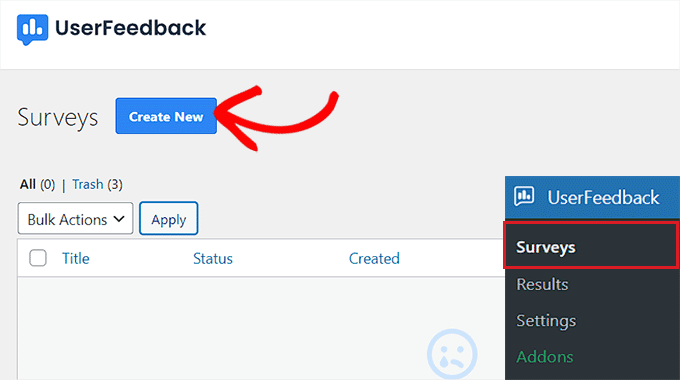
In your WordPress dashboard, go to UserFeedback » Surveys. Then, you need to click the ‘Create New’ button to create your first feedback form.
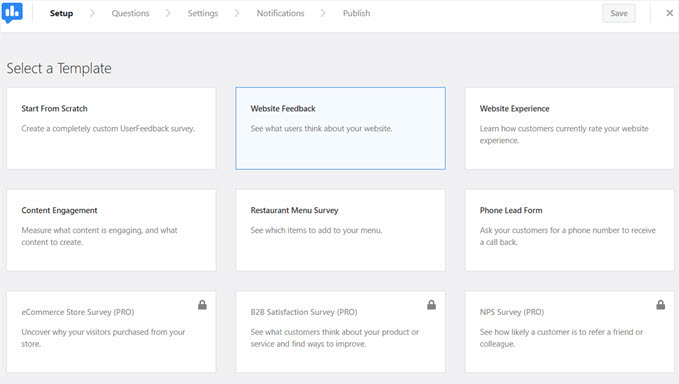
UserFeedback will show you several templates to choose from.
Since we want users to report content errors, select the ‘Website Feedback’ template. This template is already set up with a question field for users to describe the problems they find.
You can also customize your form’s appearance by changing colors, fonts, and button styles to match your website’s branding.
Step 3: Customize Your Feedback Form
Now that you have created a basic feedback form, let’s customize it to fit your needs.
In the UserFeedback editor, you’ll be asked to specify the question you want to ask.
To start, you can click on the ‘Question Title’ field to edit it. I changed mine to “Found an Error? Let Us Know!” because it’s more inviting and also explains the form’s purpose.
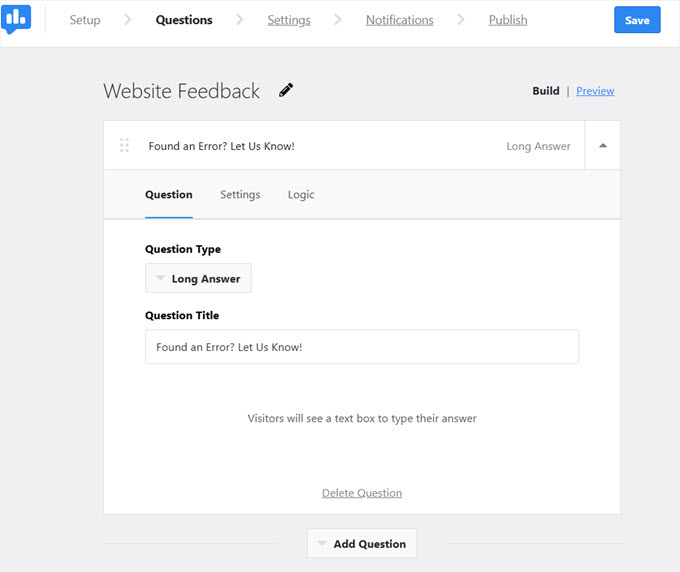
You can even click on ‘Add Question’ to add multiple user feedback questions to the form. However, since we want to make it a simple feedback form, let’s only use one question.
Click on the ‘Settings’ tab to choose where and when the form should be displayed, and for how long.
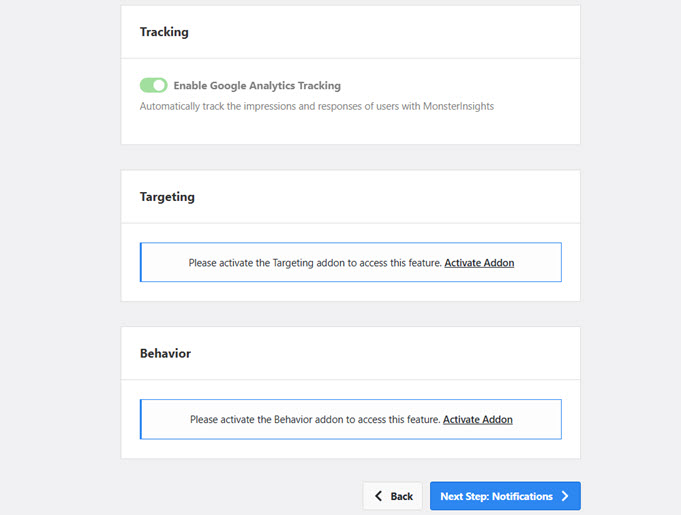
To further customize where and how your form appears, you’ll need to install the Targeting and Behavior addons.
🧑💻 Pro Tip: If you’re fine with displaying the form to every visitor, you can skip this step and go straight to the ‘Notifications’ tab.
To install UserFeedback addons, open a new tab and visit your WordPress admin dashboard. Then go to ‘UserFeedback’ followed by ‘Addons’.
Then, you can click the ‘Install’ button next to the addons you want to install. Don’t forget to activate them as well.
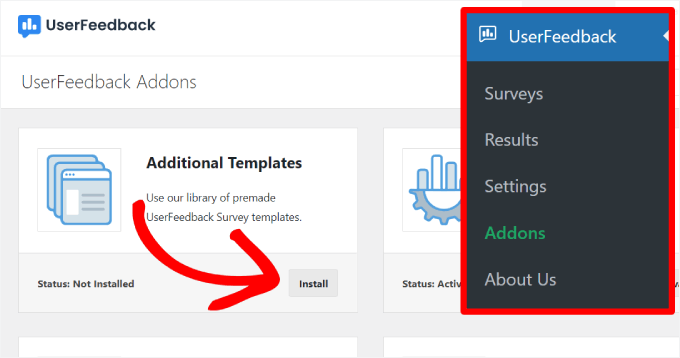
From here, you can return to the browser tab with the ‘Settings’ page open.
After that, refresh the page to see the new ‘Targeting’ and ‘Behavior’ sections, where you can specify where and when your feedback form appears.
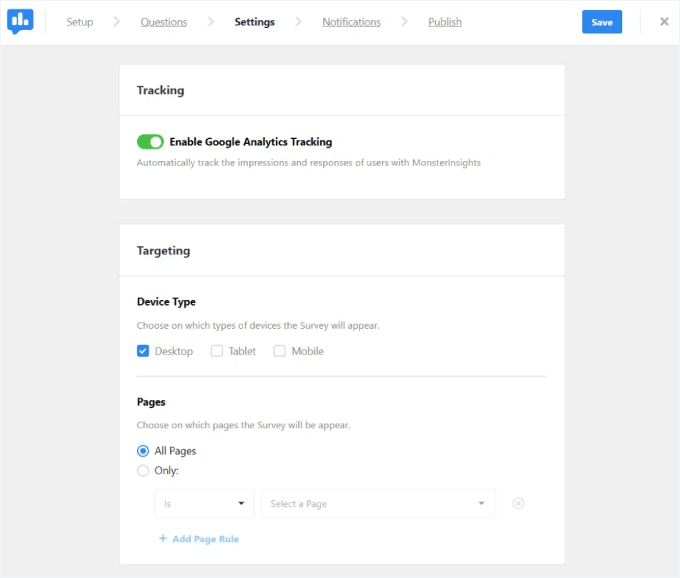
Here, you can choose device types, specific pages, how long the form remains visible, and more.
For instance, you could use the ‘Targeting’ settings to make the error reporting form appear only on your blog posts, but not on your homepage or contact page. This helps you get feedback exactly where it’s needed most.
Step 4: Set Up Email Notifications
The last setup step is configuring your notifications.
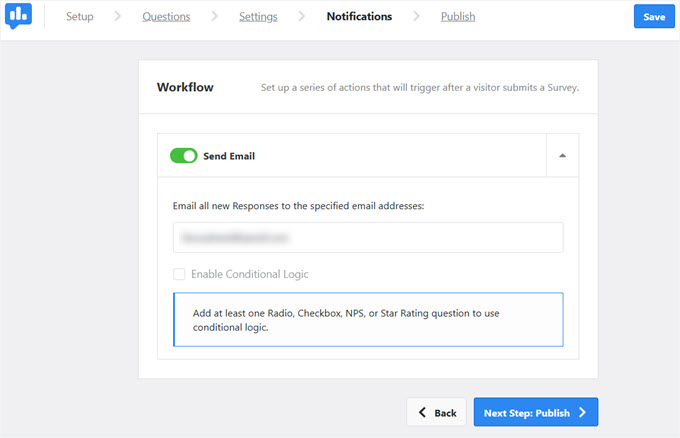
In the ‘Notification’ tab, you need to enter your email address in the ‘Email all new responses to the specified email addresses’ field.
Make sure the ‘Send Email’ toggle is turned on and click ‘Next Step: Publish’.
Make sure the ‘Send Email’ toggle is turned on, and then click the ‘Next Step: Publish’ button at the bottom.
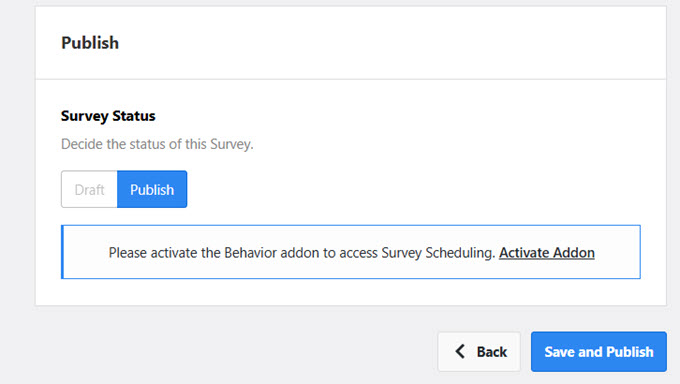
This will take you to the final ‘Publish’ panel, where you can review your settings one last time.
When you’re ready, click the ‘Save and Publish’ button to make your survey form live.
Step 5: Test Your Feedback System
Finally, I highly recommend testing your feedback system. You need to visit your WordPress blog or website as a regular user would and look for the feedback form. Then, submit a test report.
You will want to make sure:
- The form appears where you want it.
- The form opens smoothly.
- All fields work correctly.
- You receive the email notification.
Once everything works as expected, your error reporting system is ready to go. Users can now easily help you spot and fix content issues on your site.
You can view user submissions by going to the UserFeedback » Results page in your WordPress dashboard.
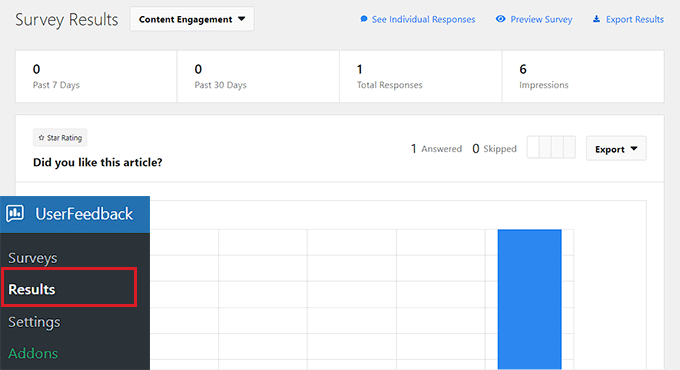
From here, you can track the number of responses, impressions, and all the answers provided by your visitors.
Bonus: Make Sure You Never Miss an Error Report Email
When you’re collecting error reports, it’s important to make sure those notifications actually reach your inbox. The catch is that WordPress’s default email system can be unreliable at times. Messages may land in spam or fail to send altogether.
To keep everything running smoothly, you can use WP Mail SMTP. It’s the tool I use myself, and ever since, I haven’t missed a single report issue.
By default, WordPress tries to send emails using a method that many web hosts block to prevent spam. WP Mail SMTP fixes the common WordPress not sending emails issue by re-routing your messages through a proper email service provider instead.
That way, every error report, form submission, and alert gets delivered as expected.
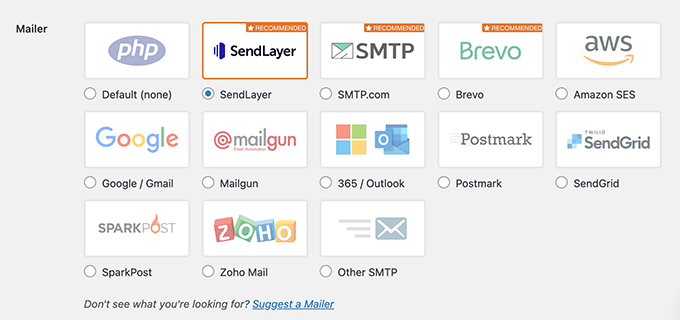
For details on how to do this, just see our guide on how to use an SMTP server to send WordPress emails.
Related Guides for Collecting Feedback in WordPress
I hope this guide has helped you allow users to notify you of errors in WordPress posts.
If you found this helpful, check out our other guides for creating different feedback forms in WordPress:
- How to Get Quick Feedback on Your Articles in WordPress
- How to Create a Survey in WordPress (with Beautiful Reports)
- How to Create a Net Promoter Score (NPS) Survey in WordPress
- How to Use User-Generated Content in WordPress to Grow Your Business
- Best Feedback Plugins for WordPress
If you liked this article, then please subscribe to our YouTube Channel for WordPress video tutorials. You can also find us on Twitter and Facebook.



Mladen
It seems that this plugin does not exist anymore. Any other plugin you can recommend?
WPBeginner Support
Hi Mladen,
It is available now. You can give it a try.
Admin
John Drinkwater
such a great idea, where you don’t want full comments, but people still have the chance to point out small mistakes. I will be recommending this to a few customers.
tarun
i want to new trainee core php developer. ok. yes sir
Leonard Rattini, CCP
You didn’t explain how to accomplish the shortcode function.
Stephanie
I don’t see the plugin active on this post. Seeing as as you recommend this plugin, why aren’t you using it yourselves?
Muhammad Imran
That is really a great plugin for getting notifies by users. Going to try it, by the way thanks for sharing this plugin.
Ted Sherwood
I installed this plugin. Before I had excerpts on my home page, now I don’t. And I can’t get them back. Any connection? If not, please help me to get them back!
Bohdan
Hi. Thanks for trying our plugin.
Please leave a ticket regarding the excerpt breakage.on Mistape support page. It would be great if we could look into your issue and resolve it.
Bohdan
The biggest update since launch will be released soon. The most notable change is the option to choose the dialog mode: either it is a simple success notification, which is the only option now; or a confirmation dialog, or the latter with an optional comment field. Also, there will be an option to send email to post author if the post ID is identified. And many, many improvements and fixes under the hood.
Stay tuned!
Jayne Bodell
What a great idea! I presume that WP for Beginners will be installing this plug in soon. I promise to restrain myself. You guys do a great job though. I frequently add your posts to my Evernote file.
I wonder how many bloggers will be installing this plugin.